

Sony WH-CH720N Wireless Headphones
Location and function of parts
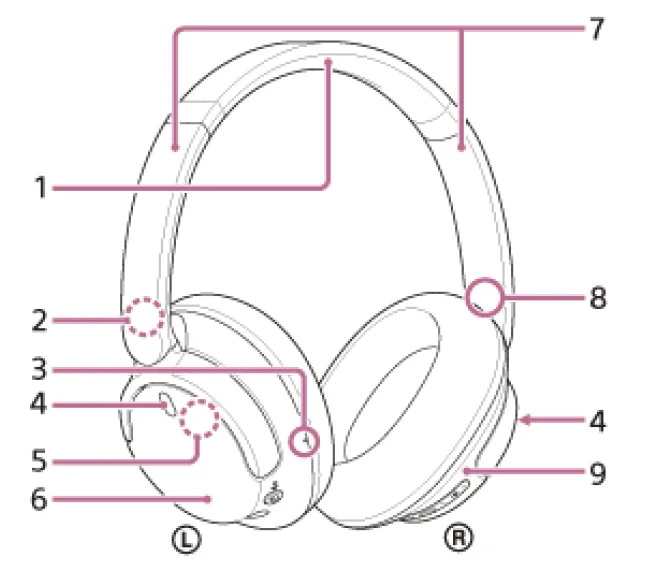
- Headband
- L (left) mark
- Tactile dot
There is a tactile dot on the left unit. - Noise-cancelling function microphones (left, right)
Pick up the sound of the noise when the noise-cancelling function is in use. - Built-in antenna
A Bluetooth antenna is built into the headset. - Left unit
- Sliders (left, right)
Slide to adjust the length of the headband. - ® (right) mark
- Right unit
- Power/
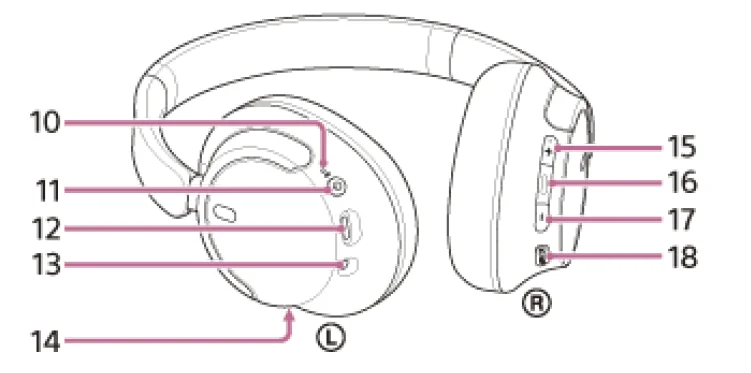
 (Bluetooth) indicator (blue/orange)
Lights up in blue or orange to indicate the power or communication status of the headset.  (power) button
- USB Type-C port
Connect the headset to a computer or to an AC outlet via a commercially available USB AC adaptor, with the supplied USB Type-C cable to charge the headset. - Headphone cable input jack
Connect a music player, etc., using the supplied headphone cable. Make sure that you insert the cable until it clicks. If the plug is not connected correctly, you may not hear the sound properly. - Call microphone
Picks up the sound of your voice when talking on the phone. - + (volume +) button
There is a tactile dot on the + button. Use this dot as a guide when operating the headset.  (play/callnext/previous) button
- – (volume -) button
- NC/AMB (noise canceling/Ambient Sound Mode) button.
 (Bluetooth) indicator (blue/orange)
 (play/callnext/previous) button
Wearing the headset
Put the headset on your ears.
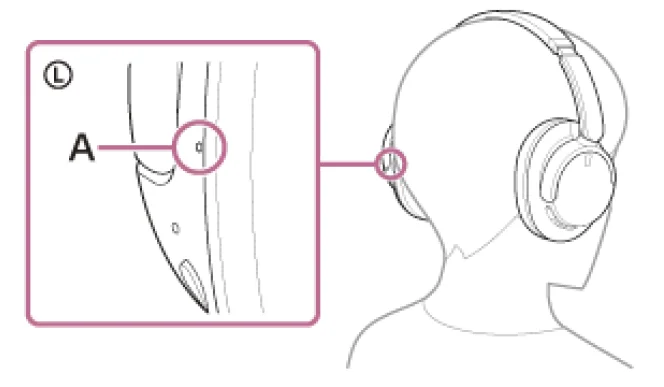
- Check the left and right units of the headset. There is a tactile dot on the L (left) mark side.

- A: Tactile dot
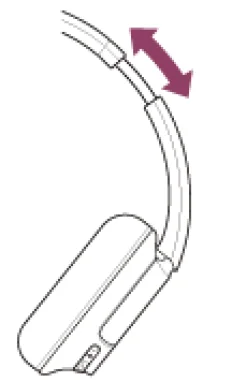
- Extend the slider.
Extend the slider to its full length before putting on the headset.
- Put on the headset.
Put on the headset with the earpads fitting snugly over your ears.
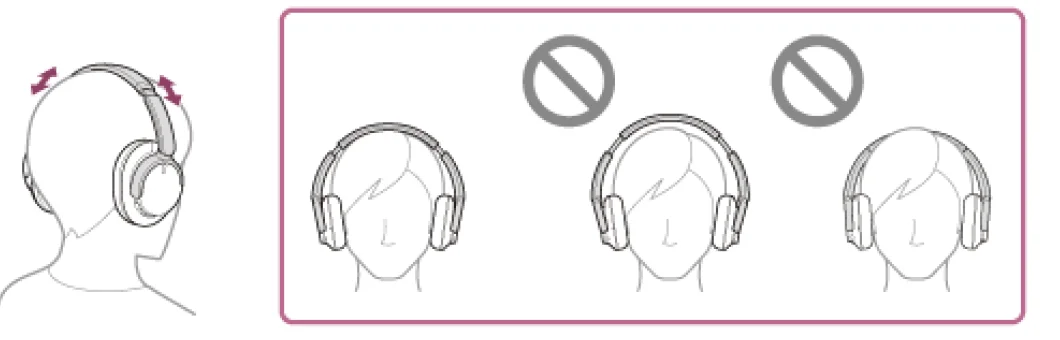
- Adjust the length of the slider.
Adjust the slider to a length where the headband touches the top of your head.
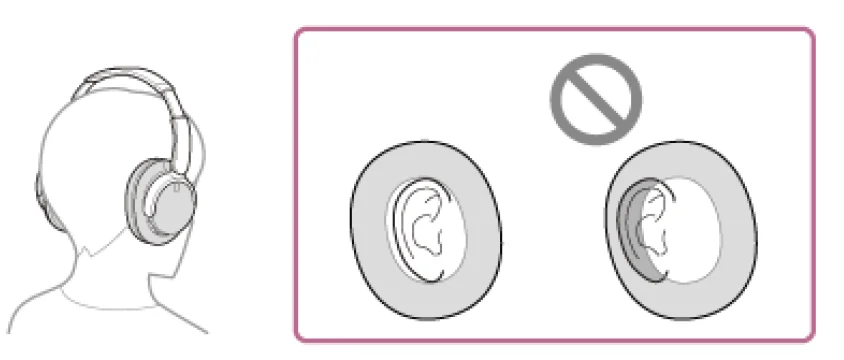
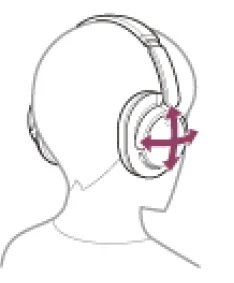
- Adjust the orientation of the units.
Adjust the orientation of the left and right units so that the earpads fit snugly all around your ears.
If you put on the headset without adjusting the slider, the headset may not be positioned properly on your head, resulting in discomfort or a weak noise-cancelling effect.
Charging the headset
The headset contains a built-in lithium-ion rechargeable battery. Use the supplied USB Type-C cable to charge the headset before use.
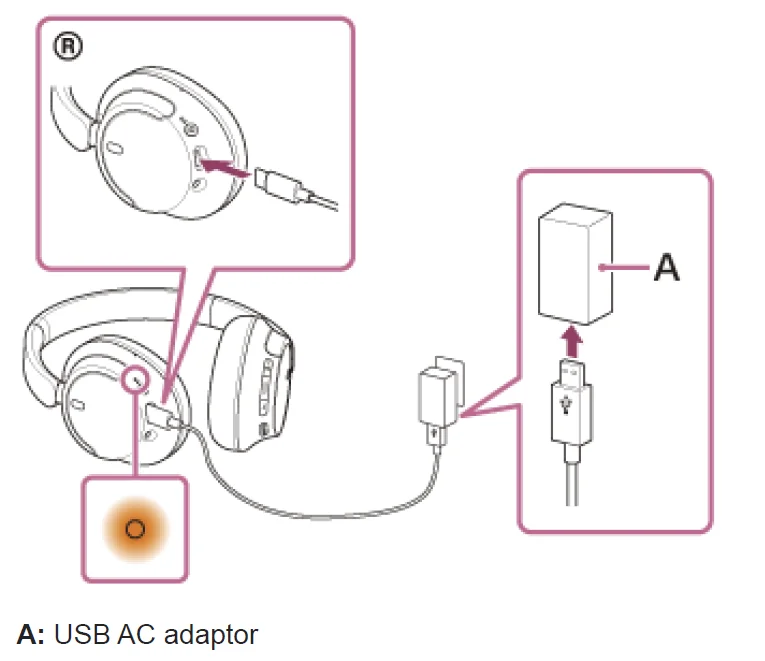
- Connect the headset to an AC outlet.
Use the supplied USB Type-C cable and a commercially available USB AC adaptor.
- The indicator (orange) on the headset lights up.
- Charging is completed in about 3.5 hours and the indicator turns off automatically.
Time required for charging the empty battery to its full capacity. The charging time may differ depending on the conditions of use. After charging is complete, disconnect the USB Type-C cable.
System requirements for battery charging using USB
USB AC adaptor
A commercially available USB AC adaptor capable of supplying an output current of 0.5 A (500 mA) or more
Personal computer
Personal computer with a standard USB port. We do not guarantee operation on all computers. Operations using a custom-built or home-built computer are not guaranteed.
Hint
- The headset can also be charged by connecting it to a running computer using the supplied USB Type-C cable.
- If charging starts while the headset is on, the headset will turn off automatically.
Note
- Charging may not be successful with cables other than the supplied USB Type-C cable.
- Charging may not be successful depending on the type of USB AC adaptor.
- When the headset is connected to an AC outlet or computer, all operations, such as turning on the headset, registering or connecting to Bluetooth devices, and music playback, cannot be performed.
- The headset cannot be charged when the computer goes into standby (sleep) or hibernation mode. In this case, change the computer settings and start charging once again.
- If the headset is not used for a long time, the rechargeable battery’s usage hours may be reduced. However, the battery life will improve after charging and discharging several times. If you store the headset for a long time, charge the battery once every 6months to avoid over-discharge.
- If the headset is not used for a long time, it may take longer to charge the battery.
- If the headset detects a problem while charging due to the following causes, the indicator (orange) flashes. In this case, charge once again within the charging temperature range. If the problem persists, consult your nearest Sony dealer.
- Ambient temperature exceeds the charging temperature range of 5 °C – 35 °C (41 °F – 95 °F).
- There is a problem with the rechargeable battery.
- If the headset is not used for a long time, the indicator (orange) may not immediately light up when the headset starts charging. Please wait a moment until the indicator lights up.
- If the usage hours of the built-in rechargeable battery decrease significantly, the battery should be replaced. Consult your nearest Sony dealer.
- Avoid exposure to extreme temperature changes, direct sunlight, moisture, sand, dust, and electrical shock. Never leave the headset in a parked vehicle.
- When connecting the headset to a computer, use only the supplied USB Type-C cable, and make sure to connect it directly. Charging will not be properly completed when the headset is connected through a USB hub.
Checking the remaining battery charge
You can check the remaining battery charge of the rechargeable battery by the following way. When you press the (power) button while the headset is on, a voice guidance indicating the remaining battery charge can be heard. “Battery about XX %” (The “XX” value indicates the approximate remaining charge.)
“Battery fully charged”
The remaining battery charge indicated by the voice guidance may differ from the actual remaining charge in some cases. Use it as a rough estimate. The indicator (orange) also flashes for about 15 seconds if the remaining battery charge is 10% or lower when the headset is turned on.
‘When the remaining charge becomes low
‘When you are using an iPhone or iPod touch
When the headset is connected to an iPhone or iPod touch over an HFP (Hands-free Profile) Bluetooth connection, it will show an icon that indicates the remaining battery charge of the headset on the screen of the iPhone or iPod touch. The display position is an example.
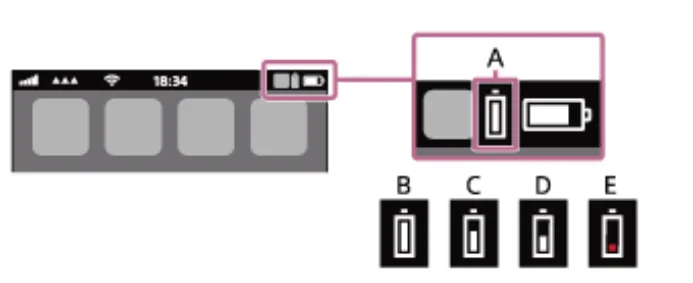
- A: Remaining battery charge of the headset
The approximate remaining charge is shown at 10 different levels. B through E are display examples. - B: 100%
- C: 70%
- D: 50%
- E: 20% or lower (requires charging)
The remaining battery charge of the headset is also displayed on the widget of an iPhone or iPod touch running iOS 11 or later. For more details, refer to the operating instructions supplied with the iPhone
or iPod touch. The remaining charge, which is displayed, may differ from the actual remaining charge in some cases. Use it as a rough estimate.
When you are using an Android smartphone (OS 8.1 or later)
When the headset is connected to an Android smartphone via HFP
Bluetooth connection, select [Settings] – [Device connection] – [Bluetooth] to display the remaining battery charge of the headset in 10 different levels, such as “100%”,“70%”, “50%” or “10%” in the connected Bluetooth device column. The operation above is an example. For details, refer to the operating instructions of the Android
smartphone. The remaining charge, which is displayed, may differ from the actual remaining charge in some cases. Use it as a rough estimate.
Hint
- You can also check the remaining battery charge of the headset with the “ Sony | Headphones Connect ” app. Android smartphones and iPhone/iPod touch both support this app.
- Note
- If the headset and smartphone are not connected with HFP, the remaining battery charge will not be correctly displayed.
- If you connect the headset to an iPhone/iPod touch or Android
smartphone with “Media audio” (A2DP) only in a multipoint connection, the remaining battery charge will not be displayed correctly. - The remaining battery charge may not be properly displayed immediately after a software update or if the headset has not been used for a long time. In this case, repeatedly charge and discharge the battery multiple times to properly display the remaining battery charge.
Pairing and connecting with a computer (Windows® 11)
The operation to register the device that you wish to connect to is called “pairing”. First, pair a device to use it with the headset for the first time. Before starting the operation, make sure of the following:
- Your computer has a Bluetooth function that supports music playback connections (A2DP).
- When you use a video calling application on your computer, your computer has a Bluetooth function that supports scalling connections (HFP/HSP).
- The computer is placed within 1 m (3.2 ft) of the headset.
- The headset is charged sufficiently.
- The operating instructions of the computer are in hand.
- Depending on the computer you are using, the built-in Bluetooth adaptor may need to be turned on. If you do not know how to turn on the Bluetooth adaptor or are unsure if your computer has a built-in Bluetooth adaptor, refer to the operating instructions supplied with the computer.
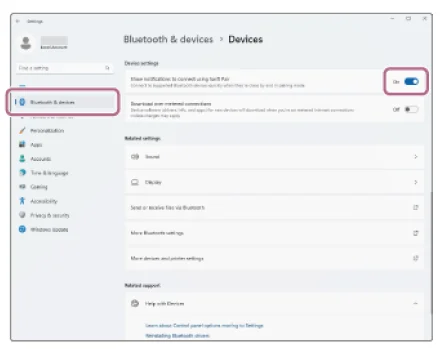
- The Swift Pair function makes pairing easier. To use the Swift Pair function, click the [Start] button – [Settings] -[Bluetooth & devices] – [Show notifications to connect using Swift Pair] switch to turn on the Swift Pair function.
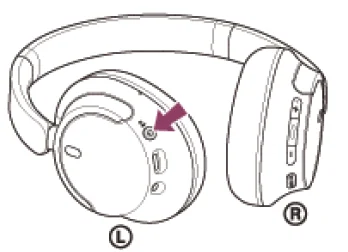
- Enter pairing mode on this headset.
Turn on the headset when you pair the headset with a device for the first time after you bought it or after you initialized the headset (the headset has no pairing information). The headset enters pairing mode automatically. In this case, proceed to step 2. When you pair a second or subsequent device (the headset already has pairing information for other devices), press and hold the (power) button for about 5 seconds or more to enter pairing mode manually.
The indicator (blue) repeatedly flashes twice in a row. You will hear the voice guidance say, “Pairing”. - Wake the computer up if it is in standby (sleep) or hibernation mode.
- Pair the headset using the computer.
To connect using the Swift Pair function- Select [Connect] from the pop-up menu displayed on your
computer screen.
To connect without using the Swift Pair function- Click the [Start] button, then [Settings].
- Click [Bluetooth & devices].

- Click the [Bluetooth] switch to enable Bluetooth, then click [Add device].

- Click [Bluetooth].

- Click [WH-CH720N].

- Select [Connect] from the pop-up menu displayed on your
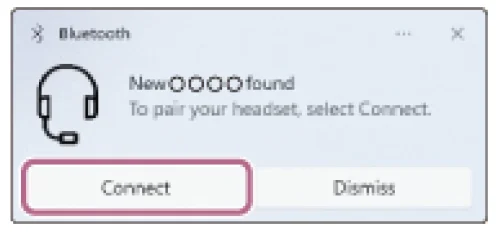
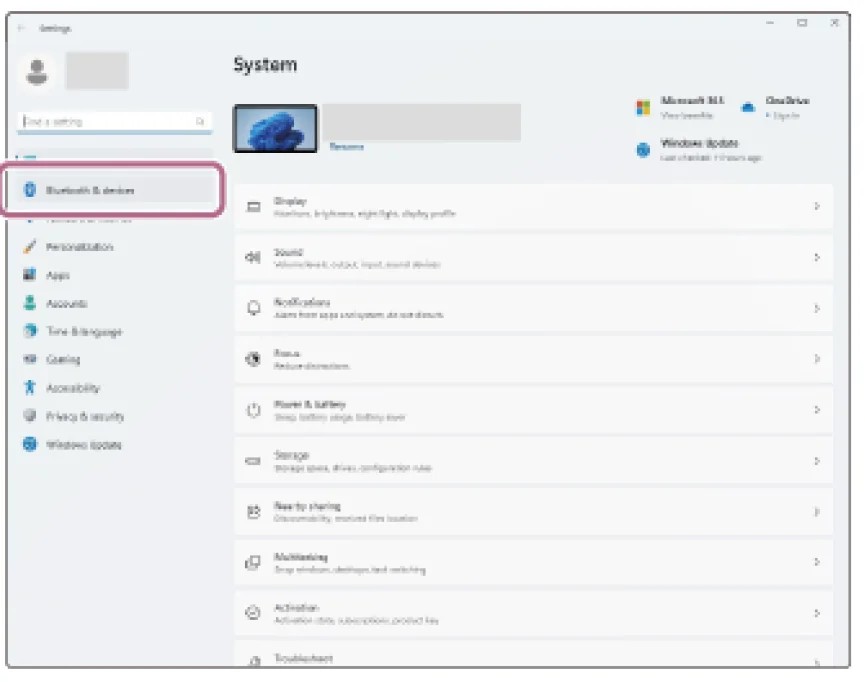
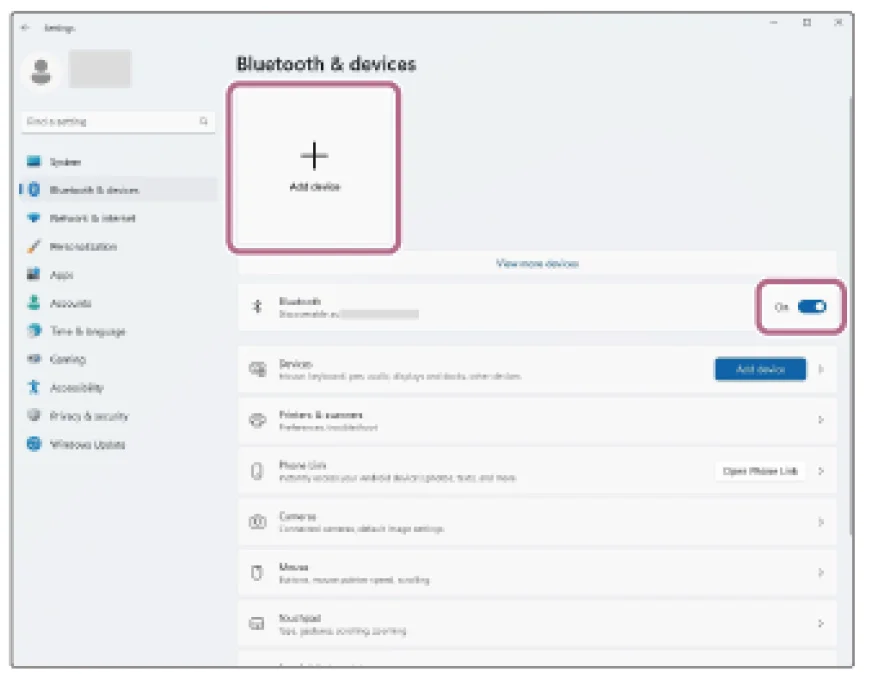
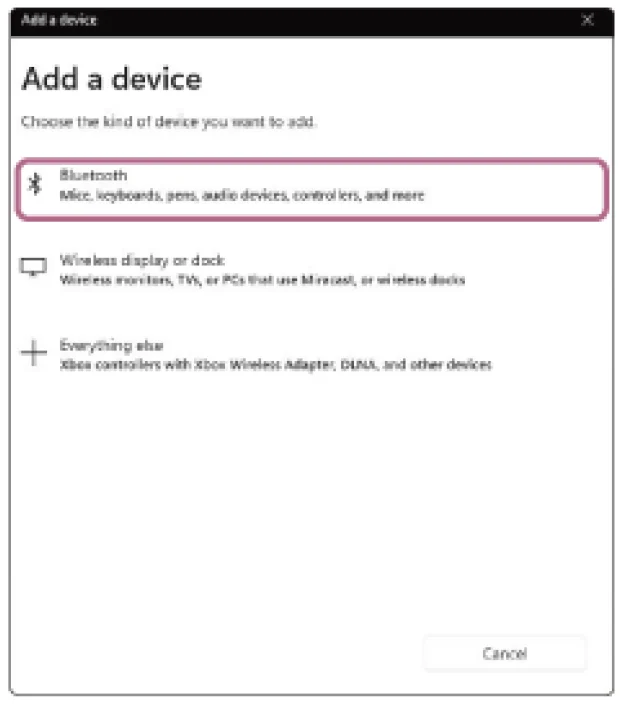
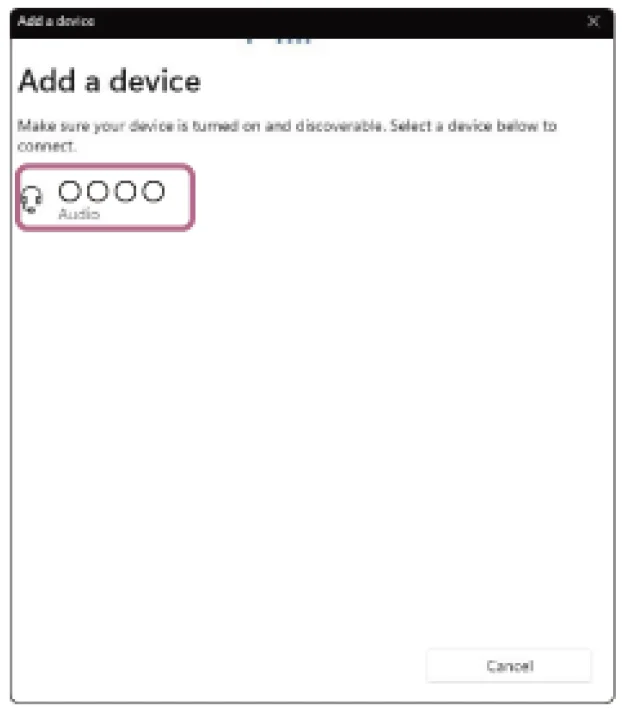
If Passkey*input is required, input “0000”. The headset and computer are paired and connected. You will hear a notification sound indicating that the connection is established. If they are not connected, see “Connecting to a paired computer (Windows 11)”. If [WH-CH720N] does not appear on your computer screen, try again from “To connect without using the Swift Pair function” of step 3.
A Passkey may be called “Passcode”, “PIN code”, “PIN number”, or “Password”.
Hint
- The operation above is an example. For more details, refer to the operating instructions supplied with the computer.
- To delete all Bluetooth pairing information, see “ Initializing the headset to restore factory settings”.
Note
- If pairing is not established within 5 minutes, pairing mode is canceled. In this case, turn off the power and start the operation again from step 1.
- Once Bluetooth devices are paired, there is no need to pair them again, except in the following cases:
- Pairing information has been deleted after repair, etc.
- When a 9th device is paired.
The headset can be paired with up to 8 devices. If a new device is paired after 8 devices are already paired, the registration information of the paired device with the oldest connection date is overwritten with the information for the new device. - When the pairing information for the headset has been deleted from the Bluetooth device.
- When the headset is initialized.
All of the pairing information is deleted. In this case, delete the pairing information for the headset from the connected device and then pair it again.
- The headset can be paired with multiple devices, but can only play music from 1 paired device at a time.
Connecting the headset to 2 devices simultaneously (multipoint connection)
When [Connect to 2 devices simultaneously] is turned on with the “
Sony | Headphones Connect” app, the headset can connect to 2 devices via Bluetooth connections simultaneously, allowing you to do the following.
- Waiting for an incoming call for 2 smartphones
You can listen to music played on one smartphone with the headset, wait for an incoming call on both smartphones, and talk if an incoming call arrives.
- Switching music playback between 2 devices
You can switch the music playback from one device to another without performing a Bluetooth reconnection.
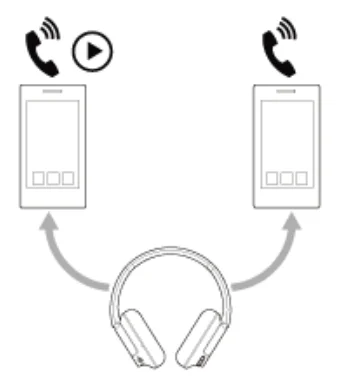
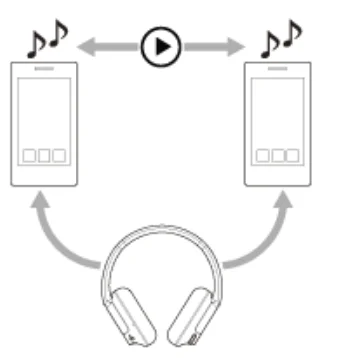
Connecting the headset to 2 devices via Bluetooth connections simultaneously
Before connecting, make sure that the “Sony | Headphones Connect” app is installed on one of the 2 devices.
- Pair the headset with 2 devices, respectively.
- Operate the device on which the “Sony | Headphones Connect” app is installed to establish a Bluetooth connection with the headset.
- Turn on [Connect to 2 devices simultaneously] with the “ Sony | Headphones Connect” app.
- Operate the second device to establish a Bluetooth connection with the headset.
When Bluetooth connections are established between 2 devices and the headset, another paired device can be connected via Bluetooth
connection. If you try to make a Bluetooth connection with the headset by operating the third device, the Bluetooth connection with the last device that played music will be maintained, and the Bluetooth connection with the other device will be disconnected. Then, a Bluetooth connection between the third device and the headset is established.
Music playback when the headset is connected to 2 devices via Bluetooth connections
- When playing music by operating the headset, the music is played from the device that played last. If you want to play music from the other device, stop playback on the device that is playing the music, and start playback by operating the other device.
- Even if you start playback by operating the second device while playing music on the first device, the music from the first device will continue to be heard via the headset. In this state, if you stop playback on the first device, you can listen to music from the second device via the headset.
Talking on the phone when the headset is connected to 2 devices via Bluetooth connections
- When the headset is connected to 2 smartphones, etc. via Bluetooth connections simultaneously, both devices will be in standby mode.
- When an incoming call arrives to the first device, a ringtone is heard via the headset. When an incoming call arrives to the second device while talking on the headset, a ringtone is heard via the second device. If you finish the call on the first device, the ringtone from the second device will be heard via the headset.
About 360 Reality Audio
What is 360 Reality Audio?
360 Reality Audio is a new music experience using Sony’s 360 three-dimensional audio technology. Positional information is attached to each sound source, such as vocals, chorus, and musical instruments, and is placed in a spherical space. Listeners can experience a three-dimensional sound field as if they are immersed in a live performance of the artists.
Conditions of use
Download and use a music streaming service (charged) app that supports 360 Reality Audio on your smartphone or tablet equipped with iOS or Android. By optimizing the sound field and the acoustic feature of the headset with the “Sony | Headphones Connect” app, you can enjoy a more realistic sense of reality.
For details on 360 Reality Audio, refer to the following URL. https://www.sony.net/360RA/
Note: Service is not available in certain countries and regions.
What is noise canceling?
The noise-cancelling function generates antiphase sound against outside surrounding noises (such as noises in vehicles or noises from air conditioners indoors) to reduce the surrounding noises by canceling them out.
Note
- Depending on the type of noise or if it is used in a very quiet environment, you may not feel the effect of noise canceling, or you may feel that some noise is increased.
- When you are wearing the headset, depending on how you wear the headset, the effect of noise canceling may be decreased or a beeping sound (feedback) may be heard. In this case, take off the headset and put it on again.
- The noise-cancelling function works primarily on noise in the low-frequency band, such as vehicles and air conditioning. While noise is reduced, it is not completely canceled.
- When you use the headset in a car or a bus, noise may occur depending on street conditions.
- Mobile phones may cause interference and noise. Should this occur, move the headset further away from the mobile phone.
- Do not cover the microphones on the left and right units of the headset with your hand, etc. If they are covered, the effect of the noise canceling or the Ambient Sound Mode may not perform properly, or a beeping sound (feedback) may occur. If any of this is the case, remove your hands, etc., from the left and right microphones.
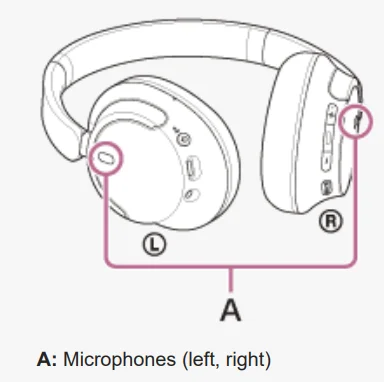
About the sound quality mode
The following 2 sound quality modes during Bluetooth playback can be selected. You can switch the settings and check the sound quality mode with the “Sony | Headphones Connect” app.
- Priority on sound quality: Prioritizes the sound quality (default).
- Priority on stable connection: Prioritizes the stable connection.
When you want to prioritize the sound quality, select “Priority on sound quality”. If the connection is unstable, such as when producing only intermittent sound, select “Priority on stable connection”.
Note
- The playback time may shorten depending on the sound quality and the conditions under which you are using the headset.
- Depending on the ambient conditions in the area where you are using the headset, intermittent sound may still occur even if“Priority on stable connection” is selected.
Supported codecs
A codec is an “audio coding algorithm” used when transmitting sound wirelessly via Bluetooth connection. The headset supports the following 2 codecs for music playback via an A2DP connection:
- SBC
This is an abbreviation for Subband Codec.
SBC is the standard audio coding technology used in Bluetooth devices.
All Bluetooth devices support SBC. - AAC
This is an abbreviation for Advanced Audio Coding.
AAC is mainly used in Apple products, such as the iPhone, which can provide a higher sound quality than that of SBC.
When music in one of the above codecs is transmitted from a connected device, the headset switches to that codec automatically and plays back the music in the same codec. If the connected device supports a codec of higher sound quality than SBC, you may need to set the device beforehand to enjoy music with the desired codec from the supported codecs. Refer to the operating instructions supplied with the device regarding setting the codec.
For more manuals by Sony, visit ManualsLibraryy
Sony WH-CH720N Wireless Headphones-FAQs
Are the Sony WH-CH720N worth buying?
Yes, they are a great value-for-money option. You get solid active noise cancellation, long battery life, and comfortable design at a mid-range price. While they aren’t premium like flagship models, they deliver reliable everyday performance for music, calls, and travel.
Are the Sony WH-CH720N headphones good overall?
These headphones are considered very good in their category. They offer balanced sound, lightweight comfort, and useful features like multipoint Bluetooth. They are especially suitable for students, office use, and casual listeners.
Do Sony WH-CH720N have noise cancellation?
Yes, they feature Active Noise Cancellation (ANC). It effectively reduces background noise such as traffic or office chatter, making them ideal for focused listening and commuting.
How long does the battery last?
The battery life is impressive. You can expect around 35 hours with ANC turned on and up to 50 hours without ANC, which is perfect for long trips or daily extended use.
Are these headphones comfortable for long use?
Yes, they are lightweight and designed for comfort. The soft ear cushions and adjustable headband make them suitable for long listening sessions without causing much fatigue.
Are Sony WH-CH720N good for travel?
They are a good choice for travel due to their long battery life, lightweight build, and noise cancellation. However, they don’t fold compactly, which may be slightly inconvenient for packing.
Is the sound quality good?
The sound quality is clear and balanced with decent bass. While it may not match premium models, it is more than enough for everyday music, movies, and calls.
Are they waterproof or sweat-resistant?
No, these headphones are not waterproof. You should avoid using them in rain or during intense workouts to prevent damage.
Can I connect them to multiple devices?
Yes, they support multipoint connectivity. This means you can connect them to two devices at the same time and switch between them easily.
How do they compare to higher-end Sony models?
Compared to premium options like the Sony WH-1000XM4 Wireless Headphones, they have simpler build quality and slightly weaker noise cancellation. However, they are much more affordable and still offer excellent everyday performance.