
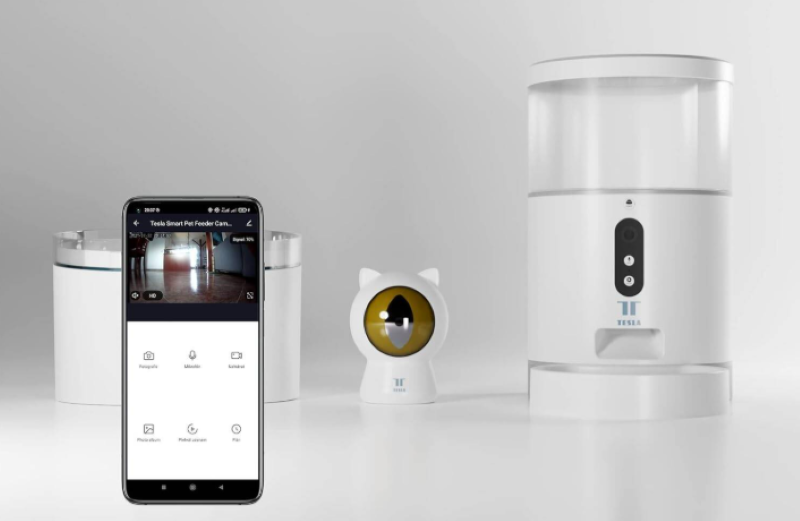

TESLA Smart Pet Feeder Camera
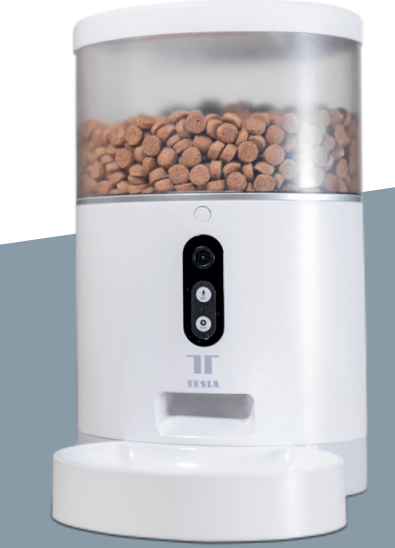
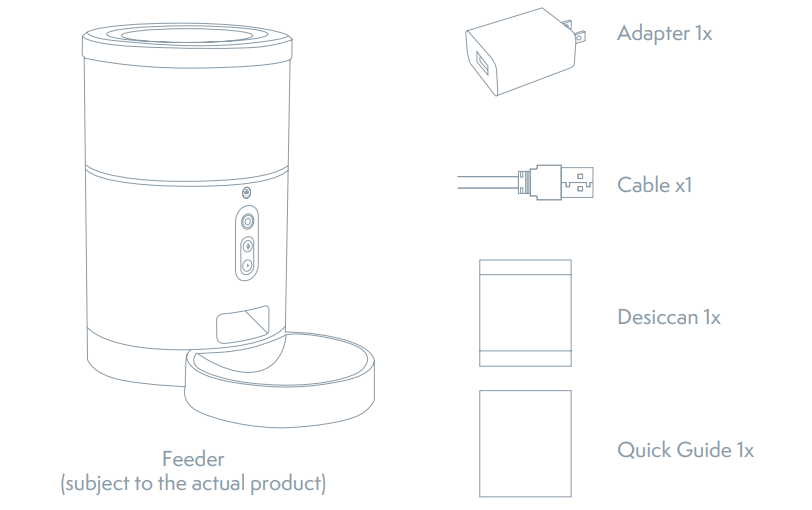
LIST OF ACCESSORIES
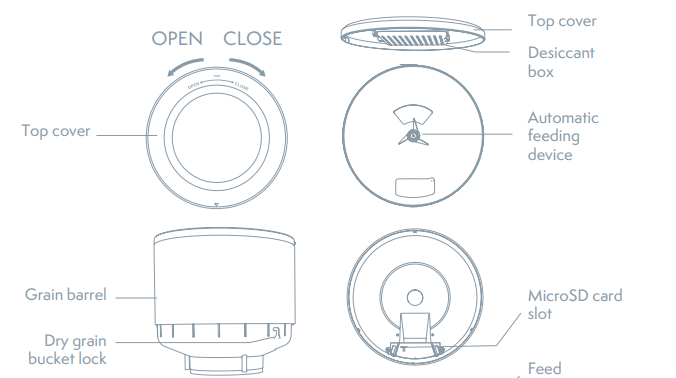
PRODUCT INTRODUCTION
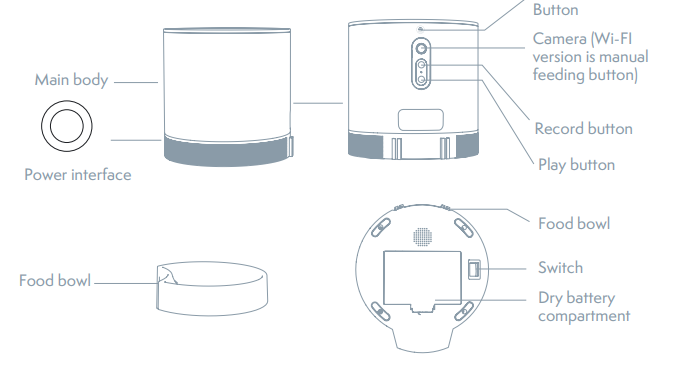
OPERATION GUIDE
THE FIRST USE
- Open the top cover of the feeder and remove the power cord adapter from the bucket.
- Plug the power cord into the power connector on the rear of the main unit and connect the adapter to power.
- Place the main unit in a horizontal position, and the food bowl is installed at the corresponding position of the main unit.
- Add pet dry food to the feeder bucket.
- The desiccant is placed in the desiccant box by default. Please replace it regularly for long-term use (do not use for cleaning).
- The battery compartment can be installed with 3 sections of No. 1 battery for manual feeding when there is no electricity (optional).
- Bind the feeder to the Smart Life app to set up the feeding and planning of the pet.
THE FUNCTION DESCRIPTION
- Feed button: Short press to eat one, long press for 5 seconds to restore the factory settings.
- Record button: Press and hold the “Record button” to record the sound to remind the pet to eat before feeding.
- Play button: Plays the recorded sound.
- Rocker switch: Feeder switch.
- Dry battery compartment: Three 1st batteries can be installed for power supply.
CONNECT AND DOWNLOAD
Tesla Smart is available for both iOS and Android OS. Search for the name “Tesla Smart” in App Store or Google Play, or scan the QR code to download the App.
REGISTRATION PROCESS
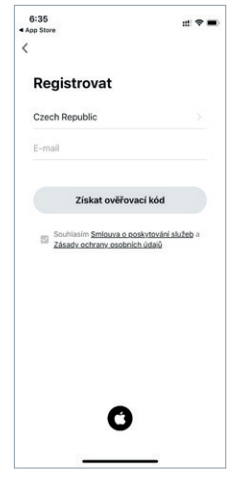
- Step 1: Open the Tesla Smart App, click “Register,” read the “Privacy Policy,” and click “Agree.”

- Step 2: Input a legal and valid mobile number or email address and click “Continue.” Input verification code, then log in to the app.


QUICK CONFIGURATION
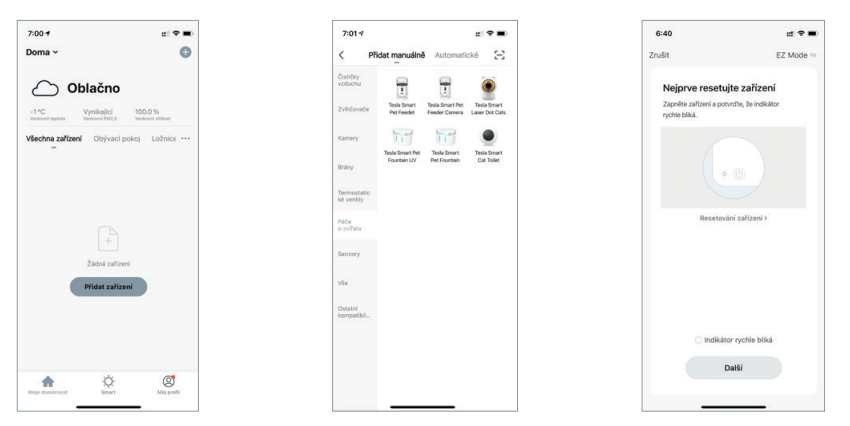
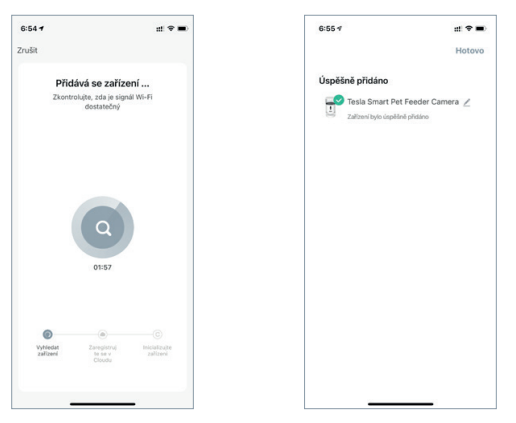
VIDEO VERSION PET FEEDER CONFIGURATION
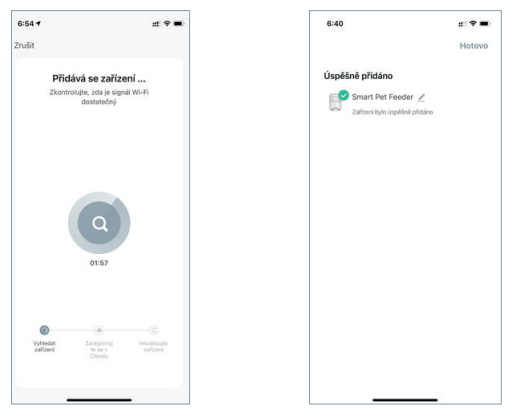
Open the App, click “Add device” – enter the Wi-Fi password and confirm, connecting until “device added successfully.”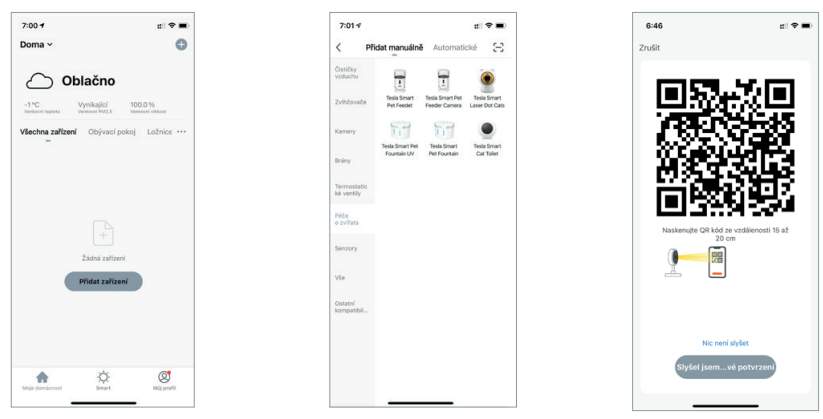
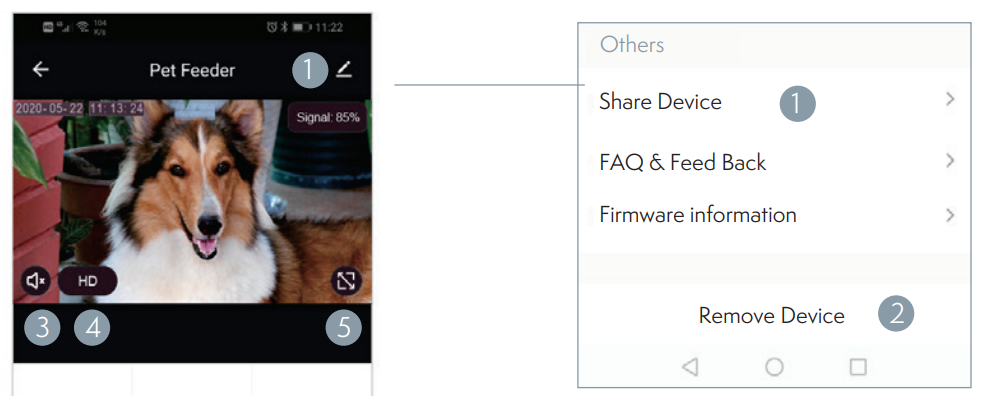
VIDEO FEEDER APP INTERFACE INTRODUCTION
Setting
- Share device: Share the device with others
- Remove the device and unbind


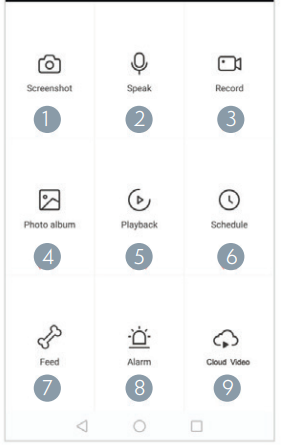
Monitoring Screen Introduction
- Screenshot: Take a picture from the video
- Talk: 2 voice intercom
- Record: Record and save into the mobile phone
- Photo Album: Store photos
- Play: SD card video playback
- Timed Feeding: Deliver food at regular intervals
- Feeding: Click to feed
- Alarm: Motion detection on/off
- Cloud playback: Cloud storage video playback
WIFI FEEDER APP INTERFACE INTRODUCTION
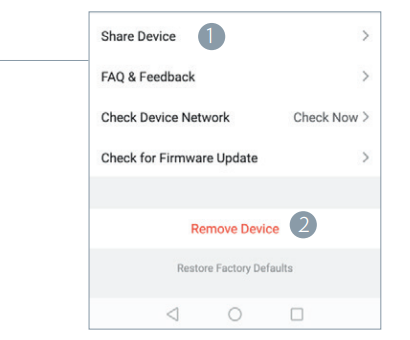
Setting
- Share device: Share the device with others
- Remove device: Remove device and unbind


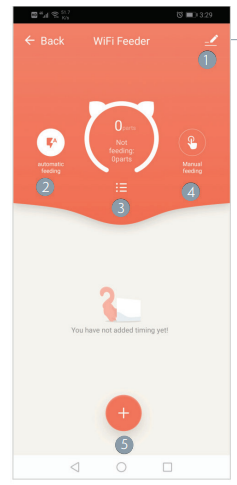
Online Feeding Introduction
- More Settings: Set up other feeder functions
- Automatic feeding: Set up automatic feeding
- Feeding information: Click to check feeding information
- Manual Feeding: Manual feeding online
- Adding timing: Set up timing feeding rules
CLEANING/MAINTENANCE
After the feeder has been used for a period of time, the bowl and the bucket should be cleaned with a cleaning agent to avoid the occurrence of bacteria that affect the health of the pet due to the long time left by the food residue.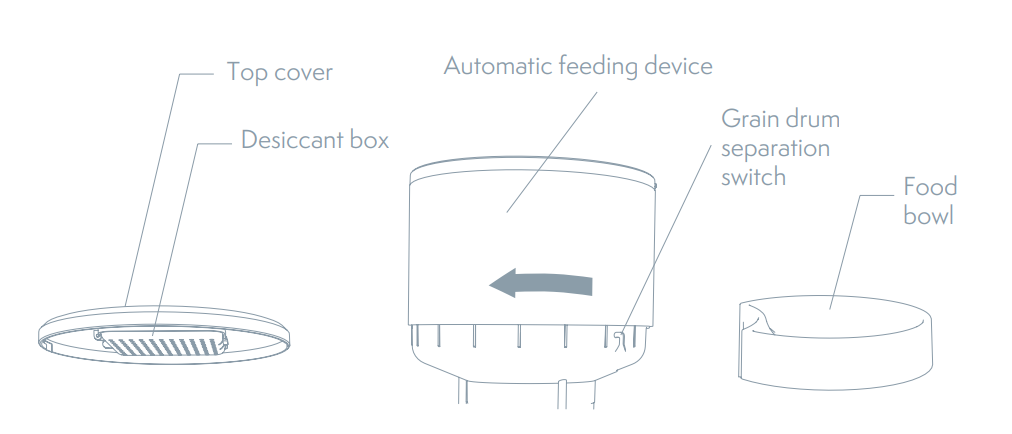
Grain drum separation switch
- The upper machine parts can be removed from the main feeder and cleaned with detergent and water.
- Open the desiccant box in the top cover.
- Grain barrel disassembled by turning the grain drum separation switch.
- Pull up to remove the food bowl.
- After cleaning, it must be dried or air-dried before being assembled into a whole main feeder for use.
▲ This feeder is suitable for dry foods smaller than 12 mm. Freeze-dried food is not available. Please keep the environment dry.
ATTENTIONS
- Please place the device correctly; prevent the pet from tipping over the device. This device is only suitable for small and medium pets under 20 kg.
- Please replace the desiccant in the storage lid regularly. No desiccant is needed.
- Please keep the food bucket dry and sealed, and check regularly to ensure food residue precautions.
- Do not drop all substances other than pet dry food into the grain bin. Otherwise, the device may be used abnormally or even cause pet safety issues.
- To prevent the pet from falling over the product, it is recommended to place the corner against the wall.
- The product anti-battering line should be installed as inconspicuously as possible to prevent the equipment from being damaged by the pet biting the wire.
- If children are using this device, be sure to use it under adult guidance.
- After installing the spare dry battery, you can manually operate the device to provide a normal power supply
- Regularly clean the food bucket and food bowl.
- This device is not recommended for young pets under three months.
FAQ
Q. The feeder is not connected. What is the problem? What to do?
A. 1: Check if the machine is normal: Check the status of the device indicator. After the power is turned on, the blue indicator light flashes. When the network is connected, it will be on. There will be a drop tone before the network is configured.
2. Check if the Wi-Fi username and password are normal: Wi-Fi username and password cannot have special characters. It is recommended to use English letters + number signs.
3. Uninstall the software and reinstall the software: Please authorize the App to obtain the location information and access the network permissions during the installation process. Follow the above steps, and enter the correct Wi-Fi password. If you still have difficulties, please contact customer service.
Q. When connecting the feeder, sometimes it can be connected normally, sometimes it’s not. How to deal with it?
A. 1: Check if the machine’s food outlet is blocked. At this time, the blue indicator is always on.
Q. Why does the feeding time differ by tens of seconds from the current time?
A. The parameters set on the App will have an error of about 30 seconds, depending on the timing of the network environment.
Q. How to quickly reconnect after the machine is disconnected?
A. 1: Exit the App and re-enter, wait for the data update.
2: Switch from the feeding interface to the video interface and wait for the video to refresh.
Q. About SD card support capacity.
A. Support 8–64 GB.
Q. Feeder requirements for network type.
A. The feeder must use a Wi-Fi signal that satisfies the Wi-Fi 802.11bgn protocol.
INFORMATION ABOUT DISPOSAL AND RECYCLING
This product is marked with the symbol for separate collection. The product must be disposed of in accordance with the regulations for the disposal of electrical and electronic equipment (Directive 2012/19/EU on waste electrical and electronic equipment). Disposal together with regular municipal waste is prohibited.
Dispose of all electrical and electronic products in accordance with all local and European regulations at the designated collection points, which hold the appropriate authorization and certification in line with the local and legislative regulations. Correct disposal and recycling help to minimize impacts on the environment and human health. Further information regarding disposal can be obtained from the vendor, authorized service centre, or local authorities.
EU DECLARATION OF CONFORMITY
Hereby, Tesla Global Limited declares that the radio equipment type TSL-PC-BL4/TSL-PC-BL4C is in compliance with EU directives. The full text of the EU declaration of conformity is available at the following internet address: tsl.sh/doc
Connectivity: Wi-Fi 2.4 GHz IEEE 802.11b/g/n
Frequency band: 2.400–2.4835 GHz
Max. radio-frequency power (EIRP): < 20 dBm
For More Manuals By TESLA Smart, Visit ManualsLibraryy.
TESLA Smart Pet Feeder Camera-FAQs
Q1. What is a smart pet feeder with a camera?
It’s an automatic feeder that dispenses scheduled portions of food while allowing you to monitor, talk to, and record your pet through a built-in camera and mobile app.
Q2. Why is my smart pet feeder not working?
Check that the power adapter is firmly plugged into both the feeder and a working outlet. If using batteries, remember they act only as backup power and may not fully support the feeder.
Q3. How do I reset the TESLA Smart Pet Feeder?
Press and hold the feed/reset button for about 5 seconds until you hear a beep. This restores the feeder to factory settings.
Q4. How do I connect the feeder to Wi-Fi?
In the TESLA Smart app, tap Add Device → Pet Feeder, select your 2.4GHz Wi-Fi network, and enter the password. If the feeder light does not blink, hold the SET button for 5 seconds to re-enter pairing mode.
Q5. Why won’t my feeder connect to Wi-Fi?
Ensure your router is set to 2.4GHz, not 5GHz. If using a dual-band router, separate the Wi-Fi bands and reconnect. Avoid mesh networks or extenders during setup.
Q6. How do I change the feeding schedule or time?
Open the app, go to the feeder’s schedule settings, and adjust feeding times and portion sizes as needed. You can also trigger manual feeding through the app.
Q7. What portion sizes can I set?
The feeder dispenses food in small programmed units (around 20 ml per portion). You can schedule multiple portions per meal to suit your pet’s needs.
Q8. Can I leave my cat alone with this feeder for several days?
Yes, but it’s best not to exceed 2–3 days without supervision. Always ensure enough food, water, and that the feeder is functioning properly before leaving.
Q9. How do I know if the feeder is working correctly?
You should hear a faint motor sound when food is dispensed. Test the feeder a few times before relying on it for unattended feeding.
Q10. How do I clean the TESLA Smart Pet Feeder?
Remove the food container, bowl, and tray. Wash them with mild soap and warm water, then dry thoroughly before reassembling. Avoid immersing electronic parts in water.