
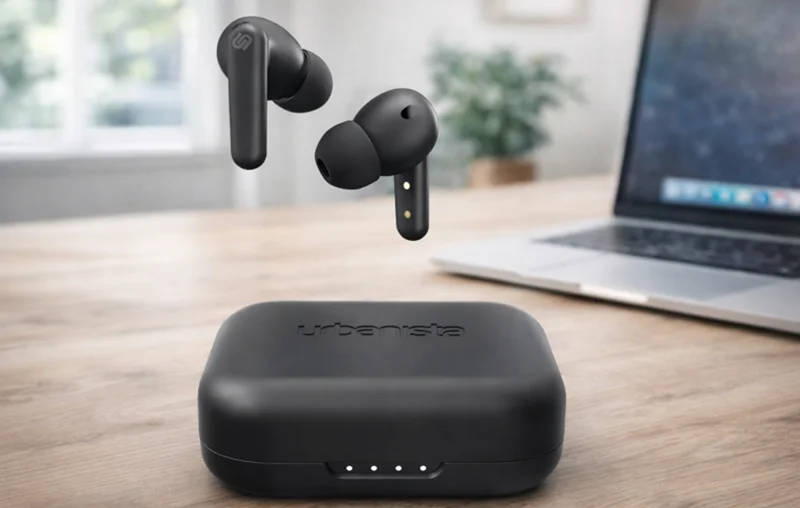

Urbanista U101 Noise Cancelling Earphones
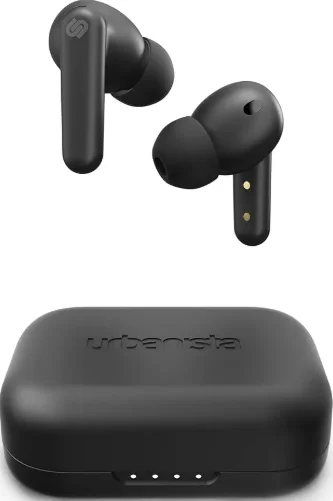
The Urbanista U101 Noise Cancelling Earphones are designed to deliver clear sound and a comfortable listening experience for everyday use. Equipped with active noise-cancelling technology, these earphones help reduce surrounding noise so you can focus on your music, calls, or podcasts without distractions. The lightweight in-ear design ensures a secure and comfortable fit, making them ideal for commuting, traveling, working, or relaxing. With intuitive touch controls, you can easily manage music playback, answer calls, and activate voice assistants directly from the earbuds.
The earphones also support Bluetooth connectivity for seamless pairing with smartphones and other devices, and they automatically power off when placed back in the charging case to save battery. Combining modern style, convenient controls, and reliable sound quality, the Urbanista U101 earphones are a practical choice for people who want wireless audio and noise-free listening on the go.
WELCOME TO URBANISTA
Thank you for choosing Urbanista U101. This guide will help you get started and make the most of your new earphones.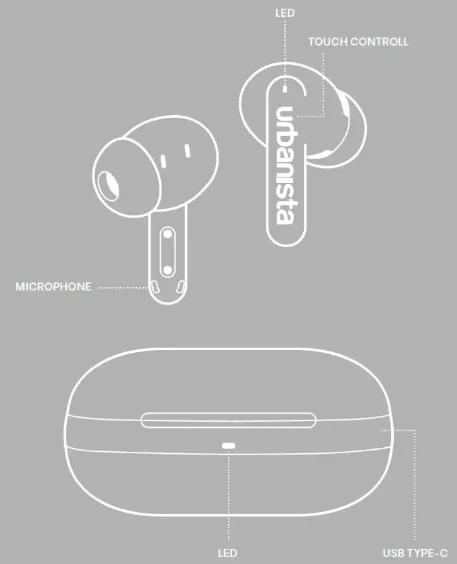
FIRST-TIME SETUP
To activate and connect your Urbanista U101 earphones:
- Remove the earphones from the charging case and peel off the protective stickers.
- Place the earphones back into the case, then remove them again to activate pairing mode.
- Open Bluetooth settings on your device and select “Urbanista U101” to connect.
Your earphones are now connected and ready to use. They will automatically power off when placed back in the charging case or after five minutes of disconnection.
RECONNECTING OR PAIRING A NEW DEVICE
- To power on and reconnect to your last paired device, simply remove the earphones from the charging case.
- To connect to a new device, first disconnect the current device through its Bluetooth settings. Then select “Urbanista U101” from the new device’s Bluetooth settings.
BLUETOOTH MULTIPOINT CONNECTION
Urbanista U101 supports Bluetooth multipoint, allowing you to stay connected to two devices simultaneously—seamlessly switching between, for example, your phone and computer. Note that audio from two devices cannot be played at the same time; pause playback on one device before switching.
To activate Bluetooth multipoint:
- Press and hold both the left and right earphones simultaneously. You will hear a tone to indicate that the earphones are activated to be paired with a second device.
- Go to Bluetooth settings on your second device and select “Urbanista U101” to connect.
- Your earphones will now automatically reconnect to both devices whenever powered on.
PRESET SOUND MODES
Choose from three different preset sound modes – Default, Bass Boost, and Treble Boost – to match your sound preferences. Loop through them until you find your perfect beat.
TOUCH CONTROLS
Control your music, calls, and voice assistant with intuitive touch gestures:
- Play/Pause – Double-tap (left or right)
- Answer/Hang up calls – Double-tap (left or right)
- Reject a call – Long-press (left or right)
- Activate voice assistant – Triple tap (left)
- Next song – Triple-tap (right)
- Toggle Active Noise Cancelling – Long-press (right)
- Toggle EQ presets – Long-press (left)
- Activate Bluetooth multipoint – Long-press both earphones simultaneously
- Factory reset – Remove both earphones from the charging case and tap each earphone five times independently.
CHARGING & BATTERY
Your Urbanista U101 earphones charge automatically when placed in the charging case. A low battery alert notifies you at the 10% battery level. The earphones will power off when fully drained. To check the charging case battery level, open the charging case lid. The battery indication will be displayed for 5s before the LED turns off.
- 0-20%: Red solid LED
- 20-100%: White solid LED
To charge the case and earphones:
- Use a certified USB-C cable and charging adapter.
- The charging case LED flashes while charging and turns solid when fully charged.
FACTORY RESET
If your earphones experience connectivity issues or become unresponsive, reset them as follows:
- Place both earphones in the charging case. Press the restart button for 10 seconds.
- Both earphones will start to flash to indicate that the factory reset has started.
- When the reset is fully done, the LED turns solid to indicate that the reset is successful. The reset button can be released to restart the earphones and enter the broadcasting mode.
- Once reset, follow the setup instructions to reconnect.
NEED SUPPORT?
For FAQs and troubleshooting, visit www.support.urbanista.com. Enjoy your Urbanista U101 earphones!
For More Manuals By Urbanista, Visit ManualsLibraryy.
Urbanista U101 Noise Cancelling Earphones-FAQs
What are the key features of the Urbanista U101 Noise-Cancelling Earphones?
Urbanista U101 earphones are wireless earbuds designed for convenient everyday listening with active noise cancelling and modern connectivity features. They support Bluetooth connectivity, touch controls, and multipoint pairing, allowing you to connect to more than one device. The earbuds also include preset sound modes such as Default, Bass Boost, and Treble Boost to customize audio preferences. With built-in microphones and a USB-C charging case, they are designed to deliver clear audio, easy control, and flexible use for music, calls, and streaming.
Do Urbanista U101 earphones have active noise cancelling?
Yes, Urbanista U101 earphones include active noise cancelling (ANC), which helps reduce surrounding noise while listening to music or taking calls. ANC works by using microphones and internal processing to cancel certain external sounds, making it easier to focus on audio in environments like public transport, offices, or busy streets. While ANC may not block every sound completely, it significantly improves listening comfort and clarity compared to standard wireless earbuds without noise reduction.
How do you pair Urbanista U101 earphones with a phone or device?
To pair Urbanista U101 earphones, remove them from the charging case and enable Bluetooth on your smartphone or device. The earbuds will automatically enter pairing mode. From the Bluetooth menu, select “Urbanista U101” to connect. Once paired, the earphones will automatically reconnect to the last used device whenever they are removed from the case, making daily use simple and convenient without needing to repeat the pairing process.
Do Urbanista U101 earphones support multipoint Bluetooth connections?
Yes, the Urbanista U101 earphones support Bluetooth multipoint connectivity, allowing them to connect to two devices at the same time. This means you can listen to music on a laptop and quickly switch to answering a call from your smartphone without manually reconnecting. Multipoint functionality is especially useful for people who frequently switch between work devices and personal devices throughout the day.
What sound modes are available on Urbanista U101 earphones?
Urbanista U101 earphones offer multiple preset sound modes that allow users to adjust the audio profile based on their listening preferences. The available modes include Default for balanced sound, Bass Boost for deeper low-end frequencies, and Treble Boost for clearer high-frequency detail. These presets help tailor the listening experience for different types of content, such as music, podcasts, or videos, without needing a separate audio equalizer app.
How do you control music and calls on Urbanista U101 earphones?
Urbanista U101 earphones feature touch controls on each earbud that allow users to manage audio playback and calls directly from the earbuds. With simple taps or gestures, you can play or pause music, skip tracks, answer or end calls, and activate other functions depending on the control settings. These touch-based controls remove the need for physical buttons and allow quick adjustments without needing to reach for your phone.
How do you charge Urbanista U101 earphones?
Urbanista U101 earphones charge automatically when placed inside their charging case. The case itself is charged using a USB Type-C cable connected to a compatible power adapter or USB port. LED indicators on the charging case display the battery status while charging. Once fully charged, the indicator light changes to show that the earphones and case are ready for use again.
How can you check the battery level of Urbanista U101 earphones?
The charging case of the Urbanista U101 earphones includes an LED indicator that displays the battery level when the case lid is opened. A red light typically indicates a low battery level, while a white light indicates a higher charge level. The LED status appears briefly before turning off, helping users quickly check the remaining battery without needing additional apps or settings on their phone.
What should you do if Urbanista U101 earphones stop connecting or malfunction?
If Urbanista U101 earphones experience connectivity issues or stop responding properly, performing a factory reset can often resolve the problem. This process involves placing both earbuds in the charging case and holding the reset button for several seconds until the LED indicators flash. Once the reset is complete, the earphones return to pairing mode, allowing them to reconnect to your device and restore normal operation.
Are Urbanista U101 earphones suitable for calls and voice assistants?
Urbanista U101 earphones include built-in microphones that allow users to make and receive calls directly through the earbuds. The microphone system captures voice clearly for phone calls or online meetings while connected to a smartphone or laptop. Because the earphones support Bluetooth connectivity and touch controls, users can also activate their device’s voice assistant to perform tasks like sending messages, checking directions, or controlling music hands-free.