
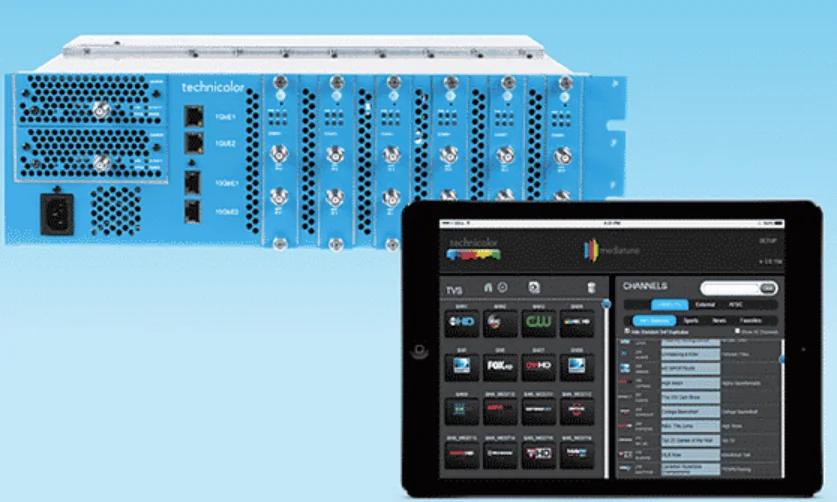

Vantiva COM3000 Satellite Integrator
PRE-INSTALLATION
TRAINING AND SUPPORT
It is recommended that installation technicians have completed the COM3000 system and MFH2 training.
Primary support for all Vantiva products is provided by the distributor who sold the product.
The Vantiva website is a valuable resource for information.
https://www.vantiva.com/video-multi-client-solutions-documentation-library/
The website contains:
- Product Documentation and Manuals
- Current Software Versions
- Technical Tips
REQUIRED TOOLS
In addition to the normal hand tools required for Coaxial and Ethernet installations, the technician will need the following tools:
- DIRECTV Advanced Installation Meter (AIM)
- Digital RF (QAM) signal level meter
- Laptop computer
- #10 Torx driver
- All required personal protective equipment as required by OSHA and/or local requirements.
SITE SURVEY
A site survey of the property should be completed per DIRECTV requirements.
COMPONENT ASSEMBLY
If you have purchased an assembled system from your distributor, you may skip to section 5.
Carefully unpack and install the QAM20 / QAM4 and COM51 cards in the COM400/421 Chassis as shown below. Be sure to line up the cards with the guides in the chassis.
After inserting the COM51 card, finger-tighten the two thumb screws to secure the card in the chassis.
QAM20 / QAM4 should mount in the lower QAM port of the chassis.
A #10 Torx driver is required to secure the QAM20 / QAM4 in the chassis.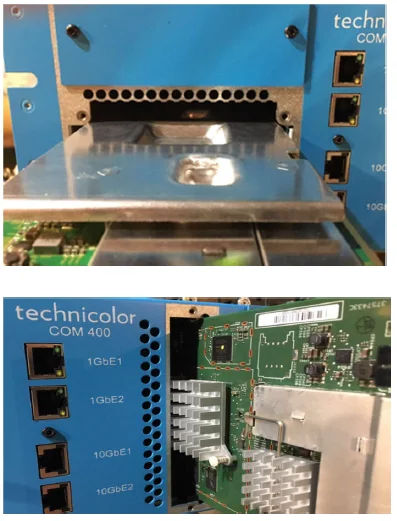
SETTING UP MULTIPLE CHASSIS (COM400 ONLY)
For multi-chassis COM400 installations, each chassis will need to be assigned a unique chassis ID.
COM421 is set to chassis one by default; there is no dip switch, as multiple COM421 chassis are not recommended.
The COM400 chassis has a default setting as chassis one. Chassis identification is configured via a dip switch on the backplane circuit board.
To access the switch, you will need to remove the access door on the top panel of the COM400 chassis, as shown below: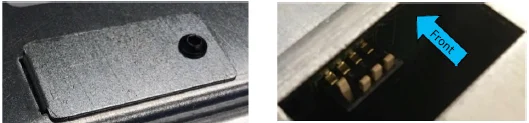
Facing the back, dipswitches are 1-4 from the right to the left as shown below:
Dipswitch numbers, as shown below, are added to the photo. They are not actually labelled.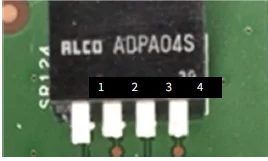
The default IP address of each COM51 card in a system is determined by the chassis ID and slot number.
The formula for determining this address is 192.168.3.[1 + (chassis ID X 16) + slot number]. Example for chassis one:
1 + (16*1) + 1 = 18. IP address of chassis one slot one is 192.168.3.18
The table below details COM400 chassis dipswitch settings and the corresponding IP address.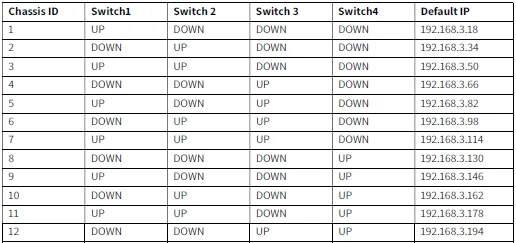
INSTALLATION
SATELLITE SIGNAL INPUT
COM51 Card requires two inputs from a digital SWiM 30 as part of a DirecTV-approved MFH2 trunk.
Input signal levels must be between -30 and -45dBm with SnR >11.
All signals should be verified with a DirecTV Advanced Installation Meter EIV+ test.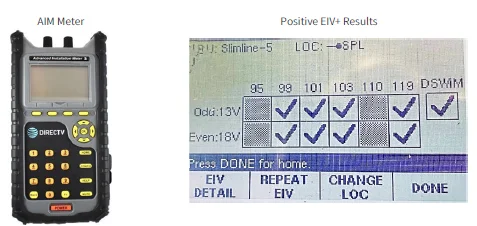
Attenuation
If the cable distance between the COM51 cards and the SSWIM30 is less than 25ft, it is possible for the SWIM L-Band signals to disrupt the low-band FSK communication channel at 2.3MHz. This could result in channel tune issues with the COM3000 system. The syslog will then often report SWM errors.
Additional attenuation between the DSiM30 and the COM51 is required. Recommended device is a DIRECTV-approved DRE loop-through tap with a 6-, 9-, or 12-dB value. Connect the input port to the DSWiM30 and the tap port to the COM51. Terminate the output port.
CONNECTIVITY OVERVIEW DIAGRAM
The diagram below illustrates connections to a COM3000 system.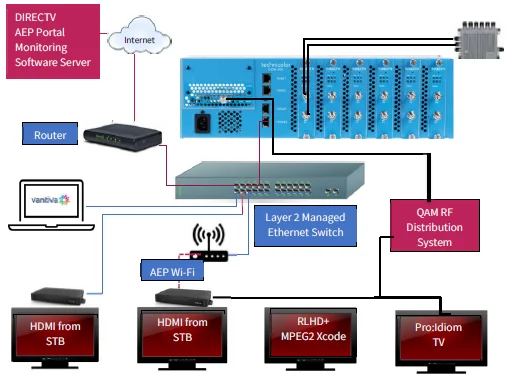
Definitions
- Laptop: Computer required for COM configuration.
- Router: The Router provides LAN connectivity to all devices. Issue DHCP IP addresses to all devices on the network.
- MPEG2-4 Transcoder: Transcoders change the signal from native DIRECTV MPEG4 to MPEG2 for use in RLHD+ systems.
- NTSC transcoder: NTSC devices ingest HD digital streams and output 6MHz analogue channels.
- Encoders: Encoders are used for local channel insertion (LCI). They ingest A/V from a variety of sources and output Ethernet to the QAM or RF to be combined with other video sources.
- Pro: Idiom TVs: Pro: Idiom-enabled TVs will decrypt. Pro: Idiom encrypted HD signals from the COM3000
- RLHD+: DIRECTV authorises some institutions to use an unencrypted signal. The “Clear HD” signal is MPEG-4. Not all consumer TVs will tune MPEG4 video, in which case a transcoder, or set-top box, is required.
PC CONFIGURATION FOR COM3000 INTERFACE
The COM system is configured via a laptop computer connected to the system via an Ethernet cable.
Configuration can be accessed via any of the Ethernet ports on the front of the COM400 chassis.
Configure the laptop with a fixed network address:
- IP 192.168.3.254
- Sub Net Mask 255.255.0.0
Below is an example of Windows 10 IPv4 configuration.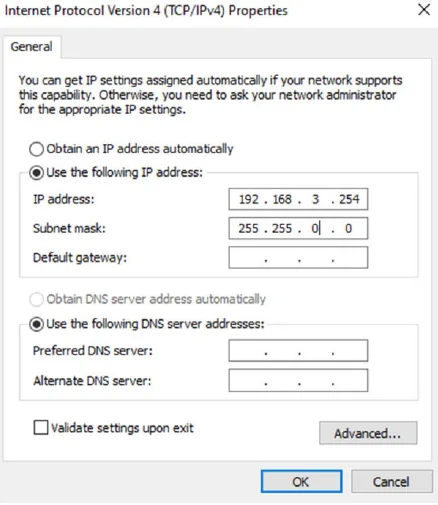
SYSTEM POWER UP
Once assembled and connected to the RF distribution, power up the COM3000 by plugging in the power cord. There is no external power switch.
System startup LED Behavior
The COM51 card has 6 LEDs on the front panel; the top three are:
- PWR – Displays solid green when the card is powered.
- Activity – Flashes green when there is Ethernet activity between the chassis and card.
- Link – Displays solid green, indicating the card has an Ethernet link to the chassis backplane.
Upon powering up the COM51 cards LEDs will go through a series of flashing indicating boot up.
Error! Reference source not found. The table below describes the LED activity during boot and normal operation.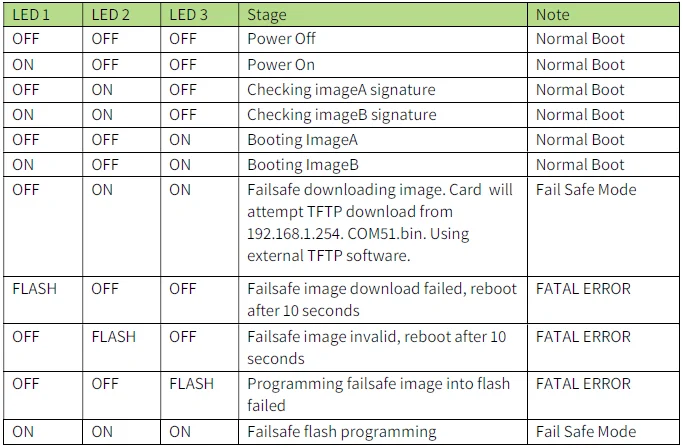
LED Behaviour after Boot-up
Once the COM51 has successfully booted, the LEDs will provide operational information as shown below.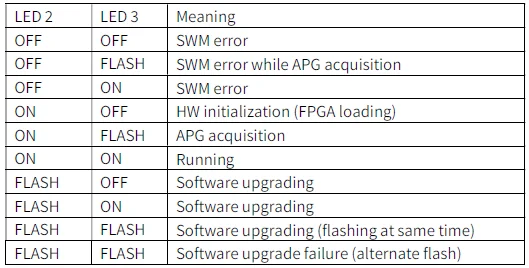
Under normal operations, all three LEDs are solid green:
- LED1: ON if all requested tuners are locked.
- LED2: OFF=SWM error; ON=Running; FLASH=SW upgrading
- LED3: OFF=FPGA loading; ON=FPGA loaded; FLASH=APG acquisition LED 1 indicating all requested tuners are locked.
THE COM400 CHASSIS
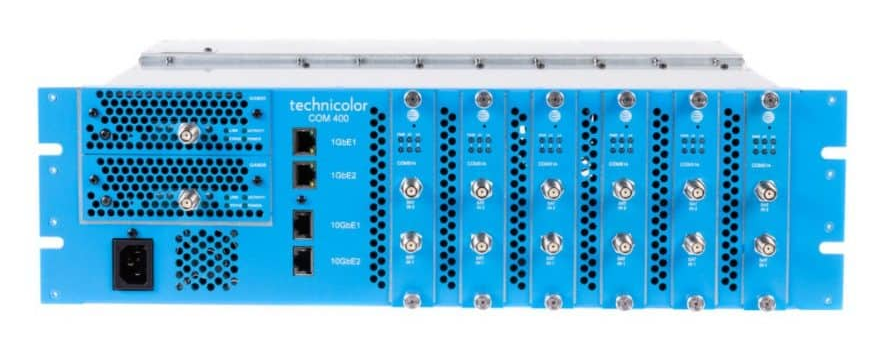
The COM400 Chassis houses, powers and connects the COM51 to QAM4 and provides Ethernet connections. It has an internal layer 2 Ethernet switch. The default settings are adequate for most installations.
If the system is a QAM-based RF output, skip this section and continue to COM51 configurations.
ACCESSING THE COM400 CHASSIS
To determine the IP address of the COM400 user interface, use the following formula: 192.168.10. (chassis id +1)
For most single chassis configurations, this would equate to 192.168.10.2
Login is Admin, leave the Password field blank.
PORT STATE OVERVIEW
The first page of the interface displays the Port State overview.
Ports 1-11 are utilised in the COM400 chassis and are displayed as lit when a connection to each port is made.
In the example below, all ports are connected except #7, the top QAM port.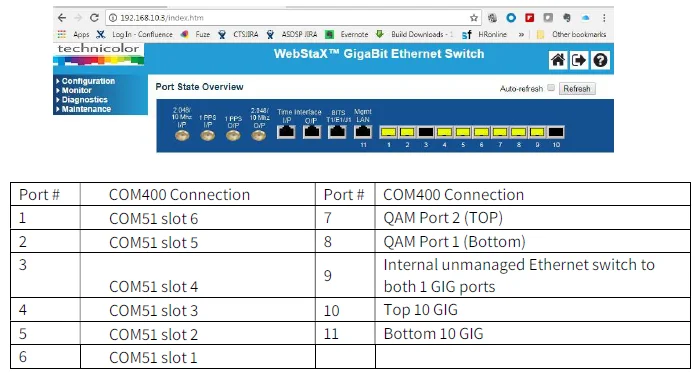
Note: Both 1-gigabit ports are connected to the same port on the layer 2 switch via an unmanaged Ethernet switch. All multicast traffic requested by one port will be present on the other. For this reason, it is recommended that the 1-gigabit ports not be used for multicast traffic.
SETTING A COM400 PASSWORD
To set a password, navigate to >Configuration>Security>Password.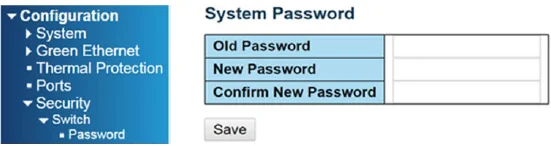
Lost passwords can be recovered by your distributor.
Admin login cannot be changed.
COM400 SOFTWARE UPDATE
COM400 should always be running the latest software available. Software is available at the Vantiva website: https://www.vantiva.com/video-multi-client-solutions-documentation-library/
To determine the current software running on the COM400, navigate to: Maintenance > Software > Image Select
As shown below, the software version is displayed on the top line labelled Image.
To update the COM400 software, navigate to Maintenance > Software > Upload.
Click Select File and navigate to the folder in which the software is saved. Upload to the COM400.
Then select Start Upgrade as shown below.
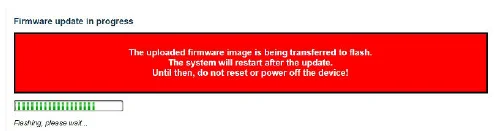
When the software upgrade is completed, reset the system to factory defaults: Navigate to maintenance > Factory Defaults, click Yes.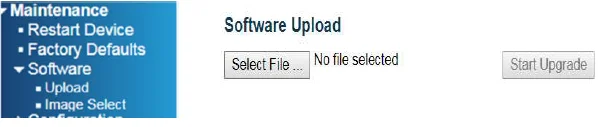
SETTINGS FOR MULTICAST
By default, the COM400 is set to provide a stable environment; however, if you are using the system to output IP multicast video, a couple of simple settings can be implemented for a more robust solution.
These steps have been tested and proven using a variety of managed Ethernet switches from well-known manufacturers. No other advanced or further setup should be necessary for the COM400 and COM51 cards to work properly in a Multicast environment.
If other specific settings are required by the managed Ethernet switch provider that you have selected, please continue with caution and test in a lab environment before installation on a live site.
The recommended setting/actions are:
- Verify the COM400 is running the current software
- Verify IGMP Snooping is enabled
- Connect your managed Ethernet switch to one of the 10GbE ports (they can negotiate to 1GbE)
- Enable the Router Port for the port connected to the managed Ethernet switch
- Keep it simple. Don’t depend on advanced settings or modes
- Persistently save your settings
IGMP Settings
From the main menu, navigate to:
- Configuration > IMPC > IGMP snooping > Basic Configuration
- Verify Snooping Enabled is checked. If not, check the box and then click Save.
- Fast Leave should be unchecked unless an STB is connected directly to the COM400.
- Select the Router Port for the port connected to your core switch. This will allow all Multicast traffic through the port. The external switch can then handle all IGMP functions.

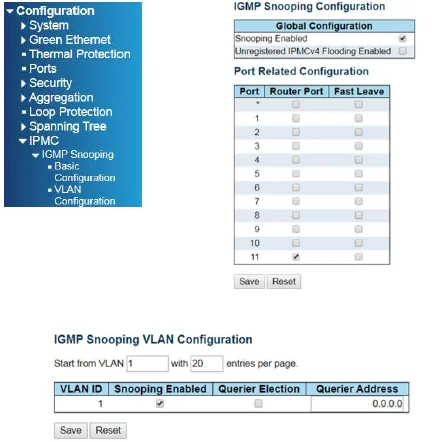
From the IGMP snooping menu, navigate to VLAN Configuration. Verify Snooping is enabled. If not, check the box and then click Save.
Querier Election should be off if you are using a managed external Ethernet switch.
PORT SETTINGS
From the main menu, navigate to Configuration >Ports as shown below: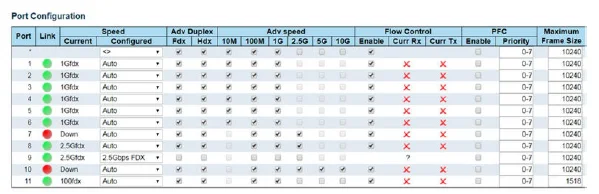
This screen provided information for the state and settings of each port on the switch.
Verify that the port connected displays a green link light as shown in the figure below.
Flow Control
Some switches will use a flow control that allows the switch to request a slower data rate if the buffers start to fill. Checking the flow control box will allow the COM400 to respond to these requests. We recommend enabling flow control on all ports.
Advertised Port Speed
Informational
The 10G ports “advertise speeds between 100M and 10G. If your switch is having problems auto-negotiating the connection, you can shut off advertised speeds above the rated bandwidth of your switch port.
MTU
Informational
COM51 maximum transmission units (MTU) is 1500. Some external switches may prefer the COM400 switch settings to be set to a matching MTU (Frame Size) setting. The lowest MTU setting available in the COM400 switch is 1580, as shown below on port 11.
CHANGING THE CHASSIS MANAGEMENT IP ADDRESS (OPTIONAL)
Making changes in this area can affect system communication. Proceed with caution.
The management IP address should only be changed when it is necessary to manage the entire system from a different subnet. The IP address of all COM51 cards will need to be changed to the same subnet as the chassis. Change the COM51 card IP address and add an alternate IP address for the QAM before proceeding.
To change the IP address used to access the COM400 chassis, navigate to Configuration->System->IP, as shown below: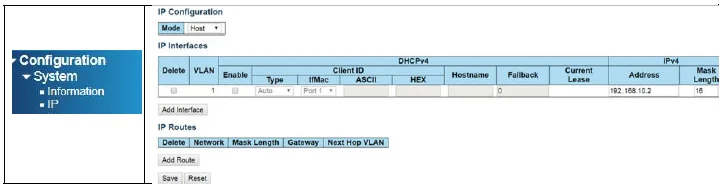
Click on Add Interface
Set the following:
- VLAN = 2
- Fallback =1
- IP address = new management IP address (for this example, we will use 10.0.0.251)
- Mask Length = 16
Click on Save
Next, navigate to: Configuration->VLANs->Configuration
To access the chassis and the associated COM cards and QAM from the same port, all connected ports will need to be set to the same VLAN.
Set Allowed Access VLANs to 2
Refer to the chart on page 1 to identify the ports being used.
Set each port to be used on VLAN2 to the following settings:
- Mode = Hybrid
- Port VLAN =2
Once the port is changed, you will no longer be able to access the COM400 on the default IP address from that port. It is recommended to leave one port on VLAN1 so the chassis can be accessed with the default IP.
In the example shown, both one gigabit port (port 9) and the top 10 gigabit port (port 10) will use the new VLAN IP assignment.
Connecting directly to the bottom 10-gigabit port (port 11) will allow connection with the default IP address.
Ports 5, 6, and 8 have been set to the new VLAN settings. This sets the COM51 cards in slots one and two, and the QAM to VLAN2
To verify the change has taken effect, connect your PC to a VLAN two port.
Change the IP settings in your PC’s Ethernet connection to the correct subnet to access the new IP address. Enter the new IP address into the browser and verify that you connect to the COM400 and the COM51 cards. (COM51 cards will need static IPs assigned to match the new subnet)
Change your IP setting back to match the default 192.168.3.XX subnet 255.255.0.0. Connect to a VLAN one port and verify you can access the COM400 at the default 192.168.10.2 address.
If you encounter problems, reboot the COM400 chassis, and all configurations will return to default.
Once operations are verified, save the configuration to running config as described in Section 10.6 below.
SAVE CHANGES TO RUNNING CONFIGURATION
Once you have verified that all the setting changes are correct, save the settings to the running configuration.
Failure to complete this step will result in all new settings being lost upon power cycle.
As shown below, navigate to: Maintenance > Configuration > Save startup-config.
Click Save Configuration
COM51 SETUP
ACCESS TO THE COM51 WEBSERVER
Enter the IP address of the COM51 in an internet browser. The IP address can be found in the table on page 11 of this manual. Typically, chassis one card one can be accessed at 192.168.3.18. Chrome is the recommended browser.
PASSWORD
The default User Password is “com3k”.
CHANGING PASSWORD
Once the default password has been entered, you can change the password via the Lock tab of the COM51 user interface.
To change the password, enter an alphanumeric text in the Password field and click Submit.
Note: no spaces in password.
Some circumstances require a blank COM51 password, such as Mediatune. To set a blank password, leave the Password field blank and click on Submit.
COM51 TUNER LICENSING
The COM51D comes with all 23 video tuners enabled. The material below is a reference for COM51 purchased prior to January 2024.
The COM51 card default setting enables eight tuners; additional tuners can be licensed in one-tuner increments. This process should be completed during the order process. Tuner licensing is the responsibility of the Distributor providing the system. Additional tuners can be purchased post-sale if a customer chooses to upgrade.
Tuner licensing count is displayed in the “Tuners” column of the COM51 SysInfo page.
The first number represents the number of licensed tuners, the second represents the number of SWiM frequency slots available.
On the Overview tab, COM51 will highlight unlicensed tuner numbers in grey, and the bitrate, SNR, and Strength fields will be highlighted in red.
The final verification of licensing is in the COM51 Syslog. A COM51 exceeding the license count will display the following message in the Syslog: user.err syslog: a: ***Need Tuner License File: tuners=8.
COM51 SETUP
COM51 SATELLITE INPUT
COM51 requires two SWiM connections from a digital SWIM30 set up to MFH2 specification. Signal must be verified with a DIRECTV AIM meter.
SWiM input to COM51 must be attenuated by 9dB. Approved device is a DRE 9dB tap
COM51 CONNECTION TO THE INTERNET
It is recommended best practice to always connect the COM chassis and thus the COM51 to the internet.
Internet connectivity in AEP systems is required per DirecTV policy.
DIRECTV will access the system to push essential software updates to the AEP boxes.
COM51 Dual Network Capability
The first interface is reserved for the default IP address assigned via chassis and slot position. Example, chassis one, slot one, will default to a 192.168.3.18 IP address.
The COM system will always be accessible at this address via a laptop configured for the correct subnet.
The second network interface is assigned via network DHCP.
When the COM51 is connected to a network with a DHCP server and internet access, the second interface will obtain an IP address on the network and connect to the DIRECTV dashboard.
When the connection is made, the COM51 will report MONITORED in the SYSINFO tab feature column
The assigned DHCP address can be found in the COM51 IFCONFIG function found in the help tab of the COM51.
For more Manuals by Vantiva, visit ManualsLibraryy
Vantiva COM3000 Satellite Integrator-FAQs
What are the default login credentials for the COM3000 system?
Use Username: Admin and leave the Password field blank unless it has been changed during setup.
How can I find the IP address of my local PC if needed for configuration?
On Windows, press Win + R, type cmd, press Enter, then run ipconfig.
Your local IP and gateway will be shown under “Default Gateway.”
What does the IP range 192.168.10.x represent?
It is a private Class C subnet used for local device communication inside the COM3000 network. It is not accessible from the public internet.
What does 192.168.100.0/24 mean in network settings?
It indicates a network with a 255.255.255.0 subnet mask, where the first 24 bits define the network and the last 8 bits define host addresses.
How do I manually configure an IP address on my PC while connecting to COM3000?
Go to Control Panel → Network Connections → Local Area Connection → Properties → TCP/IP Settings.
Choose “Use the following IP address”, then enter a static IP in the same subnet (e.g., 192.168.10.20).
What is the difference between IPv4 and IPv6 in COM3000 network setups?
COM3000 primarily uses IPv4, which supports unicast, broadcast, and multicast routing. IPv6 is newer and supports unicast, multicast, and anycast, but is not standard for COM systems.
What does the 0.0.0.0 route mean in COM3000 configuration?
A route of 0.0.0.0 represents the default route—used when no specific route exists for outgoing traffic.
Can I still access the internet if my PC receives an APIPA address (169.254.x.x)?
No. APIPA addresses only allow local network communication. They appear when DHCP fails.
Assign a static IP manually to connect to COM3000.
Should I use DHCP, PPPoE, or static IP for COM3000?
COM3000 installations commonly use static IP addressing for reliability. DHCP can work but is not recommended for fixed AV system equipment.