
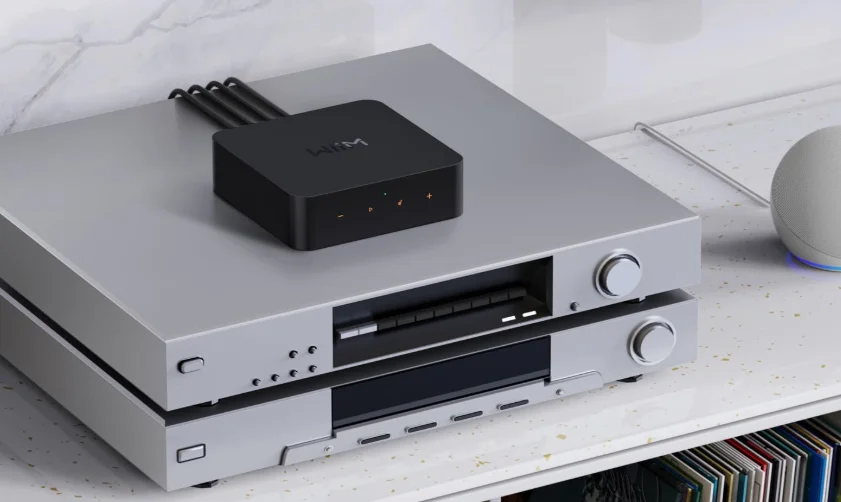

WiiM Pro ASR002 Hi-Res Music Streamer
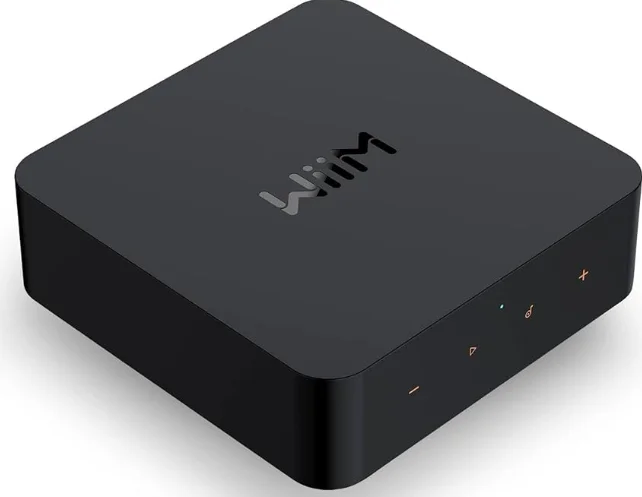
Typical Use Cases
The WiiM Pro is designed to enhance your existing audio setup by adding wireless streaming capabilities and smart features. Here are a few common use cases for the WiiM Pro:
- Upgrade your Favorite Legacy Audio Systems: If you have a traditional stereo system or speakers that you want to integrate into your Apple AirPlay 2, Google Cast, Amazon Alexa, or WiiM ecosystem, the WiiM Pro allows you to wirelessly stream music to those speakers. It bridges the gap between your older audio equipment and the modern world of streaming music.
- High-Quality Audio: It supports bit-perfect, high-resolution audio formats and delivers rich, detailed sound, enhancing the listening experience of your existing audio system.
- Streaming Services and Music Libraries: The WiiM Pro allows you to access various streaming services such as Spotify, Amazon Music, or TIDAL, bringing a wide range of music to your existing audio setup. You can also connect it to your personal music library stored on a computer or network-attached storage device for seamless playback.
- Podcasts and Internet Radio: In addition to streaming music, the WiiM Pro provides access to a wide range of podcasts and internet radio stations. You can browse through different genres, podcasts, or specific radio stations to enjoy on your existing audio system.
- Multi-room Audio: The WiiM Pro seamlessly integrates with other 3rd party popular smart speakers and components, or other WiiM devices, allowing you to create a whole-home audio system with synchronized music playback in multiple rooms.
- Smart Home Integration: The WiiM Pro supports voice control through platforms like Apple Siri, Amazon Alexa, or Google Assistant, allowing you to control your music hands-free and integrate with other smart home devices.
- Vinyl or CD Integration: If you have a turntable or CD player that you want to incorporate into your WiiM or AirPlay system, the WiiM Pro can connect to the analog or digital outputs of these devices. This enables wireless audio streaming to other speakers via another WiiM or AirPlay compatible device, allowing you to relish the sound throughout your entire home.
- Home Theater Integration: The WiiM Pro can be used as a bridge between your home theater system and the WiiM ecosystem. By connecting the Pro to your AV receiver or soundbar, you can stream music wirelessly to your home theater speakers and synchronize audio playback with other WiiM devices for a cohesive audio experience.
Other Devices Needed to Use the WiiM Pro
To use the WiiM Pro, you will need a few essential devices and components. Here’s a list of what you’ll need:
- Audio System: The WiiM Pro is designed to connect to an existing audio system. This can be a stereo system, powered speakers, passive speakers with an amplifier/receiver, or a home theater setup with an AV receiver or soundbar. Make sure you have the appropriate audio system in place.
- Wi-Fi Network: The WiiM Pro requires a stable Wi-Fi network connection to function. Ensure that you have a reliable Wi-Fi network available in the area where you plan to set up the WiiM Pro. You’ll need the Wi-Fi network credentials during the setup process.
- Smartphone or Tablet: You’ll need a compatible smartphone or tablet (iOS or Android) with the WiiM Home app installed. The WiiM Home app is used for initial setup, configuration, and control of the WiiM Pro.
- Power Source: The WiiM Pro needs to be connected to a power source using the included power adapter and cable. Ensure that you have an electrical outlet nearby to power the device.
- Ethernet Cable (optional): While the WiiM Pro primarily connects to your Wi-Fi network, it also has an Ethernet port. If you prefer a wired connection for added stability, you can use an Ethernet cable to connect the WiiM Pro directly to your router or network switch.
These are the core components required to use the WiiM Pro. It’s important to have an audio system that you want to integrate with the WiiM Pro, a stable Wi-Fi network, and a compatible device with the WiiM Home app for setup and control.
Audio Devices Work with the WiiM Pro
The WiiM Pro can work with your audio source devices, smart speakers, and other legacy stereo systems, DACs, amplifiers, speakers, or soundbars, etc. The audio source device includes TVs, record players, and MP3 players. The diagram below shows how you can connect your audio system with the WiiM Pro.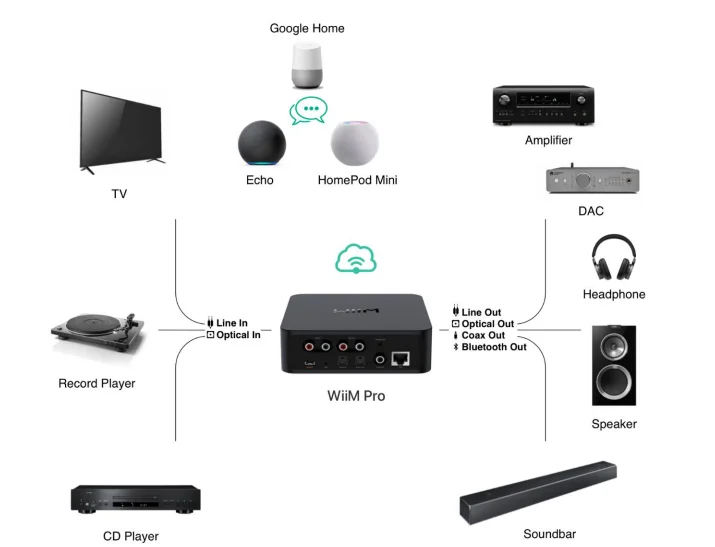
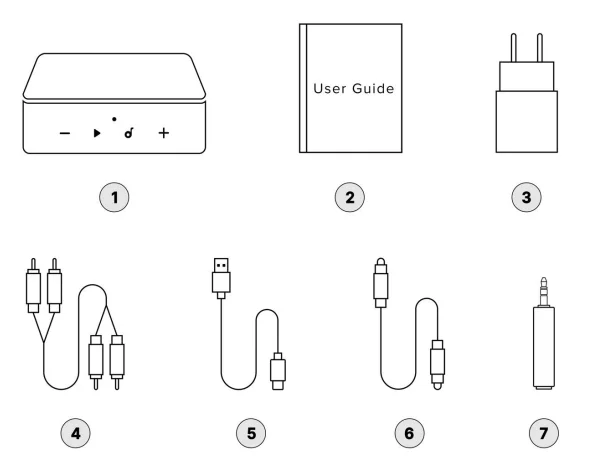
2. What’s in the Box
- WiiM Pro x 1
- Quick start guide x 1
- USB power adapter (5V, 2A) x 1
- RCA audio cable (1.5 m) x 1
- USB Type-C cable (1.2 m) x 1
- Optical audio cable (1.2 m) x 1
- 2.5 mm to 3.5 mm trigger out converter x 1

WiiM Pro Controls, Interfaces, and Lights
Front Panel Controls and Lights
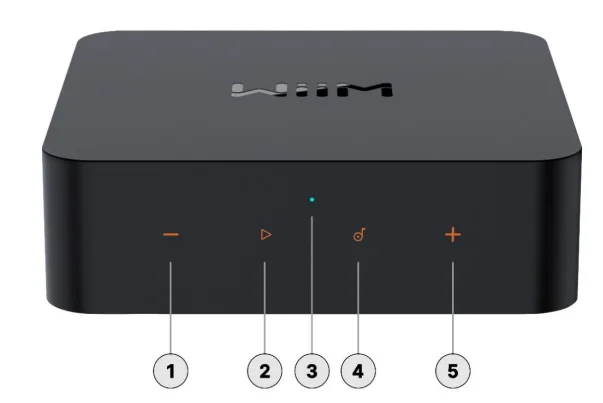
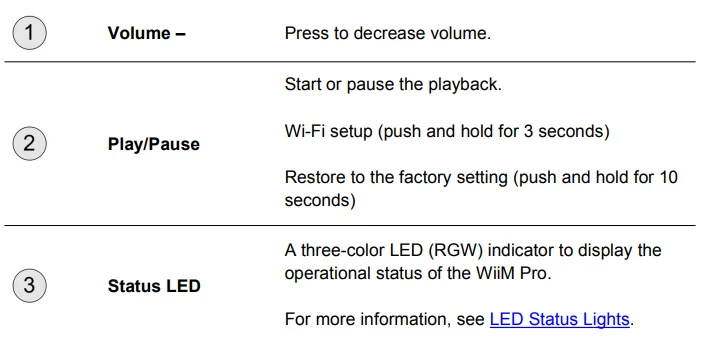
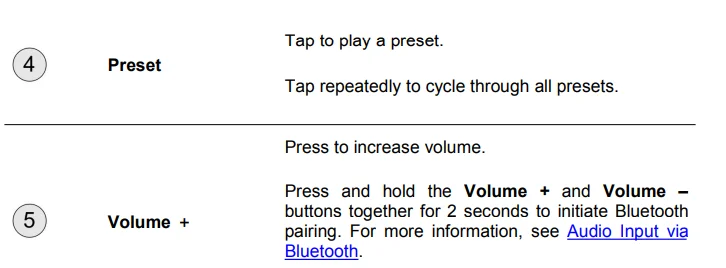
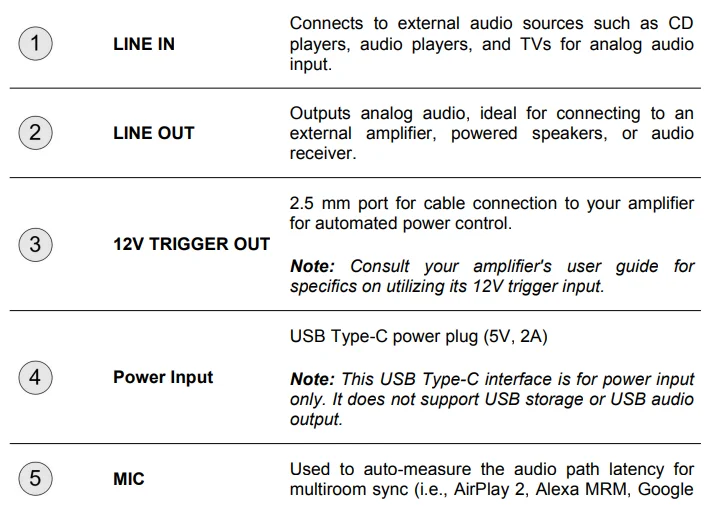
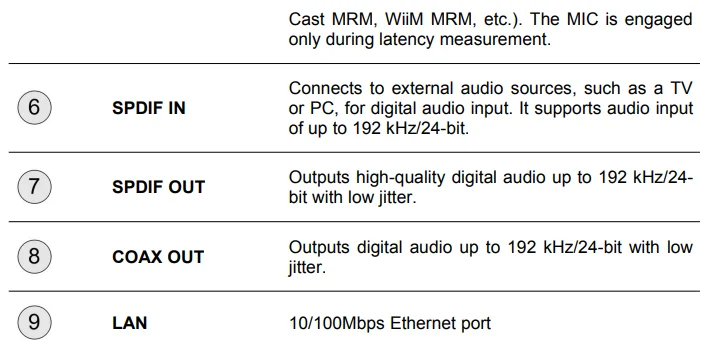
Back Panel Interfaces
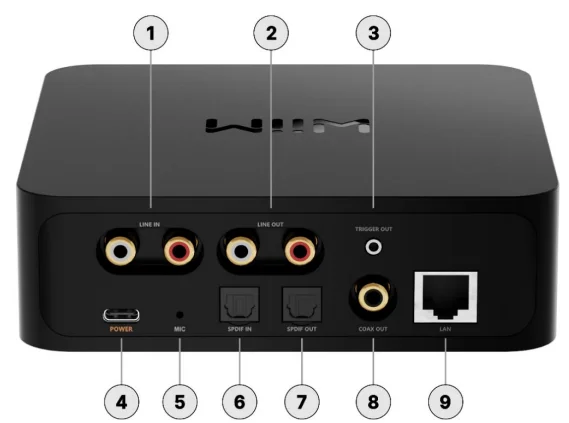
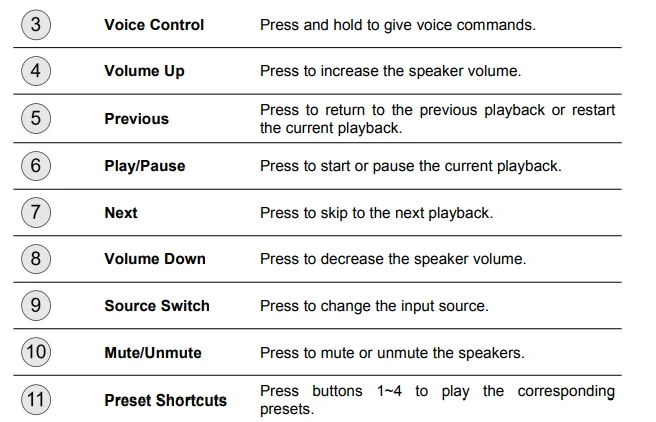
WiiM Voice Remote
You can use the WiiM Voice Remote to effortlessly control the WiiM Pro. For detailed instructions, refer to How to Set Up Your WiiM Voice Remote.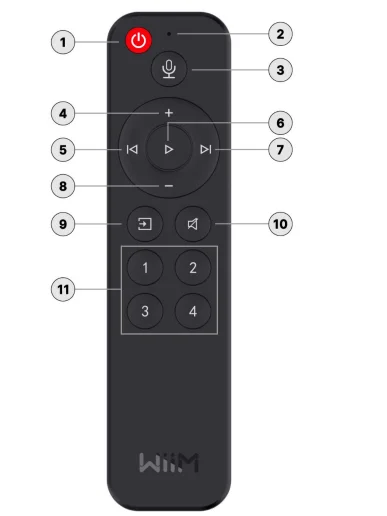

LED Status Lights
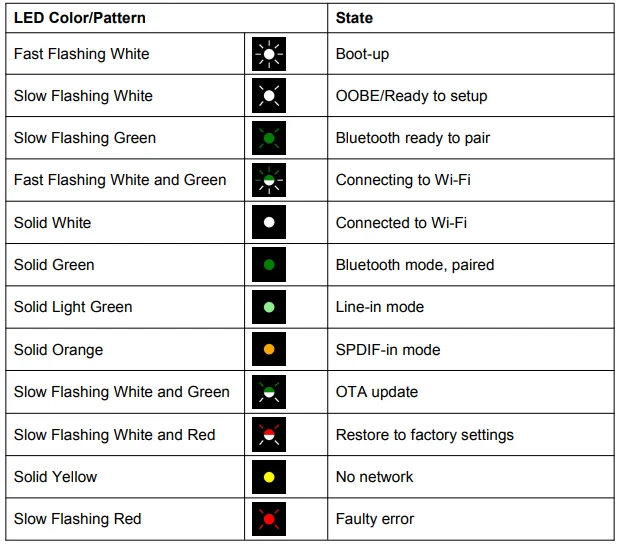
5. How to Get Started
Before using your WiiM Pro, follow these main steps to set it up:
- Connect the WiiM Pro to your audio device.
- Power on the WiiM Pro.
- Download and install the WiiM Home app on your mobile device.
- Use the WiiM Home app to connect the WiiM Pro to your network.
- Configure the WiiM Pro in the WiiM Home app to suit your preferences.
By completing these steps, your WiiM Pro will be ready for use. The following sub-chapters will provide detailed instructions for each step.
Connect the WiiM Pro’s Audio Output
The WiiM Pro features three distinct audio output interfaces:
- Analog Line Out
- Digital SPDIF Out
- COAX Out
Besides audio output via the above physical interfaces, the WiiM Pro can also output audio via Bluetooth. For detailed instructions, see Audio Output via Bluetooth.
Notes:
- The WiiM Pro is designed to output audio through a single one of these audio output interfaces.
- Selecting the appropriate audio output port is crucial to ensure sound output. Incorrect selection may result in no audio.
- For bit-perfect audio output, opt for the digital audio output and activate the Fixed Volume Output, disable EQ, and mono audio in the WiiM Home app’s device settings.
- You have two ways to control the volume of your system:
- Utilize your AVR or amplifier for volume control (when the Fixed Volume Output is set on the WiiM Pro).
- Control volume through the WiiM Home app, but remember to disable the Fixed Volume Output for this option.
Scenario 1: Line Out (Powered Speakers, Amplifiers, AV Receivers)
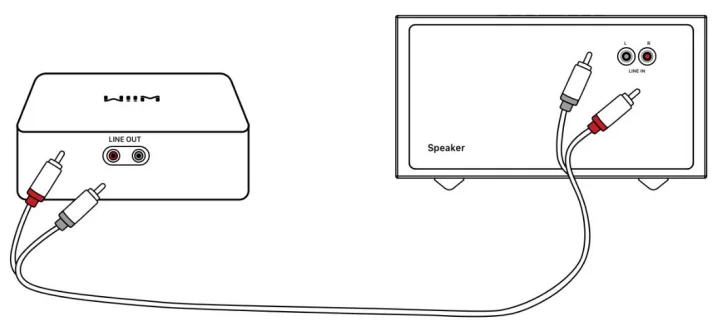
The Line Out interface on the WiiM Pro is typically used to connect to external audio equipment, e.g., powered speakers, amplifiers, or AV receivers, to output high-quality analog audio playback.
Cable Requirement: Use an RCA stereo cable as below.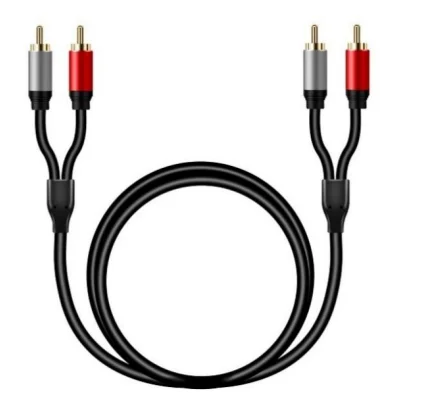
Cable Connection Steps:
- Connect the red and white RCA connectors on one end of the cable to the corresponding Line Out ports on the WiiM Pro.
- Connect the red and white RCA connectors on the other end of the cable to the corresponding Line In ports on your external device.

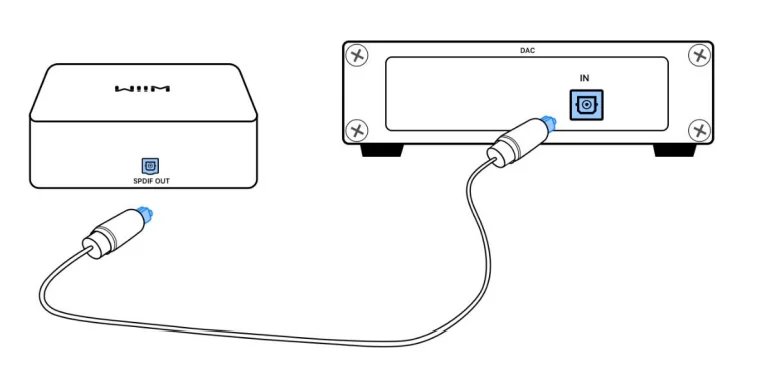
Scenario 2: SPDIF Out (Soundbars, DACs, or AV Receivers)
The SPDIF Out interface on the WiiM Pro is typically used to connect to an external device, e.g., soundbars, DACs, or AV receivers, to output digital audio playback.
Cable Requirement: Use a TOSLINK optical cable as below.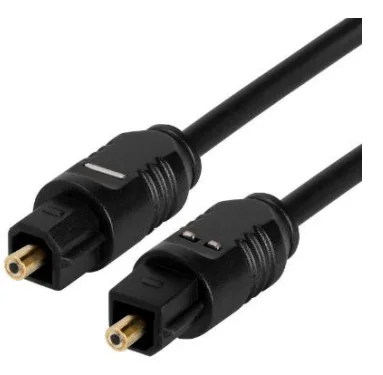
Cable Connection Steps:
- Plug one end of the optical cable into the SPDIF Out port on the WiiM Pro. Note: Please ensure the insertion direction of the optical cable matches the port. Incorrect insertion may damage the optical door.
- Plug the other end of the cable into the SPDIF In or Optical In port of your external device.

Scenario 3: COAX Out (DACs, AV Receivers, or Amplifiers)
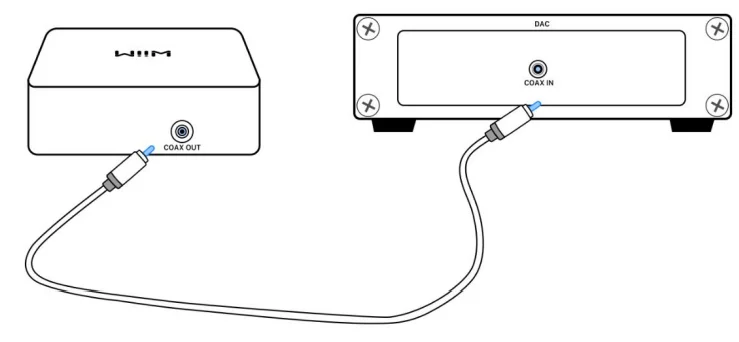
The COAX Out interface on the WiiM Pro is typically used to connect to an external device, e.g., DACs, AV receivers, or amplifiers supporting coaxial input.
Cable Requirement: Use a coaxial digital audio cable with 75-ohm impedance as below.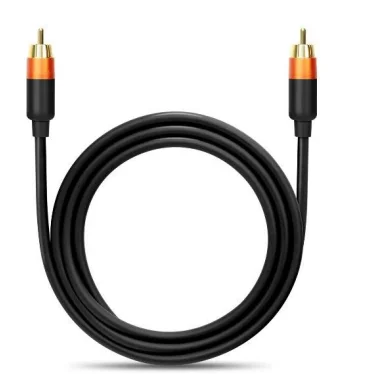
Cable Connection Steps:
- Plug one end of the coaxial cable into the COAX Out port on the WiiM Pro.
- Plug the other end of the cable into the COAX In port of your external device.

Connect the WiiM Pro’s Audio Input
The WiiM Pro features two distinct audio input interfaces:
- Analog Line In
- Digital SPDIF In (TOSLINK)
This versatile device functions as a network audio transmitter through Wi-Fi or Ethernet. You can stream analog audio input from sources such as CD players, vinyl players, TVs, or computers to other WiiM devices, either individually or in multiple combinations. In addition to physical input interfaces mentioned above, you can also stream audio from an external device (e.g., smartphones or tablets) to the WiiM Pro via Bluetooth. For detailed instructions, see Audio Input via Bluetooth.
Notes:
- The SPDIF In interface on the WiiM Pro only supports the PCM audio format. Please ensure that the audio source device connected to the WiiM Pro is set to output audio in PCM format. Otherwise, you may not hear the sound.
- You can also enable the auto-sensing feature on the WiiM Pro to automatically play your Line In or SPDIF In source when the WiiM Pro detects a signal. You can enable this feature from the WiiM Home app.
- The WiiM Pro has a built-in EQ to process the audio input based on your taste. You can also control the audio volume using the WiiM Home app remotely without altering the input source volume.
- Some source devices may require a preamp. For example, some turntables do not have a built-in preamp, so you will need to connect your turntable to an external preamp first, and then connect the preamp to the WiiM Pro.
7. Audio Output/Input via Bluetooth
Audio Input via Bluetooth
With Bluetooth, you can stream tunes from various devices like smartphones, tablets, TVs, and laptops. To start streaming, first pair your device with the WiiM Pro. You can select any of the following options to pair your device with the WiiM Pro:
- Option 1: Bluetooth Pairing Using Volume Buttons
Press and hold the Volume + and Volume – buttons on the WiiM Pro together for 2 seconds to initiate pairing mode. - Option 2: Bluetooth Pairing Using WiiM Voice Remote
Press and hold the Play button on the WiiM Voice Remote for 3 seconds to initiate pairing mode. - Option 3: Bluetooth Pairing Using WiiM Home App
If the WiiM Pro is connected to your network, you can initiate Bluetooth pairing mode in the WiiM Home app by selecting Bluetooth as the source input in the Browse tab. In this case, if there’s no device connected to the WiiM Pro, the app will initiate pairing mode for the WiiM Pro automatically.
Note: The Bluetooth feature is compatible with A2DP and AVRCP profiles and supports both SBC and AAC codecs.
Audio Output via Bluetooth
You can use the WiiM Pro as a Bluetooth source device, enabling seamless pairing with your Bluetooth speaker, headphones, or earphones. Follow these steps to complete the Bluetooth pairing procedure for audio output:
- Open the WiiM Home app on your iOS or Android device.
- Select the Devices tab.
- Tap the Device Settings icon
 of the WiiM Pro.
 - Select Audio Output, then tap Pair next to Bluetooth Out to initiate pairing.

- Select the desired external Bluetooth device (e.g., a speaker) to pair.

 of the WiiM Pro.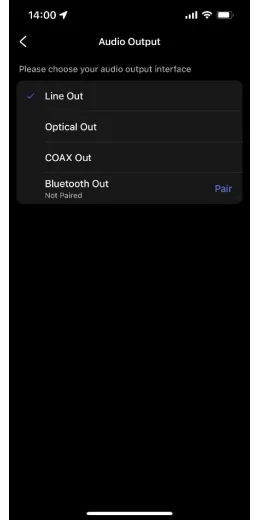
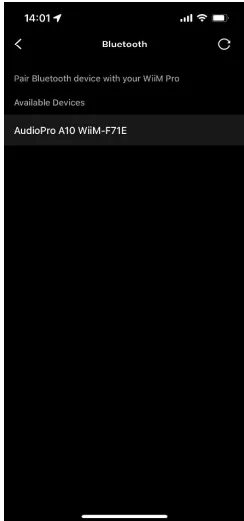
You can also complete this procedure by selecting the Bluetooth output from the Now Playing page. For details, see Select Audio Output Interface.
8. Voice Control
Navigate and control the WiiM Pro with voice commands to search, play, stop, or skip music and more. The WiiM Pro supports the following voice control services:
- Amazon Alexa: Refer to How to Use Amazon Alexa with Your WiiM Device for instructions.
- Siri: Refer to Using Siri to Play Music on Your WiiM Device for instructions.
- Google Voice Assistant: Refer to How to Control WiiM Device via Google Assistant for instructions.
Direct Control via Your Favorite App
You can stream from your favorite apps directly to your WiiM Pro with the following approaches. Depending on your mobile devices and music service, there may be multiple ways to stream from your music app to WiiM devices. For example, if you use the Spotify app on an iOS device, you can use either Spotify Connect or AirPlay 2. However, Spotify Connect gives you better audio quality compared with AirPlay 2 and liberates your phone for other tasks.
Spotify Connect
Spotify Connect is a way of playing Spotify through your wireless-compatible device over Wi-Fi or Ethernet. That means you can play your favorite tunes anywhere in the house without the need for convoluted Bluetooth pairing between devices whenever you want to listen to music. Spotify Connect works from a smartphone, tablet, or PC that functions as a remote control for Spotify. Both free and premium accounts are supported. For more information, visit Spotify Connect. Using Spotify Connect ensures the best audio quality and streaming experience on the WiiM Pro.
Multi-room and Stereo Pairing
To use Spotify Connect for multi-room or stereo pairing, follow these instructions:
- Group multiple WiiM devices in the WiiM Home app. For instructions, see WiiM Multi-room Audio/Stereo Pairing.
- Stream Spotify to the grouped WiiM devices. The group name will match the group lead device.
License Information
The Spotify software is subject to third-party licenses found here: https://www.spotify.com/connect/third-party-licenses
AirPlay 2
With the support of AirPlay 2, the WiiM Pro turns your speaker into an AirPlay 2-enabled speaker to stream the music you love from iOS, Mac, and PC devices or stream audio from Apple TV. It’s an easy and affordable way to connect your Apple devices to your favorite audio equipment and upgrade it to an AirPlay 2 receiver.
How to Use AirPlay 2
AirPlay 2 lets you stream music from your iOS, Mac, PC, and Apple TV to the WiiM Pro over Wi-Fi or Ethernet. For instructions, refer to How to Stream Audio with AirPlay on WiiM Devices.
AirPlay 2 Multi-room Audio
For instructions, refer to AirPlay 2 Multi-room Audio.
Notes:
- To use AirPlay 2, you need an Apple device running iOS 11.4 or later.
- Your Apple device and WiiM device must be connected to the same Wi-Fi network.
- For more information about AirPlay 2, visit https://www.apple.com/airplay.
TIDAL Connect
TIDAL is a global music streaming platform bringing fans closer to artists through unique experiences and the highest sound quality. Stream your favorite music seamlessly from the TIDAL app straight to your devices in the highest possible quality. TIDAL Connect allows you to stream music from the TIDAL app to compatible devices. It’s similar to Apple AirPlay and Spotify Connect in that it lets users stream music to connected devices from within the app. This means you can use your smartphone or computer as a controller to play music on the WiiM Pro.
How to Use TIDAL Connect
- Launch the TIDAL app on your mobile device.
- Play a song and go to the Now Playing screen.
- Tap the Cast icon at the top right.
- Select your WiiM device from the list.
Amazon Music Cast (Alexa Cast)
Alexa Cast is a feature that allows you to play and control music on any of your Alexa devices from your Amazon Music iOS or Android app. You can discover all your Alexa devices from your music app. Your devices do not need to be on the same Wi-Fi network as your mobile device. You can target any device from anywhere. Once you pick a target device, the music you selected on your app will start playing on the chosen device. You can now follow along on your app. When you tap Skip on your app, your device skips to the next track. Your app becomes a remote control for the device.
WiiM Pro and Alexa Cast
The WiiM Pro is one of the first devices that supports Alexa Cast with bit-perfect output up to 192 kHz/24-bit. You can stream Amazon Music Ultra HD directly from the native Amazon Music app to the WiiM Pro, delivering the highest possible audio quality.
How to Use Alexa Cast
- Log in: Ensure you are logged into your Amazon account for Alexa in the WiiM Home app.
- Update: Have the latest version of the Amazon Music app.
- Cast Music: On the Now Playing screen, tap the Casting icon in the top right.
- Select Device: Choose the WiiM Pro from the list.
Control Options
- Voice Control: Use voice commands to control music on the device.
- App Control: Switch between voice and app control for convenience.
- Stop Casting: To stop casting and resume playing on your phone, open the device list and tap the Disconnect button.
For More Manuals By WiiM, Visit ManualsLibraryy
WiiM Pro ASR002 Hi-Res Music Streamer-FAQS
What connection options does the WiiM Pro support?
It offers Wi-Fi, Ethernet, Bluetooth, optical (SPDIF), coaxial, analog line-out, and line-in connections, making it easy to fit into almost any audio system.
Does the WiiM Pro have Wi-Fi and Ethernet?
Yes. You can set it up using either Wi-Fi or a wired Ethernet connection for more stable streaming.
How do I set up the WiiM Pro for the first time?
Unbox the device, connect it to power and your audio system, download the WiiM Home app, and follow the in-app instructions to complete setup and start playing music.
Which app is used to control the WiiM Pro?
All setup and playback are handled through the WiiM Home app, available for both Android and iOS devices.
What audio quality does the WiiM Pro support?
The WiiM Pro supports MP3, CD-quality lossless formats, and high-resolution audio files for detailed, clear playback.
Can the WiiM Pro connect to Bluetooth devices?
Yes. It works as both a Bluetooth receiver and transmitter, allowing you to stream audio from or to Bluetooth headphones or speakers.
Can I use the WiiM Pro without Wi-Fi?
You can use Bluetooth or wired inputs without Wi-Fi, but internet access is required for streaming online music services.
What music services are supported?
It works with popular platforms like Spotify, TIDAL, Amazon Music, Qobuz, Deezer, iHeartRadio, and more through the app.