
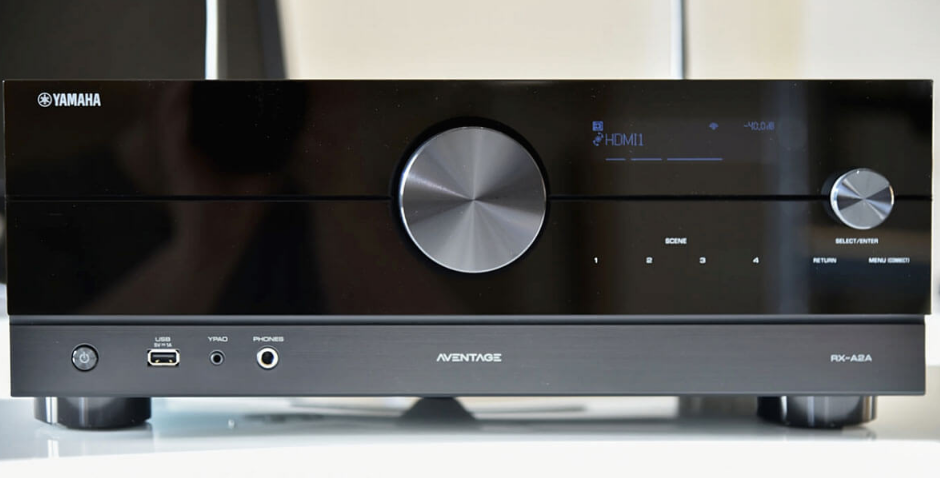

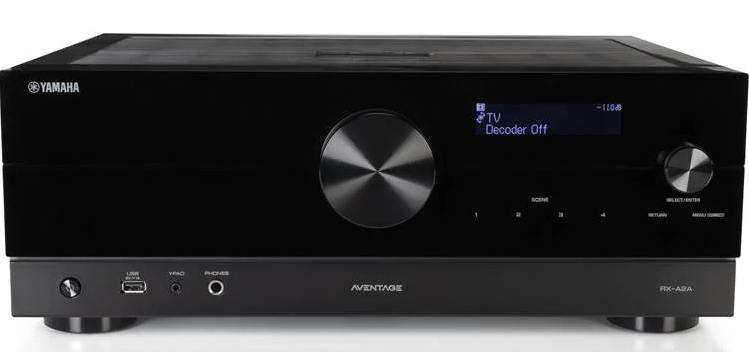
Yamaha RX-A2A Dolby Atmos AV Receiver
BEFORE USING THE UNIT
Checking the accessories
Check that the following accessories are supplied with the product.
- AM antenna (Except for U.K., Europe, Russia, and Australia models)
- FM antenna (Except for U.K., Europe, Russia, and Australia models)
- DAB/FM antenna (U.K., Europe, Russia, and Australia models)
- Power cable
- YPAO microphone
- Remote control
- Batteries (AAA, R03, UM-4) (x2)
- Quick Start Guide
- Safety Brochure
NOTE
Access the Yamaha Downloads site to download the latest Quick Start Guide. http://download.yamaha.com/
Using the remote control
Insert the batteries in the remote control
Insert the batteries the right way round.
Operating range of the remote control
The operating range of the remote control is shown in the following figure. Point the remote control at the remote control sensor on the unit.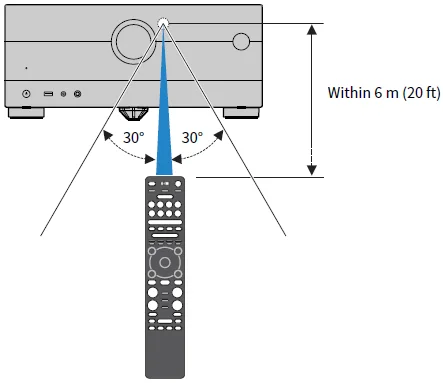
FEATURES
What you can do with the unit
Supporting various speaker systems
According to the number of speakers that you are using, you can enjoy your favorite acoustic spaces in various styles.
- 7.1/5.1.2-channel system
- 5.1.2-channel system
- 7.1-channel system
- 5.1-channel system
- 3.1.2-channel system
- 3.1-channel system
- 2.1-channel system
- Virtual CINEMA FRONT
- Multi-zone function
- Bi-amp connection
Automatically optimizing the speaker settings
YPAO function detects speaker connections, measures the distances from them to your listening positions (measuring positions) by using YPAO microphone measurement, and then automatically optimizes the speaker settings, such as volume balance and acoustic parameters, to suit your room (YPAO: Yamaha Parametric room Acoustic Optimizer).
“Flow of the speaker configurations” (p.92)
Enjoying sound field effects with much presence
The unit is equipped with a variety of sound programs and surround decoders that allow you to enjoy playback sources with your favorite sound mode (such as sound field effect or stereo playback).
- “Enjoying 3-dimensional sound fields” (p.105)
- “Enjoying sound field effects optimized for the type of content” (p.106)
- “Enjoying sound field effects without surround speakers (Virtual CINEMA DSP)” (p.108)
- “Enjoying surround sound with headphones (SILENT CINEMA)” (p.110)
- “Enjoying original sound (straight decode)” (p.111)
- “Enjoying multichannel playback without sound field effects (surround decoder)” (p.112)
- “Enjoying higher quality playback (Pure Direct)” (p.113)
- “Enjoying bass sound with small speakers (Extra Bass)” (p.119)
- “Enjoying more powerful sound to the audio source (Compressed Music Enhancer)” (p.115)
- “Enjoying Dolby Atmos® and DTS: X™” (p.114)
Wide variety of supported content via the network
When the unit is connected to a network, you can enjoy various kinds of content via the network on the unit.
- “Playback of music with AirPlay” (p.139)
- “Playback of music media servers (PCs/NAS)” (p.142)
- “Selecting an Internet radio station” (p.143)
- “Listening to a music streaming service” (p.144)
Playing back content on various devices
A number of HDMI jacks and various input/output jacks on the unit allow you to connect video devices (such as BD/DVD players), audio devices (such as CD players), Bluetooth devices (such as smartphones), game consoles, USB flash drives, and other devices. You can play back content of them or tune in to a radio station.
- “Listening to the radio” (p.130)
- “Playback of Bluetooth® device music on the unit” (p.136)
- “Playback of USB flash drive content” (p.140)
Useful functions
The unit is equipped with various useful functions. The SCENE function allows you to select the input source and settings registered to the corresponding scene, such as sound program and Compressed Music Enhancer on/off, with just one touch. You can recall the registered content (such as music stored on media servers and Internet radio stations) by selecting the shortcut number. When the unit is connected to an HDMI Control-compatible TV with an HDMI cable, you can control the unit (such as power and volume) with TV remote control operations.
- “Selecting the input source and favorite settings with one touch (SCENE)” (p.146)
- “Registering a favorite content as a shortcut” (p.150)
- “Playback of TV audio with eARC/ARC” (p.125)
Supporting wireless speakers
The unit is equipped with a function connected to the speakers wirelessly. You can enjoy audio played back on the unit using Bluetooth speakers/headphones. Also, using devices that support the MusicCast Surround function, the surround speakers and subwoofer can be wireless.
- “Playback of music using Bluetooth® speakers/headphones” (p.137)
- “Configuring wireless speakers” (p.90)
Useful applications
AV SETUP GUIDE
AV SETUP GUIDE is an application that assists you with cable connections between the AV Receiver and playback devices, as well as AV Receiver setup. This app guides you through the various settings, such as speaker connections, TV and playback device connections, and selecting the speaker system.
For details, search for “AV SETUP GUIDE” on the App Store or Google Play.
MusicCast Controller
MusicCast Controller is an application that allows you to link a MusicCast compatible device to other MusicCast compatible devices in other rooms and play them back simultaneously. This app lets you use your smartphone or other mobile device instead of the remote control to easily select music to play back, as well as configure the unit and MusicCast compatible devices.
For details, search for “MusicCast Controller” on the App Store or Google Play.
PART NAMES AND FUNCTIONS
Unit body
Part names and functions of the front panel
The part names and functions of the front panel are as follows.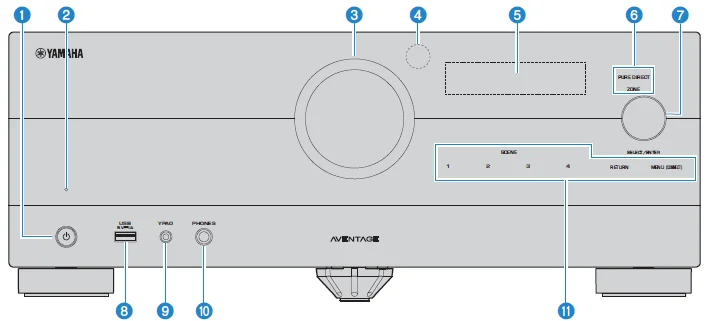
- Power: Turns on/off (standby) the Main zone (p.85).
- Standby indicator: Lights up when the unit is in standby mode under any of the following conditions. ( HDMI Control is enabled (p.205), ( Standby Through is enabled (p.207), ( Network Standby is enabled (p.278), ( Bluetooth Standby is enabled (p.283)
- VOLUME: Adjusts the volume.
- Remote control sensor: Receives remote control signals (infrared) (p.14).
- Front display: Displays information and menu (p.26). NOTE: Under high or low temperatures, the visibility of the character is sometimes deteriorated by the LCD characteristics. It is not a malfunction.
- Indicator: Lights up under the following conditions. PURE DIRECT: Lights up when PURE DIRECT is working (p.113). ZONE: Lights up when the zone is turned on (p.156).
- SELECT/ENTER: Selects the input source and operates the front display.
- USB jack: For connecting a USB flash device (p.140).
- YPAO jack: For connecting the supplied YPAO microphone (p.92).
- PHONES jack: For connecting headphones.
- Touch panel: For operation by touch. The operation sounds rings.
- SCENE: Switches with one touch between multiple settings set using the SCENE function. Also, turns on the unit when it is in standby mode (p.146).
- RETURN: Operates the “Front Display” menu.
- MENU (CONNECT): Operates the “Front Display” menu. Enters the MusicCast network addition and the wireless LAN setup by holding down for 5 seconds.
Front display
Part names and functions of the front display
The part names and functions of the front display are as follows.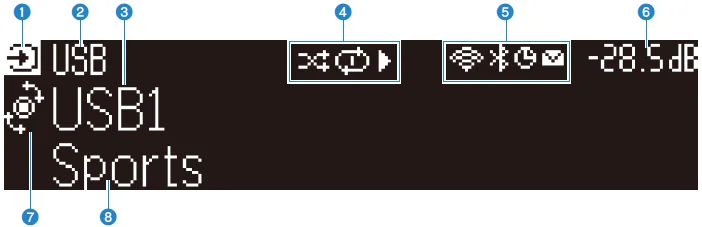
- Operation mode icon: Indicates the current mode of the front display (the input select mode or the info select mode).
- Input default name: Displays the default name when you have renamed the input source name.
- Main information: Displays information, such as the current input name, input information item, according to the mode of the front display.
- Play status icon: Shuffle: Lights up when the shuffle setting is turned on (p.176). Repeat: Lights up when the repeat setting is turned on (p.177). Playback/Pause/Stop: Lights up while the unit plays back a song, pauses, or stops.
- Status icon: Wireless LAN: Lights up while the unit is connected to a wireless network (p.362). Bluetooth: Lights up while the unit is connected to a Bluetooth device (p.136). Sleep timer: Lights up when the sleep timer is on (p.145). Firmware update: Lights up when a firmware update is available via the network (p.303).
- Volume: Indicates the current volume.
- SELECT/ENTER indicator: Indicates the available SELECT/ENTER status (push or rotate) for the right display area.
- Additional information: Displays the additional information of the current input, such as Reception, DSP Program.
NOTE
- Depending on the content of the playback, the unit may not get its playback status correctly. For details on the playback status, refer to the MusicCast Controller app or your playback software.
- If the unit is the slave device of the MusicCast network, the playback status is displayed as follows, depending on the master device.
- The playback icon is lit up on the front display of the unit when the content of audio playback is selected as the input source of the master device, and the master device pauses.
- The playback icon is always lit up on the front display of the unit when “HDMI”, “AUDIO”, “PHONO”, “TV”, or “TUNER” is selected as the input source of the master device.
Selecting the input information displayed on the front display
The front display in the info select mode displays additional information related to the input source on the front display.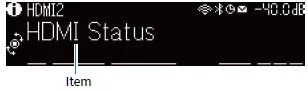
Push SELECT/ENTER on the front panel to switch the front display to the info select mode. And rotate SELECT/ENTER to select between the various items. The additional information is displayed under the item.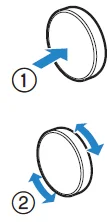
Displayed items vary depending on the input source.
- HDMI AUDIO PHONO TV: DSP Program, Audio Decoder, Output Channel, HDMI Status, System Status
- TUNER (FM/AM): Reception, DSP Program, Audio Decoder, Output Channel, HDMI Status, System Status (U.K., Europe, and Russia models only). Radio Data System data is also available when the unit is tuned into a Radio Data System broadcasting station. For details, see the following: “Displaying the Radio Data System information” (p.131)
- TUNER (DAB): (U.K., Europe, Russia, and Australia models only) For details, see the following: “Displaying the DAB information” (p.132)
- SERVER: Song, Artist, Album, IP Address, Ethernet MAC Address, Wi-Fi MAC Address, DSP Program, Audio Decoder, Output Channel, HDMI Status, System Status
- NET RADIO: Station, IP Address, Ethernet MAC Address, Wi-Fi MAC Address, DSP Program, Audio Decoder, Output Channel, HDMI Status, System Status, Song, Album
- Deezer: Track, Artist, Album, IP Address, Ethernet MAC Address, Wi-Fi MAC Address, DSP Program, Audio Decoder, Output Channel, HDMI Status, System Status
- music streaming services (with playback information) AirPlay: Song, Artist, Album, IP Address, Ethernet MAC Address, Wi-Fi MAC Address, DSP Program, Audio Decoder, Output Channel, HDMI Status, System Status
- music streaming services (without playback information) Alexa MusicCast Link: DSP Program, Audio Decoder, Output Channel, HDMI Status, System Status, IP Address, Ethernet MAC Address, Wi-Fi MAC Address
- Bluetooth USB: Song, Artist, Album, DSP Program, Audio Decoder, Output Channel, HDMI Status, System Status
NOTE
- You can set “Information Skip” in the “Front Display” menu to skip information items on the front display.
- When you have not operated SELECT/ENTER for a few seconds, the front display turns to the input select mode automatically.
Output Channel
Information about speaker terminals that are currently outputting sound is displayed. No output is indicated by an underscore.
HDMI Status
Information about the HDMI input jacks (connection) and the HDMI out jack (connection) is displayed. No connection is indicated by an underscore.
System Status
The following system information is displayed. An underscore is indicated when it is disabled.
- ECO: The eco mode is enabled.
- PARTY: The party mode is enabled.
- MASTER: The unit is the master device of the MusicCast network.
TROUBLESHOOTING
When any problem appears
If trouble occurs, first check the following:
Make sure of the following when the unit does not function properly.
- The power cables of the unit, TV, and playback devices (such as BD/DVD players) are connected to AC wall outlets securely.
- The unit, subwoofer, TV, and playback devices (such as BD/DVD players) are turned on.
- The connectors of each cable are securely inserted into jacks on each device.
Power, system, or remote control trouble
The power does not turn on
- The protection circuitry has been activated three times consecutively.
If the standby indicator on the unit blinks when you try to turn on the power, it means that the capability to turn on the power is disabled as a safety precaution. Contact your nearest Yamaha dealer or service center to request repair.
The power does not turn on in synchronization with the TV
- HDMI Control on the unit is disabled.
If turning off the unit is not synchronized to the TV either, check the setting of HDMI Control on the unit. For details on HDMI Control, see the following: “Setting the use of HDMI Control” (p.205)
- HDMI Control on the TV is disabled.
If only turning on the unit is not synchronized to the TV, check the settings on the TV. For details, refer to the instruction manual for the TV and set HDMI Control on the TV.
- Because of a power failure, the unit’s power is no longer synchronized.
Disconnect the HDMI cables and power cables, and after five minutes, reconnect the cables of the playback devices first, then the unit, and then the TV. Then, check that the power is synchronized.
The power does not turn off
- The internal microcomputer has frozen, due to an external electric shock (such as lightning or excessive static electricity) or to a drop in the power supply voltage.
Hold down (power) on the front panel for more than 15 seconds to reboot the unit. If the problem persists, disconnect the power cable from the AC wall outlet and plug it in again.
The power turns off (standby mode) immediately
- The unit was turned on while a speaker cable was shorted.
Twist the bare wires of each speaker cable firmly and reconnect to the unit and speakers. For details, see the following: “Connecting the speaker” (p.66)
The unit enters standby mode automatically
- The sleep timer worked.
Turn on the unit and start playback again.
- The auto-standby function was activated because the unit was not used for the specified time.
To disable the auto-standby function, set “Auto Power Standby” in the “Setup” menu to “Off”. For details, see the following: “Setting the amount of time for the auto-standby function” (p.266)
- The speaker impedance setting is incorrect.
Set the speaker impedance to match your speakers. For details, see the following: “Setting the speaker impedance” (p.203)
- The protection circuitry has been activated because of a short circuit.
Twist the bare wires of each speaker cable firmly and reconnect to the unit and speakers. For details, see the following: “Connecting the speaker” (p.66)
- The protection circuitry has been activated because of too high a volume.
Turn down the volume. If “ECO Mode” in the “Setup” menu is set to “On”, set it to “Off”. For details, see the following: “Setting the use of the eco mode” (p.267)
The unit is not reacting
- The internal microcomputer is frozen due to an external electric shock (such as lightning or excessive static electricity) or to a drop in the power supply voltage.
Hold down (power) on the front panel for more than 15 seconds to reboot the unit. If the problem persists, disconnect the power cable from the AC wall outlet and plug it in again.
- The volume operation on the front panel is disabled.
Set “Volume Knob Lock” in the “Front Display” menu to “Off”. For details, see the following: “Setting the use of the volume on the front panel” (p.291)
- The operation of SELECT/ENTER on the front panel is disabled.
Set “Input Selector Lock” in the “Front Display” menu to “Off”. For details, see the following: “Setting the use of the input selector on the front panel” (p.292)
- The operation of SCENE on the front panel is disabled.
Set “Scene Key Lock” in the “Front Display” menu to “Off”. For details, see the following: “Setting the use of the scene key on the front panel” (p.293)
For more Manuals by Yamaha, visit ManualsLibraryy
Yamaha RX-A2A Dolby Atmos AV Receiver-FAQs
How many watts is the Yamaha RX-A2A?
The Yamaha RX-A2A delivers 100 watts per channel (8 ohms, 20Hz–20kHz, 2 channels driven). Its maximum output can reach 150 watts when driving a single channel.
What type of receiver is the Yamaha RX-A2A?
It is a 7.2-channel Dolby Atmos AV receiver, designed for immersive home theater sound with surround and height effects.
Does the Yamaha RX-A2A support Dolby Atmos?
Yes, the RX-A2A fully supports Dolby Atmos, providing three-dimensional audio for movies, games, and streaming content.
How do I connect speakers to the Yamaha RX-A2A?
Turn off and unplug the receiver first. Then connect the positive (+) and negative (–) speaker terminals on the receiver to the matching terminals on your speakers using speaker wire.
What speaker layout is best for Dolby Atmos on this receiver?
A 5.1.2 speaker setup is commonly recommended. It delivers surround sound with two height channels for an immersive Atmos experience.
Can I control the Yamaha RX-A2A with my phone?
Yes, you can control the receiver using the Yamaha AV Controller App on Android or iOS for volume, inputs, sound modes, and more.
What does the STRAIGHT button do on the Yamaha RX-A2A?
STRAIGHT mode plays audio without additional sound processing, preserving the original sound format exactly as recorded.
Can I connect a microphone directly to the RX-A2A?
No, microphones cannot be connected directly to AV receivers. A mixer or compatible audio interface is required.
Which HDMI port should I use for the best sound?
Use the HDMI eARC/ARC port when connecting to a TV or sound system for the highest-quality audio, including Dolby Atmos.