


Samsung Galaxy S24 Series
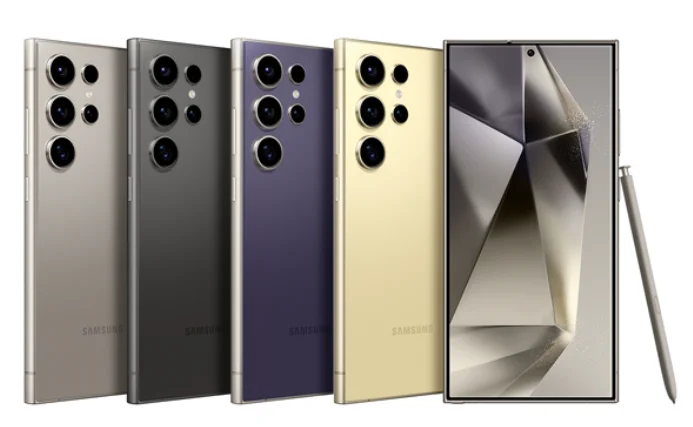
Getting started
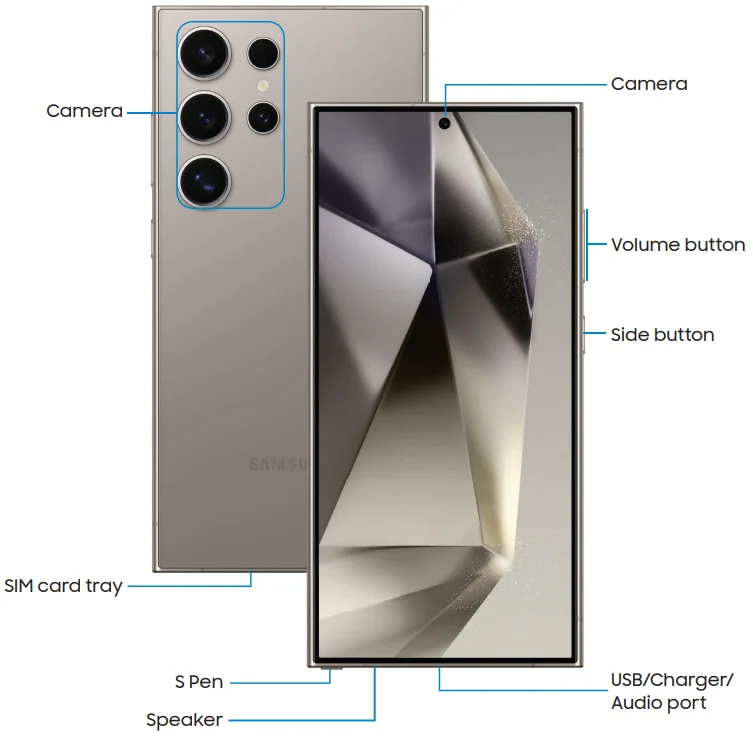
Galaxy S24 Ultra
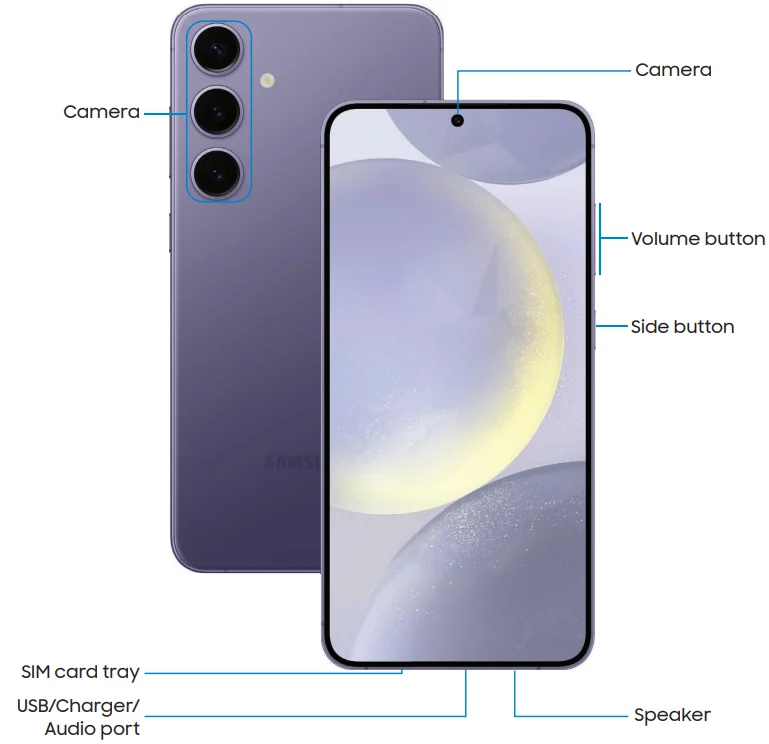
Galaxy S24+
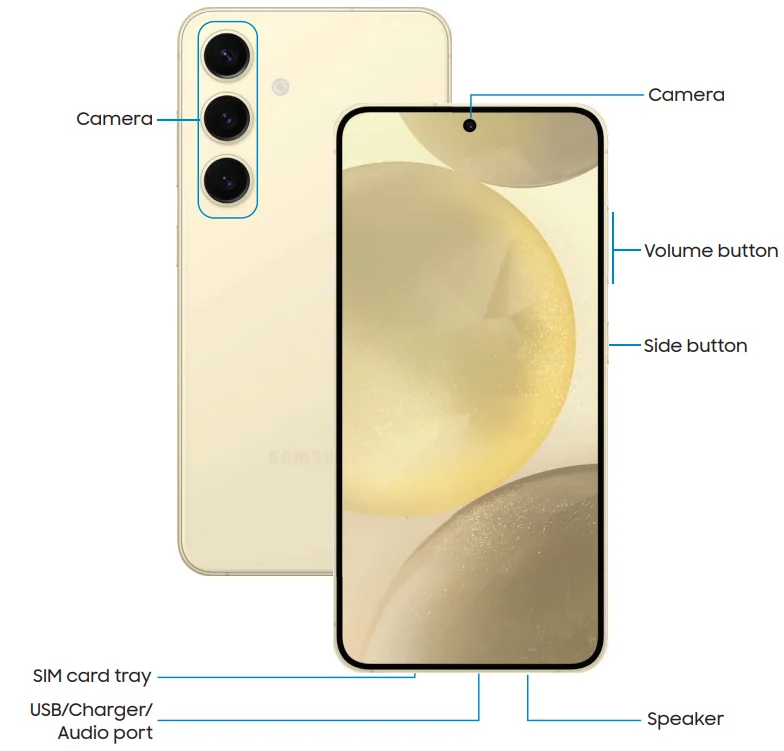
Galaxy S24
Set up your device
Your device uses a nano-SIM card. A SIM card may be preinstalled, or you may use your previous SIM card. This device is also compatible with an eSIM. Learn more: SIM manager. Network indicators for 5G service are based on your service provider’s specifications and network availability. Contact your service provider for more details.
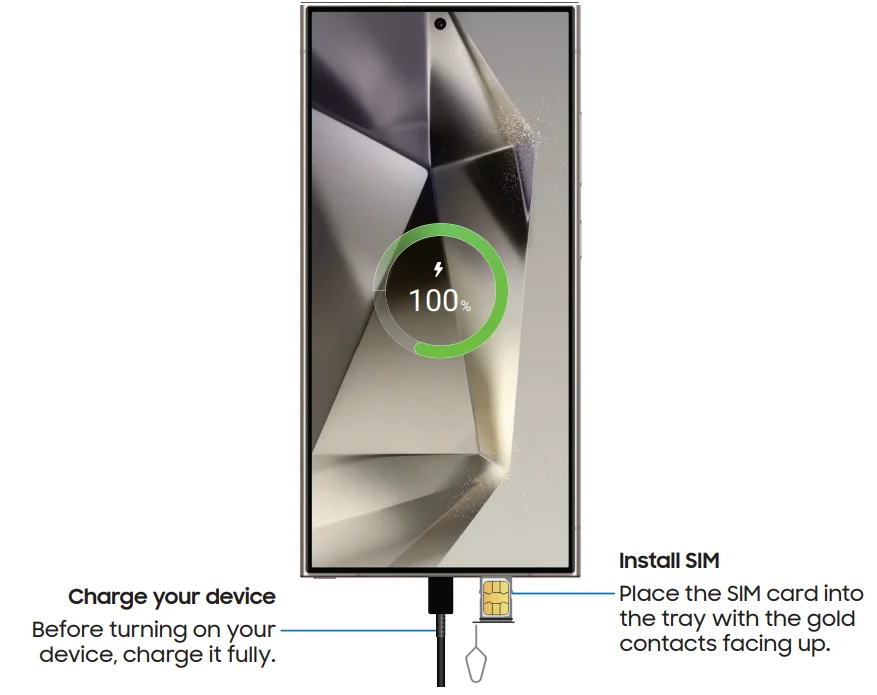
Maintaining water and dust resistance
The device is not impervious to dust or water damage under any circumstances. All compartments must be closed tightly. Learn more: Mobile Terms and Conditions. Follow these tips carefully to prevent damage to the device and maintain dust and
water resistance performance:
- Water resistant based on IP68 rating, which tests submersion in fresh water deeper than 1.5 meters or keeping it submerged for more than 30 minutes. If your device is exposed to fresh water, shake it to remove any excess water and dry the device thoroughly with a clean, soft cloth.
- If your device is exposed to liquids other than fresh water (such as saltwater), rinse your device with fresh water and dry it with a clean, soft cloth, and shake it to remove any excess water.
- Any device that uses accessible compartments or ports that can be opened should have these sealed or closed tightly to prevent liquid from entering the system.
- If the device has been immersed in water or the microphone or speaker is wet, sound may not be heard clearly during a call while the device is immersed or the microphone or speaker is wet.
- Do not expose the device to water at high pressure.
- If the device is dropped or receives an impact that causes physical damage to the device, the water and dust resistant features of the device may be affected. If you suspect your device has been damaged because of a fall or impact, take it to a Samsung-authorized service center for inspection.
Charge the battery
Wireless power sharing
Wirelessly charge your compatible Samsung devices using your phone. Some features are not available while sharing power.
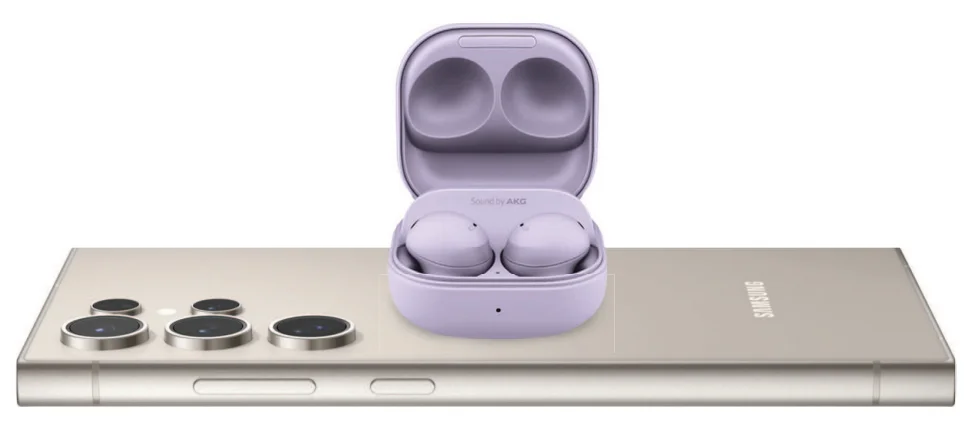
- From Settings, tap Battery > Wireless power sharing.
- Tap Battery limit and choose a percentage. Once the device you are charging has reached this level of charge, wireless power sharing automatically turns off.
- Tap to turn on the charging feature.
- With the phone face down, place the compatible device on the back of the phone to charge. A notification sound or vibration occurs when charging begins.
For best results when using Wireless Power Sharing, please note:
- Remove any accessories or covers before using the feature. Depending on the type of accessory or cover, Wireless power sharing may not work properly.
- The location of the wireless charging coil may vary by device, so you may need to adjust the placement to make a connection. When charging starts, a notification or vibration will occur, so the notification will help you know you’ve
made a connection. - Call reception or data services may be affected, depending on your network environment.
- Charging speed or efficiency can vary depending on device condition or the surrounding environment.
- Do not use headphones while charging with Wireless Power Sharing.
Start using your device
Turn on your device
Use the Side button to turn your device on. Do not use the device if the body is cracked or broken. Use the device only after it has been repaired.
Press and hold the Side button to turn the device on
- To turn the device off, press and hold the Side button and Volume down button at the same time, and tap Power off. Confirm when prompted.
- To restart your device, press and hold the Side button and Volume down button at the same time, and tap Restart. Confirm when prompted.
Use the Setup Wizard
The first time you turn your device on, the Setup Wizard guides you through the basics of setting up your device. Follow the prompts to choose a default language, connect to a Wi-Fi® network, set up accounts, choose location services, learn about your device’s features, and more.
Transfer data for device setup
Download Smart Switch™ to transfer contacts, photos, music, videos, messages, notes, calendars, and more from your old device. Smart Switch can transfer your data using a USB cable, Wi-Fi, or a computer.
- From Settings, tap Accounts and backup > Transfer data for device setup.
- Follow the prompts and select the content to transfer.
Lock or unlock your device.
Use your device’s screen lock features to secure your device. By default, the device locks automatically when the screen times out. Learn more: Lock screen and security.
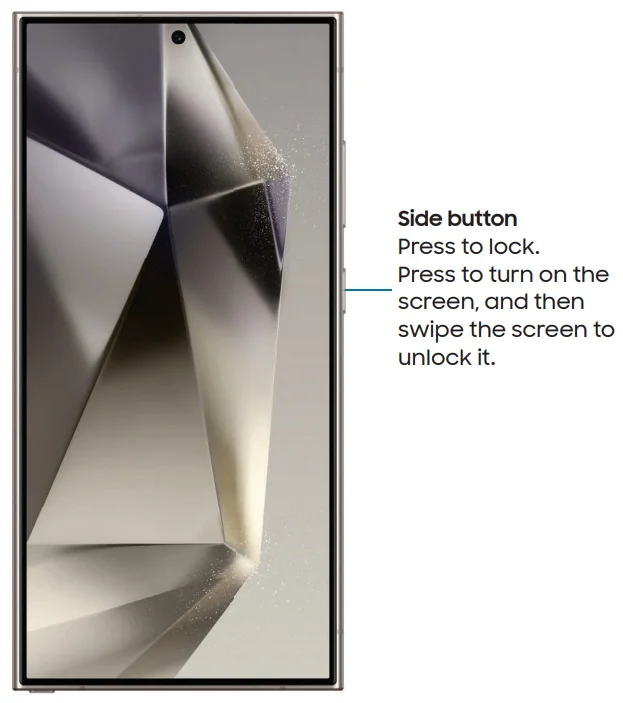
Side button settings
You can customize the shortcuts assigned to the Side button.
Double press
Choose which feature is launched when the Side button is pressed twice.
- From Settings, tap Advanced features > Side button.
- Tap Double-press to enable this feature, and tap an option:
- Quick launch camera (default)
- Open app
Press and hold
Choose which feature is launched when you press and hold the Side button.
- From Settings, tap Advanced features > Side button.
- Under the Press and hold heading, tap an option:
- Wake Bixby (default)
- Power off menu
Accounts
Set up and manage your accounts.
Add a Google Account
Sign in to your Google Account to access your Google Cloud Storage, apps installed from your account, and make full use of your device’s Android™ features. When you sign in to a Google Account and set a Lock screen, Google Device Protection is activated. This service requires your Google Account information when resetting to factory settings. Learn more: Google Play Protect.
- From Settings, tap Accounts and backup > Manage accounts.
- Tap Add account > Google.
Add a Samsung account.
Sign in to your Samsung account to access exclusive Samsung content and make full use of Samsung apps.
- From Settings, tap Samsung account.
Add an Outlook account.t
Sign in to your Outlook® account to manage email messages.
- From Settings, tap Accounts and backup > Manage accounts.
- Tap Add account > Outlook.
Set up voicemail
You can set up your voicemail service when you access it for the first time. You can access voicemail through the Phone app. Options may vary by service provider.
- From the Phone, touch and hold the 1 key or tap Voicemail.
- Follow the tutorial to create a password, record a greeting, and record your name.
Navigation
A touch screen responds best to a light touch from the pad of your finger or a capacitive stylus. Using excessive force or a metallic object on the touch screen may damage the surface of the screen, and the damage will not be covered by the warranty.
Tap
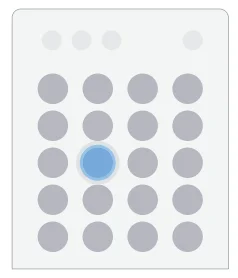
Lightly touch items to select or launch them.
- Tap an item to select it.
- Double-tap an image to zoom in or out.
Swipe
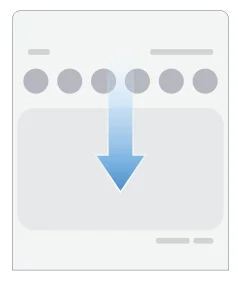
Lightly drag across the screen.
- Swipe the screen to unlock the device.
- Swipe the screen to scroll through the Home screens or menu options.
Drag and drop
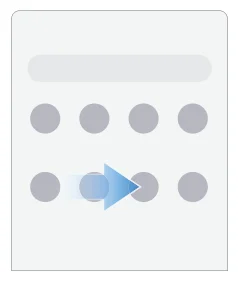
Touch and hold an item, and then move it to a new location.
- Drag an app shortcut to add it to a Home screen.
- Drag a widget to place it in a new location.
Zoom in and out
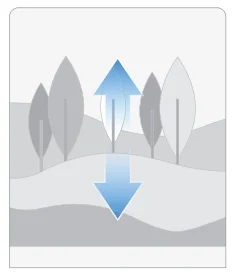
Bring two fingers together or apart on the screen to zoom in and out.
- Move two fingers apart on the screen to zoom in.
- Move two fingers together on the screen to zoom out.
Touch and hold
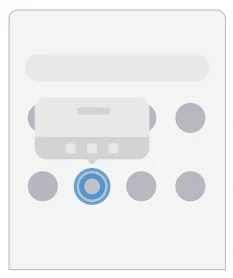
Touch and hold items to activate them.
- Touch and hold a field to display a pop-up menu of options.
- Touch and hold a Home screen to customize the Home screen.
Navigation bar
You may navigate your device by using either the navigation buttons or full-screen gestures.
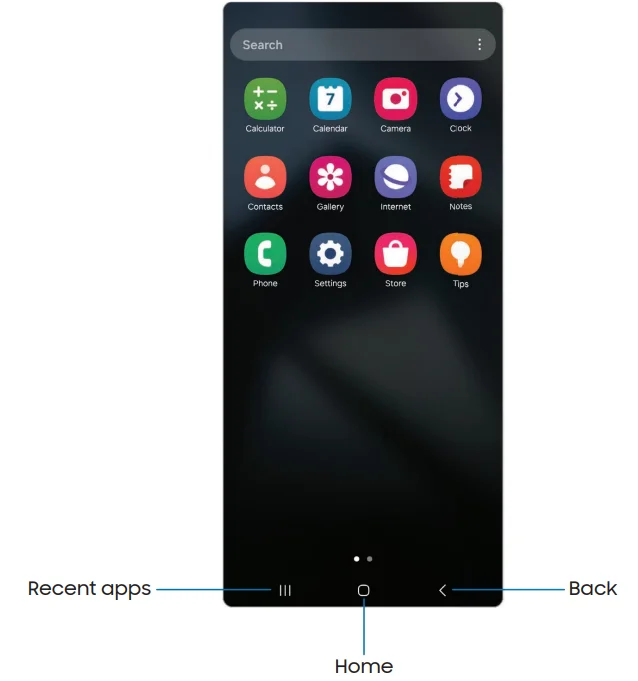
Navigation buttons
Use buttons along the bottom of the screen for quick navigation.
From Settings, tap Display > Navigation bar > Buttons.
- Tap More options > Button order to choose which side of the screen the Back and Recent apps icons display.
Navigation gestures
Hide the navigation buttons at the bottom of the screen for an unobstructed screen experience. Instead, swipe to navigate your device.
From Settings, tap Display > Navigation bar > Swipe gestures to enable the feature.
Tap More options for the following options:
- Block gestures with S Pen: Prevent the S Pen from making navigation gestures (Galaxy S24 Ultra only).
- Gesture sensitivity: Drag the slider to adjust the sensitivity level.
Navigation assistant
Enable additional features to enhance your navigation experience. From Settings, tap Display > Navigation bar.
Tap to enable the following options:
- Assistant app: Swipe inward from one of the bottom corners of the screen to open your digital assistant app.
- Circle to search: Touch and hold Home or the Navigation bar to search using the content on your screen.
Customize your home screen.n
The Home screen is the starting point for navigating your device. You can place your favorite apps and widgets here, in addition to setting up additional Home screens, removing screens, changing the order of screens, and choosing a main Home screen.
App icons
Use app icons to launch an app from any Home screen. From Apps, touch and hold an app icon, and tap Add to Home. To remove an icon:
- From a Home screen, touch and hold an app icon, and then tap Remove.
Wallpaper
Change the appearance of the Home and Lock screens by choosing a favorite picture, video, or preloaded wallpaper.
- From a Home screen, touch and hold the screen, and then tap Wallpaper and style.
- Tap one of the following menus for available wallpapers:
- Tap the Lock screen and Home screen images to edit them.
- Change wallpapers: Choose from a variety of wallpaper options or download more from Galaxy Themes.
- Color palette: Choose a palette based on colors from your wallpaper.
- Dim wallpaper when Dark mode is on: Enable to apply Dark mode to your wallpaper.
Themes
Set a theme to be applied to your Home and Lock screens, wallpapers, and app icons.
- From a Home screen, touch and hold the screen, and then tap Themes.
- Tap a theme to preview and download it.
- Tap Menu > My stuff > Themes to access downloaded themes.
- Tap a theme, and then tap Apply to apply the selected theme.
Icons
Apply different icon sets to replace the default icons.
- From a Home screen, touch and hold the screen.
- Tap Themes > Icons, and tap an icon set to preview and download it.
- Tap Menu > My stuff > Icons to access downloaded icons.
- Tap an icon, and then tap Apply to apply the selected icon set.
Widgets
Add widgets to your home screens for quick access to info or apps
- From a Home screen, touch and hold the screen.
- Tap Widgets, and then tap a widget set to open it.
- Swipe to the widget you want to add to the Home screen, and tap Add
Customize Widgets
Once you have added a widget, you can customize where it’s located and how it functions.
- Create a stack: Add other widgets of the same size to the stack in the same place on the screen.
- Remove: Delete a widget from your screen.
- Settings: Customize the function or appearance of the widget.
- App info: Review the widget usage, permissions, and more.
Home screen settings
Customize your Home and Apps screens
- From a Home screen, touch and hold the screen, and tap Settings.
- Tap an option to customize:
- Home screen layout: Set your device to have separate Home and Apps screens, or only a Home screen where all apps are located.
- Home screen grid: Choose a layout to determine how icons are arranged on the Home screen.
- Apps screen grid: Choose a layout to determine how icons are arranged on the Apps screen.
- Folder grid: Choose a layout to determine how folders are arranged.
- Add media page to Home screen: When enabled, swipe right from the Home screen to open a media page. Tap to display available media services.
- Show Apps screen button on Home screen: Add a button to the Home screen for direct access to the Apps screen.
- Lock Home screen layout: Prevent items on the Home screen from being removed or repositioned.
- Add new apps to Home screen: Automatically add newly downloaded apps to the Home screen.
- Hide apps on Home and Apps screens: Choose apps to hide from the Home and Apps screens. Return to this screen to restore hidden apps. Hidden apps are still installed and can appear as results in Finder searches.
- App icon badges: Enable showing badges on apps with active notifications. You can also choose the badge style.
- Swipe down for notification panel: Enable this feature to open the Notification panel by swiping down anywhere on the Home screen.
- Rotate to landscape mode: Rotate the Home screen automatically when your device’s orientation is changed from portrait to landscape.
- About Home screen: Display version information.
- Contact us: Contact Samsung support through Samsung Members.
Easy mode
The Easy mode layout has larger text and icons, making for a more straightforward visual experience. Switch between the default screen layout and a simpler layout.
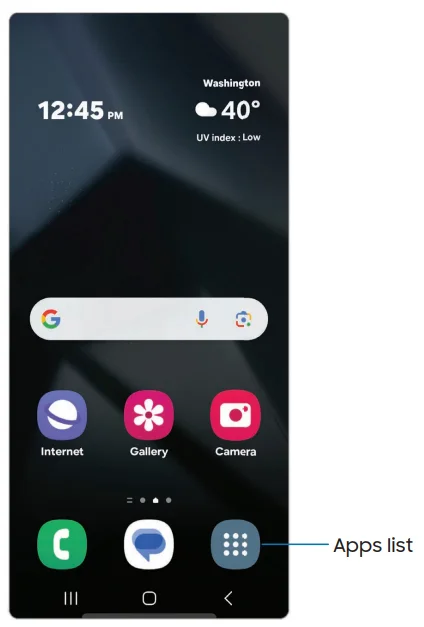
- From Settings, tap Display > Easy mode.
- Tap to enable this feature. The following options appear:
- Touch and hold delay: Set how long it takes for a continuous touch to be recognized as a touch and hold.
- High contrast keyboard: Choose a keyboard with high contrast colors
Status bar
The Status bar provides device information on the right side and notification alerts on the left.
Status icons

Battery full

Charging

Mute
 Vibrate

Airplane mode


Location active

Alarm

Missed calls
 Call in progress

New message

Voicemail

New email

Download

Upload

App update
Configure display options for the Status bar.
Notification panel
For quick access to notifications, settings, and more, open the Notification panel.
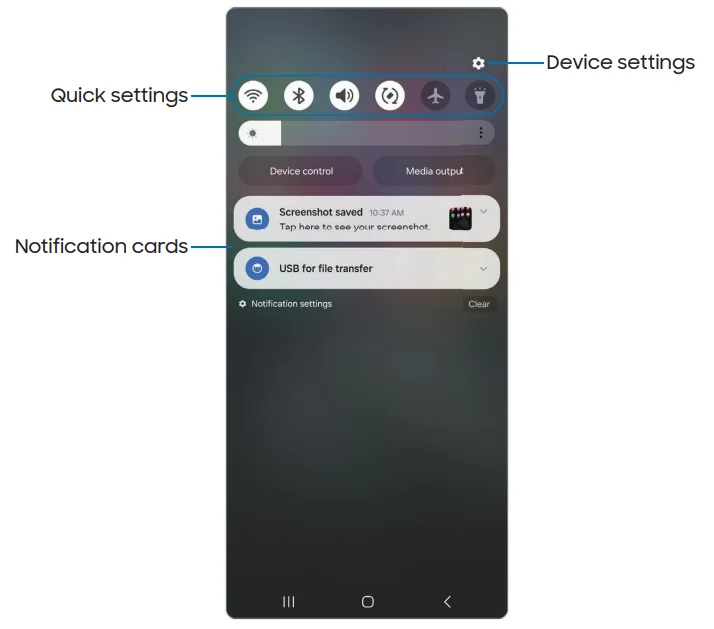
Open the Notification panel.
You can access the Notification panel from any screen.
- Swipe down on the screen to display the Notification panel.
- To open an item, tap it.
- To clear a single notification, drag the notification left or right.
- To clear all notifications, tap Clear.
- To customize notifications, tap Notification settings.
- Swipe upward from the bottom of the screen or tap Back to close the Notification panel.
Quick settings
The Notification panel provides access to device functions using Quick settings.
- Swipe the Status bar down to display the Notification panel.
- Swipe down again from the top of the screen to display Quick settings.
- Tap a Quick setting icon to turn it on or off.
- Touch and hold a Quick setting icon to open the setting.
Here are some of the most common Quick settings. Other settings may be available on your device.
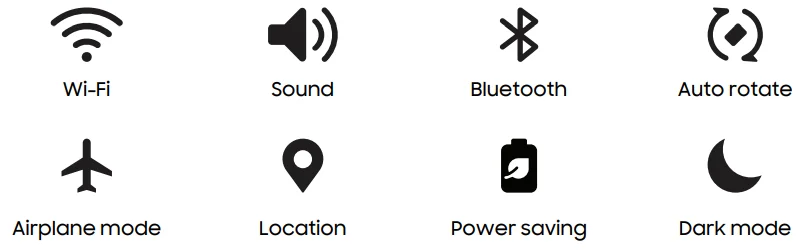
Quick settings options
The following options are available in Quick settings.
- Edit: Change the order and display options for the Quick settings.
- Power off: Power off, Restart, Emergency call, and Medical info options.
- Settings: Access the device’s settings menu.
S Pen
The Galaxy S24 Ultra supports the S Pen (sold separately). The S Pen provides a variety of helpful functions. Use your S Pen to launch apps, take notes, or draw a picture. Some S Pen functions, such as tapping the touchscreen, may not work if the device is near a magnet.
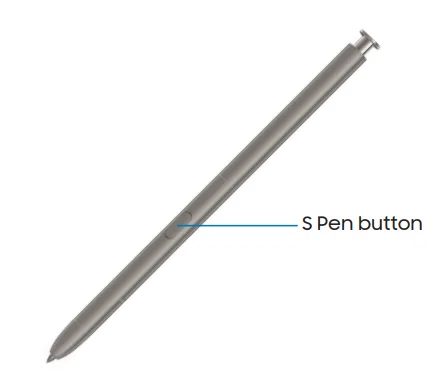
Remove the S Pen
The S Pen n stored in the bottom of your device for convenient access. It also charges the S Pen so that it can be used for remote functions.
- Push the S Pen inward to release it, and then slide it out
Air view
Hover the S Pen over the screen to preview content or information about an item on the screen. The following Air view features are available:
- Preview an email message before opening it.
- Preview the contents of a photo album or enlarge a picture.
- Preview a video and navigate to a specific scene by hovering over the timeline.
- Preview the name or description of an icon or a button.
Air Actions
The S Pen can be used to perform remote functions using the button and movements or gestures. You can set up shortcuts to your favorite apps, navigate screens on your devices, complete actions, and more. The S Pen remote feature is only supported by Samsung-approved S Pens with Bluetooth Low Energy (BLE). If the S Pen is too far from the device or if there is interference, the S Pen disconnects from the device. The S Pen must be connected for Air actions to work.
Anywhere actions
Anywhere actions are configurable shortcuts that are accessed by holding the S Pen button while making one of the following gestures: up, down, left, right, or shake. These can be accessed from any screen and can include navigation, S Pen features,
or apps.
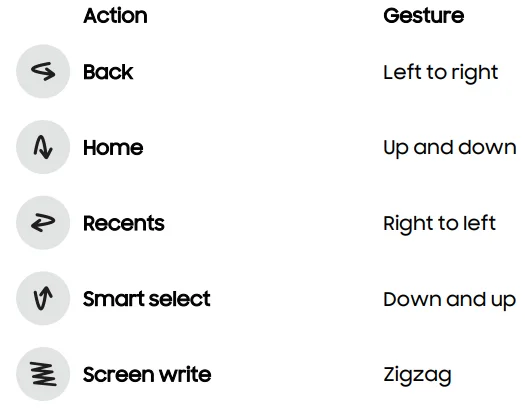
- From Settings, tap Advanced features > S Pen > Air actions.
- Tap a Gesture icon under Anywhere actions to customize the shortcut.
Air command
Access signature S Pen features from any screen, including Smart select, Screen write, and Samsung Notes.
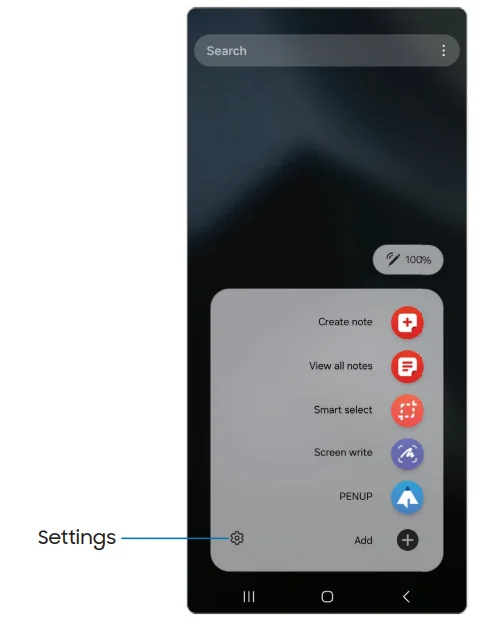
Tap the Air command for the following options
- Create note: Launch a new note in the Samsung Notes app.
- View all notes: Launch the Samsung Notes app for a list of the notes you have created.
- Smart select: Draw around an area of the screen to collect it in the Gallery app
- Screen write: Capture screenshots and write or draw on them.
- PENUP: Use the S Pen to draw, color, edit, and share live drawings.
- Add: Add more apps or functions to the Air command menu.
- Settings: Customize Air command by configuring apps and functions, and by changing how the Air command menu appears.
Configure S Pen settings
To configure S Pen settings:
- Air actions: Configure how the remote control functions while using apps.
- Air command: Configure the shortcuts, appearance, and behavior of the Air command menu.
- Air view: Turn Air view on or off.
- S Pen to text: Use the S Pen to write in search fields, address bars, and other text areas. Your handwriting is converted to text, and you can edit the converted text with the S Pen. Tap the Show writing toolbar to enable.
- When the S Pen is removed: Choose what happens when you detach the S Pen. Choose Open Air command, Create note, or Do nothing.
- Screen off memos: Create memos without turning on the screen. Remove the S Pen and start writing. Screen-off memos are saved in Samsung Notes.
- Quick notes: Press and hold the S Pen button, then tap the screen twice with your S Pen to start a new note.
- More S Pen settings: Configure other behaviors for the S Pen.
- About S Pen: Display version information for the S Pen features.
- Contact us: Contact Samsung support through Samsung Members.
FOR MORE MANUALS BY SAMSUNG, VISIT MANUALSLIBRARYY
Samsung Galaxy S24 Series-FAQs
When should I insert the SIM card into my new Galaxy S24?
Insert your SIM card after completing data transfer from your old phone. This ensures smooth activation and prevents connection issues.
How do I activate or install an eSIM on my Galaxy S24?
Go to Settings → Connections → SIM Manager → Add eSIM, then follow the prompts or scan your carrier’s QR code to activate it.
Can I transfer everything from my old Samsung to my new S24?
Yes. Use the Smart Switch app to transfer apps, contacts, messages, photos, and settings from your old device wirelessly or via cable.
Is it safe to charge my Galaxy S24 overnight?
Yes. Samsung devices have built-in protection to prevent overcharging. However, using the official Samsung charger is recommended for battery health.
What is the #21# code for?
Dialing *#21# shows whether your calls are being forwarded to another number — helpful for checking any hidden call forwarding.
How do I test if my Galaxy S24 screen is genuine?
You can use the *#0*# test menu to check display color uniformity and touch response. Fake screens may show poor brightness or incorrect color tones.
What is the code #0# used for on Samsung phones?
Entering *#0*# opens a hidden diagnostics menu to test your screen, camera, sensors, and other hardware features to ensure everything works correctly.
How do I install Samsung USB drivers on my computer?
Download the Samsung USB Driver for Mobile Phones from the Samsung Developer website, then install it to enable USB connections for file transfers or app development.
Are USB-C and Type-C the same thing?
Yes. USB-C and Type-C refer to the same reversible connector type that’s now standard on most modern devices, including the Galaxy S24.
Can I plug a USB drive into my Samsung Galaxy S24?
Yes. You can connect a USB-C flash drive or use a USB-C to USB-A adapter to transfer files, back up data, or watch media directly from the drive.