

Garmin VHF 315i Marine Radio

Introduction
WARNING
See the Important Safety and Product Information guide in the product box for product warnings and other important information.
Handset Overview
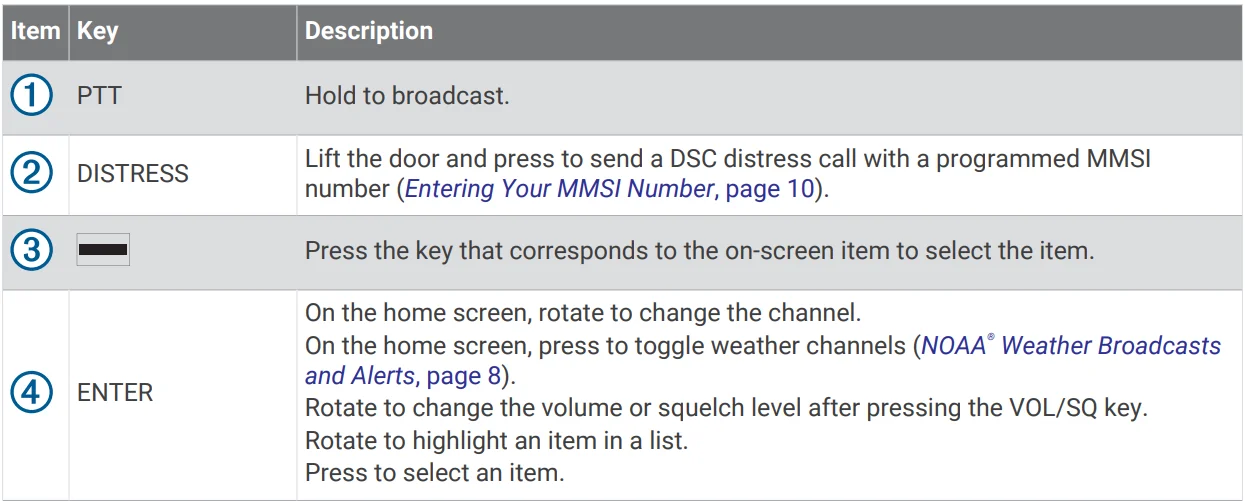
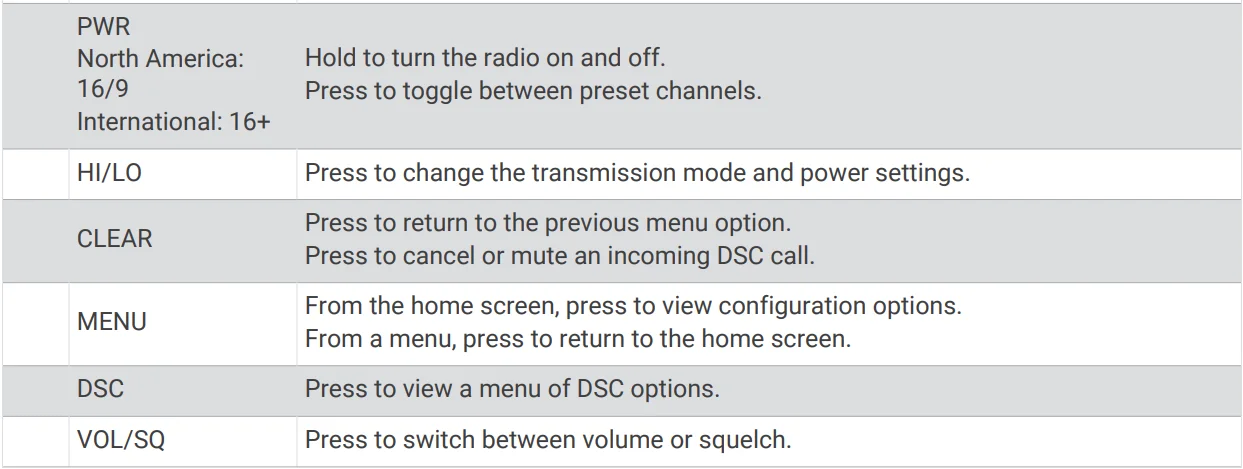
Home Screen
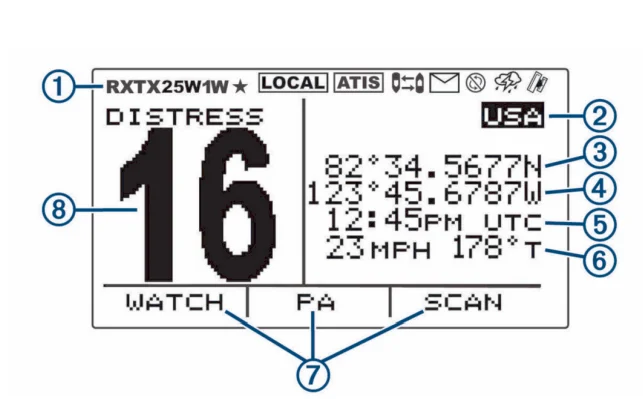
- Radio system status, settings, and alerts
- International, Canadian, or USA frequency band
- Latitude1
- Longitude ¹
- Time1
- Speed over ground (SOG) or course over ground (COG )²
- Soft-key functions change depending on your current activity
- Working channel
¹ The latitude, longitude, and time appear when the radio has a GPS signal acquired. You can enter data manually when the radio does not have a GPS signal.
² The SOG and COG appear when the radio has a GPS signal acquired, and the option is enabled in the menu (Number Settings, page 21).
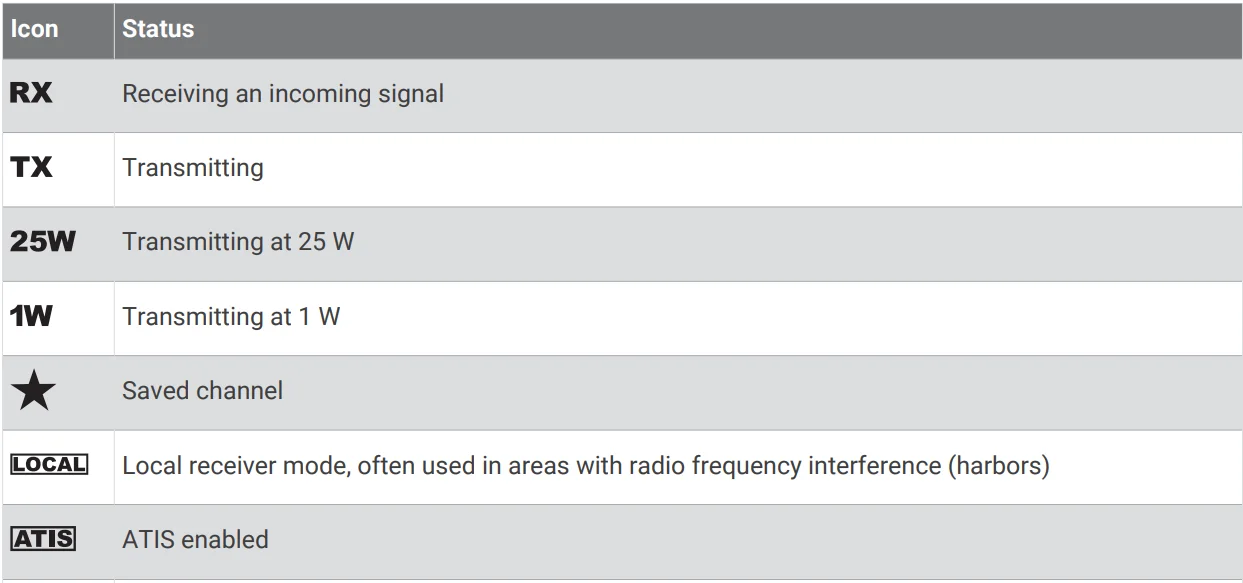
System Status Icons
Basic Operation
Turning On and Off the Device
Hold PWR.
TIP: You can set the device to turn on automatically (System Settings, page 21).
Adjusting the Volume
- Set the squelch level to MIN before you adjust the volume (optional).
- Select VOL/SQ twice.
VOLUME appears on the screen. - Turn the dial to increase or decrease the volume.
Adjusting the Squelch Level
You can adjust the sensitivity level of the squelch to filter out background noise. When you increase the squelch level, you hear fewer weak background signals when you are receiving.
- Select VOL/SQ.
SQUELCH appears on the screen. - Turn the dial counterclockwisee until you hear audio.
- Turn the dial clockwise until there is no background noise.
Selecting the Frequency Band
You can switch between the USA, International, or Canadian frequency bands (Channel Lists, page 22).
NOTE: Not all frequency bands are available on all device models.
- Select MENU > CHANNEL > FREQUENCY BAND.
- Select a frequency band.
Selecting a Channel
You can select an International, Canadian, or USA channel (Selecting the Frequency Band, page 4).
Turn the dial.
Transmitting with the Radio
- Select an appropriate channel.
- Verify that the channel is clear.
NOTE: You cannot obstruct the communications of other people due to Federal Communications Commission (FCC) and international guidelines. - Hold PTT on the handset. TX appears at the top of the screen.
- Speak into the handset.
NOTE: The maximum transmission time is 5 minutes. After five minutes of transmitting, PTT is disabled until you release PTT. - Release PTT.
Calling Another GHS™ 11 Handset
After connecting at least two GHS 11 handsets to your radio, you can use the intercom feature to communicate between the handsets. For example, you can use a handset at the helm to communicate with a user of a handset in a below-deck engine room.
NOTE: The intercom feature is not available with VHF 110/115 models.
- Select PA > INTERCM.
- Rotate the dial on the handset to select an intercom station to call, and select ENTER.
- At the receiving intercom station, hold PTT to respond.
Either user must hold PTT to talk. - Select EXIT to end the call.
Scanning and Saving Channels
Scanning All Channels
When you scan channels, the radio searches for channels that are broadcasting. When a channel is broadcasting, the radio pauses on that channel until the broadcast stops. After four seconds of inactivity on a channel, the radio resumes scanning.
NOTE: When you turn on ATIS (Automatic Transmitter Identification System, page 19), the radio does not scan or save channels.
- Select SCAN > ALL.
- Select an option:
- To exclude the currently active channel from subsequent passes and resume scanning, select SKIP.
- To scan channel 16 each time another channel is scanned, select +CH16.
For example, the radio scans channel 21, channel 16, channel 22, channel 16, and so on.
+CH16 appears on the device screen. - To scan channel 16 in its usual order, select -CH16.
For example, the radio scans channel 14, channel 15, channel 16, channel 17, and so on. - To end the scan, select EXIT.
The radio stops scanning and tunes to the last used, active channel.
Saving a Channel
You can save any channel except the weather (WX) channels. You can save an unlimited number of channels.
- Select SCAN.
- Turn the ENTER dial until you find a channel you want to save.
- Select SAV CH.
 Appears above a saved channel.
 Appears above a saved channel.
Removing a Saved Channel
- Select SCAN.
- Turn the ENTER dial until you find a saved channel.
NOTE: A saved channel is above it. - Select SAV CH.
Scanning Saved Channels
You can scan only the channels you have saved. When a saved channel is broadcasting, the radio pauses on that channel until the broadcast stops. After four seconds of inactivity on a channel, the radio resumes scanning.
NOTE: When you turn on ATIS (Automatic Transmitter Identification System, page 19), the radio does not scan or save channels.
- Select SCAN > SAVED.
- Select an option:
- To exclude the currently active channel from subsequent passes and resume scanning, select SKIP.
- To scan channel 16 each time another saved channel is scanned, select +CH16.
For example, the radio scans saved channel 21, channel 16, channel 25, channel 16, and so on.
+CH16 appears on the device screen. - To stop scanning channel 16, select -CH16.
For example, the radio scans saved channel 21, channel 25, and so on. - To end the scan, select EXIT.
The radio stops scanning and tunes to the last used active channel.
Multiple Channel Monitoring
Before you can monitor multiple channels, you must turn off ATIS (Automatic Transmitter Identification System, page 19).
You can monitor priority channels and the currently selected channel for broadcasting activity. Channel 16 is the first-priority channel on your radio. Channel 9 is the default second-priority channel. You can program a different channel as your second-priority channel (Selecting a Different Second-Priority Channel, page 6).
NOTE: After responding to a call or transmitting on the currently selected channel, you must repeat the steps to resume monitoring multiple channels.
Monitoring Two Channels
You can monitor your current channel and channel 16 at the same time.
Select WATCH > DUAL.
DUAL WATCH and the channels you are monitoring appear on the screen. For example, DUAL WATCH CH:, and 16 + 9.
Monitoring Three Channels
You can monitor your current channel, channel 16, and your second-priority channel at the same time.
Select WATCH > TRI.
TRI WATCH, your current channel, channel 16, and your second-priority channel appear on the screen. For example, TRI WATCH CH:, and 75 + 16 + 9.
Selecting a Different Second-Priority Channel
You can select a channel other than channel 9 as your second-priority channel.
- Select MENU > CHANNEL > 2ND PRIORITY.
- Turn the ENTER dial to the preferred channel.
- Select OK.
Switching to Priority Channels
You can quickly switch between your current working channel and a priority channel. When you change to a priority channel, the transmit power is set to high (25 W) automatically, and when you change back to your current channel, the transmit-power setting is restored.
On North American models, you can quickly switch between channel 16, your second-priority channel, and your original channel using the 16/9 key.
On International models, you can quickly switch between channel 16 and your original channel using the 16+ key.
- To switch from your current channel to channel 16, select 16/9 or 16+.
The transmit power changes to high (25 W) automatically. You can select HI/LO > 1W to change the transmit power to low (1 W). - On North American models, select 16/9 to switch to your second-priority channel.
- Select 16/9 or 16+ to return to your previous channel and transmit-power setting.
Setting the Receiving Sensitivity
You can control the receiving sensitivity of the radio. When you have noise in high-traffic areas or areas with electromagnetic interference, such as near cell-phone towers, you can set the receiving sensitivity to LOC to decrease receiver sensitivity. In remote areas and on open water, you can set the receiving sensitivity to DIST to ensure that you use the maximum range of the receiver.
- Select HI/LO.
- Select an option:
- Select LOC to enable local sensitivity.
- Select DIST to enable distant sensitivity.
Switching Between 1 W and 25 W Transmitting Modes
You can control the transmitting power of the radio. Low (1 W) is used for local transmissions, and high 25 is used for distance and distress transmissions.
When two signals are broadcast on the same frequency, a VHF radio receives only the stronger of the two signals. You should transmit calls other than distress calls using the lowest power setting that allows you to communicate, to reduce the possibility that your transmissions interfere with the transmissions of others.
In the USA channel band, transmissions on channels 13, 17, 67, and 77 must be low (1 W) by default.
In the Canadian channel band, transmissions on channels 13, 15, 17, 20, 1066, 67, 75, 76, and 77 must be low (1 W) by default.
In the International channel band, transmissions on channels 15, 17, 75, and 76 must be low (1 W).
NOTE: In the USA and Canadian channel bands, you can bypass the power setting for these channels temporarily during transmission (Bypassing the Low Transmission Power Setting, page 7). In the International channel band, the radio does not permit transmissions on these channels to be changed to high (25 W).
- Select HI/LO.
- Select 1W or 25W.
- Select OK.
Bypassing the Low Transmission Power Setting
In the USA and Canadian frequency bands, transmissions on select channels are required to be low-power (1 W)by default, because they are intended for intership (bridge-to-bridge) communication (Switching Between 1 W and 25 W Transmitting Modes, page 7). If other radios cannot receive these channels due to the low power setting, you can bypass the default restriction during transmission.
NOTE: In the International channel band, the radio does not permit transmissions on these select channels to be changed to high (25 W).
- From a USA or Canadian channel set to low power by default, such as 13, 17, or 77, hold PTT.
- While transmitting, select 25W.
Using the Hailer Function
Before you can use the hailer function, you must install a hailer horn (optional). For more information, see the VHF 315 Series Installation Instructions.
A hailer horn allows you to make on-boat or ship-to-shore announcementsand allows two-way communications between connected radios. You can address the ship using the radio or handset, and sounds received through the horn can be heard through the radio speaker. For vessels with enclosed cabins, the hailer horn allows you to hear sounds from the deck.
NOTE: When the radio is in hailer mode, it does not receive broadcasts from the active channel.
- Select PA > HAILER.
Sounds received through the horn are heard through the radio speaker. - Hold PTT.
- Select an option:
- To make an announcement, speak into the handset.
- To adjust the volume of the hailer broadcast, turn the ENTER dial.
- Release PTT to stop broadcasting and listen for broadcasts from other connected radios on the ship.
Foghorn
NOTE: Foghorn functionality is not available on all VHF radio models.
Before you can use the foghorn, you must provide and install a hailer horn (optional) on the deck or tower of your boat. For more information, see the Installation Instructions.
The foghorn is part of the public address system of your radio. You can sound the foghorn through a hailer horn or an external speaker. Your radio can sound the horn automatically using standard patterns, or you can sound the horn manually. When you manually operate the foghorn, sounds received through the horn can be heard through the radio speaker between soundings.
Sounding the Foghorn Automatically
- Select PA > FOG > AUTO.
- Select a foghorn-type option.
The radio alternates between sounding the pattern of tones or rings and receiving radio broadcasts. - Turn the ENTER dial to adjust the volume of the horn (optional).
Sounding the Foghorn Manually
NOTE: When you sound the horn manually, the radio does not receive broadcasts between horn soundings.
- Select PA > FOG > MANUAL.
Sounds are received through the horn and heard through the radio speaker. - Hold PTT.
NOTE: The horn stops sounding when you release PTT. - Turn the ENTER dial to adjust the volume of the horn (optional).
Adjusting the Sound Frequency of the Foghorn
You can increase or decrease the sound frequency of the foghorn. The pitch of the tone rises with an increase in frequency, and falls with a decrease frin equency. The minimum setting is 200 Hz, the maximum setting iss 850 Hz. The default setting is 350.. Regulations dictate the correct frequency of foghorns, which correlate with the size of your vessel.
- Select MENU > SYSTEM > FOG FREQUENCY.
- Turn the ENTER dial to adjust the frequency in 50 Hz increments.
- Select ACCEPT.
Entering Text
You may need to enter a name, a number, or other text on the radio.
- From a number or text field, turn the ENTER dial to change the number, letter, or character.
- Press the ENTER dial to accept the number, letter, or character and move to the next space in the sequence.
- Repeat this process for each number, letter, or character.
NOTE: You can select ⇐ to return to the previous entry in the sequence. - Select ACCEPT.
NOAA® Weather Broadcasts and Alerts
NOTE: This feature is not available on all radio models.
NOAA weather broadcasts on the weather (WX) channels are available only in the USA and certain regions in Canada.
Compatible radio models are programmed with 10 WX channels to monitor weather broadcasts from the National Oceanic and Atmospheric Organization (NOAA). WX channels are listen-only channels that broadcast in a continuous loop and are updated regularly. NOAA broadcasting information is regional and relevant to your broadcast area.
Tuning Weather Broadcasts
- From the home screen, press the ENTER dial.
WX appears on the screen. - Turn the ENTER dial to change the weather channel.
Enabling and Disabling Weather Alerts
You can enable weather (WX) alerts to sound when you are using standard radio channels.
- When tuning weather broadcasts, select ALERT to enable or disable weather alerts.
 indicatess that weather alerts are enabled.
 - Select EXIT.
The radio returns to normal operation while continuing to monitor weather alerts.
 indicatess that weather alerts are enabled.
Digital Selective Calling
Digital Selective Calling
NOTE: Before you can use DSC capabilities, you must enter a Mobile Marine Safety Identity (MMSI) number (Entering Your MMSI Number, page 10). An MMSI number identifies each DSC radio, like a telephone number.
Digital Selective Calling (DSC) is a key component of the Global Maritime Distress and Safety System (GMDSS). DSC enables VHF radios to place and receive digital calls directly with other vessels and shore stations, including the USA and Canadian Coast Guards. Your radio includes full Class-D DSC capabilities.
If you have a GPS device connected to the transceiver, your latitude, longitude, and the current time are transmitted when you send a distress call or other type of DSC call. If you enter your position information manually, your latitude, longitude, and time of entry are transmitted with the call. Transmitting your location automatically speeds help in an emergenon.
Channel 70 is reserved exclusively for DSC calls, and your device uses a dedicated receiver to maintain a constant watch on Channel 70. You do not need to change the channel to make a DSC call. Your device changes to Channel 70 automatically to transmit a DSC call. Your radio sends the DSC data over Channel 70 in less than one second, and then tunes to an appropriate channel for voice communications.  Appears on the device screen when you have an incoming or missed DSC call.
NOTE: The device disables DSC automatically when you turn on ATIS (Automatic Transmitter Identification System, page 19).
Automatic Transmitter Identification System
Automatic Transmitter Identification System (ATIS) is a vessel identification system used on certain inland waterways in some European countries. See your Garmin dealer to program your VHF radio if you plan to use your radio on waterways that are within the bounds of the Regional Arrangement Concerning the Radiotelephone Service on Inland Waterways (the Basel Agreement). ATIS is prohibited outside the European inland waterways that are covered by the Basel Agreement.
When you enable ATIS, your radio sends a data signal identifying your station at the end of every transmission. Data identifying your position is not sent, but your position is calculated through the method of triangulation by coastal stations that receive your transmissions.
To enable ATIS, you must enter your ATIS identification number (Entering Your ATIS Identification Number, page 19)and turn on ATIS (Turning On and Off ATIS, page 19). See your Garmin dealer to determine your ATIS identification number and to learn about ATIS requirements for your region.
Your radio disables these functions when you enable ATIS.
- Digital Selective Calling (DSC)
- Monitor two or three channels (Dual watch and Tri watch)
- Scanning channels
International channels 6, 8, 10, 11, 12, 13, 14, 71, 72, 74, and 77 restrict transmitting to low-power (1 W) whwhen youunable ATIS.
Entering Your ATIS Identification Number
NOTICE
You can enter your ATIS identification number only once. If you must change your ATIS identification number after entering it, you must take your radio to your Garmin dealer for reprogramming.
NOTE: You can access the ATIS settings on the radio after the ATIS feature is activated by your Garmin dealer.
- Select MENU > ATIS > MY ATIS ID.
- Enter your ATIS number (Entering Text, page 8).
- Select ACCEPT.
The radio prompts you to re-enterr your number. - Enter your ATIS number again, and select ACCEPT.
If the ATIS numbers do not match, a message appears. - If necessary, select RETRY, and enter the number again.
Turning On and Off ATIS
- Select MENU > ATIS > ATIS.
- Select ON or OFFAppearsrs on the screen when ATIS is enabled.
- Select OK.
Viewing Your ATIS Identification Number
Select MENU > ATIS > MY ATIS ID.
For more manuals by Garmin, visit ManualsLibraryy
Garmin VHF 315i Marine Radio- FAQs
Is a VHF radio the same as a marine radio?
Yes. A marine VHF radio is a type of VHF radio specifically designed for use on boats. It allows communication with other vessels, marinas, bridges, and coast guard services.
What is a marine VHF radio used for?
A marine VHF radio provides short-range voice communication on the water. It is mainly used for safety, navigation coordination, weather updates, and emergency calls.
Do recreational boats need a marine VHF radio?
In most cases, it is not legally required for recreational boats under a certain size, but it is highly recommended because it offers reliable communication in emergencies.
Does the Garmin VHF 315i transmit AIS?
No. The Garmin VHF 315i does not transmit AIS. AIS transmission requires a dedicated AIS transponder. Some VHF radios only receive AIS information when connected to compatible equipment.
How do I install the Garmin VHF 315i?
Installation involves connecting the power cable, attaching a suitable VHF antenna, mounting the radio in its bracket, and securing all rear connections properly.
What is the typical range of a marine VHF radio?
Marine VHF radios usually work within 5–10 miles between boats. Communication with coast stations can reach around 20 miles or more, depending on antenna height and conditions.
Can I listen to marine VHF radio on land?
Marine VHF radios are intended for use on water. Using them on land is generally restricted and regulated, except in specific licensed or authorized situations.
What is the 3-3-3 rule for marine radio use?
The 3-3-3 rule means listening to the radio for at least 3 minutes at the top of every 3 hours. This helps ensure you do not miss distress or safety calls.
Can I use the Garmin VHF 315i without an MMSI number?
Yes, basic voice communication works without an MMSI. However, for DSC distress calling and full safety features, an MMSI number is required.
Do I need an antenna for the Garmin VHF 315i?
Yes. A proper marine VHF antenna is essential. Without an antenna, the radio cannot transmit or receive signals effectively.