
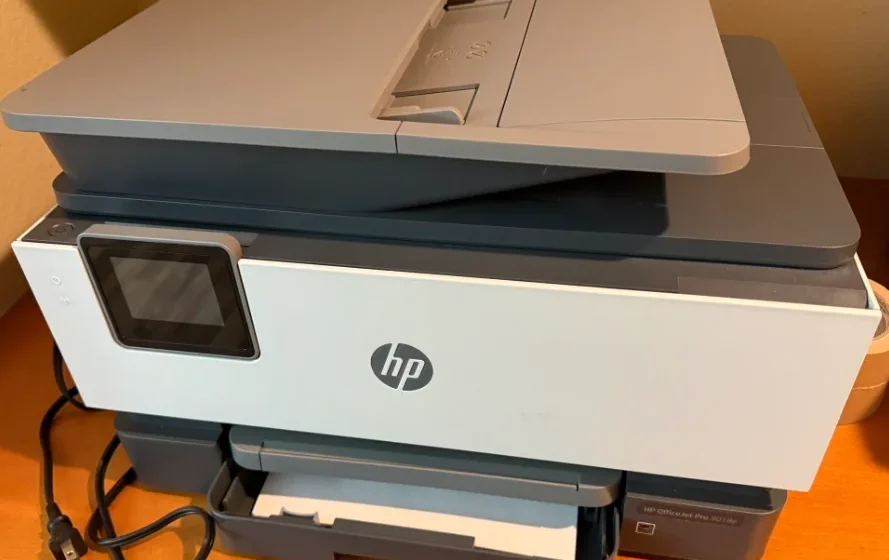

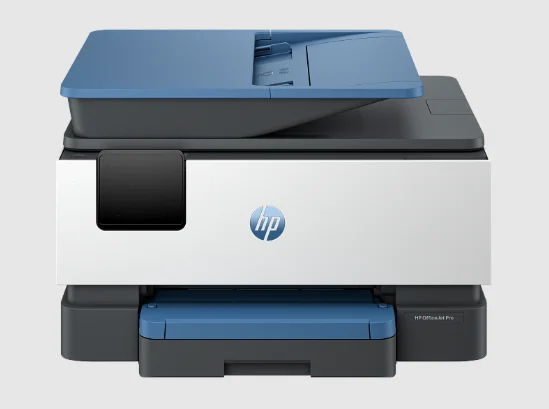
HP OfficeJet Pro 9125e All-in-One Printer
Get started
Discover printer components, control panel functions, and other key printer features.
Printer views
Printer parts and their descriptions.
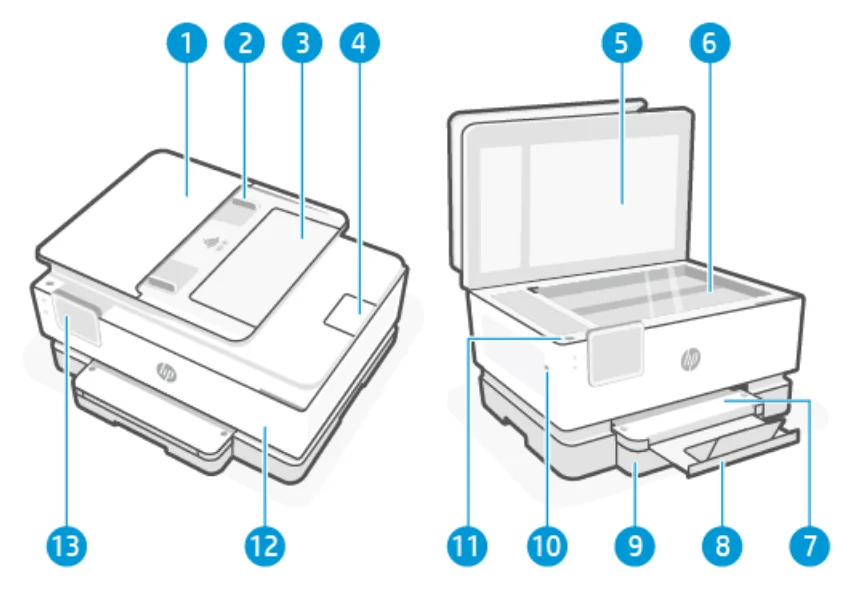
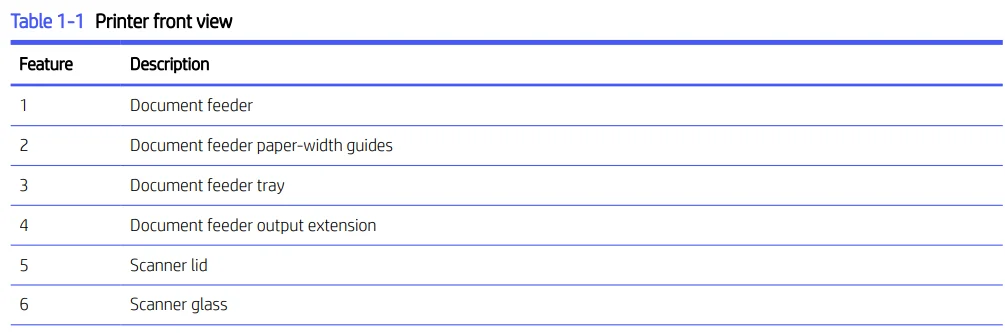
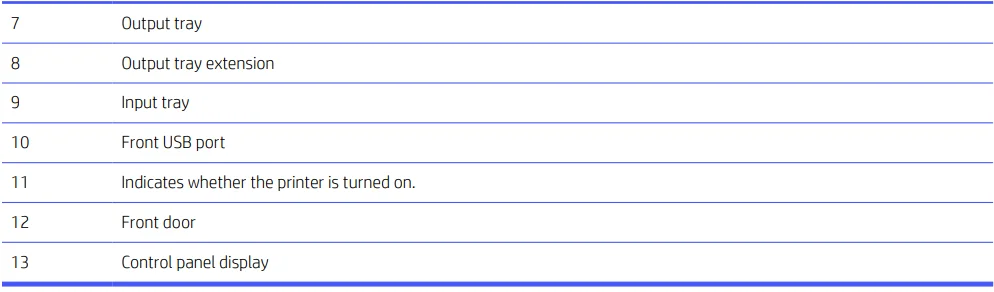
Front view
Printer parts on the front.
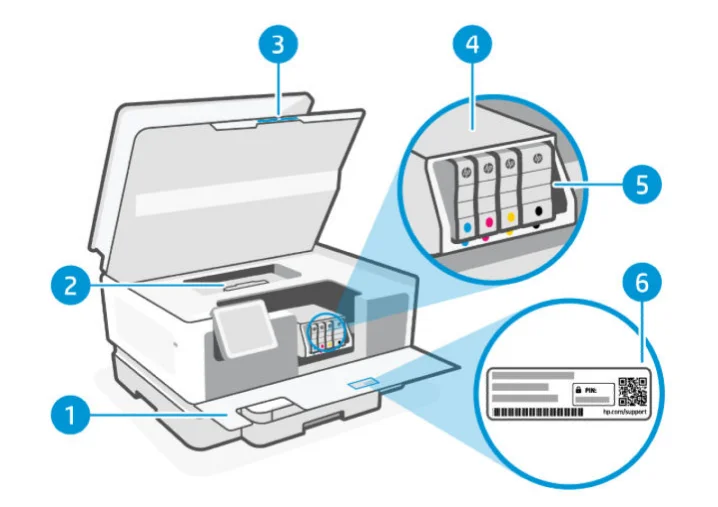
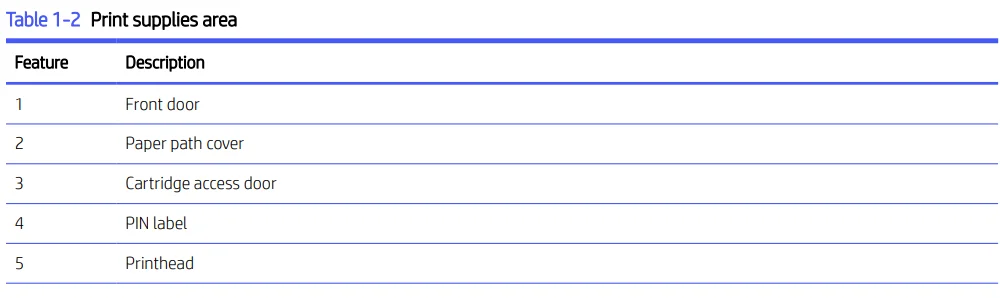
Print supplies area
Parts in the print supplies area.

NOTE: Cartridges must be kept in the printer to prevent possible print quality issues or printhead damage. Avoid removing supplies for extended periods of time. Do not turn the printer off when a cartridge is missing.
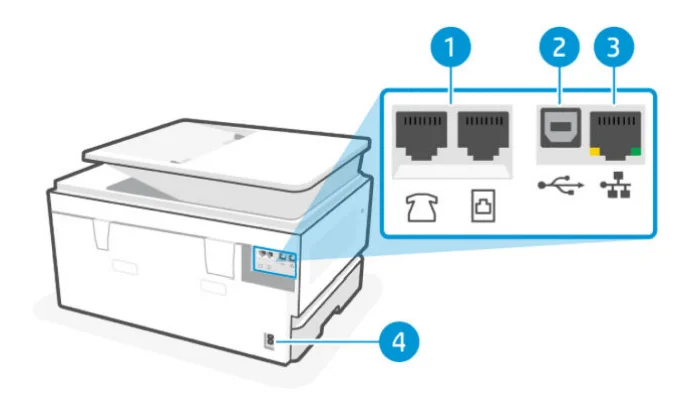
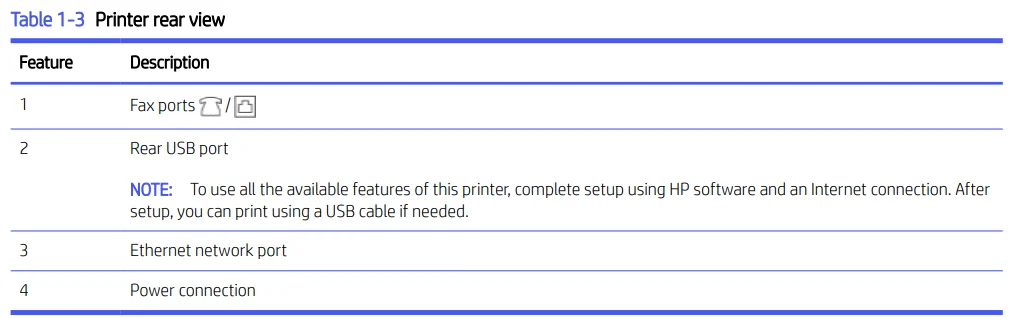
Rear view
Printer parts on the rear.
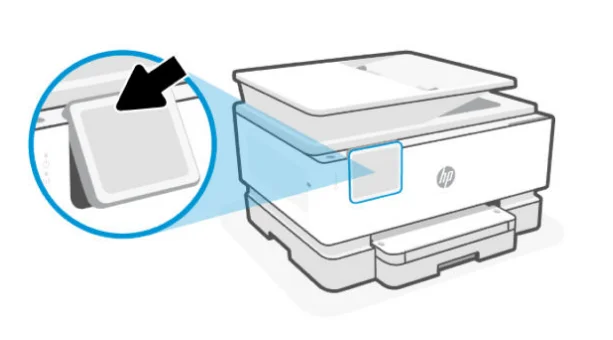
Control panel features
The control panel provides direct interaction, including lights to indicate status, errors, and more.
Tilt the control panel.
Tilt the control panel for easier viewing. Push the upper part of the control panel to tilt it upwards and push the lower part to tilt it downwards.
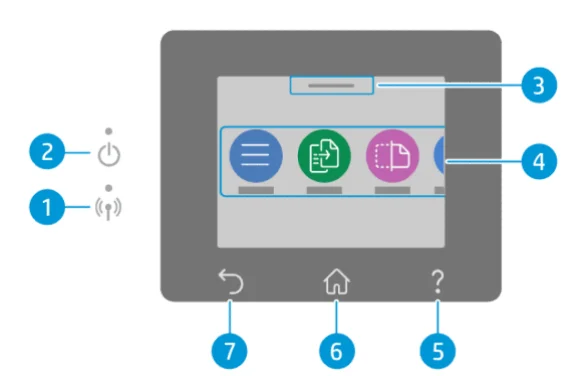
Control panel display
Check printer status, perform printer tasks, and change printer settings.
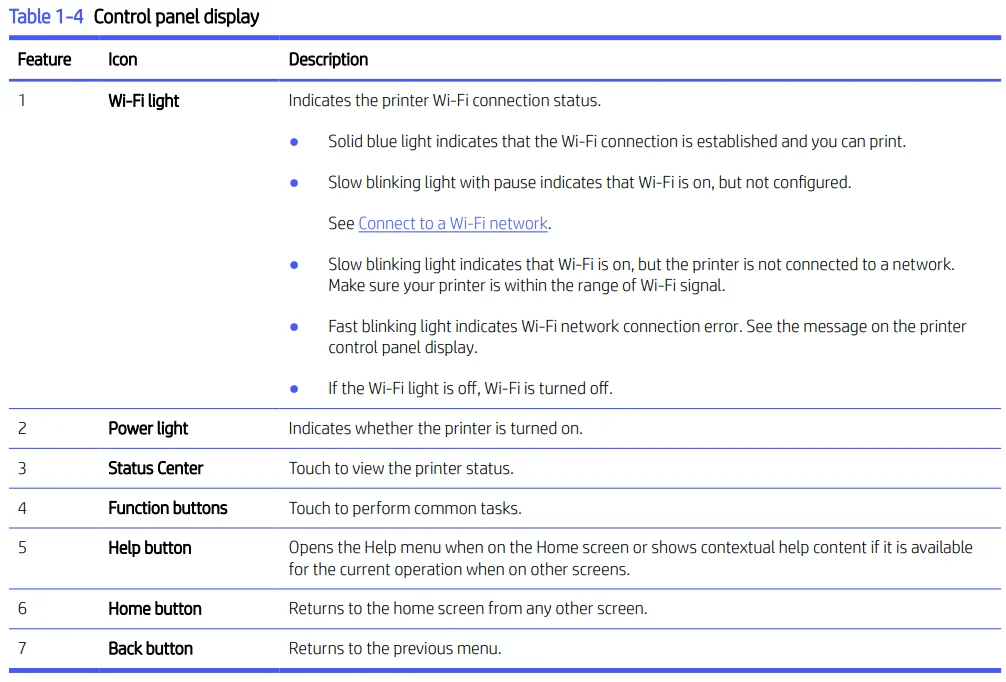
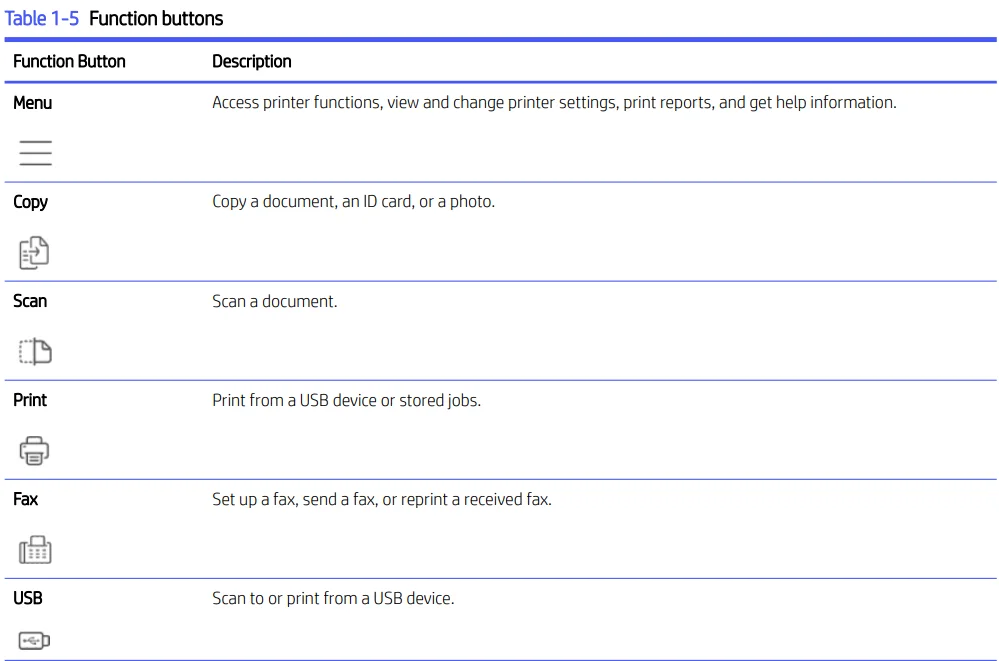
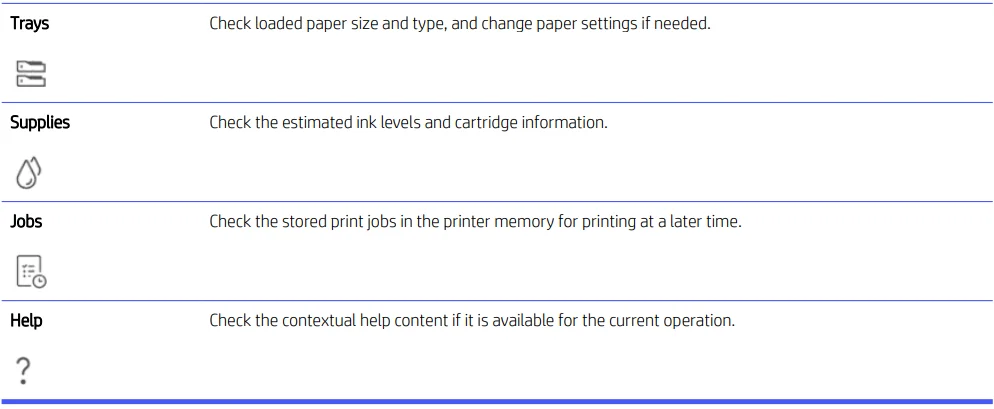
Function buttons
Perform printer tasks.
Change printer settings
Use the control panel to view or change printer settings. You can also change printer settings using the HP software or the embedded web server (EWS).
- On the control panel Home screen, touch Menu.
- Scroll to Utilities and touch Settings.
- Touch the desired option to make the necessary changes.
TIP: Touch Home  to return to the main screen.
Use HP software
HP software helps you perform printer tasks from a mobile device or computer.
- Set up and connect your printer.
- Print and scan documents and photos.
- Share documents through email and other applications.
- Manage printer settings, check printer status, print reports, and order supplies.
NOTE:
- You can download the HP software from the app store for your device.
- HP software supports mobile devices and computers running on certain versions of iOS, Android, Windows, and macOS.
Visit hp.com/support for more information on system requirements. - HP software is only available in some languages and only supports some file formats. Some features are only available on certain printers or models.
Install the HP software and create an HP account:
- Visit 123.hp.com to download and install the HP software on your device.
- Open the HP software.
If prompted, create or sign in to an HP account and register the printer. - Connect the printer.
See Connect your printer.
Turn the printer off.f
Press the Power button to turn off the printer. Wait until the power light turns off before unplugging the power cord or turning off the power strip.
 CAUTION: When turning off the printer, always make sure to follow this procedure to avoid possible problems.
Connect your printer
Discover various methods for connecting your printer.
Requirements for HP+ printers
Check the requirements before you connect the printer.
NOTE: HP+ is only available in some countries/regions.
Keep the printer connected to the Internet. et
HP+ printers are cloud-connected devices that must remain connected to the Internet in order to function. The Internet connection enables the printer to deliver HP+ specific app features and firmware updates.
During setup, you must connect the printer to the Internet using a supported network connection. After setup, you can print using a USB cable connection, if desired, but the printer must still be connected to the Internet.
Use an Original HP cartridge. ges
Original HP cartridges are cartridges manufactured and sold by HP in official HP packaging. If non-Original HP supplies or refilled cartridges are installed, HP+ printers do not operate as expected.
Have an HP account
Create or sin tointo an HP account to manage your printer.
Connect to a Wi-Fi network.
Make sure your network is ready before connecting your printer to a Wi-Fi network.
- The printer is not connected to the network using an Ethernet cable.
- The printer Wi-Fi is turned ,, and the Wi-Fi network is set up and working properly. The blue Wi-Fi light on the printer control panel is lit when Wi-Fi is turned on.
- The printer and the devices that use the printer are on the same network (subnet). While connecting the printer, you might be prompted to enter the Wi-Fi network name (SSID) and a Wi-Fi password.
TIP:
- Visit hpsmart.com/wirelessprinting for more information about setting up and using the printer wirelessly.
- If you run into any problem with Wi-Fi connect, see Restore original network settings.
Check Wi-Fi status
You can view the status of the printer’s Wi-Fi connection from the printer control panel.
- On the control panel Home screen, touch Menu.
- Scroll to Utilities and touch Settings.
- Touch Network, and then touch Wi-Fi.
- Touch View Details.
Turn on Wi-Fi
You can turn on Wi-Fi from the printer control panel.
- On the control panel Home screen, touch Menu.
- Scroll to Utilities and touch Settings.
- Touch Network, and then touch Wi-Fi.
- Touch the toggle button next to Wi-Fi to enable the Wi-Fi mode.
NOTE:
- The blue Wi-Fi light on the printer control panel is lit when Wi-Fi is turned on.
- If the printer has never been configured to connect to a Wi-Fi network before, turning on Wi-Fi mode automatically starts the Wi-Fi Setup Wizard.
Connect to a Wi-Fi network using the HP software.
Use the HP software on your computer or mobile device to set up or connect the printer to your Wi-Fi network.
See Use HP software.
NOTE:
- HP software uses Bluetooth for printer setup. It does not support printing using Bluetooth.
- Turn on Bluetooth and location services on your mobile device.
- Make sure your printer Wi-Fi is tur,, ned on and the printer is in Wi-Fi setup mode.
- Make sure your computer or mobile device is connected to the same Wi-Fi network as the printer.
- Open the HP software on your device.
If prompted, create or sign in to an HP account and register the printer. - In the software, follow the on-screen instructions to add or connect the printer.
If prompted for a password, enter the default printer PIN available on the label inside the printer access door. If you have changed the password, enter your new password.
When the printer connects successfully, the Wi-Fi light  stops blinking and remains lit.
Connect to a Wi-Fi network using the control panel
Use the Wi-Fi Setup Wizard or Wi-Fi Protected Setup from the printer control panel to connectto he printwirelessly ly.NOTE: If the printer has never been configured to connect to a Wi-Fi network before, turning on the Wi-Fi capability automatically starts the Wi-Fi Setup Wizard.
- On the control panel Home screen, touch Menu.
- Scroll to Utilities and touch Settings.
- Touch Network, and then touch Wi-Fi.
- Touch the toggle button next to Wi-Fi to enable the Wi-Fi mode.
- Touch Wi-Fi Setup Wizard or Wi-Fi Protected Setup, and then follow the on-screen instructions to add the printer to your network.
The blue Wi-Fi light on the printer control panel is lit when Wi-Fi is turned on.
After connecting the printer wirelessly, visit 123.hp.com to download and install the HP software on your device.
Connect to an Ethernet network.
You can connect your printer to an Ethernet network.NOTE: The Wi-Fi connection is automatically disabled when you connect the Ethernet cable.
- Connect your computer to the router.
- Connect your printer and router using an Ethernet cable.
- Open the HP software on your computer.
If prompted, create or sign in to an HP account and register the printer. - In HP software, add the printer, and then follow the on-screen instructions to add or connect the printer.
Connect using a USB cable
You can connect your printer using a USB cable.
NOTE: HP+ will not work as expected if you set up the printer using a USB cable.
While you are setting up the printer for the first time and to use all the available features of this printer, complete the setup using HP software and an Internet connection. After setup, you can print using a USB cable if needed.
- Connect the printer and computer using a USB cable.
- Open the HP software on your computer.
If prompted, create or sign in to an HP account and register the printer. - In HP software, add the printer, and then follow the on-screen instructions to add or connect the printer.
Change the connection type.
If you have already connected your printer, you can change the connection from USB to Wi-Fi or from Wi-Fi to USB.
USB to Wi-Fi
Unplug the USB cable from the printer and connect the printer to your network.
See Connect to a Wi-Fi network.
Wi-Fi to USB
Change the printer connection from Wi-Fi to USB. NOT E: Ifnecessary, remove the label covering the USB port at the back of the printer.
- Connect the printer and computer using a USB cable.
- Open the HP software on your computer.
If prompted, create or sign in to an HP account and register the printer. - In HP software, add the printer, and then follow the on-screen instructions to add or connect the printer.
Load media
Learn how to load paper and change media settings.
Load paper
Load a stack of paper into the tray.
NOTE:
- Remove any paper before loading a different paper type or size.
- Do not load paper while the printer is printing.
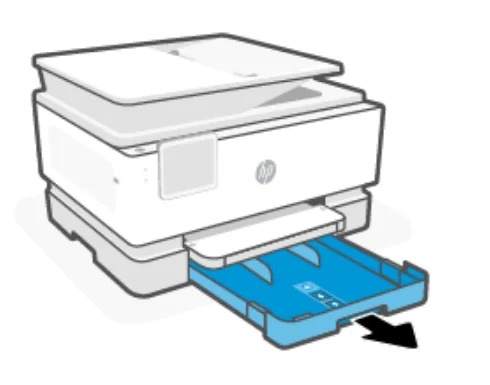
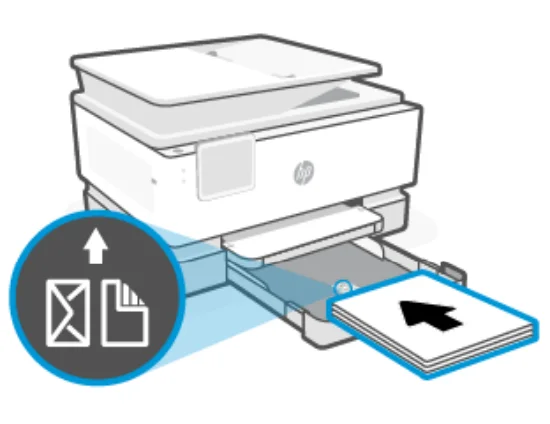
- Pull out the input tray.

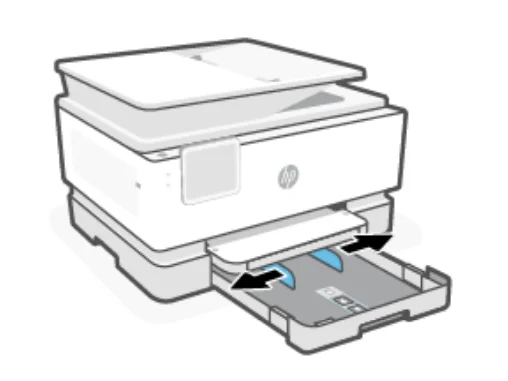
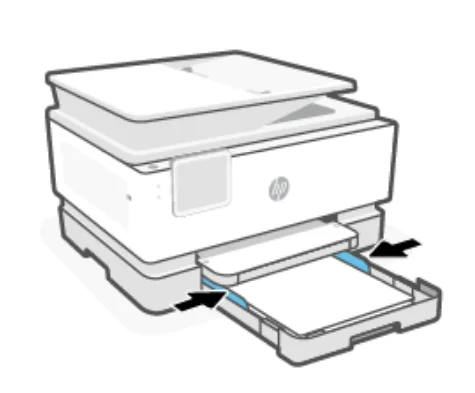
- Slide the paper guides to the edges of the tray.

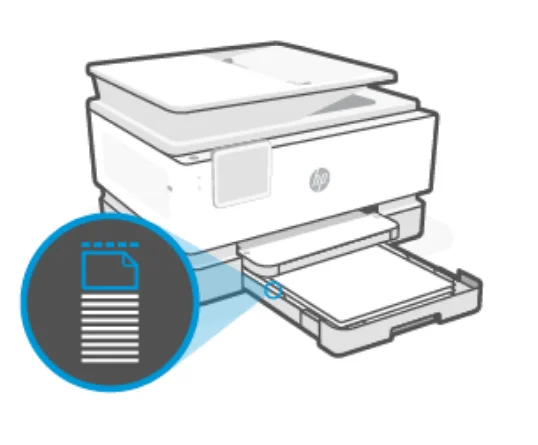
- Insert paper with the side to be printed facing down.
Make sure the stack of paper is aligned with the appropriate paper-size indicators and does not exceed the stack-height marking in the tray.

- Adjust the paper guides until they touch the edges of the paper stack.

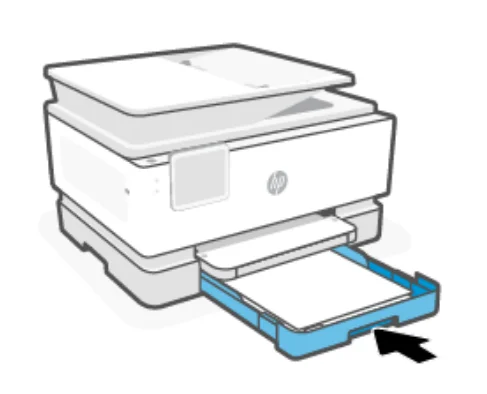
- Gently close the input tray.

- Change or retain the paper settings on the control panel. Make sure the settings match the paper type and size loaded.
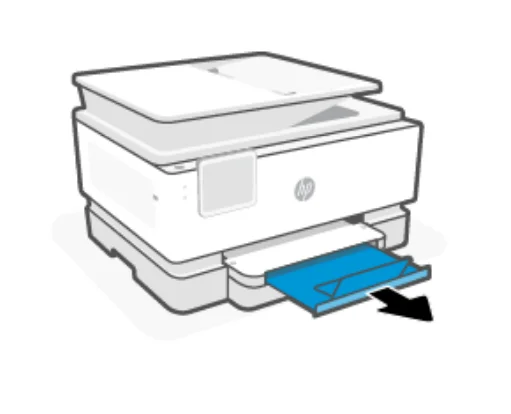
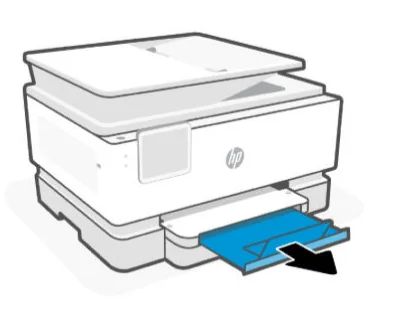
- Pull out the output tray extension.

Load envelopes
Load envelopes into the tray.
NOTE:
- Remove any paper before loading a different paper type or size.
- Do not load paper while the printer is printing.
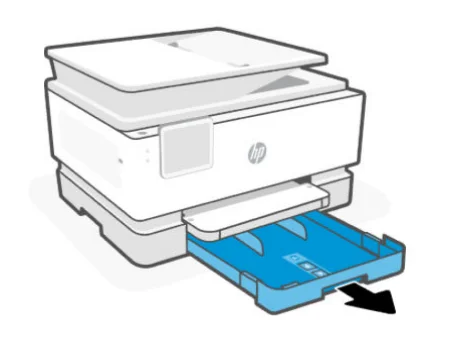
- Pull out the input tray.

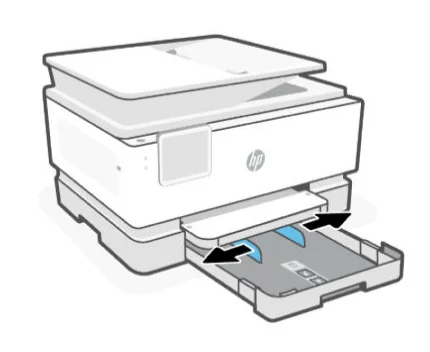
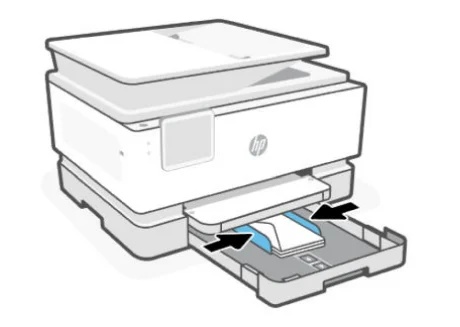
- Slide the paper guides to the edges of the tray.

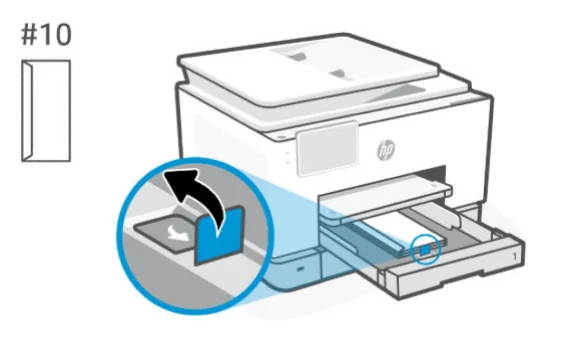
- Insert envelopes in portrait orientation and with the side to be printed facing down.
Make sure the stack of envelopes is aligned with the appropriate paper-size indicators and does not exceed the stack-height marking in the tray. TIP: Use the envelope guide to load C5 and #10 envelopes with long flaps. You do not need to use the guide for envelopes with short flaps.

- Adjust the paper guides until they touch the edges of the paper stack.

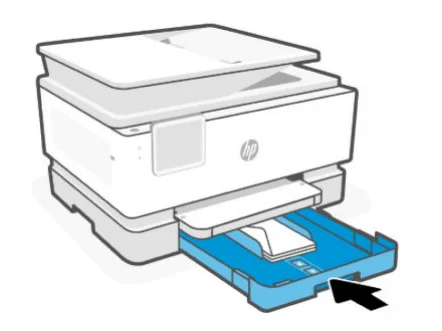
- Gently close the input tray.

- Change or retain the paper settings on the control panel. Make sure the settings match the paper type and size loaded.
- Pull out the output tray extension.

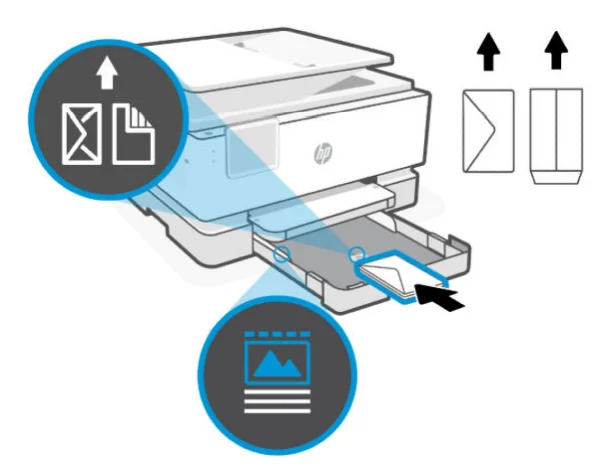 TIP: Use the envelope guide to load C5 and #10 envelopes with long flaps. You do not need to use the guide for envelopes with short flaps.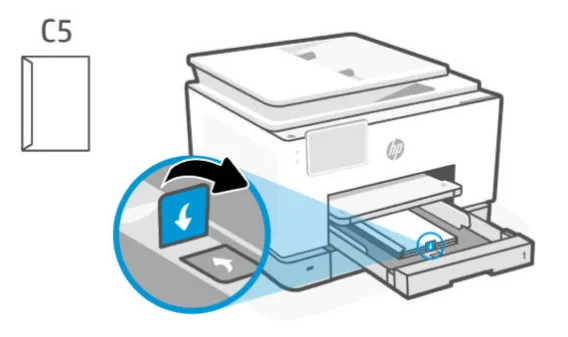
Configure your printer
Learn how to configure your printer using the printer control panel and the embedded web server (EWS).
Configure using the control panel
You can change settings using the control panel:
- On the control panel Home screen, touch Menu.
- Scroll to Utilities and touch Settings.
- Select the feature and change the desired settings.
Configure using the embedded web server (EWS)
The EWS is the printer homepage accessed through a web browser. Use the EWS to manage printer functions and settings from your computer or mobile device.
- View the printer status information.
- Check the information and status of the printing supplies.
- Receive notification of printer and supplies events.
- View and change the network and the printer settings.
Things to note when accessing the EWS.
- If the web browser displays a message indicating that the website is unsafe, select the option to continue. Accessing the website does not harm your device.
- Depending on how the printer is connected, some features in the EWS might not be available.
- For your security, some settings in the EWS are password-protected.
If prompted for a password, enter the default printer PIN available on the label inside the printer access door. If you have changed the password, enter your new password. - The EWS is not accessible beyond the network firewall.
Use the EWS to view or change IP configuration settings, and manually set an IPv4 address, subnet mmask and default gateway.
Open the embedded web server (EWS)
Open a web browser and type the IP address or hostname of the printer.
See Find printer IP address.
If prompted for a password, enter the default printer PIN available on the label inside the printer access door. If you have changed the password, enter your new password.
NOTE: You can also open the EWS using the HP software.
Find the printer IP addres..s
The IP address for your printer is a unique address on the network that is used to connect to other devices.Forr a printer connected using the Wi-Fi Direct connection, use this IP address: 192.168.223.1
- For a printer connected using the Wi-Fi connection, touch the Status Center on the printer control panel to view the IP address.
Alternatively, from the control panel Home screen, touch Menu, scroll to Utilities, touch Settings, touch Network, touch Wi-Fi, and then touch View Details.
View or change network settings.
When troubleshooting or setting up your printer, it might be necessary to view or edit its network settings.
- Open the EWS.
- From the left menu, click Network:
- To view network information, click Network Summary.
- To change network settings, click Network Settings.
Manually change IPv4 and IPv6 TCP/IP parameters
It might be necessary to manually configure a printer’s IP address when the printer is not detected on your network.
- Open the EWS.
- From the left menu, click the Network tab, and then click the Network Settings tab.
- Click IP Settings.
- On the IP Settings page, click the Protocols drop-down menu, and then select one of the following:
- IPv4 Only
- IPv6 Only
- Both IPv4 and IPv6
Assign or change the system password
Assign an administrator password using the embedded web server (EWS) to prevent unauthorized users from changing the printer settings.
- Open the EWS.
- From the left menu, click Security, and then click Password Settings.
- On the Admin Account Password page, enter the password in the New Password* field.
- Re-enter the password in the Confirm Password field.
- Click Apply.
NOTE: Make note of the password and store it in a safe place.
Change energy-conservation settings
The printer includes several energy-saving features to conserve energy and supplies.
See Power management for more information on printer energy-conservation settings.
Update printer
HP periodically releases firmware updates to enhance product functionality and fix issues. By default, if the printer is connected to the internet, it automatically checks for updates at regular intervals.
You can change the default setting for automatic updates or manually check for updates immediately.
Update the printer using the control panel
You can update your printer firmware manually using the control panel.
- On the control panel Home screen, touch Menu.
- Scroll to Utilities and touch Settings.
- Touch Firmware Update, touch Next, and then select any of the desired options
- Auto Update (Recommended): The printer automatically checks for and installs new firmware updates.
- Notify: The printer automatically checks for new firmware updates and displays a notification on the control panel when an update is available.
- Do Not Check: The printer does not automatically check for any updates.
Update printer using the embedded web server (EWS)
You can update your printer firmware using the EWS.
- Open the EWS.
See Open the embedded web server (EWS).
If prompted for a password, enter the default printer PIN available on the label inside the printer access door. If you have changed the password, enter your new password. - From the left menu, click General, and then click Firmware Update.
- On the Firmware Information page, click Check for Update.
If a printer update is available, the printer installs the update and restarts.
NOTE: If prompted for proxy settings, follow the on-screen instructions to set up a proxy server. If you do not have the details, contact your network administrator or the person who set up the network.
For more manuals by HP, visit ManualsLibraryy
HP OfficeJet Pro 9125e All-in-One Printer- FAQs
How many pages can the HP OfficeJet Pro 9125e print per month?
The printer has a maximum monthly duty cycle of up to 25,000 pages. However, for best performance and long life, printing well below this limit is recommended.
Is the HP OfficeJet Pro 9125e easy to set up?
Yes, setup is straightforward. You simply download the HP Smart app on your computer or mobile device and follow the on-screen instructions.
How do I set up the printer for the first time?
Unbox the printer, install ink cartridges, load paper, connect it to Wi-Fi, install the HP software, and complete setup using the HP Smart app.
How do I print documents using the HP OfficeJet Pro 9125e?
Open the file you want to print, press Ctrl + P, select the printer, adjust print settings if needed, and click Print.
What functions does the HP OfficeJet Pro 9125e support?
It supports printing, copying, scanning, and faxing, making it a complete all-in-one office printer.
What type of ink cartridges does the HP 9125e use?
This model uses HP 936e EvoMore ink cartridges, available in black, cyan, magenta, and yellow, including high-capacity options.
How do I scan documents with the HP OfficeJet Pro 9125e?
Place the document on the scanner glass or in the ADF, then select Scan from the printer screen or HP Smart app.
Can I connect the printer wirelessly to my computer or phone?
Yes, the printer supports Wi-Fi printing and works with computers, smartphones, and tablets via the HP Smart app.
What does the “e” mean in HP 9125e?
The “e” indicates support for HP ePrint, allowing you to print documents remotely using email and cloud services.