
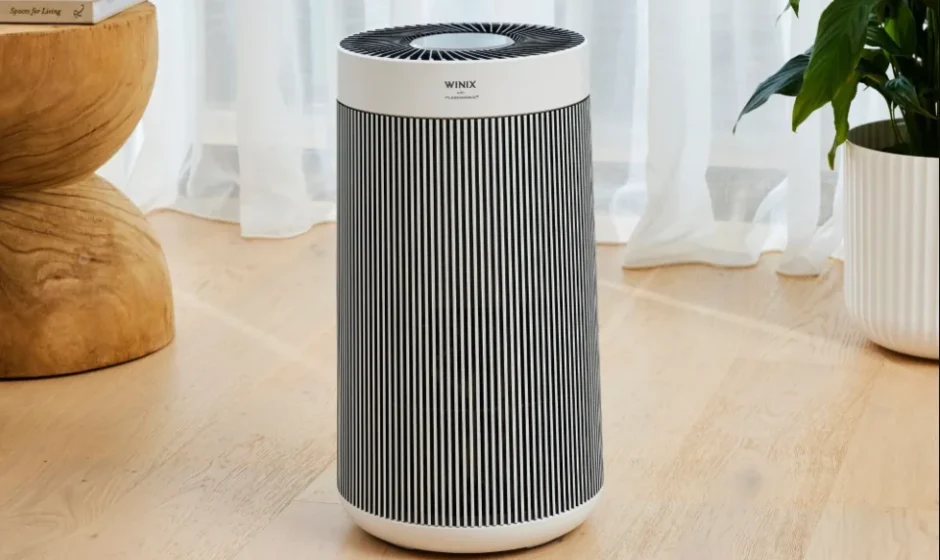

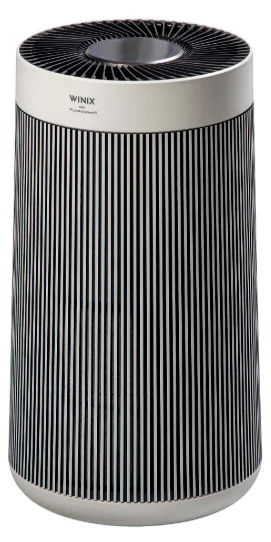
Winix ZERO 360 Air Purifier
SAFETY AND CAUTIONS
Before operating this equipment, carefully read and follow these safety cautions.
- Ensure filters are inserted before running the unit. Running the unit without filters may shorten the lifespan of the unit and cause electric shock or injury.
- Be sure foreign objects are NOT inserted into the vents on the unit. Objects can include pins, rods, and coins.
- Do not touch any part of the interior of the unit with wet hands. The high voltage may cause an electric shock.
- Ensure unit intake and outlet vents do not become blocked. Blockage may lead to increased internal temperatures, causing product failure and deformation.
- Do not use the unit as a step stool or place heavy objects on it. Personal injury may occur or a product failure and deformation.
- When turning the product upside down, install the filter with care in the direction so that the bottom (blocked) side of the filter is visible. If the filter direction is not installed properly, it may cause product damage and user injury.
WARNING
Follow these instructions to reduce the risk of serious injury or death and to reduce the risk of damaging the unit.
- If the supply cord is damaged, it must be replaced by a special cord or assembly available from the manufacturer or its service agent.
- This appliance can be used by children aged 8 years and above and persons with reduced physical, sensory, or mental capabilities or lack of experience and knowledge if they have been given supervision or instruction concerning the use of the appliance in a safe way and understand the hazards involved.
- Children should be supervised to ensure that they do not play with the appliance.
- Cleaning and user maintenance shall not be made by children without supervision.
- Before cleaning or maintaining, ensure the unit is unplugged.
- Do not pull on the power cord when unplugging the unit.
- Do not tie or knot the power cord when the unit is in operation.
- If the unit becomes submerged in water, unplug it and contact customer service.
- Do not unplug or move the unit while in operation.
- Do not plug additional appliances into the same outlet or power supply.
- Do not touch the plug with wet hands.
- Unplug the unit when not in operation for extended periods of time.
- Do not place around heating elements.
- Do not use around mist or fumes from industrial oil or around large quantities of metallic dust.
- The cord can become damaged by forcefully bending, pulling, twisting, bundling, pinching, or placing heavy objects on it.
- Do not install in any sort of motor or transport vehicle (trucks, boats, ships, etc).
- Do not place in an area with excessive amounts of noxious gases.
- Do not place near any flammable materials (aerosols, fuel, gases, etc).
SAFETY INSTRUCTIONS
IMPORTANT CAUTIONS FOR USING YOUR AIR PURIFIER
WARNING: Follow the instructions in this manual to reduce the risk of electric shock, short circuit, and/or fire.
- Do not repair or modify the unit. All repairs should be completed by a qualified technician.
- Do not use if the power cord or plug is damaged or the connection to the wall outlet is loose.
- Use AC 220 – 240 V only.
- Do not damage, break, forcefully bend, pull, twist, bundle, coat, pinch, or place heavy objects on the power cord.
- Periodically, remove dust from the power plug. This will reduce the risk of shock due to humidity buildup.
- Remove the power plug from the outlet before cleaning the unit. When removing the power plug, grasp it by holding the plug itself; never hold the cord.
- If the power plug is damaged, it must be replaced by the manufacturer or a qualified technician.
- Remove the power plug from the outlet when not in use.
- Do not handle the power plug with wet hands.
- Do not operate the unit when using indoor smoke-generating insecticides.
- Do not clean the unit with benzene or paint thinner.
- Do not spray insecticides on the unit.
- Do not use the unit where it is humid or where the unit may become wet, such as the bathroom.
- Do not insert fingers or foreign objects into the air intake or outlet.
IMPORTANT PRECAUTIONS FOR USING YOUR AIR PURIFIER
- Do not block the intake or outlet vents.
- Do not use near hot objects, such as a stove.
- Do not use where the unit may come into contact with steam.
- Do not use the unit on its side.
- Keep away from products that generate oily residue, such as a deep fryer.
- Do not use detergent to clean the unit.
- Do not operate without a filter.
- Do not wash and reuse the New 360 All-in-one True HEPA filter.
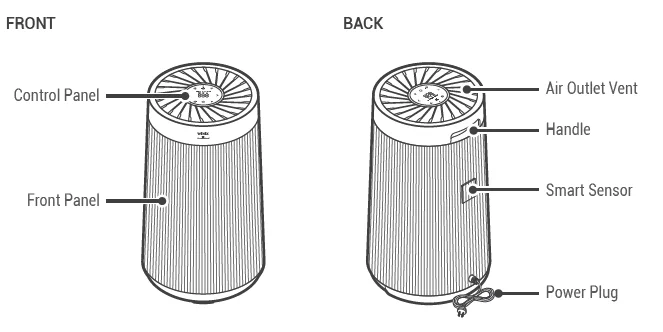
- Hold the handle on the back of the unit to transport.
- Do not hold the front panel.
- Do not stick any small objects in the air outlet vents or the fan.
MODEL PART DIAGRAM
PACKAGE CONTENTS
- Unit
- New 360 All-in-one True HEPA filter
- User Manual
WHERE TO USE
- Allow 30 ~ 45 cm. of space between TVs, radios, humidifiers, and other electronics. It can cause a malfunction due to electromagnetic interference and humidified water.
- Place indoors away from direct sunlight. Direct exposure may cause product malfunction or failure.
- Only place on hard, flat surfaces. Flimsy or slanted surfaces may result in abnormal noise and vibrations.
- Allow 30 ~ 45 cm from the walls. For maximum air flow.
CONTROL PANEL

- Filter Life / Filter Reset Button: A quick press will show the remaining filter life, indicated on the front display (F99 ~ F00). A long press of 5 seconds will reset the filter life indicator. Use when replacing the filters. The Filter Reset Button can be used when the power is turned off. The filter life will be reset to 100%.
- Light Mode Button: Use the light button to set the desired display brightness. The display brightness cycles in the order of 100% 70%, 30% OFF. Other features remain unchanged.
- Fan Speed Adjustment Buttons: Adjust the current fan speed. Use the Fan speed arrow buttons to set the desired fan speed. Fan speeds cycle over in this sequence: Auto, Low, Medium, High, Turbo.
- Auto Mode Button: The unit will default to Auto with PlasmaWave® enabled when first powered on. Auto Mode automatically adjusts fan speeds according to your indoor air quality. The fan speed will adjust to low when air quality is good, medium when fair, and high when poor.
- Power Button: Turns the unit on or off. During the first 30 seconds of power, the Air Quality Indicator will cycle through Blue, Green, Amber, and Red colors. Smart Sensor takes approximately 4 minutes to detect the air quality in the environment before normal operation begins.
- Light Sensor: Detects the amount of ambient light in the environment. When in Auto Mode, the light sensor detects when to put the unit into Sleep Mode.
- Wi-Fi / Pairing Button: A quick press will turn Wi-Fi on/off. A long press of 3 seconds will activate pairing mode. A Wi-Fi indicator will display on the front while Wi-Fi is active.
- Air Quality Indicator: Color-coded LED light indicates one of four levels of Air Quality: Red (poor), Amber (fair), Green (average), and Blue (good).
- PlasmaWave® Button: Enables or disables PlasmaWave®. “When the unit is running, you may hear a chirping or buzzing sound. The sound is from large particles passing through PlasmaWave®, it is normal and does not signify product failure.” Press the PlasmaWave® Technology button when the unit is on to enable or disable this feature.
- Mode Indicator: Indicates whether Auto & Fan Speed Mode is enabled or disabled.
- Sleep Mode Indicator: Indicates whether Sleep Mode is enabled or disabled.
- Wi-Fi Indicator: Indicates whether Wi-Fi Mode is enabled or disabled.
- PlasmaWave® Indicator: Indicates whether PlasmaWave® is enabled or disabled.
- Filter Replacement Indicator: LED light indicates when it is time to change the filter.
- Ultrafine Dust Density Indicator: The LED Ultrafine Dust Density Indicator displays the quality of air in your environment. When the unit senses an air quality change, it automatically adjusts the LED Indicator to display the respective air quality. The LED Numeric Smart Sensor displays air quality measures fine particles down to 2.5 microns.
Guide to Fine Dust Concentration (Unit: μg/m3)
The numerical pollution level value displayed may differ from the information provided by official institutions, depending on the indoor environment or the location of the product.
PM 2.5
Winix Smart QUICK GUIDE
Follow these steps to connect your Air Purifier to Wi-Fi
Requirements Before You Begin:
- A Wi-Fi wireless router must be installed within range of the air purifier to use Winix Smart.
- Ensure Wi-Fi router matches the following specifications: 802.11b/g/n 2.4GHz or for a dual-band wireless router (2.4GHz/5GHz), be sure to select 2.4GHz.
- Be sure to have the Wi-Fi password handy.
- During registration, please keep the air purifier, wireless router, and smart device within a 10 m. radius.
- Obstacles between the air purifier, wireless router, and smart device may cause weak reception.
- Make sure to disable any VPN networks before connecting your unit.
Required Smartphone Operating Systems:
- iOS: Ver. 10.0 and above
- ANDROID: Ver. 5.0 and above
The Winix Smart service is optimized for the above specifications. Some functions might not be supported depending on your smartphone.
Download the Winix Smart App
Please search “Winix Smart” in the App Store or Google Play Store and download the app.
Login or Register
If you have an existing Winix Smart account, please log in. If you do not have an account, please register and then log in.
Add Your Unit
Add the Air Purifier as the unit you want to pair. Then follow the steps for connecting your unit.
Connect to Wi-Fi
Connect your smartphone to the 2.4Ghz wireless network you want to use. *A secured 2.4Ghz Wi-Fi network is required.
Pair to Winix Smart
Hold the Wi-Fi Button for 3-5 seconds until it beeps and starts flashing. Then connect to the Winix Smart Wi-Fi network.
Troubleshooting
The product fails to connect to the wireless Wi-Fi router and continues to flash.
- Please check the Wi-Fi router password. Check if there are any changes to the router configurations. (Make sure the router is on a 2.4Ghz bandwidth.)
- Please press the Wi-Fi button for 3-5 seconds to confirm whether the product is in pairing mode (upon entering pairing mode, it might take some time for the Wi-Fi SSID to be displayed, depending on your radio wave environment).
- Please check if you have chosen the correct product during the product selection process. Different products may share the same
design. Model names can be found on product labels and in product manuals. - The product supports the configuration of a common personal Wi-Fi router. Advanced configurations are not supported. (for example: requires static IP allocation of products, disables DHCP router setting, Enterprise security access, Other security, etc.)
The remote control on the APP does not work during use of the product.
- Please check with the product’s Wi-Fi LED status to see if the product is properly connected to the wireless Wi-Fi router. If the Wi-Fi LED light is flashing or not on, then the unit has lost connection.
- Check if your Wi-Fi router has a stable connection and is working with other devices.
- Poor internet connections or network errors can occur occasionally due to delays caused by mobile carriers or Internet service providers (ISPs). Please wait and then try again.
- If the Wi-Fi router was relocated during use, the connection might have been lost because of a poor Wi-Fi router signal. Please check the network connection status of the product.
Other Guidelines
- Only 2.4Ghz connections are supported between the product and a wired/wireless Wi-Fi router (5Ghz connections are not supported).
- If experiencing difficulties connecting to Wi-Fi on Android, go to “Advanced Network” and disable the “Smart Network Switch” or “Switch to Mobile Data” before you try connecting your product again (once connected, you may re-enable this function).
- Certain models may limit some APP functions.
- Winix Smart APP’s design and specifications, along with its features, are subject to change without notice as part of WINIX’s quality improvement efforts.
- Please contact WINIX Customer Service if you still encounter problems in registering your product at 1300 465 324.
- The Winix Smart APP may have permission requests to access your phone location and media when it is first launched. Depending on whether you provide permission, services may be unavailable or limited.
- Depending on your product model, the firmware of the APP and product may be updated as part of WINIX’s quality improvement efforts.
- The Winix Smart Service performs regular/temporary server checks as part of WINIX’s quality improvement efforts.
- Google Home and Amazon Alexa setup guides are available in the Winix Smart App.
5-STAGE AIR PURIFICATION

- Ultimate Pet Pre-Filter: First line of defense against pet hair, dander, and visible particles
- Fine Mesh Pre-Filter: Designed to catch larger airborne particles found indoors.
- True HEPA Filter: Captures 99.999% of airborne allergens, including pollen, mould spores, dust, pet dander, microbes, and smoke (particles as small as 0.01 microns in size).
- Activated Carbon Filter: Reduces VOCs and household odours from cooking, pets, and smoke.
- PlasmaWave®: PlasmaWave creates Hydroxyl, which can help to reduce the presence of airborne Bacteria, Viruses* (*Based on laboratory test conducted on Influenza A Virus H3N2, E. coli, Pseudomonas aeruginosa, Staphylococcus aureus, Salmonella typhimurium).
MAINTENANCE
When to Replace Filters

- When the Check Filter indicator LED is on, it is time to replace the New 360 All-in-one True HEPA filter.
- Intervals between filter replacement may vary depending on the environment.
INITIAL OPERATION
- Turn the product upside down.
- Grab the handle at the bottom of the product, turn anticlockwise, and pull out the filter cover.
- Remove the protective vinyl from the filter installed inside the product.
- Install the filter, top side down, into the bottom of the unit until it is fully inserted. The top of the filter shows the opening, and the bottom of the filter is solid.
- After installing the filter, turn the handle clockwise to close the filter cover.
- Return the product to an upright position and resume normal operation.
CLEANING CARE
Cleaning the Filters:
Clean with a vacuum or a soft brush.
- Only clean the Pre-Filter.
- This filter CAN NOT be washed.
- Intervals between filter cleaning may vary depending on the air quality.
Cleaning the Exterior & Interior:
Wipe with a soft, damp cloth using room temperature water. Afterwards, wipe it down with a clean dry cloth.
After turning the product upside down, remove the filter cover and clean the interior with a vacuum cleaner.
- For optimal performance, clean every 14 days.
NOTICE
- When cleaning the unit, always unplug the power cord first and then wait until the unit has cooled down.
- Never disassemble, repair, or modify this unit yourself.
- Do not use flammable sprays or liquid detergents.
- Do not allow children to clean or maintain the unit.
- Before cleaning or maintaining, ensure the unit is unplugged.
How to disassemble and clean the smart sensor cover
- Please use your finger to detach the cover of the dust sensor.
- Clean the lens and suction port of the dust sensor with a cotton swab, and then use a dry cotton swab to clean the dust sensor. (Cleaning frequency: Once every two months)
- Close the cover of the dust sensor until you hear a clicking sound.
NOTICE
- Do not use benzene, alcohol, or other volatile fluids, which may cause damage or discoloration.
- Do not clean the sensor with volatile substances such as water, alcohol, or acetone.
If not cleaned regularly, the performance of the dust sensor may deteriorate.
FREQUENTLY ASKED QUESTIONS
The unit does not turn on at all
- Is the plug securely attached to the outlet?
Make sure the outlet has power going to it, and ensure the plug is secured.
- Is there a power outage?
Check to see if other lights and electrical equipment are working and try again.
The unit doesn’t work in Auto Mode
- Has Auto Mode been selected?
Press the Fan Speed button until Auto Mode is selected.
- Is the sensor blocked or clogged?
Clean the smart sensor.
It vibrates and makes a lot of noise
- Is it running on a slanted or uneven surface?
Move the unit to a hard, flat, even area.
REPLACING FILTERS
Resetting Filter Life:
After replacing the New 360 All-in-one True HEPA filter, use a small object such as a While the unit is on, hold the Filter Reset Button for at least 5 seconds until you hear the beep. After the beep, the Filter Replacement Indicator will disappear.
For more Manuals by Winix, visit ManualsLibraryy
Winix ZERO 360 Air Purifier-FAQs
How do I reset the filter indicator on my Winix ZERO 360?
After installing a new 360° All-in-One True HEPA Filter, press and hold the reset button with a paperclip or similar tool for 5 seconds until the Check Filter light turns off. The Auto mode LED will light up to confirm activation.
How do I use my Winix ZERO 360 air purifier effectively?
Place it in a central spot at least 20 cm from walls or furniture for optimal airflow. Run it continuously in Auto mode, clean the pre-filter regularly, keep windows mostly closed during use, and match fan speed to room needs and noise levels.
Can I leave my Winix ZERO 360 running 24/7?
Yes, it’s safe and recommended for maximum air cleaning—Winix suggests continuous operation. Use Auto mode to extend filter life, as longer runtimes may require more frequent replacements.
How do I clean the pre-filter on my Winix ZERO 360?
Vacuum or brush off dust with a soft tool. For heavy soil, rinse in lukewarm water without soap or detergent, then air-dry completely for 24+ hours before reinstalling. Avoid washing the main HEPA filter.
Where’s the best place to position my Winix ZERO 360?
Put it in the room’s center, away from walls, curtains, or obstructions by 20 cm for full 360° airflow. In bedrooms, place it near the bed for overnight benefits; move it room-to-room if needed for one unit.
What does the red light mean on my Winix ZERO 360?
Red indicates poor air quality or a filter issue. Check and replace/clean the filter if needed, then reset. Colors typically mean: Blue (good), Green (average), Amber (fair), Red (poor).
How often should I replace filters in my Winix ZERO 360?
Swap the Washable True HEPA Filter every 12 months and the Activated Carbon Filter every 3 months for peak performance. Signs of dirt include visible dust, reduced airflow, or indicator lights.
Does running a dirty filter harm my Winix ZERO 360?
Yes— it reduces efficiency, strains the unit, increases energy use, and may overheat the fan. Clean or replace promptly to avoid poor air quality and extend device life.
How do I know if my Winix ZERO 360 is working properly?
Watch for color-changing air quality lights, steady airflow, reduced odors/allergies, and no filter warnings. Test by noting less dust buildup; run continuously for 20-30 minutes to see initial improvements in small rooms.