
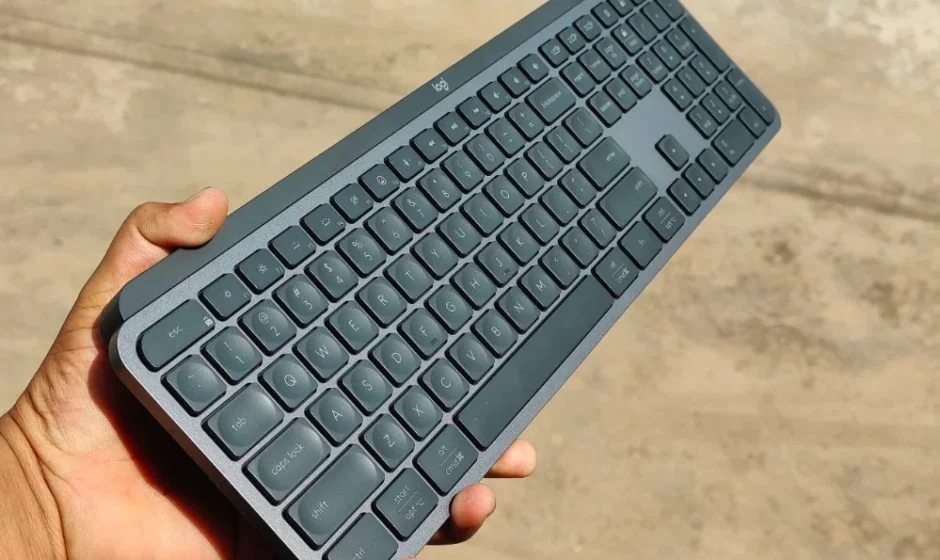

Logitech MX Keys S Keyboard
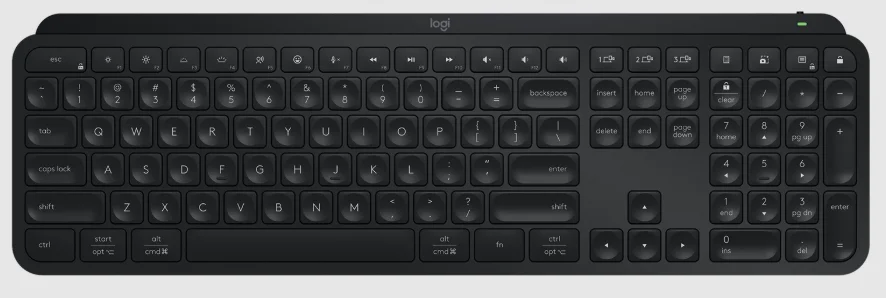
PRODUCT DESCRIPTION
The Logitech MX Keys S Keyboard is a premium wireless keyboard designed for comfort, precision, and productivity. With its refined low-profile keys and responsive scissor switches, it delivers a smooth, quiet typing experience ideal for professionals, creatives, and anyone who types extensively. The keys feature smart illumination that automatically adjusts to ambient light and senses your hands to light up as you approach — enhancing usability while conserving battery life.
Engineered for multi-device versatility, the MX Keys S allows seamless wireless connection via Bluetooth or the included USB-C receiver and can pair with multiple devices at once. Easily switch between computers, tablets, or smartphones with the touch of a button, making it a flexible choice for hybrid workstations and multitasking setups. The keyboard’s durable build, with a comfortable, slightly curved layout and stable frame, supports extended typing sessions without fatigue.
With long battery life and quick USB-C charging, the MX Keys S keeps you working longer with fewer interruptions. Compatible with both Windows and macOS systems — and customizable through Logitech’s software — this keyboard blends elegant design with intelligent features to elevate your workflow. Whether for professional use or everyday computing, the Logitech MX Keys S Keyboard offers precision, comfort, and connectivity in one sleek package.
Set up MX Keys S
QUICK SETUP
For quick interactive setup instructions, go to the interactive setup guide.
For more detailed information, continue with the following detailed setup guide.
DETAILED SETUP
- Make sure the keyboard is turned on.
The number 1 LED on the keyboard should blink quickly. NOTE: If the LED is not blinking quickly, perform a long press (three seconds).
 - Choose how you want to connect:
- Use the included Logi BOLT wireless receiver.
Plug the receiver into a USB port on your computer. - Connect directly via Bluetooth.
Open the Bluetooth settings on your computer to complete the pairing.
Click here for more details on how to do this on your computer. If you experience issues with Bluetooth, click here for Bluetooth troubleshooting.
- Use the included Logi BOLT wireless receiver.
- Install Logitech Options+ Software.
Download Logitech Options+ to enable additional features. To download and learn more, go to logitech.com/optionsplus.
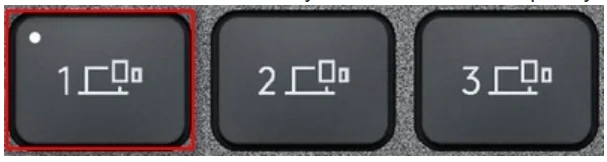 NOTE: If the LED is not blinking quickly, perform a long press (three seconds).
LEARN MORE ABOUT YOUR PRODUCT
Product Overview
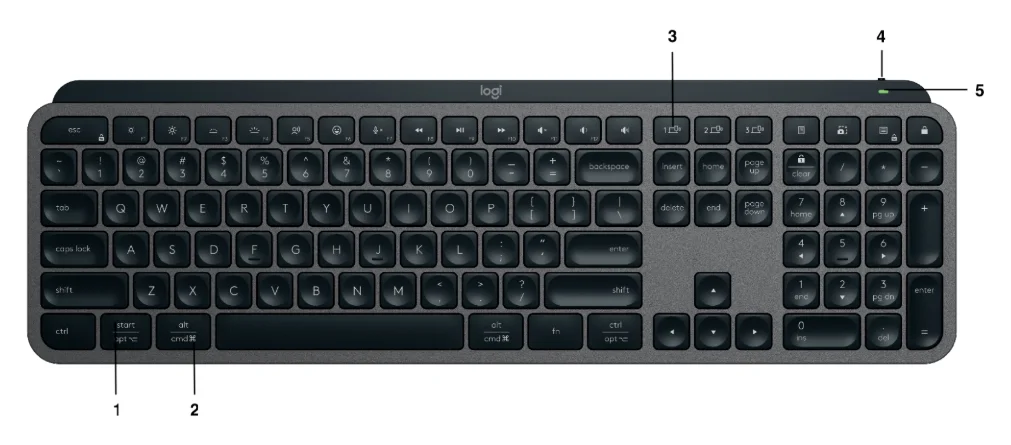
- Universal layout
- Mac layout
- Easy-Switch keys
- ON/OFF switch
- Battery status LED and ambient light sensor
Pair with a second computer with Easy-Switch
Your keyboard can be paired with up to three different computers using the Easy-Switch button to change the channel.
- Select the channel you want and press and hold the Easy-Switch button for three seconds. This will put the keyboard in discoverable mode so that it can be seen by your computer. The LED will start blinking quickly.
- Connect your keyboard to your computer using Bluetooth or the USB receiver:
- Bluetooth: Open the Bluetooth settings on your computer to complete the pairing. You can find more information here.
- USB receiver: Plug the Logi Bolt receiver into a USB port, open Logitech Options+, select: Add devices › select Logi Bolt receiver, and follow the instructions.
- Once paired, a short press on the Easy-Switch button will allow you to switch channels.
INSTALL SOFTWARE
Download Logitech Options+ to use all the possibilities this keyboard has to offer. To download and learn more about the possibilities, go to logitech.com/optionsplus.
Logitech Options+ is compatible with Windows and Mac.
Multi-OS keyboard
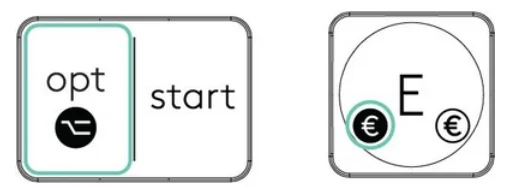
Your keyboard is compatible with multiple operating systems (OS): Windows 10,11 or later, macOS 11 or later, iOS, Linux, Chrome OS, and Android.
If you are a Windows, Linux, and Android user, the special characters will be on the right side of the key:
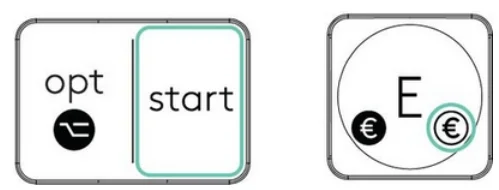
If you are a macOS or iOS user, the special characters and keys will be on the left side of the keyboard:
Battery Status Notification
Your keyboard will let you know when it is running low. From 100% to 11%, your LED will be green. From 10% and below, the LED will be red. You can continue typing for more than 500 hours without backlighting when the battery is low.
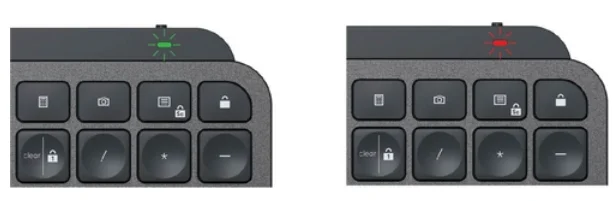
Plug the USB-C cable into the top right corner of your keyboard. You can continue typing while it is charging.

Smart backlighting
Your keyboard has an embedded ambient light sensor that reads and adapts the level of backlighting accordingly.
For dark-colored keyboards
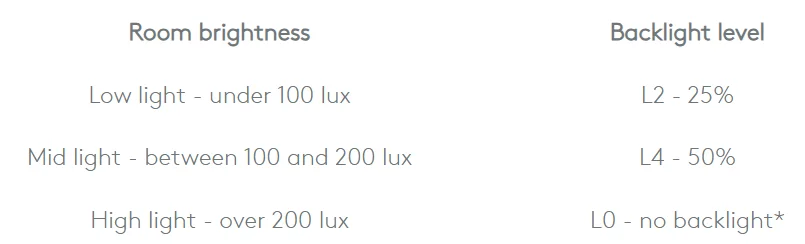
*Backlight is turned OFF.
For pale gray keyboards
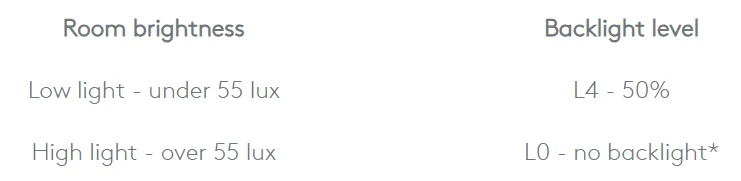
*Backlight is turned OFF.
There are seven backlight levels.
You can change the backlight levels at any time, with two exceptions: the backlight cannot be turned ON when the room brightness is high, or the keyboard battery is low.
Backlight customization using Logi Options+
You can customize the backlighting in your MX Keys S using Options+:
Use the Backlighting Duration slider to adjust it to your preferred duration:

Use the Automatic Brightness slider to change to manual mode and adjust to your preferred level of brightness.
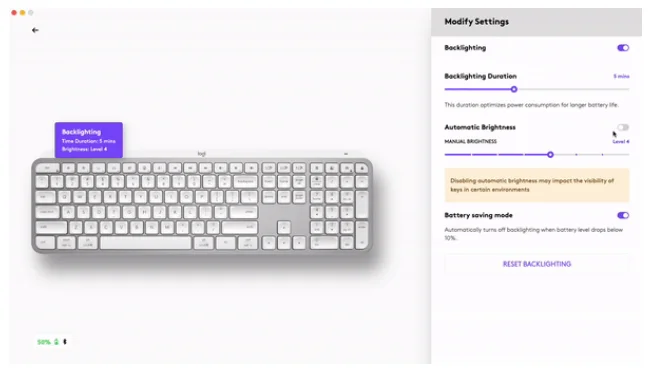
You can always go back to the default settings by clicking the reset button.
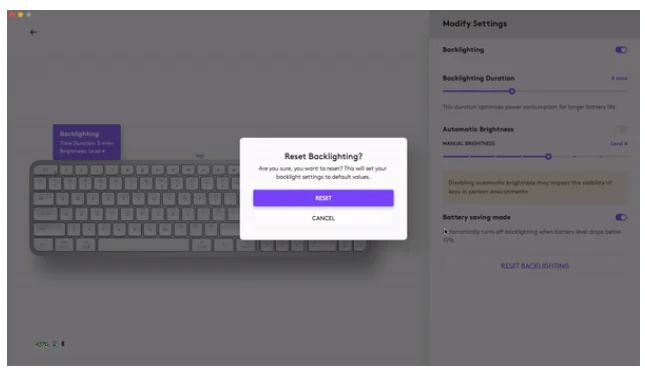
Software notifications
Install Logitech Options+ software to get the most out of your keyboard.
Click here for more information.
- Backlight level notifications
Change the backlight level and to know in real-time what level you have.
- Backlighting disabled
Two factors will disable backlighting: When your keyboard has only 10% of the battery left, and you try to enable backlighting, this message will appear. If you want the backlight back, plug in your keyboard to charge.
  When the environment around you is too bright, your keyboard will automatically disable backlighting to avoid using it when unnecessary. This will also allow you to use it longer with the backlight in low-light conditions. You will see this notification when you try to turn backlighting ON.
 - Low battery
When your keyboard reaches 10% of battery left, backlighting turns OFF and you get a battery notification on the screen.
- F-Keys switch
Press Fn + Esc to swap between Media keys and F-Keys. We’ve added a notification to let you know you’ve swapped. NOTE: By default, the keyboard has direct access to Media Keys.
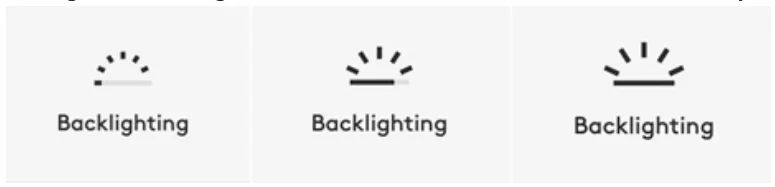
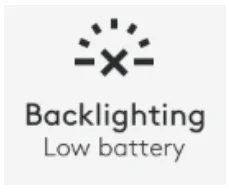 When your keyboard has only 10% of the battery left, and you try to enable backlighting, this message will appear. If you want the backlight back, plug in your keyboard to charge.
 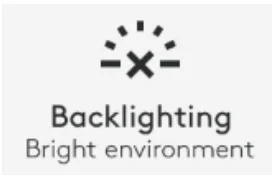 When the environment around you is too bright, your keyboard will automatically disable backlighting to avoid using it when unnecessary. This will also allow you to use it longer with the backlight in low-light conditions. You will see this notification when you try to turn backlighting ON.
 NOTE: By default, the keyboard has direct access to Media Keys.
Logitech Flow
You can work on multiple computers with your MX Keys S keyboard. With a Flow-enabled Logitech mouse, such as MX Master 3S, you can work and type on various computers with the same mouse and keyboard using Logitech Flow technology.
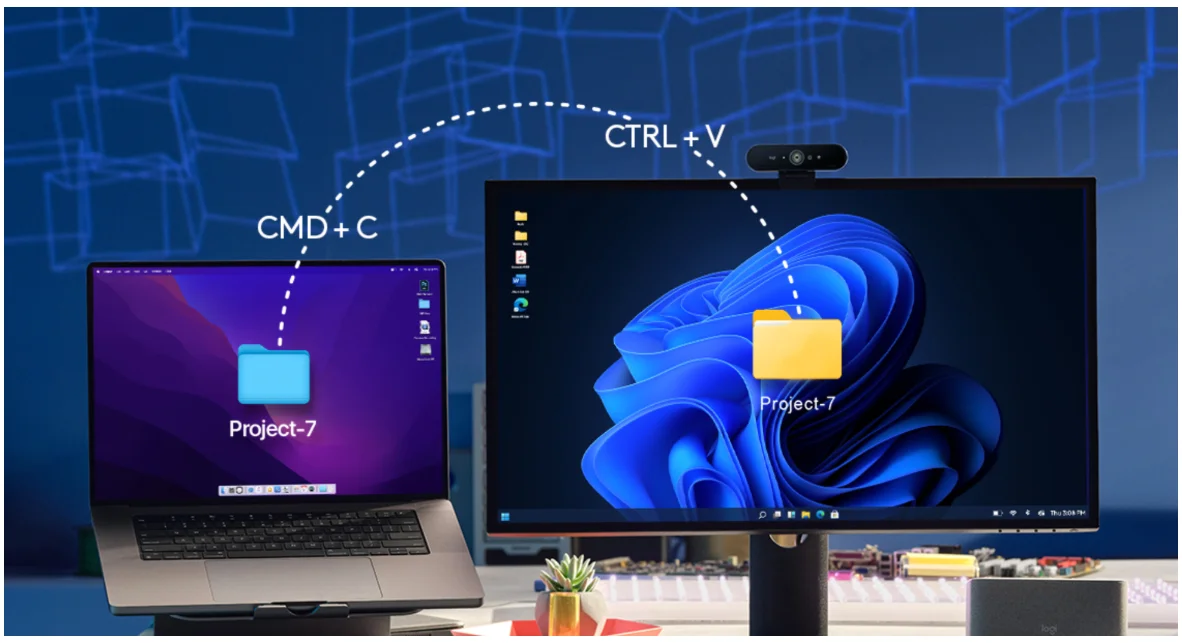
You can use the mouse cursor to move from one computer to another. The MX Keys S keyboard will follow the mouse and switch computers simultaneously. You can even copy and paste between computers. You must install Logitech Options+ software on both computers and follow these instructions.
You can check which other mice are Flow-enabled here.
For more manuals by Logitech, visit ManualsLibraryy
Logitech MX Keys S Keyboard- FAQs
What is the Logitech MX Keys S?
The Logitech MX Keys S is a premium low-profile wireless keyboard designed for smooth, quiet, and precise typing with smart backlighting and multi-device support.
What are the main features of the MX Keys S keyboard?
It offers quiet tactile keys, adjustable backlit keys, programmable shortcuts, Bluetooth and Logi Bolt connectivity, USB-C charging, and compatibility with Windows, macOS, Linux, and ChromeOS.
How do I set up the MX Keys S keyboard?
Turn on the keyboard, choose Bluetooth or Logi Bolt connection, and install Logitech Options+ software to unlock customization features.
What are the 1, 2, and 3 buttons on the keyboard used for?
These buttons allow you to pair and instantly switch between up to three different devices.
Does the MX Keys S require replaceable batteries?
No. It has a built-in rechargeable battery that charges via USB-C.
How long does the MX Keys S battery last?
A full charge lasts up to 10 days with backlighting on or up to 5 months with backlighting off, depending on usage.
What does the green light on the MX Keys S mean?
A green LED indicates the battery level is between 100% and 11%.
How can I check the battery level of the keyboard?
An LED near the power switch shows battery status—green means sufficient charge, red indicates low battery. You can also view battery percentage in Logitech Options+ or Bluetooth settings.