
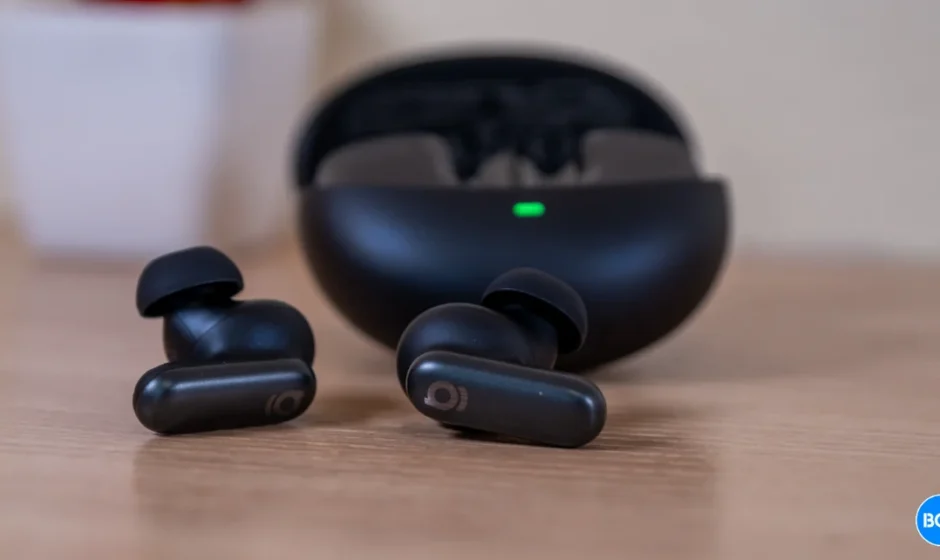

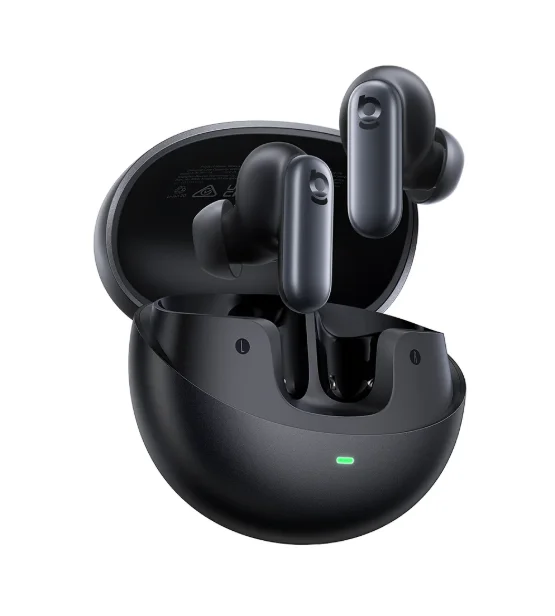
Baseus Inspire XP1 Adaptive Noise Cancelling Earbuds
DOWNLOAD BASEUS APP
*Follow the in-app instructions to link your earbuds and to explore the ambient sound features, EQ settings, Dolby Audio, firmware updates, and other exciting features.
*Please note: To ensure the app’s proper functioning, select your current country/region in “Settings – Region”.
Regular Cleaning Guide
We recommend cleaning your earbuds weekly to ensure optimal performance and hygiene. Focus on the speaker meshes, charging ports, metal contacts, and all surfaces that contact skin during use.
For In-Ear earbuds, please click here for specific cleaning instructions.
WEARING
- Wear the earbuds with the “L” marking on your left ear and the “R” marking on your right.
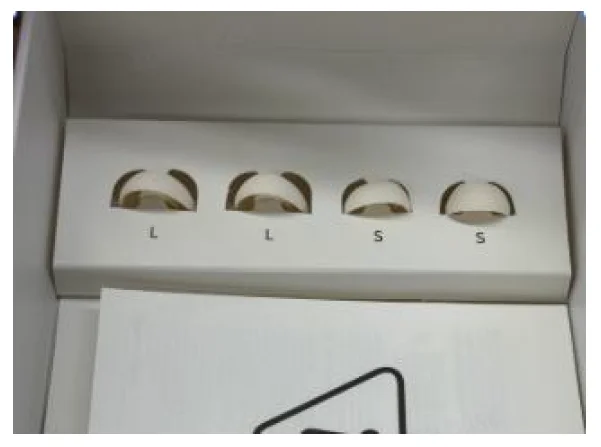
- We provide three sizes of ear tips (S/M/L). The M size is pre-installed. The S and L size earbuds are located at the bottom of the packaging box.
- Try different sizes and adjust the insertion angle to avoid putting pressure on your ear canal.
POWERING ON/OFF & PAIRING
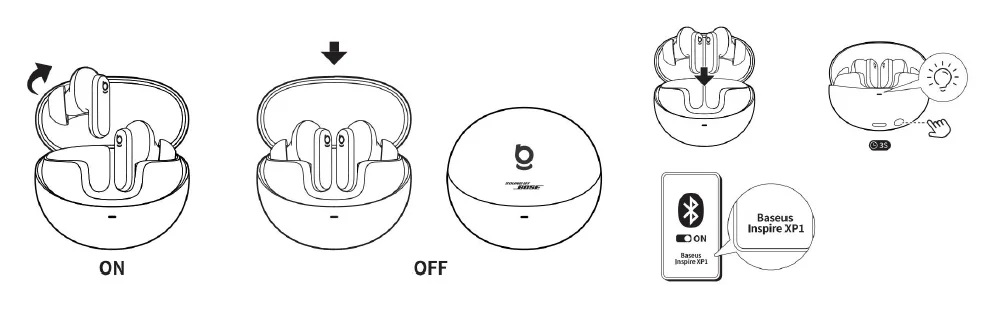
- On: Open the charging case. The earbuds will automatically enter pairing mode.
- Off: Place the earbuds back in the charging case and close the lid.
- Enable Bluetooth on your phone and select “Baseus Inspire XP1” from the device list.
*The earbuds will remember the last connected devices and reconnect automatically when powered on.
TOUCH CONTROLS
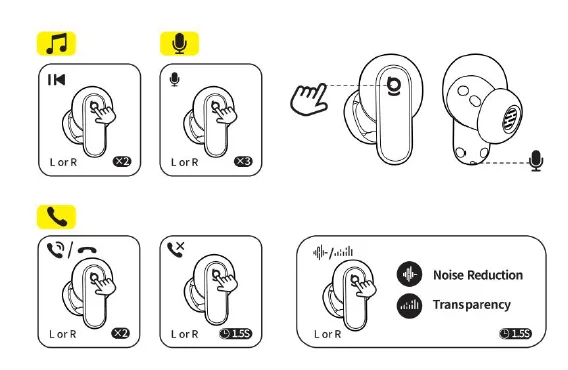
- Double tap (×2): Pause / Play /Answer / Hang up / Answer / Hang up
- Triple tap (×3): Voice Assistant
- Tap and hold for 1.5 seconds (1.5s): Reject Calls / Noise Reduction /Transparency
*You can also customize the touch controls in the Baseus App.
ADD DEVICE TO BASEUS APP
Connect to the phone’s Bluetooth
- Open “System Settings” – “Bluetooth” on the phone.
- Find “Baseus Inspire XP1”, and connect to it.
ADD DEVICE TO BASEUS APP
- Enter the Baseus App, then register and log in.
- Click “Add Device”, find “Inspire XP1”, and connect.
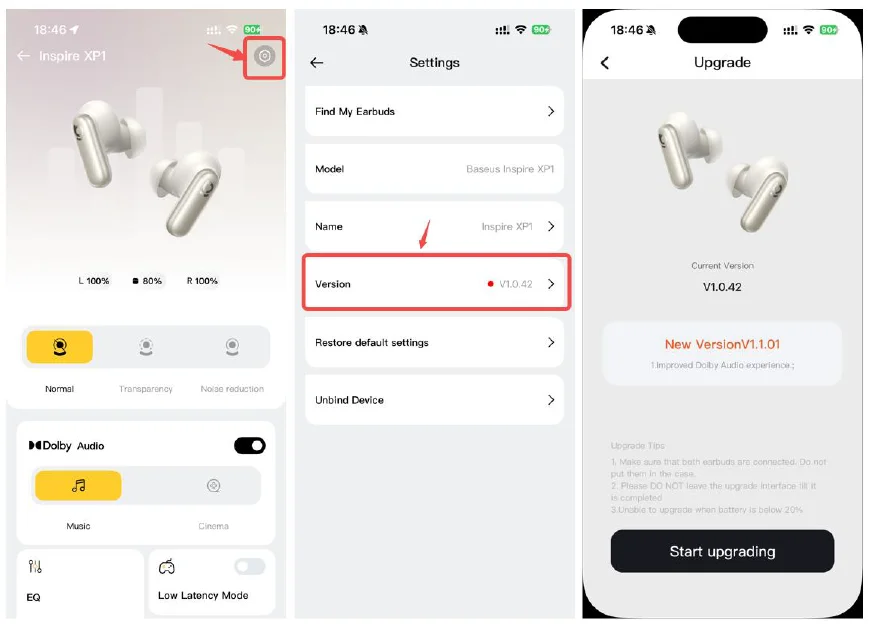
UPGRADE THE FIRMWARE VERSION ON THE BASEUS APP
- Check if the firmware version is the latest
- [Operation method: Click “App Homepage” – “Settings” in the upper right corner – “Version”]
*If you are experiencing Bluetooth connection issues, please try updating the firmware to the latest version.
*To experience the optimal Dolby Audio effect, please update the firmware and app version.
*If you encounter a firmware update failure or the progress bar stops moving, please ensure you are not listening to music or on a call. Then, exit the update process and try again.
NOISE CANCELLATION
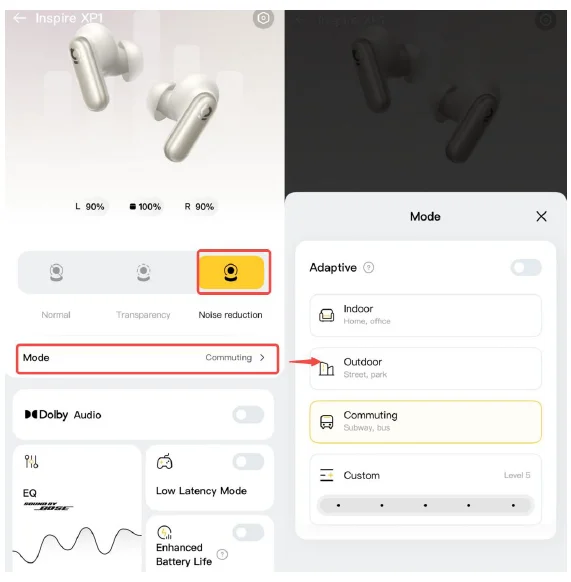
To reduce ambient noise, switch to noise cancellation (default) via touch controls and customize it in the Baseus app.
- Adaptive Noise Canceling: Perform real-time calculation based on the external environment and wearing condition to ensure optimal noise cancellation.
- Custom Noise Canceling: Set the level of noise cancellation manually.
MULTIPOINT PAIRING
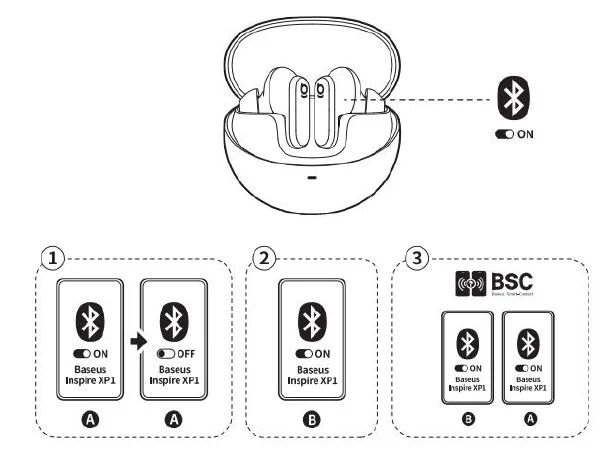
- Connect the earbuds to device A. Then, turn off Bluetooth.
- Connect the earbuds to device B.
- Turn on Bluetooth on device A; the earbuds will automatically reconnect. Your multipoint connection is now ready.
CHARGING
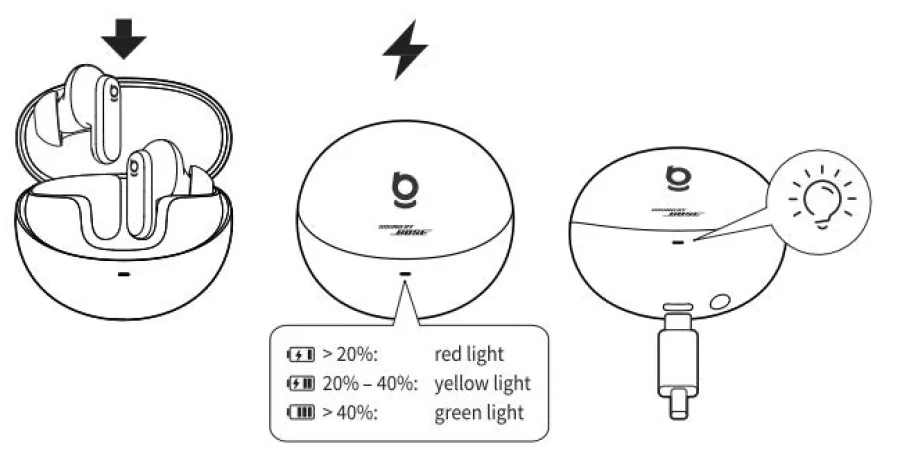
- <20%: red light
- 20% – 40%: yellow light
- >40%: green light
*When charging, the light pulses. Once fully charged, it stays solid green.
FACTORY RESET
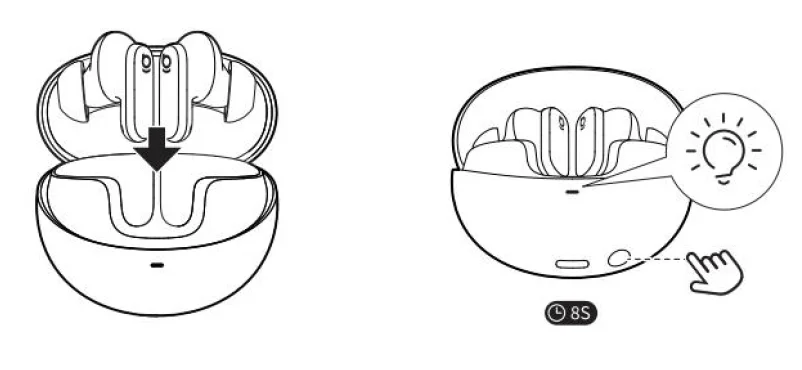
- Place both earbuds in the charging case and keep the lid open.
- Press and hold the button on the case for about 8 seconds until the indicator flashes white three times, signaling a reset. This will restore the default settings in the app.
ACTIVE FAQs
How to Wear it More Comfortably:
- Choose the right ear tips: S/M/L sizes included. M is pre-installed; S/L are in the box. Try all for the best fit.
- Take breaks: Rest 5–10 minutes every hour. Switch modes (Noise Canceling/Transparency/Normal) to reduce ear fatigue.
- Volume & music tips: Keep volume under 60%. Use noise canceling in loud settings, not high volume. Avoid heavy bass; try light music or white noise.
How to Adjust Gesture Controls
You can control music, volume, and listening modes by tapping the top of either earbud.
To customize these gestures in the BaseUS App:
- Open the app, tap “+” to add your “Inspire XP1”.
- Go to “Gesture Settings.
- Set double-tap, long-press, and triple-tap actions for your preferred functions.
How to get better noise canceling: Ensure a tight seal in your ears.
- In the app, go to 【Noise Reduction】→【Mode】to pick a scene (Indoor/Outdoor/Commute) or customize strength.
- Update firmware via the Baseus app.
How to get Better Sound Quality:
- Enable 【Bass Boost】or select a preset EQ (e.g., Powerful Bass).
- Customize EQ: slightly boost lows, fine-tune mids/highs for fuller bass and clarity.
- Use high-quality or lossless audio in music apps for better detail.
Low volume on the earbuds
- Wearing Adjustment (To ensure optimal fit and audio performance)
- Wear the earbuds with the “L” marking on your left ear and the “R” marking on your right.
- We provide three sizes of ear tips (S/M/L). The M size is pre-installed. The S and L size earbuds are located at the bottom of the packaging box.
- System-Specific Configuration
- For Android Devices
- Connect earbuds via Bluetooth and select “Baseus Inspire XP1” in settings.
- Enable “Sync Bluetooth device volume.
- If unavailable, activate “Absolute Volume” in Developer Options.
- For iOS Devices
- Navigate to Settings → Accessibility → Audio/Visual → disable “Mono Audio”.
- Go to Settings → Sound & Haptics → earbud Safety → Turn OFF “Reduce Loud Sounds”.
- For Android Devices
MORE SUPPORT & CONTACT US
*If the above FAQs do not resolve your issue or if you have any other questions, please feel free to contact Baseus Customer Support for more assistance.
For more manuals by Baseus, visit ManualsLibraryy
Baseus Inspire XP1 Adaptive Noise Cancelling Earbuds- FAQs
What are Baseus Inspire XP1 earbuds?
Baseus Inspire XP1 are premium true wireless earbuds featuring Sound by Bose, Dolby Audio, and adaptive active noise cancellation (ANC) for immersive, high-quality sound and comfort.
Do Baseus Inspire XP1 earbuds have noise cancellation?
Yes. They come with advanced Adaptive ANC that reduces surrounding noise for a quieter listening experience, especially in travel or busy environments.
Is 100% noise cancellation possible with earbuds?
No. ANC significantly reduces constant background noise, but it cannot completely block sudden or nearby sounds.
What is the difference between ANC and ENC?
ANC reduces background noise for listening, while ENC focuses on reducing noise during calls for clearer voice transmission.
How long do Baseus Inspire XP1 earbuds take to charge?
The earbuds support fast charging. A short charge provides hours of playback, and the charging case typically fully charges within about 1 hour.
How can I tell if the Baseus earbuds are fully charged?
When fully charged, the charging case indicator light remains steady, and the earbud indicator lights turn off.
Can Baseus earbuds be overcharged?
No. Baseus earbuds use lithium-ion batteries with built-in protection to prevent overcharging, though frequent full charges may reduce battery lifespan over time.
How do I check the battery level of my Baseus earbuds?
You can check battery status through the charging case indicator lights or via the connected device’s Bluetooth battery display.