
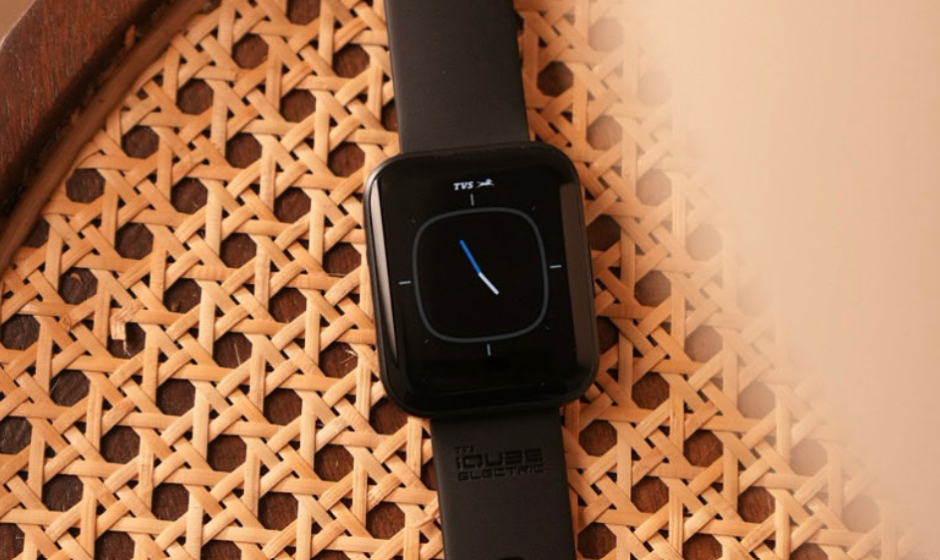

NOISE X TVS IQUBE Smart watch
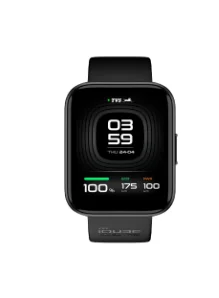
WATCH OVERVIEW
- Activity
- TVS Connect
- Workouts
- SpO2
- Heart Rate
- Sleep
- Breathe
- Contacts
- Call History
- Dial Pad
- Weather
- Music
- Reminders
- Stopwatch
- Alarm
- World Clock
- Timer
- Stocks
- Stress
- Flashlight
- Settings
- Cycle Tracker
WHAT’S IN THE BOX?
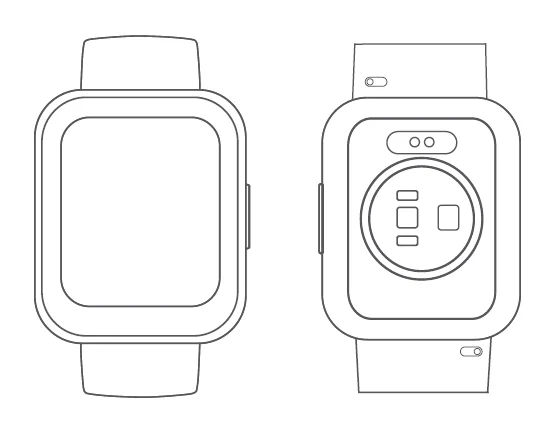
- TVS iQUBE smartwatch x 1

- Charging cable x 1
- User manual x 1
- Warranty card x 1
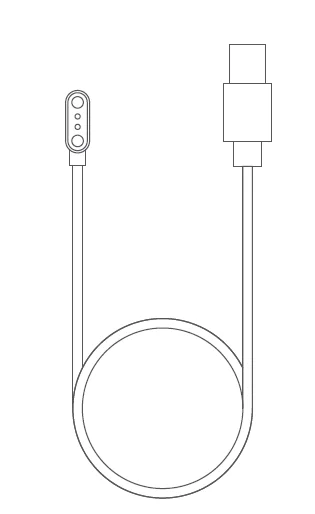
CHARGING NOISE X TVS IQUBE SMARTWATCH
Before using your Noise x TVS iQube smartwatch for the first time, charge the battery to its full capacity. Use the charging cable provided with the watch to charge. On a full charge, the smartwatch can last up to 7 days.
Note: The battery life and time to fully charge your device may vary as per usage and other factors.
TO CHARGE NOISE X TVS IQUBE SMARTWATCH
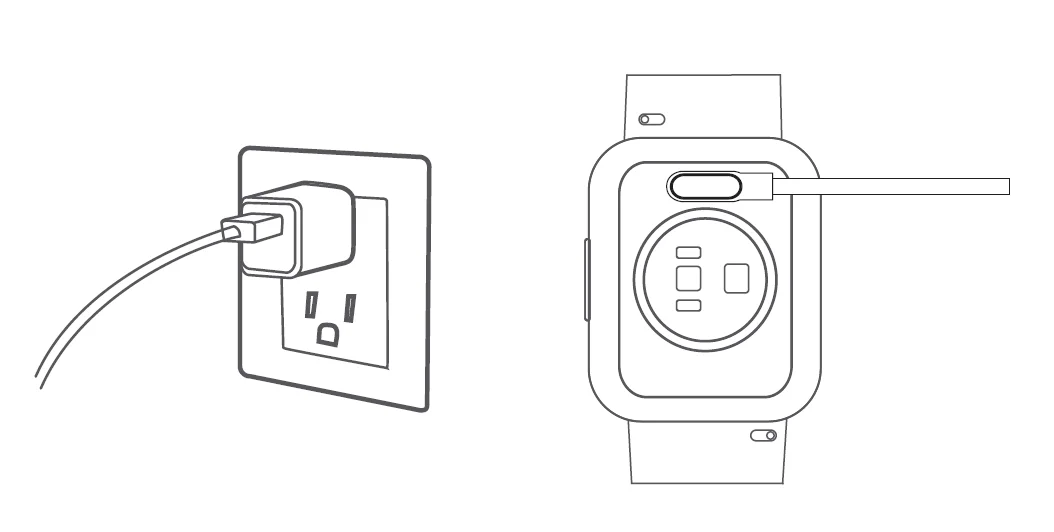
- Plug the USB cable into a power adaptor. Plug the power adaptor into an electrical socket. (Power adaptor not included).
- Place the magnetic charger on the magnetic charging points of the watch.
- While your watch is charging, the screen will show its progress.
- Once the battery is fully charged, remove the charger.

POWER ON
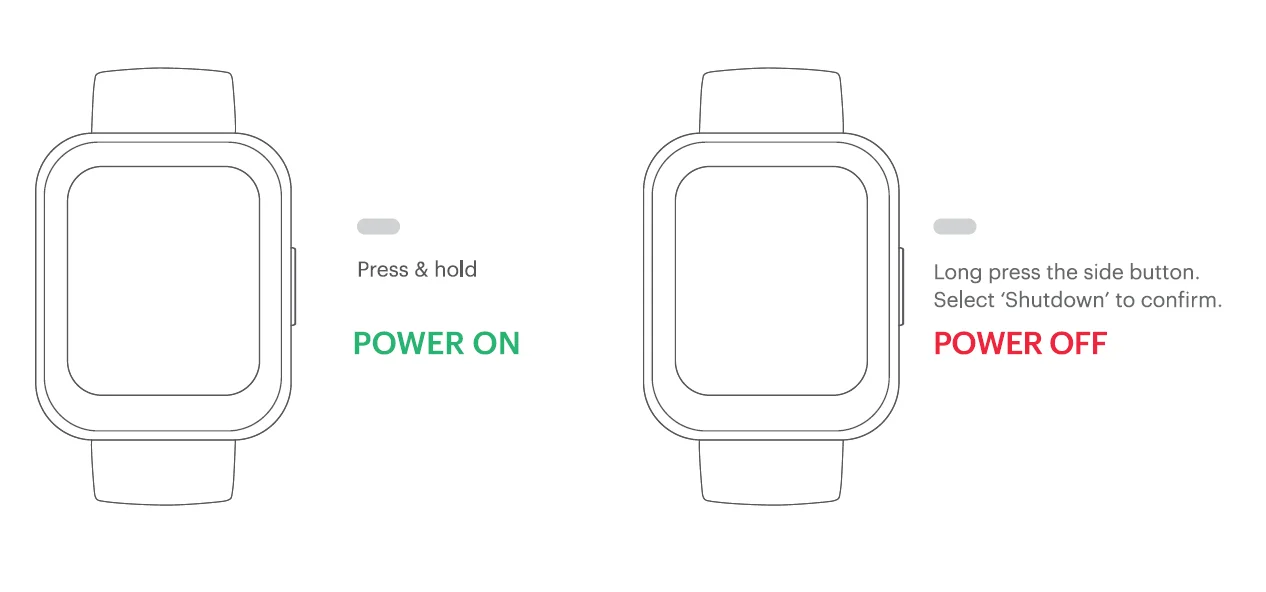
- Press and hold the side button for a few seconds to turn on the watch.
POWER OFF
- Press and hold the side button for 4-5 seconds.
- Select ‘Shutdown’ and confirm to power off.
WAKING UP THE WATCH
To preserve the battery, the watch screen turns off when not in use.
- Pressing the side button
- Turning on the wrist sense

The Noise x TVS iQube smartwatch has a 1.78” display with a touch screen. Navigate the watch by tapping on the screen, swiping side to side, up and down, and pressing the side button.
HOME SCREEN NAVIGATION
The home screen is the watch face. From the home screen:
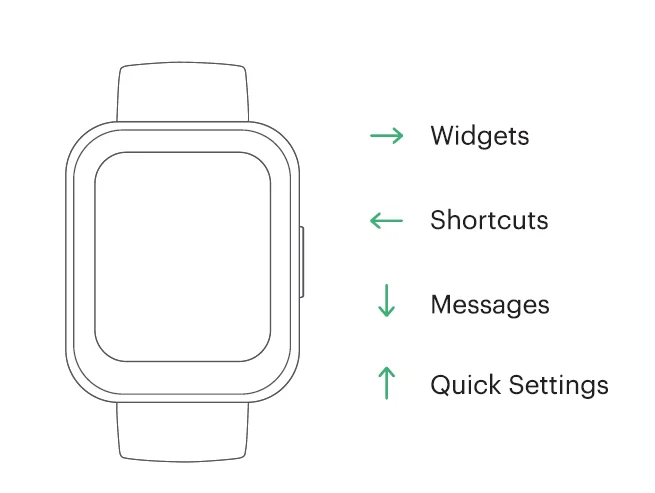
- Swipe left or right to access the widget and shortcut.
- Swipe up to go to quick settings.
- Swipe down to check your message notifications.

BUTTON NAVIGATION
- Press the side button to turn on the watch display.
- Press the side button again to go to the main menu.
SET-UP
Before pairing, make sure that your smartphone and smartwatch are next to each other. The App will ask for personal information such as height, weight and sex to calculate your stride length, distance covered, calorie burn rate and metabolic rate.
- Turn on BT and the location on your mobile device.
- On your smartphone, download the NoiseFit App from the Play Store or the App Store and install it.
- Create an account or log in using an existing account.
Note: Ensure that your smartphone is running on Android 9.0+ or iOS 11 + and is connected to mobile data or a Wi-Fi network.
PAIR THE WATCH
Open the NoiseFit App and allow the BT and GPS positioning to be turned on.
- Feed in your personal information and health goals in the app.
- Go to the ‘Pair Device’ page in the app, select the watch name and MAC address and link the watch.
Or you can follow these steps:
- Turn on the watch.
- Scan the QR code from the NoiseFit App on your phone.
- Select Pair with device and wait for it to pair.
On iOS: Choose Bluetooth pairing when you receive a pairing prompt.
On Android: Connect it directly.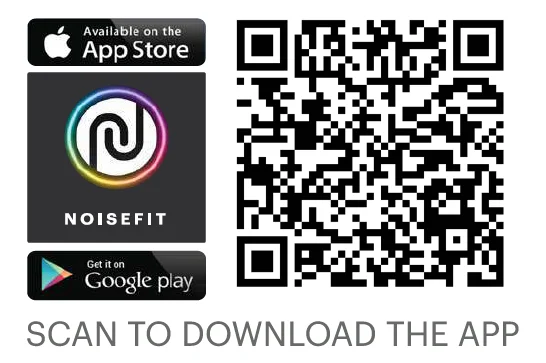
WATCH FEATURES
- WATCH FACE
There are 2 watch faces to choose from. Select which one you want by long-pressing the home screen on your watch. - ACTIVITY
You can check your daily activity progress in terms of the calories burned, distance covered, steps taken and active time. - HEART RATE
Noise x TVS iQube smartwatch supports 24/7 heart rate tracking. You can select the measurement frequency in the app settings. To measure your heart rate in real-time, go to the ‘Heart Rate’ monitor and tap on ‘Tap to Measure.’ You can view the all-day data on the watch and app.
Note: Make sure your arms and wrists are still, and there is no space between your watch and your wrist. - SLEEP
You can view your most recent sleep record and sleep quality in various sleep stages in the NoiseFit app. The feature will measure the device records of the user’s sleep cycle, sleep states (light and deep sleep), wake time and REM. - CYCLE TRACKING
Turn on this feature on the app to view related information. - STRESS
Noise x TVS iQube supports 24-hour stress level measurement and viewing of all-day measurement data. To measure the stress levels in real time, go to the Stress feature and wait for it to measure.
Note: Make sure your arms and wrists are still, and there is no space between your wrist and the watch. - BREATHE
This feature helps you adjust your breathing rhythm as per your convenience. You can choose from 3 speeds (fast, moderate and slow) to adjust your breathing duration. After the session, you can also see the change in the beats per minute. Go to the breathe feature, choose the time duration and speed and tap on start to enter the cycle of breathing and inhalation.
Note: During this period, if you swipe right or press a button, breathing is interrupted, and you can choose to practice again or complete the cycle. - NOISE BUZZ
Noise x TVS iQube smartwatch supports Bluetooth calls. You can dial, answer, silence and reject calls from the smartwatch as long as the watch’s Bluetooth is connected with the smartphone and is within Bluetooth range. Go to Noise Buzz on your watch. Connect your phone’s Bluetooth to the smartwatch’s Bluetooth to use the calling feature. - CONTACTS
You can choose to sync 10 contacts from your phone into the NoiseFit APP which will be reflected on your watch. Choose from the list of saved contacts in your smartwatch and call. - CALL HISTORY
Choose from the call logs to call any of the previous contacted numbers. - TVS CONNECT
Use this feature to check for important details about your EV, like battery percentage, tyre pressure, distance covered and daily data.
CLOCK
- STOPWATCH
A stopwatch can be set on the watch. You can also set lap times on the stopwatch. - ALARM
You can set alarms on the watch. You can add, delete, and enable/disable alarms. You can also label alarms to identify them. - TIMER
You can set a timer with a pre-set duration on the watch and the timer will remind you when the time is up. - WORKOUTS
You can choose from 100+ workout modes. You can take your pick and add more workouts from the app. This feature also lets you control music while working out. You can also view the exercise records in the app. - SPORTS DATA
You can check the progress report of your workouts in this feature. - WEATHER
Noise x TVS iQube smartwatch supports 5-day weather viewing in a location of your choice as long as it is synced with the NoiseFit app. You can view today’s current weather and for the next 4 days as well. - MUSIC
You can control your favourite songs and podcasts that play from your phone, right on your wrist as long as the watch is connected with the NoiseFit app on your phone. You can play/pause music, go to the next/previous track and increase/decrease the volume.
SETTINGS
- WRIST AWAKE
Turn on wrist awake and set the auto screen off as per your preference. - BRIGHTNESS
Tap on brightness to adjust the brightness of your device. - SCREEN TIME
You can set the screen timeout duration as per your preference. - ALWAYS ON DISPLAY
Switch this feature on to keep your screen lit even when the device is idle. Select a digital or analogue dial to appear during sleep mode. - DO NOT DISTURB
Switch this mode on to silence notifications. - VIBRATION & RING
You can use this feature to choose vibration levels and turn off the vibration on your watch altogether. - MENU VIEW
Toggle between grid and list view. - ABOUT
Tap on About to view the device information. - POWER OFF
You can choose to power off to restart the watch. - RESET
You can choose to reset. Do note if you choose to reset, all your data and settings will be erased. - RESTART
You can choose to restart the watch. - FIND PHONE
You can use this feature to find the phone from your smartwatch as long as it is in BT range. - APP
Scan the QR code to connect with the app.
KEY FEATURES
- Vehicle Status
See if your TVS iQube is locked or unlocked at any time. - Charging Status & Alerts
Track battery levels and get notified the moment charging is complete. - Distance to Empty (DTE)
Know how far you can go before your next charge. - Tyre Pressure Monitoring (TPMS)
Stay updated on tyre health with real-time pressure info. - Tow/Theft Alerts
Get alerts if your vehicle is being moved or tampered with. - Geofence
Set safe zones and get notified when the vehicle crosses them. - Crash/Fall Detection
Receive instant alerts in case of impact or fall.
TVS CONNECT ON WATCH
The TVS Connect section on your smartwatch provides real-time updates and key information about your TVS iQube:
- State of Charge – Monitor your TVS iQube current battery status.
- Distance-to-empty (DTE) – View the estimated available distance the vehicle can travel across different riding modes.
- Vehicle Status – Stay updated on the current state of your TVS iQube, whether it is locked, unlocked, on ride or charging.
- Charging Information – Get live updates during the charging process and time remaining for a full charge.
- Tire pressure values – For compatible models having TPMS sensors, view real-time tyre pressure data.
- Ride Statistics – Access insights from today’s rides
- Carbon Savings – Track your eco-friendly contributions with carbon savings data.
- Alerts & Notifications – Stay informed with real-time notifications for important updates such as charging alerts, geofence breaches, crash/fall and other vehicle-related alerts.
WATCH FACES
The watch comes with custom-branded TVS watch faces, designed to complement your style while keeping you informed. These watch faces allow you to view your TVS iQube’s battery level and available range at a glance, right from your wrist. There are 2 watch faces to choose from. Select which one you want by long-pressing the home screen on your watch
SETTING UP YOUR TVS CONNECT ACCOUNT
If you haven’t already signed into the TVS Connect app, follow these steps first:
- Download and install the TVS Connect app from the Play Store or App Store.
- Open the app and tap on Login.
- Enter your registered mobile number (the number you provided during vehicle purchase, also found on your invoice).
- Enter the OTP sent to your mobile number.
- Once the OTP is verified, you will be successfully signed in to the TVS Connect app.
LINKING YOUR WATCH WITH TVS CONNECT
To connect your watch with the TVS Connect app, follow the steps below:
- Ensure the watch is paired with your smartphone using the NoiseFit app (refer to the Watch User Manual for pairing instructions).
- Make sure you are signed in to the TVS Connect app.
- Once the watch is paired, open the TVS Connect app on your phone.
- Tap the Menu icon and go to “Vehicle Garage”.
- Tap “Add” at the bottom and then select “Add Accessories.
- Select “Noise x iQube Watch” from the list and confirm the pairing.

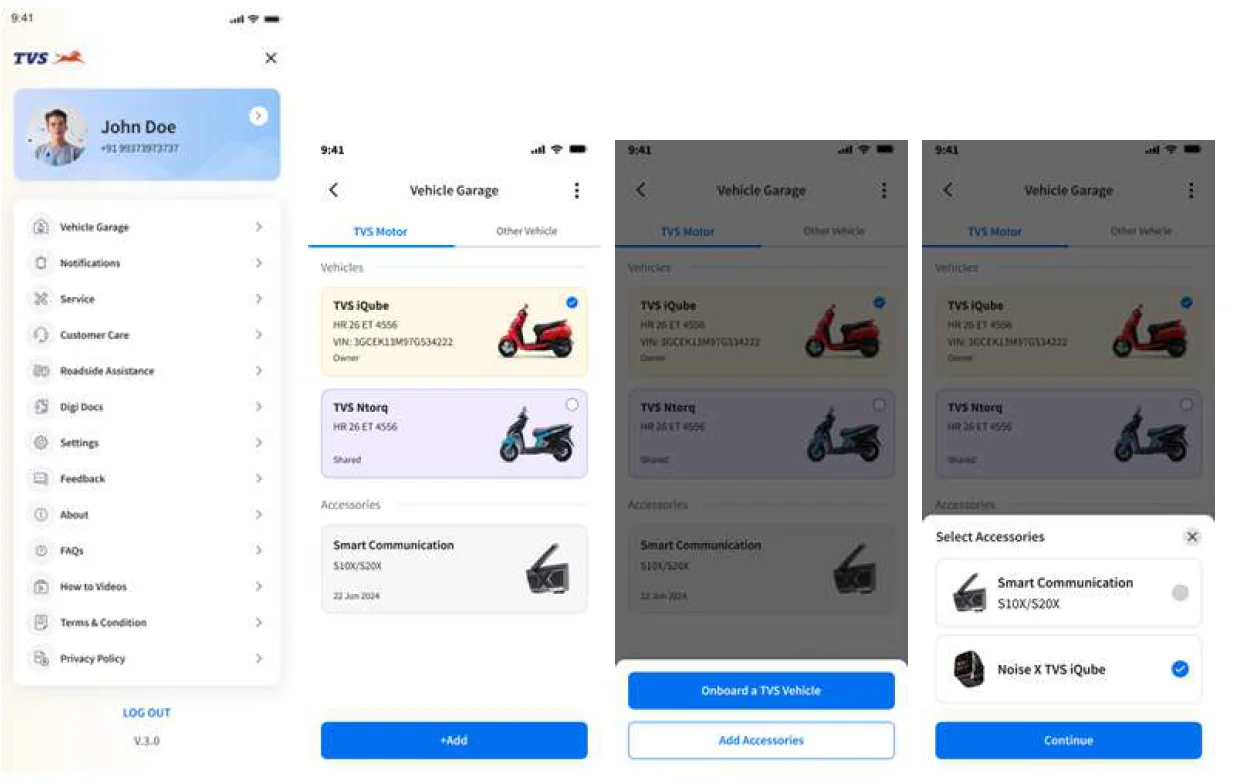
Once the linking is successful, you will receive a confirmation message “Accessory added!”. The watch will now be visible in the Added Accessories list within the app.
DELINKING YOUR WATCH FROM TVS CONNECT
To remove the watch from your TVS Connect account, follow these steps:
- Open the TVS Connect app and tap the “Menu” icon.
- Go to “Vehicle Garage”
- Tap on “3 dot icon” in the top-right corner and select “Remove Vehicle/Accessory.
- Locate your watch in the accessories list, tap Remove, and confirm the prompt.

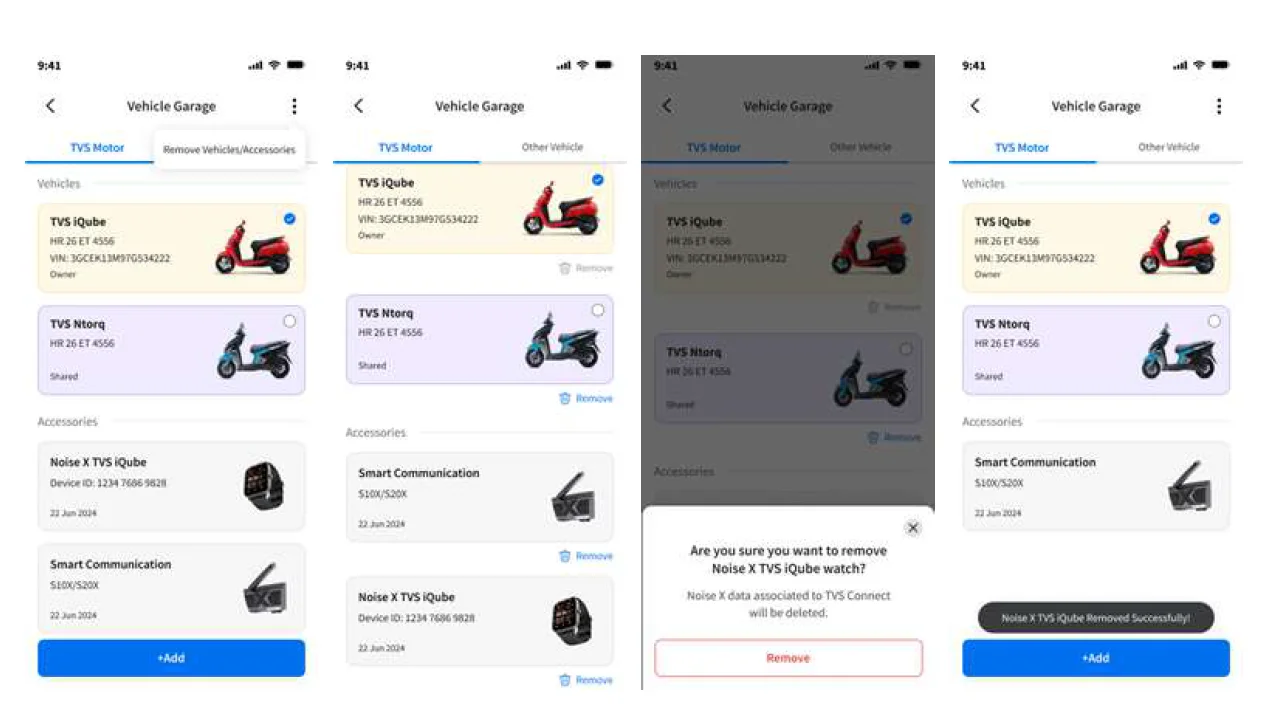
Once the delinking is complete, a confirmation message will appear, indicating that the accessory has been successfully removed.
FAQS
- Can I use the Noise x TVS iQube watch features without linking it with TVS Connect?
A. The core smartwatch features, such as Time, Fitness, Activity tracking, etc., do work independently. However, to access TVS iQube-specific information like battery status, charging information and ride stats, it must be linked to the TVS Connect app. - How do I link my Noise x TVS iQube watch to the TVS Connect app?
To connect your watch, ensure it is first paired with your smartphone using the NoiseFit app. Then, open the TVS Connect app, go to Menu > Vehicle Garage > Add > Add Accessories, and select “Noise x TVS iQube watch” to link it. - What vehicle information can I view on the smartwatch once linked?
A. Once connected, you can view your TVS iQube battery level, available range across modes, charging status, vehicle status, TPMS data (for supported models), ride statistics, and carbon savings. - How do I delink the watch from the TVS Connect app?
A. Go to Menu > Vehicle Garage, tap on (3 dot) on the top-right, select Remove Vehicle/Accessory, then tap Remove below your watch and confirm. - The Noise x TVS iQube smartwatch is not getting linked to my TVS Connect. What should I do?
A. Make sure:- Your phone has an active internet connection, and Bluetooth is enabled.
- Your watch is paired correctly with your smartphone and linked with the NoiseFit app.
- You are logged in to the TVS Connect app on the same mobile device.
- If everything is in place, try force-stopping and relaunching both the TVS Connect and NoiseFit apps, and attempt the process again.
- My watch is not showing my vehicle data or showing incorrect data. What should I do?
A. Please check the following- Ensure your phone has an active internet connection. Bluetooth is turned on, and the watch is within the range of mobile device.
- The NoiseFit app must be running in the background with all required permissions enabled..
- Confirm that your watch is linked to the TVS Connect app and shows “Synced” under the Accessories tab on the home screen.
- Make sure you are subscribed to the Advanced plan on TVS Connect.
- If your vehicle is in a low network coverage area, data syncing may be delayed. You can check the “Last Synced” status on your watch home screen to verify.
- Try moving your vehicle to a location with better network coverage and check if the data updates. If the issue persists, reach out to us.
- Can I link the watch to multiple TVS iQube vehicles?
A. No, the watch can be linked to only one TVS iQube vehicle at a time. If you own multiple TVS iQube vehicles, select the desired vehicle as the Active Vehicle in the Vehicle Garage during onboarding. The watch will then display data for that specific vehicle. - Why is the data on my watch face is greyed out?
Refer to FAQ 6 for troubleshooting steps to resolve this issue.
A. A greyed-out watch face indicates that the displayed information may not be up to date. This can happen if:- The watch is unable to fetch the latest data, or
- The vehicle is in a poor network area and cannot send updated information.
- How frequently does the data update on the watch face?
A. The data on the watch face updates every 5 minutes or whenever the TVS Connect section is opened on the watch, to ensure near real-time syncing while optimising battery life. Update depends on the watch being connected to your mobile and the NoiseFit app running in the background. - Do I need to stay connected to the internet to see TVS iQube data on the watch?
B. Yes, your smartphone should have an active internet connection and Bluetooth enabled, as the watch retrieves vehicle data through the companion app. - Who should I contact in case of any queries or complaints?
A. For any issues or support required, please reach out toNoise Customer Support via: <Mail ID> and <Mobile number>
DEVICE INFORMATION AND TIPS
DEVICE INFORMATION
The Noise x TVS iQube smartwatch contains the following
- 1.78” AMOLED Display touch screen
- Blood Oxygen monitor
- Stress monitor
- IP68 waterproof
- 100+ sports modes
- 22mm quick-change pins
The Noise x TVS iQube smartwatch stores your activity data for up to 7 days in between the time you sync your watch to the NoiseFit app. Activity data includes your steps, distance, calories, active minutes, heart rate, sleep duration and workout data. We recommend syncing the watch to the app daily.
TIPS
How do I update my Noise x TVS iQube smartwatch?
You can update your Noise x TVS iQube smartwatch via the NoiseFit app. Go to My Device on the NoiseFit app. Select your device, and click ‘Check for updates’.
How do I find my watch’s current firmware version?
You can find the watch’s current firmware on the watch. Go to My Device on the NoiseFit app. Select your device, and you will see the Firmware version under the watch name.
How do I save battery?
Follow these simple steps to save the Noise x TVS iQube smartwatch battery.
- Minimise the screen brightness
- Limit the notifications you receive from the NoiseFit app.
How does the watch estimate how many calories have been burned?
Noise x TVS iQube smartwatch estimates how many calories you’ve burned based on the physical data you entered when you set up your account.
How do I change my activity goals?
You can do it through the NoiseFit app. Go to ‘My Profile.’ Go to ‘Setup’ and select ‘My Objectives.’ Change your goals and confirm.
How do I log my weight?
You can log in your weight the first time you set up your NoiseFit app. However, you can update the weight later via the NoiseFit app. Go to My Profile, select Personal Information and change or update your weight. You can update your birthday, height, country and e-mail ID as well.
DISPOSAL AND RECYCLING INFORMATION
Electrical and electronic devices may not be disposed off with domestic waste. Consumers are obliged by law to return the electrical and electronic devices at the end of their service lives to the public collection points set up for this purpose or point of sale. Details of this are defined by the national law of the respective country. By recycling, reusing materials or other forms of utilizing old devices, you are making an important contribution to protecting our environment.
REGULATORY INFORMATION
USA: Federal Communications Commission (FCC) Statement
This device complies with Part 15 of the FCC rules. Operation is subject to the following two conditions:
- This device may cause harmful interference, and this device must accept any interference received, including interference that may cause undesired operation.
Warning: Changes or modifications not expressly approved by the party responsible for compliance could void the user’s authority to operate the equipment.
Note: This equipment has been tested and found to comply with the limits for a Class B digital device, pursuant to part 15 of the FCC Rules. These limits are designed to provide reasonable protection against harmful interference in a residential installation. This equipment generates, uses and can radiate radio frequency energy and, if not installed and used in accordance with the instructions, may cause harmful interference to radio communications. However, there is no guarantee that interference will not occur in a particular installation.
For more manuals by GoNoise, visit ManualsLibraryy
NOISE X TVS IQUBE Smart watch-FAQs
What is the NOISE X TVS iQube Smart Watch?
The NOISE X TVS iQube Smart Watch is a smartwatch designed to integrate with the TVS iQube ecosystem, offering smart notifications, fitness tracking, Bluetooth calling, and battery monitoring features.
What is the battery life of the iQube smartwatch?
The iQube smartwatch battery is designed for long-term use, with an estimated lifespan of up to 800 charge cycles, ensuring reliable daily performance.
How can I check the battery level on my iQube smartwatch?
You can view the battery percentage directly on the watch face or through the connected app by opening the menu and checking the battery status.
How long does the iQube smartwatch take to charge?
Charging time varies by usage and battery level, but the watch typically reaches full charge within a few hours.
Is it safe to charge the smartwatch overnight?
Occasional overnight charging is safe, but for better battery health, it’s recommended to unplug the watch once fully charged.
What is the 20–80 battery charging rule?
For longer battery life, try to keep the charge between 20% and 80%, and avoid frequent full discharges or constant 100% charging.
Why is my Noise smartwatch not charging?
Check that the wall socket works properly, clean the charging pins, ensure proper alignment, and try a different power source if needed.
Can I make or receive calls on the Noise iQube smartwatch?
Yes. The smartwatch supports Bluetooth calling, allowing you to make and receive calls when connected to your phone.
Does the Noise iQube smartwatch support WhatsApp?
You can receive WhatsApp notifications, messages, and alerts, but replying depends on the specific model and paired phone settings.
Can I reply to messages from the smartwatch?
Yes, quick replies are available for supported apps when the watch is paired with a compatible smartphone.