
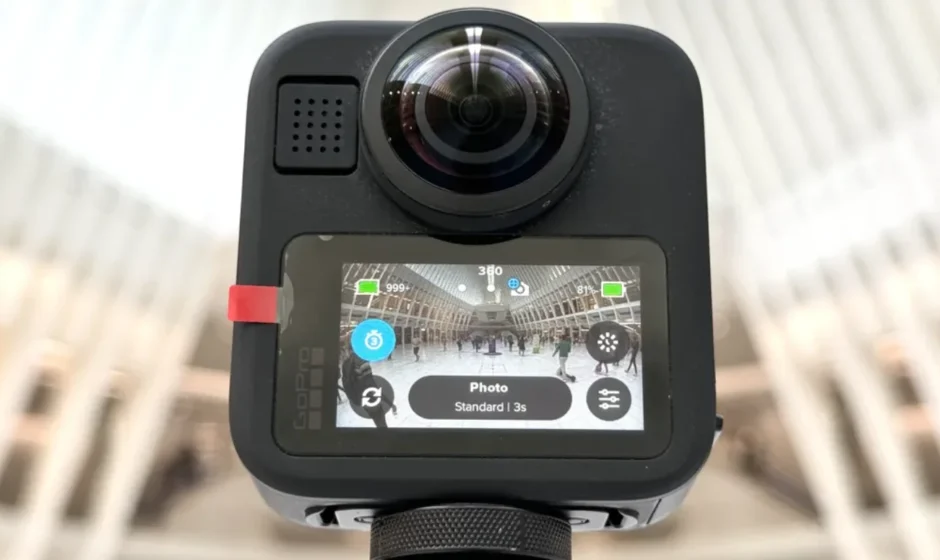

GoPro MAX2 Camera
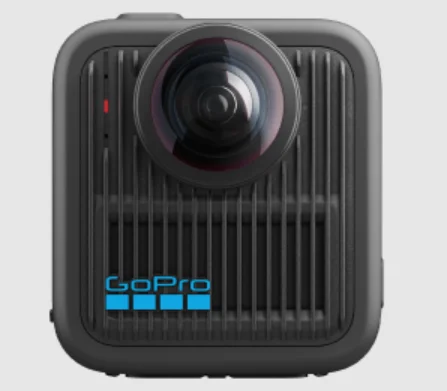
Meet MAX2
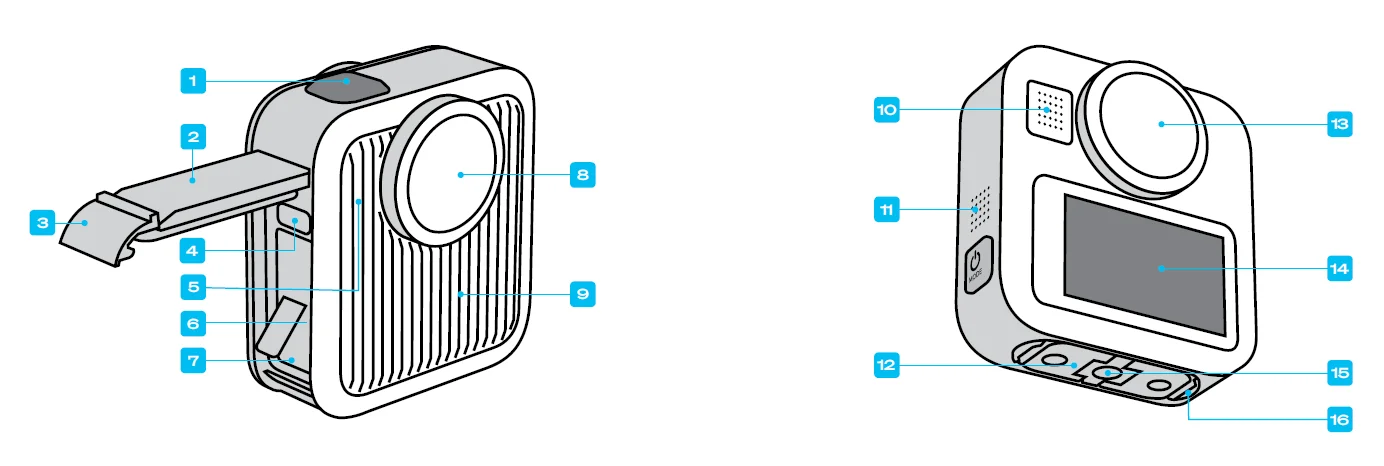
- Shutter Button

- Door
- Door Latch
- USB-C Port
- Status Light
- microSD™ Card Slot
- Battery
- Replaceable Lens
- Heat Sink
(WARNING: To help prevent overheating, the heat sink may get extremely hot when the camera is in use.) - Microphone
- Speaker
- Folding Fingers
- Replaceable Lens
- Touch Screen
- 1/4-20 Mounting Threads
- Magnetic Latch Mount
Connection Point (Magnetic Latch Mount sold separately.)
Getting Started
SD CARDS
You’ll need a microSD card (sold separately) to save your videos and photos. Use a brand-name card that fits these requirements:
- microSD, microSDHC™, or microSDXC™
- Class A2 and V30 speed class rating or higher
- Capacity up to 1TB
For a list of recommended microSD cards, visit gopro.com/microsdcards. Be sure your hands are clean and dry before handling your SD card. Check the manufacturer’s guidelines to see your card’s acceptable
temperature range and other important information. Heads Up: SD cards can degrade over time, affecting your camera’s ability to save your media. Try swapping out an older card for a new one if you’re having any problems.
PRO TIP: Keep your SD card in good condition by reformatting it regularly. This will erase all of your media, so be sure to save it first.
- Swipe down on the rear screen to access the Dashboard.
- Swipe left and tap Preferences > Reset > Format SD Card.
RECHARGEABLE BATTERY
For maximum performance, be sure to use the battery that came with your camera or the Enduro for MAX2 replacement battery.
PRO TIP: There’s an easy way to check your battery’s status and make sure you’re using the right one.
- Swipe down on the rear screen to access the Dashboard.
- Swipe left and tap Preferences > About > Battery Info.
WARNING: Although non-GoPro batteries may fit in your MAX2, they will limit your camera’s performance. Use of non-GoPro batteries will void your warranty and may cause fire, electric shock, or other safety risks.
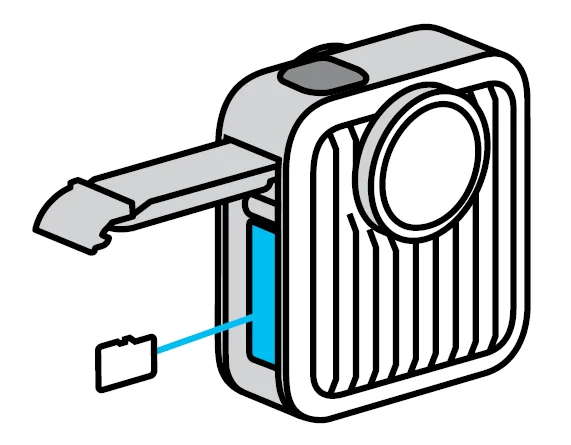
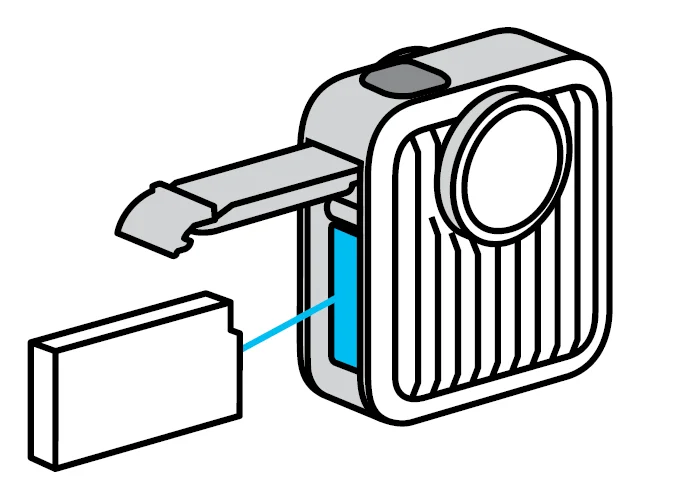
SD CARD + BATTERY SETUP
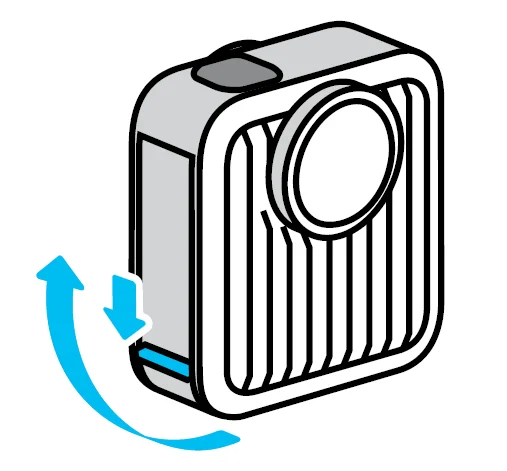
- Unlock the door latch and flip the door open.

- With your camera off and battery removed, insert the SD card into the card slot with the label facing the battery compartment.

You can eject the card by pressing it into the slot with your fingernail. - Insert the battery.

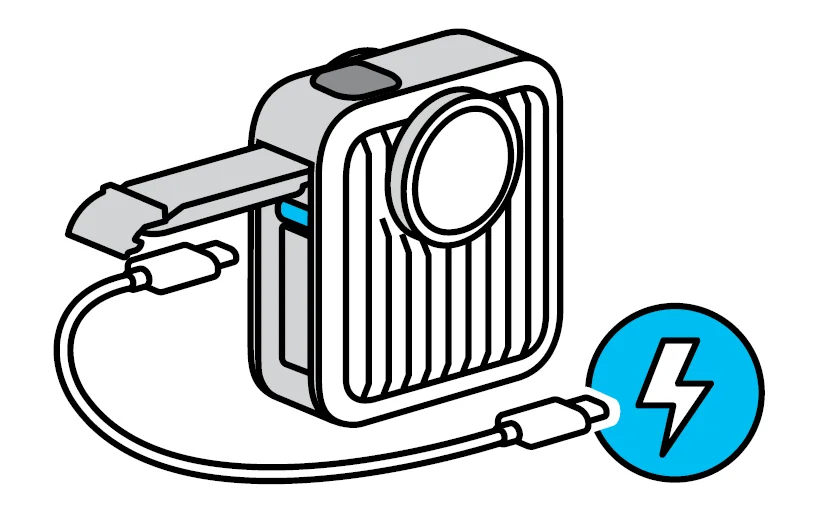
- Connect your camera to a USB charger or computer using the included USB-C cable.

It will take about 1.5 hours to fully charge the battery using a 15W (3A) charger. The camera status light will turn off when it’s done. - Unplug the cable and shut the door when charging is complete. Be sure the door latch is closed and locked before using your camera.
NOTE: Your camera’s door is removable. Be sure that the door is securely locked and sealed after closing.
UPDATING YOUR CAMERA
You must update your camera before you can use it.
Updating With the GoPro Quik App
- Download the app to your phone from the Apple© App Store© or Google Play™.
- Make sure you have Internet access, then turn on your GoPro by pressing the Mode button…………
- Follow the app’s on-screen instructions to complete the update.
Updating Manually
- Visit gopro.com/update.
- Choose MAX2 from the list of cameras.
- Select Update Your Camera Manually and follow the instructions.
PRO TIP: The app will check for the latest camera software every time it connects to your GoPro. This helps ensure that you’ll always have the latest features and best performance from your GoPro. If new software is available, the app will tell you how to install it.
WARNING: Do not remove your GoPro’s battery or SD card while the update is in progress. Removing your battery or SD card during an update may permanently damage your GoPro.
Powering On + Recording
POWERING ON
- Press the Mode button
 to turn on your camera.
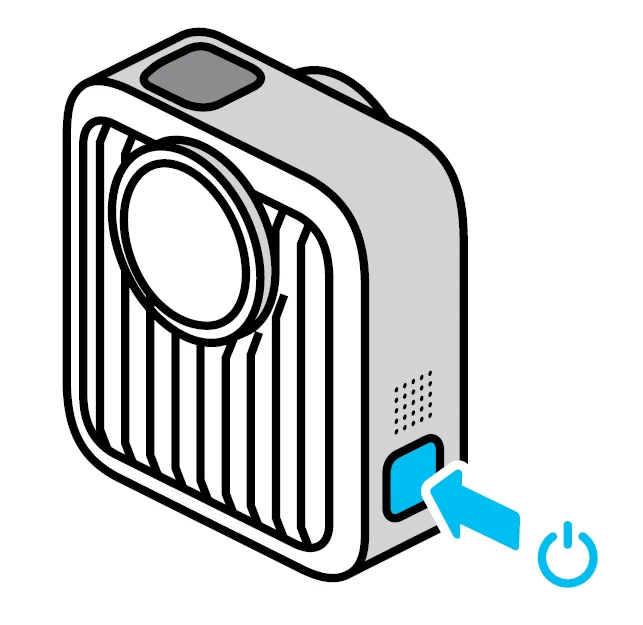
POWERING OFF
- Press and hold the Mode buttonfor 3 seconds to turn it off.
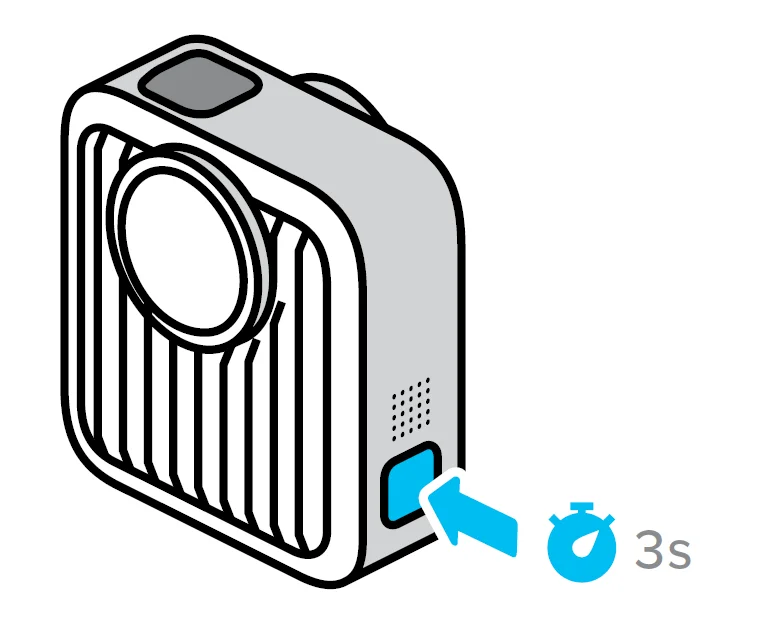
WARNING: Use caution when using your GoPro and its mounts and accessories. Always be aware of your surroundings to avoid injuring yourself and others. Be sure to follow all local laws, including all privacy laws, which may restrict recording in certain areas.
RECORDING WITH QUIKCAPTURE WHEN YOUR CAMERA IS OFF
QuikCapture is the fastest way to power on your GoPro and get the shot.
- With your camera off, press the Shutter button.
- Press the Shutter buttonagain to stop recording and turn off your camera.
Heads Up: QuikCapture is on by default, but you can turn it off.
- Swipe down on the rear screen to access the Dashboard.
- Tap
 .
.
 .
.PRO TIP: Since it only turns your camera on when it’s recording, QuikCapture is a great way to maximize battery life.
RECORDING WHEN YOUR GOPRO IS ON
With your GoPro on, press the Shutter button to get the shot with the mode you selected. Press the button again to stop recording (Video and Time Lapse only).
Using the Touch Screen
THE TOUCH SCREEN
The rear touch screen gives you access to your camera’s capture settings and status.
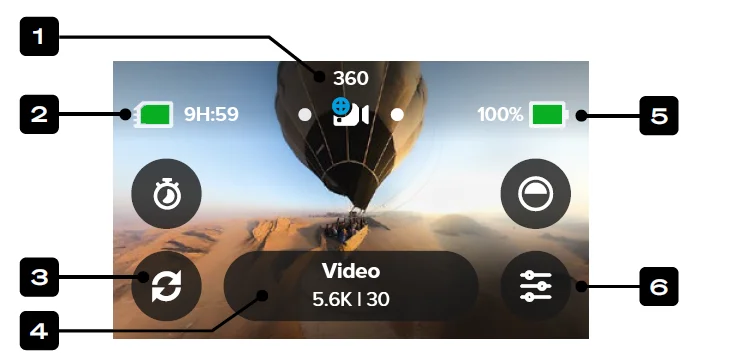
- Current Mode
 indicates that you’re in 360 mode.
 - Recording Time/Photos Remaining
- Customizable On-Screen Shortcuts
- Capture Settings/Center Button (tap to change presets or tap and hold to access settings for the current mode)
- Battery Status
- Settings Shortcut (tap to access and change settings for the current mode)
 indicates that you’re in 360 mode.
Heads Up: The capture settings are not available when you turn your GoPro to take portrait shots. Be sure to choose the settings you want before rotating your camera.
PRO TIP: Press the Mode button to quickly jump back to this screen from almost anywhere.
USING THE TOUCH SCREEN
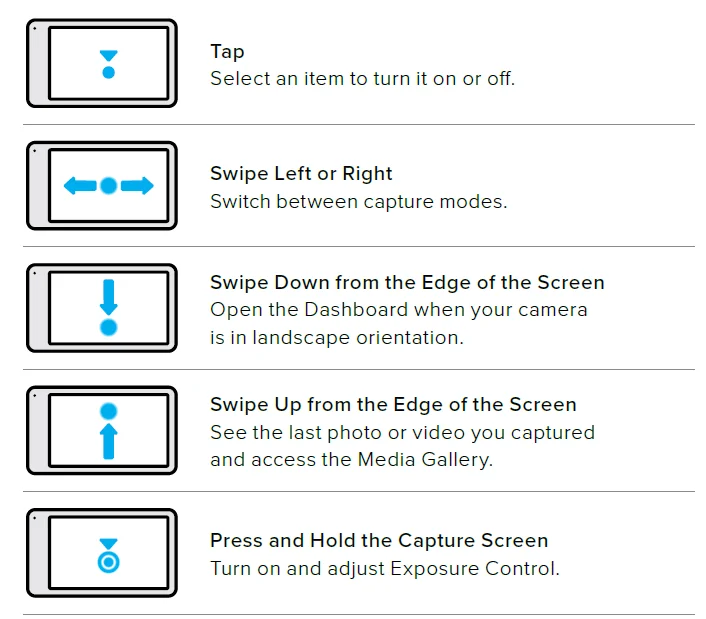
PRO TIP: You can hide your camera’s status information and icons on both the front and rear screens by tapping the rear screen. Tap the screen again or press a button to bring it all back.
360 + Single Lens Mode
MAX2 captures spherical footage in 360 mode or traditional videos and photos in Single Lens mode.
360 MODE
Use 360 mode to capture everything around you. View and share it as 360 content or use the GoPro Quik app to reframe it as traditional videos and photos. 360 mode records using both lenses, but you can tap to choose the lens view that will be shown on the screen.
SINGLE LENS MODE
Single Lens mode lets you shoot traditional videos and photos with either the front (non-touch screen side) or back lens (touch screen side). Simply tapto choose the lens you want to use.
PRO TIP: Choose Single Lens mode and the back lens to frame and capture perfect selfies.
SWITCHING BETWEEN 360 + SINGLE LENS MODE
- Swipe down on the rear screen to access the Dashboard.
- Tap Camera Mode
 to toggle between 360 and Single Lens mode.
 to toggle between 360 and Single Lens mode.
Invisible Mounting + Tips for 360 Capture
INVISIBLE 360 POLE SHOTS
Capture amazing pole-mounted footage where the pole vanishes out of the shot. Just attach your GoPro to a compatible extension pole using the 1/4-20 mounting threads on the bottom of your camera. The pole will be automatically edited out of your 360 footage.
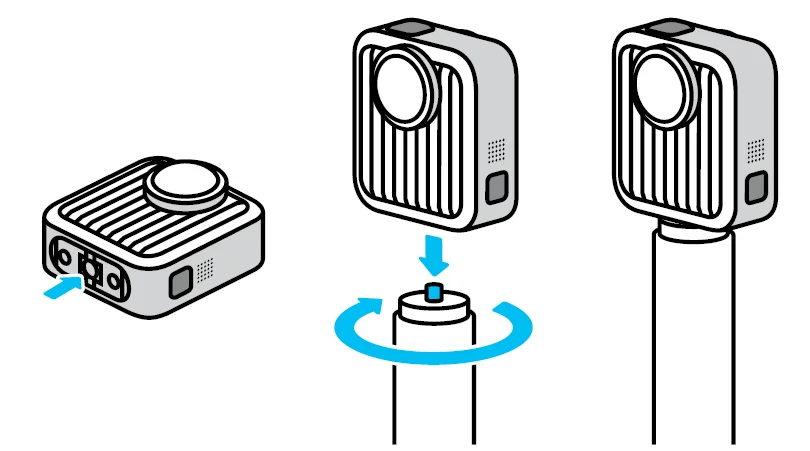
Heads Up: The pole must be at least 14″ (36cm) long and extend straight down from the bottom of your camera.
TIPS FOR CAPTURING 360 CONTENT
- Use voice commands, a GoPro remote, or the GoPro Quik app to start recording remotely so you don’t have to move your hand out of the way after pressing the Shutter button.
- Extension pole mounting is recommended, but if you’re going to take a handheld shot, hold MAX2 near its base to minimize how much of your hand gets into the shot.
Using Voice Control
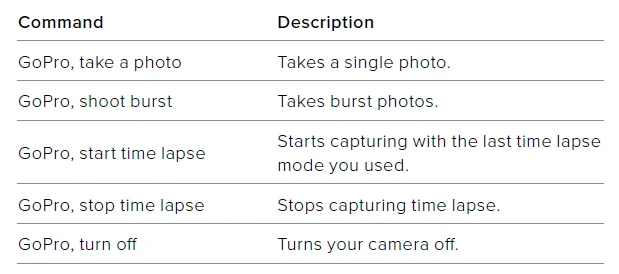
USING VOICE CONTROL TO SWITCH MODES
Use these commands to switch capture modes on the go. Then say “GoPro, capture” or press the Shutter buttonto get the shot.
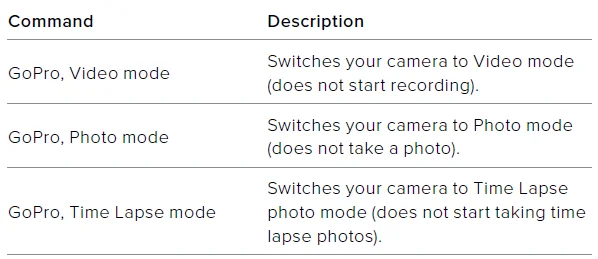
PRO TIP: If you’re recording video or time lapse, you must stop recording by pressing the Shutter buttonor by saying “GoPro, stop capture” before trying a new command.
SEE A COMPLETE LIST OF COMMANDS ON YOUR CAMERA
- Swipe down on the rear screen to access the Dashboard.
- Swipe left and tap Preferences > Voice Control > Commands.
CHANGING YOUR VOICE CONTROL LANGUAGE
- Swipe down on the rear screen to access the Dashboard.
- Swipe left and tap Preferences > Voice Control > Language.
Heads Up: Voice Control may be affected by wind, noise, and your distance from the camera. Keep your camera clean and wipe away any debris for the best performance.
Looping Video
Looping lets you save space on your SD card by recording in a continuous loop until you’ve captured the moment you want. Use it when you’re waiting for something to happen (like fishing) or when nothing may happen (like a dashcam).
HERE’S HOW IT WORKS:
- If you select 5-minute intervals, only the previous 5 minutes are saved when you press the Shutter buttonto stop recording.
- If you record for 5 minutes and don’t press the Shutter button, your camera will loop back and record over the start of the video.
You can set your GoPro to record 1-, 3-, 5-, 10-, 20-, or 30-minute loops. It can also be set to Max, which will record until your SD card is full before looping back to record over the start of the video.
SET UP LOOPING VIDEO
To capture looping video, you’ll need to set up a new preset and choose Looping when selecting a capture mode.
Exposure Control
Your GoPro scans the entire scene to choose the exposure level for your shot. Exposure Control lets you decide if only a section of the shot should be used to set the exposure. Check out the shot preview on your touch screen. Try Exposure Control if there are sections that are too dark or too light.
SETTING EXPOSURE CONTROL
If you’re out in the snow on a sunny day, you might try locking the exposure on an object in the shot. This will help prevent your footage from being underexposed (too dark) compared to the bright snow.
- Tap and hold anywhere on the touch screen until a set of brackets appears. The exposure will be based on the area in the brackets.

PRO TIP: Tapping and holding the center of the screen will bring up the Spot Meter. This will base the exposure on the center of the screen. - You can change the exposure by dragging the brackets to any other area of the screen.

- Brightness can be fine-tuned by tapping
 . This lets you adjust the Exposure Value Compensation (EV Comp).
Slide up to brighten the image. Slide down to darken it. You can adjust up to 2 stops in either direction. - Check the screen to see if the exposure looks good. Tap
 inside the brackets to lock in the exposure. You can also tap
 to cancel any changes.
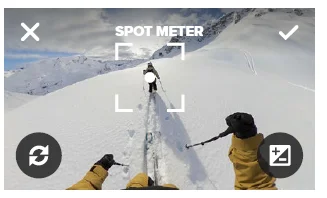
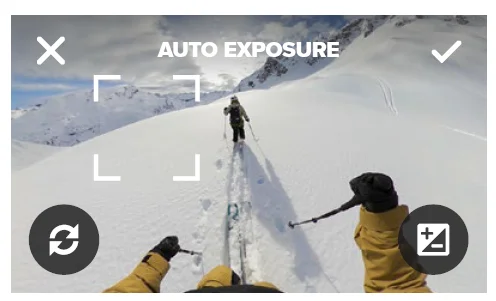
 . This lets you adjust the Exposure Value Compensation (EV Comp).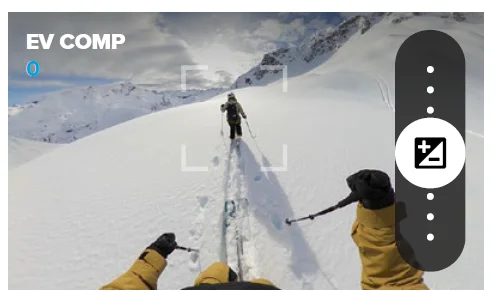
 inside the brackets to lock in the exposure. You can also tap
 to cancel any changes.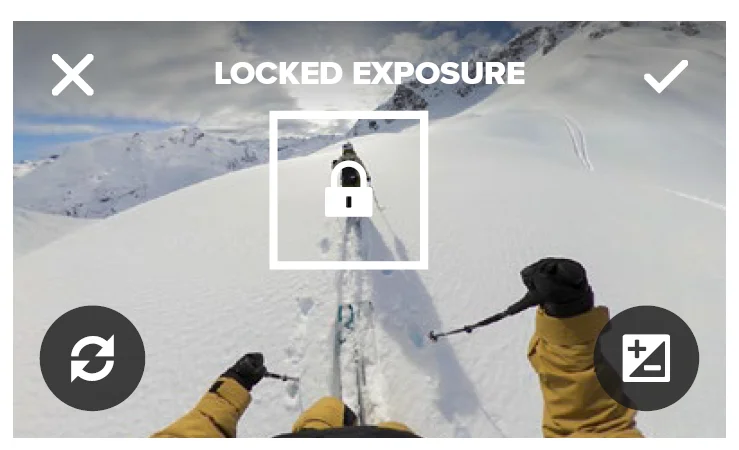
TURNING EXPOSURE CONTROL OFF
Tapping the brackets on the capture screen will turn Exposure Control off and reset your camera to full-screen auto exposure.
Heads Up: If the EV Comp was adjusted during Exposure Control, it will return to its default setting when Exposure Control is turned off.
Automatic Highlight Videos
NOTE: Cloud-based features, including automatic highlight videos and Auto Upload, are not available in China.
HIGHLIGHT VIDEOS FROM YOUR SINGLE-LENS FOOTAGE
Have amazing highlight videos of your adventures created from your single-lens footage and sent to your phone automatically. Start by signing up for a GoPro Premium or Premium+ subscription and connecting your camera to your Wi-Fi network.
- Subscribe to GoPro at gopro.com/subscription.
- Set up your GoPro to Auto-Upload your footage to the cloud.
- Follow the Quik app’s on-screen instructions to complete the setup.
Heads Up: Be sure to allow notifications so that you’ll know when a new highlight video is ready.
Once set up, simply plug in your GoPro to charge while it’s connected to your home Wi-Fi network. While it’s charging, your footage will be automatically uploaded to the cloud, where your single-lens footage will be used to create highlight videos complete with beat-synced music and effects. You’ll get a notification on your phone letting you know when your video is ready to watch and share.
Mounting Your GoPro
USING 1/4-20 MOUNTS
Your GoPro has 1/4-20 mounting threads, making it compatible with standard tripods and camera accessories, plus a wide range of GoPro mounts designed to capture invisible 360 ° pole shots.
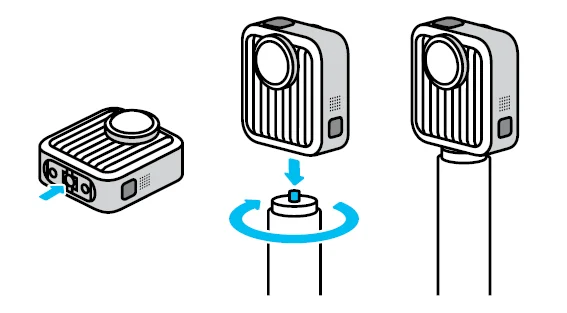
WARNING: Your GoPro could become loose or be dislodged when used with 1/4-20 mounts under extreme conditions. Use the mounting fingers for more secure mounting in extreme conditions.
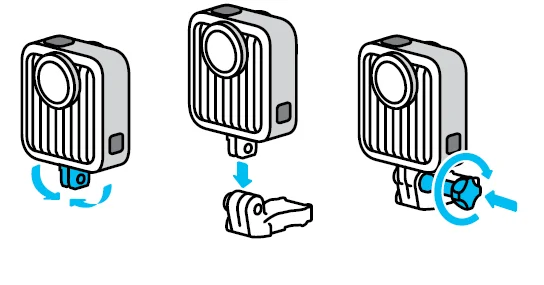
USING THE MOUNTING FINGERS
Depending on the mount you’re using, you’ll either use a mounting buckle or attach your GoPro directly to the mount itself.
- Flip the folding fingers down into the mounting position.
- Interlock the folding fingers on your camera with the mounting fingers on the buckle.
- Secure your camera to the mounting buckle with a thumb screw.
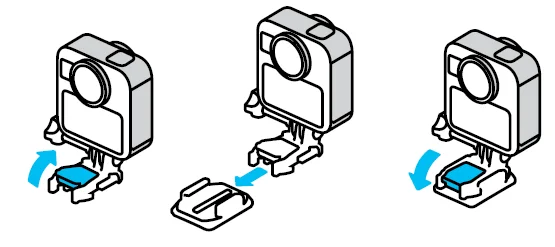
ATTACHING THE MOUNTING BUCKLE TO THE MOUNT
- Flip up the mounting buckle plug.
- Slide the buckle into the mount until it clicks into place.
- Press the plug back down so that it sits flush with the buckle.
MAGNETIC LATCH MOUNTS
Magnetic Latch Mounts (sold separately) are the easiest way to mount your GoPro. Simply attach them to an extension pole, body mount, or other gear setup.
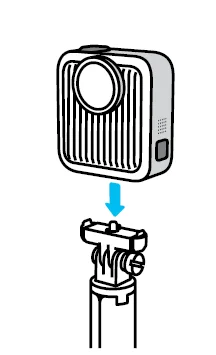
Powerful magnets help line up your GoPro so all you have to do is snap it in place. A squeeze of the auto-engage latches quickly detaches your GoPro, making it faster than ever to swap your camera between mounts. Available at gopro.com.
USING THE ADHESIVE MOUNTS
Follow these guidelines when attaching adhesive mounts to helmets, vehicles, and gear:
- Attach mounts at least 24 hours before you use them.
- Only attach the mounts to smooth surfaces. They won’t stick properly to porous or textured surfaces.
- Firmly press the mounts into place. Be sure the adhesive is in full contact with the surface.
- Only use on clean, dry surfaces. Wax, oil, dirt, or other debris will weaken the bond, and you could lose your camera.
- Attach mounts in dry, room-temperature conditions. They won’t stick properly in cold or damp environments or on cold or damp surfaces.
- Check state and local regulations and laws to ensure that attaching a camera to equipment (such as hunting gear) is permitted. Always comply with regulations that restrict the use of consumer electronics or cameras.
WARNING: To avoid injury, do not use a tether when mounting your camera on a helmet. Do not mount the camera directly on skis or snowboards.
For more information about mounts, visit gopro.com.
WARNING: Always use a helmet that meets applicable safety standards if you’re using a GoPro helmet mount or strap. Choose the right helmet for your sport or activity, and make sure that it’s the right size and fit for you. Check to see that your helmet’s in good condition, and always follow the manufacturer’s instructions on safe use. Replace any helmet that’s been subjected to a major impact. No helmet can protect against injury in every accident. Be safe.
Replacing the Lenses
The MAX2 lenses are designed to be replaced if they’re scratched or damaged. Simply swap in a new replacement lens instead of replacing your entire camera. The replacement kit includes 2 lenses, a microfiber cleaning cloth, and an easy-to-use tool that lets you quickly swap out lenses on the go. Available at gopro.com.
PRO TIP: Be sure to use authentic GoPro MAX2 Replacement Lenses to ensure a proper fit.
NOTE: Only remove your camera’s lens in a dry, dust-free environment when you’re ready to replace the lens. The camera is not waterproof when the lens has been removed.
Removing the Door
There might be times when you need to remove your camera’s door.
NOTE: Only remove the door in a dry, dust-free environment. The camera is not waterproof when the door is open or removed.
REMOVING THE DOOR
- Unlock the latch, and then flip the door open.
- With the door in a horizontal position, gently pull outward until it snaps off.
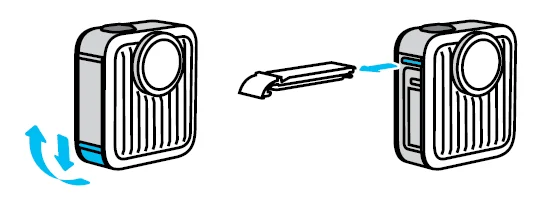
WARNING: Avoid using your GoPro with the door off. The battery could slide out during use.
Maintenance
Follow these tips to get the best performance from your camera:
- The lenses are made to be extremely tough, but can still be scratched or cracked. Keep them clean with a soft, lint-free cloth.
- Your GoPro is waterproof to 16ft (5m) to protect against splashes and drops in the water. Be sure the door is closed before using it in or around water, dirt, or sand.
- Before closing the door, be sure the seal is free of debris. Use a cloth to clean the seal if needed.
- Make sure your GoPro is dry and clean before opening the door. Rinse your camera with fresh water and dry it with a cloth if needed.
- If sand or debris hardens around the door, soak your camera in warm tap water for 15 minutes and then rinse thoroughly to remove the debris. Make sure your camera is dry before opening the door.
- For the best audio performance, shake your camera or blow on the mic to remove water and debris from the microphone holes. Do not use compressed air to blow into the mic holes. This could damage the internal waterproof membranes.
- After every use in salt water, rinse your camera with fresh water, and dry it with a soft cloth.
- If debris gets stuck between the lens and the trim ring, flush it out with water or air. Do not insert foreign objects around the lens.
Battery Information
MAXIMIZING BATTERY LIFE
Here are some things you can do to maximize battery life:
- Capture video at lower frame rates and resolutions.
- Use the Screensaver and lower the screen Brightness.
- Turn off Wireless Connections.
- Record with QuikCapture and set up Auto Power Off.
RECORDING WHEN PLUGGED INTO A POWER SOURCE
You can use the USB-C cable that came with your camera to shoot videos and photos while your camera is plugged into a power source. This is perfect for capturing long videos and time-lapse events. Be careful not to touch the area near the SD card slot when recording. Disturbing the SD card could interrupt or stop the recording. Your content will not be damaged or lost as a result of this disturbance, but
you may need to restart your camera to continue. Even though your camera is charging, the battery will not charge during recording. It will start charging when you stop recording.
Heads Up: Because the door is open, your camera is not waterproof when charging.
PRO TIP: Use the USB Pass-Through Door (sold separately) to keep your camera weather-resistant and the battery in place when plugged into an external power source.
Troubleshooting
PLAYBACK ON MY COMPUTER IS CHOPPY
Choppy playback is usually not a problem with the file. If your footage skips, one of these issues is probably the cause:
- The computer doesn’t work with HEVC files. Try downloading the latest version of the GoPro Player for Mac® or Windows® for free at gopro.com/apps.
- Your computer doesn’t meet the minimum requirements of the software you’re using for playback.
I FORGOT MY CAMERA’S USERNAME OR PASSWORD
Swipe down on the rear screen to access the Dashboard, swipe left, and then tap Preferences > Connections > Camera Info.
I DON’T KNOW WHICH SOFTWARE VERSION I HAVE
Swipe down on the rear screen to access the Dashboard, swipe left, and then tap Preferences > About > Camera Info.
I CAN’T FIND MY CAMERA’S SERIAL NUMBER
The serial number is stamped inside the battery compartment of your camera. You can also find it by swiping down on the rear screen to access the Dashboard, swiping left, and then tapping Preferences > About > Camera Info.
For more manuals by GoPro, visit ManualsLibraryy
GoPro MAX2 Camera-FAQs
Can the GoPro MAX2 go underwater?
Yes, the MAX2 is waterproof up to 5 meters (16 feet) without any additional housing, making it safe for swimming, snorkeling, or wet conditions.
What is the difference between the GoPro MAX and MAX2?
The MAX2 is a complete upgrade from the original MAX, featuring 8K 360° video, improved sensors, new features from GoPro Hero 13, and HyperSmooth stabilization, making it more versatile and higher quality than its predecessor.
Does the GoPro MAX2 have GPS?
Yes, MAX2 includes GPS for geotagging, overlaying telemetry data in third-party apps, and detecting key moments for auto-edits in the GoPro Quik app.
Is the GoPro MAX2 good for photography?
Yes, it can capture high-resolution 360° photos up to 29MP. While smartphones may offer more flexibility, the MAX2 excels in immersive and wide-angle shots.
Can the GoPro MAX2 be used as a CCTV or for video calls?
While technically possible with live streaming apps, the MAX2 is primarily designed for action and 360° recording, not continuous surveillance or video calling.
How do I clean the GoPro MAX2?
Use a soft microfiber cloth for lenses and a damp cloth for the body. Avoid harsh chemicals. Make sure the camera is powered off before cleaning.
Is the GoPro MAX2 better than GoPro Hero 13?
If you want standard vlogs or polished videos, Hero 13 is more versatile. But for 360° effects, cinematic shots, and immersive content, MAX2 is the superior choice.
Can the GoPro MAX2 replace my phone camera?
It depends. For action-packed 360° videos and wide-angle shots, the MAX2 outperforms most phones. For everyday photos or low-light situations, modern smartphones may offer more convenience.