
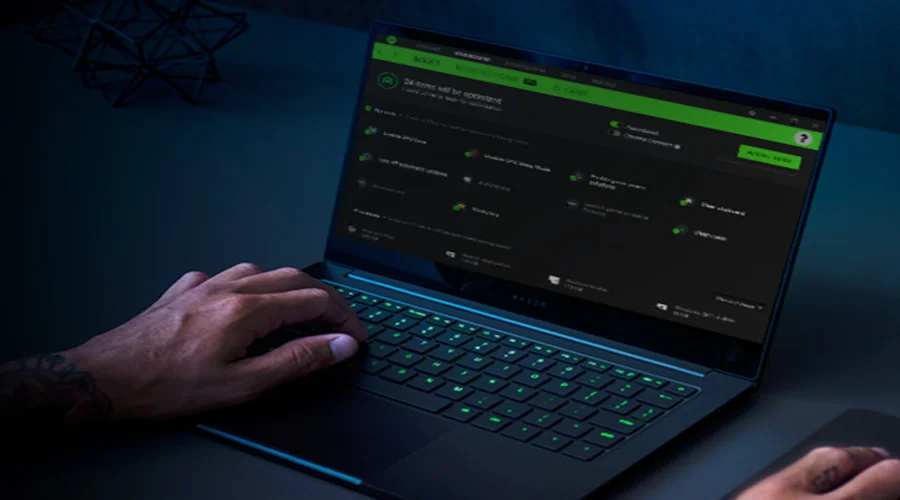

Razer Cortex Game Booster Software
SYSTEM REQUIREMENTS
SYSTEM REQUIREMENTS Windows® 7 (or higher), Internet connection, and at least 250MB of free hard disk space
RAZER CORTEX SETUP
INSTALLATION
Razer Cortex is a software package that can be downloaded and installed on your PC.
- Visit razerzone.com/cortex to download the latest version of the Razer Cortex installer.
- Launch the downloaded installer.
- Follow the on-screen instructions to complete the installation.
- Click Done once the installation completes, and restart your computer when prompted.
UNINSTALLATION
If you have a previously installed version of Razer Cortex, or if you wish to completely uninstall Razer Cortex:
- On your PC, open the Control Panel, then go to Programs and Features.
- Right-click Razer Cortex in the list, then select Uninstall.
- Follow the on-screen instructions to complete the uninstallation.
ACCOUNT MANAGEMENT
SIGNING IN
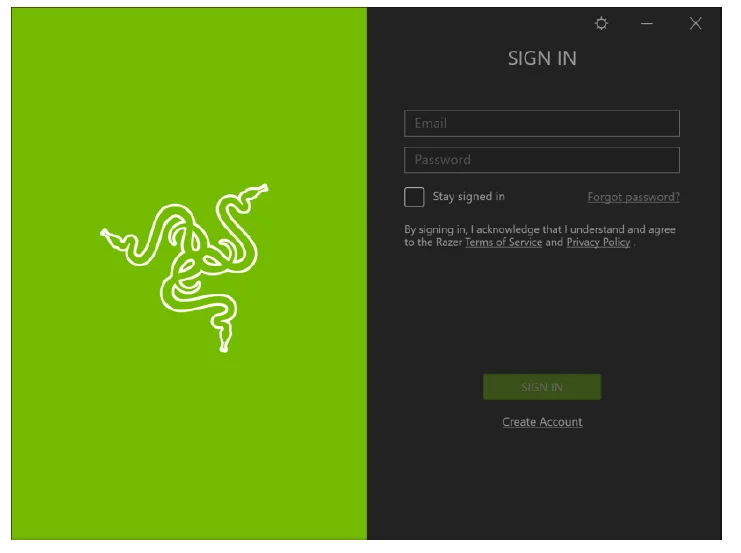
If you already have a Razer ID, you can sign in directly by doing the following:
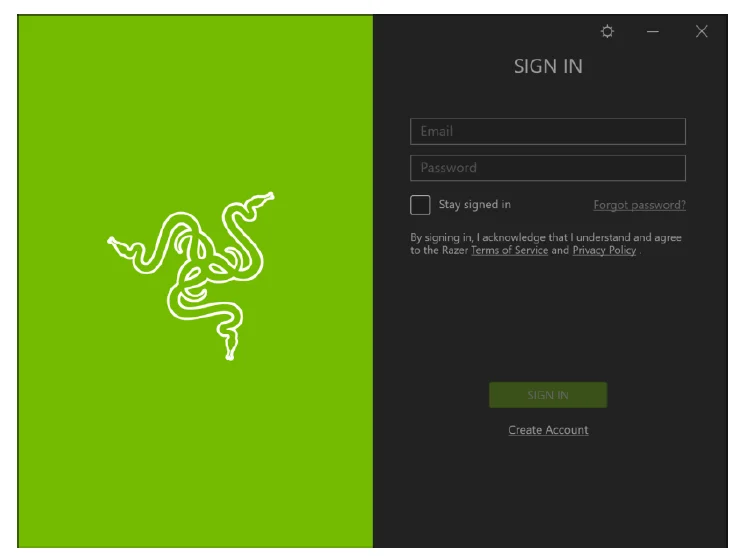
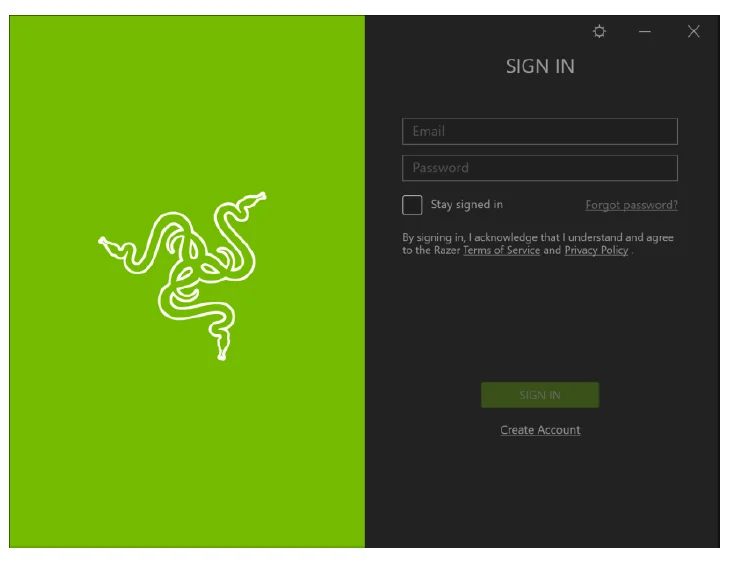
- Launch Razer Cortex to open the Razer SIGN IN page.

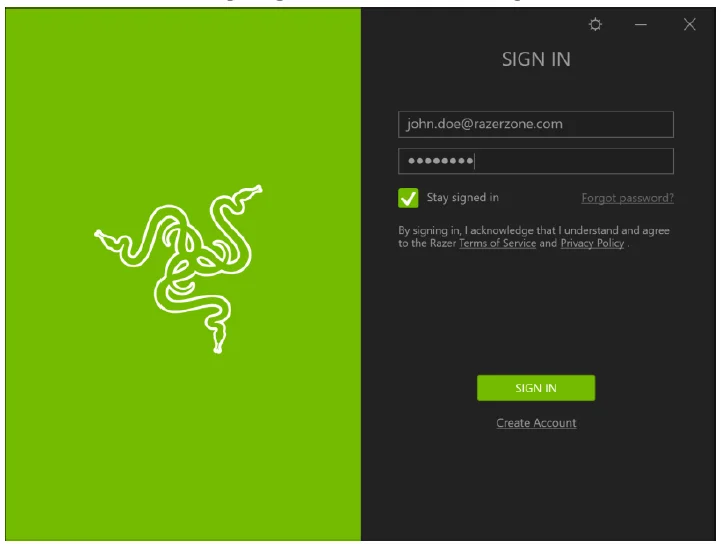
- Enter your Razer ID’s email address and its password, then click SIGN IN.
Note: You should only select Stay signed in if you want to have your Razer ID automatically signed in each time you launch the software
RETRIEVING FORGOTTEN PASSWORDS
If you have forgotten your Razer ID password, you can easily retrieve your password by doing the following:
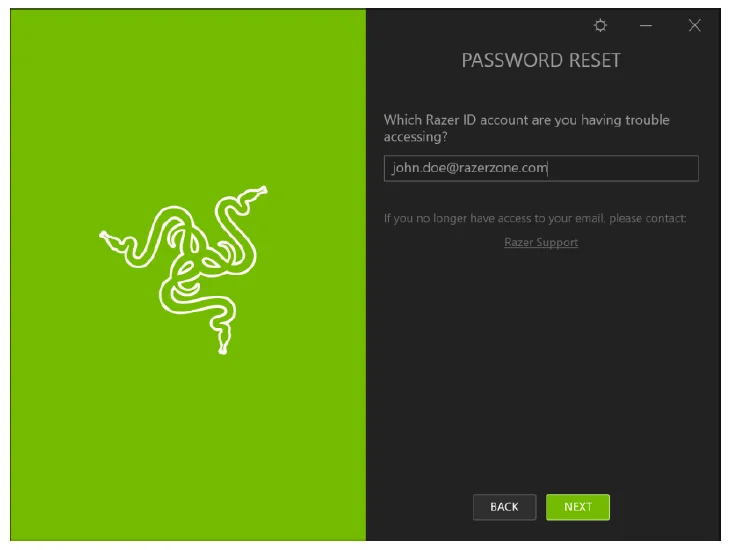
- On the Razer SIGN IN page, click Forgot Password?. You would be redirected to the PASSWORD RESET page.

- Enter your Razer ID email on the field provided, then click NEXT.

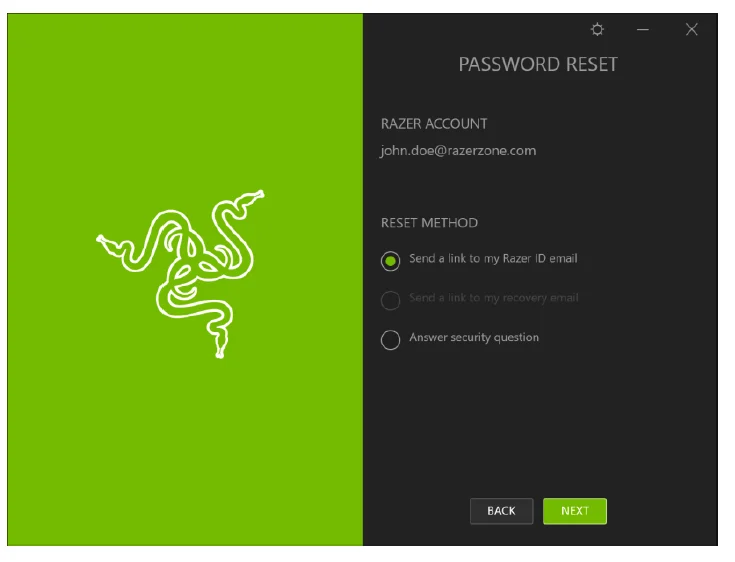
- Select Send a link to my Razer ID email, then click NEXT.
NOTE: You may only select the ‘Send a link to my recovery email’ or ‘Answer a security question’ option if you have previously configured these settings on your account. A password reset confirmation will be sent to your email.
- Check your email inbox for the email verification from Razer and click the provided link.
- Your web browser will navigate to the PASSWORD RECOVERY page. Enter your NEW PASSWORD, retype it to confirm, then click RESET.
 You will be redirected to the sign-in page with a confirmation that your password has been successfully updated.
- Return to the Razer SIGN IN page and click NEXT to proceed with the password reset.
- You may now sign in to your Razer ID using the new password.
 A password reset confirmation will be sent to your email.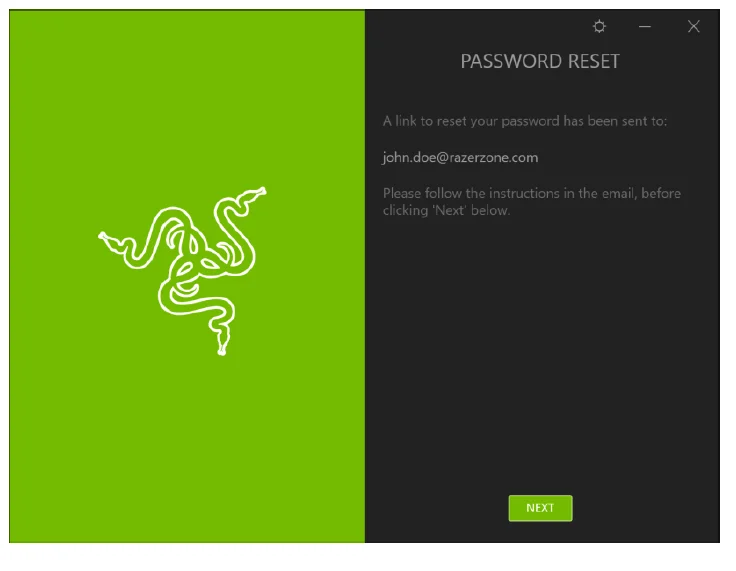
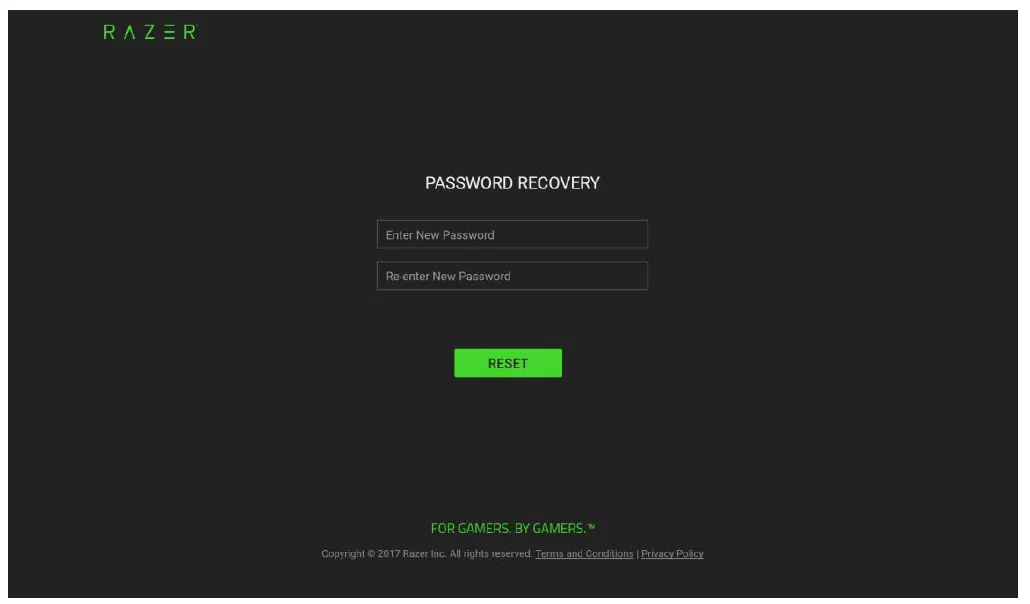 You will be redirected to the sign-in page with a confirmation that your password has been successfully updated.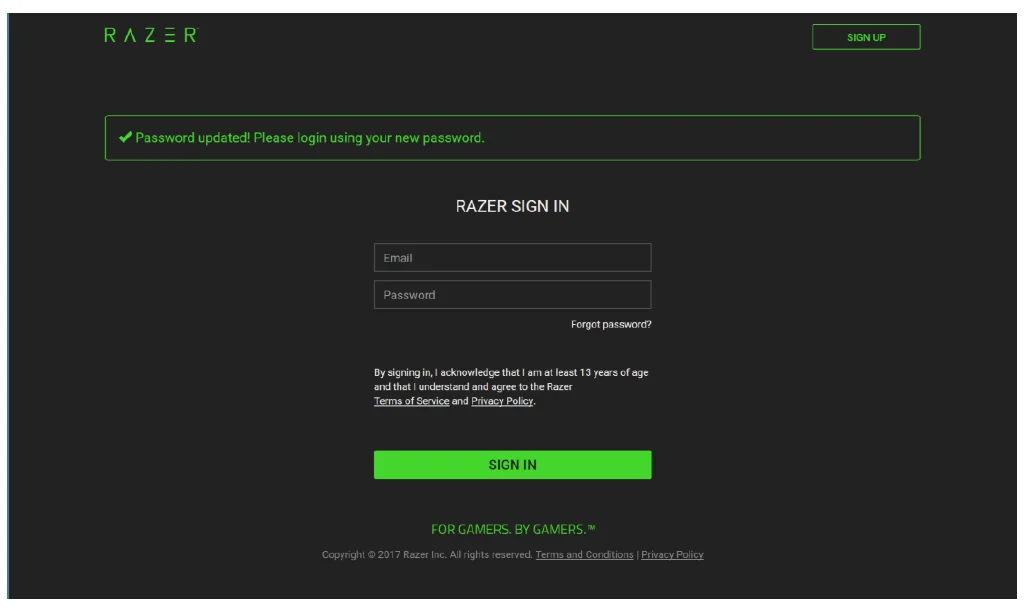
CREATING A RAZER ID ACCOUNT
If y, you can also use the Razer SIGN IN page to create a Razer ID account.
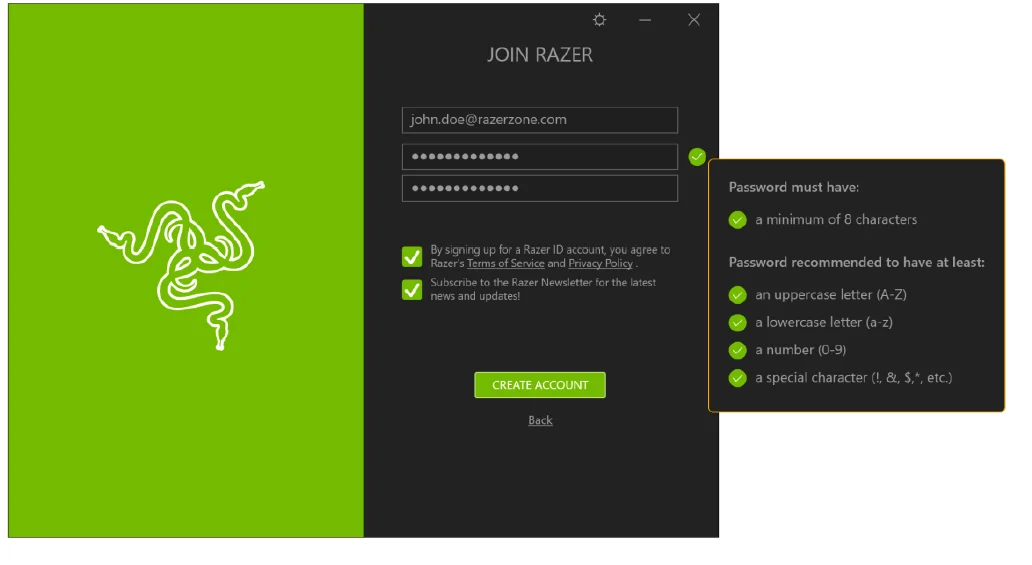
- On the Razer SIGN IN page, click Create Account.

- Enter a valid Email address and Password, then re-enter your Password for confirmation.

- Click the TERMS OF SERVICE and PRIVACY POLICY links to read the terms of usage, then click the corresponding checkbox to agree to be bound by these terms.
Note: You may also opt to subscribe to the Razer newsletter by clicking the Subscribe to the Razer Newsletter for the latest news and updates! checkbox. - Click CREATE ACCOUNT.
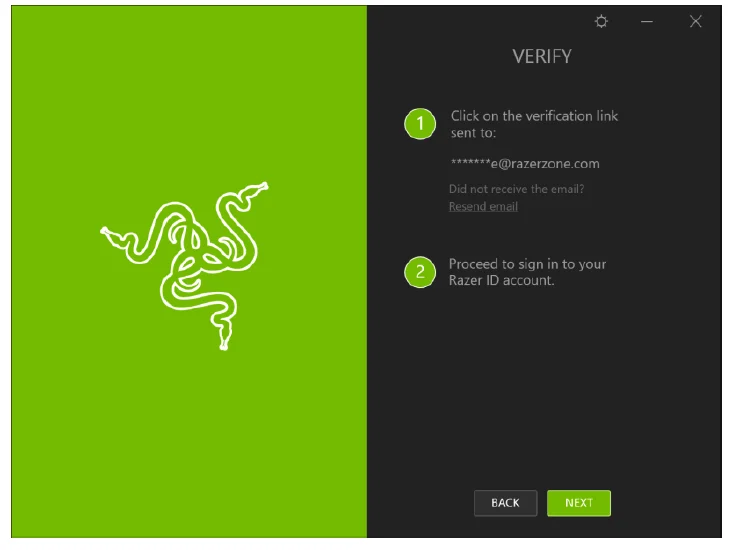
Note: If the CREATE ACCOUNT button remains unclickable, please make sure that the password requirements have been fulfilled, the password has been re-entered correctly, and/or that you have agreed to Razer’s Terms of Service and Privacy Policy. - Check your email inbox for an account verification email from Razer.
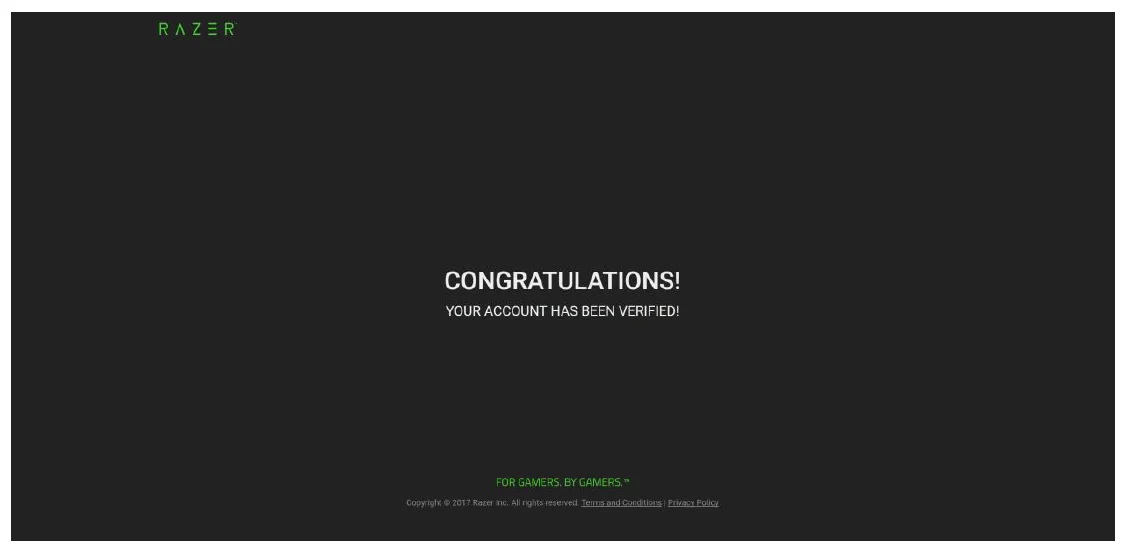
Note: If you did not receive any email, click the resend email link to resend the account verification email. - Verify your Razer ID account by clicking on the link provided in the email. A success screen will be displayed indicating that your email has been verified.

- Return to the Razer SIGN IN page and click NEXT to proceed with the sign-in.
Note: If vou haven’t verified your email address yet, you will not be allowed to proceed with the setup. The SIGN IN page would prompt you to verify your account first.
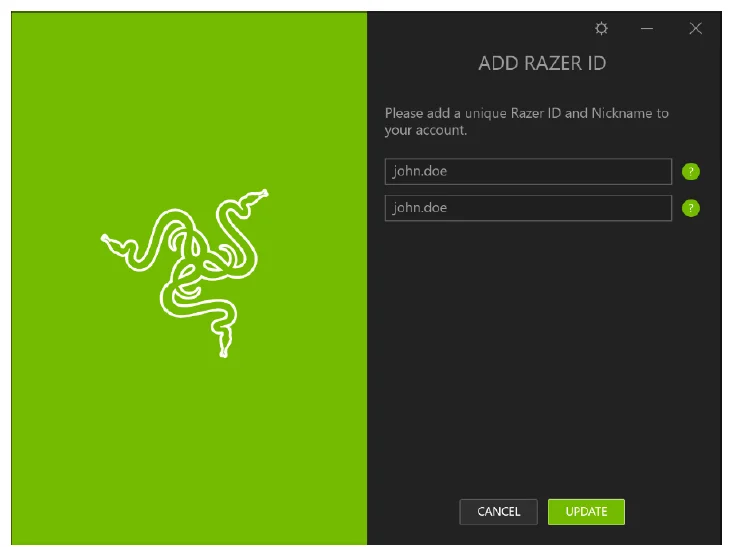
- Enter your preferred Razer ID and Razer Nickname, then click UPDATE.
Note: You can assign a different Razer Nickname to your Razer ID.
- You may now start using Razer Cortex.
GENERAL SETTINGS
UNDERSTANDING THE USER INTERFACE
By default, Razer Cortex displays the GAMES > MY LIBRARY tab when launched. Use the tabs (GAMES, DEALS, GAMECASTER, GAME BOOSTER, AND REWARDS) and subtabs to access the various functions Razer Cortex has to offer.
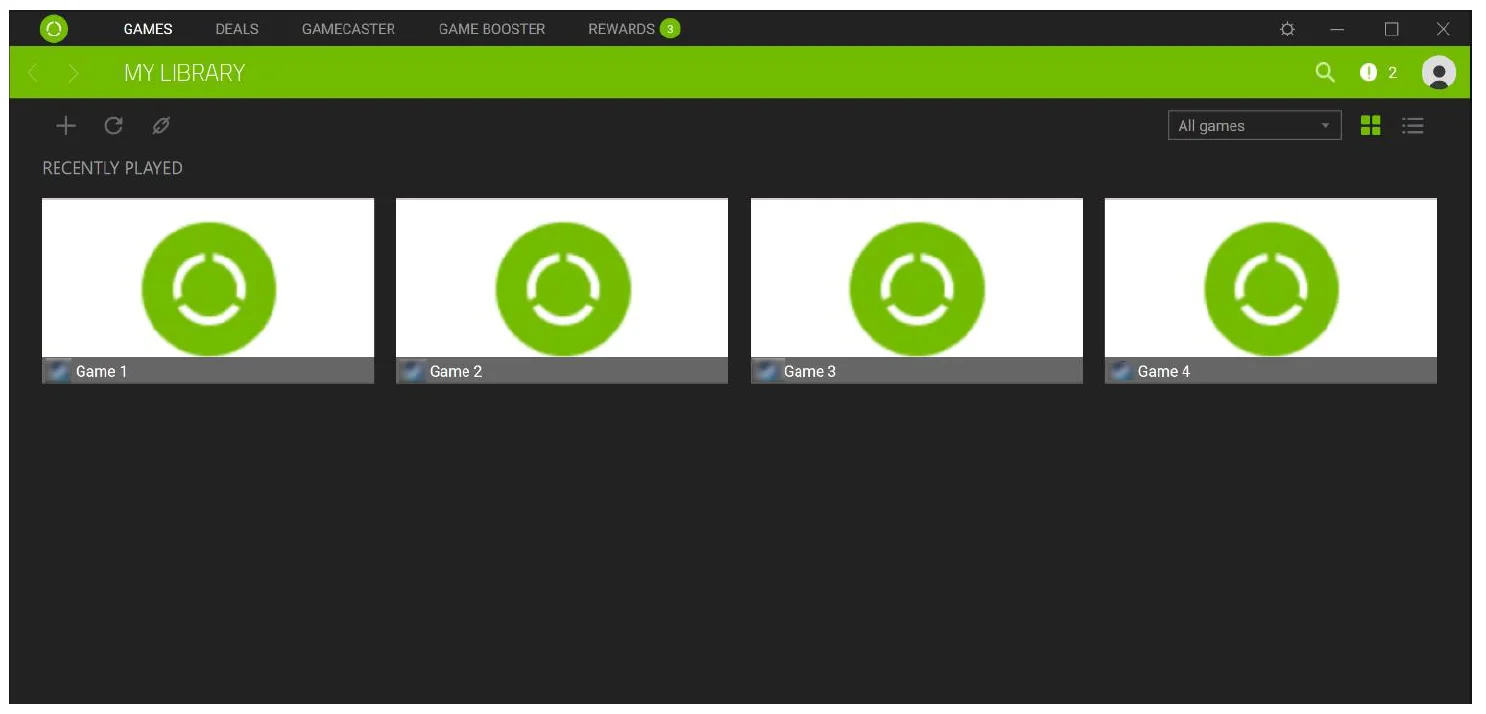
To navigate between previously visited pages, utilize the < or > buttons. You may also search for existing games or deals through the Search icon. The Notifications icon indicates the number of notifications or Razer promotions currently available. Use this icon to view and access the latest notifications and Razer promotions. Clicking your avatar lets you access your profile, change your account password, sign out, view your Razer zGold and zSilver, give feedback, or shut down Razer Cortex. Use the provided drop-down lists below your avatar to arrange any shown games and/or deals according to your preferred category. These drop-down lists, however, vary from each tab. You may also use the
 icons to arrange the lists according to your preferred view.
SETTINGS
Click the icon to modify various settings that will help you manage Razer Cortex’s behavior. Use the GENERAL tab to change Razer Cortex’s display language, determine its startup behavior, or change its color theme.
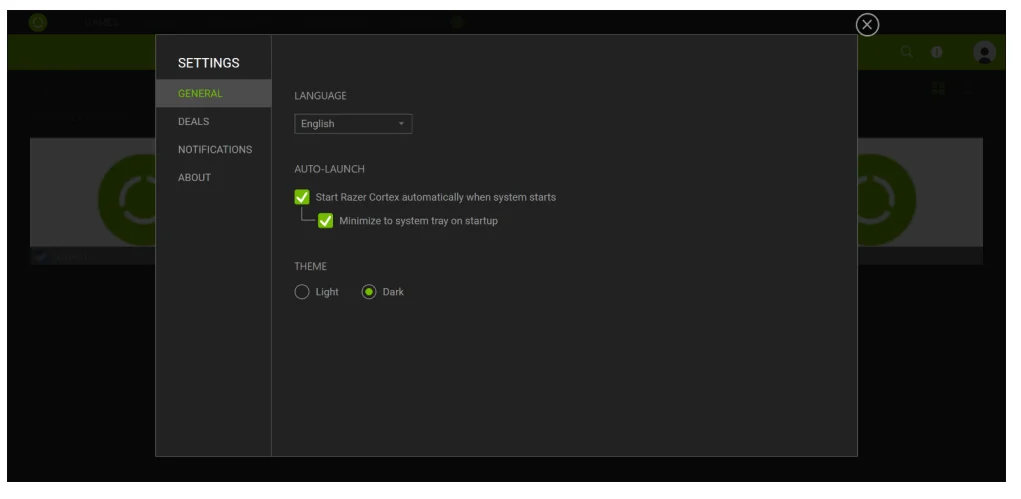
Use the DEALS tab to opt-in to Razer Cortex: Deals newsletter if you haven’t subscribed to it yet, and even manage wishlist notifications and game client account connectivity.
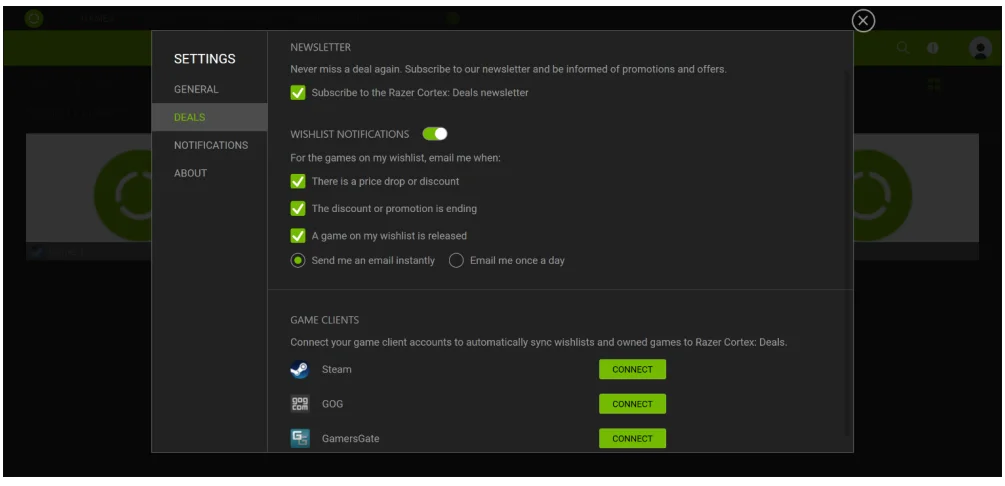
The NOTIFICATIONS tab allows you to manage zSilver rewards and post-game notifications. The ABOUT tab displays Razer Cortex’s brief software information and links to its copyright statement. You may also use this tab to check for software updates, purchase a software license, or view the user guide.
RAZER CORTEX: GAMES
When Razer Cortex is installed and launched for the first time, it automatically scans your PC for any installed games it can recognize.
MY LIBRARY
The MY LIBRARY tab displays a list of both automatically detected and manually added games installed on your PC. This includes all game titles marked as ‘I already own this game’ under DEALS, game titles from synced game clients.
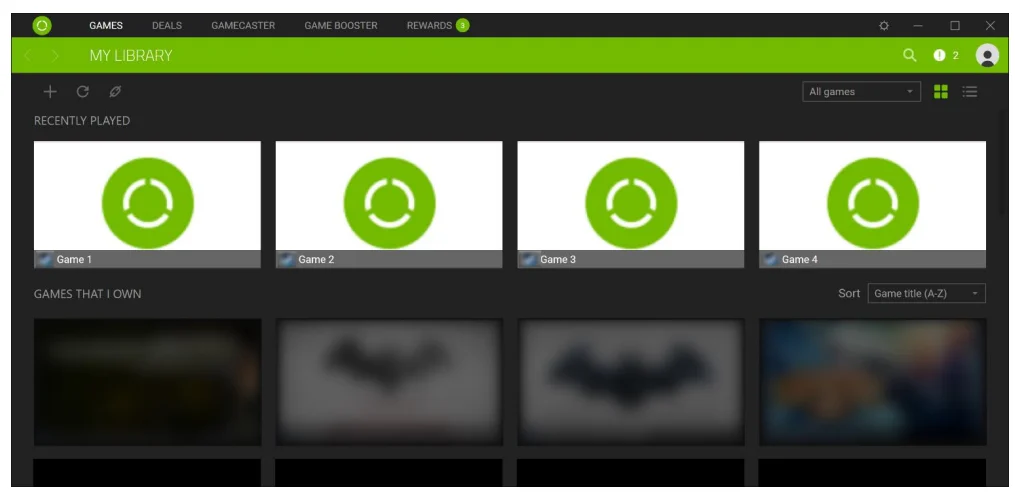
Note: If you have synced your game clients and/or if you have marked games under DEALS as owned, click the refresh icon to refresh the listed games.
LAUNCHING A GAME
Select a game from the list, then click PLAY.
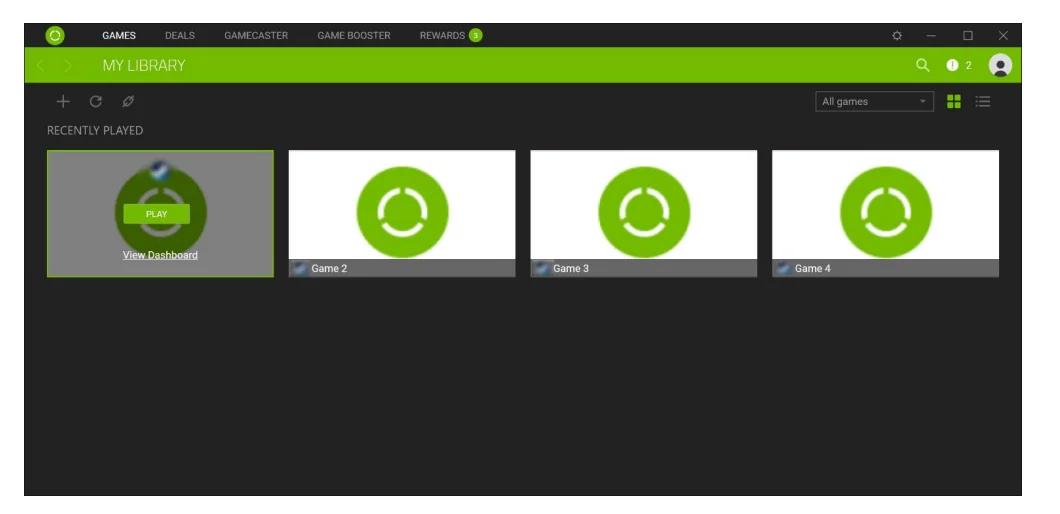
Razer Cortex will then perform the following operations:
- Launch your game.
- Toggle Game Booster ON if it was configured to automatically turn ON when a game starts under GAME BOOSTER > CONFIGURE (BOOST).
- Activate Game Desktop if the option is selected on GAME BOOSTER > Configure (BOOST) > OTHERS.
SEARCHING FOR A GAME OR DEAL
A search function helps you locate a game you wish to play or a deal that you want to see.
- From the GAMES tab, click the search icon.
- Enter a search phrase in the field provided.
A list of all games and deals matching this phrase will be displayed in the drop-down list. - Select the game that you want to play or the deal that you want to see from the drop-down list.
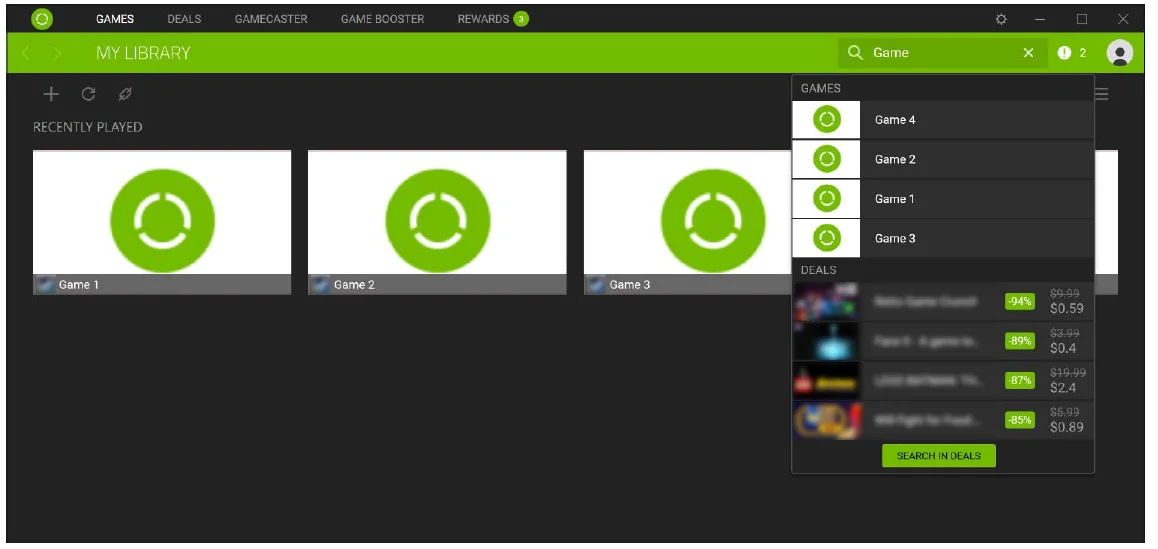
ADDING INSTALLED GAMES TO THE LIST AUTOMATIC SYSTEM SCAN
From the GAMES tab, click the search icon, and Razer Cortex will automatically start scanning your system for recognized games and add them to your game library. All games found by Razer Cortex through system scan will be automatically added to your library.
Note: The automatic system scan will only add games recognized by Razer Cortex.
ADDING INSTALLED GAMES TO THE LIST: MANUAL SELECTION
If a game in your PC, you can still manually add your games through the Add icon.
- On the MY LIBRARY tab, click the Add icon.
- Click
 and locate the game that you want to add.
Optional: Once you have manually located the game, you can also personalize the look of its game launcher through the Change cover art link. You can either select your own cover art or select from any of the available background colors. - Click ADD to include the game to your library.
 and locate the game that you want to add.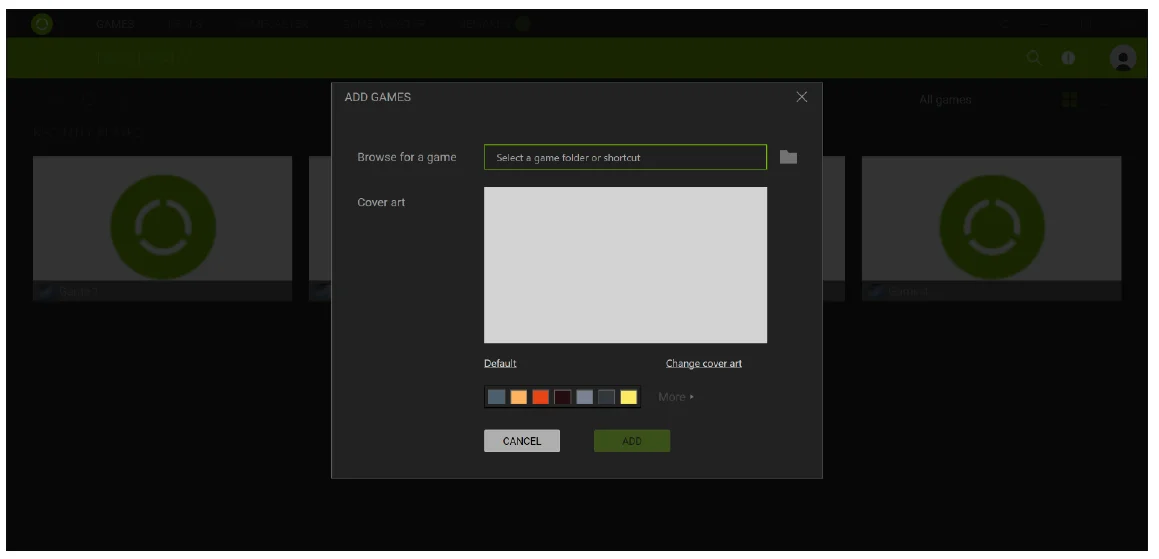
RAZER CORTEX: DEALS
Razer Cortex is a one-of-a-kind software that allows you to search for amazing games at excellent prices. With Razer Cortex: Deals, you can flexibly find the best game deals, check out new releases, see what’s popular, or choose from our highly esteemed editor’s picks.
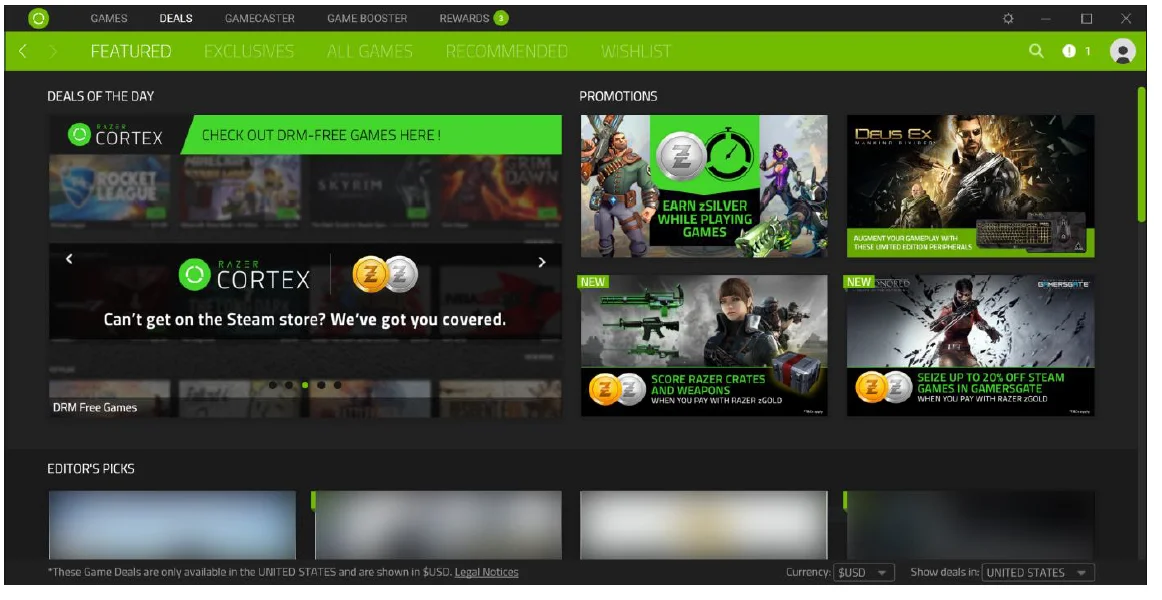
You can view the available deals by country and/or change the currency used in the deal display through the Show deals in and Currency drop-down lists located at the bottom of the Razer Cortex window. Use EXCLUSIVES to view all past and ongoing Razer exclusive deals.
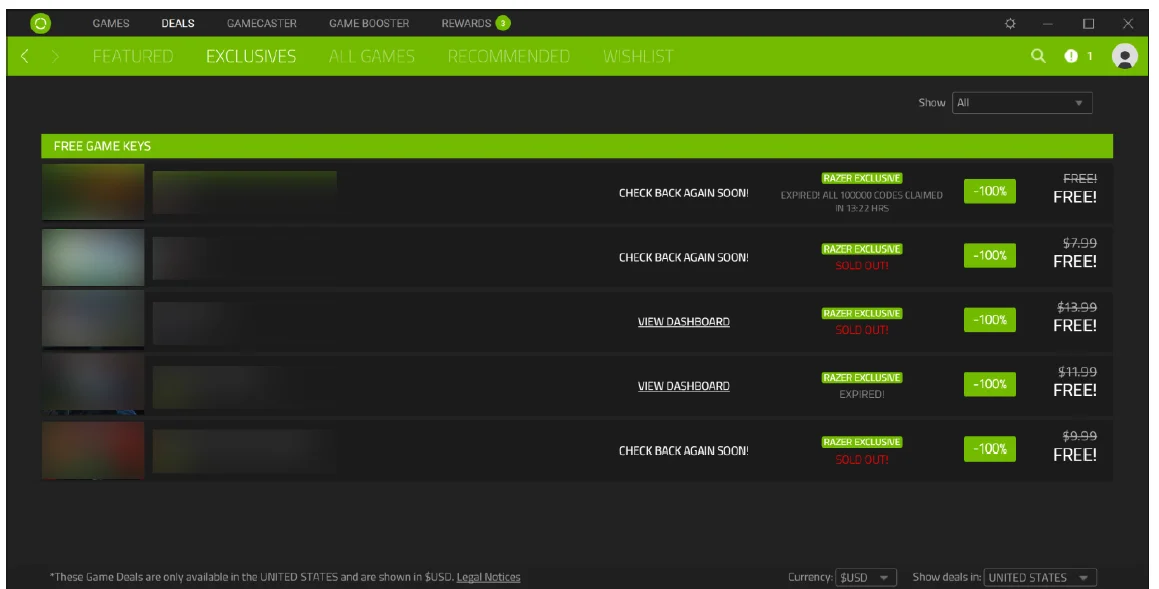
Use ALL GAMES to search and browse all game deals and sort them out by discount, price, or title. You can also filter the deals based on genre, type, distributor, and availability.
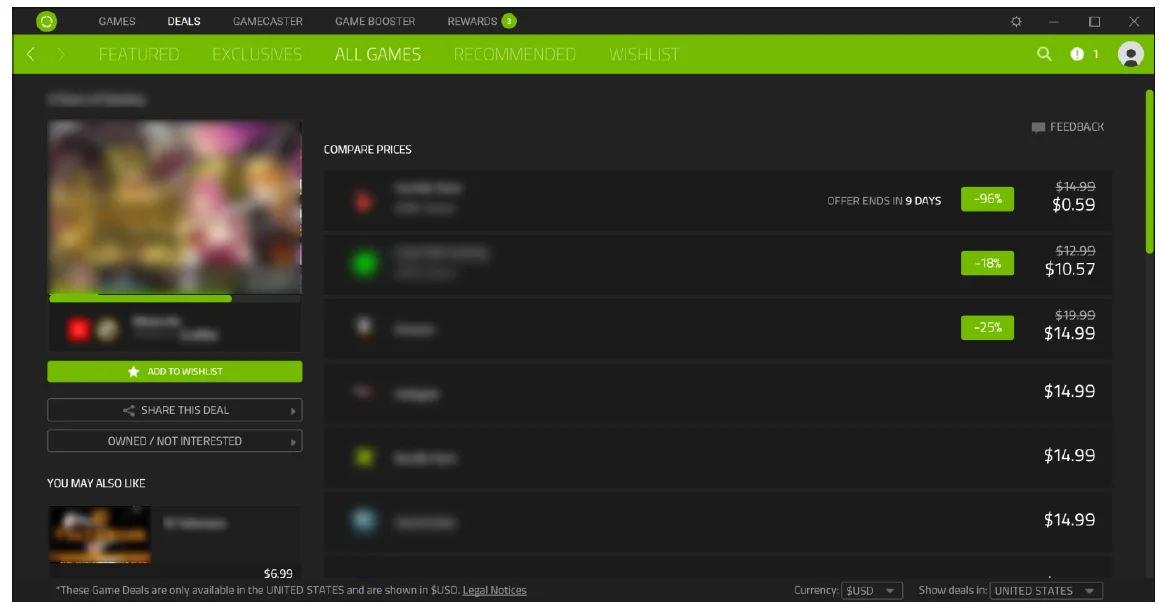
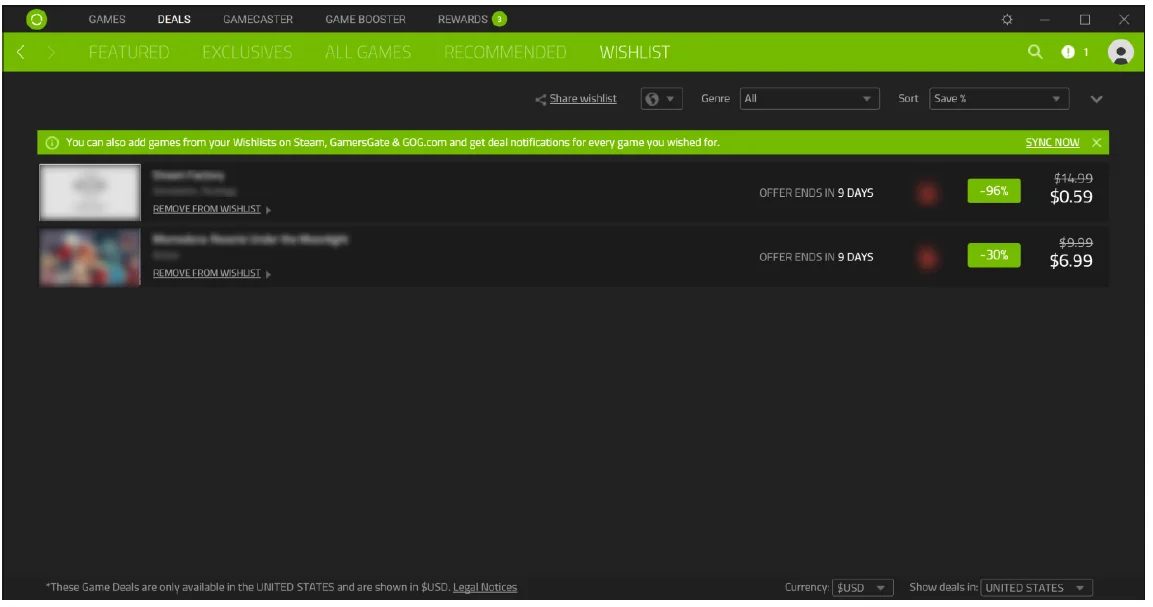
Use RECOMMENDED to discover games based on games you want, games you own, and what other gamers with similar tastes are playing. Use WISHLIST to be kept up-to-date on your most anticipated games and receive notifications whenever the game you want goes on sale.
ADDING/REMOVING GAMES ON YOUR WISHLIST
You can add games to your Wishlist by going to a game’s profile or details section and clicking its button. If you want to remove a game from your wishlist, select the game from your Wishlist, and then click the REMOVE FROM WISHLIST button. You can also go to DEALS > WISHLIST, then click the wishlisted game’s corresponding REMOVE FROM WISHLIST link.
MARKING GAMES
Mark games on Razer Cortex: Deals by going to a game’s profile or details section, clicking the OWNED/NOT INTERESTED, and then selecting the I already own this game and/or the I don’t like this button. Marking games will help Razer Cortex: Deals filter and recommend more games that are better suited to your tastes. You may also use the FEEDBACK button in this page if you have:
- found other game stores offering the selected game at a lower price;
- had issues with the game’s cover art quality;
- or if you have other comments regarding Razer Cortex: Deals.
Note: Games marked as I already own this game and/or I don’t like this will automatically be removed from the RECOMMENDED deals list. You can also view all owned and disliked games by clicking the view all games marked as ‘Not Interested’ link.
RAZER CORTEX: GAMECASTER
With a push of a key, Razer Cortex allows you to stream, record, and take screenshots of your game without compromising your system’s performance.
IN-GAME
The IN-GAME tab is Razer Cortex: Gamecaster’s default tab. With the Gamecaster toggled ON, several options and features are enabled.
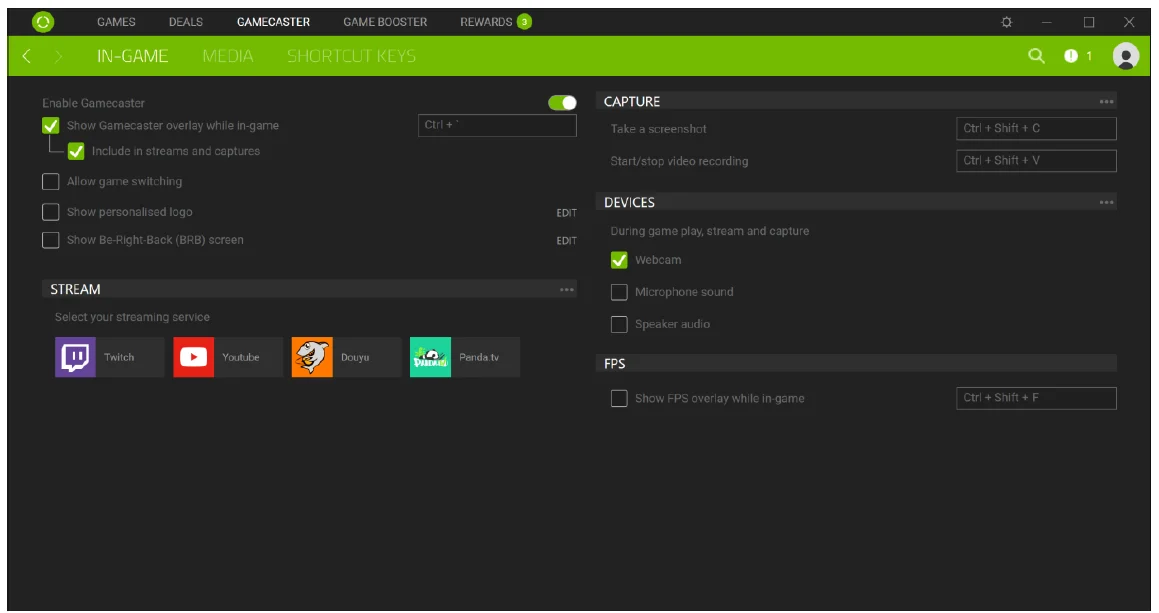
Note: The In-game tab’s settings can only be configured if Gamecaster is enabled or toggled ON.
By default, even if the Gamecaster overlay can be seen in-game, the Gamecaster overlay will neither be seen by your stream viewers nor will it be included on your game screen captures and recordings. If you want to include the Gamecaster overlay in all streams and screen captures, simply enable the Show Gamecaster overlay while in-game and make it visible through the Include in streams and captures option.
If enabled, the Gamecaster overlay can be accessed by clicking the Razer Cortex iconwhile in-game. The Gamecaster also includes the FPS overlay (seen on the upper left-hand corner of the screen) and the webcam overlay (seen on the lower left-hand corner of the screen). These overlays can also be toggled on GAMECASTER > IN-GAME. If you are using the pro version, the personalized logo overlay is also included.
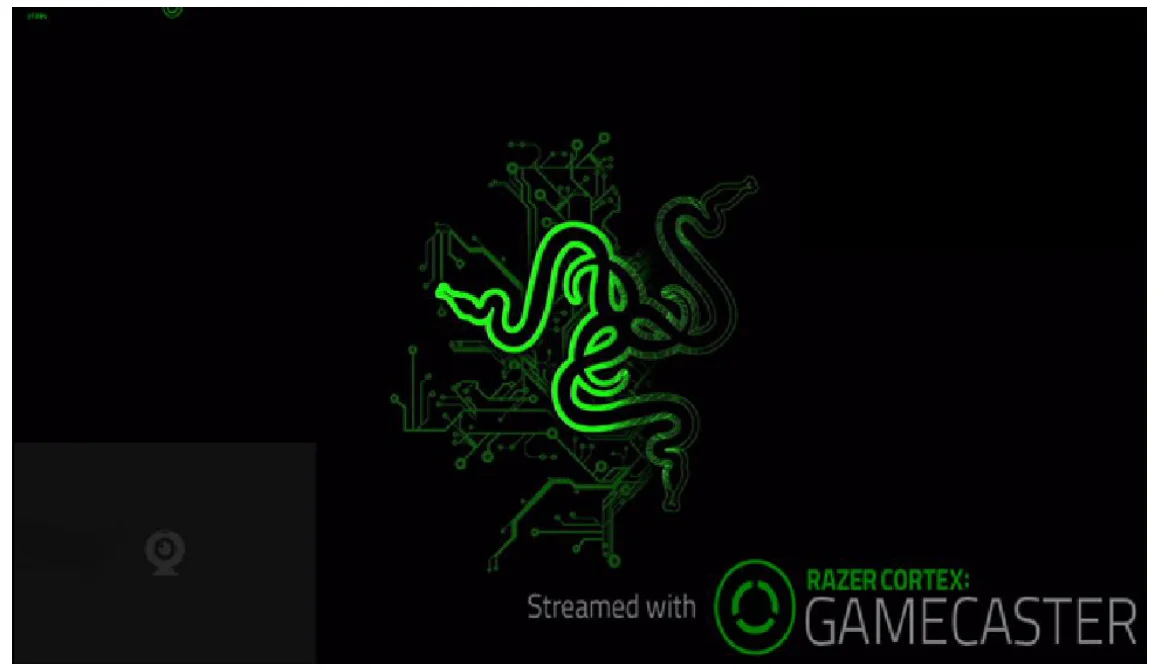
Note: The FPS overlay and personalized logo will only be visible if both overlays are enabled in GAMECASTER > IN-GAME. Similarly, these will only be shown in streams and screen captures if the ‘Include in streams and captures’ is enabled.
RAZER CORTEX: GAME BOOSTER
Razer Cortex: Game Booster provides extra optimization tools to further improve your overall gaming experience.
GAME BOOSTER
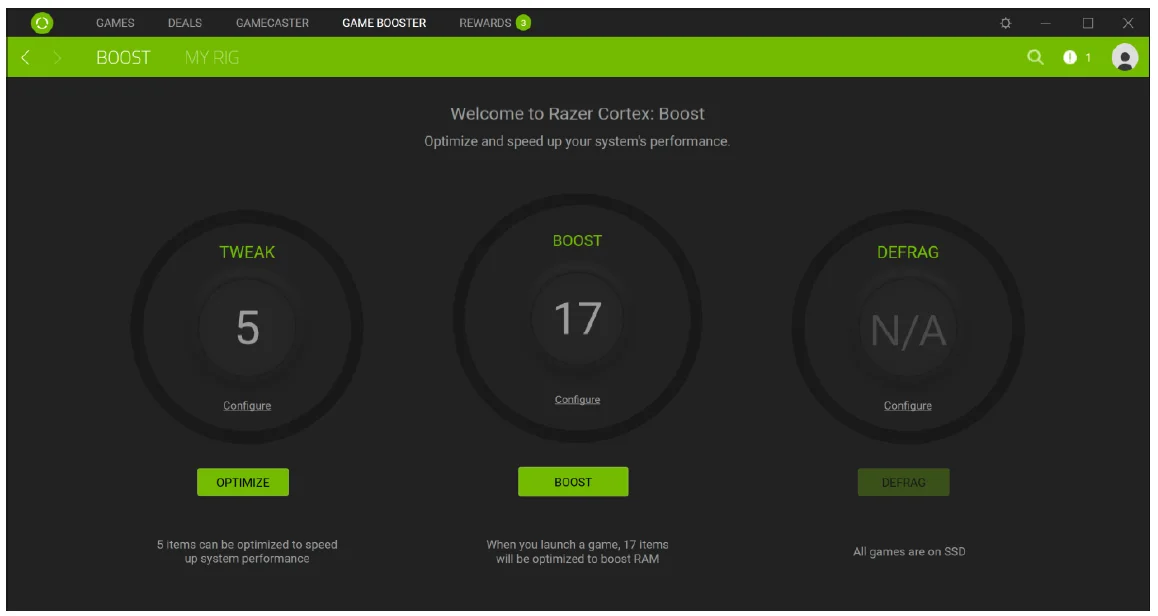
GAME BOOSTER provides full control over which processes and services are temporarily stopped to optimize system performance. These can easily be enabled/restored with a single click, or even fully customized according to your needs.
TWEAK
The TWEAK tool auto-adjusts your PC’s settings to improve overall game performance. You can simply click OPTIMIZE to start the optimization using Razer Cortex’s recommended settings, or click Configure to select which and/or customize the tweaks you want optimized.
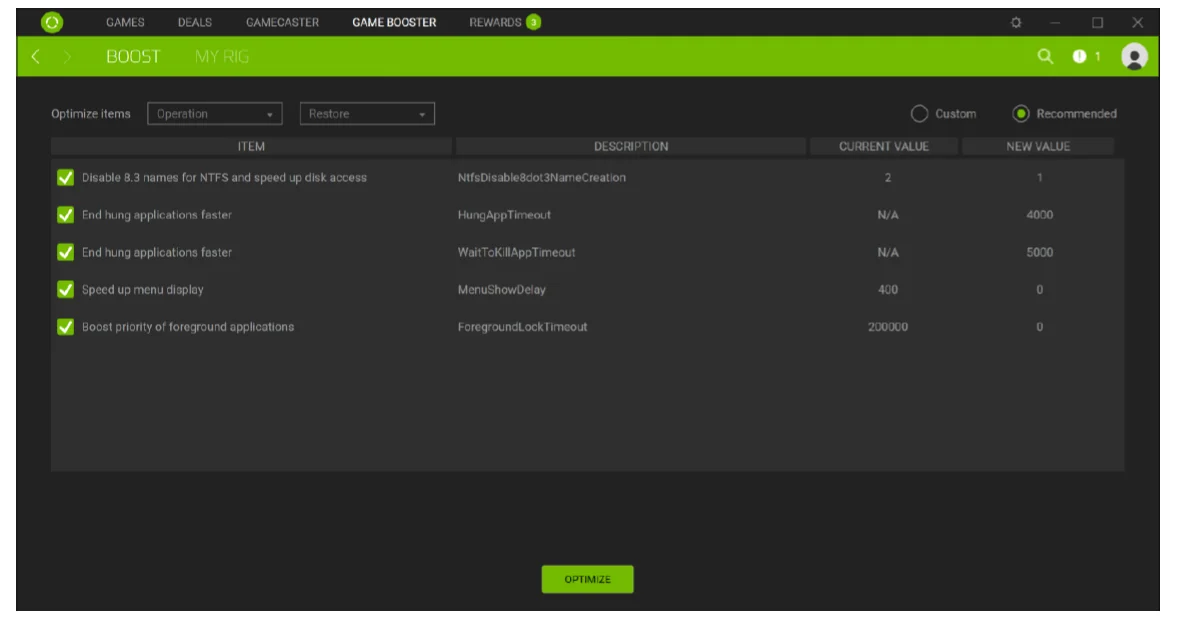
By default, the Tweak tool uses the Recommended list. However, if you want to use your own settings, select Custom, then select/deselect the items you want optimized and/or modify each item’s corresponding value. Once done, click OPTIMIZE to use the new settings. You can also import and export settings from/to a file using the Optimize Items > Operation dropdown menu, or restore all settings to Windows default or undo Razer Cortex tweaks through the Optimize Items > Restore drop-down menu.
BOOST
When BOOST is toggled on, either by launching a game or by manually activating boost through the BOOST button, several processes and services on your computer are immediately suspended, allocating more resources for your game to use. Turning off Boost will restore your computer to its original state.
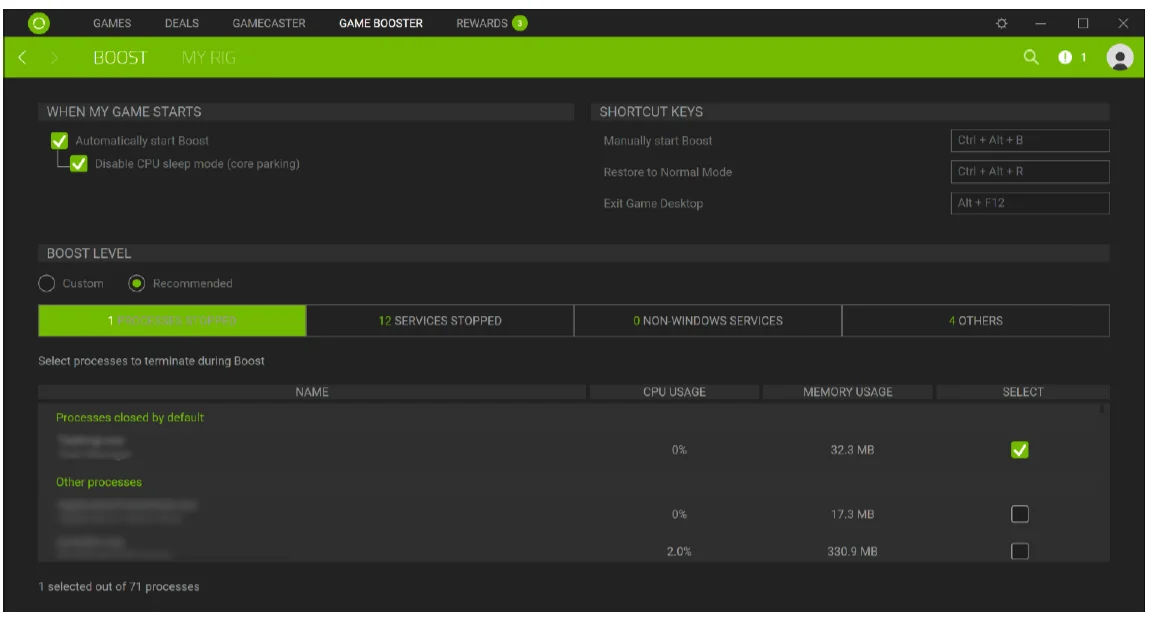
Under BOOST > Configure, various options are provided for customizing the Boost function. This includes:
- Toggling automatic Boost launch on/off, including an added option of disabling core parking whenever launching a game
- Specifying Boost and Restore shortcut keys to toggle Boost on/off, respectively
- Specifying a shortcut key to exit Game Desktop
- Customizing various settings categorized according to processes, services, non-Windows services, and others, which will be temporarily suspended when Boost is active.
WARNING: Suspending Windows services may affect the operation of your system. If you are unsure of which processes and/or services to select, select Recommended to use the suggested Boost settings.
MY RIG
Aside from providing brief system information, MY RIG allows you to generate a diagnostic report which includes information regarding your PC’s hardware, software and other error messages encountered.
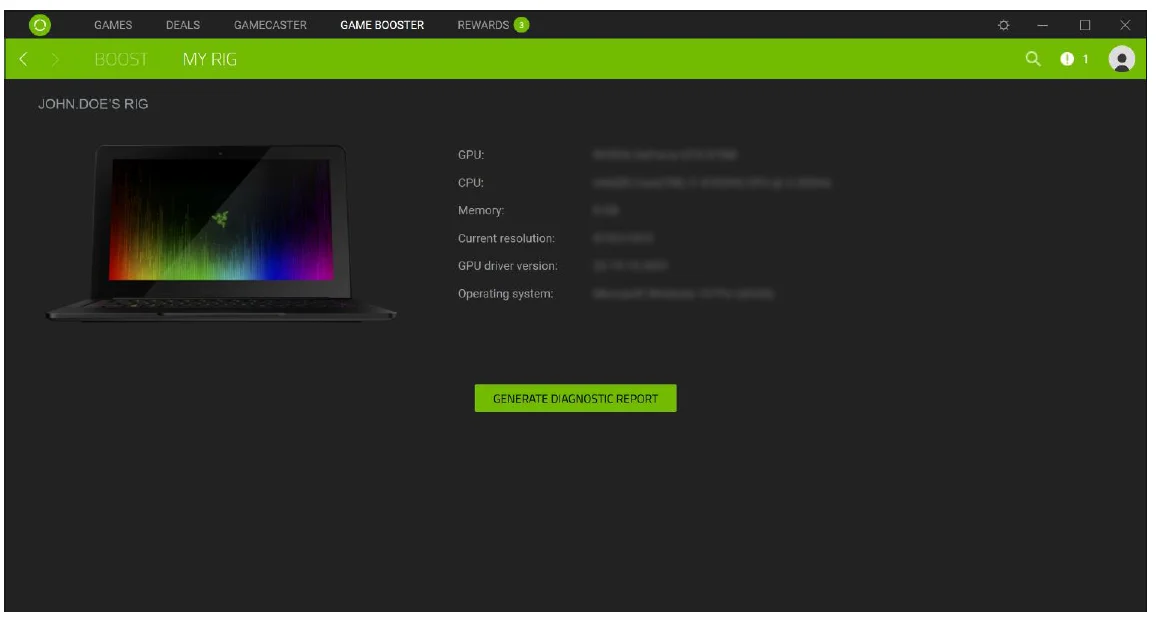
Click the GENERATE DIAGNOSTIC REPORT button to view the diagnostics report interface, then click ANALYZE to begin the diagnostics.
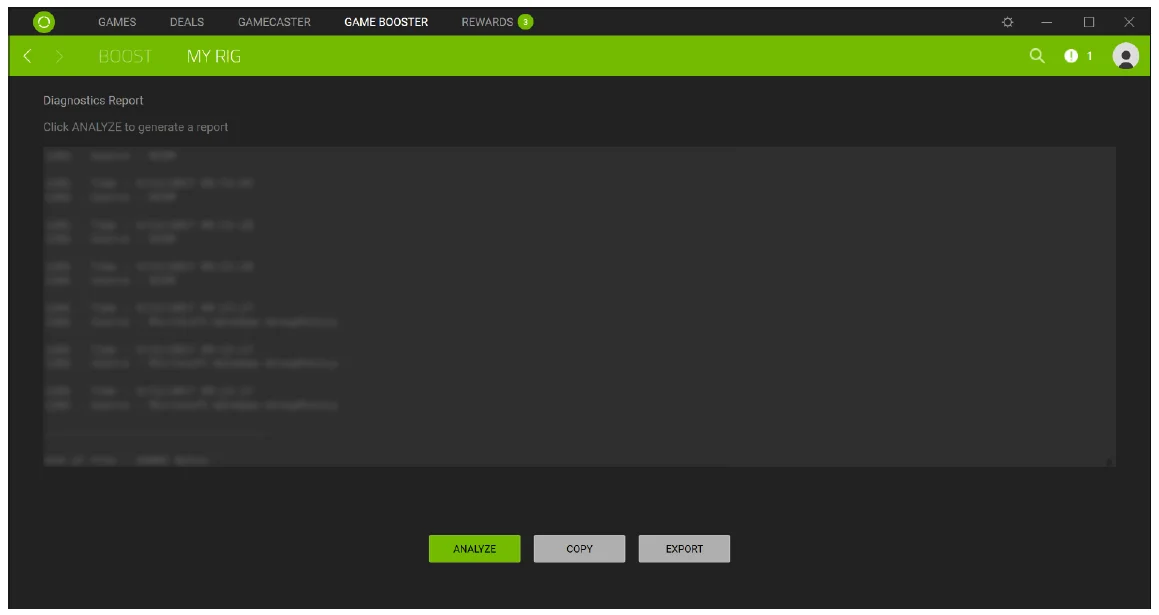
Once a diagnostic report has been generated, you may click COPY to copy the report to the clipboard or click EXPORT to save the report into a .txt file. You can use this report to analyze the operation of your computer and pinpoint errors that you currently experience. Alternatively, you can even upload the report to online forums or websites to discuss and seek assistance from the online gaming community.
RAZER CORTEX: REWARDS
The Razer Cortex: Rewards tab displays Razer’s ongoing campaigns and/or promotions you can participate in to earn zSilver, a loyalty virtual currency backed by Razer, which you can earn whenever using services from Razer and Partners. The number next to the REWARDS tab indicates the number of ongoing campaigns and other exclusive Razer promotions you haven’t claimed or checked yet. We recommend checking the REWARDS tab immediately whenever you see this notification.
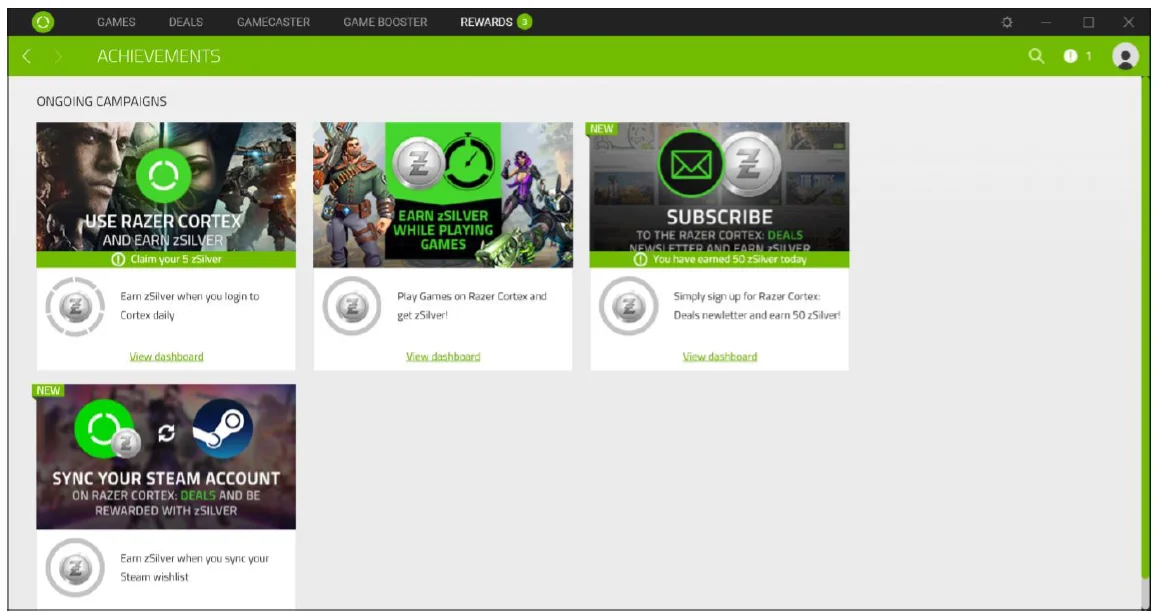
Simply click on any of the available promotions or campaigns to view their respective dashboards and see the conditions required to participate.
RAZER CENTRAL
Razer Central allows you to use a single Razer ID across all your Razer applications. You can now update your Razer ID profile and account settings, link multiple social media and streaming accounts of your choice, quickly access and update various Razer applications in one click, and stay up to date with the latest Razer promotions and software updates available.
Note: Razer Central is automatically installed whenever installing Razer Cortex, and continuously runs in the background even if you have already closed the Razer Cortex window.
ACCESSING THE RAZER CENTRAL WINDOW
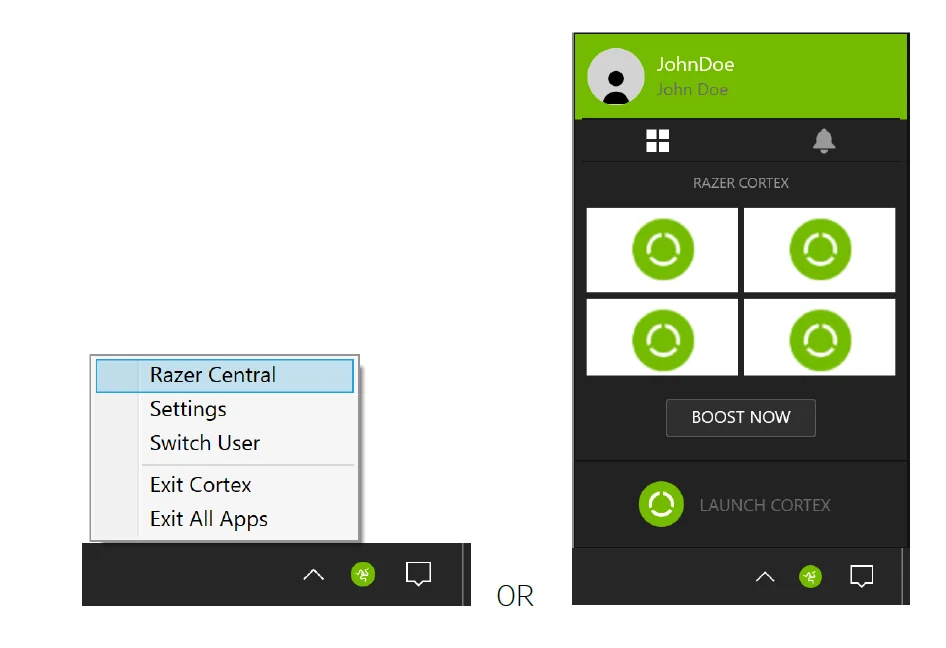
To access the Razer Central window, you can either right-click on the Razer Central icon on the system tray and click Razer Centralor click the Razer Central icon, and then click your Razer ID on the expanded system tray.
THE EXPANDED SYSTEM TRAY
Razer Central’s expanded system tray provides quick accessibility to Razer Cortex and/or the Razer Central window. This feature provides access to Razer Cortex’s recently played games, including its Game Booster’s BOOST function. It also allows you to preview notifications about Razer software updates and promotions selected on Razer Central’s settings.
To show the expanded system tray, simply click the Razer Centralicon on the system tray. Clicking your Razer ID will open the Razer Central window, while the LAUNCH CORTEX button will launch Razer Cortex.
The Razer Cortex tab, accessible by clicking the icon on the expanded system tray, allows you to launch any of Razer Cortex’s recently played games and/or use Game Booster’s BOOST NOW/RESTORE function.
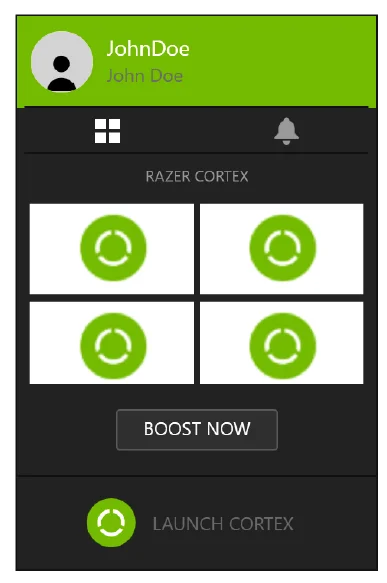
Note: The BOOST NOW / RESTORE function will only be accessible when Razer Cortex is running.
The NOTIFICATIONS tab, accessible by clicking the Notifications icon on the expanded system tray, displays the available notifications you have selected on Razer Central’s settings.
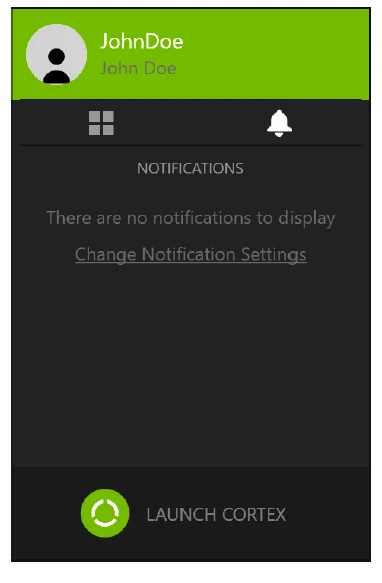
Note: Razer Central has its own SETTINGS icon. You can change the Razer Centrals notifications settings under its own SETTINGS > NOTIFICATIONS.
MANAGING THE SETTINGS
Razer Central has its own settings accessible through its window’sbutton. These settings will help you manage Razer Central’s behavior and displayed notifications. Use the GENERAL tab to change Razer Central’s language display, switch color theme, and determine what the system tryicon will launch or do once double-clicked.
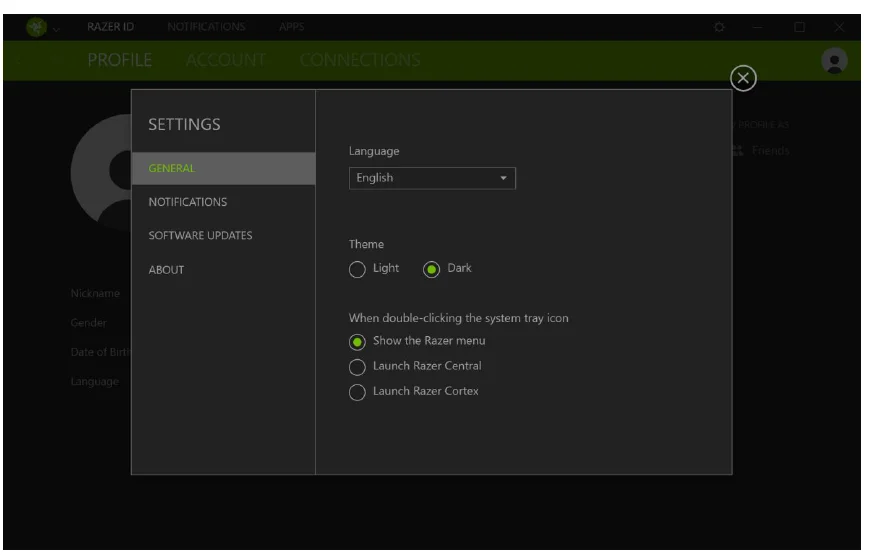
Note: Razer Central and Razer Cortex each have their own SETTINGS page. You may also change the color theme under your avatar’s drop-down list’s Theme toggle.
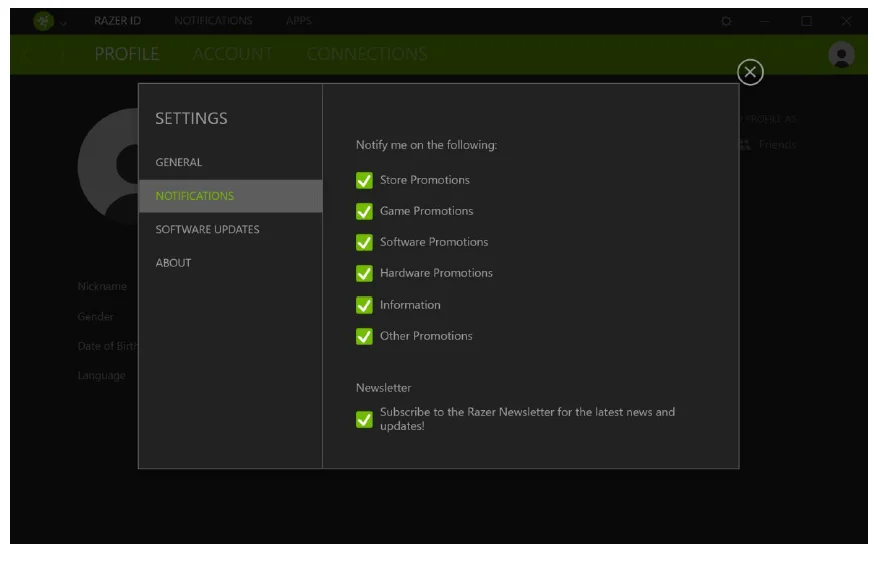
Use the NOTIFICATIONS tab to control the promotions seen on Razer Central’s NOTIFICATIONS tab and its expanded system tray. You can also use this tab to subscribe to the Razer Newsletter and get access to the latest news and updates.
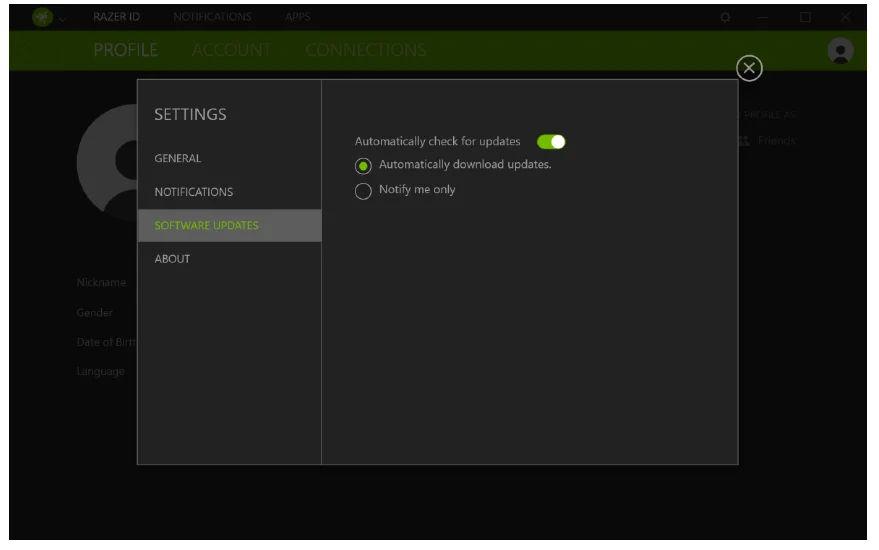
Use the SOFTWARE UPDATES tab to change the software’s behavior in checking for updates, and what it will do if an update is available. You can have these updates automatically downloaded or simply set as notifications.
LEGALESE
COPYRIGHT AND INTELLECTUAL PROPERTY INFORMATION
©2017 Razer Inc. All rights reserved. Razer, the triple-headed snake logo, Razer logo, “For Gamers. By Gamers.”, and Powered by Razer Chroma logo are trademarks or registered trademarks of Razer Inc. and/or affiliated companies in the United States or other countries. ©2015 Google Inc. All rights reserved. Google and the Google Logo are registered trademarks of Google Inc. Intel and Intel RealSense are trademarks of Intel Corporation or its subsidiaries in the U.S. and/or other countries. ©2017 Valve Corporation. Steam and the Steam logo are trademarks and/or registered trademarks of Valve Corporation in the U.S. and/or other countries. Windows and the Windows logo are trademarks or registered trademarks of the Microsoft group of companies. All other trademarks and trade names are the property of their respective owners, and other company and product names mentioned herein may be trademarks of their respective companies. Razer Inc. (“Razer”) may have copyright, trademarks, trade secrets, patents, patent applications, or other intellectual property rights (whether registered or unregistered) concerning the product in this guide. Furnishing of this guide does not give you a license to any such copyright, trademark, patent or other intellectual property right. The Razer Cortex (the “Product”) may differ from pictures, whether on packaging or otherwise. Razer assumes no responsibility for such differences or for any errors that may appear. Information contained herein is subject to change without notice.
For more manuals by Razer, visit ManualsLibraryy
Razer Cortex Game Booster Software-FAQs
What does Razer Cortex Game Booster Software do?
Razer Cortex Game Booster Software optimizes your PC for gaming by boosting FPS, speeding up load times, finding top deals, and serving as a one-stop launcher—all in a powerful platform.
How do I download and install Razer Cortex Game Booster Software?
Visit the official Razer Cortex page, click “DOWNLOAD NOW,” run the installer, select “RAZER CORTEX,” and hit “INSTALL.” Launch it, sign in with your Razer ID, and get started in minutes.
Does Razer Cortex Game Booster Software increase FPS?
Yes, it noticeably boosts FPS on mid-range or older PCs by optimizing performance, though results vary by hardware.
What is the best game launcher like Razer Cortex Game Booster Software?
Razer Cortex excels for optimization and launching, but Ubisoft Connect is great for social features—choose based on your ecosystem.
Who is the CEO of Razer, makers of Cortex Game Booster Software?
Min-Liang Tan has been CEO of Razer Inc. since 2006, driving innovations like Cortex.
How can I make my gaming laptop faster with Razer Cortex Game Booster Software?
Update drivers/GPU, switch to high-performance mode, use an SSD, uninstall bloatware, enable Windows Game Mode, and run Cortex for automated boosts.
What are the risks of using game boosters like Razer Cortex?
Minimal with official tools like Cortex—mainly potential over-optimization on weak hardware. Avoid third-party boosters to prevent malware or bans.
What does Fn + F10 do in Razer Cortex Game Booster Software?
Press Fn + F10 on compatible Razer keyboards to activate Gaming Mode, disabling distractions like the Windows key for uninterrupted play.