
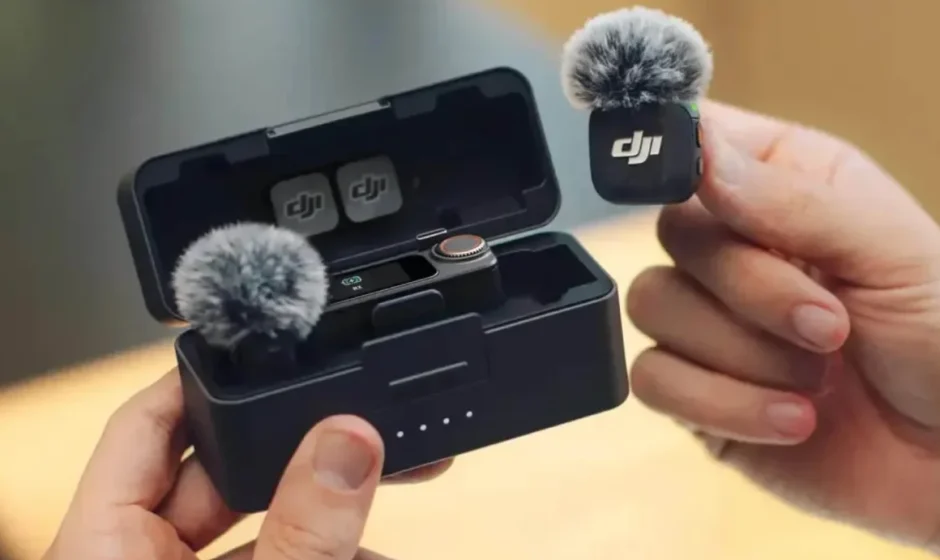

DJI Mic Series
Introduction
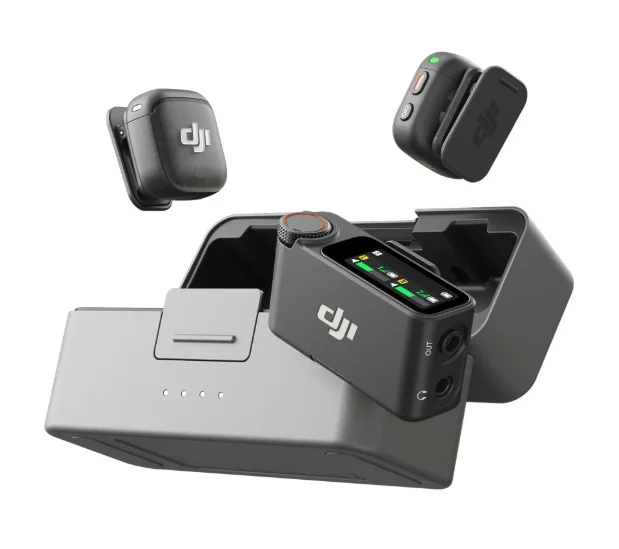
DJITM Mic is a dual-channel wireless microphone system, including two transmitters and one receiver, which is able to record two sound sources simultaneously at a distance of up to 250 m*. The transmitter has a built-in omnidirectional microphone, supports the use of an external microphone, and can be clipped to clothing or any place close to a sound source. With the internal 8 GB storage, the DJI Mic is able to record audio for up to 14 hours**. The receiver boasts an OLED touchscreen, on which users can view the real-time volume, wireless signal strength, gain, recording modes, and more. By utilizing the expansion port, the receiver can be connected to a camera or mobile phone to provide high-quality audio. The receiver can also be connected to a computer to use as a microphone, and with the monitor port, the audio can be monitored in real time. The charging case provided is able to charge the transmitters and receiver simultaneously and link them automatically.
* Tested in an obstruction-free outdoor environment.
** Tested with a 48,000Hz sampling rate and 24-bit mono WAV audio format
DJI Mic Transmitter
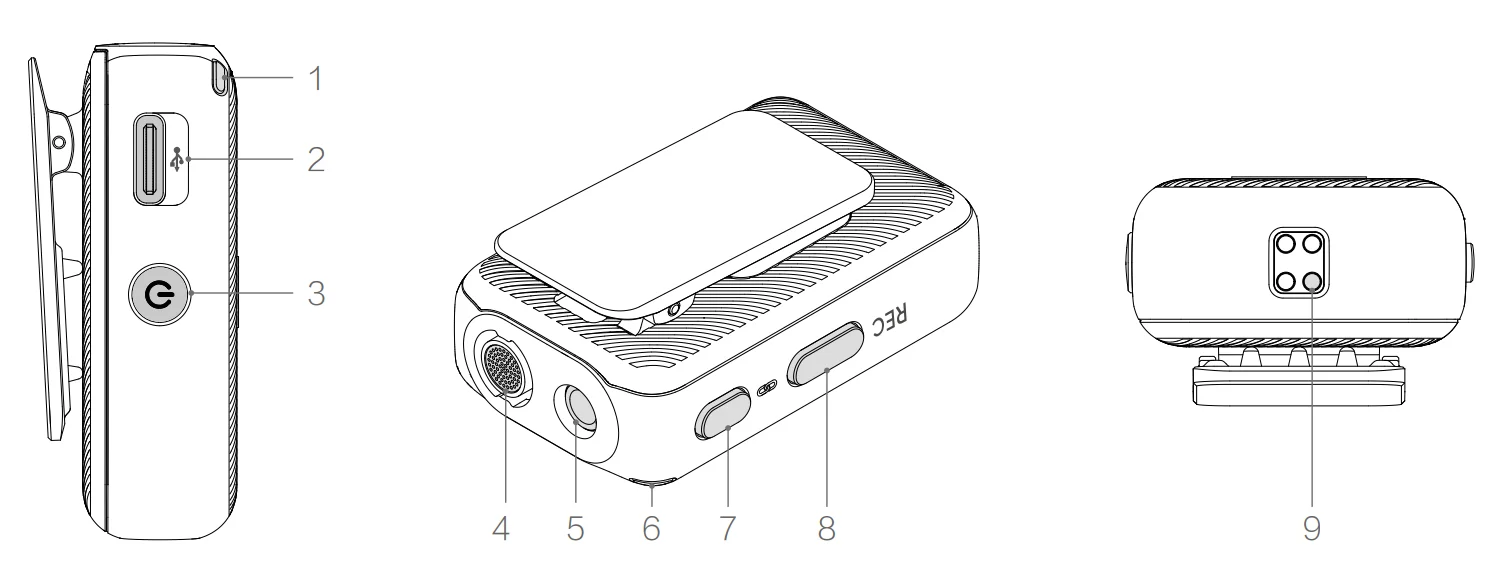
- System Status Indicator
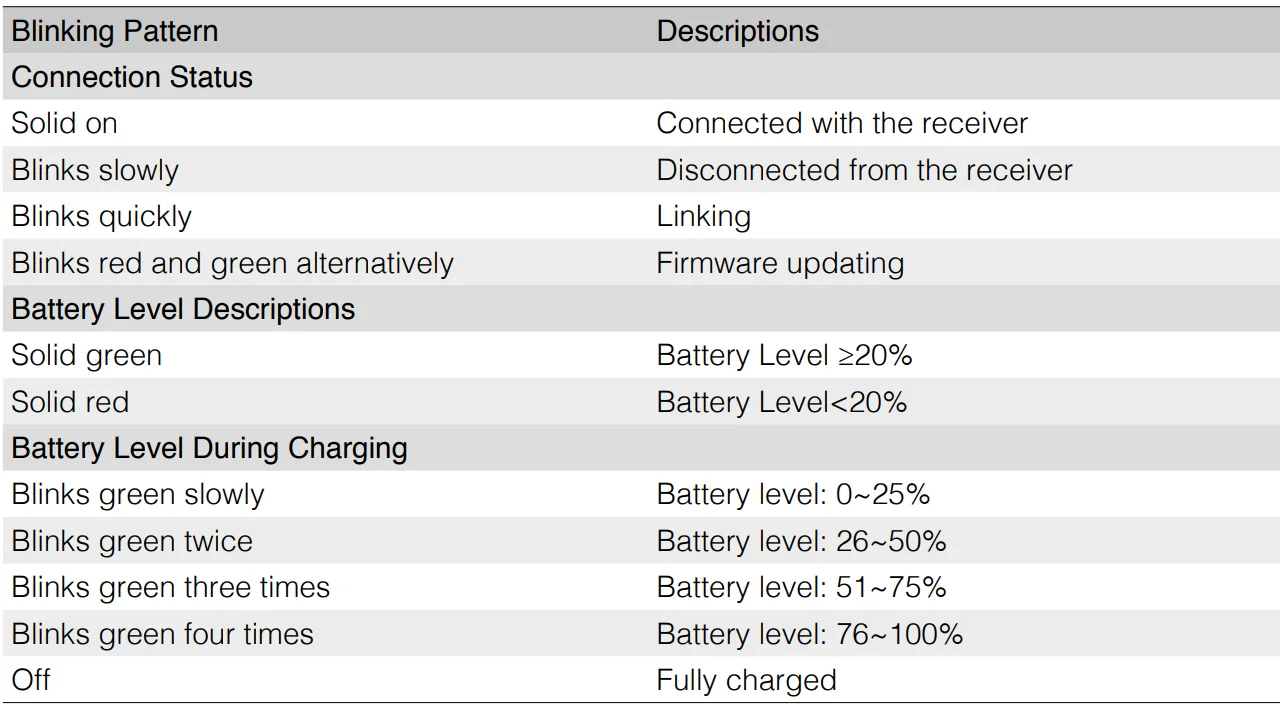
Indicates the connection status with the receiver and the battery level of the transmitter.
- Data Port (USB-C)
For copying audio or updating firmware after connecting to a computer. Can also be used for charging. - Power Button
Press and hold to power on or off. Press twice to mute. - Internal Microphone
For recording audio. - 3.5 mm TRS Input
For connecting an external microphone. DO NOT connect a microphone with a power supply of 24 V or 48 V. - Recording Status LED
Indicates the record status of the transmitter.
- Linking Button
Press and hold to start linking to the receiver. Once the receiver is attached to a mobile phone and the receiver and transmitter are linked, press once to take a photo or start or stop recording on the mobile phone (only supports mobile phones where the volume button can be used to take a photo or start or stop a video). - Record Button
Press once to start or stop recording. - Charging Pad
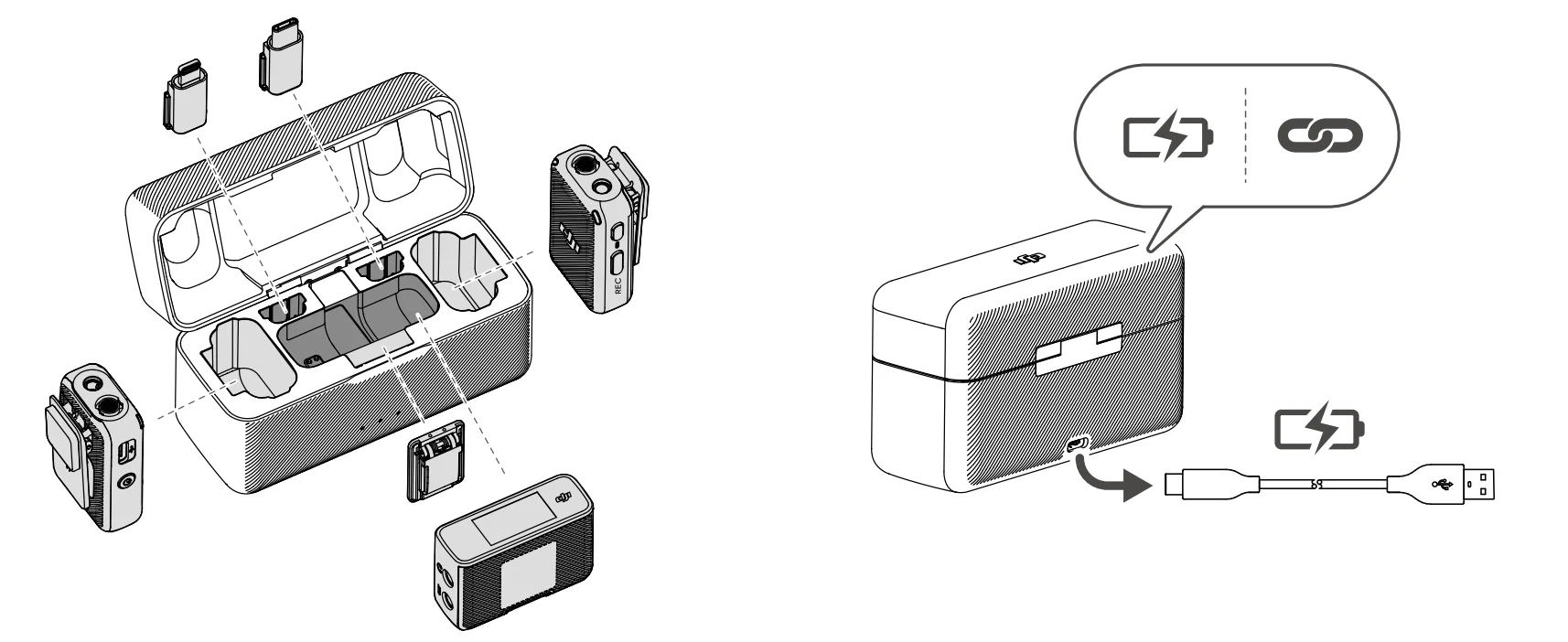
Charging will begin after connecting the transmitter to the charging pad of the charging case, and the transmitter will automatically link with the receiver in the charging case.

DJI Mic Receiver
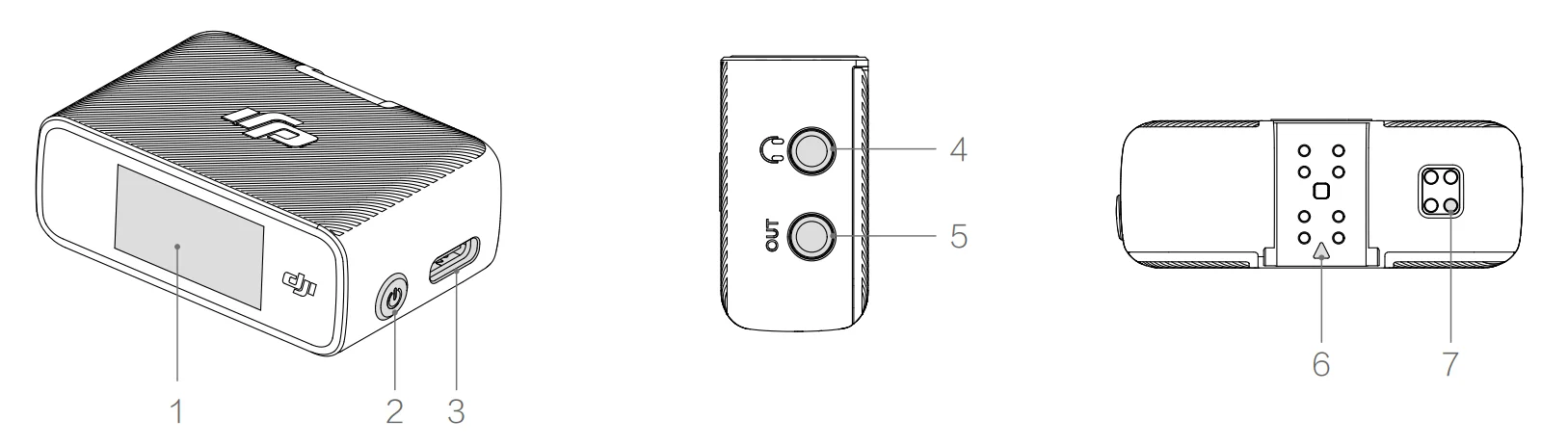
- OLED Touchscreen
Displays information such as the real-time volume, battery level of the receiver and transmitter, charging status, wireless signal strength, gain, and recording modes. Slide down or up on the screen to access settings. - Power Button
Press and hold to power on or off. Press once to lock or unlock the screen. - Data Port (USB-C)
After connecting to a computer, can be used to update firmware or as a microphone for the computer. Can also be used for charging. - Monitor Port
Plug in a 3.5 mm TRS headphone to monitor the transmitter recording. - 3.5 mm TRS Output
For audio output to a camera. DO NOT connect to a device with an output of 24 V or 48 V. - Expansion Port
For connecting to a mobile phone using a mobile phone adapter or connecting to a camera using a hot shoe adapter. - Charging Pad
Charging will begin after connecting the receiver to the charging pad on the charging case and the receiver will link with the transmitter in the charging case automatically.
Charging Case
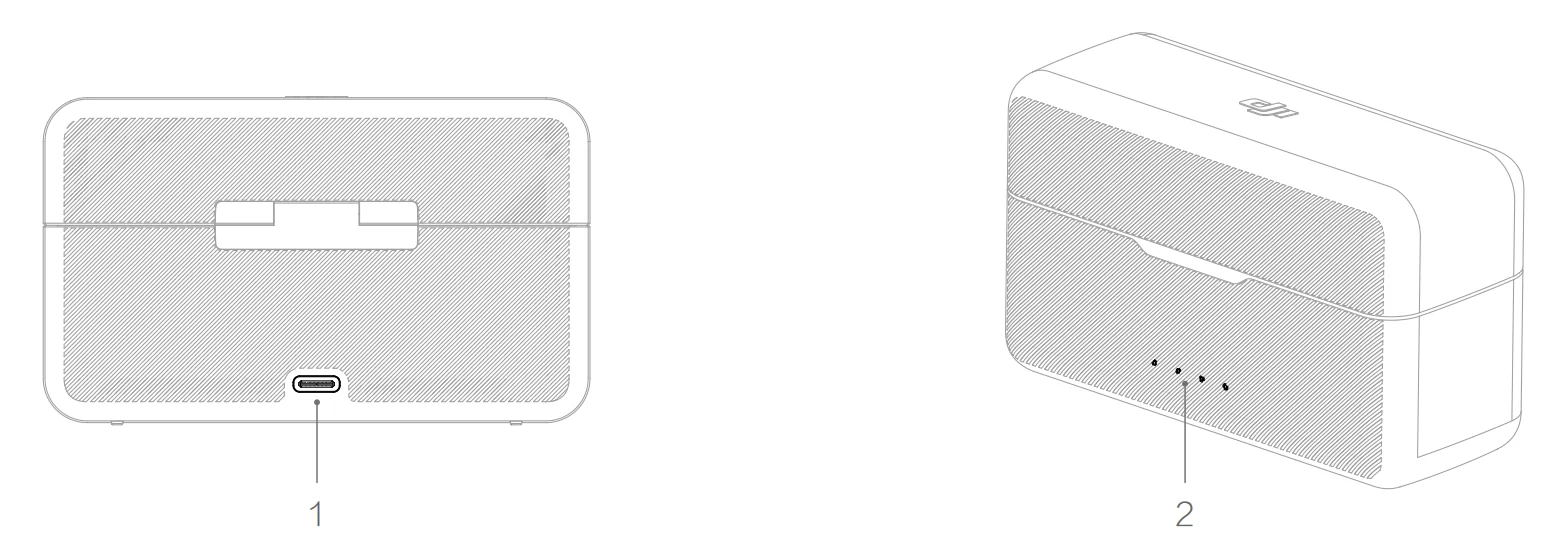
- USB-C Charging Port
For charging the charging case. - Battery Level LEDs
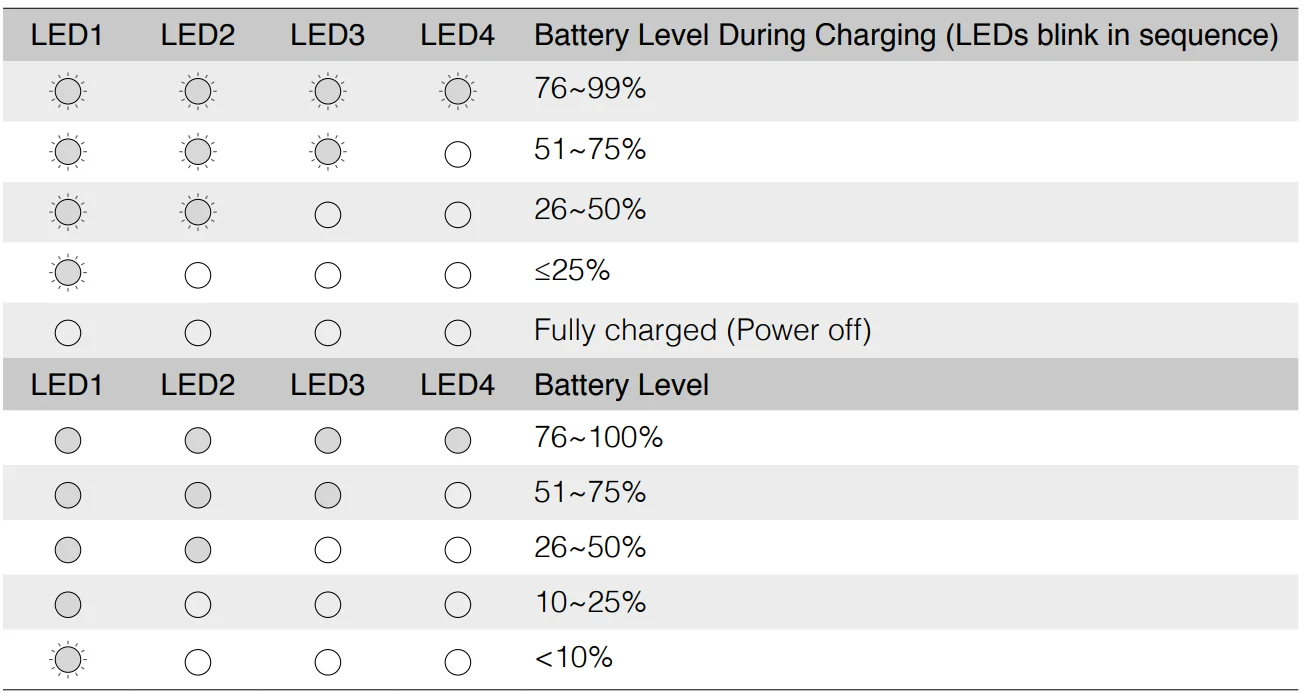
Indicates the battery level of the charging case.


Operation
Linking
The transmitters and the receiver are linked by default. Follow the steps below to link if the transmitter and receiver are disconnected.
- Place the transmitters and the receiver in the charging case, and they will link automatically.
- Power on the transmitter and the receiver, press and hold the link button of the transmitter, slide down on the screen of the receiver, select Settings, and scroll through and tap Link Device to start linking. The status LED glows solid green to indicate linking is successful.
Using the DJI Mic
Transmitter
The transmitter can be attached using the magnetic clip to either clothes or a stable surface. The clamp can also be used to attach the transmitter to clothes.
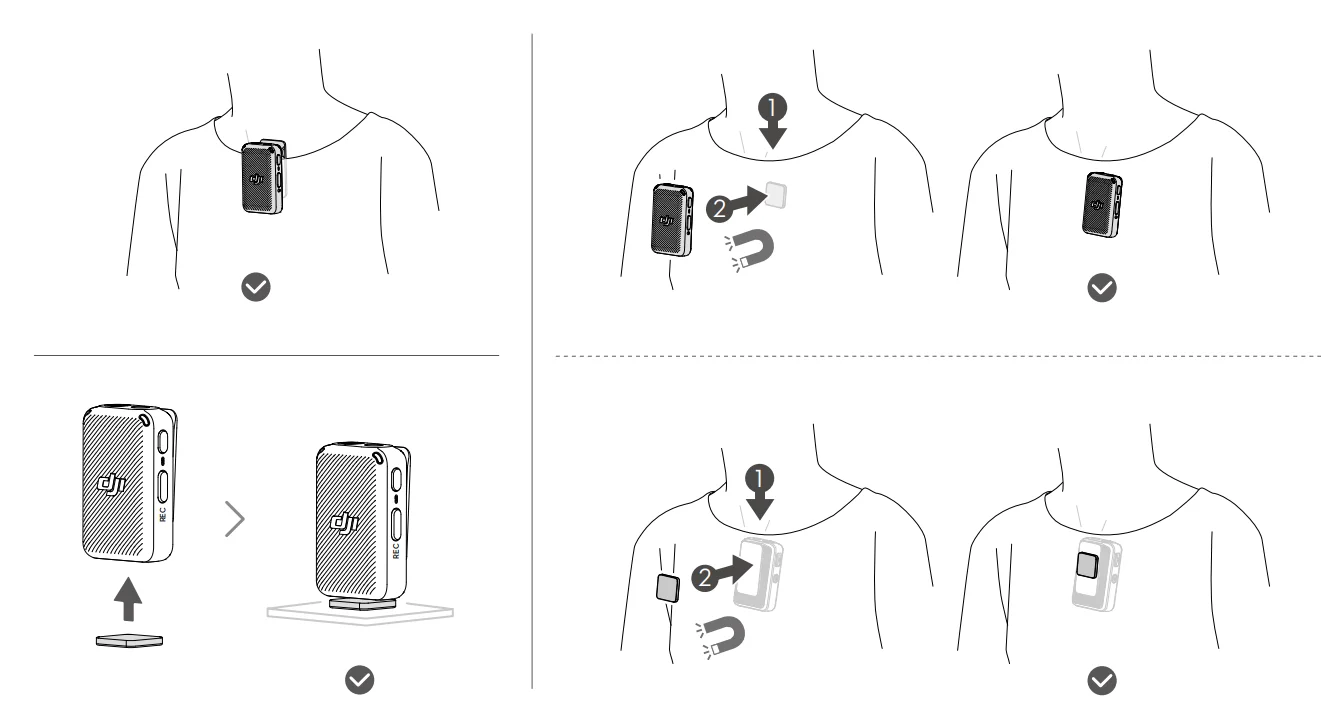
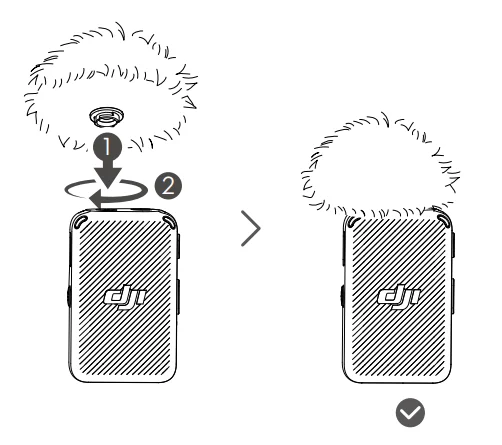
It is recommended to use the windscreen when using the transmitter outdoors or in a windy environment. Attach the windscreen to the transmitter by aligning it with the internal microphone and rotate the windscreen to lock in place.
Receiver
- Using with a Camera
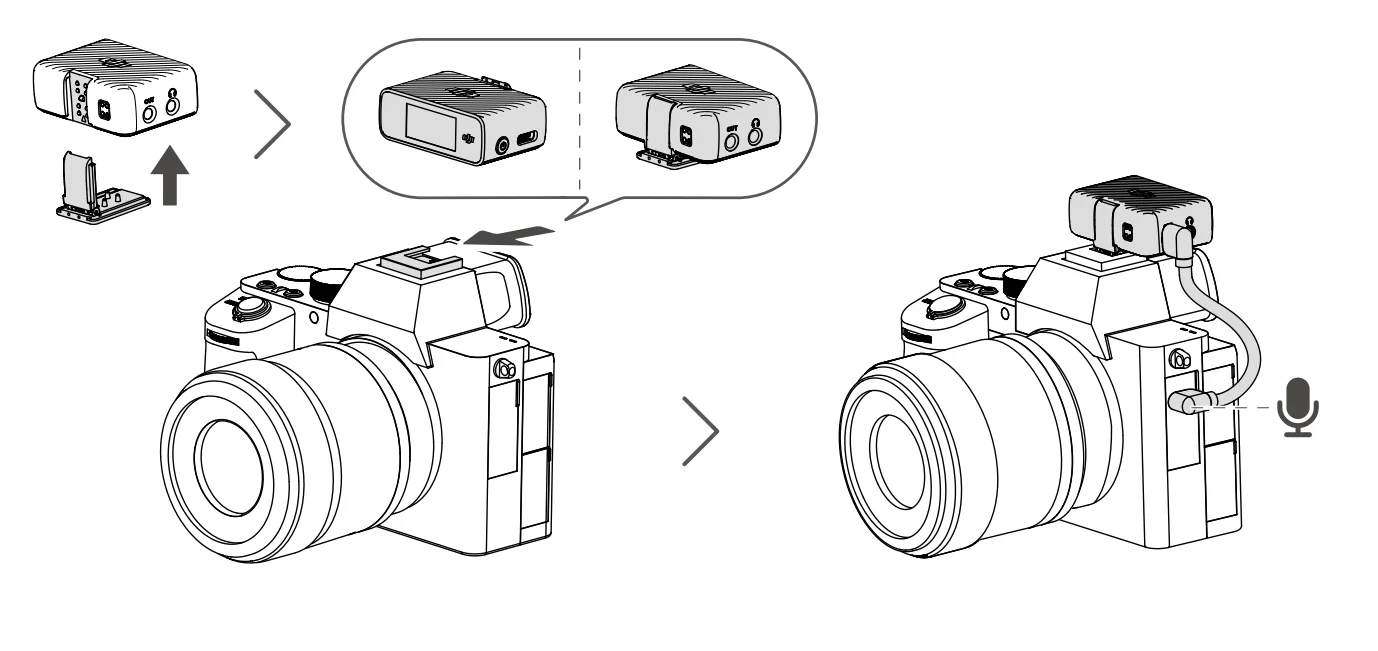
To record audio and transmit to a camera, attach the receiver to a camera using the hot shoe adapter and connect to the microphone port of the camera using the camera cable provided. Lower the volume of the camera to avoid sound distortion.
 - Using a Mobile Phone
Attach the receiver to a mobile phone using the mobile phone adapter to record audio and transmit to a mobile phone. Audio can be played after the receiver is disconnected from the mobile phone.
- The 3.5 mm TRS output port of the receiver cannot output after connecting to a mobile phone adapter.
- Only Mono mode can be used after connecting the receiver to the Lightning mobile phone adapter.
- The mobile phone speaker cannot output sound after connecting the receiver to the mobile phone. Bluetooth headphones or a speaker can be used instead.
- Using a Computer
Connect the receiver to a computer via the USB-C port as a microphone for a computer.- Use a standard charging cable to connect the DJI Mic to a computer and enter the related input settings on the computer.
 Lower the volume of the camera to avoid sound distortion.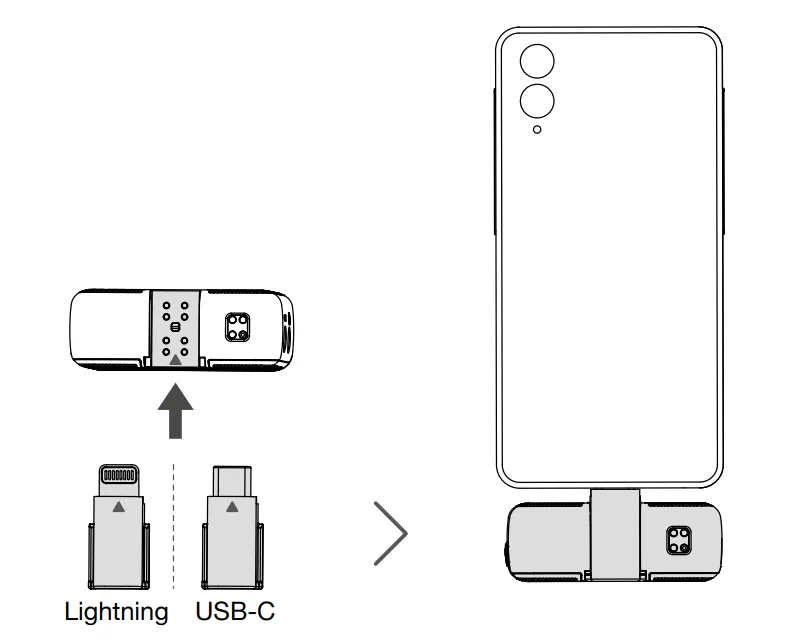
OLED Touchscreen Operations
Home
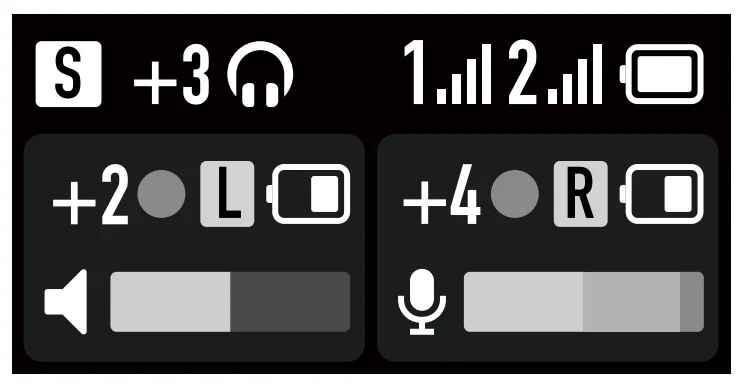
The top part of the screen indicates the status of the receiver.
 : Recording Mode. Choose between S (Stereo), M (Mono), and Ms (Mono Safety Track).
 : Indicates the receiver gain.
 : Indicates there is an external headphone connected.
 : Indicates the wireless signal strength between transmitter 1 and the receiver. If there is only one transmitter connected, then only the information of one transmitter will be displayed.
 : Indicates the wireless signal strength between transmitter 2 and the receiver.
 : Indicates the battery level of the receiver.
 : Recording Mode. Choose between S (Stereo), M (Mono), and Ms (Mono Safety Track).
 : Indicates the receiver gain.
 : Indicates there is an external headphone connected.
 : Indicates the wireless signal strength between transmitter 1 and the receiver. If there is only one transmitter connected, then only the information of one transmitter will be displayed.
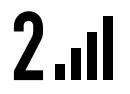 : Indicates the wireless signal strength between transmitter 2 and the receiver.
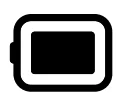 : Indicates the battery level of the receiver.
The middle of the screen indicates the status of transmitters.
 : Indicates the transmitter gain.
 : Indicates audio is being recorded.
 : Indicates the sound channel.
 : Indicates the battery level of the transmitter.
 : Indicates the transmitter gain.
 : Indicates audio is being recorded.
 : Indicates the sound channel.
The bottom of the screen indicates the real-time volume.
 Indicates the volume of the internal microphone.
 Indicates volume is muted.
 Indicated the volume of the external microphone.
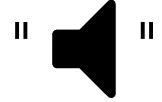 Indicates the volume of the internal microphone.
 Indicates volume is muted.
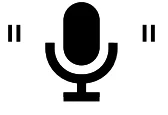 Indicated the volume of the external microphone.
Settings
Slide Down
Slide down from the top of the screen to access Settings, slide left or right to select an option, and slide up to return to the previous screen.
Recording Mode Settings
Choose between S (Stereo), M (Mono), and Ms (Mono Safety track).
- M Mono: Under Mono mode, the audio recorded by the two transmitters will be in one channel.
 Mono with Safety Track: Similar to Mono mode, the audio will be recorded in -6dB in case the main track gets distorted due to a sudden increase in the audio volume of the source.
 Stereo: Under Stereo mode, the audio will be separated into left and right channels.
 RX Gain: Can be reduced if the sound is distorted.
 Monitor Volume: Tap to adjust the volume of the receiver.
 General Settings
 Low Cut: Sounds that are 150 Hz or lower will be filtered if Low Cut is enabled.
 Vibration Notification: Enable or disable vibration notification. Once Vibration Notification is enabled, the transmitter will vibrate in the scenarios listed below.
 Link Device: Tap to link the transmitter and receiver.
 Transmitter Gain: Tap to adjust the transmitter input gain according to the real-time volume. Reduce the gain accordingly when the volume bar turns red. Note that the transmitter gain will affect the volume of the recorded audio.
 Brightness: Tap to adjust the brightness of the screen.
- Language: The screen supports languages of English, Chinese Simplified, Chinese Traditional, Japanese, Korean, Thai, German, Spanish, French, Portuguese, Italian, Russian, Turkish, Indonesian, and Polish.
 Date and Time: Set the date and time for the recording file.
- Restore: Tap to reset default settings.
 Version: Check the SN, receiver firmware version, and the connected transmitter firmware version.
 Compliance Information: View the compliance information.
 Mono with Safety Track: Similar to Mono mode, the audio will be recorded in -6dB in case the main track gets distorted due to a sudden increase in the audio volume of the source.
 Stereo: Under Stereo mode, the audio will be separated into left and right channels.
 RX Gain: Can be reduced if the sound is distorted.
 General Settings
 Low Cut: Sounds that are 150 Hz or lower will be filtered if Low Cut is enabled.
 Vibration Notification: Enable or disable vibration notification. Once Vibration Notification is enabled, the transmitter will vibrate in the scenarios listed below.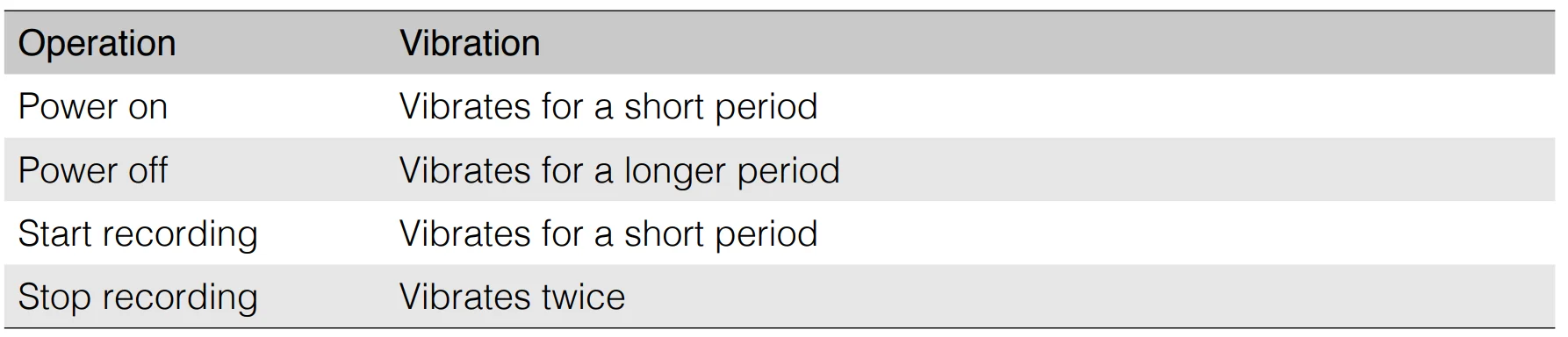
 Link Device: Tap to link the transmitter and receiver.
 Transmitter Gain: Tap to adjust the transmitter input gain according to the real-time volume. Reduce the gain accordingly when the volume bar turns red. Note that the transmitter gain will affect the volume of the recorded audio.
 Brightness: Tap to adjust the brightness of the screen.
 Language: The screen supports languages of English, Chinese Simplified, Chinese Traditional, Japanese, Korean, Thai, German, Spanish, French, Portuguese, Italian, Russian, Turkish, Indonesian, and Polish.
 Date and Time: Set the date and time for the recording file.
 Restore: Tap to reset default settings.
 Version: Check the SN, receiver firmware version, and the connected transmitter firmware version.
 Compliance Information: View the compliance information.
Slide Up
Slide up from the bottom of the screen to view and control recording, enable or disable mute, and view the remaining recording time. Slide up from the bottom of the left side of the screen to adjust the settings for transmitter 1, and slide up from the bottom of the right side of the screen to adjust the settings of transmitter 2.
Transmitter Recording
After powering on the transmitter, press the record button once to start recording and press again to stop recording. The recorded audio format of the transmitter is 24-bit mono WAV. When recording for an extended period, the file will be separated automatically every 30 minutes. The max recording time is approximately 14 hours, at which point newly recorded audio will overwrite the older recorded audio if the storage is full.
Audio File
The recorded audio can be exported or deleted after connecting to a computer and can be formatted via the receiver.
Updating Firmware
When there is new firmware available, update the firmware by connecting the transmitter and the receiver to the computer separately. How to update firmware:
- Download the firmware on the product page at www.dji.com/mic/downloads.
- Connect the transmitter or receiver to the computer using the USB-C cable provided.
- Place the downloaded firmware update package .bin file under the root directories of the transmitters and receiver.
- The transmitters and receiver firmware updates will start automatically after disconnecting from the computer.
If the firmware update fails, download the firmware again, reboot the receiver or transmitter, and repeat the steps above. After the firmware update is completed, check the firmware version on the receiver to ensure the firmware is updated successfully.
Charging Case Operations
It is recommended to charge the charging case using a 5V/2A charger. The charging case has a built-in battery with a 2600 mAh. Place the transmitter and receiver into the charging case to begin charging. With the charging case opened, the receiver displays the battery level of the three devices and the remaining recording time of the transmitter. The transmitter and receiver will be powered on once removed from the charging case. The total operating time is approximately 15 hours when using the transmitters, receiver, and the charging case together. A mobile phone adapter and the hot shoe adapter can be placed into a charging case, either mounted to the receiver or not.
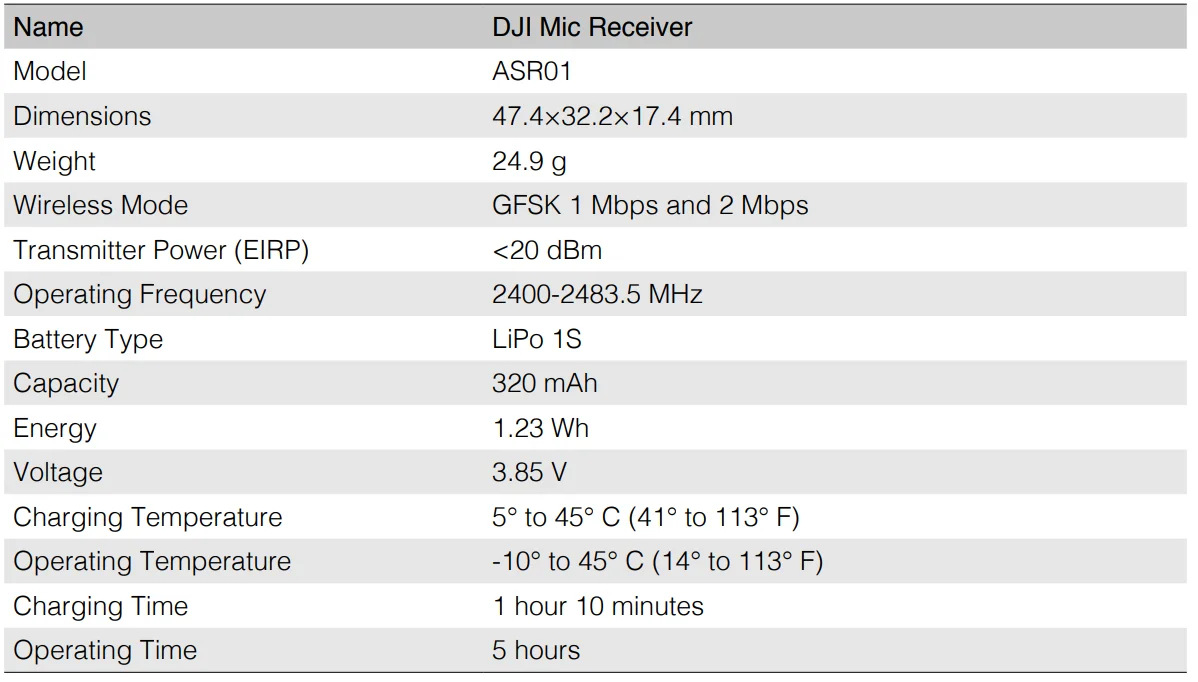
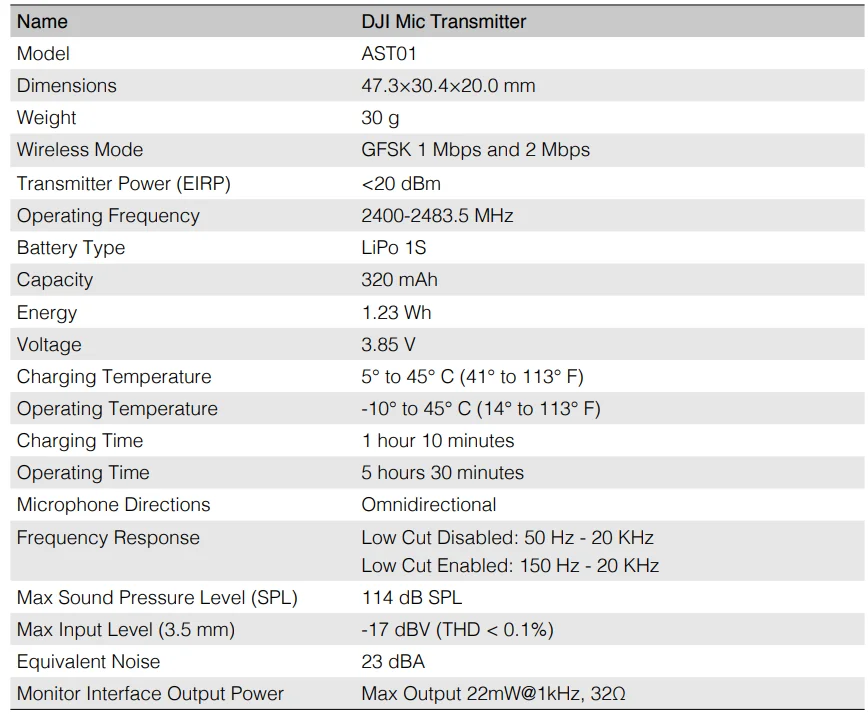
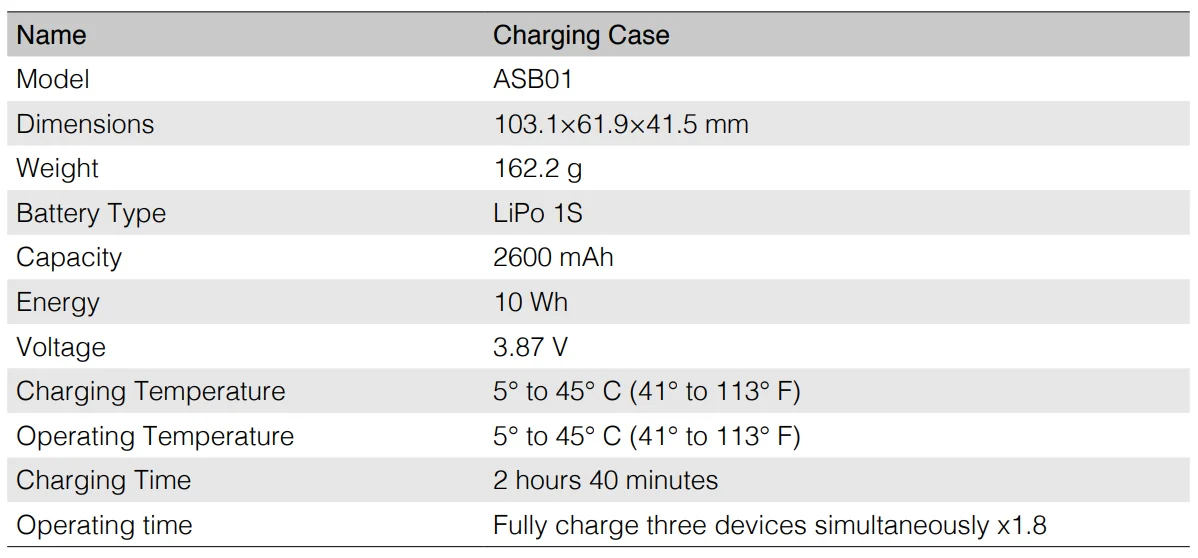
Specifications


 After-Sales Information
 After-Sales Information
Visit https://www.dji.com/support to learn more about after-sales service policies, repair services, and support.
For more manuals by DJI, visit ManualsLibraryy
DJI Mic Series-FAQs
What do the buttons on the DJI Mic do?
The DJI Mic transmitters include a power button, record button, and mute button. The receiver features a power button and touchscreen controls for gain, channel selection, and settings. Buttons allow you to power on/off, start recording, mute audio, lock the screen, and adjust levels.
How do I unlock the DJI Mic receiver?
Press and hold the receiver’s power button for one second to lock the screen. A lock icon appears. Press and hold again to unlock it.
How do I mute or unmute the DJI Mic?
You can mute the transmitter by double-pressing the mute button. You may also swipe up on the receiver screen and tap the Mic icon to mute or unmute. A pulsing red indicator shows the mic is muted.
How do I enable noise cancellation on DJI Mic Mini?
Turn on the transmitter and press the noise reduction button (if available), or enable it through the receiver’s settings menu. An on-screen icon confirms when noise cancellation is active.
How can I tell if noise cancellation is turned on?
A noise reduction icon appears on the receiver display. Some models also show a light indicator change when active.
Why is my DJI Mic blinking green?
A slow green blink means the transmitter is disconnected. A solid green light indicates a stable connection. Rapid blinking usually means pairing is in progress.
What does the blue light mean on DJI Mic?
A blue indicator typically shows recording mode or Bluetooth connection, depending on the model. Check the screen display for confirmation.
How long can the DJI Mic record internally?
With 8GB of built-in storage, DJI Mic can record up to 14 hours of audio, depending on format and settings.
Can I use DJI Mic for phone calls or live streaming?
Yes. DJI Mic works with smartphones for calls, live streaming, and video recording. Some phones may require a USB-C or Lightning adapter.
Can I connect DJI Mic to an Android phone?
Yes, DJI Mic supports Android devices via USB-C or Bluetooth (model dependent). Make sure OTG is enabled on your phone.