
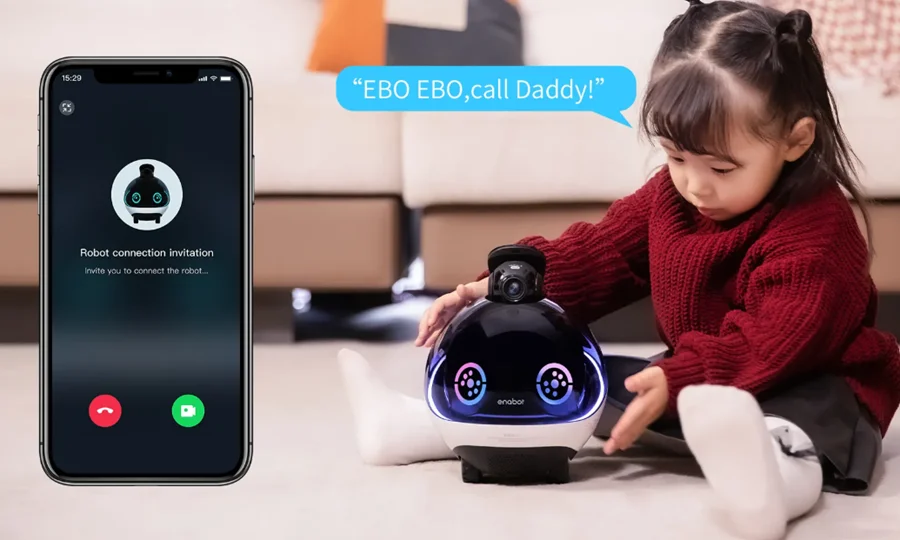

EBO X-AI Family Companion Robot
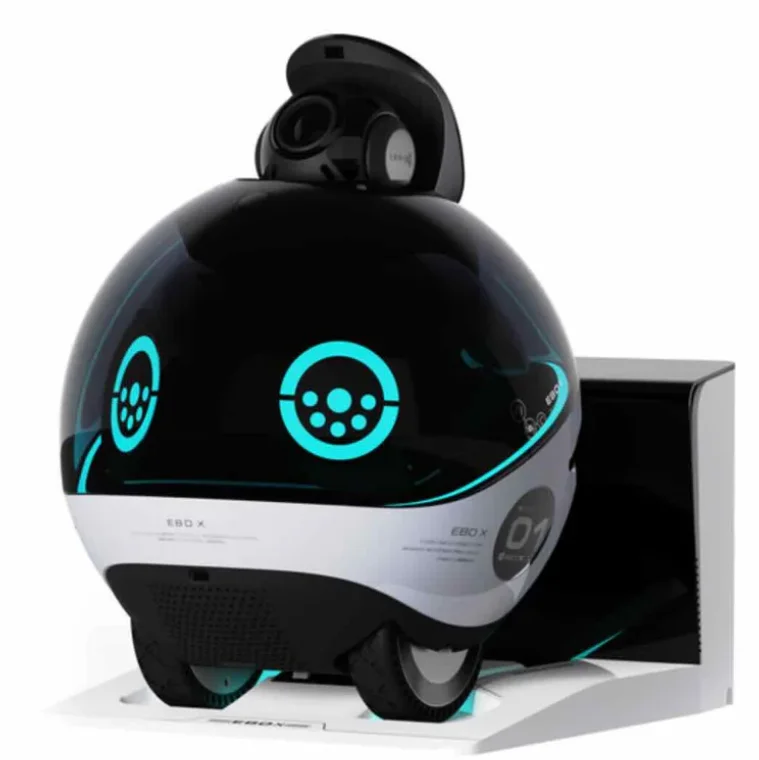
Safety Information
Before using the robot, please read the following safety instructions and take general preventative measures.
- Only authorized technicians are allowed to disassemble the robot. Users are not recommended to do so.
- Remove the exterior protective covering before use to ensure the device can work properly.
- Do not place the robot on a desk, table, TV bench, or other places where dropping may occur easily to avoid any damage.
- No operation is allowed in an environment with an open fire or a fragile object. No operation is allowed in an area where flammable materials are stored.
- Do not throw or kick the robot.
- Do not operate the device in a bathroom, washroom, or other wet areas.
- Only use the robot in an environment where the temperature range is from -10℃ to 35℃.
- Ensure Wi-Fi signals are available in the area where the robot works.
- Do not over-bend the cable or place any heavy or sharp objects on the robot.
- Any operations not complying with the user manual may cause damage to the robot.
Packaging List
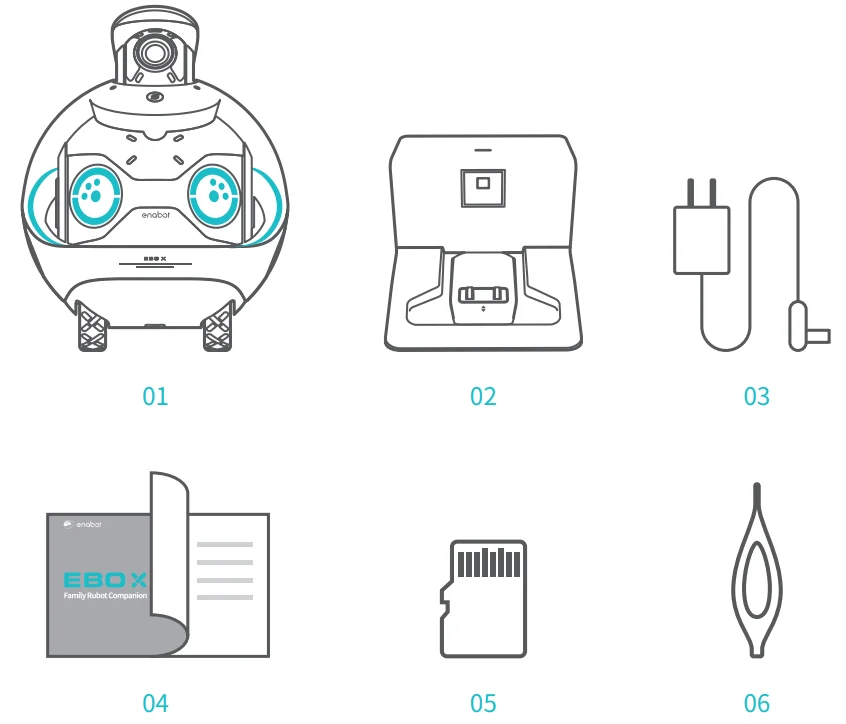
- EBO X Robot
- Charging Dock
- Adapter for Charging Dock
- User Manual
- SD Card 06. Pin
Product Introduction
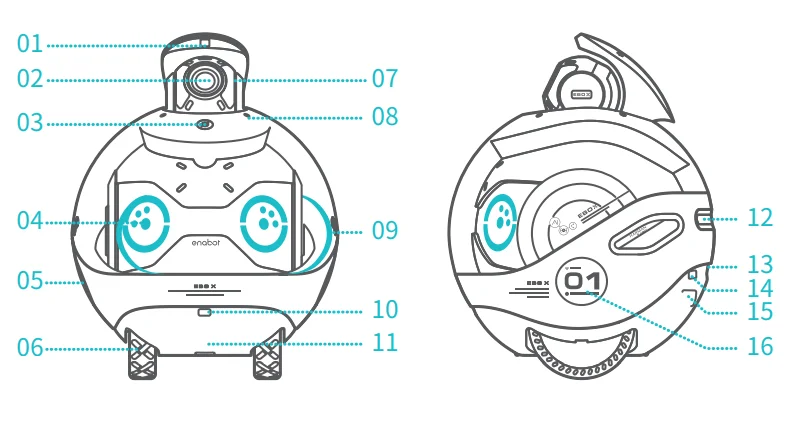
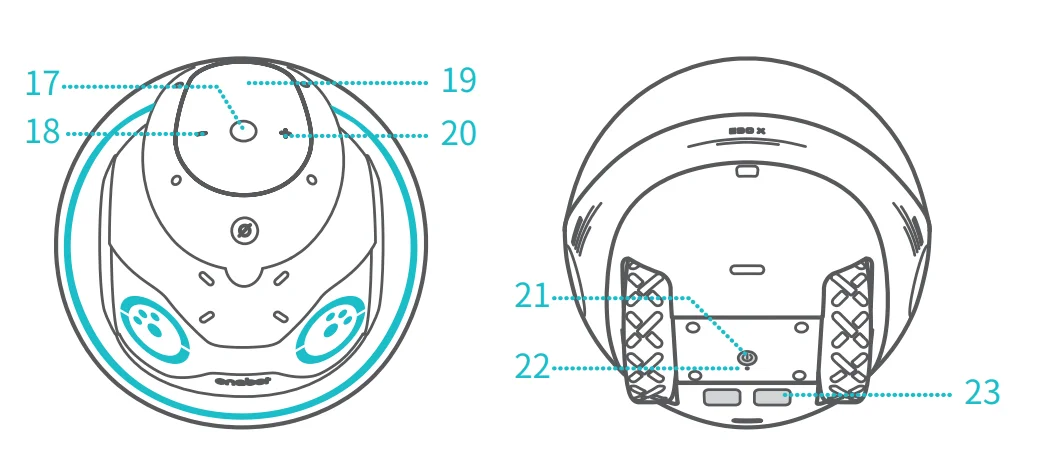
- ToF Module
- Camera
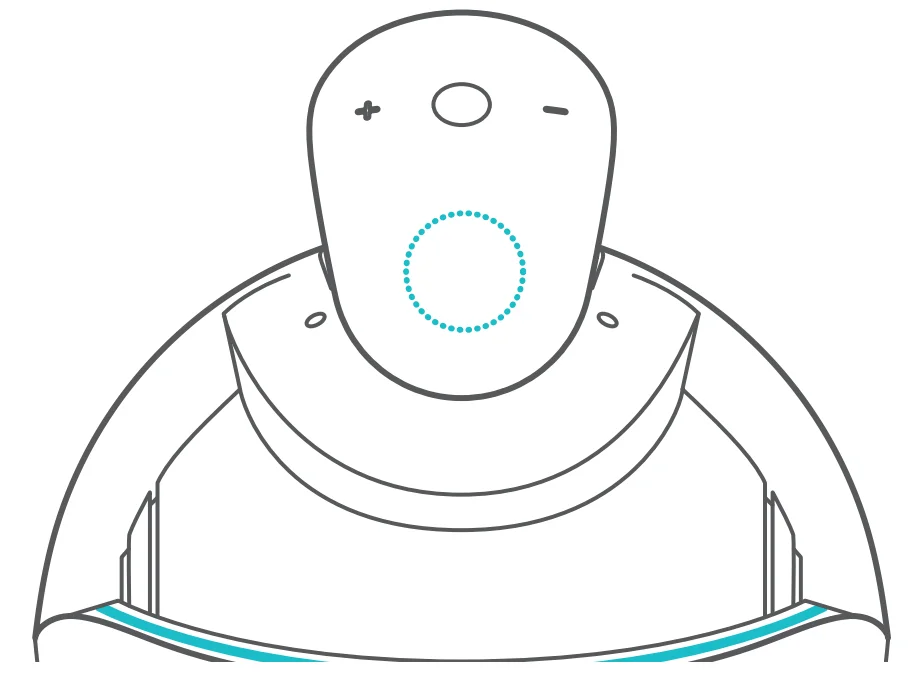
- Privacy Button
- Eye Expression Lights
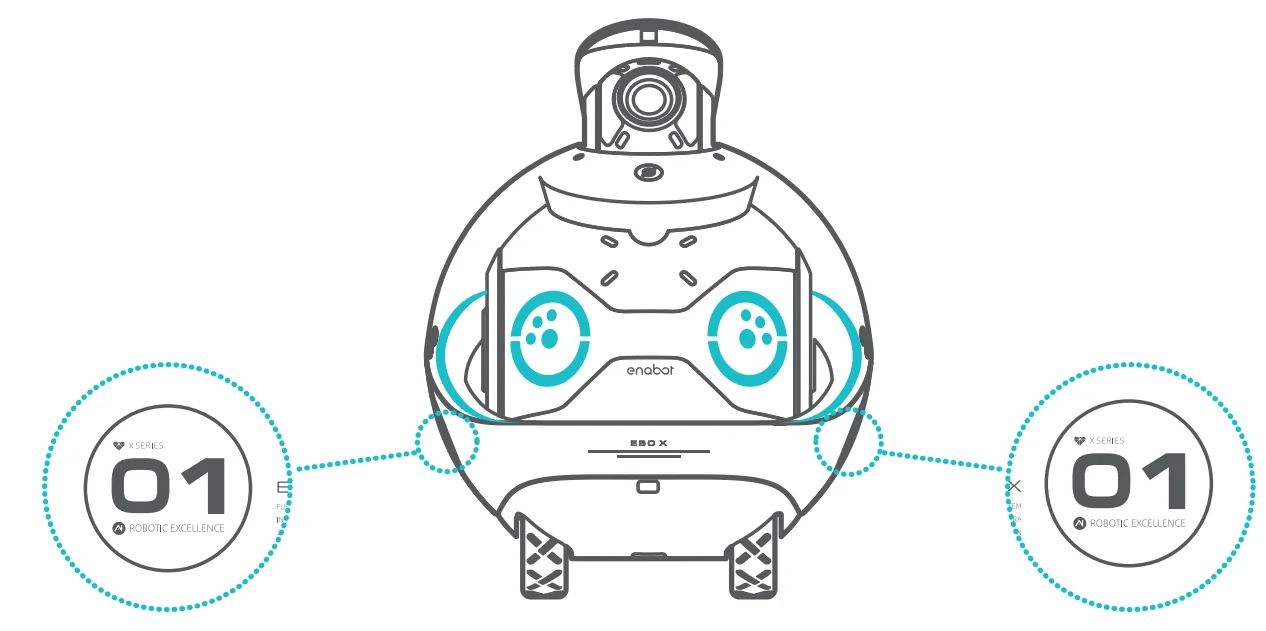
- Touch Area
- Hub Motor
- Infrared Fill Light
- MIC
- Waist Atmosphere Lights
- ToF Module
- Acoustic Unit
- Air Outlet
- SD Card Slot
- Infrared Receiver Module
- ToF Module
- Touch Area

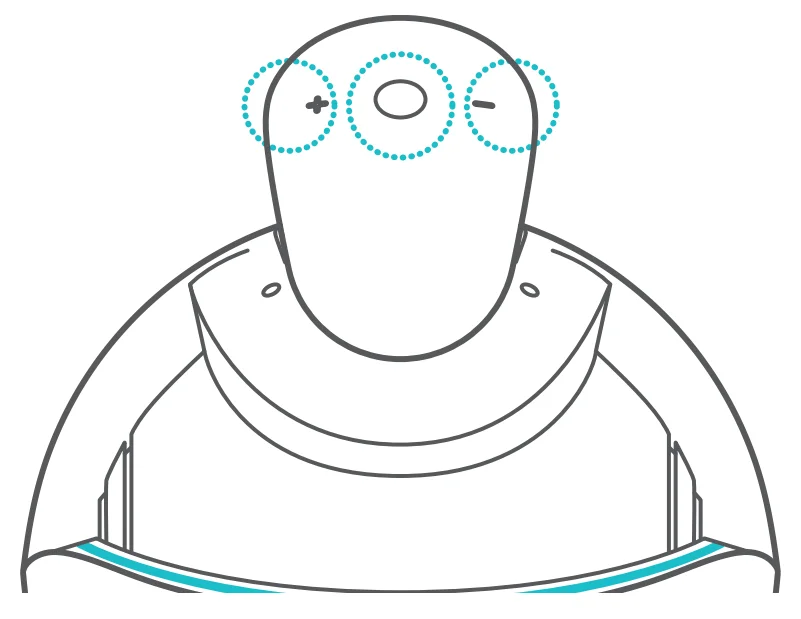
- Pause/Play
- Volume Down
- Action Button
- Volume Up
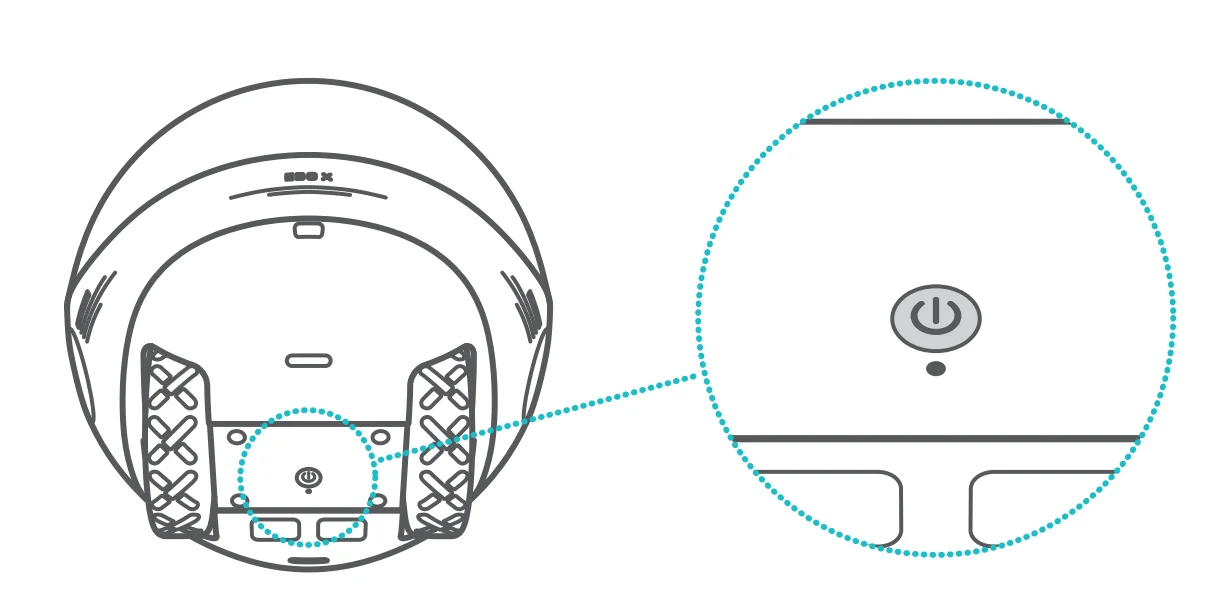
- Power Button
- Reset Button
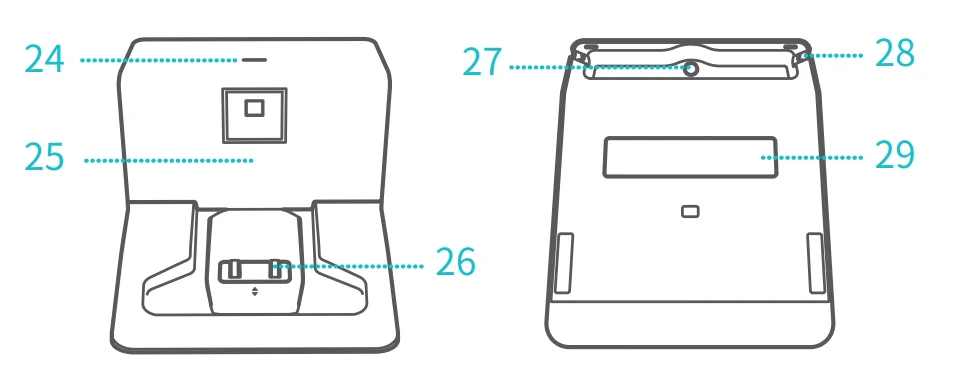
- Charging Contact
- Power Indicator Light

- Infrared Transmitter Module
- Charging Contact
- DC Interface
- Charging Cable Limit Slot
- Non-slip Glue
How to Use the Charging Dock
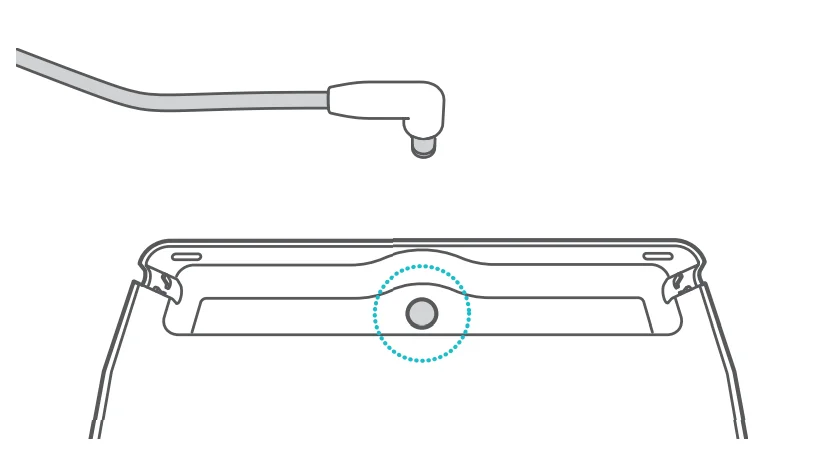
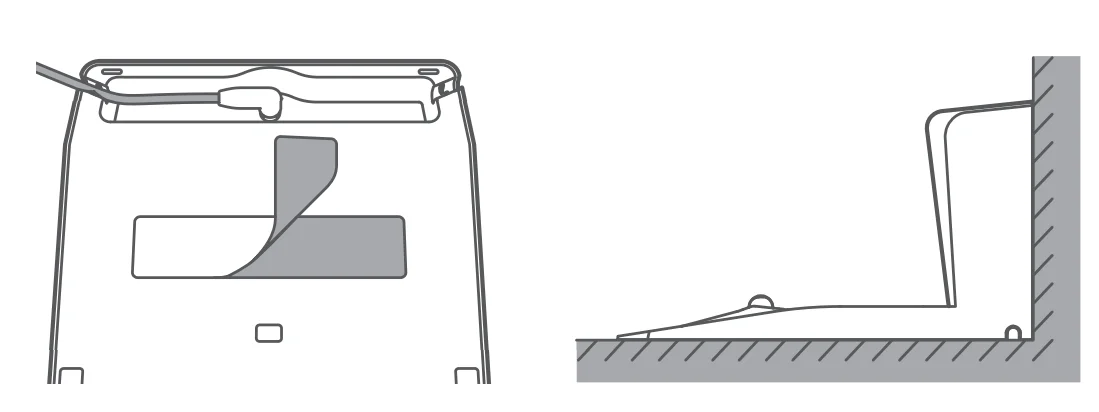
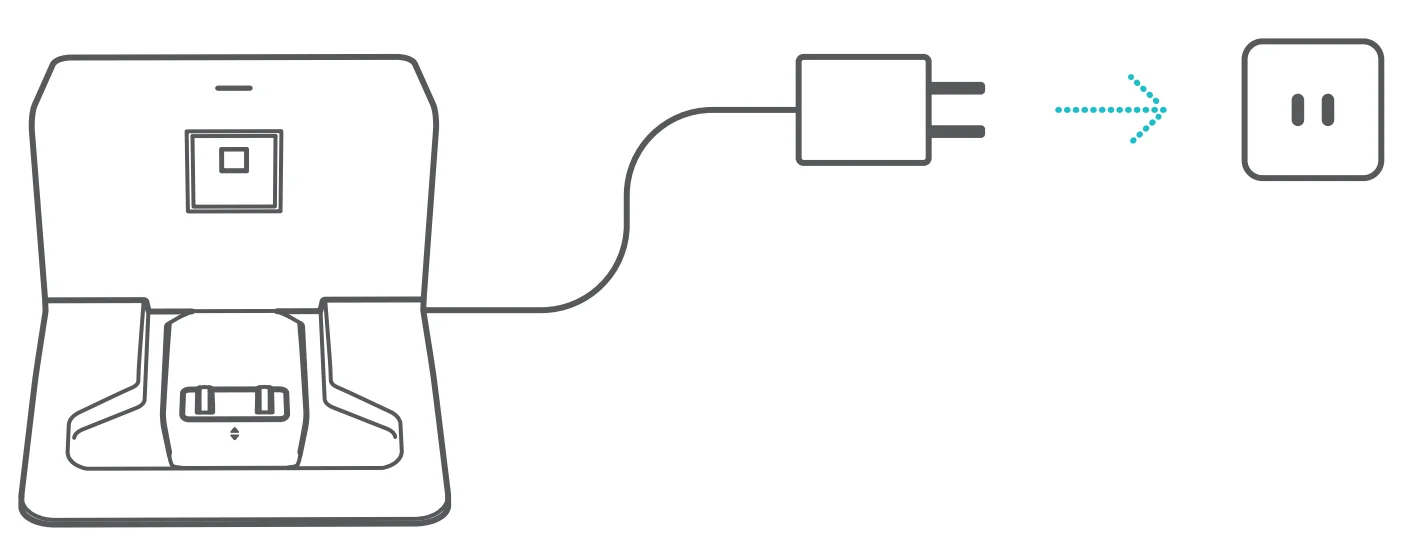
- Insert the DC plug of the adapter into the DC hole at the bottom of the charging dock.

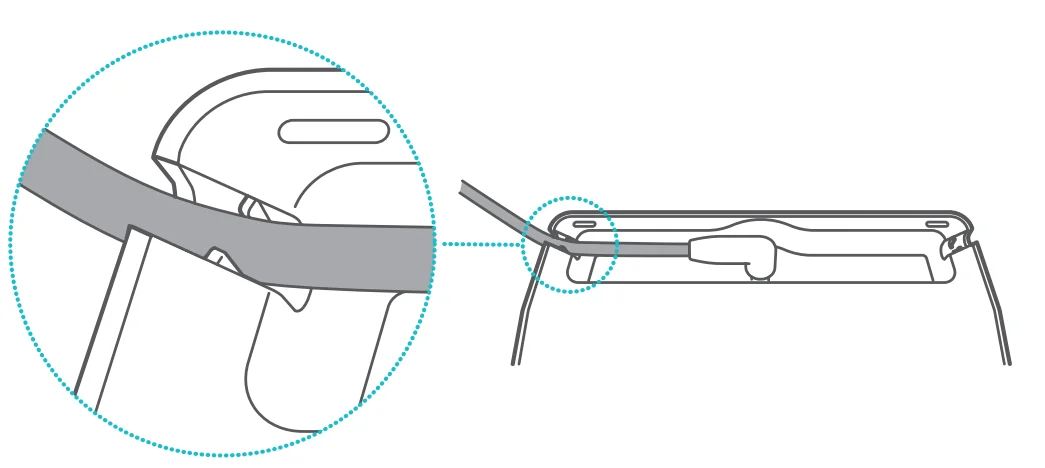
- Push the adapter cable into the slot of the charging base to ensure the former will not jack the latter.

- Remove the covering on the non-slip glue of the charging base and place the charging dock with its back tightly against a wall and its bottom firmly on the floor.

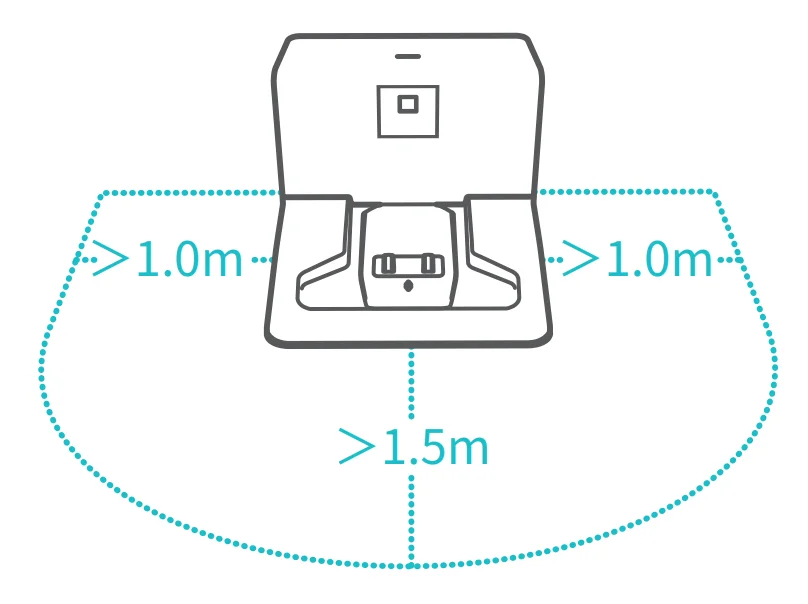
Note: To prevent the charging dock from moving, please ensure it tightly leans against the bottom of the wall and is firmly attached to the floor. - Keep 1.5-meter areas in front and 1 meter on the left and right of the charging dock clear of obstacles, so that the robot can smoothly return for charging.

- Plug the adapter into the power supply. The indicator light on the top of the charging dock will turn on once the connection is successful.

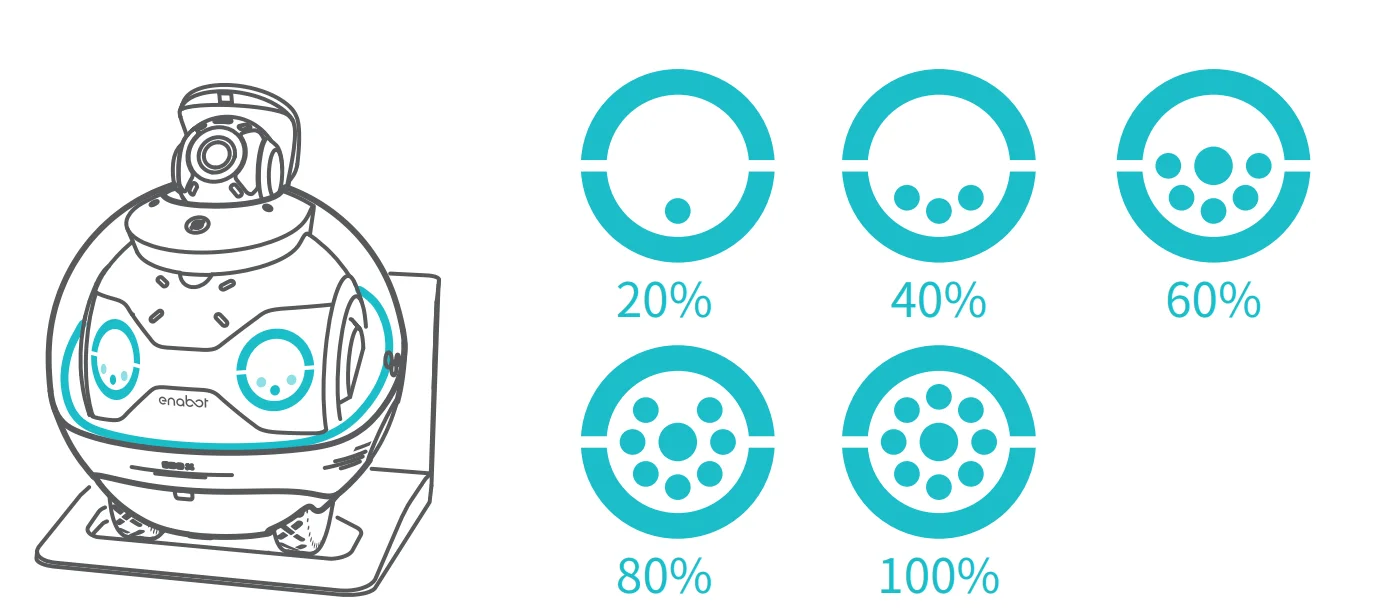
- When placed on the charging dock, the robot will turn on and start charging automatically, and it will display the current battery level.

- When the battery is too low, the robot will start the auto charging program. Please use the EBO HOME App if you need to stop the program.
How to Use the Robot
- Power on/Power off: Press the power button to turn on the robot. Press and hold the power button for 3 seconds to turn off the robot.

- Tap the Action button to use the voice assistant without saying any wakeup words.

- Play control functions: Volume + / Volume – and Pause/Play.

- Touch areas (left and right):

- The left touch area: switch to the previous lighting theme or the previous track.
- The right touch area: switch to the next lighting theme or the next track.
- Three Methods for Changing Privacy Settings:
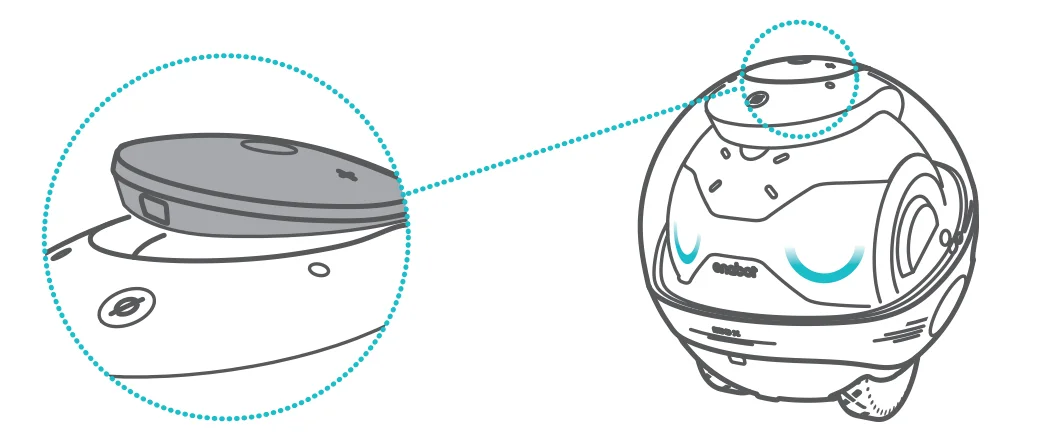
- Press and lock the gimbal camera. It will be turned off, and manual turning on is required. In this case, you cannot activate the gimbal camera via the App.

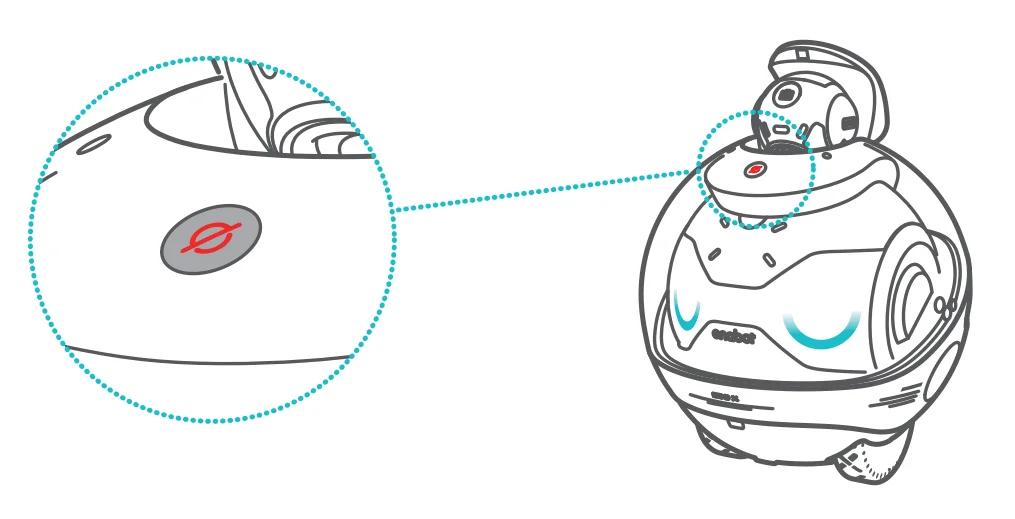
- Press the Privacy button. When the indicator light is on, the robot’s recording microphone and camera will be disconnected from the power supply. In this case, activation via the App is not available.

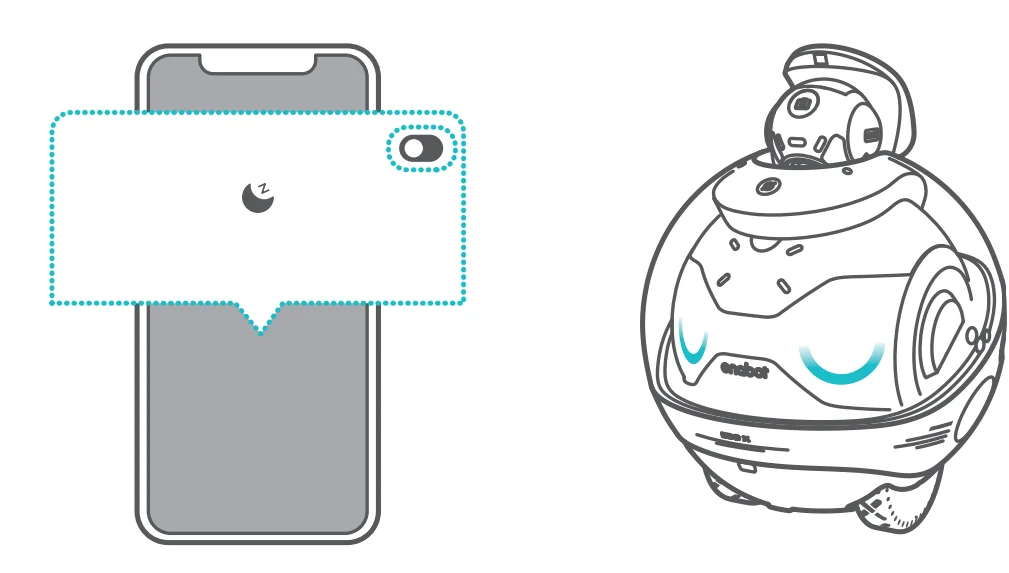
- You can quickly activate and deactivate the gimbal camera via the EBO HOME App’s shortcut button.

- Press and lock the gimbal camera. It will be turned off, and manual turning on is required. In this case, you cannot activate the gimbal camera via the App.
- Connect the Bluetooth of the robot:
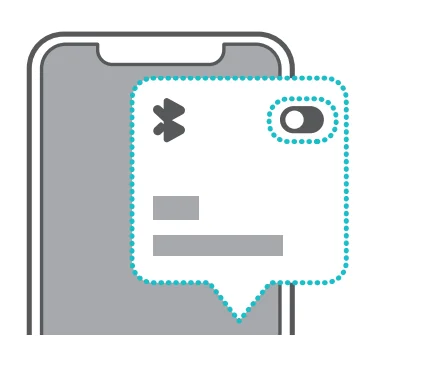
- Search“ EBO X ROBOT” on your smart device.
- Choose to connect the Bluetooth of the robot.
- In the EBO HOME App, choose the Bluetooth device you are connecting to and disconnect.

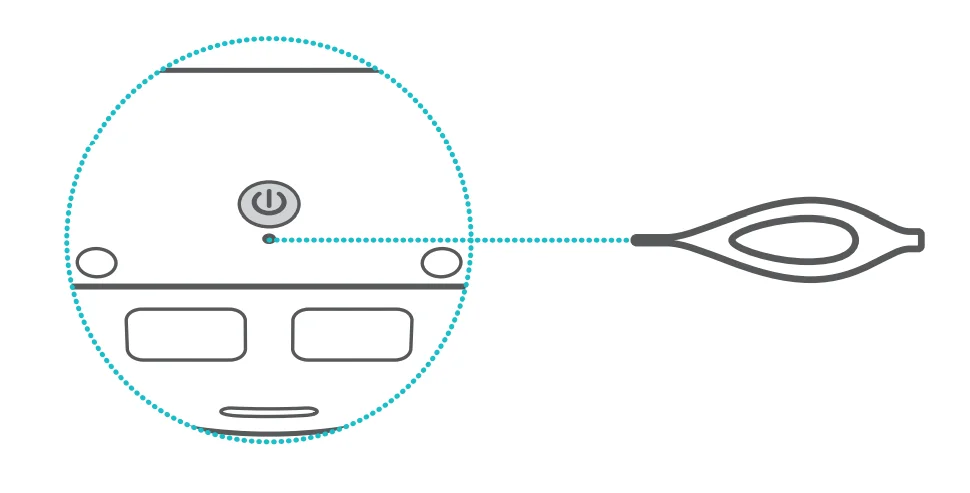
- Reset the robot: Press and hold the reset button at the bottom for over 5 seconds. Please do not shut down during the reset process.

Please note:
Restoring factory settings or unbinding the robot will not delete the contents of the SD card. It is recommended that you back up the contents of the SD card and empty the SD card.
How to Connect the Robot to the Network
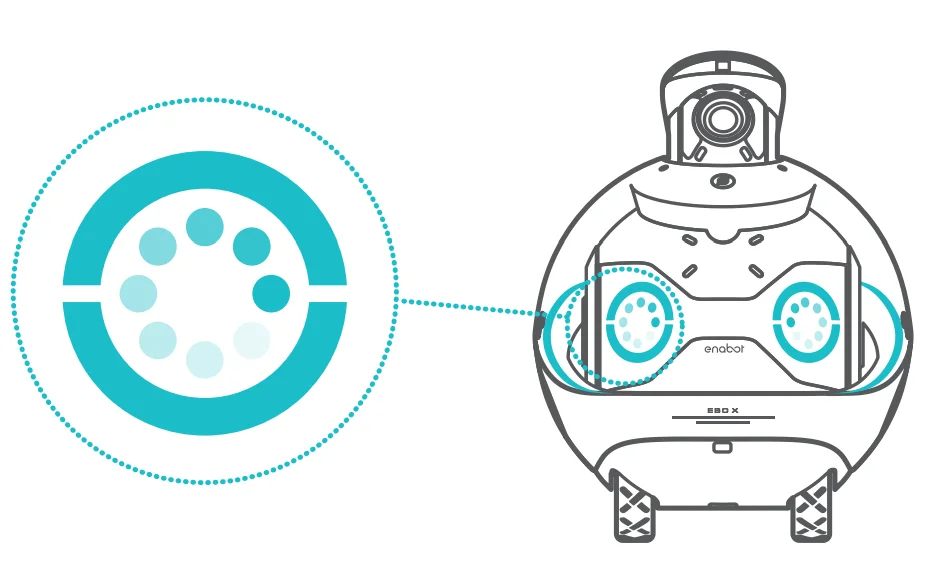
- It takes about 1 minute for the robot to start up and then enter the scanning mode.

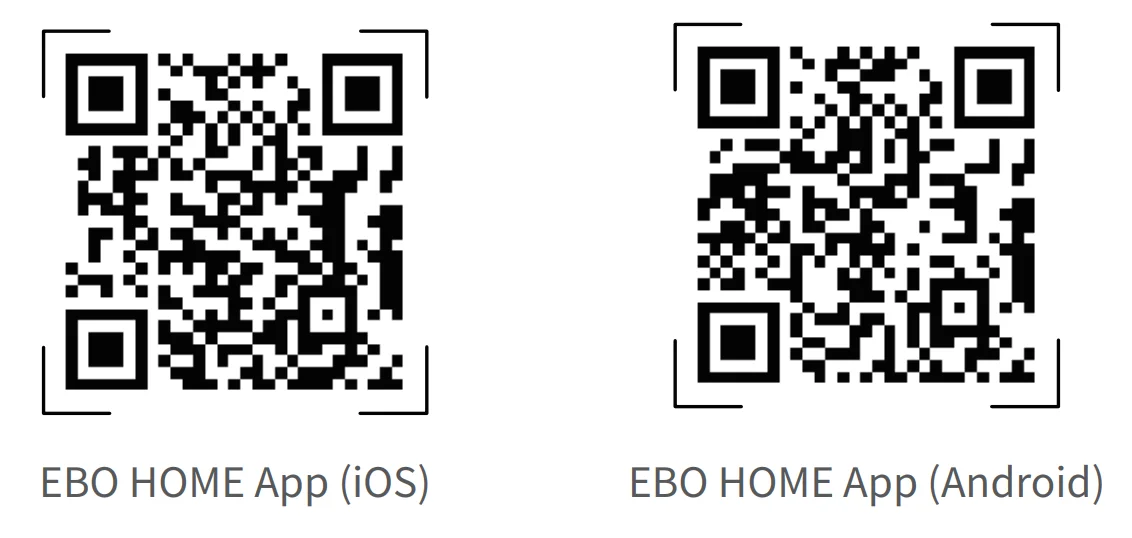
- When downloading the App and signing up for an account, please select the correct country or region information.

- Log in to the homepage on the EBO App and follow the steps below to bind the robot and match the network with the correct Wi-Fi name and passwords:
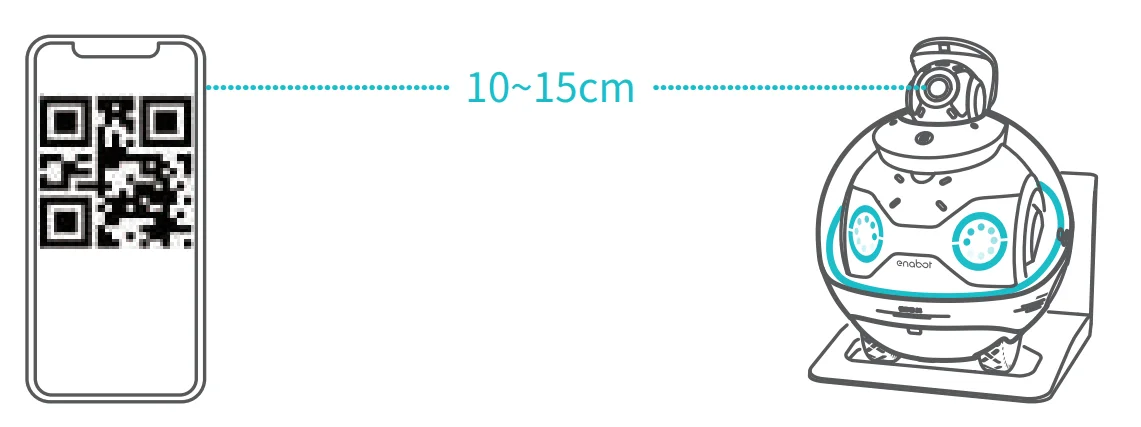
- Scan the QR code and wait for a moment until you hear the robot prompt that the network connection is successful.
- Stay on the QR code page until the prompt of successful binding appears.

- Change the network for the robot:

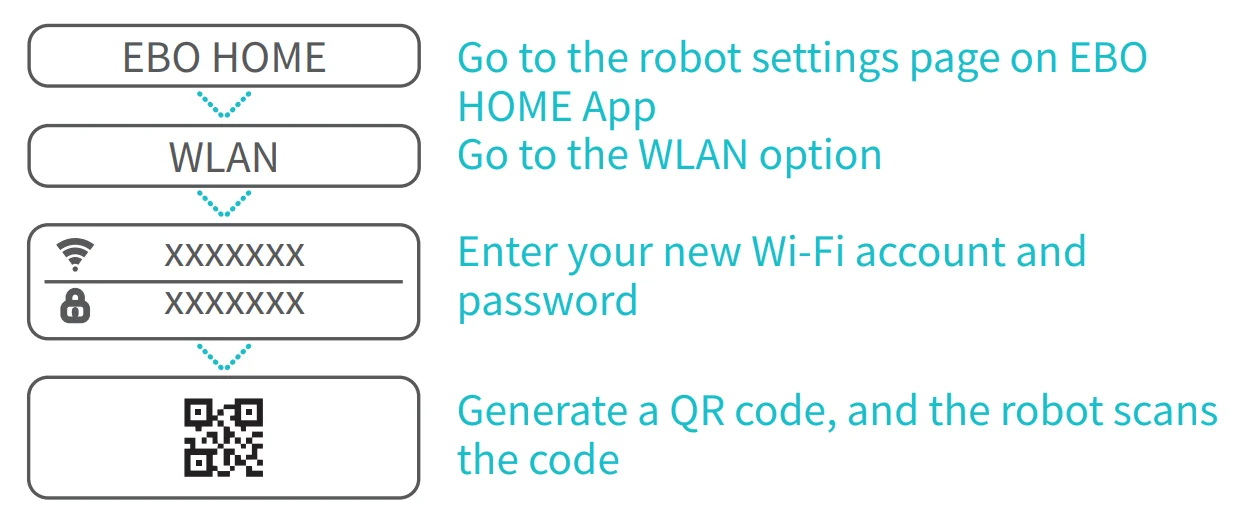
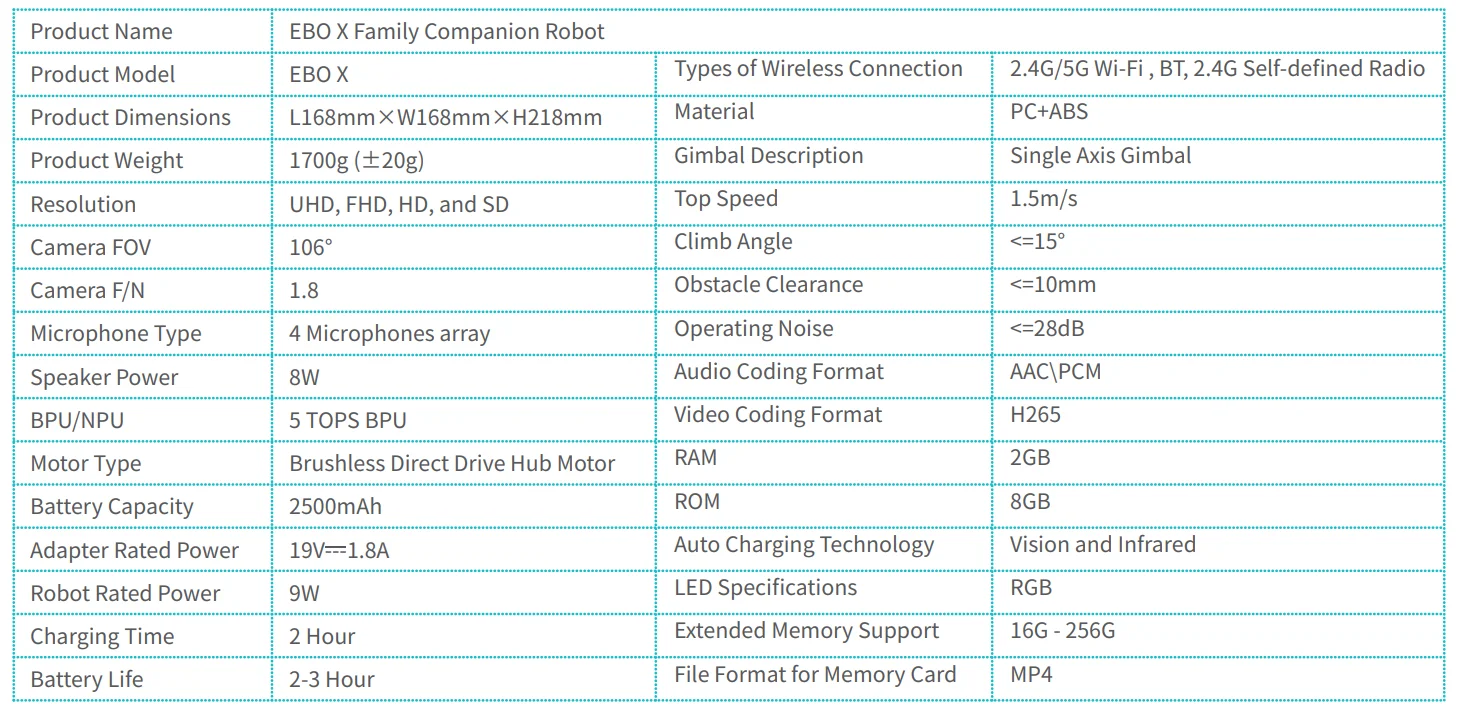
Robot Specifications
Robot Voice Control Instructions
- To log in to the Alexa account on the EBO HOME App, follow the instructions to create and log in to an Amazon account.
- Go to the Alexa login page on the EBO HOME App and click “Log In”.
- Follow the instructions to enter the account authorization page and enter your Amazon account password to complete the authorization.
- Select your country or region and confirm which language you will use to interact with Alexa.
- Set the Device Name. The default option is “Robot,” and the Device Name will affect the command words used to control the robot. For example, if the Device Name is set to “Robot”, the command phrase to control the robot through Alexa should be “Alexa, Robot sit down”.
- Using Alexa on the Robot
By using Alexa’s universal functions on a robot, you can control the robot by giving voice commands such as “Alexa, speak slower”, “Alexa, read me a story” or “Alexa, tell me a software joke”. - Enable EBO X Robot Skill
- Open the Amazon Alexa App.
- Search for “EBO X Robot Skill”.
- Click “Enable”.
- Use Alexa to control the robot by saying: “Alexa, ‘Robot’ stand up”, “Alexa, ‘Robot’ sit down”, “Alexa, ‘Robot’ follow me”, “Alexa, ‘Robot’ go back to charge”.
Legal Notices
- Before using the product, please carefully read this document and keep it for future reference.
- The illustrations and descriptions in this document are for reference only, and the actual product shall prevail. For specific specifications and configurations, please refer to the relevant specification documents or consult the seller.
- The nominal storage capacity and technical performance indicators are only specifications, and the actual data may vary due to factors such as environments and settings.
- If you use the robot with other products or software, Enabot does not guarantee its compatibility and legality.
- Nothing in this document constitutes a modification of Enabot’s product warranty policy.
- This product is not intended for use in organ transplantation or other life support system applications where any product failure could result in death or personal injury.
- Without the authorization of Enabot, no one may copy, transcribe, delete, compile, store, transmit, or translate this document.
FCC Regulatory Compliance
This device complies with Part 15 of the FCC Rules. Operation is subject to the following two conditions:
- This device may not cause harmful interference, and
- This device must accept any interference received, including interference that may cause undesired operation.
Changes or modifications not expressly approved by the party responsible for compliance could void the user’s authority to operate the equipment. This equipment has been tested and found to comply with the limits for a Class B digital device, pursuant to Part 15 of the FCC Rules. These limits are designed to provide reasonable protection against harmful interference in a residential installation. This equipment generates, uses, and can radiate radio frequency energy and, if not installed and used in accordance with the instructions, may cause harmful interference to radio communications. However, there is no
guarantee that interference will not occur in a particular installation. If this equipment does cause harmful interference to radio or television reception, which can be determined by turning the equipment off and on, the user is encouraged to try to correct the interference by one or more of the following measures:
- Reorient or relocate the receiving antenna.
- Increase the separation between the equipment and receiver.
- Connect the equipment into an outlet on a circuit different from that to which the receiver is connected.
- Consult the dealer or an experienced radio/TV technician for help.
IC Regulatory Compliance
This device contains licence-exempt transmitter(s)/receiver(s) that comply with Innovation, Science and Economic Development Canada’s licence-exempt RSS(s). Operation is subject to the following two conditions:
- This device may not cause interference.
- This device must accept any interference, including interference that may cause undesired operation of the device.
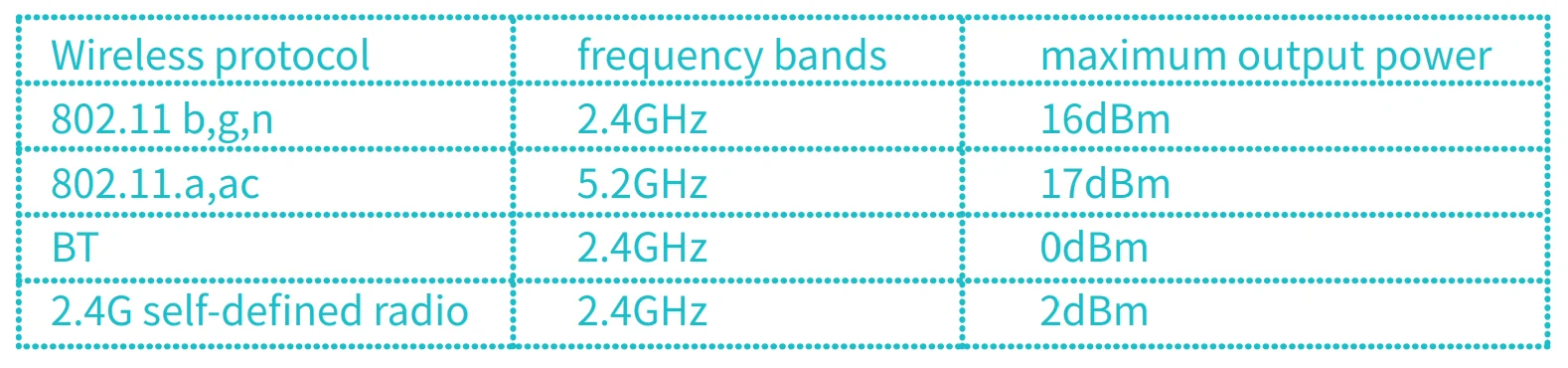
This equipment complies with FCC/IC RSS-102 radiation exposure limits set forth for an uncontrolled environment. This equipment should be installed and operated with a minimum distance of 20 cm between the radiator and your body. This transmitter must not be co-located or operating in conjunction with any other antenna or transmitter. The device for operation in the band 5150‒5250 MHz is only for indoor use to reduce the potential for harmful interference to co-channel mobile satellite systems; 5150-5350 MHz are restricted to indoor use only or The functions of Wireless Access Systems including Radio Local Area Networks(WAS/RLANs) within the band 5150-5350 MHz for this device are restricted to indoor use only within all European Union countries (BE/BG/CZ/DK/ DE/EE/IE/EL/ES/FR/HR/ IT/CY/LV/LT/LU/HU/MT/NL/AT/PL/PT/RO/SI/SK/FI/SE/TR/NO/CH/IS/LI/UK(NI)
For more manuals by Enabot, visit ManualsLibraryy
EBO X-AI Family Companion Robot-FAQs
What is the EBO X-AI Family Companion Robot?
The EBO X-AI is a smart home companion robot designed for family interaction, home monitoring, and entertainment. It combines AI assistance, mobile surveillance, and two-way communication in one compact device. With its 4K stabilized camera, smart navigation, and voice interaction features, it helps users check on loved ones, pets, or their home remotely while also acting as an interactive assistant.
How does the EBO X-AI robot work?
The robot uses AI-powered tracking, advanced motion algorithms, and dual in-wheel motors to move smoothly around your home. It connects to the EBO Home app, allowing you to control movement, monitor live video, and interact remotely. The built-in camera captures high-quality footage, while intelligent sensors help it avoid obstacles and navigate efficiently.
Can you talk through the EBO X-AI robot?
Yes, the EBO X-AI supports two-way audio communication. Through the mobile app, you can speak and listen in real time, making it useful for checking on family members, calming pets, or greeting visitors. The robot’s built-in speaker and microphone ensure clear communication, even when you are away from home.
How do I connect the EBO X-AI to Wi-Fi?
To connect the robot, download the EBO Home app, power on the device, and follow the in-app setup instructions. You’ll select your Wi-Fi network and enter the password to pair the robot. A stable 2.4GHz Wi-Fi connection is typically recommended for smooth streaming and remote control functionality.
Does the EBO X-AI require a subscription?
No, the EBO X-AI generally does not require a mandatory subscription for basic features. Core functions such as live viewing, two-way talk, and app control are accessible after purchase. However, optional cloud storage or advanced AI services, if offered, may vary depending on the region and app version.
Can the EBO X-AI be used internationally?
Yes, the robot can be used in different countries. However, you may need to download the app version that matches your device’s region. Also, ensure compatibility with local voltage standards and Wi-Fi networks. Remote monitoring works as long as both the robot and your phone have internet access.
How mobile is the EBO X-AI around the house?
The robot features direct-drive in-wheel motors that allow smooth 360-degree turning and flexible movement. It can navigate around furniture and small obstacles using intelligent sensors. Its stabilized camera adjusts vertically, giving you a wider viewing angle while it moves throughout your home.
How many people can access the EBO X-AI?
Multiple family members can typically share access through the EBO Home app. Device sharing options allow other trusted users to monitor and interact with the robot from their own smartphones. This makes it convenient for families who want shared monitoring capabilities.
Is the EBO X-AI worth buying?
The EBO X-AI is ideal for users seeking a mix of home security, remote communication, and AI companionship. Its mobile camera provides a dynamic viewing angle compared to fixed security cameras. If you want interactive monitoring with movement and voice features, it offers strong value for modern smart homes.
What can the EBO X-AI robot do besides monitoring?
Beyond surveillance, the robot can interact using AI chat features, entertain pets with movement, and assist in staying connected with family members. Its design blends companionship and smart technology, making it more engaging than a traditional stationary home camera.