
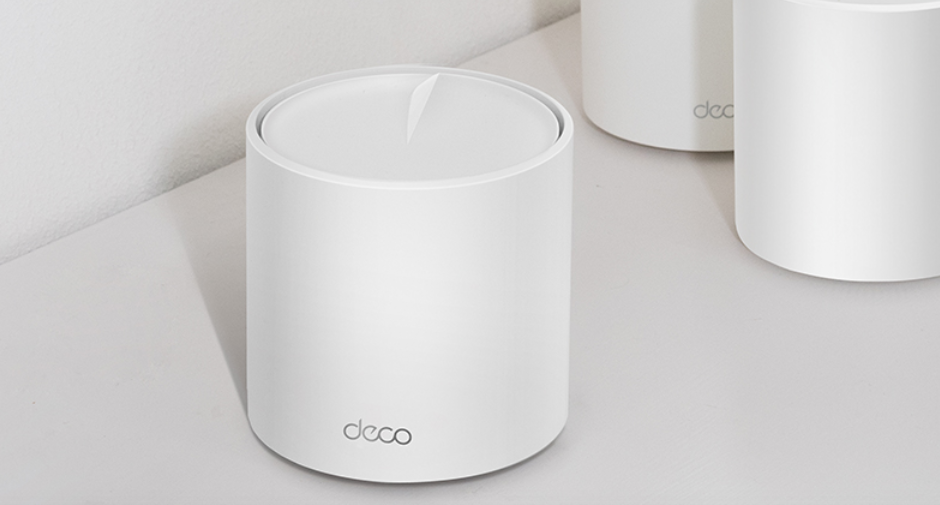

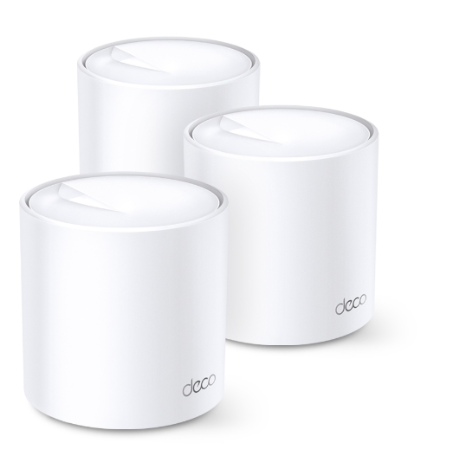
TP Link Deco X4300 Pro WiFi Router
About This Guide
This guide provides a brief introduction to the Deco Whole Home Mesh Wi-Fi System and the Deco app, as well as regulatory information. Features available in Deco may vary by model and software version. Deco availability may also vary by region or ISP. All images, steps, and descriptions in this guide are only examples and may not reflect your actual Deco experience.
Conventions
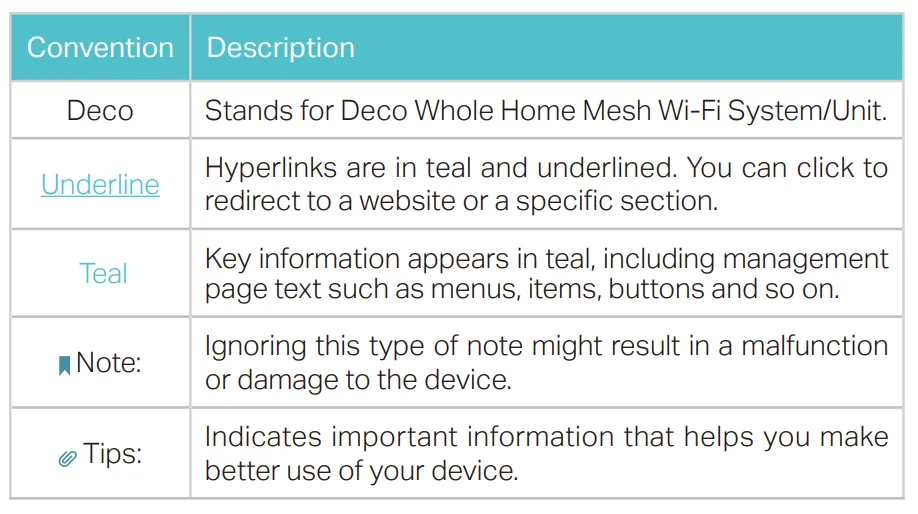
In this guide, the following conventions are used:
More Info
- Specific product information can be found on the product page at https://www.tp-link.com.
- A Technical Community is provided for you to discuss our products at https://community.tp-link.com.
- Our Technical Support contact information can be found at the Help center of the Deco app and the Contact Technical Support page at https://www.tp-link.com/support/.
Speed/Coverage/Device Quantity Disclaimer
Maximum wireless signal rates are the physical rates derived from IEEE Standard 802.11 specifications. Actual wireless data throughput and wireless coverage, and quantity of connected devices are not guaranteed and will vary as a result of network conditions, client limitations, and environmental factors, including building materials, obstacles, volume and density of traffic, and client location.
MU-MIMO Disclaimer
Use of MU-MIMO requires clients to also support MU-MIMO.
IoT Compatibility Disclaimer
IoT compatibility refers only to smart devices that can be controlled via the Deco app. Other wireless devices can still connect to Deco for normal Wi-Fi use.
Seamless Roaming Disclaimer
Clients need to support 802.11k/v/r and may require additional set up. Performance may vary depending on the client device.
HomeShield Disclaimer
HomeShield includes the Free Basic Plan. Fees apply for the Pro Plan. Visit tp-link.com/homeshield for more information.
Appearance
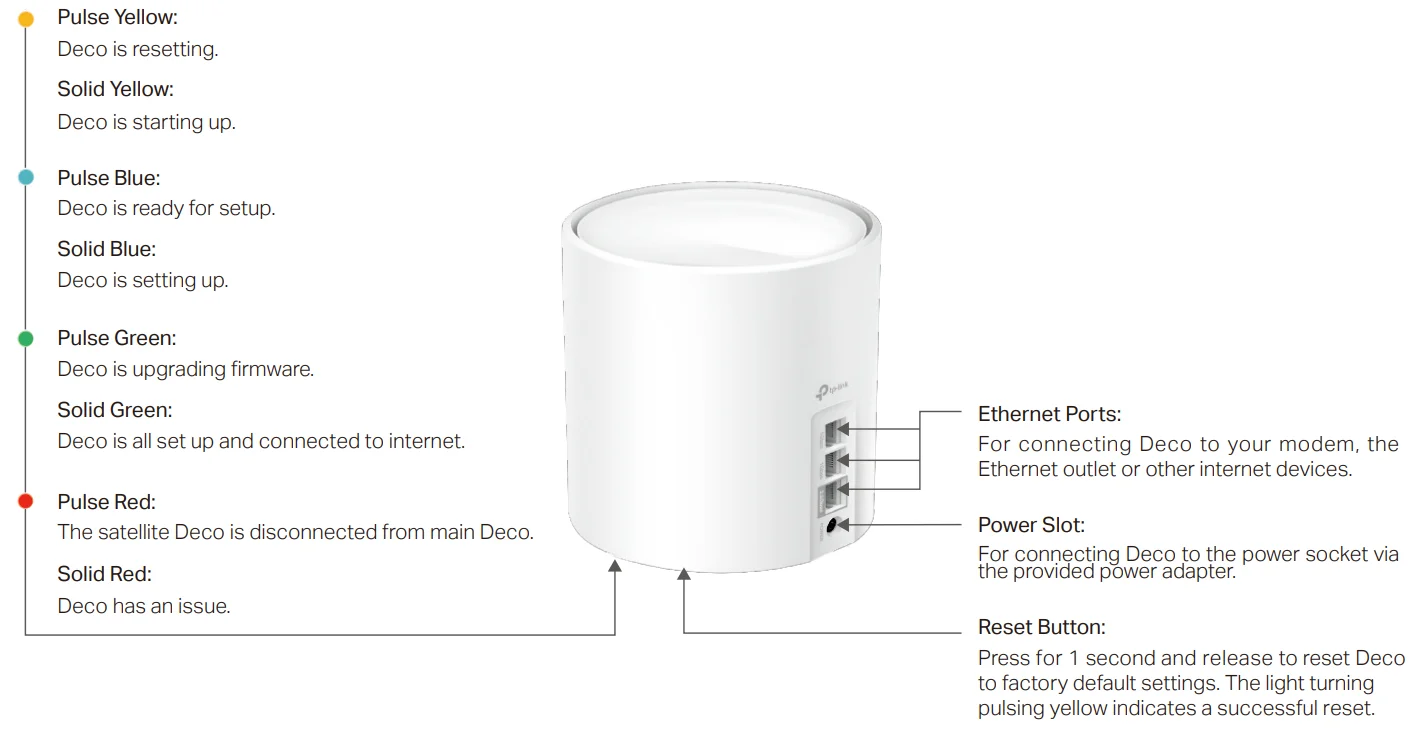
Each Deco has an LED that changes color according to its status, three RJ-45 Ethernet ports, a power slot, and a Reset button. See the explanation below:
Tip: The product label can be found at the bottom of the product.
Set Up Your Deco
The intuitive Deco app guides you through an easy setup process that gets each unit up and running and all your devices connected and online. Follow the steps below to set up your Deco Whole Home Mesh Wi-Fi System.
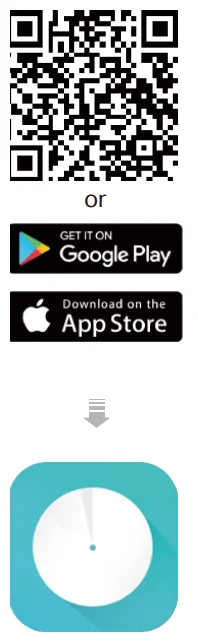
- Download and install the Deco app
Scan the QR code below or go to Google Play or the App Store to download the Deco app. Install the app on your Android or iOS smartphone or tablet.
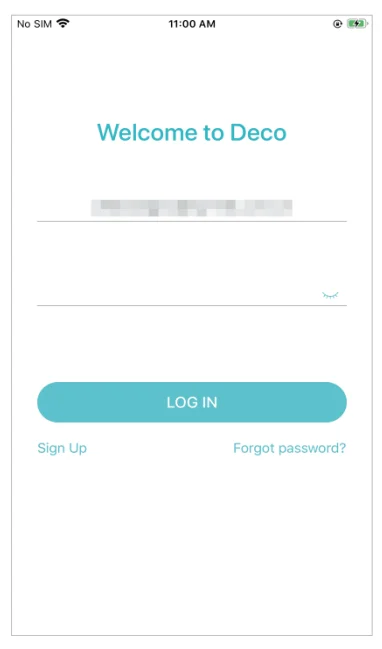
- Log in or sign up with TP-Link ID
Open the app. Use your TP-Link ID to log in. If you don’t have a TP-Link ID, sign up first.
Note: If you forgot your login password, tap Forgot password?. The Deco app will guide you through the rest.
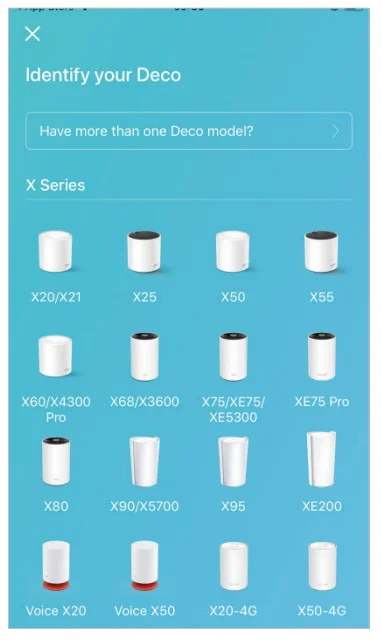
- Identify your Deco
Choose your Deco model.
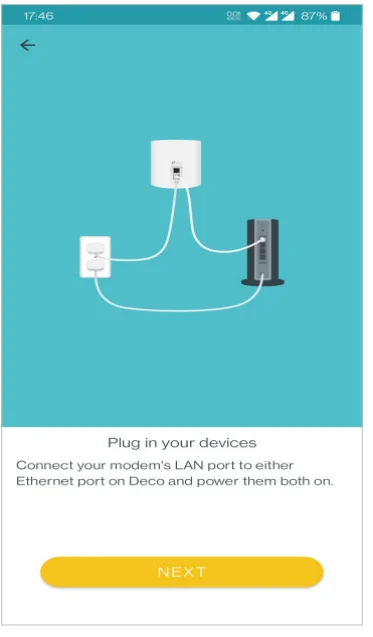
- Plug in and power on Deco
Power off your modem. Connect your Deco to the modem and power them both on. If you don’t have a modem, connect the Ethernet outlet directly to your Deco.
- Select a location
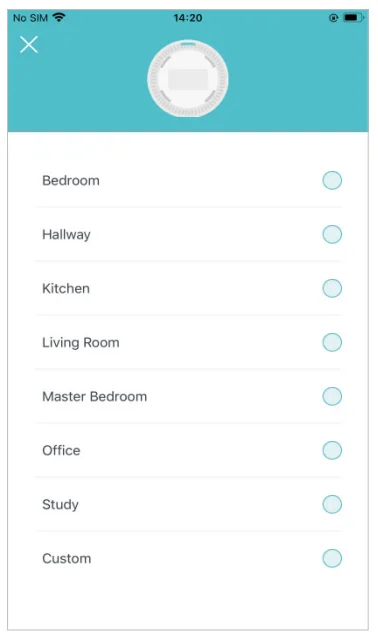
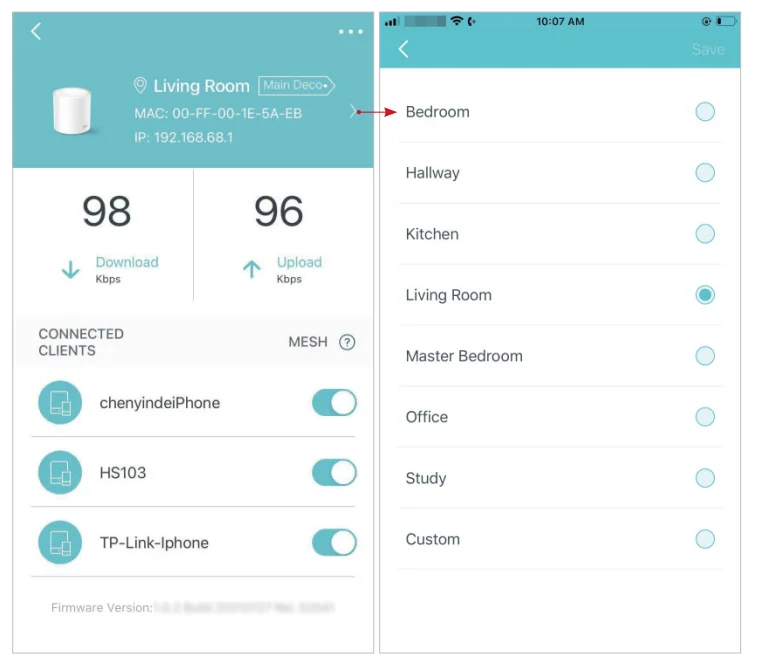
Select a location for this Deco. If its location is not listed, you can create a new one by choosing Custom. This will be the name of your Deco.
- Set up an internet connection
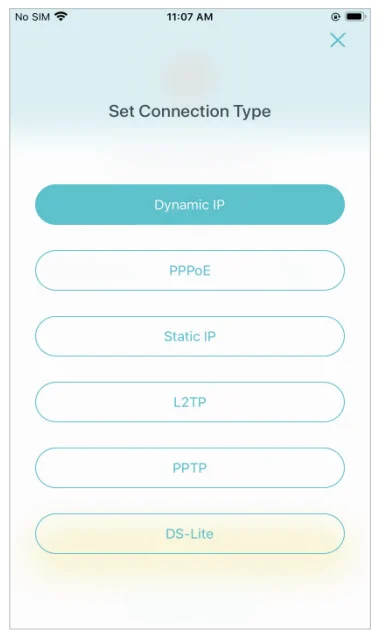
Select the internet connection type and enter the information. If you are not sure, contact your internet service provider.
- Create your Wi-Fi network
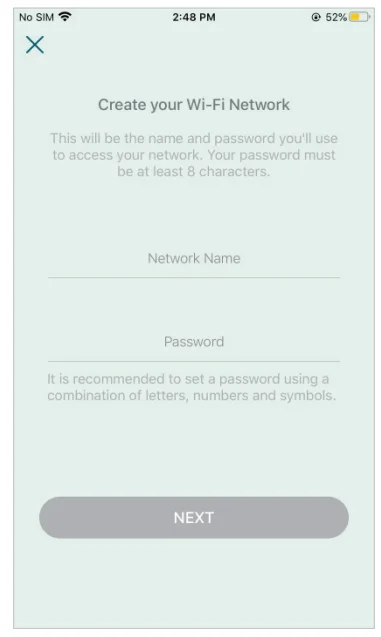
Set a network name and a password. These will be the name and password you use to connect your devices to Wi-Fi.
- Connect to your Wi-Fi network
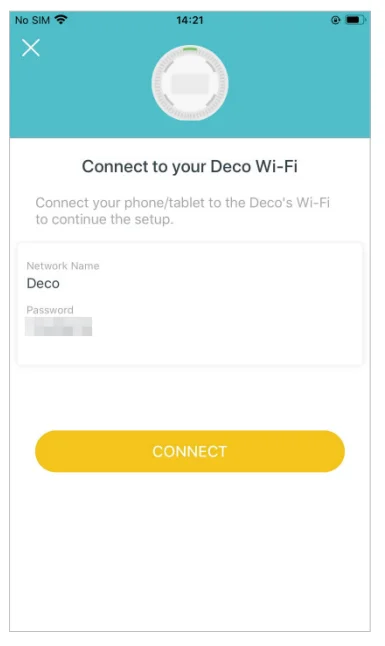
Connect your phone/tablet to the Deco’s Wi-Fi.
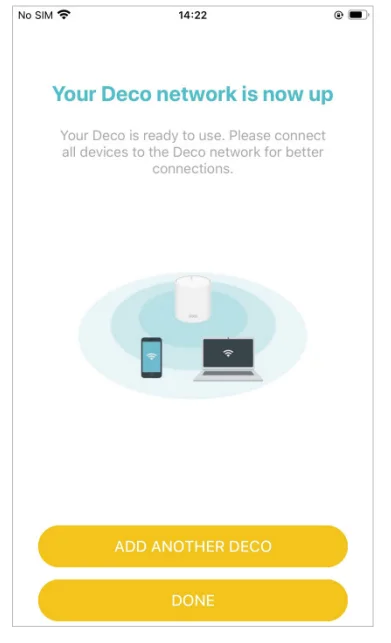
- Setup complete
Your Deco network is now up. Connect all devices to the Deco network. You can also Add More Decos to expand the Wi-Fi coverage.
Dashboard
After you successfully set up your Deco network, you will see the dashboard of the Deco app. Here you can get an overview of the network status, create shortcuts and automations, customize your home network with enhanced security using a kit of features built to TP-Link HomeShield, and set up various advanced features.
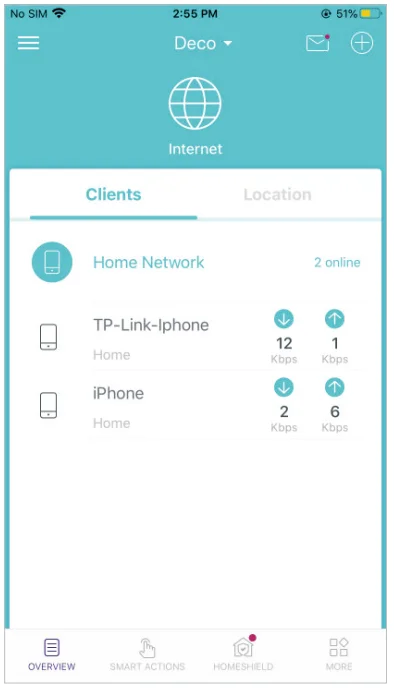
- Tap
 to get an overview of the network status.
- Tap
 to create a shortcut or automation.
- Tap
 to enter the HomeShield page for enhanced security.
- Tap
 for more features.
 to get an overview of the network status.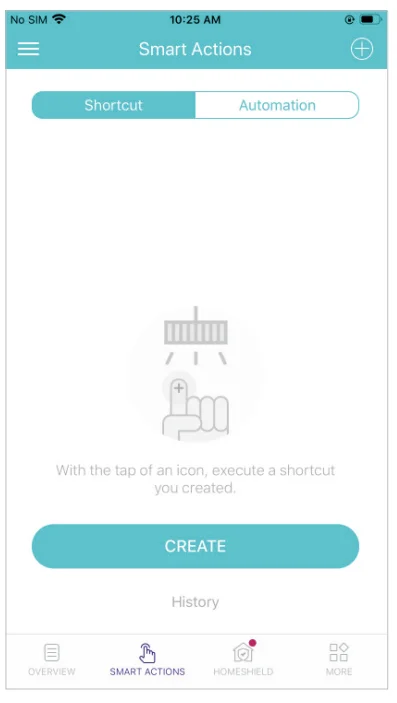
 to create a shortcut or automation.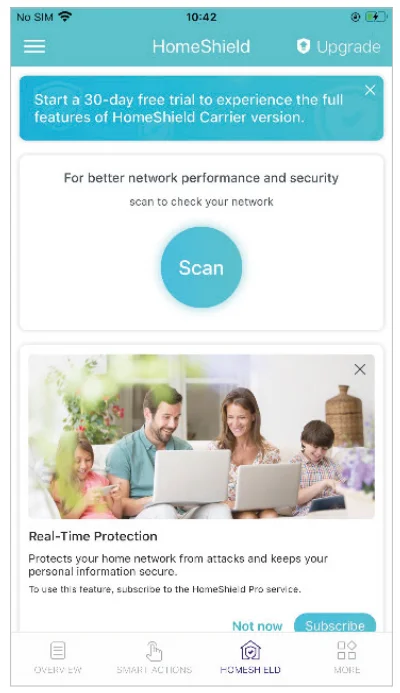
 to enter the HomeShield page for enhanced security.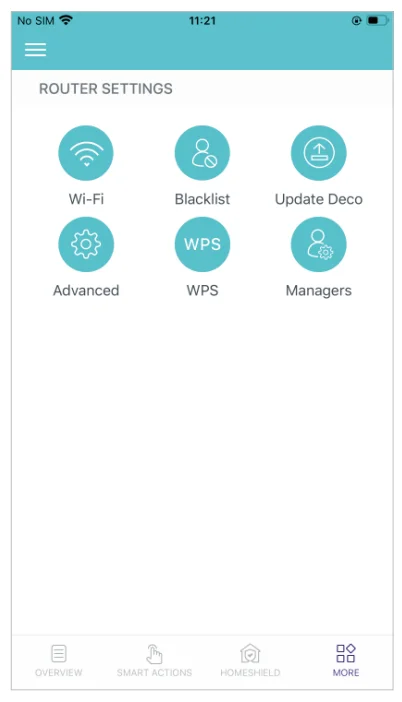
 for more features.
Add More Decos
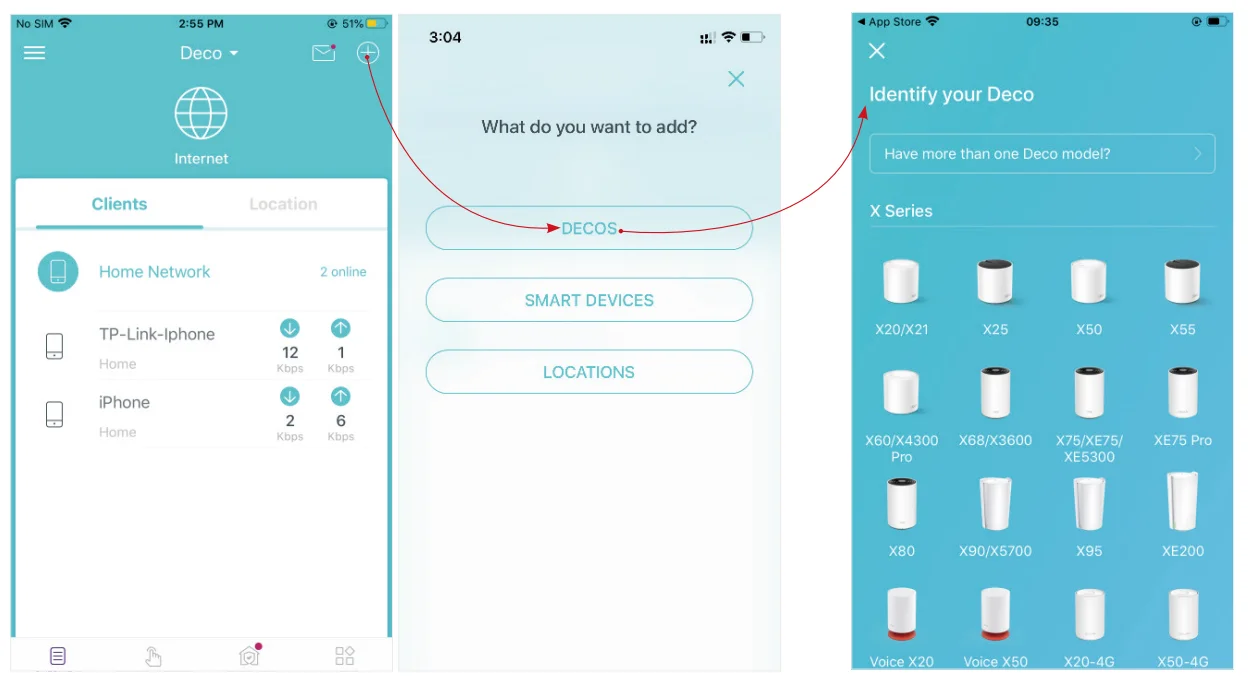
After creating a Deco network, you can add more Deco units to the network to expand the Wi-Fi coverage and manage them conveniently on your Deco app.
- In Overview, tap + > DECOS.
- Select the Deco model you want to add, and follow the app instructions to complete the setup.
Check Deco Status
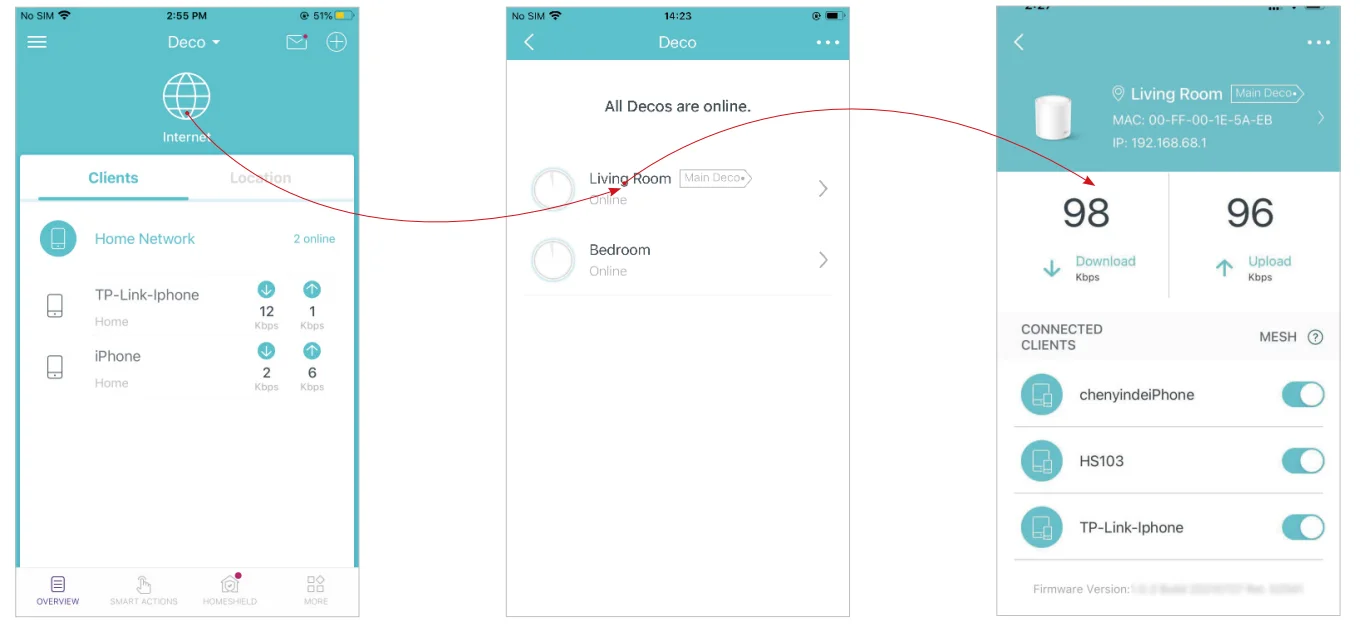
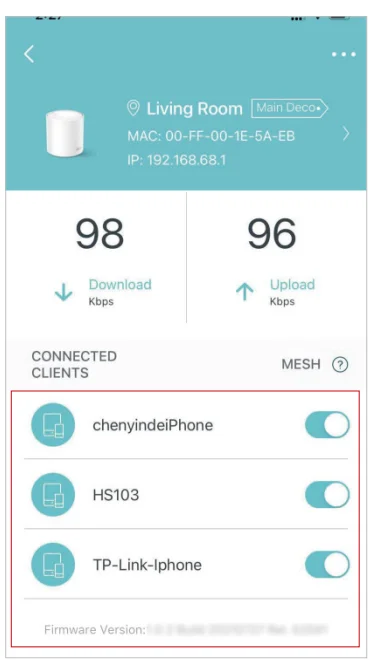
In Overview, you can check the working status (online/offline) of all the Decos, check the details (speed/Deco’s IP address & MAC address/connected clients) of each Deco, change the Deco’s location/name, and more.
- Tap
 to check all Decos’ status
 - Tap a Deco unit to check more details.
- Check the download/upload speed of the Deco.

- Change or customize the location/name of the Deco.

- Check the clients connected to the Deco. Enable the Mesh feature, then the client can seamlessly switch to the Deco that provides the fastest speed as you move around.
Set Main Deco
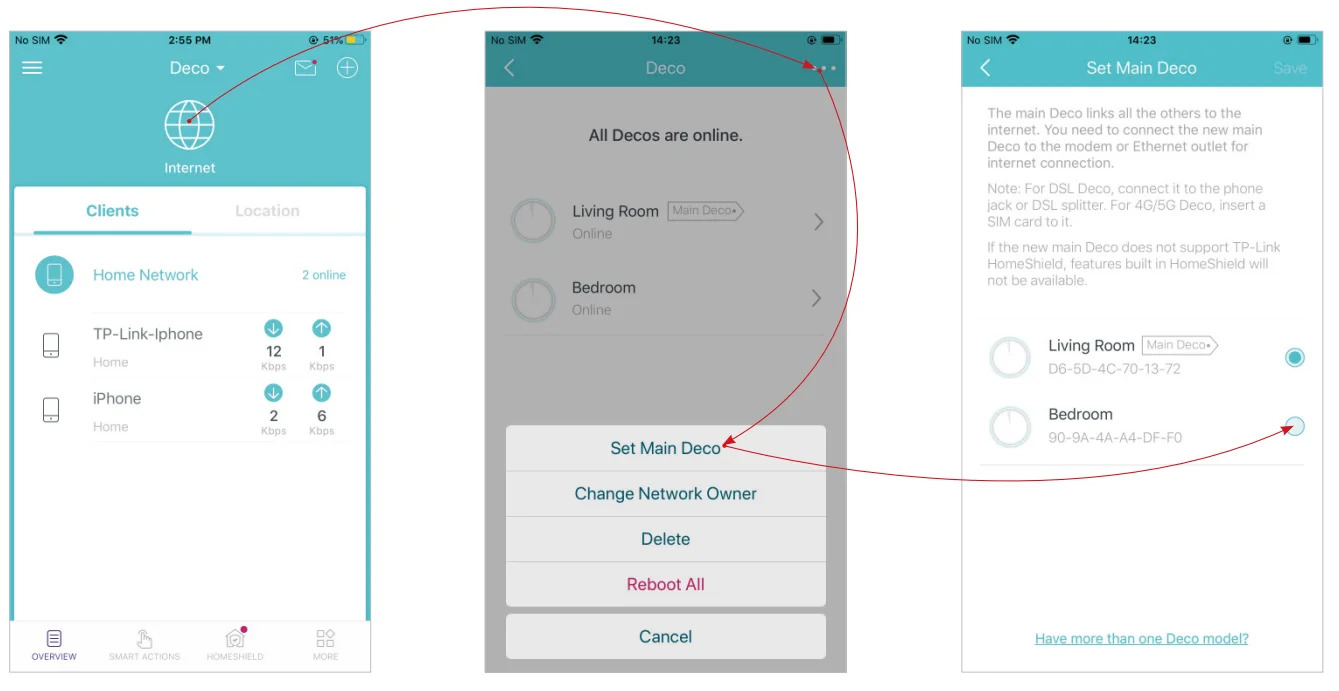
After setup, you can replace the main Deco with any satellite Deco without resetting or reconfiguring the whole network. Follow the steps below to complete the setup process.
Note: The main Deco links all the others to the internet. After the main Deco finishes switching, you need to connect the new main Deco to the modem or Ethernet outlet for internet connection. For DSL Deco, connect it to the phone jack or DSL splitter. For 4G/5G Deco, insert a nano SIM card into it.
- In Overview, tap.
- Tap
 > Set Main Deco.
 - Choose a satellite Deco and follow the app instructions to complete the settings.
Remove/Reboot Deco
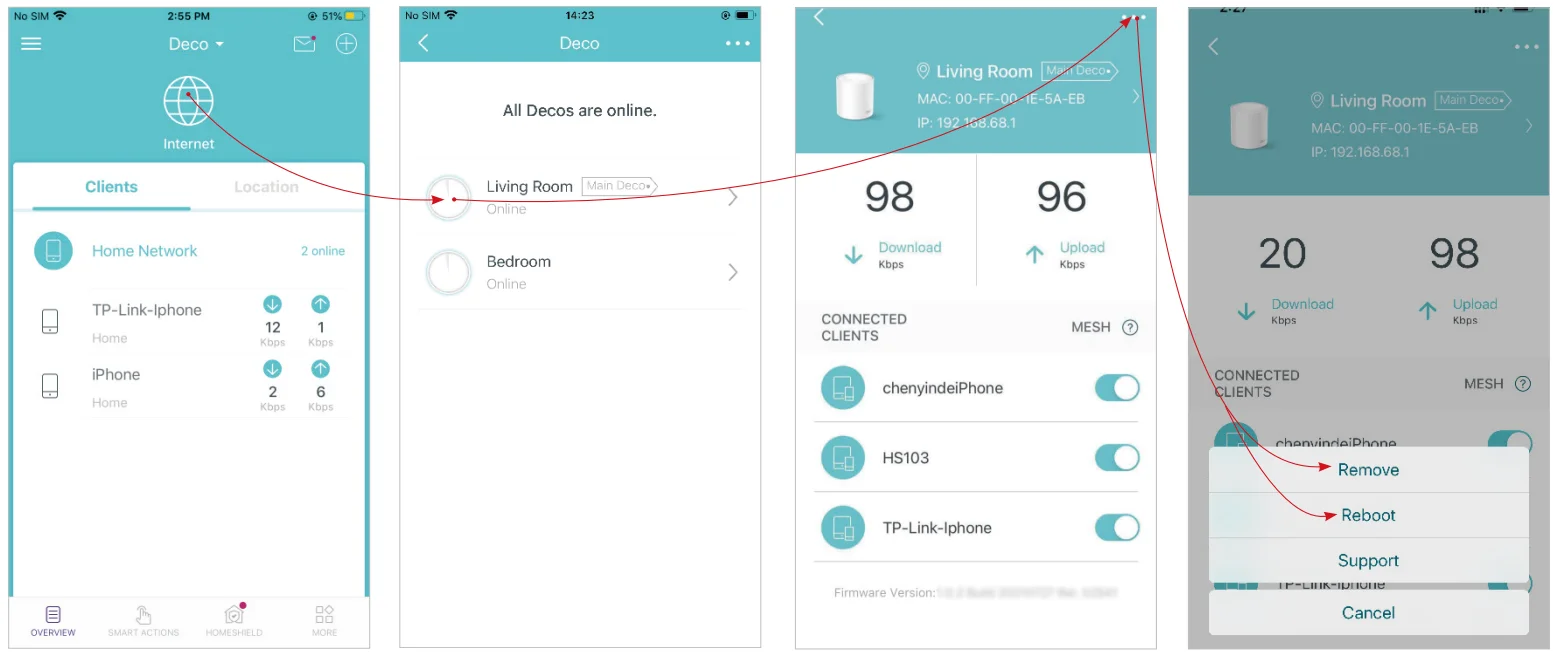
You can reset your Deco to factory default settings or reboot your Deco to clear cache and enhance running performance easily in the Deco app. Follow the steps below.
Note: Rebooting your Deco will keep the current settings on it. Removing your Deco will reset it to factory default settings, and you will need to set up your Deco again. You can also press the Reset button on the Deco for 1 second to quickly reset your Deco to factory default settings.
- In Overview, tap.
- Select a Deco unit.
- Tapto remove or reboot the Deco.
Note: If the LED light of Deco does not turn pulsing blue after tapping Remove, press the Reset button on the Deco for 1 second to reset it.
Manage Connected Devices
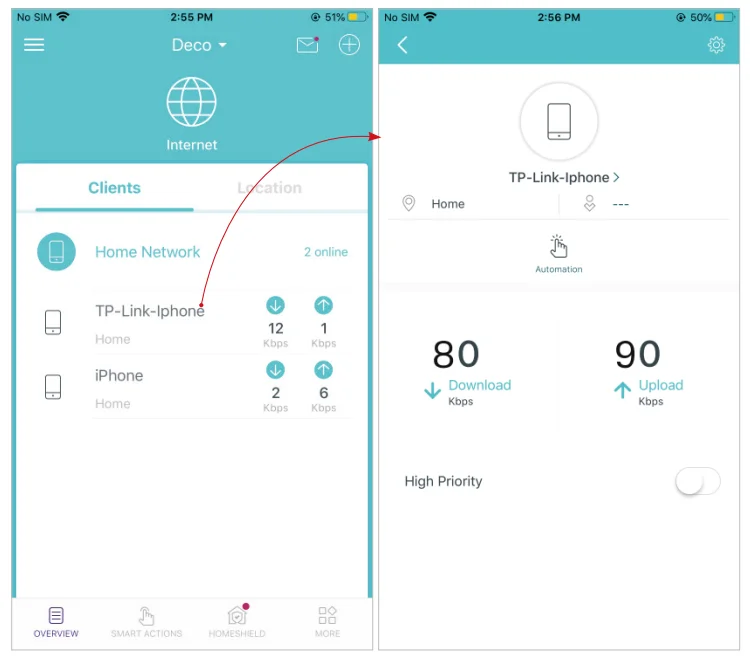
In Overview, you can manage your connected devices easily, such as changing the device name/type/location, enabling automation, Mesh Technology, and high priority for the device, setting a profile to manage its online activities, and more.
- Tap a connected device to check the details (e.g., real-time upload and download speeds, device name/location/profile, etc.).
 Change the device name as needed.
- Tap Automation to enable, disable, or edit it. If you have not set up automation yet, follow the Automation to create one.
- Enable High Priority and set the Duration time to prioritize the connection of this device during the time, such as a family member’s laptop for one hour during a video call.
- Tap
 to manage the device settings, including changing the device name/type, viewing device detailed information (IP address, MAC address, connected network, linked Deco, etc.), and more.
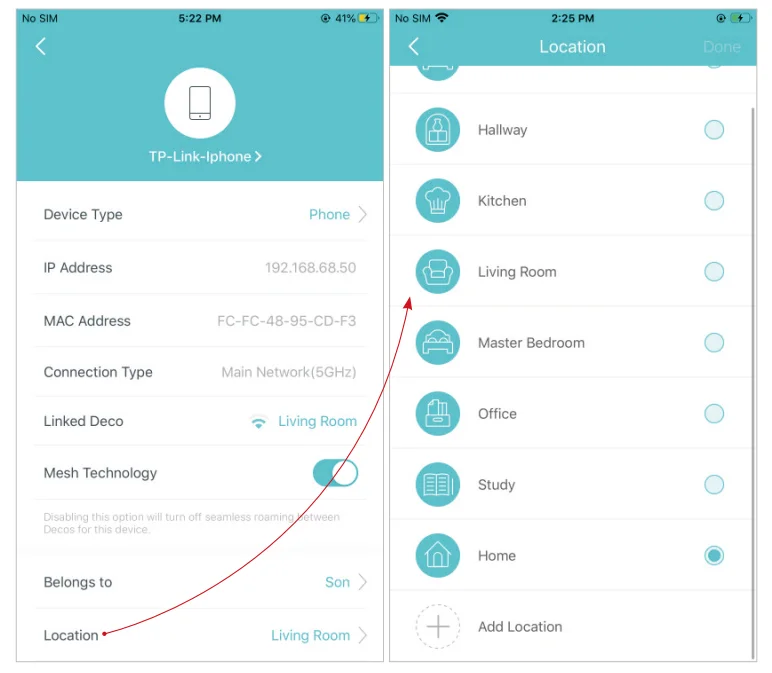
- Tap Location to sort the devices by customized locations so that you can quickly find and manage the devices.

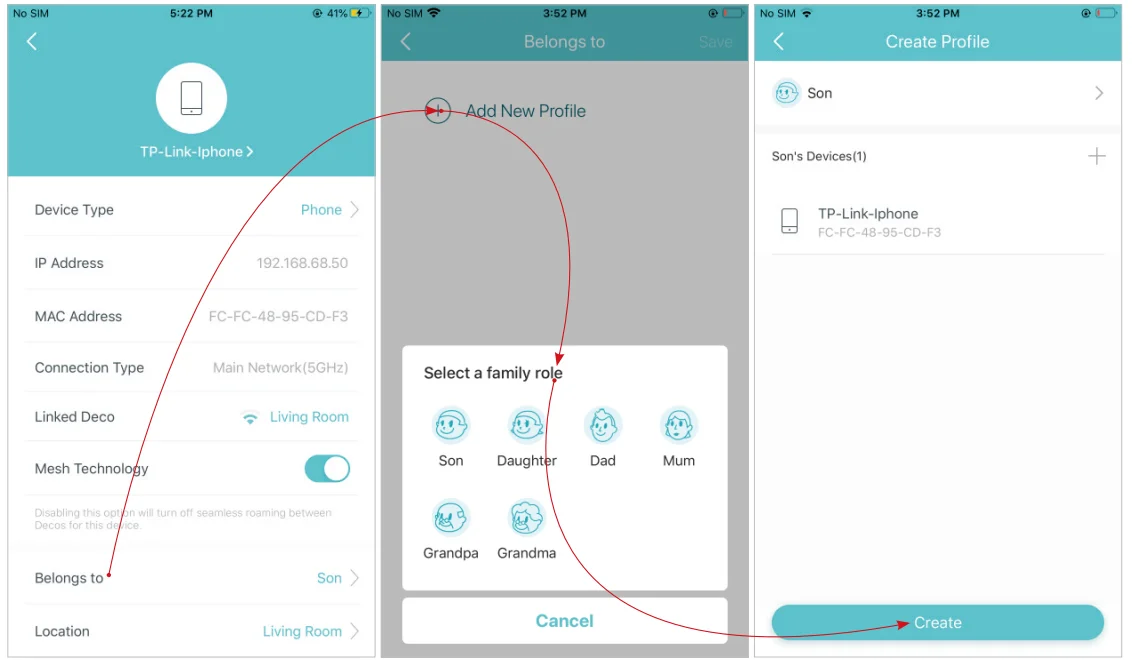
- Tap Belongs to add a unique profile for the device and manage its online activities. For example, when and for how long this device can access the internet, block inappropriate content, and pause the internet if necessary. For more information about the feature, refer to HomeShield.

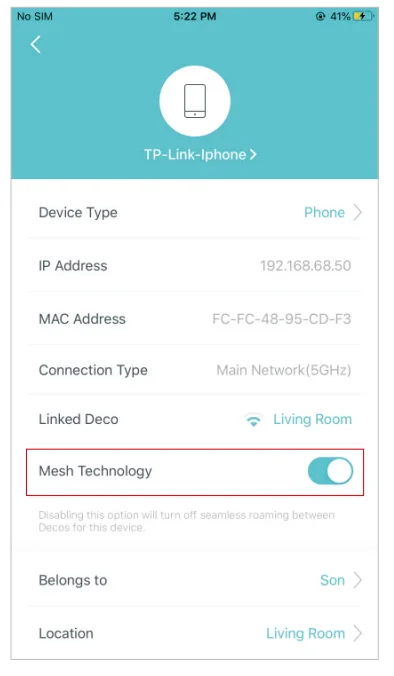
- Enable Mesh Technology, and then the device can seamlessly switch to the Deco that provides the fastest speed as you move around.

 Change the device name as needed.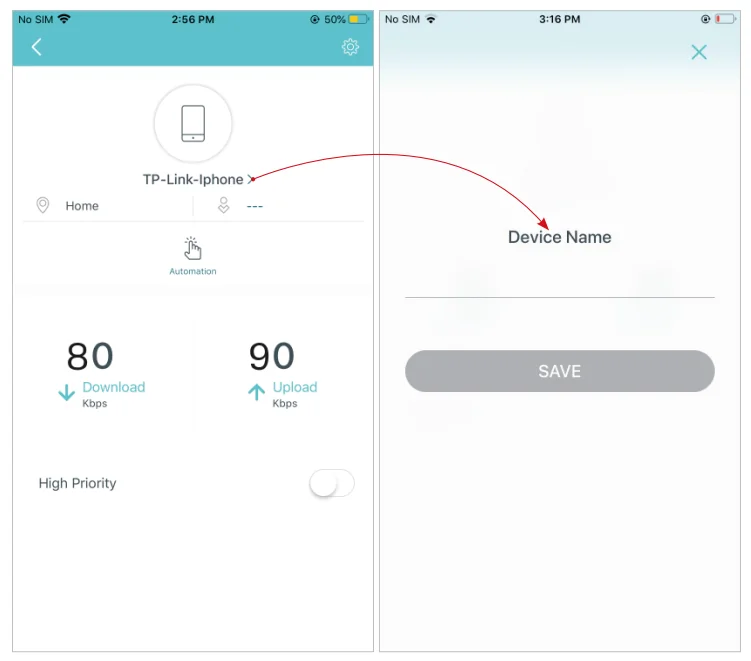
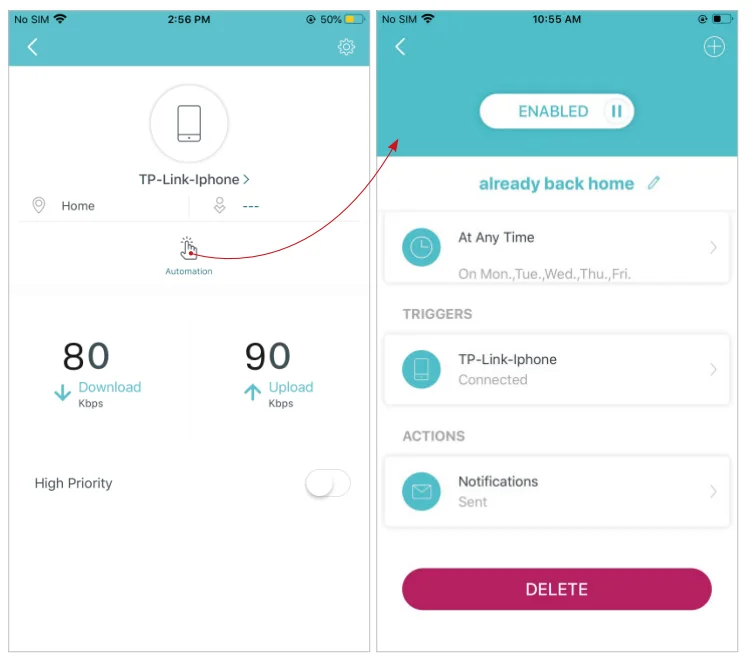
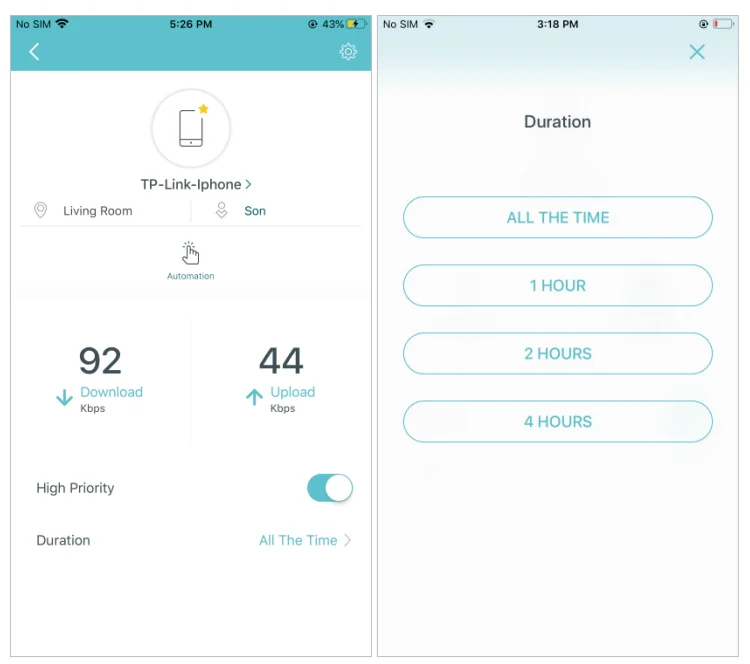
 to manage the device settings, including changing the device name/type, viewing device detailed information (IP address, MAC address, connected network, linked Deco, etc.), and more.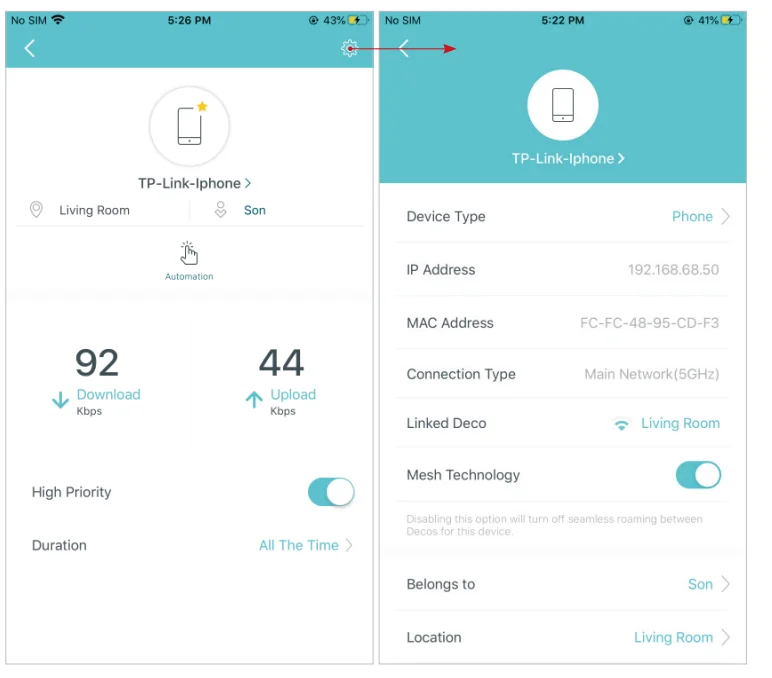
Sort Devices By Locations
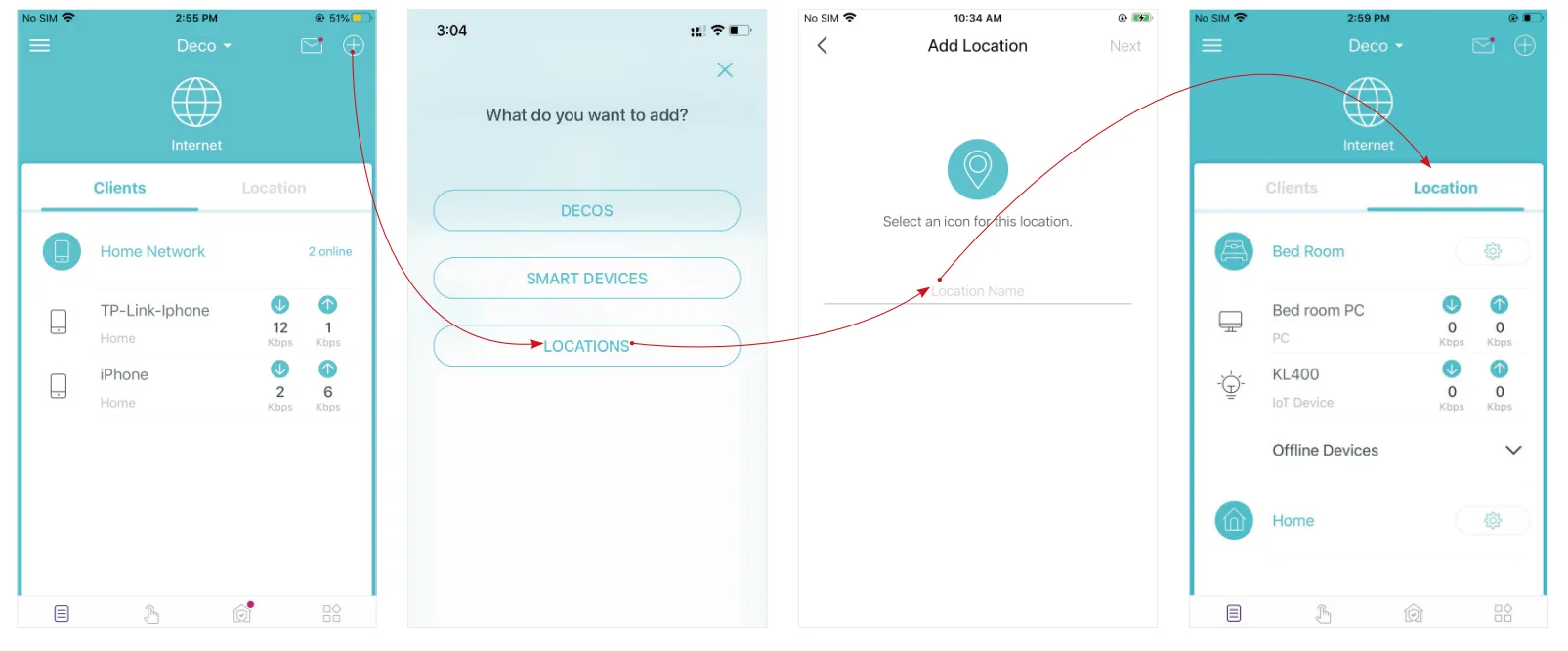
After adding your devices to the Deco network, you can sort them by customized locations so that it will be more convenient and efficient to manage your devices. For example, you can add the lights and computer in your bedroom to a location set as “Bedroom”, so you can quickly find and manage these devices.
- In Overview, tap + > LOCATIONS. Follow the app instructions to sort your devices by location.
Create a New Network
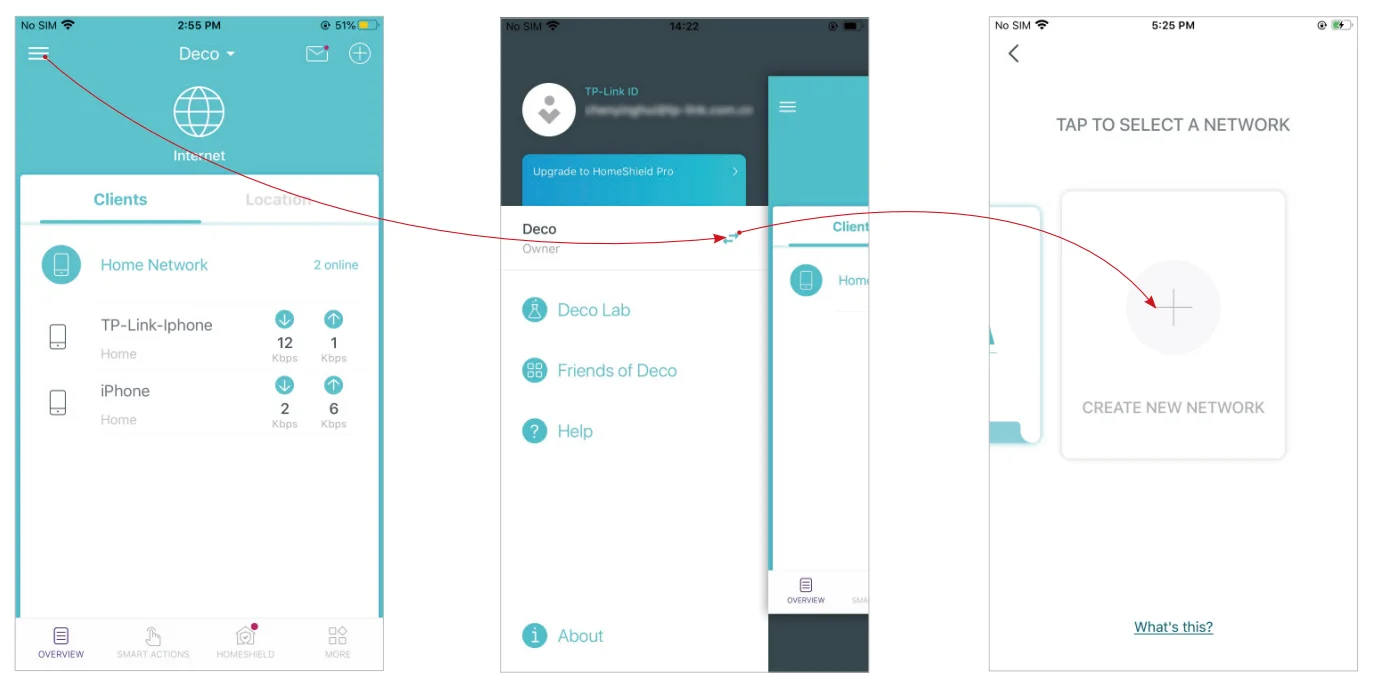
In the Deco app, you can create different Deco networks with your TP Link ID and manage them conveniently from the Deco app with one account. You can also help family or friends manage their networks with your Deco app. Two methods are provided below to create a new network.
Method 1. Create a new network from the Overview page
- Tap
 > Create New Network. Then follow the app instructions to complete the setup.
 > Create New Network. Then follow the app instructions to complete the setup.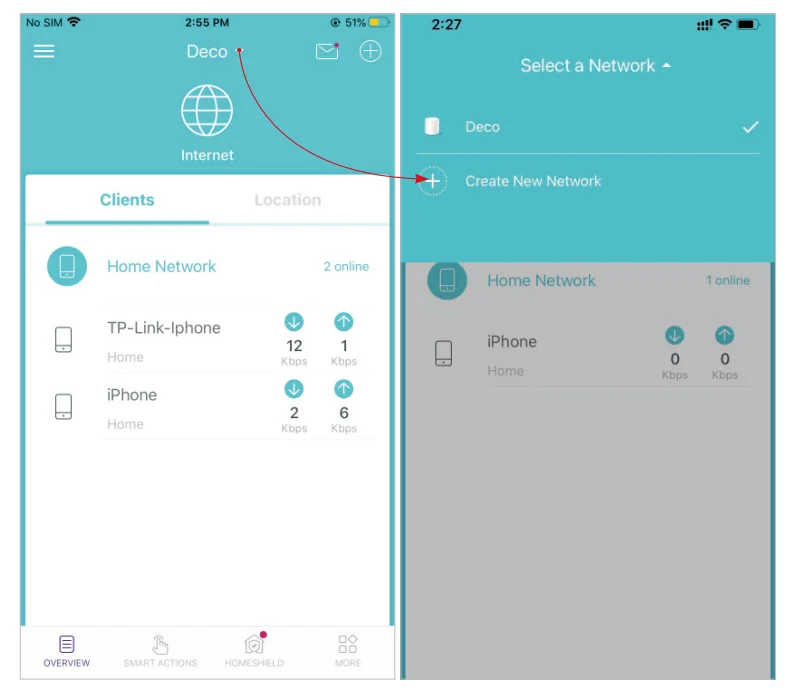
Method 2. Create a new network from the Menu page
- Tapto open the menu.
- Follow the app instructions to complete the setup.
Change Network Owner
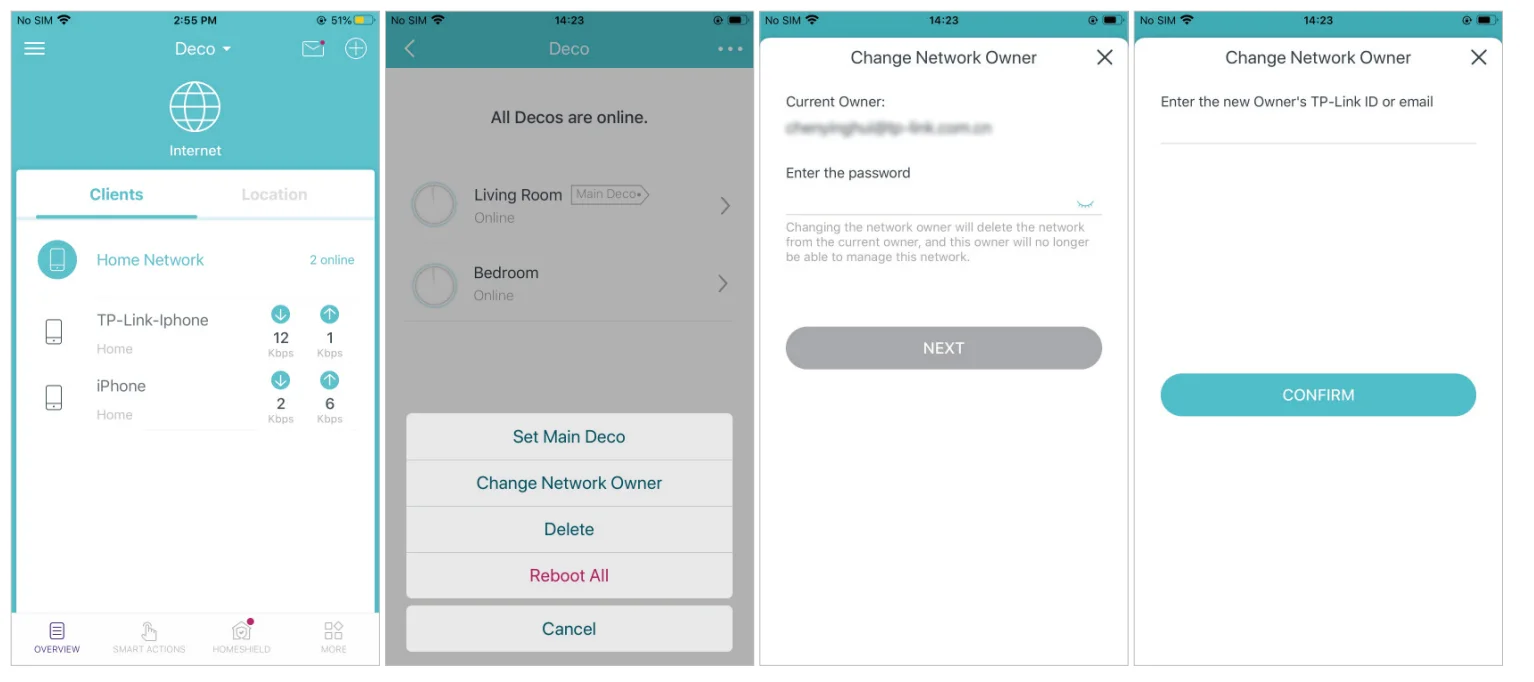
You can change the network owner on the Deco app without resetting the whole Deco network. Follow the steps below.
In Overview, tap >
> > Change Network Owner. Follow the app instructions to change the network owner. Then you will not be able to manage this network with your account anymore. The new owner needs to follow the steps in an email sent from TP-Link to log in and manage the network.
Note: Changing the network owner will delete the network from the current owner, and this owner will no longer be able to manage this network.
Delete a Network
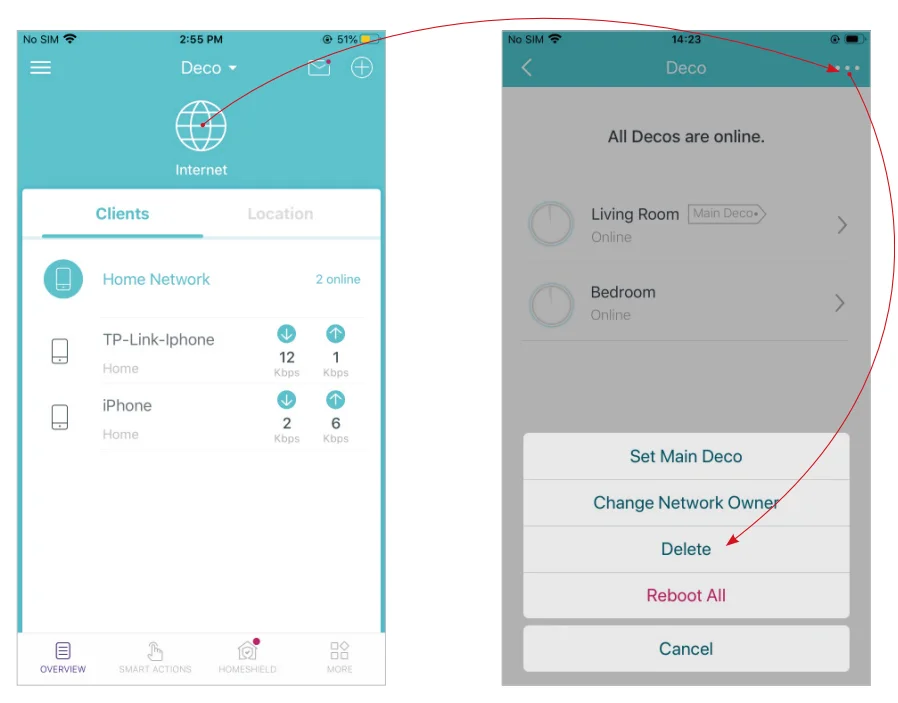
You can delete a Deco network if you don’t need it anymore. Deleting a Deco network will reset all Decos in this network to factory default settings.
- In Overview,tap.
- Tap> Delete.
Add Smart Devices
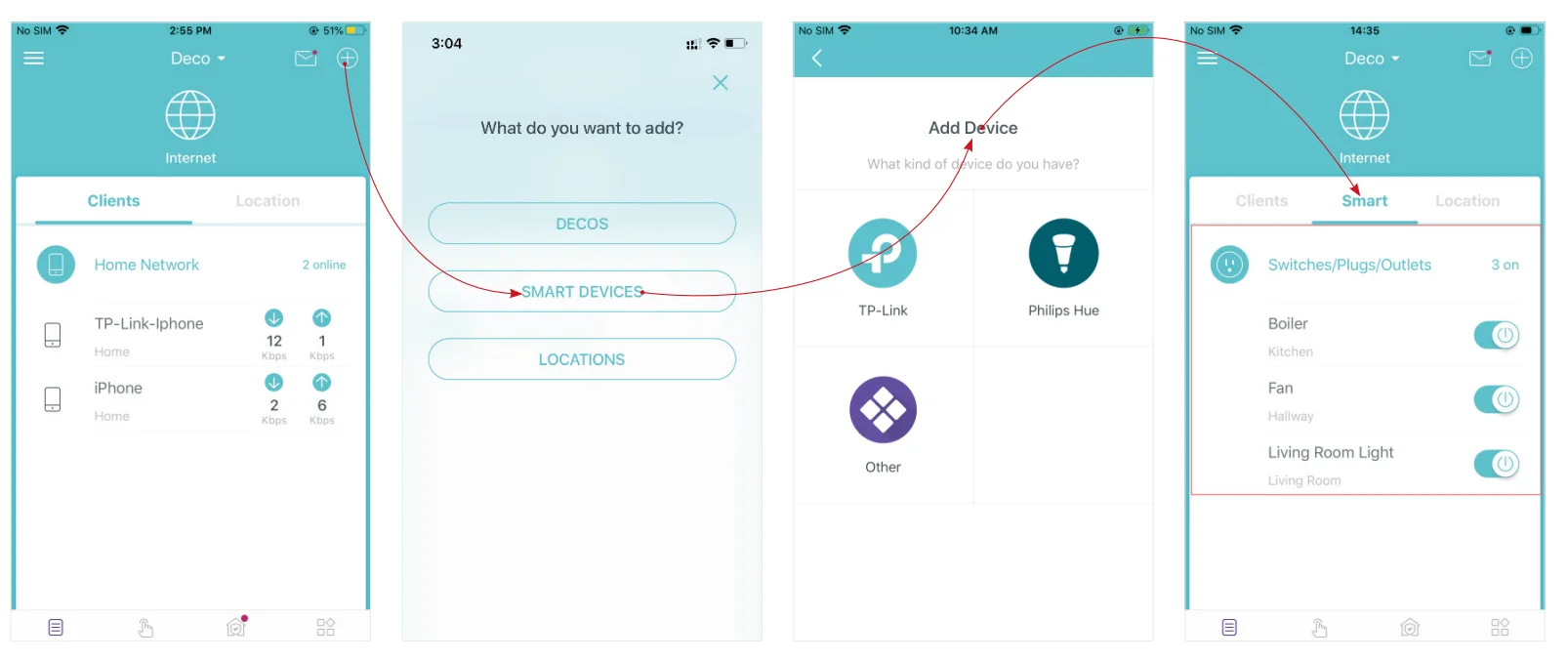
After creating a Deco network, you can add your smart home devices to the network and manage them conveniently on your Deco app.
- In Overview, tap + > SMART DEVICES. Follow the app instructions to add your smart devices to the network. Then the smart devices will display on the Overview page as shown below.
Shortcut
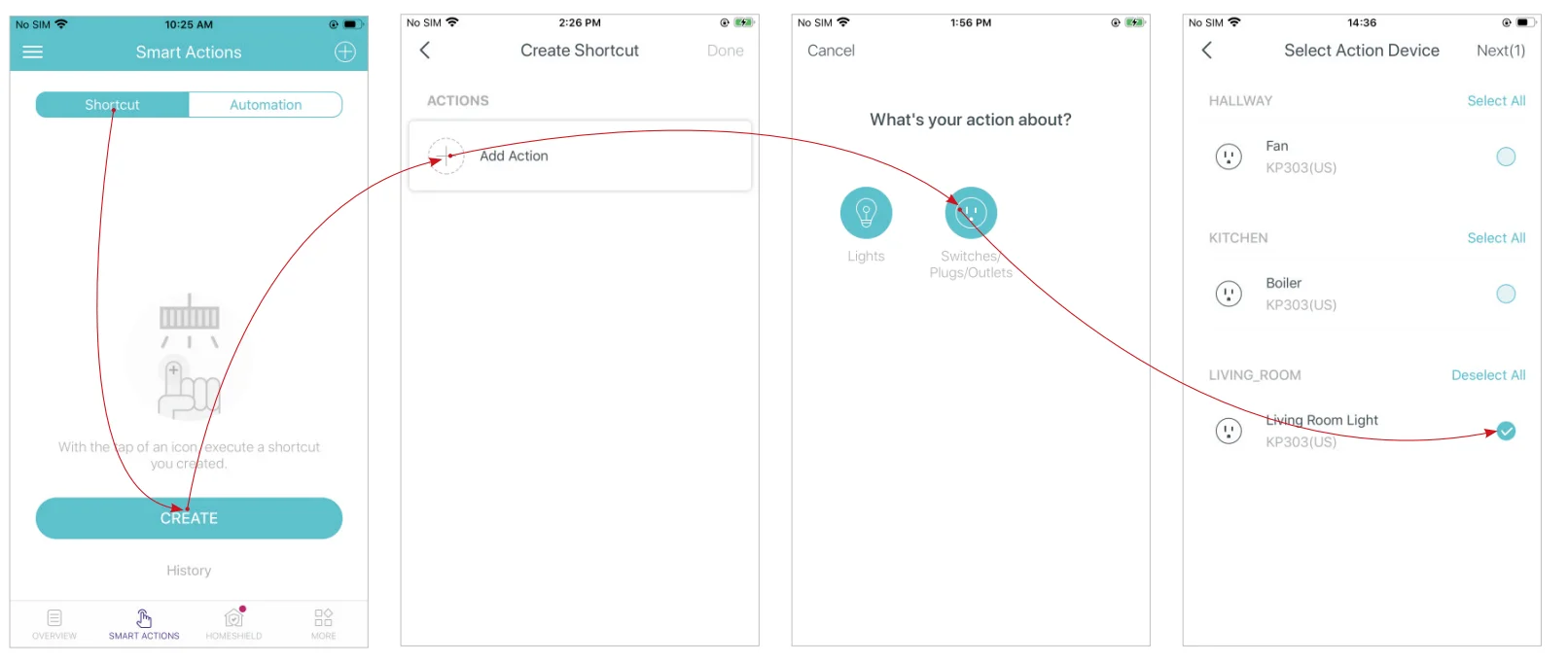
Shortcut lets you achieve an action with a simple tap. For example, if you want to power on your living room light at one tap, follow the steps below.
Note: If you want to create shortcuts for your smart devices, follow Add Smart Devices to add the smart devices to the Deco network first.
- Tap
 > Shortcut > CREATE.
 - Add an action.
- Choose an action type.
- Choose the action device.

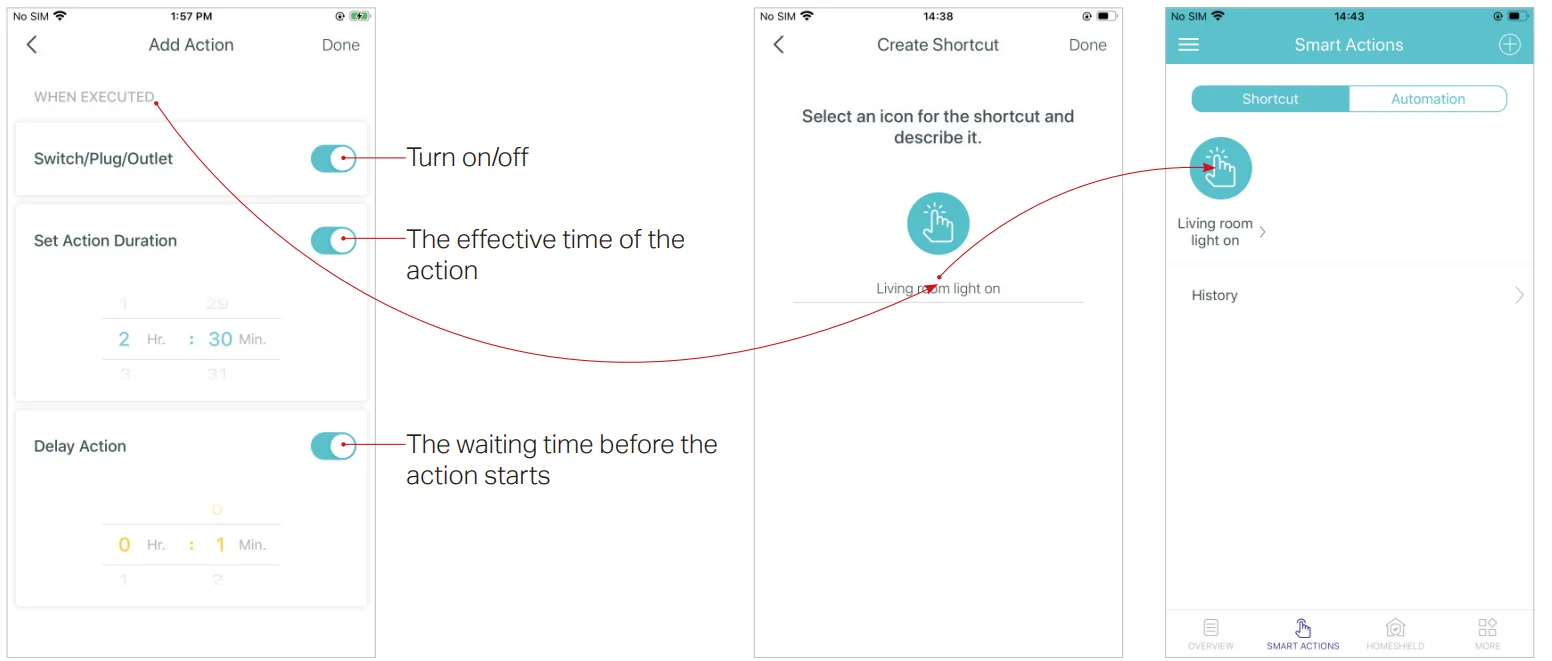
- Set how the action behaves when executed. For example, set as below, then the living room light will turn on 1 minute after you tap the shortcut icon and will turn off automatically after 2.5 hours.
- Select an icon and set a name for the shortcut to finish the settings.
- Tap the icon to execute the action.
Tip: If you have set a Delay Action, you will need to wait for the time you set before the action takes effect.
Automation
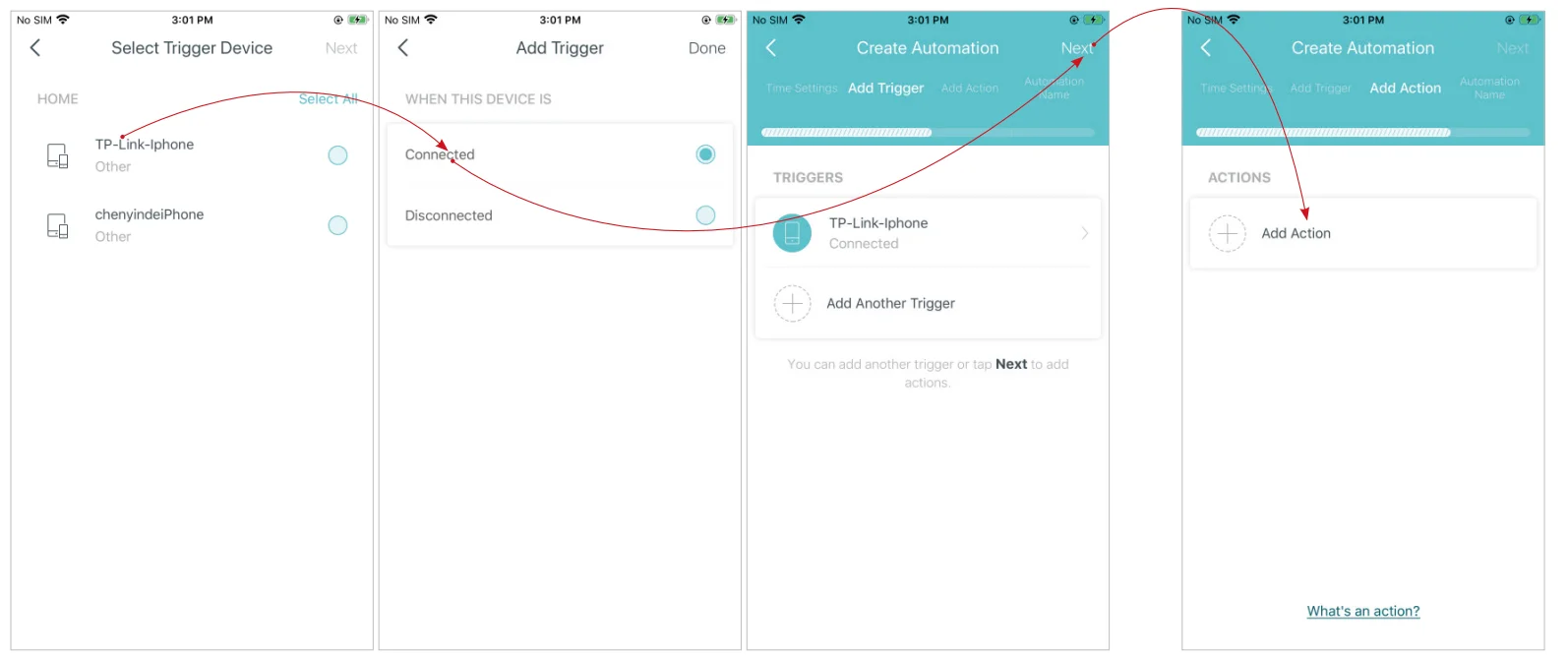
Automation allows you to set interactions between your devices by adding triggers and actions. For example, when you get home, and your smartphone is connected to the Deco network (which is a trigger), the living room plug automatically turns on (which is an action). Then the kettle plugged into the living room plug will start to boil water. Take this example to show the setup steps as follows. Follow the steps to create an automation.
Note: If you want to create automations for your smart devices, follow Add Smart Devices to add the devices to the Deco network first.
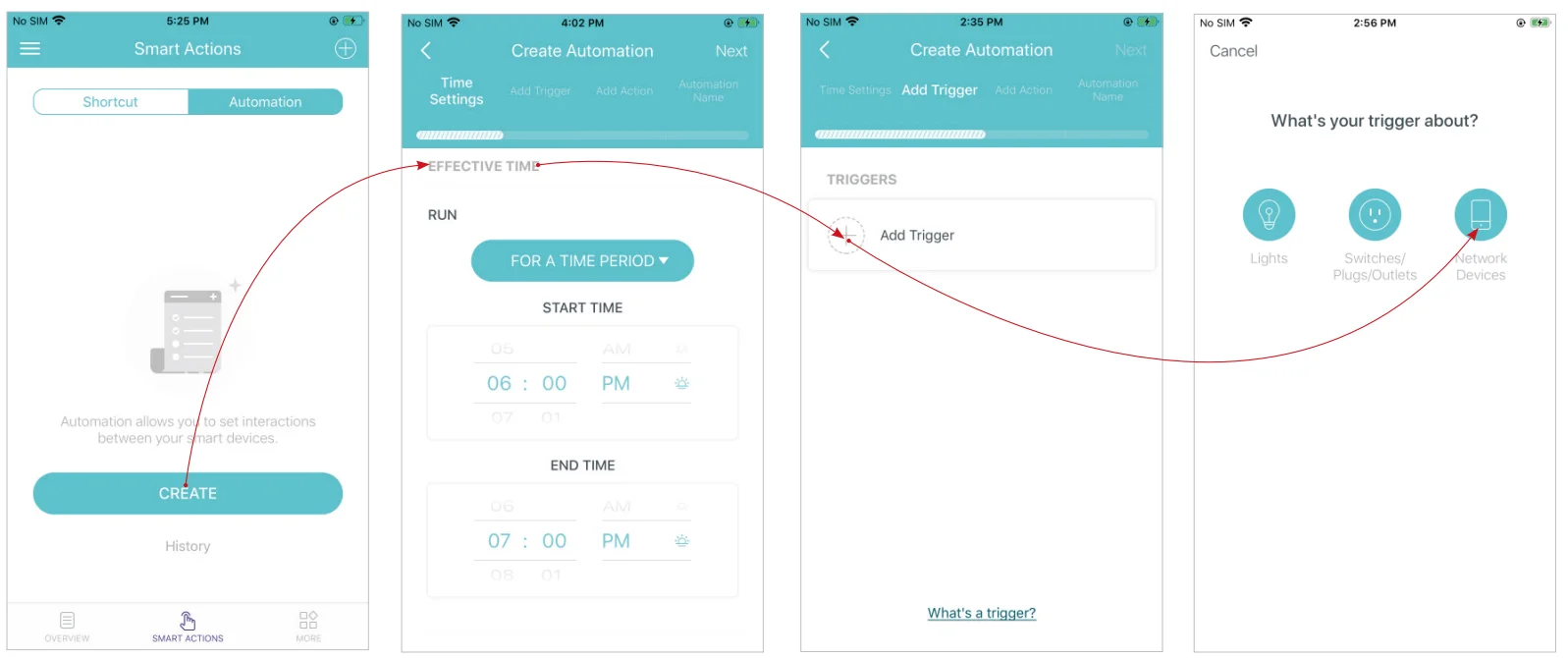
- Tap> Automation > CREATE.
- Set when the automation takes effect.
- Add a trigger.
- Select the trigger type.

- Select the trigger device and set the trigger details.
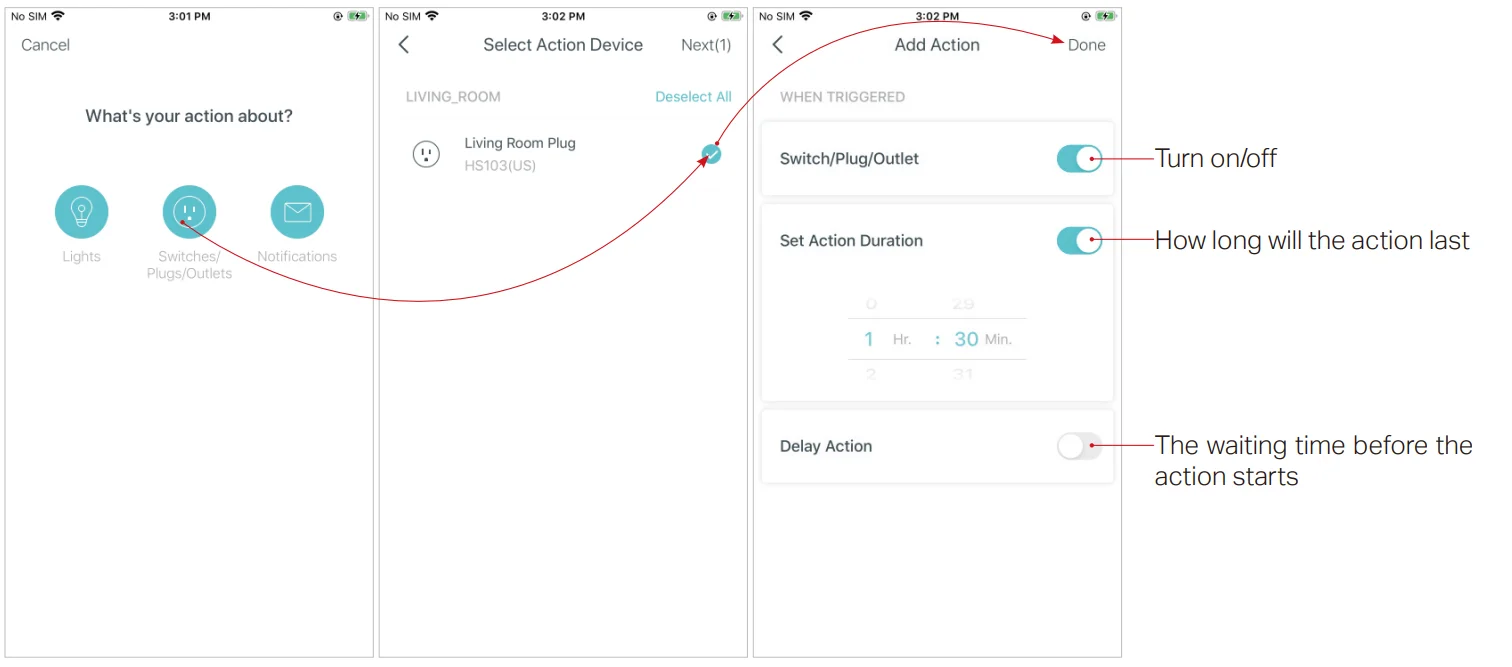
- Add an action.

- Select the action device and set the action details. For example, set the action as below, then the living room plug will turn on after you tap the shortcut icon, and will turn off automatically after 1.5 hours.
Tip: If you have set a Delay Action, you will need to wait for the time you set before the action takes effect.
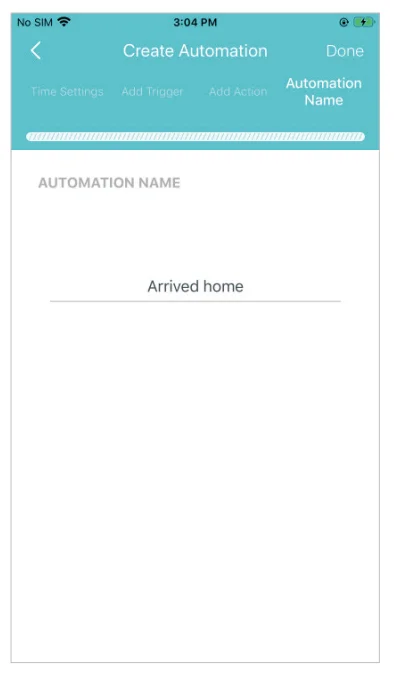
- Set a name for the automation.

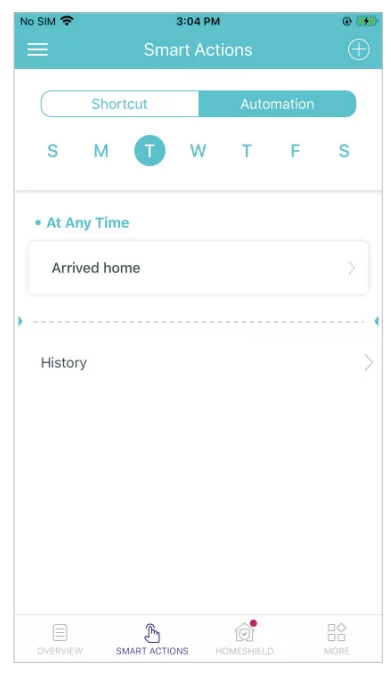
- Automation setup completed. The automation will take effect when the trigger is executed.

HomeShield
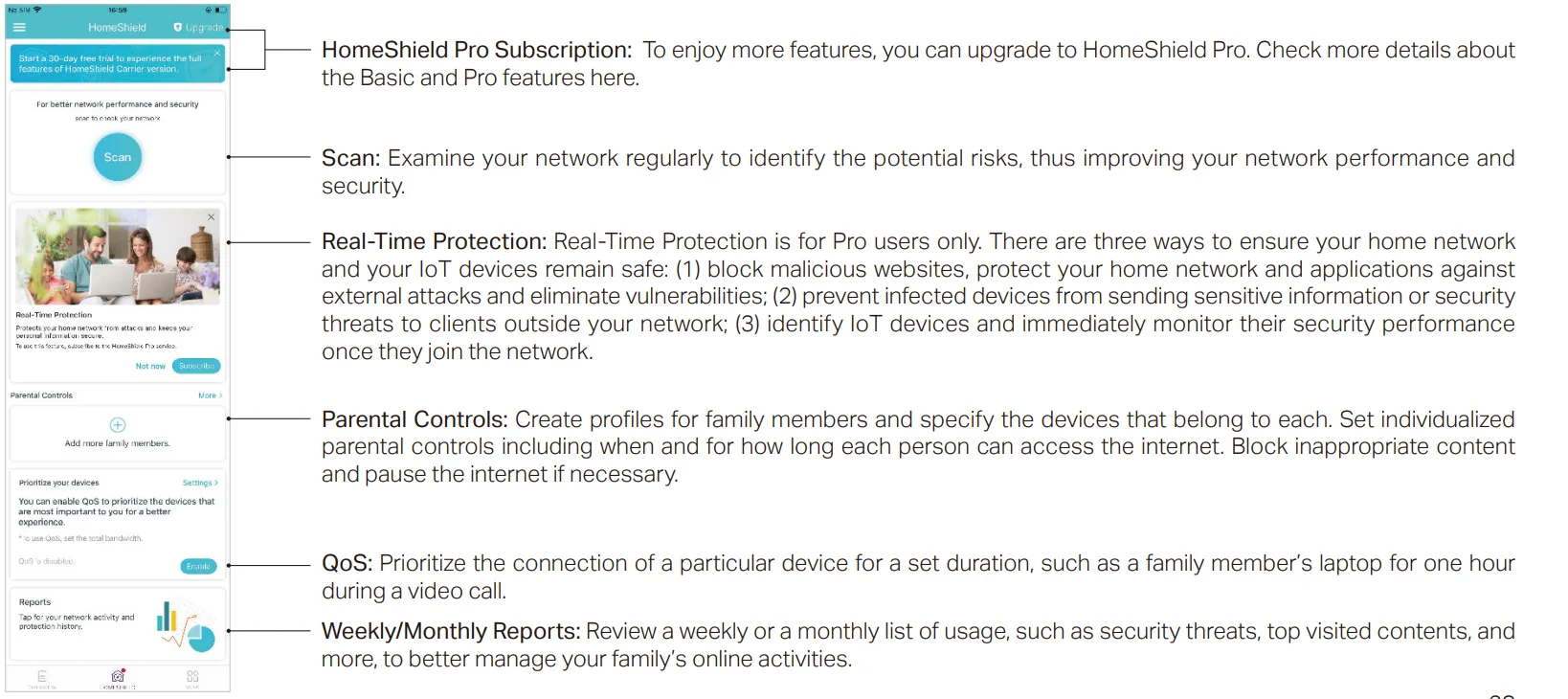
Whether protecting your network from malicious attacks, managing your family’s online activities, or prioritizing devices to get better performance, TP-Link HomeShield provides you a kit of basic (free) and Pro (charged) features to enhance your whole home network with enhanced security. An overview of HomeShield features is shown below.
- What is HomeShield: https://www.tp-link.com/homeshield/
- How to use HomeShield features and upgrade to HomeShield Pro: go to the product support page at https://www.tp-link.com and refer to TP-Link HomeShield User Guide.
Wi-Fi Settings
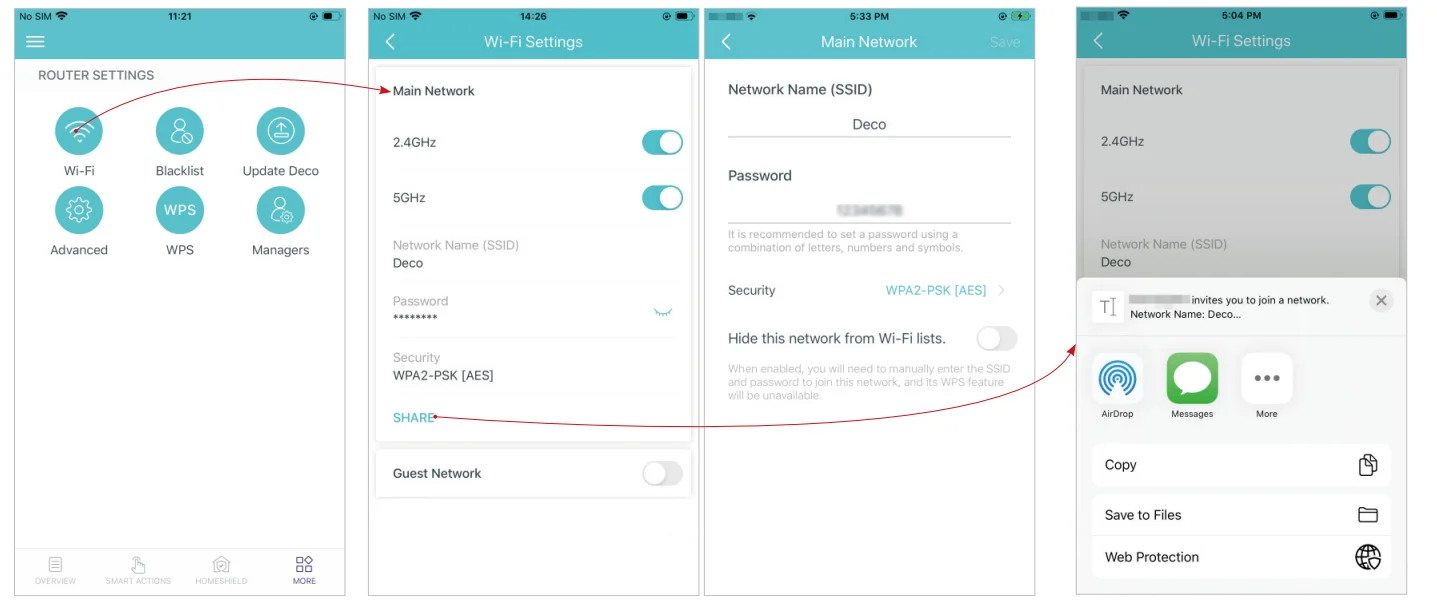
You can change the network name and password of your main network at any time and share the network easily with family and friends.
- Tap
 > Wi-Fi.
 - Manage the main network (e.g. change your main network’s Wi-Fi name and password, hide the network from the Wi-Fi list, etc.).
- Share your network with others.
Guest Network
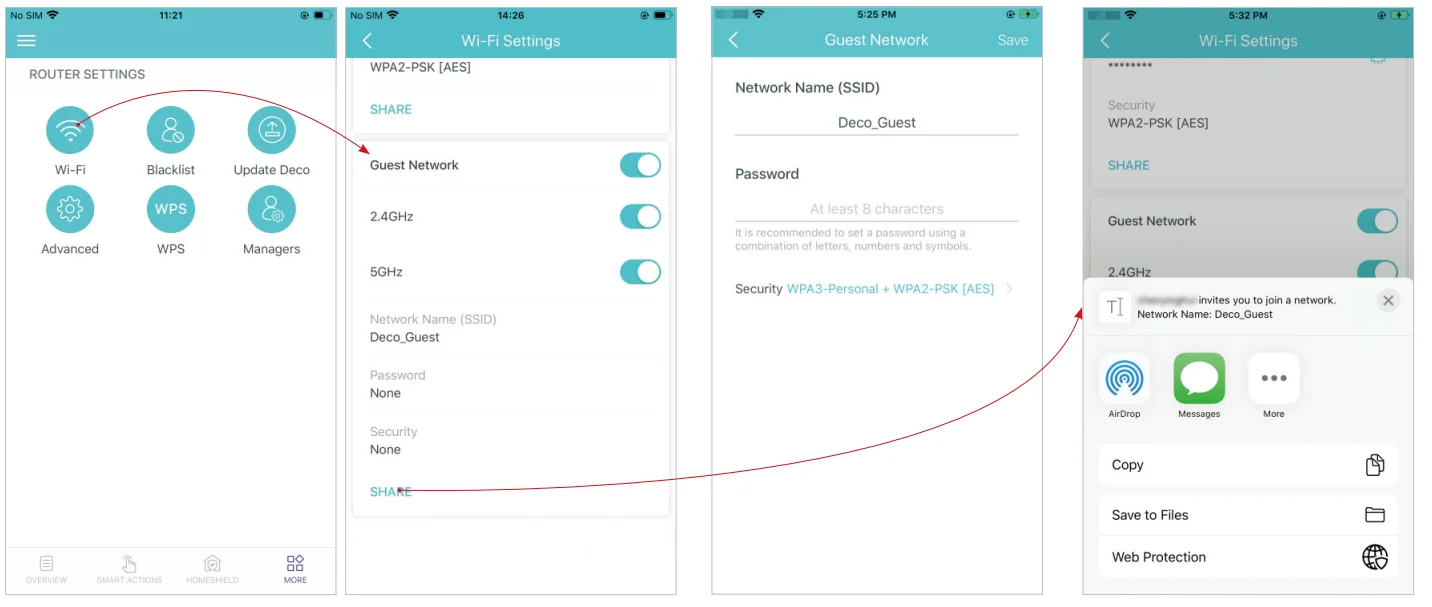
You can create and share a separate network for guests to guarantee the security and privacy of your main network.
- Tap> Wi-Fi and enable Guest Network.
- Set a Wi-Fi name and password for the guest network.
- Share your guest network with others.
Blacklist
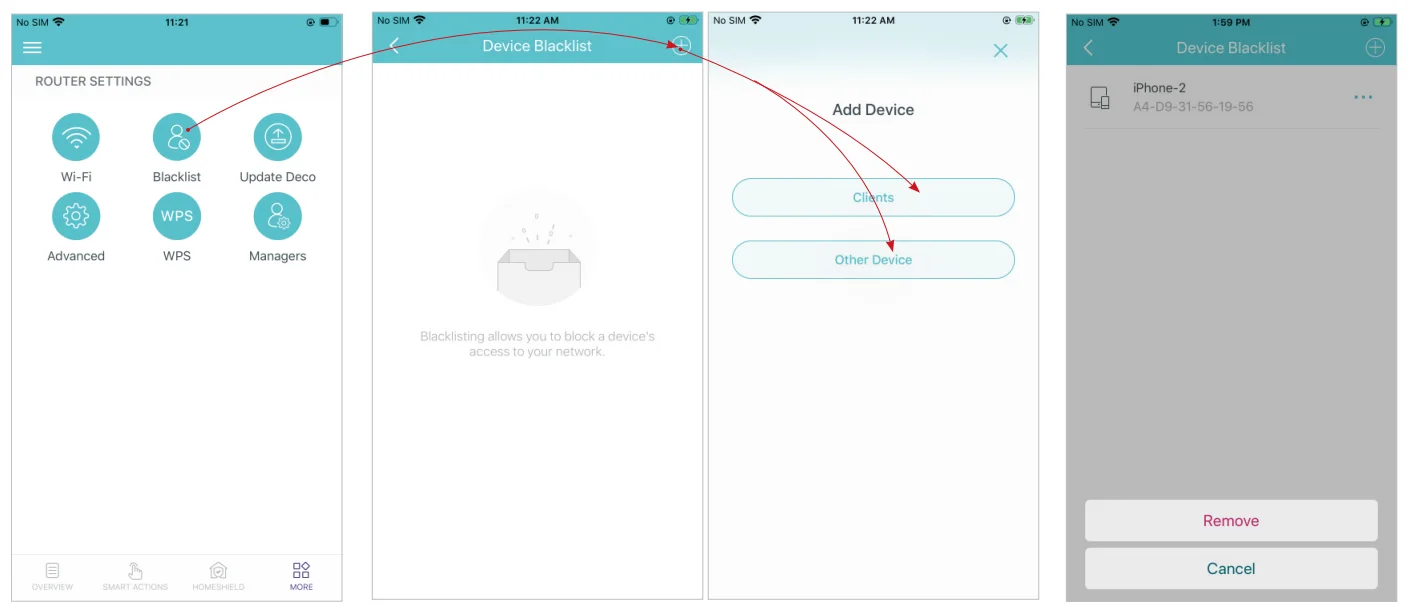
Add devices to the blacklist to prevent the devices from accessing your network, ensuring the safety of your personal information shared in the network.
- Tap> Blacklist.
- Tap + and add clients or other devices to the blacklist.
- Remove devices/clients from blacklist.
Upgrade Your Deco
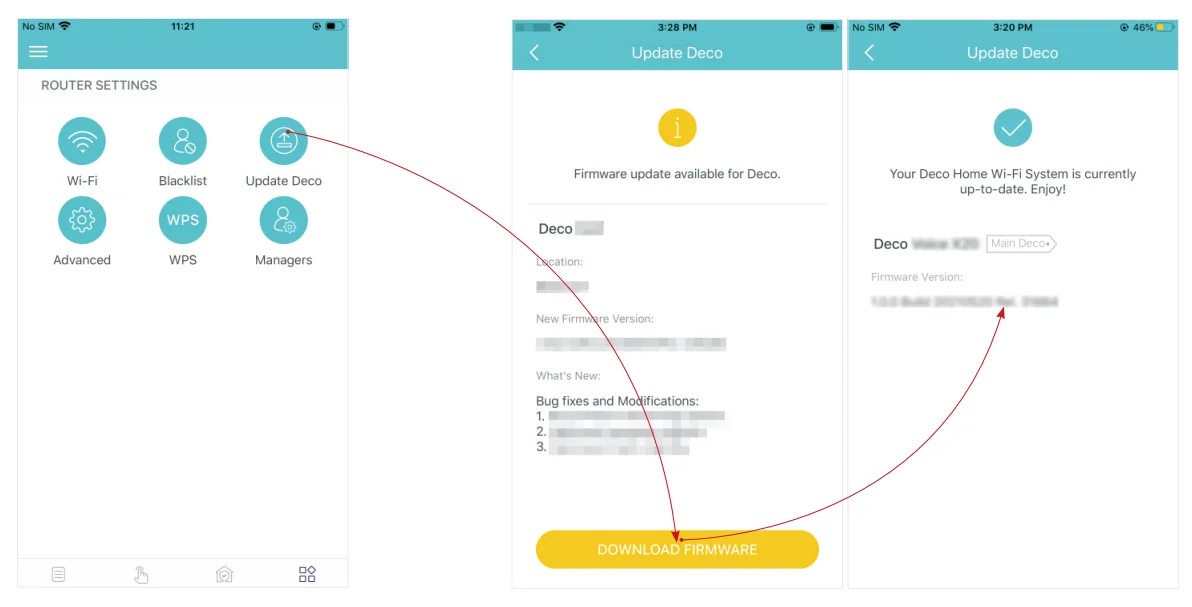
TP-Link is dedicated to improving product features and providing a better customer experience. An up-to-date firmware provides better and more stable network performance. Always update your Deco to the latest firmware version when prompted in the Deco app.
- Tap> Update Deco
- Download and install the firmware (if any) and follow the app instructions to update your Deco to the latest version.
Advanced Features
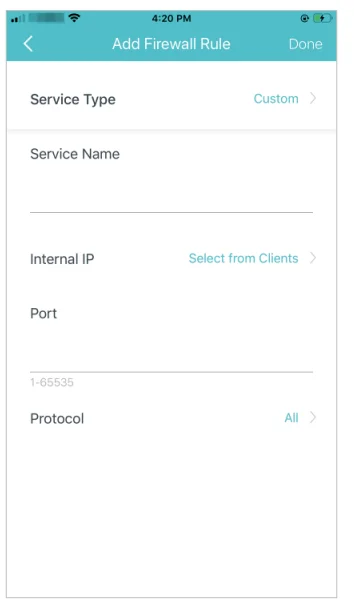
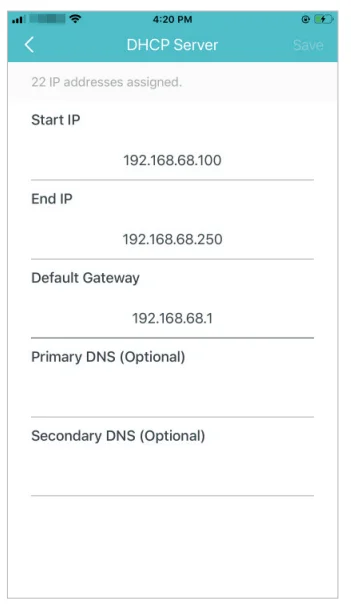
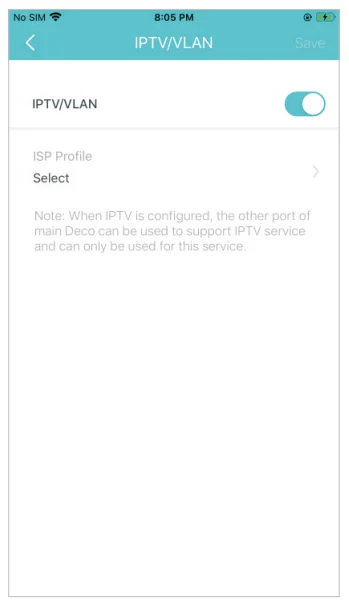
Additional features are available under the Advanced menu. You can modify WAN settings (IPv4 & IPv6), add IPv6 firewall rules, modify LAN IP, set up DHCP server, enable VLAN/IPTV/MAC Clone mode, reserve the same IP address for a specific device, set up port forwarding rules to make your local computers accessible to other devices over the internet, enable TP-Link DDNS/SIP ALG/UPNP/fast roaming/beamforming, control Deco’s LED, change the operation mode, set connection alerts and notifications.
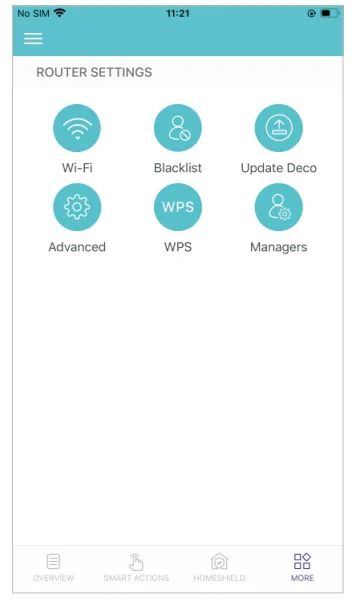
- Tap> Advanced.

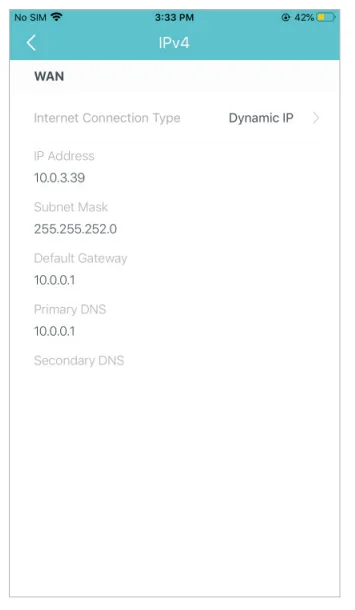
- View IPv4 details or change the internet connection type.

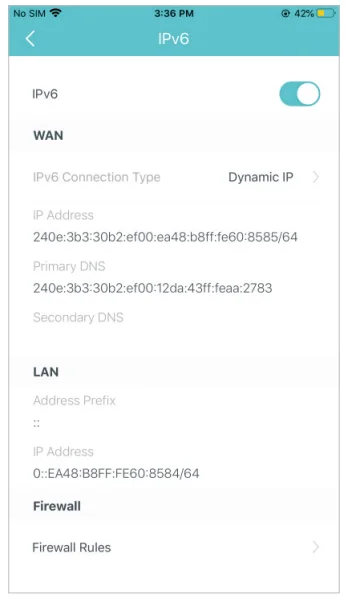
- Enable IPv6 to set up an IPv6 internet connection.

- Add IPv6 firewall rules to allow specific devices to access the specified services.

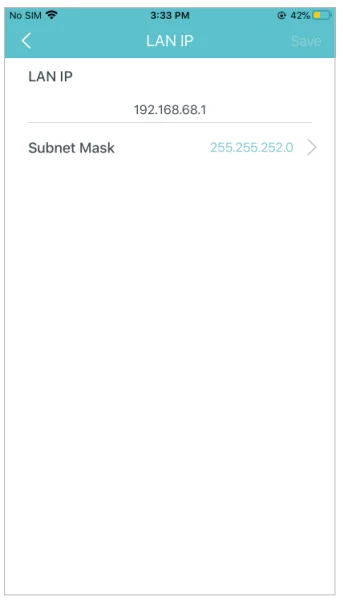
- Modify the LAN IP to avoid IP address conflict.

- Change the DHCP server settings.

- Enable IPTV/VLAN mode to support IPTV services.

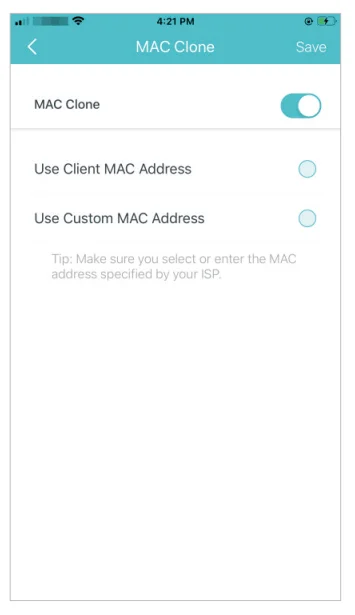
- Enable MAC Clone if Deco fails to connect to the internet.
Tip: For more about MAC Clone, refer to https://www.tp-link.com/support/faq/2925/
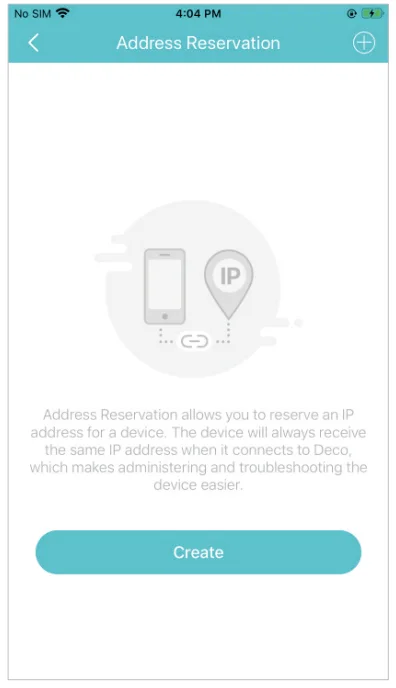
- Reserve IP addresses for specific devices to recognize and manage the devices more easily.

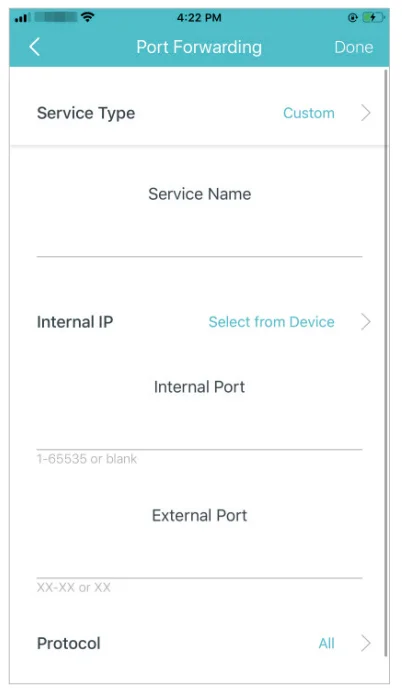
- Set up port forwarding rules to enable devices in your network to be accessible over the internet safely.

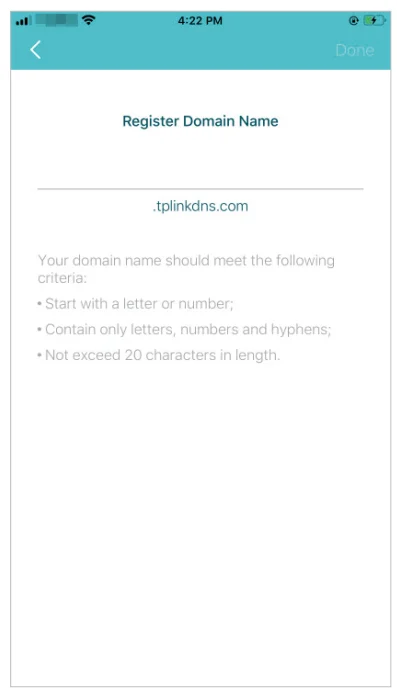
- Register a TP-Link DDNS domain name to access your router and local servers using a domain name.

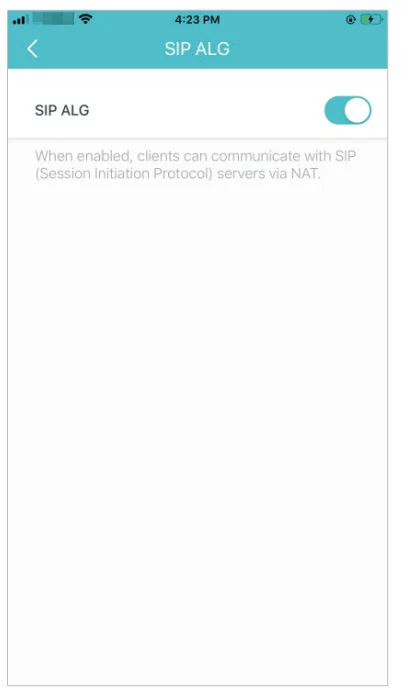
- Enable SIP ALG to communicate with SIP (Session Initiation Protocol) servers via NAT.
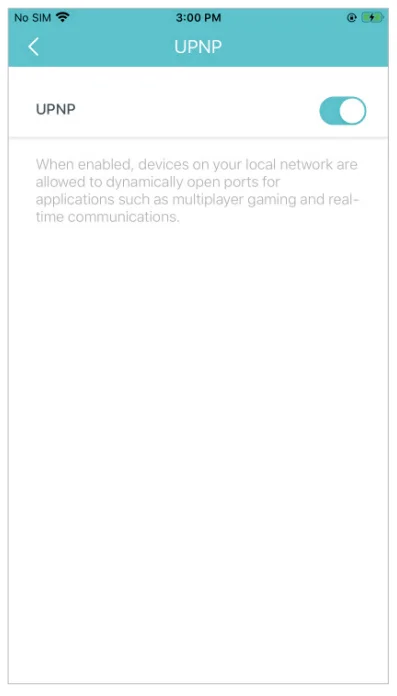
- Enable UPNP to allow your local network to dynamically open ports for applications like gaming.

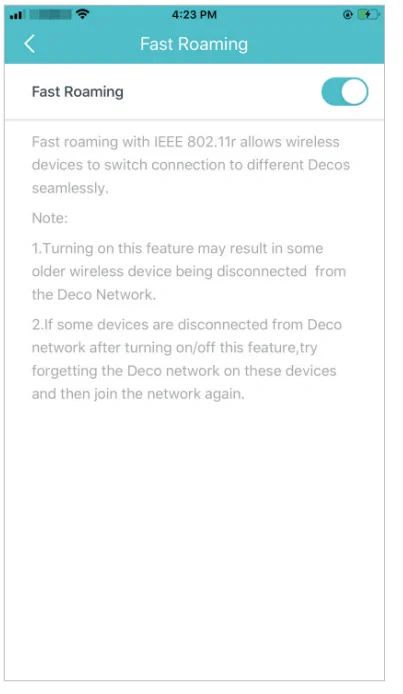
- Enable Fast Roaming to allow your wireless devices to switch connections to different Decos.

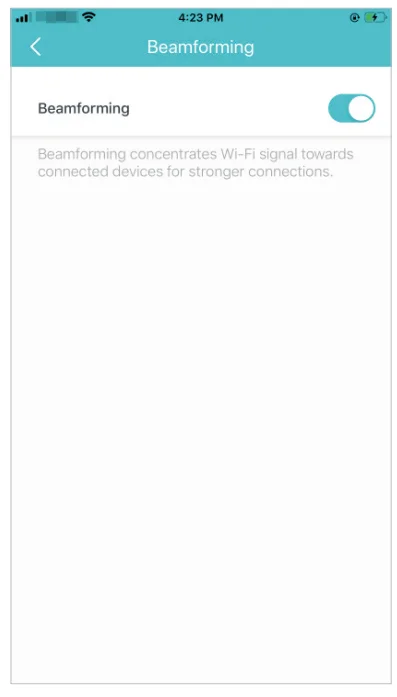
- Enable Beamforming to concentrate the Wi-Fi signal towards connected devices for stronger connections.

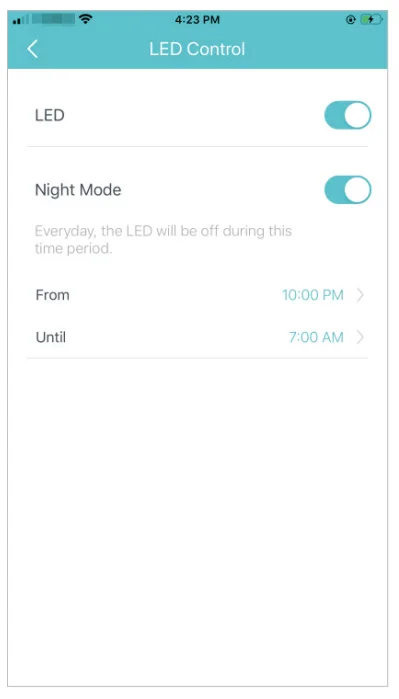
- Toggle off the LED to turn off the light on Deco. Configure the Night Mode to turn off the LED light at bedtime only.

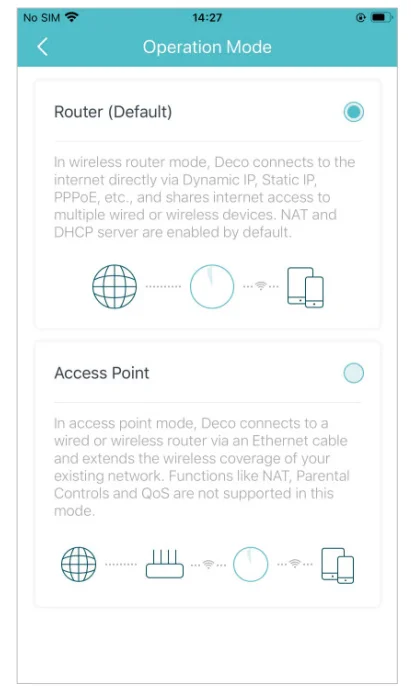
- Change the operation mode.

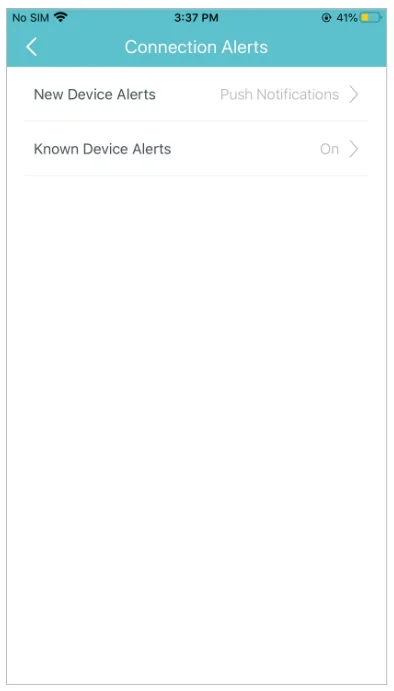
Note: When the Deco works in Access Point mode, advanced features such as IPv4, Address Reservation, Port Forwarding, and a DHCP server are not available. - Set connection alerts to receive notifications once the clients connect to or disconnect from Deco.

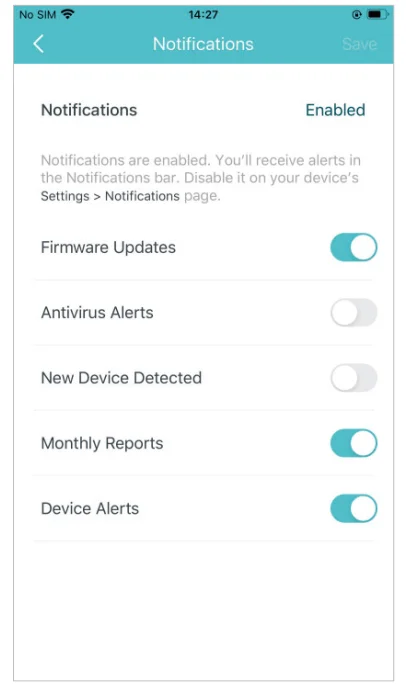
- Set notifications to receive alerts in the notification bar.
WPS
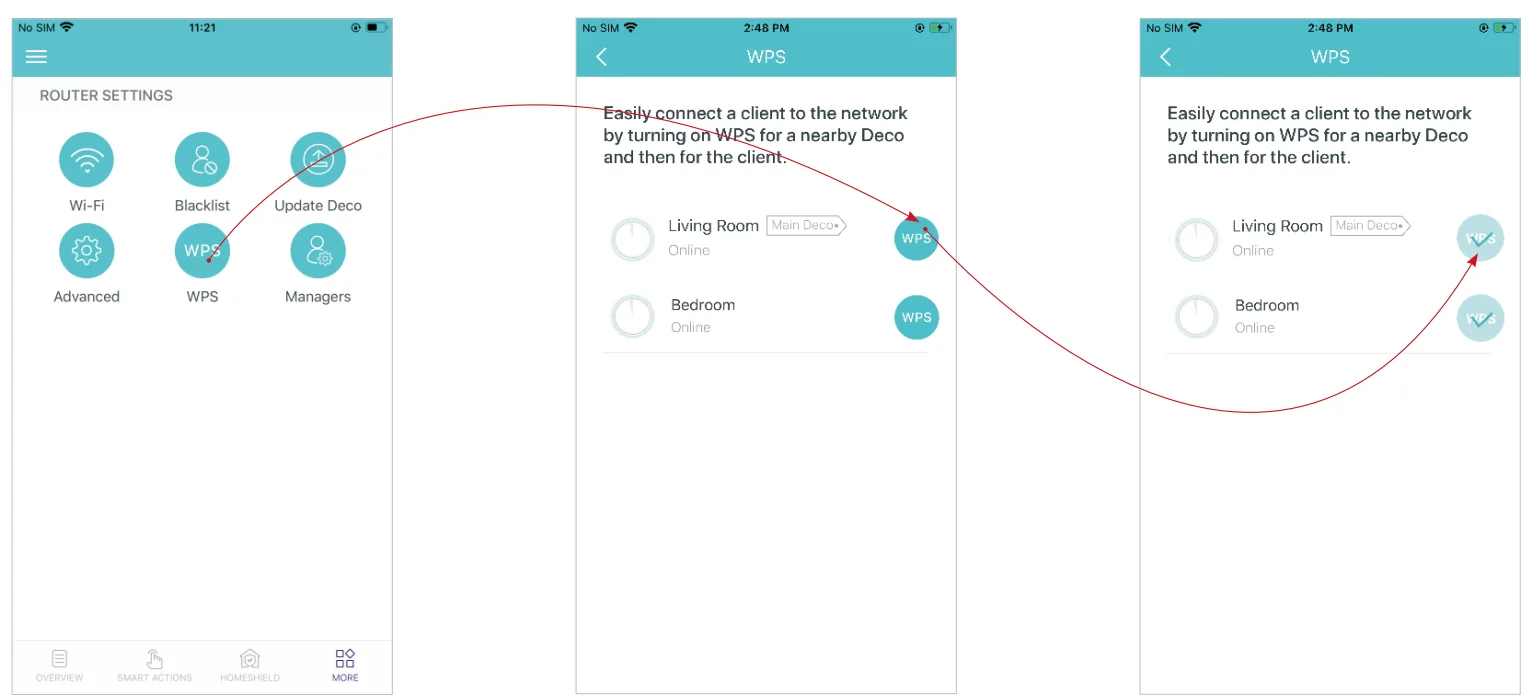
WPS (Wi-Fi Protected Setup) helps you to quickly and securely connect a client to the network with a tap without entering any password.
- Tap> WPS.
- Tap the WPS icon on the Deco app and then on your client.
- Your device has connected to the network successfully if shown as below.

Managers
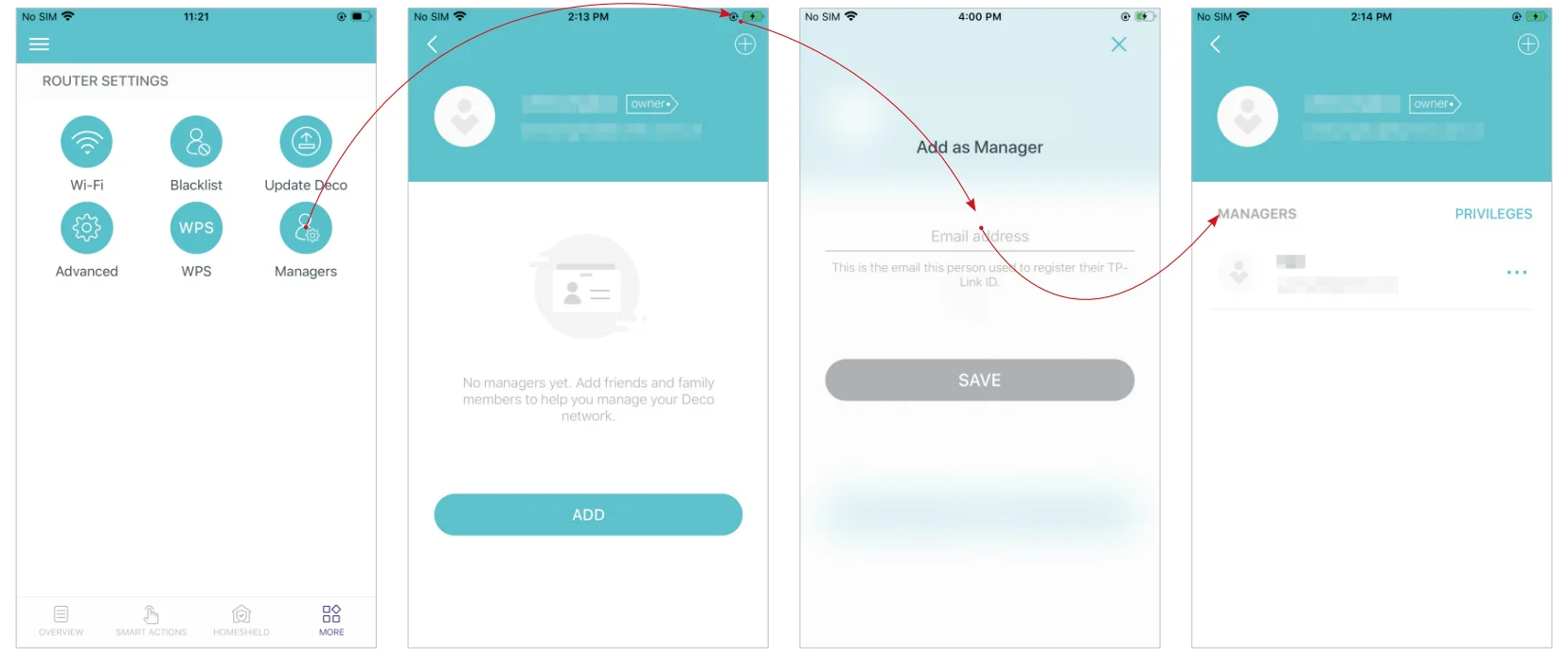
Add friends and family members to help manage your network. Each manager should have their own TP-Link ID.
Note: Managers can not modify the owner’s account, add other accounts, or set manager privileges.
- Tap> Managers, and follow the app instructions to add other TP-Link ID accounts as managers.

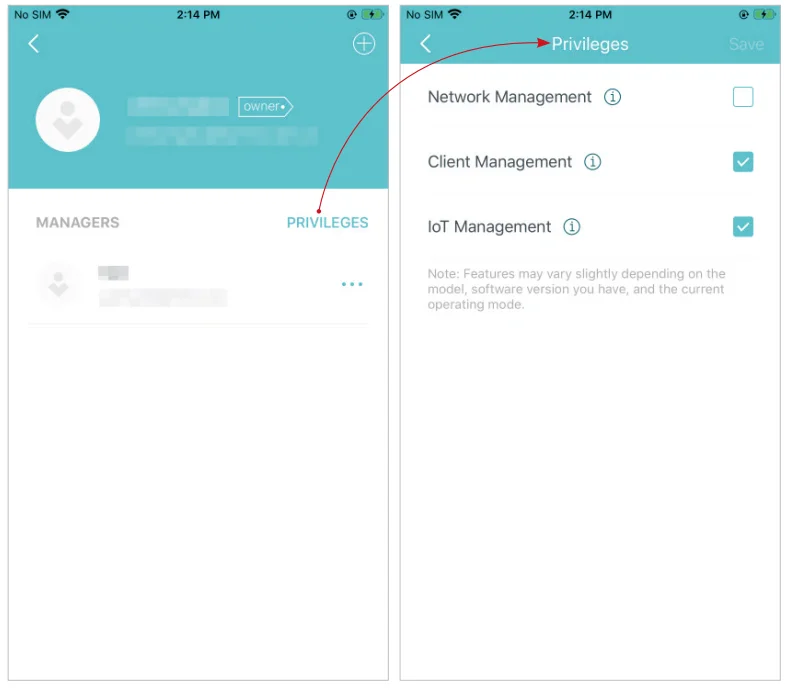
- Set privileges for managers.
Note: Privileges may vary slightly depending on the model, the current operation mode, and the software version you have.
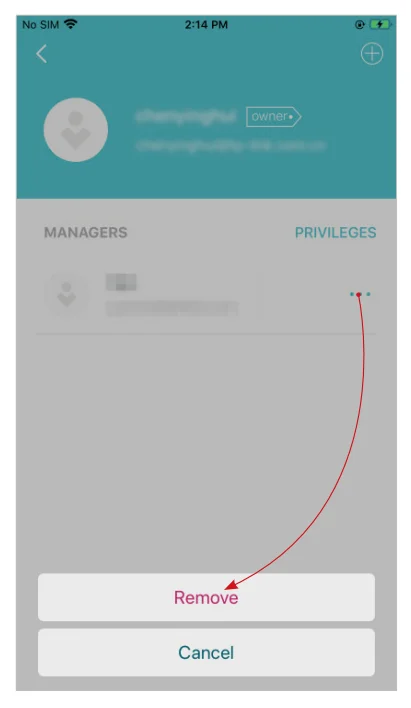
- Remove managers.
Control Your Deco with Alexa
Alexa Integration allows you to control your Deco using Amazon’s Alexa voice service. You can control and customize your home network by giving simple voice commands to Alexa, such as enabling the Guest Network, turning off your Deco LEDs, and more. Follow the steps below to use Alexa voice commands to control your Deco network.
Tip: To know more about how to set up Alexa Integration in the Alexa app, refer to https://www.tp-link.com/support/faq/1571/.
Note: This feature is currently available in English (US), English (UK), German, and Japanese.
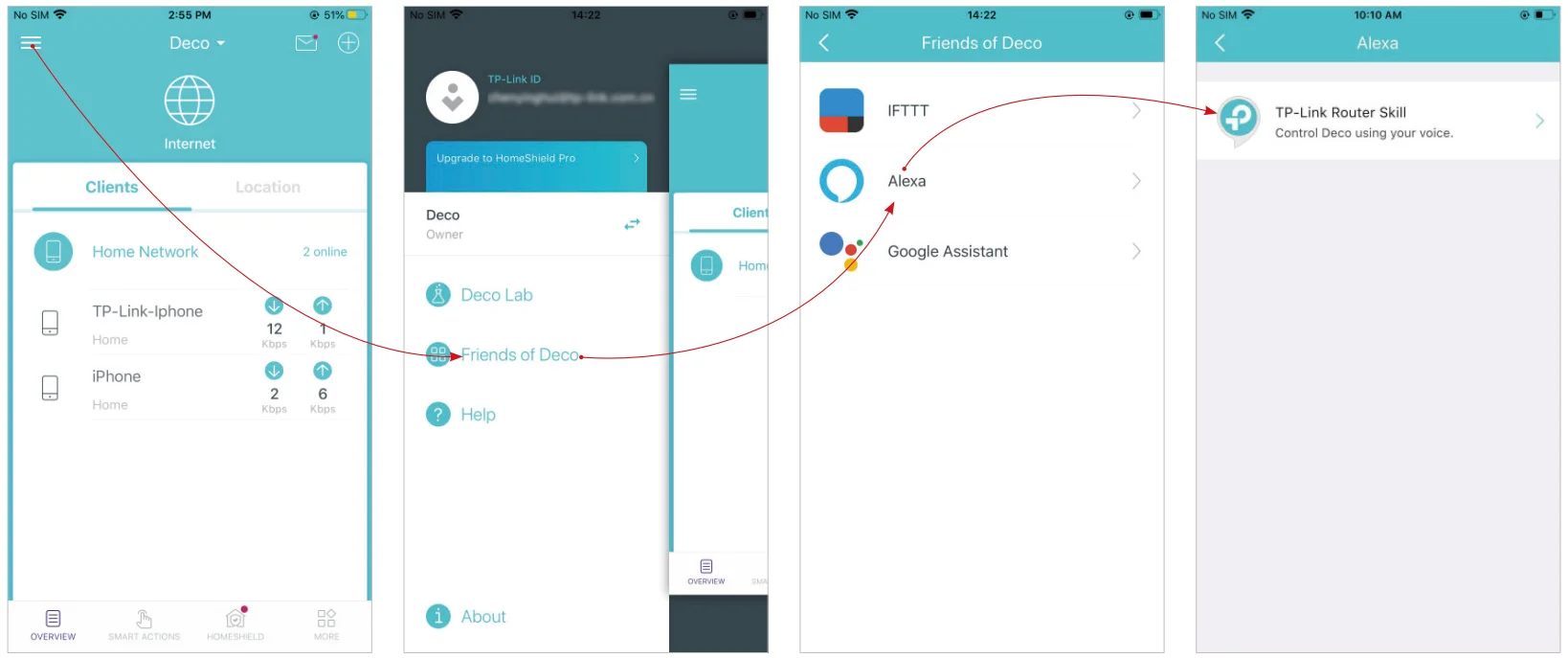
In the Deco app, tap to open the menu, tap Friends of Deco > Alexa > TP-Link Router Skill, then follow the app instructions to complete the setup.
Troubleshooting
Solutions to common problems during setup or use are provided here for reference. Follow the steps and the provided link below to diagnose and solve problems you might experience with your Deco. If problems still exist, contact us: https://www.tp-link.com/support
- Q1. What should I do if I fail to configure the main Deco and get stuck on “We couldn’t find Deco”?
Refer to the guide https://www.tp-link.com/support/faq/2239/ or follow the video https://youtu.be/2HYuEYS9XJM - Q2. What should I do if I fail to configure the satellite Deco and get stuck on “We couldn’t find another Deco”?
Refer to the guide https://www.tp-link.com/support/faq/1447/ or follow the video https://youtu.be/iVgDzoo16T4 - Q3. What should I do if I fail to configure the main Deco and get stuck on “Testing Internet Connection”?
Refer to the video https://youtu.be/OSUrGdWH-i0 - Q4. What should I do if my wireless devices cannot connect to Deco?
Refer to the guide https://www.tp-link.com/support/faq/2718/ - Q5. What should I do if Deco suddenly lost internet access?
Refer to the guide https://www.tp-link.com/support/faq/1454/ - Q6. How can I find a suitable spot for my Deco?
Refer to the guide https://www.tp-link.com//support/faq/1446/ - Q7. What can I do if the Deco app isn’t working properly?
Refer to the guide https://www.tp-link.com/support/faq/1456/
Authentication
FCC Compliance Information Statement
- Product Name: AX4300 Whole Home Mesh Wi-Fi 6 System
- Model Number: Deco X4300 Pro

Responsible party: TP-Link USA Corporation
- Address: 10 Mauchly, Irvine, CA 92618
- Website: http://www.tp-link.com/us/
- Tel: +1 626 333 0234
- Fax: +1 909 527 6804
- E-mail: [email protected]
This equipment has been tested and found to comply with the limits for a Class B digital device, pursuant to part 15 of the FCC Rules. These limits are designed to provide reasonable protection against harmful interference in a residential installation. This equipment generates, uses, and can radiate radio frequency energy and, if not installed and used in accordance with the instructions, may cause harmful interference to radio communications. However, there is no guarantee that interference will not occur in a particular installation. If this equipment does cause harmful interference to radio or television reception, which can be determined by turning the equipment off and on, the user is encouraged to try to correct the interference by one or more of the following measures:
- Reorient or relocate the receiving antenna.
- Increase the separation between the equipment and receiver.
- Connect the equipment into an outlet on a circuit different from that to which the receiver is connected.
- Consult the dealer or an experienced radio/ TV technician for help.
This device complies with part 15 of the FCC Rules. Operation is subject to the following two conditions:
- This device may not cause harmful interference.
- This device must accept any interference received, including interference that may cause undesired operation.
Any changes or modifications not expressly approved by the party responsible for compliance could void the user’s authority to operate the equipment.
Note: The manufacturer is not responsible for any radio or TV interference caused by unauthorized modifications to this equipment. Such modifications could void the user’s authority to operate the equipment.
FCC RF Radiation Exposure Statement
This equipment complies with FCC RF radiation exposure limits set forth for an uncontrolled environment. This device and its antenna must not be co-located or operating in conjunction with any other antenna or transmitter. “To comply with FCC RF exposure compliance requirements, this grant applies to only Mobile Configurations. The antennas used for this transmitter must be installed to provide a separation distance of at least 20 cm from all persons and must not be co-located or operating in conjunction with any other antenna or transmitter.” We, TP-Link USA Corporation, have determined that the equipment shown as above has been shown to comply with the applicable technical standards, FCC part 15. There is no unauthorized changes are made in the equipment, and the equipment is properly maintained and operated.
Safety Information
- Keep the device away from water, fire, humidity, or hot environments.
- Do not attempt to disassemble, repair, or modify the device. If you need service, please contact us.
- Do not use a damaged charger or USB cable to charge the device.
- Do not use any other chargers than those recommended.
- Do not use the device where wireless devices are not allowed.
- The adapter shall be installed near the equipment and shall be easily accessible.
- Use only power supplies that are provided by the manufacturer and in the original packaging of this product. If you have any questions, please don’t hesitate to contact us.
- Operating Temperature: 0°C~40°C (32°F~104°F)
Please read and follow the above safety information when operating the device. We cannot guarantee that no accidents or damage will occur due to improper use of the device. Please use this product with care and operate at your own risk. This product uses radios and other components that emit electromagnetic fields. Electromagnetic fields and magnets may interfere with pacemakers and other implanted medical devices. Always keep the product and its power adapter more than 15 cm (6 inches) away from any pacemakers or other implanted medical devices. If you suspect your product is interfering with your pacemaker or any other implanted medical device, turn off your product and consult your physician for information specific to your medical device.
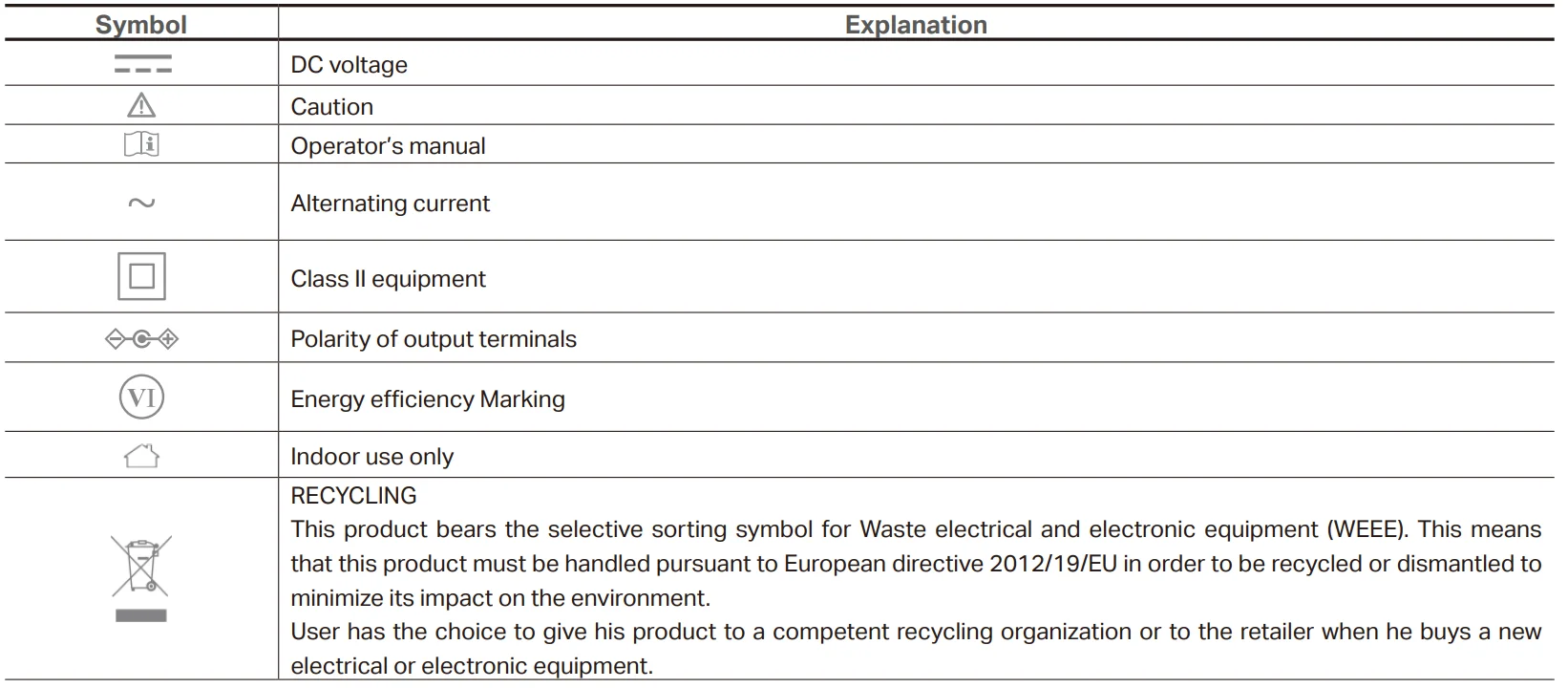
Explanation of the symbols on the product label
For more manuals by TP-Link, visit ManualsLiraryy
TP Link Deco X4300 Pro WiFi Router-FAQs
What is the TP Link Deco X4300 Pro WiFi Router and how does it work?
The TP Link Deco X4300 Pro is a mesh WiFi router system designed to provide seamless internet coverage across your home. Instead of relying on a single router, multiple Deco units work together to create one unified network. This helps eliminate dead zones and ensures stable connectivity in every room. It automatically connects your devices to the strongest signal, improving speed and reliability without requiring manual switching between networks.
Can I use the Deco X4300 Pro as my main router?
Yes, the Deco X4300 Pro can fully replace your existing router. It works in router mode when connected directly to your modem or internet source. You can also use it in access point mode if you want to keep your current router. However, it does not support repeater mode, so at least one Deco unit must be connected via Ethernet to provide internet access to the system.
How many devices can the Deco X4300 Pro support at once?
The Deco X4300 Pro is built to handle multiple connected devices efficiently, making it ideal for smart homes. It can support dozens to over 100 devices depending on network conditions and setup. Technologies like MU-MIMO and beamforming help distribute bandwidth evenly, so streaming, gaming, and browsing can happen simultaneously without noticeable slowdowns or connection drops.
Is the Deco X4300 Pro good for gaming and 4K streaming?
Yes, this router is well-suited for high-bandwidth activities like online gaming and 4K streaming. Its dual-band WiFi provides fast speeds, especially on the 5 GHz band, which is ideal for low-latency gaming and smooth video playback. The mesh system also reduces lag by maintaining a stable connection as you move around your home, ensuring consistent performance during intensive tasks.
What is the difference between 2.4 GHz and 5 GHz on this router?
The Deco X4300 Pro supports both 2.4 GHz and 5 GHz bands. The 2.4 GHz band offers wider coverage and better wall penetration but lower speeds. In contrast, the 5 GHz band delivers faster speeds but works best at shorter distances. The system automatically assigns devices to the best band, so you don’t need to manually choose between speed and coverage.
How easy is it to set up the Deco X4300 Pro?
Setting up the Deco X4300 Pro is simple and beginner-friendly. You just connect one unit to your modem, power it on, and follow the step-by-step instructions in the TP-Link Deco app. The app guides you through installation, network naming, and password setup. Additional units can be added quickly to extend coverage without complicated configuration.
Does the Deco X4300 Pro provide full home coverage?
Yes, the Deco X4300 Pro is designed for whole-home coverage. Depending on how many units you use, it can cover small apartments to large multi-room houses. The mesh technology ensures that all units work together as a single network, so you can move around freely without losing signal or experiencing interruptions.
Is a mesh system like Deco better than a WiFi extender?
In most cases, yes. A mesh system like the Deco X4300 Pro provides a single seamless network, while extenders often create separate networks that can cause interruptions when switching. Mesh systems also offer better performance, smarter device management, and more consistent speeds throughout your space, making them a better long-term solution for coverage issues.
Does the Deco X4300 Pro include security and parental controls?
Yes, it comes with built-in security features and parental controls. You can monitor connected devices, block unwanted users, and set usage limits for specific devices. These features are managed through the Deco app, making it easy to control internet access, protect your network, and maintain a safe online environment for your family.
Is the Deco X4300 Pro a good choice compared to other routers?
The Deco X4300 Pro offers a strong balance of performance, coverage, and ease of use. While some high-end routers may deliver faster speeds, this model stands out for its reliable mesh system and user-friendly setup. It’s a great mid-range option for users who want stable whole-home WiFi without the complexity or cost of premium networking equipment.