
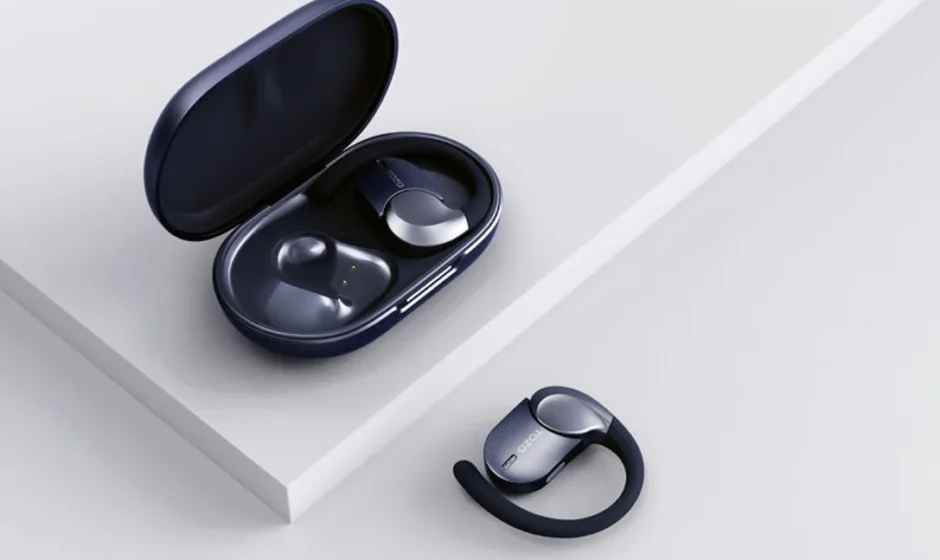

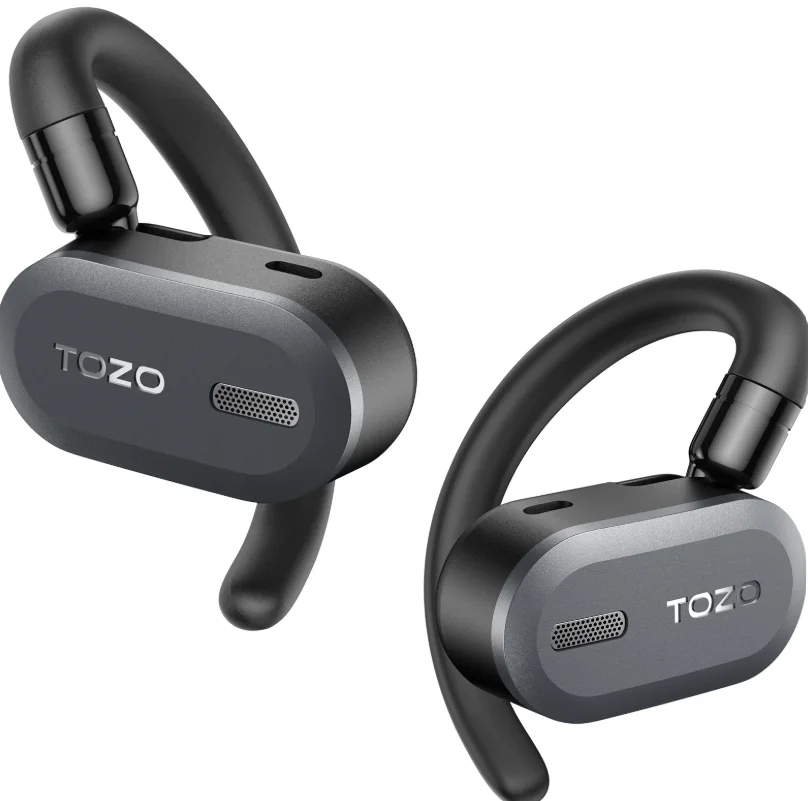
TOZO Open X2 Pro Ear Headphones
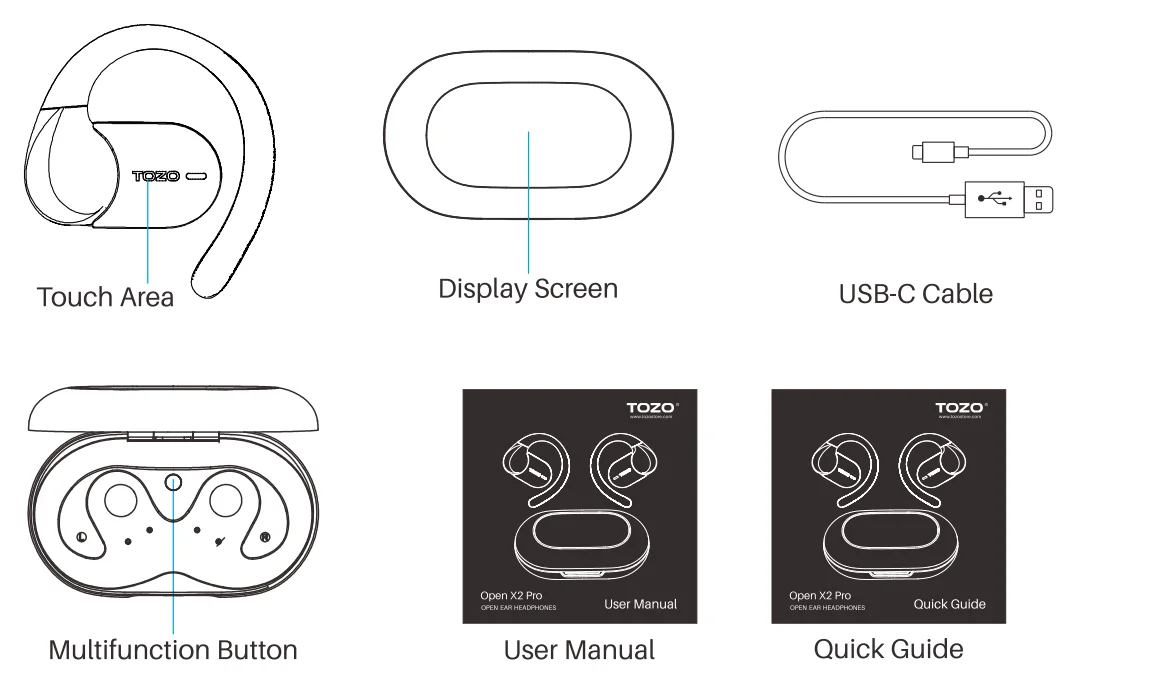
Product Diagrammatic Sketch
Wearing
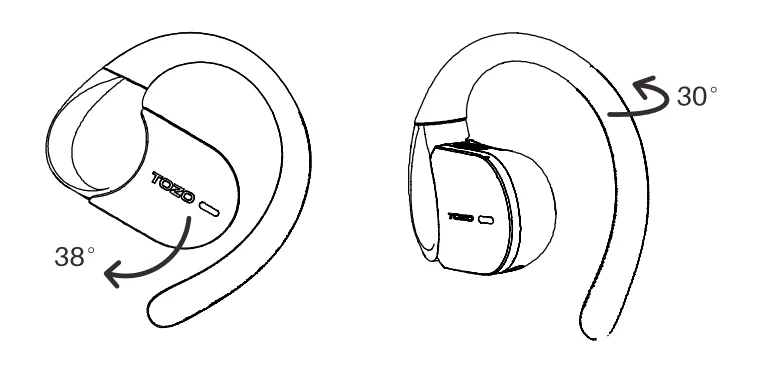
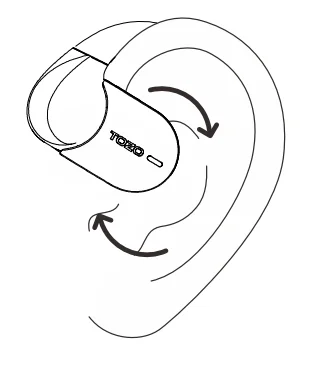
- The ear hook can rotate up and down, as well as left and right.

- Adjust the curved part of the rotating headphones to move up, down, left, and right. Then place them on your left and right ears respectively, and align the sound outlet with your ear canal, as shown in the picture.
Activation and Connection
Activation
For first-time use, please follow these steps to activate the headphones:
- Remove the protective film from the headphones (pay attention to the touch area for future touch controls).
- Place the headphones into the charging case and close the lid.
- Connect the charging case to power with the charging cable for 10 seconds to complete activation.
Connection
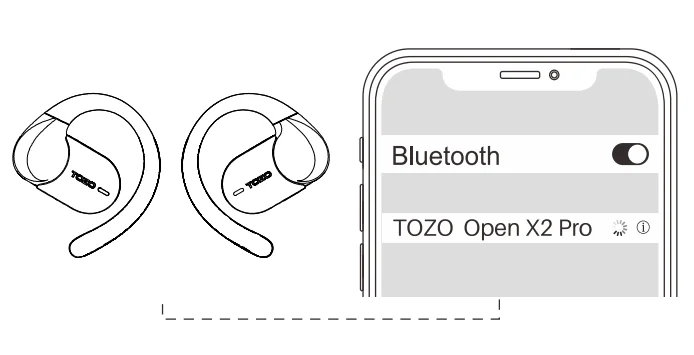
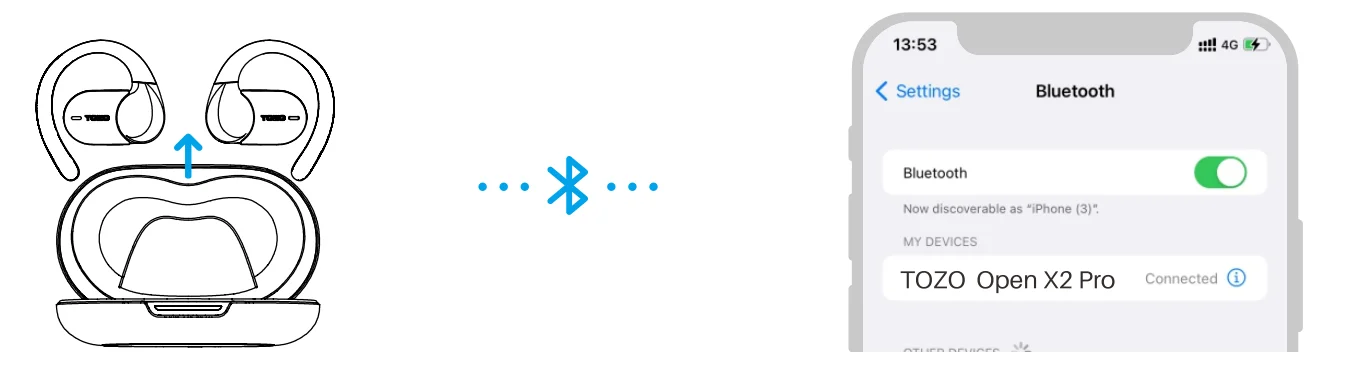
Take the headphones out of the charging case. If previously paired, they will automatically reconnect to the last connected device. If not paired or pairing was cancelled, the headphones will enter pairing mode, indicated by a slow blinking white light. Search for [TOZO Open X2 Pro] in your phone’s Bluetooth settings and connect.
Power On/Power Off
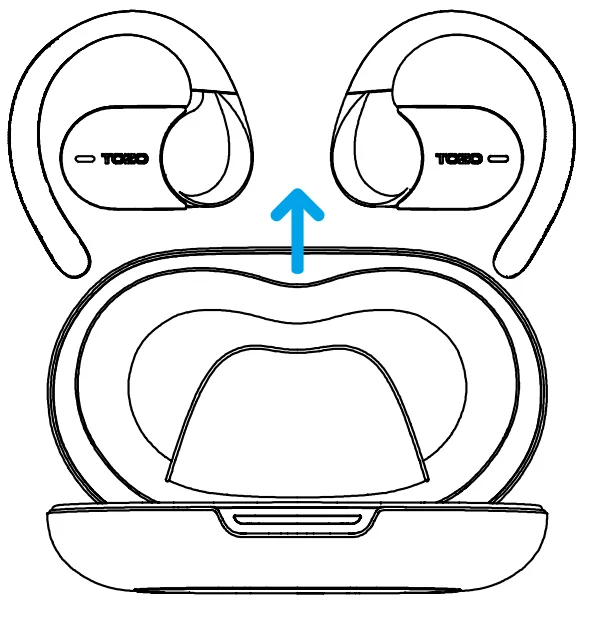
Headphones Auto Power On
Open the lid, and the headphones will automatically power on.
Headphones Auto Power Off
Place the headphones back into the charging case and close the lid to power them off automatically.
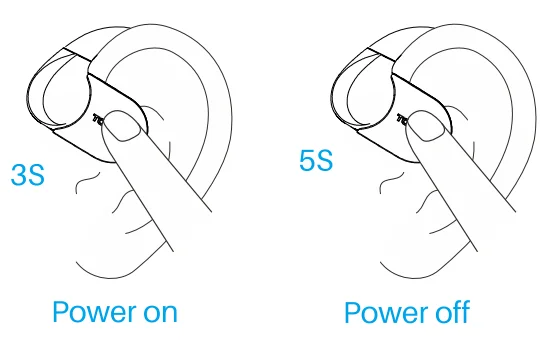
Another Method of Headphones Power On/Off
- Tap and hold the “L” or “R” touch area for 3 seconds to power it on when it is off.
- Tap and hold the “L” or “R” touch area for 5 seconds to power it off when not playing audio.
- The headphones will automatically power off if they remain disconnected for more than 5 minutes.
Charging Case Power On
Press and hold the multifunction button for 3 seconds; it will turn on when the charging case powers off.
Charging Case Power Off
- Press and hold for 3 seconds to pop up the interface, then click power off on the screen.
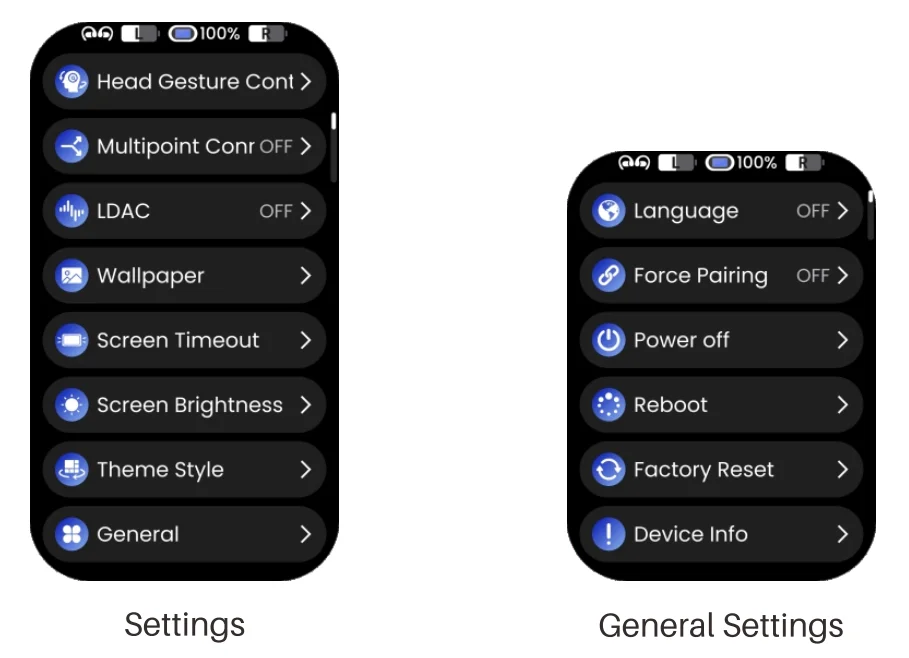
- On the charging case, go to “Settings”> “General”, then select “Power off”.
Operation and Controls
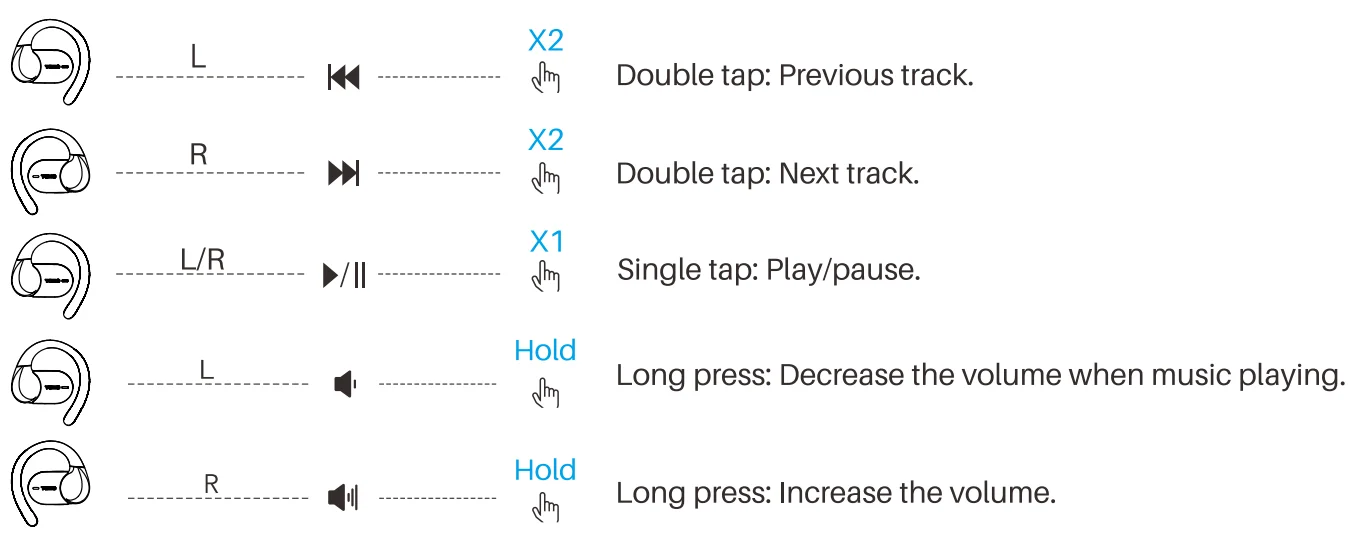
Using Both Headphones or a Single Headphone
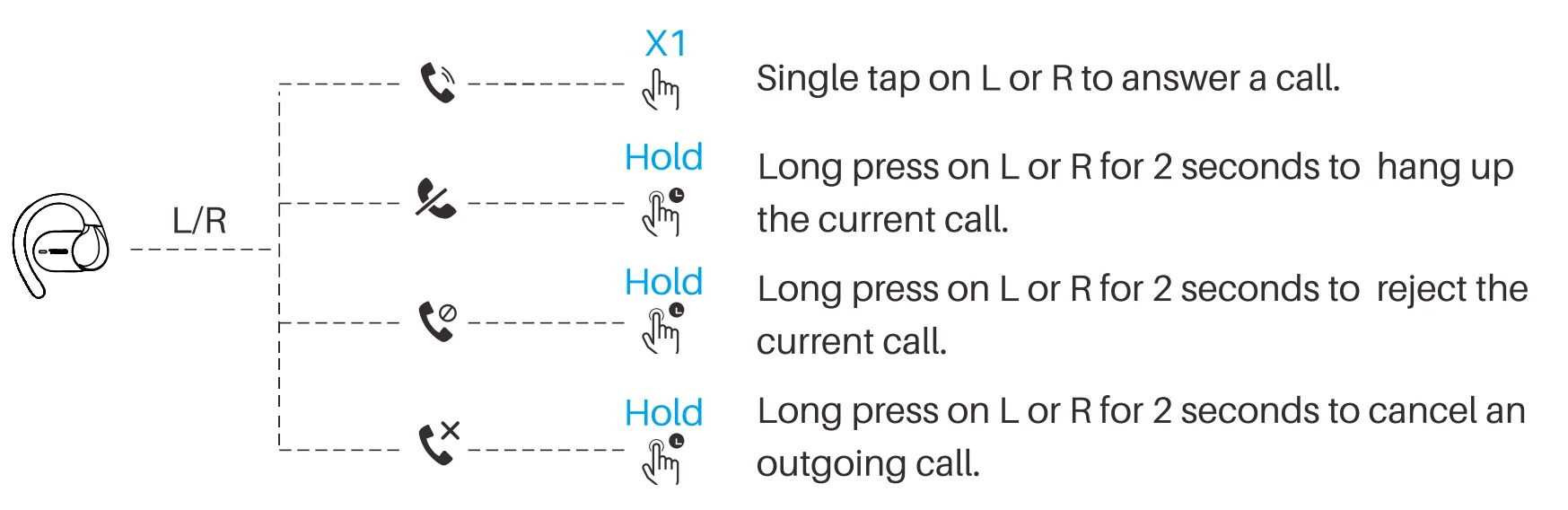
Call Controls
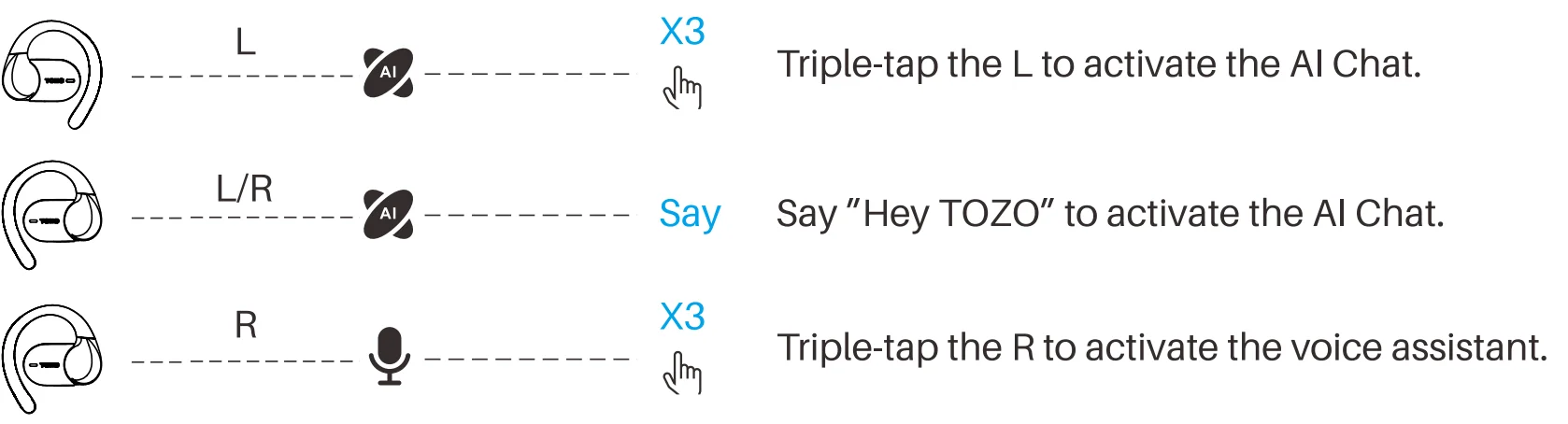
Al Chat and Voice Assistant
Reset
Delete the TOZO Open X2 Pro Bluetooth pairing record from your phone’s Bluetooth settings and turn off Bluetooth. Then choose one of the following two methods to complete the reset:
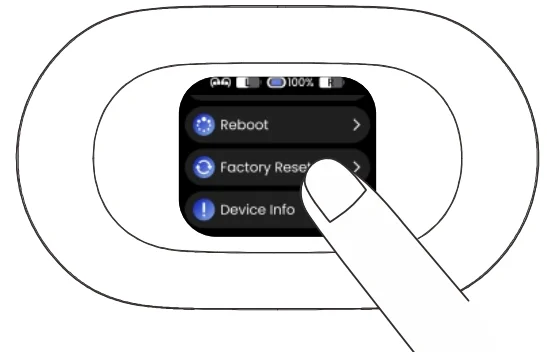
Method 1:
Take out the headphones, then tap Settings > General > Restore Factory Settings on the charging case screen. After the headphones’ indicator light flashes rapidly four times and stays on for 1 second, the charging case will power off and restart. Place the headphones back into the case, close the lid for 10 seconds to complete the pairing.
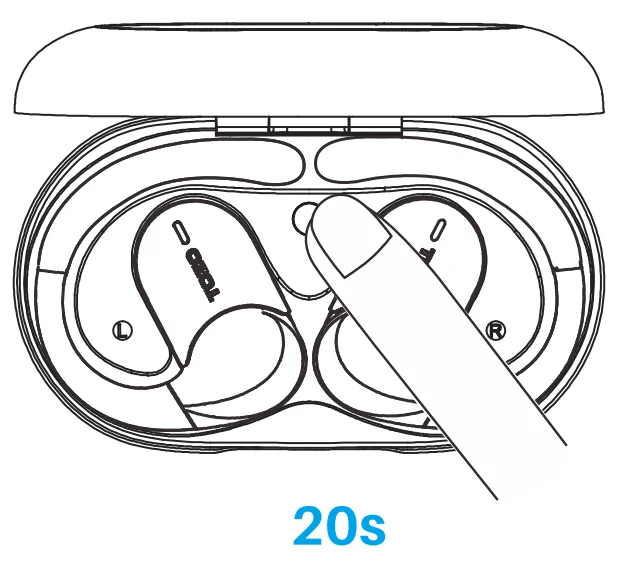
Method 2:
With the headphones inside the charging case and the lid open, press and hold the case button for 20 seconds until both the headphones and case restart. Then close the lid for 10 seconds to complete the pairing process.
Note: This operation should only be performed when the headphones and charging case are not functioning properly.
Dual Device Connection
Note: This feature is disabled by default and must be enabled in the TOZO App.
- Power on the headphones and pair them with Device A.

- Disconnect Device A, then enter pairing mode and connect to Device B.

- Reconnect Device A by selecting it from your Bluetooth list. The headphones will then be connected to both devices simultaneously.

- When the headphones are connected to two devices simultaneously, if Device A is playing audio and you start playback on Device B, the headphones will automatically pause playback on Device A and switch to play audio from Device B.
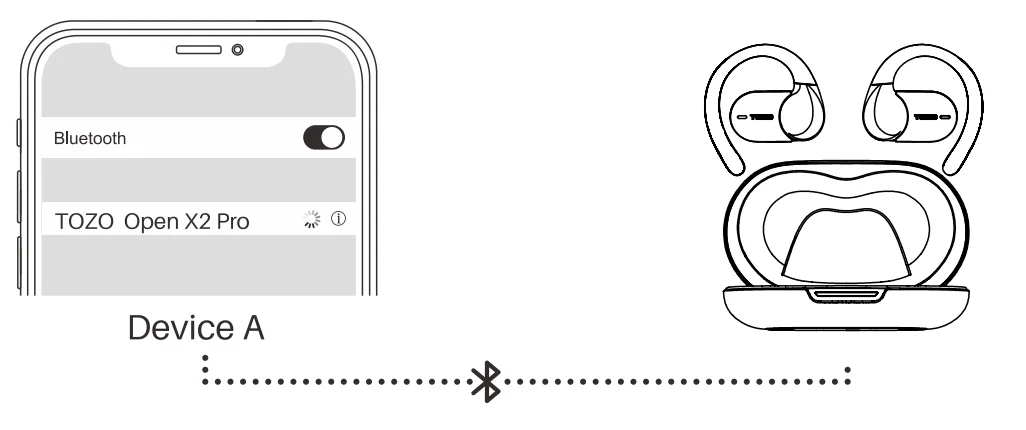
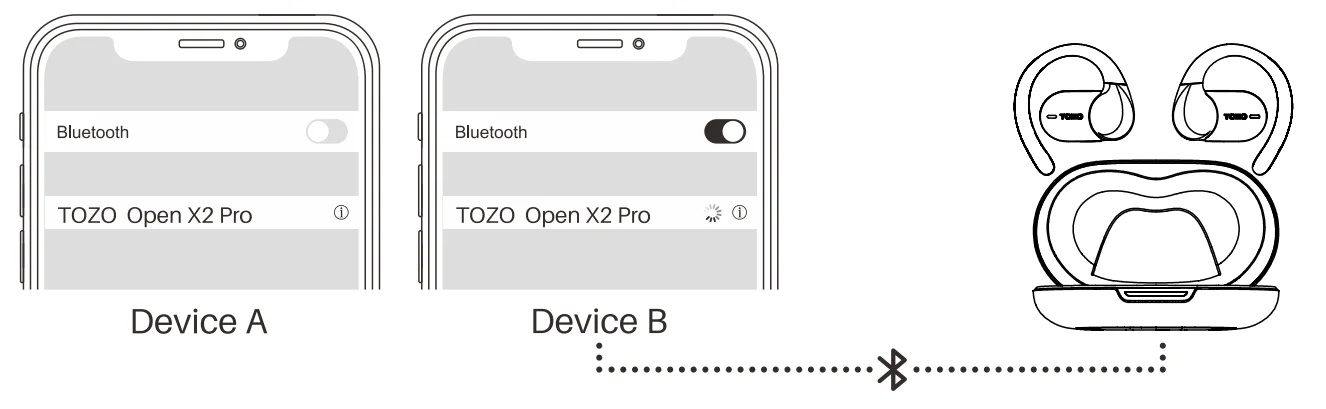
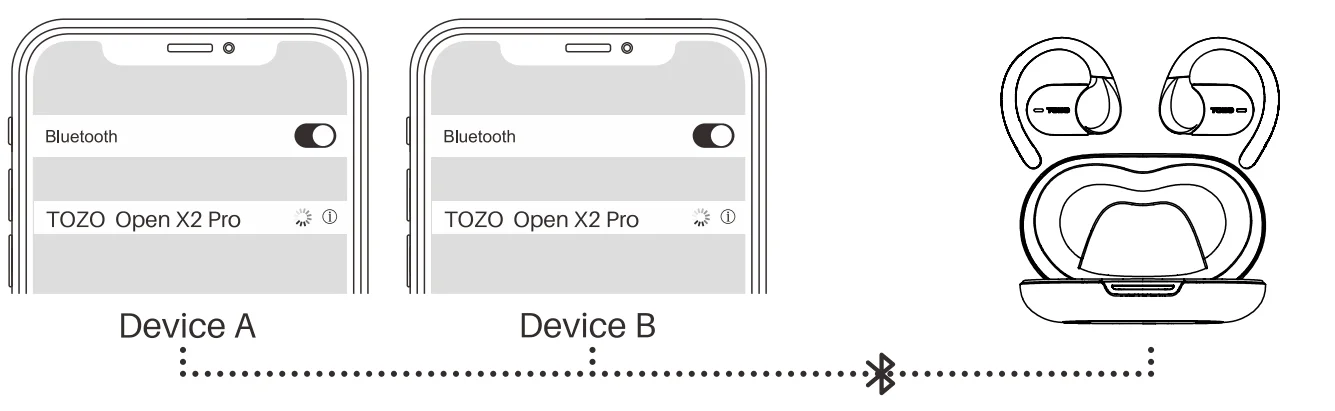
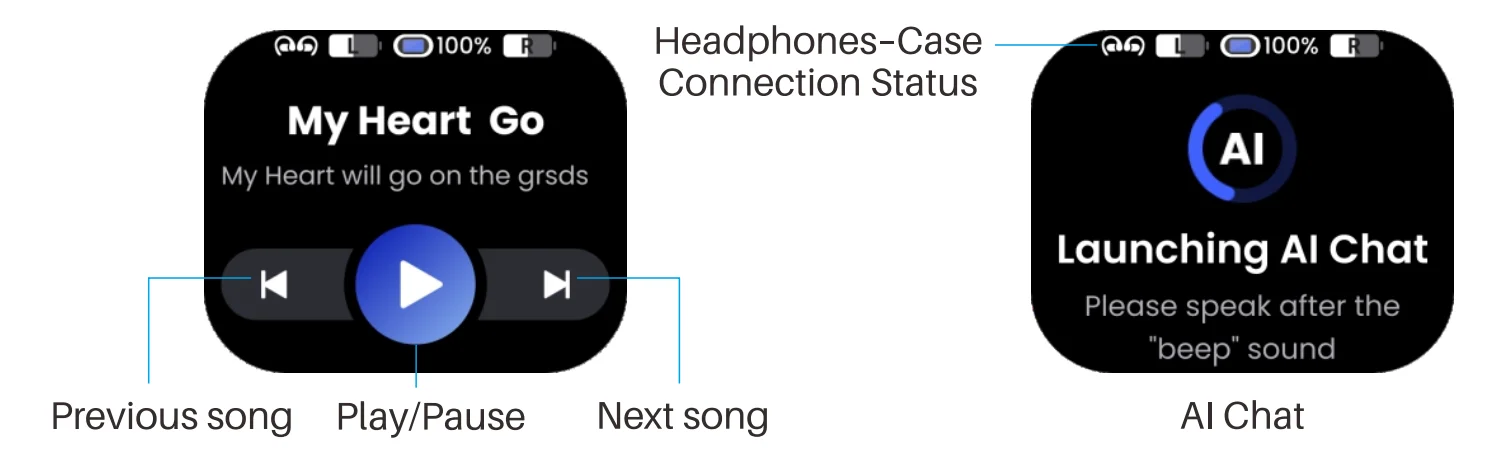
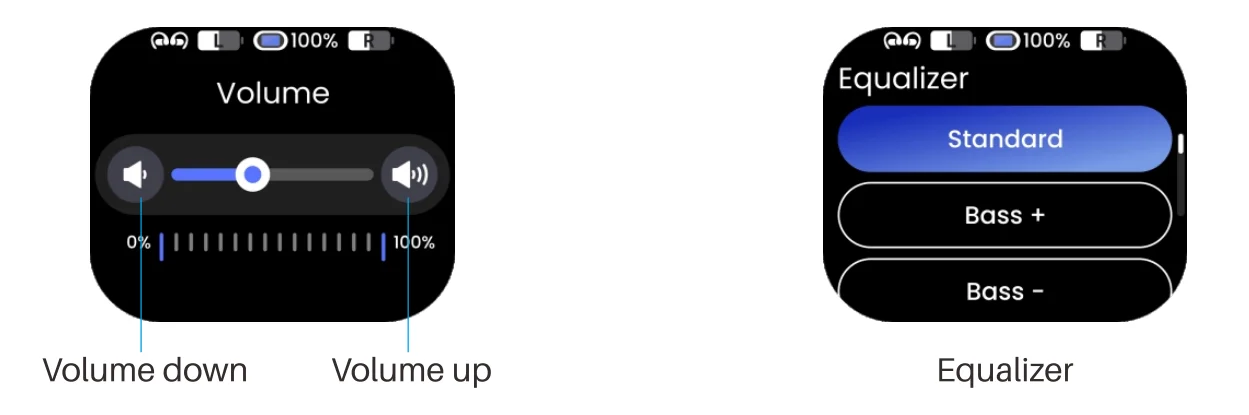
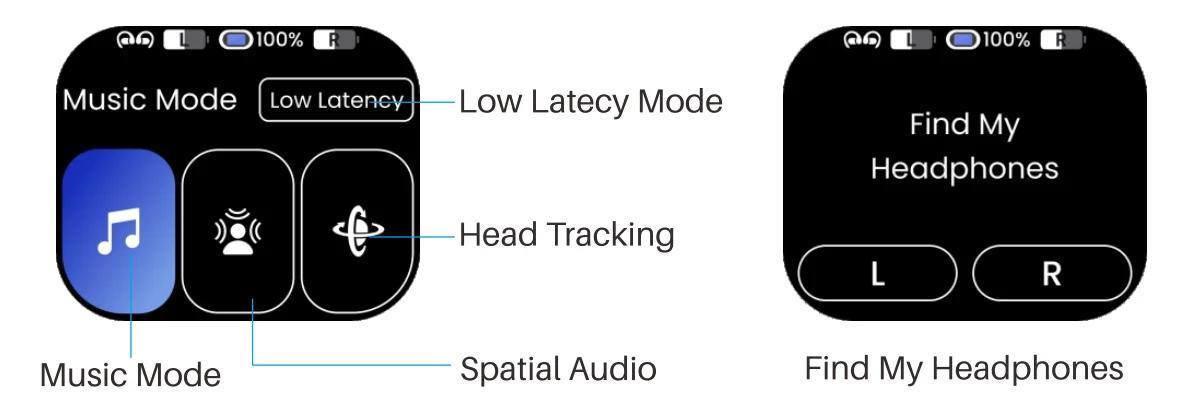
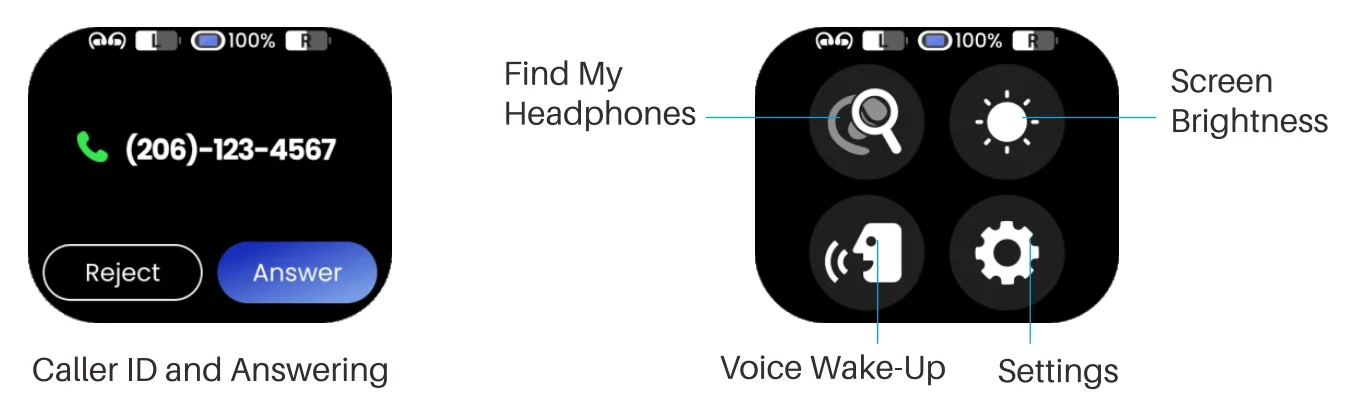
Overview of Display Functions
- Double-tap the screen to wake it when it’s off.
- Tap any function icon on the charging case screen to enter its corresponding sub-menu and control the headphones.
- Swipe left or right on the main menu to browse through all available function icons.
- While in a sub-menu, swipe right to return to the main menu.
TOZO App
Download the TOZO App for a fully personalised experience.
- Ul Customisation: Customise most control settings via the app.
- EQ Settings: Choose from a variety of EQ presets to match different music styles.
- Firmware Updates: Get the latest firmware updates for your headphones through the app. You’ll receive a notification when a new firmware version is available.
TOZO App Pairing with Headphones and Charging Case
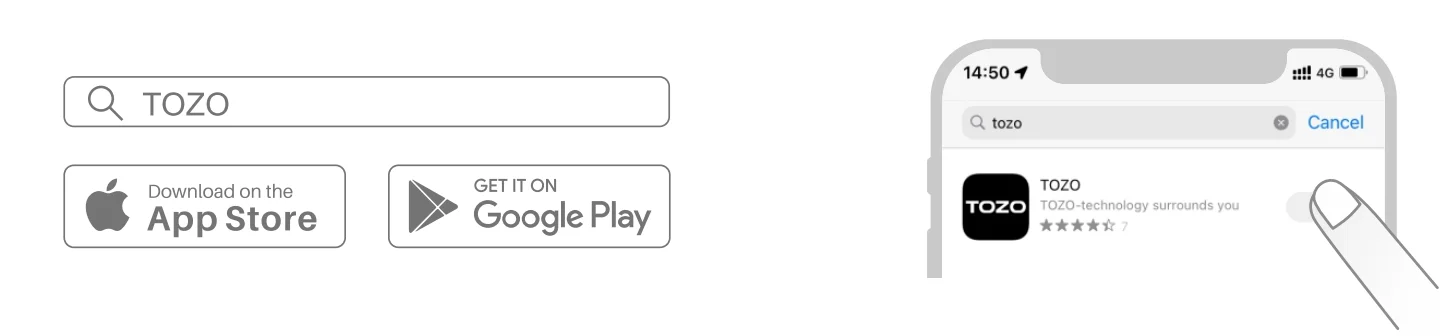
- Step 1: Download the TOZO App from the App Store or Google Play.

- Step 2: Connect the headphones to your phone via Bluetooth.

- Step 3: Pair the headphones with the TOZO App.

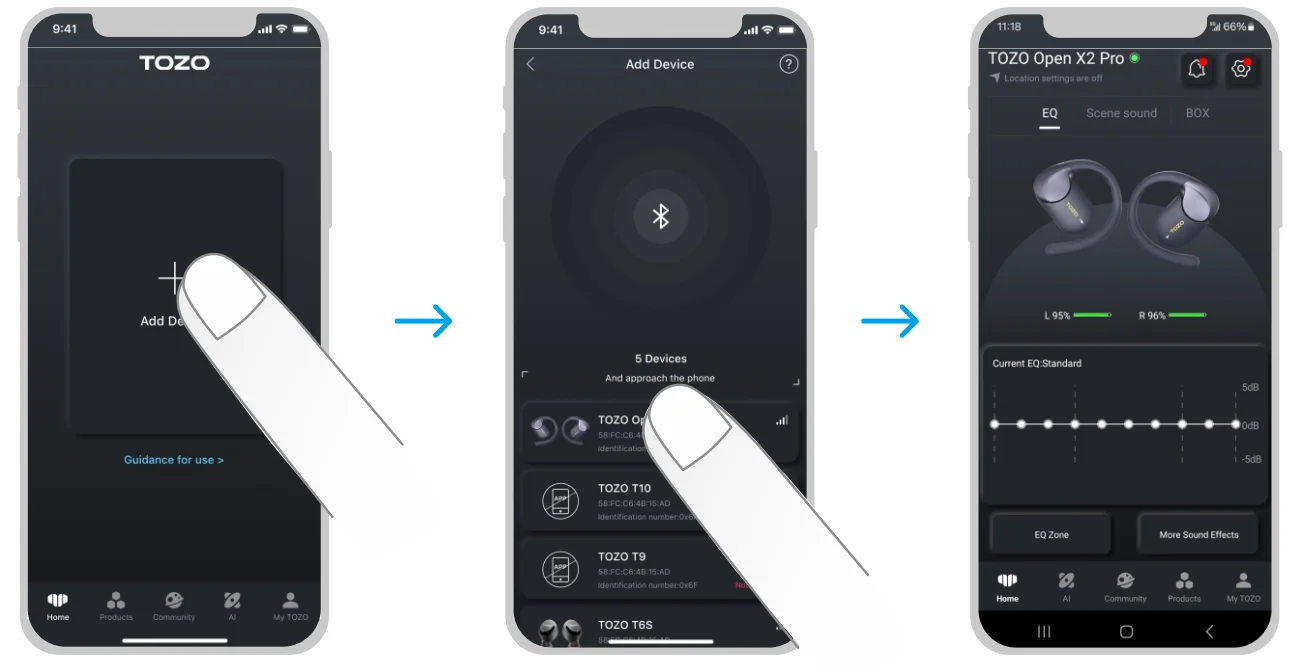
- With the headphones in the charging case, search for “TOZO Open X2 Pro Box” in the app and connect. At this stage, you can only customise charging case settings.
- With the headphones removed from the charging case, search for “TOZO Open X2 Pro” or “TOZO Open X2 Pro Box” in the app. Connecting to either will allow you to customise the settings of both headphones and the charging case.
Troubleshooting and Reminders
- Charging Case Not Charging:
Check if the power adapter is functional or try a different charging cable. - Bluetooth Not Connecting or Not Found:
Delete previous Bluetooth records in your phone’s settings, then search for and reconnect to the headphones. - Headphones Not Powering On:
Ensure the charging case has sufficient power. Charge the headphones for a while before trying to power them on.
EU Battery Regulation
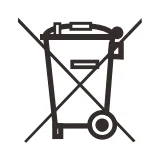
This symbol on the battery(ies) or on the packaging indicates that the battery (ies) provided with this product shall not be treated as household waste. Instead, please separate batteries from other types of waste and recycle them through your local recycling system to protect the environment and health. (When Cd is more than 20ppm or Pb is more than 40ppm, the chemical symbol of the excess substance shall be marked under the separate collection symbol) For more detailed information about the recycling of these batteries, please contact your local authority or the shop where you purchased the product or battery (ies).
FCC Compliance Statements
This device complies with Part 15 of the FCC Rules. Operation is subject to the following two conditions:
- This device may not cause harmful interference, and
- This device must accept any interference received, including interference that may cause undesired operation.
Caution: Changes or modifications not expressly approved by the party responsible for compliance could void the user’s authority to operate the equipment.
Note: This equipment has been tested and found to comply with the limits for a Class B digital device, pursuant to Part 15 of the FCC Rules. These limits are designed to provide reasonable protection against harmful interference in a residential installation. This equipment generates, uses and can radiate radio frequency energy and, if not installed and used in accordance with the instructions, may cause harmful interference to radio communications. However, there is no guarantee that interference will not occur in a particular installation. If this equipment does cause harmful interference to radio or television reception, which can be determined by turning the equipment off and on, the user is encouraged to try to correct the interference by one or more of the following measures:
- Reorient or relocate the receiving antenna.
- Increase the separation between the equipment and receiver.
- Connect the equipment into an outlet on a circuit different from that to which the receiver is connected.
- Consult the dealer or an experienced radio/TV technician for help.
RF Exposure Compliance
This equipment complies with FCC radiation exposure limits set forth for an uncontrolled environment. This transmitter must not be co-located or operating in conjunction with any other antenna or transmitter.
ISED Compliance Statements
This device contains licence-exempt transmitter (s)/receiver(s) that comply with Innovation, Science and Economic Development Canada’s licence-exempt RSS(s). Operation is subject to the following two conditions:
- This device may not cause interference.
- This device must accept any interference, including interference that may cause undesired operation of the device.
This equipment complies with IC RSS-102 radiation exposure limits set forth for an uncontrolled environment. This transmitter must not be co-located or operating in conjunction with any other antenna or transmitter.
CE-DOC
Hereby, [Manufacturer] declares that the radio equipment type [Model No.] complies with Directive 2014/63/EU. The full text of the EU declaration of conformity is available at the following internet address: www.tozostore.com
For more manuals by TOZO, visit ManualsLibraryy
TOZO Open X2 Pro Ear Headphones-FAQs
How do you use the TOZO Open X2 Pro ear headphones?
Using the TOZO Open X2 Pro is simple and beginner-friendly. Just take the earbuds out of the charging case, and they power on automatically. They will enter pairing mode and connect to your device via Bluetooth. You can control music, calls, and other functions using the built-in touch controls. When you place them back in the case, they turn off and begin charging automatically.
Can I use only one earbud at a time?
Yes, you can use a single earbud independently. This is useful for calls, work, or when you want to stay aware of your surroundings. Simply take one earbud out of the case and connect it to your device. The other earbud can remain in the case. Both left and right earbuds typically support solo use, depending on your connection settings.
How do touch controls work on these headphones?
The TOZO Open X2 Pro features intuitive touch controls on each earbud. You can tap to play or pause music, skip tracks, answer or reject calls, and adjust volume. The exact gestures may vary slightly, but most functions are handled through single, double, or long taps. This allows easy control without needing to reach for your phone frequently.
How do I reset the TOZO Open X2 Pro earbuds?
To reset the earbuds, place both into the charging case and ensure they are charging properly. Then press and hold the touch controls on both earbuds for several seconds until the indicator lights flash. This will clear previous pairings and restore factory settings. After resetting, reconnect them to your device as a new Bluetooth connection.
Why is only one earbud working and how can I fix it?
If only one earbud is playing audio, it may be due to pairing issues or a temporary glitch. Try placing both earbuds back into the case, then take them out together to re-sync. If the problem continues, perform a full reset and reconnect them. Also, check your device’s Bluetooth settings to ensure both earbuds are recognized as a pair.
How long does the battery last on the TOZO Open X2 Pro?
The earbuds typically provide several hours of playback on a single charge, making them suitable for daily use like commuting, workouts, or calls. With the charging case, total listening time can extend significantly, often lasting a full day or more. Actual battery life may vary depending on volume level, usage habits, and enabled features.
Does the TOZO Open X2 Pro support noise cancellation?
These headphones may include features like environmental noise reduction for clearer calls rather than full active noise cancellation (ANC). Open-ear designs focus more on situational awareness, allowing you to hear your surroundings while listening to audio. This makes them ideal for outdoor activities, work environments, or situations where safety awareness is important.
Can I control volume directly from the earbuds?
Yes, volume can usually be adjusted using touch controls on the earbuds. For example, tapping or holding on a specific side can increase or decrease volume. This feature allows you to manage audio levels without using your phone, making it more convenient during workouts, travel, or multitasking.
Is there an app for customizing TOZO earbuds?
Yes, you can use the TOZO Sound App to customize your listening experience. The app allows you to adjust equalizer (EQ) settings, update firmware, and manage device features. It helps improve sound quality and gives you more control over how your earbuds perform based on your preferences.
What are some tips to improve sound quality and performance?
For the best experience, make sure the earbuds fit properly and sit securely on your ears. Keep them clean to avoid sound blockage. You can also use EQ settings in the app to enhance bass or clarity. Additionally, maintain a moderate volume level to preserve sound quality and protect your hearing during long listening sessions.