
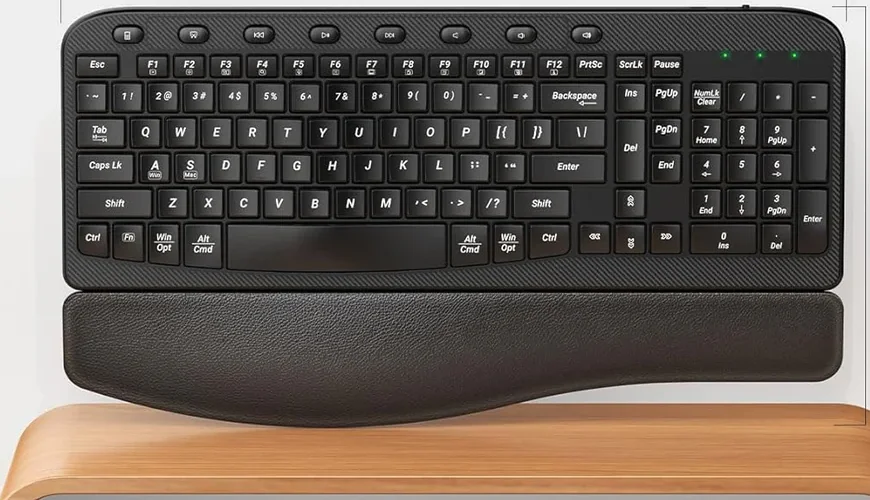

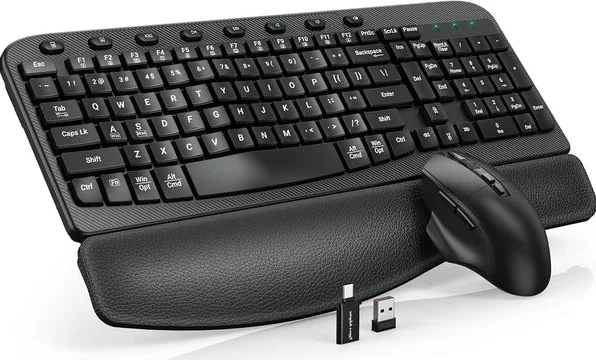
Sablute KMA1 Pro wireless keyboard & Mouse Combo
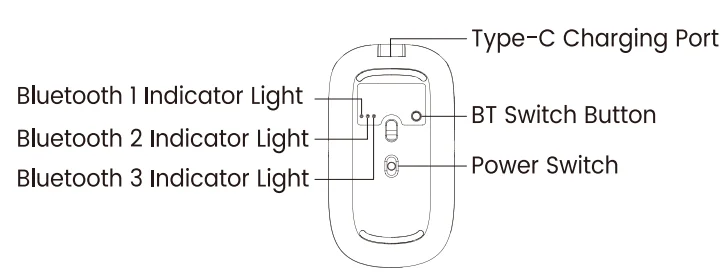
Introduction to Bluetooth Channel Buttons
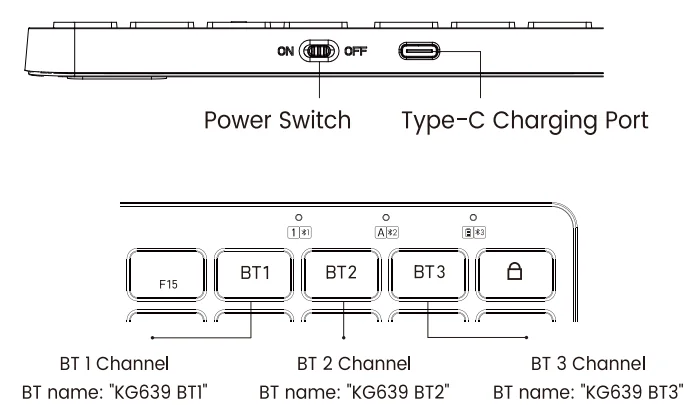
- Keyboard: The keyboard switches to the corresponding Bluetooth channel when the shortcut button is clicked.
- Mouse: Press the back button briefly to switch to the corresponding Bluetooth channel.
Introduction to Keyboard and Mouse Functions
- Switch the mouse power switch to ON.

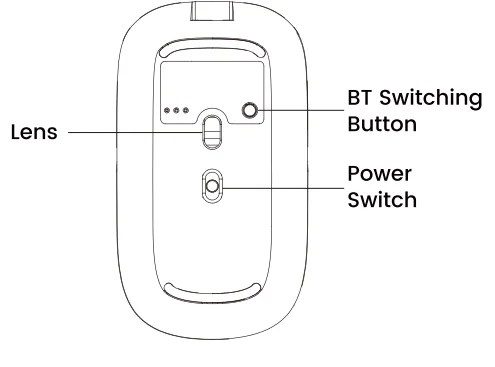
- Press the Mode Switch Button on the bottom of the mouse until the 1/2/3 light is on; the mouse enters Bluetooth mode.

- Long-press the Mode Switch Button on the bottom of the mouse for 3-5 seconds again, until the 1/2/3 light flashes quickly; at this time, the mouse enters the Bluetooth pairing mode.

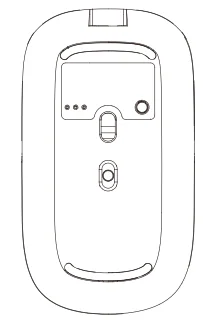
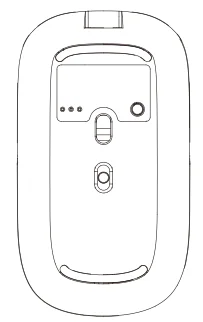
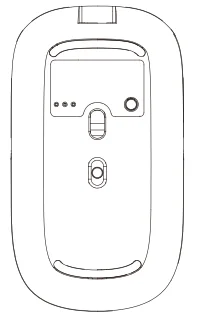
Mac OS (Mouse)
Refer to Mouse Bluetooth Mode Installation Steps 1, 2, and 3 before pairing.
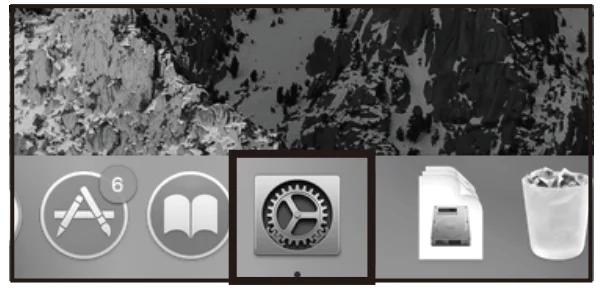
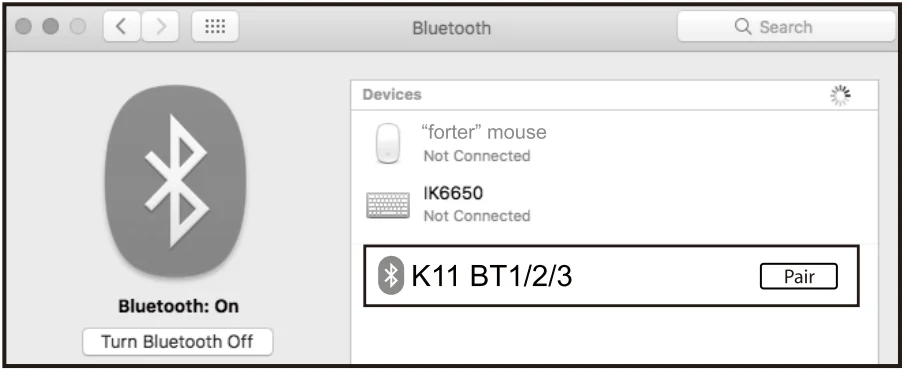
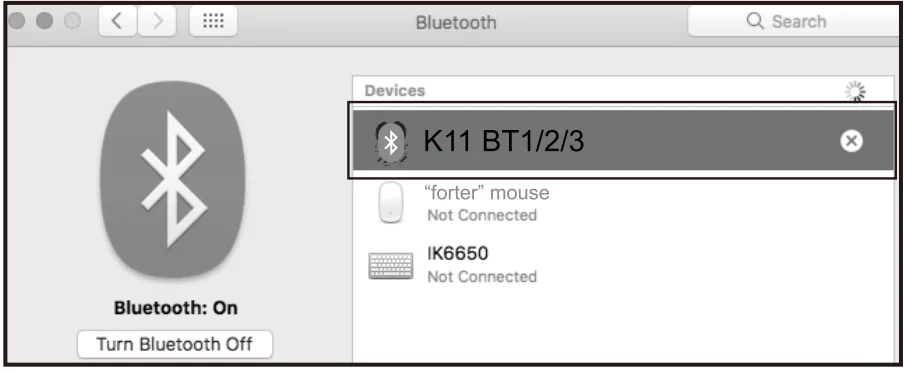
- Find “System Preferences” on Macs.

- Choose “Bluetooth” in System Preferences.

- Search and click to pair the: K11 BT1/2/3.

iOS System (Mouse)
Refer to Mouse Bluetooth Mode Installation Steps 1, 2, and 3 before pairing.
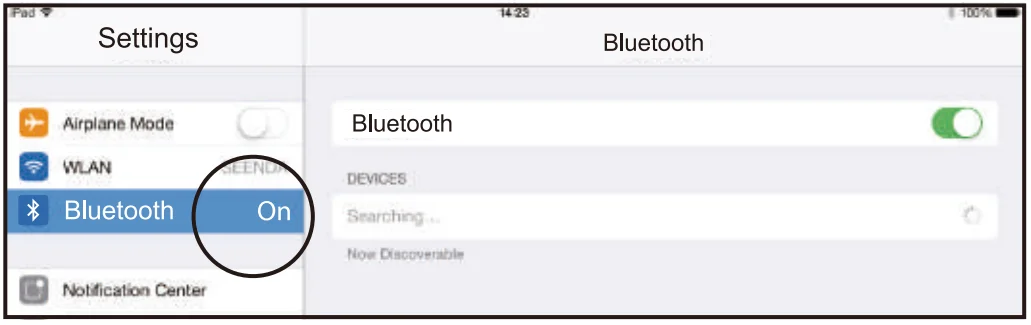
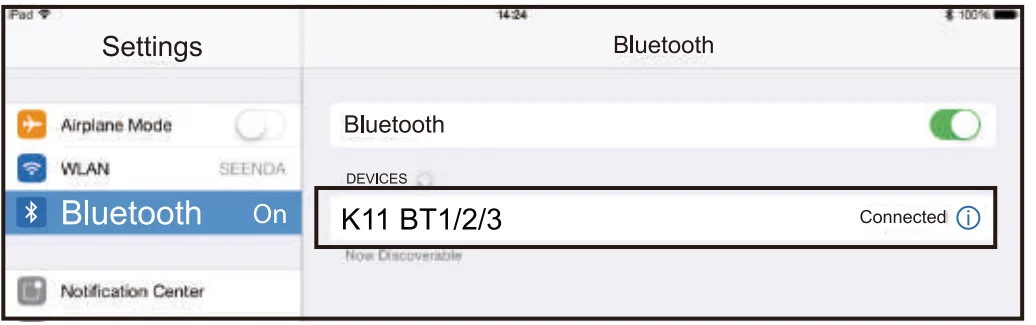
- Open “Settings” and turn on Bluetooth function.

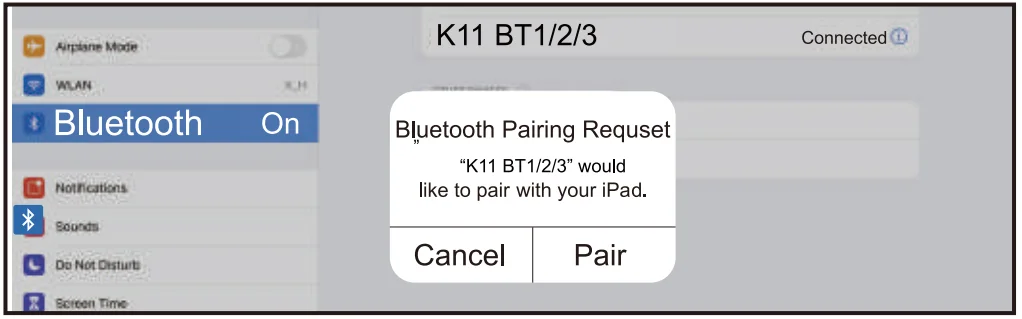
- Search and click to pair the: K11 BT1/2/3.

- Successfully paired when it shows “K11 BT1/2/3”.

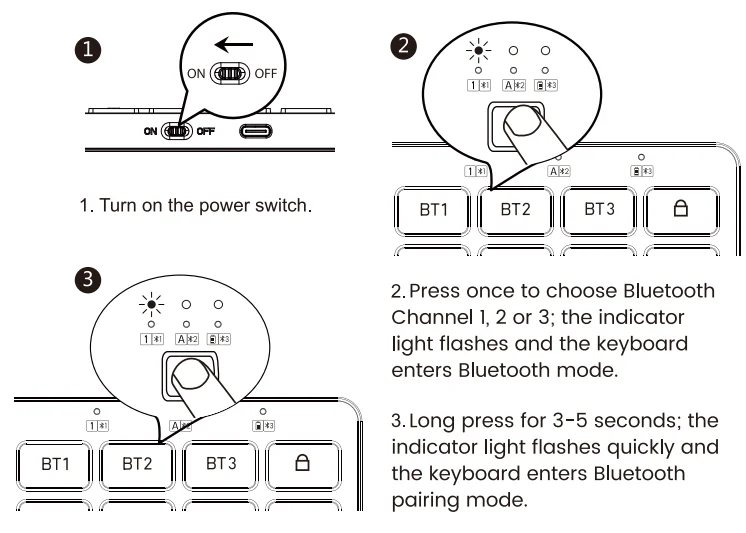
Keyboard Bluetooth Connection
Mac OS (Keyboard)
Refer to Keyboard Bluetooth Mode Installation Steps 1, 2, and 3 before pairing.
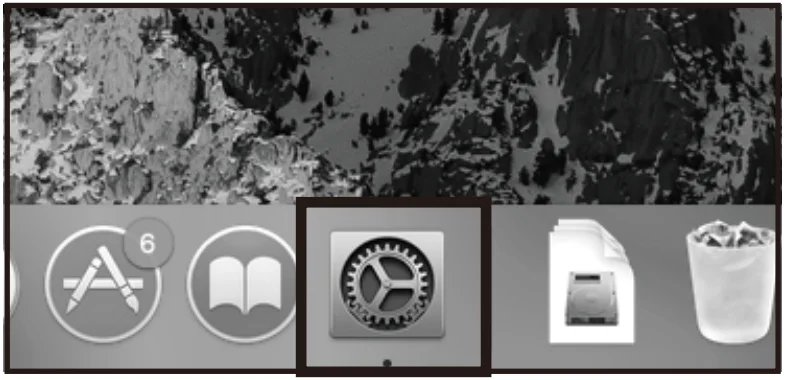
- Find “System Preferences” on Macs.

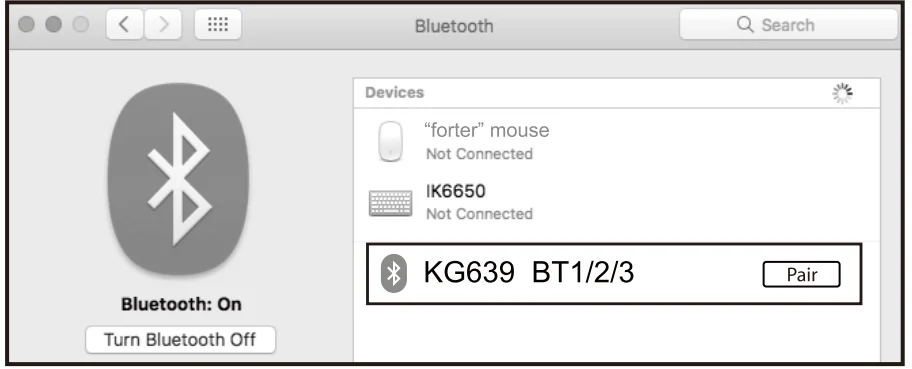
- Choose “BT” in System Preferences.

- Search and click to pair the “KG639 BT1/2/3”.

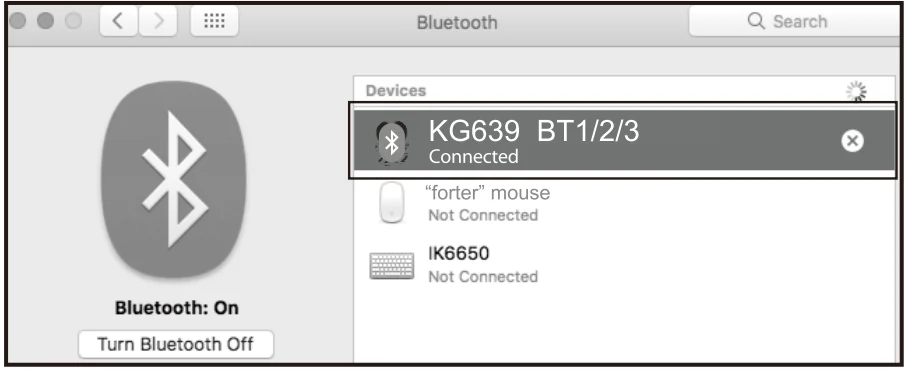
iOS System (Keyboard)
Refer to Keyboard Bluetooth Mode Installation Steps 1, 2, and 3 before pairing.
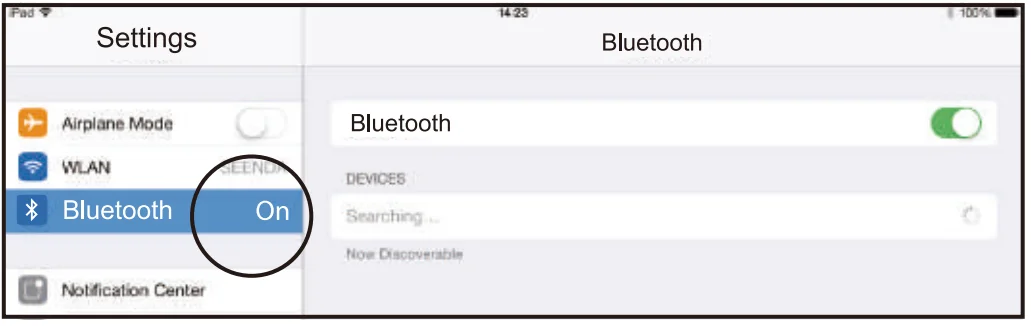
- Open “Settings” and turn on Bluetooth function.

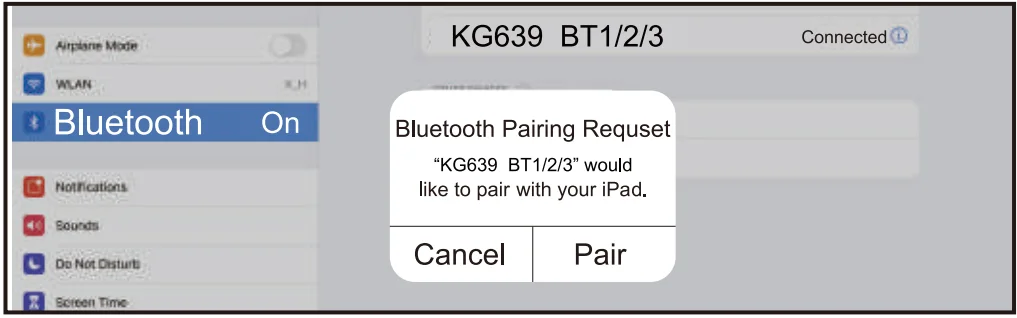
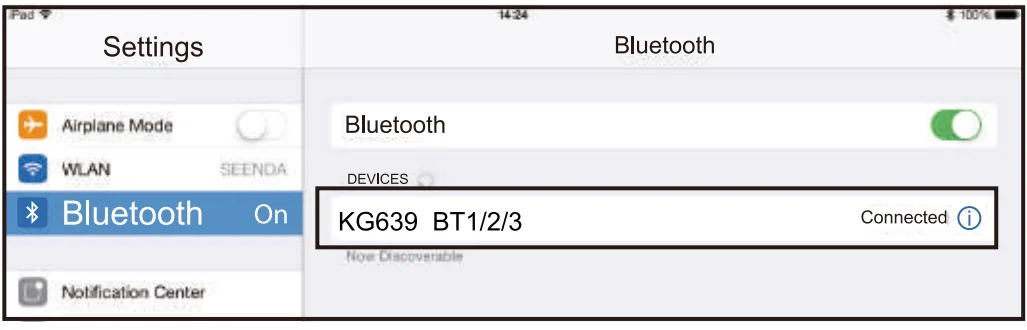
- Search and click to pair the: KG639 BT1/2/3.

- Successfully paired when it shows “KG639 BT1/2/3 Connected”.

Keyboard Charging
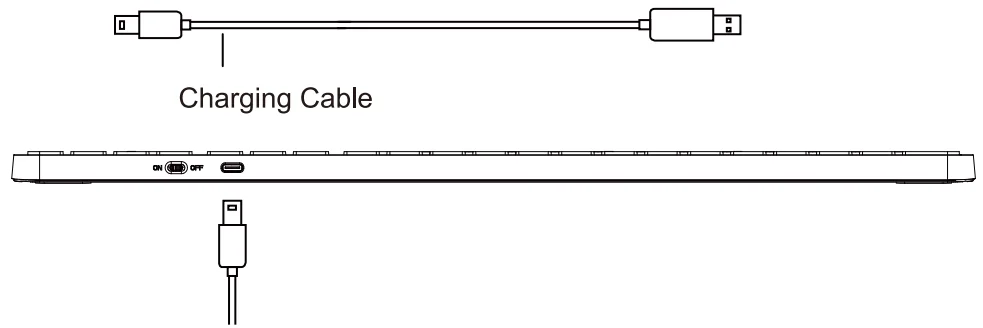
Keyboard Mode Switch Method
After  are connected, short-press the Bluetooth channel button to switch the devices.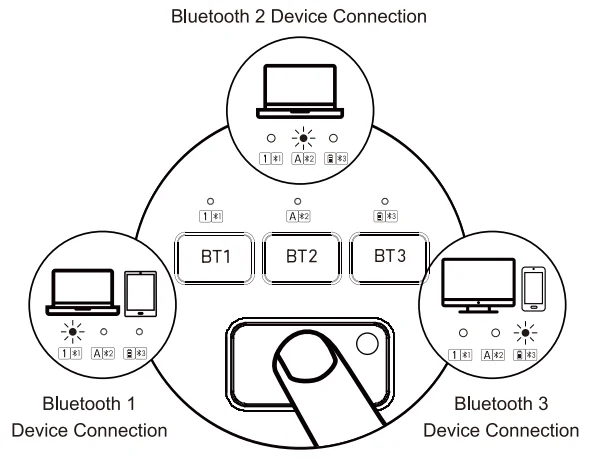
Mouse Mode Switch Method
After 1/2/3 are connected, short-press the Mode Switch Button on the bottom of the mouse to easily switch between multiple devices.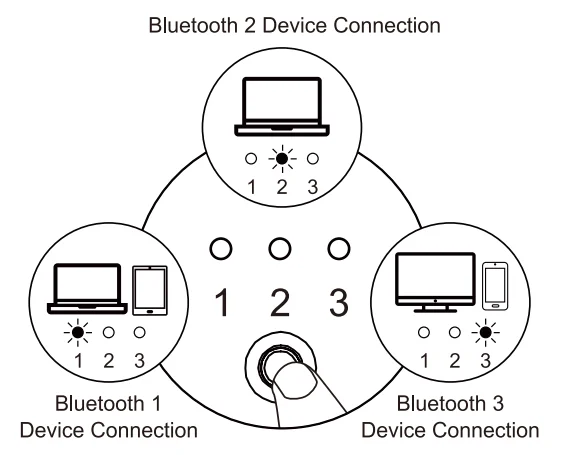
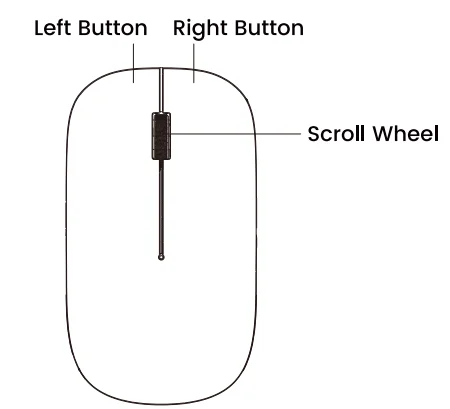
The Functions of a Mouse
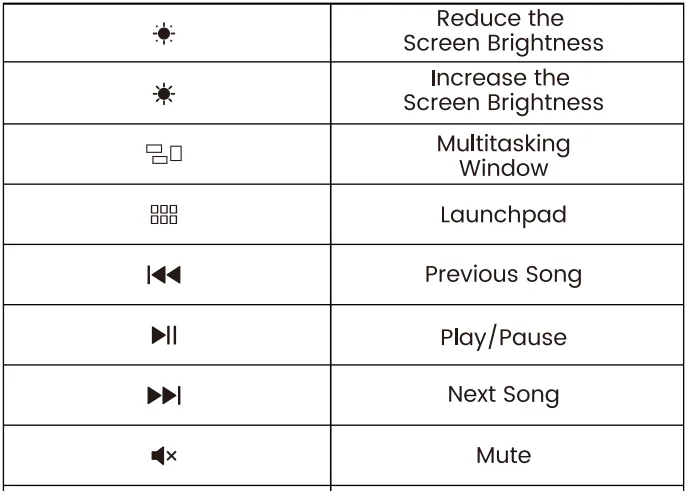
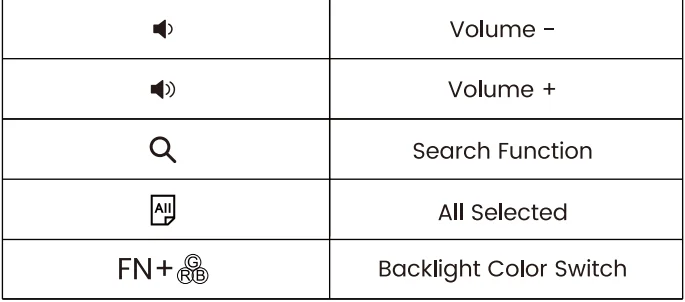
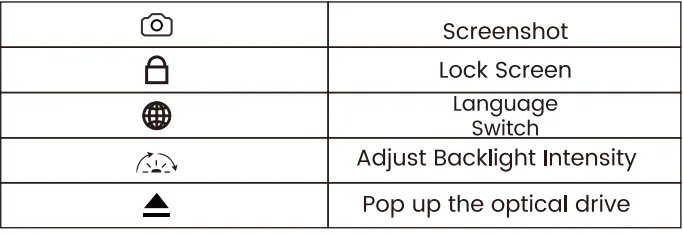
Keyboard Shortcut Combination
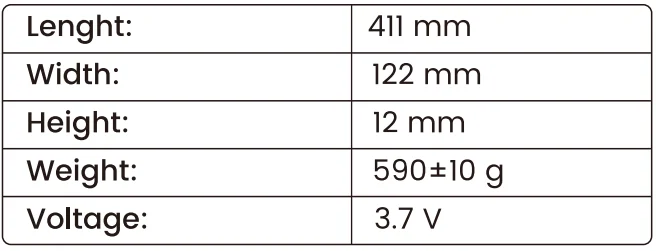
Product specifications and parameters
Keyboard:
Mouse:
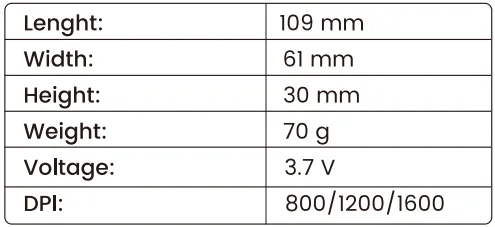
DPI switching: long-press the middle and right buttons for three seconds to switch.
Note: This DPI adjustment feature is exclusive to Windows operating systems.
Customer service
Buy on SABLUTE, You will get:
 30-Day Money-Back Guarantee
- 90-Day Free Replacement
- Hassle-Free Warranty Without Returning
- Lifetime Customer Support
 30-Day Money-Back Guarantee
Contact us
For FAQs and more information, please visit: sablute.com/pages/contact, [email protected].
FCC Statement
This equipment has been tested and complies with the limits for Class B digital devices under Part 15 of the FCC rules, designed to protect residential environments from harmful interference. The device emits radio frequency energy during use, and improper installation as per instructions may cause interference with wireless communications. If interference is detected (testable by power cycling), please take the following actions:
- Adjust the position of the receiving antenna.
- Increase the distance between the device and the receiver.
- Connect the device to a different circuit outlet than the receiver.
- Consult a technician or dealer for assistance.
Modifications not approved by the compliance responsible party will void the authority to operate the equipment. The operation is subject to two conditions:
- The device must not cause harmful interference.
- The device must accept any interference received, including that affecting normal operation.
For More Manuals By Sablute, Visit ManualsLibraryy.
Sablute KMA1 Pro wireless keyboard & Mouse Combo-FAQs
What are the key features of the Sablute KMA1 Pro Wireless Keyboard and Mouse Combo?
The Sablute KMA1 Pro offers dual connectivity, including Bluetooth and wireless USB options, making it flexible for multiple devices. It features quiet typing keys, a responsive mouse, and an ergonomic design. The combo is built for everyday productivity with stable connectivity and smooth performance across different platforms.
Does the Sablute KMA1 Pro support Bluetooth connectivity?
Yes, the Sablute KMA1 Pro supports Bluetooth connectivity, allowing users to pair with devices like laptops, tablets, and Macs without a USB receiver. It includes multiple Bluetooth channels, making it easy to switch between devices, which is especially useful for multitasking setups.
How do you connect the Sablute KMA1 Pro to a device?
You can connect the Sablute KMA1 Pro using either Bluetooth pairing or a USB receiver, depending on your preference. For Bluetooth, enable pairing mode and connect through your device settings. For USB, simply plug in the receiver for instant plug-and-play functionality without additional software.
Is the Sablute KMA1 Pro compatible with different operating systems?
The Sablute KMA1 Pro is compatible with a wide range of operating systems, including Windows and macOS. It is designed to work seamlessly across platforms, though some shortcut or multimedia keys may function differently depending on the operating system being used.
What is the wireless range of the Sablute KMA1 Pro combo?
The Sablute KMA1 Pro typically provides a stable wireless range of up to 10 meters, ensuring reliable performance for everyday tasks. This allows users to work comfortably without lag or signal drops, even when using the keyboard and mouse from a distance within a room.
Is the Sablute KMA1 Pro keyboard suitable for long typing sessions?
The Sablute KMA1 Pro keyboard is designed with comfort in mind, offering low-noise keys and a smooth typing experience. Its ergonomic layout helps reduce strain during extended use, making it a good option for office work, studying, or prolonged typing sessions.
Does the Sablute KMA1 Pro require batteries or is it rechargeable?
The Sablute KMA1 Pro typically features rechargeable components, allowing users to avoid frequent battery replacements. Charging is usually done through a USB cable, making it more convenient and cost-effective for long-term use compared to traditional battery-powered combos.
Can the Sablute KMA1 Pro be used for gaming?
The Sablute KMA1 Pro is mainly designed for productivity tasks rather than gaming. While it can handle casual gaming, it may lack advanced features like high polling rates or customizable macros, which are preferred by gamers seeking high-performance peripherals.
Is the Sablute KMA1 Pro keyboard and mouse combo quiet during use?
Yes, the Sablute KMA1 Pro is built for quiet operation, with low-noise keys and a silent-click mouse. This makes it ideal for shared environments such as offices, libraries, or late-night work sessions where minimizing noise is important.
What should you do if the Sablute KMA1 Pro is not connecting properly?
If the Sablute KMA1 Pro is not connecting, check whether Bluetooth is enabled or the USB receiver is properly inserted. Restarting the device, re-pairing the connection, or charging the battery can often resolve issues. Interference from nearby wireless devices may also affect connectivity temporarily.