
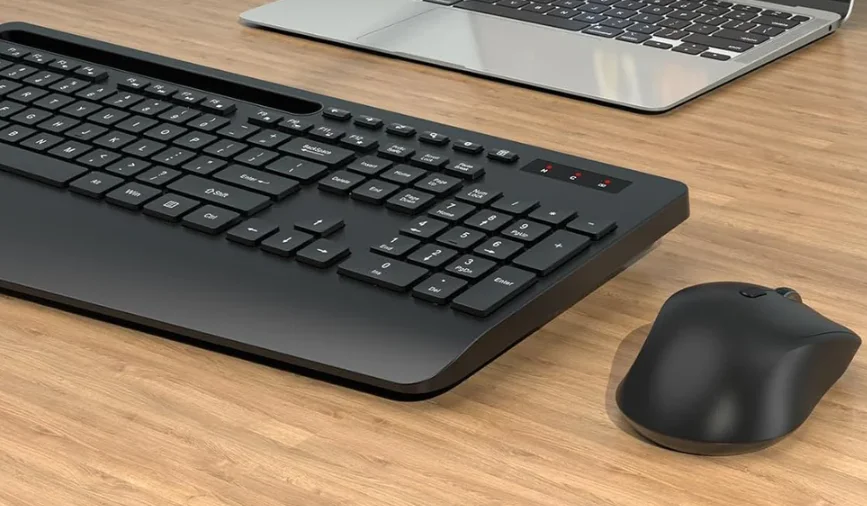

Sablute KM23 Wireless Keyboard and Mouse
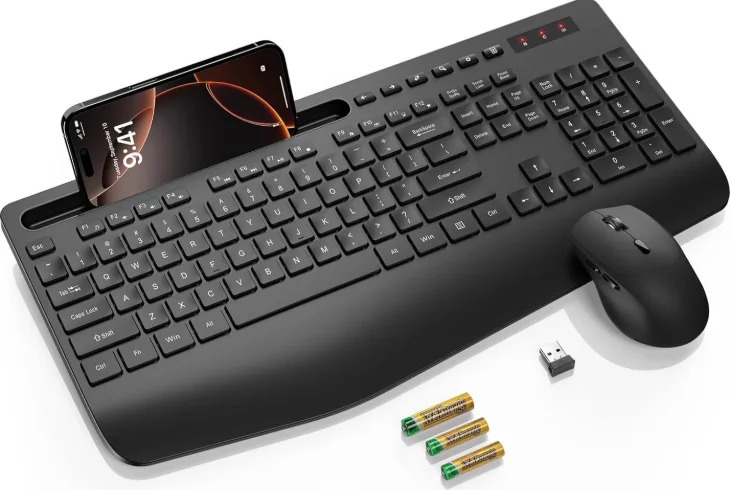
Product Specification
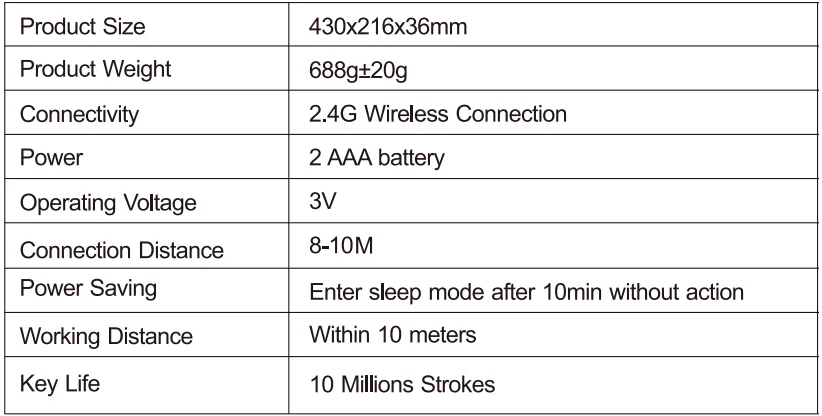
Keyboard parameters:

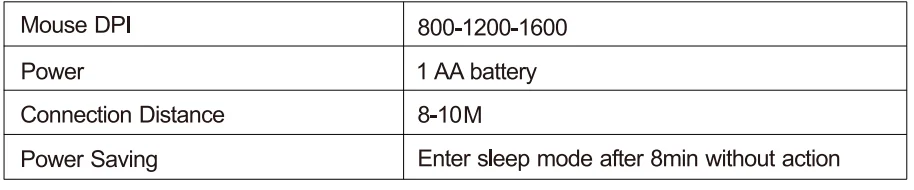
Mouse parameters:
NOTE
- Compatible Systems: All Windows, Mac OS, Linux, Chrome OS.
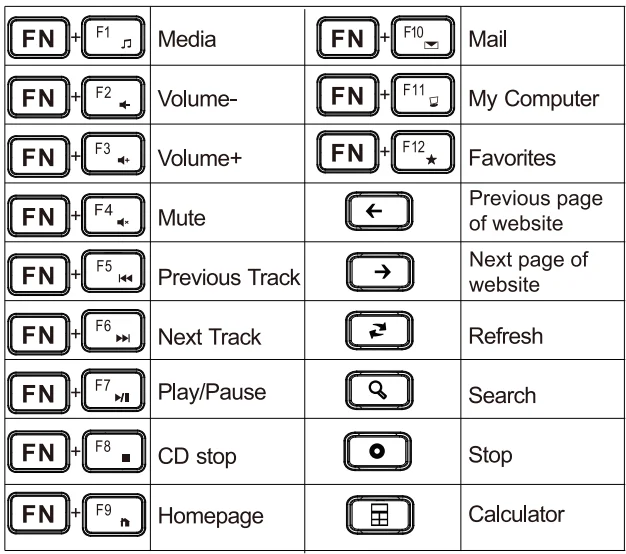
- The multimedia keys are for Win 8 and Win 10; for other systems, there may be no function for some combined keys.
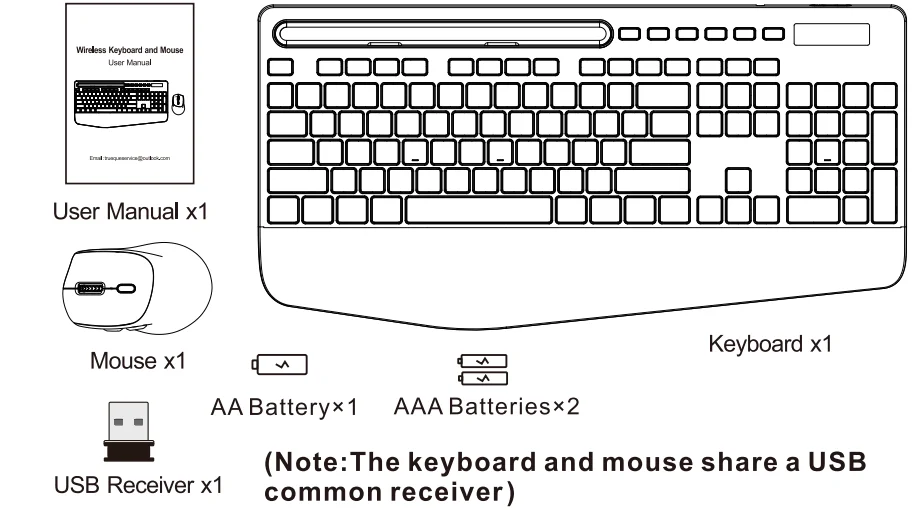
You will receive.
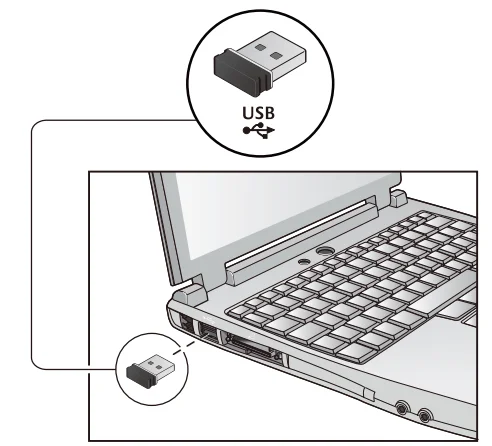
How to set up
- Please put the USB receiver into your computer.

- Put batteries in the keyboard and mouse, then turn on the keyboard and mouse.

- The keyboard and mouse will automatically connect to the computer, no driver needed.
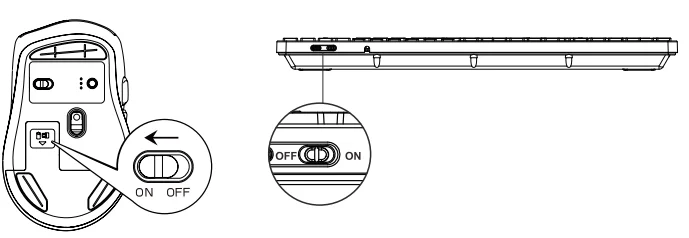
Indicator Light
LED Indicator of the Keyboard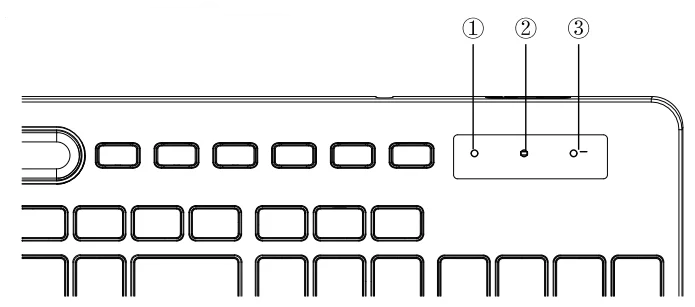
- Num Lock: The Num Lock indicator will turn red when Num Lock is activated.
- Caps Lock: The Caps Lock indicator will turn red when Caps Lock is activated.
- Low battery warning: The indicator light will flash slowly when the battery is almost empty.
Multimedia button description
FAQ
Q1: The keyboard cannot be connected.
A1: Please switch on the keyboard . The indicator light remains on. Plug the 2.4GHz USB receiver into the computer. Within 10 seconds, put the keyboard at 10 cm from the receiver for pairing. When the light turns off, the keyboard pairing is successful.
Q2: The mouse cannot be connected.
A2:
- After confirming that the mouse has sufficient power, press and hold the mouse wheel + right button for 5-8 seconds.
- Connect the USB receiver to your device.
- Release the mouse wheel + right click, wait for the light at the bottom of the mouse to light up normally.
Q3: Where is my USB receiver?
A3: The keyboard and the mouse share a USB receiver, which is placed in the internal slot of the mouse. If you still can’t find it, please contact our customer service team at ([email protected]), and they will reissue it for you.
FCC Statement
This equipment has been tested and found to comply with the limits for a Class B digital device, pursuant to Part 15 of the FCC Rules. These limits are designed to provide reasonable protection against harmful interference in a residential installation. This equipment generates, uses, and can radiate radio frequency energy and, if not installed and used following the instructions, may cause harmful interference to radio communications.
However, there is no guarantee that interference will not occur in a particular installation. If this equipment does cause harmful interference to radio or television reception, which can be determined by turning the equipment off and on, the user is encouraged to try to correct the interference by one or more of the following measures:
- Reorient or relocate the receiving antenna.
- Increase the separation between the equipment and receiver.
- Connect the equipment to an outlet on a circuit different from that to which the receiver is connected.
- Consult the dealer or an experienced radio/TV technician for help. Changes or modifications not expressly approved by the party responsible for compliance could void the user’s authority to operate the equipment.
This device complies with Part 15 of the FCC Rules. Operation is subject to the following two conditions:
- This device may not cause harmful interference.
- This device must accept any interference received, including interference that may cause undesired operation.
Customer service
Buy on SABLUTE, You will get:
 30-Day Money-Back Guarantee
- 90-Day Free Replacement
- Hassle-Free Warranty Without Returning
- Lifetime Customer Support
 30-Day Money-Back Guarantee
Contact us
For FAQs and more information, please visit: sablute.com/pages/contact, [email protected].
For More Manuals By Sablute, Visit ManualsLibraryy.
Sablute KM23 Wireless Keyboard and Mouse-FAQs
What is included in the Sablute KM23 Wireless Keyboard and Mouse Combo?
The Sablute KM23 combo includes a full-size wireless keyboard, a wireless mouse, and a USB receiver for connection. It is designed as a complete plug-and-play setup, allowing both devices to work together using a single dongle without requiring additional accessories.
Is the Sablute KM23 keyboard ergonomic for long-term use?
Yes, the KM23 is designed with ergonomics in mind, featuring a wide wrist rest and a slight tilt angle. These elements help reduce wrist strain and improve comfort, making it suitable for extended typing sessions at home, school, or office environments.
Does the Sablute KM23 support wireless connectivity?
The keyboard and mouse use a 2.4GHz wireless connection through a USB receiver. This setup ensures stable performance with minimal lag and typically offers a working range of up to 10 meters, making it reliable for everyday computing tasks.
Is the Sablute KM23 rechargeable or battery-powered?
The KM23 combo is battery-powered, requiring standard AA and AAA batteries for operation. It also includes a smart sleep mode that activates during inactivity, helping conserve energy and extend battery life for more convenient long-term use.
Does the Sablute KM23 keyboard include a device holder?
Yes, the keyboard features a built-in holder that can support phones and tablets up to around 11.9 inches. This allows users to multitask efficiently, such as viewing notifications or watching content while working on their computer.
How quiet is the Sablute KM23 keyboard and mouse?
The KM23 is designed for quiet operation, using soft membrane keys that significantly reduce typing noise. The mouse also features silent click technology, making the combo suitable for shared workspaces or environments where minimal noise is preferred.
Does the Sablute KM23 mouse support adjustable DPI?
Yes, the included mouse offers multiple DPI levels, typically ranging between 800 and 1600. This allows users to adjust cursor sensitivity based on their needs, whether for general browsing, office tasks, or more precise work.
Are there shortcut or multimedia keys on the Sablute KM23 keyboard?
The keyboard includes several multimedia hotkeys designed to improve productivity. These shortcuts allow users to quickly perform actions like opening the calculator, refreshing pages, or navigating forward and backward without using the mouse extensively.
Is the Sablute KM23 compatible with different operating systems?
The KM23 is compatible with most major operating systems, including Windows and macOS. Its plug-and-play functionality ensures that users can quickly connect and start using it without needing to install additional drivers or software.
Can the Sablute KM23 connect to tablets or smartphones directly?
No, the KM23 does not support direct Bluetooth connectivity. It requires a USB receiver to function, which means it cannot connect directly to most tablets or smartphones unless they support USB receivers through adapters.