
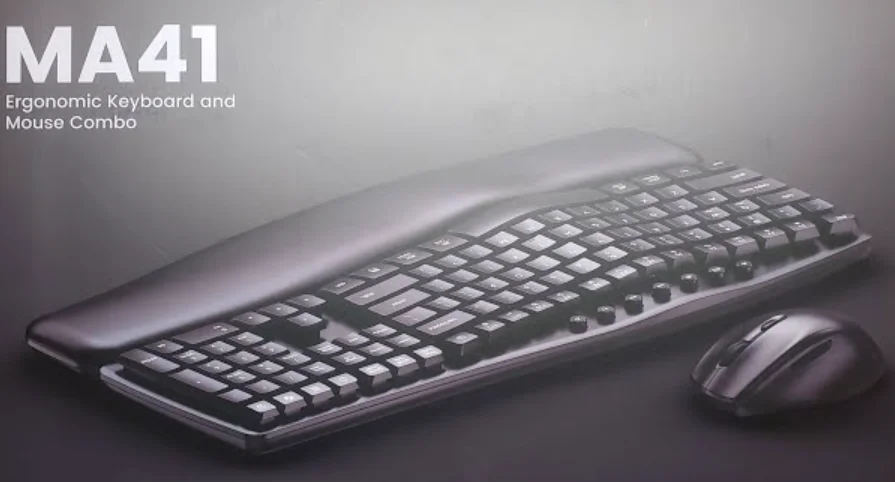

Sablute MA41 Wireless Keyboard Combo
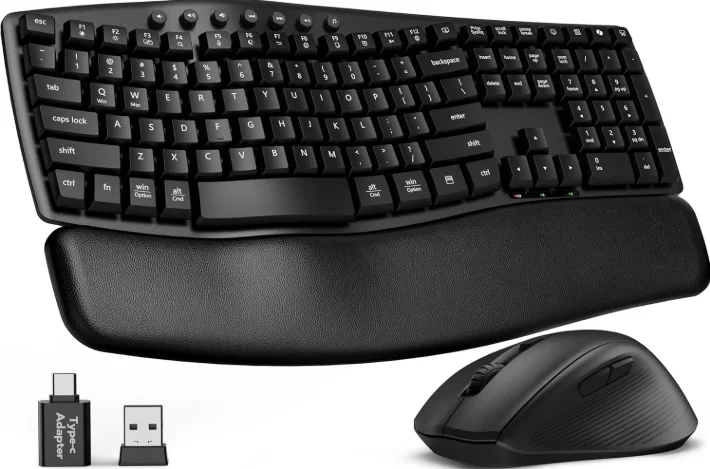
Where is USB?
Take out the USB from the back of the mouse. The mouse and keyboard share one USB.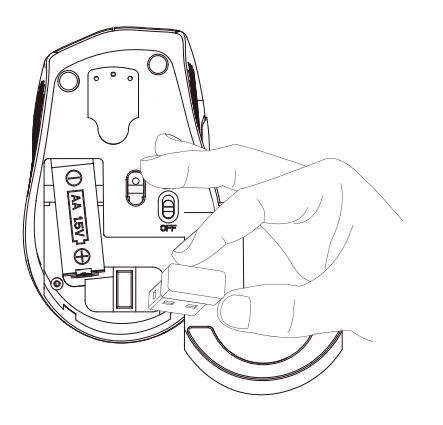
How to set up
- Please put the USB receiver into your computer.
- Then turn on the keyboard and mouse.
Note: The keyboard and mouse will automatically connect to the computer, no driver needed.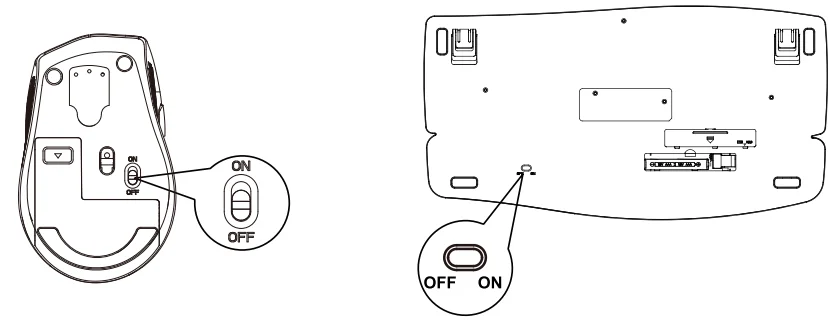
What to do if the keyboard loses connection with the USB?
Pairing method: Long-press the “ESC” + “=” keys for three seconds until the red light flashes. Then, immediately plug in the receiver.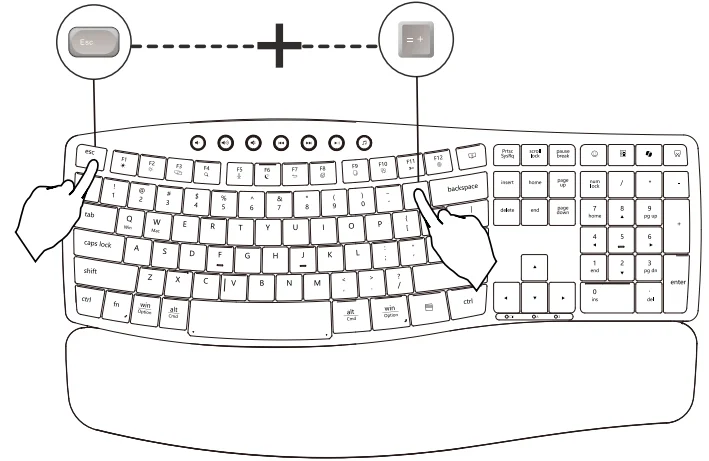
What to do if the mouse loses connection with the USB?
Press and hold the left, middle, and right buttons of the mouse for 3-5 seconds, then plug the USB into the computer.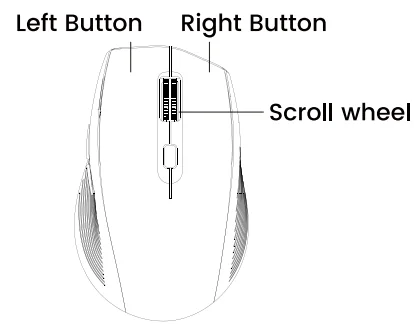
The Functions of a Mouse
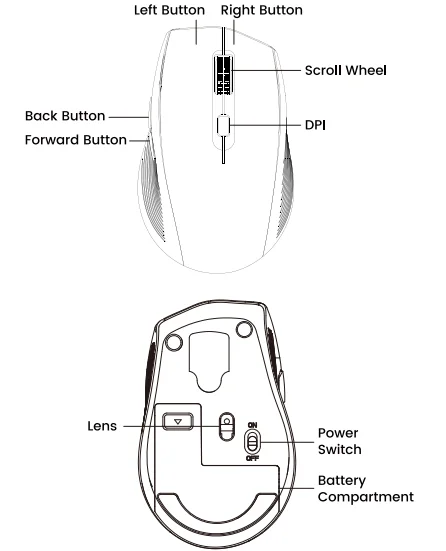
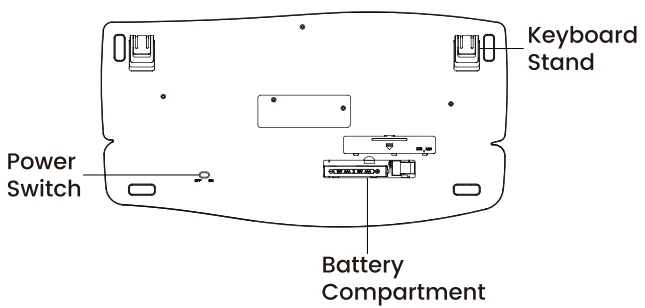
Introduction to the bottom of the keyboard
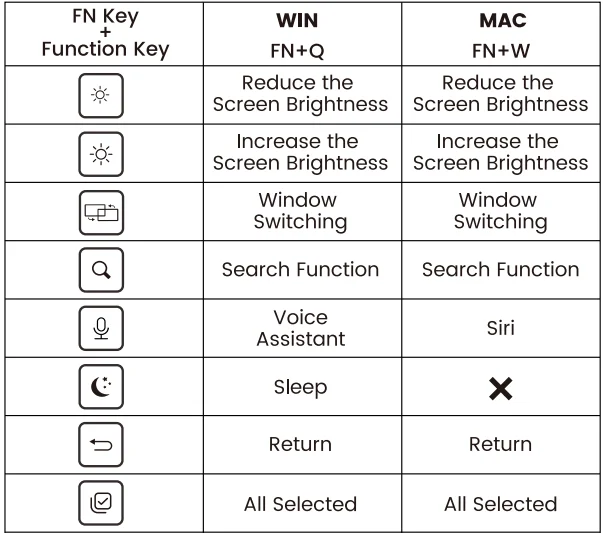
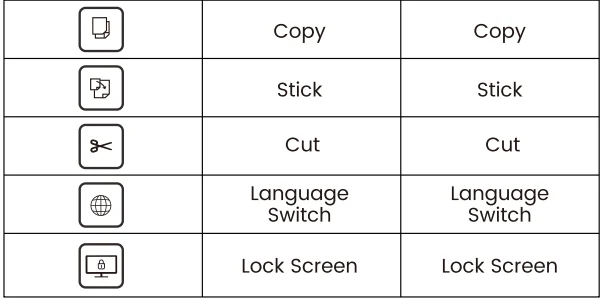
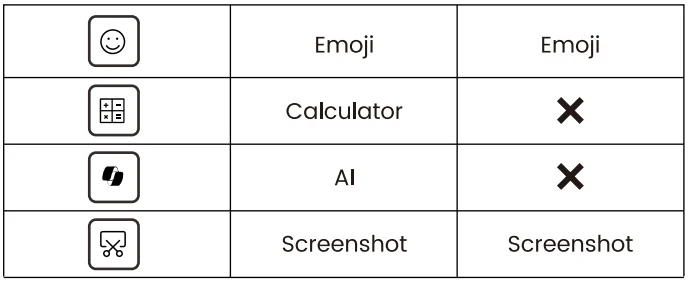
The functions of the shortcut keys
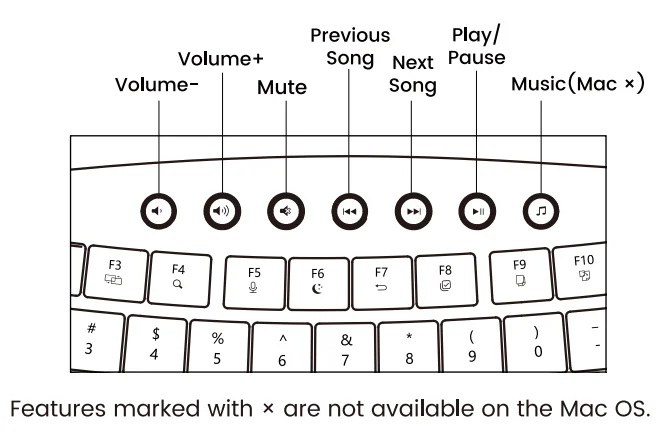
Keyboard shortcut combination
Indicator light function
 Num LOCK: The Num Lock indicator will turn green when Num Lock is activated.
 Caps LOCK: The Caps Lock indicator will turn green when Caps Lock is activated.
 Low battery indicator: When the battery power is low, the low-voltage symbol lights up red, indicating that the power is low.
 Num LOCK: The Num Lock indicator will turn green when Num Lock is activated.
 Caps LOCK: The Caps Lock indicator will turn green when Caps Lock is activated.
 Low battery indicator: When the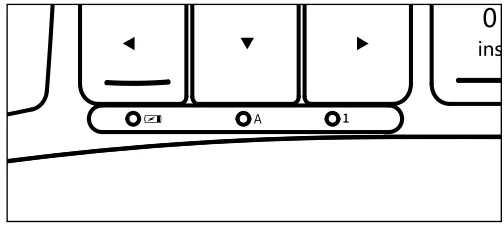
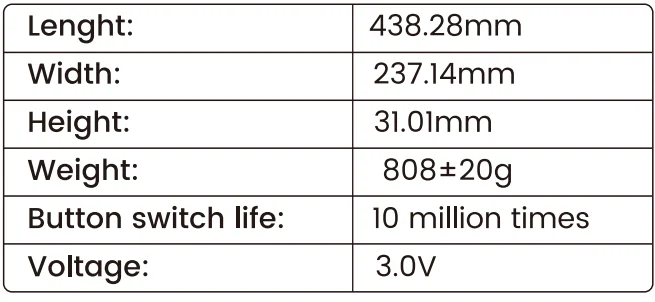
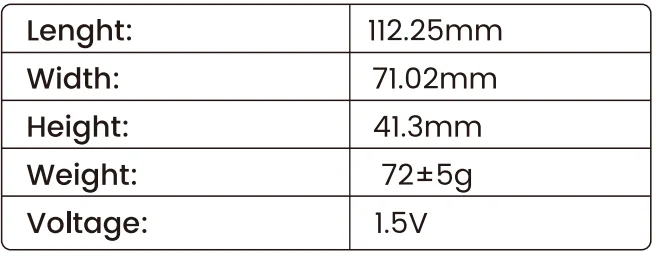
Product specifications and parameters
Keyboard:
Mouse:
FAQ
Q1: The keyboard and mouse cannot be connected.
A1: Please switch on the keyboard, press “Esc” + “=”, then observe the LED indicator light. Plug the 2.4GHz USB receiver into the computer. Within 10 seconds, place the keyboard 10 cm from the receiver for pairing. When the light turns off, the keyboard pairing is successful. Mouse: Press and hold the left, middle, and right buttons of the mouse until the indicator light flashes, then plug the USB into the computer.
Q2: What should I do if the keyboard gets delayed or stuck?
A2: Please check that there are no 2.4GHz devices (e.g., routers) nearby that may interfere with the connection. Ensure there are no full-metal cases blocking the signal.
Q3: Where is my USB receiver?
A3: Take out the USB from the back of the mouse. The mouse and keyboard share one USB.
Customer service
Buy on SABLUTE, You will get:
 30-Day Money-Back Guarantee
- 90-Day Free Replacement
- Hassle-Free Warranty Without Returning
- Lifetime Customer Support
 30-Day Money-Back Guarantee
Contact us
For FAQs and more information, please visit: sablute.com/pages/contact, [email protected].
FCC Statement
This equipment has been tested and complies with the limits for Class B digital devices under Part 15 of the FCC rules, designed to protect residential environments from harmful interference. The device emits radio frequency energy during use, and improper installation as per instructions may cause interference with wireless communications. If interference is detected (testable by power cycling), please take the following actions:
- Adjust the position of the receiving antenna.
- Increase the distance between the device and the receiver.
- Connect the device to a different circuit outlet than the receiver.
- Consult a technician or dealer for assistance.
Modifications not approved by the compliance responsible party will void the authority to operate the equipment. Operation is subject to two conditions:
- The device must not cause harmful interference.
- The device must accept any interference received, including that affecting normal operation.
For More Manuals By Sablute, Visit ManualsLibraryy.
Sablute MA41 Wireless Keyboard Combo-FAQs
What are the main features of the Sablute MA41 Wireless Keyboard Combo?
The Sablute MA41 features an ergonomic wave keyboard design with a soft leather wrist rest for improved comfort. It includes a wireless mouse, quiet keys, and plug-and-play connectivity using a single USB receiver, making it ideal for productivity-focused home and office setups.
Is the Sablute MA41 keyboard comfortable for long typing sessions?
Yes, the MA41 is designed for extended use with its contoured wave layout and cushioned wrist support. This ergonomic design helps reduce wrist strain and finger fatigue, allowing users to type comfortably for hours, whether working, studying, or handling daily computing tasks.
How does the Sablute MA41 connect to devices?
The combo uses a 2.4GHz wireless connection through a shared USB receiver stored inside the mouse. Simply plug the receiver into your device and power on the keyboard and mouse, and they will automatically connect without requiring any drivers or additional setup.
Is the Sablute MA41 keyboard quiet during use?
The keyboard is designed for ultra-quiet typing, producing around 30dB sound levels. This makes it suitable for shared workspaces, offices, and late-night use where minimal noise is important, ensuring a smooth and distraction-free typing experience.
What devices are compatible with the Sablute MA41 combo?
The Sablute MA41 supports a wide range of systems, including Windows, macOS, Android, and iOS devices. Its plug-and-play USB receiver allows easy compatibility with laptops, desktops, and tablets without requiring additional software or complex configurations.
Does the Sablute MA41 require batteries or charging?
The MA41 combo typically runs on replaceable batteries, with the keyboard using AAA batteries and the mouse using an AA battery. This setup offers flexibility and convenience, although users need to replace batteries periodically instead of recharging the devices.
What is the wireless range of the Sablute MA41?
The keyboard and mouse offer a stable wireless connection with a range of up to approximately 10 meters or 33 feet. This allows users to operate devices from a comfortable distance without experiencing lag or connectivity issues in most environments.
How durable is the Sablute MA41 keyboard?
The keyboard is built for durability, with keys rated for up to 10 million keystrokes. Its sturdy construction and spill-resistant design make it suitable for daily use, ensuring long-lasting performance even under frequent typing conditions.
What should I do if the Sablute MA41 stops connecting?
If the keyboard or mouse loses connection, you can re-pair them by pressing specific key combinations or mouse buttons while inserting the USB receiver. Keeping the devices close during pairing and avoiding interference from other wireless devices can help restore stable connectivity.
Is the Sablute MA41 good for gaming or office work?
The MA41 is best suited for office work, productivity, and general computing rather than gaming. Its focus on ergonomics, quiet typing, and comfort makes it ideal for professional tasks, while gamers may prefer keyboards with faster response times and advanced features.