
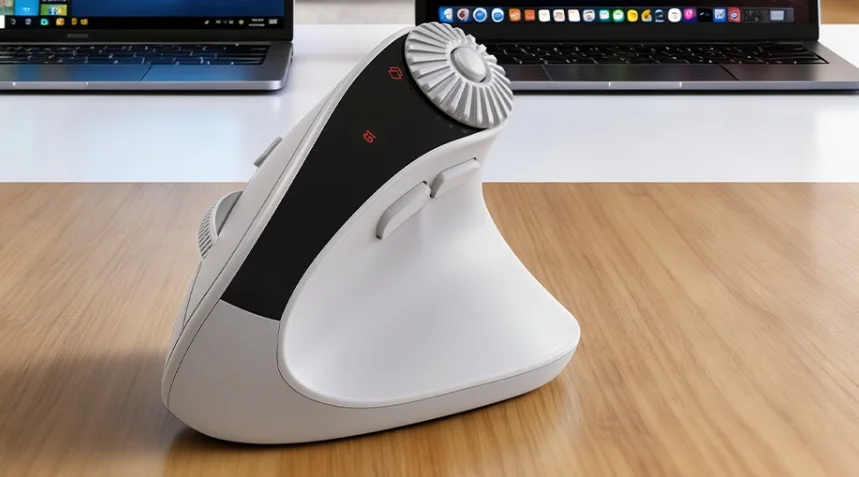

Sablute MAM51 Wireless Mouse
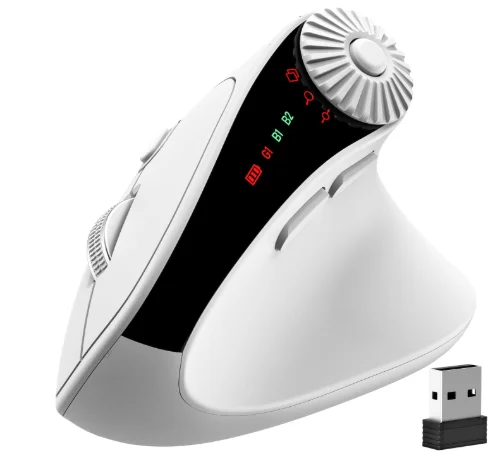
Package Contents (attachment)
- Instructions x1
- Mouse x1
- Receiver x1
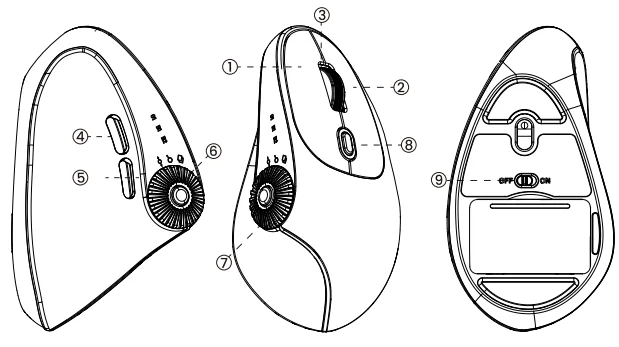
Product Function Introduction
- Left Button
- Middle Button
- Backward Button
- Function Key
- On/Off Switch
- Right Button
- Forward Button
- Multifunction Knob
- DPI Switch or Mode switch button

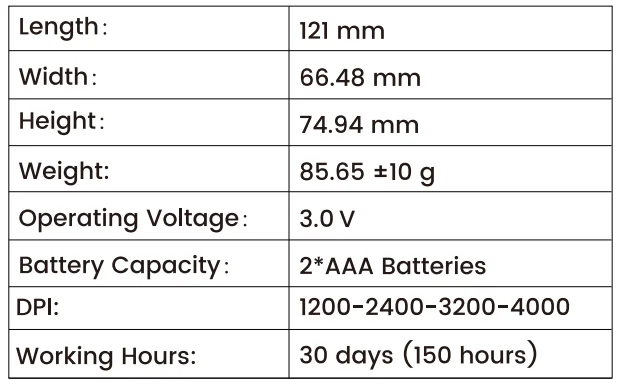
Product Parameters
Device Connection Tutorial
A. 2.4G connect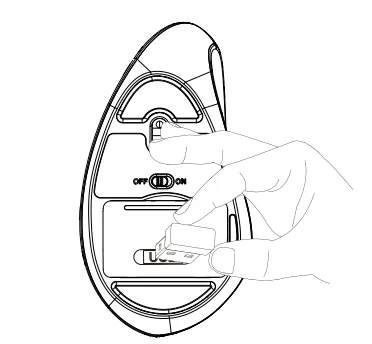
- Plug in the USB receiver.
- After connecting the USB to the computer, make sure the mouse display shows the connection icon as G1.
- Once connected successfully, it can be used without any drivers.
- If it still cannot connect in USB mode, long-press the left, middle, and right buttons for 3 seconds to pair. The red indicator light will flash rapidly to enter pairing mode. Bring the mouse close to the computer and reinsert the USB to connect successfully.
B. BT1/2 connect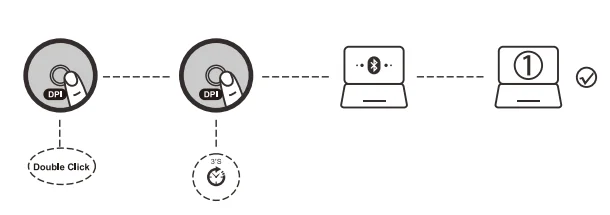
- Turn on the power switch.
- Quickly double-click the DPI button to switch to the BT connection icon ‘B1’ or ‘B2’, then press and hold the DPI button for 3 seconds. The BT indicator will flash rapidly, indicating it has entered pairing mode.
- Complete Bluetooth pairing on your device by selecting MAM51 BT1 or MAM51 BT2. (If you want to pair a new device, press and hold the DPI for 3 seconds to enter the corresponding Bluetooth pairing mode.)
Operating Instructions
1. DPI Button Function
DPI Function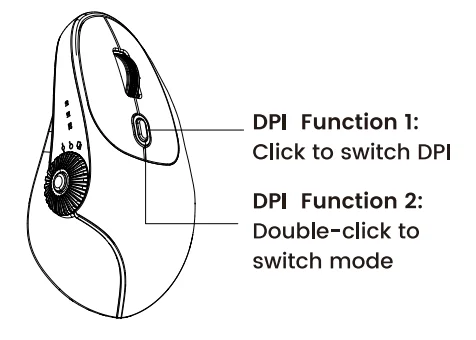
Click the DPI button to switch between DPI levels:
- Level 1: 1200 DPI
- Level 2: 2400 DPI
- Level 3: 3200 DPI
- Level 4: 4000 DPI
Mode Switching
Double-click the DPI button to switch connection modes in the following sequence: 2.4G → BT1 → BT2
2. Low Voltage Warning
When the battery voltage is below 2.0V, the indicator of the current mode will keep flashing to remind you to replace the battery.
3. Function Button & Knob Functions
The function button supports: Window Switching / Zoom In & Out / Horizontal Scrolling within Tables. Click the function button to cycle through the knob modes in the following order: Window Switching → Zoom In/Out → Horizontal Scrolling. Then rotate the multifunction knob to perform the corresponding action.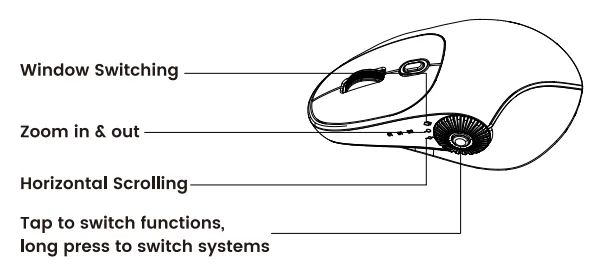
System Switching:
- Long-press the function button to switch between Windows and Mac systems.
- When the current mode is “Window Switching,” long-press to toggle system mode:
- Red light: Windows mode Green light: Mac mode
What If the Mouse Does Not Respond?
A. 2.4G connect
- Make sure the power switch on the bottom of the mouse is “on” or at the on position.
- Try to restart the computer.
- Press and hold the left, middle, and right buttons of the mouse for 3-5 seconds, then plug the USB into the computer.
B. BT1/2 connect
- Check if it is the corresponding Bluetooth mode.
- Check whether the Bluetooth connection has been completed; you can check if the device has M31BT after a successful Bluetooth connection.
- Turn on the power.
- If all else fails, please press and hold the DPI button for three seconds, then re-pair the Bluetooth.
Customer service
Buy on SABLUTE, You will get:
 30-Day Money-Back Guarantee
- 90-Day Free Replacement
- Hassle-Free Warranty Without Returning
- Lifetime Customer Support
 30-Day Money-Back Guarantee
Contact us
For FAQs and more information, please visit: sablute.com/pages/contact, [email protected].
Customer service
This equipment has been tested and complies with the limits for Class B digital devices under Part 15 of the FCC rules, designed to protect residential environments from harmful interference. The device emits radio frequency energy during use, and improper installation as per instructions may cause interference with wireless communications. If interference is detected (testable by power cycling), please take the following actions:
- Adjust the position of the receiving antenna.
- Increase the distance between the device and the receiver.
- Connect the device to a different circuit outlet than the receiver.
- Consult a technician or dealer for assistance.
Modifications not approved by the compliance responsible party will void the authority to operate the equipment. The operation is subject to two conditions:
- The device must not cause harmful interference.
- The device must accept any interference received, including that affecting normal operation.
For More Manuals By Sablute, Visit ManualsLibraryy.
Sablute MAM51 Wireless Mouse-FAQs
What is the Sablute MAM51 Wireless Mouse, and what makes it unique?
The Sablute MAM51 is an ergonomic vertical wireless mouse designed to reduce wrist strain and improve hand positioning. Its upright shape promotes a natural grip, making it different from traditional flat mice and ideal for users who prioritize comfort during long working sessions.
Is the Sablute MAM51 comfortable for extended use?
Yes, the vertical ergonomic design helps keep your wrist in a neutral position, reducing fatigue during prolonged usage. This makes it suitable for office work, browsing, and long hours on a computer, especially for users who experience discomfort with standard mouse designs.
How does the Sablute MAM51 connect to devices?
The MAM51 typically uses a 2.4GHz wireless connection through a USB receiver, offering plug-and-play functionality. Users can simply insert the receiver into their device and start using the mouse without installing additional drivers or software.
What DPI settings are available on the Sablute MAM51?
The mouse generally includes multiple DPI levels, allowing users to adjust cursor sensitivity based on their needs. This flexibility makes it suitable for both precise tasks like editing and faster navigation across larger screens or multitasking environments.
Is the Sablute MAM51 wireless mouse quiet when clicking?
Yes, it is designed with quiet-click technology that reduces noise significantly compared to traditional mice. This makes it ideal for shared spaces such as offices, libraries, or home environments where minimizing distractions is important.
What devices are compatible with the Sablute MAM51?
The MAM51 works with a wide range of devices, including laptops, desktops, and tablets. It is compatible with major operating systems like Windows, macOS, and some Android devices, ensuring flexibility across different setups and work environments.
Is the Sablute MAM51 suitable for travel or portable use?
While the ergonomic vertical design offers comfort, it may be slightly bulkier than compact mice. However, it can still be carried in laptop bags for travel, making it a good option for users who prioritize comfort over ultra-portability.
Does the Sablute MAM51 require batteries or is it rechargeable?
Depending on the variant, the MAM51 may use either replaceable batteries or a built-in rechargeable battery. This flexibility allows users to choose between convenience and long-term cost savings, depending on their usage preferences and model version.
Is there a learning curve when using the Sablute MAM51?
Yes, switching to a vertical mouse may take a few days of adjustment. Users unfamiliar with this design might initially find it different, but most adapt quickly and benefit from improved comfort and reduced wrist strain over time.
Is the Sablute MAM51 good for gaming or professional use?
The MAM51 is better suited for office work and productivity rather than gaming. Its ergonomic focus and moderate DPI range prioritize comfort and control, making it ideal for daily tasks, but less suitable for fast-paced competitive gaming scenarios.