
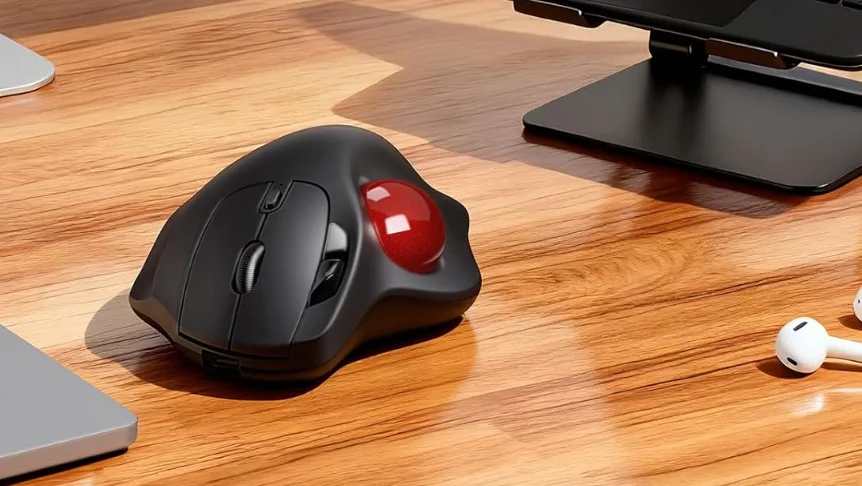

Sablute MAM2 Wireless Trackball Mouse
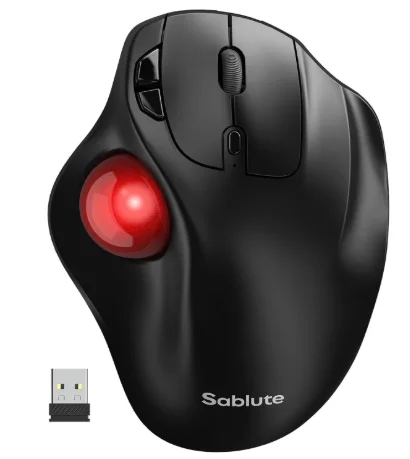
Package Contents (attachment)
- Mouse x1
- Receiver x1
- Instructions x1
- Charging cable x1
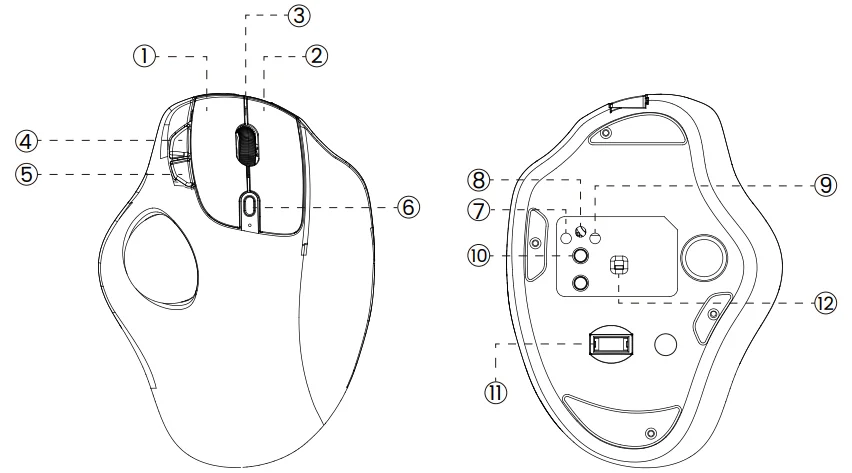
Product Function Introduction
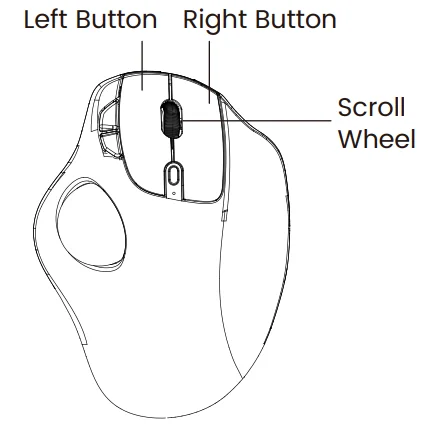
- Left Button
- Right Button
- Scroll Wheel
- Back Button
- Forward Button
- Adjust DPI Mode
- BT 1 Indicator Light
- BT 2 Indicator Light
- 2.4 G Indicator Light
- Switching Connection Methods
- USB Receiver
- Power Switch

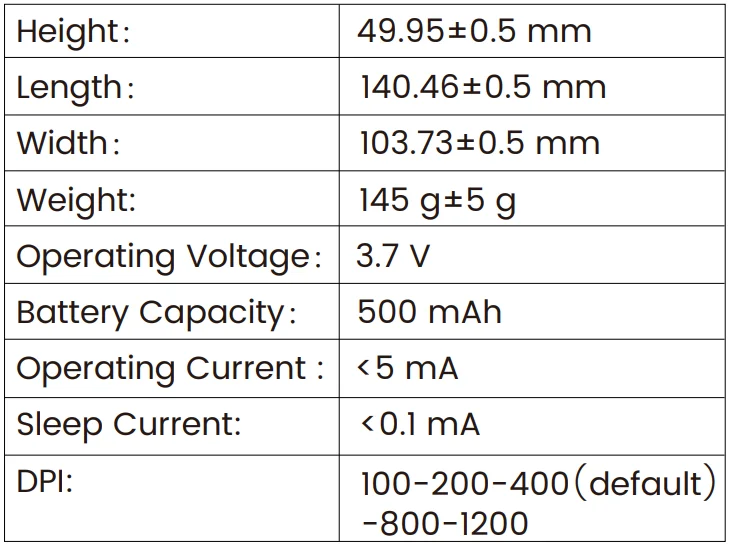
Product Specifications and Parameters
BT Mode
A. Pair Your First Device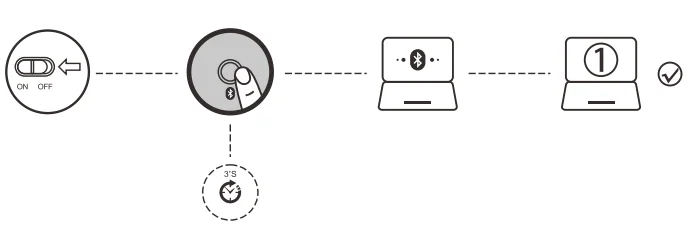
- Turn on the power switch.
- Press and hold the Bluetooth button for 3 seconds or more. The light flashes rapidly, and the mouse will enter Discoverable mode for 2 minutes.
- Complete Bluetooth pairing on your device. Use Bluetooth Named BT 3.0 or BT 5.0.
B. Pair Your Second Device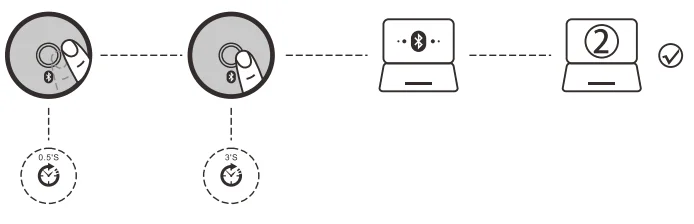
- Short-press the Bluetooth button to switch channels.
- Follow Steps 2 and 3 in “Pair Your First Device” to complete pairing.
- Switch between devices. Short press the Bluetooth button to switch between up to 3 paired devices. (Up to 2 devices via Bluetooth and 1 device via the 2.4 GHz receiver).
What If the Mouse Does Not Respond?
- Please charge the mouse with the USB cable.
- Make sure the power switch on the bottom of the mouse is “on” or in the correct position.
- Try to restart the computer.
- Is the USB connection of the mouse not responding?
- If it is still unsuccessful, please email to: [email protected]
- Press and hold the left, middle, and right buttons of the mouse for 3-5 seconds, then plug the USB into the computer.

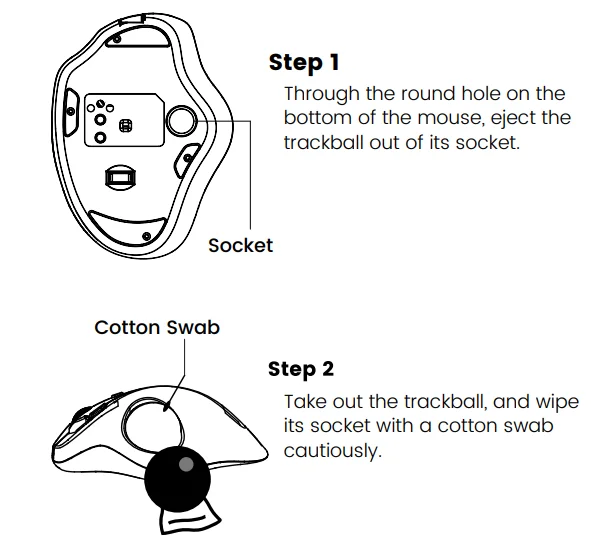
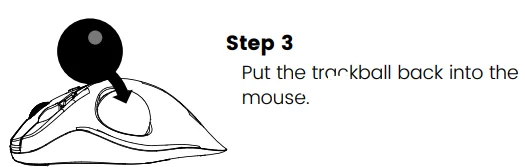
Trackball Maintenance

Customer service
Buy on SABLUTE, You will get:
 30-Day Money-Back Guarantee
- 90-Day Free Replacement
- Hassle-Free Warranty Without Returning
- Lifetime Customer Support
 30-Day Money-Back Guarantee
Contact us
For FAQs and more information, please visit: sablute.com/pages/contact, [email protected].
FCC ID
This equipment has been tested and complies with the limits for Class B digital devices under Part 15 of the FCC rules, designed to protect residential environments from harmful interference. The device emits radio frequency energy during use, and improper installation as per instructions may cause interference with wireless communications. If interference is detected (testable by power cycling), please take the following actions:
- Adjust the position of the receiving antenna.
- Increase the distance between the device and the receiver.
- Connect the device to a different circuit outlet than the receiver.
- Consult a technician or dealer for assistance.
Modifications not approved by the compliance responsible party will void the authority to operate the equipment. The operation is subject to two conditions:
- The device must not cause harmful interference.
- The device must accept any interference received, including that affecting normal operation.
For More Manuals By Sablute, Visit ManualsLibraryy.
Sablute MAM2 Wireless Trackball Mouse-FAQs
What is the Sablute MAM2 Wireless Trackball Mouse, and how does it work?
The Sablute MAM2 is an ergonomic wireless trackball mouse that uses a thumb-controlled ball instead of moving the entire device. This design allows precise cursor control with minimal hand movement, reducing strain and making it ideal for long working hours or limited desk space setups.
What are the key features of the Sablute MAM2 trackball mouse?
The mouse includes adjustable DPI levels, multi-device connectivity via Bluetooth and USB receiver, a rechargeable battery, and customizable LED backlighting. It also offers an adjustable tilt angle, helping users find a comfortable wrist position during extended use sessions.
Is the Sablute MAM2 comfortable for long-term use?
Yes, the ergonomic design and trackball control significantly reduce wrist and arm movement, making it suitable for extended computer sessions. Many users report improved comfort and reduced fatigue compared to traditional mice, especially when working or browsing for long periods.
How long does the battery last on the Sablute MAM2?
The built-in rechargeable battery can last several weeks on a full charge, depending on usage and lighting settings. This long battery life eliminates the need for frequent charging and makes it convenient for daily productivity tasks and uninterrupted workflow.
Does the Sablute MAM2 support multiple devices?
Yes, the mouse supports multi-device connectivity through Bluetooth and a USB receiver, allowing users to switch between devices like laptops, desktops, and tablets easily. This feature is especially useful for professionals working across multiple systems simultaneously.
Is there a learning curve when using the Sablute MAM2 trackball mouse?
There is a slight learning curve for users switching from a traditional mouse, as controlling the cursor with a trackball feels different initially. However, most users adapt within a few days and find it more efficient and comfortable afterward.
What devices and operating systems are compatible with the Sablute MAM2?
The Sablute MAM2 works with Windows, macOS, and Android devices. Its plug-and-play functionality ensures easy setup, whether connecting via Bluetooth or a USB receiver, making it a versatile option for different work environments and device ecosystems.
Does the Sablute MAM2 have adjustable sensitivity settings?
Yes, the mouse offers multiple DPI levels, typically ranging from 800 to 4800 DPI. This allows users to adjust cursor speed and precision according to their needs, whether for general browsing, office work, or tasks requiring finer control.
Is the Sablute MAM2 suitable for gaming?
The MAM2 can handle casual gaming, but it is primarily designed for productivity and comfort rather than competitive gaming. Its trackball control focuses on precision and reduced movement, which may not match the speed preferences of serious gamers.
What are the common drawbacks of the Sablute MAM2 trackball mouse?
Some users find the trackball slightly difficult to master at first, and the compact design may not suit larger hands. Additionally, DPI customization options may feel limited for advanced users, and occasional responsiveness concerns are reported by a small number of users.