
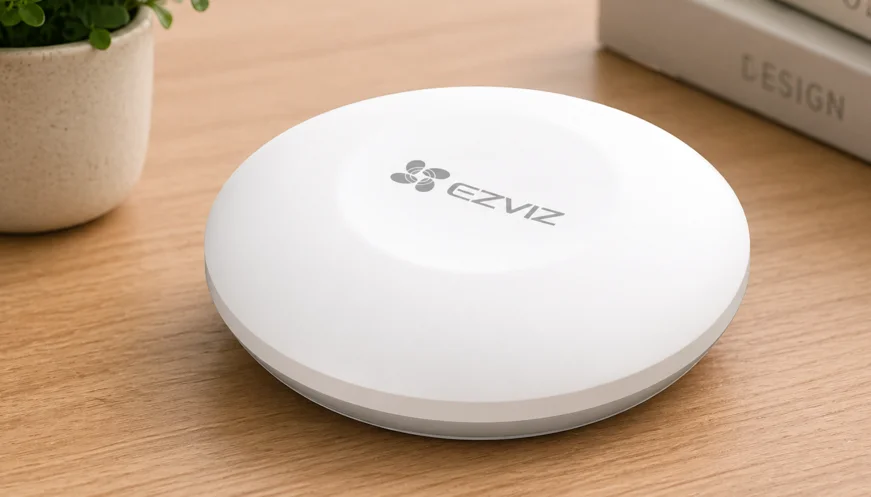

EZVIZ T3C Smart Button
Overview
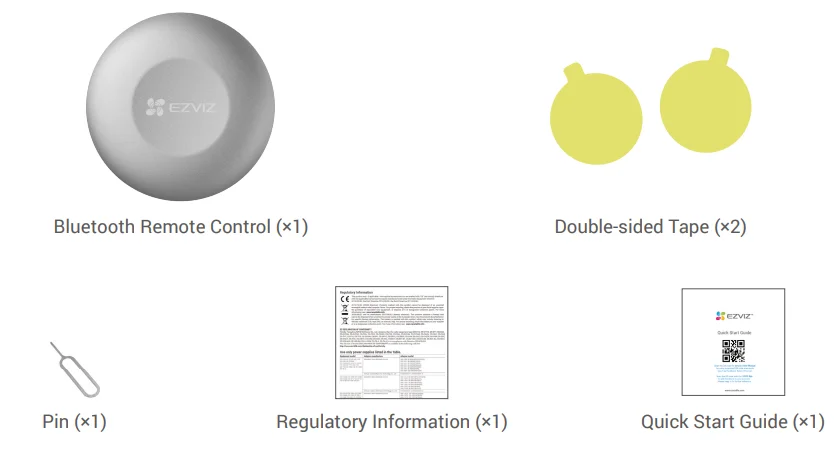
- Package Contents

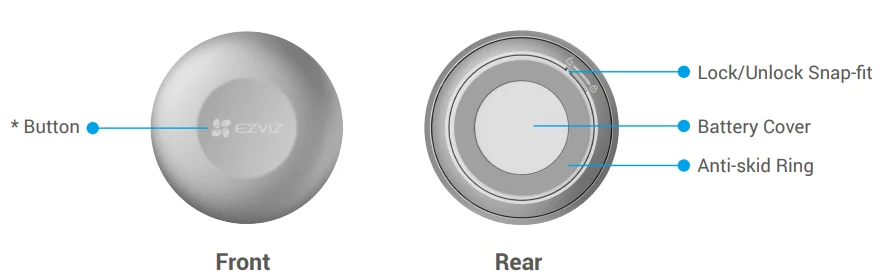
- Basics


Get the EZVIZ App
- Connect your mobile phone to Wi-Fi (suggested).
- Download and install the EZVIZ App by searching “EZVIZ” in the App Store or Google PlayTM.
- Launch the App and register an EZVIZ user account.

Note: If you have already used the App, please make sure that it is the latest version. To find out if an update is available, go to the App Store and search for EZVIZ.
Preparations
1. Remove Cover
Hold the remote control and rotate the back cover counterclockwise to detach it.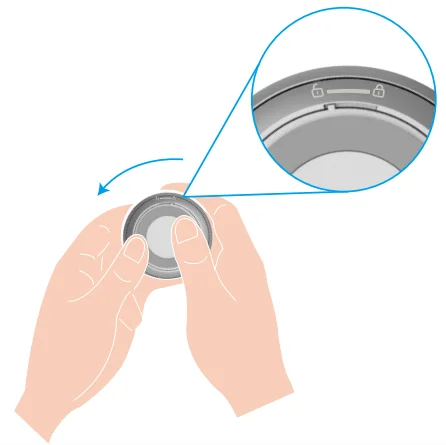
2. Remove Insulation Strip
Remove the battery insulation strip as shown in the figure below.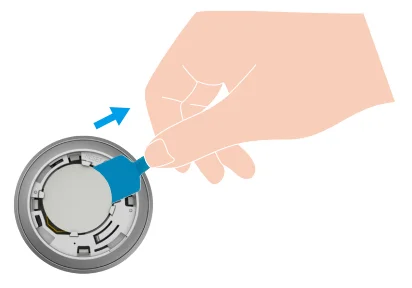
Note:
- Keep your hands dry and clean when touching the circuit board.
- If you need to replace the battery, please purchase a CR2032 210mAh.
- When replacing batteries, please insert with the positive side facing up.
Add Device
Add the remote control to other devices according to the following steps. Here, EZVIZ Door Lock is an example.
Note:
- Place the remote control as close to the device as possible when adding it.
- Make sure that the door lock has been installed properly and added to the EZVIZ App.
- Log in to your EZVIZ account, select the door lock tab in the “Devices” interface.
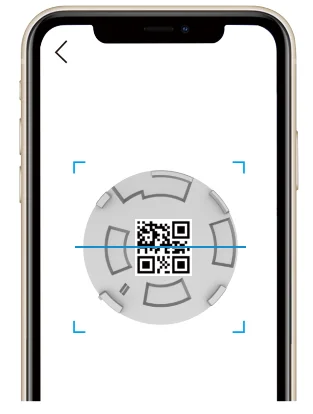
- Select “Settings> Accessory Management > Bluetooth Remote Control” to go to the Scan QR Code interface.
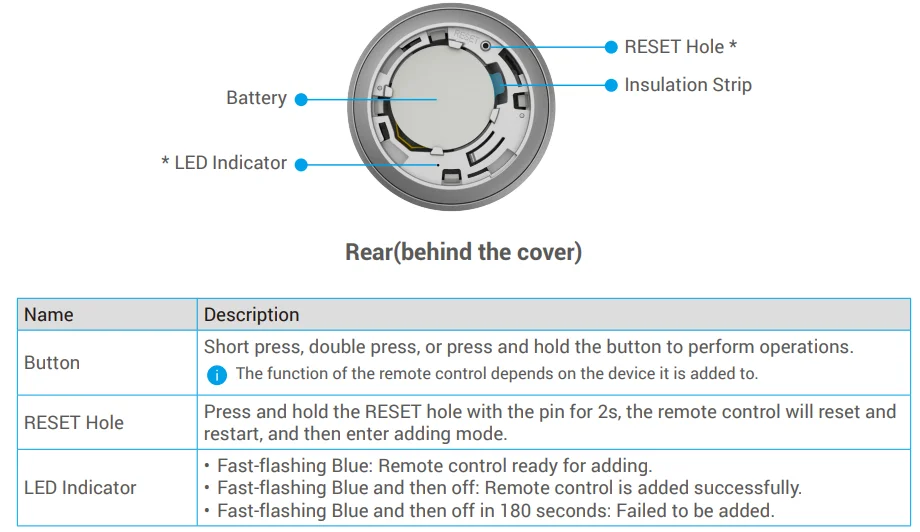
- Open the battery cover of the remote control, press and hold the RESET hole with the pin for 2s until the LED indicator turns fast-flashing blue.
- Scan the QR code on the back of the battery cover of the remote control.
- Follow the EZVIZ App wizard to finish adding.
- Place the battery cover back on the remote control.

Installation
Note:
- The remote control can be put on the table or stuck on the wall with the double-sided tape.
- If you stick the remote control on the wall, please make sure that the remote control is below 1.5 meters.
1. Put on the Table
Put the remote control on a flat table.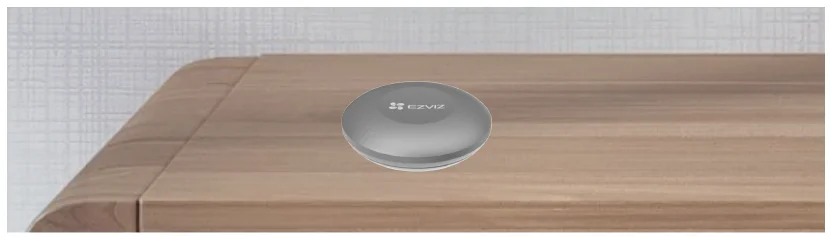
2. Stick on the Wall
Note:
- • Before sticking the remote control, clean the dust on the surface first. Do not stick the remote control on limewashed walls.
- Do not install the remote control on metal doors, which will cause signal attenuation. You can install it on walls beside metal doors.
- It is recommended that the distance between the remote control and the door lock be less than 10m. If there are walls between them, the number of walls should be no more than 1.
Take out the double-sided tape attached to the package and stick the remote control to a suitable position on the wall with the tape.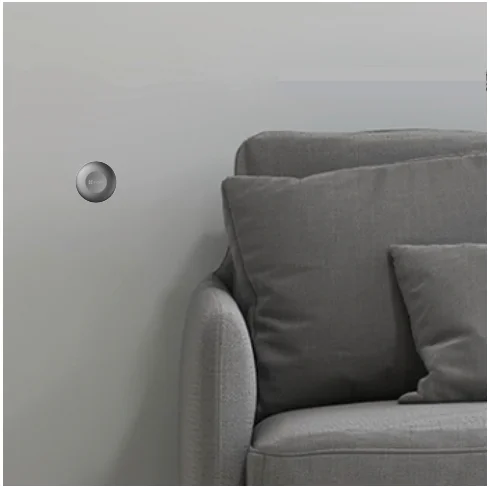
Battery Installation and Replacement
1. Install Battery
Tear off the battery insulation strip, put the battery into the base plate, and insert it into the end.
2. Replace Battery
Remove the battery from the base plate and replace it with the Lithium Battery CR2032 purchased from a regular manufacturer. Test the device for correct operation whenever the batteries are replaced after re-fitting the device onto the base plate. If the device is not working properly, please add the device and configure the network again by following the steps in the Setup part, or directly contact our technical support.
- Risk of explosion if the battery is replaced with an incorrect type.
- Improper replacement of the battery with an incorrect type may defeat a safeguard (for example, in the case of some lithium battery types).
- Do not dispose of the battery in a fire or a hot oven, or mechanically crush or cut the battery, which may result in an explosion.
- Do not leave the battery in an extremely high temperature environment or an extremely low air pressure environment, which may result in an explosion or the leakage of flammable liquid or gas.
- Dispose of used batteries according to the instructions.
- Identifies the battery holder itself and identifies the positioning of the cell(s) inside the battery holder.
- “+” identifies the positive terminal(s) of the device, which is used with, or generates, direct current. “-” identifies the negative terminal(s) of the device, which is used with, or generates, direct current.
3. Removable Lithium-ion Battery (CR2032)
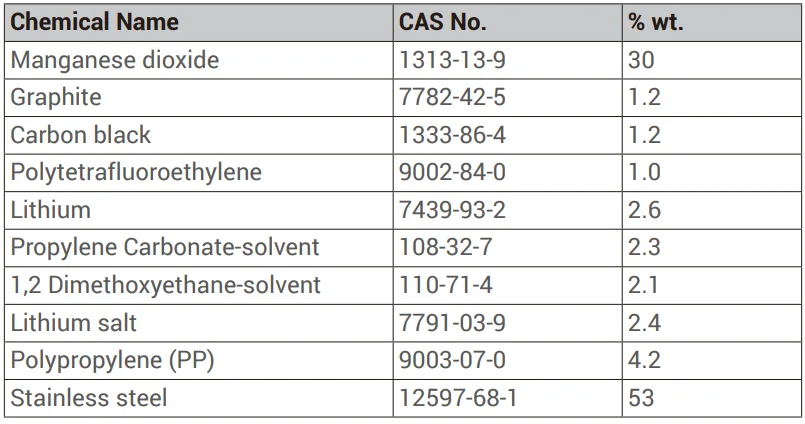
Note: For additional information about the device, please refer to www.ezviz.com/eu.
INFORMATION FOR PRIVATE HOUSEHOLDS
- Separate collection of waste equipment: Electrical and electronic equipment that has become waste is referred to as waste equipment. Owners of waste equipment must dispose of it separately from unsorted municipal waste. In particular, waste equipment does not belong in household waste, but in special collection and return systems.
- Batteries and rechargeable batteries, as well as lamps: Owners of waste equipment shall, as a rule, separate waste batteries and rechargeable batteries that are not enclosed in the waste equipment, which can be removed from the waste equipment without being destroyed, from the waste equipment before handing them in at a collection point. This does not apply if waste equipment is prepared for reuse with the participation of a public waste management authority.
- Options for returning waste equipment: Owners of waste equipment from private households can return it free of charge to the collection points of the public waste management authorities or to the take-back points set up by manufacturers or distributors within the meaning of the Electrical and Electronics Equipment Law. Stores with a sales area of at least 400 m² for electrical and electronic equipment, and those grocery stores with a total sales area of at least 800 m² that offer electrical and electronic equipment several times a year or permanently and make it available in the market, are required to take it back. This also applies in the case of distribution using means of distance communication, if the storage and shipping areas for electrical and electronic equipment are at least 400 m² or the total storage and shipping areas are at least 800 m². Distributors shall, in principle, ensure take-back by providing suitable return facilities at a reasonable distance from the respective end user. The possibility of returning waste equipment free of charge exists for distributors who are obliged to take it back, among other things, if a new similar device that essentially fulfills the same functions is delivered to an end user.
- Privacy Notice: Waste equipment often contains sensitive personal data. This applies in particular to devices of information and telecommunications technology, such as computers and smartphones. In your own interest, please note that each end user is responsible for deleting the data on the waste equipment to be disposed of.
- Meaning of the symbol “crossed-out wheelie bin”: The symbol of a crossed-out wheelie bin regularly depicted on electrical and electronic equipment indicates that the respective device is to be collected separately from unsorted municipal waste at the end of its service life.
For More Manuals By EZVIZ, Visit ManualsLibraryy.
EZVIZ T3C Smart Button-FAQs
What is the EZVIZ T3C Smart Button used for?
The EZVIZ T3C Smart Button is designed as a simple control device for managing compatible EZVIZ smart sensors. It can arm or disarm your security setup, trigger emergency alerts, and provide one-touch control, making it useful for smart home security and quick-response situations.
Does the EZVIZ T3C require a hub or gateway to work?
Yes, the EZVIZ T3C requires the EZVIZ A3 Home Gateway to function and does not operate as a standalone device. It connects through the gateway to communicate with compatible sensors, which is important to know before buying if you are building a smart security setup.
Can the EZVIZ T3C be used as an emergency panic button?
Yes, one of the key uses of the EZVIZ T3C is as an emergency button. A configured press can send an alert through your connected system, making it useful for seniors, children, or anyone wanting a quick-access security trigger inside the home.
Is the EZVIZ T3C easy to install and set up?
The EZVIZ T3C is designed for easy setup through the EZVIZ app once paired with the A3 gateway. Its compact, wireless design allows placement on walls, desks, or bedside areas, and users generally appreciate its straightforward installation and flexible placement options.
How long does the EZVIZ T3C battery last?
Battery life is one of the appealing features of the EZVIZ T3C, with sources citing up to 12 months or even longer, depending on usage. Since it uses a replaceable battery, maintenance is simple, which adds convenience for long-term everyday smart home use.
What devices is the EZVIZ T3C compatible with?
The EZVIZ T3C is made to work with compatible EZVIZ sensors through the A3 Home Gateway, particularly selected motion and entry sensors. Compatibility is something buyers should verify before purchase, especially if they plan to expand or integrate a larger smart security ecosystem.
Can the EZVIZ T3C control multiple actions with different button presses?
Yes, the smart button supports multiple press actions such as single press, double press, and long press, depending on configuration. This flexibility allows users to assign different tasks like arming security modes or sending alerts, making the button more versatile than basic single-function switches.
Is the EZVIZ T3C worth it for smart home security?
For users already using the EZVIZ sensor ecosystem, the T3C can add practical convenience and emergency functionality at a relatively low cost. Its value comes more from quick control and automation support than complex features, making it useful for expanding a smart security setup.
Can the EZVIZ T3C be placed anywhere in the house?
Yes, the EZVIZ T3C is designed for flexible placement and can be mounted or carried around the home within gateway range. Many users place it near beds, entrances, or workspaces, where quick access to security controls or emergency alerts is most practical.
Does the EZVIZ T3C support smart home automation routines?
The EZVIZ T3C supports automation within the EZVIZ ecosystem by triggering linked sensor actions and control routines. While it is not a full automation hub itself, it can serve as a simple manual trigger that adds convenience and responsiveness to connected smart home devices.