
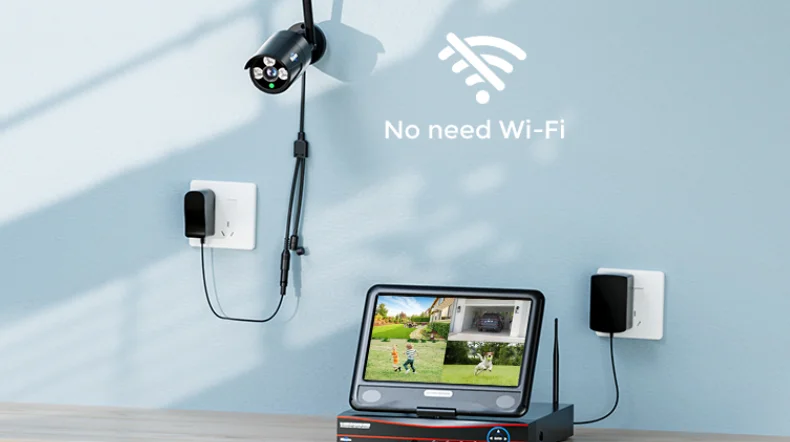

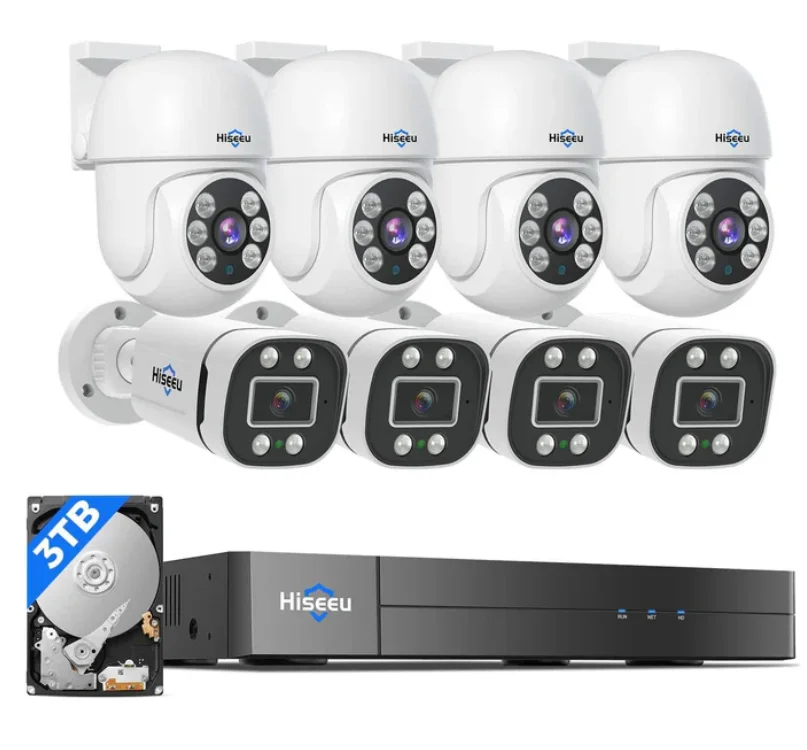
Hiseeu 16CH 3K Wired Security Camera System
Safety Caution
- Please read this user manual carefully to ensure that you can use the device correctly and safely. This manual is suitable for many models.
- All examples and pictures used in the manual are from one of the models for reference purposes. There may be several technically incorrect places or printing errors in this manual. The updates will be added to the new version of this manual. The contents of this manual are subject to change without notice.
- This device should be operated only from the type of power source indicated on the marking label. The voltage of the power must be verified before using it. Kindly remove the cables from the power source if the device is not to be used for a long period of time.
- Use the device under the required safety power range, or it will cause a power supply short circuit, and the device will stop working.
- Use the navigation menu or the power switch to shut down; do not directly unplug the power. A sudden power failure may cause device damage and data loss.
- Do not install this device near any heat sources such as radiators, heat registers, stoves, or other devices that produce heat.
- Do not install this device near water. Clean only with a dry cloth.
- Do not block any ventilation openings and ensure proper ventilation around the machine.
- Do not power off the device at normal recording conditions.
- This machine is for indoor use only. Do not expose the machine to rain or a moist environment. In case any solid or liquid gets inside the machine’s case, please turn off the device immediately and get it checked by a qualified technician.
- Do not try to repair the device by yourself without technical aid or approval.
- When this product is in use, the relevant contents of Microsoft, Apple, and Google will be involved in. The pictures and screenshots in this manual are only used to explain the usage of our product. The ownership of trademarks, logos, and other intellectual properties related to Microsoft, Apple, and Google shall belong to the above-mentioned companies.
Camera Diagram
Bullet Camera
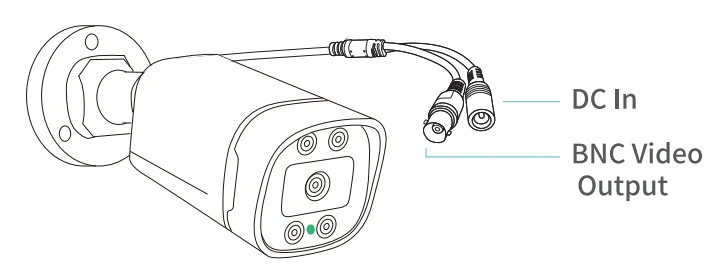
Dome Camera
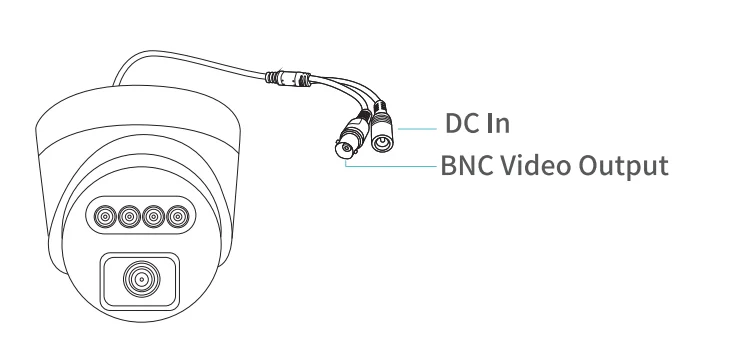
PT Mini Camera
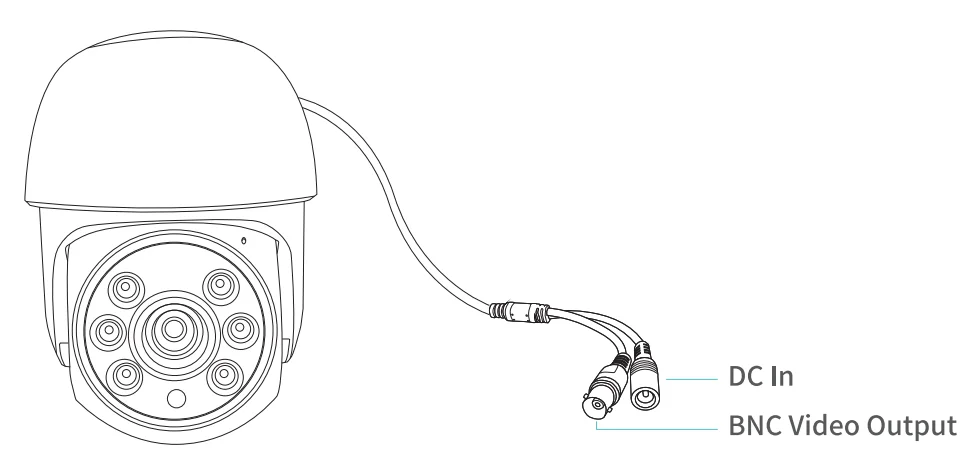
Power Cable Splitter
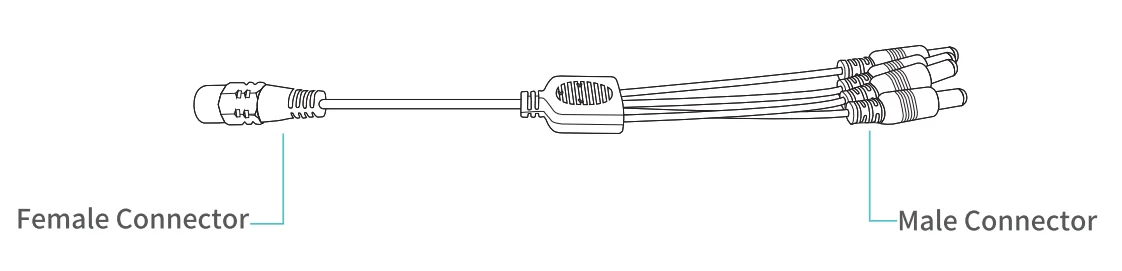
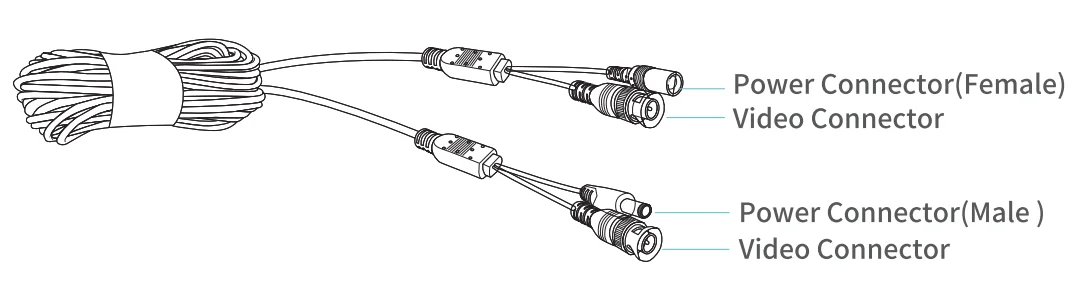
BNC Cable
XVR Diagram
Type 1: 8 ports TVI XVR
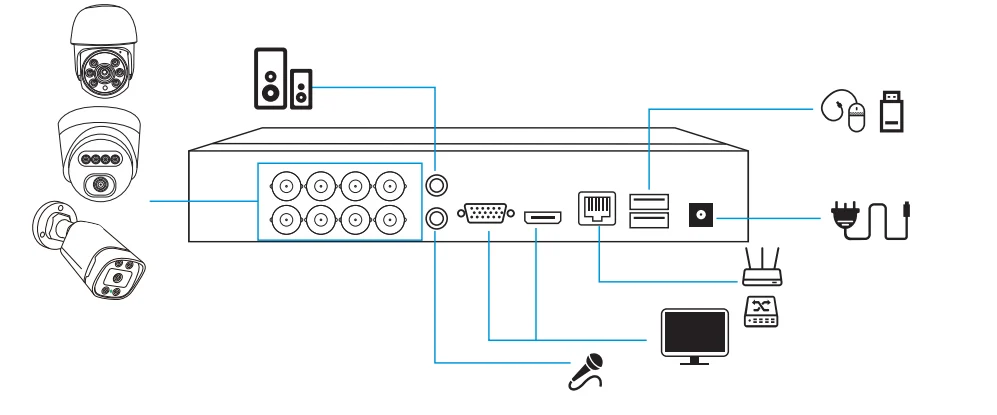
Type 2: 16 ports TVI XVR
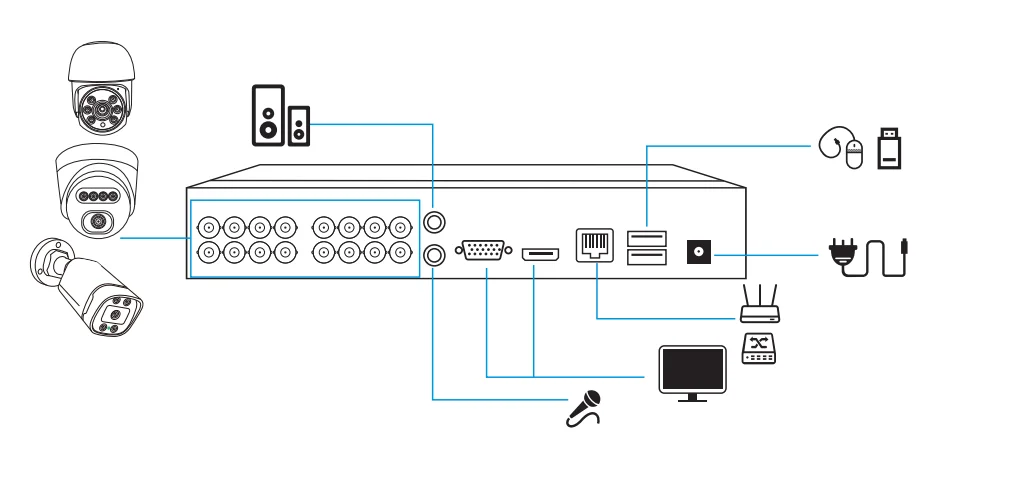
System Connections
Do not fix the TVI camera before you can view the Image on the monitor and confirm the ideal position to install it.
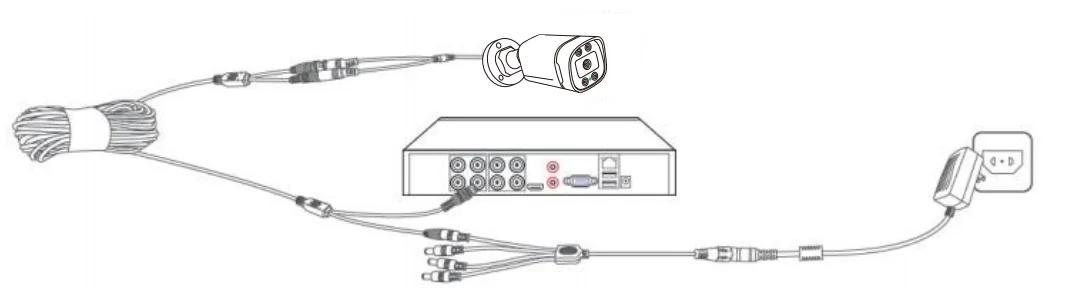
- Plug a power adapter into the XVR and the socket to power on the XVR.

- Connect a monitor to the HD Output or VGA Output on the XVR with an HDMI cable or VGA cable (not included).

- Connect the Ethernet cable to the XVR and your router.

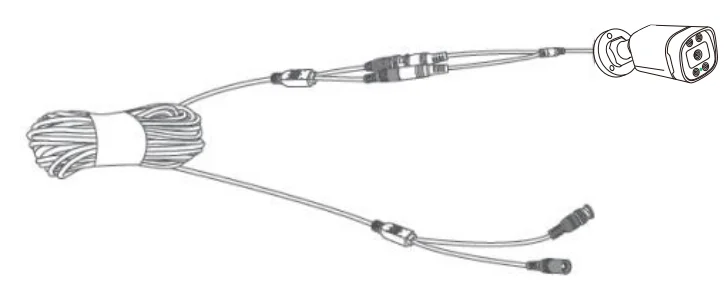
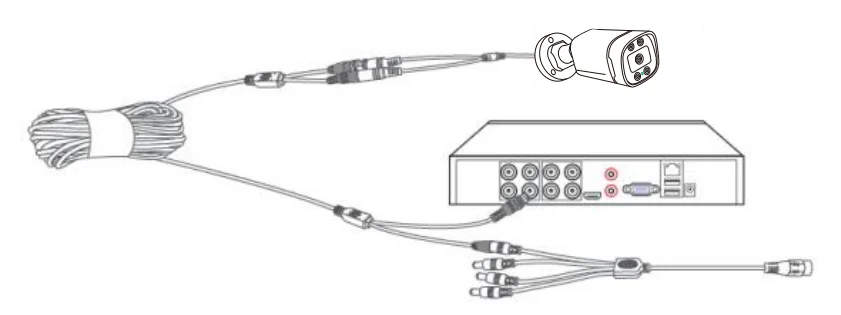
- Connect the TVI camera with the BNC Cable.

- Connect the Blue Video Connector to the BNC Video Input on the XVR, and connect the Red Power Connector to the Male Connector of the Power Cable Splitter.

- Connect the Female Connector of the Power Cable Splitter with another power adapter. Then plug the power adapter into the socket to power on the camera.

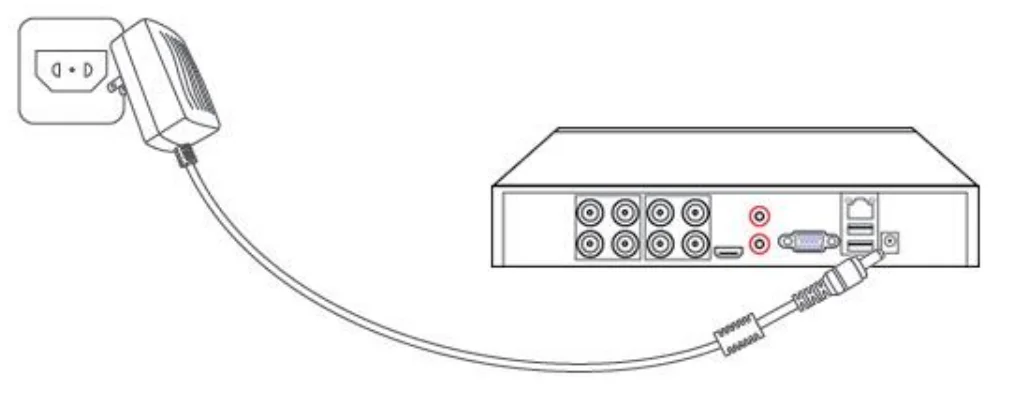
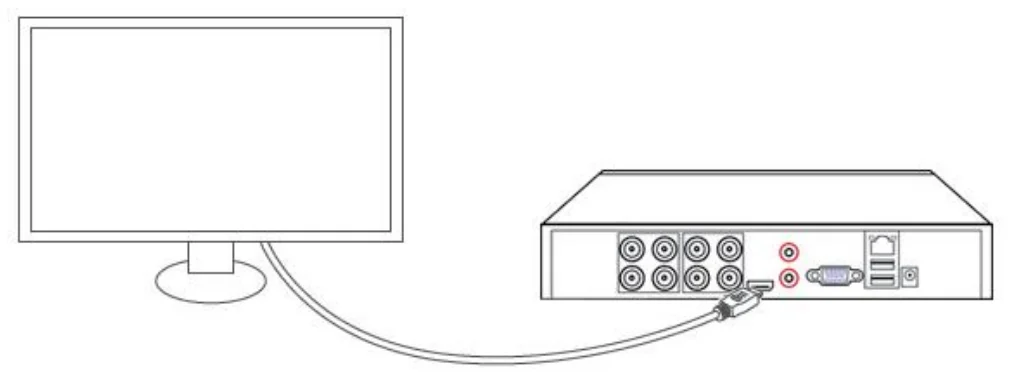
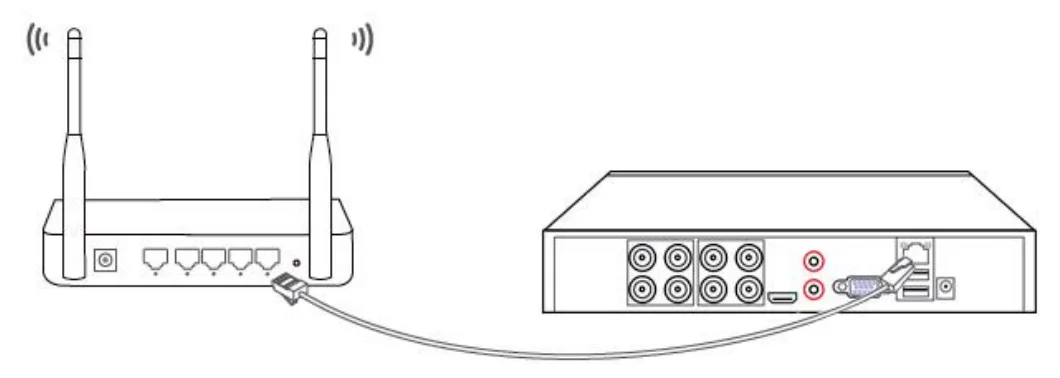
Start Up Your Device
To start your device: Check that the power supply is plugged into an electrical outlet. It is HIGHLY recommended that an Uninterruptible Power Supply (UPS) be used in conjunction with the device.
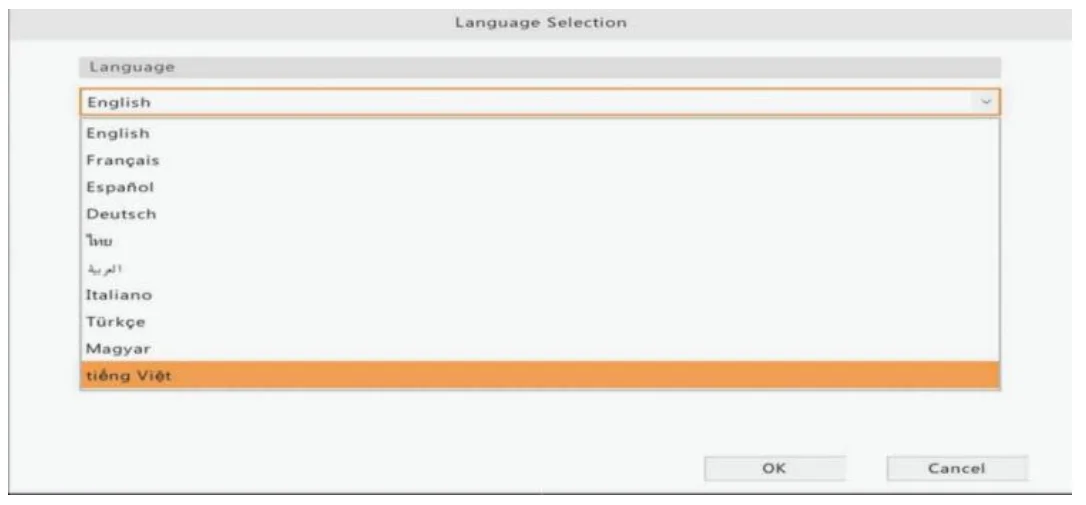
- Select a Language

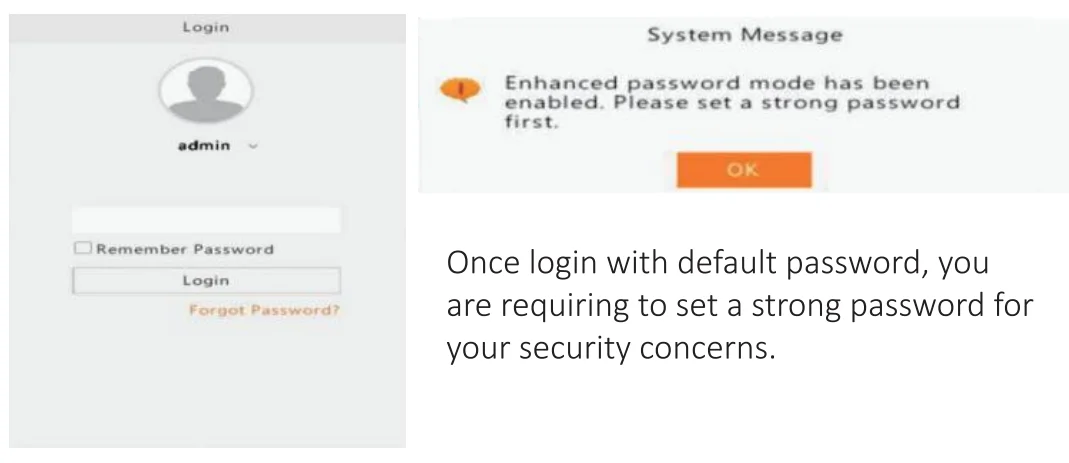
- login in
User name is admin, password is 123456 by default.
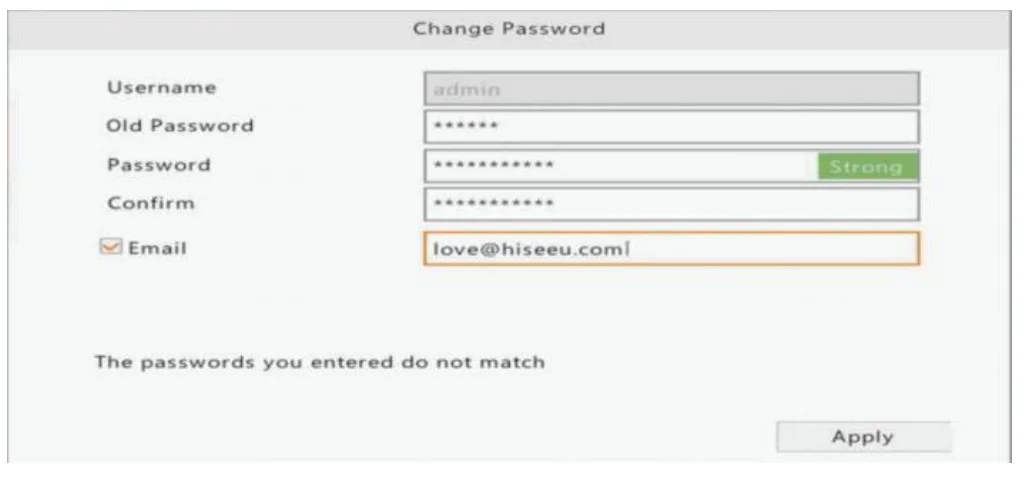
- Set a New Password
- Old Password: 123456
- New Password: Create a new password (Recommended Numbers, Letters, and Special Characters)
- Confirm: Input the new password again
- Email: It is recommended to enter your email address used to reset your password. If you forget the password in the future, you can use your email to reset it.

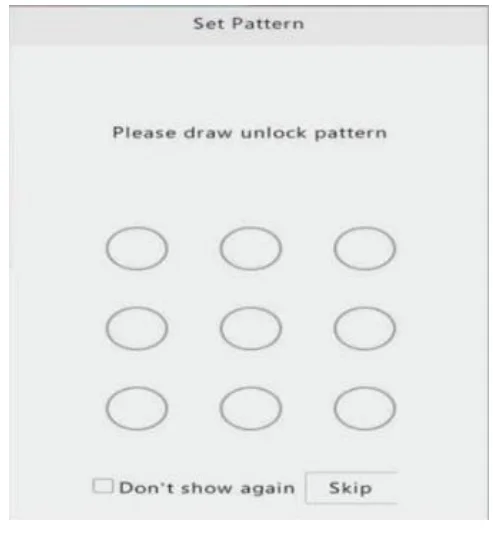
- Set Pattern
Set a pattern to unlock the XVR, make it easy to access XVR locally, no need to type in the password every time. Please draw the unlock pattern and confirm it.
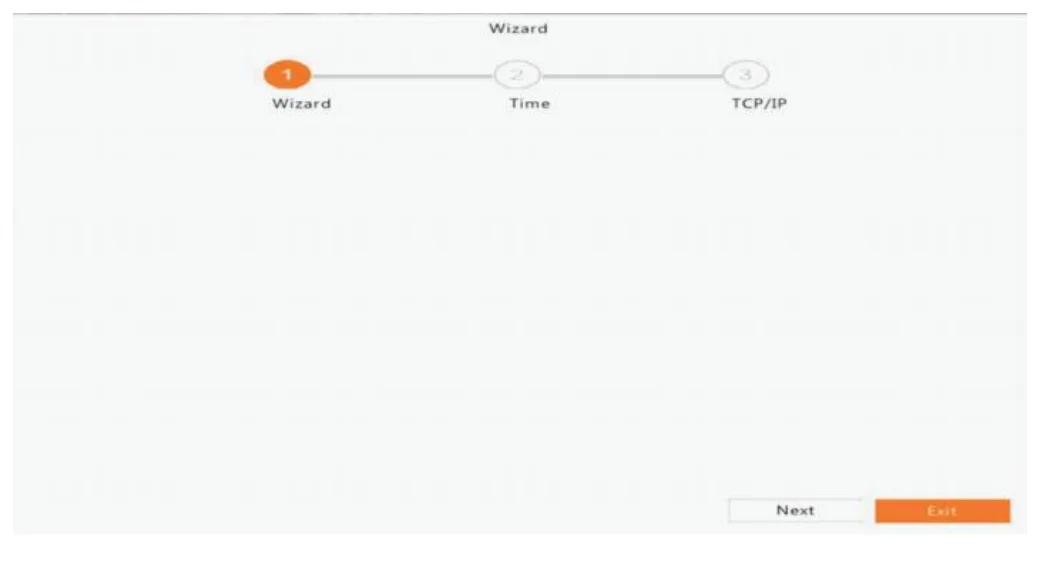
- System Wizard
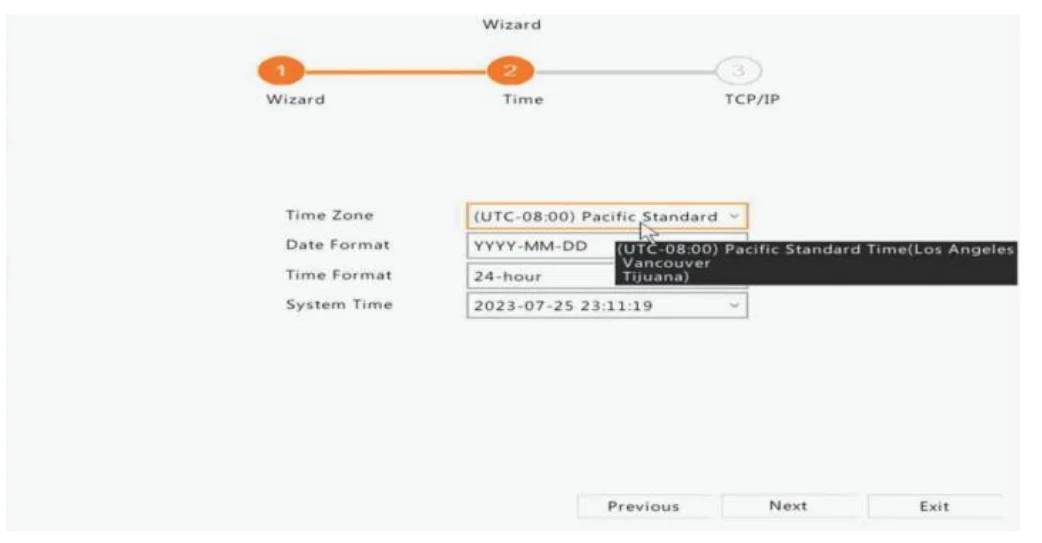
After the device starts up, the wizard will guide you through the initial settings, including date and time settings, network settings, HDD initialization, and IP camera detection. If you prefer to set up manually, please click on “Exit.”
Date and Time
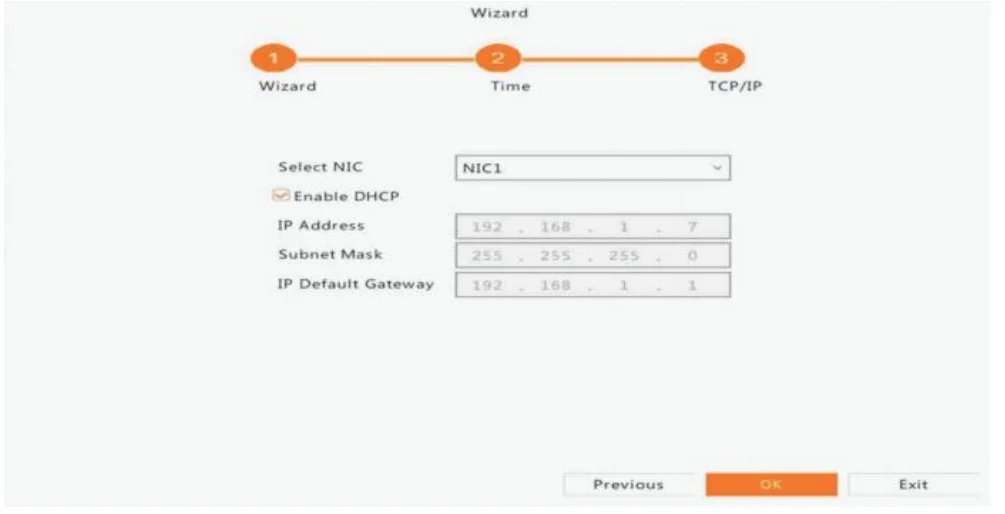
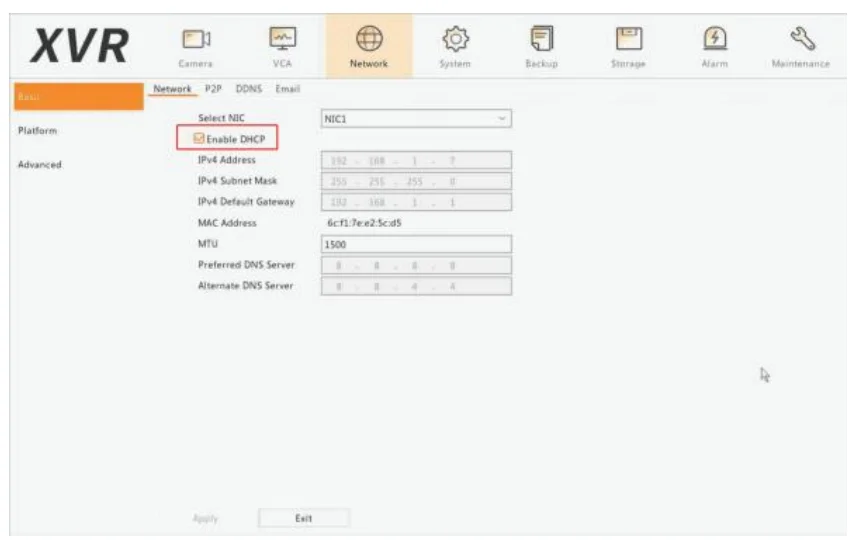
- Please enable “DHCP”, the XVR will obtain an IP address automatically after you connect the XVR to the router by network cable.
- An internet connection is necessary if you want to remotely access XVR from the mobile APP or PC Client.

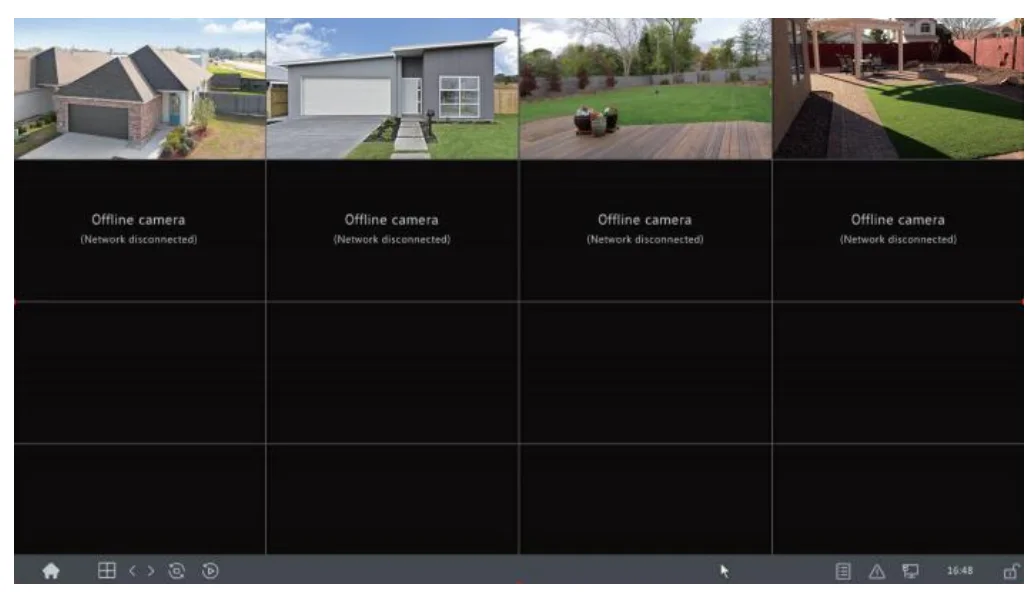
- Live View

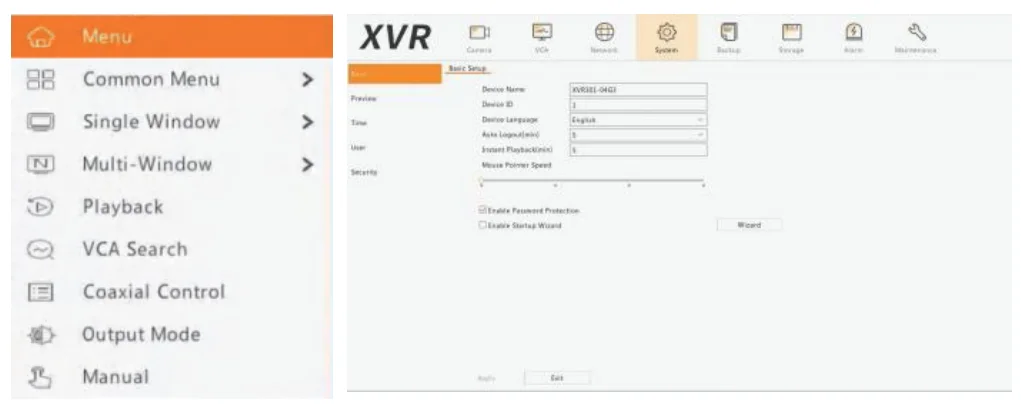
Right-click the mouse to bring out the menu, and click on “Menu” to navigate to the system control panel.
- Icon Explain

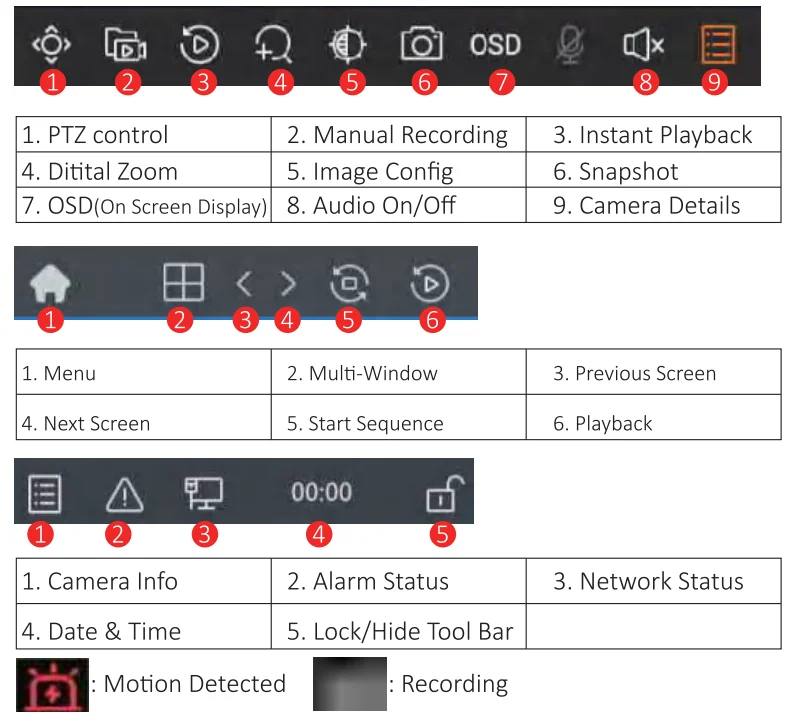
Network Setting
- The XVR system can work without the internet. Basic functions like local live view, playback, backup, etc.
- An internet connection is only necessary if you want to remotely access XVR from the mobile APP or PC Client.
- Please hard-wire the XVR to the router by network cable (Not wirelessly)
- Please navigate to Network> Basic> TCP/IP. Enable “DHCP”

- Enable “P2P” for remote view

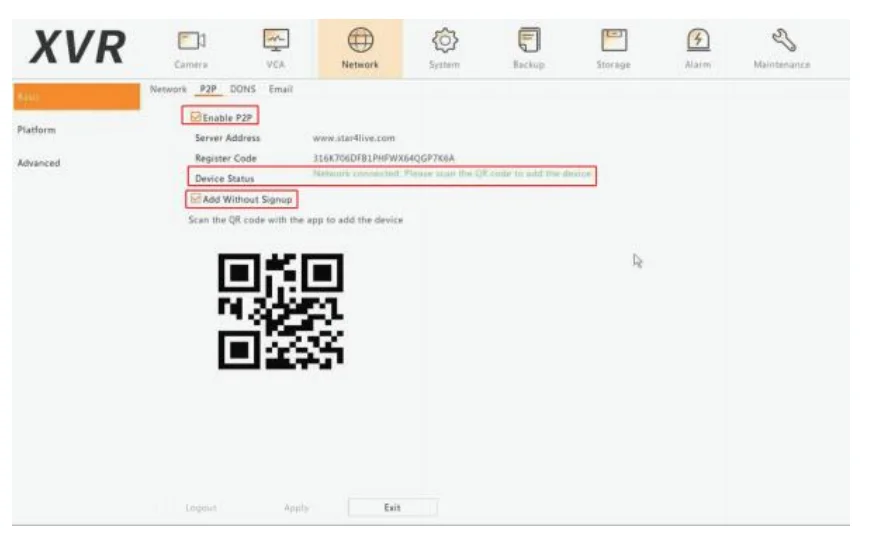
If the Device Status is “Network connected … ” means the device is online and ready for remote view. Please refer to page 27 to set up the Mobile App “Guard Viewer.” If the Device Status is “Offline”, please check the network connection first. If the problem remains, please feel free to contact us at Email ( Hiseeu: [email protected] )
Common Alarm Configuration
Motion Detection
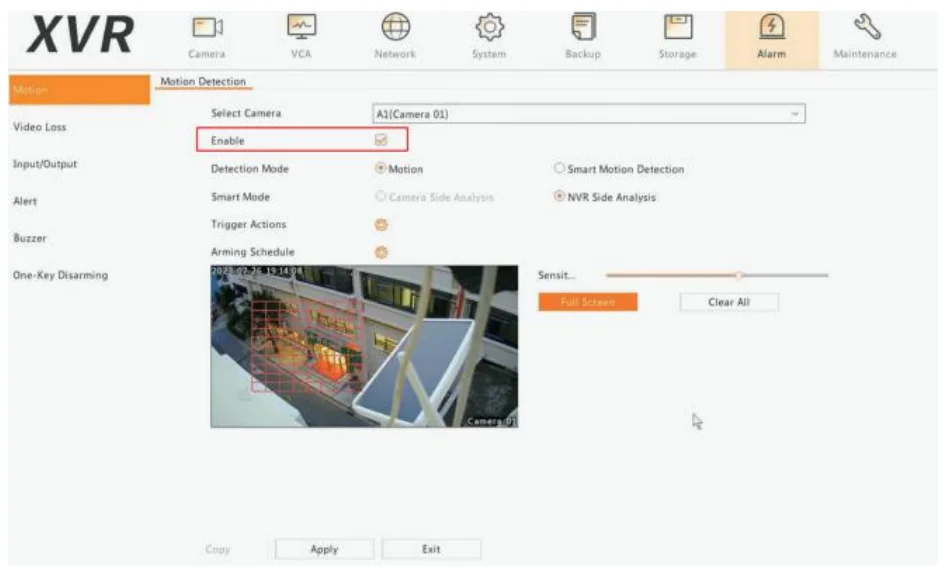
Motion detection detects the object motion in a specified rectangular area during a period. You need to set a detection area and sensitivity of detection for the camera to decide whether to report a motion detection alarm when it detects motion.
- Please navigate to Alarm> Motion> Enable
 .
. - You can left-click and drag the mouse in the camera preview image to customize the detection area.
 .
.
- Motion Detection(Alarm) and Smart Motion Detection(VCA) can’t be configured at The Same Time.
- If you can’t configure motion detection(Alarm), please ensure that the smart motion detection is disabled.
Smart Motion Detection
Smart Motion Detection detects motor vehicles, non-motor vehicles, and pedestrians in a configured area.
- Please navigate to “Alarm” > 11Smart Motion Detection.”
- Enable
- Click on”
 “to draw the alarm area (Max 4 points, double click to finish), to delete the area, click on”
 “.
“.
 “to draw the alarm area (Max 4 points, double click to finish), to delete the area, click on”
 “.
“.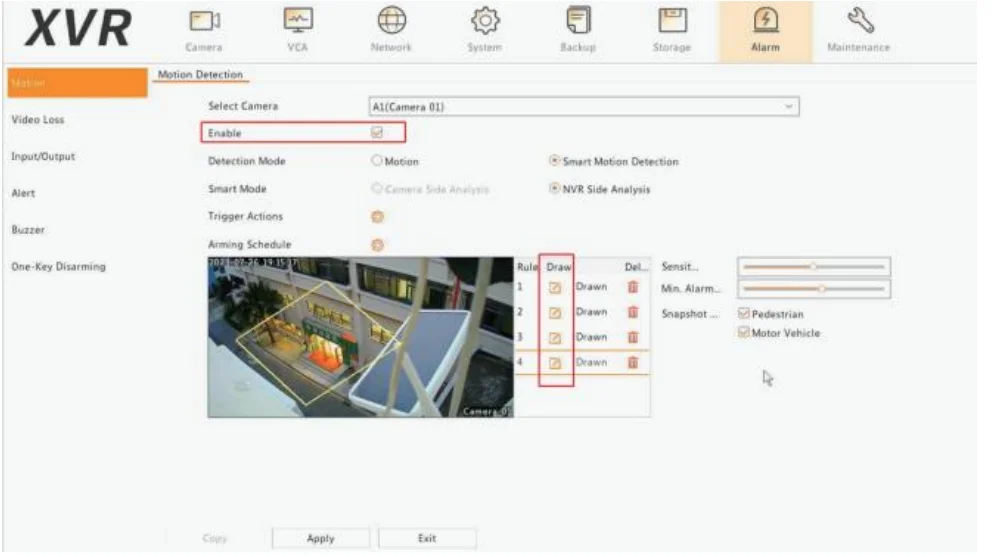
You can enable or disable “Motor Vehicle” or “Pedestrian” as needed. The sensitivity is adjustable.
Privacy Mask
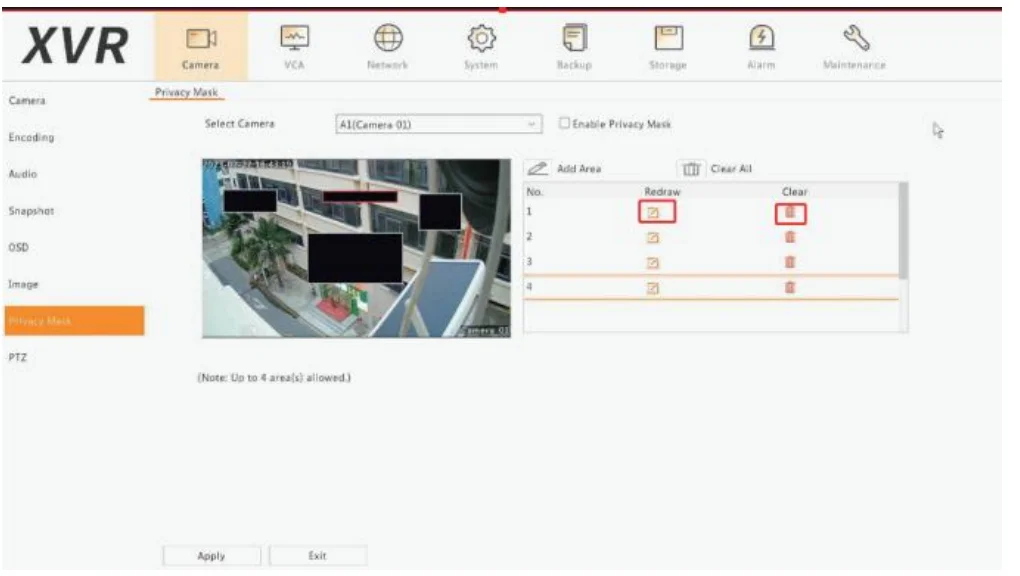
On certain occasions, you may need to set a mask area on the camera image to protect privacy, for example, the keyboard of an ATM. When the camera’s position is changed, the Privacy Mask won’t be adjusted accordingly. Please reset the privacy mask area.
- Please navigate to Camera> Privacy Mask
- Click on “” to draw the privacy area. To delete the area, click on”“.
VCA Behavior Search
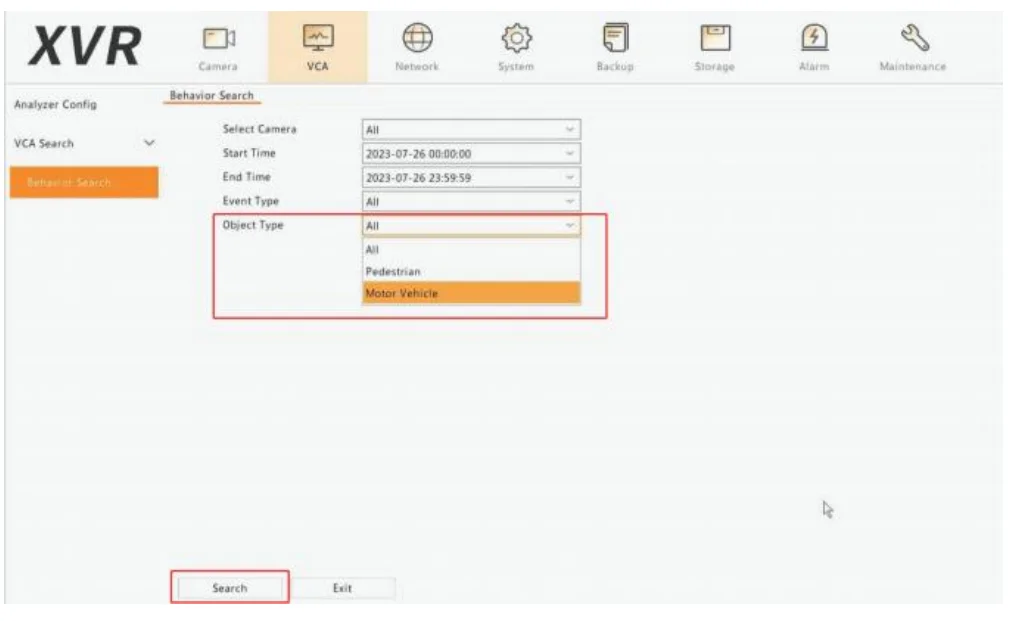
“Behavior Search” searches VCA data, including Smart Motion Detection ( Motor Vehicle, Pedestrian). You need to set and save VCA before using “Behavior Search.”
- Click on VCA> Behavior Search

- Select camera(s), set a search period, select a search type and target type, then click “Search.”
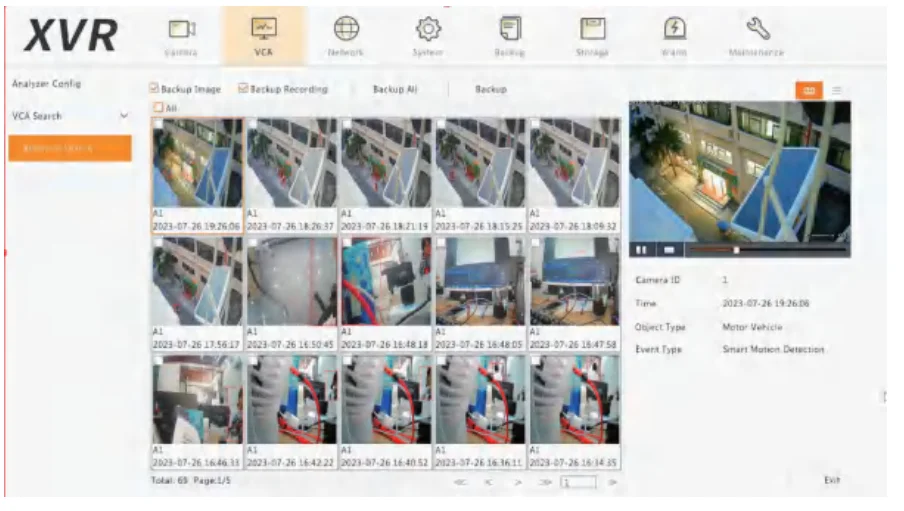
- View search results in a chart or table.
Back up search results (including images and recordings) as needed. To view videos recorded when the behavior was detected (around 10 seconds before and after), click the play button. The following figure shows an example.
Recording Setting
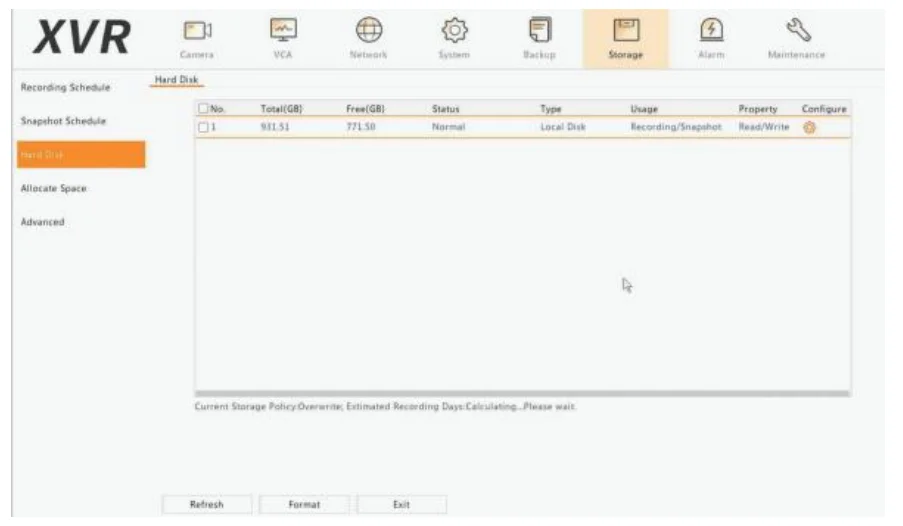
Before setup recording plan, please make sure the hard drive is functioning properly.
- Please navigate to Storage> Hard Disk
- Status should be Normal Properly: Read/Write
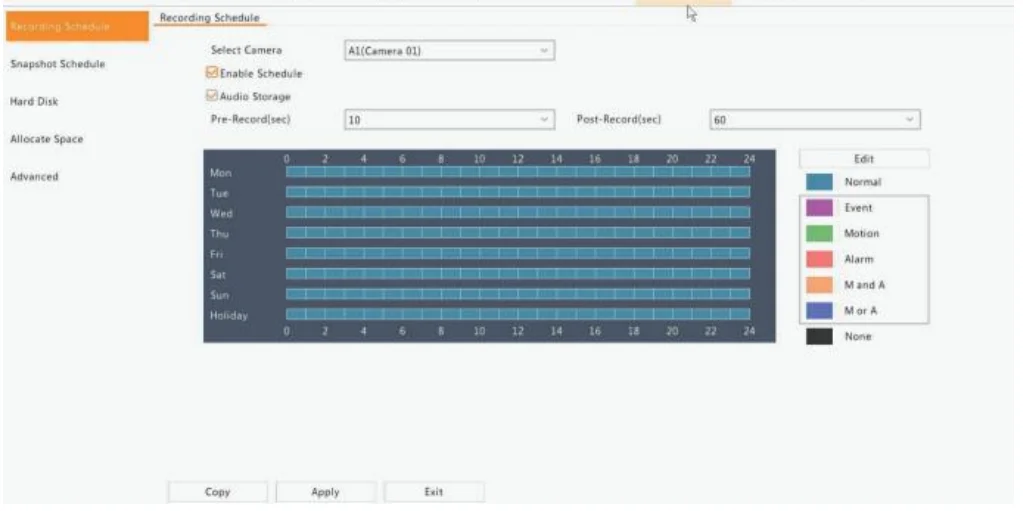
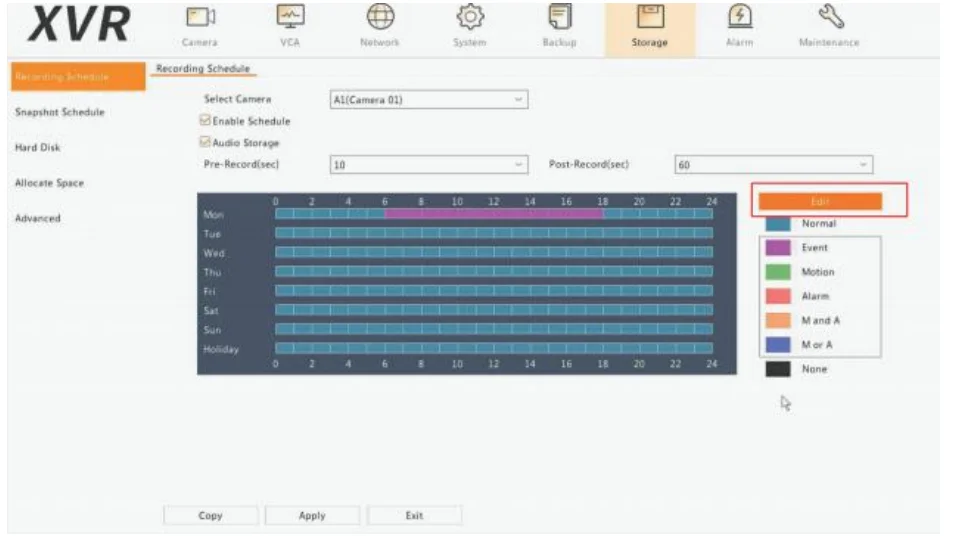
Regular Recording
The system was set up to continue recording 24 hours by default. If you enabled motion detection recording properly, it will highlight the recording type when you playback video on XVR.
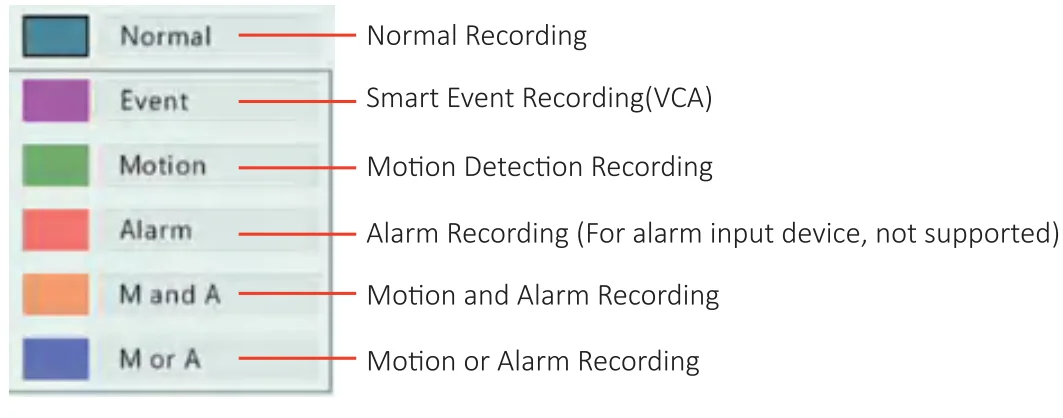
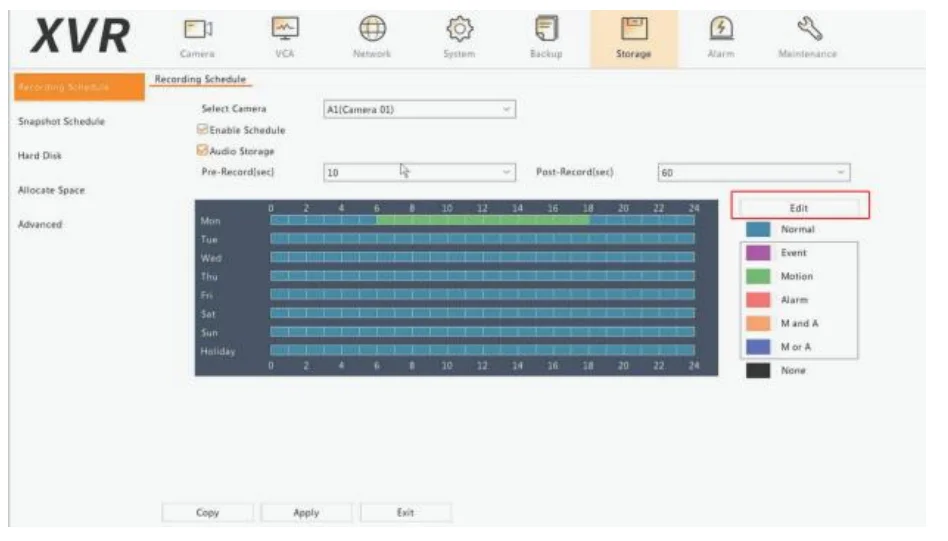
Motion Detection Recording
Motion Detection recording will only record when a moving object is detected. You can setup record plan for each camera individually.
- Select the camera
- Left-click the mouse to highlight “Motion.”
- Left-click and hold the mouse to draw the detection time period
Smart Motion Detection Recording
Event recording will only record when VCA and Smart Motion Detection are triggered. You can setup record plan for each camera individually.
- Select the camera
- Left-click the mouse to highlight “Event.”
- Left-click and hold the mouse to draw the detection time period
Playback
Common Playback
- Instant Playback
On each camera live view window, click on “ ” to play back the video in recent 5 minutes.
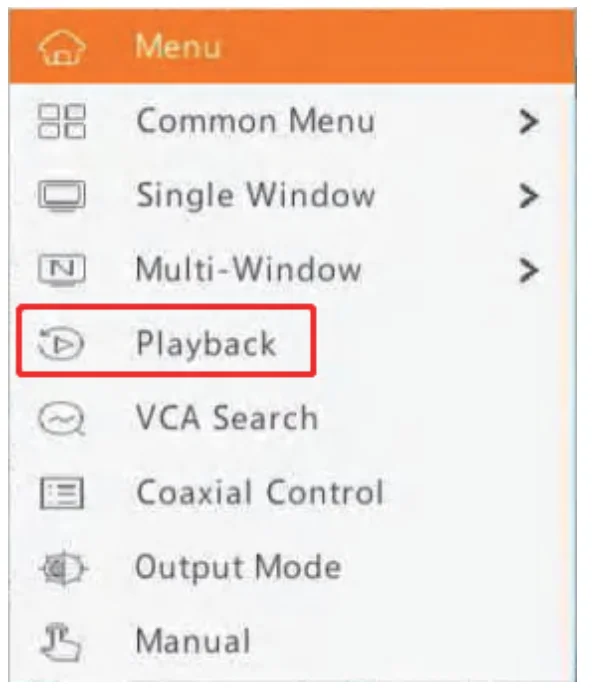
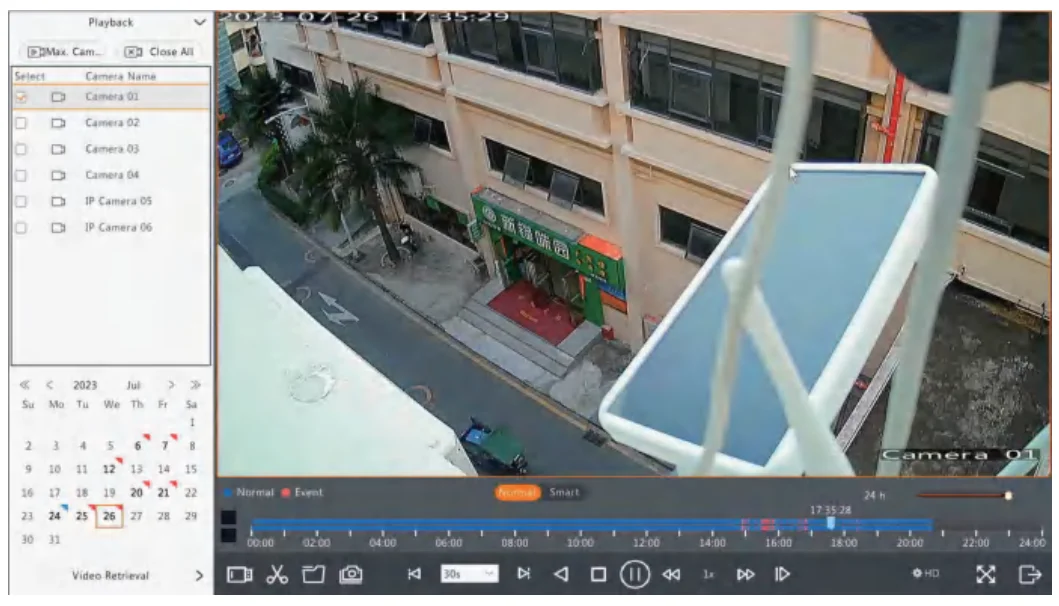
- Right-click the mouse from the XVR home screen and click on Playback.

- Select the date from the calendar
- Select the camera (Max support 4CH Playback simultaneous)

 : Normal Recording
 : Motion Detection Recording
 ” to play back the video in recent 5 minutes.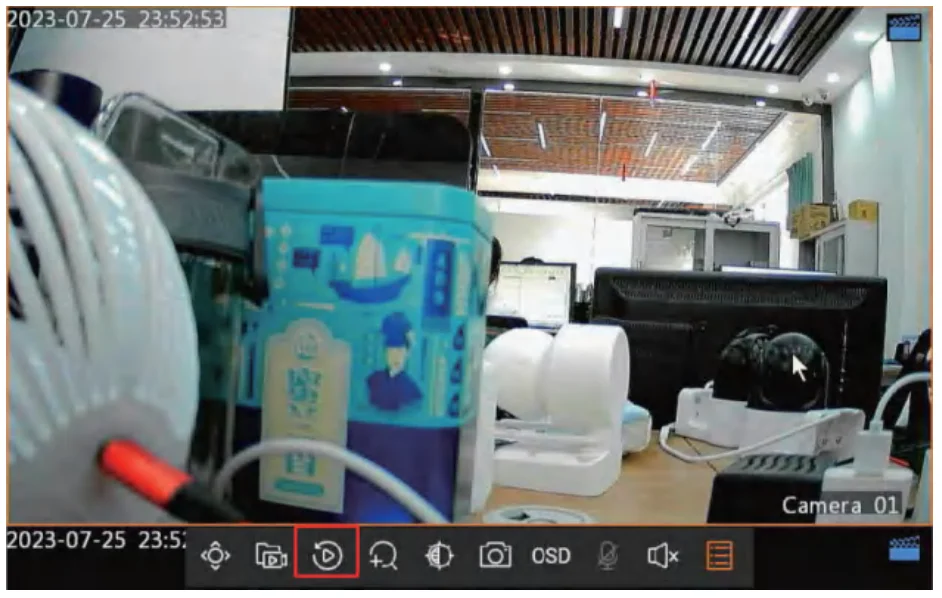
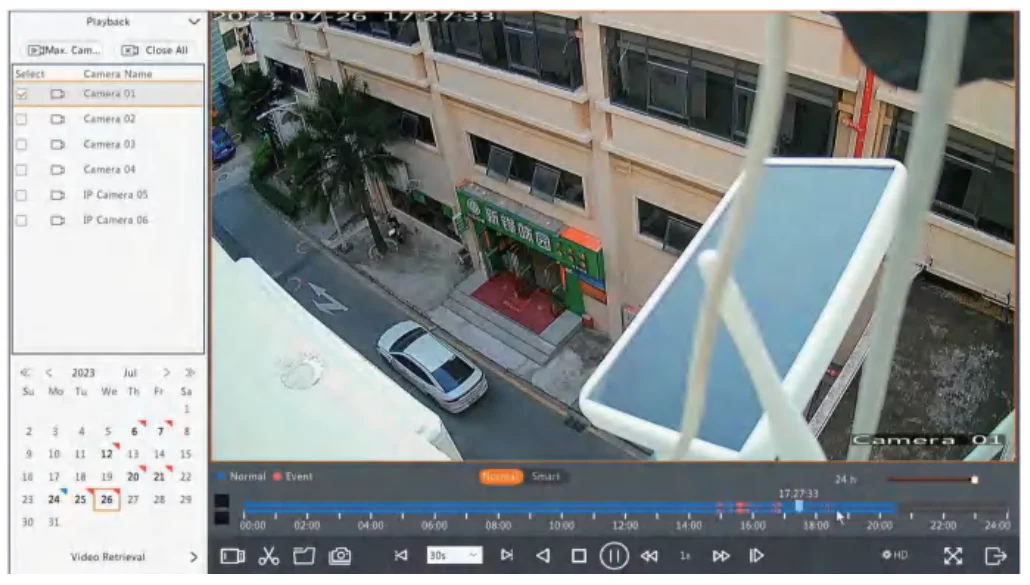
 : Normal Recording
 : Motion Detection Recording
VCA Smart Motion Detection Playback
Click on “Video Retrieval”, in this interface, you can playback video more effectively.
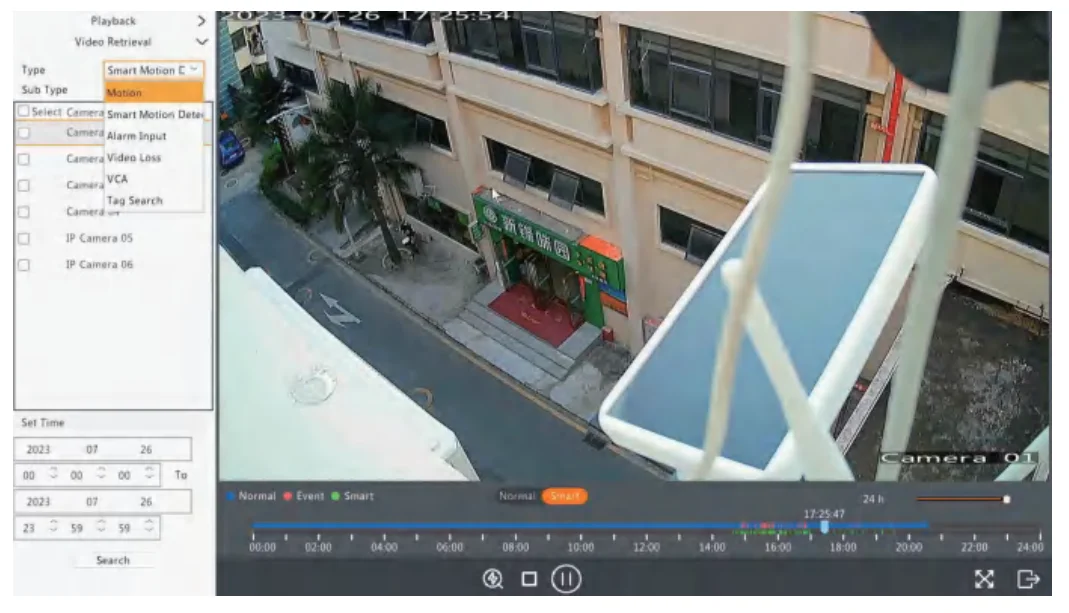
It allows you to search for certain event type results in a short video list for preview.
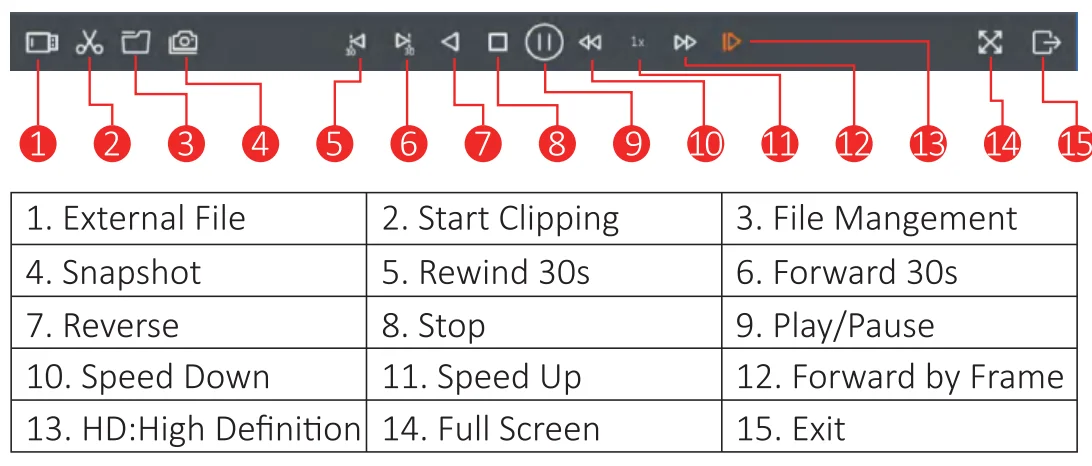
Backup Video to USB Device
Before You Start
- Please make sure the XVR’s Hard Disk is working properly.
- The corresponding recording plane was set up
- Please use the “VLC” player to play backup files
- Insert a USB disk into the XVR USB port. Navigate to Backup> Recording
- Select the Camera, time period, and recording type as needed. Click on “Search”

- Click on “
 ” to preview the footage, select the file, and click on Backup” to back up the video
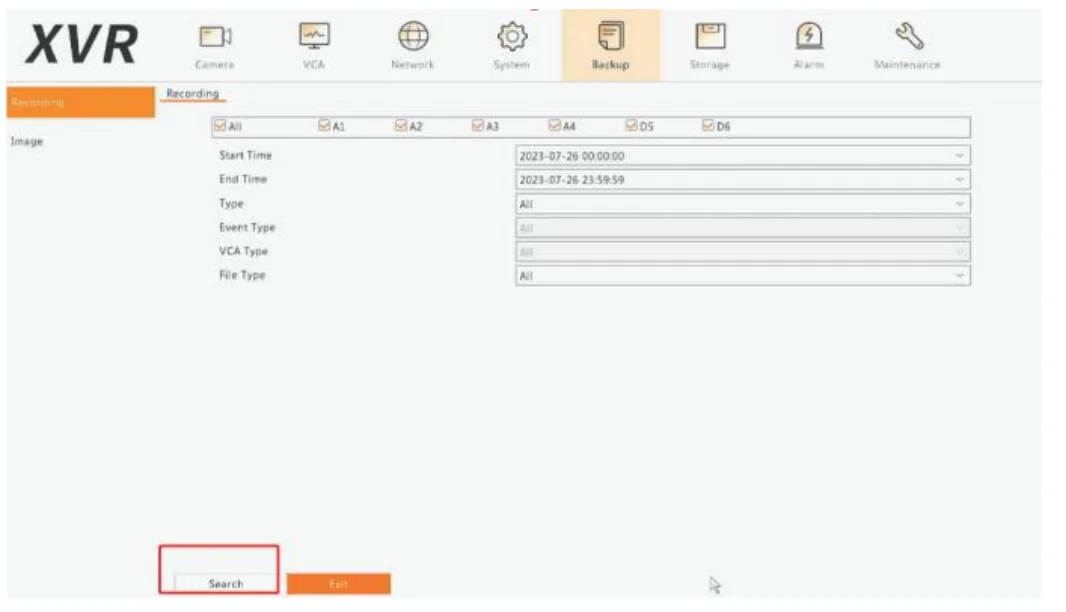
 ” to preview the footage, select the file, and click on Backup” to back up the video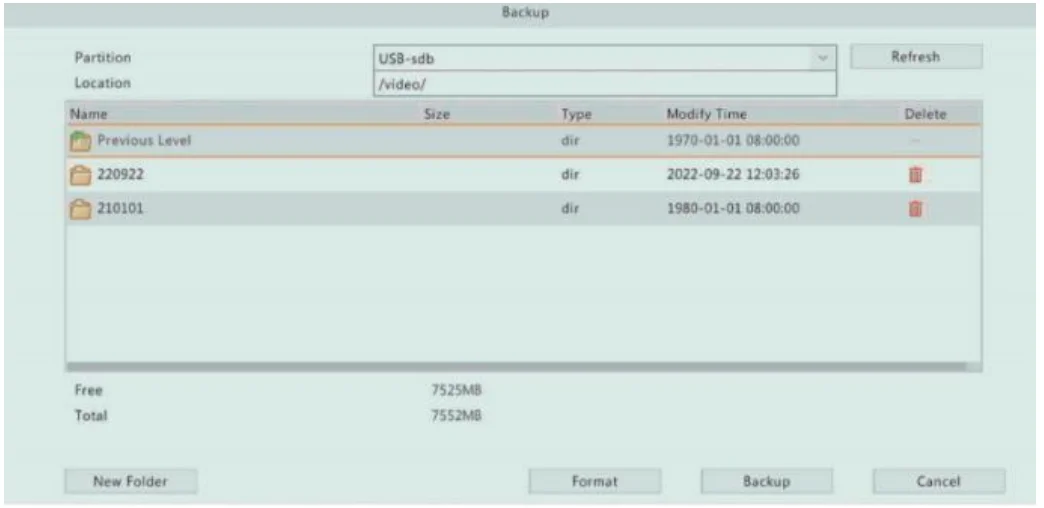
Pan/Tilt Function
(CAUTIONS: Only Hiseeu PT Mini Camera supports Pan/Tilt function ) Right-click your mouse to “Camera>PTZ” , see the one circled in the photo below, and control it by clicking the icon
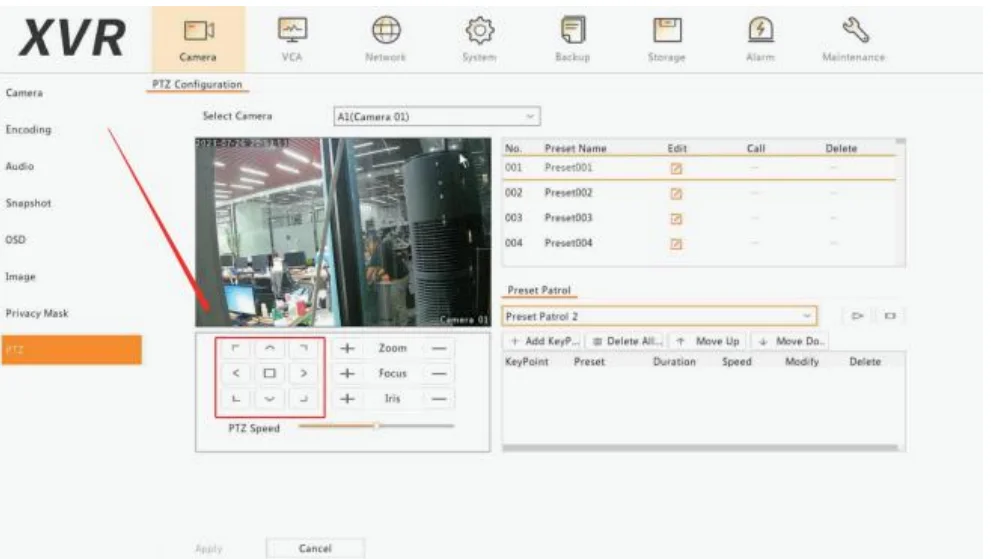
Please note that the Hiseeu PT Mini Camera supports one-way radio on the TVI model!!
So we should change the Camera Model to the “TVI”. Here is the video about how to change the camera “VIDEO SETTING” to the “TVI” ,You can refer it.

Reset XVR Password
Modify XVR Password
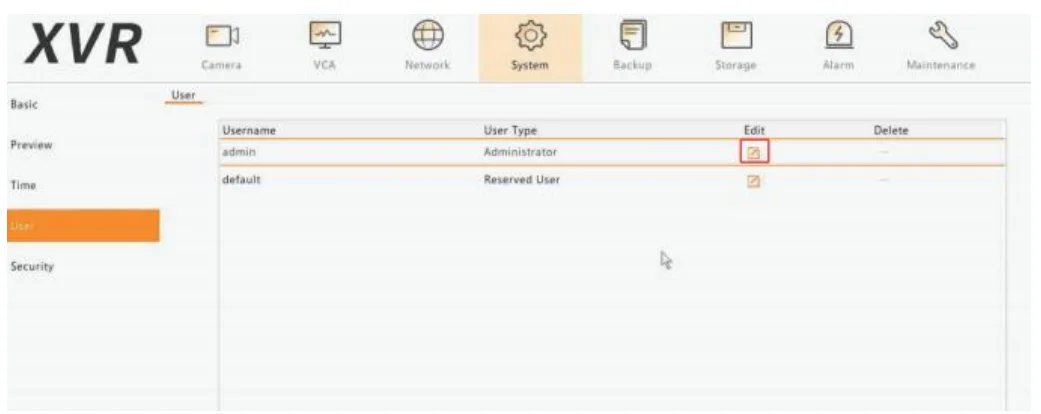
If you have your current password and only want to change it, please follow the instructions to modify it.
- Please navigate to System> User> Click on “” icon

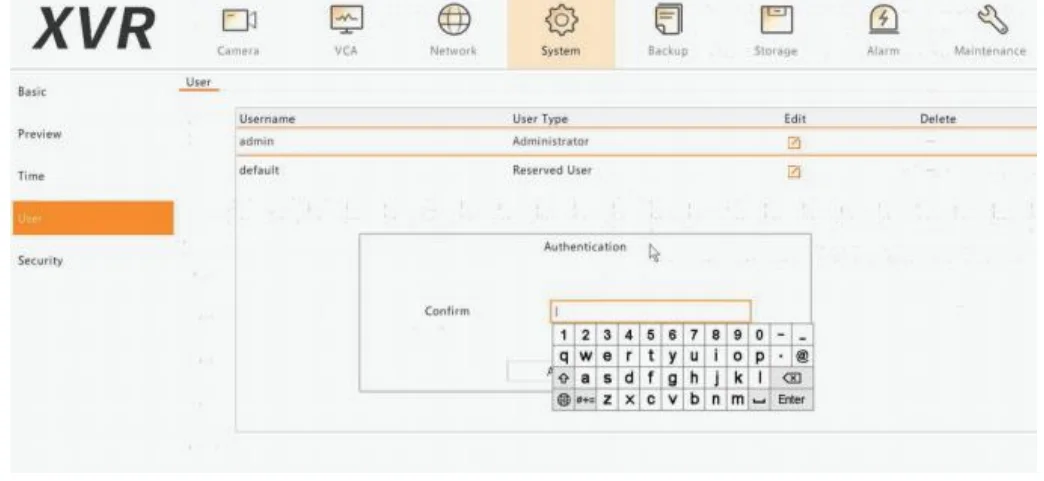
- Input your current password to confirm

- Click on “” to change password

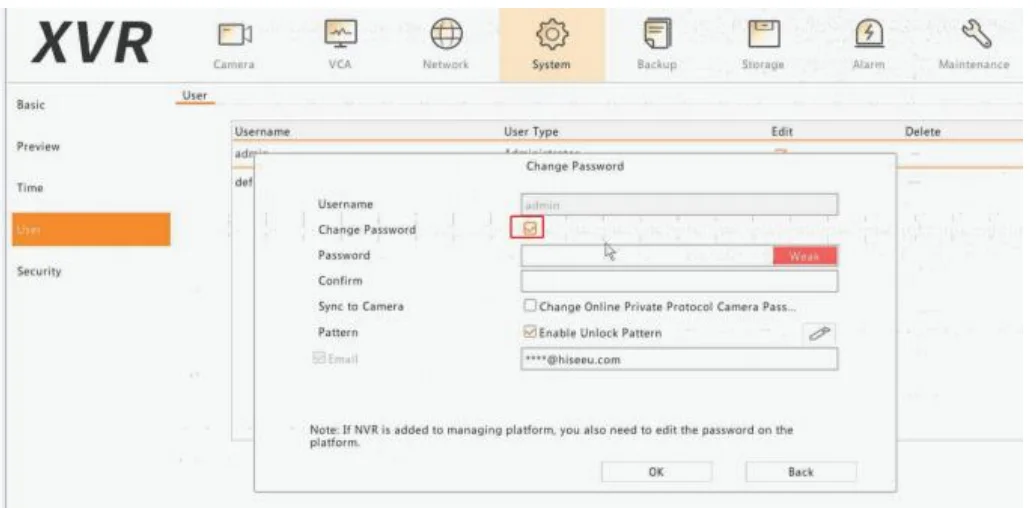
Retrieve XVR Password
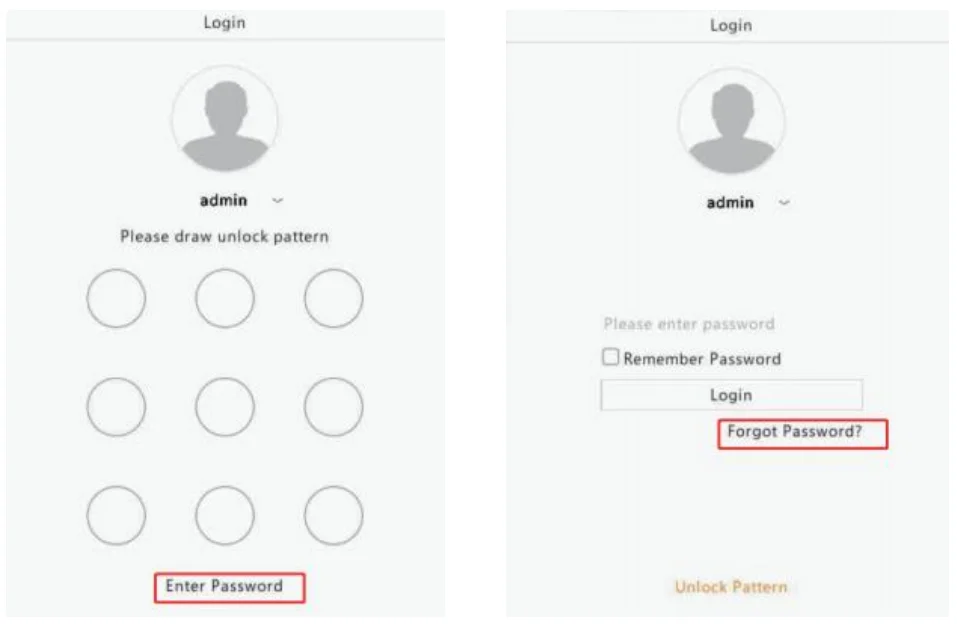
If you forget your current password, please follow the instructions to reset it.
- In the system login interface, please click on “Forget Pattern”> “Forget Password.”

- If you set the reserved email before, please use this email address to register an APP (Guard Viewer) account and navigate to Me> General> Forget Device Password, scan the QR code to obtain the security code.

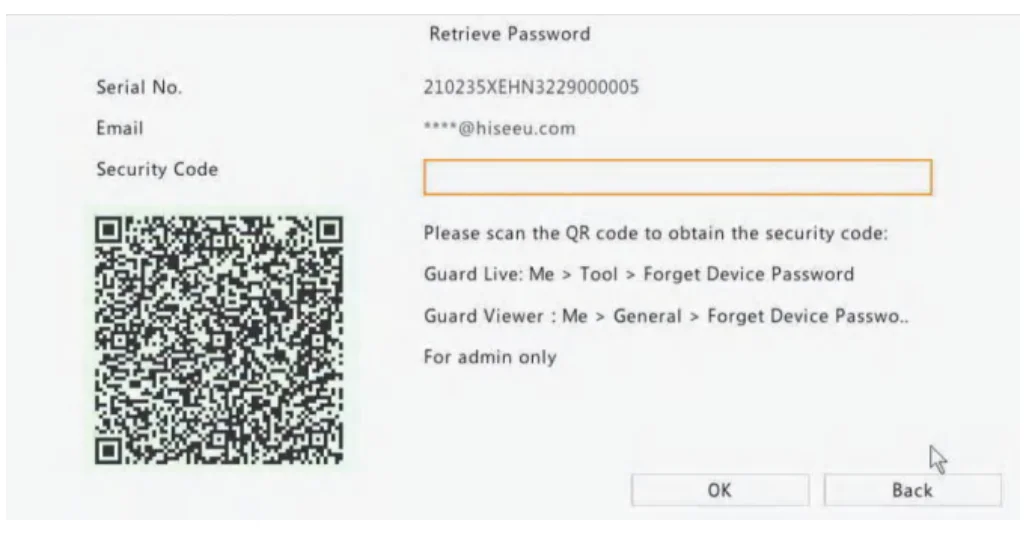
If you didn’t set up email before, or have any difficulties resetting the password, please email us at Email (@Hiseeu: [email protected]
Restore to Factory Settings
If the XVR system isn’t working properly, you can restore it to factory default settings. Please navigate to Maintenance> Restore> Factory Default
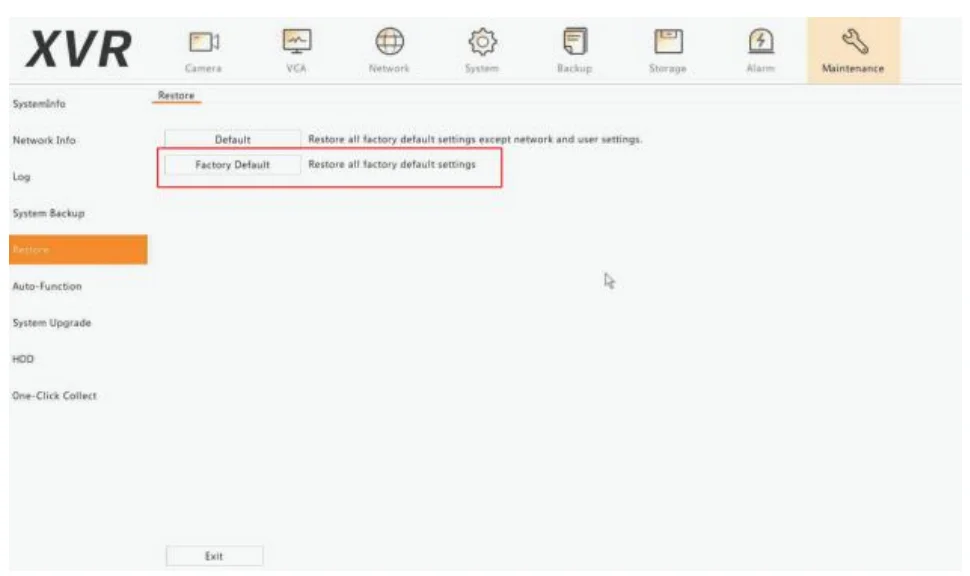
- Before you return the item to Amazon, for your security concerns, please restore the system to “Factory Default” settings. It will erase your personal information (video footage, snapshot, email account, etc.)
- You can also navigate to Storage> Hard Disk> Select the HDD and click on “Format.”
For more manuals by Hiseeu, visit ManualsLibraryy
Hiseeu 16CH 3K Wired Security Camera System-FAQs
Does a wired security camera system require Wi-Fi?
No, a wired security camera system can operate without Wi-Fi. It records footage directly to a DVR or NVR using cables. However, an internet connection is only needed if you want remote viewing, mobile alerts, or cloud-based features.
How does a wired security camera system work?
A wired system uses cables (usually Ethernet or coaxial) to connect cameras to a central recorder. The recorder stores video footage and allows live viewing or playback on a monitor or mobile device when connected to a network.
Can the system still record if the internet is down?
Yes, the system will continue recording as long as it has power. Since it stores footage locally on a hard drive, internet outages only affect remote access, not recording functionality.
Why is my security camera not working?
Common reasons include power issues, loose cables, faulty adapters, or damaged connections. Always check that all cables are secure, the power supply is working, and the recorder is properly connected.
Why is my CCTV camera not showing any picture?
This issue is often caused by loose or damaged cables, incorrect input selection, or power failure. Ensure all connections are tight and verify that the camera and recorder are powered on.
What storage capacity does the system support?
The Hiseeu system typically supports both SD card and HDD storage, with expandable capacity up to several terabytes (often up to 8TB). This allows long-term video recording depending on settings and usage.
How long can footage be stored?
Storage duration depends on the hard drive size and recording mode. Continuous recording may store a few weeks of footage, while motion-based recording can extend storage to several months.
What is the lifespan of a security camera system?
Most security cameras last between 5 to 10 years. Lifespan depends on build quality, installation conditions, and environmental exposure such as dust, heat, or moisture.
Can security cameras work with mobile data or hotspot?
Yes, the system can connect through mobile data or a hotspot for remote viewing. However, a stable and high-speed connection is recommended for smooth video streaming.