
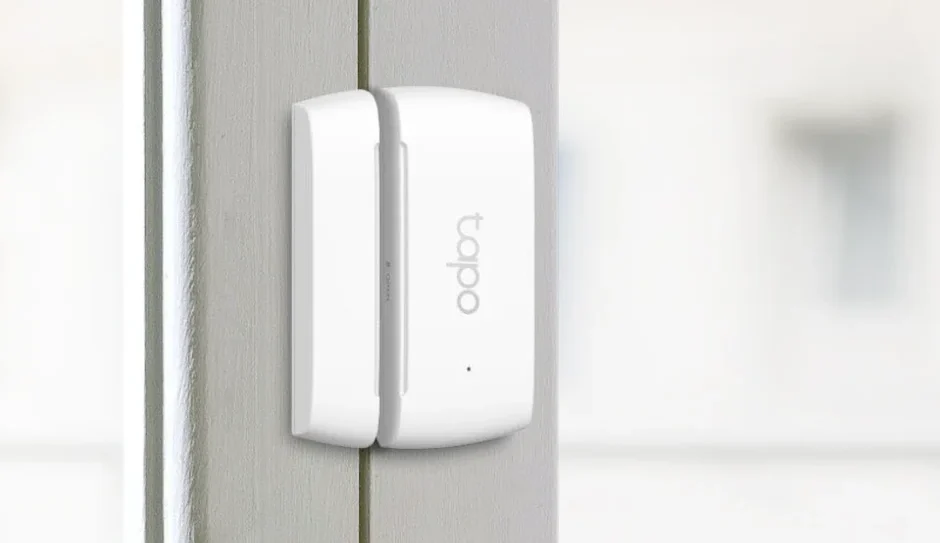

Tapo Door Sensor Mini
Introduction
Know when doors/windows are opened or closed. Check on your doors and windows at a glance with the Tapo app and receive instant alerts. This makes your home safer and smarter.
- Window/Door Safeguard – Monitors the opening & closing of windows, doors, cabinets, the fridge, or the mailbox in real time.
- Instant App Notification – Is your parcel locked away? Find out immediately with instant notifications.
- Smart Action Support – Connect the actions with other smart devices for a welcome return home.
- Easy Installation – Mount to nearly any surface with the included 3M adhesive.
- Great Compatibility – Just one part of the integrated Tapo ecosystem.
- Battery Powered – Battery-powered design with 1+ year battery life. (Based on the testing of 30 triggers a day.)
- Device Sharing – Easily share management permissions with each member of your family.
- Easy Setup and Use – Set up quickly and easily through the free Tapo app.
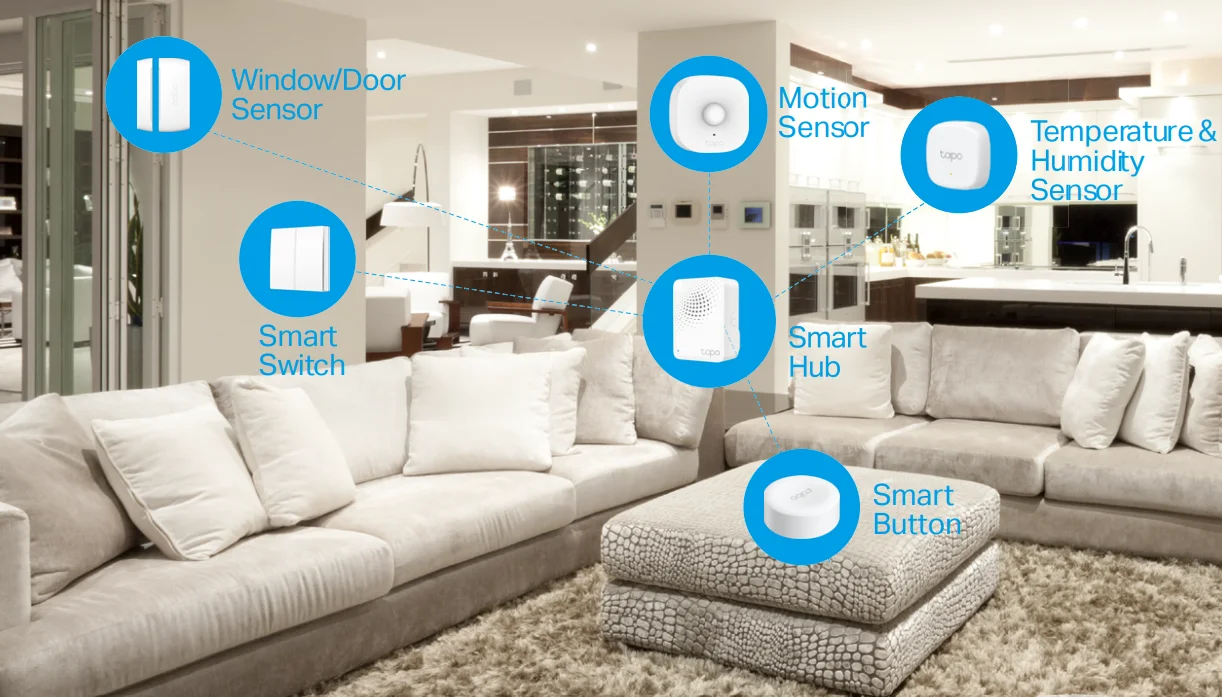
Tapo Smart Ecosystem
Tapo is the easy way to turn your home into a smart home. With the Tapo Hub as a bridge, Tapo Smart Sensor works with a wide range of Tapo accessories. So you can easily control and monitor your home from anywhere.
Automate Your Home
Create a Smart Action to automate your smart devices. Customize your own Smart Actions to group your Tapo products together any way you want.
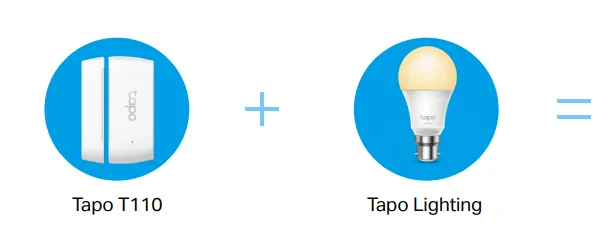
Light the Way When Arriving Home
Turn on the light automatically when you open the door.
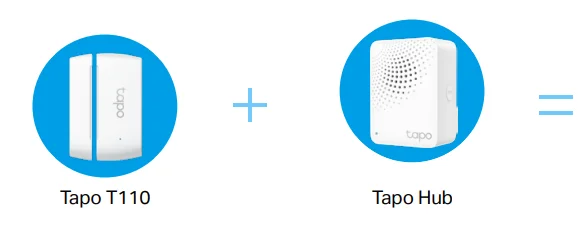
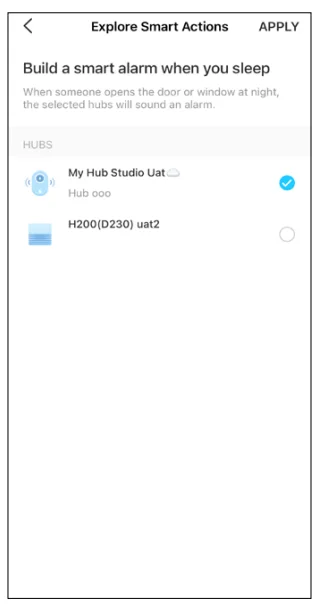
Build Smart Alarm
Trigger hub alarm and send you app notifications when someone opens the door or window. OR
Secure Door/Window
Your Hub will ring if the door/window is opened.
Set Up Your Smart Sensor
Before You Start
A Tapo Hub is required. Make sure your Tapo Hub is successfully added via the Tapo app.
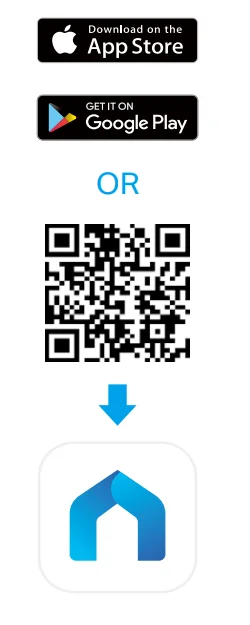
- Set Up Your Sensor
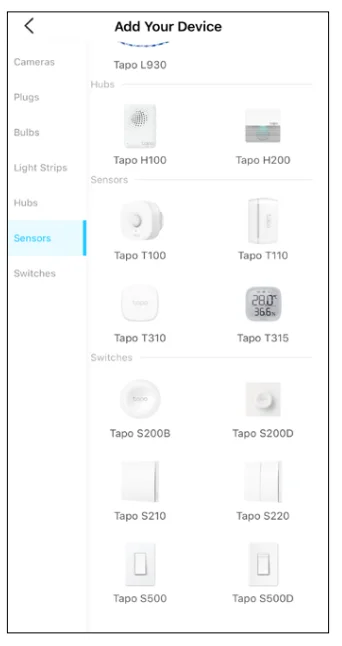
Tap the + button in the Tapo app, tap Sensors, and select your model. Follow the instructions in the Tapo app to complete the setup.
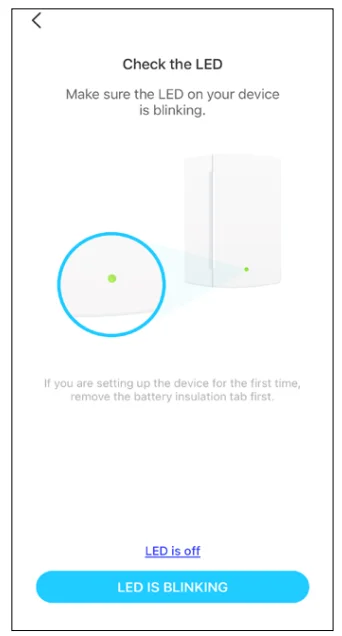
- Check the LED & Set Up
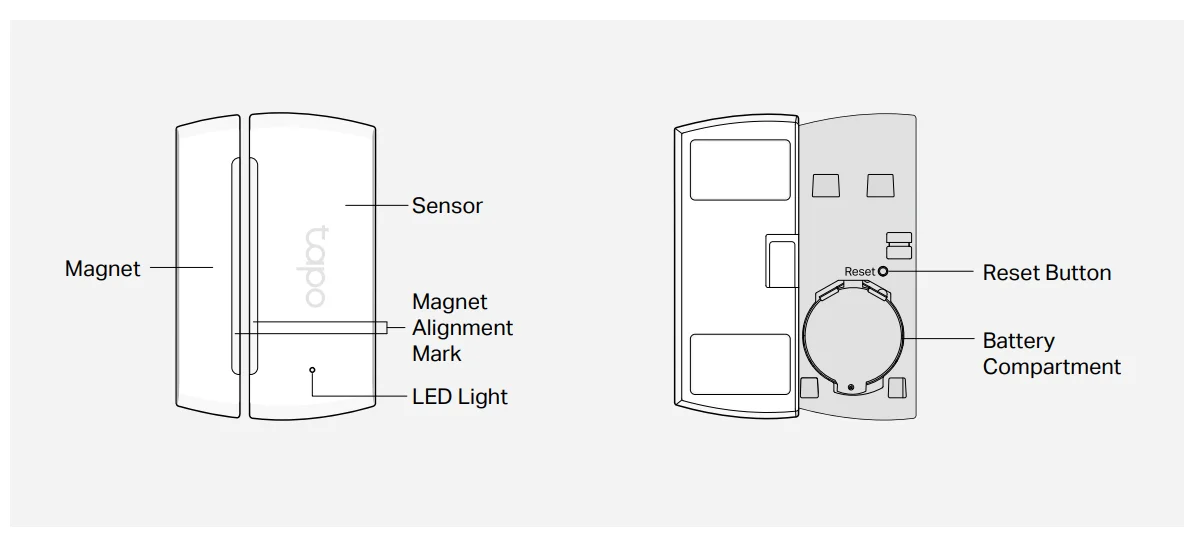
Check if the LED blinks. If not, use a pin to press and hold the Reset button for 5 seconds. Follow the app instructions to complete the setup.
- Test Your Sensor
- a. Open and close the sensor to test it in your preferred location.
- b. Check the Event Log on the Tapo app to confirm the open/closed status.

- Mount Your Sensor
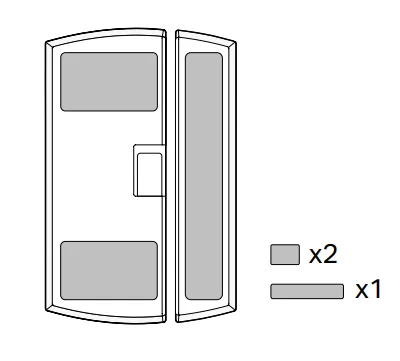
- a. Stick the included adhesives on the sensor and magnet.

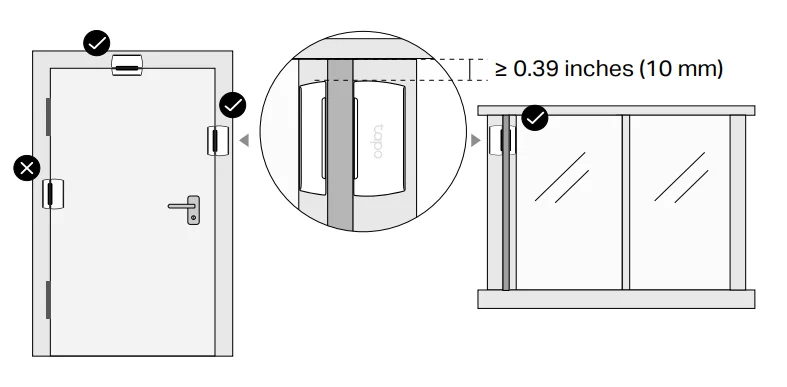
- b. Choose where you’d like to install the sensor (but don’t attach it yet). Place the magnet near the edge of the moving door or window.

- c. Align the magnet and sensor with no more than 0.59 inches (15 mm) between them when the door or window is closed. Peel the backing from the adhesive and press the sensor and magnet into place.

- a. Stick the included adhesives on the sensor and magnet.
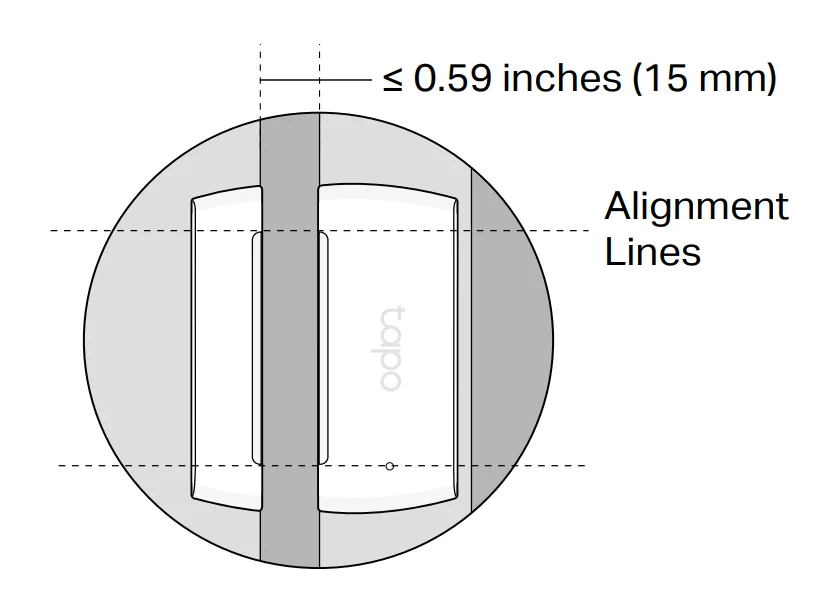
Notes:
- Leave at least 0.39 inches (10 mm) of space so you can open the battery compartment.
- Installation height should not exceed 6.56 ft (2 m).
Use Your Smart Sensor
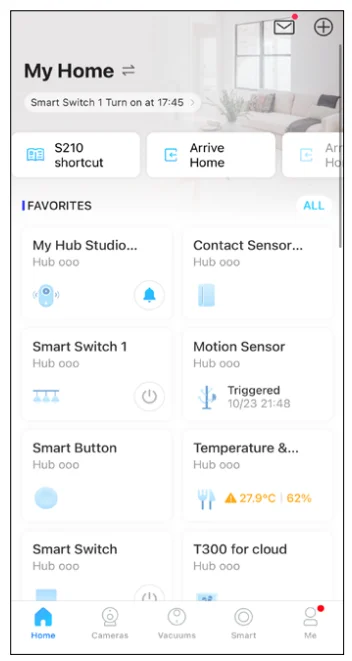
After you successfully set up your hub and sensor, you will see your devices listed on the home page. With the Tapo app, you can view and manage your devices and get instant notifications anytime, anywhere.
Home Page
This page lists all the devices you’ve added, and you can view them directly and manage them easily. Tap the card to enter its Status page.
Home Page Settings
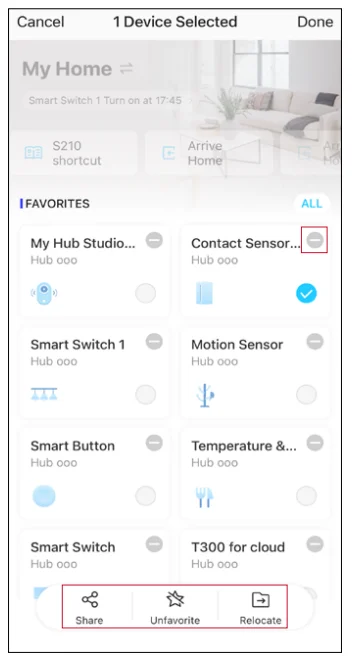
Long-press on a card, then you can reorder cards, tap – to remove your device from your account, share your device, favorite/unfavorite device, or relocate your device to another Home.
Status Page
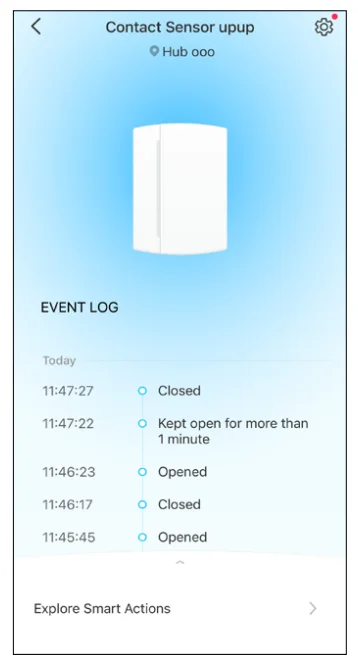
You can check all events of your sensor. Slide the panel up to check more settings or tap the gear icon to enter the Settings page.
Featured Smart Actions
The sensor can work with other Tapo devices to automate your home. You can customize smart actions based on the templates.
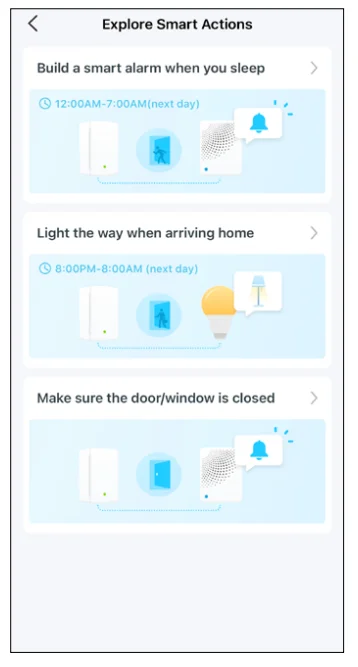
Device Settings
Check/edit the basic info, set Notifications settings, view User Manual and Placement Guide, or remove your device from your account.
Notifications Settings
Turn on Notifications if you want to receive app notifications when your sensor detects an event. Set the time you want to be notified.
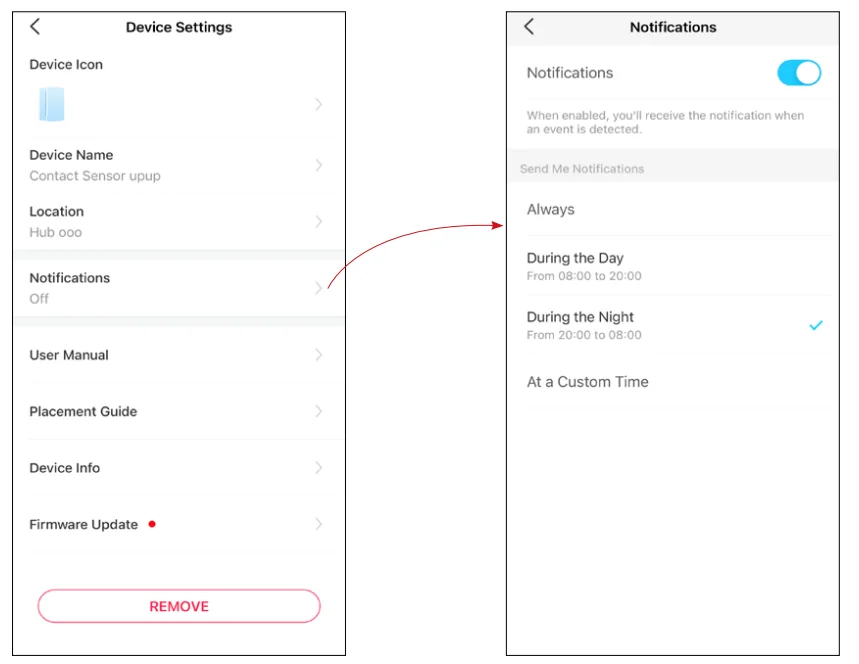
Explore Smart Actions
The sensor can work with other Tapo devices to automate your home. Trigger different actions when it is opened or closed. You can customize smart actions based on the templates. This makes your home safer and smarter.
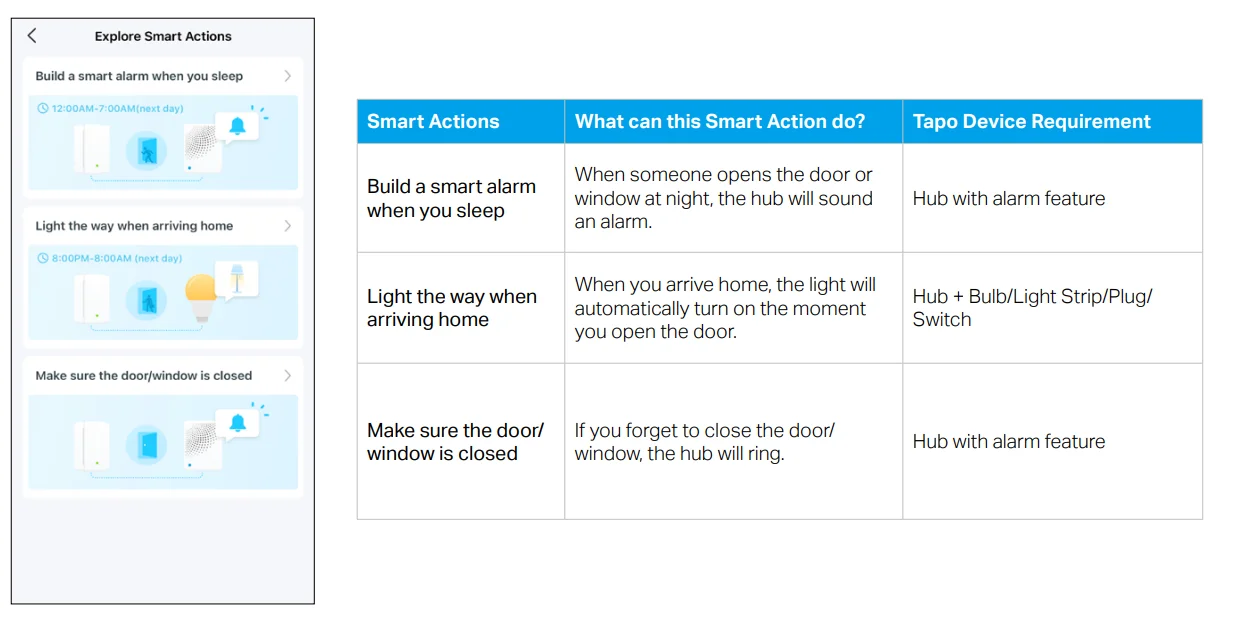
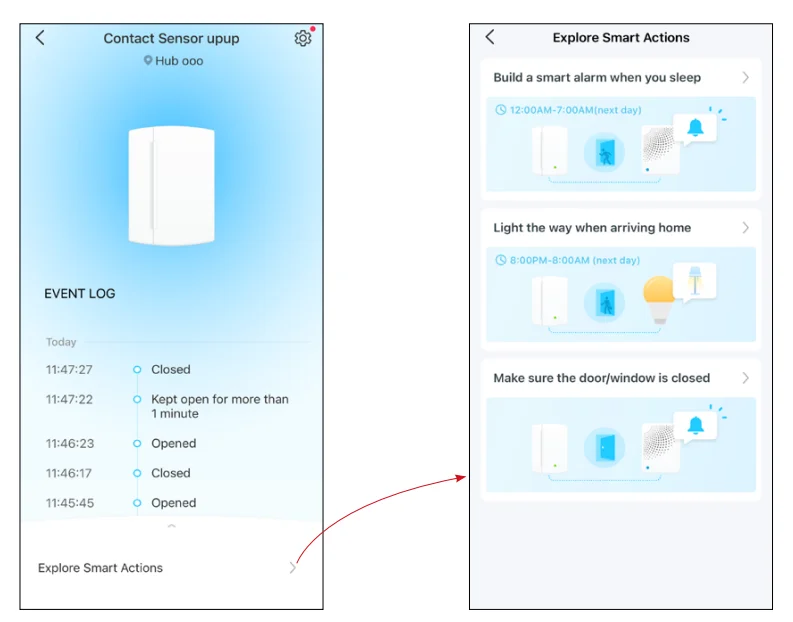
How to Create Smart Actions
Choose a Smart Action template, choose devices, and customise the settings as needed.
- On the Status page, tap Explore Smart Actions.
- Choose a template and customise the smart action based on the template.

- Select devices you want to take action on when the sensor detects an event.

- Customise the settings as needed. Turn on Delay Action if you want the action to take place some time after the sensor detects an event.
- Set the effective time for this smart action.
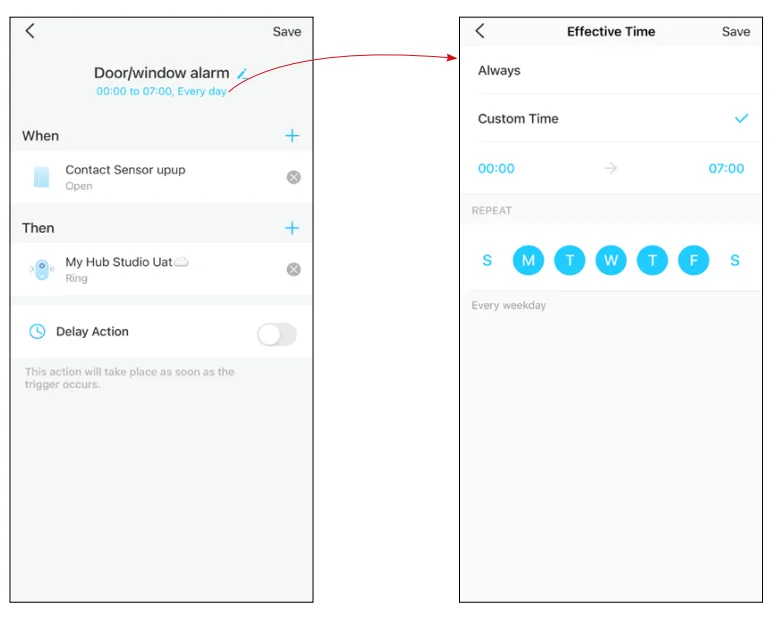
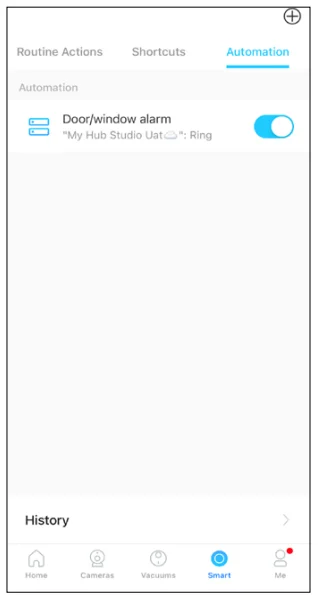
Done! You can go to Smart (Smart Actions) > Automation to check the item. Toggle on/off to enable/disable the action, tap to edit, and swipe right to delete.
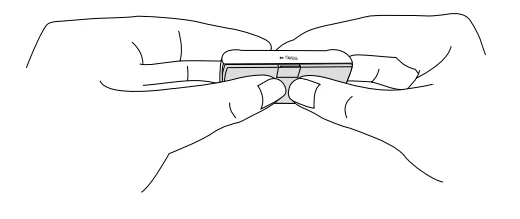
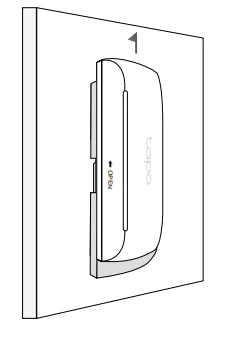
If you haven’t installed it on a door or window:
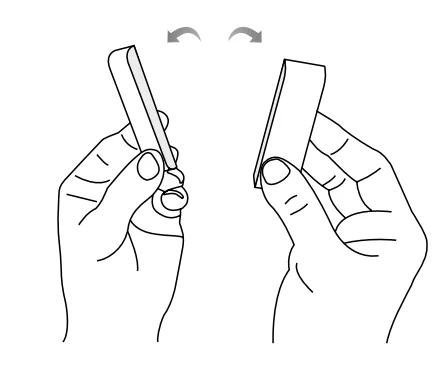
- Slide to remove the cover.
If you have installed it on a door or window:
- Remove the cover of your sensor by pushing the cover up.
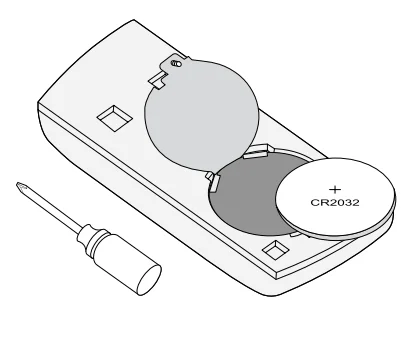
- Remove the screw securing the battery and remove the old battery. Insert the new battery into the battery compartment, making sure the battery is level and its positive side is facing up. Then replace the cover.
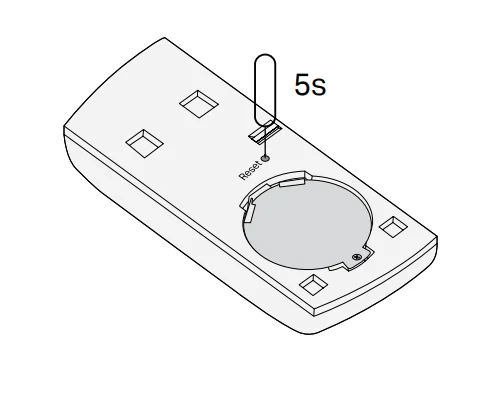
Option 1. Via Reset Button
Remove the cover, then use a pin to press and hold the Reset button for 5 seconds until the front LED starts blinking.
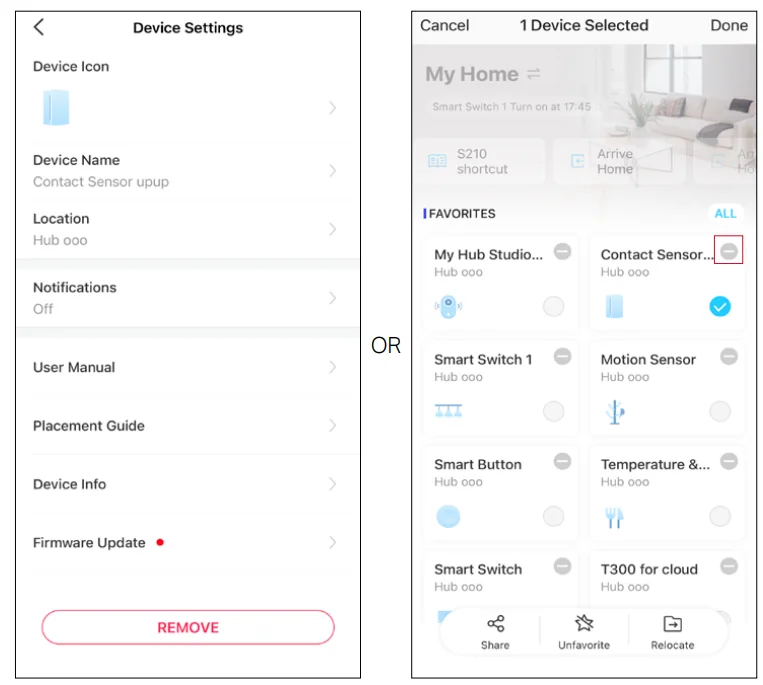
Option 2. Via the Tapo App
Long-press the card on the home page, tap or go to the Device Settings page and tap the Remove button to remove your sensor from your account.
Authentication
FCC Compliance Information Statement
- Product Name: Tapo Smart Contact Sensor
- Model Number: Tapo T110
- Responsible party: TP-Link USA Corporation
- Address: 10 Mauchly, Irvine, CA 92618 Website: http://www.tp-link.com/us/
- Tel: +1 626 333 0234
- Fax: +1 909 527 6804
- E-mail: [email protected]
This equipment has been tested and found to comply with the limits for a Class B digital device, pursuant to part 15 of the FCC Rules. These limits are designed to provide reasonable protection against harmful interference in a residential installation. This equipment generates, uses and can radiate radio frequency energy and, if not installed and used in accordance with the instructions, may cause harmful interference to radio communications. However, there is no guarantee that interference will not occur in a particular installation. If this equipment does cause harmful interference to radio or television reception, which can be determined by turning the equipment off and on, the user is encouraged to try to correct the interference by one or more of the following measures:
- Reorient or relocate the receiving antenna.
- Increase the separation between the equipment and receiver.
- Connect the equipment into an outlet on a circuit different from that to which the receiver is connected.
- Consult the dealer or an experienced radio/ TV technician for help.
This device complies with part 15 of the FCC Rules. Operation is subject to the following two conditions:
- This device may not cause harmful interference.
- This device must accept any interference received, including interference that may cause undesired operation.
Any changes or modifications not expressly approved by the party responsible for compliance could void the user’s authority to operate the equipment.
Note: The manufacturer is not responsible for any radio or TV interference caused by unauthorised modifications to this equipment. Such modifications could void the user’s authority to operate the equipment.
FCC RF Radiation Exposure Statement
This equipment complies with FCC RF radiation exposure limits set forth for an uncontrolled environment. This device and its antenna must not be co-located or operating in conjunction with any other antenna or transmitter. “To comply with FCC RF exposure compliance requirements, this grant applies to only Mobile Configurations. The antennas used for this transmitter must be installed to provide a separation distance of at least 20 cm from all persons and must not be co-located or operating in conjunction with any other antenna or transmitter.” We, TP-Link USA Corporation, has determined that the equipment shown as above has been shown to comply with the applicable technical standards, FCC part 15. There is no unauthorized changes are made in the equipment and the equipment is properly maintained and operated.
Safety Information
- Keep the device away from water, fire, humidity or hot environments.
- Do not attempt to disassemble, repair, or modify the device. If you need service, please contact us.
- Do not use the device where wireless devices are not allowed.
- Please read and follow the above safety information when operating the device. We cannot guarantee that no accidents or damage will occur due to improper use of the device. Please use this product with care and operate at your own risk.
- Do not ingest the battery. Chemical Burn Hazard
CAUTION!
- Risk of explosion if the battery is replaced by an incorrect type
- Avoid replacing a battery with an incorrect type that can defeat a safeguard.
- Avoid disposal of a battery into fire or a hot oven, or mechanically crushing or cutting of a battery, which can result in an explosion.
- Do not leave a battery in an extremely high temperature environment, as this can result in an explosion or the leakage of flammable liquid or gas. Do not leave a battery subjected to extremely low air pressure that may result in an explosion or the leakage of flammable liquid or gas.
- Do not ingest the battery. Chemical Burn Hazard
- This product contains a coin/button cell battery. If the coin/button cell battery is swallowed, it can cause severe internal burns in just 2 hours and can lead to death.
- Keep new and used batteries away from children.
- If the battery compartment does not close securely, stop using the product and keep it away from children.
- If you think batteries might have been swallowed or placed inside any part of the body, seek immediate medical attention
Warnings
- Operating Temperature: 0 ºC– 40 ºC (32°F–104°F )
- Operating Humidity: 10%–90%RH, Non-condensing
- Handling Instructions for Lithium-Ion Rechargeable Battery
- Please read and follow the handling instructions for the battery before use. Improper use of the battery may cause heat, fire, explosion, damage or capacity deterioration of the battery.
- Do not place or leave the battery and equipment in the reach of infants so that they are not able to swallow or mistreat the battery by mistake. In case of ingestion, consult with a doctor immediately.
- Do not let leaked electrolyte come into contact with eyes or skin. In such a case, immediately wash the area of contact with clean water and seek help from a doctor. Heat applied during soldering may damage the insulator of the safety vent and mechanism, which may result in heat generation, explosion, or fire of the battery.
- Do not disassemble or alter the battery.
The battery employs a safety mechanism and a protective device in order to avoid any danger. If these are damaged, heat, explosion or fire may be caused.
CAUTION
- Do not put the battery in a microwave or a pressure cooker. Sudden heat may damage the seal of the battery and may cause heat generation, explosion, or fire of the battery.
- Do not use the battery with other makers’ batteries, different types and/or models of batteries, such as dry batteries, nickel-metal hydride batteries, or nickel-cadmium batteries, or new and old lithium-ion batteries together. In such a case, over-discharge during use or over-charge during charge may cause abnormal chemical reactions and may cause heat generation, explosion, or fire of the battery.
- Do not leave the battery in a charger or equipment if it generates an odor and /or heat, changes color and/or shape, leaks electrolyte, or causes any other abnormality. In such a case, immediately take the battery out of the charger or equipment and keep it away from fire; otherwise, the battery might overheat, explode, or cause fire.
- Discontinue charging after the specified charging time, even if the charge is not complete; otherwise, the battery might cause heat generation, explosion, or fire.
- Do not use the battery in places where static electricity (more than the limit of the manufacturer’s guarantee) occurs. Otherwise, the protective device in the battery might be damaged and cause heat generation, explosion, or fire.
- Do not use the battery in any conditions other than the following; otherwise, the battery might cause heat generation, damage, or deterioration of its performance.
Operating environment:
- When the battery is charged: 0℃ ~ +45℃ (Humidity < 80%)
- When stored 1 months: -20℃ ~ +50℃ (Humidity < 80%)
- When stored 3 months: -20℃ ~ +45℃ (Humidity < 80%)
- When stored 1 year: -20℃ ~ +20℃ (Humidity < 80%)
Please read and follow the above safety information when operating the device. We cannot guarantee that no accidents or damage will occur due to improper use of the device. Please use this product with care and operate at your own risk.
For more manuals by TP-Link, visit ManualsLibraryy
Tapo Door Sensor Mini-FAQs
Does a wired security camera system require Wi-Fi?
No, a wired security camera system can operate without Wi-Fi. It records footage directly to a DVR or NVR using cables. However, an internet connection is only needed if you want remote viewing, mobile alerts, or cloud-based features.
How does a wired security camera system work?
A wired system uses cables (usually Ethernet or coaxial) to connect cameras to a central recorder. The recorder stores video footage and allows live viewing or playback on a monitor or mobile device when connected to a network.
Can the system still record if the internet is down?
Yes, the system will continue recording as long as it has power. Since it stores footage locally on a hard drive, internet outages only affect remote access, not recording functionality.
Why is my security camera not working?
Common reasons include power issues, loose cables, faulty adapters, or damaged connections. Always check that all cables are secure, the power supply is working, and the recorder is properly connected.
Why is my CCTV camera not showing any picture?
This issue is often caused by loose or damaged cables, incorrect input selection, or power failure. Ensure all connections are tight and verify that the camera and recorder are powered on.
What storage capacity does the system support?
The Hiseeu system typically supports both SD card and HDD storage, with expandable capacity up to several terabytes (often up to 8TB). This allows long-term video recording depending on settings and usage.
How long can footage be stored?
Storage duration depends on the hard drive size and recording mode. Continuous recording may store a few weeks of footage, while motion-based recording can extend storage to several months.
What is the lifespan of a security camera system?
Most security cameras last between 5 to 10 years. Lifespan depends on build quality, installation conditions, and environmental exposure such as dust, heat, or moisture.
What should I do if the system is not recording?
Check the power supply, inspect all cables, and ensure the hard drive is properly installed and configured. Also, verify that recording settings (continuous or motion detection) are enabled.
Can security cameras work with mobile data or a hotspot?
Yes, the system can connect through mobile data or a hotspot for remote viewing. However, a stable and high-speed connection is recommended for smooth video streaming.