
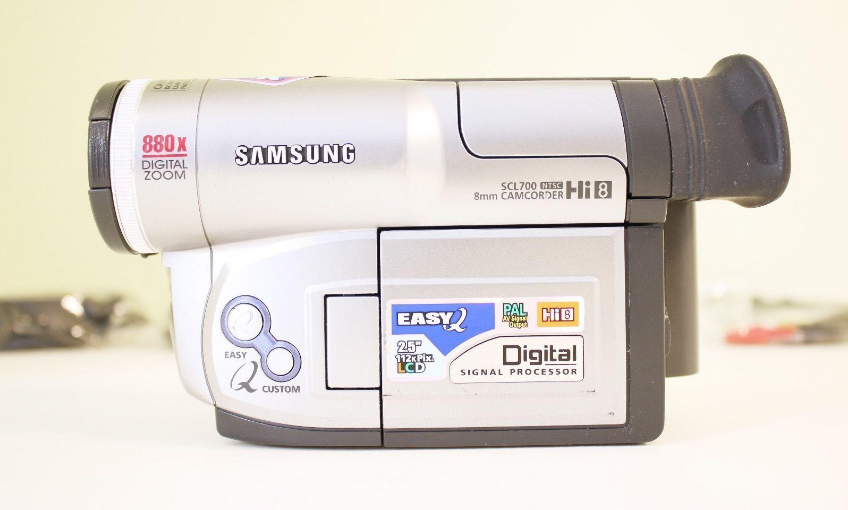

Samsung SCL700 Hi8 Camcorder
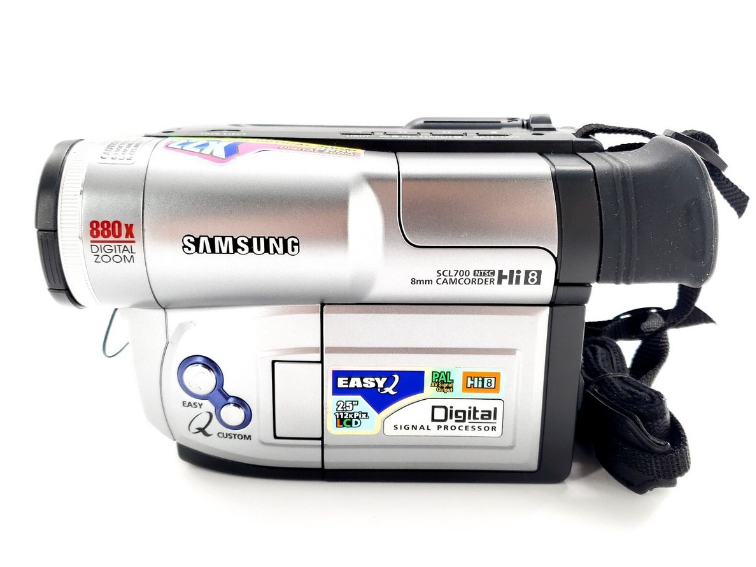
Notices and Safety Instructions
Notices regarding the rotation of the LCD screen
Please rotate the LCD screen carefully.
Unintended rotation may cause damage to the inside of the hinge that connects the LCD screen to the Camcorder.
- LCD screen closed.
- Standard recording using the LCD screen.
- Making a recording by looking at the LCD screen from the top.
- Making a recording by looking at the LCD screen from the front.
- Making a recording with the LCD screen closed.
Notices regarding the electronic viewfinder
- Do not place the camcorder so that the viewfinder is pointing towards the sun. Direct sunlight can damage the inside of the viewfinder. Be careful when placing the camcorder under sunlight or by a window.
- Do not pick up the camcorder by the viewfinder.
- Unintended rotation may cause damage to the viewfinder.
Notices regarding the battery pack
- Make sure that the battery pack is charged before recording outdoors.
- To preserve battery power, keep your camcorder turned off when you are not operating it.
- When your camcorder is in CAMERA mode, if it is left in STANDBY for more than 5 minutes without operation, it will automatically turn off to protect against unexpected battery discharge.
- It is a good idea to use the viewfinder instead of the LCD when recording for a long time because the LCD uses more battery power.
- Make sure that the battery pack is fitted firmly into place. Dropping the battery pack might damage it.
- When the battery reaches the end of its life, please contact your local dealer. The batteries have to be dealt with as chemical waste.
Getting to Know Your Camcorder
Features
Your camcorder has many features for recording and playing back.
Snap Shot (SCL750/L770 only)
The Snap Shot function lets you record an object at a standstill for a limited time in Camera mode. (see page 52)
PIP (SCL750/L770 only)
The PIP function shows where the center of the image is while recording in Digital Zoom of the Camera mode. (see page 51)
BLC
When you record a subject with the light source behind the subject or a subject with a light background, use the BLC function. (see page 41)
DSE (Digital Special Effects)
The DSE enables you to give a creative look to your films by adding various special effects. (see page 44)
Program AE (Auto Exposure)
The Program AE enables you to adapt the shutter speed and aperture to the type of scene to be filmed. (see page 42)
DIS (SCL750/L770 only)
The DIS compensates for unstable images caused by hand shake, particularly at high magnification. (see page 39)
22x High ratio zoom lens
Zooming is a recording technique that lets you change the size of the subject in the picture. For more professional recordings, use the Zoom function. (see page 34)
Digital Zoom (880x)
Zooms of more than 22x are performed digitally. (see page 35)
Macro
The macro function allows you to record your subject at close range. You have to adjust the zoom fully wide for macro recording. (see page 34)
EASY
This mode enables even a beginner to easily make a recording. (see page 37)
Multi PLAYBACK (PAL60)
PAL60 is a special output signal format with which a tape recorded on this camcorder (NTSC format) can be viewed on a PAL TV.
Hi8
Hi8 is an enhanced 8mm format. When a Hi8 cassette is inserted, the camcorder will automatically select the Hi-8 format for record or playback.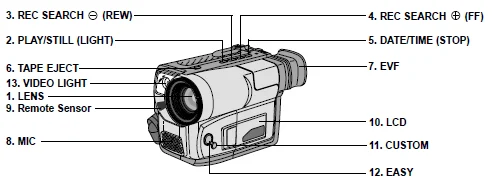
- Lens (see page 72)
- PLAY/STILL (LIGHT): PLAY/STILL works in PLAYER mode. LIGHT works in CAMERA mode.
- REC SEARCH (REW): REC SEARCH works in STANDBY mode. (see page 28) REW works in PLAYER mode. (see page 59)
- REC SEARCH (FF): REC SEARCH works in STANDBY mode. (see page 28) FF works in PLAYER mode. (see page 59)
- DATE/TIME (STOP): DATE/TIME works in CAMERA mode. (see page 47) STOP works in PLAYER mode. (see page 58)
- TAPE EJECT (see page 26): Use when ejecting the tape.
- EVF (Electronic Viewfinder)
- MIC: MIC works in CAMERA mode.
- Remote Sensor (SCL710/L750/L770 only)
- LCD (see page 29)
- CUSTOM: CUSTOM works in CAMERA mode.
- EASY: EASY works in CAMERA mode.
- VIDEO LIGHT (SCL700/L750/L770 only)

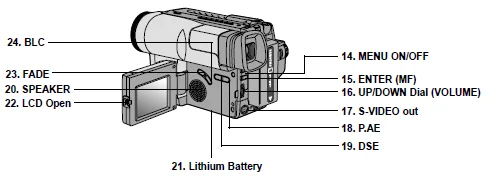
- MENU ON/OFF (see page 30): MENU ON/OFF works in CAMERA and PLAYER mode.
- ENTER (MF) (see page 30): ENTER works in MENU mode. MF works in CAMERA mode. (see page 40)
- UP/DOWN dial (VOLUME): UP/DOWN dial works in MENU mode. (see page 30) VOLUME works in PLAYER mode. (see page 60)
- S-VIDEO out
- PROGRAM AE (see page 42): PROGRAM AE (Auto Exposure) works in CAMERA mode.
- DSE (see page 44): DSE works in CAMERA and PLAYER mode.
- SPEAKER (see page 60): Speaker works in PLAYER mode.
- Lithium Battery (see page 21)
- LCD open
- FADE (see page 50): FADE works in CAMERA mode.
- BLC (see page 41): BLC works in CAMERA mode.

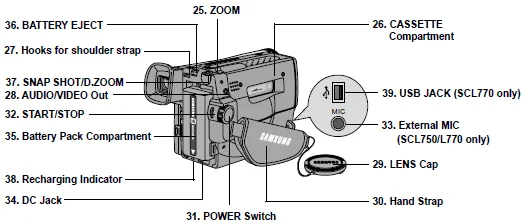
- ZOOM (see page 34)
- Cassette Compartment
- Hooks for Shoulder Strap (see page 21)
- AUDIO/VIDEO out (see page 57)
- LENS Cap
- Hand Strap (see page 20)
- POWER Switch (see page 22) CAMERA: Select to record. OFF: Select to turn off the camcorder. PLAYER: Select to playback.
- START/STOP (see page 28): START/STOP works in CAMERA mode.
- External MIC (SCL750/L770 only) (see page 72)
- DC Jack (see page 22)
- Battery Pack Compartment (see page 23)
- BATTERY EJECT
- SNAP SHOT/D.ZOOM: SNAP SHOT works in CAMERA mode. (SCL750/L770 only, see page 52) D.ZOOM works in CAMERA mode. (SCL700/L710 only, see page 36)
- Recharging Indicator (see page 23)
- USB Jack (SCL770 only) (see page 65)
OSD (On-Screen Display)
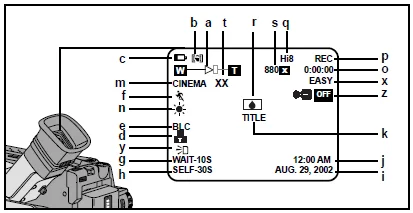
- You can turn the OSD on/off by setting the Display menu on/off.
- The TITLE, DATE/TIME, EASY, and CUSTOM functions can be operated even after the OSD is turned off.
- The OSD is displayed in the viewfinder and the LCD monitor.
OSD in CAMERA mode
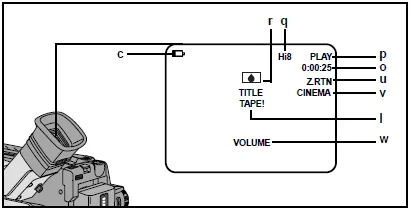
OSD in PLAYER mode
- Zoom position (see page 34): Indicates zoom position.
- DIS (SCL750/L770 only) (see page 39): Indicates DIS is activated.
- Battery level (see page 25): Indicates the power left in the battery.
- Manual Focus (see page 40): Indicates manual focus is on. Auto Focus is not displayed.
- BLC (see page 41): Indicates BLC is activated.
- Program AE (see page 42): Indicates Program AE mode is activated.
- Self-record waiting timer. (SCL710/L750/L770 only) (see page 19): Indicates 10-second timer.
- Self-record timer. (SCL710/L750/L770 only) (see page 19): (30 seconds or END).
- Date (see page 46): Indicates the date of the recording.
- Time (see page 46): Indicates the time you are recording.
- Title (see page 48): Indicates the recorded title you have set. It is superimposed on the scene
- Self-diagnosis (see page 68): Displays different diagnostic indicators concerning the camcorder’s operation.
- DSE (Digital Special Effect) (see page 44): Indicates the DSE mode is activated. The operation modes are GHOST, STROBE, SEPIA, B&W, NEG., MIRROR, ART, MOSAIC, 16:9(WIDE), and CINEMA.
- White Balance mode (see page 53): Indicates the White Balance mode is activated. The White Balance modes are AUTO, INDOOR, and OUTDOOR.
- Tape counter: Indicates the amount of tape used.
- Operation mode: Indicates that the operation mode is activated. The operation modes are STBY, REC, STOP, PLAY, FF, REW, and EJECT.
- Hi8 (see page 58): Indicates you are using Hi8 tape when recording or playing back.
- DEW condensation (see page 71): Monitors the moisture condensation.
- Digital zoom (see page 35): Indicates digital zoom is activated.
- Snap Shot (see page 52): Indicates the time left during Snap Shot Recording.
- Zero return (SCL710/L750/L770 only) (see page 59): Indicates that the zero return is activated.
- PB DSE: Shows that the PB DSE mode is active.
- VOLUME
- EASY & CUSTOM: Shows when the easy or custom mode is active.
- LIGHT (SCL700/L750/L770 only): Shows when the Light is switched on.
- Remocon (SCL710/L750/L770 only): Indicates the remocon off mode is activated.
Accessories Supplied with Camcorder
Make sure that the following basic accessories are supplied with your camcorder.
Basic Accessories
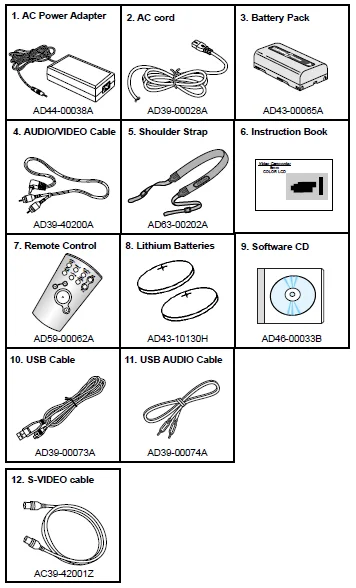
- AC Power Adapter. (see page 22)
- AC cord. (see page 22)
- Battery Pack. (see page 23)
- Audio/Video Cable. (see page 57)
- Shoulder strap. (see page 21)
- Instruction Book.
- Remote Control. (see page 19) (SCL710/L750/L770 only)
- Lithium Battery for Remote Control. (see page 19) (SCL710/L750/L770 only) Lithium Battery for Clock. (TYPE: CR2025, see page 21)
- Software CD (SCL770 only)
- USB Cable (SCL770 only)
- USB AUDIO Cable (SCL770 only)
- S-VIDEO cable. (see page 58)
Remote Control (SCL710/L750/L770 only)
Description of Buttons
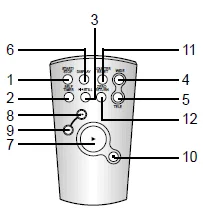
- Start/Stop (see page 27)
- Self Timer
- Still (see page 59)
- WIDE (see page 34)
- TELE (see page 34)
- Display (see page 16)
- (Play) (see page 58)
- (FF) (see page 59)
- (REW) (see page 59)
- (Stop) (see page 58)
- Counter Reset (see page 59)
- Zero Return (see page 59)
Remote Control Battery Installation
You must insert or replace this battery when:
- You purchase the camcorder.
- The remote control doesn’t work.
Insert Lithium Battery, following the + and – markings.
Be careful not to reverse the polarity of the battery.
Self Timer Recording
The Self Timer function on the remote control allows you to start and stop recording automatically.
Example: recording yourself
Two options are available
- WAIT-10S/SELF-30S: wait 10 seconds, followed by 30 seconds of recording.
- WAIT-10S/SELF-END: wait 10 seconds, followed by recording until you press the START/STOP button again.
Preparing
- Set the power switch to CAMERA mode.
- Press the Self Timer button until the appropriate indicator is displayed on the LCD: WAIT-10S/SELF-30S. WAIT-10S/SELF-END
- Press the START/STOP button to start the timer.
- After waiting for 10 seconds, the recording starts.
- If you have selected SELF-30S, recording stops automatically after 30 seconds.
- If you have selected SELF-END, press START/STOP again when you wish to stop recording.
Note: When recording with the timer, you can press the START/STOP button again to cancel the function.
Adjusting the Hand Strap and Shoulder Strap
Hand Strap
It is very important to adjust the hand strap for better recording.
The hand strap enables you to:
- Hold the camcorder in a stable, comfortable position.
- Press the Zoom and the red Record button without having to change the position of your hand.
- Pull open the Hand Strap cover and release the Hand Strap, adjust its length, and stick it back onto the Hand Strap cover.
- Close the Hand Strap cover back up again.
Shoulder Strap
The Shoulder Strap allows you to carry your camcorder with complete safety.
- Insert each end of the strap into the hooks on the camcorder.
- Put the end of each strap through the buckle, adjust the length of the strap, then pull it tight in the buckle.
Lithium Battery Installation
- The lithium battery maintains the clock function, title, and preset contents of the memory, even if the battery pack or AC power adapter is removed.
- The lithium battery for the camcorder lasts about 8~10 months under normal operation from the time of installation.
- When the lithium battery becomes weak or dead, the date/time indicator flashes for about 5 seconds when you set the power switch to CAMERA.
When this occurs, replace the lithium battery with a type CR2025.
- Take out the holder from the lithium battery compartment.
- Insert the side of the lithium battery toward the bottom of the holder.
- Reinsert the holder into the lithium battery compartment.
Note: If the holder is inserted in the wrong direction, it will not fit correctly.
Warning: Keep the LITHIUM BATTERY out of the reach of children. Should the battery be swallowed, consult a doctor immediately.
Connecting the Power Source
There are two ways to connect a power source.
- Using the AC Power Adapter: used for indoor recording.
- Using the Battery Pack: used for outdoor recording.
To use the AC Power Adapter
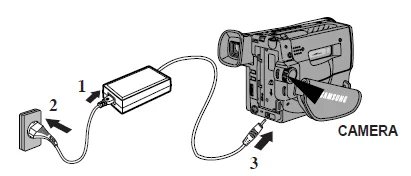
- Connect the AC Power Adapter to the AC cord.
- Connect the AC cord to a wall socket. Note: The plug and wall socket type may be different depending on regional conditions.
- Connect the other end of the DC cable to the DC jack of the camcorder.
- To set the camcorder to the CAMERA mode.
- Hold down the tab of the power switch and push the switch to CAMERA mode.
- Make sure that the Lens Cap is open.
- Open the LCD monitor and make sure that the image appears in the LCD monitor.
The LCD monitor is turned on automatically when it’s opened more than 30 degrees.
Note: If the adapter is used next to a TV or the camcorder, it may cause the TV or camcorder to emit noise. Move the adapter away from the TV, camcorder, or antenna cable.
To use the Battery Pack
How long will the battery last for recording?
Depends on how often Zoom is used for recording. Prepare as many battery packs as possible.
Recharging the Battery Pack
- Attach the battery pack to the camcorder.
- Connect the AC Power Adapter to the AC cord and connect the AC cord to a wall socket.
- Connect the DC cable to the DC jack of the camcorder.
- Turn off the camcorder power, and the recharging indicator will start blinking and begin recharging.
- Blinking once a second: Indicates less than 50% has been charged.
- Blinking twice a second: Indicates 50% ~ 75% has been recharged.
- Blinking three times a second: Indicates 75% ~ 100% has been recharged.
- Blinking stops and stays on: Recharging has been completed.
- On for a second and off for a second: Indicates there is an error. Reset the battery pack and DC cable.
- If recharging is completed, separate the camcorder, AC power adapter, and battery pack.
Even if the power is turned off, the battery will be discharged.
Note: Battery pack may be charged a little at the time of purchase.
Using the Battery Pack
Continuous recording time table based on the model and battery type.
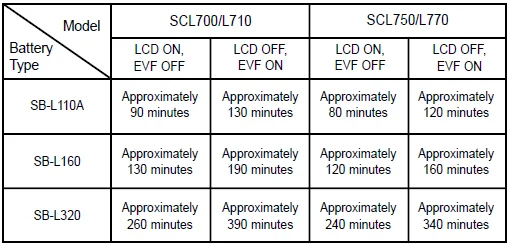
The continuous recording times given in the table are approximate.
Actual recording time depends on usage.
Notes:
- The battery pack should be recharged in a room temperature that is between 0°C(32°F) and 40°C(104°F). It should never be charged in a room temperature that is below 0°C(32°F).
- The life and capacity of the battery pack will be reduced if it is used in temperatures below 0°C, even when it is fully recharged.
- The life and capacity of the battery pack will be reduced if the battery pack is left in temperatures above 40°C(104°F) for a long period, even when it is fully recharged.
- Do not put the battery pack near any heat source (fire or flames, for example).
Battery Level Display
The battery level display indicates the amount of power remaining in the battery pack.
- Fully charged
- 10~40% consumed
- 40~60% consumed
- 60~80% consumed (prepare a charged one)
- 80~95% consumed (change the battery)
- 100% consumed (camcorder will turn off soon, change the battery as soon as possible)

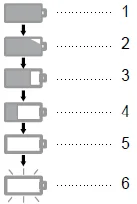
- Please refer to the table on page 24 for approximate continuous recording times.
- The recording time is affected by environmental temperature and conditions. The recording time becomes very short in a cold environment. The continuous recording time in the operating instructions is measured under the condition of using a fully charged battery pack at 25°C(77°F). As the environmental temperature and conditions may be different when you actually use the camcorder, the remaining battery time may not be the same as the approximate continuous recording times given in these instructions.
Tips for Battery Identification.
A charge mark is provided on the battery pack to help you remember whether it has been charged or not.
Two colors are provided (red and black)-you may choose which one indicates charged and which indicates discharged.
Note: The charge mark does not affect the battery’s charge status.
Inserting and Ejecting a Cassette
There are several cassette types, depending on:
- Color system used
- Recording/playback time.
- Hi8
Inserting and Ejecting a Cassette
Check to see if the battery pack is in place or the AC adapter is connected.
- Press the EJECT button.
- The compartment opens automatically.
- Insert the cassette with the transparent window facing outward and the protection tab toward the top.
- Press the PUSH mark until the compartment clicks into place.
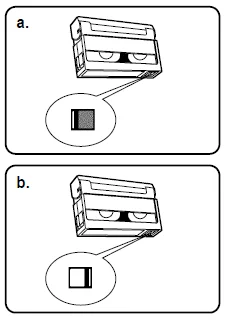
Note: When you have recorded a cassette that you wish to keep, you can protect it from being accidentally erased.
- Recording Impossible (Protection): Push the red tab on the cassette to cover up the opening.
- Recording possible: If you no longer wish to keep the recording on the cassette, push the red tab back so that it no longer covers up the opening.

For more Manuals by Samsung, visit ManualsLibraryy
Samsung SCL700 Hi8 Camcorder-FAQs
What is a Hi8 camcorder?
A Hi8 camcorder is an upgraded version of the original 8mm video camera, first introduced by Sony in 1989. It offers around 400 lines of horizontal resolution, producing sharper, higher-quality video than standard 8mm or VHS formats.
What is the Samsung SCL700 Hi8 Camcorder?
The Samsung SCL700 is an analog Hi8 video camcorder made for home recording in the late 1990s. It features optical zoom, an LCD display, and records onto Hi8 tapes that deliver improved image quality compared to older 8mm camcorders.
Is Hi8 video analog or digital?
Hi8 tapes record analog video and audio, but some models offer optional digital audio for better sound quality.
Is Hi8 better than VHS?
Yes. Hi8 provides up to 400 lines of resolution, similar to S-VHS, offering clearer images and less generation loss than standard VHS tapes.
Can Hi8 tapes be played in other camcorders?
Hi8 tapes can be played in Hi8 and Digital8 camcorders, but not in standard Video8 models. Regular 8mm tapes, however, are compatible with Hi8 and Digital8 players.
How long do Hi8 tapes last?
Hi8 tapes typically last between 10 to 25 years, depending on storage conditions. To preserve your videos long-term, it’s best to transfer them to a digital format.
How can I connect my Samsung Hi8 camcorder to a computer?
You can transfer videos by connecting the camcorder to a computer using a video capture device via USB or FireWire, and the proper AV or S-Video cables. Then, use video capture software to record the playback digitally.
How can I watch Hi8 tapes without the camcorder?
If you don’t have the original camcorder, you can use a Hi8 or Digital8 tape player or send the tapes to a digital conversion service to transfer them to USB or DVD.
Can I convert Hi8 tapes to USB or digital format?
Yes. Using a video grabber and capture software, connect your camcorder to your computer, play the tape, and save the video as a digital file or onto a USB drive.