
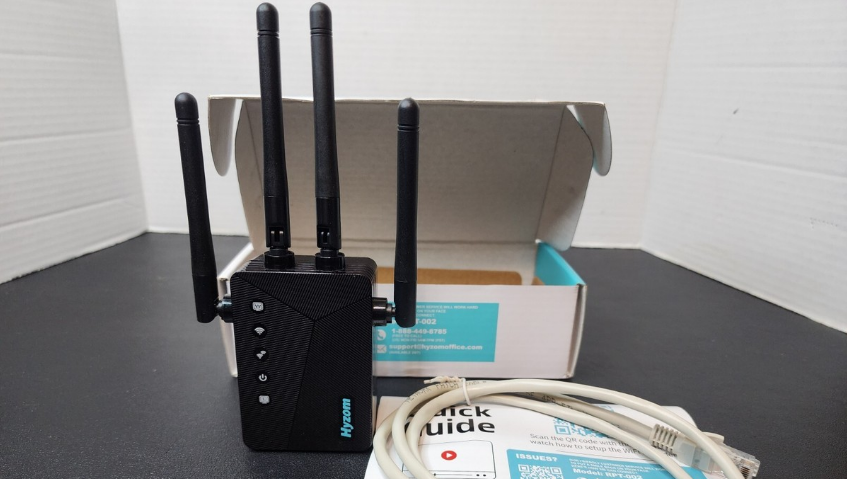

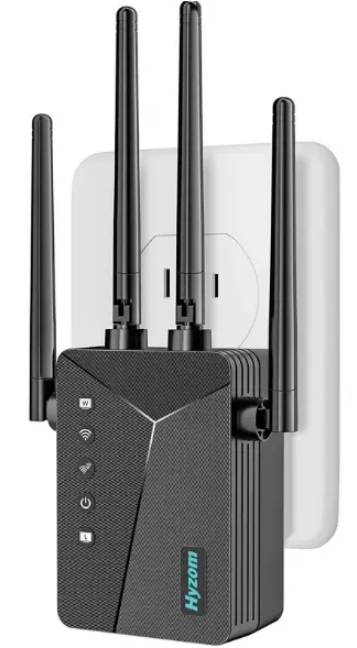
Hyzom RPT-002 WiFi Extender
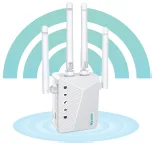
Tips: Please make sure that the router is turned on and able to access the Internet before setting!
- Step 1
Please turn off cellular data at the beginning of the installation. Plug the Extender into a power outlet near your Router.(Recommended within 20 feet)
- Step2
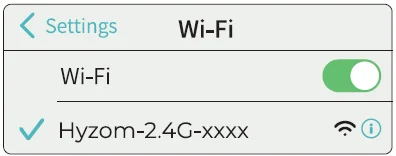
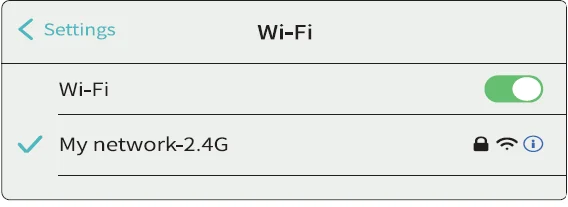
Go to your Phone settings. Open the WiFi, and turn it on. Search for the network name “Hyzom-2.4G-xxxx” and click on it to connect.
- Step 3
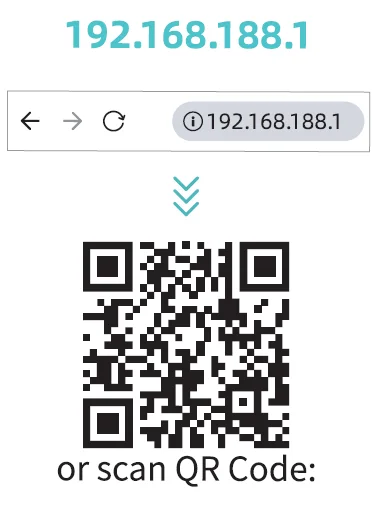
Open the web browser and input
- Step 4
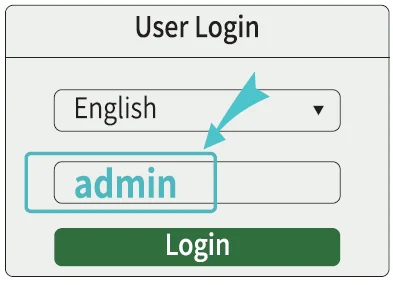
Once the page loads, enter the default password, “admin,” into the password box. Click the “Login” button to continue. If access fails, please check if the correct SSID “Hyzom-2.4G-xxxx” is connected, or make sure it doesn’t capitalize the “a” in admin – that won’t allow you in.
- Step 5
Enter the software management interface and click “Repeater Mode”.
- Step 6
Click on the name of the WiFi network you want to extend, e.g. My network. If your home WiFi does not appear, please refresh it several times. - Step 7
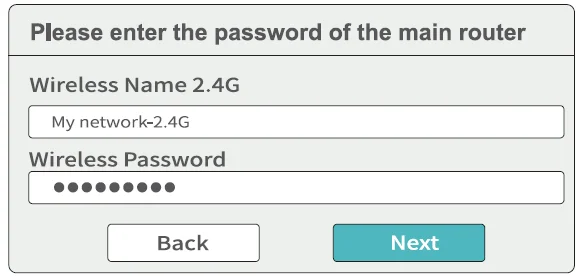
Type the WiFi password of your main router into the Password box. Click the “Next” button.
- Step 8
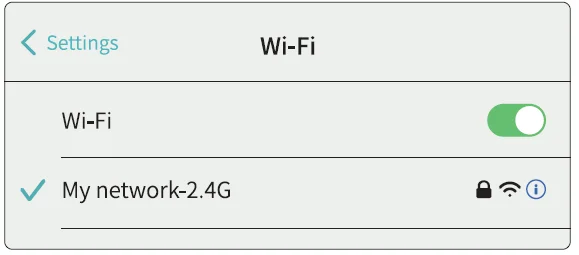
After confirming the wireless information, click “Start Connect.” The new WiFi SSID defaults to the “Router name-2.4G”. The password is the same as your main router. Congratulations! The WiFi extender has been set up.

METHOD #2 CONNECT WITH WPS (IF SUPPORTED BY YOUR ROUTER)
- Step 1
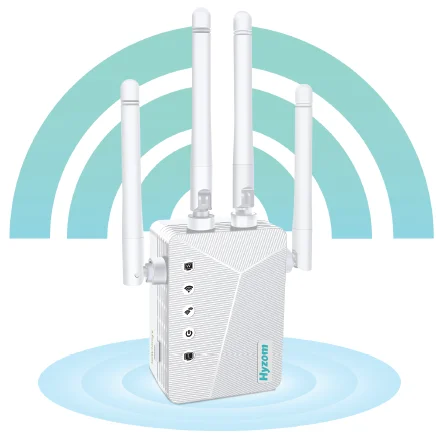
Plug your WiFi extender into an outlet near your router, then wait for the wireless LED to turn on and stay solid. (Recommended within 20 feet)
- Step 2
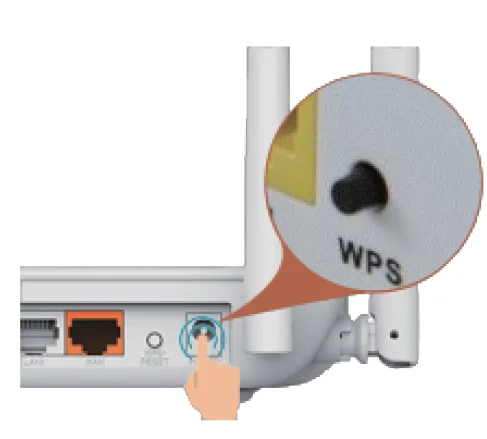
Press the WPS button on your main router for 1-2 seconds.
- Step 3
Within 30 seconds, press the WPS button on the Extender for 1-2 seconds.
- Step 4
After 30 seconds, a network will appear. The new WiFi SSID defaults to the “Router name-2.4G”. The network will have the same password as your current network. - Step 5
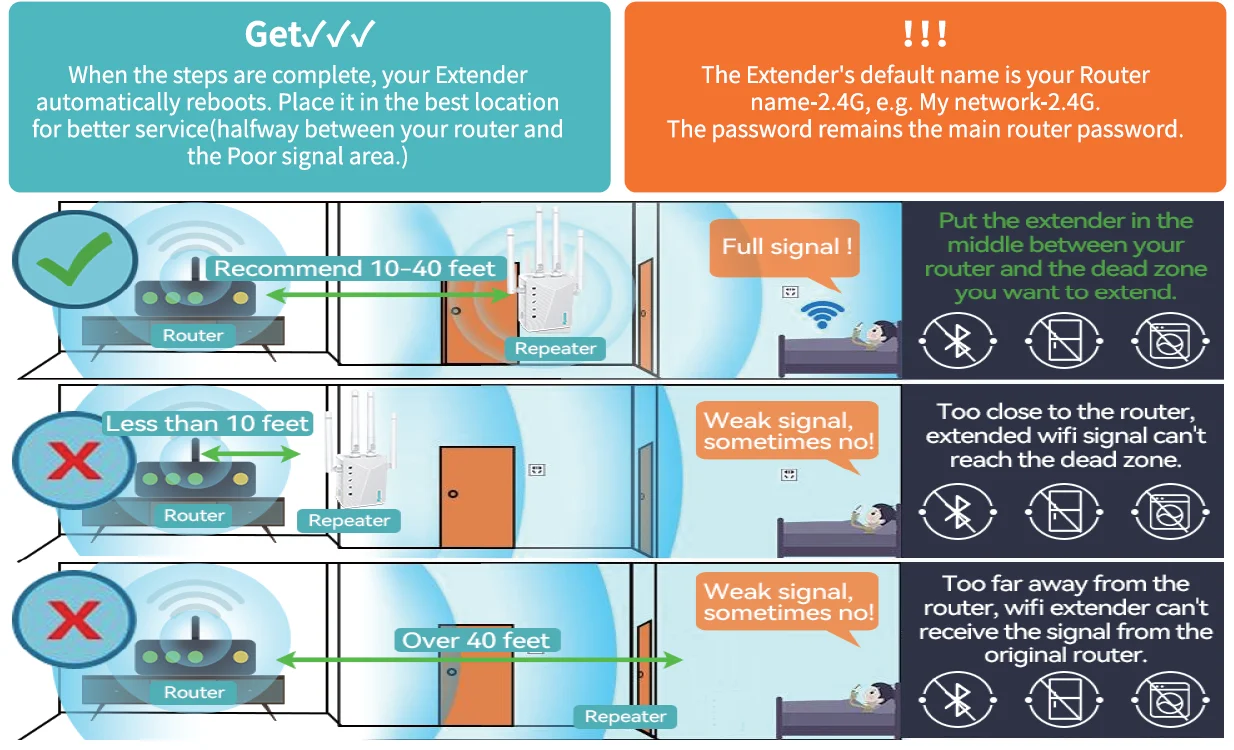
Move the Extender to the best position, which is halfway between your router and the area that has a poor WiFi signal. Congratulations! The WiFi extender has been set up and you can go online.
HOW TO REST THE PEREATERS
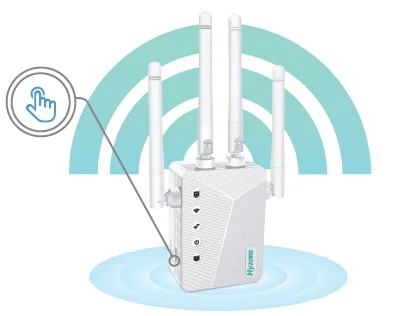
Please press the RESET button on the left side of the WiFi extender for 8 seconds to restore the factory settings. (WHILE STILL PLUGGED IN)
OTHER MODES
- Bridge Mode setting: The setting method of bridge mode is the same as the repeater mode. Please refer to the setting method of repeater mode. This mode is suitable for printers, IP cameras, smart TVs, etc.
- Client Mode setting: The setting method of client mode is the same as the repeater mode. Please refer to the setting method of repeater mode. After the setting is successful, use the network cable to connect the extender to the wired equipment, and the wired equipment can access the Internet.
- AP Mode setting: In order to facilitate management, the IP address and default gateway entered here should be the IP segment of the superior router, and the IP address cannot be the same as the superior router, to avoid IP conflict with the outer. After the setting is completed, the WAN port of the device can access the external network through the set IP address to access the management device.
- Router Mode settings: Enter the software management page, click Router Mode, can select” PPPoE”, “Static IP”, or “Dynamic IP” Three ways to get online.
- PPPOE dial-up mode: This mode requires the Internet account provided by the network service provider to be filled in the Number and password. Below can set the 2.4G wireless SSID name, wireless password.
- Static IP mode: This mode needs to fill in the IP address provided by the network service provider, Subnet mask, gateway, main DNS address, 2.4G wireless SSID can be set below Name, and wireless password.
- Dynamic IP mode: In this mode, the WAN port is assigned an IP address by the superior network device to access the Internet. The 2.4G wireless SSID name can be set below.
- My WiFi says connected, but I have no internet connection.
- If the WiFi is connected, but there is no internet, check that the router’s WiFi is actively working. And try to restart the router.
- 1t might be more of an IP conflict. You can try to set it up in Bridge mode so that the devices connected to both routers can interact with each other.
- You may have entered the wrong password. It could also be for some other reasons, so try to restore factory settings. To do that, please press the RESET button for 8 seconds to restore the factory settings, then set up the extender again.
- Why does the internet speed drop when connecting to the extender?
- The WiFi Extender supports 2.4G networks and not SG.
- The WiFi Extender is used to extend the range of your WiFi (which your main router can’t cover). It does not increase internet speed.
- Sometimes, the signal (coverage or speed) drops due to external influences – a microwave oven, nearby cell towers, a neighbor’s WiFi on the same channel, walls, and partitions in a building made of certain materials blocking a WiFi signal.
- Try the Extender in different positions: place it at different angles or locations for a better signal.
- What is the username and password for setting up the Extender?
- The user name and password used during setup are admin
- After setting up, connect to the new WiFi name “Router name-2.4G”. The password is now the same as your main WiFi router.
- Why are some devices at home (printer, CCTV camera, TV, iPhone) unable to connect to the Extender?
- This means the device does not recognize the Extender.
- The device should be in the same network as your router. You may set up the Extender in Bridge Mode to see if it will work.
- How far should the Extender be from the router?
- It should be between the router and the area with a low signal. The position must be able to receive a good WiFi signal from the router.
- Should the Ethernet cable be connected from the router to the extender?
- No, you should only plug the cable from the Extender to a computer.
- Does the extender increase my internet speed?
- No, it increases the range of your WiFi.
- Does the extender work with 5G?
- No, only with 2.4G.
- Why am I unable to enter the web page?
If you cannot open the webpage, follow these steps:- Open your browser on your cellphone/PC, and enter the digits “192.168.188.1” into the address bar. Enter the user name and password “admin”, then log in. You can also connect the WiFi extender to your PC with an Ethernet cable, then open your browser and enter the same digits” 192.168.188.1″. Enter the user name and password “admin” and follow the same steps.
If you are still unable to open the webpage, please check and try these: - Check if you are connected to the WiFi extender during setup. This is necessary because before connecting to the router, the WiFi Extender should have no internet access. Your mobile will usually auto-connect to the other WiFi or ask if it is connected to the present WiFi or not. You must be connected to the WiFi Extender during setup.
- Please press the RESET button for 8 seconds to restore the factory settings. Set up the extender again.
- Disable your mobile’s data during setup.
- Use another mobile phone to try.
- Open your browser on your cellphone/PC, and enter the digits “192.168.188.1” into the address bar. Enter the user name and password “admin”, then log in. You can also connect the WiFi extender to your PC with an Ethernet cable, then open your browser and enter the same digits” 192.168.188.1″. Enter the user name and password “admin” and follow the same steps.
WARNING
- Keep the device away from water, fire, humidity, or hot environments.
- Do not attempt to disassemble, repair, or modify the device. If you need service, please contact us.
- Do not use the device where wireless devices are not allowed.
- The socket-outlet shall be installed near the equipment and shall be easily accessible.
- For passthrough devices, plug the power strips into the integrated electrical sockets of the devices, but devices of the same or another type should not be stacked in normal use. Please read and follow the above safety information when operating the device. We cannot guarantee that no accidents or damage will occur due to improper use of the device. Please use this product with care and operate at your own risk.
- These limits are designed to provide reasonable protection against harmful interference in a residential installation. This equipment generates, uses, and can radiate radio frequency energy and, if not installed and used in accordance with the instructions, may cause harmful interference to radio communications. However, there is no guarantee that interference will not occur in a particular Installation.
HYZOM GUARANTEE
IMPORTANT: All WiFi extenders on the market are designed to increase or improve WiFi coverage. That means It can improve the locations that are getting weak signals from your router, and NOT TO INCREASE WIFI SPEED. According to the laws of physics, WiFi Extenders will always be slower than your existing router. This is because the WiFi extender has to split its bandwidth between the router.
Note! Based on 300,000+ sold units, the extender may not be effective or may not work in 3% of cases due to interference or incorrect setup.
ONE OF THEM? Contact our friendly customer service team: [email protected]
UNHAPPY? We’ll give a full money refund or a replacement, and you can keep the old product to avoid to hassle of shipping the product back. “Wo unto the liar, for he shall be thrust down to hell.” “Good thing we ain’t lying.”
Scan the QR code with the camera to watch how to set up the WiFi Extender

ISSUES?
OUR FRIENDLY CUSTOMER SERVICE WILL WORK HARD TO PUT A SMILE BACK ON YOUR FACE. HERE’S HOW WE CAN CONNECT.
- Model: RPT-002
 1-888-449-8785
(FREE TO CALL)
(US) MON-FRI 8AM-4PM (PST) [email protected]
(AVAILABLE 24/7)
 1-888-449-8785
For more manuals by Hyzom, visit ManualsLibraryy
Hyzom RPT-002 WiFi Extender-FAQs
How do I set up the Hyzom RPT-002 WiFi Extender?
Plug the extender into a power outlet near your router. Wait for the LED to turn solid, then press the WPS button on your router for 1–2 seconds. Within 30 seconds, press the WPS button on the extender. After connection, move the extender to your desired location.
How do I connect my Hyzom WiFi Extender to my network manually?
Connect your device to the “Hyzom-2.4G” WiFi network. Open a web browser and type 192.168.10.1 in the address bar. Log in using the default password admin, then follow the setup instructions to connect to your router’s WiFi.
What does the WPS button do on my router and extender?
WPS stands for Wi-Fi Protected Setup. It allows you to connect compatible devices to your WiFi network easily—without entering the password manually.
How far can the Hyzom RPT-002 extend my WiFi signal?
Indoors, it can extend WiFi coverage up to 35 meters (115 feet). Outdoors, the range can reach 200 meters (656 feet), depending on obstacles and signal strength.
Why isn’t my WiFi repeater connecting?
This can happen due to weak signal, thick walls, or interference from other devices. Try moving the extender closer to the router or restarting both devices.
Can I use the Hyzom WiFi Extender with any router?
Yes, the RPT-002 is compatible with most routers that support standard 2.4GHz WiFi networks. For best results, ensure your router supports WPS or manual setup options.
How do I know if my WiFi extender is working properly?
If the signal LED is solid green or orange and your devices can connect to the internet through the extender, it means the setup is successful.
What is the default login information for the Hyzom RPT-002?
To access settings, connect to the “Hyzom-2.4G” network, go to 192.168.10.1, and enter admin as the default password. Make sure not to capitalize any letters.
Where should I place my WiFi extender for best performance?
Place it midway between your router and the area with weak WiFi signal. Avoid putting it behind thick walls or near electronic devices that may cause interference.