
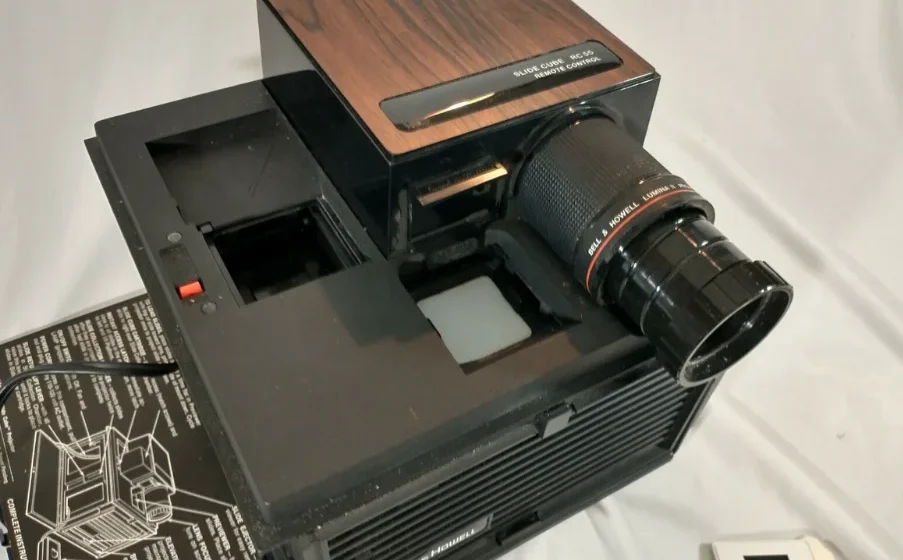

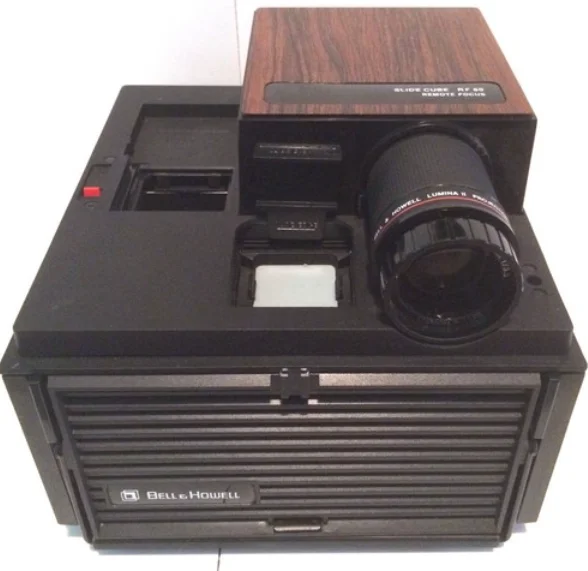
Bell and Howell RC55 Slide Cube Projector
IMPORTANT SAFEGUARDS
WHEN USING YOUR PHOTOGRAPHIC EQUIPMENT, BASIC SAFETY PRECAUTIONS SHOULD ALWAYS BE FOLLOWED, INCLUDING THE FOLLOWING:
- READ AND UNDERSTAND ALL INSTRUCTIONS
- CLOSE SUPERVISION IS NECESSARY WHEN ANY EQUIPMENT IS USED BY OR NEAR CHILDREN. DO NOT LEAVE EQUIPMENT UNATTENDED WHILE IN USE.
- CARE MUST BE TAKEN AS BURNS CAN OCCUR FROM TOUCHING HOT PARTS.
- DO NOT OPERATE EQUIPMENT WITH A DAMAGED CORD OR IF THE EQUIPMENT HAS BEEN DROPPED OR DAMAGED —UNTIL IT HAS BEEN EXAMINED BY A QUALIFIED SERVICEMAN.
- POSITION THE EQUIPMENT IN SUCH A WAY AS NOT TO BLOCK ANY AIR INTAKE OR EXHAUST OPENINGS.
- IF AN EXTENSION CORD IS NECESSARY, A CORD WITH A SUITABLE CURRENT RATING SHOULD BE USED. CORDS RATED FOR LESS AMPERAGE THAN THE EQUIPMENT MAY OVERHEAT. CARE SHOULD BE TAKEN TO ARRANGE THE CORD SO THAT IT WILL NOT BE TRIPPED OVER OR PULLED.
- ALWAYS UNPLUG EQUIPMENT FROM THE ELECTRICAL OUTLET WHEN NOT IN USE. NEVER YANK THE CORD TO PULL THE PLUG FROM THE OUTLET. GRASP PLUG AND PULL TO DISCONNECT.
- LET EQUIPMENT COOL COMPLETELY BEFORE PUTTING AWAY. STORE THE POWER CORD PROPERLY IN THE STORAGE AREA PROVIDED.
- TO PROTECT AGAINST ELECTRICAL SHOCK HAZARDS, DO NOT EXPOSE THIS EQUIPMENT TO RAIN, MOISTURE, OR OTHER LIQUIDS.
- AVOID ELECTRIC SHOCK HAZARD. DO NOT DISASSEMBLE THIS EQUIPMENT, BUT TAKE IT TO A QUALIFIED SERVICE TECHNICIAN WHEN SOME SERVICE OR REPAIR WORK IS REQUIRED. INCORRECT REASSEMBLY CAN CAUSE ELECTRIC SHOCK HAZARD WHEN THE EQUIPMENT IS USED SUBSEQUENTLY.
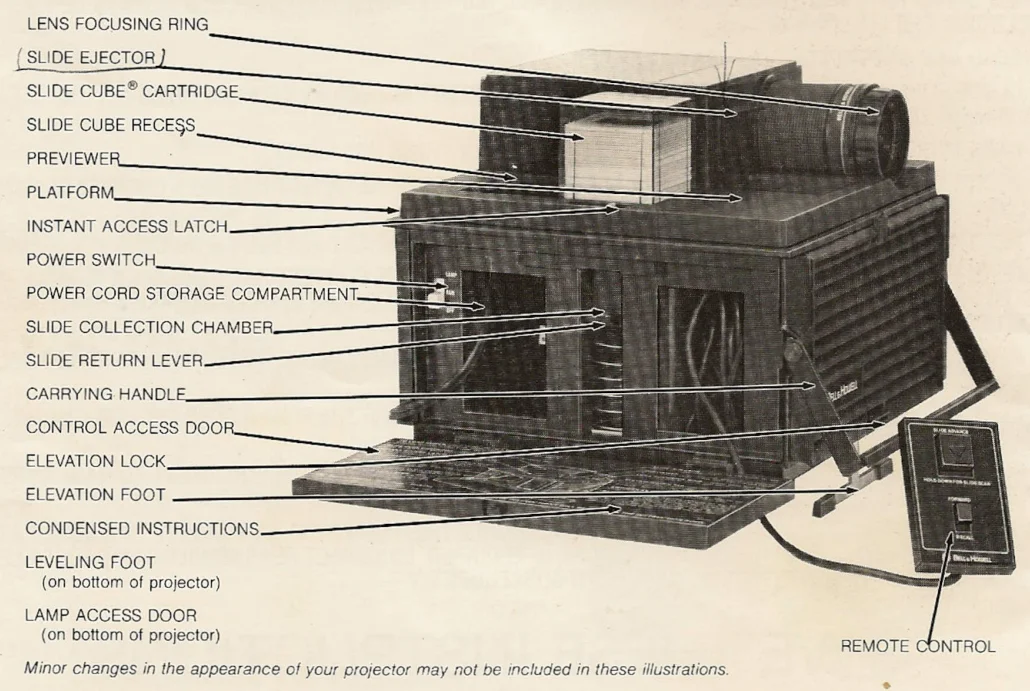
Here are the important parts of your projector. You’ll want to be familiar with them as they are referred to throughout this book.
SETTING UP THE PROJECTOR
Place the projector on a firm, level surface. Position the screen just far enough away to fill the area with the picture— about 10 feet for 35mm slides and a 40″ screen, about 12 feet for a 50” screen. Open the Control Access Door, pull the Power Cord out of its compartment, and plug it into any 110-120 volt AC 50 or 80 Hertz outlet. Your projector can be operated with the Remote Control in its storage position—or you can remove it by pressing down on the latch at the top of the control and pulling it out. Note that the cord should be coiled and placed in the recess when returning the Remote Control to storage. Check that the Slide Return Lever in the Slide Collection Chamber (see illustration at right) is down. Push down if needed. Slide the Power Switch to LAMP to turn the projection light on. Using the light, align the projector with the screen. To center the light vertically on the screen, press and hold the Elevation Lock, raise or lower the front of the projector as required, then release the Elevation Lock to hold in position.
NOTE: When setting up the projector and screen, have the screen square (at right angles) to the projector—not tilted to one side. Also, try to keep the center of the screen close to the same level (height) as the projector’s lens so the image is not wider at the top than at the bottom. This “keystone” effect is caused by projecting upward to the screen.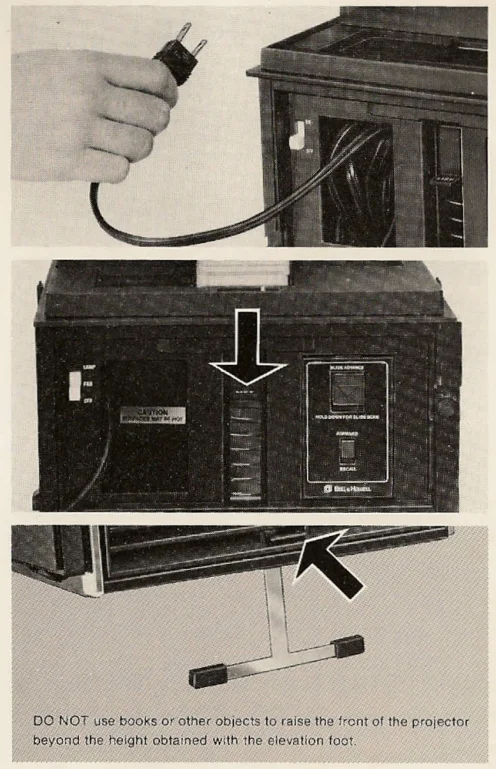
LOADING & SHOWING THROUGH THE PREVIEWER
Here’s an easy way to preview, load, and show your slides the first time. Set up the projector as described on page 3 and position yourself at the right side of the projector.
- Hold the first slide over the Previewer so that the scene appears upright to you and with the emulsion side (etched side of film—generally the printed side of the mount) down. Insert the left side of the slide into the groove at the back of the Previewer, then drop the right edge into place (see illustration)
- Place the Forward/Reverse Switch in the FORWARD position, then press (and release) the Slide Advance in the direction of its molded arrow to project the slide on the screen and clear the Previewer for the next slide. Turn the Lens Focusing Ring to focus the FIRST slide—the rest will be focused AUTOMATICALLY!

Repeat steps #1 and #2 for each slide until all of them have been previewed and shown. Then, with no slide in the Previewer, press and release the Slide Advance twice to move the last two slides you’ve shown into the Slide Collection Chamber.
Place an empty Slide Cube Cartridge in the rear portion of the Slide Cube Recess (arrow on cartridge bottom pointing toward front of projector), then slide it all the way forward. This opens the cartridge and positions it over the collection chamber.
Load slides into the empty cartridge by lifting the Slide Return Lever upward with one firm, smooth, uninterrupted motion until it locks into its fully raised position. Then slide the cartridge all the way back to the rear of the recess (to close the cartridge) and lift it off the projector. Be sure the Slide Return Lever is pushed back down to its operating position before viewing the next cartridge or storing the projector.
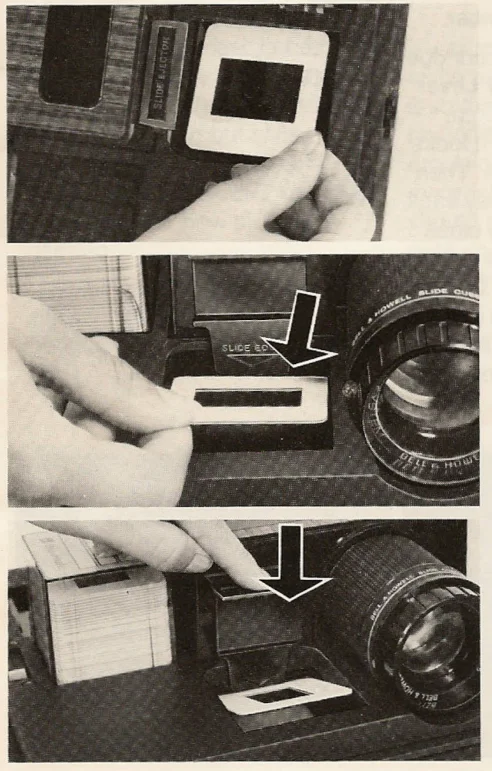
NOTE: If a slide is incorrectly positioned in the Previewer, push down on the Slide Ejector to tilt the slide up. Then remove, reposition, and replace the slide in the Previewer before pressing the Slide Advance. A slide is incorrectly positioned when projected. Move Forward/Recall Switch to RECALL, press Slide Advance, then use Slide Ejector to remove / reposition / replace the slide in the Previewer. “Return switch to the FORWARD position and resume the show.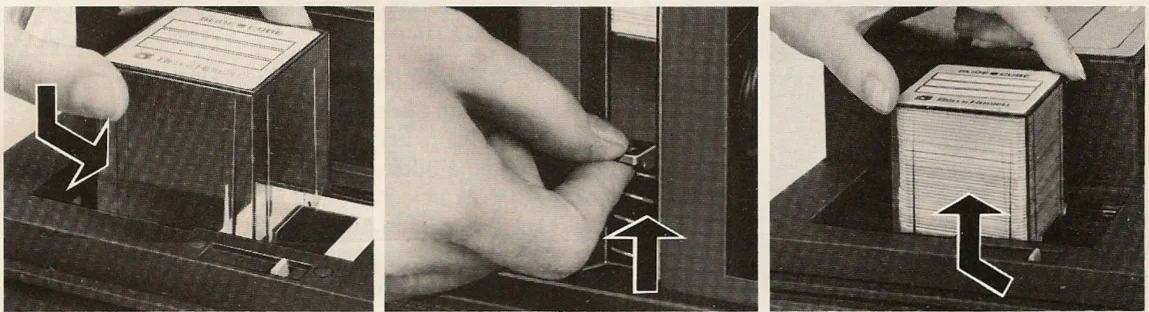
NOTE: Projector and cartridge accept up to 40 cardboard-mounted slides or fewer plastic-mounted slides (0.055″ maximum mount thickness).
LOADING THE SLIDE CUBE® CARTRIDGE BY HAND
There may be times when you wish to pre-load the Slide Cube Cartridge by hand instead of through the Previewer.
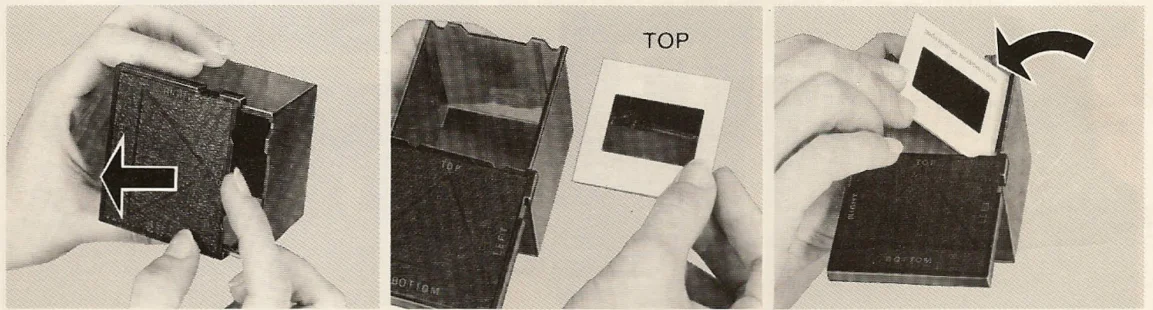
Hold the cartridge upside-down as shown and slide the bottom cover to the left.
NOTE: The cover is not removable but slides over and stops. The words TOP-BOTTOM-RIGHT-LEFT on the cover are a guide to how slides are inserted.Holding the opened cartridge with the left hand as shown, view the slide to be loaded by holding it with the right hand over a lighted white paper or light surface. Turn it so that you view it just as it should appear on the screen. The emulsion side of the film (usually the printed side of the mount) should be down for the subject’s right and left sides to be correct. See the illustration below.
With the slide in its correct position, tip the left side down and flip the right side over as you drop it into the cartridge. It will be in the cartridge upside-down, but the top and bottom will be correct. Continue to load the cartridge until up to 40 slides are inserted, then close the cover.

IMPORTANT: The slides should be inserted in reverse order—the last slide to be shown should be inserted first, etc.
SHOWING A FULL SLIDE CUBE CARTRIDGE
To install a full cartridge, just place it in the rear portion of the Slide Cube Recess, check that the platform of the Slide Collection Chamber is down, then slide the cartridge forward. Switch the projector on and start the show! Use the cartridge’s identification label to list the subjects and the dates. Almost any type of pen or soft marking pencil can be used. When you change to a new cartridge, just focus the first slide with the Lens Focus Ring—the rest will focus automatically! It’s not necessary to project every slide in your cartridge. To “scan” through your slides and project just the desired ones, hold the Slide Advance down until the slide you want passes the Previewer—then quickly release the button. You’ll now have your selected slide on the screen. None of the other slides was shown. This is also a good way to preview a full cartridge quickly. The “recall” feature lets you bring back and project the slide that has just been shown. To recall a slide, just move the Forward/Recall Switch to RECALL and push the Slide Advance down once. Then return the switch to the FORWARD position.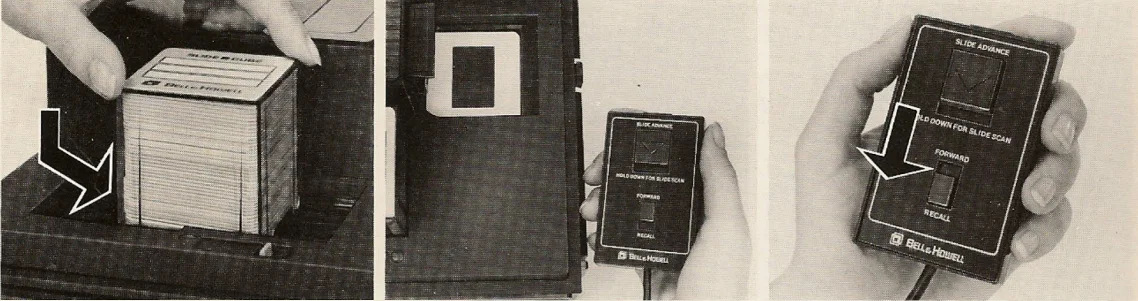
IMPORTANT: Only one slide (last one projected) can be recalled, not a full series. Slide the advance lock until the switch is returned to FORWARD.
CARING FOR YOUR PROJECTOR
To install a replacement Quartzline lamp (ASA Code ELH), run the projector with the switch in the FAN position until the old lamp. has cooled THOROUGHLY. Turn the switch OFF, UNPLUG THE POWER CORD, and turn the projector on its side or back. To remove the Lamp Access Door (located on the bottom of the projector) move the Lock Knob to the UNLOCK position and lift the door off. Move the Lamp Ejector Lever back (toward the socket) until the lamp is partially pushed out, then remove it with your fingers. To install a new lamp, line up the two pins with the two socket grooves, have the reflector under the retaining springs, then push the lamp straight in. Replace and lock the door. The slide changing mechanism is easily accessible in case of a jam caused by a poor slide mount. Before lifting the Platform, return the projector to the horizontal position and remove the cartridge. Move the Instant Access Latch to the left (rear) and lift the Platform to the vertical position. See page 9 for slide mount correcting. Use a soft, damp cloth (no solvents) to clean the projector’s exposed surfaces and top. The projection lens can be pulled out and cleaned with a soft, lintless cloth dampened slightly with lens cleaning fluid or water. Use a soft brush on the Reflecting Mirror if cleaning is needed.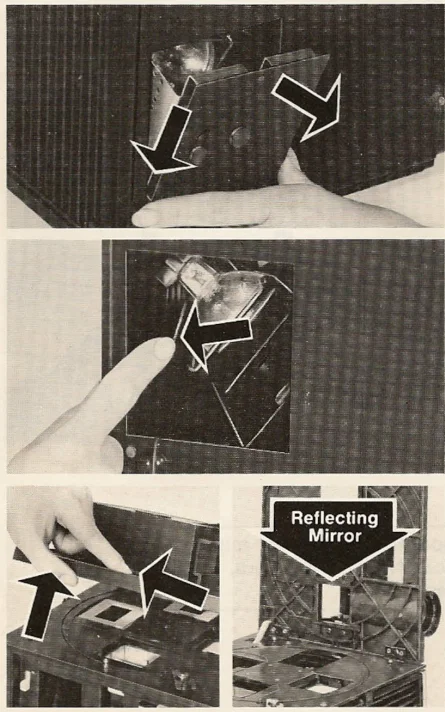
IMPORTANT: Slide film and mounts may be damaged if left in the projection position when the projector is turned off.
CORRECTING SLIDE MOUNT PROBLEMS
The slide changing mechanism may jam if the slides you are using have warped or frayed mounts. For efficient and uninterrupted slide shows, always examine your slides before projecting them for the first time and re-examine them periodically for signs of age and wear. Bent or warped slides can usually be straightened, and it is even possible to correct frayed corners. In extreme cases, remounting is necessary. Examine plastic slide mounts carefully before use and remove all rough edges or burrs that might prevent smooth operation. To straighten a bent or warped slide mount, hold it as shown in the illustration to the right. Gently apply pressure to reverse-bend the cardboard mount, taking care not to put fingerprints on the film surfaces. Sometimes it is necessary to overbend the mount slightly to straighten it properly.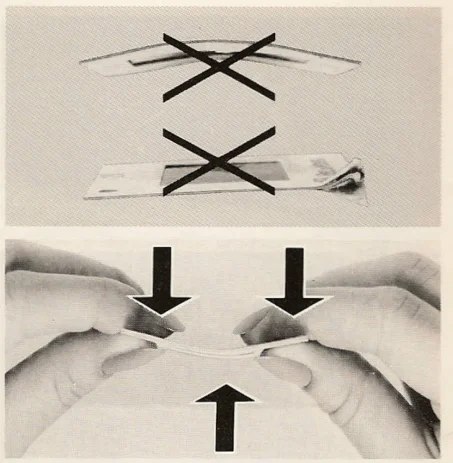
This projector is designed to project cardboard and plastic “thin” slide mounts per American National Standard PH3 43-1969, Dimensions for Projector Slides.
For more manuals by Bell and Howell, visit ManualsLibraryy
Bell and Howell RC55 Slide Cube Projector-FAQs
How do I load slides into the Bell and Howell RC55 Slide Cube Projector?
Place the slide cube onto the projector with the arrow facing forward, then press the slide advance button. The projector will automatically pull in each slide in sequence.
How do I open the Bell and Howell RC55 projector?
Unplug the unit first, then release the top cover by pressing the side latches. Lift the cover gently to access the slide gate, lens, and internal components.
Why is my projector not displaying an image?
Check all connections and ensure the lamp is working. Confirm the source device and cables are functional. If using HDMI adapters, test another cable or port. Make sure the source is actively sending a signal.
How do I operate a slide projector properly?
Insert each slide upside-down in the slide cube for correct orientation. Turn on the projector, project onto a white surface, and use the focus knob to sharpen the image.
Why is my projector not displaying an image?
Check all connections and ensure the lamp is working. Confirm the source device and cables are functional. If using HDMI adapters, test another cable or port. Make sure the source is actively sending a signal.
What is the 4-6-8 viewing rule for projectors?
Sit at a distance 4× the screen height for casual viewing, 6× for detailed viewing, and 8× for a more immersive experience.
How long does a projector bulb last?
Traditional projector lamps generally last 2,000–5,000 hours, while some premium bulbs can last up to 10,000 hours.
What does a slide projector do?
A slide projector magnifies and projects photographic slides onto a screen, often using a mechanical tray or cube system to show them in sequence.
How do I use a projector for the first time?
Turn it on, adjust resolution and aspect ratio settings, and fine-tune brightness, contrast, and color for a clear image.