
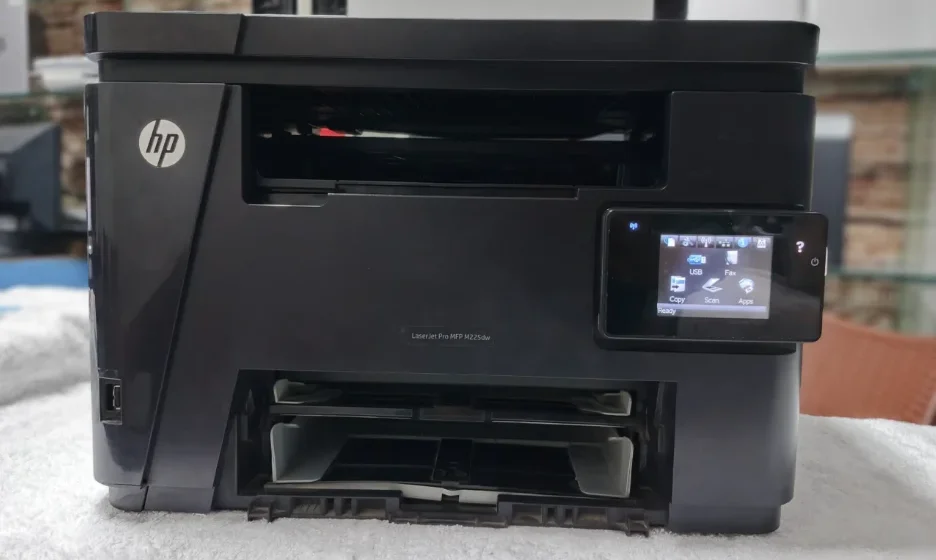

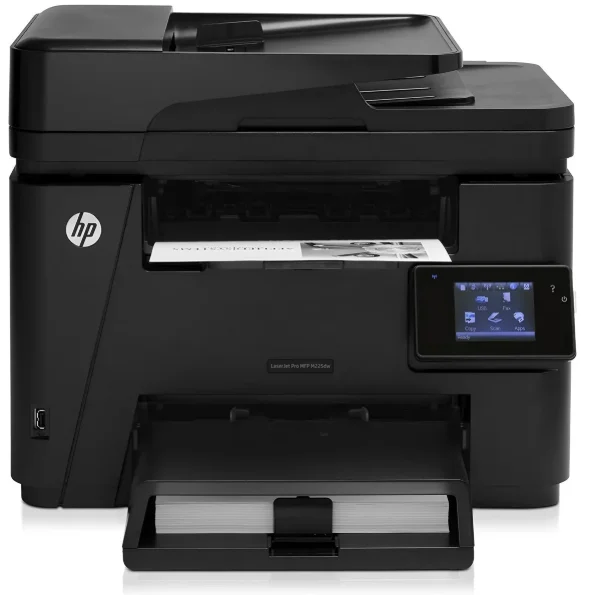
HP LaserJet Pro M225 Printer
Product views
Product front view
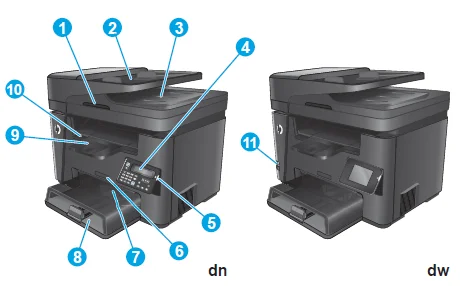
- Handle for lifting the scanner cover
- Document feeder input tray (lift the tray to clear jams)
- Document feeder output bin
- Control panel (tilts up for easier viewing), dn models: LCD control panel, dw models: Graphical touchscreen control panel
- Power on/off button
- Model name
- Priority input tray (Tray 1)
- Main input tray (Tray 2)
- Output bin
- Handle for opening the top cover (access to the toner cartridge and for clearing jams)
- Walk-up USB port for printing and scanning without a computer (dw models only)
Product back view
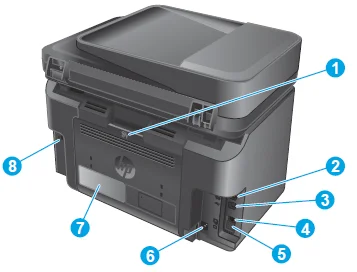
- Rear door (access for clearing jams)
- Ethernet port
- Hi-Speed USB 2.0
- Fax “line in” port for attaching the fax phone line to the product
- Telephone “line out” port for attaching an extension phone, answering machine, or other device. NOTE: This port is covered with a rubber cap. Pull the cap down from the top edge to access the port.
- Power connection
- Product number and serial number label
- Slot for cable-type security lock
Control-panel views
M225dn, M225rdn, and M226dn control panel
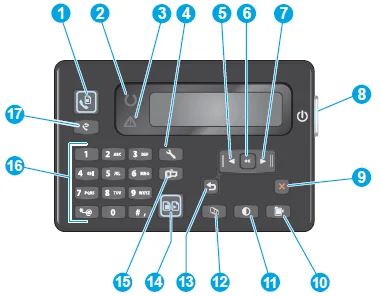
- Start Fax button: Starts a fax job
- Attention light: Indicates the product has an error, a tray is empty, or another condition requiring attention
- Ready light: Indicates the product is ready
- Setup button: Opens the Setup menu
- Left arrow button: Moves the cursor to the left or scrolls through menu options
- OK button: Confirms a setting or an action to proceed
- Right arrow button: Moves the cursor to the right or scrolls through menu options
- Power on/off button: Turns the product on or off
- Cancel button: Clears settings, cancels the current job, or exits the current menu
- Copy Settings button: Opens the Copy Settings menu
- Lighter/Darker button: Adjusts the darkness setting for the current copy job
- Number of Copies button: Sets the number of copies
- Back button: Returns to the previous screen
- Start Copy button: Starts a copy job
- ePrint button: Opens the Web Services menu
- Numeric keypad: Use the keypad to enter fax numbers or select menu options
- Fax Redial button: Recalls the fax number used for the previous fax job
M225dw and M226dw control panel
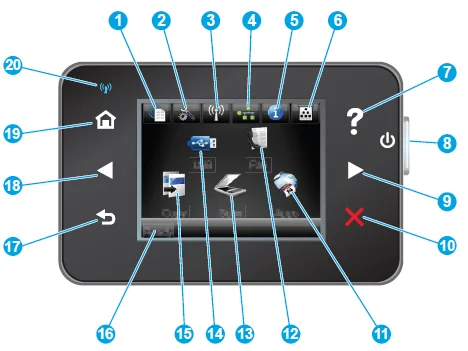
- HP Web Services button: Provides quick access to HP Web Services features, including HP ePrint
- Setup button: Opens the Setup menu
- Wireless button: Provides access to the Wireless menu and wireless status information. NOTE: When the product is connected to a wireless network, this icon changes to a set of signal strength bars.
- Network button: Provides access to network settings and information. NOTE: This button displays only when the product is connected to a network.
- Information button: Provides product status information
- Supplies button: Provides information about the supplies status
- Help button: Provides access to the control-panel help system
- Power on/off button: Turns the product on or off
- Right arrow button: Moves the cursor to the right or moves the display to the next screen. NOTE: This button illuminates only when the current screen can use this feature.
- Cancel button: Clears settings, cancels the current job, or exits the current screen. NOTE: This button illuminates only when the current screen can use this feature.
- Apps button: Provides access to the Apps menu to print directly from select Web applications
- Fax button: Provides access to the fax feature
- Scan button: Provides access to the scan features. Scan to USB Drive, Scan to Network Folder, Scan to E-mail
- USB button: Provides access to the USB Flash Drive menu
- Copy button: Provides access to the copy feature
- Product status: Provides information about the overall product status
- Back button: Returns to the previous screen. NOTE: This button illuminates only when the current screen can use this feature.
- Left arrow button: Moves the cursor to the left or moves the display to the previous screen. NOTE: This button illuminates only when the current screen can use this feature.
- Home button: Provides access to the Home screen
- Wireless light: Indicates the wireless network is enabled. The light blinks while the product is establishing a connection to the wireless network.
Product hardware setup and software installation
For basic setup instructions, see the Hardware Installation Guide that came with the product. For additional instructions, go to HP support on the Web.
Go to www.hp.com/support/ljMFPM225, www.hp.com/support/ljMFPM226 for HP’s all-inclusive help for the product. Find the following support:
- Install and configure
- Learn and use
- Solve problems
- Download software updates
- Join support forums
- Find warranty and regulatory information
Paper trays
Load the priority input tray (Tray 1)
NOTE: When you add new paper, make sure that you remove all of the paper from the input tray and straighten the stack. Do not fan the paper. This reduces jams by preventing multiple sheets of paper from feeding through the product at one time. Use paper that is not wrinkled, folded, or damaged.
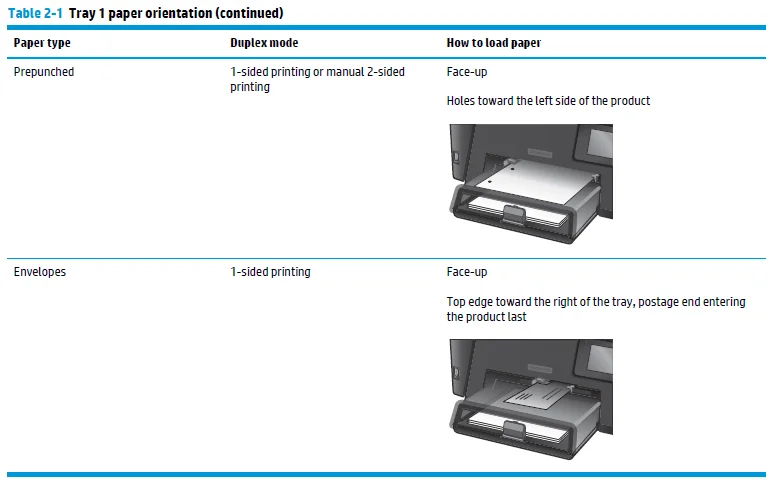
- Load the paper face-up with the top forward in the input tray. The orientation of the paper in the tray varies depending on the type of print job. For additional information, see Table 2-1 Tray 1 paper orientation on page 17.
- Adjust the paper guides until they are snug against the paper.

Load the main input tray (Tray 2)
NOTE: When adding new paper, make sure to remove all of the paper from the input tray and straighten the stack. Do not fan the paper. This reduces jams by preventing multiple sheets of paper from feeding through the product at one time. Use paper that is not wrinkled, folded, or damaged.
- Open the dust cover.
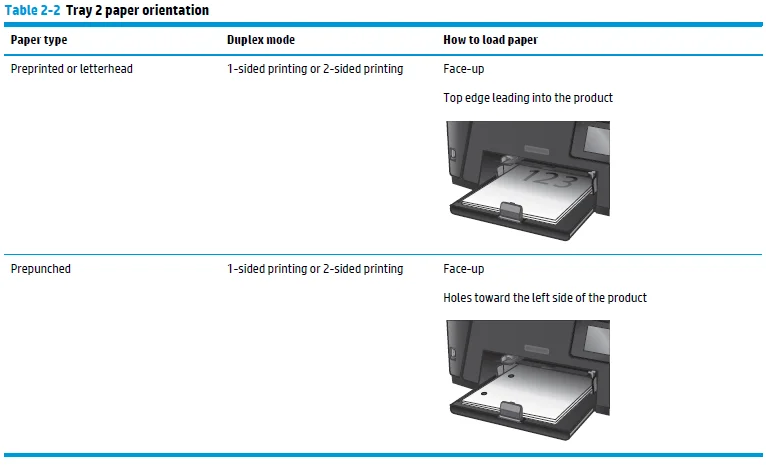
- Load the paper into the tray. Make sure that the paper fits under the tabs and below the maximum-height indicators. The orientation of the paper in the tray varies depending on the type of print job. For additional information, see Table 2-2 Tray 2 paper orientation on page 21.
- Adjust the paper guides until they are snug against the paper.
- Close the dust cover.

Parts, supplies, and accessories
Order parts, accessories, and supplies
Ordering
- Order supplies and paper: www.hp.com/go/suresupply
- Order genuine HP parts or accessories: www.hp.com/buy/parts
- Order through service or support providers: Contact an HP-authorised service or support provider.
- Order using the HP Embedded Web Server (EWS): To access, in a supported Web browser on your computer, enter the product IP address or host name in the address/URL field. The EWS contains a link to the HP SureSupply website, which provides options for purchasing Original HP supplies.
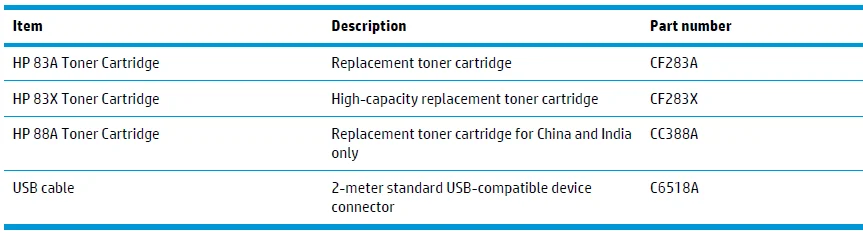
Supplies and accessories
Replace the toner cartridge
When a toner cartridge approaches the end of its useful life, you are prompted to order a replacement. You can continue printing with the current cartridge until redistributing the toner no longer yields acceptable print quality.
A second message displays on the control panel when the toner cartridge reaches the “very low” state.
- Lift the scanner assembly.
- Open the top cover.
- Remove the toner cartridge.
- Remove the new toner cartridge from the bag. Place the used toner cartridge in the bag for recycling.
- Grasp both sides of the toner cartridge and distribute the toner by gently rocking the cartridge. CAUTION: Do not touch the shutter or the surface of the roller.
- Bend the tab on the left side of the cartridge until the tab breaks loose. Pull the tab until all the tape is removed from the cartridge. Place the tab and tape in the toner cartridge box to return for recycling.
- Align the toner cartridge with the tracks inside the product, and then insert the toner cartridge until it is firmly seated.
- Close the top cover.
- Lower the scanner assembly.
Print tasks (Windows)
- How to print (Windows)
- Automatically print on both sides (Windows)
- Manually print on both sides (Windows)
- Print multiple pages per sheet (Windows)
- Select the paper type (Windows)
- Additional print tasks
How to print (Windows)
The following procedure describes the basic printing process for Windows.
- From the software program, select the Print option.
- Select the product from the list of printers. To change settings, click or tap the Properties or Preferences button to open the print driver. NOTE: The name of the button varies for different software programs.
- Click or tap the tabs in the print driver to configure the available options. For example, set the paper orientation on the Finishing tab, and set the paper source, paper type, paper size, and quality settings on the Paper/Quality tab.
- Click or tap the OK button to return to the Print dialogue box. Select the number of copies to print from this screen.
- Click or tap the OK button to print the job.
Automatically print on both sides (Windows)
Use this procedure for products that have an automatic duplexer installed. If the product does not have an automatic duplexer installed, or to print on paper types that the duplexer does not support, you can print on both sides manually.
- From the software program, select the Print option.
- Select the product from the list of printers, and then click or tap the Properties or Preferences button to open the print driver. NOTE: The name of the button varies for different software programs.
- Click or tap the Finishing tab.
- Select the Print on both sides check box. Click the OK button to close the Document Properties dialogue box.
- In the Print dialogue box, click the OK button to print the job.
Manually print on both sides (Windows)
Use this procedure for products that do not have an automatic duplexer installed or to print on paper that the duplexer does not support.
- From the software program, select the Print option.
- Select the product from the list of printers, and then click or tap the Properties or Preferences button to open the print driver. NOTE: The name of the button varies for different software programs.
- Click or tap the Finishing tab.
- Select the Print on both sides (manually) check box. Click the OK button to print the first side of the job.
- Retrieve the printed stack from the output bin and place it in Tray 1.
- If prompted, touch the appropriate control panel button to continue.
Print multiple pages per sheet (Windows)
- From the software program, select the Print option.
- Select the product from the list of printers, and then click or tap the Properties or Preferences button to open the print driver. NOTE: The name of the button varies for different software programs.
- Click or tap the Finishing tab.
- Select the number of pages per sheet from the Pages per sheet drop-down list.
- Select the correct Print page borders, Page order, and Orientation options. Click the OK button to close the Document Properties dialogue box.
- In the Print dialogue box, click the OK button to print the job.
Select the paper type (Windows)
- From the software program, select the Print option.
- Select the product from the list of printers, and then click or tap the Properties or Preferences button to open the print driver. NOTE: The name of the button varies for different software programs.
- Click or tap the Paper/Quality tab.
- From the Paper type drop-down list, click the More… option.
- Expand the list of Type is: options.
- Expand the category of paper types that best describes your paper.
- Select the option for the type of paper you are using, and then click the OK button.
- Click the OK button to close the Document Properties dialogue box. In the Print dialogue box, click the OK button to print the job.
Additional print tasks
Go to www.hp.com/support/ljMFPM225, www.hp.com/support/ljMFPM226.
Instructions are available for performing specific print tasks, such as the following:
- Create and use printing shortcuts or presets
- Select the paper size, or use a custom paper size
- Select the page orientation
- Create a booklet
- Scale a document to fit a specific paper size
- Print the first or last pages of the document on different paper
- Print watermarks on a document
Print tasks (Mac OS X)
How to print (OS X)
The following procedure describes the basic printing process for OS X.
- Click the File menu, and then click the Print option.
- Select the product.
- Click Show Details, and then select other menus to adjust the print settings.
- Click the Print button.
Automatically print on both sides (OS X)
NOTE: This information applies to products that include an automatic duplexer. This feature is available if you install the HP print driver. It might not be available if you are using AirPrint.
- Click the File menu, and then click the Print option.
- Select the product.
- Click Show Details, and then click the Layout menu.
- Select a binding option from the Two-Sided drop-down list.
- Click the Print button.
Manually print on both sides (OS X)
NOTE: This feature is available if you install the HP print driver. It might not be available if you are using AirPrint.
- Click the File menu, and then click the Print option.
- Select the product.
- Click Show Details, and then click the Manual Duplex menu.
- Click the Manual Duplex box, and select a binding option.
- Click the Print button.
- Go to the product, and remove any blank paper that is in Tray 1.
- Retrieve the printed stack from the output bin and place it with the printed side facing down in the input tray.
- If prompted, touch the appropriate control panel button to continue.
Print multiple pages per sheet (OS X)
- Click the File menu, and then click the Print option.
- Select the product.
- Click Show Details, and then click the Layout menu.
- From the Pages per Sheet drop-down list, select the number of pages that you want to print on each sheet.
- In the Layout Direction area, select the order and placement of the pages on the sheet.
- From the Borders menu, select the type of border to print around each page on the sheet.
- Click the Print button.
Select the paper type (OS X)
- Click the File menu, and then click the Print option.
- Select the product.
- Click Show Details, and then click the Media & Quality menu or the Paper/Quality menu.
- Select a type from the Media-type drop-down list.
- Click the Print button.
Additional print tasks
Go to www.hp.com/support/ljMFPM225, www.hp.com/support/ljMFPM226.
Instructions are available for performing specific print tasks, such as the following:
- Create and use printing shortcuts or presets
- Select the paper size, or use a custom paper size
- Select the page orientation
- Create a booklet
- Scale a document to fit a specific paper size
- Print the first or last pages of the document on different paper
- Print watermarks on a document
Set up HP Wireless Direct Printing
NOTE: This feature is available with wireless models only, and the product might require a firmware update to use this feature.
The HP Wireless Direct Printing feature lets you print from your wireless mobile device directly to an HP Wireless Direct-enabled product without requiring a connection to an established network or the Internet.
Use HP Wireless Direct to print wirelessly from the following devices:
- iPhone, iPad, or iTouch using Apple AirPrint or the HP ePrint mobile app
- Mobile devices that run Android or Symbian using the HP ePrint Home & Biz application
- Any Wi-Fi-capable computer with any operating system.
For more information on HP Wireless Direct, go to www.hp.com/go/wirelessprinting, and then click HP Wireless Direct.
To set up HP Wireless Direct from the control panel, complete the following steps:
- From the Home screen on the product control panel, touch the Wireless button.
- Open the following menus:
- Wireless Menu
- Wireless Direct
- On/Off
Touch the On menu item. The product saves the setting and then returns the control panel to the Wireless Direct menu.
Mobile printing
HP offers multiple Mobile and ePrint solutions to enable wireless printing to an HP printer from a laptop, tablet, smartphone, or other mobile device. To determine the best choice, go to www.hp.com/go/LaserJetMobilePrinting (English only).
HP ePrint via email
Use HP ePrint to print documents by sending them as an email attachment to the product’s email address from any email-enabled device.
To use HP ePrint, the product must meet these requirements:
- The product must be connected to a wired or wireless network and have Internet access.
- HP Web Services must be enabled on the product, and the product must be registered with HP Connected.
LCD control panel
Find the product IP address.
- On the product control panel, press the Setup button.
- Open the following menus:
- Network Setup
- Show IP Address
To open the HP Embedded Web Server, enter the product IP address into the address line of a Web browser on the computer.
Click the HP Web Services tab on the HP Embedded Web Server, and then click Enable. The product enables Web Services, and then prints an information page. The information page contains the printer code that you use to register your HP product at HP Connected.
Go to www.hpconnected.com to create an HP ePrint account and complete the setup process.
For more Manuals by HP, visit ManualsLibraryy
HP LaserJet Pro M225 Printer-FAQs
What is the HP LaserJet Pro M225 Printer?
The HP LaserJet Pro M225 is a multifunction printer (MFP) that can print, scan, copy, and fax. It delivers fast, high-quality prints for home or office use.
How do I print from the HP LaserJet Pro M225?
Open the file you want to print, press Ctrl + P, select your printer, adjust settings if needed, and click Print.
What toner cartridges are compatible with this printer?
It works with HP 83A (CF283A) and 83X (CF283X) toner cartridges for optimal performance.
Does the HP LaserJet Pro M225 have a scanner?
Yes. It includes a built-in scanner for documents and images, supporting multiple sizes including legal and letter.
Is the HP LaserJet Pro M225 wireless?
The M225dw model supports wireless printing, while the M225dn supports wired network connections.
How does laser printing work?
A laser creates a static image on a drum. Toner sticks to the drum and is transferred onto paper, then fused with heat for a permanent print.
Why is my printer connected but not printing?
Check that your device is on the same network, file sharing is enabled, and firewall or antivirus settings aren’t blocking the printer. Add the printer manually if needed.
How do I replace toner cartridges?
Open the toner access door, remove the old cartridge, and insert a new one. Shake the cartridge gently before installation for best results.
Can I print without toner?
No. The printer requires a toner cartridge to produce prints.
How many pages can this printer print per minute?
It prints around up to 28 pages per minute, depending on the model and document type.