
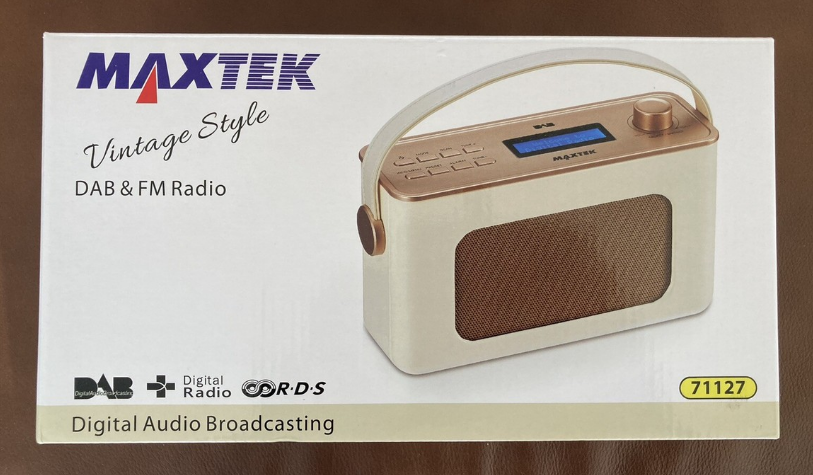

Maxtek 71127 DAB FM Radio
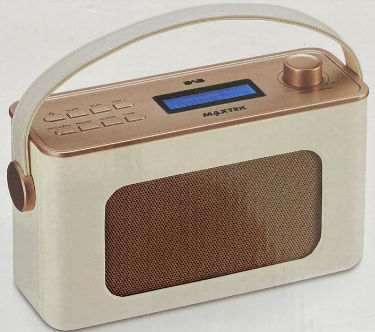
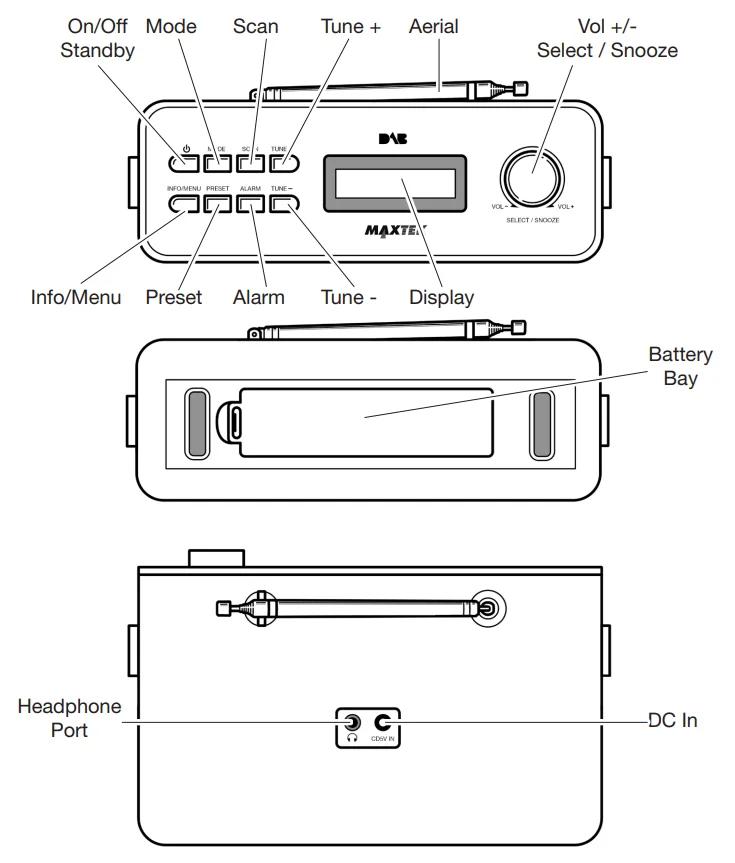
Layout & Controls
Control Method
On/Off/Standby
Press the  button to turn the radio on. Once on, press it again to enter standby mode or hold it to turn the radio off.
Using The Buttons
All the button actions are just a quick press unless otherwise stated in the required action. This includes the button function of the dial.
Using The Dial
The dial on this radio is dual-action. This means it will perform one action by turning the dial and another action by pressing it.
Setup
First Time Use
After removing the radio from the packaging, connect the radio to the mains using the adaptor supplied or insert 4 x AA batteries into the battery bay in the base. Fully extend the aerial and press the button to turn the radio on.
The date and time will automatically be set from the DAB signal received. The radio will then proceed to scan for the first time.
The number to the right of the display indicates the number of channels found in your region during this scan.
After the scan is complete, the radio will tune itself to the first alphabetically listed station available in DAB mode.
DAB Mode
Selecting A Station
Use the tune +/- buttons to cycle through the available DAB stations on the display. Press the dial to tune the radio into the station that is shown on the display.
Scan
You can retune or refresh the number of DAB stations available by pressing the Scan button. It is recommended that you do this when the radio has been moved or if you are getting a poor DAB signal.
DAB Options
DAB Menu Options
Press and hold the Info/Menu button until you see Full Scan.
Press the tune +/- buttons to cycle the options and press the dial to select. The options here are: Full Scan > Manual Tune > DRC > Prune > System (See page 10).
Full Scan
To fully erase and retune all of the available DAB stations, select Full Scan in the menu options.
The radio will now scan through all the available channels. All the channels found will be shown in alphabetical order.
Manually Tune DAB
To manually tune the radio, select Manual Tune in the menu options.
Use the tune +/- buttons to tune the radio in, then press the dial to keep the current tuning. Save as a preset if required (see page 14). This helps in poor signal areas to get a clearer signal.
DRC
DRC, or Dynamic Range Compression, is a feature that some DAB stations use. This enables the audio to be evened out by raising the volume of the quieter audio levels and lowering the volume of the louder audio levels. To change this, select DRC in the menu option.
The Low option will give you a small amount of DRC, whereas the High option will give you a strong amount of DRC. Use the tune +/- buttons to go through the options and press the dial to select the required preference. The asterisk in the top right corner indicates the current selection.
Prune
You can remove DAB stations from the radio that are listed with a ? in front of their name by using the prune function.
Once you’ve selected a station you wish to remove, select Prune from the menu options. You will be presented with the choice of Yes or No. Select Yes to remove the station. Use the tune +/- buttons to go through the options and press the dial to confirm.
FM Mode
Select FM Mode
Press Mode to change from DAB to the FM function.
Auto Tune FM
To auto-tune to the next available radio station, press and hold either Tune +/- buttons for 3 seconds. This will start the FM auto scan. ± will scan up the channel, and – will scan down the channel.
The scan will always stop at the next signal received. Save as a preset if required (see page 14).
Manually Tune FM
Press either Tune +/- buttons to manually tune the radio in FM mode. This helps in poor signal areas to get a clear signal. Save as a preset if required (see page 14).
FM Options
FM Menu Options
Press and hold the Info/Menu button until you see Scan Setting.
Press the tune +/- buttons to cycle the options and press the dial to select. The options here are: Scan Setting > Audio Set > System (See page 10).
Scan Settings
You can change the Auto Tune search ability between all stations and strong stations. Select Scan Settings from the menu options. Press the tune +/- buttons to cycle between either Strong Stations or All Stations. Press the dial to select the required option. The asterisk in the top right corner indicates the current selection.
You will be sent to the previous menu once a selection has been made. Press the Info/Menu button to return to the main screen.
Audio Settings
You can change the sound output from stereo to mono with this option. Select Audio Set from the menu option.
Then press the tune +/- buttons to choose from Stereo Allowed and Forced Mono options and press the dial to confirm. The asterisk in the top right corner indicates which option is currently in use.
System Options
System Menu Options
Press and hold the Info/Menu button until you see either Scan Setting in FM mode or Full Scan in DAB mode. Press the tune +/- button to cycle through the options until you get to System, then press the dial to select it. The options here are: Sleep > Alarm > EQ > Time > Backlight > Inactive Standby > Lang. > Reset > SW Ver.
Sleep
You can set the length of time the radio is on with this feature. Once selected from the system options, you will have access to: Sleep Off > 15 > 30 > 45 > 60 > 90 (Minutes)
Alarm
See Page 15.
EQ
You can change the sound output preference with this feature. Once selected from the system options, you will have access to: Normal > Classic > Jazz > Pop > Rock > Speech > and My EQ. You can customize the EQ by using the sub-menu under My EQ. Here you can change the following:
- Loudness Y/N
- Treble +/-7
- Bass +/-7
Press the tune +/- button to cycle through the options and press the dial to select.
Time
All the time and date functions and preferences can be altered here. Press the tune +/- buttons to cycle through the options and press the dial to select.
The options here are: Time/Date > Auto Update > Set 12/24 > Date Format.
Time/Date
With this option, you can manually set the time and date. Once selected from the Time sub menu, you will see the hours flashing. Press the tune +/- buttons to cycle through the hours and press the dial to select the required hour value.
Once the hours have been set, you will have the minutes flashing. Repeat the process for choosing the minutes. Once selected, you will move on to the next screen for setting the date.
Similar to setting the hours and minutes, you cycle through the numbers with the tune +/- buttons and press the dial to select your chosen value, and then move to the next value to set. When the last value is set, the display will confirm that the new time and date have been saved.
All the preferences can be altered by pressing the tune +/- buttons to cycle through the options and pressing the dial to select.
Backlight
You can change the brightness and light duration of the display.
The options here are: Time Out > On Level > Dim.
Time Out
This is to set the duration of time before the display dims. Choose from the options by turning the dial and pressing it to select: On > 10 > 20 > 30 > 45 > 60 > 90 > 120 > 180 (Seconds). The asterisk in the top right corner indicates the current selection.
On Level
This option lets you set the active display light level. Choose from the options by turning the dial and pressing it to select: High > Med > Low. The asterisk in the top right corner indicates the current selection.
Dim
This option lets you set the inactive display light level. Choose from the options by turning the dial and pressing it to select: High > Med > Low. The asterisk in the top right corner indicates the current selection.
Inactive Standby
You can set the radio to turn itself to the standby after a preselected period of time with this feature. Once selected from the system options, you will have the following options: Off > 2 > 4 > 5 > 6 (Hours)
Cycle through the options with the tune +/- buttons and press the dial to select an option. Each number value is a period in minutes. The radio will continue to play for the selected duration until you select Off. An asterisk in the top right corner will indicate which is the currently selected option.
Language
With this option, you can choose what language the radio uses to display the menu options in. Choose from the following options: English > Français > Deutsch > Italiano
Cycle through the options with the tune +/- buttons and press the dial to select an option. The asterisk in the top right corner indicates the current selection.
Reset
Selecting this option from the System menu will reset the radio and clear any presets saved. Use this option if the DAB signal is still poor after re-scanning for stations or any possible faults.
SW Ver.
This will display the current software version in use.
DAB/FM Preset
Storing a Preset
Press and hold Preset for 5 seconds, then use the Tune +/- buttons to cycle through the available preset slots. Press the dial to save the station. You will see a saved message appear if successful.
The radio has 10 preset slots for both DAB and FM selections.
Recall a Preset
To recall a saved preset, press Preset, then use the Tune +/- buttons to cycle through the saved options. Press the dial to tune in your preset selection.
DAB/FM Information
Information Details
When listening in DAB or FM mode, you can cycle through the available information from the broadcasting service and the radio by pressing the Info button.
The information cycle:
DAB
- Now Playing
- Signal Strength
- Music genre
- National/Local designation
- MHz Frequency
- Signal Errors
- Kbps data transfer rate
- Power Type
- Time
- Date
FM
- Now Playing
- Station Name
- Music genre
- Mono/Stereo
- Power Type
- Time
- Date
Specifications
- DAB receiver (174MHz – 240MHz)
- FM receiver (87.5MHz – 108.00MHz)
- Stores 10 FM presets
- Stores 10 DAB presets
- Powered by 4 x AA alkaline batteries (not included)
- 5v mains adapter (included)
- Auto-adjusting clock
- Dual Alarms
- Blue LCD backlight display
- Dimmable Display
- Mono 3W speaker
- 3.5mm headphone port
- Sleep function
- Inactive Standby
- Multi-Language Support
- Telescopic aerial
- Carry Handle
- Approximately 9 hours of constant play using batteries
Warranty Certificate
Warranty
This product is warranted to be free from defects in workmanship and parts for a period of 36 months from the date of purchase. Defects that occur within this warranty period, under normal use and care, will be repaired, replaced, or refunded at our discretion, solely at our option, with no charge for parts and labour. The benefits conferred by this warranty are in addition to all rights and remedies in respect of the product that the consumer has under existing U.K. laws.
Proof of Purchase
This warranty is valid for the original purchase and is not transferable. Please keep your purchase receipt as proof of purchase and as proof of the date the purchase was made. The receipt must be presented with the warranty card when claiming this warranty.
Service during the Warranty Period
Please ensure the product is properly packaged so as to ensure that no damage occurs in transit. Also, make sure that you have included a detailed explanation of the problem.
Extent of the Warranty
This warranty is limited to defects in workmanship or parts. All defective products or parts will be repaired or replaced. This warranty does not extend to accessories.
Normal Wear and Tear
This warranty does not cover normal wear and tear of the product or parts.
Exclusions
This warranty does not cover the following:
- Any defect caused by accident, misuse, abuse, improper installation or operation, lack of reasonable care, unauthorized modification, loss of parts, tampering, or attempted repair by a person not authorized by the distributor.
- Any product that has been damaged by a lightning strike, either directly or indirectly, or on a mains or vehicle outlet, power surge, or liquid ingress.
- Any product that has not been installed, operated, or maintained in accordance with the manufacturer’s operating instructions provided with the product.
- Any product that has been used for purposes other than domestic use.
- The product, if it is located outside of the U.K. and Ireland.
- Any damage caused by improper power input or improper cable connection.
Your statutory rights are not affected.
After Sales Support
UK/N.IRELAND HELPLINE N°: 01270 508538
REP.IRELAND HELPLINE N°: 1800 995 036
WEBSITE: www.quesh.co.uk
EMAIL: [email protected]
For More Blogs, Visit ManualsLibraryy.
Maxtek 71127 DAB FM Radio-FAQs
How do I switch between DAB and FM modes on the Maxtek 71127?
Press the MODE button to toggle between DAB and FM radio modes.
How do I scan for new DAB stations?
In DAB mode, press and hold the SCAN button. The radio will automatically search and store available stations.
Why am I not receiving some DAB channels?
Weak signal or poor placement may cause missing stations. Try extending the antenna fully and placing the radio near a window.
How do I save my favorite FM stations?
Tune to the desired station → press and hold a preset number button until it confirms saved.
What should I do if the sound is distorted?
Check the antenna position, adjust the volume, or move the radio away from other electronic devices that may cause interference.
How do I set the time on the Maxtek 71127?
In DAB mode, the clock updates automatically. If using FM, enter the clock settings menu and adjust manually.
Why is my radio not turning on?
Ensure the power cable is properly connected or the batteries (if using) are installed correctly and fully charged.
How do I use the alarm function?
Open the Alarm/Clock menu, choose Alarm 1 or 2, set the time, and select whether you want the alarm to use DAB, FM, or buzzer.