
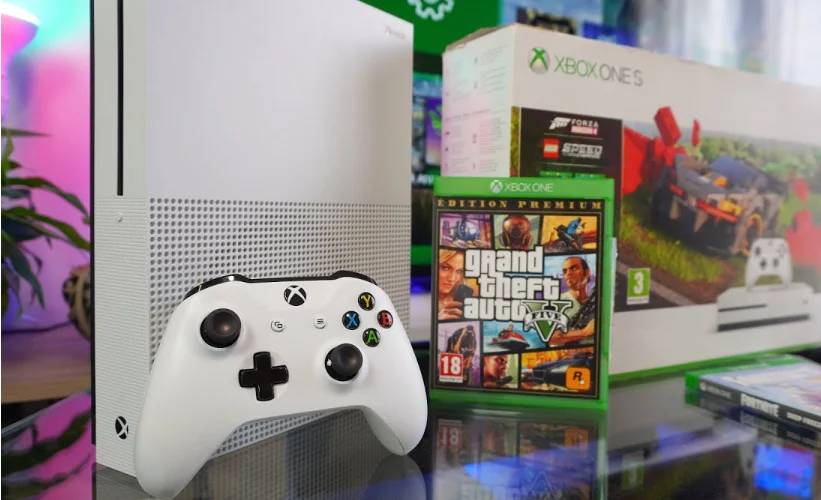
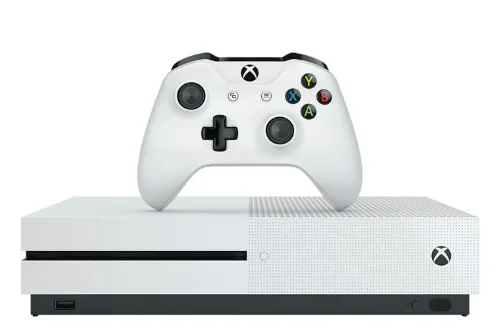
Xbox One S Setup
Set up your new console
If you have purchased a new Xbox One console and want help physically setting up the system (positioning the console, connecting components, plugging in cables, etc.), select CONTINUE WITH PHYSICAL SETUP below. If your console is already physically set up and plugged in, and you want to skip directly to digital setup (connecting to the Internet, updating the console, signing in, etc.), select SKIP TO DIGITAL SETUP below.
Unbox the console
An Xbox One game system typically includes: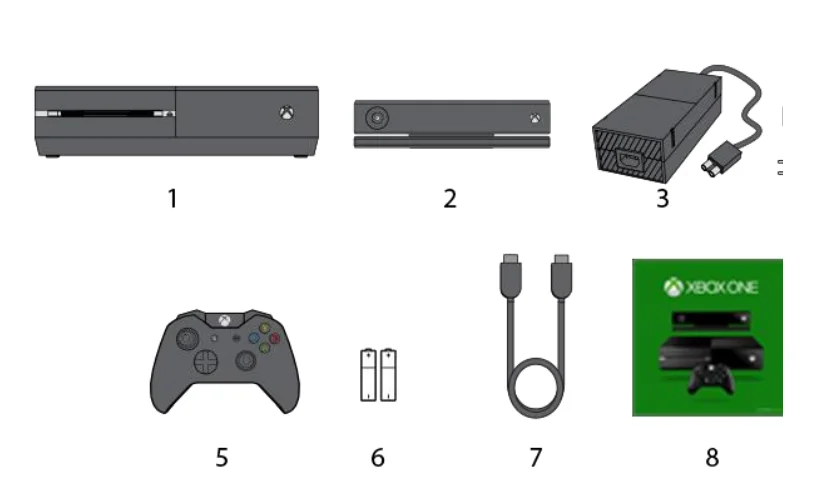
- Xbox One console
- Kinect sensor (optional)
- Power supply
- Power cord
- Xbox One Wireless Controller
- Two AA batteries
- One HDMI cable
- Documents (Quick Start Guide, manual, Xbox Live Trial card)
Step 4: Remove the protective tape
This tape is placed over the disc tray opening on the front left side of the console.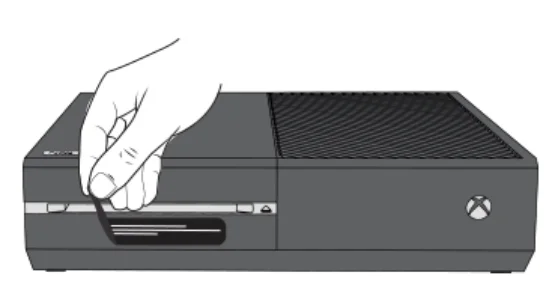
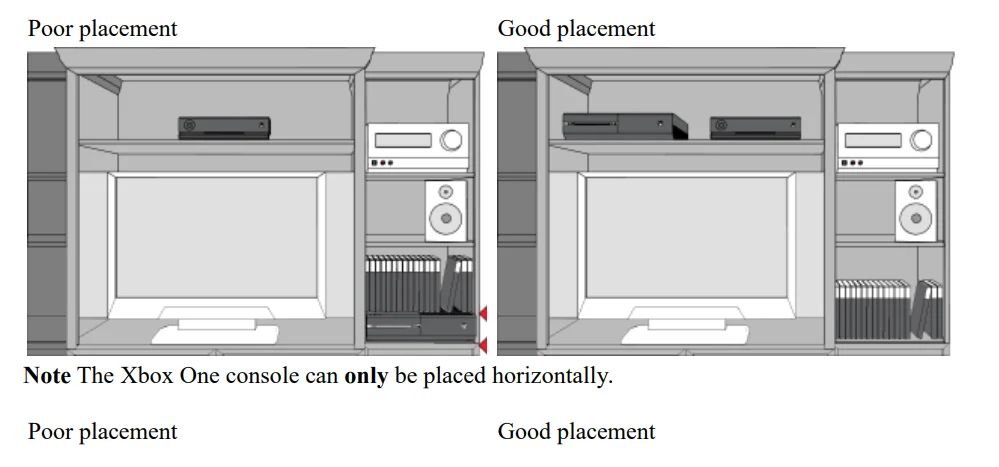
Position the console
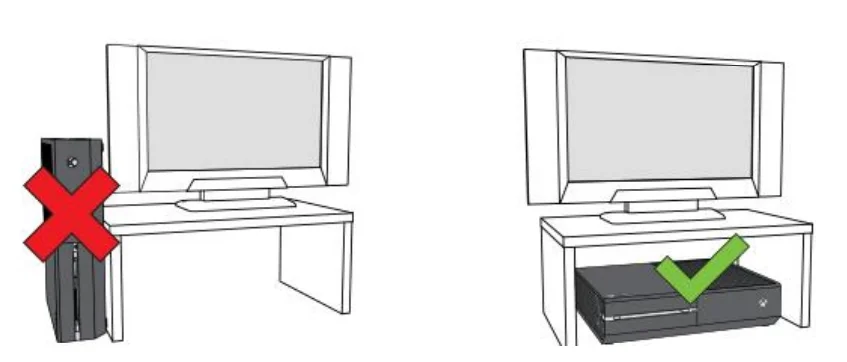
Make sure that the location for your console is as follows:
- A stable surface.
- Well-ventilated, relatively cool, and away from direct heat sources.
- Uncluttered. Don’t put other objects on, under, or right next to the console. An object on the top right of the console may block its heat vents.


Connect the console to your TV
The Xbox One console system includes one HDMI cable. You can use this cable to connect the console to an HDMI-compatible TV or HDTV. Here’s how:
- Find the HDMI ports on the back of the console. They’re flat, rectangular openings near the middle of the console with another square port between them.

- Connect the HDMI cable to the HDMI OUT port on your console (the leftmost HDMI port on the back of your console).
- Connect the other end of the cable to the HDMI input on your TV.

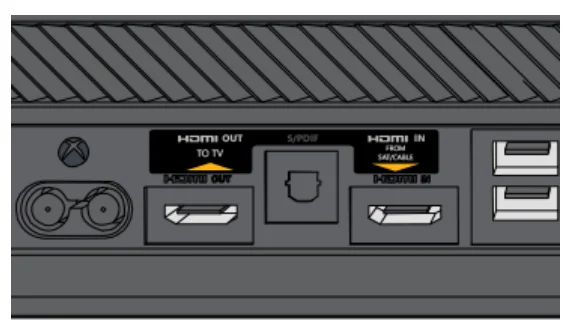
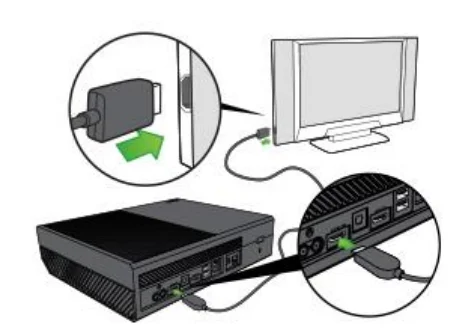
Note: Video output for the Xbox One console is HDMI only.
Connect your set-top box to the console (optional)
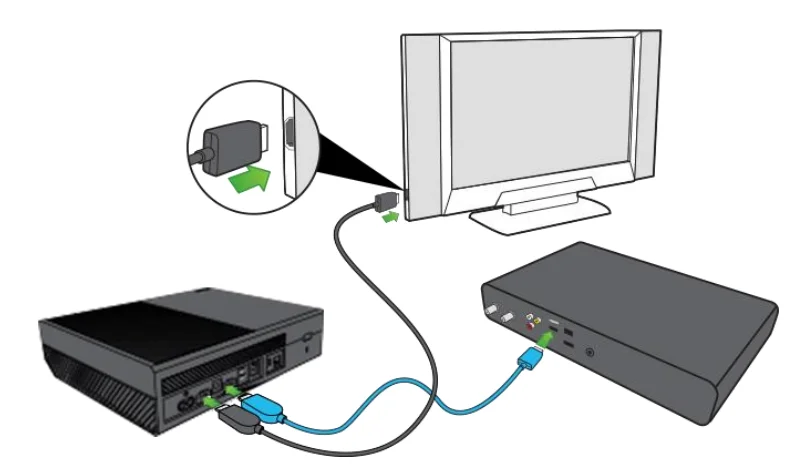
Note: If you don’t have cable or satellite TV, skip this step. If you connect the set-top box (STB) for your cable or satellite TV provider to your console, you can control your live TV content through your Xbox One. Here’s how:
- On your TV, disconnect the HDMI cable that connects your TV to your STB.
- Connect the cable to the HDMI IN port on your console (the rightmost of the HDMI ports on the back of your console).

Connect the console to your router or modem (wired connection only)
You can connect your Xbox One to your wireless router or modem to access the Internet through your console. If you want to connect wirelessly, skip this step. You will be prompted to connect to a wireless network later, during digital setup. For a wired connection, use an Ethernet cable to connect your router or modem to the networking port on the right side of the back of the console.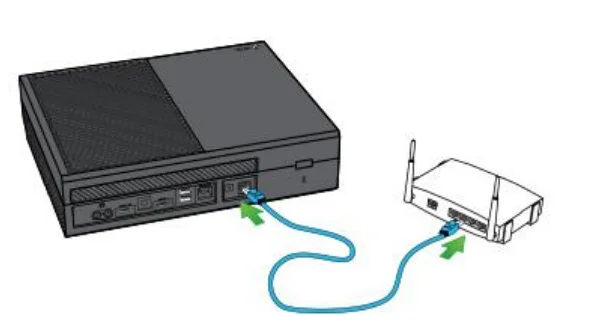
Connect the console to a Kinect sensor (optional)
To connect your Kinect sensor, simply plug the Kinect sensor cable into the back of the Xbox One console, as shown in the following illustration.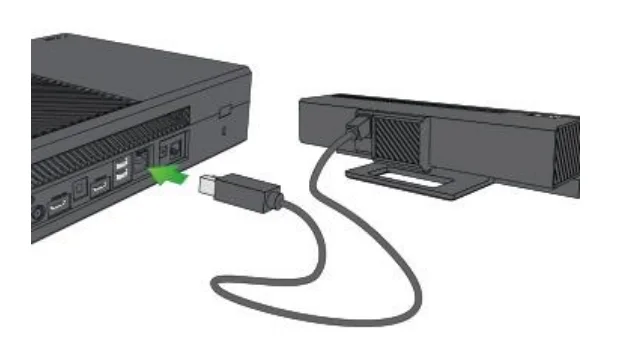
Note: The cable for the Kinect sensor is 3 meters (9 feet) long. This is currently the longest cable available, so make sure that your Xbox One and your Kinect sensor are close enough to allow the sensor to be plugged in.
Connect a USB 3.0 external storage device (optional)
You can use an external storage drive to save games, apps, and console settings for your new Xbox One.
Requirements:
The external storage device must:
- Use a USB 3.0 connection. If you’re using a USB hub, the hub must also be USB 3.0 or later.
- Have at least 256 GB of storage.
- Have a partition. Typically, drives come with a preformatted partition. For more information on partitioning an external hard drive, refer to the manufacturer’s instructions.
Devices that don’t meet these requirements are treated as storage for media like music or video. For more information, see How to manage storage on Xbox One.
New users to Xbox One
Once you complete the digital setup of your new console, your Xbox prompts you to format your external storage device if you want to use it to store your Xbox games and apps. If you want to use this device for personal media such as pictures, music, and video, you can choose to keep the device as media storage, and the drive will not be formatted.
Important: Make sure you don’t have any important information stored on your hard drive before you select Format for games & apps. Reformatting the drive makes all data already stored on it unrecoverable. If you’re not prompted to format the drive, or you choose to cancel formatting, you can set it up later:
- Open the guide and select System > All Settings > System > Storage.
- Select your device, and then select Format for games & apps.
If your Xbox doesn’t recognize your external drive, see Troubleshoot external storage detection on Xbox One. Note: Xbox only recognizes three external drives at one time.
Users upgrading or adding an additional Xbox One
If you’re upgrading or adding an additional Xbox One, using an external storage device can make digital setup faster and simpler. You can back up your settings and copy all your favorite games and apps from your original Xbox One to this external storage device. For instructions on how to back up your settings, see Back up your settings.
Important: Backups don’t include settings for things that might be different on your new Xbox, such as console name or the ability to control a specific TV, cable box, or audio/video receiver.
Physical connections
There are three USB 3.0 ports on the Xbox One console: two on the back, and one either on the front (Xbox One S, Xbox One X, and All-Digital Edition) or on the left side (original Xbox One). Connect the external storage device to any of the available USB 3.0 ports. For more information on using additional USB devices with your Xbox One, see Using the USB ports on your Xbox One console.
Note: As a best practice, make sure all the cables on the back of your console are gathered away from the console so that they’re not touching it.
Plug in the power supply
- Plug the power supply into the leftmost port on the back of the Xbox One console.
- Plug the power cord into the power supply.
- Plug the other end of the power cord into an electrical outlet.

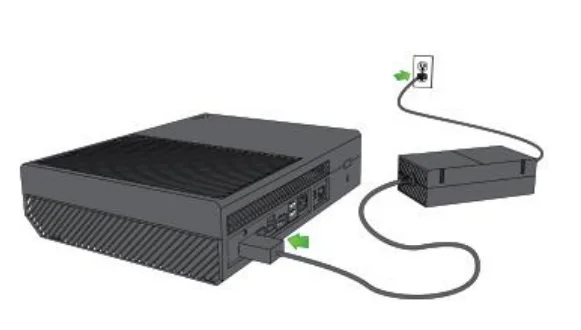
Now that you’ve set up the console, it’s time to power it on and set up your system.
Begin your digital setup
Once your console is set up, you will need to power it up for the first time. You can do this one of two ways:
- Press the Xbox button on the front-right side of the console.
- Press the Xbox button in the center of the controller.
Pressing either button will turn the console on. Turning on the Xbox One console for the first time begins the digital setup experience. If you powered on using the Xbox button on the front of the console, you will see an image of the Xbox One controller with the Xbox button flashing. This is a reminder that you need to turn on your controller before continuing. To turn on the controller, press the Xbox button in the center of the controller.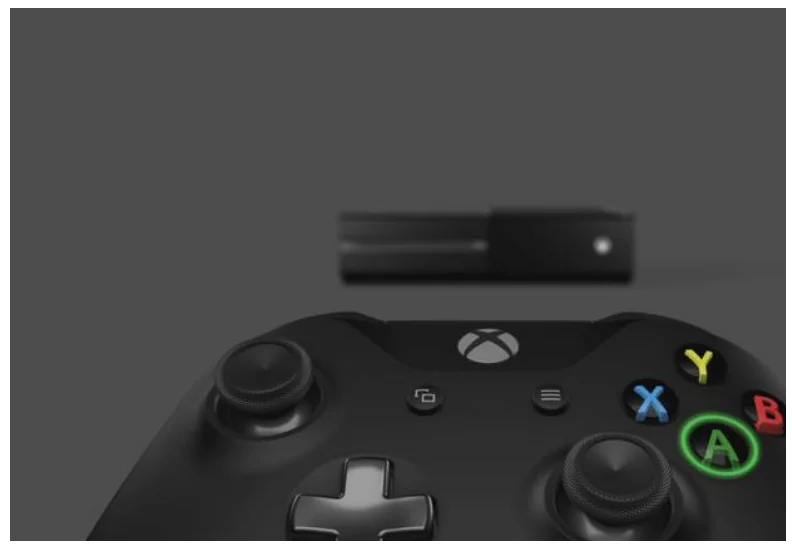
If your controller does not power on when you press the Xbox button, you will need to make sure your batteries are installed properly. See Battery options for your Xbox One wireless controller for information about installing and using batteries. Once the controller and the console are powered on, you should see a close-up of the right side of the controller. Press the A button to continue with your digital setup.
Select your language
The first step to personalizing your console is to select your language.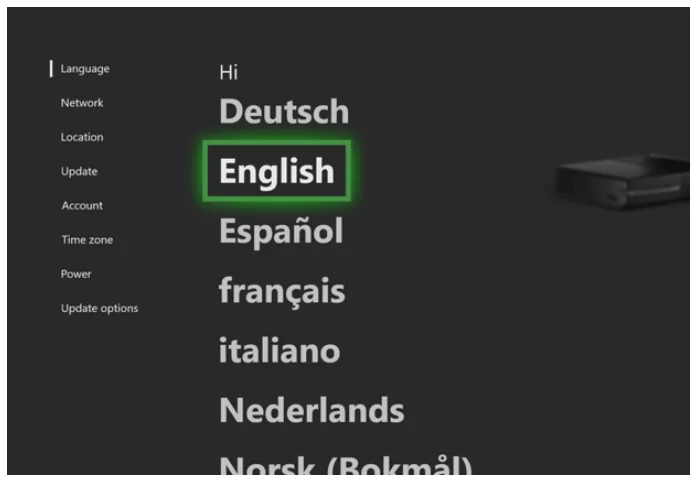
If the language you speak is not available, please select one that you can read in order to connect your Xbox One to the Internet and begin your first system update. After the update is complete, more languages may be available. For more information on how selecting your language and location affects your Xbox One experience, see Languages and locations on Xbox One FAQ. For information about how to update your Language later, see Change your Xbox One system settings.
Select your language variety
After picking your language, you will be asked to identify which region of that language you use. Selecting the correct variety of the language you have chosen will help the Voice Navigation to understand you better, as well as adjusting spelling and grammatical selection of text shown on screen to match your expectations. For more information on how selecting your language and location affects your Xbox One experience, see Languages and locations on Xbox One FAQ. For information about how to update your Language later, see Change your Xbox One system settings.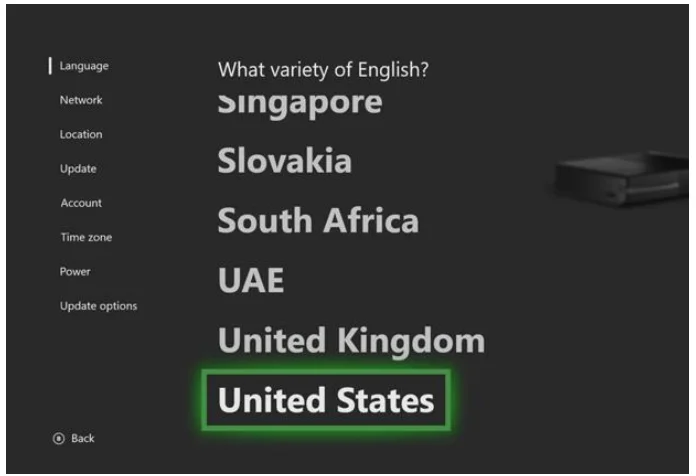
Change your display settings (if prompted to do so)
In rare cases, the Xbox One console may not be able to automatically determine your TV’s resolution. If this is the case, you will see the Change your display screen pictured below. Manually select your screen’s resolution and press A to continue. If you need additional help with this process, see Using the Display Troubleshooter.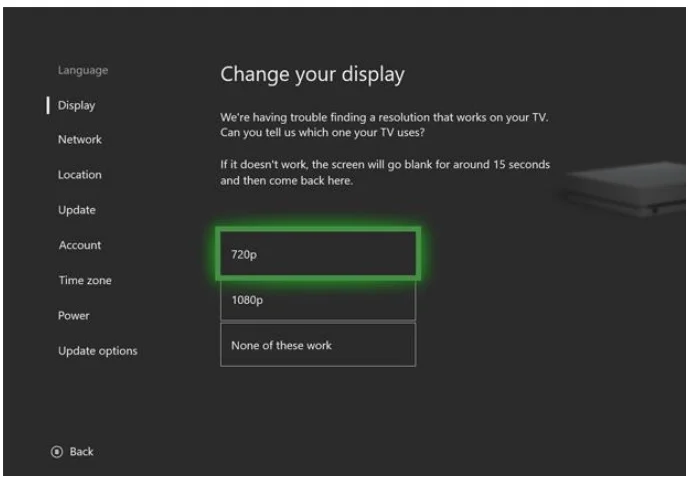
If the Change your display screen does not appear, continue directly to the next step.
Connect your console to the internet
The next step is to connect your Xbox to the Internet. This can be done in two ways, either through a wired connection or a wireless connection. If you attached a network cable to your Xbox earlier, you will go directly to the You’re Connected screen. If the Xbox One does not detect a wired connection, you will be prompted to select a network. On the Which one’s yours screen, your options are: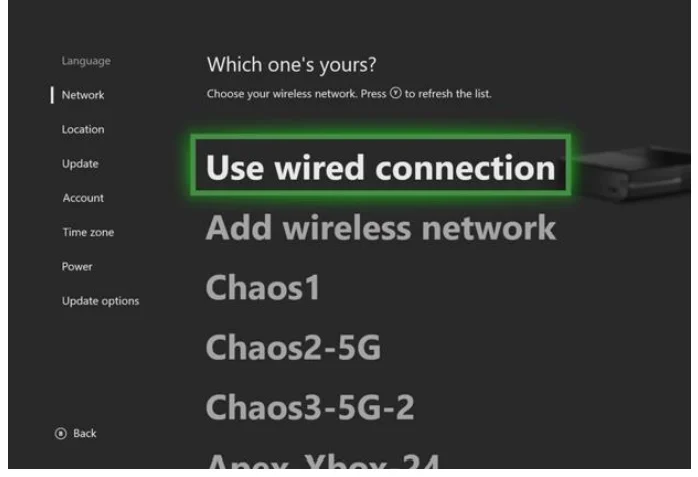
- Use wired connection: If you have a network cable attached and select this option, the Network Connection Troubleshooter will launch so you can determine why the console did not connect automatically.
- Select from the list of wireless networks: The names of the wireless networks that the Xbox One console can detect will be listed in order from strongest to weakest signal strength. If you have a wireless network in your home, in most cases, it should appear near the top of the list.
- Add wireless network: Select this option if your wireless network does not appear on the list of available networks. If you select this option, you will need to manually enter the following information about your wireless network:
- SSID (network name)
- Security type
- Password
For more information or help with connecting your Xbox One console to the Internet, see I’m connecting to Xbox Live for the first time.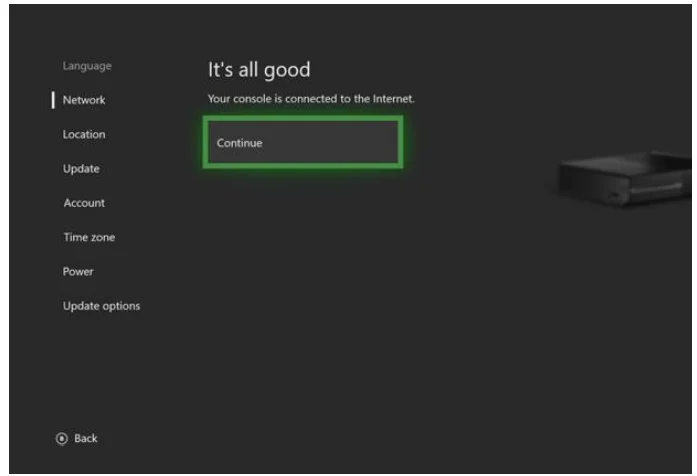
Once you are connected to the Internet, you can continue with your setup.
Select your location
Select the country where you live and press A to continue. This selection will not have any effect on the language choice you have made on prior screens. This will set the Location for the console and the store. By setting the correct location, you will ensure that you only see content that is available and playable for your region. For more information on how selecting your language and location affects your Xbox One experience, see Languages and locations on Xbox One FAQ. For information about how to update your Location later, see Change your Xbox One system settings.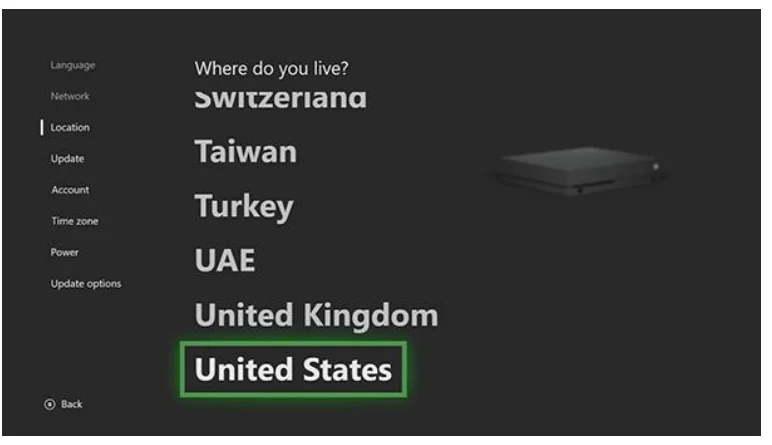
Update your system
Once you are connected to the Internet, you’ll need to get the most recent system update. This update is required in order to use your Xbox One for the first time. Review the size of the update and select Start update to begin the download. If you choose to wait until later (you might have Internet usage limits or bandwidth charges that you need to consider), select Turn off console. If you choose this option, your setup experience will pick up where it left off when you turn the console back on.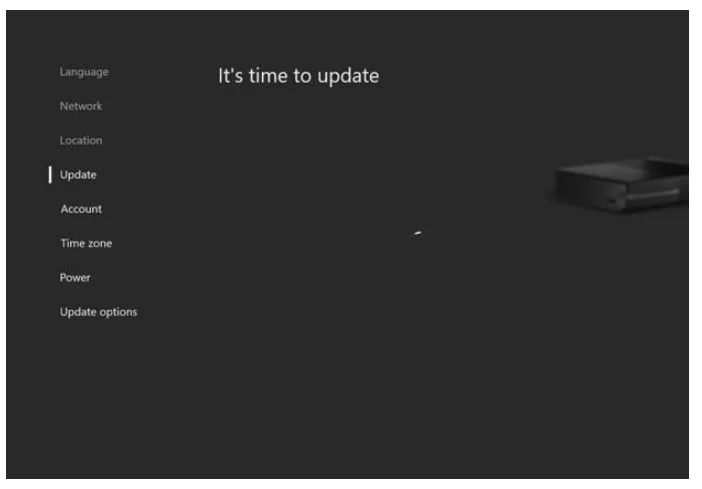
If you receive an error during the update process, see Troubleshooting system updates. For detailed information about system updates, see What are system updates and how do they work? Once the system update is complete, the Xbox One console will restart.
Note that system updates can take anywhere from 15 minutes to more than an hour to complete. You can choose to continue with the digital setup while the console is processing the update by using the Xbox app on your iOS or Android mobile device. To complete the digital setup using the app, select COMPLETE SETUP ON MOBILE NOW below. If you prefer to wait until the console is finished updating, select COMPLETE SETUP ON CONSOLE below.
For More Manuals By Xbox, Visit ManualsLibraryy.
Xbox One S Setup-FAQs
Q1. How do I set up an Xbox One S for the first time?
Unbox your console, connect it to your TV with HDMI, plug in the power, turn it on, select language and region, connect to Wi-Fi, and install system updates.
Q2. Can I set up Xbox One S using the Xbox mobile app?
Yes. Download the Xbox app on iOS or Android, sign in with your Microsoft account, and follow on-screen steps to connect and complete digital setup.
Q3. How do I connect my Xbox One S to the TV?
Use the included HDMI cable. Plug one end into your console’s HDMI Out port and the other into your TV’s HDMI input, then switch your TV to that input.
Q4. Do I need a Microsoft account to use my Xbox One S?
Yes. A Microsoft account is required for full access to features such as Xbox Live, Game Pass, cloud saves, and online multiplayer.
Q5. How do I set my Xbox One S as my home console?
Go to Settings > Personalization > My home Xbox. You can only set one console as your home Xbox, so choose the one you use most often.
Q6. Can I play Xbox One S without internet?
Yes. Set the console to offline mode in network settings. You can play installed games offline, but online features like Store access won’t be available.
Q7. How do I activate a digital Xbox code?
From the Home screen, go to the Store, choose Redeem code, enter the 25-character code, and confirm to add the game or subscription to your account.
Q8. What HDMI cable should I use with Xbox One S?
For best performance, use at least an HDMI 2.0 cable. This supports 4K at 30Hz or 1080p at 60Hz with HDR, ensuring smooth display quality.