
Aqara Smart Lock U400
Product Introduction
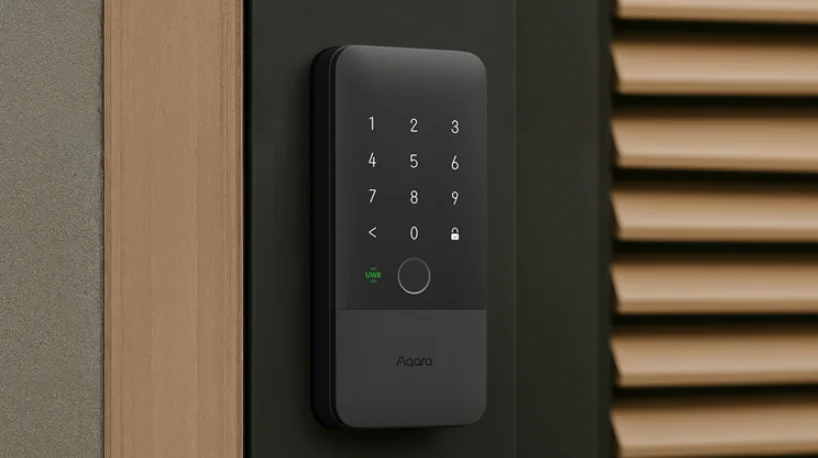
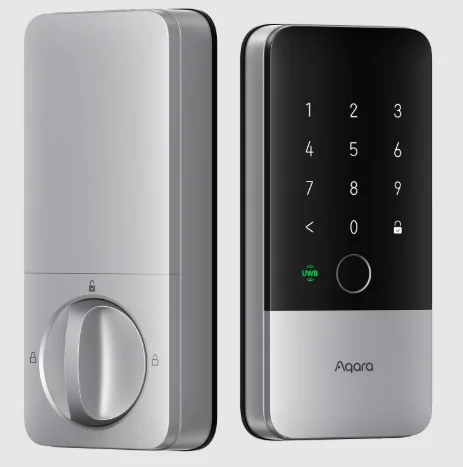
Powered by advanced Ultra-Wideband (UWB) technology, the Aqara Smart Lock U400 transforms your phone into a proximity-based digital key. No taps, no codes—just approach, and the lock verifies your presence in real time, unlocking with pinpoint accuracy.
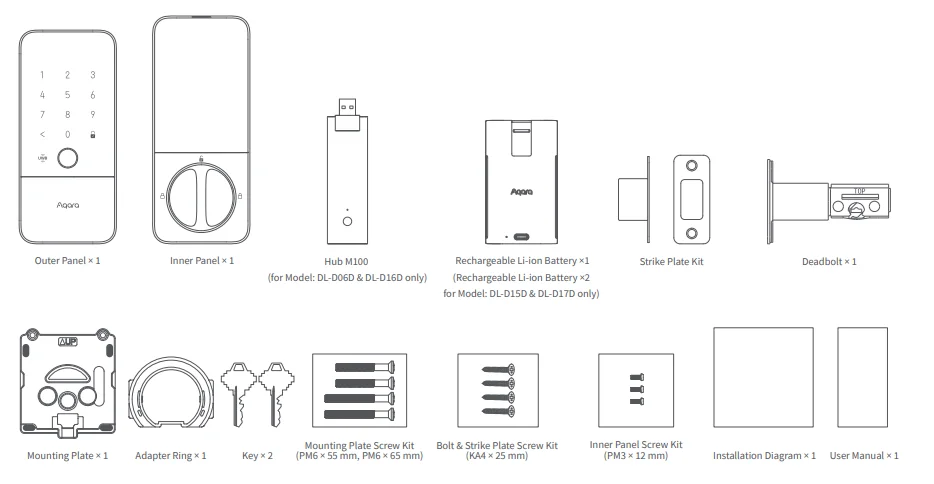
What’s in the Box
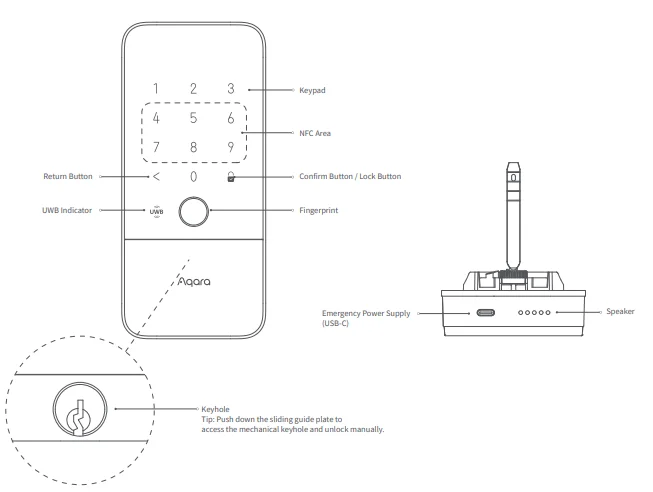
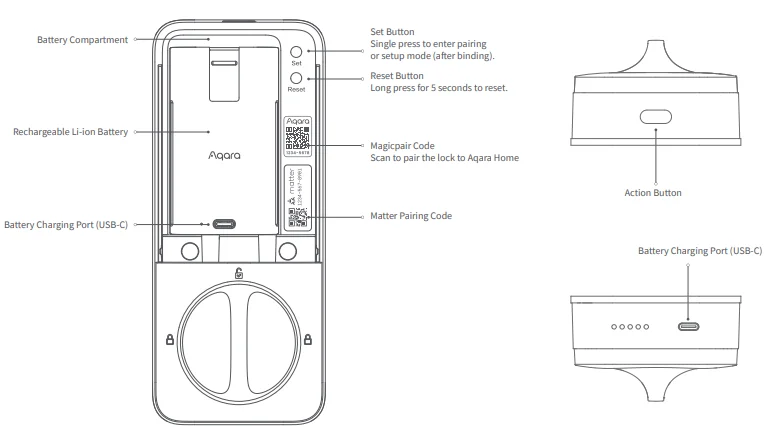
Note:
- For emergency charging of the door lock, we recommend using a power bank to supply power via the Emergency Power Supply USB-C port on the front panel.
- It is not recommended to continuously power the device via the Battery Charging Port on the inner panel during normal use.
Instructions before Installation
Before using this product, you need to download the Aqara Home app and register an account. This is not necessary if you directly connect this product to a third-party ecosystem; however, unique features such as Night Latch mode, Auto-Lock settings, and more will be unavailable to you.
For FAQs, visit: https://store-support.aqara.com/products/smart-lock-u400
A PH1/PH2/PH3 standard Phillips head screwdriver is required for installation.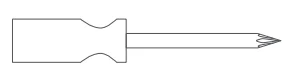
Tools necessary only for new doors or adjusting existing door holes: drill, hole saws, wood mortise chisel, pencil, tape measure, level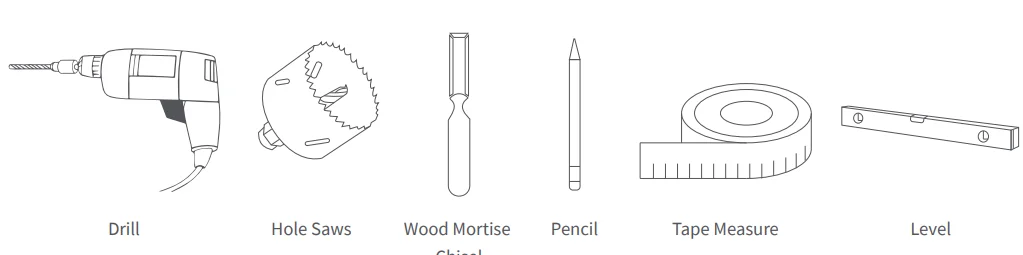
Note: If your borehole diameter is approximately 38 mm, please ensure that the door is hollow for proper installation. If the door is solid, we recommend enlarging the borehole to 54 mm to accommodate the installation.
Device Installation & App Connection

Connecting to Aqara Home
- Download the Aqara Home app from the Apple App Store, Google Play, or by scanning the provided QR code.
- Power on the device and then press the “Set” button once to enter pairing mode.

- Bring your phone near the device, open the app, and tap “+” in the upper right corner of the homepage to enter the “Add Accessory” page.
- Select “Smart Lock U400” and follow the instructions to complete the setup.
Note:
- The actual operations are subject to change due to updates in the Aqara Home app. Please follow the app’s instructions.
- Bluetooth must be enabled during the binding process.
- Enjoy more exclusive features with the Aqara Home app without needing a hub, within Bluetooth range.
Connecting to Matter Ecosystem
First Matter Ecosystem Binding:
- Remove the battery cover on the inner panel.
- Press the lock’s Set button once to enter the lock pairing mode, then scan the Matter Pairing Code on the inner panel to add the lock in a third-party app.
Note:
- To connect Smart Lock U400, you will need a Thread-enabled Matter Controller of the desired ecosystem. Supported devices can be found on our official website: https://www.aqara.com/us/explore/everything-matter/
- Ensure that IPv6 is enabled on your local wireless network before connecting this Matter-enabled device to your smart home. IPv6 is required for the Matter ecosystem connection.
- Make sure your phone and the Thread-enabled Matter Controller are under the same Wi-Fi network.
- Bluetooth must be enabled during the binding process.
- We recommend keeping the distance between the lock and the Thread-enabled Matter Controller within 5 meters. If there are obstacles (such as walls) between them, keep the distance within 3 meters.
Additional Matter ecosystems binding:
- After this lock is connected to a third-party Matter ecosystem or an Aqara Matter Controller in the Aqara Home app, the Matter Pairing Code on the inner panel will expire.
- To bind an additional ecosystem, please generate a new pairing code in the bound app.
- Press the lock’s Set button once to enter pairing mode, and then use the generated Matter Pairing Code to add the device.
Note: In the early stages of the Matter ecosystem, different platforms support varying features. For example, some platforms do not support adding door lock passwords. For a better user experience, we recommend adding the device to the Aqara Home app.
Connecting to an Aqara Matter Controller
After pairing the lock in the Aqara Home app, connect an Aqara Thread-enabled Matter Controller (e.g., Hub M3) to enable remote features like Remote Periodic Password and Automations. You can also generate a Matter pairing code to connect the lock to other Matter ecosystems or directly bind the lock to the Apple Home within the Aqara Home app. Here’s how to connect an Aqara Matter Controller and bind the lock to other Matter ecosystems via the Aqara Home app:
- In the Smart Lock U400 setting page, tap “Add to Aqara Hub”.
- Tap “Connect” and follow the instructions to complete the binding.
- Go back to the setting page and tap “Matter”.
- Tap “Matter Pairing Code” to generate a new code, or tap “Connect” to bind the device directly to the Apple Home app.
5. Scan or enter the Matter pairing code using a third-party app and follow the instructions to complete the binding.
Note:
- Make sure your phone and Aqara Thread-enabled Matter Controller are under the same Wi-Fi network.
- Bluetooth must be enabled during the binding process.
- We recommend keeping the distance between the lock and the Thread-enabled Matter Controller within 5 meters. If there are obstacles (such as walls) between them, keep the distance within 3 meters.
- Once your Aqara Matter Controller is connected, the Matter pairing code on the inner panel will expire. To bind to other Matter ecosystems, please generate a new pairing code in the Aqara Home app.
Door Lock Calibration
After installation and app connection, there are two ways to calibrate the lock: using the Aqara Home app or entering Door Lock Setup Mode.
Here’s how to calibrate directly on the lock:
- After connecting to an ecosystem, single-press the Set button on the lock to enter Door Lock Setup mode.
- Press the number “5” to enter Calibration Mode, then follow the voice prompts to complete.
- Fully open the door, then close it from inside and lock it. This will ensure the lock can correctly detect the door status.
Note:
- To avoid being locked out, please keep a key with you before starting calibration.
- Ensure the door is closed and unlocked before calibration.
- Aqara administrator verification is not required to enter Setup Mode if the lock is only connected to third-party Matter ecosystems.
- The door lock will not function properly if calibration is not complete.
Adding Apple Home Keys (for iOS users)
After setting up Smart Lock U400 in the Home app, add a home key to the Wallet app for easy and secure access to your home using your iPhone or Apple Watch:
- Control of this accessory requires a Thread-enabled home hub such as Apple TV 4K, HomePod (2nd generation), HomePod mini, or a compatible third-party Thread border router running the latest software. Hands-free unlock with home key is available with Apple Watch Series 6 and later, excluding Apple Watch SE, running watchOS 11.5 or later, and iPhone 11 and later, excluding iPhone SE (2nd and 3rd generation) and iPhone 16e, running iOS 18.5 or later. Tap to unlock with the home key is available for iPhone XS and later running iOS 17.1 or later, and Apple Watch Series 4 and later running watchOS 10.1 or later.
- After connecting to Apple Home, the “Wallet” app will automatically generate the Apple Home keys.
- Apple, Apple Home, Apple Watch, HomePod, HomePod mini, and iPhone are trademarks of Apple Inc., registered in the U.S. and other countries and regions. The Works with Apple Home badge is a trademark of Apple Inc.
- Use of the Works with Apple badge means that an accessory has been designed to work specifically with the technology identified in the badge and has been certified by the developer to meet Apple performance standards. Apple is not responsible for the operation of this device or its compliance with safety and regulatory standards.
UWB Unlocking: Hands-Free Unlock with Apple Home Key (for iOS users)
Hands-free unlock with home key offers a convenient, precise, and secure unlocking experience. When your iPhone or Apple Watch is paired with the door lock in the Apple Home app, simply walking up to the lock will trigger it to open automatically. However, it will not unlock if you merely pass by the door or linger near it. Only a clear intent to unlock will activate the door lock.
Note: For safety reasons, it only unlocks from the outside. When you add your lock to the Apple Home app, you’ll see an option to enable or disable Express Mode, which powers Hands-Free Unlock with the Apple Home key. You can also toggle “Unlock on Approach” directly in the “Wallet” app:
- Open the “Wallet” app on your iPhone.
- Find your home key for the door lock.
- Go to the settings page and switch “Unlock on Approach” on or off.
Note: To enjoy hands-free unlock with the home key, the “Unlock on Approach” feature must be enabled.
Door Lock Local Settings
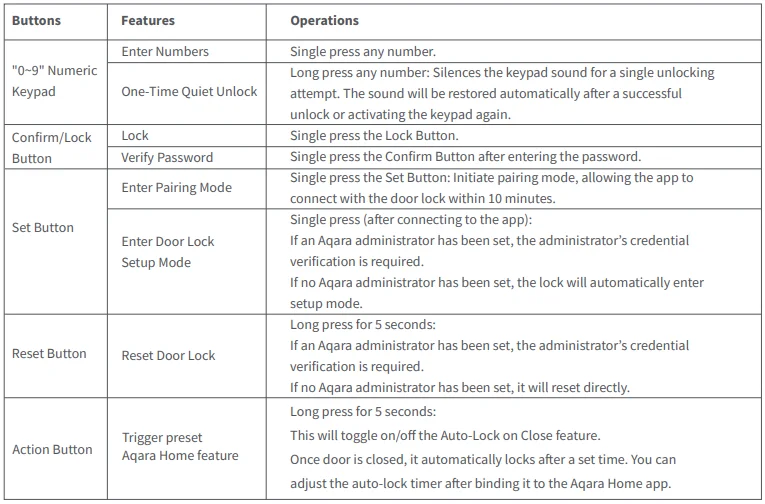
Door Lock Setup Mode
To enter the door lock setup mode:
- After adding your door lock to the app, single-press the Set button on the lock.
- Verify the Aqara administrator’s fingerprints or passwords to enter setup mode.
- Follow the voice instructions to select the desired features.
Note: If connected only to the Matter ecosystem, administrator verification is not required to access the setup mode.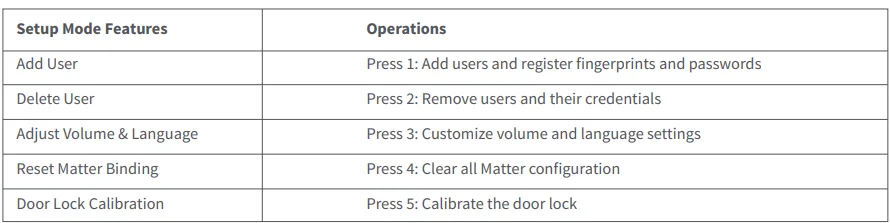
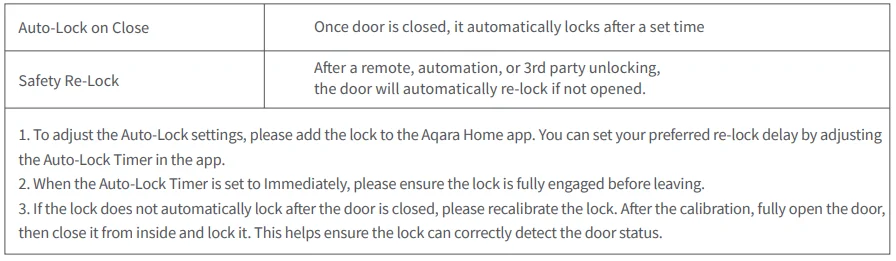
Auto-Lock
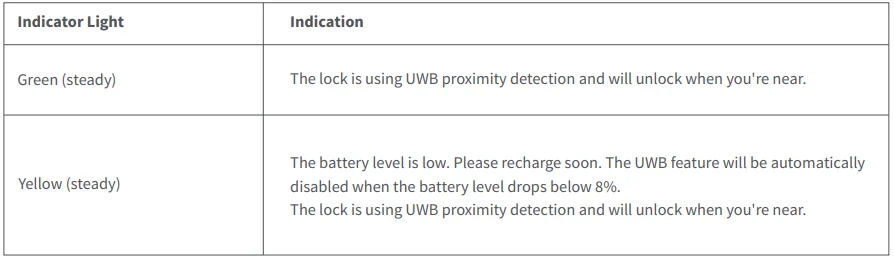
UWB Indicator
Charging Methods
Two methods are available to charge the Smart Lock U400:
- Method One: Connect a USB-C cable to the battery charging port located at the bottom of the inner lock body. We recommend using a power bank, which can be placed in a bag and hung on the door handle for convenient charging.
- Method Two: Remove the rechargeable Li-ion battery, then connect a USB-C cable directly to the port on the battery for charging.
Note: Once the battery is removed, the door lock will stop working. Please carry the physical key with you as a backup in case of emergencies.
Emergency Power Supply
For temporary power in emergencies, connect a USB-C cable to the emergency powering port at the bottom of the outer panel. We recommend directly attaching a power bank to the lock for emergency power. Additionally, smartphones that support USB-C to USB-C connections can also be used to supply power to the lock.
Note: The USB-C port on the outer panel cannot be used to charge the lock’s battery. To charge the battery, please connect a USB-C cable to the inner lock body or remove the battery and charge it separately.
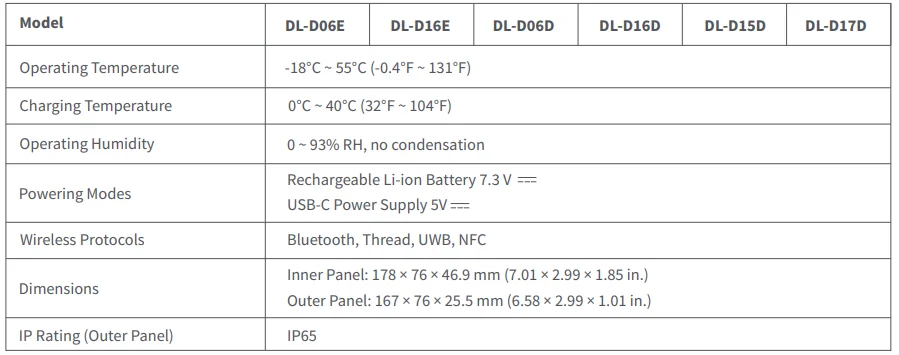
Product Specification
If you have any questions or encounter any issues while setting up your device, you may refer to the FAQ, user manual, and installation video by scanning the QR code below, or visit our website for further assistance.
Online Customer Service: www.aqara.com/en/support.html
Manufacturer: Lumi United Technology Co., Ltd.
Address: Room 801-804, Building 1, Chongwen Park, Nanshan iPark, No. 3370, Liuxian Avenue, Fuguang Community, Taoyuan Residential District, Nanshan District, Shenzhen, China
Email: [email protected]
For More Manuals By Aqara, Visit ManualsLibraryy.
Aqara Smart Lock U400 -FAQs
What is the Aqara Smart Lock U400, and what makes it unique?
The Aqara Smart Lock U400 is a next-generation smart deadbolt designed for hands-free home entry using ultra-wideband technology. It automatically unlocks when you approach with a compatible device, offering a seamless experience that eliminates the need for keys, codes, or manual interaction.
How does the UWB hands-free unlocking feature work on the U400?
The U400 uses ultra-wideband (UWB) technology to detect your precise location relative to the door. When you approach within a short distance, it automatically unlocks without requiring taps or authentication, making entry faster, more secure, and less prone to accidental triggers.
What unlocking methods are available on the Aqara U400?
The U400 supports multiple unlocking options, including fingerprint recognition, PIN codes, NFC cards, Apple Home Key, app control, voice assistants, and a traditional mechanical key. This variety ensures flexibility for different users while maintaining security and convenience in everyday use.
Is the Aqara Smart Lock U400 compatible with smart home platforms?
Yes, the U400 supports Matter over Thread, making it compatible with Apple Home, Google Home, Amazon Alexa, Samsung SmartThings, and Home Assistant. This ensures smooth integration into most smart home ecosystems without requiring users to commit to a single platform.
Do I need a hub to use the Aqara U400?
The U400 can work with Matter-enabled systems using a Thread border router, such as a compatible Apple Home hub. While basic functionality may not require an Aqara hub, advanced features like remote access and automation often benefit from having one installed.
How secure is the Aqara Smart Lock U400?
The U400 offers strong security through encrypted communication, fingerprint authentication, anti-peep password protection, and precise UWB detection. It also includes features like auto-lock and customizable access codes, ensuring both physical and digital protection for your home entry system.
What is the battery life and charging method of the U400?
The U400 uses a rechargeable battery that can last up to six months on a single charge. It features a USB-C charging port for easy recharging and includes an emergency power option, ensuring you can access your home even if the battery runs low.
Is the Aqara U400 easy to install on existing doors?
Yes, the U400 is designed for straightforward installation on most standard single-cylinder deadbolt doors. It typically replaces your existing lock with minimal tools, though some door types may require minor adjustments depending on compatibility and dimensions.
Does the Aqara U400 support automation and smart routines?
The U400 supports automation through the Aqara app and compatible ecosystems, allowing you to create routines like auto-locking, triggering lights when the door opens, or integrating with cameras and sensors for enhanced smart home experiences and convenience.
Is the Aqara Smart Lock U400 suitable for outdoor use?
Yes, the U400 is built for durability with an IP65-rated outer panel that resists dust and water splashes. It operates in a wide temperature range, making it reliable for outdoor installation in various weather conditions without compromising performance.