
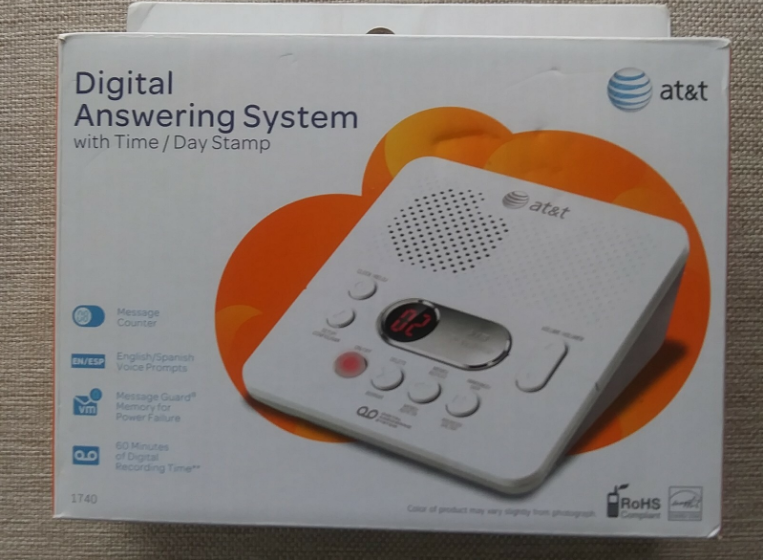

AT&T 1739 Digital Answering System
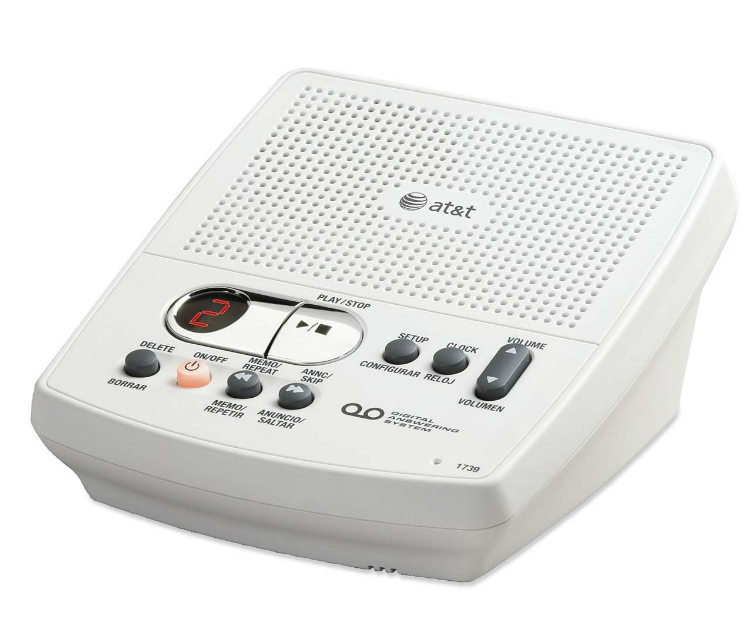
Installation
Parts list
- 1739 answering system
- Wallet card
- Part 1 Important product information
- Part 2 User’s manual
- Power adapter
Before you install
Choose a location for the answering system near a telephone jack and a standard electrical outlet not controlled by a wall switch.
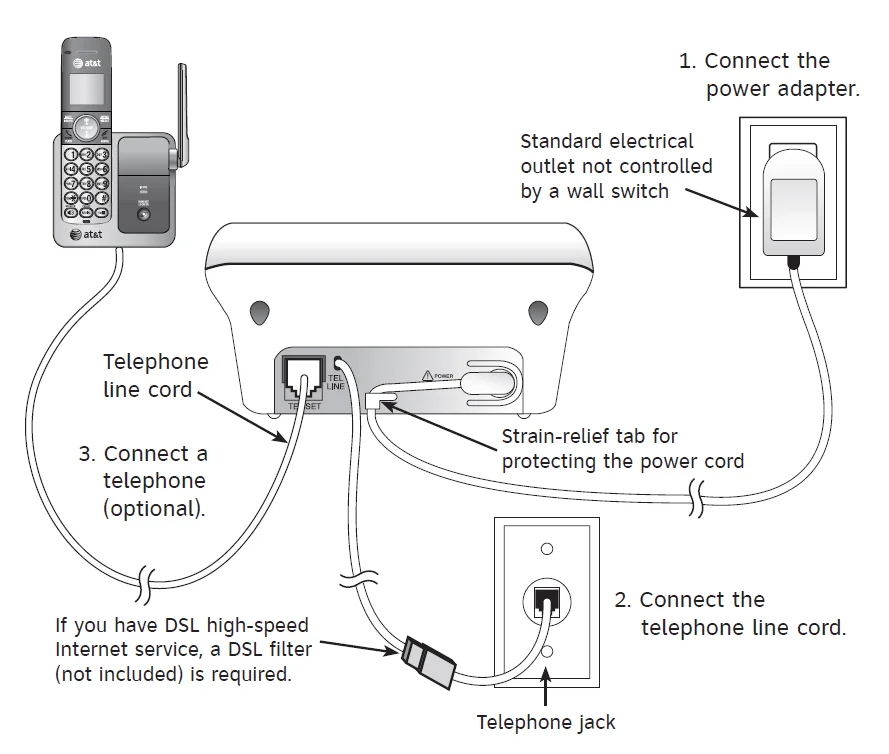
WARNING: Use only the power adapter supplied with this product. To obtain a replacement, visit our website at www.telephones.att.com or call 1 (800) 222-3111. In Canada, dial 1 (866) 288-4268.
Turn the system on/off
When you install the answering system for the first time, the system turns on automatically and announces, “To set the clock, press and hold CLOCK.” For instructions, see Set the clock on page 5. To turn the system off, press ON/OFF again. When the system is off, theON/OFF indicator light will be off, and the message window will be blank. When you press other keys (except VOLUME
 , the system announces “The machine is off. PressON/OFF to turn on.”
NOTES:
- If you do not want to connect this answering system to a telephone, skip Step 3.
- Power adapter
- Input: 120V AC, 60 Hz.
- Output: 6V AC, 350 mA.
- If the message window is off, make sure the power adapter is securely connected to both the answering system and an electrical outlet not controlled by a wall switch. Press ON/OFF to turn the answering system on or off.
- If you subscribe to high-speed Internet service (DSL – digital subscriber line) through your telephone line, you must install a DSL filter between the telephone line cord and the telephone wall jack. The filter prevents noise and caller ID problems caused by DSL interference. Please contact your DSL service provider for more information about DSL filters.
Feature setup
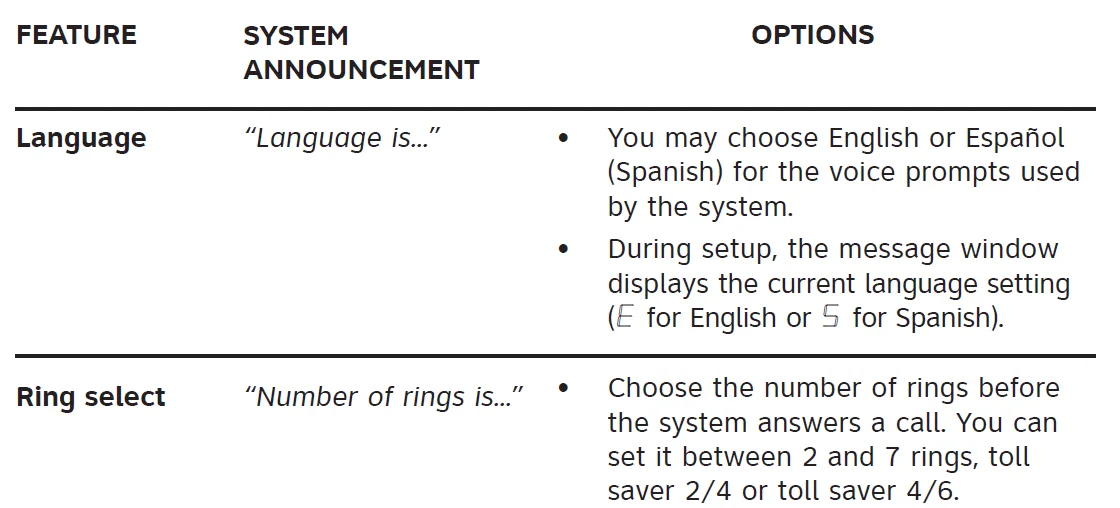
- To enter the feature setup mode, press and hold SETUP until the system announces “Language is…”
- Press SETUP repeatedly until you hear the desired feature.
- When you hear the feature you want to modify, press
 ANNC/SKIP or
 MEMO/REPEAT to choose the feature’s setting.
 - Press SETUP to save the setting and advance to the next setting.
– OR –
Press PLAY/STOP, save the setting, and exit feature setup.
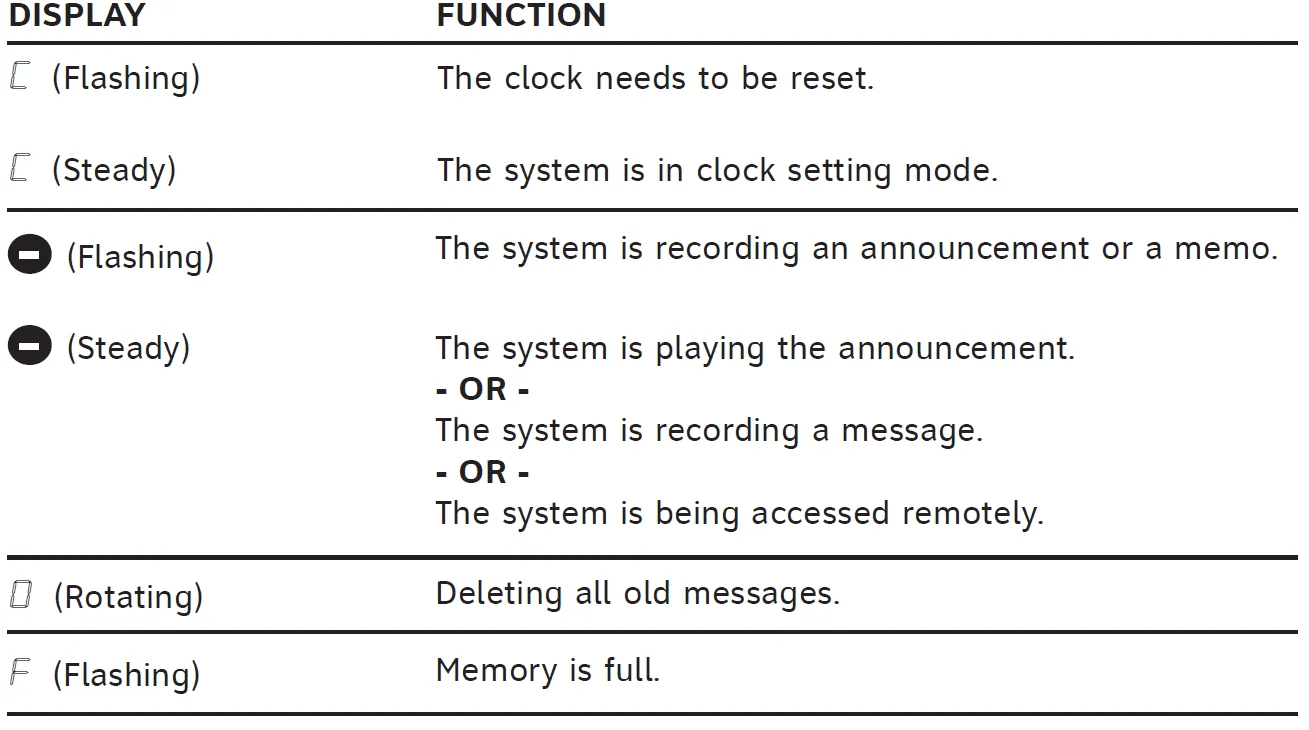
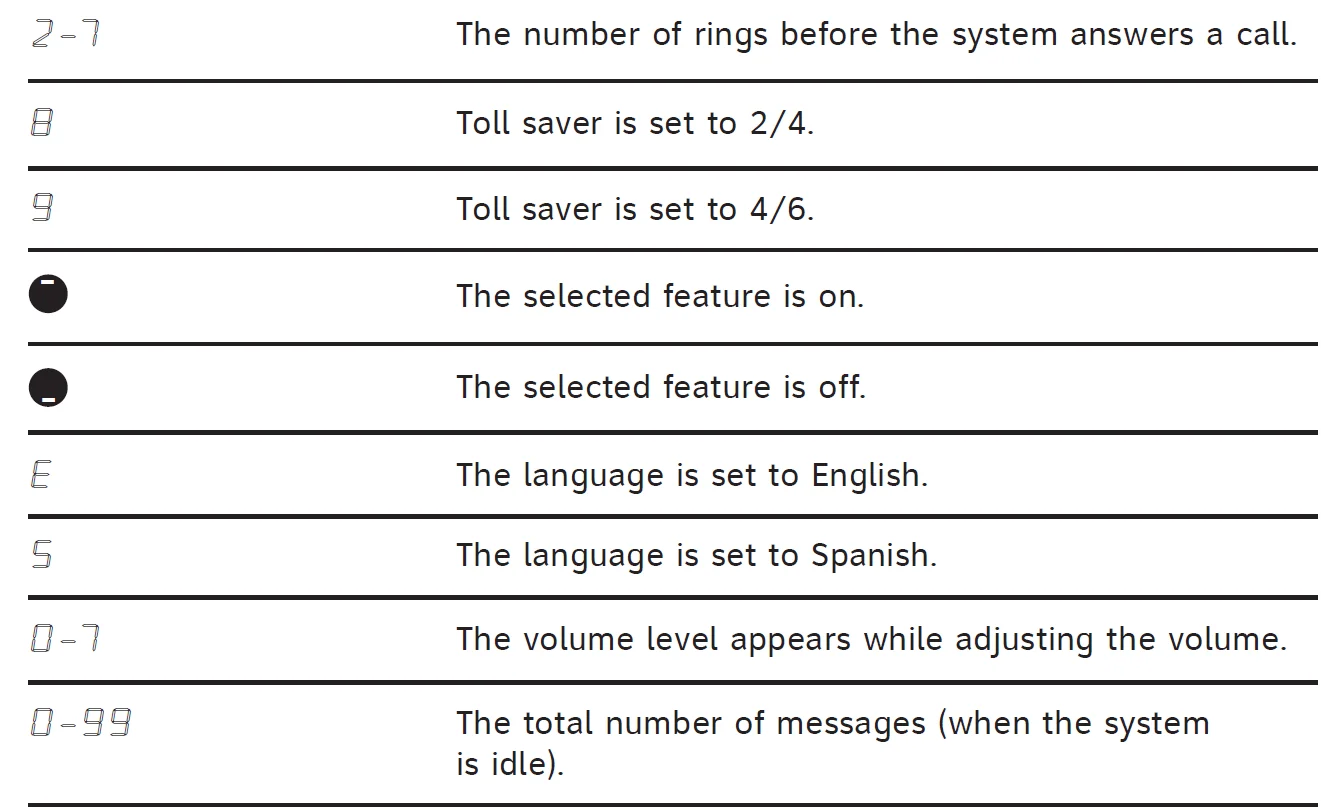
When any feature is on, the message window displays .
.
When any feature is off, the message window displays .
.
Feature summary
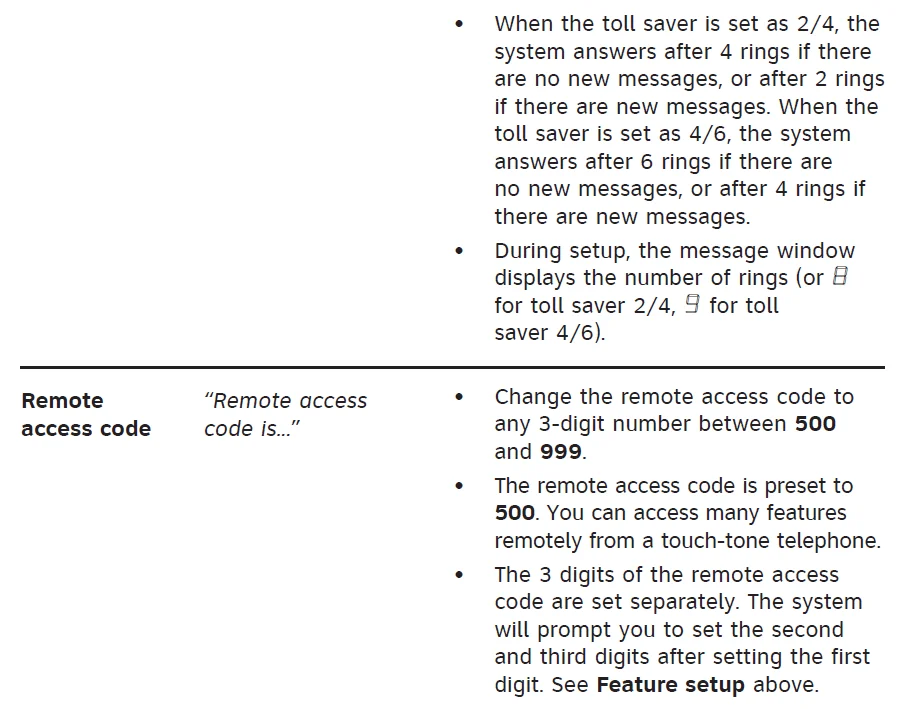
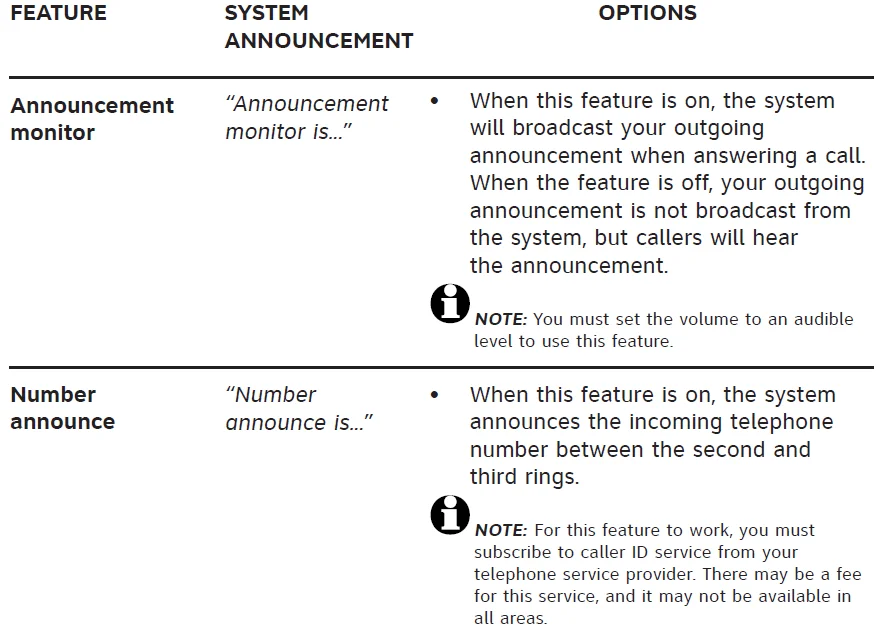
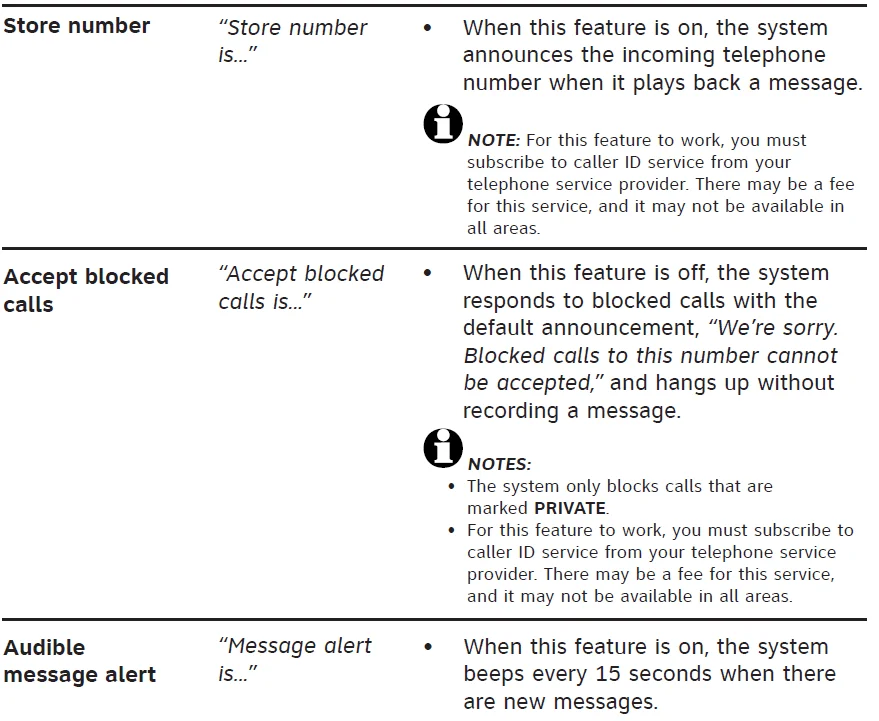
Operation
Listen to, save & delete messages
- The system automatically saves all incoming messages until you delete them. You can store approximately 40 minutes of messages, memos, and announcements (up to a maximum of 99 messages).
- Before playing each message, the system announces the day and time the message was received. If Store number is activated, the system also announces the caller’s telephone number (see Store number under Feature setup on page 3). After playing the last message, the system announces “End of messages.“
- Messages cannot be deleted until they have been reviewed, and deleted messages cannot be retrieved.
To operate the answering system, follow the instructions below.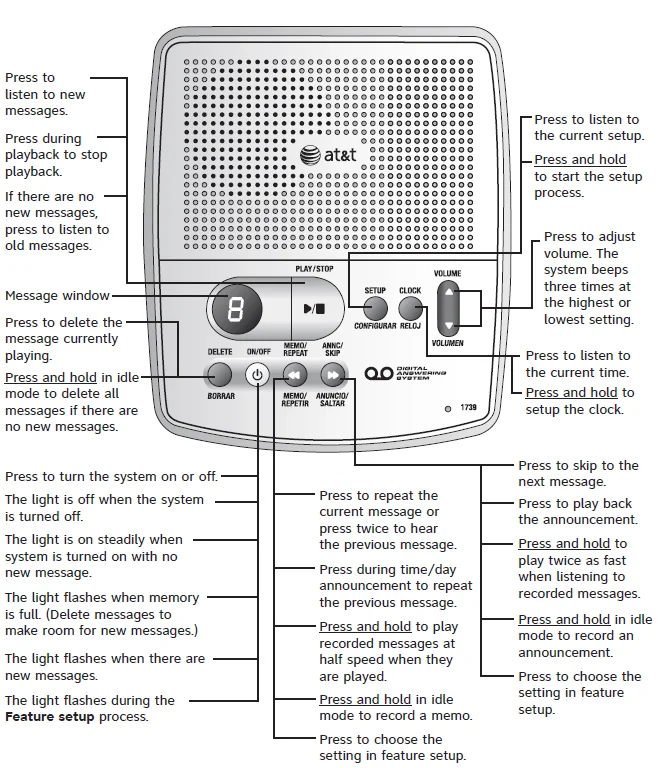
Auto reset of the answering system clock
The system will always be set automatically with incoming caller ID information. The time will be set automatically only if you subscribe to caller ID service provided by your telephone service provider.
Set the clock
You must set the clock so that the system announces the correct day and time of any incoming messages. Make sure the year is correct because the day of the week is calculated from the year. The system announces the current setting and “To set the clock, press and hold CLOCK,“ when you press CLOCK. To exit at anytime while setting the clock, press PLAY/STOP.
- Press and hold CLOCK until the message window displays C. The system announces the default day, “To change press SKIP or REPEAT,” and “To change the hour press CLOCK.”
- To change the day setting, pressMEMO/REPEAT orANNC/SKIP until the correct day is announced.
- Press CLOCK. The current hour setting is announced. The correct day setting is saved.
- To change the hour setting, pressMEMO/REPEAT orANNC/SKIP until the correct hour is announced.
- Press CLOCK. The current minute setting is announced. The correct hour setting is saved.
- To change the minute setting, pressMEMO/REPEAT orANNC/SKIP until the correct minute is announced.
- Press CLOCK. The current year setting is announced. The correct minute setting is saved.
- To change the year setting, pressMEMO/REPEAT orANNC/SKIP until the correct year is announced.
- Press CLOCK. The new day, time and year are announced. The correct year setting is saved.
- To check the date and time, press CLOCK.
NOTE: In the event of a power failure, see the instructions on the bottom of the unit to reset the clock. If the clock is not set the system will announce, “Time and day not set,” before playing each message.
Record your announcement
An announcement is the greeting callers hear when calls are answered by the answering system. The telephone is preset with a greeting that answers calls with “Hello, please leave a message after the tone.” You can use this default announcement, or replace it with your own (up to 3 minutes long).
- Press and holdANNC/SKIP. When the system beeps, speak towards the microphone at the lower right corner of the answering system, from about 9 inches away. While recording,
 flashes in the message window and
 ON/OFF blinks.
 - To stop recording, releaseANNC/SKIP. The system automatically plays back the outgoing announcement.
 flashes in the message window and
To review your announcement, press ANNC/SKIP.
To erase your own recorded announcement, press DELETE while the announcement is playing. Calls are then answered with the default announcement.
Record memos
A memo can be up to 3 minutes and is stored as an incoming message.
- Press and holdMEMO/REPEAT. When the system beeps, speak toward the microphone at the lower right corner of the answering system.
- To stop recording, releaseMEMO/REPEAT.
- To play a memo, pressSTOP.
Answer calls
When the system answers a call, the caller hears the outgoing announcement followed by a beep. After the beep, the system begins recording the caller’s message. A caller can leave a message of up to 3 minutes. If the message is longer than 3 minutes, or if the caller is silent for more than 7 consecutive seconds, or if the system runs out of memory, the system beeps once and announces, “Memory is full. The machine will now hang up,” then hangs up.
Call screening
The call screening feature lets you listen to the answering system to a caller leaving a message. If the answering system and call screening are on, the announcement and the incoming message are broadcast when a call is answered by the answering system. If the number announcement feature is on, the caller’s telephone number will be announced.
NOTE: If you set the volume level to 0, the system will automatically adjust to an audible level (level 2) during call screening, or when listening to messages or changing feature settings. You may need to adjust the volume level afterwards.
Options while a message is being recorded:
- Press VOLUME
 to adjust the call screening volume.
 - PressPLAY/STOP to stop the message recording.
Call intercept
When a caller is leaving a message on your answering system, you can stop recording and talk to the caller by lifting the handset of any telephone on the same line. The system stops recording, you hear a beep and you can take the call. If the system does not disconnect immediately, press and release the telephone switch hook.
Caller ID number announced
NOTE: You must subscribe to a caller ID service from your telephone service provider for this feature. There may be a fee for this service, and it may not be available in all areas. This system can announce the caller’s telephone number between the second and third ring (see Feature setup and Feature summary on pages 2 and 3 to turn this feature on).
Store number
When this feature is on, the system announces the caller’s number before playing back a message.
Accept blocked calls
When this feature is turned on, the system answers and records messages from any callers. When this feature is turned off, the system responds to blocked calls (from callers who have chosen to block their numbers from identification) with the default announcement, “We’re sorry. Blocked calls to this number cannot be accepted.“ The system then hangs up without recording any incoming messages.
Message window
The message window displays the total number of messages recorded. If there are more than nine messages recorded, the message window displays the first digit, second digit, and dash alternately. If the message window displays F, then the memory is full and some messages must be deleted before new messages can be recorded.
Message Guard®
The answering system protects the recorded messages from loss in the event of a power failure. Message Guard® is a trademark of Advanced American Telephones.
Listen to incoming messages
When the system plays incoming messages, the message window displays the number of the message being played. Before playing each message, the system announces the day and time the message was received. If the clock is not set when the message was recorded, or there was a power failure after it was set, the system will announce “Time and day not set,” after the time and day. After playing the last message, the system announces, “End of messages. If you want the system to answer a call when you are playing a message, pressPLAY/STOP to end message playback.
- To play messages, pressSTOP. If there are new messages, they will be played. If there are no new messages, the old messages will be played. If there are no messages, the system announces “No messages.“
- To play a message at half speed, press and holdMEMO/REPEAT while the message is playing.
- To play a message twice as fast, press and holdANNC/SKIP while the message is playing.
- To repeat a message, pressMEMO/REPEAT to repeat the message. PressMEMO/REPEAT during the time/day announcement or pressMEMO/REPEAT twice to hear the previous message. If there is only one message recorded in the system, the same message will be played again.
- To skip to the next message, pressANNC/SKIP.
- To stop message playback, pressPLAY/STOP.
Save messages
The system can record up to 99 messages, depending on the length of each message. Individual messages can be up to 3 minutes. The maximum combined recording time for the announcement, messages and memos is approximately 40 minutes. The actual recording time depends on individual message characteristics. Messages remain available for replay until you delete them.
Memory monitor
To find out the remaining recording time:
- If the system is on, press ON/OFF to turn the system off.
- Press ON/OFF again to turn the system on. The system announces the remaining recording time in minutes. If the system has less than 5 minutes of recording time left, it announces, “The machine is on. Less than five minutes to record.“
Memory is full
When the memory is full, or when 99 messages have been recorded, F flashes in the message window. You need to delete messages to make room for new ones. When the memory is full, the system answers calls after 10 rings and announces, “Memory is full,“ and then beeps twice without playing the outgoing announcement. Enter your remote access code and delete some or all messages. To delete all messages, press and hold DELETE in idle mode. The system announces “Messages deleted” and permanently deletes all messages. The message window displays 0. If there are new messages, the system will play an error tone and will not delete any messages. To delete selected messages, press DELETE while the desired message is being played. The system will delete the message and play the next message. If you want to replay a message before deleting it, press MEMO/REPEAT.
The message window displays
Remote operation
Access the answering system remotely
You can access many features remotely from a touch-tone telephone.
- Dial your telephone number.
- When the system answers, enter your 3-digit remote access code during or after the announcement. The system announces the number of messages, then begins playing back the messages. If the announcement continues to play after you have entered your remote access code, wait for the announcement to end, then enter the code again.
- To use remote access commands (see below), press 5 during message playback and wait for the two-beep signal.
- Enter a remote access command.
Feature summary
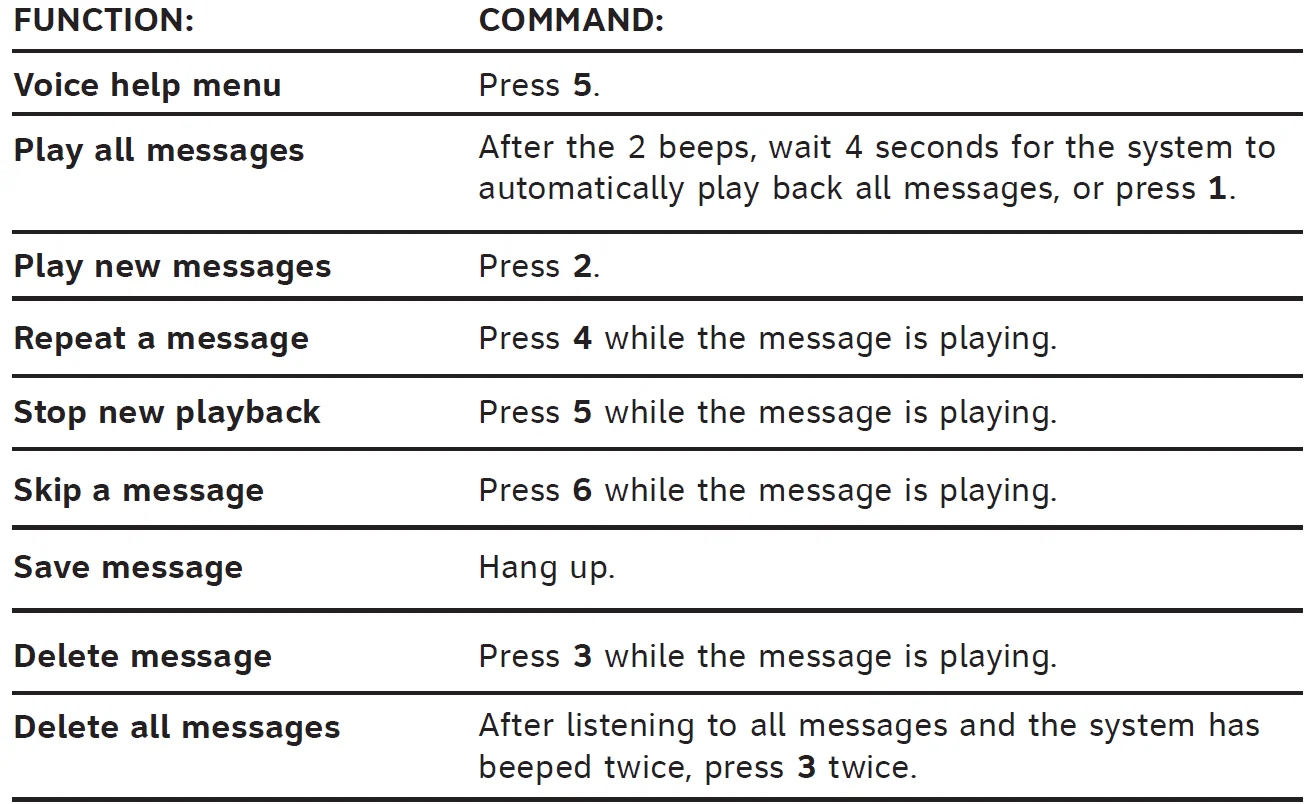
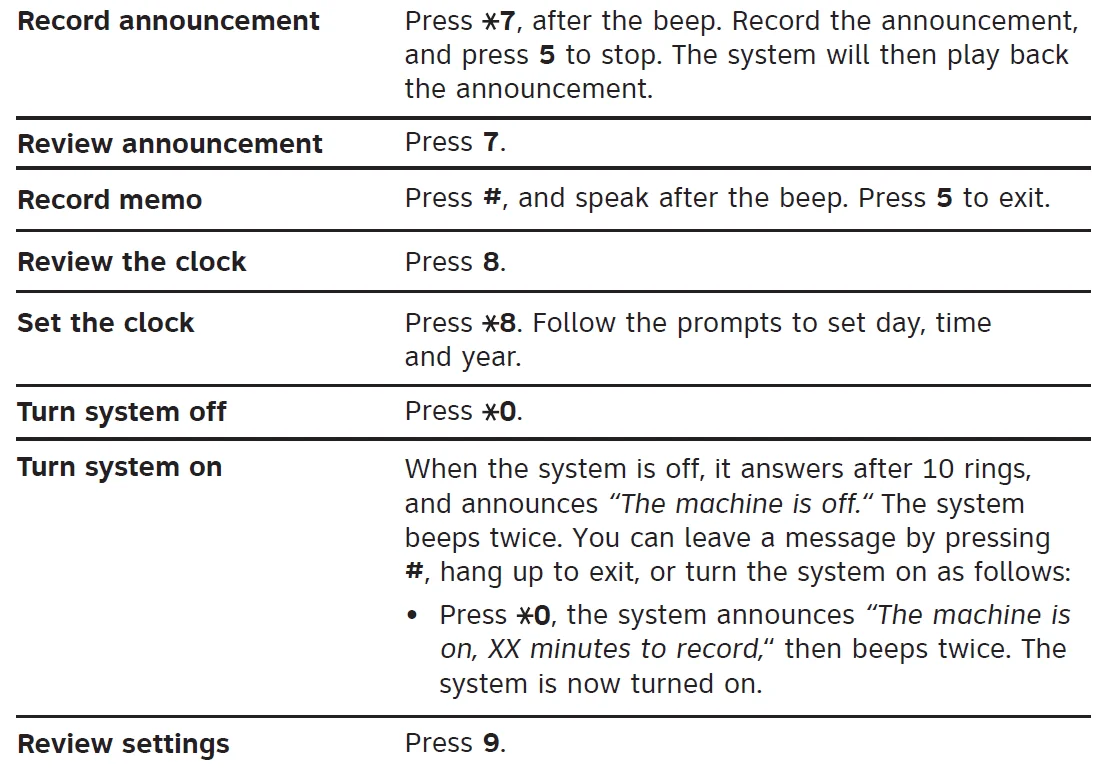
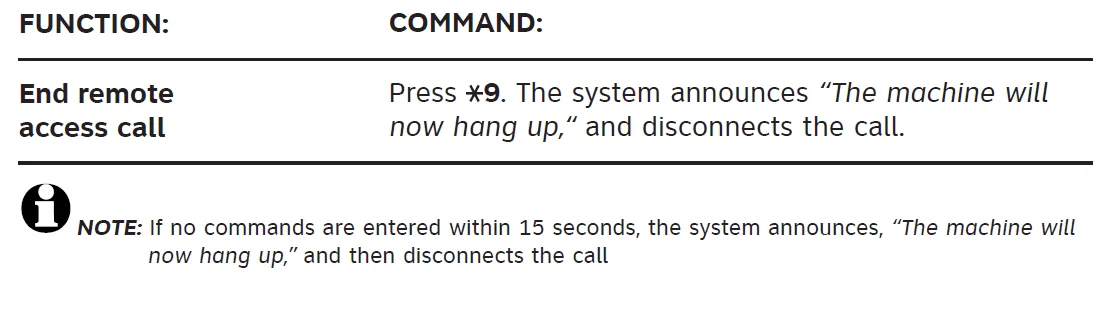
NOTE: If no commands are entered within 15 seconds, the system announces, “The machine will now hang up,” and then disconnects the call.
In case of difficulty
If you have difficulty operating this answering system, try the suggestions below. For customer service, or to purchase accessories or obtain replacement parts, visit our website at www.telephones.att.com or call 1 (800) 222-3111. In Canada, dial 1 (866) 288-4268. Please retain your receipt as your proof of purchase.
Messages are incomplete.
- The system can record messages of up to 3 minutes.
- If a caller leaves a long message, part of it might be lost when the system disconnects the call after 3 minutes.
- If the memory is full when recording a message, the system stops and disconnects the call.
The system does not answer after the correct number of rings.
- If the toll saver feature is on, the number of rings changes from 4 to 2, or 6 to 4, when there are new messages waiting.
- In some cases, the system might be affected by the ringing system used by the telephone service provider.
- If the system’s memory is full or the system is off, the system answers after 10 rings.
- If the system is in feature setup mode and a call comes in, it will not answer the call until you pressPLAY/STOP or the setup timeout has elapsed.
The system does not record messages.
- When the memory is full, some saved messages must be deleted before new messages can be recorded.
Incoming messages are not heard during recording.
- Press VOLUMEuntil the desired volume is reached.
The system does not respond to remote commands.
- Make sure you are calling from a touch-tone telephone. When dialing a number, there should be audible tones. If there are clicks instead, the telephone is not a touch-tone telephone.
- The answering system may not detect the remote access code while the announcement is playing. Try entering the code again when the announcement is over.
- There may be noise interference on the telephone line. Press the dial buttons firmly.
- Make sure the remote access code is entered correctly.
- You might be calling from a telephone that sends tones too short for the answering system to detect.
- If there are many messages recorded, the system may take longer than usual to respond.
Power failure recovery.
- If the system is disconnected from its AC power, it will not operate. The announcement and messages are retained in memory during a power failure, but it will be necessary to reset the clock. See the instructions at the bottom of the answering machine.
- If the system announces, “Time and day not set,“ after announcing the time and day, it may be necessary to reset the clock. See the instructions at the bottom of the unit.
The system takes longer than usual to respond.
- If there are too many messages recorded, the system may take longer than usual to respond.
The message window is off.
- Make sure the power cord is securely connected to both the answering system and an electrical outlet not controlled by a wall switch.
- PressON/OFF to turn on the system.
General product care
To keep the answering system working and looking good, follow these guidelines:
- Avoid putting it near heating appliances and devices that generate electrical noise (motors, fluorescent lights, etc.)
- DO NOT expose it to direct sunlight or moisture.
- Avoid dropping the answering system and/or other rough treatment.
- Clean with a soft cloth.
- Never use a strong cleaning agent or abrasive powder because this will damage the finish.
- Retain the original packaging in case it is necessary to ship it at a later date.
For more manuals by AT & T, visit ManualsLibraryy
AT&T 1739 Digital Answering System-FAQs
How do I set up the AT&T 1739 digital answering system?
To set it up, connect the answering system to your phone line and power source. Dial 1 on your home phone and follow the voice prompts to create a password and record your greeting.
How can I change the number of rings before the machine answers?
You can adjust the ring count through the setup menu. Access the answering service by dialing *73 or your voicemail number, then follow the prompts to change how many rings occur before pickup.
How many rings does the AT&T 1739 answering system use by default?
The system typically answers after four rings. Some settings allow it to answer after four rings if there are new messages or six rings if there are none.
What is the remote access code for the AT&T answering machine?
The default remote access security code is 19. This code allows you to check messages from any touch-tone phone.
How do I check messages on the AT&T 1739 answering system?
Press *98 on your home phone keypad, enter your PIN, and press 1 to listen to your messages. You can save, delete, or replay messages using keypad options.
How do I access my answering machine when I’m away from home?
Dial your home phone number from another phone. When the greeting plays, enter your two-digit remote access code to listen to messages.
How do I reset the AT&T 1739 answering system?
Unplug the power adapter from the base, wait a few minutes, then reconnect it. After resetting, you’ll need to set the date and time again.
Why is my AT&T answering machine not recording messages?
This can happen if the memory is full, the system is turned off, or voicemail is answering before the machine. Check memory status and ring settings.