
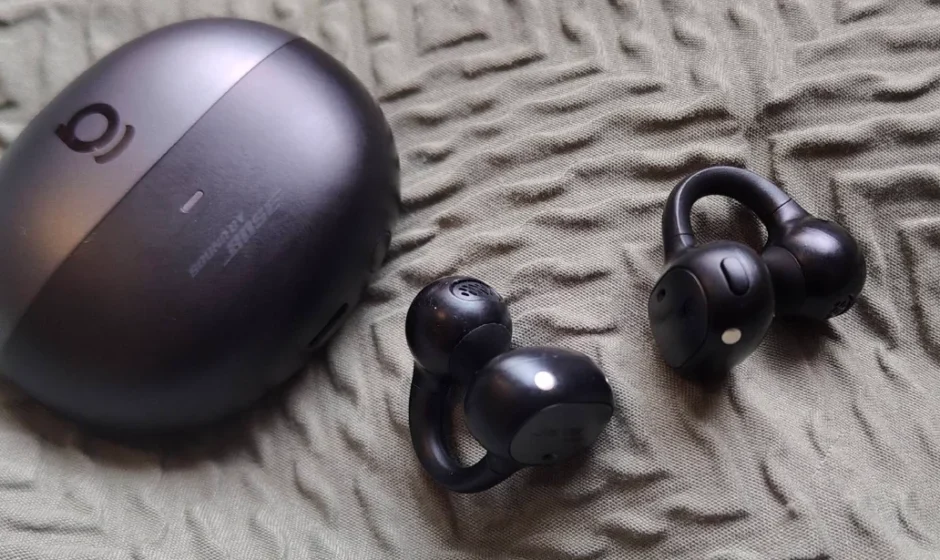

Baseus Inspire XC1 Open Ear Clip-On Earbuds

DOWNLOAD BASEUS APP
*Follow the in-app instructions to link your earbuds and to explore the ambient sound features, EQ settings, Dolby Audio, firmware updates, and other exciting features.

*Please note: To ensure the app’s proper functioning, select your current country/region in “Settings – Region”.
Regular Cleaning Guide
To ensure optimal performance and hygiene, we recommend cleaning your earbuds weekly. Focus on the speaker meshes, charging ports, metal contacts, and all surfaces that contact skin during use.
For open-ear clip-style earbuds, please click here for specific cleaning instructions.
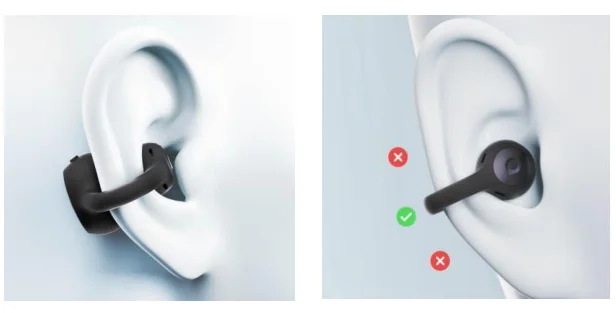
WEARING
- Gently clip the earbuds onto your ears with the speaker facing your ear canal.
- Adjust up or down until they sit level for a secure, comfortable fit.
POWERING ON & PAIRING
- ON: Open the charging case. The earbuds will automatically enter pairing mode.
- OFF: Place the earbuds back in the charging case and close thelid.
- Enable Bluetooth on your phone and select “Baseus Inspire XC1” from the device list.
*The earbuds will remember the last connected devices and reconnect automatically when powered on.

ADD DEVICE TO BASEUS APP
Connect to the phone’s Bluetooth
- Open “System Settings” – “Bluetooth” on the phone.
- Find “Baseus Inspire XC1”, and connect to it.
ADD DEVICE TO BASEUS APP
Enter the Baseus App
- Enter the Baseus App, then register and log in.
- Click “Add Device”, find “Inspire XC1”, and connect.
UPGRADE THE FIRMWARE VERSION ON THE BASEUS APP
- Check if the firmware version is the latest
- [Operation method: Click “App Homepage” – “Settings” in the upper right corner – “Version”]
*If you don’t find the SoundFit feature in the app or are experiencing Bluetooth connection issues, please try updating the firmware to the latest version.
*If you encounter a firmware update failure or the progress bar stops moving, please ensure you are not listening to music or on a call. Then, exit the update process and try again.

TOUCH CONTROLS
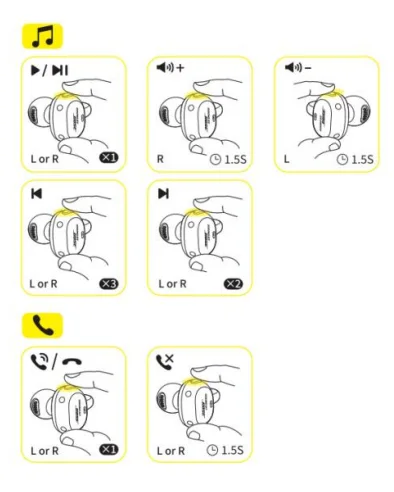
- Single press (×1): Pause / Play / Answer/ Hang up
- Tap and hold for 1.5 seconds (1.5s): Volume adjustment / Reject call
- Double tap (×2): Next Track
- Triple tap (×3): Previous Track
*You can also customize the touch controls in the Baseus App.
MULTIPOINT PAIRING

- Connect the earbuds to device A. Then, turn off Bluetooth.
- Connect the earbuds to device B.
- Turn on Bluetooth on device A, and select “Baseus Inspire XC1” from the device list to connect. Your multipoint connection is now ready.
CHARGING

- <20%: red light
- 20% – 40%: yellow light
- >40%: green light
*When charging, the light pulses. Once fully charged, it stays solid green.
FACTORY RESET
- Place both earbuds in the charging case and keep the lid open.
- Press and hold the button on the charging case for about 8 seconds, until the indicator flashes white three times – this signals a reset. This action will restore the custom settings in the app.

ACTIVE FAQs
How to get Better Sound Quality
You can connect to the APP, enable Bass Enhance, and switch EQ modes within the APP to confirm the effect:
- Connect earbuds to phone Bluetooth: Press and hold the earbud power button, enable phone Bluetooth pairing,g and select device model: Baseus Inspire XC1.
- Search and download the “Baseus” App from the app store.
- Click “+” to search and add theearbuds, and enter the earbud interface.
- Click EQ, select 【Bass Boost】or another sound effect more suitable for you.
- Custom Settings: In the APP EQ module, click “+” for the custom EQ function. For example, you can try moderately boosting only the low-frequency band while maintaining or slightly raising the mid-high frequencies. This provides solid bass while maintaining overall clarity.
Try enabling high-quality or lossless audio streaming in your music APP. You’ll find that with the same settings, the sound clarity and control will be better.
How to Wear it More Comfortably
- Align the C-bridge horizontally (parallel to the ground).
- Rotate the earpiece until the speaker directly faces your ear canal.
- Gently push the C-bridge upward/downward to match your ear contour.
Low volume on earbuds
- Wearing Adjustment (To ensure optimal fit and audio performance)
- Align the C-bridge horizontally (parallel to the ground).
- Rotate the earpiece until the speaker directly faces your ear canal.
- Gently push the C-bridge upward/downward to match your ear contour.
- System-Specific Configuration
- For Android Devices
- Connect earbuds via Bluetooth and select “Baseus Inspire XC1” in settings.
- Enable “Sync Bluetooth device volume.
- If unavailable, activate “Absolute Volume” in Developer Options.
- For iOS Devices
- Navigate to Settings → Accessibility → Audio/Visual → disable “Mono Audio”.
- Go to Settings → Sound & Haptics → earbud Safety → Turn OFF “Reduce Loud Sounds”.
- For Android Devices
Open-Ear Advantages
- Comfortable fit: Non-intrusive design won’t block the ear canal, ideal for long-term wear.
- Stay aware: Hear ambient sounds clearly while listening to music or taking calls.
- Safer outdoors: Perfect for running or cycling—stay alert to traffic and surroundings.
MORE SUPPORT & CONTACT US
*If the above FAQs do not resolve your issue or if you have any other questions, please feel free to contact Baseus Customer Support for more assistance.
For more manuals by Baseus, visit ManualsLibraryy
Baseus Inspire XC1 Open Ear Clip-On Earbuds- FAQs
What are the Baseus Inspire XC1 Open Ear Clip-On Earbuds?
The Baseus Inspire XC1 are open-ear, clip-on wireless earbuds designed for comfortable, all-day wear while keeping you aware of your surroundings.
How do I use the earbuds for the first time?
Charge the case fully, take out the earbuds, enable Bluetooth on your phone, and select “Baseus Inspire XC1” from the device list to pair.
How long does it take to charge Baseus earbuds?
The earbuds support fast charging—about 10 minutes of charging gives up to 2 hours of playback, and the case fully charges in roughly 1 hour.
How do I know when my Baseus earbuds are fully charged?
The LED indicator on the charging case shows battery status. A steady or green light typically means the earbuds and case are fully charged.
Can I overcharge my earbuds?
No. The charging case includes protection circuits that prevent overcharging, but it’s still best to unplug once fully charged.
Should I charge my earbuds to 100%?
For daily use, keeping the battery between 20% and 80% helps extend battery lifespan. Charge to 100% only when needed.
What is the 80/20 battery rule?
The rule recommends charging up to 80% and avoiding discharge below 20% to maintain long-term battery health.
Do Baseus Inspire XC1 earbuds have noise cancellation?
Open-ear earbuds do not provide full ANC. They may reduce background noise during calls using ENC, but 100% noise cancellation is not possible.