
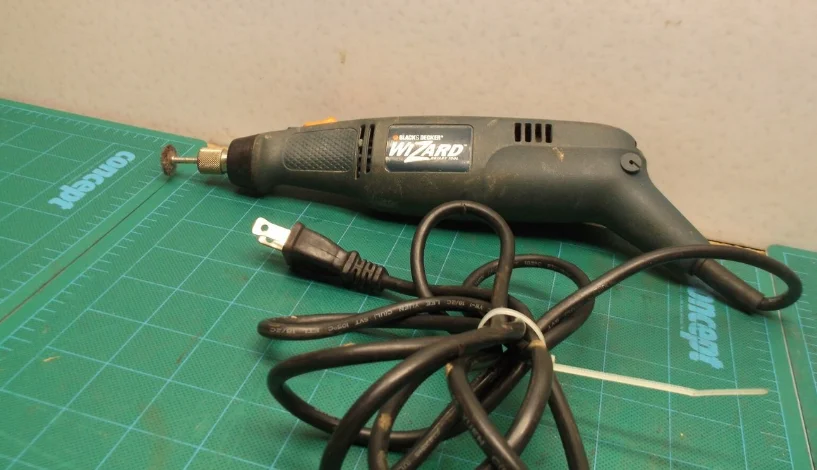

Black & Decker Wizard RT550 Rotary Tool
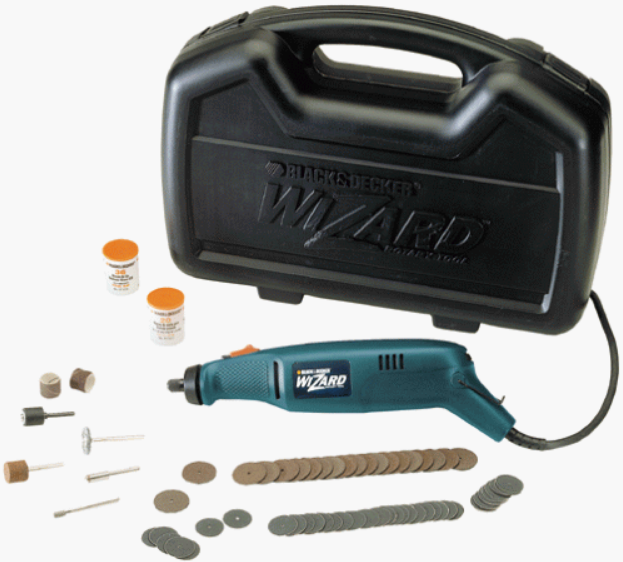
SAVE THESE INSTRUCTIONS
WORK AREA
- Keep your work area clean and well-lit. Cluttered benches and dark areas invite accidents.
- Do not operate power tools in explosive atmospheres, such as in the presence of flammable liquids, gases, or dust. Power tools create sparks, which may ignite the dust or fumes.
- Keep bystanders, children, and visitors away while operating a power tool. Distractions can cause you to lose control.
ELECTRICAL SAFETY
- Double-insulated tools are equipped with a polarized plug (one blade is wider than the other). This plug will fit in a polarized outlet only one way. If the plug does not fit fully in the outlet, reverse the plug. If it still does not fit, contact a qualified electrician to install a polarized outlet. Do not change the plug in any way. Double insulation eliminates the need for the three-wire grounded power cord and grounded power supply system.
- Avoid body contact with grounded surfaces such as pipes, radiators, ranges, and refrigerators. There is an increased risk of electric shock if your body is grounded.
- Don’t expose power tools to rain or wet conditions. Water entering a power tool will increase the risk of electric shock.
- Do not abuse the cord. Never use the cord to carry the tools or pull the plug from an outlet. Keep the cord away from heat, oil, sharp edges, or moving parts. Replace damaged cords immediately. Damaged cords increase the risk of electric shock.
- When operating a power tool outside, use an outdoor extension cord marked “W-A” or “W”. These cords are rated for outdoor use and reduce the risk of electric shock.
PERSONAL SAFETY
- Stay alert, watch what you are doing, and use common sense when operating a power tool. Do not use the tool while tired or under the influence of drugs, alcohol, or medication. A moment of inattention while operating power tools may result in serious personal injury.
- Dress properly. Do not wear loose clothing or jewelry. Contain long hair. Keep your hair, clothing, and gloves away from moving parts. Loose clothes, jewelry, or long hair can be caught in moving parts.
- Avoid accidental starting. Be sure the switch is off before plugging in. Carrying tools with your finger on the switch or plugging in tools that have the switch on invites accidents.
- Remove adjusting keys or wrenches before turning the tool on. A wrench or a key that is left attached to a rotating part of the tool may result in personal injury.
- Do not overreach. Keep proper footing and balance at all times. Proper footing and balance enable better control of the tool in unexpected situations.
- Use safety equipment. Always wear eye protection. Dust mask, non-skid safety shoes, hard hat, or hearing protection must be used for appropriate conditions.
TOOL USE AND CARE
- Use clamps or other practical ways to secure and support the workpiece to a stable platform. Holding the work by hand or against your body is unstable and may lead to loss of control.
- Do not force tool. Use the correct tool for your application. The correct tool will do the job better and safer at the rate for which it is designed.
- Do not use the tool if the switch does not turn it on or off. Any tool that cannot be controlled with the switch is dangerous and must be repaired.
- Disconnect the plug from the power source before making any adjustments, changing accessories, or storing the tool. Such preventive safety measures reduce the risk of starting the tool accidentally.
- Store idle tools out of reach of children and other untrained persons. Tools are dangerous in the hands of untrained users.
- Maintain tools with care. Keep cutting tools sharp and clean. Properly maintained tools with sharp cutting edges are less likely to bind and are easier to control.
- Check for misalignment or binding of moving parts, breakage of parts, and any other condition that may affect the tool’s operation. If damaged, have the tool serviced before using. Many accidents are caused by poorly maintained tools.
- Use only accessories that are recommended by the manufacturer for your model. Accessories that may be suitable for one tool may become hazardous when used on another tool.
SPINDLE LOCK BUTTON AND ON/OFF SWITCH COMBINATION (RT550 AND RT555)
NOTE: RT560 does not utilize the spindle lock. See CHANGING ACCESSORIES RT560. TURN OFF AND UNPLUG THE TOOL FROM THE POWER SUPPLY. Fig. 1 shows the ON/OFF switch and the spindle lock button. To lock the spindle for changing accessories, press and hold the lock button as you rotate the spindle by hand until the lock engages. Install or remove the accessories as directed in this manual. Release the spindle lock button, and you’re finished. To turn the tool ON, slide the switch button forward. The tool will immediately run at the speed that is selected.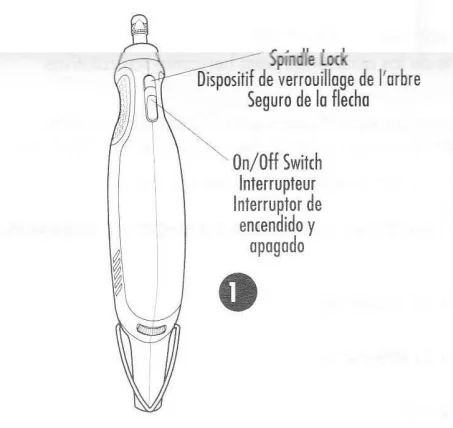
SPEED SELECTION
To operate the tool, select the speed setting you wish with the speed wheel, shown in Fig. 2, and slide the ON/OFF switch forward. CAUTION: The variable speed feature (8,000–24,000 RPM) of this tool causes it to start at 8,000 RPM instead of zero. Be sure the switch is fully OFF before plugging in.
Your tool has a variable speed switch (Fig. 2). The numbered positions, 1 through 6, inscribed on the switch speed wheel do not indicate any precise speed but are good reference points. The higher the number, the higher the tool speed. Be sure to select the proper speed for your rotary tool operation. The following chart provides a speed guide for various operations. If in doubt about the proper speed for your operation, test the performance at low speed settings and gradually increase until a comfortable speed is found.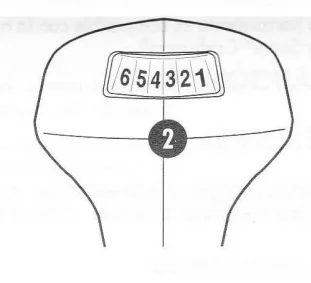
- Cutting Metal….. 5–6
- Deburring….. 4–5
- Sanding Wood…. 5–6
- Stripping Metal…. 4–5
- Sharpening…. 3–4
- Engraving Metal…. 4–5
- Polishing…. 1–2
- Drilling Holes….. 4–5
- Removing Rust….. 3–4
CHANGING ACCESSORIES (RT550 AND RT555)
Accessories are held in place by a collet and collet nut, as shown in Figure 3.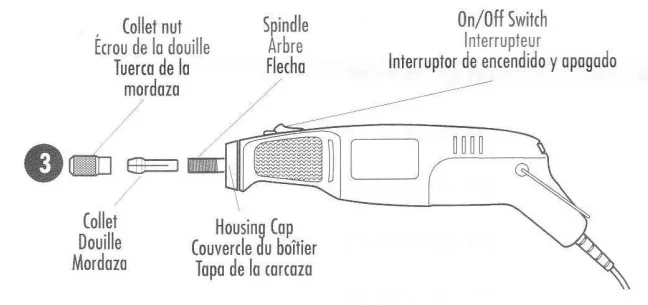
To insert an accessory:
- Turn off the tool and disconnect from the power supply.
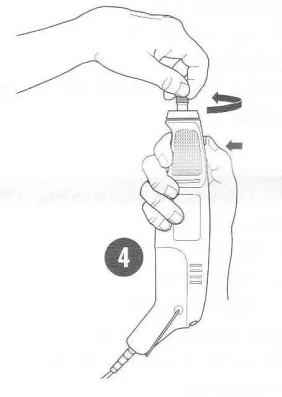
- Depress the spindle lock button (see Fig. 4) and grasp the collet nut. Gently twist the collet nut until the spindle is locked in place by the spindle lock.

- While holding the spindle lock button depressed, turn the collet nut counter-clockwise until it is loose.
- Insert the new accessory into the collet as far as it will go.
- Depress the spindle lock button and turn the collet nut clockwise to lock the spindle in place. Tighten the collet nut securely.
NOTE: The collet was designed to be hand-tightened and loosened only. Do not use tools that will mar the finish and could break the collet. Always ensure there is some accessory in the collet before tightening. Tightening an empty collet can crack it.
CHANGING ACCESSORIES (RT560 ONLY)
Accessories are held in place by the Quick Clamp system, which does not use a spindle lock.
To insert an accessory:
- Turn off the tool and disconnect from the power supply.
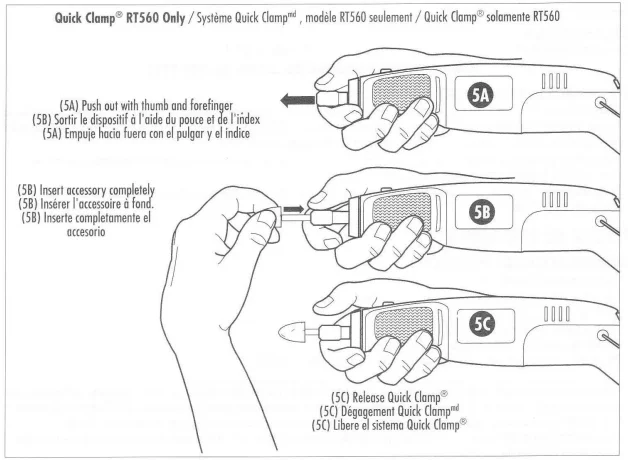
- Hold the tool as shown in Fig. 5A, and with your thumb and forefinger, push out on the Quick Clamp.
- Insert the accessory as far as it will go, as shown in Fig. 5B.
- With the accessory fully seated, release the Quick Clamp as shown in Fig. 5C.

Note: An adapter is provided for 3/32″ shank accessories. To use these accessories in the Quick Clamp, slide the adapter over the shank of the accessory and insert as described above.
CHANGING THE COLLET (RT550 AND RT555)
Some accessories require different-sized collets. The two collets used with Black & Decker Wizard accessories are 1/8″ (used for most accessories) and 3/32″ (used mainly with rubber polishing bits). Ensure your collet size matches your accessory.
To change the collet:
- Turn off the tool and disconnect from the power supply.
- Depress the spindle lock button (see Fig. 4) and grasp the collet nut. Gently twist the collet nut until the spindle is locked in place.
- While holding the spindle lock button depressed, turn the collet nut counter-clockwise and remove it from the threaded spindle.
- Insert the new collet into the spindle.
- Depress the spindle lock button and turn the collet nut clockwise to lock the spindle in place. Tighten the collet nut securely.
USING THE ROTARY TOOL
WARNING: Always wear eye protection and a dust mask. When operating the tool, be sure to hold it securely. For detailed work, grip the contoured area at the front of the tool, near the spindle. Before beginning a project, practice using the tool on some scrap material until you get the “feel” of the tool. The rotary tool is small and easy to use, but don’t be fooled; it’s a real power tool and should be handled carefully and properly as described in this manual. Don’t overload the tool. Performance is enhanced by letting the tool do the work.
FLEXIBLE SHAFT RT5100 FLEXIBLE ROTARY TOOL EXTENDER
(INCLUDED WITH CATALOG NUMBERS RT555 AND RT560 ONLY)
FLEXIBLE SHAFT INSTALLATION INSTRUCTIONS (RT555)
- Turn off the tool and disconnect from the power supply.
- Remove the collet nut and collet from the tool by first depressing the spindle lock button and grasping the collet nut (Fig. 4). Gently twist the collet nut until the spindle is locked in place by the spindle lock.
- While holding the spindle lock button depressed, turn the collet nut counter-clockwise until it is loose. Remove the collet nut and the collet inside the motor shaft.
- Remove the black housing cap by turning counterclockwise (Fig. 3).
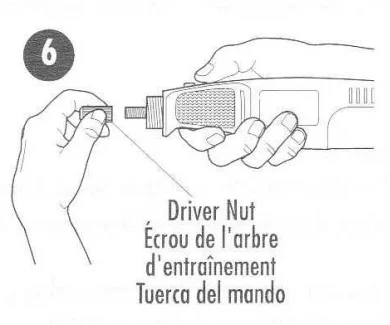
- Locate the driver nut and thread it onto the motor shaft (Fig. 6).

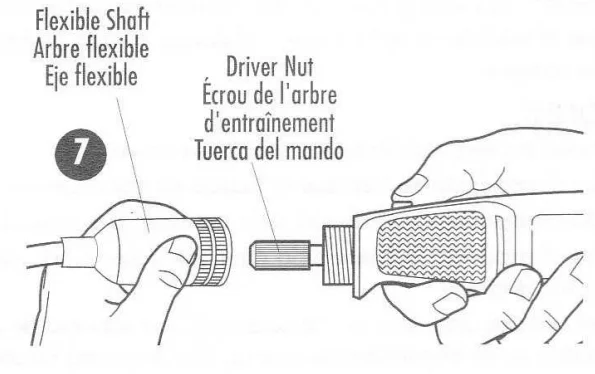
- Screw the flexible shaft onto the Wizard Rotary Tool as shown in Fig. 7, ensuring that the rotating center core engages the square hole socket in the driver nut (Fig. 7). NOTE: Use caution when screwing the metal housing of the shaft onto the threaded portion of the rotary tool. Avoid cross-threading.

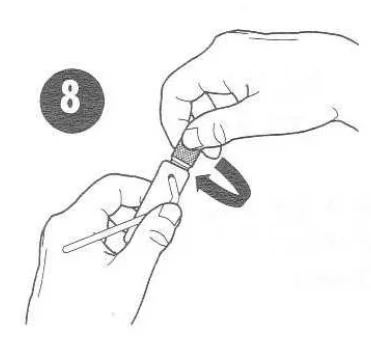
- The flexible shaft is now ready for use with the collet nut and collet provided. To insert an accessory, turn off and disconnect from the power supply first, then place the provided lock pin into the opening in the flexible shaft hand piece to lock the shaft (Fig. 8). With the shaft locked, turn the collet nut counter-clockwise to loosen. Insert the accessory completely into the collet to avoid wobbling. Tighten the collet nut securely.

CAUTION: Avoid using the flexible shaft with a sharp bend as shown in Fig. 9. A radius of 6″ or larger is recommended.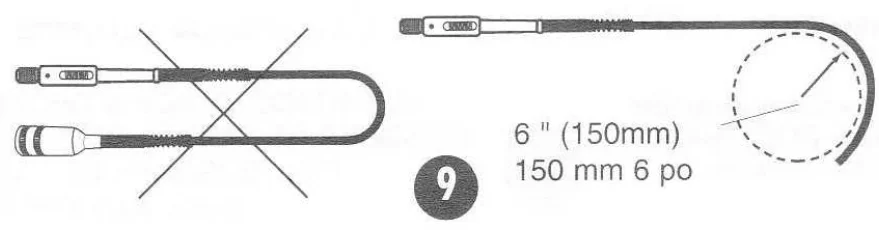
FLEXIBLE SHAFT INSTALLATION INSTRUCTIONS (RT560)
- Turn off the tool and disconnect from the power supply.
- Remove the black housing cap by turning counterclockwise (Fig. 3).
- Thread the end of the shaft onto the Wizard tool, ensuring that the cable is located properly in the Quick Clamp. Use caution when screwing the metal housing of the shaft onto the threaded portion of the rotary tool. Avoid cross-threading. Note: The RT560 does not require the use of the driver nut pictured in Fig. 7.
- The flexible shaft is now ready for use with the collet nut and collet provided. To insert an accessory, turn off and disconnect from the power supply first, then place the provided lock pin into the opening in the flexible shaft hand piece to lock the shaft (Fig. 8). With the shaft locked, turn the collet nut counter-clockwise to loosen. Insert the accessory completely into the collet to avoid wobbling. Tighten the collet nut securely.
CAUTION: Avoid using the flexible shaft with a sharp bend as shown in Fig. 9. A radius of 6″ or larger is recommended.
DREMEL ADAPTER
An adapter (Fig. 10) is included, allowing the use of the Wizard Rotary Tool on Dremel® brand attachments such as the Drill Press Stand. To install the adapter, remove the housing cap (Fig. 3) and thread on the adapter.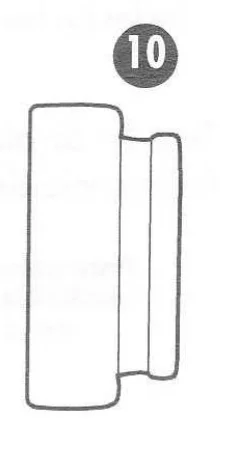
MAINTENANCE
Use only mild soap and a damp cloth to clean the tool. Never let any liquid get inside the tool; never immerse any part of the tool in a liquid. IMPORTANT: To assure product safety and reliability, repairs, maintenance, and adjustment (other than those listed in this manual) should be performed by authorized service centers or other qualified service organizations, always using identical replacement parts.
ACCESSORIES
Black & Decker offers a large selection of Wizard accessories available at your local dealer or authorized service center at extra cost. If you need assistance regarding accessories, please call: 1-800-54-HOW TO. NOTE: Your tool is compatible with most Dremel® and Sears® Craftsman® rotary tool accessories.
CAUTION: Use only those accessories rated at 30,000 RPM or greater. Exception: Do not operate wire brushes at speeds greater than 15,000 RPM.
WARNING: The use of any accessory not recommended for use with this tool could be hazardous.
SERVICE INFORMATION
Black & Decker offers a full network of company-owned and authorized service locations throughout North America. All Black & Decker Service Centers are staffed with trained personnel to provide customers with efficient and reliable power tool service. Whether you need technical advice, repair, or genuine factory replacement parts, contact the Black & Decker location nearest you. To find your local service location, refer to the yellow page directory under “Tools-Electric” or call: 1-800-54-HOW TO.
FULL FIVE-YEAR HOME USE WARRANTY
Black & Decker (U.S.) Inc. warrants this product for five years against any defects in material or workmanship. The defective product will be replaced or repaired at no charge in either of two ways. The first, which will result in exchanges only, is to return the product to the retailer from whom it was purchased (provided that the store is a participating retailer). Returns should be made within the time period of the retailer’s policy for exchanges (usually 30 to 90 days after the sale). Proof of purchase may be required. Please check with the retailer for their specific return policy regarding returns that are beyond the time set for exchanges.
The second option is to take or send the product (prepaid) to a Black & Decker-owned or authorized Service Center for repair or replacement at our option. Proof of purchase may be required. Black & Decker-owned and authorized Service Centers are listed under “Tools-Electric” in the yellow pages of the phone directory. This warranty does not apply to accessories. This warranty gives you specific legal rights, and you may have other rights which vary from state to state. Should you have any questions, contact the manager of your nearest Black & Decker Service Center. This product is not intended for commercial use.
- Dremel is a registered trademark of the S-B Power Tool Company.
- Sears and Craftsman are registered trademarks of the Sears Roebuck Company.
For More Manuals By Black and Decker, Visit ManualsLibraryy.
Black & Decker Wizard RT550 Rotary Tool-FAQs
What is the Black & Decker Wizard RT550 used for?
The RT550 rotary tool is designed for light- to medium-duty tasks such as cutting, grinding, sanding, polishing, engraving, and cleaning on wood, metal, plastic, and similar materials.
How do you change the bit on a Black & Decker Wizard rotary tool?
Press the shaft lock button, loosen the collet nut using the wrench, remove the old bit, insert the new accessory fully, and tighten the collet nut securely.
How do I remove a bit from the rotary tool?
Hold down the shaft lock, turn the collet nut counterclockwise, and gently pull the bit out once it loosens.
What should I do if the bit or collet is stuck?
Press the shaft lock and loosen the collet nut carefully. If stuck, remove the collet from the nut and gently push it out using another accessory or tool.
How do I install a new collet on the RT550?
Remove the collet nut, take out the existing collet, insert the correct-sized collet, and reattach the nut before tightening.
Does the Black & Decker Wizard RT550 have variable speed?
Yes, the RT550 features multiple speed settings, allowing better control depending on the task and material.
Which speed should I use for different tasks?
Lower speeds work best for polishing and delicate materials, while higher speeds are ideal for cutting, grinding, and sanding harder surfaces.
Why won’t the tool release the bit?
This usually happens if the collet nut is overtightened or debris is present. Press the shaft lock and loosen slowly to avoid damage.
Can I use Dremel accessories with the RT550?
Many standard rotary tool accessories are compatible, as long as they match the correct collet size.
How do I safely use the rotary tool?
Always wear safety glasses, keep a firm grip, use the correct accessory, and avoid applying excessive pressure while working.