
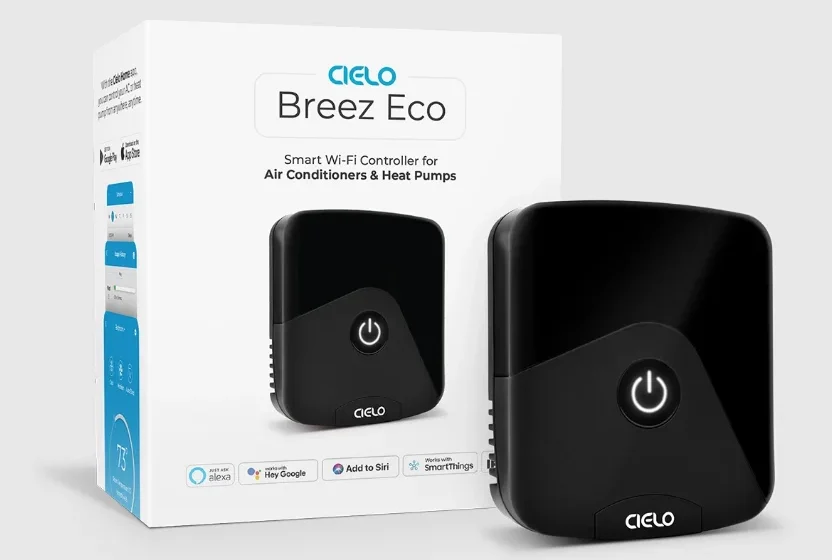

Cielo Breez Eco Smart Wi-Fi Thermostat
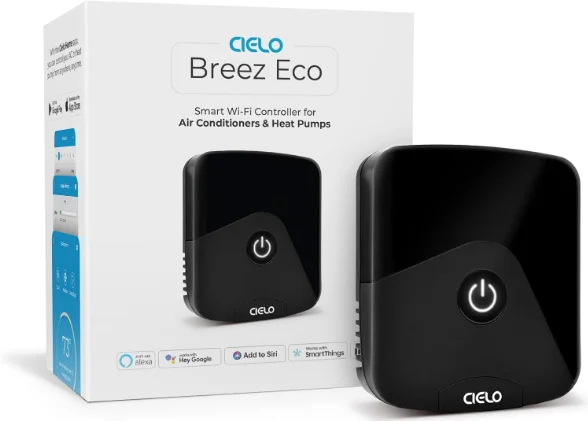
Getting Started
For best results, connect the Cielo Breez Eco smart controller with the provided USB cable and adapter. Then, mount your Breez Eco on a wall, or place it on a table in your AC’s line of sight and plug it into a power source.
For optimal placement and control:
- Make sure Breez Eco is in the line of sight of your air conditioner or heat pump.
- To avoid deviated sensor readings, do not place Breez Eco where it may be exposed to excessive sunlight or other heat sources.
Special Note: It is strongly advised that whenever there is a need to use the remote control for the AC/heat pump, point it towards Breez Eco while performing any action. This way, your AC/heat pump and Cielo Home app will always be in sync.
Getting Help
Visit our website: www.cielowigle.com and select support to access user guides. No long queues, no bots, no delays. We answer 98% calls in less than 2 minutes and guarantee that you will talk to a REAL person.
- Email us at: s[email protected]
- Call us at: +1 (425) 529-5775
- 9:00AM – 9:00PM EST, Mon-Fri
Before App Installation
- Make sure your smartphone’s Bluetooth is turned ON.
- Make sure your smartphone’s Wi-Fi is turned ON.
- Make sure your smartphone has internet access.
- Make sure you have a working internet connection on your Wi-Fi router.
- Make sure there is no proxy server or authentication server configured on your internet connection.
- Make sure there is no captive portal on your Wi-Fi router.
Important: Make sure IP isolation or client isolation is turned OFF on your Wi-Fi router.
App Installation & Registration
iOS/Android
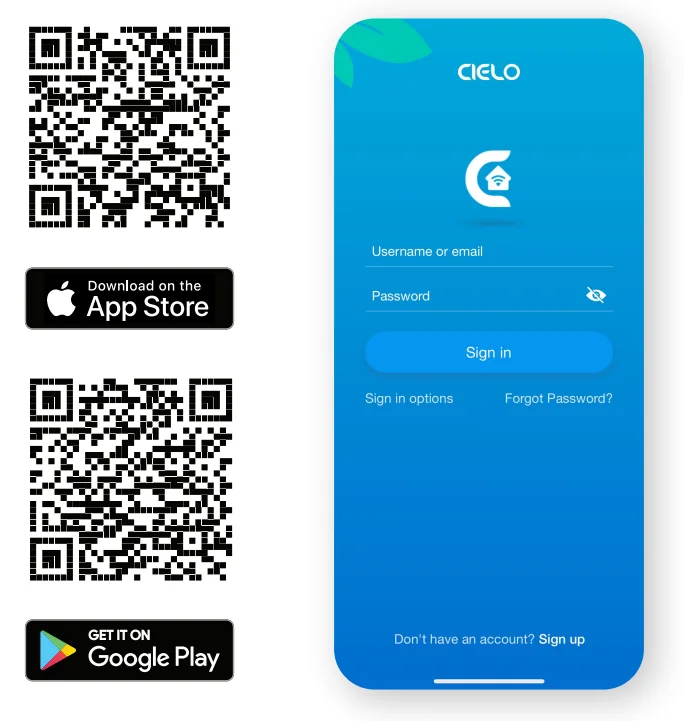
Install the ‘Cielo Home’ app from the App Store/Play Store. Search for the Cielo Home app or scan the QR code provided below. Log in to the app if you already have an account; otherwise, create one using the sign-up option.
Device Registration
iOS/Android
The device registration process connects Breez Eco to your home Wi-Fi network through the Cielo Home app.
Notes for iOS users:
- For iOS 13.0 & above, location permission is required to complete the registration process. You may disable it later.
- Local Network Access permission is a requirement for iOS 14.0 onwards to successfully register the device.
Note for Android users:
- For Android OS 8.1 & above, location permission is required to complete the registration process. You may disable it later.
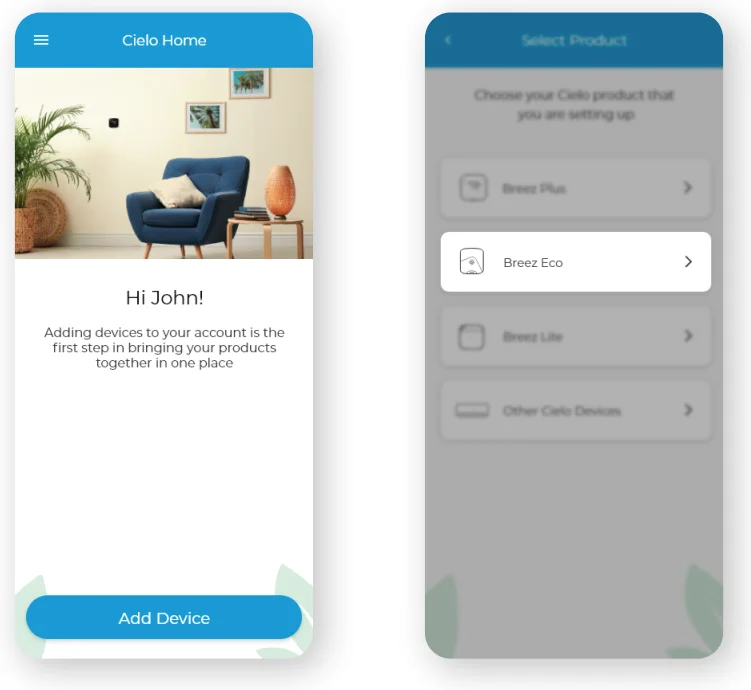
Open the Cielo Home app, tap ‘Add Device’ on the home screen, and select Breez Eco from the list of devices.
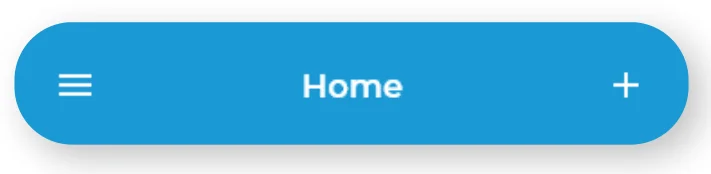
If you are already using a Cielo device, tap ‘+’ on the home screen to add this one.
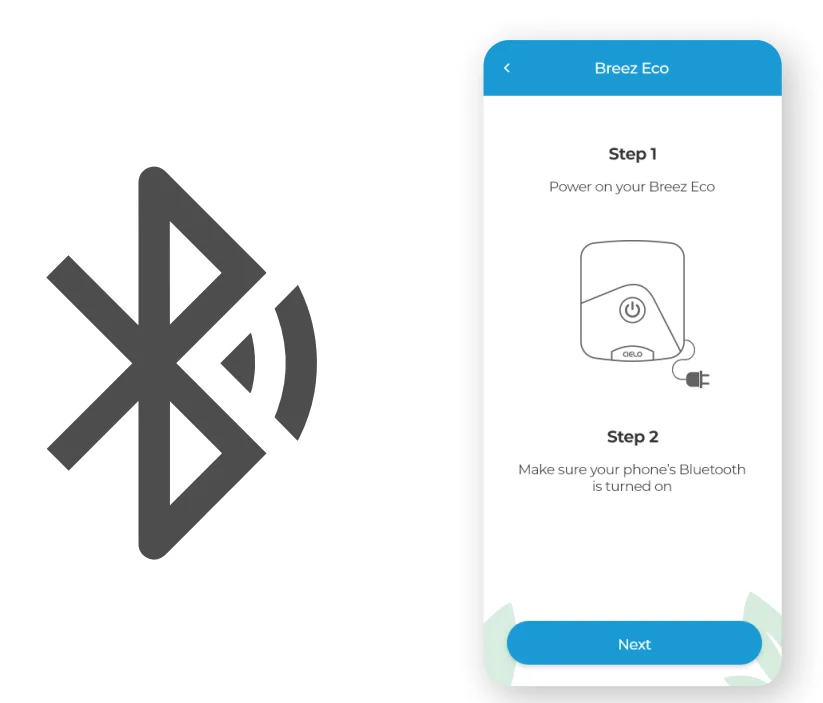
Follow the steps to successfully pair your Breez Eco with your phone.
- Step 1: Make sure your Breez Eco is powered on.
- Step 2: Make sure your phone’s Bluetooth is turned on. Tap ‘Next’.

- Step 3: Check if the status light on the device is blinking. If yes, tap ‘Next’. If not, touch and hold the power button for 6 seconds.
 The status light should start blinking – Tap ‘Next’.
![Cielo Breez Eco Smart Wi-Fi Thermostat 8]](data:image/svg+xml;base64,PHN2ZyB4bWxucz0iaHR0cDovL3d3dy53My5vcmcvMjAwMC9zdmciIHdpZHRoPSIzMzciIGhlaWdodD0iNjc4IiB2aWV3Qm94PSIwIDAgMzM3IDY3OCI+PHJlY3Qgd2lkdGg9IjEwMCUiIGhlaWdodD0iMTAwJSIgc3R5bGU9ImZpbGw6I2NmZDRkYjtmaWxsLW9wYWNpdHk6IDAuMTsiLz48L3N2Zz4= "Cielo Breez Eco Smart Wi-Fi Thermostat User Manual") Wait for Breez Eco to show on the screen. Then, tap ‘Connect’.
Wait for Breez Eco to show on the screen. Then, tap ‘Connect’. - Step 4: Your device is now successfully paired with Bluetooth. Name your device and connect it to a Wi-Fi network.

- Step 5: After Wi-Fi configuration, your device will appear on the home screen. Tap the device to start the remote configuration process.

- Step 6: Get hold of your AC remote and tap ‘Next’.

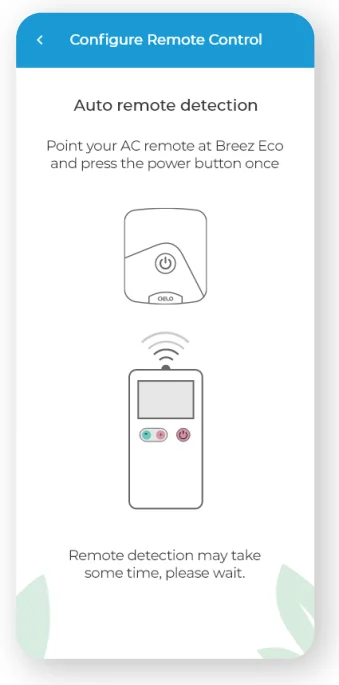
- Step 7: Point your AC remote at Breez Eco and press the remote’s ‘Power button’ once. It will start the configuration process.

Quick Tip: The LED indicator on Breez Eco should blink once after receiving the remote control’s signal. If it does not blink, please check the batteries of the remote control. - Step 8: The configuration screen will display your detected remote control. Tap ‘Send a test On/Off Command’. Your AC will switch on/off.

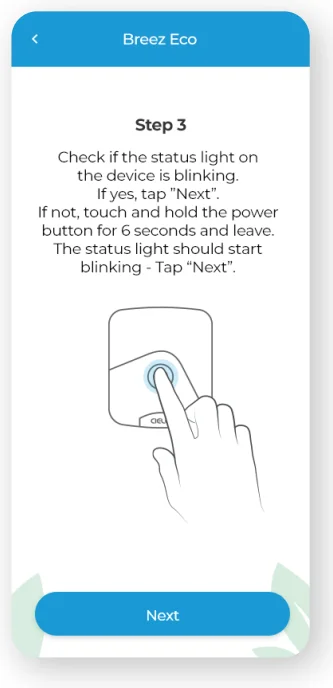 The status light should start blinking – Tap ‘Next’.
![Cielo Breez Eco Smart Wi-Fi Thermostat 8]](https://manualslibraryy.com/wp-content/uploads/2025/11/Cielo-Breez-Eco-Smart-Wi-Fi-Thermostat-8.webp "Cielo Breez Eco Smart Wi-Fi Thermostat User Manual") Wait for Breez Eco to show on the screen. Then, tap ‘Connect’.
Wait for Breez Eco to show on the screen. Then, tap ‘Connect’.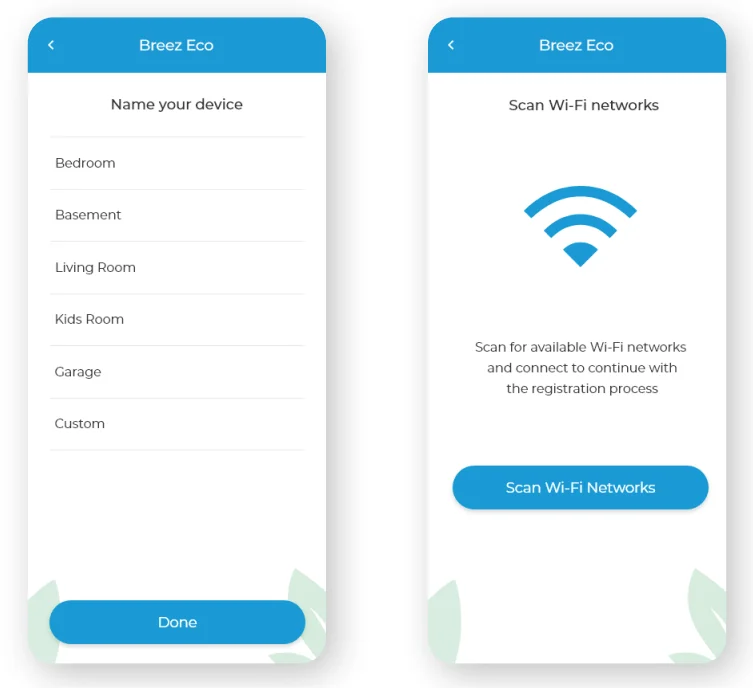
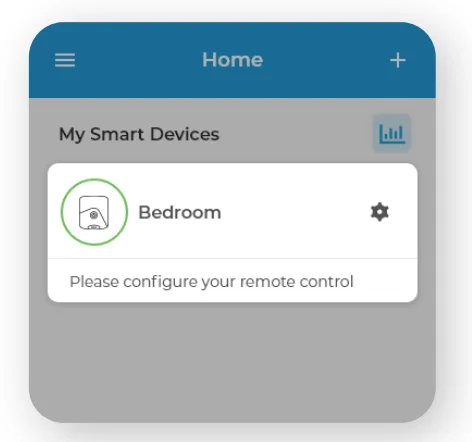
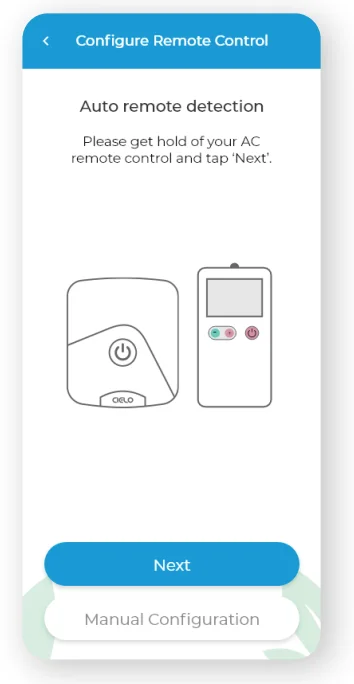
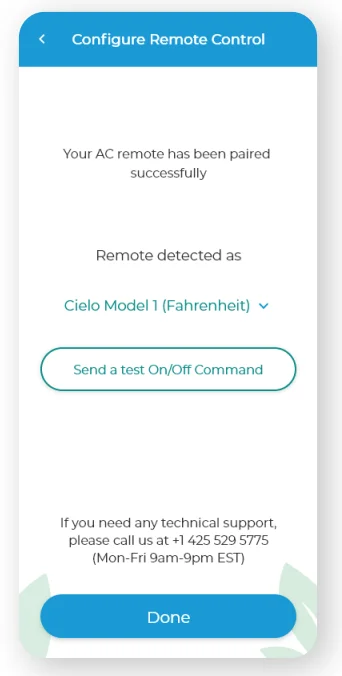
Your remote is now successfully paired with Breez Eco. The registration process is complete.
Enjoy your smart air conditioning!
Your Home Screen
Your home screen shows the real-time status of all your Cielo devices. A registered Cielo device can show either of the 2 statuses outlined in circles:
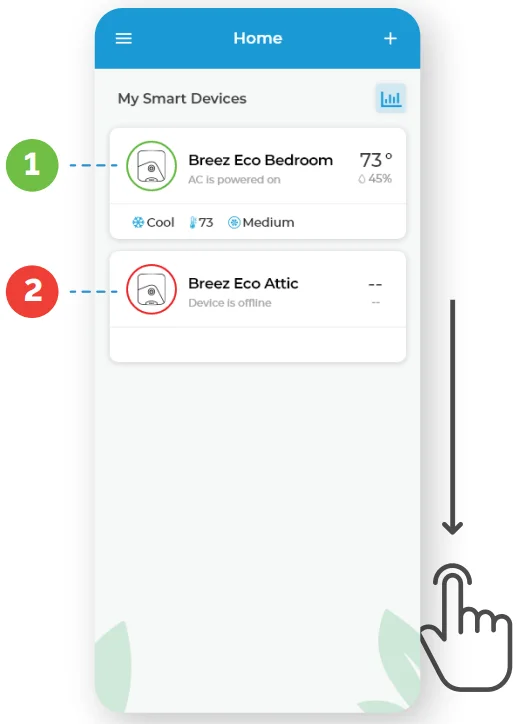
- Green – Device is online. You’re good to go!
- Red – Device is offline.
- Ensure your phone/device is connected to a working internet connection.
- Refresh the home screen by swiping downwards (pull-to-refresh).
Troubleshooting
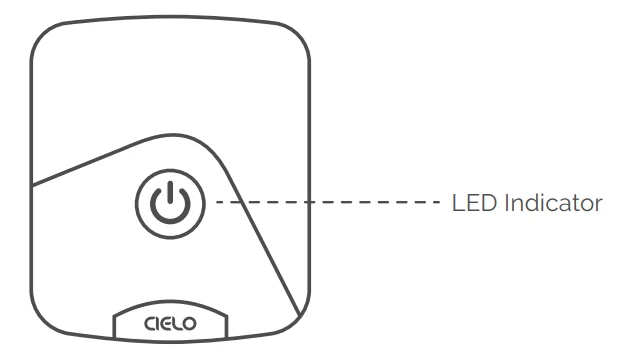
Breez Eco has an LED indicator on its front for status indication.
- Case 1: If your device is powered up and connected to a working internet connection, the light stays off, meaning the device is working perfectly.
- Case 2: If there is a single blink every 2 seconds, it indicates the device is in broadcast (AP) mode. If you have not registered the device yet, please follow the ‘Device Registration’ steps.
- Case 3: If the light blinks twice every 2 seconds, it indicates the device is connected to the router but has no internet access.
Configuring the Right Remote Control for Your AC
Breez Eco auto-detects the relevant remote control for your AC during the registration process. If it is not working with your AC, please select your remote model manually or contact Cielo Support for help at +1 (425) 529-5775 or visit our website: www.cielowigle.com and select support to access user guides.
For manual selection, follow these steps:
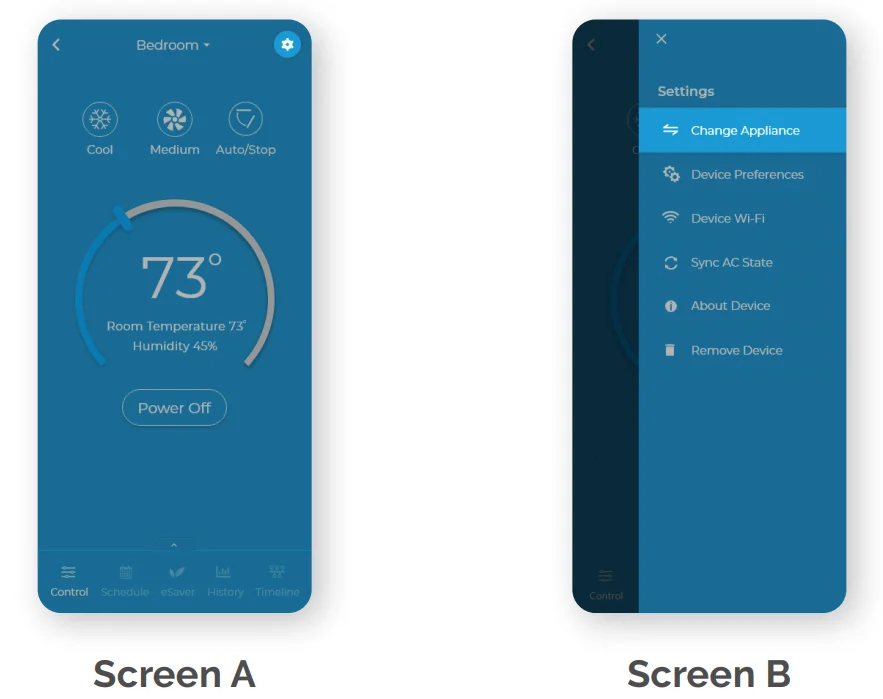
- Screen A: Go to settings by tapping the ‘Settings’ icon on the control screen
- Screen B: Select ‘Change Appliance’
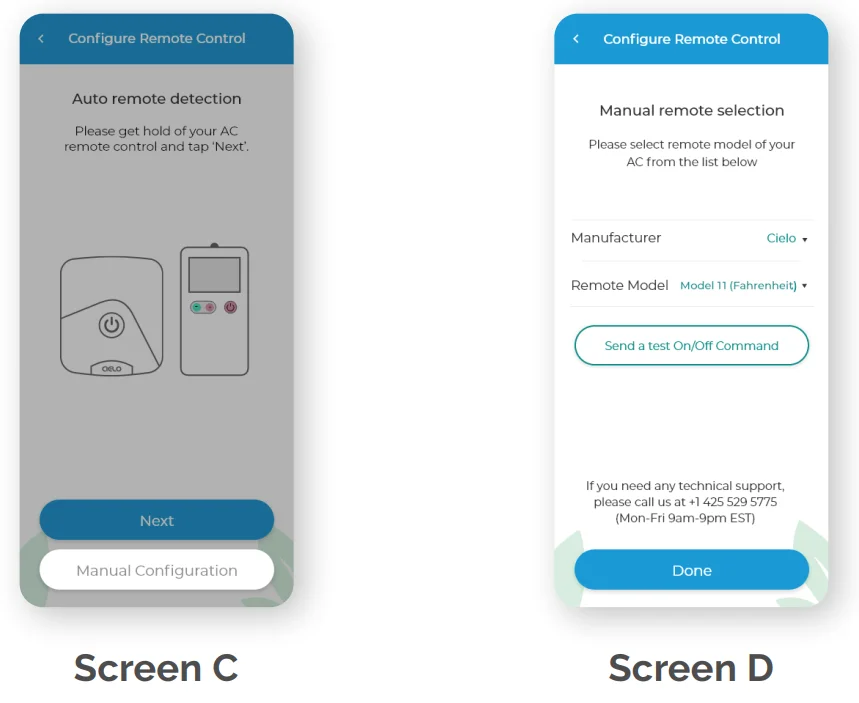
- Screen C: Select ‘Manual Configuration’
- Screen D: Select the ‘Manufacturer’ & ‘Remote Model’ from the drop-down lists and tap ‘Done’
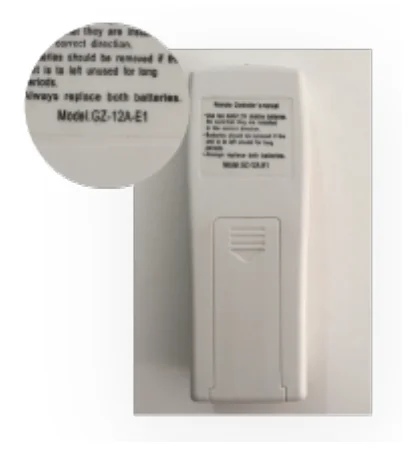
Quick Tip: The remote control model number is usually found on the back side of the remote control, as shown in the image.
Enjoy Unlimited Functionalities
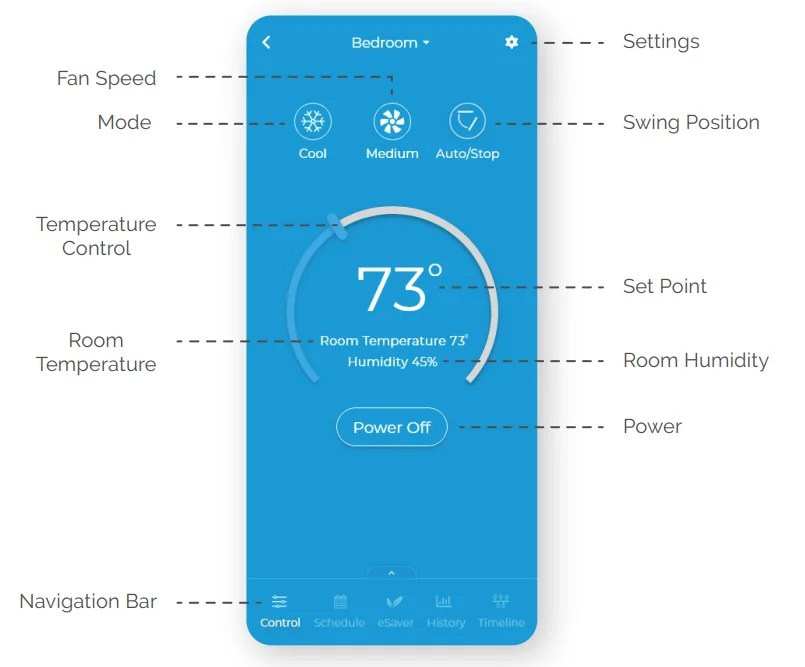
Tap the settings icon for more options
LIMITED WARRANTY & END USER LICENSE AGREEMENT
WHAT IS COVERED?
Cielo WiGle, Inc. (“Cielo”), warrants to the owner of the Cielo product contained in this box (the “Product”) that the Product will be free from defects in materials and workmanship for a period of one year from the date of delivery following the original retail purchase (the “Warranty Period”). If the Product fails to conform to this Limited Warranty during the Warranty Period, Cielo will, at its sole discretion, either (a) repair or replace the defective Product or component; or (b) accept the return of the Product and refund the money actually paid by the original purchaser for the Product. Repair or replacement may be made with a new or refurbished product or components, at Cielo’s sole discretion. If the Product or a component incorporated within it is no longer available, Cielo may, at Cielo’s sole discretion, replace the Product with a similar product having similar functions. This is your sole and exclusive remedy for breach of this Limited Warranty. Any Product that has either been repaired or replaced under this Limited Warranty will be covered by the terms of this Limited Warranty for the longer of (a) ninety (90) days from the date of delivery of the repaired Product or replacement Product, or (b) the remaining Warranty Period. This Limited Warranty is transferable from the original purchaser to subsequent owners, but the Warranty Period will not be extended in duration or expanded in coverage for any such transfer.
RETURN POLICY
If you are the original purchaser of the Product and you are not satisfied with this Product, you may return it in its original condition within thirty (30) days of the original purchase and receive a full refund.
WARRANTY CONDITIONS
Before claiming this Limited Warranty, the owner of the Product must (a) visit cielowigle.com/support during the Warranty Period to provide notice of your warranty claim and describe the alleged failure, and (b) comply with Cielo’s (or its authorised distributor’s) return shipping instructions. Cielo will have no warranty obligations with respect to a returned Product if it determines, in its reasonable discretion after examination of the returned Product, that the Product is an Ineligible Product (defined below).
WHAT THIS LIMITED WARRANTY DOES NOT COVER
This Limited Warranty does not cover the following (collectively “Ineligible Products”): (i) Products marked as “sample” or “Not for Sale”, or sold “AS IS”; (ii) Products that have been subject to: (a) modifications, alterations, tampering, or improper maintenance or repairs, except if performed by Cielo; (b) handling, storage, installation, testing, or use not in accordance with any User’s Guide, Placement Guidelines, or other instructions provided by Cielo; (c) abuse or misuse of the Product; (d) breakdowns, fluctuations, or interruptions in electric power or the telecommunications network; or (e) Acts of God, including but not limited to lightning, flood, tornado, earthquake, or hurricane; or (iii) any non- Cielo branded hardware products, even if packaged or sold with Cielo hardware. This Limited Warranty does not cover consumable parts, including batteries, unless damage is due to defects in materials or workmanship of the Product, or software (even if packaged or sold with the product). Cielo recommends that you use only authorised service providers for maintenance or repair. Unauthorised use of the Product or software can impair the Product’s performance and may invalidate this Limited Warranty.
DISCLAIMER OF WARRANTIES AND CONDITIONS
EXCEPT AS STATED ABOVE IN THIS LIMITED WARRANTY, AND TO THE MAXIMUM EXTENT PERMITTED BY APPLICABLE LAW, CIELO DISCLAIMS ALL EXPRESS, IMPLIED, AND STATUTORY WARRANTIES AND CONDITIONS WITH RESPECT TO THE PRODUCT, INCLUDING THE IMPLIED WARRANTIES OF MERCHANTABILITY AND FITNESS FOR A PARTICULAR PURPOSE. TO THE MAXIMUM EXTENT PERMITTED BY APPLICABLE LAW, CIELO ALSO LIMITS THE DURATION OF ANY APPLICABLE IMPLIED WARRANTIES OR CONDITIONS TO THE DURATION OF THIS LIMITED WARRANTY.
LIMITATION OF DAMAGES
IN NO EVENT WILL CIELO BE LIABLE FOR ANY CONSEQUENTIAL, INCIDENTAL, EXEMPLARY, OR SPECIAL DAMAGES, INCLUDING ANY DAMAGES FOR LOST DATA OR LOST PROFITS, ARISING FROM OR RELATING TO THIS LIMITED WARRANTY OR THE PRODUCT. CIELO’S TOTAL CUMULATIVE LIABILITY ARISING FROM OR RELATED TO THIS LIMITED WARRANTY OR THE PRODUCT WILL NOT EXCEED THE AMOUNT ACTUALLY PAID FOR THE PRODUCT BY THE ORIGINAL PURCHASER…
For more manuals by Cielo Breez, visit ManualsLibraryy
Cielo Breez Eco Smart Wi-Fi Thermostat-FAQs
What is the Cielo Breez Eco Smart Wi-Fi Thermostat?
The Cielo Breez Eco is a smart controller designed to make your air conditioner or heat pump Wi-Fi enabled. It allows remote control through a mobile app, helping you adjust temperature, modes, and schedules easily. It works with most mini-split, window, and portable AC units using infrared signals.
How do I connect the Cielo Breez Eco to Wi-Fi?
To connect the device, download the Cielo Home app and select “Add Device.” Power on the Breez Eco, then follow the on-screen steps. You’ll need to switch to the device’s temporary Wi-Fi network and enter your home Wi-Fi credentials to complete the setup.
Can I control my AC remotely with this device?
Yes, the Breez Eco allows full remote control through your smartphone. Once connected, you can adjust temperature, switch modes, and create schedules from anywhere. This feature is especially useful for managing energy usage and ensuring comfort before you arrive home.
Does the Cielo Breez Eco work without Wi-Fi?
The device can still function as a basic remote controller without Wi-Fi, but smart features like app control, scheduling, and automation will not be available. For full functionality, a stable Wi-Fi connection is required.
How do I reset the Cielo Breez Eco thermostat?
To reset the device, press and hold the power button for about 6 seconds until the indicator changes. This will restore default settings and help fix connectivity or performance issues. After resetting, you’ll need to reconnect it to the app.
What is the ideal temperature setting for energy savings?
For efficient cooling and energy savings, it’s recommended to keep your thermostat around 24–26°C. This range balances comfort and efficiency, reducing electricity consumption while maintaining a pleasant indoor environment.
Why is my Cielo Breez Eco not connecting to Wi-Fi?
Common issues include weak Wi-Fi signals, incorrect passwords, or router compatibility problems. Ensure your phone and device are on the same network during setup. Restarting the router or resetting the device often resolves connection issues.
Can I use scheduling and automation features?
Yes, the Breez Eco supports scheduling, timers, and smart automation. You can set temperature changes based on time or routines, helping reduce energy usage and maintain consistent comfort without manual adjustments.
Is the Cielo Breez Eco compatible with all air conditioners?
It works with most air conditioners that use an infrared remote, including mini-split, window, and portable units. However, compatibility depends on your AC model, so it’s best to check if your remote is supported during setup.
Where should I place the Cielo Breez Eco for best performance?
Place the device where it has a clear line of sight to your AC unit for proper signal transmission. Avoid obstructions and direct sunlight. Proper placement ensures accurate temperature readings and reliable communication with your air conditioner.