

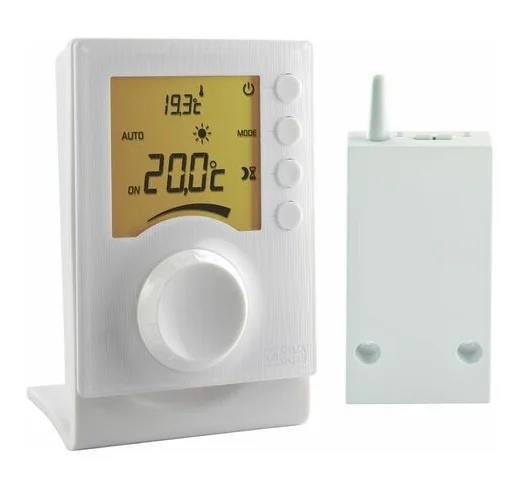
Delta Dore Tybox 137+ Wireless Programmable Thermostat
INSTALLATION
Installing the transmitter
Location
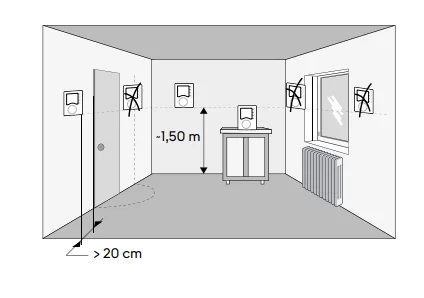
The thermostat can be wall-mounted or placed on a piece of furniture in a room where the temperature is to be regulated from, at a recommended height of 1.5m and away from any heat sources (fireplace, direct sunlight, etc.) or draughts (window, door, etc.).
IMPORTANT: Do not install the thermostat on a wall in contact with the outside or with an unheated room (e.g. garage, etc.).
Mounting
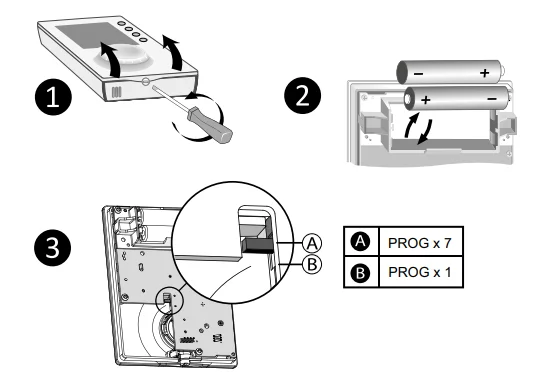
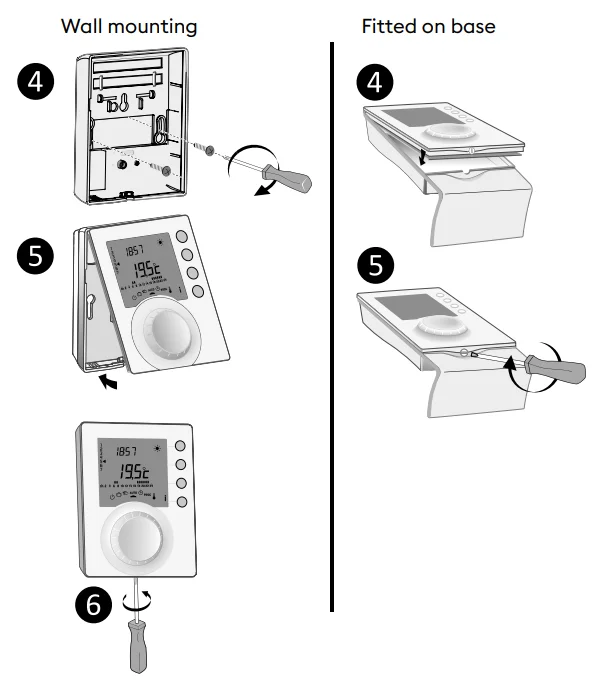
- Separate the box from its base.
- Insert the batteries
WARNING: Make sure you insert the batteries facing the right way and that they are the right type (no lithium batteries). - Toggle the switch to choose the programme type: weekly (A) or daily (B).
- Secure the transmitter with suitable screws to the wall-mount or use the supplied stand to place it on a flat (non-metallic) surface.
- ❻ Close and lock the box.
Installing the receiver
Location
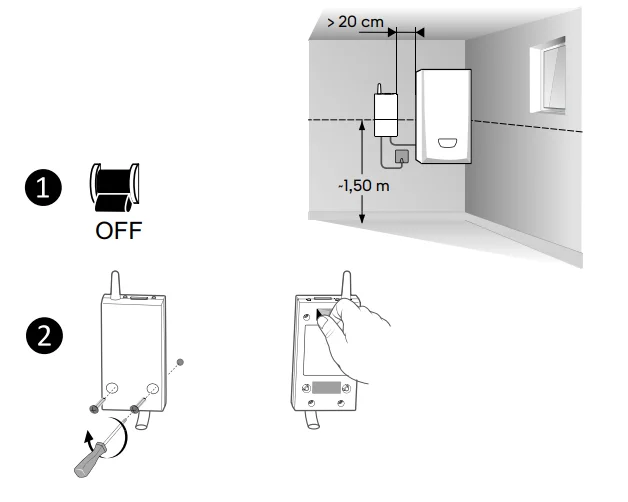
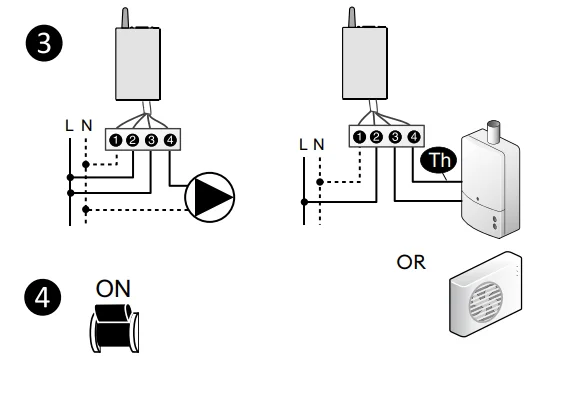
The receiver must be installed a minimum of 20 cm away from any metal surface (e.g. the boiler), and about 1.50 m from the ground to ensure an optimum radio link with the transmitter.
Mounting/Connection
- First of all, switch off the power to your installation.
- The receiver can be fixed using suitable screws or by (supplied) adhesives.
- Comply with the cable colours when wiring.
- Blue: Neutral
- Brown: Live
- Black and grey: Controls for the thermostat input or the generator circulator (boiler or heat pump).
- Once the receiver is connected, turn on the power to your installation.
REMINDER: The Tybox consists of an X3D radio transmitter and receiver that come pre-associated.
Time and date setting

- ❶ Turn the dial to
 .
. - ❷-> ❻ Set the day, month, year with + or -.
- ❼ Confirm with OK.
- ❽-> ❿ Set the hour then the minutes with + or -.
- ⓫ Confirm with OK.
- ⓬ To exit the mode, turn the dial.
 .
.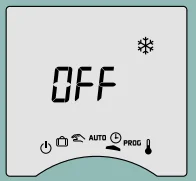
If the screen displays “OFF”, your product is connected to the Tydom app (menu 1-10 = 1). The date and time details are no longer shown on the thermostat screen.
WARNING: The heating is set to Frost Protection when in this position.
Configuring your device (Menu 1)
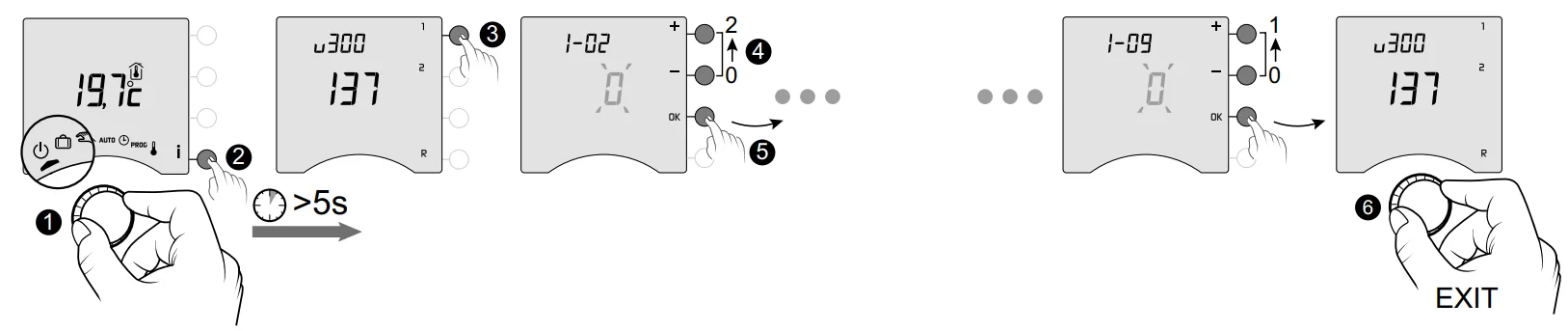
- ❶ Turn the dial to
 , then press the i button for 5 seconds (❷).
 - ❸ Press the 1 button.
To change the various settings, press the + or – buttons (❹), then press OK to confirm the change and go to the next setting (❺). - ❻ To exit the mode, turn the dial.
 , then press the i button for 5 seconds (❷).
Menu 1-02 Programme duration
You can set programming by the hour, half hour, or quarter of an hour.
Default setting: 1 hour.
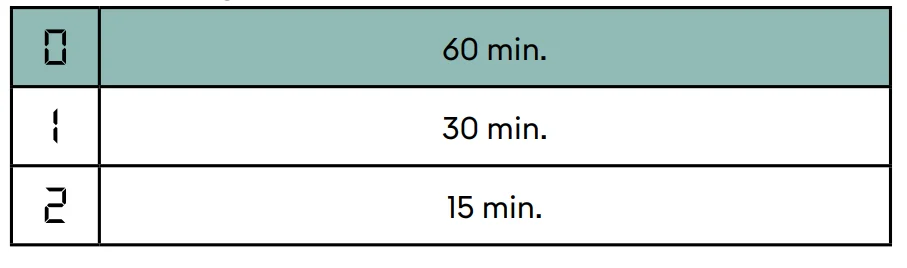
Menu 1-02 does not appear if your Tybox is linked with the Tydom app (menu 1-10 = 1).
Menu 1-03 Pre-heat activation/deactivation
Pre-heat means you can enjoy the Comfort temperature you want at the scheduled hour (see § “Pre-heat function”).
Default setting: Pre-heat off
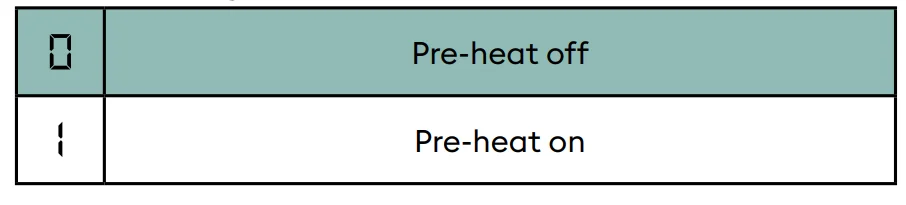
Menu 1-03 does not appear.
- If your Tybox is linked with the Tydom app (menu 1-10 = 1).
- If the Comfort temperature is controlled by each radiator (menu 1-08 = 1).
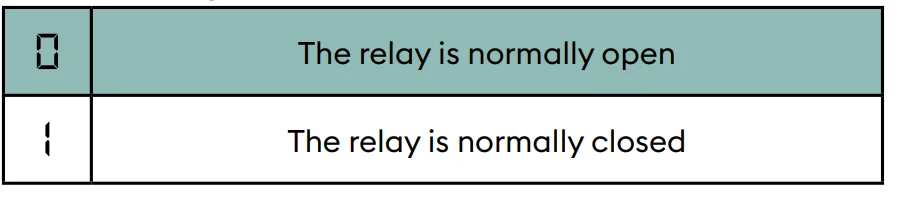
Menu 1-04 Selecting the way the receiver relay opens
Tybox allows you to choose which way the relay opens to suit all use cases.
Default setting: Relay normally open
Menu 1-08 Controlling the Comfort temperature
For hot water heaters with thermostatic valves, the Comfort temperature can be provided by adjusting the thermostat on each radiator. In AUTO mode, the device will show “Conf” during Comfort periods and will be set to constant heating. Only the Economy and Frost Protection temperatures are controlled by the Tybox.
Default setting: Comfort temperature is controlled by the Tybox.
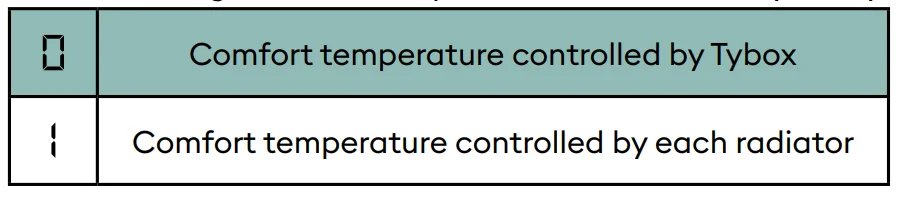
Menu 1-08 does not appear:
- If your Tybox is linked with the Tydom app (menu 1-10 = 1).
- If pre-heat is on (1-03 = 1). Choice 1 turns off pre-heat (1-03 = 0). In this case, menu 1-03 no longer comes up.
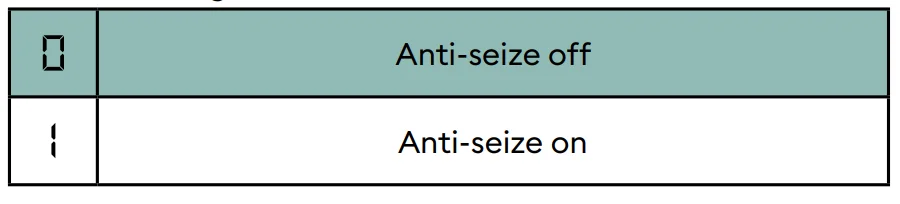
Menu 1-09 Anti-seize activation/deactivation
Anti-seize can be used outside heating periods to regularly start up the circulator/boiler/heatpump during off periods (5 minutes/week).
Default setting: Anti-seize off
Menu 1-10 Selecting the programming type when connected to Tydom
This menu is only available if your Tybox is linked with a Tydom smart home gateway.
Default setting: Programming via the Tydom app.
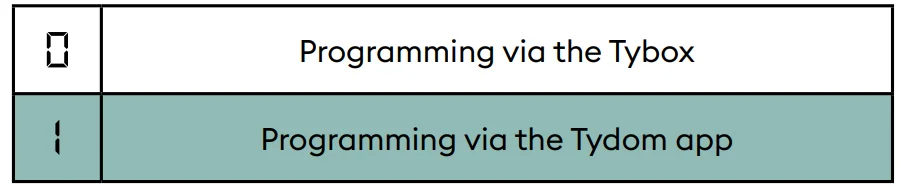
- If you select “Programming via the Tybox”, make sure there is no programme saved on the Tydom app.
- If you select “Programming via the Tydom app”, the Tybox MUST be in AUTO mode for it to operate based on the Tydom app timing.
Configuring your device (Menu 2)
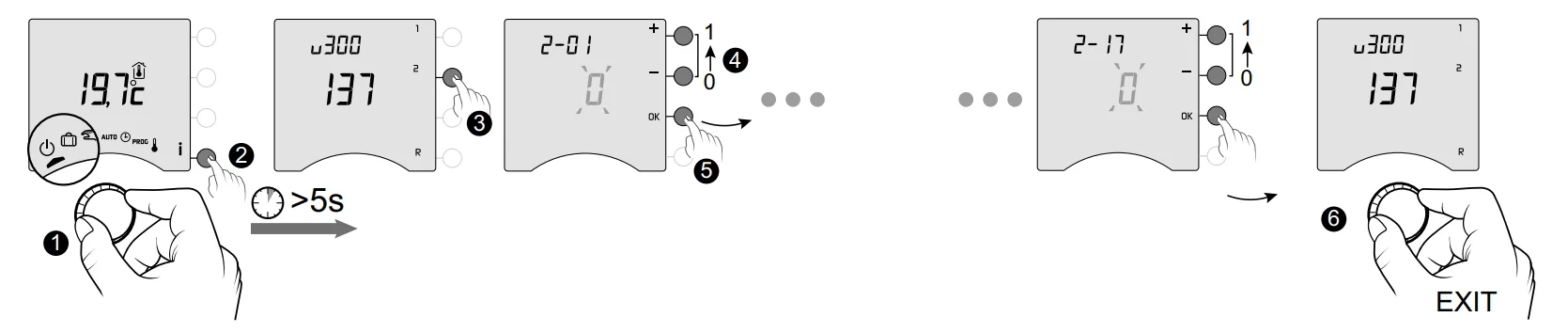
- ❶ Turn the dial to, then press the i button for 5 seconds (❷).
- ❸ Press the 2 button.
To change the various settings, press the + or – buttons (❹), then press OK to confirm the change and go to the next setting (❺). - ❻ To exit the mode, turn the dial.
Menu 2-01 Locking or unlocking the settings
This menu enables you to authorise or lock changes to the settings, such as programming or setpoint temperatures. Locking only applies to settings entered via the Tybox.
Default setting: Changes allowed

Adjustment in manual and Comfort mode is limited to between 5°C and 22°C. Economy setting limited to between 5°C and 19°C. Frost protection setting is limited to between 5 and 11°C.
Menu 2-02 Correcting the measured temperature
This menu is used to correct any difference you have noticed between the displayed and measured temperatures.
Example: If the device displays 19°C and the measured temperature is 20°C, change to +1°C, then confirm with OK.
Default setting: 0°C

In order to change this setting, the unit must have been running for at least 2 hours beforehand.
Menu 2-04 Temperature displayed in AUTO mode (setpoint or room)
Default setting: setpoint temperature displayed.
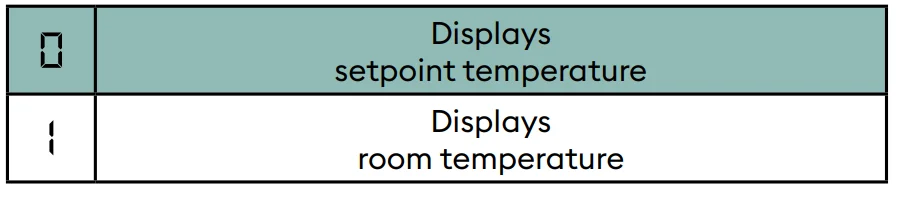
In normal use, press the i button to check one or other of the temperatures.
Menu 2-05 12h/24h time format
Default setting: 24h
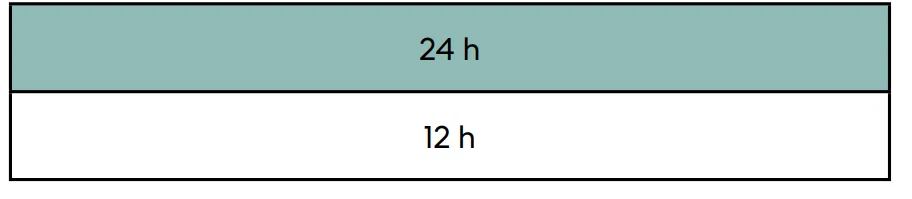
Menu 2-05 does not appear if your Tybox is linked with the Tydom app (menu 1-10 = 1).
Menu 2-06 Automatic summer/winter changeover
Default setting: Automatic changeover
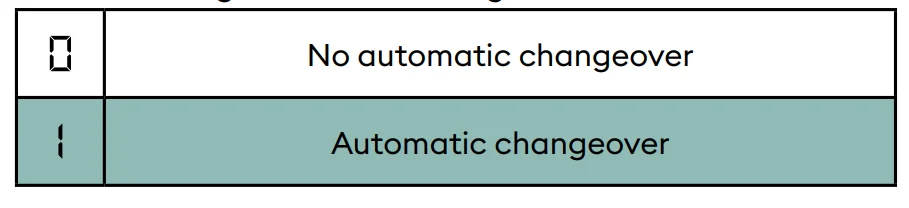
Menu 2-06 does not appear if your Tybox is linked with the Tydom app (menu 1-10 = 1).
Menu 2-07 Days until boiler/heat pump service reminder
Must be reset after every service.
Default setting: “—” (function off).

If you don’t want to use this function, leave the setting on “—”.
Menu 2-08 Control time base
The control quality depends on parameters like the building’s insulation, the number of radiators or the flooring type. The “Tips” column in the following table will help you select the setting that is appropriate for your setup.
Default setting: 15 minutes.
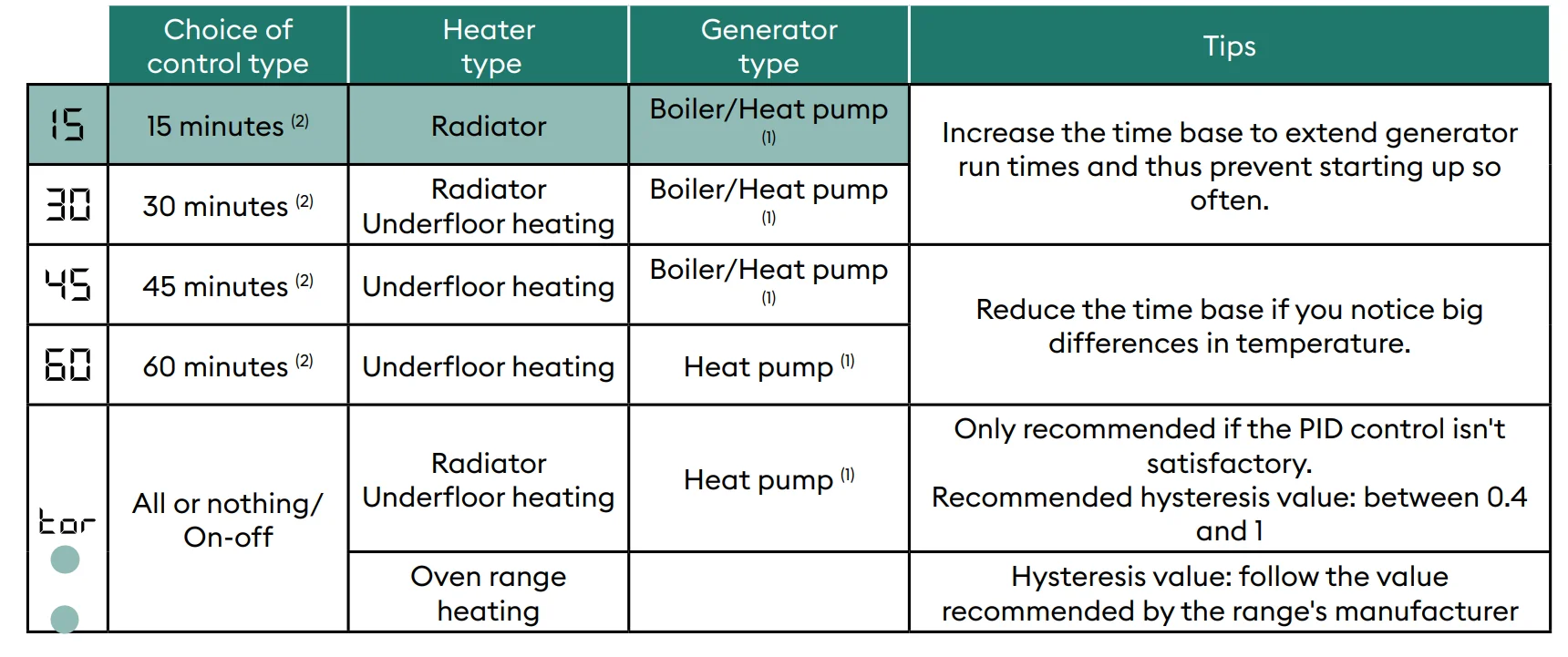
- The control is fitted with anti-short-cycle protection to suppress start or stop requests when they are too short. The anti-short cycle duration is 10% of the time base selected (e.g., if the time base is set to 30 minutes, the anti-short cycle will be 3 minutes, i.e. the thermostat will not accept any start or stop requests that are under 3 minutes).
- PID control time base:
Menu 2-11 Hysteresis setting (if 2-08 = tor)
Default setting: 0.4°C.

Example:
- Setpoint 20°C. Hysteresis 0.4°C.
- Heating request if T° measured <19.8°C.
- Heating shuts down if T° measured> 20.2°C.
Menu 2-17 Resetting the boiler/heat pump operating hours meter
Default setting: Off
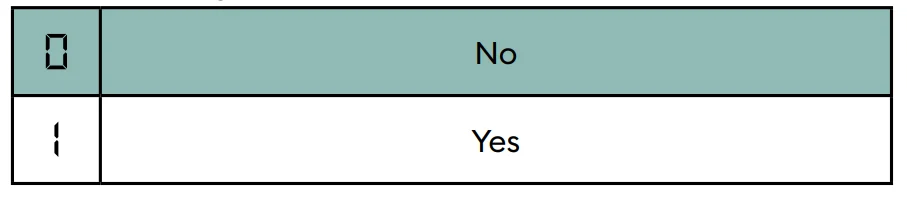
Once the reset is applied, the 2-17 menu automatically switches back to 0.
Associating to the Tydom app
Open the Tydom app on your smartphone or tablet, then select: Settings -> My devices -> Add device -> Heating -> Hydraulic -> Tybox 137+ (RF6000 +). After associating with the Tydom app, the Tybox automatically activates programming via Tydom (menu 1-10 = 1), and removes access to menus 1-02, 1-03, 1-08, 2-05 and 2-06. You can activate pre-heat on the Tydom app if you want to use it (see § Pre-heat function).
IMPORTANT: For the Tydom time programming to work, the Tybox must be set to the “AUTO” position.
For more information, refer to the section § “Operation in connected mode”.
Association with a door/window magnetic contact
Linking with a door/window magnetic contact means the heating is switched to Frost Protection if a window is opened (for more than 10 seconds).
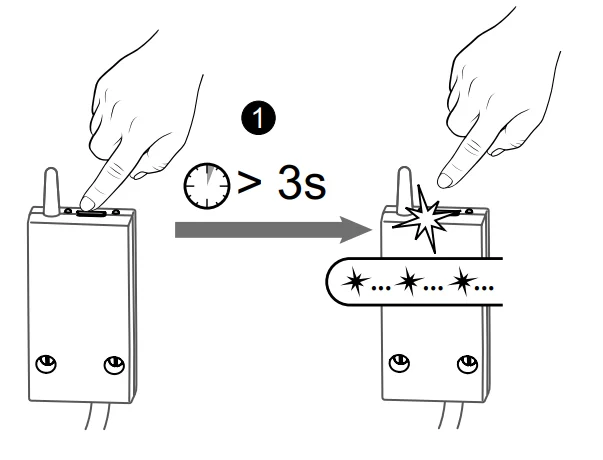
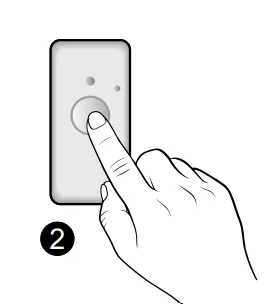
- Press the receiver button for 3 seconds until the red LED flashes.

- Briefly press the detector button.

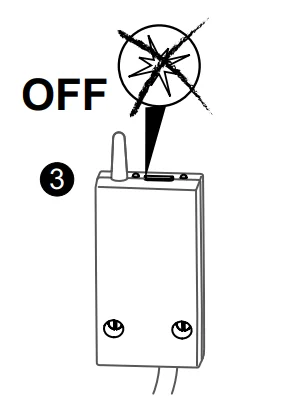
- Make sure that the receiver LED has stopped flashing.
Association with a phone transmitter
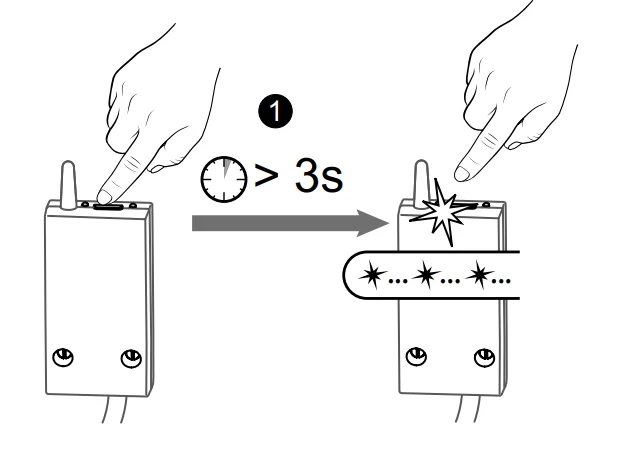
- Press the receiver button for 3 seconds until the red LED flashes.

- From the transmitter’s main menu, tap #400, then tap 1: the transmitter announces “Configuration in progress…” and indicates the number of connected receivers.

- Make sure that the receiver LED has stopped flashing.
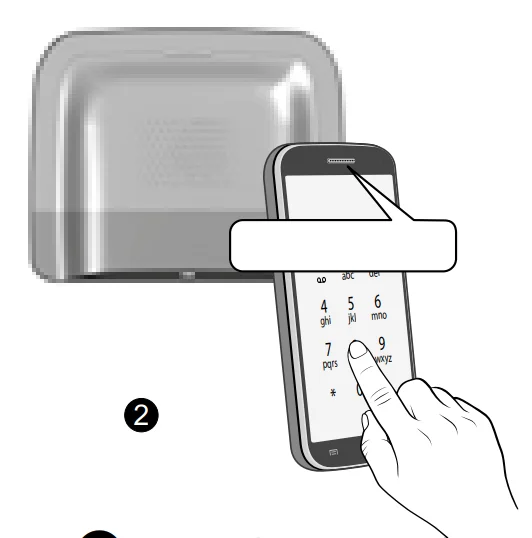
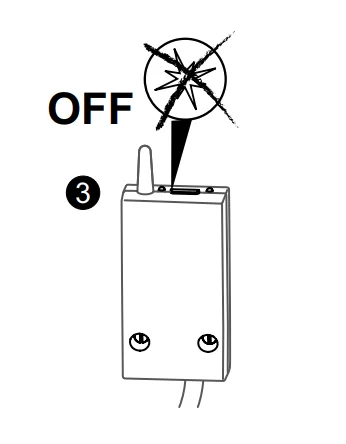
Refer to the transmitter manual for a description of controlling the heating using the phone.
Association with a repeater
If the radio signal is weak and the transmitter cannot be moved closer to the receiver, you can add an X3D repeater (booster) to your installation (example: ERX 2000).
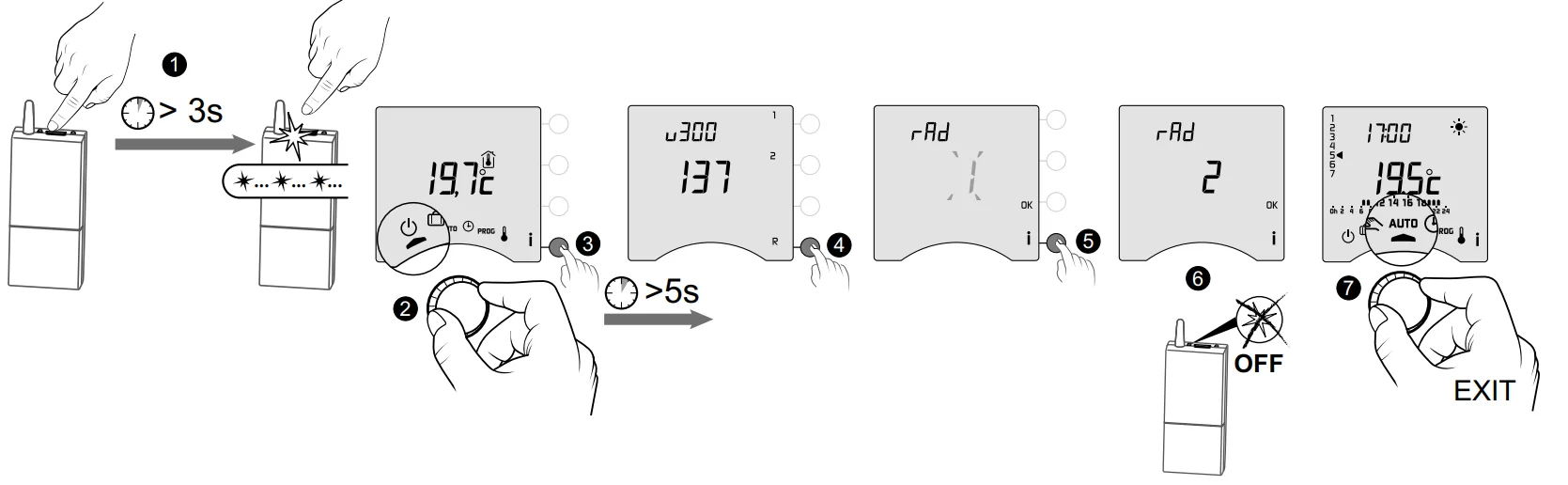
- ❶ Press the ERX 2000 receiver button for 3 seconds until the red LED flashes. Release.
- ❷ Turn the dial on the transmitter to, then press the i button for 5 seconds (❸).
- ❹ Briefly press R. The display shows rAd 1.
- ❺ Briefly press i.
- ❻ The “1” flashes then displays “2”. The booster LED stops flashing.
- ❼ To exit the mode, turn the dial.
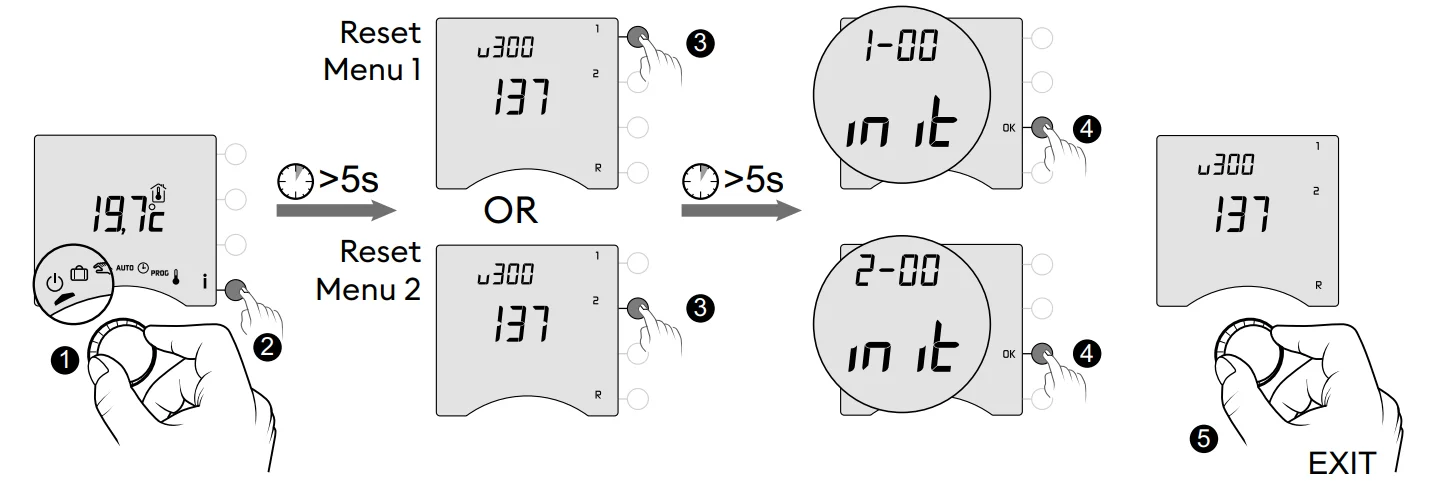
Factory reset
The default factory settings may be restored for each of the menus.
Installation Assistance
Unpairing/re-associating the receiver with the transmitter
If there’s a breakdown, you may need to unpair a product and/or re-associate a new one.
Unpairing the transmitter from the receiver
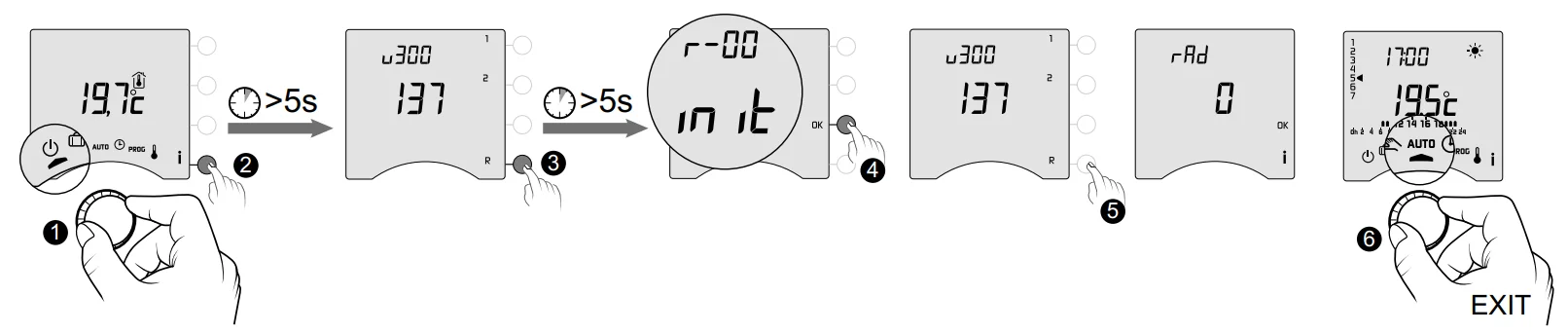
- ❶ Turn the dial on the transmitter to, then press the i button for 5 seconds (❷).
- ❸ Press the R button for 5 seconds.
- ❹ Then press the OK button to confirm the reset.
- ❺ Press R to verify that rAd = 0.
- ❻ To exit the mode, turn the dial.
Re-associating the receiver with the transmitter
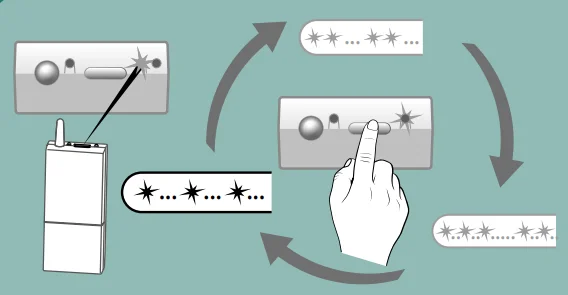
If the green light is flashing (in flashes), make sure it is flashing in a sequence of single flashes. If it is not in the single flash sequence, your receiver will not be able to associate with the transmitter. Choose the number of flashes by successive presses on the button: 1 flash -> Press -> 2 flashes -> Press -> 3 flashes -> Press -> 1 flash…
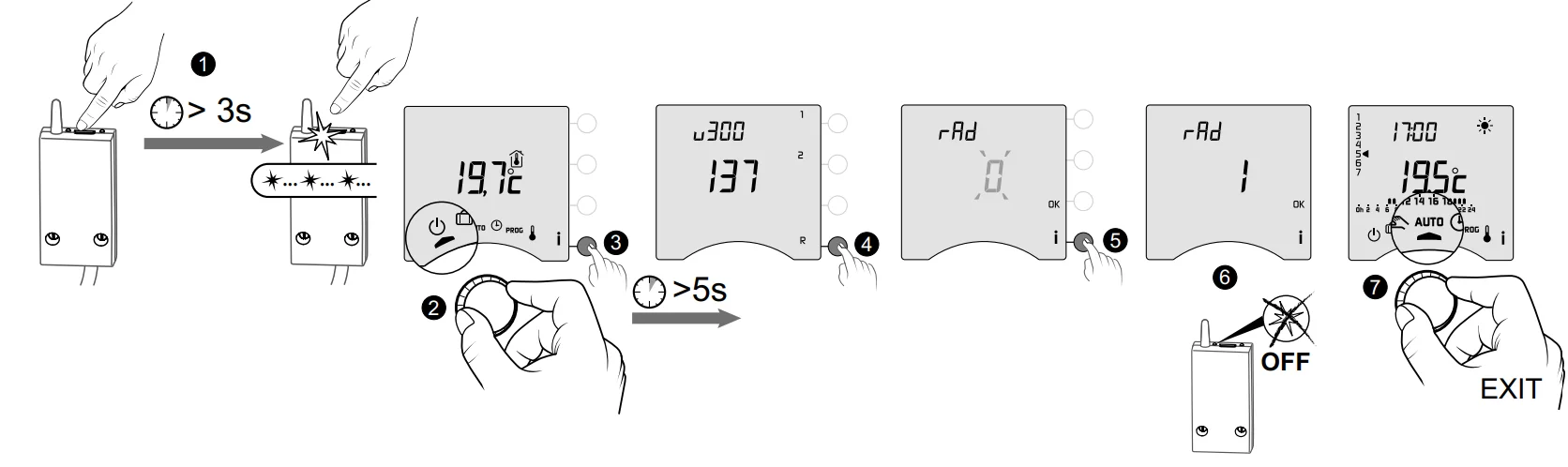
- ❶ Press the receiver button for 3 seconds until the red LED flashes. Release.
- ❷ Turn the dial on the transmitter to, then press the i button for 5 seconds (❸).
- ❹ Briefly press R. The display shows rAd 0.
- ❺ Briefly press i.
- ❻ The “0” flashes then displays “1”. The receiver LED stops flashing.
- ❼ To exit the mode, turn the dial.
Removing associations from the receiver
Hold down the button to remove the radio associations from the receiver.
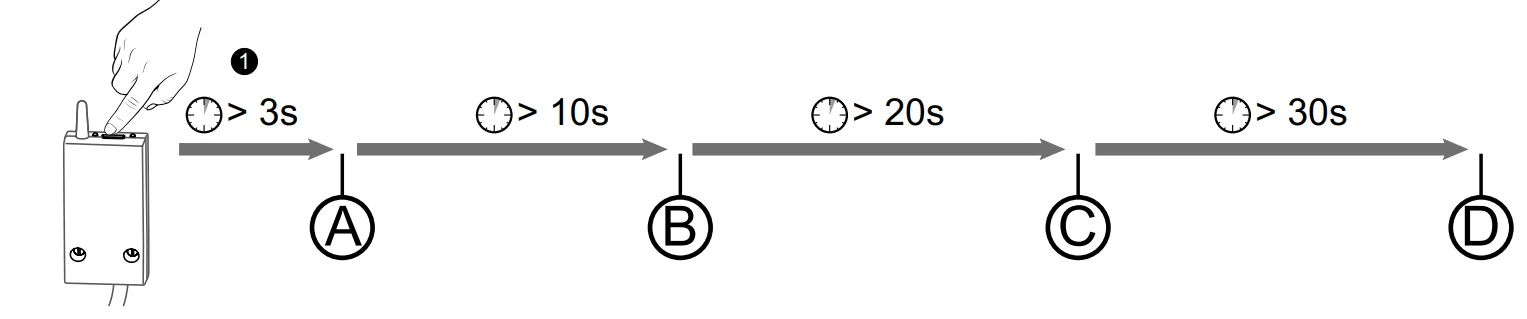
- A: The red LED flashes after 3 seconds.
The receiver is in pairing/association mode. - B: If you continue holding down the button, the red LED flashes quickly after 10 seconds.
The receiver is waiting to remove the association with an opening detector or a booster (check on the device you want to unpair). - C: If you continue holding down the button, the red LED turns off after 20 seconds.
All associations with the receiver are now removed. - D: If you continue holding down the button for 30 seconds, the LED flashes 3 times.
The receiver is fully reset (back to factory settings).
Radio quality test
This mode helps you check the radio quality between the transmitter and the receiver.
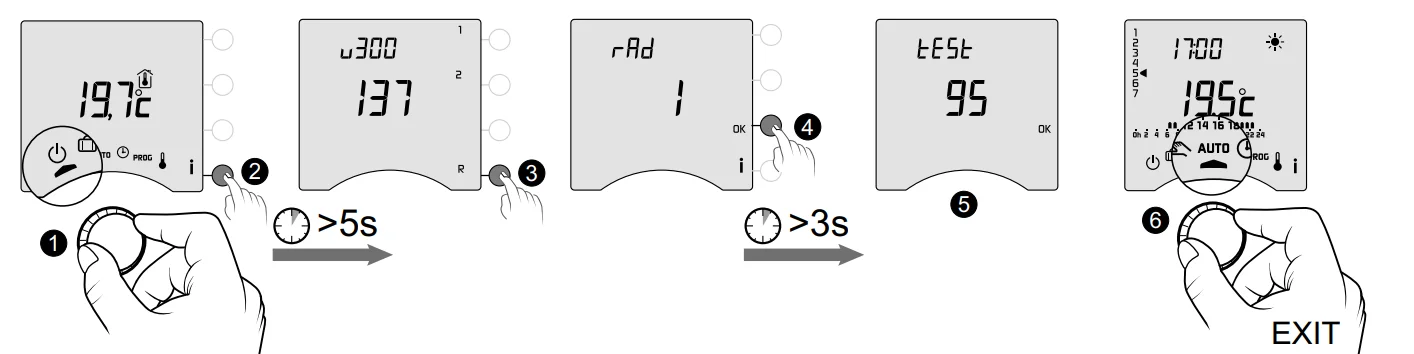
- ❶ Turn the dial on the transmitter to, then press the i button for 5 seconds (❷).
- ❸ Briefly press R button once. The display shows rAd.
- ❹ Press OK for 3 seconds until the display shows “tESt”.
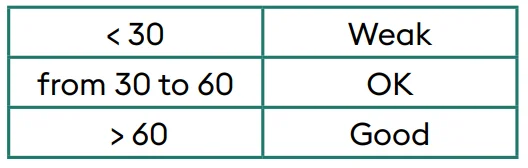
- ❺ The number shows the transmission quality percentage. If the number is too low, move the transmitter closer to the receiver or add a repeater (booster) to your installation.

- ❻ To exit the mode, turn the dial.
Technical characteristics
Transmitter
- Power supply using 2 batteries:
- 2×1.5V Alkaline – Type LR03-AAA
- Class III insulation
- X3D transmission frequency: 868.7 MHz to 869.2 MHz
- Maximum wireless power < 10 mW
- Category II receiver
- Wireless remote control device
- Wireless range of 300 metres outside, varies depending on the linked equipment (the range can vary depending on the setup conditions and the electromagnetic environment).
- Wall-mounted or table stand unit
- Dimensions: 80 x 103 x 25 mm
- Protection rating: IP 30
- Installation in an environment with normal pollution levels
- Storage temperature: -10°C /+70°C
- Operating temperature from -10°C/+40°C
RF 6000+ receiver
- Power supply 230 V ~, 50 Hz
- Consumption: 0.5 VA
- Class II insulation
- Contact output 5 A max., 230V ~
- Cable length: 1 m
- Type 1. C automated action
- Dimensions: 54 x 102 x 20 mm
- X3D transmission frequency: 868.7 MHz to 869.2 MHz
- Maximum wireless power < 10 mW
- Category II receiver
- Wireless remote control device
- Wireless range of 300 metres outside, varies depending on the linked equipment (the range can vary depending on the setup conditions and the electromagnetic environment).
- Protection rating: IP x4
- Storage temperature: -10°C /+70°C
- Operating temperature from -10°C/+40°C
- Ball test temperature: 75°C (Housing),
- Rated impulse voltage: 2,500V
USE
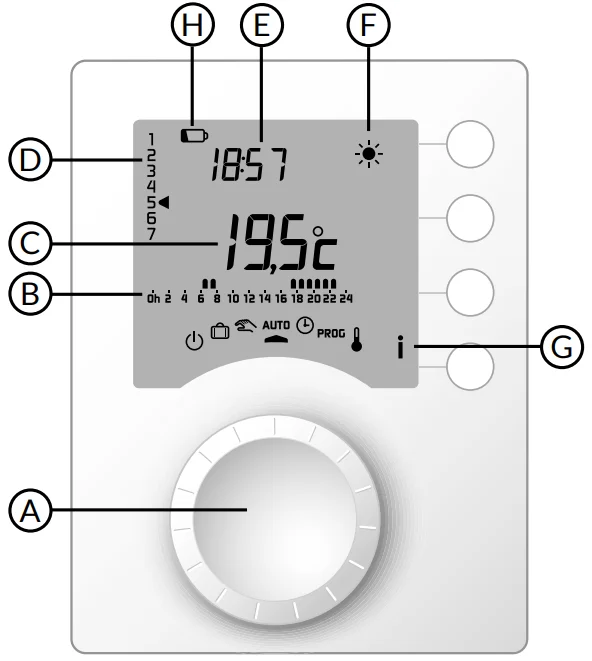
- A Selector dial
- B Programme profile
- C Room
- D Day (1 = Monday)
- E Time
- F Current setpoint
- G Information
- H Low batteries
- Off mode
 Absence mode
 Manual mode
- AUTO follows programming
- Date and time settings
- PROG Programming
 Adjusting setpoint temperature settings
 Comfort
 Economy
 Frost protection
 Absence mode
 Manual mode
 Adjusting setpoint temperature settings
 Economy
 Frost protection
Automatic mode (AUTO)
Turn the selector dial to AUTO.
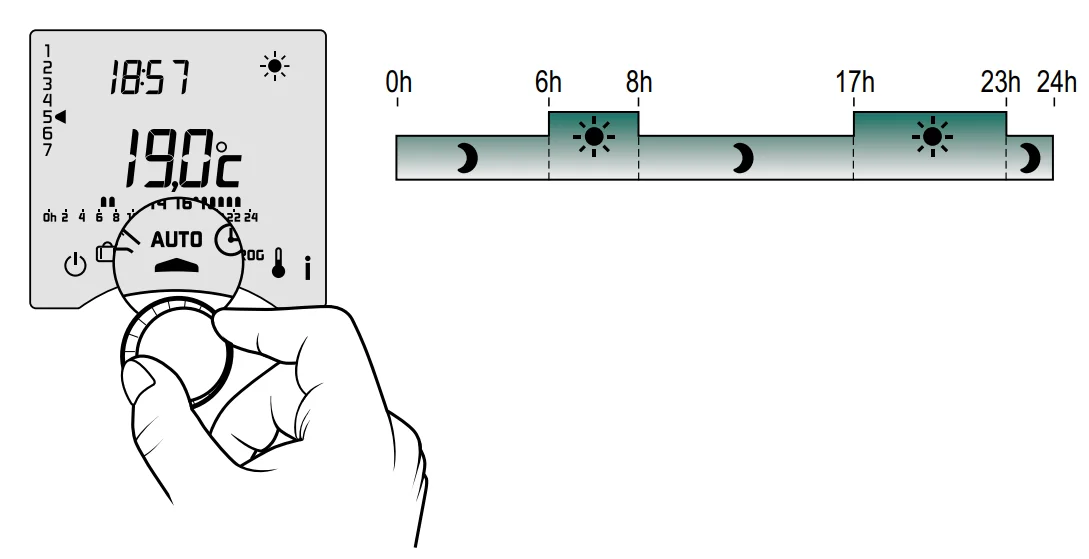
Your thermostat will follow one of 2 programme types:
- Programming via the Tybox.
- Programming via the Tydom app (menu 1-10 = 1).
Depending on the configuration during installation, your unit will continuously display the setpoint temperature or the room temperature (menu 2-04). If you are in the programmed Economy period, and the symbol flashes and the Comfort setpoint is displayed, it’s because pre-heating is in progress (see § Pre-heat function).
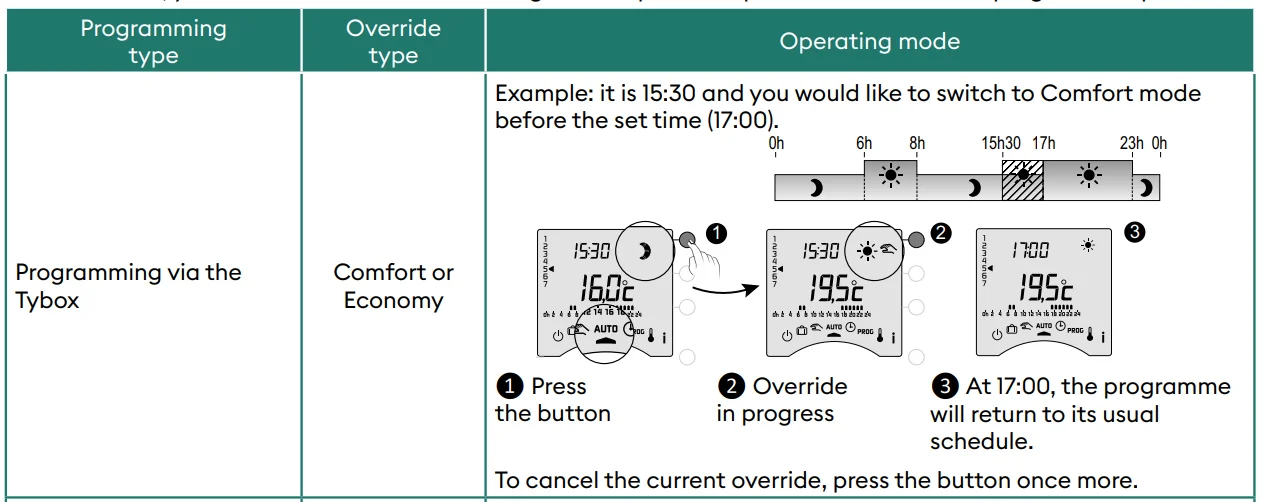
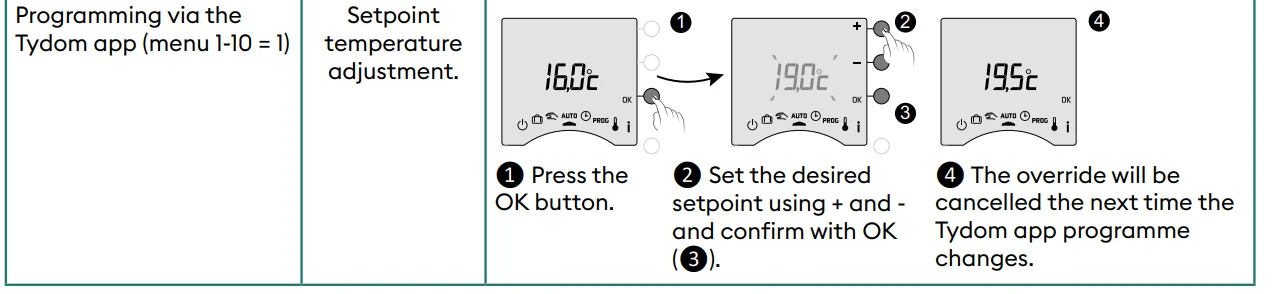
Override
In AUTO mode, you can use the override to change the setpoint temperature until the next programmed point.
Information button
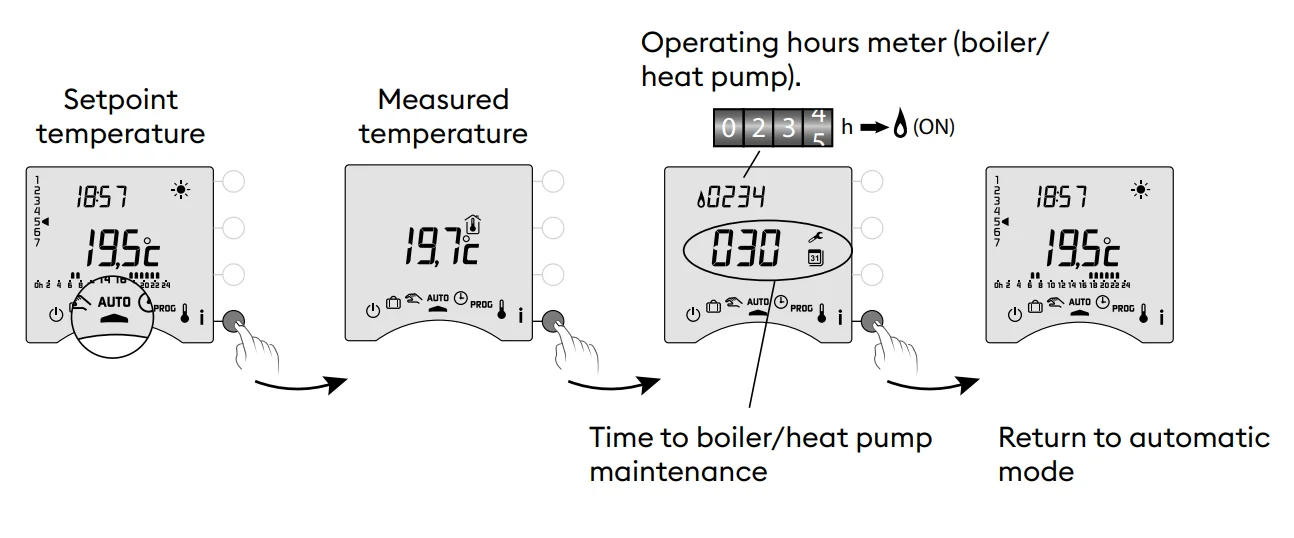
In AUTO, manual or off mode, successive presses on the i button enable you to:
- find out the room temperature or the setpoint temperature (depending on the configuration during installation (menu 2-04),
- show the boiler/heat pump operating hours meter, as well as the number of days remaining before maintenance (if this setting is on, menu 2-07),
- show any faults (see § “Changing batteries”).
Time setting

- ❶ Turn the dial to.
- ❷-> ❻ Set the day, month, year with + or -.
- ❼ Confirm with OK.
- ❽->❿ Set the hour then the minutes with + or -.
- ⓫ Confirm with OK.
- ⓬ To exit the mode, turn the dial.
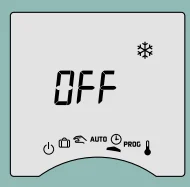
If the screen displays “OFF”, your product is connected to the Tydom app (menu 1-10 = 1). The date and time details are no longer shown on the thermostat screen.
WARNING: The heating is set to Frost Protection when in this position.
Adjusting temperature settings
- If your product is connected to the Tydom app (menu 1-10 = 1), you can only set the Frost protection temperature.
- If the Comfort temperature is controlled by each radiator (menu 1-08 = 1), you can only set Economy and Frost protection temperatures.
- The temperature settings may be restricted (menu 2-01 = 1).
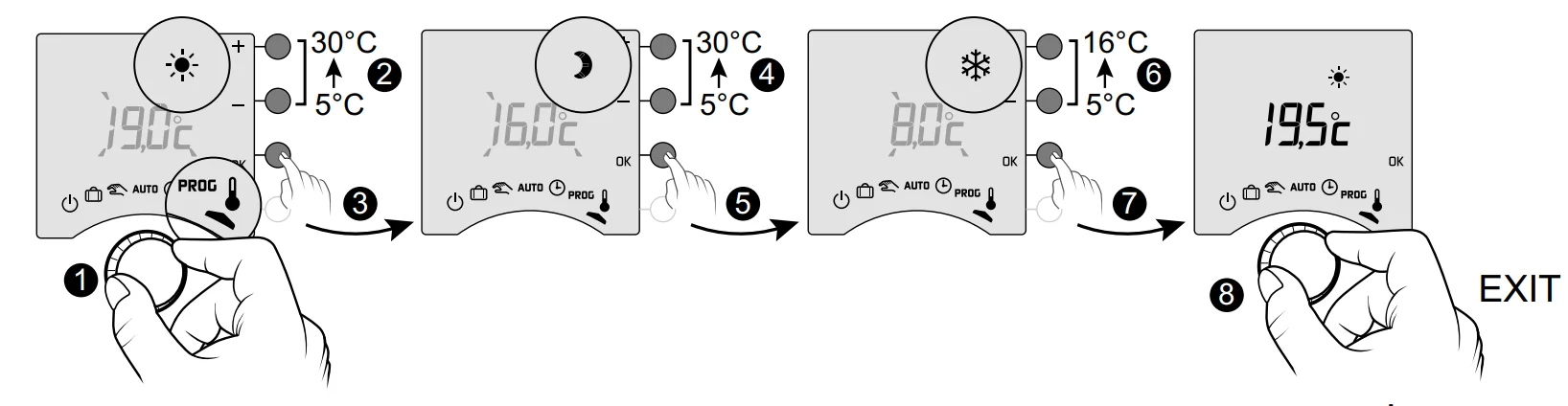
- ❶ Turn the dial to. The Comfort setpoint temperature flashes.
- ❷ ❸ Press + or – to adjust, then press OK to confirm and go to the next setting.
- ❹ -> ❼ Repeat the operations to adjust the Economy and Frost protection temperatures.
- ❺ To exit the mode, turn the dial.
- Comfort (from 5°C to 30°C)
- Economy (from 5°C to 30°C)
- Frost protection (5°C to 16°C)
Current day
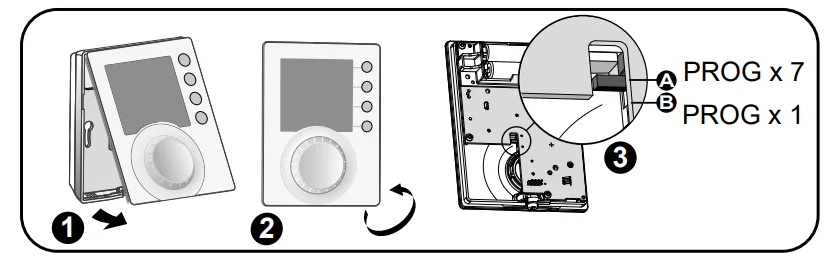
You can opt for weekly (PROGx7) or daily (PROGx1) programming. You can select your choice using the switch on the back of the device. You can programme in increments of one hour, 30 minutes or 15 minutes (menu 1-02). There are two phases of programming:
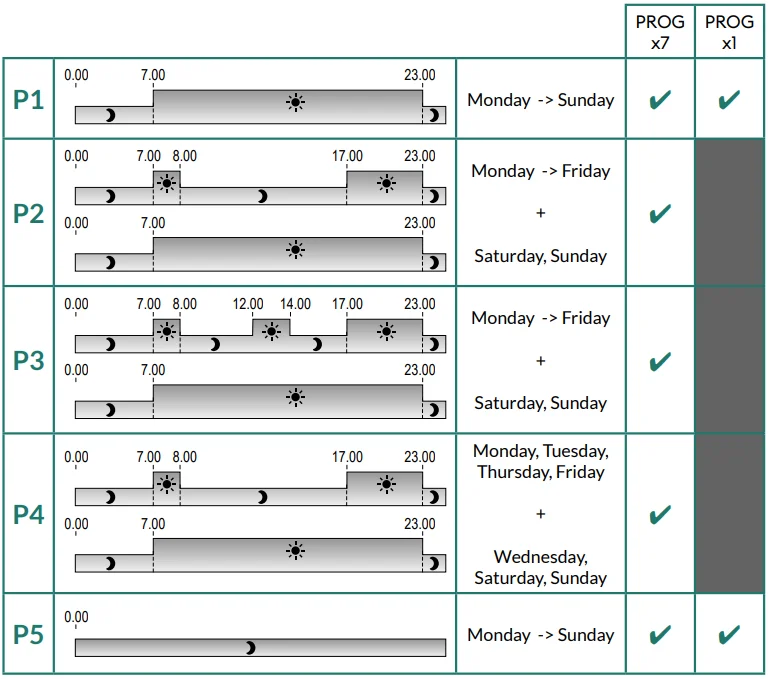
- Quick programming:
Choose from among the pre-set programmes available (P1 -> P5) and apply it (see table). For daily programmes (PROG x1), only P1 and P5 are available. - Programme customisation:
Customise the programme profile applied to a day based on preferences.
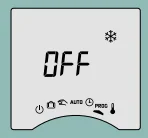
If the screen displays “OFF”, your product is connected to the Tydom app (menu 1-10 = 1). You cannot programme from the Tybox.
WARNING: The heating is set to Frost Protection when in this position.
Quick programming
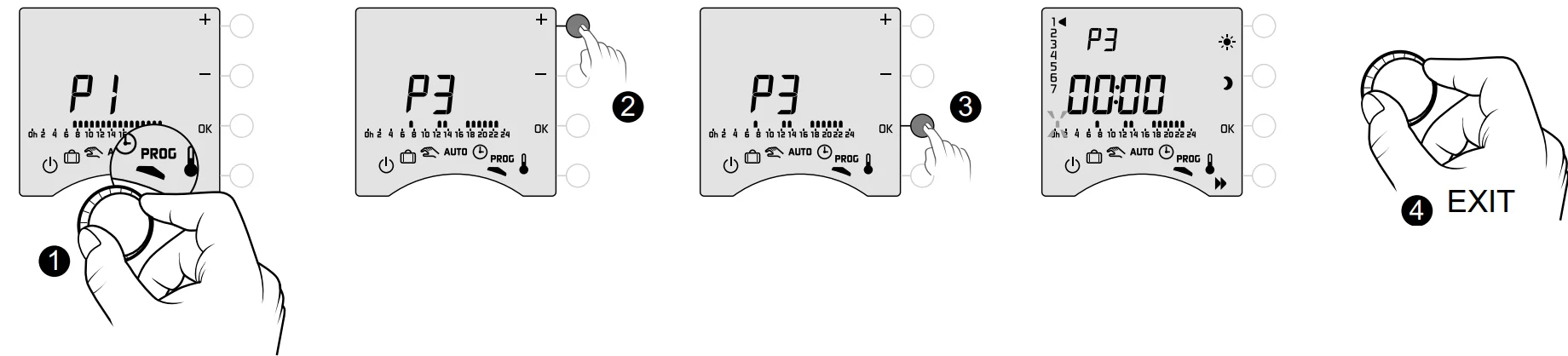
- Turn the dial to PROG.
- Choose the pre-programming to apply (see table) by successively pressing + or -.
- Confirm with OK.
- To exit the mode, turn the dial.
Customising a programme
How to set a daily programme (PROG x1)
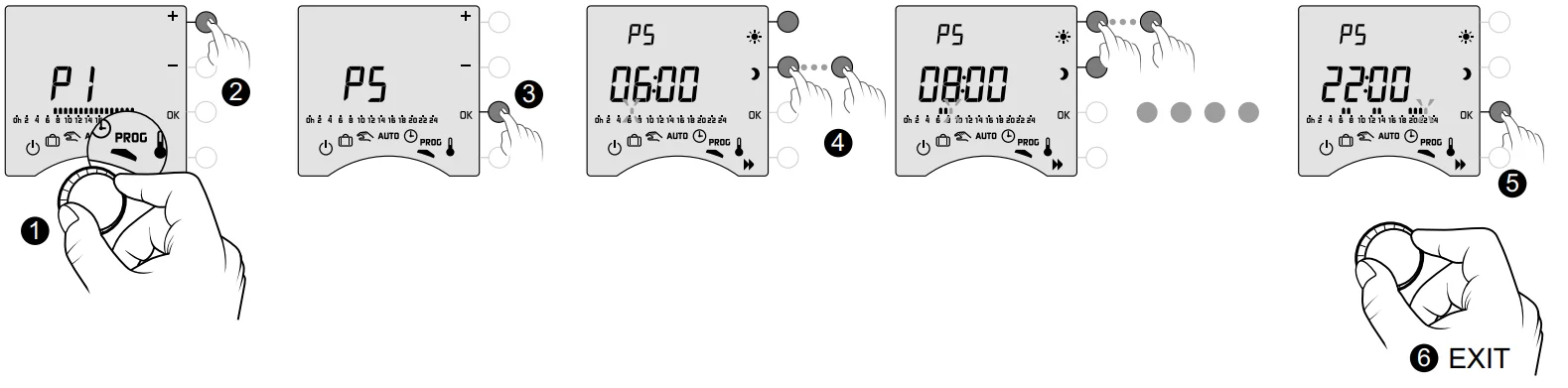
- Turn the dial to PROG.
- Press + or – to choose the programme to change (P1 or P5).
- Confirm with OK. The programme profile flashes.
- Create your programme bypressing for Economy periods andfor Comfort periods. You can check your programme by pressing the
 button (see § Programme verification).
 - Confirm with OK.
- To exit the mode, turn the dial.
 button (see § Programme verification).
How to set a daily programme (PROG x7)
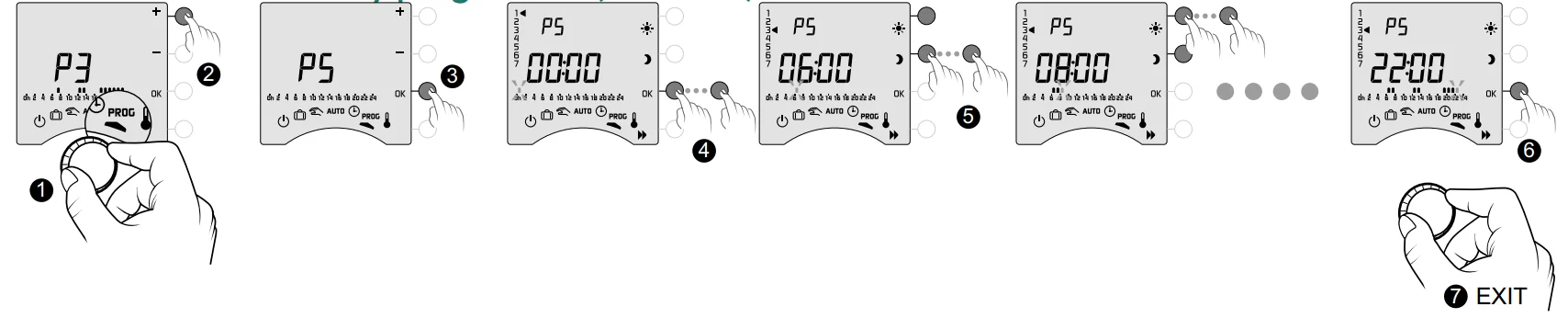
- Turn the dial to PROG.
- Press + or – to choose the programme to change.
- Confirm with OK. The programme profile flashes.
- Press OK to choose the day to change. Programming begins on day 1 (Monday) and at 12 a.m.
1: Monday, … 7: Sunday, - Create your programme by pressing for Economy periods and for Comfort periods. You can check your programme by pressing the button (see § Programme verification).
- Confirm with OK and go to programming for the next day OR copy the programme to the next day (COPY function) by pressing OK for 3 seconds. Repeat for each day of the week.
- To exit the mode, turn the dial.
COPY function
Used to copy the programme from one day to the next. To do this, press and hold the OK (❻) button for 3 seconds. The arrow will move to the next day, ensuring the copy has occurred.
Programme verification

- Once your programme has been changed, you can check it by successively pressing the button.
- If it suits you, confirm with OK and go to the next day (if PROGx7).
- To exit the mode, turn the selector dial.
Return to the initial programme
You want to reset to the initial programmes.
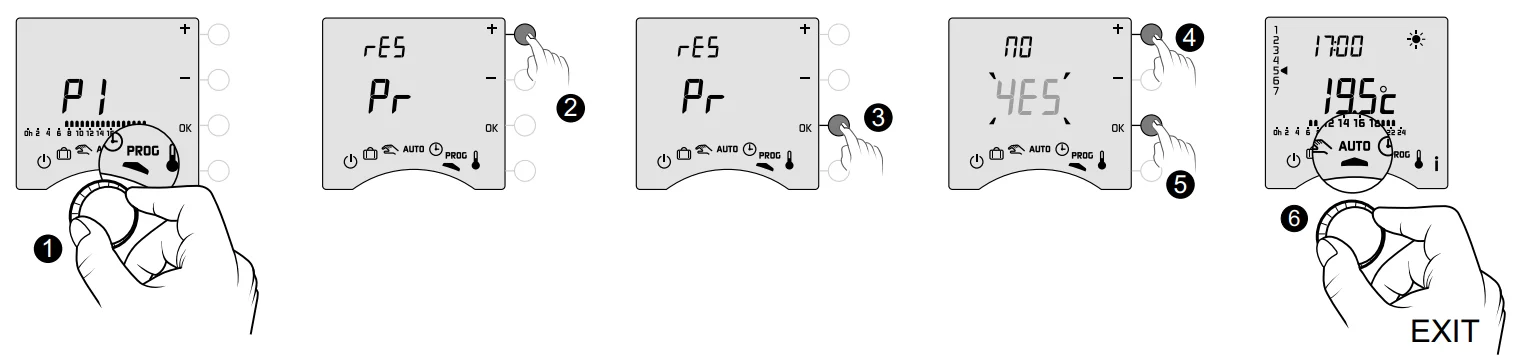
- Turn the dial to PROG.
- Press + or – to display “rES Pr”.
- Confirm with OK.
- Press + or – to make “YES” flash.
- Confirm with OK.
- To exit the mode, turn the dial.
Frequently Asked Questions (FAQ)
- The thermostat is on despite the programme not calling for it.
You must have turned on the pre-heat function. If so, then it is normal for your thermostat to anticipate the temperature rise and it has started pre-heating to get to the Comfort temperature at the desired time (see § Preheat function). - The thermostat turns off, though the requested temperature has not yet been reached.
Your thermostat uses a kind of control that anticipates the inertia in temperature variations in order to calculate energy needs as accurately as possible and provide maximum comfort. On the other hand, anticipating a drop in temperature, the heating may turn on once the desired temperature has been reached. The information shown on the screen (setpoint, current mode, flame status or the “Window open” symbol) is not up to date. Your Tybox updates information only when it turns on. Depending on dial position, it goes into standby after a period of 30s to 4mn without user input. - My thermostat does not display the time
The time display is not available in online mode (menu 1-10 = 1).
For more manuals by Delta Dore, visit ManualsLibraryy
Delta Dore Tybox 137+ Wireless Programmable Thermostat-FAQs
What are the key benefits of the Delta Dore Tybox 137+?
It offers precise programming for energy savings, constant comfort, and smart control with preset modes like Comfort/Eco. Features include customizable schedules, backlit display, and 300m RF range for efficient heating.
Does the Tybox 137+ require batteries?
Yes, it uses 2 AAA LR03 alkaline batteries (included), lasting about 2 years. Replace quickly within 30 seconds to retain settings. Low battery warnings appear on display.
How do you program the Tybox 137+ thermostat?
Turn the selector dial to access menus on the backlit display. Set daily/weekly programs, Comfort (5-30°C)/Reduced temps, timeslots, and holiday modes via intuitive interface.
How do you reset the Tybox 137+?
Turn dial to the power icon, press i button for 5 seconds for the advanced menu. Select the menu, hold for 5s, then press OK to confirm—no dedicated reset button.
Where is the best place for the Tybox 137+?
Install on a central interior wall at 1.5m height, away from drafts, windows, and heat sources for accurate readings.
What is the lifespan of the Tybox 137+?
Batteries last ~2 years; the unit is durable for 7-10 years, like most thermostats. Replace if inaccurate or unresponsive.
What are common issues with Tybox 137+?
Blank screen/low power, inaccurate temps from poor placement, RF errors (dEF7), non-stop cycling, or unresponsive controls. Fix: batteries, reset, relocate away from interference.
What happens if you don’t change Tybox 137+ batteries?
Low battery warning appears ~1 month early; failure stops heating control, resets time (reprogram needed). Change within 30s to preserve settings. The system halts despite the boiler working.
How do you test the Tybox 137+ thermostat?
Check display for accurate room temp, battery status, and boiler indicator. Cycle modes (On/Auto), adjust setpoints, verify receiver response within 300m range. Consult manual for full diagnostics.