
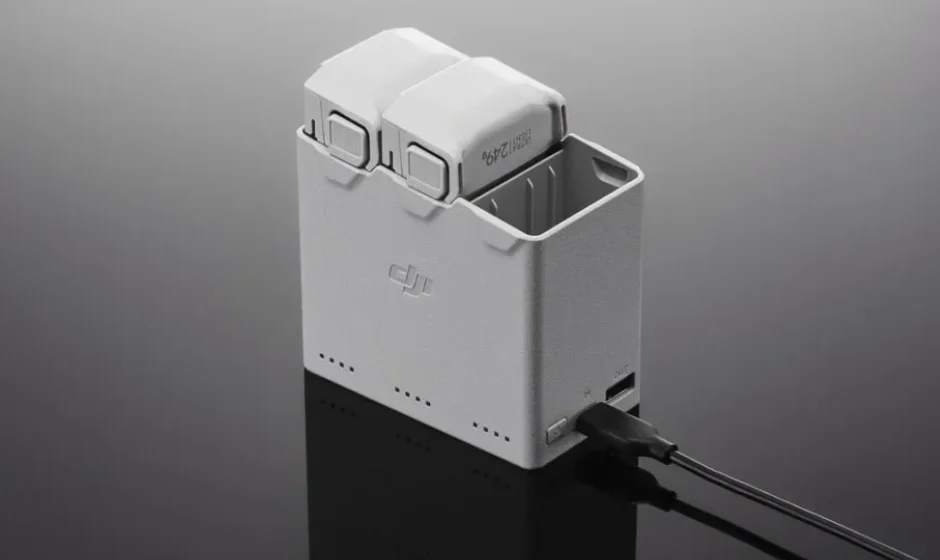

DJI Batteries Charging Hubs
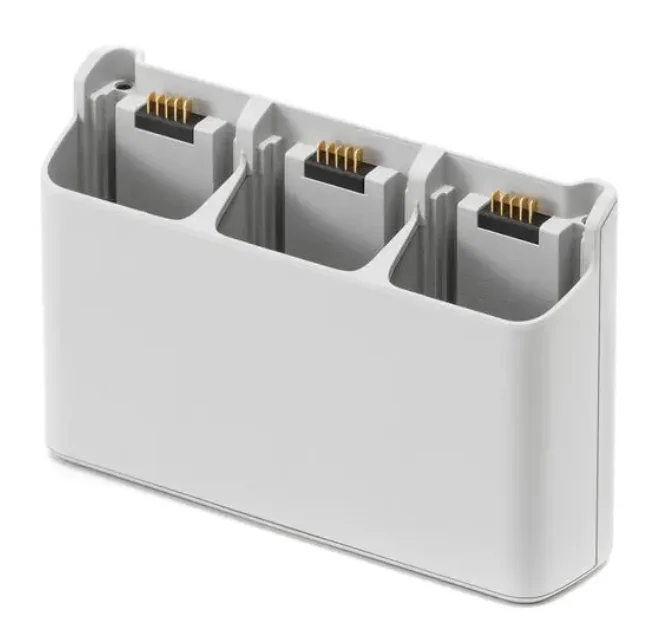
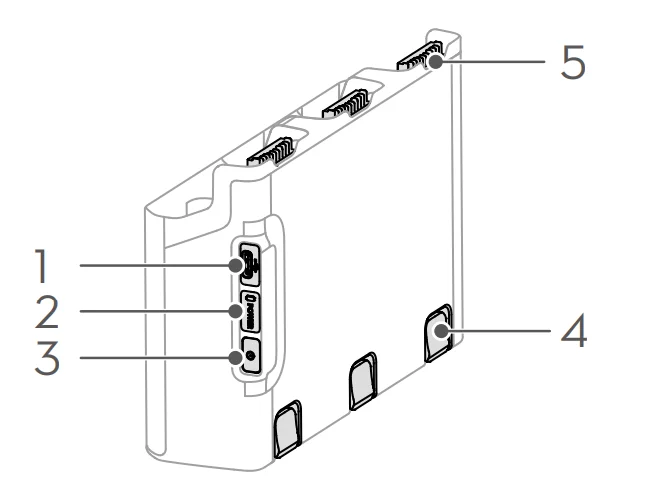
- USB-C Port
- Status LED
- Function Button
- Battery Release Button
- Battery Port
Warning: Carefully read this entire document and all safe and lawful practices provided before use.
- Place the charging hub on a flat, stable surface with good ventilation when charging an external device or accumulating power. Make sure the device is properly insulated to prevent fire hazards.
- DO NOT attempt to touch the metal terminals on the battery ports. Clean the metal terminals with a clean, dry cloth if there is any noticeable buildup.
- Make sure to charge batteries with low battery power in time. It is recommended to store the batteries in the charging hub. The charging hub automatically checks the battery power every seven days. When a battery has 0% power level, the battery with a high power level will charge the low power level battery until its power reaches 5% to prevent over-discharging.
Introduction
The DJITM Air 3 Battery Charging Hub is designed to charge up to three Intelligent Flight Batteries. After the Intelligent Flight Batteries are installed, the charging hub can supply power to external devices via the USB-C port, such as remote controllers or mobile phones. The charging hub can also use the power accumulation function to transfer the remaining power of multiple low-power batteries into the battery with the highest remaining power.
Usage
Charging Intelligent Flight Battery
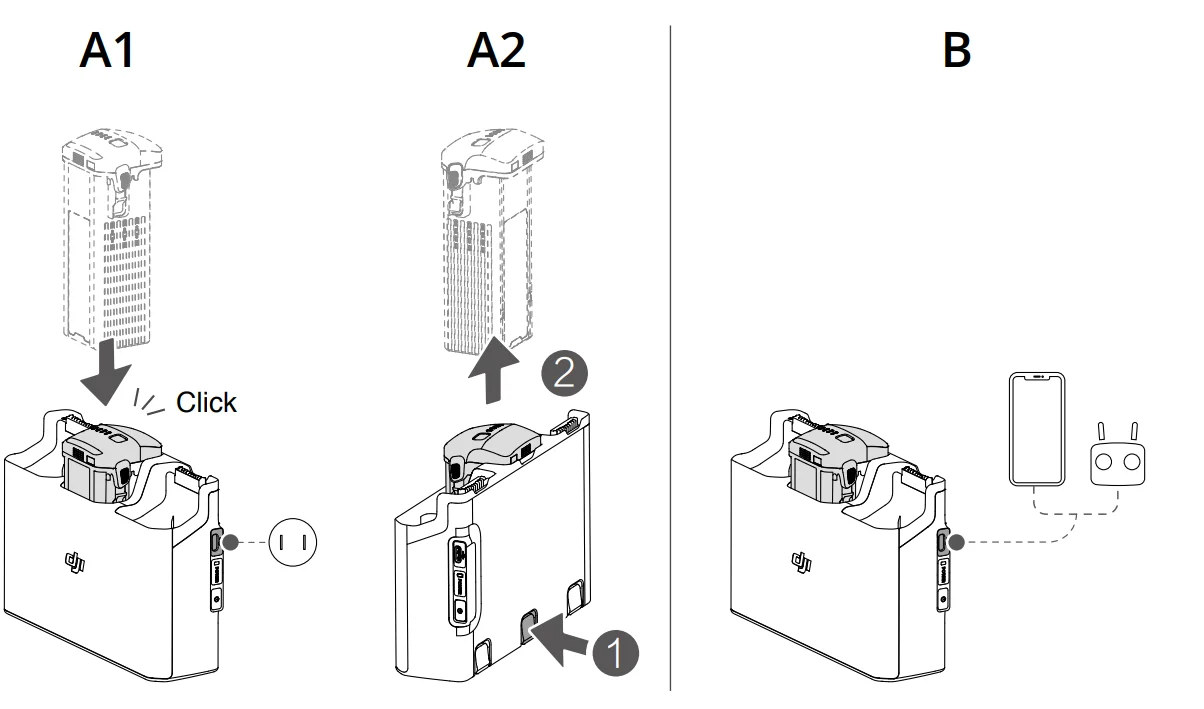
- Insert the batteries into the charging hub until it clicks into place. (Figure A1)
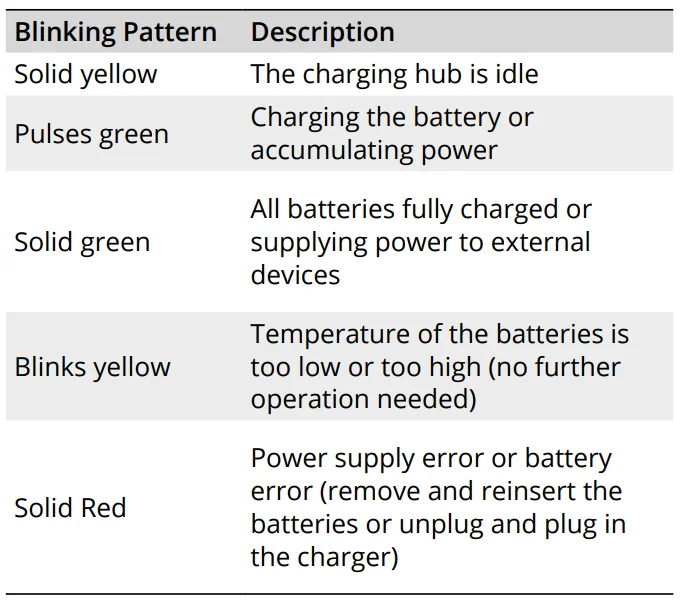
- Connect the charging hub to a power outlet using a USB-C charger. The Intelligent Flight Battery with the highest power level will be charged first, and then the rest will be charged in sequence according to their power levels. The status LED indicates the battery level during charging. Refer to the Status LED Descriptions for more information about the blinking patterns of the status LED.
- The battery can be stored in the charging hub after charging. Remove the battery from the charging hub for use. (Figure A2)
Using Charging Hub as a Power Bank
- Insert an Intelligent Flight Battery into the charging hub. Connect an external device via the USB-C port, such as a mobile phone or remote controller. (Figure B)
- Press the function button, and the status LED of the charging hub turns solid green. The battery with the lowest power level will be discharged first, followed by the remaining batteries to be discharged sequentially. To stop charging the external device, disconnect the external device from the charging hub.
Hints & Tips: If the remaining charge of a battery is lower than 7%, the battery cannot charge the external device.
Accumulating Power
- Insert more than one battery into the charging hub, and press and hold the function button until the status LED turns green. The status LED of the charging hub pulses green, and the charge is transferred from the battery with the lowest power level to the battery with the highest power level.
- To stop accumulating power, press and hold the function button until the status LED turns yellow. After stopping power accumulation, press the function button to check the power level of the batteries.
Warning
- Power accumulation stops automatically in the following situations:
- The receiving battery is fully charged, or the power of the output battery is lower than 5%.
- A charger or external device is connected to the charging hub or any battery is inserted or withdrawn from the charging hub during power accumulation.
- Power accumulation is interrupted for more than 15 minutes due to abnormal battery temperature.
After accumulating power, charge the battery with the lowest power level as soon as possible to avoid discharge.
Status LED Descriptions
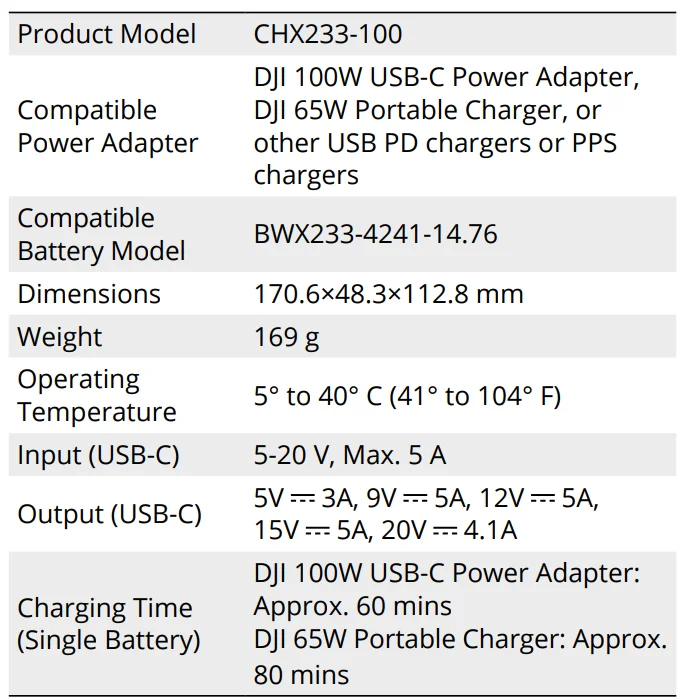
Specifications
Compliance Information
FCC Compliance Notice
- Supplier’s Declaration of Conformity
- Product Name: DJI Air 3 Battery Charging Hub
- Model Number: CHX233-100
- Responsible Party: DJI Research LLC
- Responsible Party Address: 435 Portage Ave, Palo Alto, CA 94306
- Website: www.dji.com
We, DJI Research LLC., being the responsible party, declares that the above mentioned model was tested to demonstrate complying with all applicable FCC rules and regulations.
This device complies with part 15 of the FCC Rules. Operation is subject to the following two conditions:
- This device may not cause harmful interference, and
- this device must accept any interference received, including interference that may cause undesired operation.
Any changes or modifications not expressly approved by the party responsible for compliance could void the user’s authority to operate the equipment.
ISED Compliance
CAN ICES-003 (B)/NMB-003(B)
EU Compliance Statement: SZ DJI Technology Co., Ltd. hereby declares that this device (DJI Air 3 Battery Charging Hub) is in compliance with the essential requirements and other relevant provisions of the Directive 2014/30/EU. A copy of the EU Declaration of Conformity is available online at www.dji.com/euro-compliance
- EU contact address: DJI GmbH, Industriestrasse 12,97618, Niederlauer, Germany
- GB Compliance Statement: SZ DJI Technology Co., Ltd. hereby declares that this device (DJI Air 3 Battery Charging Hub) is in compliance with the essential requirements and other relevant provisions of Electromagnetic Compatibility Regulations 2016.
A copy of the GB Declaration of Conformity is available online at www.dji.com/euro-compliance
WE ARE HERE FOR YOU

For more manuals by DJI, visit ManualsLibraryy
DJI Batteries Charging Hubs-FAQs
Does the DJI charging hub charge all batteries at once?
It depends on the model and power adapter. Some DJI charging hubs charge batteries simultaneously, while others charge them sequentially based on battery level. In parallel mode, the hub may equalize battery levels first and then complete charging together.
What does a DJI battery charging hub do?
A DJI charging hub is a multi-battery charger that stores and charges several Intelligent Flight Batteries. It helps organize batteries and often charges them in the most efficient order.
How do I use a DJI charging hub?
Insert the batteries into the hub, connect the hub to a compatible DJI power adapter, and plug it into a power outlet. LED indicators will show charging status for each battery.
How can I tell if my DJI charging hub is charging?
Check the LED lights on the hub. Blinking LEDs typically indicate charging, while solid green lights usually mean the battery is fully charged.
How long does it take to charge DJI batteries in the hub?
Charging time depends on the battery model and charger wattage. With a high-power charger (like a 65W adapter), some DJI batteries can fully charge in about 1.5 hours.
Can I leave my DJI batteries charging overnight?
It’s not recommended. Charging unattended overnight increases the risk of overheating or fire. Always charge batteries in a safe, ventilated area and unplug once fully charged.
What is the 80/20 rule for charging DJI batteries?
For daily use, keep lithium batteries between 20% and 80% to extend lifespan. Charge to 100% only when you need maximum flight time.
Do DJI batteries drain when not in use?
Yes. DJI Intelligent Flight Batteries automatically self-discharge after a few days of inactivity to protect battery health. Slight warmth during discharge is normal.
Can a DJI charging hub work as a power bank?
Some two-way charging hubs allow you to connect a phone or tablet via USB-C. The hub will discharge stored batteries to power external devices.
Why is my DJI battery not charging?
Possible reasons include extreme temperatures, faulty power adapters, dirty battery contacts, or a damaged battery. Try charging at room temperature and ensure firmware is updated.