
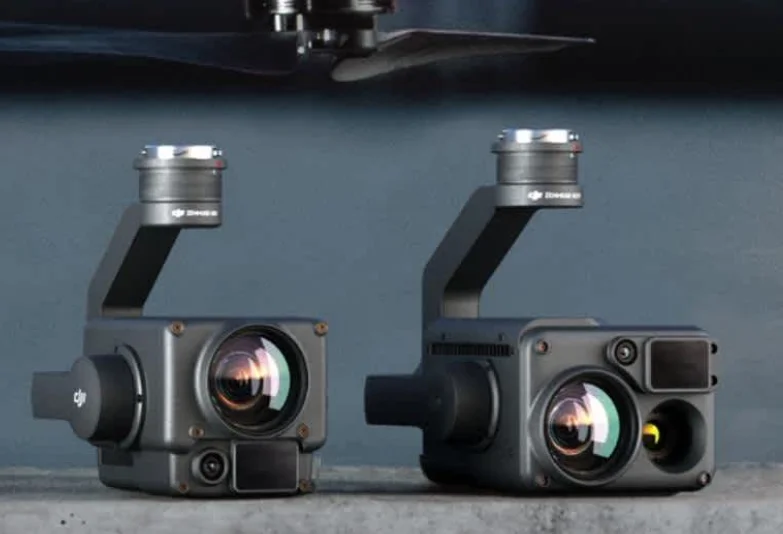

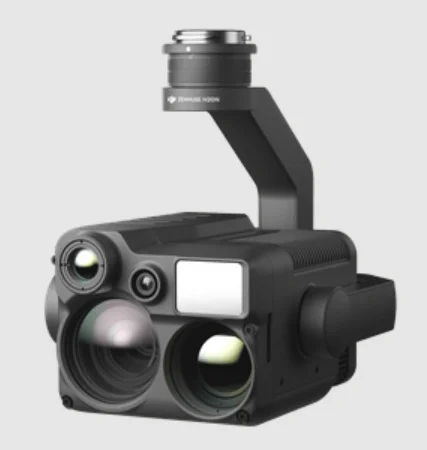
DJI Zenmuse H20N Camera
Caution
- When not in use, store the Zenmuse H20N in the storage case and replace the desiccant packet as necessary to prevent fogging the lenses due to excessive ambient humidity. If the lenses fog up, the water vapor will usually dissipate after turning on the device for a while. The recommended storage environment is a relative humidity of less than 40% at a temperature of 20±5° C.
- Do not expose the infrared camera lenses to a strong energy source such as the sun, lava or laser beam. The temperature of the observation target should not exceed 800° C; otherwise, it will burn the camera and cause permanent damage.
- Do not place the product under direct sunlight, in areas with poor ventilation, or near a heat source such as a heater.
- Do not frequently power on/off the product. After it is turned off, wait at least 30 seconds before turning it back on; otherwise, the product’s life will be affected.
- Under stable laboratory conditions, the Zenmuse H20N achieves an IP44 protection rating by IEC60529 standards. However, this protection rating is not permanent and may decrease over time after long-term use.
- Make sure the gimbal port and gimbal surface are free from any liquid before installation.
- Make sure the gimbal is securely installed onto the aircraft, the microSD card slot cover is clean and firmly in place.
- Make sure the gimbal surface is dry before opening the microSD card slot cover.
- Do not plug or unplug the microSD card during use.
- Do not touch the surface of the camera lenses and keep it away from hard objects, as doing so may lead to blurred images and affect the imaging quality.
- Clean the surface of the camera lenses with a soft, dry, clean cloth. Do not use alkaline detergents.
Introduction
Equipped with two long-wave infrared thermal cameras, a zoom camera, and a wide-angle camera, the Zenmuse H20N gimbal camera can provide infrared and visual images simultaneously. Users can quickly switch to a highly magnified zoom camera view after recognizing a target in a wide camera view. Thanks to the laser range finder, the H20N can provide the location of a target and the distance to them during a search and rescue operation or aid in site inspection with rapid positioning information that improves working efficiency. Zenmuse H20N can be mounted onto the Matrice 300 RTK aircraft and stream live video to the DJI Pilot 2 app.
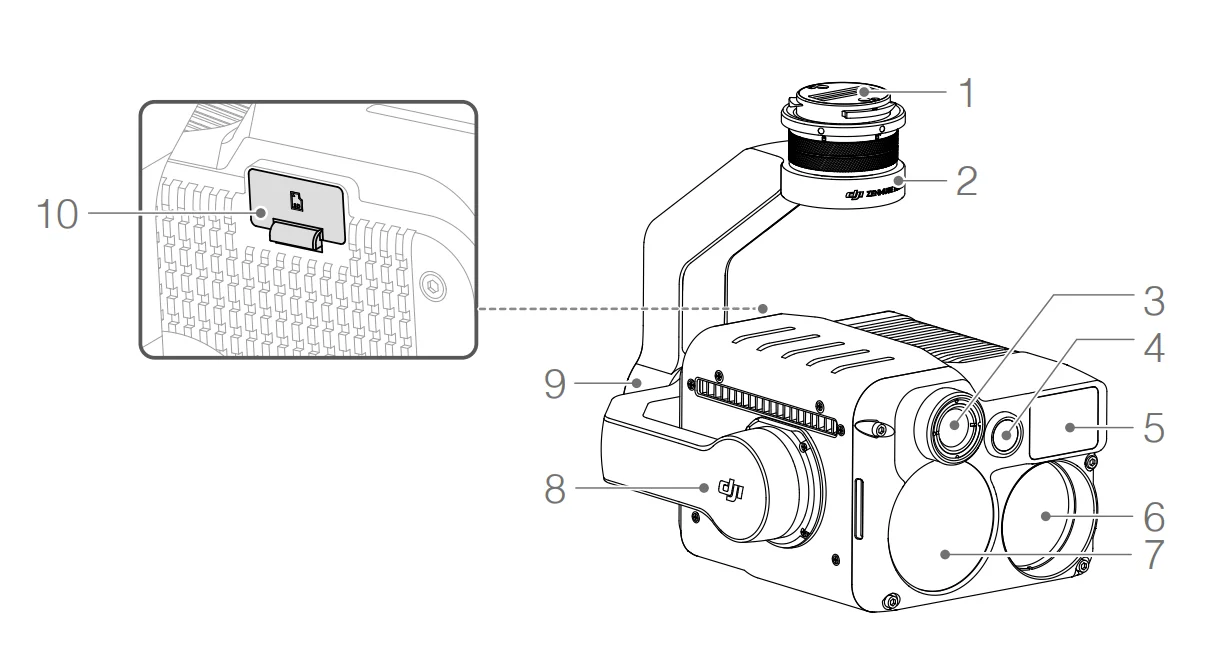
- Gimbal Connector
- Pan Motor
- Wide Infrared Thermal Camera
- Wide Camera
- Laser Range Finder
- Tele Infrared Thermal Camera
- Zoom Camera
- Tilt Motor
- Roll Motor
- microSD Card Slot
Installation
Supported Aircraft
Matrice 300 RTK
Mounting the Zenmuse H20N
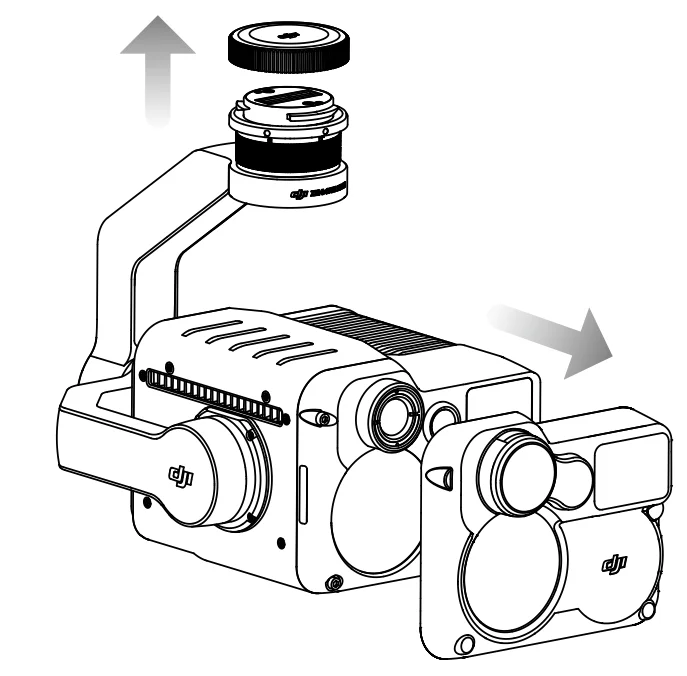
- Remove the gimbal cap and lens protector.

- Align the white and red dots and insert the gimbal onto the Matrice 300 RTK aircraft. Rotate the gimbal connector to the locked position.

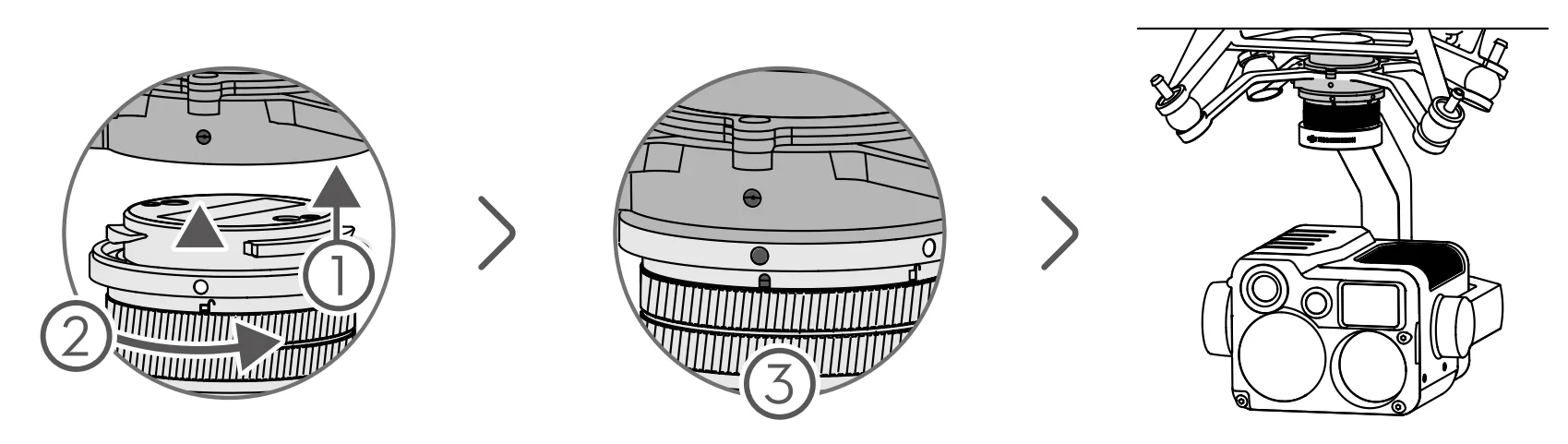
Warning:
- Hold the aircraft firmly and steadily rotate the gimbal connector to attach and detach the gimbal.
- Ensure the microSD card slot cover is firmly in place to prevent dust or moisture from entering during usage or storage.
Activation
The Zenmuse H20N gimbal and camera require activation before use. Mount it onto the aircraft, then power on the aircraft and the remote controller, and follow the on-screen instructions to activate using DJI Pilot 2. An internet connection is required for activation.
Remote Controller Operation
Adjust the gimbal’s tilt using the left dial and adjust its pan by the right dial. Press the shutter button or record button to take photos or record video. Toggle the 5D button to adjust the zoom (up and down) and EV value (left and right). The customizable button C1 can be used to recenter the gimbal, and the customizable button C2 can be used to switch between the main and auxiliary screens.
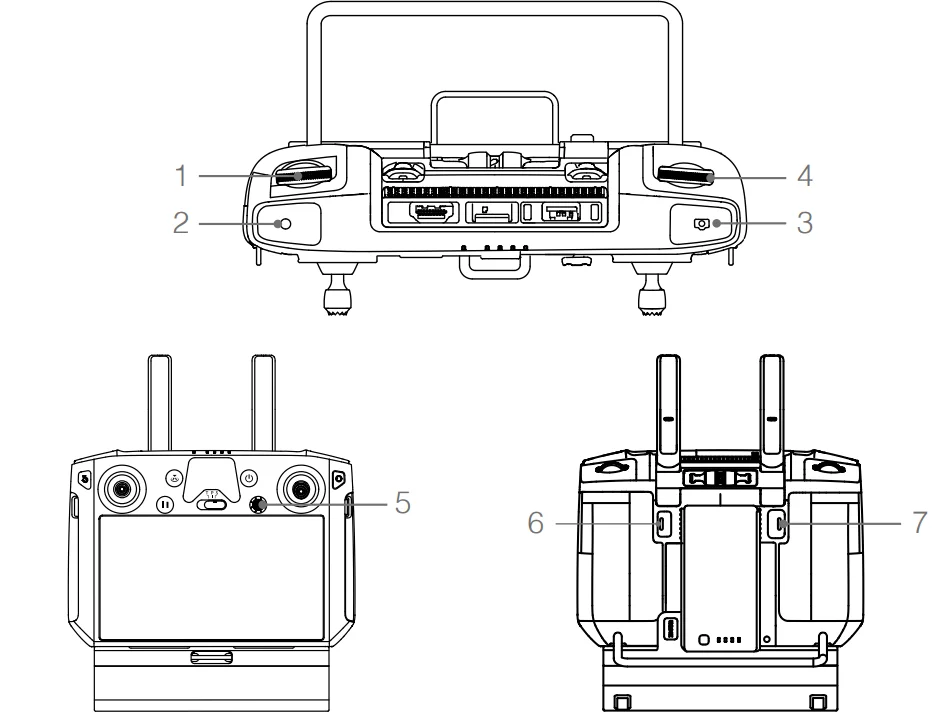
- Left Dial
Turn to adjust the gimbal’s tilt. - Record Button
Press to start/stop recording video. - Shutter Button
Press to take a photo, you can set the photo mode as single or interval in the DJI Pilot 2 app. Taking a single photo is supported during video recording. - Right Dial*
Turn to adjust the gimbal’s pan. - 5D Button
The default function is as follows. The function for this button can be customized in the DJI Pilot 2 app.- Left: Decrease EV value
- Right: Increase EV value
- Up: Zoom in
- Down: Zoom out
- Customizable Button C2
The default function is to switch between the main and auxiliary screens. The function for this button can be customized in the DJI Pilot 2 app. - Customizable Button C1
The default function is to recenter the gimbal. The function for this button can be customized in the DJI Pilot 2 app.
* Press and hold the confirm button and then turn the right dial to adjust the zoom.
DJI Pilot 2 App Controls
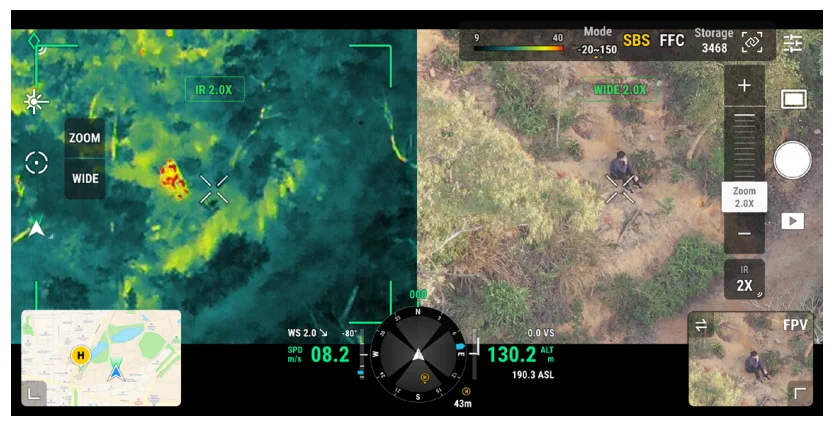
Besides capturing photos, recording videos, and playback functions, the touch interface provides more intuitive and convenient control options such as Auto Night Scene, Spot Meter, Isotherm functions, and Link Zoom for visual and infrared thermal cameras. The following image is for reference only. The actual interface varies according to the app version.
Basic Functions
You can watch liveviews from the Zenmuse H20N and change camera settings in Camera View. Below is an example where the main screen shows the zoom camera view.
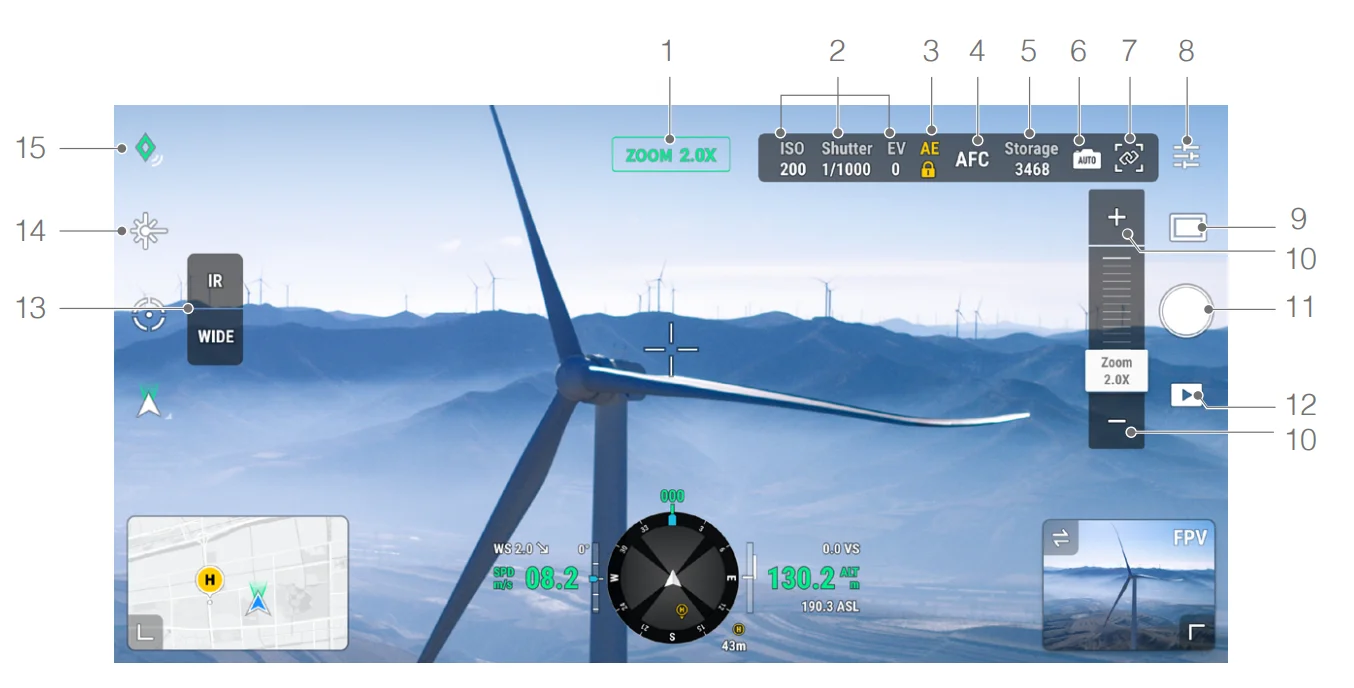
- Camera and Zoom
Displays the camera for the current liveview and its zoom rate. - Camera Parameters
Displays the camera’s current shoot/record parameters. - Auto Exposure Lock
Tap to lock the exposure value. - Focus Mode
Tap to switch the focus mode. Various focus modes are supported: MF (manual focus), AF-C (continuous autofocus) and AF-S (single autofocus). - Storage Capacity
Displays the available capacity of the microSD card. - Auto/Manual Exposure Switch
Tap to switch between auto and manual exposure. - Link Zoom
Tap to enable or disable Link Zoom.
Once enabled, in the infrared thermal camera view, the button for adjusting the zoom of the infrared cameras will disappear automatically. In this case, adjusting the zoom of the zoom camera willchange the zoom of the infrared thermal cameras at the same time. The infrared thermal camera can zoom up to 32x. When the zoom magnification of the zoom camera is adjusted to 32x or above, a pop-up will appear on the DJI Pliot 2 app interface indicating that the infrared thermal camera has reached the maximum magnification level. The maximum magnification level will remain at 32x and no longer increase. - Camera Settings
- Photo Settings (effective in photo mode)
- Image Ratio: 16: 9 (visible photo), 5:4 (infrared photo)
- Image Format: JPEG
- Save Photo: Includes Current View, Wide Photo, Zoom Photo, and Infrared Photo. The current view will save the photo taken by the current camera, but in the SBS display mode of the infrared thermal camera, it will save the screenshot instead. Photos will be saved in the microSD card in the gimbal and camera.
- Video Settings (effective in video mode)
- Video Format: MP4
- Save Video: Includes Current View, Wide Video, Zoom Video, and Infrared Video. Current view will save a recording of the current liveview of the app (not the HD camera feed). Videos will be saved in the microSD card in the gimbal and camera.
- General Settings
- Create Folder
Create a folder manually on the microSD card of the gimbal and camera to store photos and videos, with customizable folder names. - Timestamp
Enable or disable the timestamp. A customized timestamp can be created to include information such as aircraft model, aircraft SN, coordinates, altitudes, date and time. Timestamp location can
also be customized. - Video Caption
After video caption is enabled, a caption file will be created when videos are saved. The caption file includes information such as frame number, exposure parameters, gimbal attitude, aircraft attitude, etc.
LEDs Off When Shooting And Recording
Frame Arm LEDs will turn off automatically during shooting and recording. - Night Scene
Choose Auto Night Scene mode, or turn Night Scene on or off when the main screen shows the zoom or the wide camera view. The setting of the Night Scene mode applies to both the zoom camera and the wide camera simultaneously. In Night Scene mode, the recording frame rate of both the zoom and wide cameras will be decreased to optimize the image quality in low-light environments.- Auto: Night Scene mode will be enabled automatically in low-light environments.
- ON: Tap to turn on Night Scene mode. Select from Enhanced Noise Reduction and IR Light
when Night Scene mode is set to ON. Enable Enhanced Noise Reduction to achieve a better image quality. Note that the recording frame rate will decrease further. Use this function with caution for situations where low latency in liveview is required. If IR Light is enabled, the zoom camera will disable the IR filter to optimize the image quality in low-light environments. The Zoom camera will display a black-and-white image once the IR Light is enabled. - Lock Gimbal while Shooting
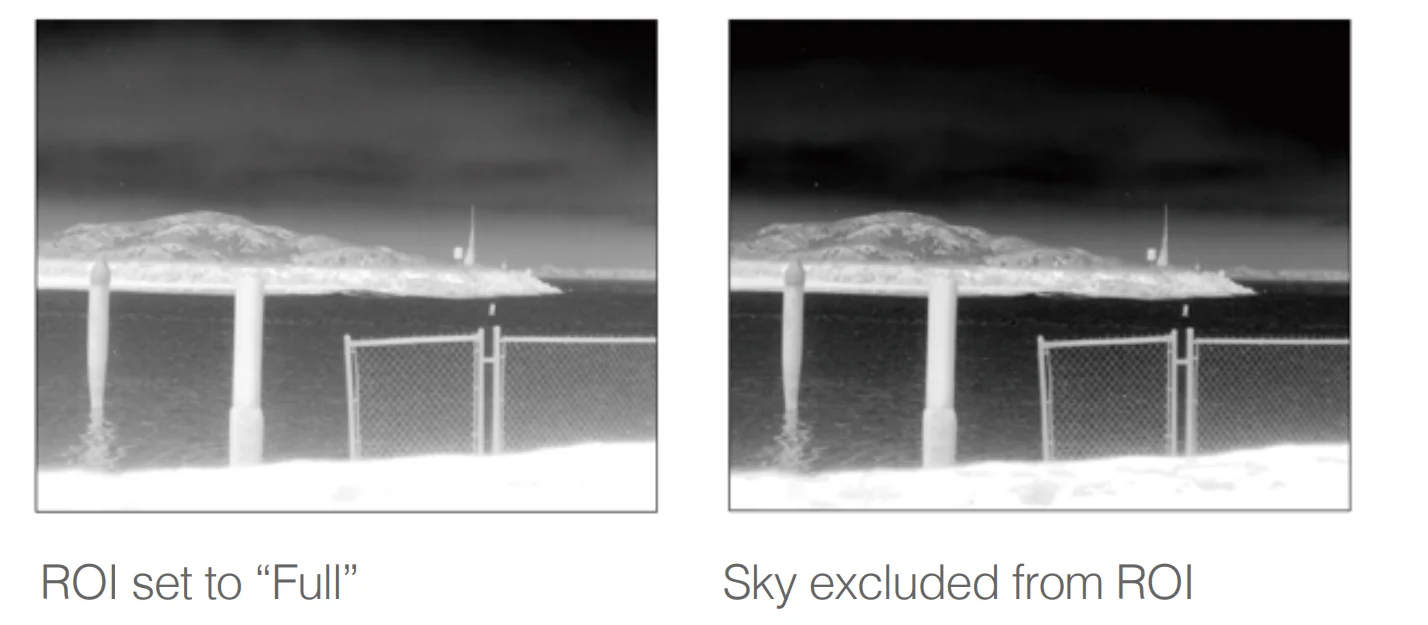
Enable or disable gimbal lock while taking photos. If enabled, the gimbal will be locked in place to ensure image stability when the aircraft is moving. - ROI (Region of Interest) (for infrared thermal cameras only)
Use this feature to manage color range distribution across the screen to maximize contrast for regions of interest. Select “Full” to evenly distribute the color spectrum across the entire image. For instance, if there is a large patch of sky (at relatively low temperature) in your image, much of the color spectrum will be allocated to the lower temperature range, meaning that other parts of the spectrum will have a lower contrast. In this case, you may select “Sky excluded (33%)” or “Sky excluded (50%)” to ignore areas of the sky so that most of the spectrum can be allocated to remaining areas, providing higher contrast and utility for analysis. Below is the comparison between the ROI set to Full and Sky excluded from the ROI.
- Scene (for infrared thermal cameras only)
Enhance your images instantly by selecting Default, Inspection, or Manual. After selecting Manual, users can set and save custom parameters according to their needs. The camera will automatically apply the following properties to obtain the best result. - DDE (Digital Detail Enhancement): Enhances image details and/or suppresses fixed pattern noise.
- Contrast: The ratio of black and white of the image. Colors will be richer and have more contrast when the value is high.
- Brightness: The brightness of the image.
- Auto FFC (for infrared thermal cameras only)
- Enable or disable the automatic FFC calibration. The infrared thermal cameras will automatically calibrate at regular intervals.
- Gridlines
Enable or disable the gridlines or diagonal. - Laser Module
Select Enhanced Mode or On-Demand Mode based on your needs. Note that the mode will be reset to Enhanced after the camera is restarted. - Reset Camera Settings
Tap to reset the camera to the default settings. - Format SD Card
Tap to format and remove all content from the microSD card. Operate with caution.
- Create Folder
- Photo Settings (effective in photo mode)
- Photo/Video Toggle
Tap to switch between photo and video modes, and select different shooting or recording modes. Photo Mode: Single Shot, Interval (2/3/5/7/10/15/20/30/60 s), High-Res Grid Photo, Panorama.
Video Mode:- Zoom: 1920×1080@30fps, 2688×1512@30fps, 1920×1080@10fps (Night Scene Mode, Enhanced Noise Reduction Off), 1920×1080@5fps (Night Scene Mode, Enhanced Noise Reduction On)
- Wide: 1920×1080@30fps, 1920×1080@10fps (Night Scene Mode, Enhanced Noise Reduction Off), 1920×1080@5fps (Night Scene Mode, Enhanced Noise Reduction On)
- IR: 640×512@30fps
- Zoom (Zoom Camera)
Tap to adjust the zoom magnification level of the zoom camera. The zoom magnification of the zoom camera ranges from 2x to 128x. For fine zoom adjustments, drag the zoom slider.- If the main screen shows the zoom camera view, the liveview can be changed directly by adjusting the zoom.
- If the main screen shows the infrared thermal camera view: when Link Zoom is enabled, the liveview can be changed directly by adjusting the zoom if the zoom magnification level is not above 32x; but only the zoom camera preview box in the middle of the screen will be changed if the zoom magnification level is above 32x. When Link Zoom is disabled, only the zoom camera preview box in the middle of the screen will be changed.
- If the main screen shows the wide camera view, only the zoom camera preview box in the middle of the screen will be changed by adjusting the zoom.
- Shutter/Record Button
Tap to shoot photos or start or stop recording. - Playback
Tap to enter and preview photos and videos as soon as they are captured. - Camera View Switch Button
Tap to switch the main screen to the camera view corresponding to the button. - Laser Ranging
Tap to enable the laser ranging function. Laser ranging can measure the distance of objects within the measurement range, and displays the distance from the aircraft and the absolute height of the measured object in the middle of the screen. - Pin Point
Tap on the target in the center of the view to record the latitude, longitude, and altitude of the point. Below is an example where the main screen shows the wide infrared thermal camera view.
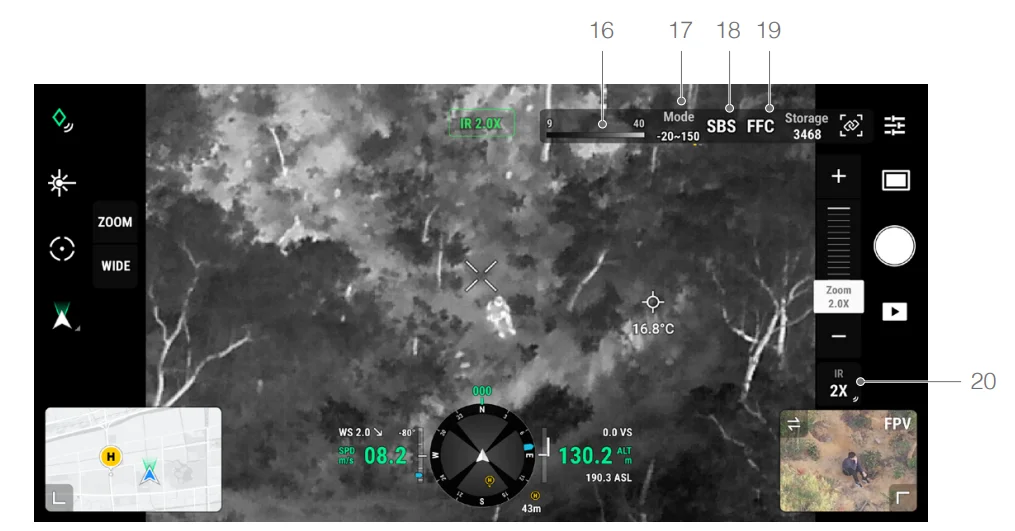
- Palette/Isotherm
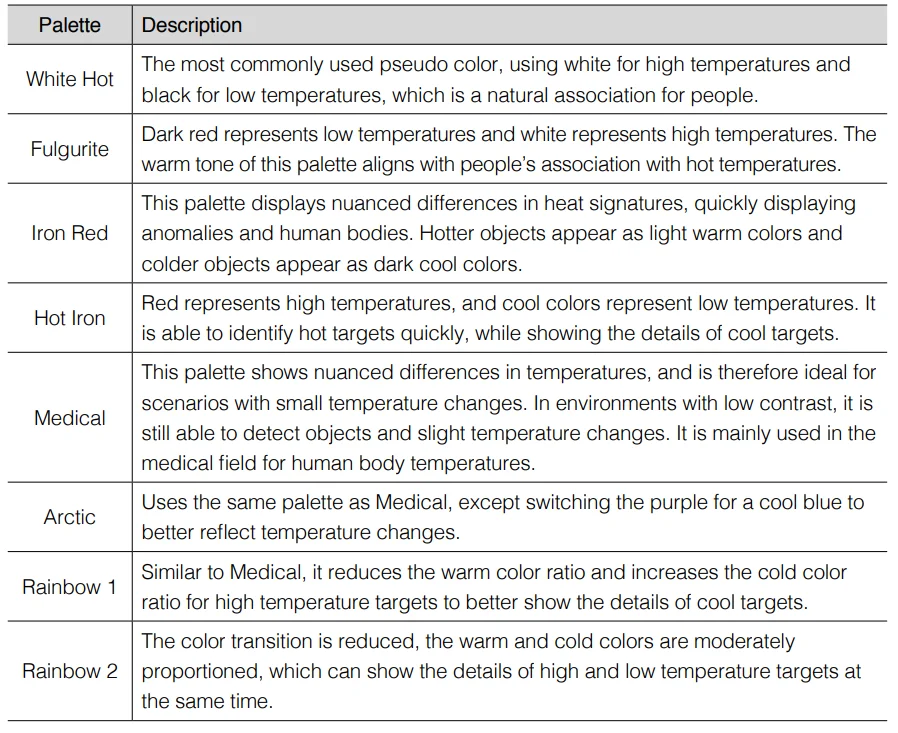
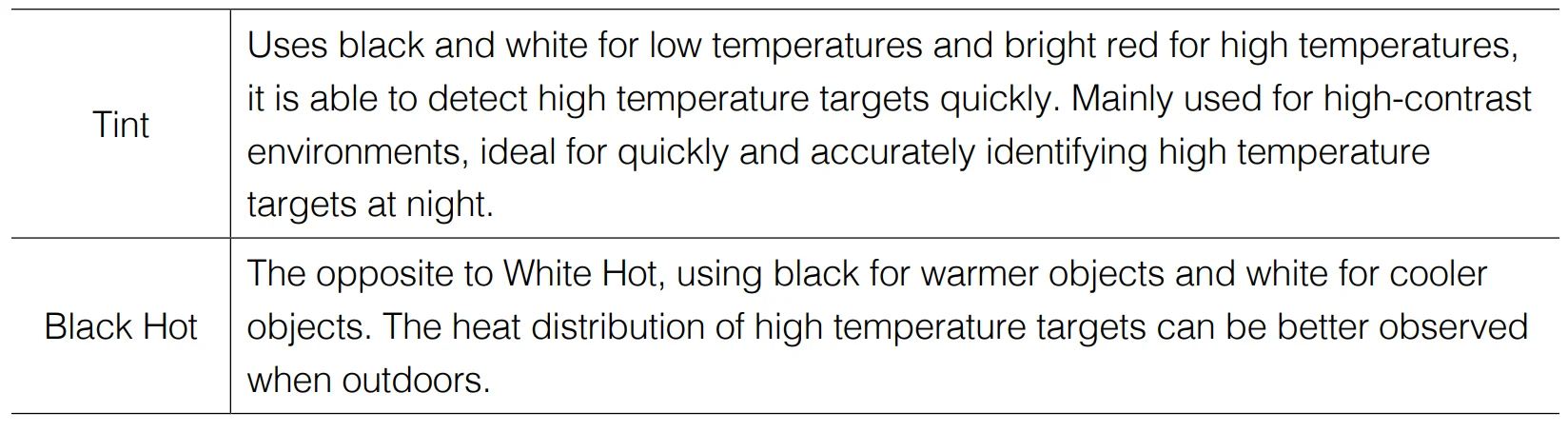
Palette
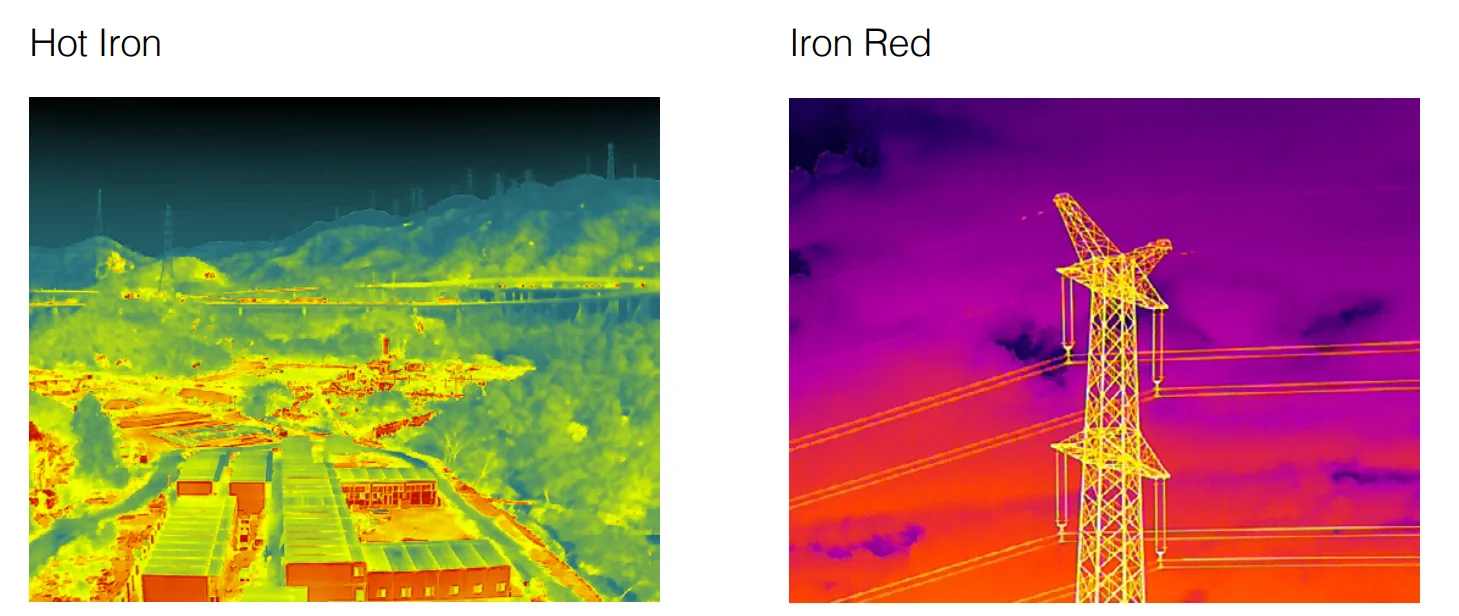
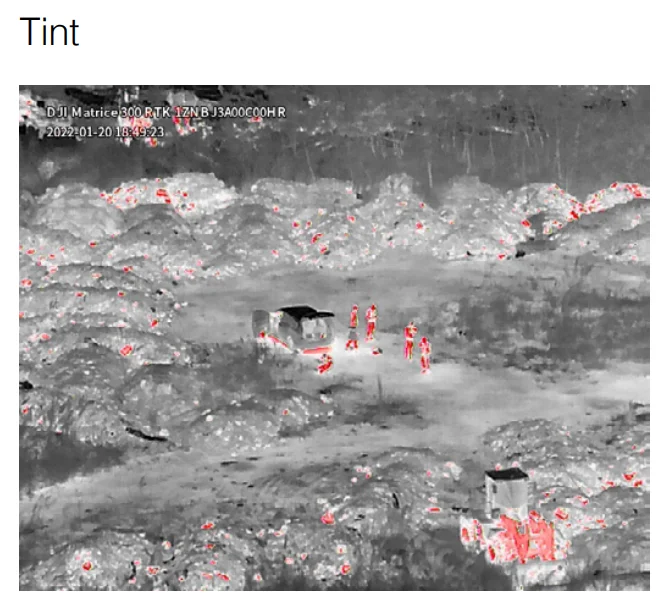
The Zenmuse H20N offers a variety of palette options. Distinct colors are used to show temperature differences in the thermal image using grayscale intensity. The temperature range of the image is mapped to 256 colors and displayed in the 8-bit JPEG or MP4 format. The following table shows all palette options.


 Below are examples of different palette options.


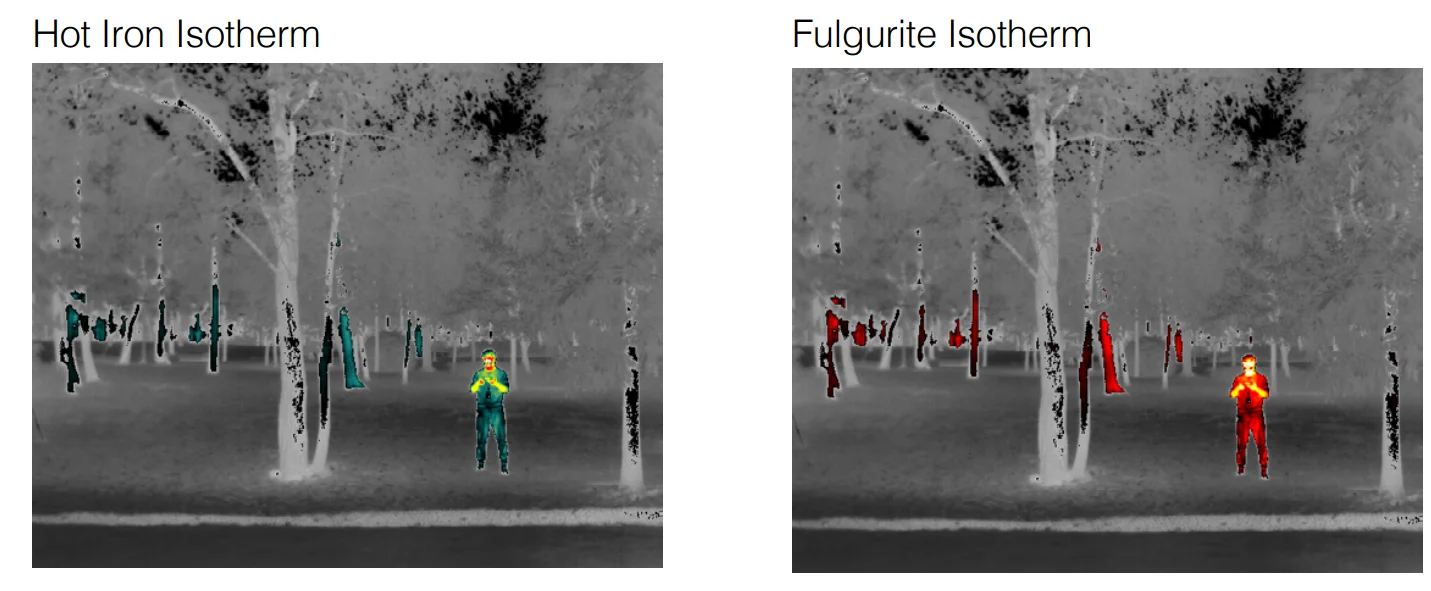
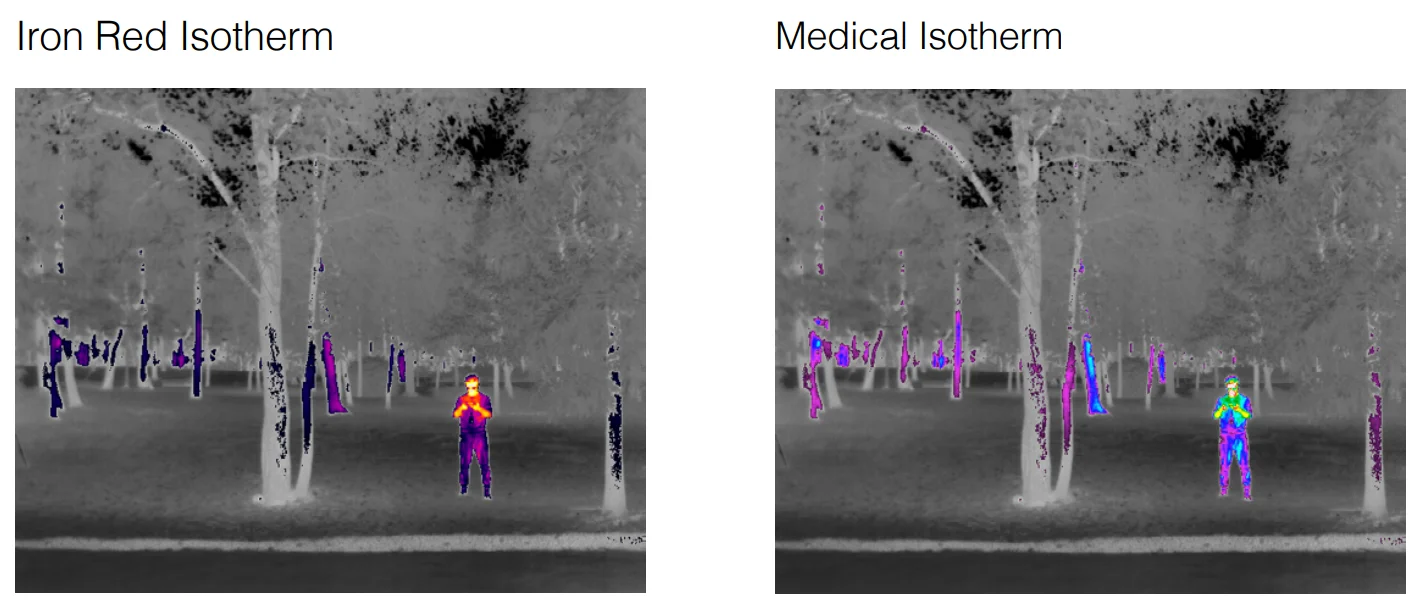
Isotherm
This feature allows designated temperature ranges to be represented with different color schemes, so that objects within this range impart higher contrast and better visibility. The temperature range is set with upper and lower thresholds. Below are examples of isotherm features enabled.

- Gain Mode
Tap to adjust the temperature range. Users can choose High Gain Mode or Low Gain Mode. High Gain Mode: A narrower temperature range can be captured with a higher sensitivity to temperature differences. Low Gain Mode: A wider temperature range can be captured with a lower sensitivity to temperature differences. - Display Mode
Tap to switch between the IR and Split display modes for the infrared thermal camera.- IR: only displays footage captured by the infrared thermal camera.
- Split: Both the footage captured by the infrared thermal camera and the zoom camera will be displayed side by side.

- FFC Calibration
Tap this button to execute FFC calibration. FFC calibration is a function of the infrared thermal camera for optimizing image quality. During calibration, your screen may freeze momentarily and the camera will make a clicking sound. - Zoom (Infrared Thermal Camera)
Tap to adjust the digital zoom of the infrared thermal camera to 2x, 4x, 8x, 16x or 32x.
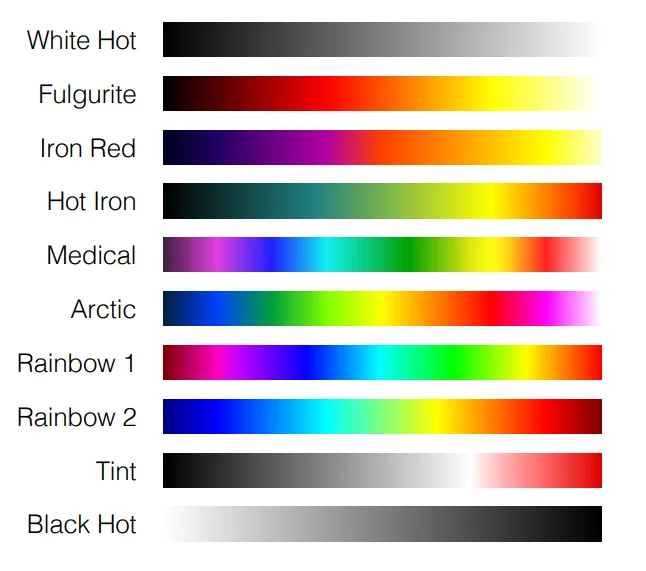
 Below are examples of different palette options.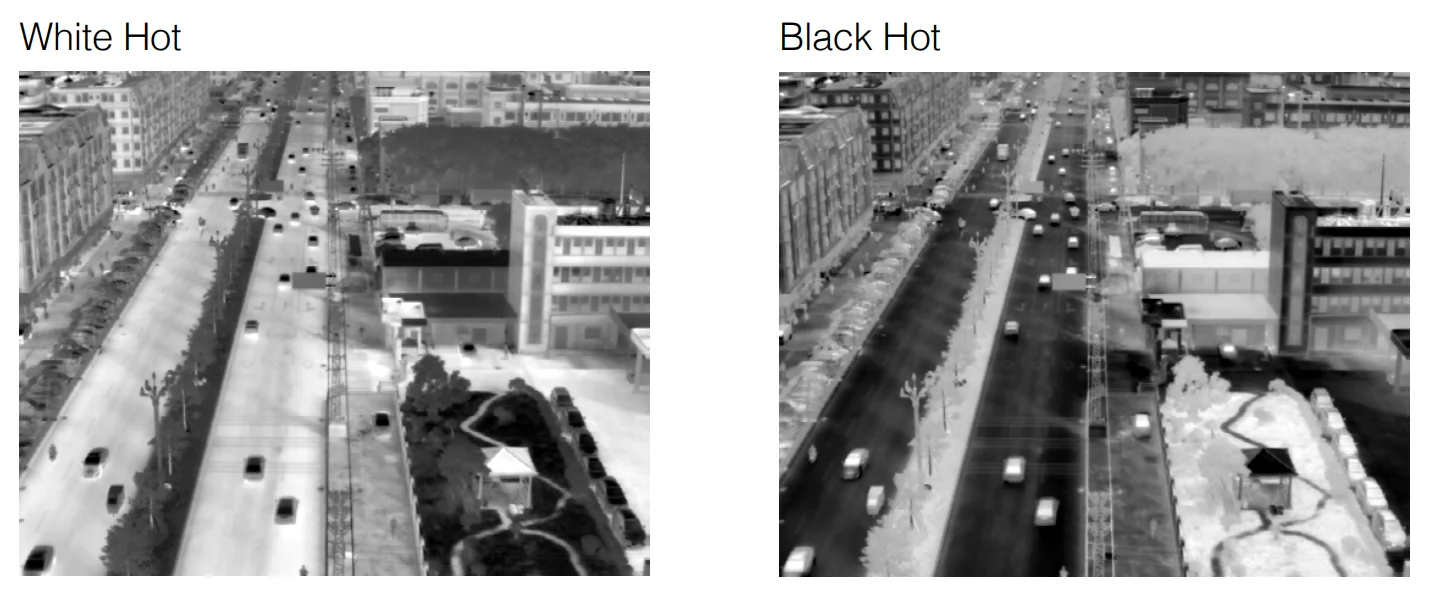
Intelligent Functions
- Link Zoom
Tap the Link Zoom button on the app to enable Link Zoom. Once enabled, users can adjust the zoom magnification of the zoom camera and the infrared thermal camera at the same time. Tap again to disable Link Zoom. - Click to Aim
Double-click the point of interest on the main screen. The gimbal will automatically move to the point of interest in the center of the screen. - High-Res Grid Photo
Drag to select an area in the wide camera view, the gimbal will move automatically and take a series of 4MP photos of the selected area at the current zoom ratio with the zoom camera. Tap the Photo/Video toggle and enter Photo Settings, and then select High-Res Grid Photo. After entering this function, the liveview will switch to the wide camera view. You can set the target shooting area by editing, moving, and zooming the white grid on the screen. All photos will be saved in the same sub-folder in the microSD card, and an HTML file will be created. To view the wide and close-up images, open this HTML file using a browser on a PC.
Night Scene
Choose Auto Night Scene mode, or turn Night Scene on or off when the main screen shows the zoom or the wide camera view. The setting of the Night Scene mode applies to both the zoom camera and the wide camera simultaneously. In Night Scene mode, the recording frame rate of both the zoom and wide cameras will be decreased to optimize the image quality in low-light environments.
- Auto: Night Scene mode will be enabled automatically in low-light environments.
- ON: Tap to turn on Night Scene mode. Select from Enhanced Noise Reduction and IR Light when Night Scene mode is set to ON. Enable Enhanced Noise Reduction to achieve a better image quality.
Note that the recording frame rate will decrease further if Enhanced Noise Reduction is enabled. Use this function with caution for situations where low latency in liveview is required. If IR Light is enabled, the zoom camera will disable the IR filter to optimize the image quality in low-light environments. The Zoom camera will display a black-and-white image once IR Light is enabled.
Temperature Measurement (for infrared thermal cameras only)
- Spot Meter
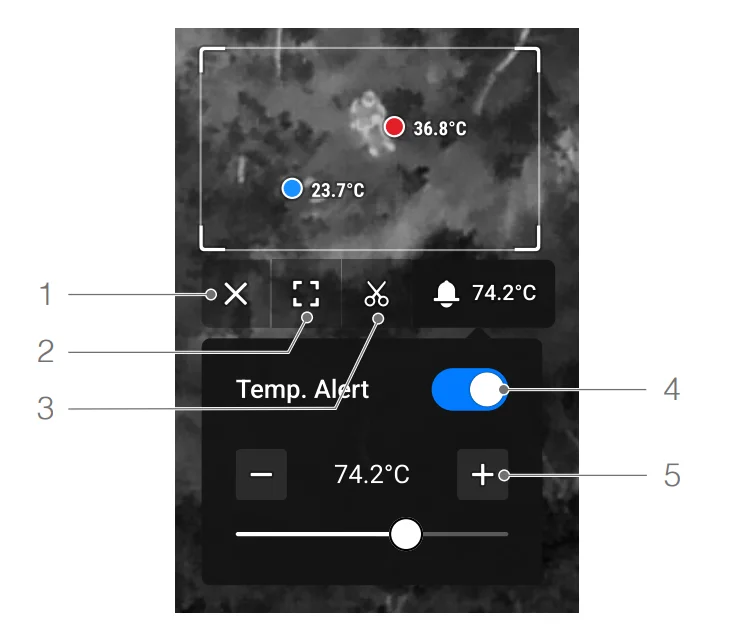
Tap any position within the temperature measurement area on the screen to measure the temperature. - Area Measurement
Drag to select an area within the temperature measurement area on the screen. The lowest temperature, the highest temperature, and their corresponding locations in this area will be displayed on the screen. Tap the icons below the selected area box to:- Close the area measurement page.
- Maximize the page.
- Take a screenshot of the measurement result.
- Enable/disable Temperature Alert;
- Set alert temperature. After Temperature Alert is enabled, users can set the alert temperature.
Once the highest temperature exceeds the set alert temperature, the remote controller will issue a warning sound.
Temperature measurement accuracy is affected by various factors:
- Reflectivity of objects – Shiny metals with high reflectivity will reflect more of the background radiation and result in lower accuracy, whereas objects with matte surfaces will produce higher accuracy.
- Temperature of background radiation – Sunlight affects temperature measurement accuracy, so the infrared thermal camera should be kept out of exposure to direct or reflected sunlight.
- Air temperature and humidity – Temperature and humidity resistance have been calibrated before delivery, but some temperature measurement errors are inevitable. Extreme temperatures or humidity levels will affect measurement accuracy.
- Distance between the camera and the object – The default distance used in calibration is 5 m, which generates the most accurate temperature measurement. Deviations from this distance will lower the accuracy.
- Emissivity of objects – The emissivity of the object will affect temperature measurement accuracy. Generally, accuracy increases proportionally to emissivity. Emissivity is affected by factors such as the material, the roughness, or the degree of oxidation of the object’s surface.
Hints and Tips: When measuring a blackbody 5 m away at 25° C in a windless indoor environment, using the High Gain Mode, the wide infrared thermal camera provides an accuracy of up to ±2° C or ±2% (whichever is the larger value), and the tele-infrared thermal camera provides an accuracy of up to ±5° C or ±4% (whichever is the larger value). Since the emissivity of different blackbodies varies, this measurement result only represents the accuracy of the tested blackbody and is for reference only.
Updating Firmware
Ensure the aircraft, the remote controller, and the Zenmuse H20N have all been updated to the latest firmware. Otherwise, usage may be affected. Do not power off the aircraft or detach the gimbal and camera while updating the firmware. Restart them once the firmware update is complete.
Using a microSD Card
Make sure that the H20N is securely mounted onto the aircraft and the aircraft is powered off. Check that there is enough free space on the microSD card and the Intelligent Flight Batteries are fully charged.
- Visit the Zenmuse H20N product page on the DJI official website and go to Downloads.
- Download the latest firmware.
- Once downloaded, copy the firmware file to the root directory of the microSD card.
- Insert a microSD card into the microSD card slot of the H20N.
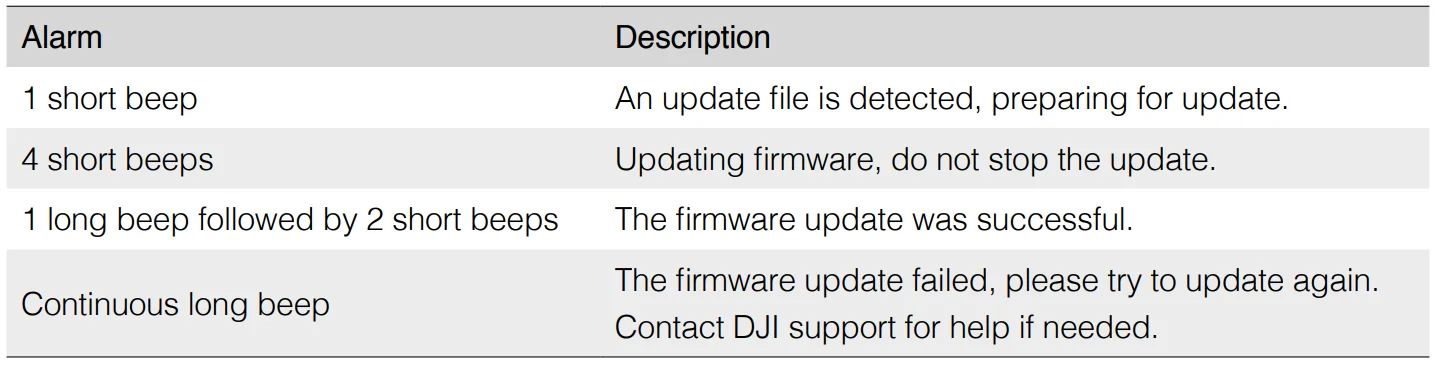
- Power on the aircraft. The H20N will perform an auto-check and start to update automatically. H20N will beep to indicate the status of the firmware update.
- Restart the device after the firmware update is complete.

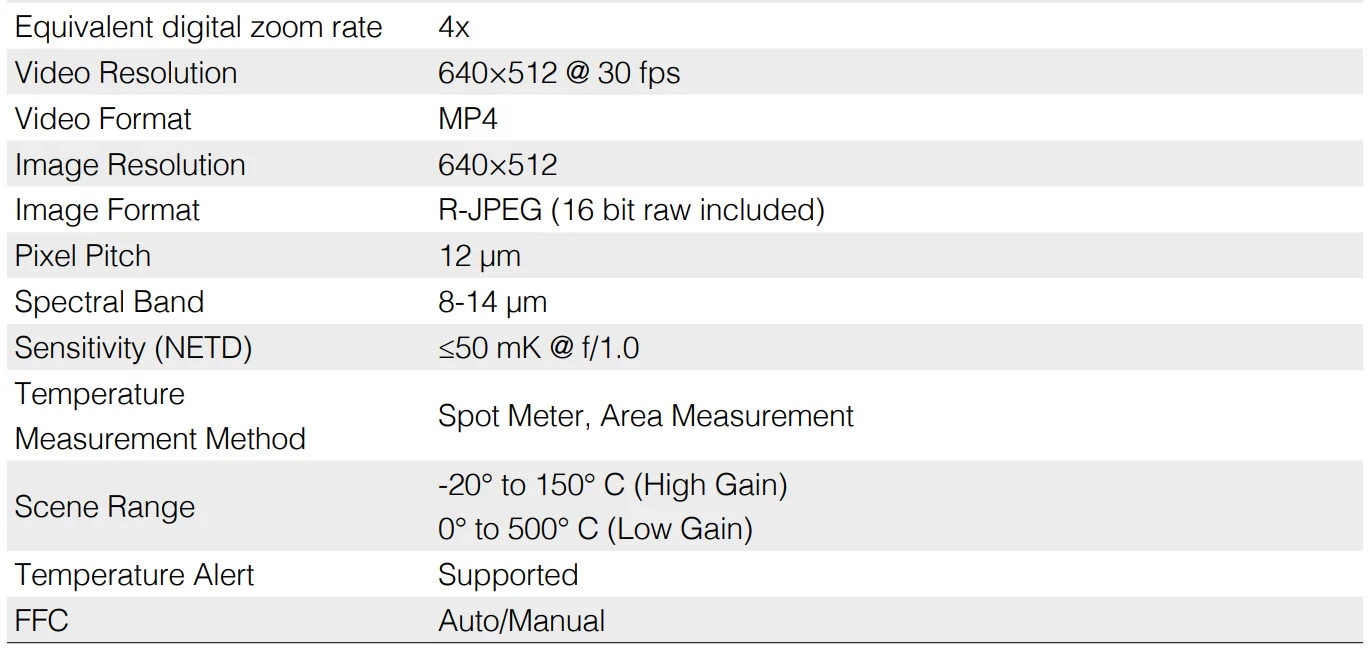
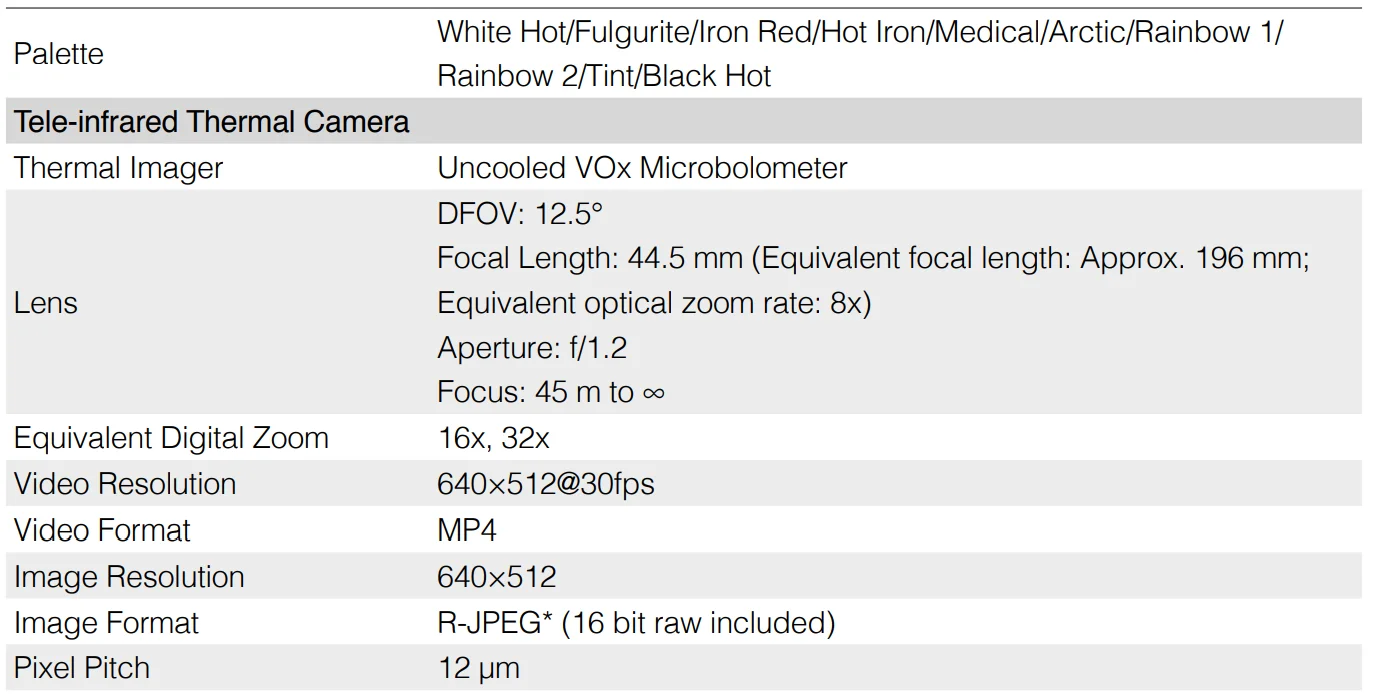
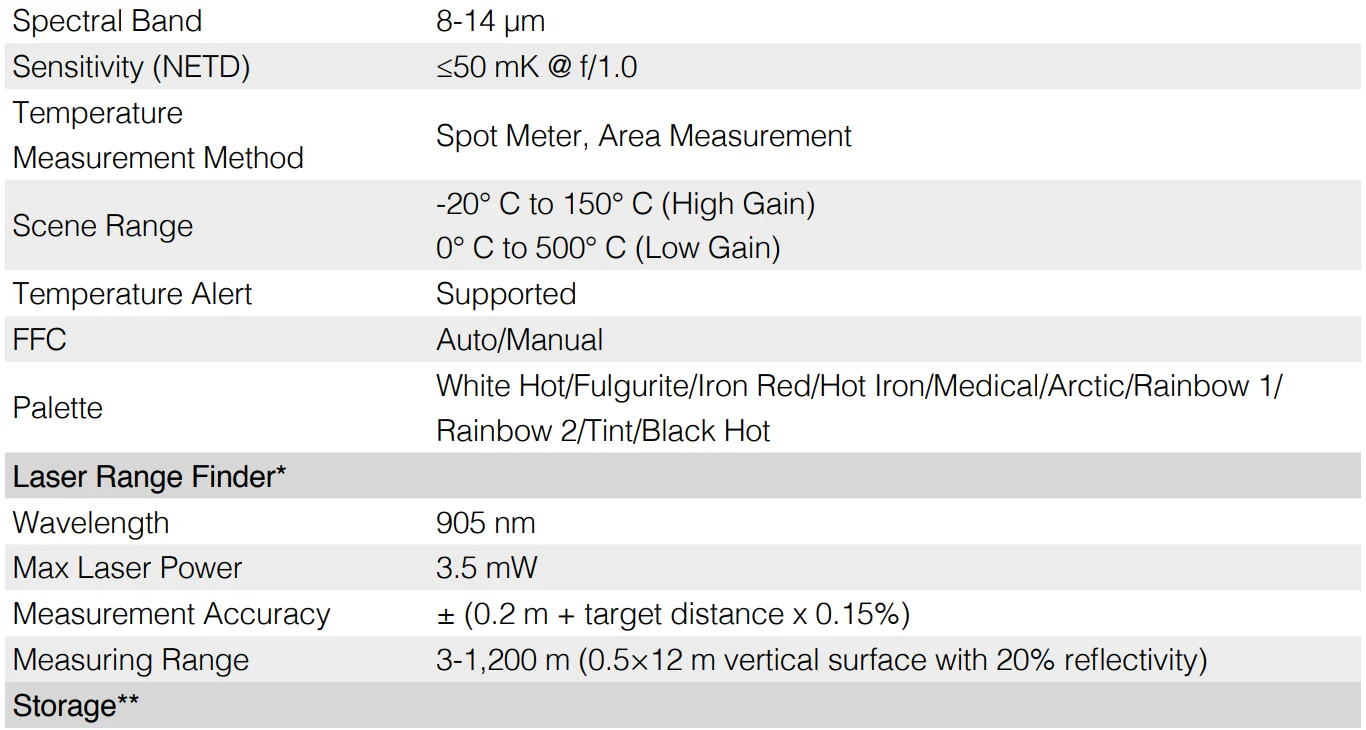
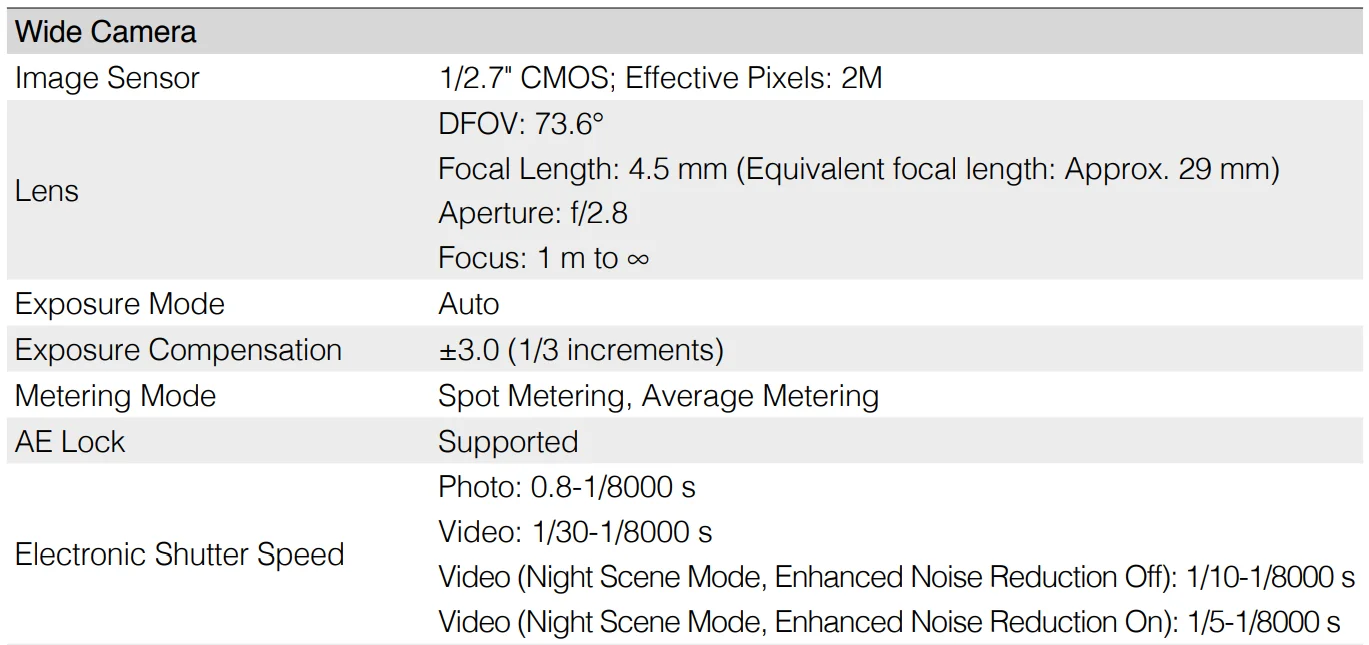
Specifications
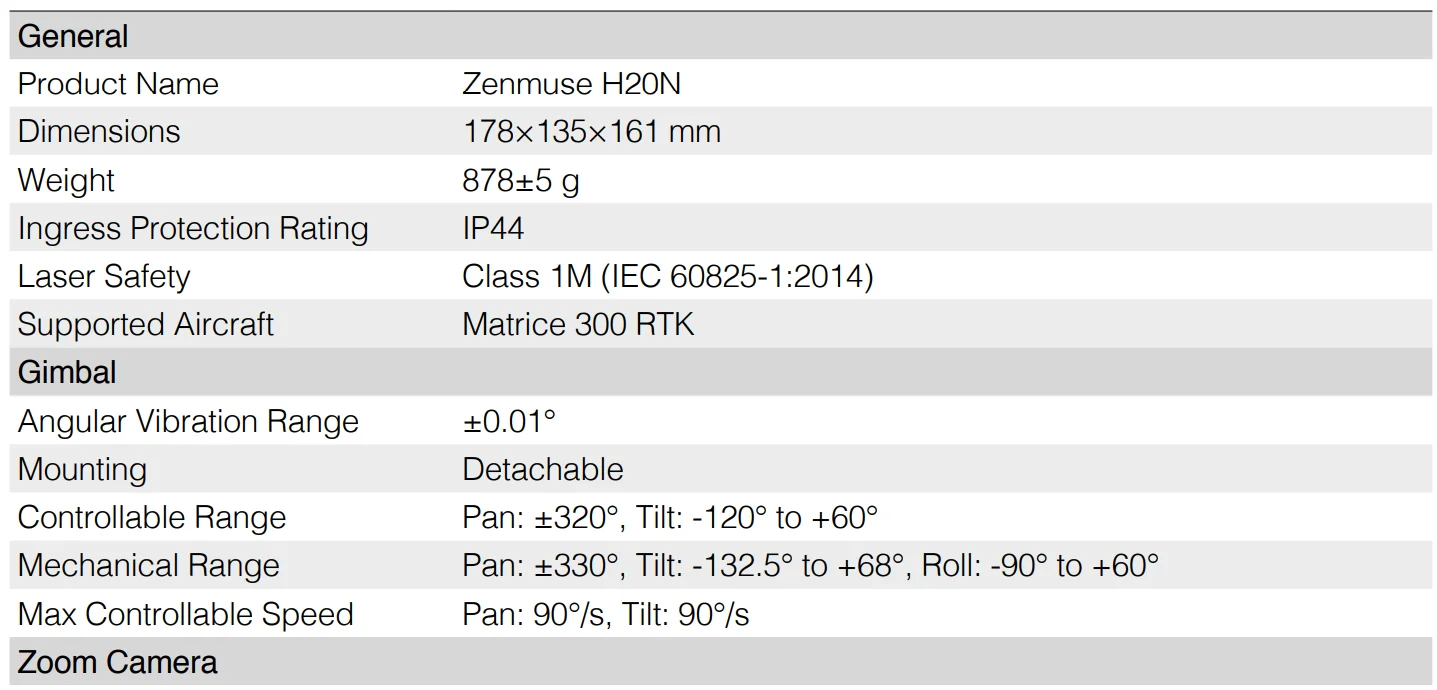
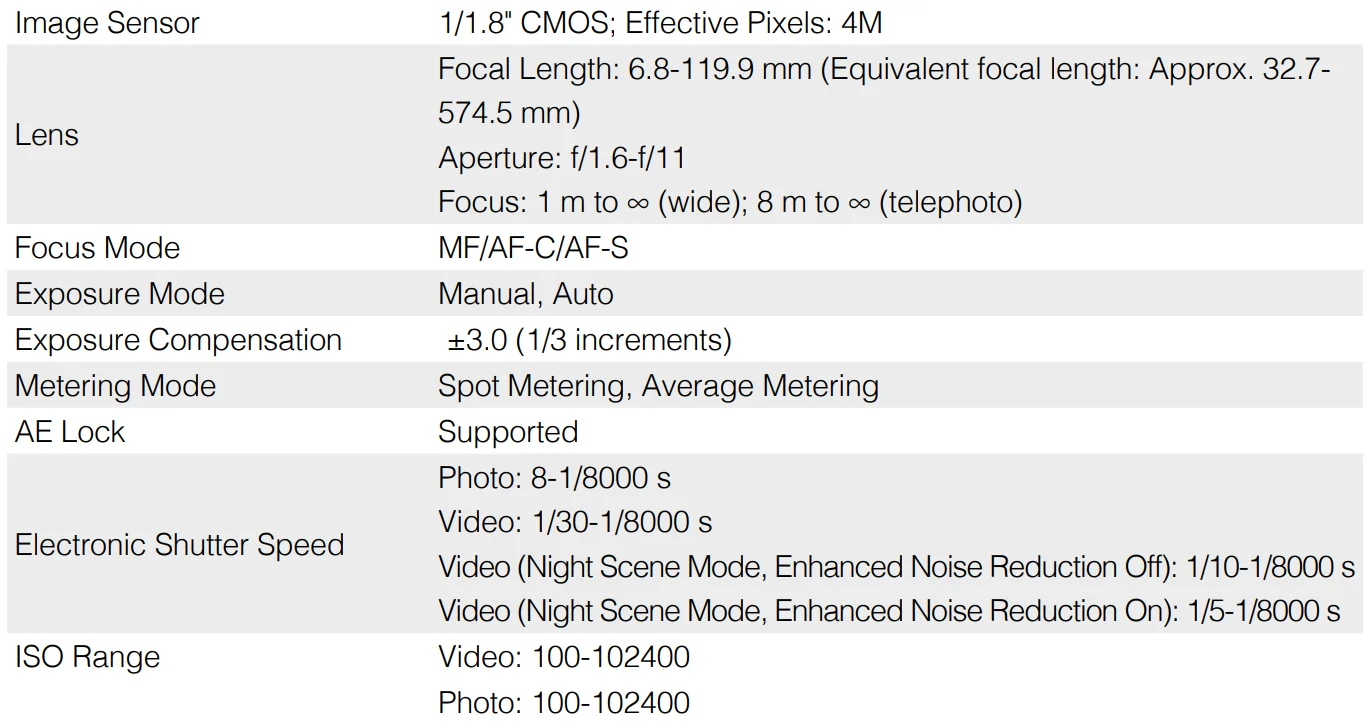
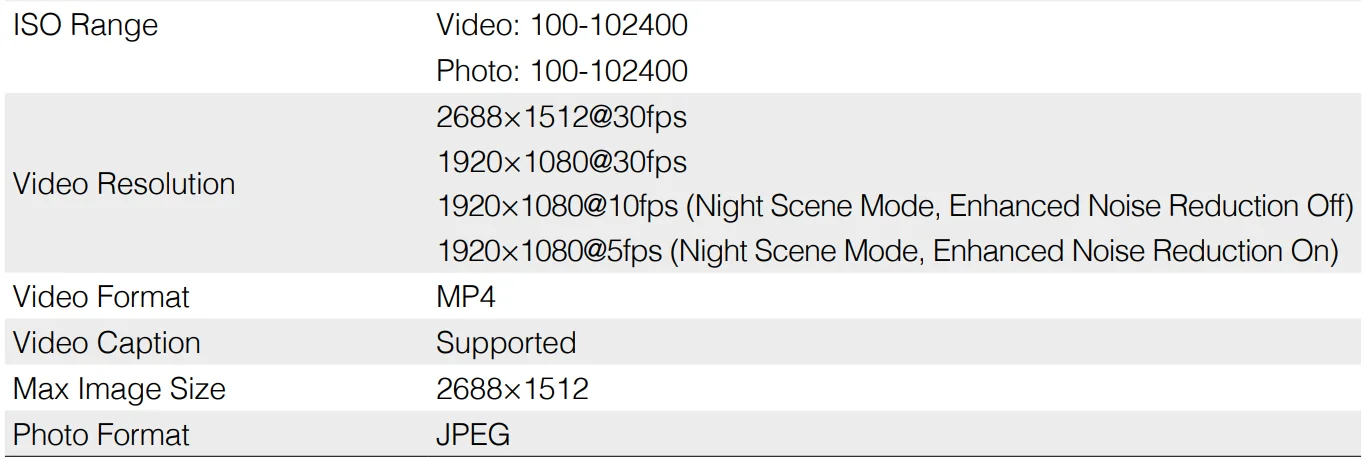
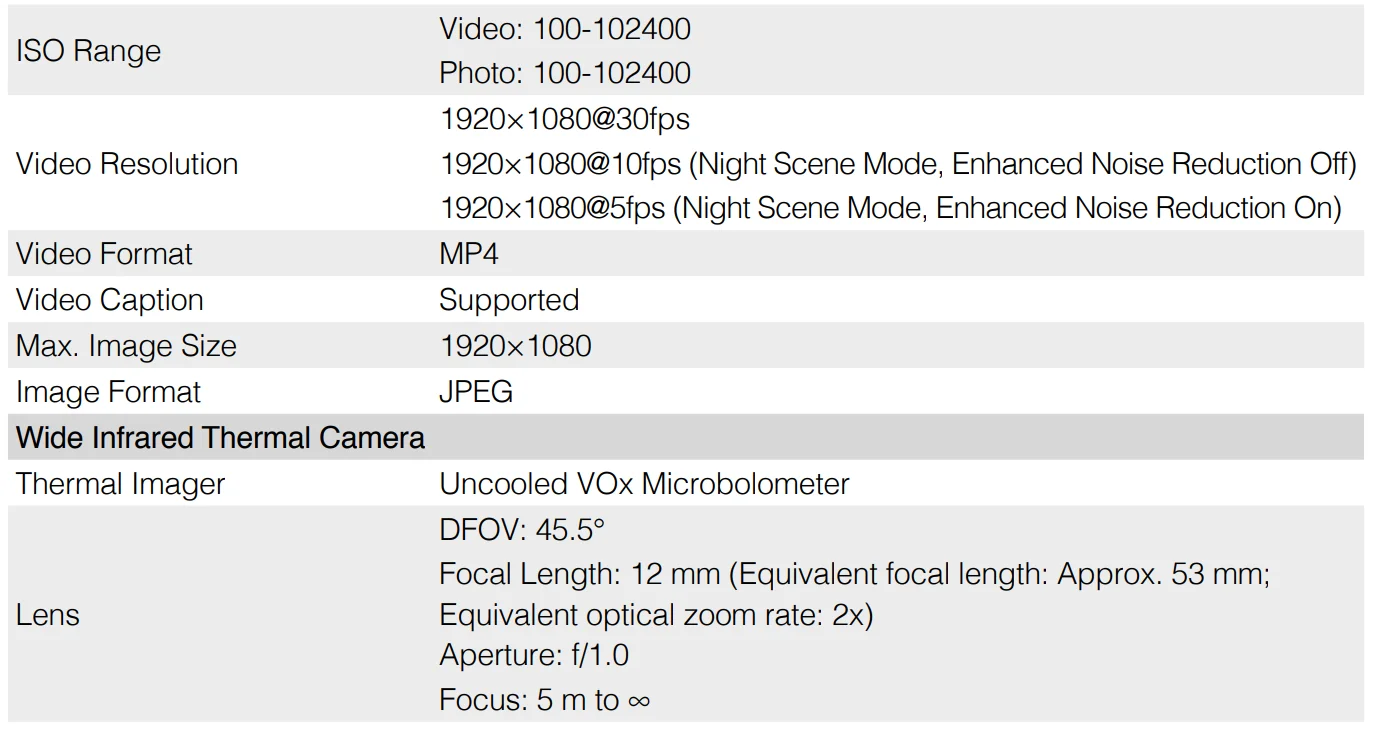

For more manuals by DJI, visit ManualsLibraryy
DJI Zenmuse H20N Camera-FAQs
What is the DJI Zenmuse H20N Camera?
The DJI Zenmuse H20N is a multi-sensor enterprise payload designed for public safety, inspection, and night operations. It combines zoom, wide, thermal imaging, and laser rangefinder capabilities into one integrated system.
What is the resolution of the Zenmuse H20 series?
The standard H20 features a 20MP zoom camera, while the H20N focuses on night vision performance with starlight sensors and thermal imaging for low-light environments.
What is the difference between H20N and H20T?
The H20N is optimized for night missions with starlight night vision on both zoom and wide cameras. The H20T, by comparison, features a higher-resolution wide camera (12MP) and is built more for daytime inspection and thermal applications.
Does the H20N have thermal imaging?
Yes, the H20N includes dual thermal cameras, offering enhanced thermal detail for search and rescue, firefighting, and nighttime surveillance.
What is the IP rating of the H20N?
The Zenmuse H20 series carries an IP44 rating under laboratory conditions, meaning it offers protection against water splashes and dust ingress.
How far can the laser rangefinder measure?
The integrated laser rangefinder can measure distances up to approximately 1,200 meters, depending on environmental conditions and target reflectivity.
How do I connect my DJI drone to DJI Assistant 2?
Power on the drone, connect it to your computer using a USB cable, open DJI Assistant 2, log in to your DJI account, and select the connected device for updates or configuration.
Can I connect my DJI drone to a PC to transfer files?
Yes. Connect the drone or remote controller to your computer via USB. You can then access the storage drive and transfer photos or videos.
Do I need to calibrate my drone before every flight?
While not always mandatory, calibration is recommended before critical missions, after firmware updates, or following hard landings to ensure sensor accuracy.
What drone is compatible with the H20N?
The H20N is compatible with enterprise platforms like the DJI Matrice 300 RTK, designed to support advanced multi-sensor payloads.