
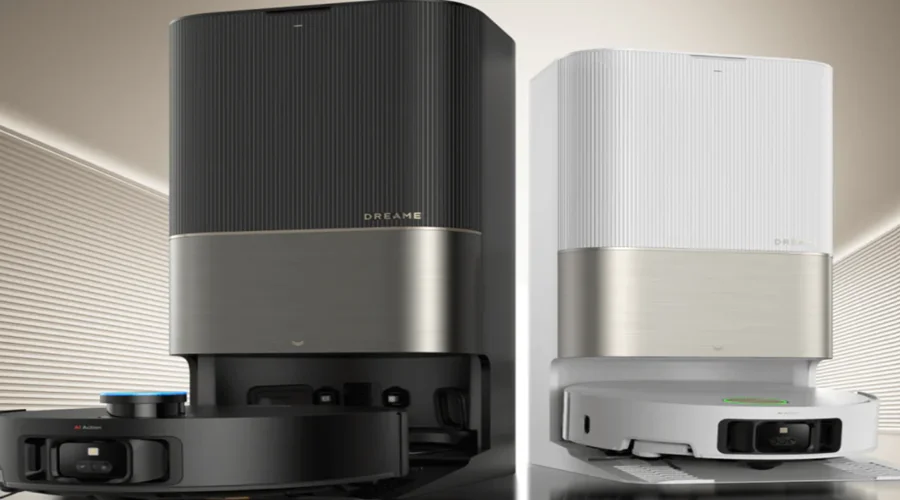

Dreame X50 Ultra Robot Vacuum Cleaner
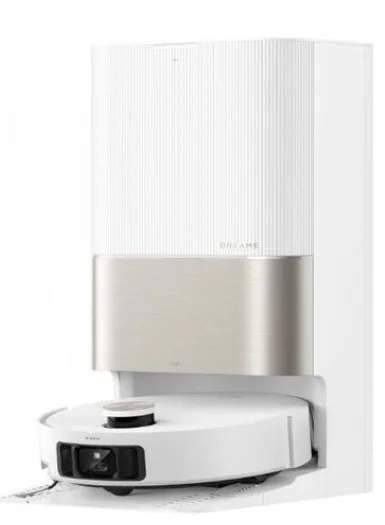
Safety Information
To avoid electric shock, fire or injury caused by improper use of the appliance, please read the user manual carefully before using the appliance and keep it for future reference.
Usage Restrictions
- This product should not be used by children younger than 8 years old, nor by persons with physical, sensory, or intellectual deficiencies, or limited experience or knowledge, without the supervision of a parent or guardian to ensure safe operation and to avoid any risks. Cleaning and maintenance shall not be performed by children without supervision.
- The appliance is only to be used with the power supply unit provided with the appliance.
- This appliance contains batteries that are only replaceable by skilled persons.
- Clear the area to be cleaned. Children shall not play with the appliance. Ensure children and pets are kept at a safe distance from the robot while it is operating.
- Do not install, charge or use the appliance in the bathrooms or around the pools.
- This product is for floor cleaning in a home environment only. Do not use it outdoors, on non-floor surfaces, or in a commercial or industrial setting.
- Ensure that the appliance operates correctly in a proper environment. Otherwise, do not use the appliance.
- If the power cord is damaged, it must be replaced by a special cord or assembly available from the manufacturer or its service agent.
- Do not use the robot in an area suspended above ground level without a protective barrier.
- Do not place the robot upside down. Do not use the LDS cover, robot cover, or bumper as a handle for the robot.
- Use the robot in environments with an ambient temperature above 0°C and below 40°C. Make sure there is no liquid or sticky substance on the floor.
- To prevent damage or harm from dragging, clear any loose objects from the floor, and remove cables or power cords on the cleaning path before operating the appliance.
- Remove fragile or small items from the floor to prevent the robot from bumping into and damaging them.
- Keep hair, fingers, and other body parts away from the suction opening of the robot.
- Keep the cleaning tool out of reach of children.
- Do not operate the appliance in a room where an infant or child is sleeping.
- Do not place children, pets, or any item on top of the robot, regardless of whether it is stationary or moving.
- Only clean water and the officially-approved cleaning solution can be added to the clean water tank. Do not add any other liquid such as alcohol or disinfectant. The ratio of the cleaning solution to clean water can be checked on the cleaning solution bottle. Keep the cleaning solution out of reach of children.
Batteries and Charging
- Do not use any third-party battery or base station. The robot can only be used with the model RCXE0105/RCXE0108/RCXE0109 base station.
- Do not attempt to disassemble, repair, or modify the battery or the base station on your own.
- Do not place the base station near a heat source.
- Do not use a wet cloth or wet hands to wipe or clean the base station’s charging contacts.
- Do not improperly dispose of old batteries. Unneeded batteries should be discarded at an appropriate recycling facility.
- If the power cord becomes damaged or broken, stop using it immediately and contact after-sales service.
- Make sure the robot is turned off when being transported and kept in its original packaging if possible.
- If the robot will not be used for an extended period of time, fully charge it, then turn it off and store it in a cool, dry place. Recharge the robot at least once every 3 months to avoid over-discharging the battery.
Product Overview
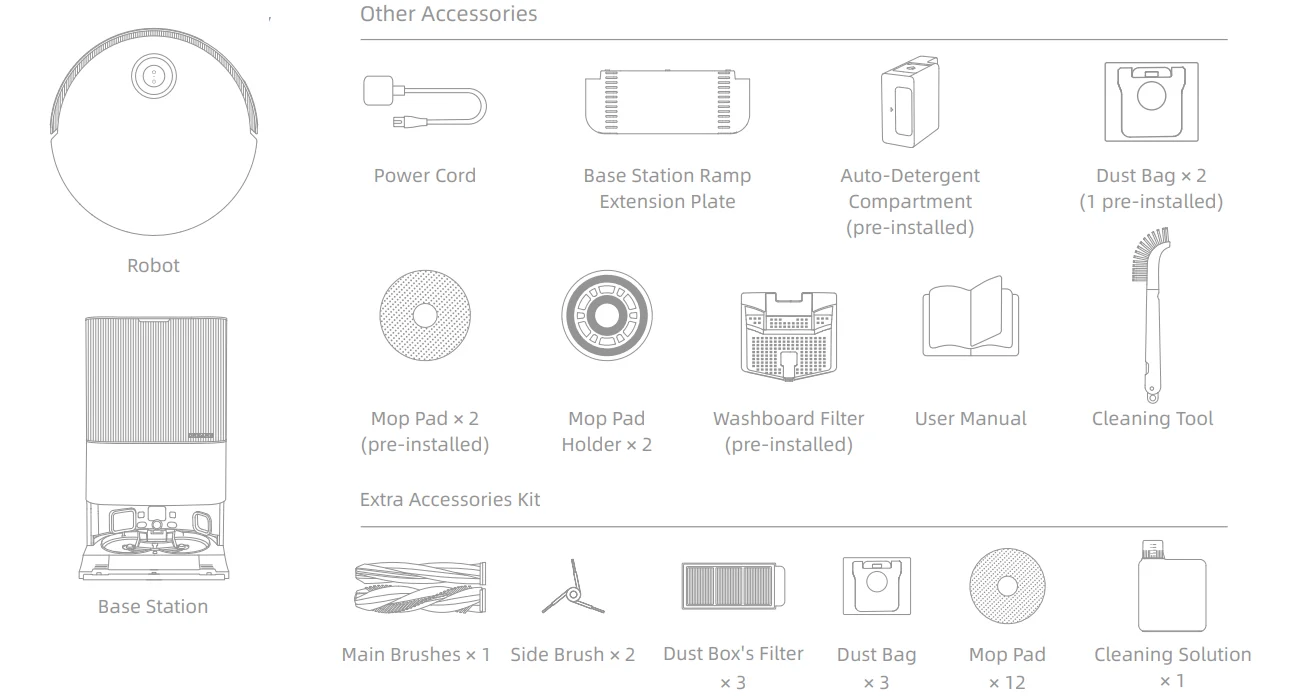
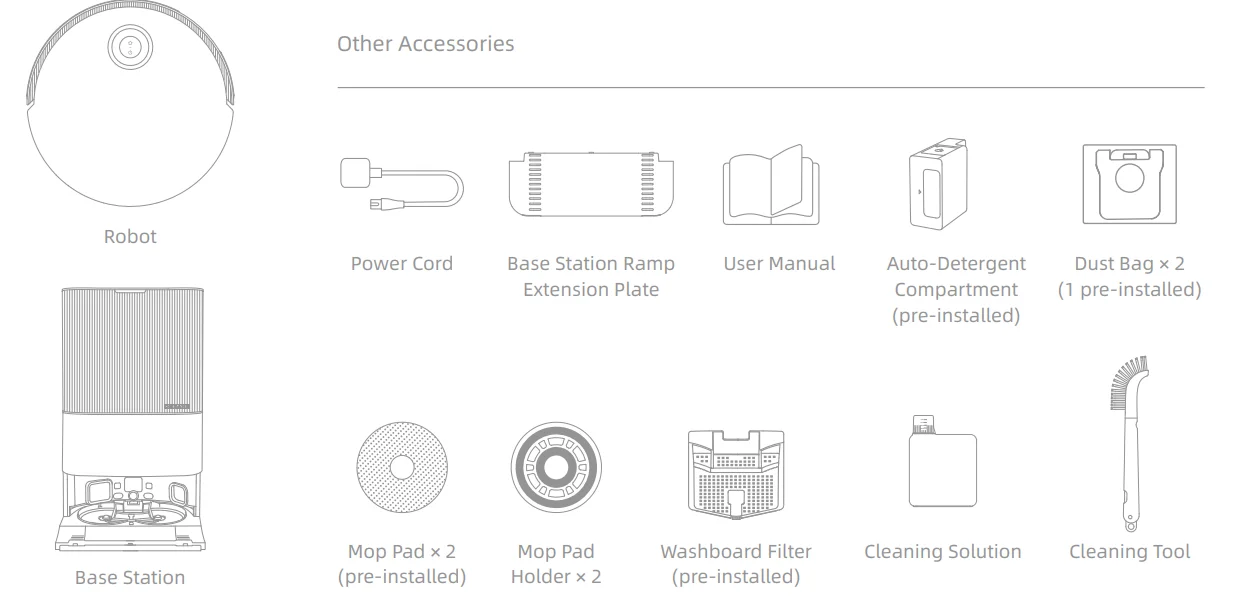
Package Contents
Robot
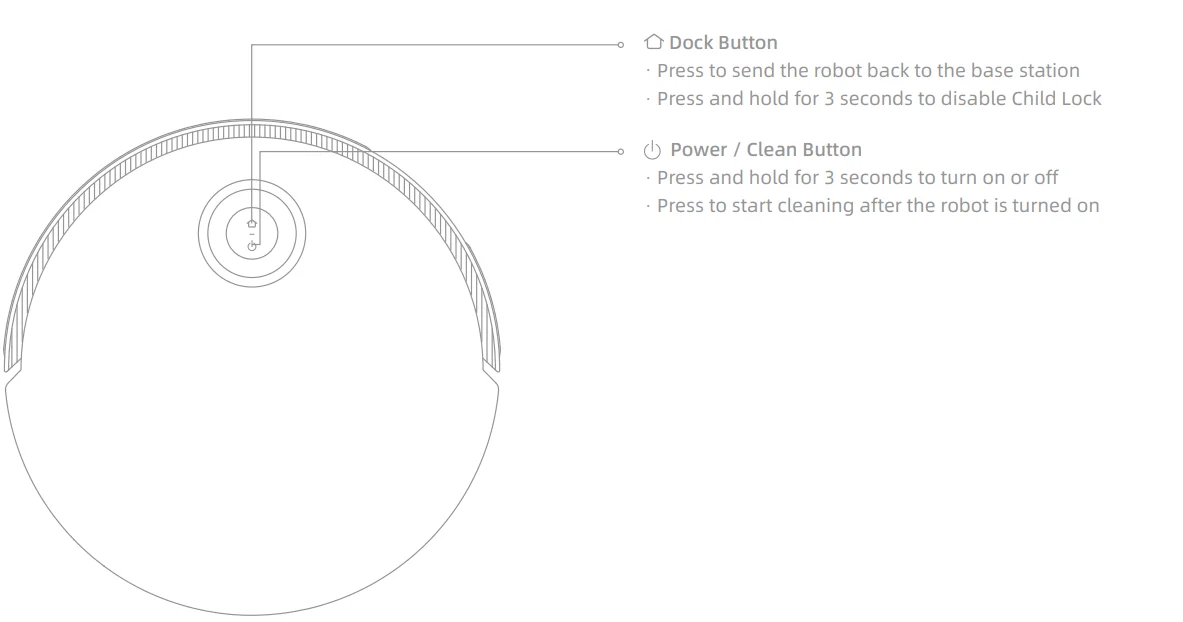
Circular Status Indicator
- Solid Blue: Cleaning or cleanup completed
- Solid Green: Charging
- Blinking Orange: Error
Button Status Indicator
- Solid White: Cleaning or cleanup completed
- Breathing White: Charging (not low battery)
- Solid Orange: Standby at low battery or paused at low battery
- Breathing Orange: Charging (low battery)
- Blinking Orange: Error
- Blinking Pink: Camera activated
Note:
- Press any button on the robot to pause while the robot is cleaning or returning to charge.
- Child Lock can be enabled/disabled through the Dreamehome App.
Robot and Sensors
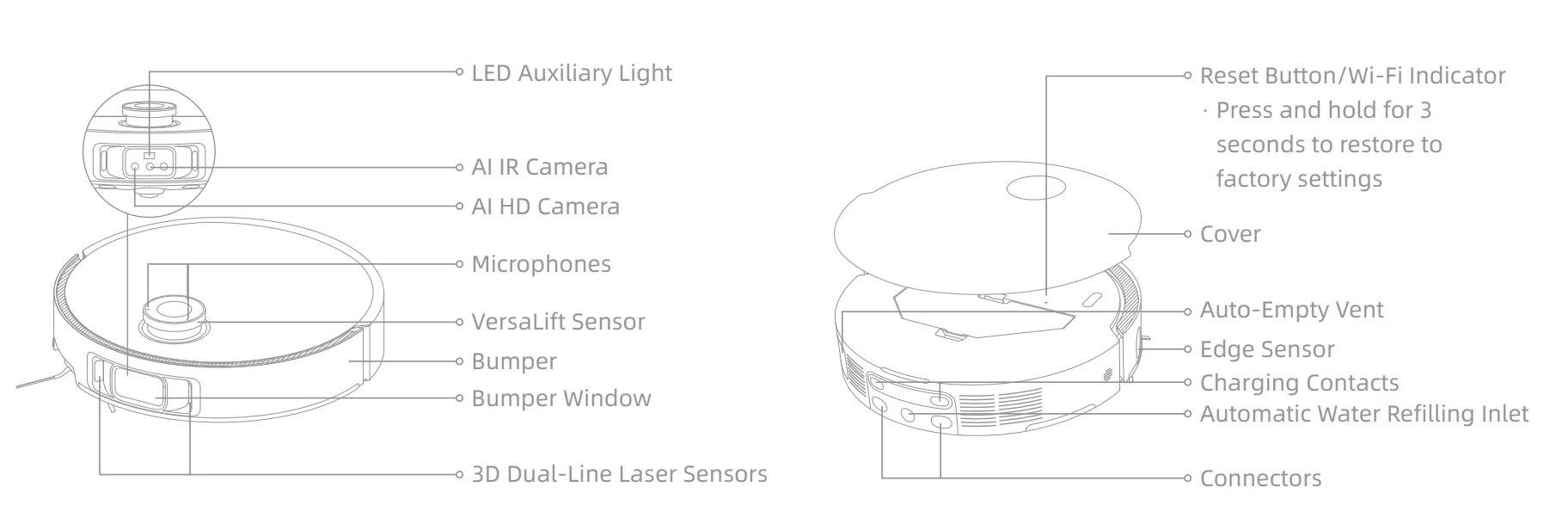
Note: The VersaLift sensor will be lowered when the robot is in standby mode, charging on the base station, or cleaning low-clearance areas. In the case of cleaning low-clearance areas, do not move the robot as it may affect its positioning.
Dust Box
Mop Assembly
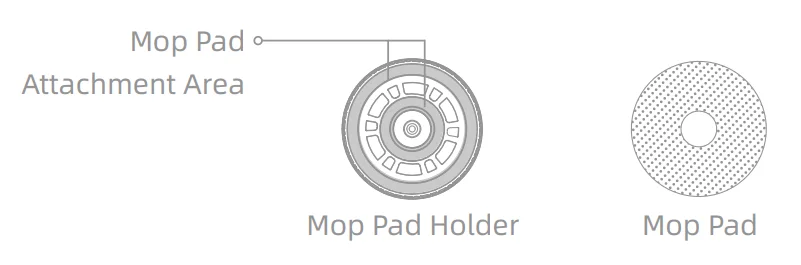
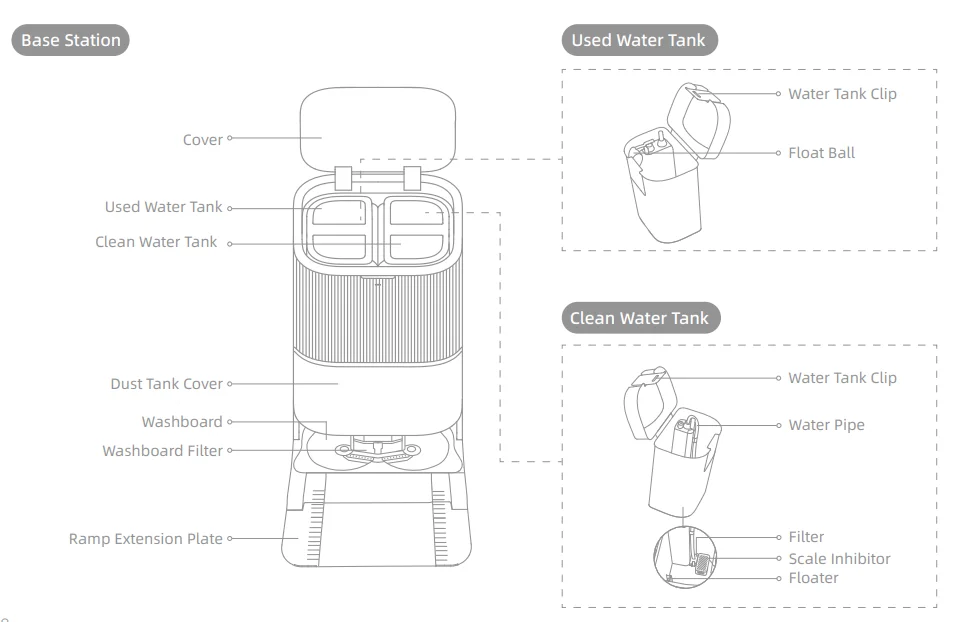
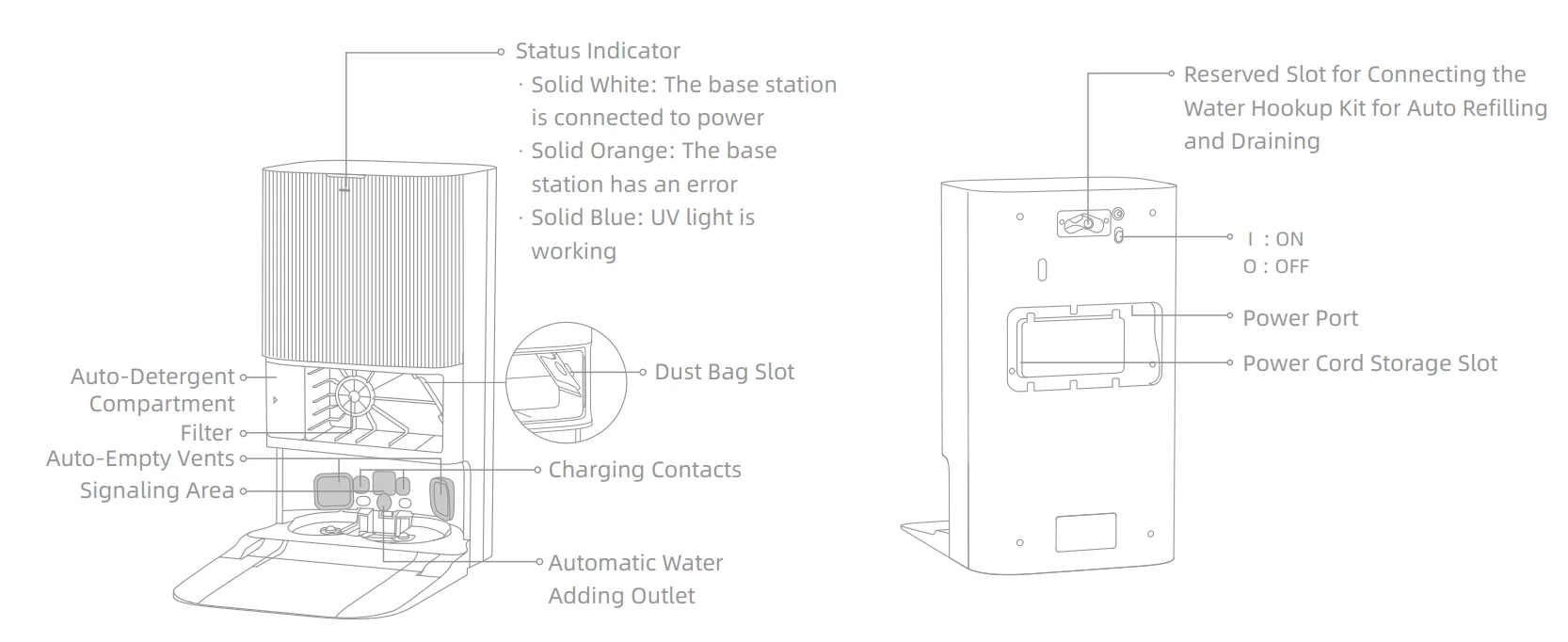
Note: The water hookup kit for auto refilling and draining needs to be purchased separately. (Only available in specific regions)
Preparing Your Home
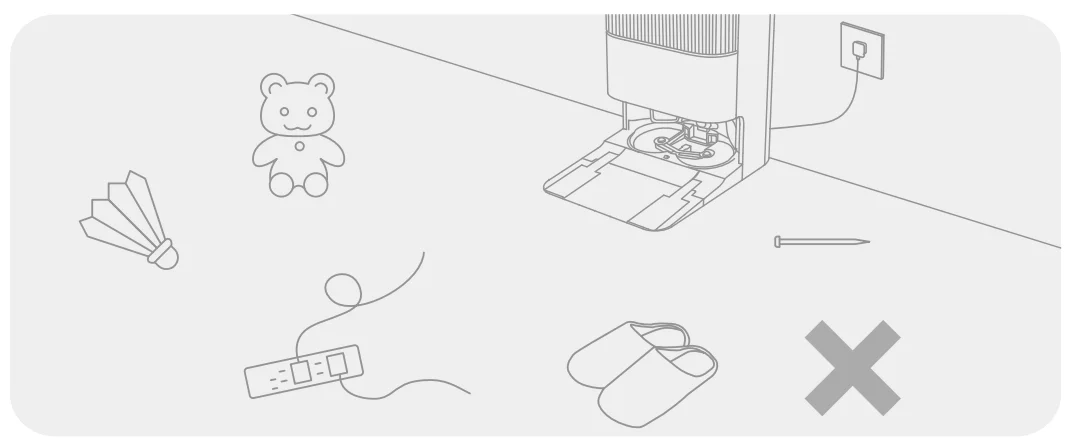
- Before cleaning, please move away unstable, fragile, valuable, or dangerous items, and clean up cables, cloths, toys, hard objects, and sharp objects on the ground to avoid being entangled, scratched, or knocked over by the robot and causing losses.

- Before cleaning, place a physical barrier at the edge of the stairs to ensure the secure and smooth operation of the robot.

- Open the door of the room to be cleaned, and put the furniture in its proper place to leave more space.

- To prevent the robot from missing areas that need to be cleaned, do not stand in front of the robot, threshold, hallway, or narrow places.
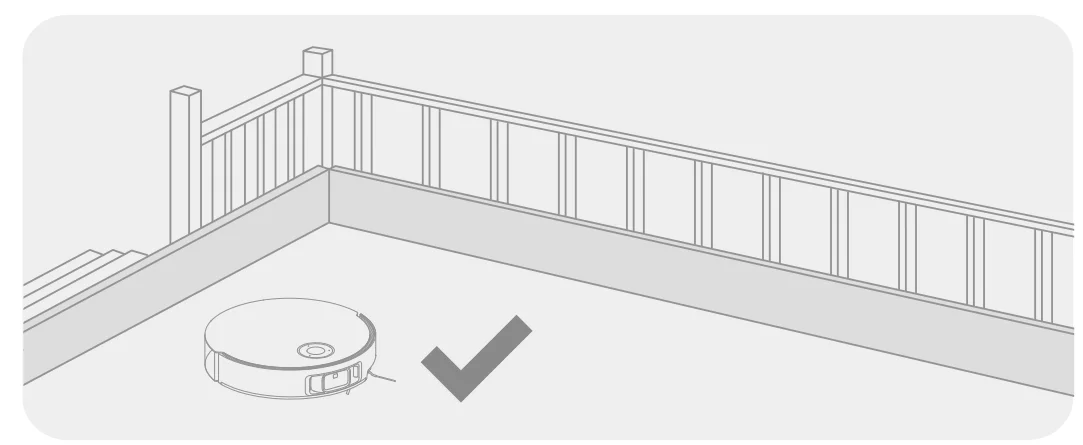
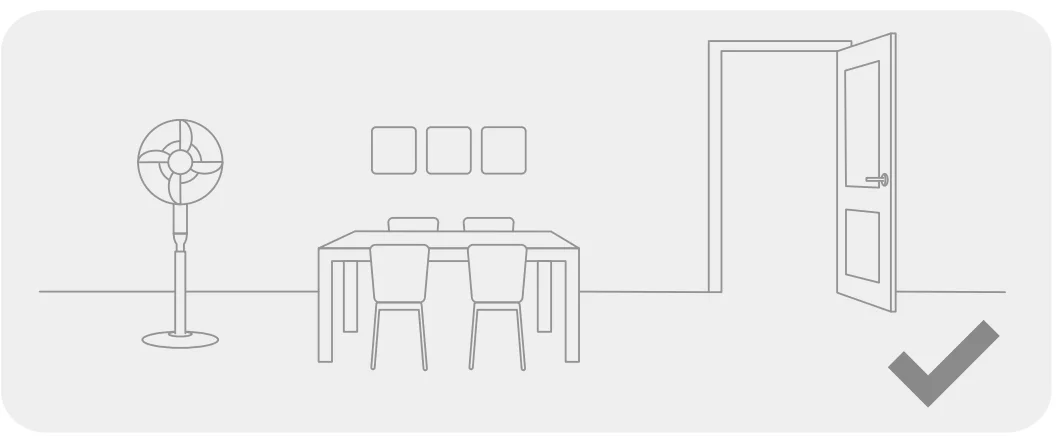
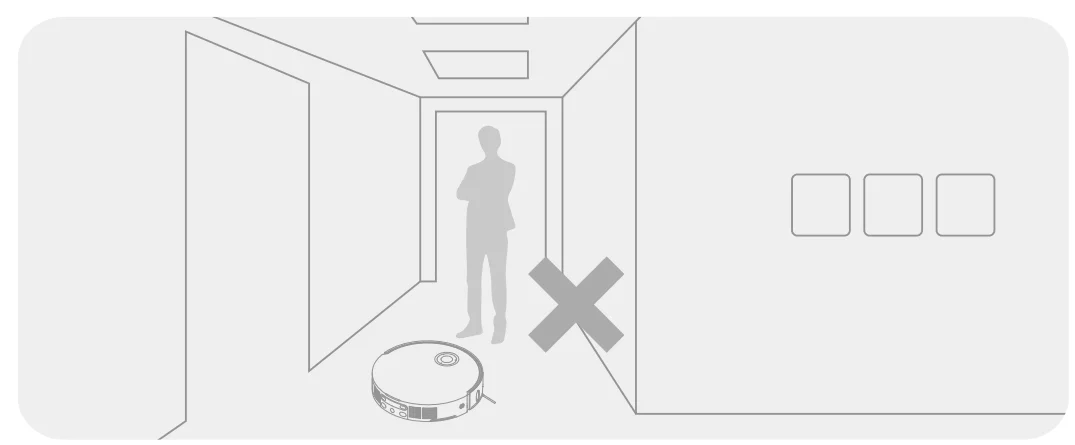
Note:
- When operating the robot for the first time, follow it around while cleaning to remove any potential obstacles in time.
- The LED auxiliary light will provide auxiliary lighting in dimly lit environments.
- Do not vacuum hard objects like stones, steel balls, and toy parts, or sharp objects like construction waste, broken glass, and nails, as the ground may be scratched.
Before Use
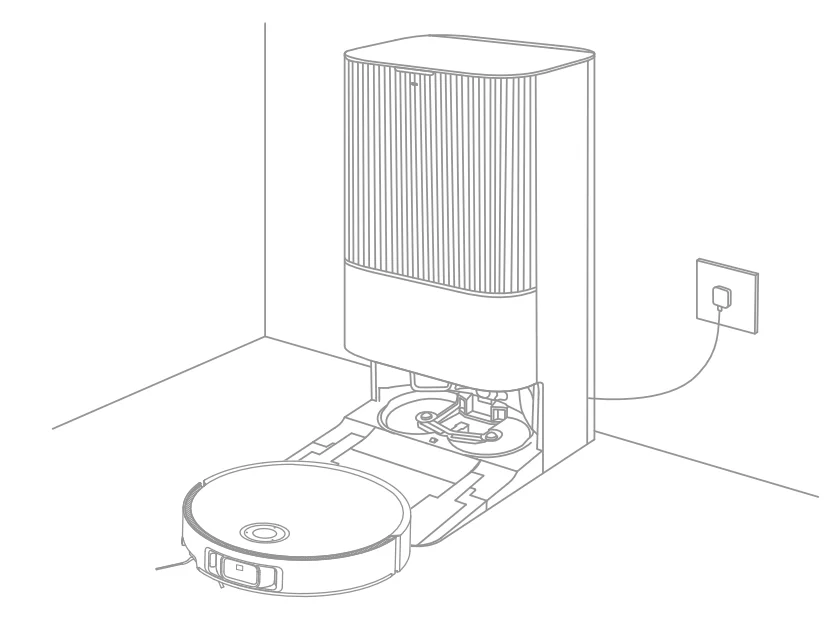
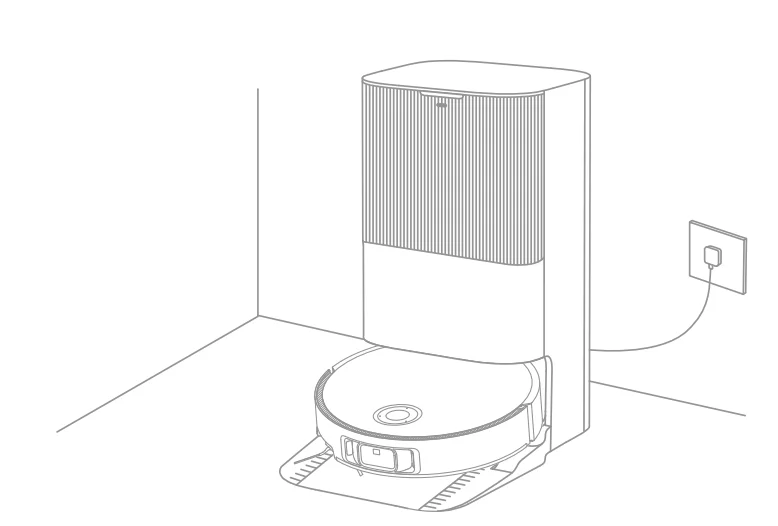
- Place the Base Station and Connect to an Electrical Outlet
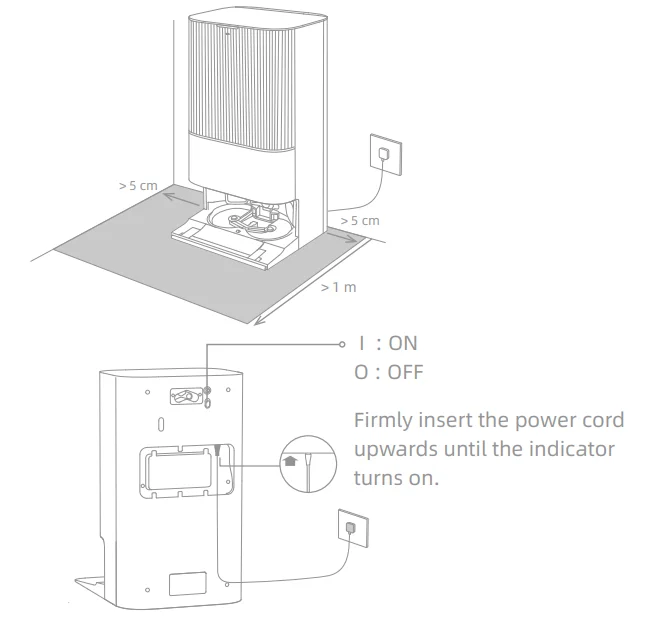
Place the base station in a location that is as open as possible with a good Wi-Fi signal. Leave enough space as shown in the figure and remove any objects in the shaded area. Insert the power cord into the base station and plug it into the socket.
Note:- Make sure that no objects might block the signaling area.
- To prevent water stains from wetting wood floors or carpets, placing the base station on tile floors or marble floors is recommended.
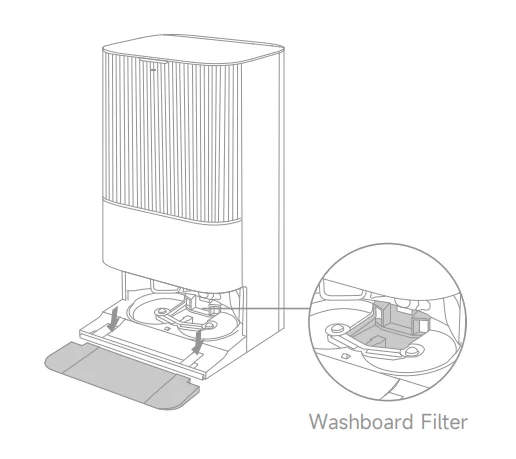
- Install the Ramp Extension Plate

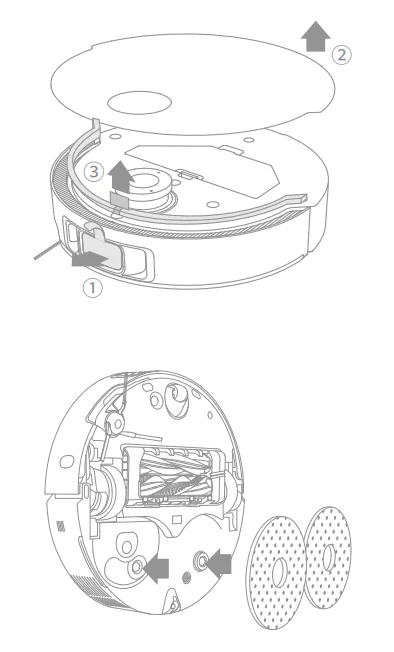
Note: Ensure the washboard filter is installed in place. - Remove Robot Protections and Install the Mop Assembly

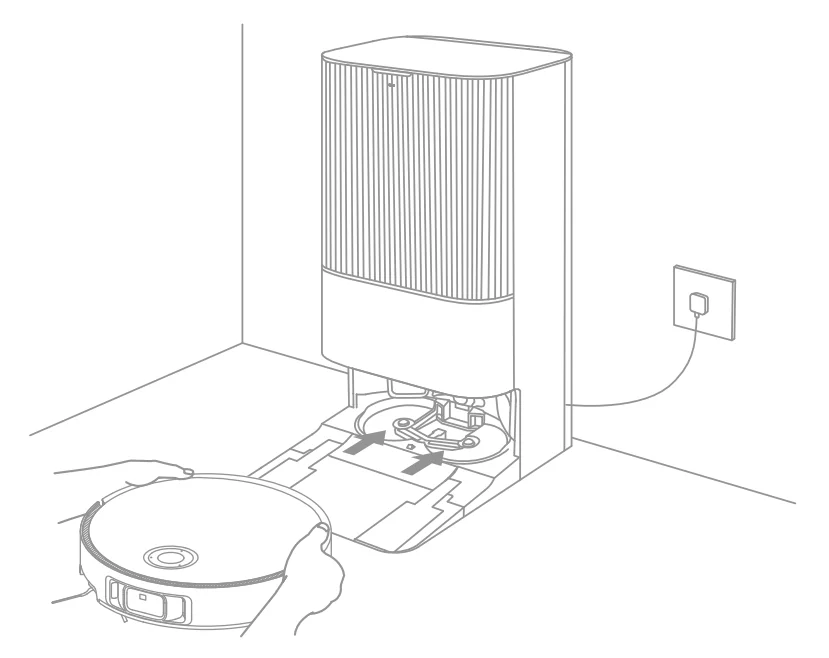
- Connect the Robot to the Base Station
Press and hold the button on the robot for 3 seconds to turn it on. Place the robot onto the base station with the mop assembly facing toward the washboard. Then you will hear a voice notification when the robot successfully connects to the base station. After the robot is fully charged, the status indicators on the robot and the base station will remain lit for 10 minutes and then dim.
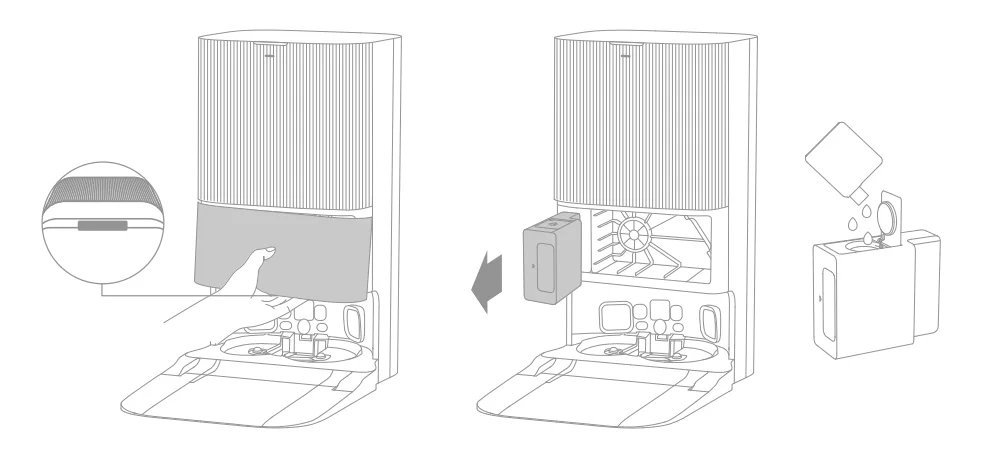
Note: It is recommended to fully charge the robot before its first use. When the robot cannot be turned on after the battery is depleted, manually connect the robot to the station to charge it. - Add the Cleaning Solution
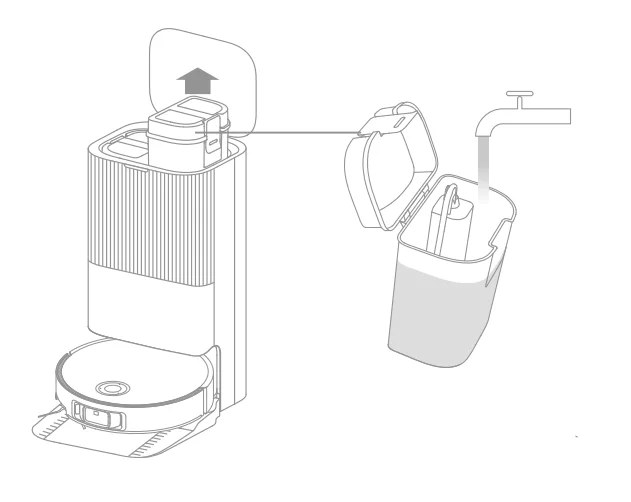
- Remove the dust tank cover and pull out the auto-detergent compartment.
- Open the upper lid of the compartment and add the cleaning solution.
- Close the lid of the compartment, put it back into the base station, and then reinstall the dust tank cover. The cleaning solution will be added automatically while working.

Note:- The auto-detergent compartment can be filled with cleaning solution for use. Do not add any liquid other than the officially-approved cleaning solution to prevent malfunction.
- Install the auto-detergent compartment until it clicks into place.
- Add Water to the Clean Water Tank
Take out the clean water tank from the base station and fill up the tank with clean water. Then install it back into the base station.
Note: Do not add hot water to the water tank, as this may cause the tank to become deformed.
Connecting with the Dreamehome App
- Download the Dreamehome App
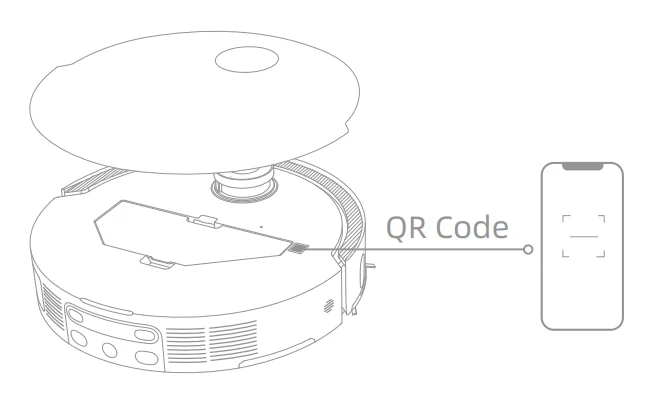
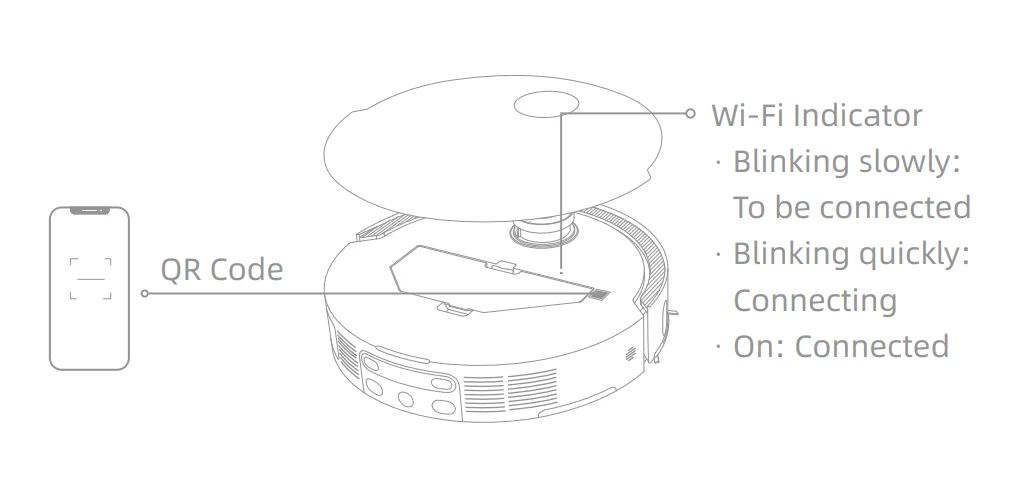
Remove the robot cover and scan the QR code on the robot, or search “Dreamehome” in the app store to download and install the app.
Note:- Only 2.4 GHz Wi-Fi is supported.
- Due to upgrades in the app software, the actual operations may differ from the directions in this manual. Please follow the instructions based on the current app version.
- Add Device
Open the Dreamehome app, tap “Scan QR code to connect”, and scan the same QR code on the robot again to add the device. Please follow the prompts to finish the Wi-Fi connection.
Note: To reset Wi-Fi, repeat step 2 and then follow the prompts to finish the Wi-Fi connection.
How to Use
Turn On/Off
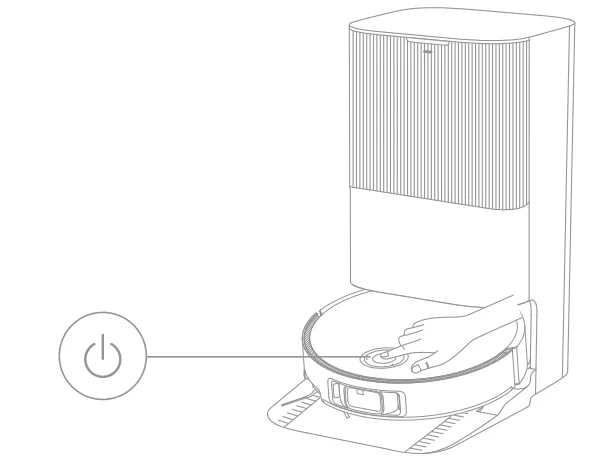
Press and hold the button for 3 seconds to turn on the robot. The power indicator will remain lit. Or, place the robot onto the base station by aligning the charging contacts of the robot with those of the base station, and then the robot will turn on automatically and begin charging. To turn off the robot, move the robot away from the base station and press and hold the buttonfor 3 seconds.
Fast Mapping
After configuring the network for the first time, follow the instructions in the app to quickly create a map. The robot will start mapping without cleaning. When the robot returns to the base station, the mapping process has been completed and the map will be saved automatically.
Pause/Sleep
When the robot is running, press any button to pause it. If the robot is paused for more than 10 minutes, it automatically enters sleep mode. All indicators on the robot will turn off. Press any button on the robot, or use the app to wake up the robot.
Note: If the robot is paused and placed onto the base station, the current cleaning process will end.
Auto Resume Cleaning
If the battery is too low, the robot will automatically return to the base station to charge. After charging to the appropriate battery level, it will resume unfinished cleaning tasks.
Note: To use this function, please enable it in the app.
Do Not Disturb (DND) Mode
When the robot is set to the Do Not Disturb (DND) mode, the robot will be prevented from resuming cleaning. The DND mode is disabled by default at the factory. You can use the app to enable the DND mode or modify the DND period. The DND period is 22:00- 8:00 by default.
Note:
- The scheduled cleaning tasks will be performed as usual during the DND period.
- The robot will resume cleanup where it left off after the DND period expires.
Robot Restarting
If the robot stops responding or cannot be turned off, press and hold the buttonfor 10 seconds to forcefully turn it off. Then, press and hold the buttonfor 3 seconds to turn the robot on.
Vacuum and Mop
Note: After installing the mop assembly, the robot will operate in “Vacuum and Mop” mode by default during its first use.
- Start cleaning
Press the button on the robot, or use the app to make the robot start from the base station. Then the robot will plan the optimal cleaning route and perform the cleaning task based on the created map.
Note:- To ensure the robot easily returns to the base station after cleaning, it is recommended to make the robot start from the base station.
- The mop pads will be cleaned before the robot starts mopping. Please wait patiently.
- Do not move the base station, the clean water tank, the used water tank, or the washboard filter during operation.
- Hot water cleaning can be enabled in the app for mop pad cleaning, which applies to all modes. To prevent scalding, do not touch the water outlet when the function is on.
- Auto mop washing
When cleaning, the robot will automatically return to the basestation to wash mop pads based on the mop pad cleaning frequency specified in the app. The base station will automatically refill the robot’s water tank and the robot will resume cleanup.
- Automatically empty the dust box and wash and dry the mop pads
After the robot finishes a cleaning task and returns to the base station to charge, the base station will automatically empty the dust box and then wash and dry the mop pads.
Note:- If the auto-empty function is turned off in the app, the base station will not automatically empty the dust box.
- The base station will empty the dust box according to the setting in the app.
- Clean the used water tank
After the robot has completed its task, please clean the used water tank to prevent any odor.
Mop after Vacuuming
Enable the mopping after vacuuming function in the app, and the robot will automatically remove the mop assembly on the base station to vacuum the floor. After vacuuming is completed, the robot will return to the base station to install the mop assembly and the base station will automatically empty the dust box. And then, the robot will start mopping after the main brushes and side brush are raised.
Vacuum Only
Enable the vacuuming function in the app, and the robot will automatically remove the mop assembly on the base station and start vacuuming.
Mop Only
Enable the mopping function in the app, and the robot will automatically check if the mop assembly is installed on the base station. If not, the robot will install the mop assembly and start mopping after the main brushes and side brush are raised.
Routine Maintenance
Parts
To keep the robot in good condition, it is recommended to refer to the accessory usage in the app or the following table for routine maintenance.
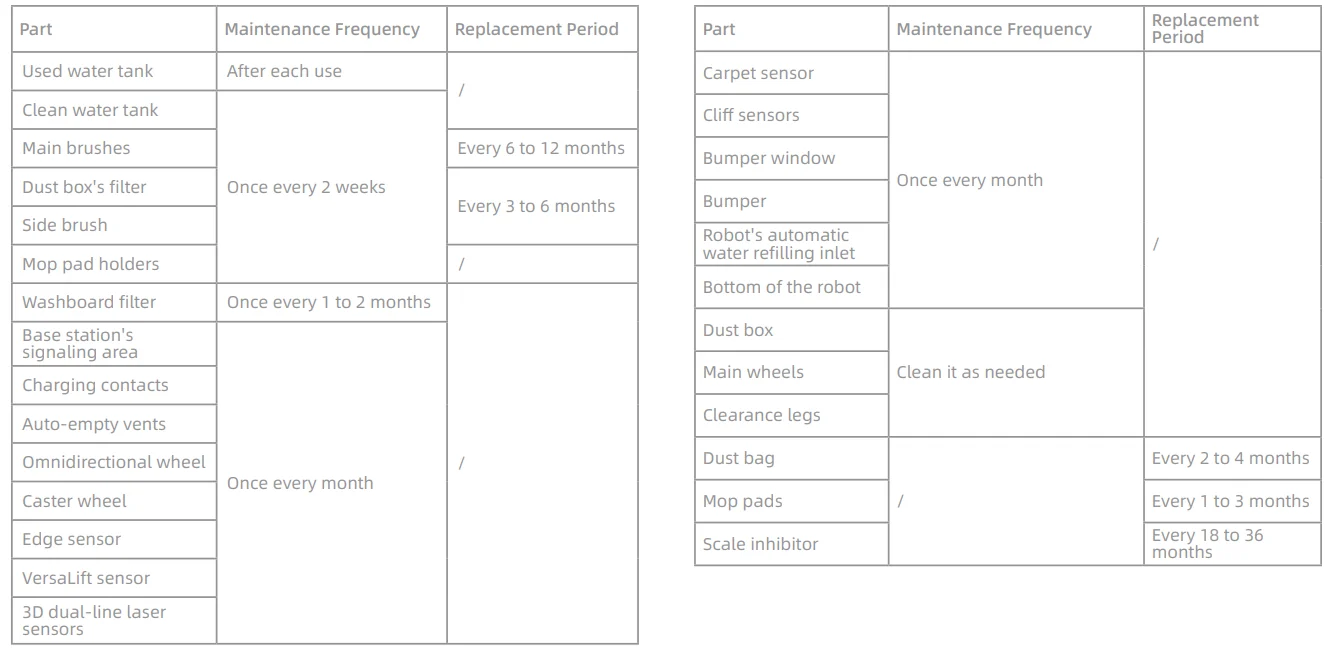
Note: The frequency of maintenance and replacement depends on actual usage. If an exception occurs due to special circumstances, prompt maintenance or replacement is recommended.
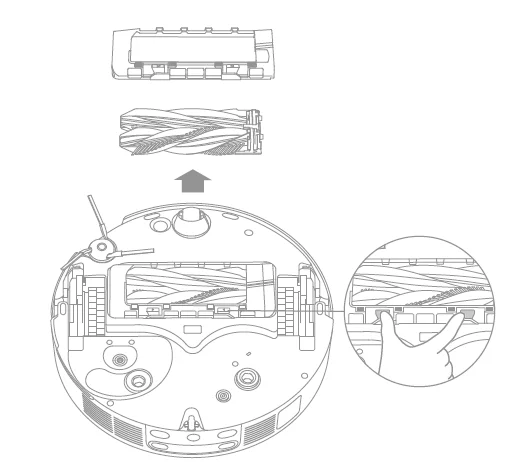
Main Brushes
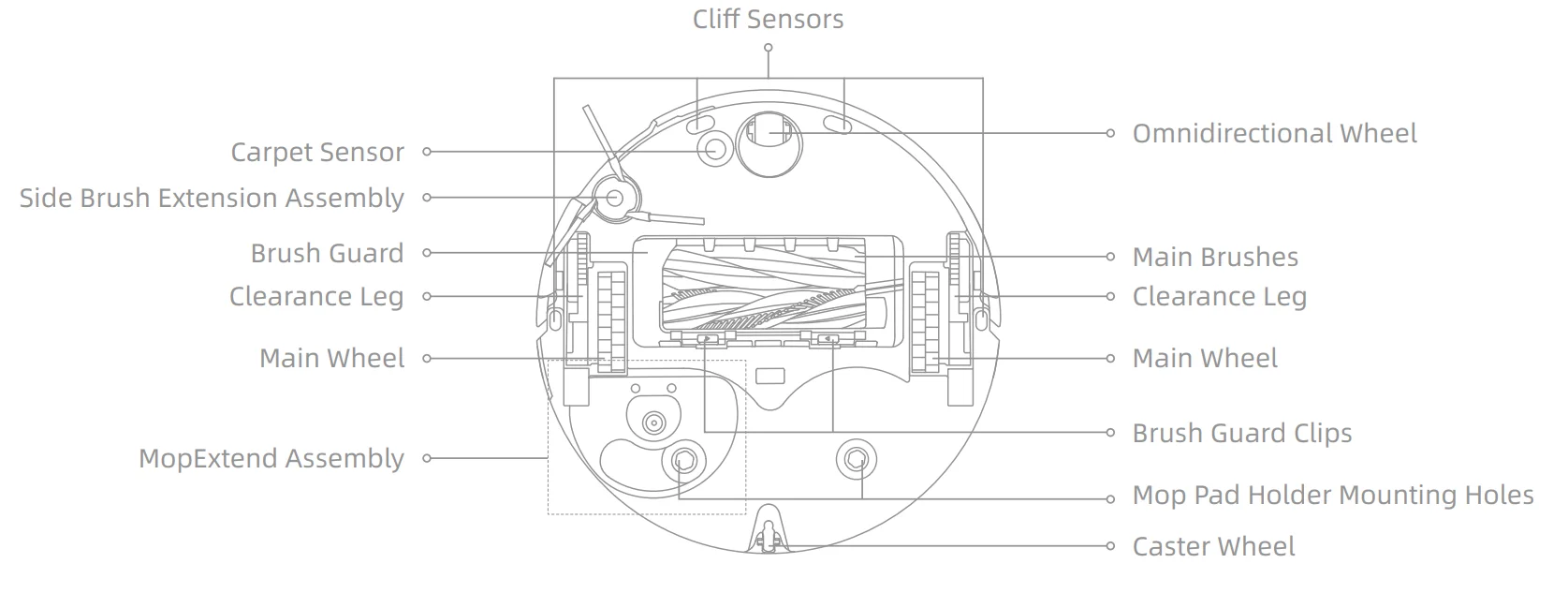
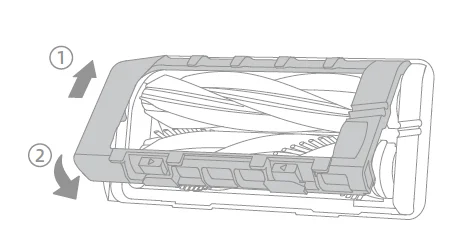
- Press the brush guard clips inwards to remove the brush guard, and then lift the brushes out of the robot.

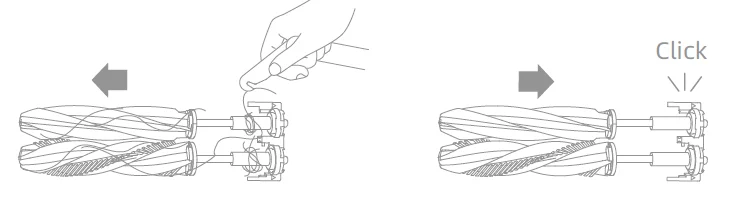
- Pull out the brushes as shown in the figure. Use the provided cleaning tool to remove any hair tangled in the brushes. After cleaning, push the brushes firmly into the main brush holder until they click into place.

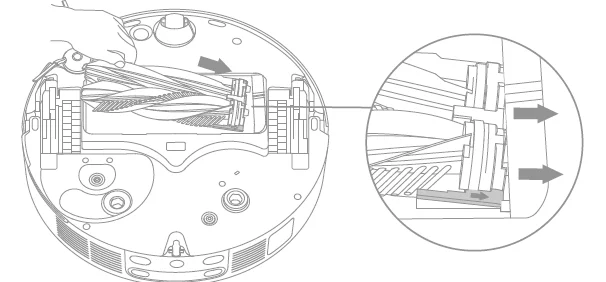
Note: Be careful while pulling out the main brushes to prevent injury. - With the screen-printed arrows facing upwards, insert the main brush holder into the slots downwards in an inclined way.

- Align the front end of the brush guard with the slot, insert it downwards in an inclined way, and then press it into place.

Side Brush
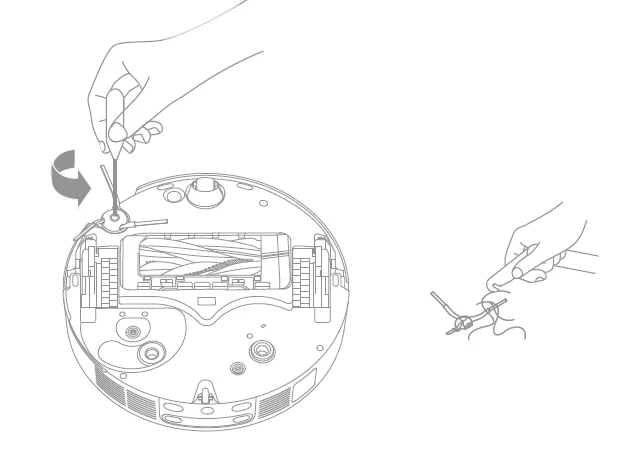
Unscrew the side brush with a screwdriver, clean the hair from the brush, and then screw it back on.
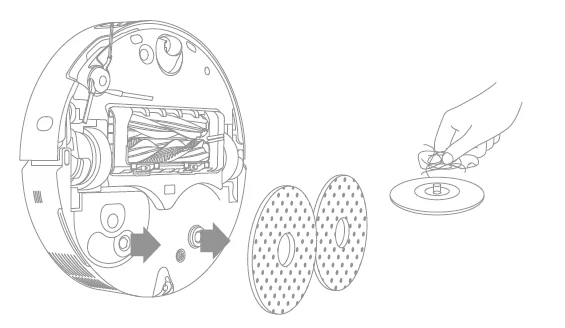
Mop Pad Holders
Remove and clean the mop pad holders.
Omnidirectional Wheel
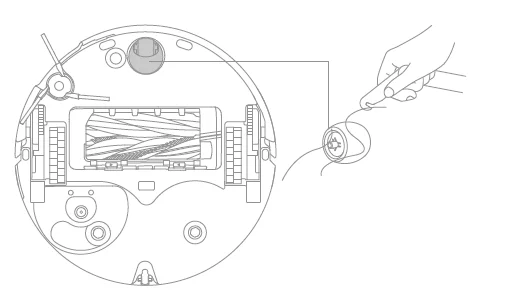
Note:
- Use a tool such as a small screwdriver to separate the axle and tire of the omnidirectional wheel. Do not use excessive force.
- Rinse the omnidirectional wheel under the running water and put it back after drying it completely.
Dust Box and Filter
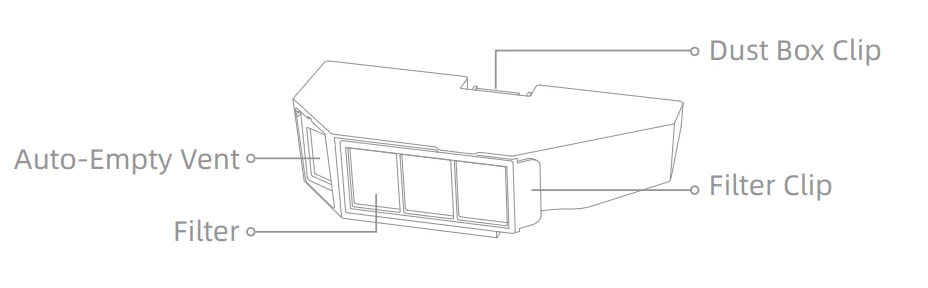
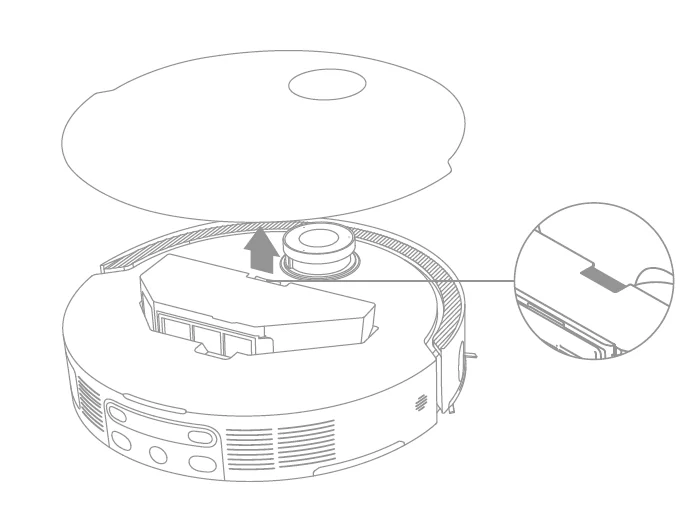
- Remove the robot cover and press the dust box clip to remove the dust box.

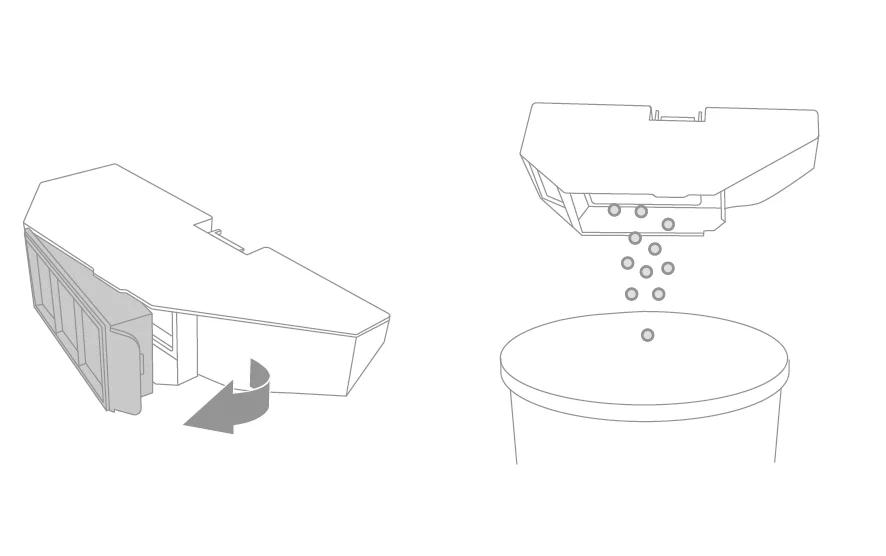
- Remove the dust box filter, and then empty the dust box.

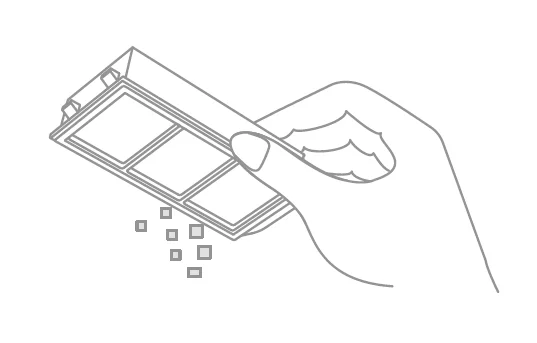
- Gently tap the basket of the filter to remove the dirt.

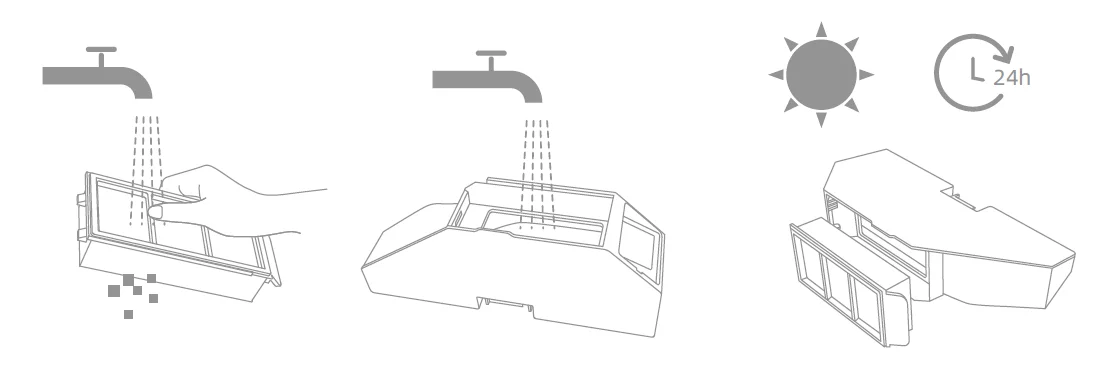
Note: Do not attempt to clean the filter with a brush, a finger, or sharp objects to prevent damage. - Rinse the dust box and filter with water and dry them completely before reinstalling.

Note:- Rinse the dust box and filter with clean water only. Do not use any detergent.
- Use the dust box and filter only when they are completely dry.
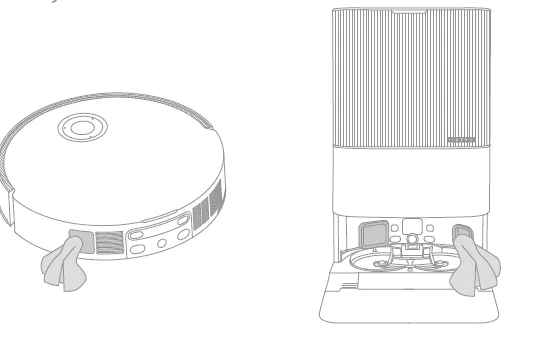
Robot Sensors
Wipe the robot sensors by using a soft and dry cloth, as shown in the figure below:
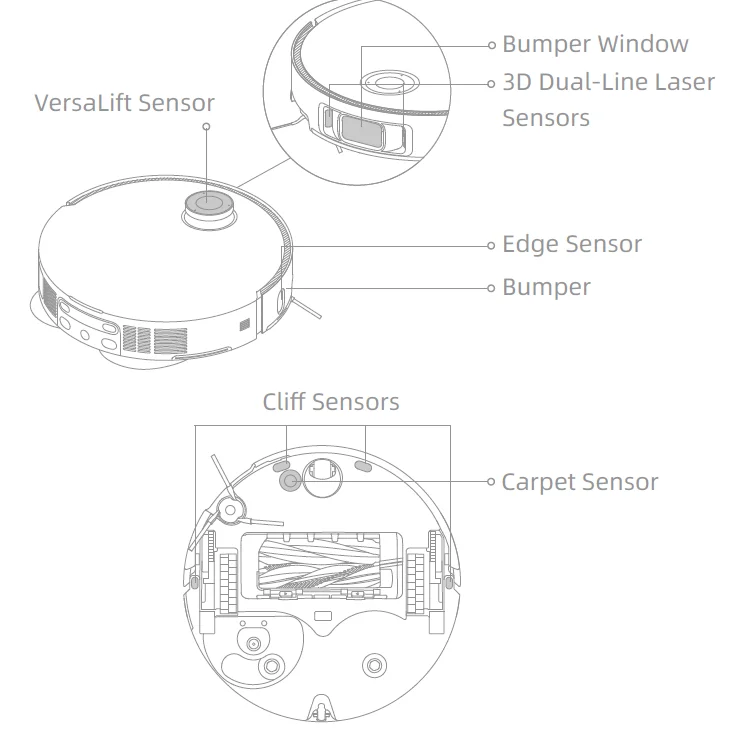
Note: A wet cloth can damage sensitive elements within the robot and the base station. Please use a dry cloth for cleaning.
Charging Contacts and Signaling Area
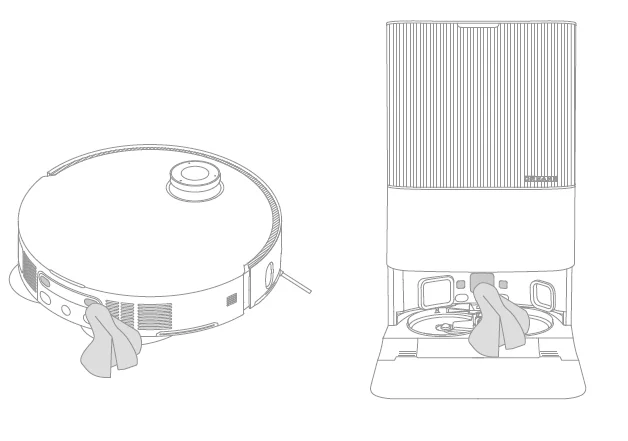
Clean the charging contacts and the signaling area with a soft and dry cloth.
Auto-Empty Vents
Clean the auto-empty vents of the robot and the base station with a soft and dry cloth.
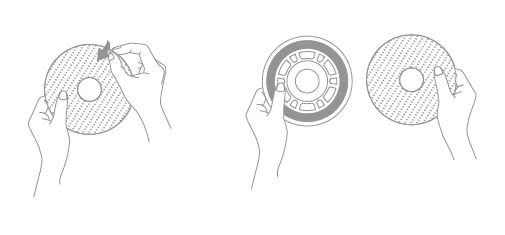
Mop Pads
Remove the mop pads from the mop pad holders to replace them.
Battery
The robot contains a high-performance lithium-ion battery pack. Make sure that the battery remains well-charged for daily use to maintain optimal battery performance. If the robot is not used for an extended period of time, turn it off and put it away. To prevent damage from over-discharging, charge the robot at least once every three months.
Troubleshooting
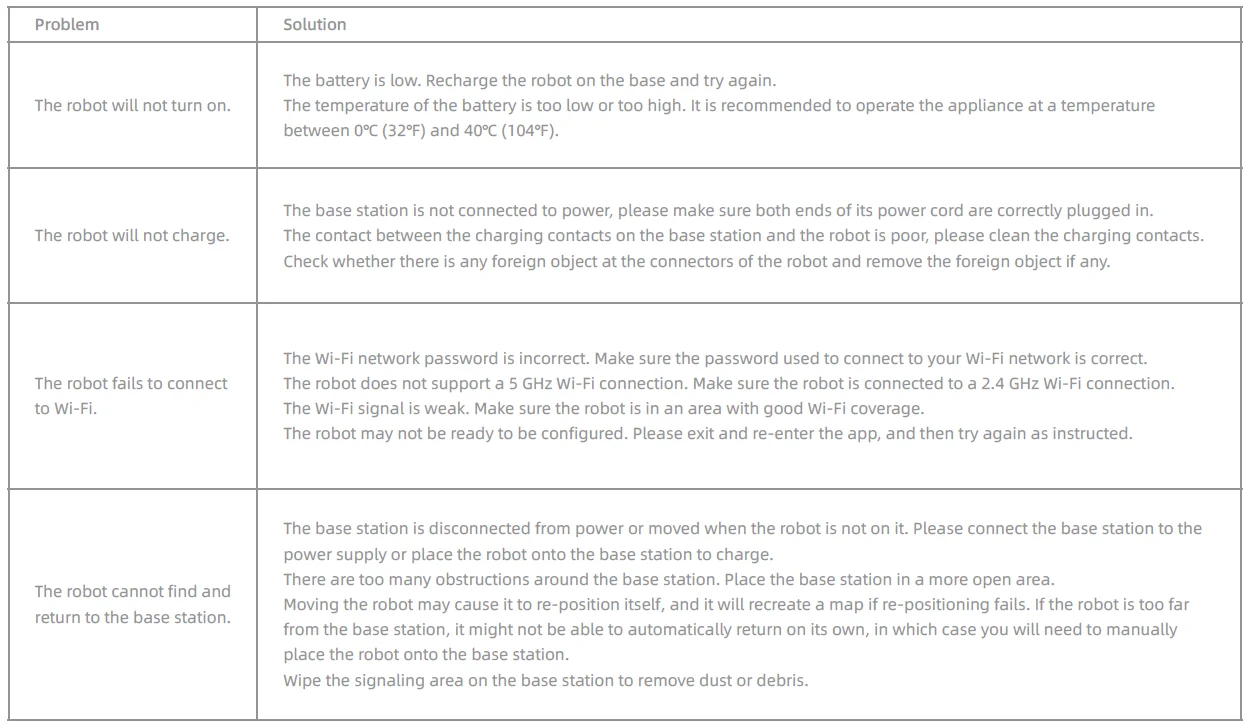
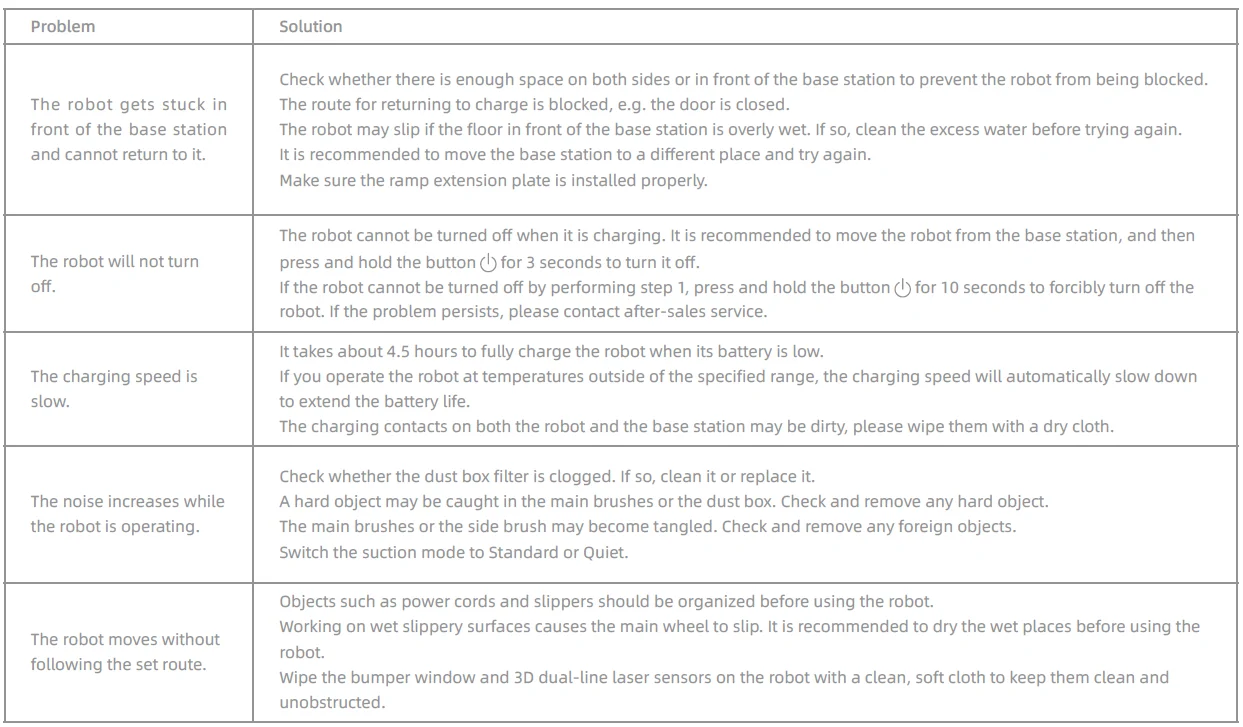
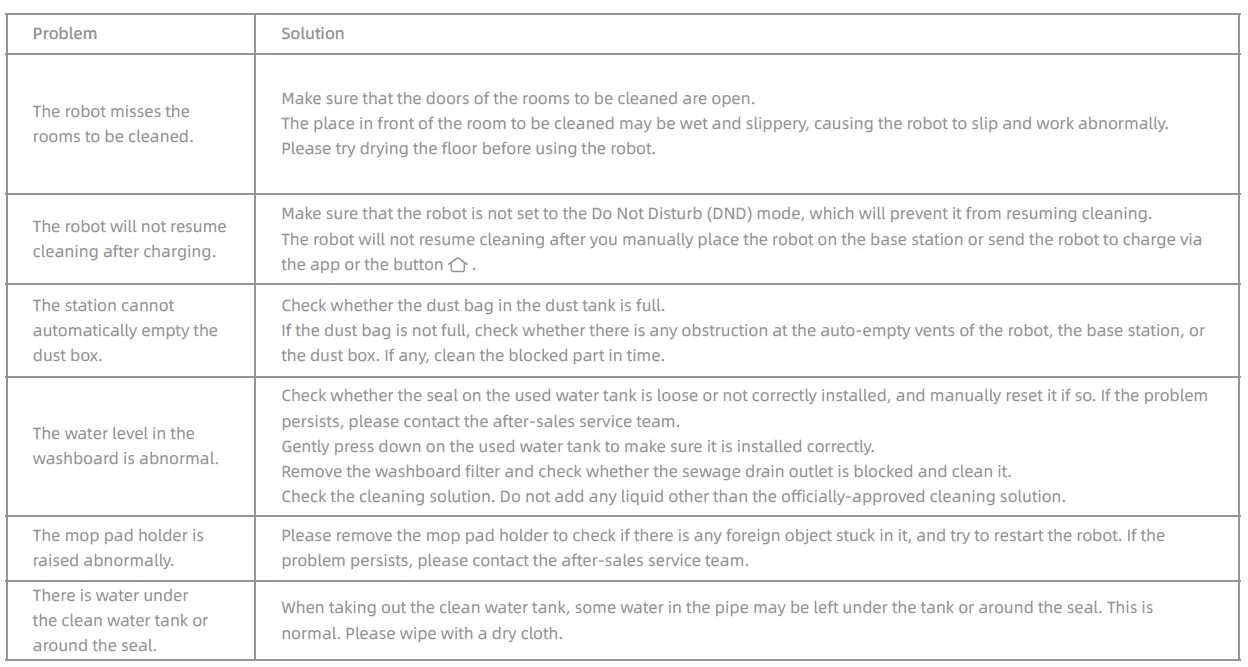
For more support, contact us via https://global.dreametech.com
WEEE Information
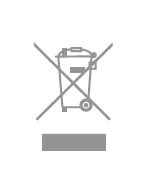
All products bearing this symbol are waste electrical and electronic equipment (WEEE as in directive 2012/19/EU) which should ot be mixed with unsorted household waste. Instead, you should protect human health and the environment by handing over your waste equipment to a designated collection point for the recycling of waste electrical and electronic equipment, appointed by the government or local authorities. Correct disposal and recycling will help prevent potential negative consequences to the environment and human health. Please contact the installer or local authorities for more information about the location, as well as the terms and conditions of such collection points.
Battery Disposal and Removal
The built-in lithium-ion battery contains substances that are hazardous to the environment. Before disposing of the battery, make sure it is removed by qualified technicians and discarded at an appropriate recycling facility.
- The battery must be removed from the appliance before it is scrapped;
- The appliance must be disconnected from the supply mains when removing the battery.
- The battery is to be disposed of safely.
CAUTION:
Before removing the battery, disconnect the power and run the battery out as much as possible. Unneeded batteries should be discarded at an appropriate recycling facility. Do not expose to a high-temperature environment to avoid risks of explosion. Under abusive conditions, liquid may be ejected from the battery. If contact occurs, flush with water and seek medical help.
Removal Guide:
- Turn over the robot, use a proper tool to remove the screws on the back of the robot, and then remove the cover.
- Unplug the terminals between the battery and the PCB board to remove the battery.
For more manuals by DreameTech, visit ManualsLibraryy
Dreame X50 Ultra Robot Vacuum Cleaner -FAQs
How do I use the Dreame X50 Ultra Robot Vacuum Cleaner?
Start by charging the robot and connecting it to the Dreame app. Fill the clean water tank if you plan to mop, then choose a cleaning mode such as vacuuming, mopping, or both. Place the robot on the floor and press the start button or control it through the app for automatic cleaning.
What cleaning modes are available on the Dreame X50 Ultra?
The robot supports multiple modes including vacuum-only, mop-only, vacuum and mop combination, spot cleaning, edge cleaning, and customized room cleaning. Users can adjust suction power and water levels depending on the type of floor and dirt level.
Why is my robot vacuum cleaning only one room?
This may happen if the map is incomplete, doors are closed, or cleaning boundaries are enabled in the app. Make sure the robot has enough battery power, the sensors are clean, and the mapping process has been completed successfully for full-home coverage.
What makes the Dreame X50 Ultra different from other robot vacuums?
The Dreame X50 Ultra offers advanced navigation, powerful suction, obstacle climbing ability, and automatic mop maintenance. It is designed to clean under furniture, avoid obstacles intelligently, and switch between vacuuming and mopping modes automatically for more efficient cleaning.
Can the Dreame X50 Ultra work without Wi-Fi?
Yes, the robot can perform basic cleaning using the physical buttons on the device. However, advanced features such as scheduling, map editing, remote control, and voice assistant support require a Wi-Fi connection and the mobile app.
How often should I refill and empty the water tanks?
The clean water tank should be refilled and the dirty water tank emptied regularly, especially after large cleaning sessions. Doing this helps prevent odors, bacteria buildup, and poor mopping performance while keeping the docking station working properly.
Can I use any detergent in the Dreame X50 Ultra?
It is best to use Dreame-approved cleaning solutions. Strong chemicals, homemade mixtures, vinegar, or regular floor cleaners may damage internal parts, clog the water system, or reduce cleaning performance. Using the recommended solution also helps maintain long-term reliability.
How do I add detergent to the Dreame X50 Ultra?
Use the detergent compartment or cleaning solution container provided in the dock. Add only compatible cleaning solution recommended for robot vacuums. Avoid overfilling the tank and make sure the cap is tightly closed before starting a mopping cycle.
How can I make the Dreame X50 vacuum only?
Open the cleaning settings in the app and select vacuum-only mode. This disables the mopping feature while keeping suction active. You can also remove or avoid attaching the mop pads if you only want dry cleaning on carpets or hard floors.