
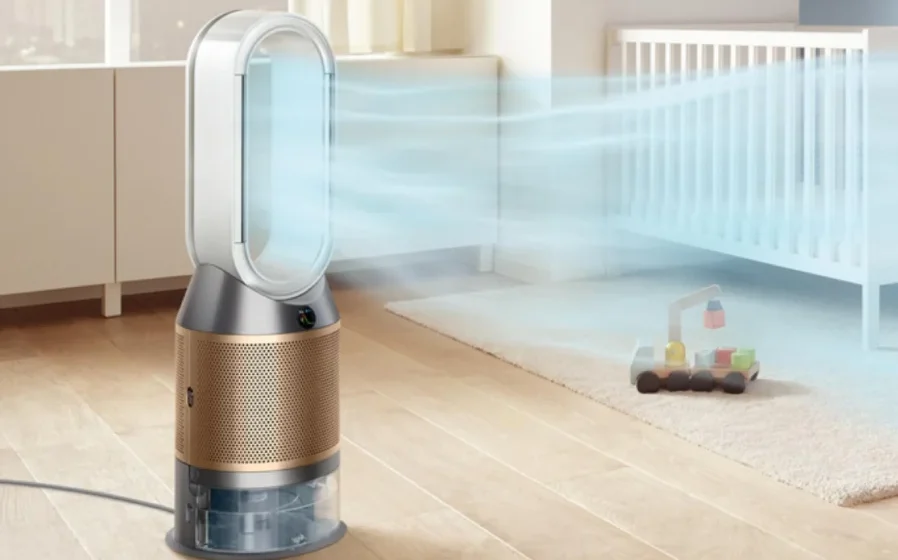

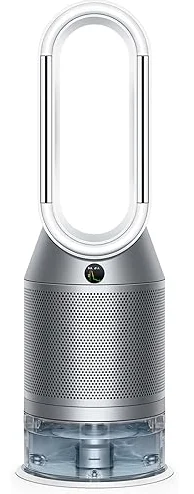
Dyson Purifier Humidify+Cool PH2 De-NOx
Getting started
Assembling your machine
Use both hands to lift your machine out of the box by its base. Do not lift out by the loop amplifier.
Assemble your machine with the filters that are supplied.
Dyson Purifier Humidify + Cool PH2 De-NOx
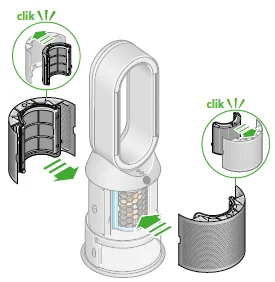
Your machine comes with a permanent catalytic filter and a HEPA+K-Carbon filter.
Push the catalytic filter into position on the machine. Push the HEPA+K-Carbon filler into the outer cover and position it on the base.
Push firmly until both outer covers click into place.
Getting started
Place the remote control on top of the machine with the buttons facing down.
Plug in and switch on.
Connecting to the MyDyson™app
Take full control with the MyDyson™app and access step-by-step setup and support, control how and when your Dyson purifier humidifier operates, monitor air quality with visual updates, and automatically keep up to date with the latest software updates.
Download the MyDyson™app from the App Store or Google Play.
Open the app and follow the on-screen instructions to create a new account.
Filling the water tank
Before you remove the water tank, make sure humidification modes are turned off, and the water tank is empty.
Keep the cap dry
Keep the cap on the water tank dry when you run a Deep clean cycle or fill the tank. It contains power connections and should not be washed. If wet, wipe thoroughly with a dry cloth. Make sure the cap and connections are completely dry before refitting.
Remove the tank
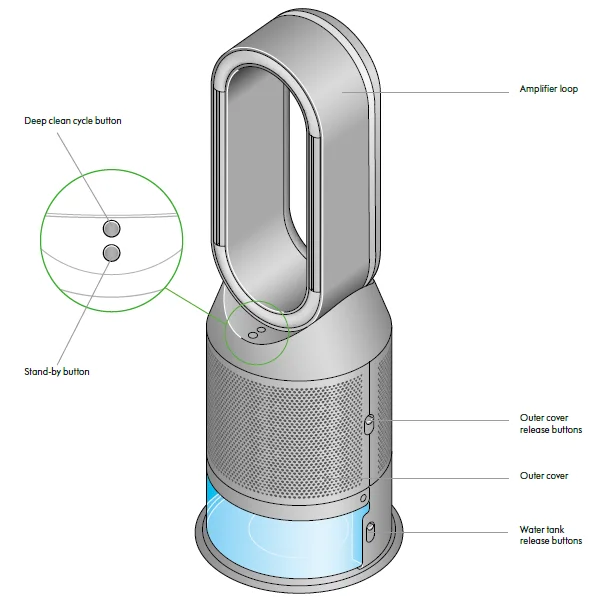
Push down the Water tank release buttons on the sides of your machine. Slide the water tank out of your machine.
Carry the water tank by its handle to the tap, and unclip the cap.
Fill the tank
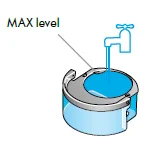
Fill the water tank to the Max level with cold tap water.
Replace the tank
Replace the cap and secure the cap clips in place.
Make sure the cap is completely dry. If wet, wipe thoroughly with a dry cloth. Slide the water tank back into your machine until it clicks securely in place.
Power and continuous monitoring
Stand-by on/off
Press the Standby on/off button on your Dyson purifier humidifier or remote control to stop your machine. It will continue to monitor the air quality.
Continuous monitoring
Continuous monitoring is turned off by default. Once turned on, it will always be active until you turn it off again.
With continuous monitoring turned on, your Dyson purifier humidifier will gather air quality, temperature and humidity information, which is displayed on the LCD screen and in the MyDyson™app.
Press and hold the Auto mode button on the remote control for five seconds to turn it on. The LCD screen will indicate when continuous monitoring is on or off.
Wi-Fi Connectivity
Wi-Fi is on by default. To turn the Wi-Fi on or off, press and hold the Standby on/off button on your machine for five seconds.
Information menu
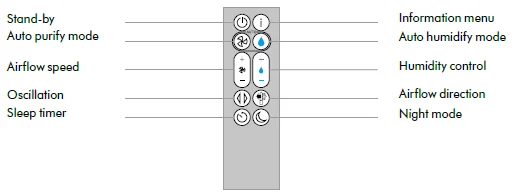
Press this button to scroll through the information being monitored by your Dyson purifier humidifier.
Information about air quality, temperature, humidity, filter, and evaporator levels is shown on the LCD screen.
When a particular type of pollutant causes air quality to decrease, a symbol for the pollutant will show on the LCD screen.
Indoor air quality – 12 seconds
Monitor the current air quality with a graph showing the last 12 seconds of data.
Particulate matter (PM10)
Larger microscopic particles up to 10 microns in size, suspended in the air we breathe. These include dust and pollen.
Nitrogen dioxide and other oxidising gases
These potentially harmful gases are released into the air by combustion, for example, the burning gas when cooking and in vehicle exhaust emissions.
Indoor humidity
The amount of water vapour in the air is shown as a percentage.
Formaldehyde (HCHO)
A common indoor pollutant. It can be released for many years from furnishings, floorings, and glue.
Particulate matter (PM2.5)
Microscopic particles up to 2.5 microns in size, suspended in the air we breathe. These include smoke and allergens.
Volatile organic compounds
VOCs are typically odours that may be potentially harmful. These can be found in cleaning products, paints and furnishings.
Indoor temperature
Monitor the ambient temperature to help maintain a comfortable environment.
Indoor air quality – 24hrs
Monitor the current air quality with a graph showing the last 24 hours of data.
Filters
The remaining filter life is shown on the LCD screen and will indicate when your filters need replacing.
Evaporator
The status will show how full the evaporator is with limescale and how soon a deep clean cycle is required.
Wi-Fi
The current status of the connection to the Wi-Fi network.
Auto purify mode
Set your Dyson purifier humidifier to Auto purify mode, and the on-board sensors will intelligently adjust the settings of the machine according to the air quality.
- Air quality: your machine will pause when the target air quality has been reached, switching on again when the air quality levels drop.
- Airflow speed: The airflow speed will increase until the target air quality and temperature have been reached.
Auto humidify mode
Set your Dyson purifier humidifier to Auto humidify mode, and the on-board sensors will intelligently adjust the settings of the machine according to the temperature and humidity of your room.
- Room humidity: your machine will pause when the target room humidity has been reached, switching on again when the room humidity levels drop.
- Airflow speed: The airflow speed will increase until the target humidity level has been reached.
To turn off Auto humidify mode or to change the humidity levels manually, press the Humidity control button.
Oscillation
Press the Oscillation button and select the angle of oscillation to 0°, 45°, 90° or Breeze mode. Pause the oscillation at any point by pressing the Oscillation button.
Press the Oscillation button again to resume.
To reset the Oscillation direction to the centre, press and hold the Oscillation button for two seconds.
Airflow speed and direction
Press the Airflow speed button to increase and decrease the airflow speed. Press the Airflow direction button to change the direction of airflow from front to back.
Change the airflow direction for your personal comfort.
Select the Airflow direction to Fan mode for airflow from the front for purifying and cooling. Set the Airflow direction to Diffused mode, for airflow from the back, for purifying without cool air.
Your machine will continue to purify and humidify (if selected) in both Fan and Diffused modes.
Use your MyDyson™app to personalise your settings for Airflow speed and direction.
Sleep timer
Your Dyson purifier humidifier will turn off automatically after the selected amount of time.
To set the time: press the button to scroll through the time options. Once activated, press the Sleep timer button once to see the time selected.
To cancel the Sleep timer: press the Sleep timer button to scroll through all the options and select the cancel option.
Night mode
In Night mode, your Dyson purifier humidifier will continue to monitor and respond to changes in air quality and temperature, but only using its quietest settings – and with its LCD screen dimmed.
If Auto purify mode or Auto humidify mode has been set, Night mode will reduce the airflow speed to a range from 1 to 4.
Personalise your Night mode settings in the MyDyson™app.
Deep cleaning your machine
To always get the best performance from your Dyson purifier humidifier, it’s important to carry out regular deep cleaning to remove any limescale.
Before and after long periods where humidification is not used, we recommend you run an additional Deep clean cycle.
In hard water areas, you may need to run the Deep clean cycle more frequently. We recommend you use filtered water to always get the best performance from your machine.
Your machine will alert you when it needs you to carry out a Deep clean cycle.
If you are connected to the MyDyson™app, you will receive a notification message.
If you are not using the MyDyson™app, the LCD screen on your machine will alert you, and the Deep clean cycle button will light up.
To cancel the Deep clean cycle at any point, press and hold the Deep clean cycle button for five seconds.
Keep the cap dry
Keep the cap on the water tank dry when you run a Deep clean cycle or fill the tank. It contains power connections and should not be washed. If wet, wipe thoroughly with a dry cloth. Make sure the cap and connections are completely dry before refitting.
Step 1: Remove the water tank
Press the Deep Clean cycle button on the front of your machine, and your instructions will be shown on the LCD screen. Push down on the Outer cover release buttons to remove the outer covers.
The inner door will spring open. Put the Outer covers to one side as you carry out the Deep clean cycle.
Push down the Water tank release buttons on the sides of your machine. Slide the water tank out of your machine and unclip the cap.
Step 2: Remove the evaporator
Remove the evaporator from your machine, place it in the water tank and refit the cap.
Step 3: Make a descaling solution
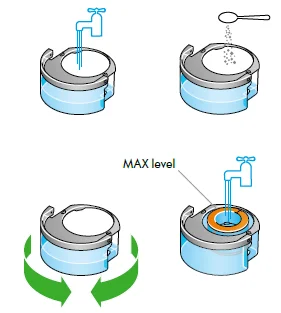
Carry the water tank by its handle to the tap.
Remove the cap and evaporator. Fill the water tank halfway to the Max level with cold tap water.
Measure out 150g of citric acid and place it in the water tank. Agitate gently until all the citric acid has dissolved.
Place the evaporator in the water tank. Fill the water tank to the Max level with cold tap water.
Step 4: Replace the cap
Replace the cap and secure the cap clips in place.
Wipe off any excess water to avoid drips.
Make sure the cap is completely dry. If wet, wipe thoroughly with a dry cloth.
Step 5: Replace the tank
Slide the water tank back into your machine until it clicks securely in place.
When prompted by the LCD screen, press the Deep clean cycle button. The Deep clean cycle will start, and the LCD screen will show a countdown timer.
Step 6: Remove the water tank
When the LCD screen shows the Deep clean cycle is complete, push down the water tank release buttons on the sides of your machine.
Slide the water tank out of your machine. Carry the water tank by its handle to the tap.
Step 7: Rinse
Unclip the cap, take the evaporator out of the water tank and rinse under a cold tap.
Wipe away any excess water to avoid drips and place the evaporator to one side. Rinse the water tank under a cold tap. Wipe the inside of the tank to remove any excess solution and any debris.
Step 8: Refill
Refill the water tank to the Max level and wipe off any excess water, and replace the cap, making sure that the cap clips are secured.
Step 9: Reassemble
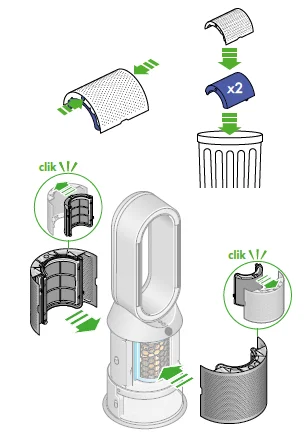
Push the evaporator back into your machine, making sure that it is securely in position.
Close the inner door and replace the outer covers.
Make sure the cap is completely dry. If wet, wipe thoroughly with a dry cloth. Slide the water tank back into your machine and make sure it is securely in place.
Changing your HEPA+K-Carbon filter
Supplied with a HEPA+K-Carbon filter.
To change your HEPA+K-Carbon filter, push down on the buttons on either side of your machine to release the outer cover. Push down on the tabs to remove the filter.
Push the replacement filter into the outer cover and make sure the tabs click into place.
Put the outer covers into position on your machine and push firmly until they both click securely into position.
Plug in and switch your machine, and reset your filter life.
Resetting your filter life
It’s important to reset your filter life after you have replaced your filter.
Press and hold the Night mode button on the remote control. The LCD screen on your machine will count down from five, ending with the default screen.
The filter life has been reset, and your machine is ready to use.
Looking after your machine
To always get the best performance from your Dyson purifier humidifier, it’s important to regularly clean it and check for blockages.
Cleaning your machine
If your machine is dusty, wipe with a damp, lint-free cloth.
Look for blockages in the air inlet holes on the filter and the small aperture inside the loop amplifier.
Use a soft brush to remove dust and debris.
Don’t use detergents or polishes to clean your machine.
Alerts
Continuous alert icon
Switch off and unplug your machine.
Leave for 10 seconds and then plug your machine back in and switch it on. If the alert icon continues to show on the LCD screen, contact Dyson.
Temporary alert icon
If the alert appears on the LCD screen and then disappears, continue to use your machine.
If any other alert icons show on the LCD screen, contact Dyson for further advice.
For more Manuals by Dyson, visit ManualsLibraryy
Dyson Purifier Humidify+Cool PH2 De-NOx-FAQs
Can the Dyson PH2 detect formaldehyde?
Yes. The Dyson PH2 uses a solid-state formaldehyde sensor that continuously detects formaldehyde without drying out and lasts for the lifetime of the machine.
Does the Dyson PH2 really destroy formaldehyde?
Yes. It uses a catalytic formaldehyde filter that breaks formaldehyde into water and CO₂, so it does not need replacing.
What does De-NOx technology do?
De-NOx technology helps capture nitrogen dioxide (NO₂) from traffic pollution, improving indoor air quality in urban environments.
Is it okay to leave the Dyson purifier on all the time?
Yes. Dyson recommends leaving the purifier on Auto mode, allowing it to monitor air quality and adjust automatically.
Can I sleep with the Dyson PH2 on all night?
Yes. It is safe to run overnight. Night mode reduces noise and dims the display for comfortable sleep.
How long does it take for the Dyson PH2 to clean a room?
Depending on room size and pollution levels, it can significantly improve air quality within 30–60 minutes.
Can the Dyson PH2 replace an air conditioner?
No. Dyson purifiers do not cool air like an AC. The cooling feature circulates purified room-temperature air only.
Does the Dyson PH2 also work as a humidifier?
Yes. It humidifies the air hygienically while purifying, helping maintain comfortable indoor humidity levels.
How do I read the Dyson LCD screen?
The LCD shows real-time air quality, including pollutants detected, temperature, humidity, and remaining filter life.
How do I know when the filter needs replacing?
The machine and Dyson app notify you when the filter life is low, showing a full bar on the filter indicator.