
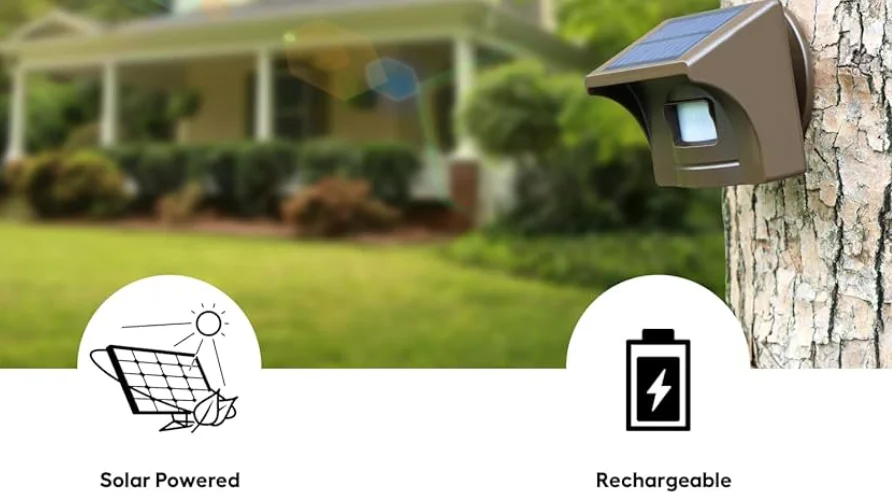

eMACROS HS002W Wireless Solar Driveway Alarm System
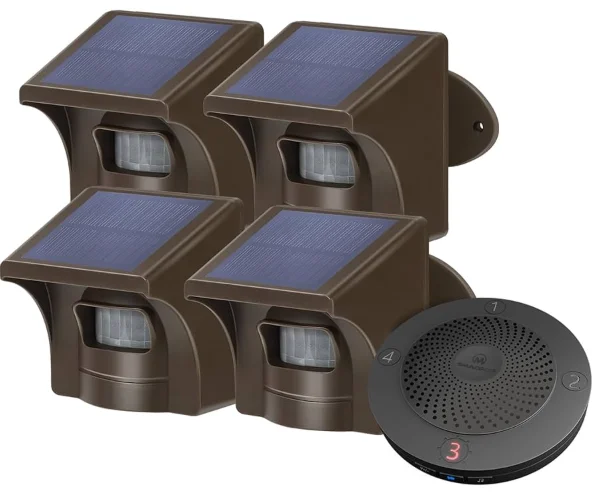
Overview
The Wifi Motion Alert ranges up to 1/2 mile (800 meters) in the open air. It uses a Passive Infrared (P.I.R.) Motion Sensor to detect movement of people and vehicles while allowing small animals to pass through undetected. An AC adapter powers the Base Station; it can also run on 4AA batteries as backup in case of a power outage for 4 weeks. You will receive the notifications on your cell phone when your sensor is triggered.
What’s in the Box
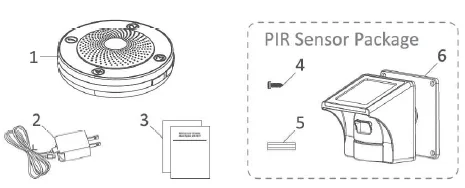
- Base Station
- AC Adapter
- Documentation
- Sensor Back Plate Screws
- Masonry Screw Anchors
- PIR Motion Sensor
Operation & Features
Base Station
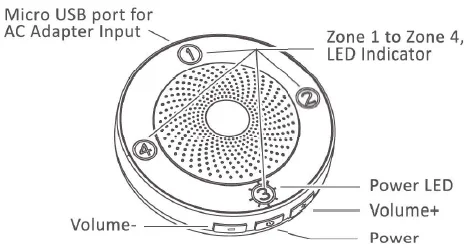
Power
- Power on: Short-press the power button, with one beep.
- Power off: Long-press the power button for 3s, with a long beep.
Volume+/Volume-
- Volume Up and Down: short beep when adjusting the volume, no beep when reaching the highest or lowest volume.
- Network connection: long-press the Volume+ or Volume- button for 3S to enter the network configuration mode; the red indicator light changes from slow flashing to fast flashing.
Passive Infrared (PIR) Motion Sensor
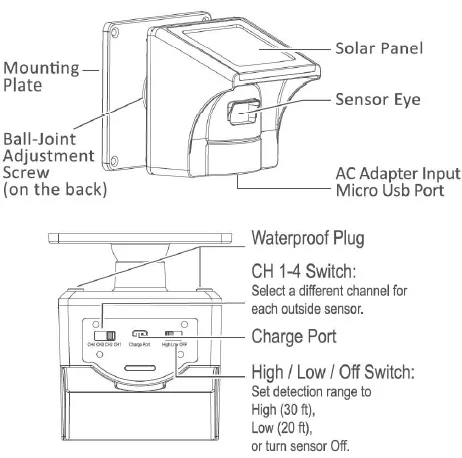
- Before installing the PIR Sensor, recharge the sensor (with 18650 battery attached) using the AC adapter to ensure a full charge. The blue light will illuminate while charging. The blue light will turn off once the battery is fully charged.
Note: The sensor has been tested several times in the factory. If the blue light won’t illuminate, the battery may be fully charged. You can install it directly.
- High / Low / Off Switch: First, open the black silicone seal cap at the bottom of the PIR Motion Sensor, then turn on the sensor by switching to High or Low. Set the detection range to High (30feet), Low (20 feet), or turn the sensor off.
- CH 1-4 Switch: Select a different channel for each outside sensor. If installing multiple PIR Motion Sensors, ensure that each sensor is set to a different Channel/Zone.
Note: Each Separate channel uses a unique chime, allowing you to match different chimes with different channels.
- Turn on the PIR Motion Sensor by waving your hand in front of the sensor. The Base Station will produce a unique tone based on the sensor’s setting.
- When detecting movements, a sensor eye will flash red only when assigned to lines 1 and 2, not lines 3 or 4.
Setting Up Your Home Security System
Pairing Sensors:
- In Receiver: Long-press the power button for 55 to enter the pairing mode with a long beep, then 4 blue lights flash with one beep. Choosing one channel and turning on the sensor by switching to Hi or Low, the receiver will produce a unique tone based on the channel automatically. The receiver and sensor are paired successfully.
- In App: You can also pair the sensor in the App after the receiver connects to wifi. Click the Settings in the App, turn on the Add a Sub Device, then the 4 blue lights will flash for 30 seconds with a short beep, then trigger the sensor, the receiver will produce a unique tone based on the channel automatically. The receiver and sensor are paired successfully.
Clear the pairing:
- In Receiver: If you need to clear the paired Sensor, long-press the Power button for 55, plug in the USB cable, or insert batteries to enter the clear pairing mode. Four blue indicator lights will be on after one beep, then turn off in turn. After one beep, the clearing is complete, and you can return to normal mode.
- In App: You can also clear the paired Sensor in the App by pressing Delete All Sub-Devices in the Settings.
Download Apps And Create an Account
- Search the My Homeyo App to download from the Apple App Store or Google Play.
Note: Please make sure that your mobile device’s operating system is either iOS 9.0 or higher, or Android 4.1 or higher.
- Creating a new account on the My Homeyo App. Open your My Homeyo App and click Sign Up, and click Agree to the user agreement.
Notes: To make sure you can receive the notifications when your sensor triggers, please agree to the user agreement.
Enter your email address or mobile number and create a password.
Enter your verification code.
Network connection
The red indicator light flashes slowly when the receiver is not connected to the network, long-press Volume+/Volume- 3S to enter the network configuration mode, and the red indicator light changes from slow flashing to fast flashing.
When the network configuration is successful. The receiver’s red indicator light goes off. Connect your phone to WI-FI, turn on GPS and Bluetooth, open the MY HOMEYO App, and click to add a device.
Manual connection: Select Smart Solar Drive Alarm (WI-FI), fill in the working WI-FI and enter the password, click next, confirm that the indicator light flashes quickly, click next to wait for the connection, wait for the pop-up of Add successfully, then the network configuration is successful.
Automatic connection: After the available equipment is found, the alarm receiver icon appears. Click Go to add, click Bluetooth device +, fill in the working WI-FI and password, click confirm to wait for the connection, wait for the pop-up of Add successfully, then the network is successfully configured, and the receiver’s red indicator light goes off.
App Control
HS002W can receive alarm information through the mobile phone App and control the receiver function.
Note: The same alarm notification will be sent one minute apart.
On the home page of the App, click on the multi-function receiver to enter the main operation page.
- Main page
Power Supply Mode Display: USB is displayed in the circular box at the top of the interface when the adapter powers the receiver. When batteries power the receiver, the circular box displays the percentage value of the power; when the battery power is less than 20%, the percentage number will turn red, and the receiver will report BASE POWER LOW voice alarm.
Base Volume Level: The volume can be set through the volume bar; there are 5 levels in total. When the level is 0, the receiver would be muted.
Alarm Zone Display: You can view the alarm indications in 4 areas. If a zone alarms, the alarm indication will change from No Alarm to Alarm. Clicking the alarm indication will enter the history record interface to view the details and the history of the alarm. After exiting, the alarm indication changes to normal.
- History Record

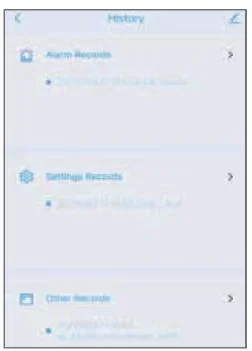
- Alarm Records: Record the date, time, and alarm area of the alarm information.
- Settings Records: Record the operation of the App controlling the receiver.
- Other Records: Record the power supply mode of the receiver.
- Zone Arm settings

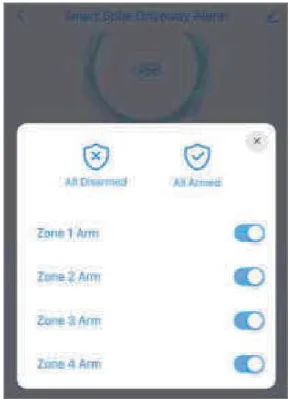
- All Disarmed: After clicking, the four blue indicator lights will turn off, all areas will be disarmed, and the receiver will not alarm.
- All Armed: After clicking, the four blue indicator lights are on, all areas are in arming state, and all areas of the receiver can normally alarm.
- Defense Zone: A defense zone can be armed and disarmed through the switch button. After arming, the blue indicator light in this area is on. This defense area can normally alarm. After disarming, the blue indicator light in this area will go out; this zone will not alarm.
Settings
- Add Zone Voice: You can add channel voice before the alarm chime to let you easily know which zone triggered.
- Zone Chime: The alarm chime of a certain defense zone can be changed, and there are 27 chimes to choose from.
- Add A Sub-Device: The number in the front is the number of paired sensors; a total of 16 sensors can be paired.
- Deleting All Sub-Devices: After clicking, a confirmation interface will pop up, and all paired sensors will be cleared after confirmation.
- Reset: Click to pop up a confirmation interface; after confirmation, all paired sensors will be cleared, and the distribution network will also be cleared.
Remove the device
If you want to remove the device from the mobile App, you can click the edit icon in the upper right corner of the homepage or the upper right corner of the settings page, click Disconnect, and wipe data or Disconnect only.
Product Installation
P.I.R. Motion Sensor Installation
- Mount the waterproof PIR. Motion sensor vertically on a solid surface 4.5-6 feet (1.5-2m) above the ground, and make sure the detected object is within 30 feet when the sensitivity is set to High. Please refer to the below for the installation height and detection angle.
- Rotate the sensor to access the screw holes.
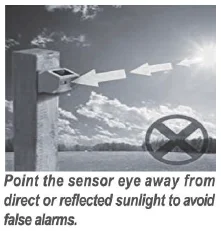
- To prevent or reduce false alarms (going off), the sensor can adjust the angle as needed. Position the sensor to avoid direct sunlight to the sensor eyes while keeping the solar panel facing up.


Note: Pairing and testing are required before installation, and ensure that the sensor is fully charged.
Technical parameters
- Power Input: 5V 1A
- Battery Power Supply: 6V 4pcs A.A. battery
- WI-FI Working Frequency: 2412-2484 MHZ
- WI-FI Maximum Power: 16 dBm (E.I.R.P)
- Wi-Fi Band: Only supports 2.4G
- Wi-Fi Network Support: IEEE 802.11b/g/n Open WEP, WPA, WPA2 Encryption
- Rf433 Wireless Transmission Working Frequency: 433.92 MHZ
- RF433 transmission distance: 1/2 mile (open area)
- Normal working temperature: -20—60°C
Troubleshooting
The PIR Motion Sensor operates, but the base station does not respond.
Check the sensor switch settings and make sure the sensor and base station are in the valid range.
The PIR Motion Sensor is detecting motion only part of the time.
Set the PIR Sensor Switch to High sensitivity setting. To detect vehicles, the PIR sensor detects the movements with heat sources. Please adjust the sensor eye with the horizontal angle to the engine of the car. Swivel the sensor to obtain the best line of sight to a vehicle.
The system is giving false alarms.
Check for moving tree branches or insects in the sensor window and remove as necessary. Check the Sensor Switches on the PIR Motion Sensor. Ensure that sunlight is not shining directly onto the sensor eye.
The system is not getting the expected transmission range.
Ensure that the PIR Motion Sensors are vertically aligned, not attached to the far side of a tree, and away from metal objects. Ensure that the Base Station has the clearest possible line of sight to the sensors. The fewer objects between the devices, the longer the range.
The Solar Panel stopped working.
Please clean the dust from the solar panel after using it for a period of time.
How to prevent the sensor from getting water inside.
Please tighten the black rubber cover seal at the bottom of the sensor.
If the sensor continuously goes off.
Please cover the sensor to confirm if it still goes off or gets a false alarm. If so, your receiver may get interference from other sensors. Please contact our service support; we will do our best to make it right for you.
Contact information
If you have any queries, don’t hesitate to contact our support team at [email protected]
For more Manuals by eMACROS, visit ManualsLibraryy
eMACROS HS002W Wireless Solar Driveway Alarm System-FAQs
How do I pair the eMACROS driveway alarm?
Turn on the sensor and base station, then press the pairing button on the base until it beeps. Activate the sensor, and it will connect automatically.
How do I reset the eMACROS alarm system?
Powering off the base station resets the system and restores the volume to factory settings. Reconnect after restarting.
How does the eMACROS driveway alarm work?
It uses a motion sensor to detect vehicles, people, or movement. When triggered, it sends a wireless signal to the receiver to alert you.
How do I change the driveway alarm sound?
Use the sound selection button on the receiver to cycle through available chimes until you find your preferred one.
Why does my alarm system keep beeping?
Beeping usually signals a low battery. Replace the sensor batteries or recharge the solar panel to stop the alert.
Does the eMACROS system detect people as well as vehicles?
Yes. The motion sensor can detect both people and vehicles entering your driveway or property.
Can the system work without internet?
Yes. The HS002W operates wirelessly and does not require internet or Wi-Fi to function.
How do I replace the battery in the wireless sensor?
Open the battery compartment on the back of the sensor, insert fresh batteries, and ensure the solar panel is exposed to sunlight for charging.
How do I restart the alarm system?
Disconnect power from the base station and remove backup batteries. Wait a few minutes, reconnect, and the system will reboot.