
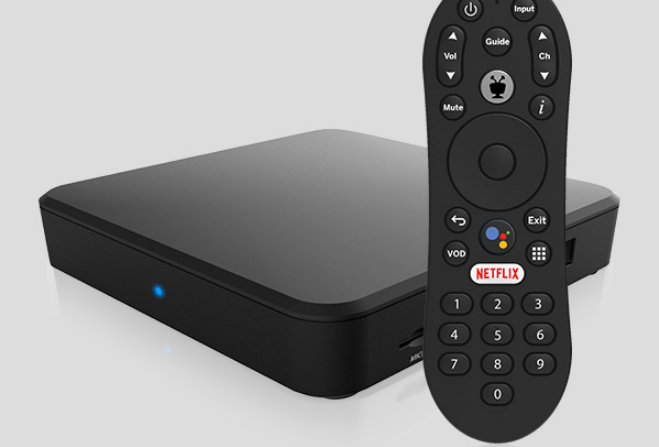

Evolution EVO Force 1 WiFi Android TV Streaming Player
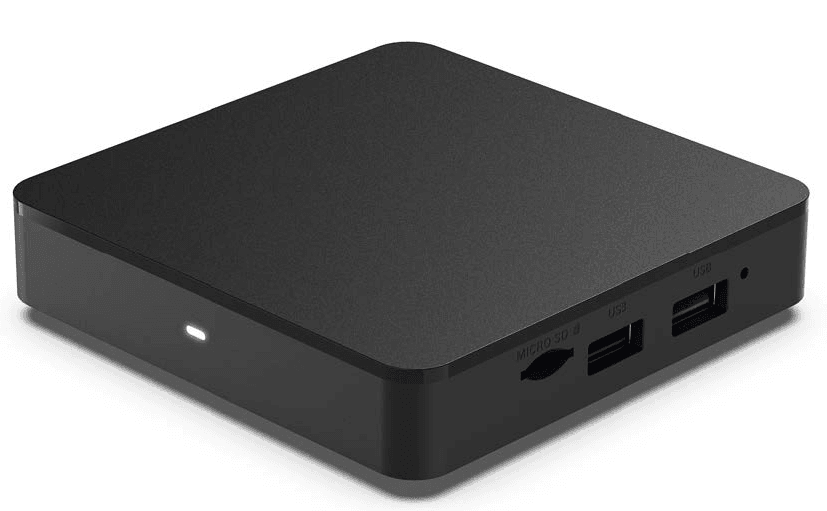
HMN: 4K Set Top Box, Model/HVIN: IPA2114HDW
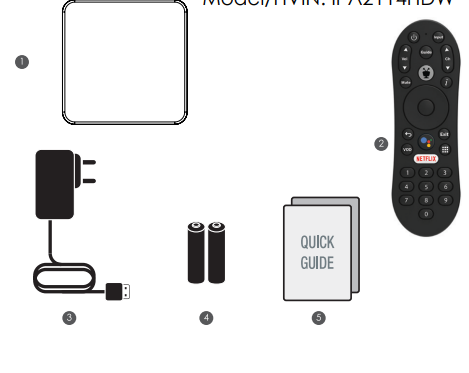
- OTT Device
- Remote Control
- Power Adapter
- Battery
- Quick Guide
DEVICE INFORMATION
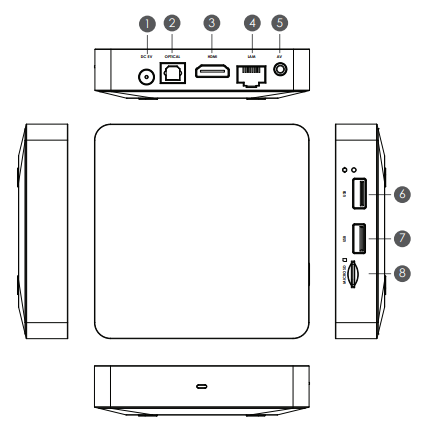
- DC 5V
- Optical HDMI
- LAM
- AV
- USB
- USB
- Micro SD
SETUP DIAGRAM
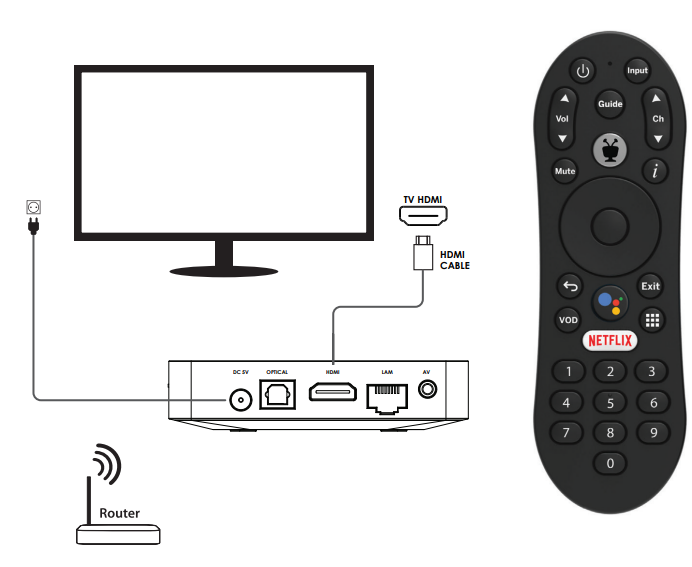
Pairing Guide
To activate the pairing function, the user will press and hold the TiVo and BACK
keys until the LED lights, then release, and the LED will flash slowly, a flash rate
shall be 5 flashes every 3 seconds. The remote will then flash the amber activity
indicator quickly 5 times.
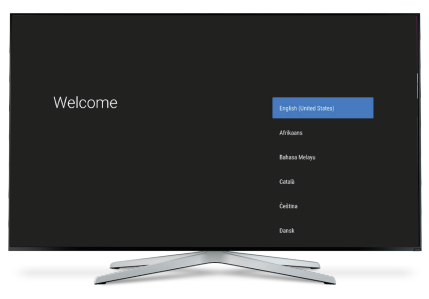
Complete the on-screen setup
Follow the on-screen instructions using your remote to navigate through the setup process
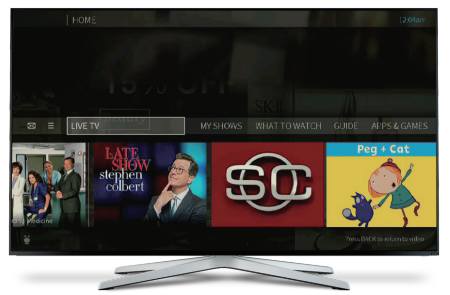
ANDROID TV
The EVO Force 1 STB powered by Android TV™ brings a world of content to your biggest screen. With the Google Assistant, you can quickly access entertainment, get
answers on screen, and control smart home devices. Find the latest blockbuster, check the score of the big game, or dim the lights. Just press the Assistant button on your remote to get started.
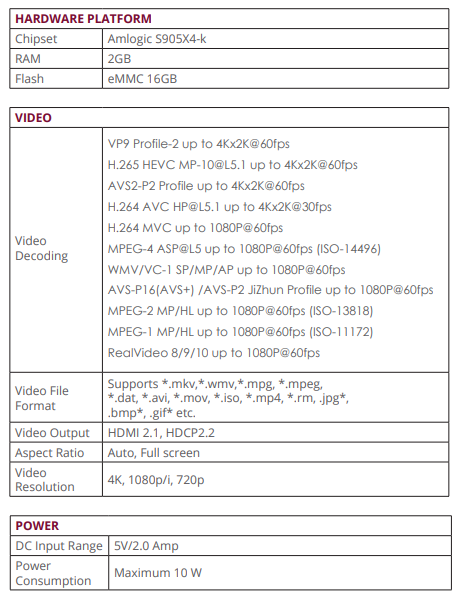
SPECIFICATIONS
FOR MORE MANUALS BY EVOLUTION DIGITAL, VISIT MANUALSLIBRARYY
Evolution EVO Force 1 WiFi Android TV Streaming Player-FAQs
What is the EVO Force 1 used for?
It’s an Android TV streaming player that lets you watch movies, live TV, and apps in up to 4K quality.
How do I set up the EVO Force 1?
Connect it to your TV with an HDMI cable, plug in the power, and follow the on-screen setup instructions.
How do I connect it to Wi-Fi?
Go to Settings > Network & Internet, choose your Wi-Fi, and enter the password.
How do I connect my phone to EVO Force 1?
Turn on Wi-Fi and Bluetooth on your phone → Select the EVO network → Enter password 12345678.
How do I pair the remote?
Press and hold the TiVo + Back buttons until the light flashes, then release.
Does EVO Force 1 have Bluetooth?
Yes. You can connect headphones, speakers, or game controllers via Bluetooth.
How do I reset the device?
Go to Settings > Device Preferences > Reset > Factory Reset to restore defaults.
How do I reset the remote?
Hold TiVo + TV Power until the light turns red → Press Volume Down 3 times → Press TiVo button.
Can it work on non-4K TVs?
Yes, it adjusts automatically to your TV’s best resolution.
Is EVO Force 1 better than EVO Fuse 4K?
The Force 1 is a full-featured Android box, while the Fuse 4K is a simpler streaming stick.