
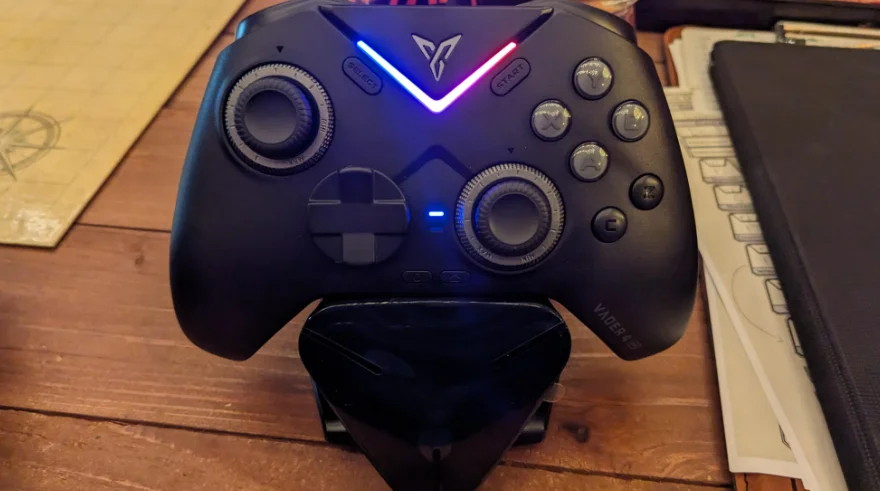

Flydigi Vader 4 Pro Gaming Controller
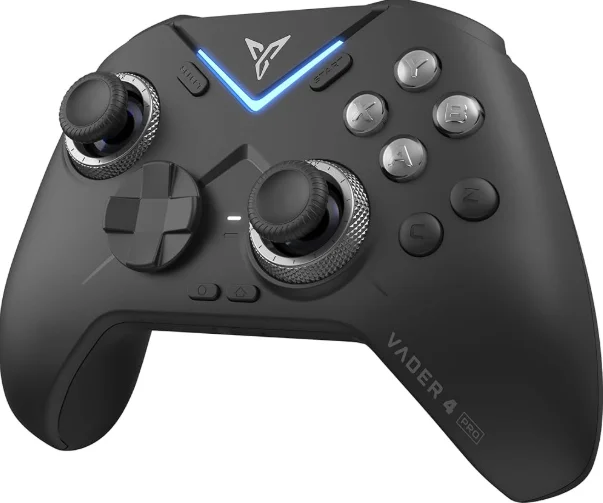
Instructions for using the Force-adjustable joystick 

Rotate the force adjustment knob to continuously adjust the joystick damping. Clockwise rotation increases damping, providing more stability for precise control. Counterclockwise rotation decreases the damping, allowing for more flexibility and reducing hand fatigue.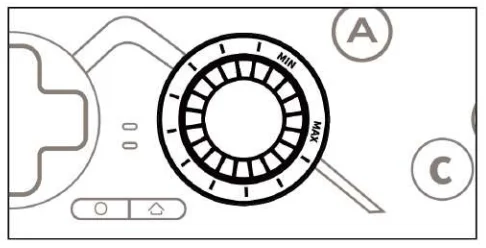
Flydigi Space Station unlocks more customization options.
Access the Flydigi official website at www.flydigi.com and download the “Flydigi Space Station” software on your computer to customize key mappings, macros, motion sensing, and joystick functions.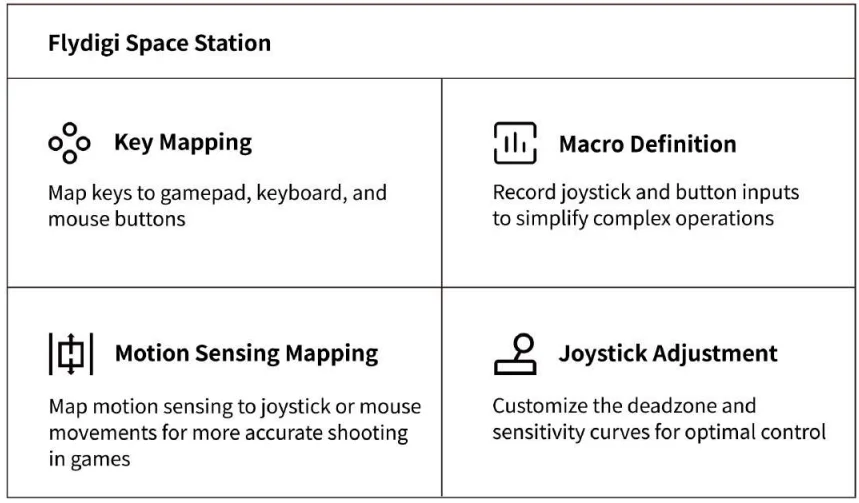
Connecting to a computer: 

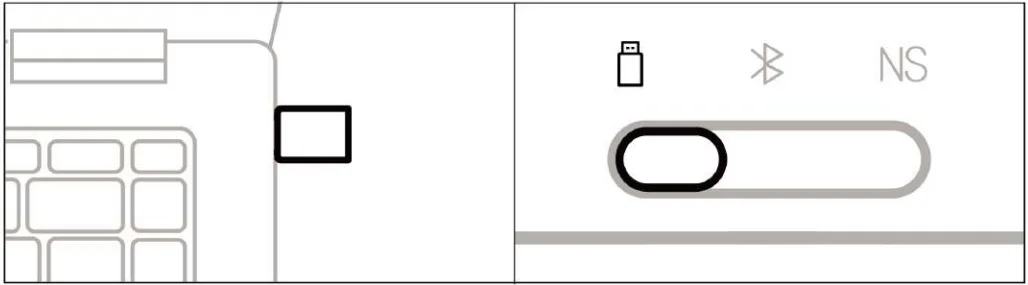
Wireless Dongle Connection:
- Plug the dongle into a USB port on your computer.
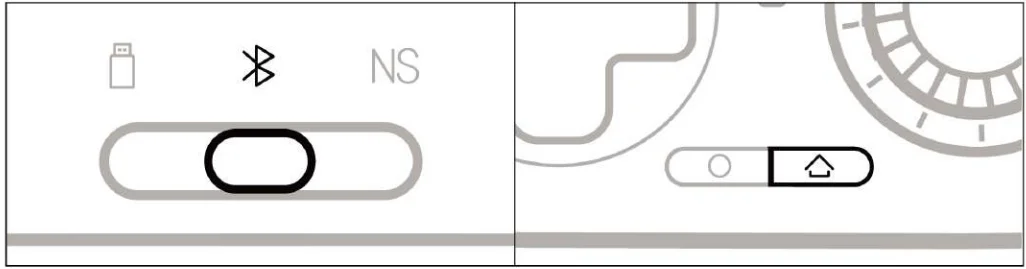
- Set the switch on the back to the
 position.
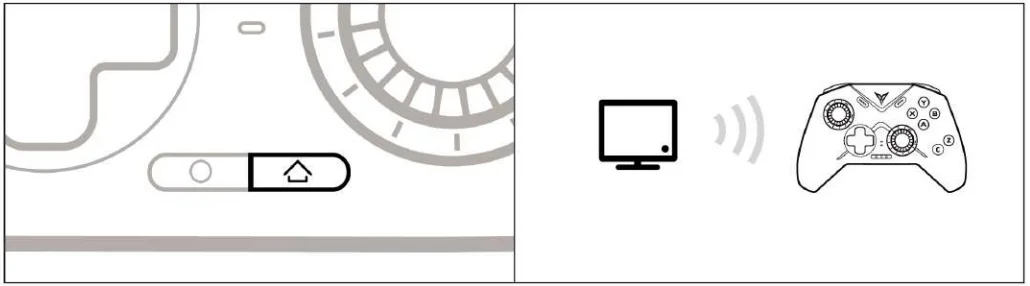
- Press the
 button on the controller, and it will automatically connect. The indicator light will stay white.
 - For subsequent uses, simply press the button, and the controller will automatically connect.

Wired Connection:
Set the switch on the back to the  position. Connect the controller to the computer using a USB cable. The indicator light will stay white, indicating a successful connection.
Bluetooth Connection:
Set the switch on the back to the  position. Press the
  button to wake up the controller. In your computer’s Bluetooth settings, connect to the Xbox Wireless Controller. Once connected successfully, the indicator light will stay white.
Connecting to a Switch: 

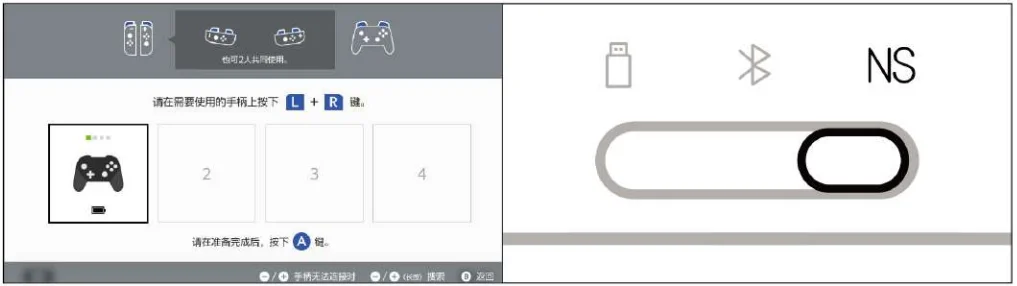
- On the Switch home screen, select the controller icon to enter the “Change Grip/Order” menu.
- Set the switch on the back to the NS position.

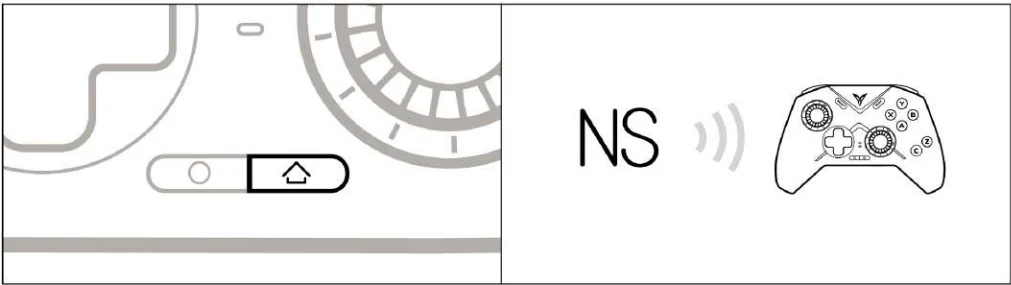
- Press the button once, and the controller will automatically connect. The indicator light will stay blue.
- For subsequent uses, simply press the button, and the controller will automatically connect.

Button and Key Mapping in Switch Mode:

Connecting to Android/iOS devices: 
- Set the switch on the back to the position.
- Press the button to wake up the controller.

- Enable Bluetooth on your device and connect to the Xbox Wireless Controller. The controller’s indicator light will stay white.
- For subsequent uses, simply press the button, and the controller will automatically connect.

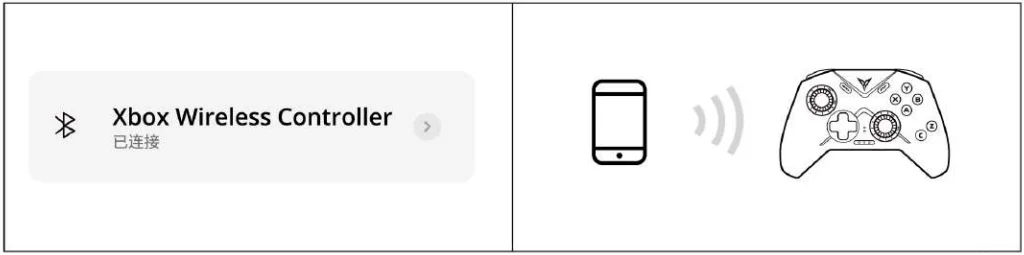
The above method is suitable for native game support with controllers. If you want to play games that do not support controllers, please download the Flydigi Game Center. In the peripheral management page, follow the instructions to switch to controller mode (only applicable to Android phones).
Basic Operations:
- Power On: Press the button.
- Power Off: Switch the back switch position (or the controller will automatically power off after 15 minutes of inactivity).
- Low Battery: The second indicator light flashes red.
- Charging: The second indicator light stays solid red.
- Fully Charged: The second indicator light stays solid green.
Specifications:
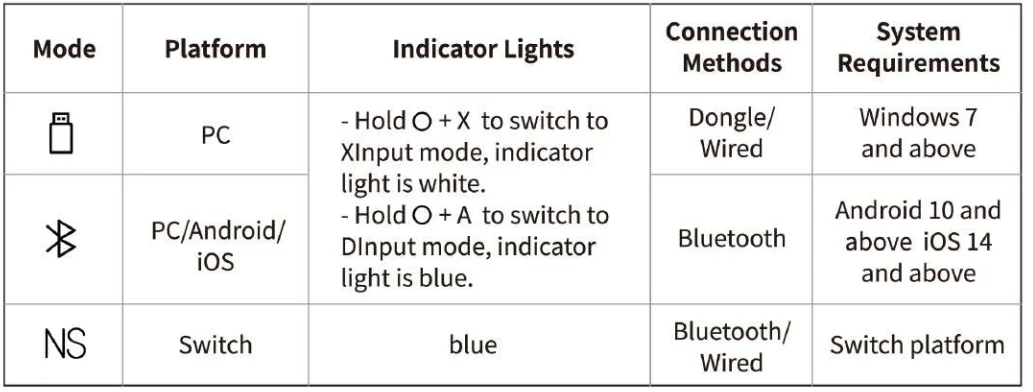
Note: Most games on PC support XInput mode, but some older games may only support DInput mode.
- Wireless RF: Bluetooth 5.0
- Operating Distance: Less than 10 meters
- Battery Information: Rechargeable lithium-ion battery with a capacity of 800mAh. Charging time is 2 hours. Charging voltage is 5V, and charging current is 800mA.
- Operating Current: Current is less than 45mA during use and less than 10μA in standby mode.
- Temperature Range: -10°C to 50°C for use and storage.
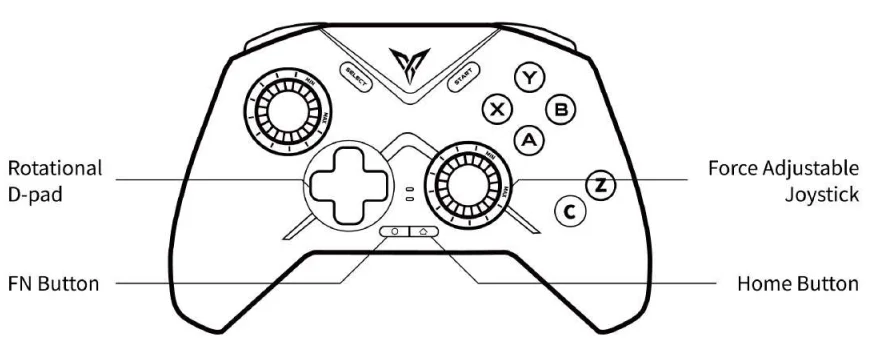
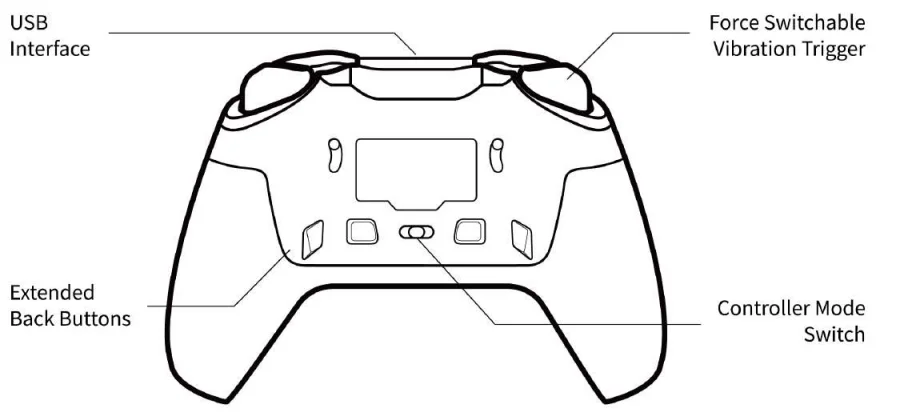
Appearance
Q & A
Q: The controller cannot connect.
A: Please make sure the rear gear switch is correct and hold the [Home] button for three seconds until the indicator light flashes quickly to enter pairing mode. For dongle pairing: Unplug and reinsert the dongle into the USB port. For BT pairing: Unpair the device in the BT settings, turn off and on BT, then reconnect.
Q: How to update the controller firmware?
A: Install Flydigi Space Station on your computer or Flydigi Game Center on your phone and follow the software instructions to update the firmware.
Q: Joystick/trigger/motion sensing is malfunctioning.
A: Install Flydigi Space Station on your computer, enter the testing page, and calibrate the controller as guided.
The name and content of harmful substances in the product
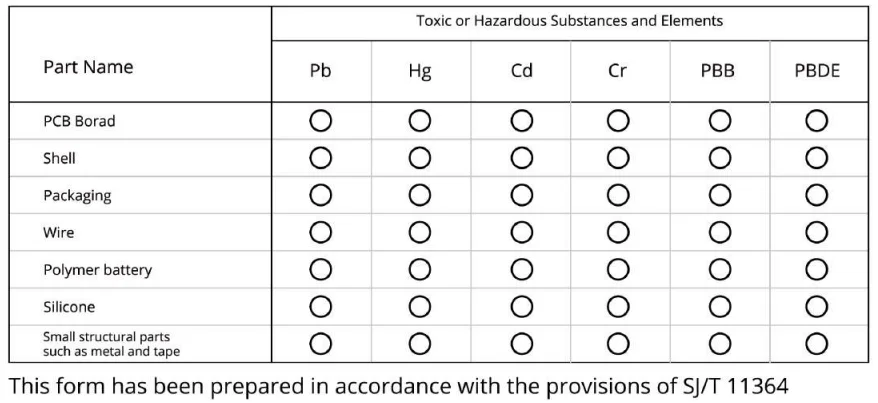
 Indicates that the content of the hazardous substance in all homogeneous materials of this part is within the limit specified in GB/T 26572-2011. Require the following:
 Indicates that the content of the hazardous substance in at least one homogeneous material of the component exceeds the provisions of GB/T 26572-2011. The limited requirements.
 Indicates that the content of the hazardous substance in all homogeneous materials of this part is within the limit specified in GB/T 26572-2011. Require the following:
 Indicates that the content of the hazardous substance in at least one homogeneous material of the component exceeds the provisions of GB/T 26572-2011. The limited requirements.
For More Manuals By Flydigi, Visit ManualsLibraryy.
Flydigi Vader 4 Pro Gaming Controller-FAQs
What is the Flydigi Vader 4 Pro Gaming Controller?
The Flydigi Vader 4 Pro is a premium wireless gaming controller designed for PC, Nintendo Switch, Android, and other compatible devices. It features Hall effect sticks, customizable buttons, adjustable trigger systems, and low-latency wireless connectivity aimed at competitive and casual gamers seeking advanced controller performance.
Does the Flydigi Vader 4 Pro use Hall effect joysticks?
Yes, the Vader 4 Pro includes Hall effect thumbsticks that use magnetic sensors instead of physical contact mechanisms. This design helps reduce joystick drift, improves precision, and increases long-term durability compared to traditional analog stick technology used in many standard controllers.
What platforms are compatible with the Flydigi Vader 4 Pro?
The controller supports PC, Nintendo Switch, Android, and some additional devices through Bluetooth, wired USB-C, or 2.4GHz wireless connections. Many gamers prefer it for PC gaming because of its customization features and responsive performance across multiple gaming genres.
Is the Flydigi Vader 4 Pro good for competitive gaming?
Yes, many gamers consider the Vader 4 Pro excellent for competitive gaming because of its fast response time, high polling rate, customizable back buttons, and adjustable trigger sensitivity. These features help improve reaction speed and control accuracy in shooters, racing games, and esports titles.
Does the Flydigi Vader 4 Pro have customizable buttons?
The controller includes programmable back buttons and customizable trigger settings that can be adjusted through Flydigi software. Users can remap controls, change trigger response behavior, and create custom gaming profiles to match different gameplay styles and preferences more effectively.
How good is the battery life on the Flydigi Vader 4 Pro?
Battery life varies depending on wireless mode, vibration intensity, and lighting settings, but many users report long gaming sessions on a single charge. The controller is designed for extended gameplay and supports fast charging through its USB-C connection for added convenience.
Is the Flydigi Vader 4 Pro comfortable for long gaming sessions?
Most users describe the controller as comfortable because of its ergonomic grip design, textured handles, and balanced weight distribution. The Xbox-style layout also feels familiar to many gamers, helping reduce hand fatigue during extended gaming sessions or competitive play.
What are the common problems with the Flydigi Vader 4 Pro?
Some users report occasional software configuration issues, inconsistent trigger adjustments, and compatibility problems with certain games or platforms. Others mention that the controller’s advanced customization features may require extra setup time for users unfamiliar with Flydigi software.
Does the Flydigi Vader 4 Pro support wireless connectivity?
Yes, the controller supports both Bluetooth and 2.4GHz wireless connectivity for low-latency gaming. It also includes wired USB-C support, allowing users to switch between connection modes depending on their preferred gaming setup and performance requirements.
Is the Flydigi Vader 4 Pro worth buying?
The Flydigi Vader 4 Pro is considered a strong alternative to premium gaming controllers because of its Hall effect sticks, customization options, and responsive performance. Many gamers feel it offers excellent value for competitive gaming without the extremely high price of some flagship controllers.