
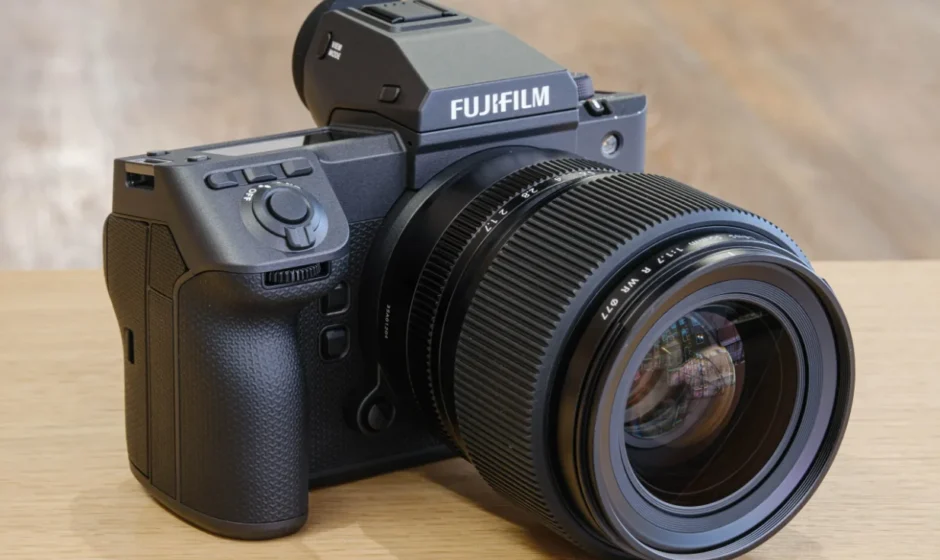

Fujifilm GFX100 II Camera
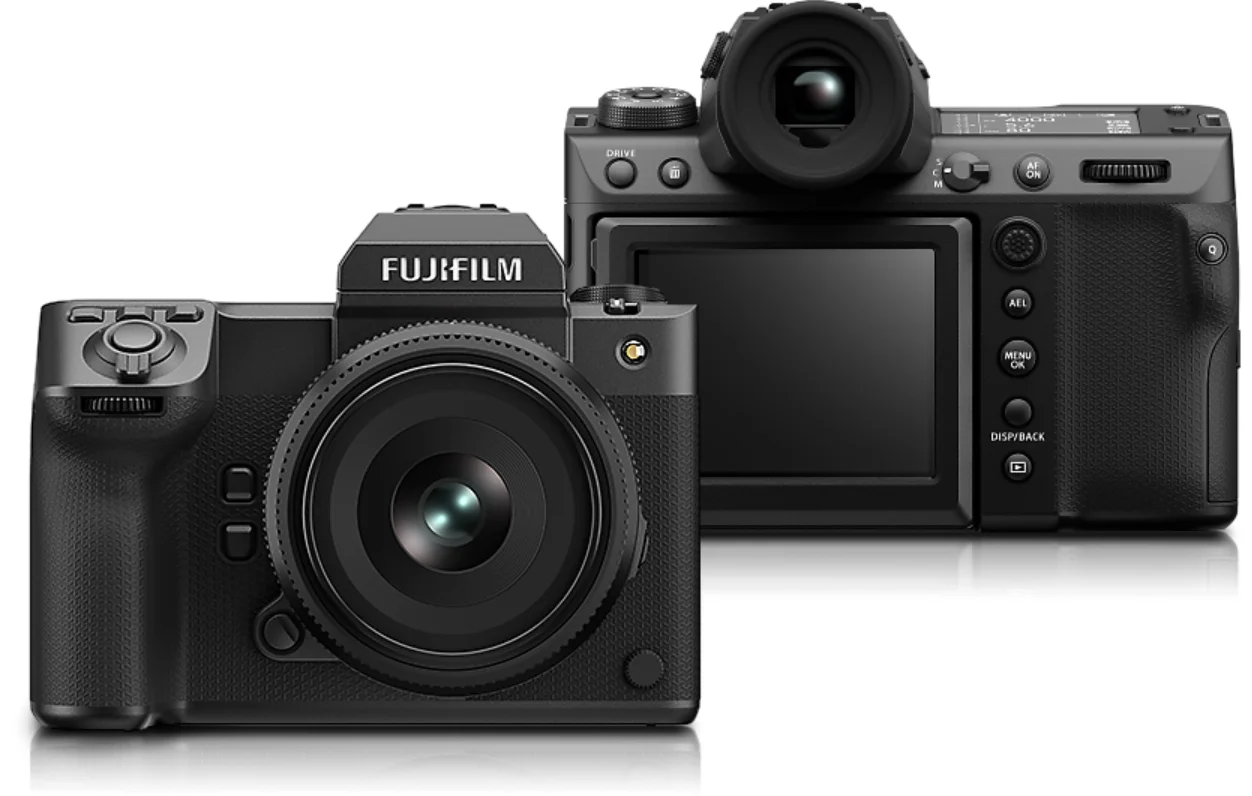
Before You Begin
Parts of the Camera
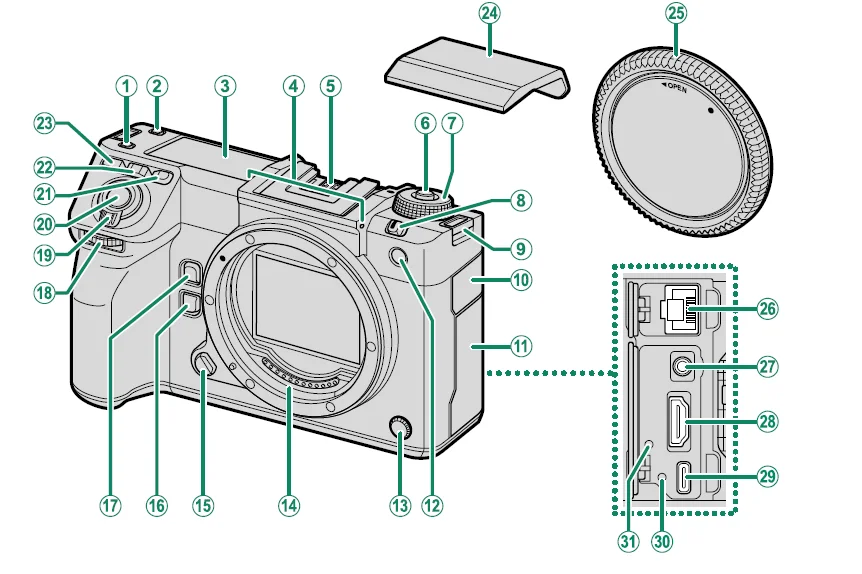
- Secondary monitor backlight button
- Fn4 button
- Secondary LCD monitor
- Microphone
- Hot shoe
- Dial lock release
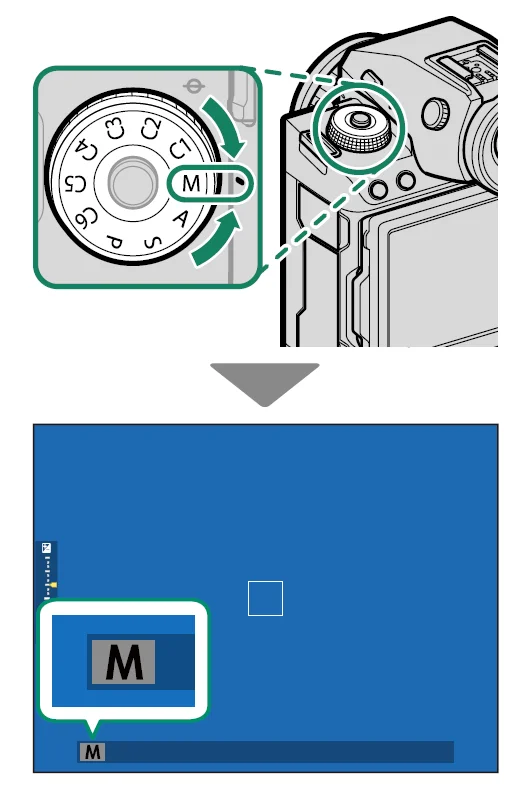
- Mode dial
- STILL/MOVIE mode switch
- Strap eyelet
- LAN connector cover
- Connector cover
- AF-assist illuminator
Self-timer lamp
Tally light - Sync terminal
- Lens signal contacts
- Lens release button
- Fn6 button
- Fn5 button
- Front command dial
- ON/OFF switch
- Shutter button
- Fn1 button
- Fn2 button
- Fn3 button
- Hot shoe cover
- Body cap
- LAN connector
- Microphone/remote release connector (⌀3.5mm)
Use of an optional RR-100 remote release requires a third-party adapter to convert the three-pin, ⌀2.5 mm connector to a three-pin, ⌀3.5 mm connector. - HDMI connector (Type A)
- USB connector (Type-C)
- Hole to screw the USB cable
- Hole to screw cable protector

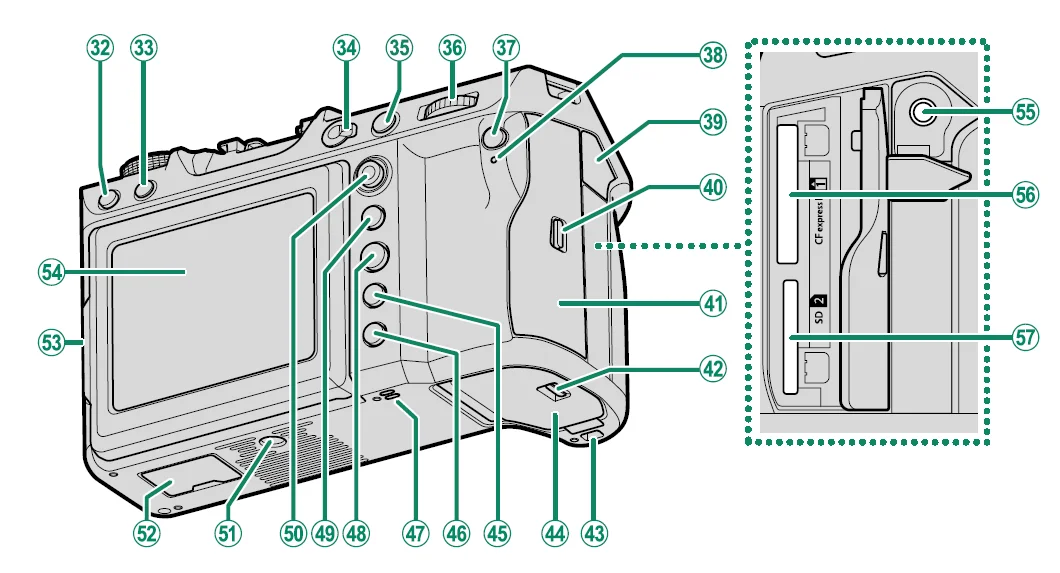
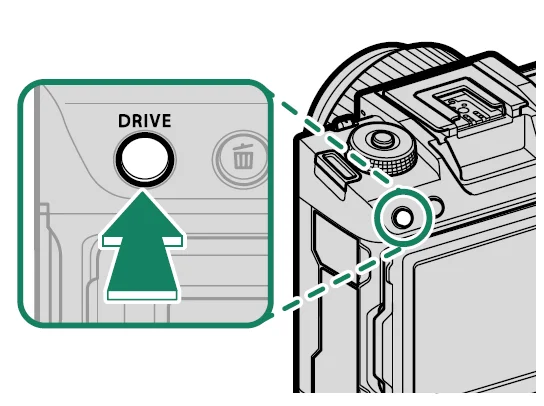
- DRIVE button
 (delete) button
- Focus mode selector
- AFON button
- Rear command dial
- Q (quick menu) button
- Indicator lamp
Tally light - Headphone jack cover
- Memory card slot cover latch
- Memory card slot cover (detachable)
- Battery-chamber cover latch
- Hole to hook Vertical Battery Grip
- Battery-chamber cover
- DISP (display)/BACK button
 (playback) button
- Speaker
- MENU/OK button
- AEL (exposure lock) button
- Focus stick (focus lever)
- Tripod mount
- Vertical battery grip connector cover
- Tilt lock release
- LCD monitor
Touch screen - Headphone jack (⌀3.5mm)
- Memory card slot 1 (for Type B CFexpress cards)
- Memory card slot 2 (for SD memory cards)

- Battery latch
- Battery chamber
- Cooling fan connector cover
- Cooling fan connector
- Hole to screw cooling fan
- Serial number plate
- Vertical battery grip connector
 (delete) button
 (playback) button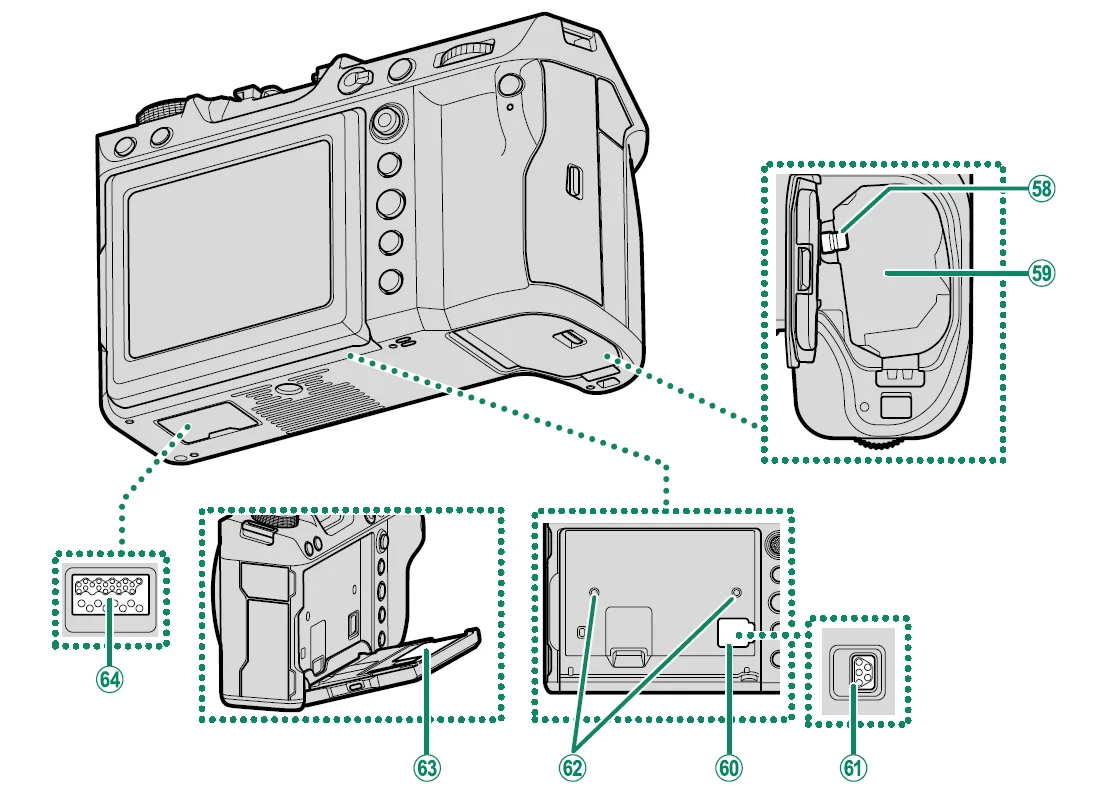
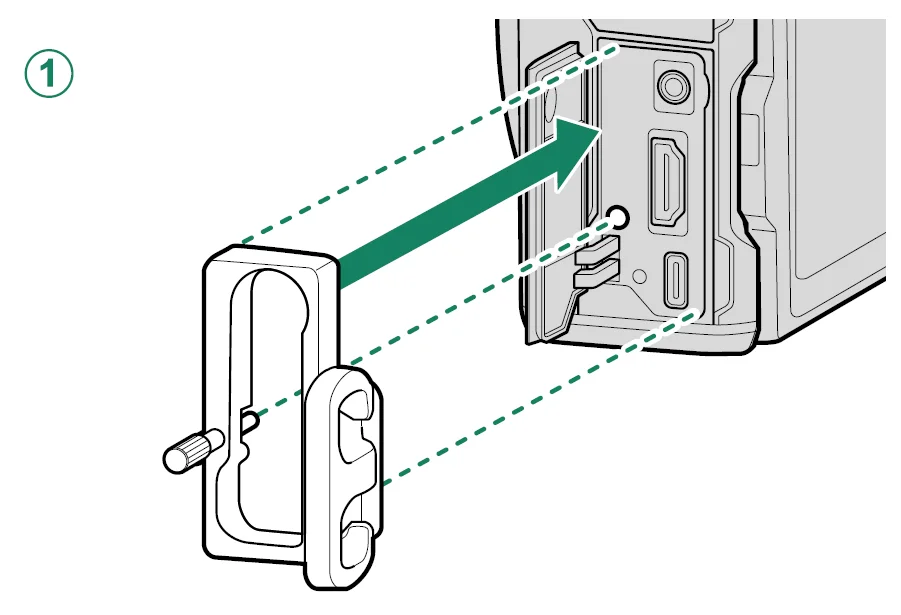
The Cable Protector
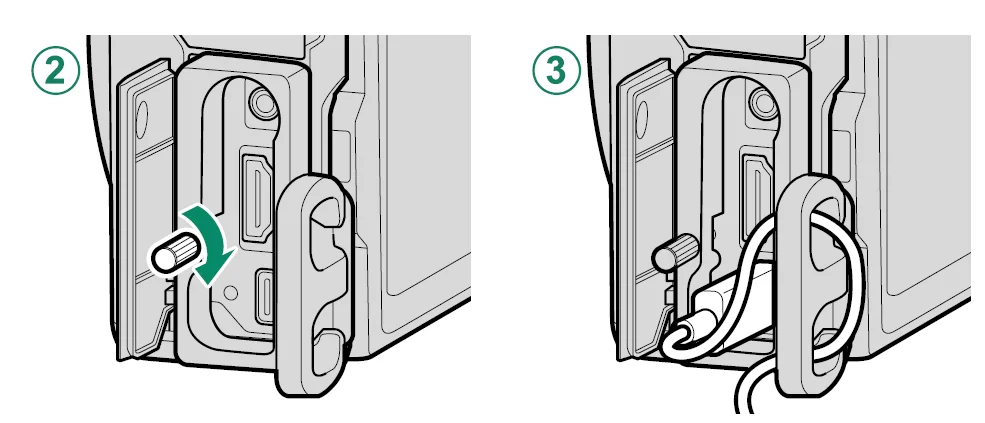
Attach the protector as shown to prevent accidental disconnection.
- Slide the protector over the USB connector cover so that the cover passes through the slot in the protector.
- Tighten the lock screw.
- Connect the cable and pass it through the protector as shown.


The Serial Number Plate
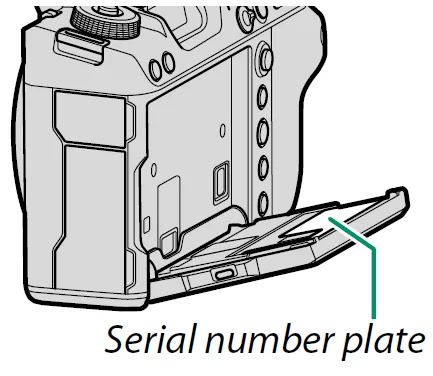
Do not remove the serial number plate, which provides the CMIIT ID, serial number, and other important information.
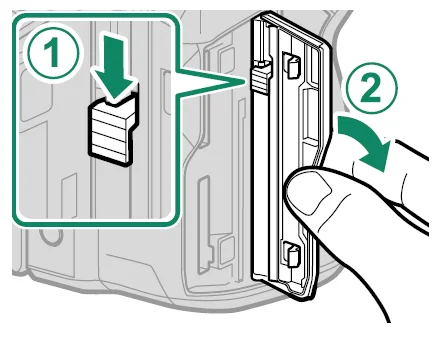
The Memory Card Slot Cover (Detachable)
The memory card slot cover can be removed by lowering the interior latch. Remove the cover for ease of access when a camera rig is attached or in other situations that make it diffi cult to open or close the cover.
The Focus Stick (Focus Lever)
Tilt or press the focus stick to select the focus area. The focus stick can also be used to navigate the menus.
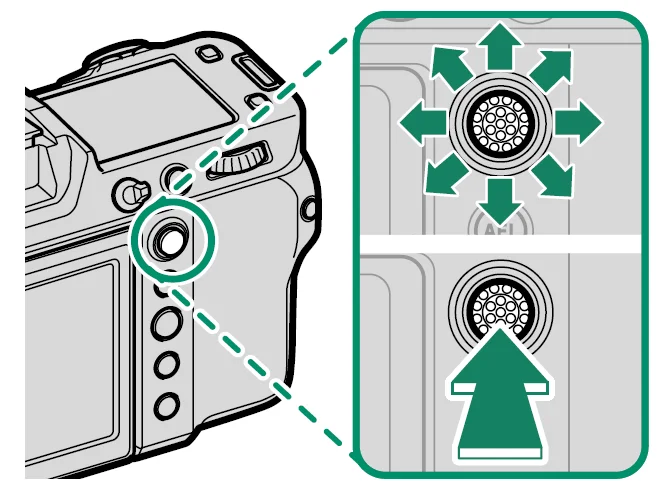
Note: To choose the role played by the focus stick, press and hold the center of the stick or use  BUTTON/DIAL SETTING > FOCUS LEVER SETTING.
The Mode Dial
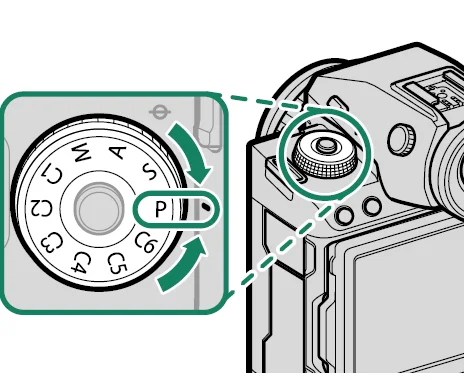
To select a shooting mode, rotate the dial until the icon for the desired mode aligns with the index.
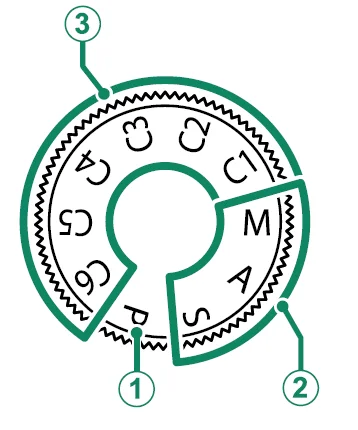
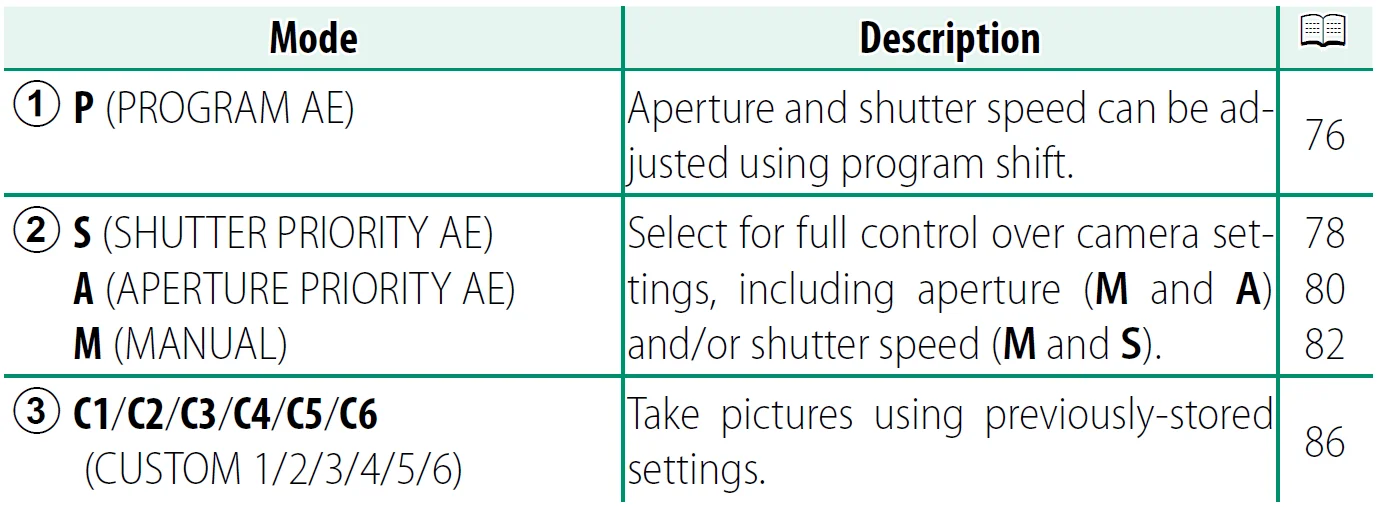
Rotate the mode dial only after pressing the dial lock release to release the dial.
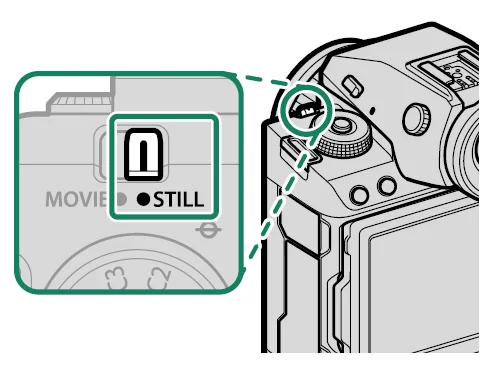
The STILL/MOVIE Mode Switch
Slide the STILL/MOVIE mode switch to STILL to take photographs or to MOVIE to record movies.
The DRIVE Button
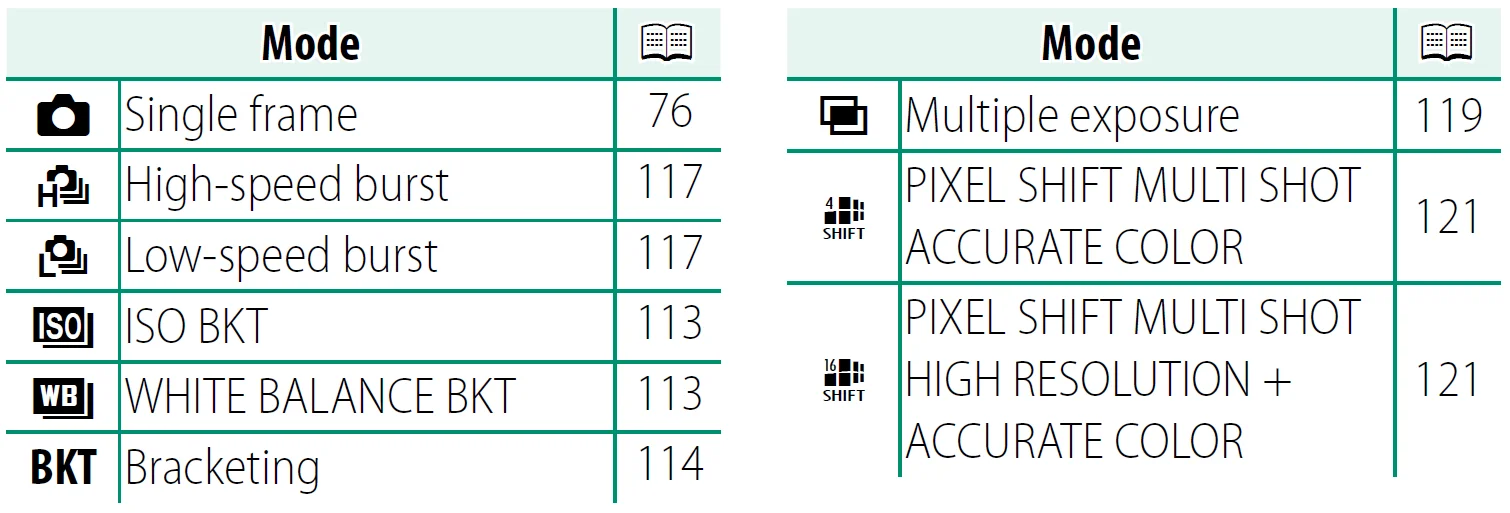
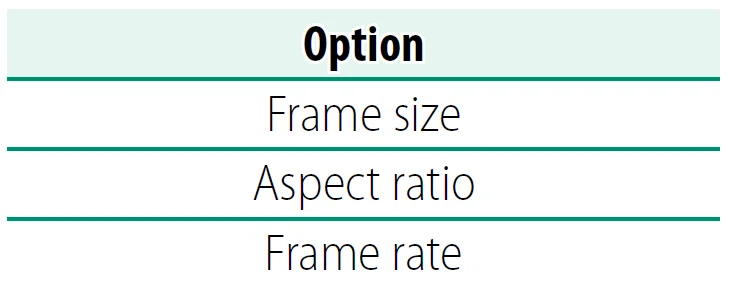
Press the DRIVE button to adjust shooting settings. The options displayed vary with the position of the STILL/MOVIE mode switch.
- Pressing the button when STILL is selected displays drive mode options.


- Pressing the button when MOVIE is selected displays movie recording options.

The Command Dials
Rotate or press the command dials to:
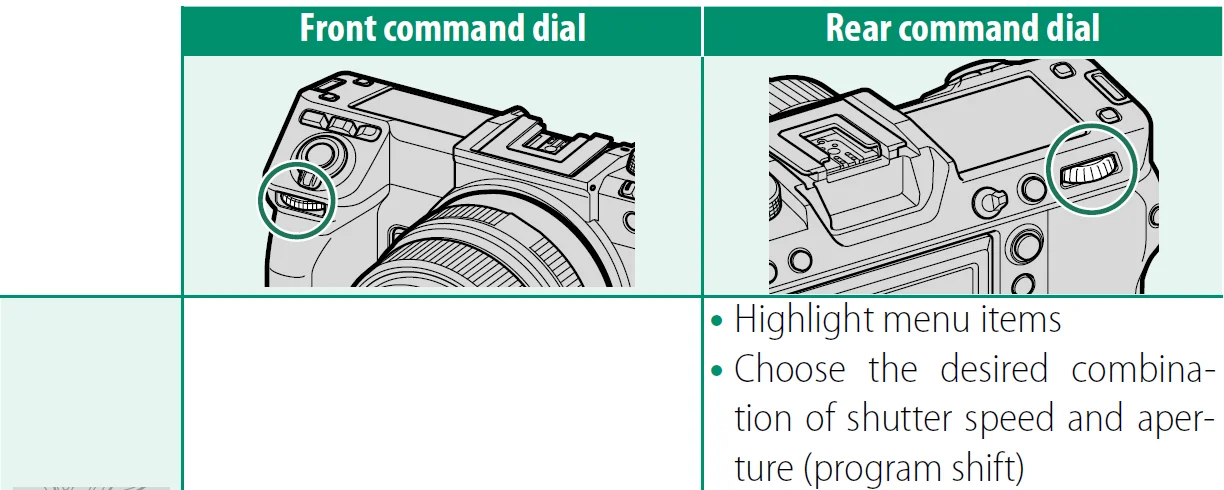
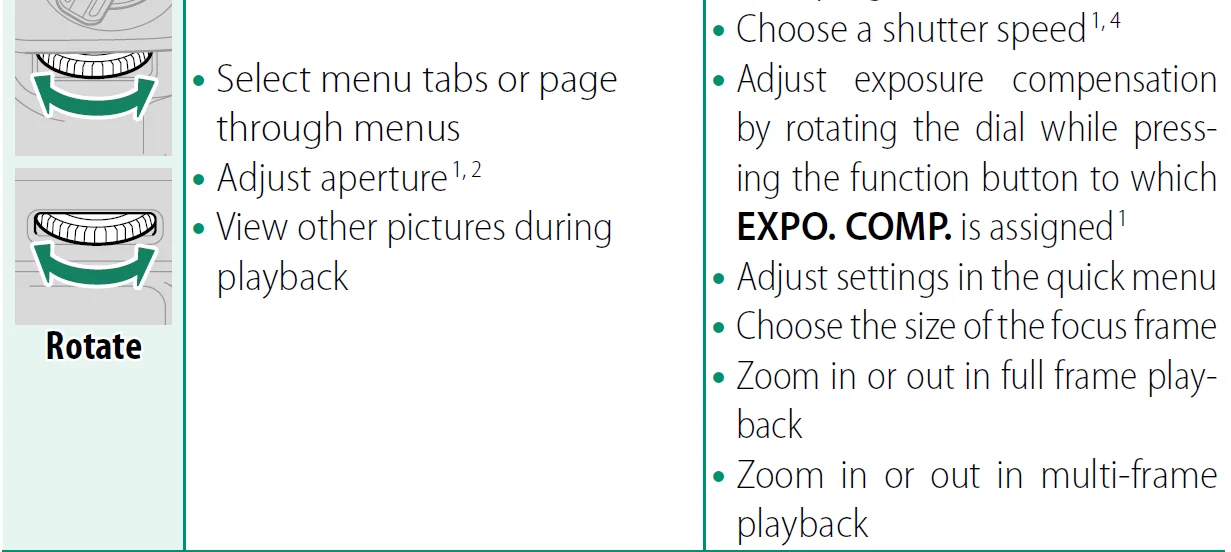
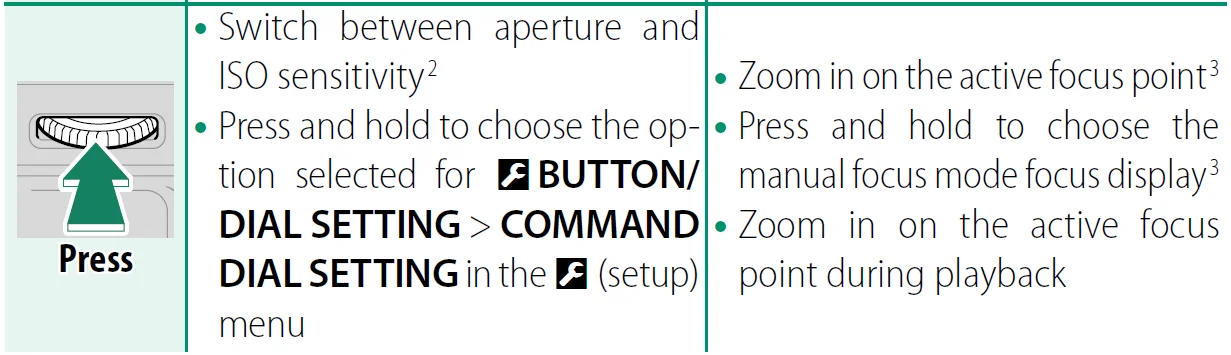
- Can be changed using
 BUTTON/DIAL SETTING > COMMAND DIAL SETTING.
 - If the lens is equipped with an aperture ring with an “A” or “C” position, the aperture ring must be in the A or C position.
- Available only if FOCUS CHECK is assigned to a function button.
- Only if a value other than auto is selected for shutter speed.
The rotation direction for the command dials can be selected using BUTTON/DIAL SETTING > COMMAND DIAL DIRECTION.
The Indicator Lamp
The indicator lamp shows the camera status.
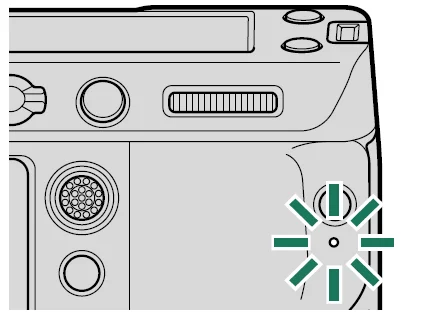
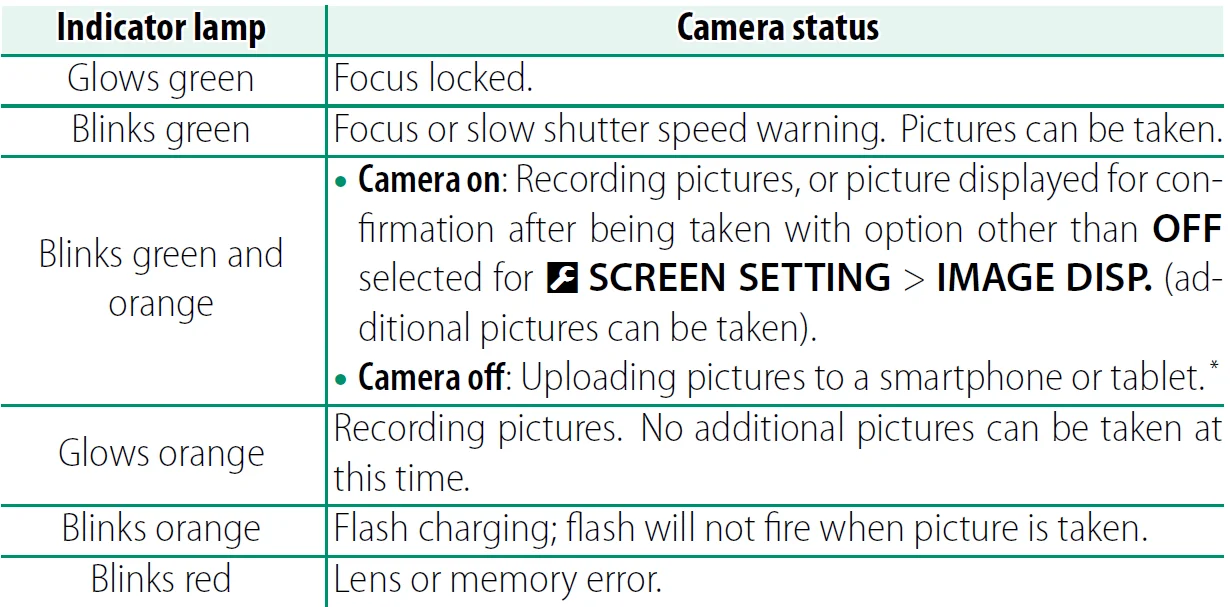
* Displayed only if pictures are selected for upload.
Note:
- Warnings may also appear in the display.
- The indicator lamp remains off while your eye is to the viewfinder.
- The B MOVIE SETTING > TALLY LIGHT option can be used to choose the lamp (indicator or AF-assist) that lights during movie recording and whether the lamp blinks or remains steady.
The LCD Monitor
The LCD monitor can be tilted for easier viewing, but be careful not to touch the wires or trap fingers or other objects behind the monitor. Touching the wires could cause a camera malfunction.
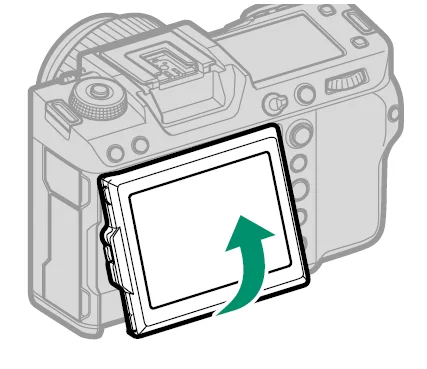
Note: The LCD monitor also functions as a touch screen that can be used for:
- Touch photography (P 35)
- Focus area selection (P 34)
- Function selection (P 37)
- Movie optimized control (P 36)
- Playback (P 38)
“Tall” (Portrait) Orientation
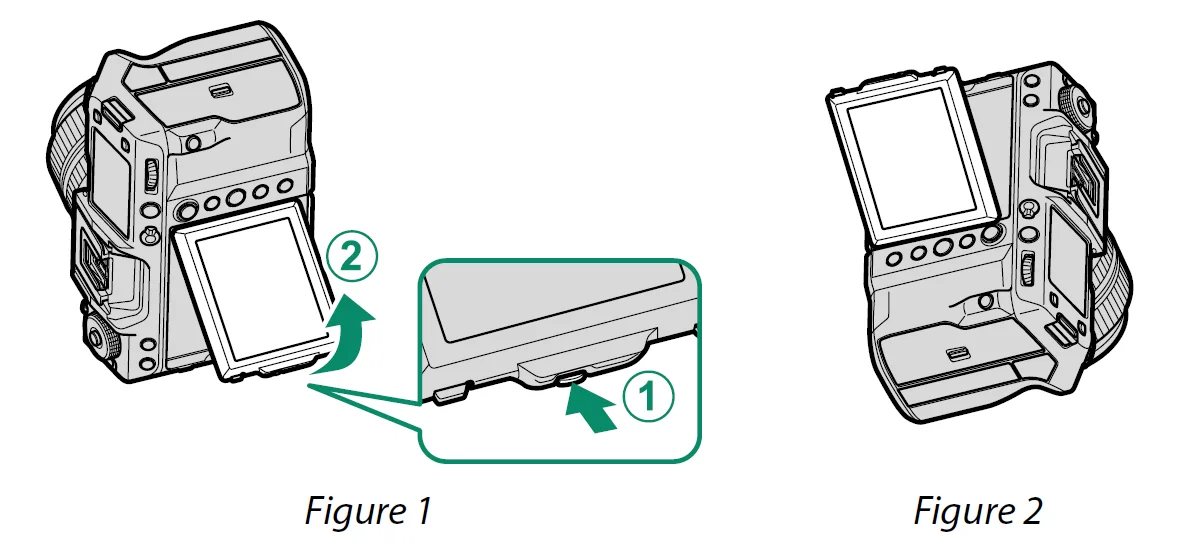
The display can also be tilted to take pictures from high or low angles when the camera is rotated to take pictures in “tall” (portrait) orientation.
- Press the tilt lock release and tilt the display as shown in Figure 1.
- To take high-angle shots, hold the camera in the orientation shown in Figure 2.
The Viewfinder
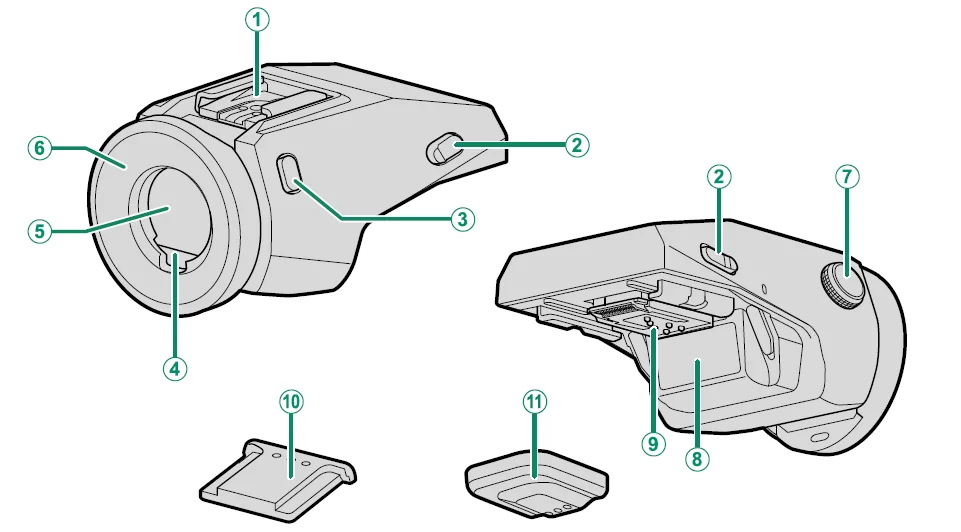
- Hot shoe
- Viewfinder lock releases
- VIEW MODE button
- Eye sensor
- Electronic viewfinder (EVF)
- Eye cup (lockable)
- Diopter adjustment control
- Serial number plate
- Connectors
- Hot shoe cover
- Connector cover
The EVF-TL1
The optional EVF-TL1 tilt adapter lets you swivel the viewfinder left or right ±45° or up or down between 0° and 90° (P 397).
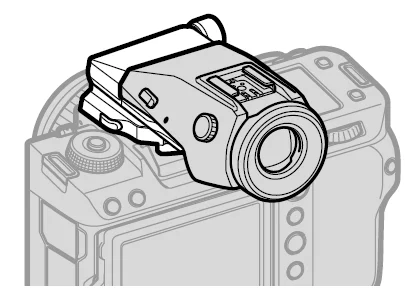
Attaching the Viewfinder
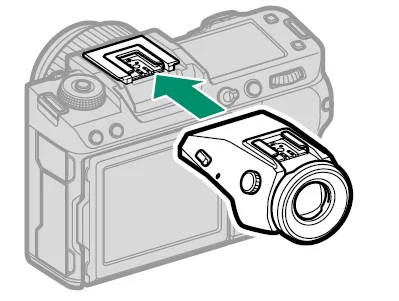
Using the viewfinder makes it easier to frame your subject accurately. Remove the hot shoe cover from the camera and slide the viewfi nder onto the hot shoe, stopping when it clicks into place.
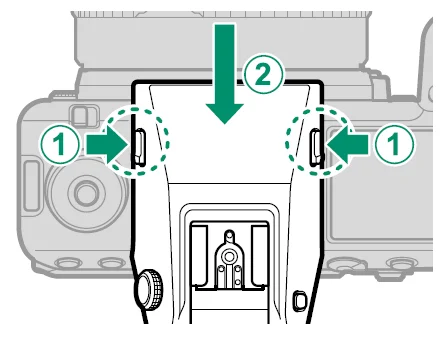
Removing the Viewfinder
Keeping the lock releases pressed (A), press down on the front of the viewfinder (B) and slide it off as shown.
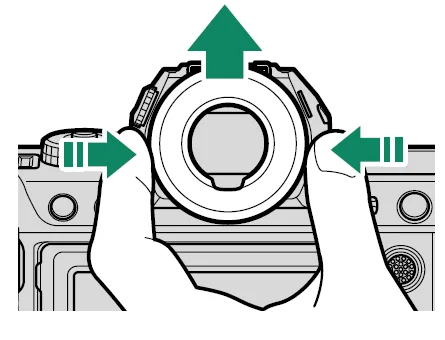
The Eye Cup
To remove the eye cup, hold the buttons on either side and slide eye cup up.
Focusing the Viewfinder
If the indicators displayed in the viewfinder are blurred, put your eye to the viewfinder and rotate the diopter adjustment control until the display is in sharp focus.
To focus the viewer:
- Lift the diopter adjustment control.
- Rotate the control to adjust the viewfinder focus.
- Return the control to its original position and lock it in place.
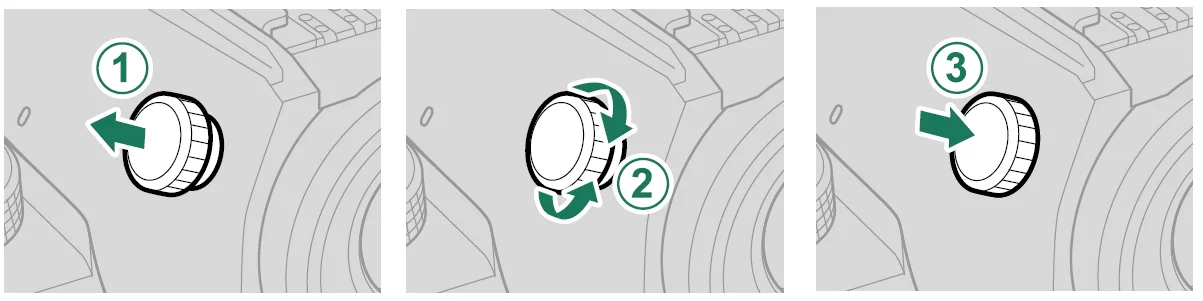
Lift the control before use. Failure to observe this precaution could cause product malfunction.
Camera Displays
This section lists the indicators that may be displayed during shooting.
- For illustrative purposes, displays are shown with all indicators lit.
The Electronic Viewfinder
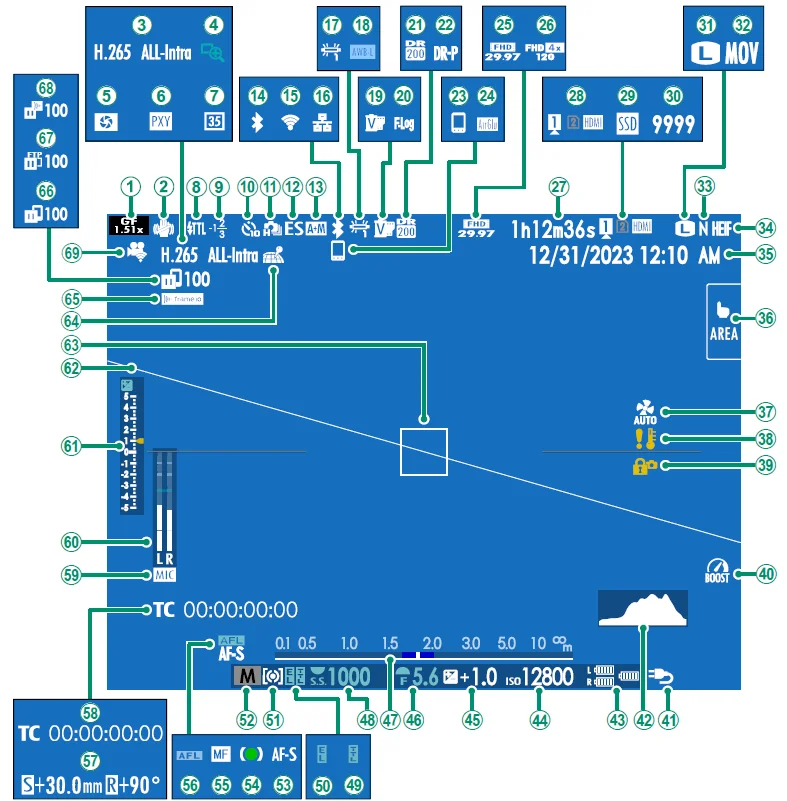
- Movie format/crop factor
- IS mode 2
- Movie compression
- Focus check
- Depth-of-field preview
- Proxy setting (ProRes only)
- 35mm format mode
- Flash (TTL) mode
- Flash compensation
- Self-timer indicator
- Continuous mode
- Shutter type
- AF+MF indicator 2
- Bluetooth ON/OFF
- Wireless connection
- Ethernet connection
- White balance
- AWB lock
- Film simulation
- F-Log/HLG recording
- Dynamic range
- D-range priority
- Bluetooth host
- AirGlu BT connection
- Movie mode
- High-speed recording indicator
- Recording time available/ elapsed recording time
- Card slot options
- SSD connection status
- Number of available frames 1
- Image size
- File format
- Image quality
- HEIF format
- Date and time
- Touch screen mode
- Cooling fan settings
- Temperature warning
- Control lock 3
- Boost mode
- Power supply
- Histogram
- Battery level Sensitivity
- Exposure compensation
- Aperture
- Distance indicator 2
- Shutter speed
- TTL lock
- AE lock
- Metering
- Shooting mode
- Focus mode 2
- Focus indicator 2
- Manual focus indicator 2
- AF lock
- Shift amount/rotate amount
- Time code
- Microphone input channel
- Recording level 2
- Exposure indicator
- Virtual horizon
- Focus frame
- Location data download status
- Frame.io connection status
- Image transfer status
- FTP upload progress
- Frame.io upload progress
- Remote recording function
- 1 Shows “9999” if there is space for over 9999 frames.
- 2 Not displayed when ON is selected for
 SCREEN SET-UP > LARGE INDICATORS MODE(EVF).
 - 3 Displayed when controls have been locked by pressing and holding the MENU/OK button. The control lock can be ended by pressing and holding the MENU/OK button again.
The LCD Monitor
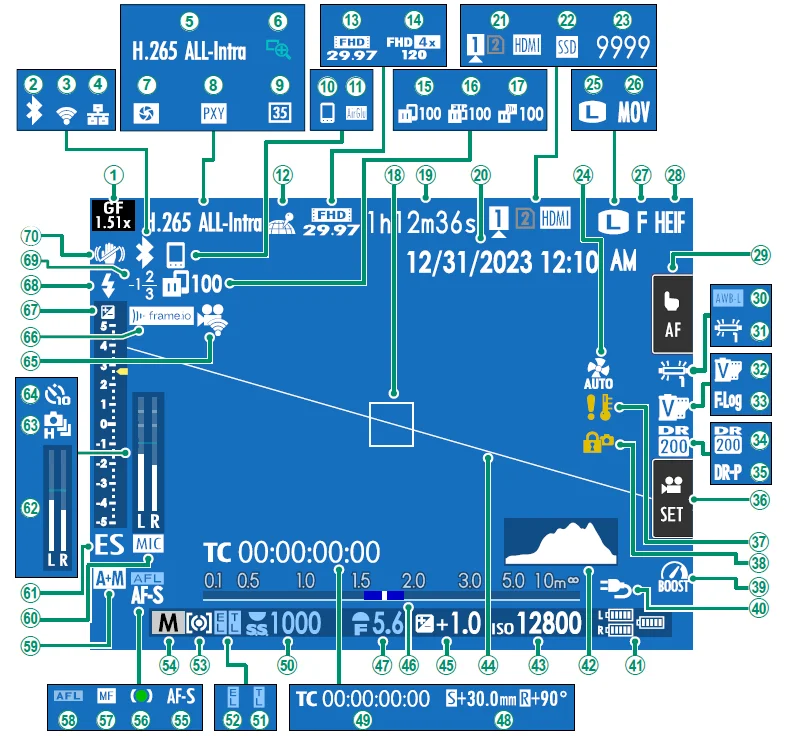
- Movie format/crop factor
- Bluetooth ON/OFF
- Wireless connection
- Ethernet connection
- Movie compression
- Focus check
- Depth-of-field preview
- Proxy setting (ProRes only)
- 35mm format mode
- Bluetooth host
- AirGlu BT connection
- Location data download status
- Movie mode
- High-speed recording indicator
- Image transfer status
- FTP upload progress
- Frame.io upload progress
- Focus frame
- Recording time available/ elapsed recording time
- Date and time
- Card slot options
- SSD connection status
- Number of available frames 1
- Cooling fan setting
- Image size
- File format
- Image quality
- HEIF format
- Touch screen mode 3
- AWB lock
- White balance
- Film simulation
- F-Log/HLG recording
- Dynamic range
- D-range priority
- Movie optimized control 3
- Temperature warning
- Control lock 4
- Boost mode
- Power supply
- Battery level
- Histogram
- Sensitivity
- Virtual horizon
- Exposure compensation
- Distance indicator 2
- Aperture
- Shift amount/rotate amount
- Time code
- Shutter speed
- TTL lock
- AE lock
- Metering
- Shooting mode
- Focus mode 2
- Focus indicator 2
- Manual focus indicator 2
- AF lock
- AF+MF indicator 2
- Microphone input channel
- Shutter type
- Recording level 2
- Continuous mode
- Self-timer indicator
- Remote recording function
- Frame.io connection status
- Exposure indicator
- Flash (TTL) mode
- Flash compensation
- IS mode 2
- 1 Shows “9999” if there is space for over 9999 frames.
- 2 Not displayed when ON is selected forSCREEN SET-UP > LARGE INDICATORS MODE(LCD).
- 3 Camera functions can also be accessed via touch controls.
- 4 Displayed when controls have been locked by pressing and holding the MENU/OK button. The control lock can be ended by pressing and holding the MENU/OK button again.
Choosing a Display Mode
Press the VIEW MODE button to cycle through the following display modes. You can choose separate display modes for shooting and playback.
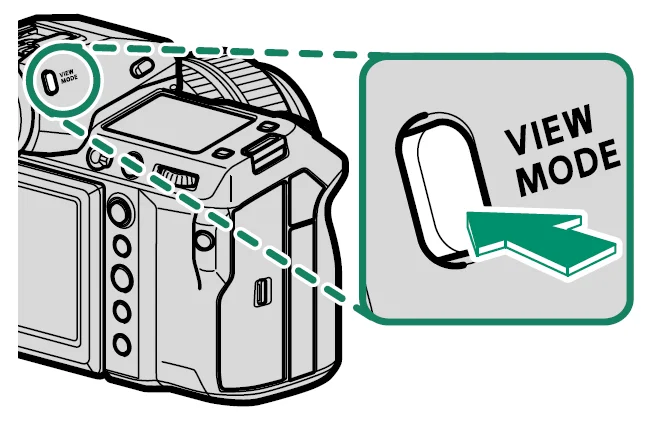
- UseSCREEN SET-UP > VIEW MODE SETTING in the setup menu to choose a display mode for the EVF and LCD monitor.
SHOOTING
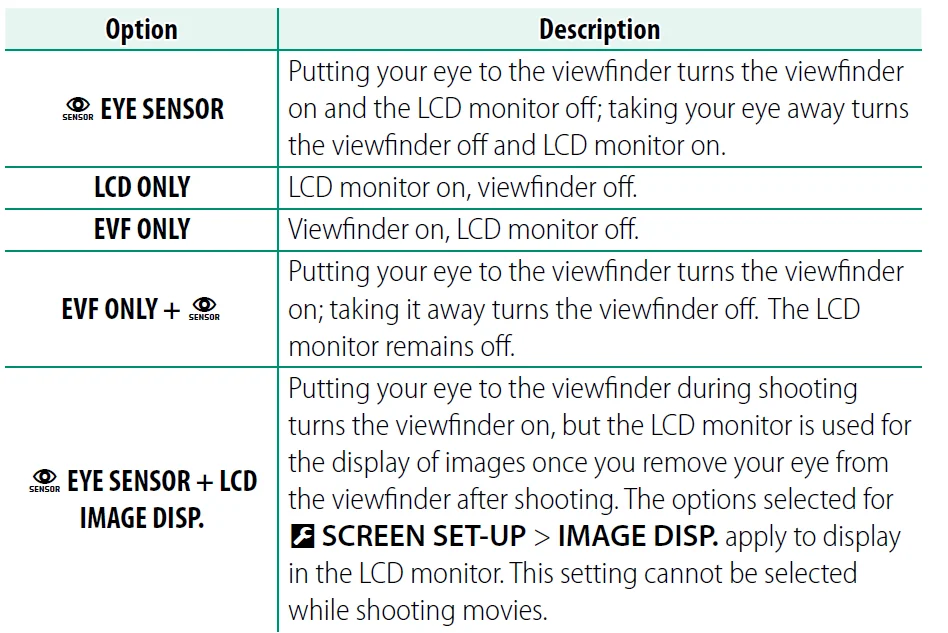
- Go toSCREEN SET-UP > VIEW MODE SETTING > SHOOTING in the setup menu and press the Q button to choose the view modes available.
The Eye Sensor
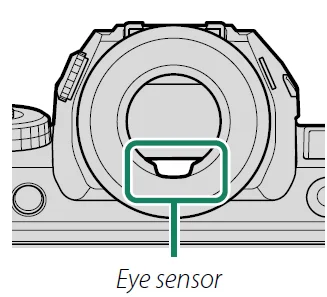
- The eye sensor may respond to objects other than your eye or to light shining directly on the sensor.
- The eye sensor is not available when the LCD monitor is tilted.
Adjusting Display Brightness
The brightness and saturation of the viewfinder and LCD monitor can be adjusted using the items in theSCREEN SET-UP menu. Choose EVF BRIGHTNESS or EVF COLOR to adjust the viewfinder brightness or saturation, LCD BRIGHTNESS or LCD COLOR to do the same for the LCD monitor.
Display Rotation
When ON is selected forSCREEN SET-UP > AUTOROTATE DISPLAYS, the indicators in the viewfinder and LCD monitor automatically rotate to match camera orientation.
The DISP/BACK Button
The DISP/BACK button controls the display of indicators in the viewfinder and LCD monitor.
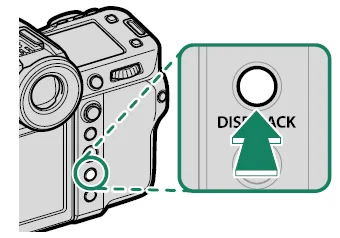
- Indicators for the EVF and LCD must be selected separately. To choose the EVF display, place your eye to the viewfinder while using the DISP/BACK button.
First Steps
Attaching the Strap
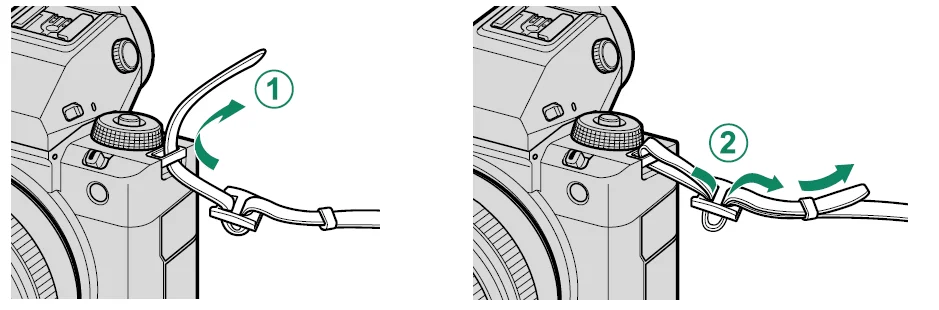
Attach the strap.
Attach the strap to the two strap eyelets as shown below.
- To avoid dropping the camera, be sure the strap is correctly secured.
Attaching a Lens
The camera can be used with lenses for the FUJIFILM G-mount.
Remove the body cap from the camera and the rear cap from the lens. Place the lens on the mount, keeping the marks on the lens and camera aligned (1), and then slowly rotate the lens in the direction of the arrow until it clicks into place (2).
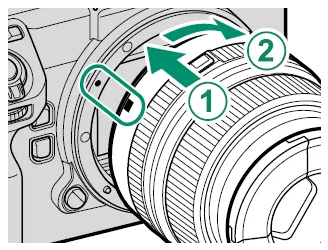
- When attaching lenses, ensure that dust or other foreign matter does not enter the camera.
- Be careful not to touch the camera’s internal parts.
- Rotate the lens until it clicks securely into place.
- Do not press the lens release button while attaching the lens.
Removing Lenses
To remove the lens, turn the camera off, then press the lens release button (1) and slowly rotate the lens as shown (2).
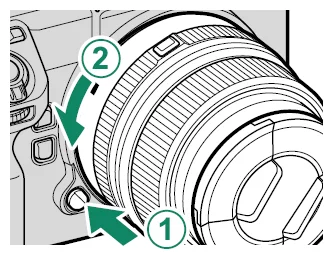
- To prevent dust from accumulating on the lens or inside the camera, replace the lens caps and the camera body cap when the lens is not attached.
Lenses and Other Optional Accessories
The camera can be used with lenses and accessories for the FUJIFILM G-mount.
- Observe the following precautions when attaching or removing (exchanging) lenses.
- Check that the lenses are free of dust and other foreign matter.
- Do not change lenses in direct sunlight or under another bright light source. Light focused into the interior of the camera could cause it to malfunction.
- Attach the lens caps before exchanging lenses.
- Do not rotate the lens while holding moving parts of the camera, such as the aperture ring.
- See the manual provided with the lens for information on use.
Inserting the Battery
Insert the battery in the camera as described below.
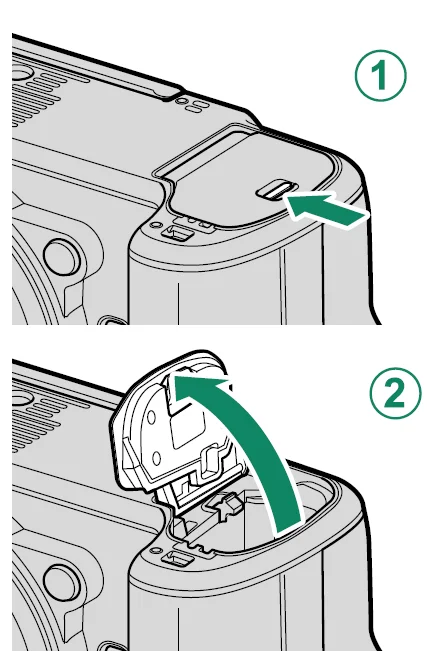
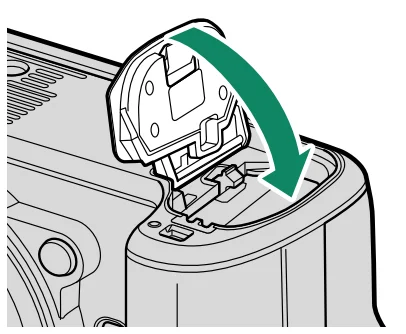
- Open the battery-chamber cover.
Slide the battery-chamber cover latch as shown and open the battery-chamber cover.- Do not open the battery-chamber cover when the camera is on. Failure to observe this precaution could damage image files or memory cards.
- Do not use excessive force when handling the battery-chamber cover.
- Insert the battery as shown.

- Insert the battery in the orientation shown. Do not use force or attempt to insert the battery upside down or backwards.
- Confirm that the battery is securely latched.
- Close the battery-chamber cover.

Close and latch the cover.- If the cover does not close, check that the battery is in the correct orientation. Do not attempt to force the cover shut.
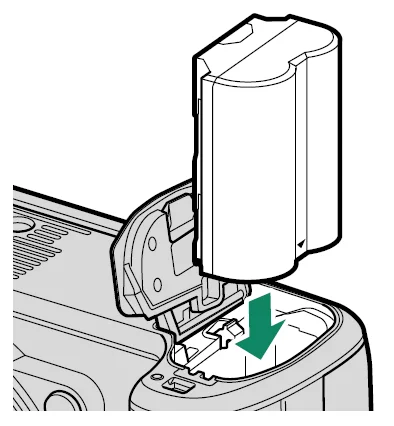
Removing the Battery
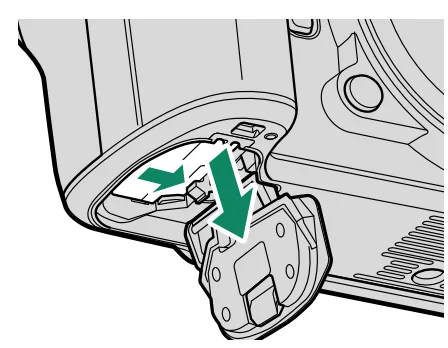
Before removing the battery, turn the camera off and open the battery chamber cover. To remove the battery, press the battery latch
to the side, and slide the battery out of the camera as shown.
- The battery may become hot when used in high-temperature environments. Observe caution when removing the battery.
Photography and Playback
Taking Photographs (Mode P)
This section describes how to take pictures using the program AE (mode P). See pages 76–85 for information on S, A, and M modes.
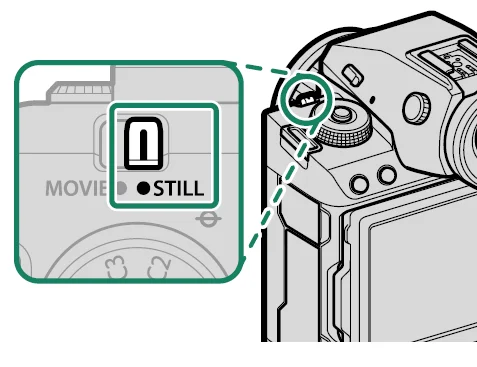
- Slide the STILL/MOVIE mode switch to STILL.

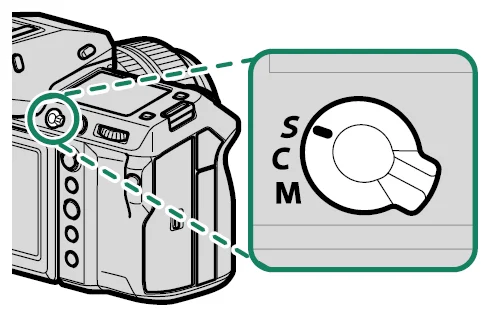
- Rotate the focus mode selector to S.

- Rotate the mode dial to P.

- Rotate the mode dial only after pressing the dial lock release to release the dial.
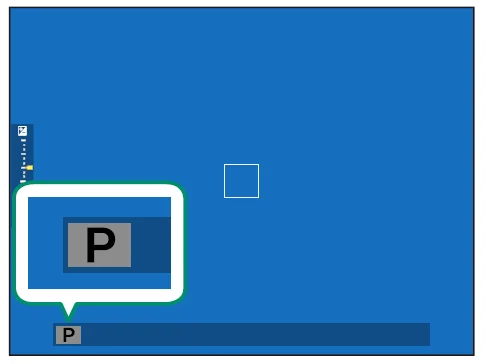
- Confirm that P appears in the display.
- Ready the camera.

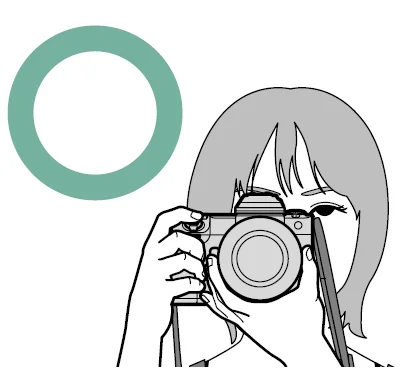
- Hold the camera steady with both hands and brace your elbows against your sides. Shaking or unsteady hands can blur your shots.

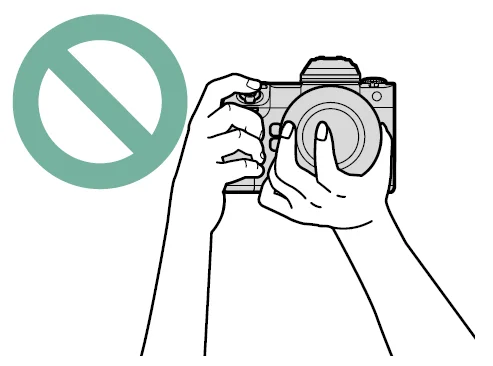
- To prevent pictures that are out of focus or too dark (underexposed), keep your fingers and other objects away from the lens and AF-assist illuminator.
- Hold the camera steady with both hands and brace your elbows against your sides. Shaking or unsteady hands can blur your shots.
- Frame the picture.
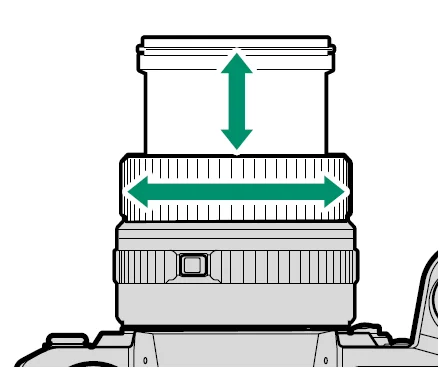
Lenses with Zoom Rings
Use the zoom ring to frame the picture in the display. Rotate the ring left to zoom out, right to zoom in. - Focus.

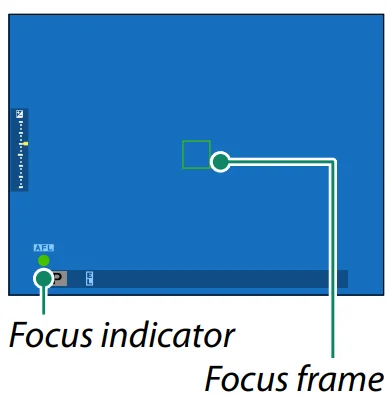
Press the shutter button halfway to set focus and exposure.- If the camera can focus, the focus frame and focus indicator will glow green.
- If the camera is unable to focus, the focus frame will turn red, the focus indicator will blink white, and the focus indicator will blink white.
- If the subject is poorly lit, the AF-assist illuminator may light up to assist the focus operation.
- Focus and exposure will lock when the shutter button is pressed halfway. Focus and exposure remain locked while the button is kept in this position (AF/AE lock).
- The camera will focus on subjects at any distance in the macro mode and standard focus ranges for the lens.
- Shoot.
Smoothly press the shutter button the rest of the way down to take the picture.
Movie Recording and Playback
Recording Movies
This section describes how to film movies in auto mode.
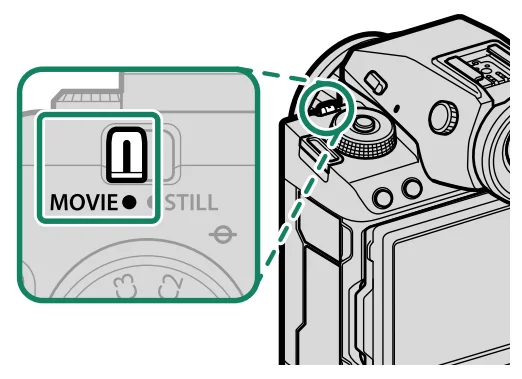
- Slide the STILL/MOVIE mode switch to MOVIE.

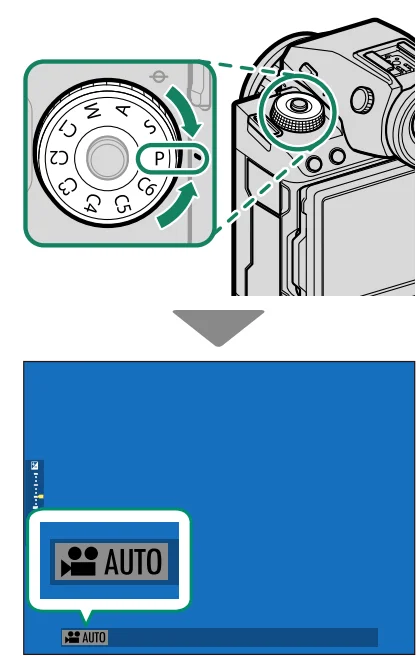
- Rotate the mode dial to P.
AUTO will appear in the display.- Rotate the mode dial only after pressing the dial lock release to release the dial.
- Press the shutter button all the way down.

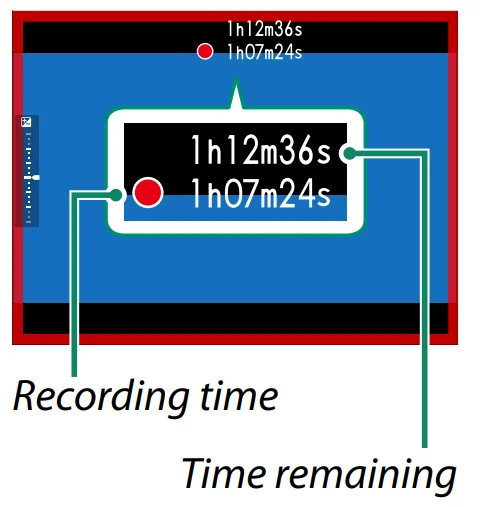
Recording will start.- A recording indicator is displayed while recording is in progress.
- The borders of the display turn red during movie recording, green during high-speed recording.
- The time remaining is shown by a countdown display, while another display counts up to show the recording time.
- Press the button again to end recording. Recording ends automatically when the maximum length is reached or the memory card is full.
- Sound is recorded via the built-in microphone or an optional external microphone. Do not cover the microphone during recording.
- Note that the microphone may pick up lens noise and other sounds made by the camera during recording.
- Vertical or horizontal streaks may appear in movies containing very bright subjects. This is normal and does not indicate a malfunction.
Temperature Warnings
The camera automatically turns off to protect itself when its temperature or the temperature of the battery rises. If a temperature warning is displayed, image noise may increase. Turn the camera off and wait for it to cool before turning it on again.
Using an External Microphone
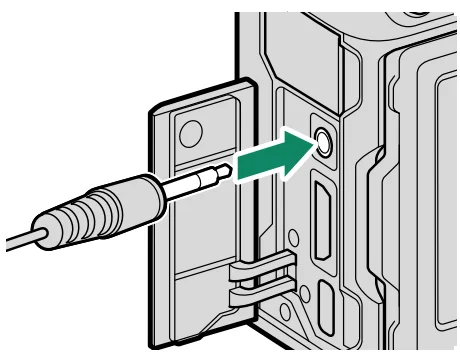
Sound can be recorded with external microphones that connect using 3.5 mm jacks; microphones that require plug-in power cannot be used. See the microphone manual for details.
XLR Microphone Adapters
The camera can be used with TEAC TASCAM CA-XLR2d-F XLR microphone adapters. For more information, visit the TASCAM website. https://tascam.jp/int/product/ca-xlr2d/#CA-XLR2d_Website
Taking Photographs
P, S, A, and M Modes
P, S, A, and M modes give you varying degrees of control over shutter speed and aperture.
Mode P: Program AE
Let the camera choose shutter speed and aperture for optimal exposure. Other values that produce the same exposure can be selected with program shift.
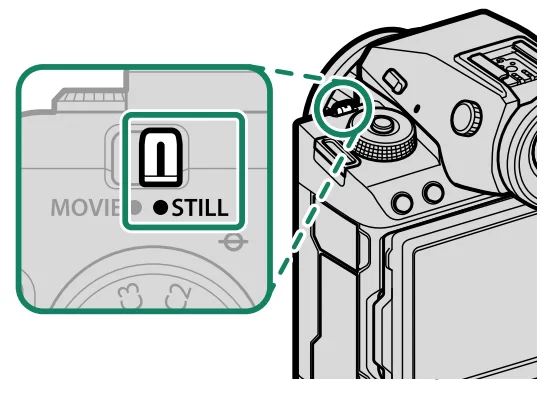
- Slide the STILL/MOVIE mode switch to STILL.
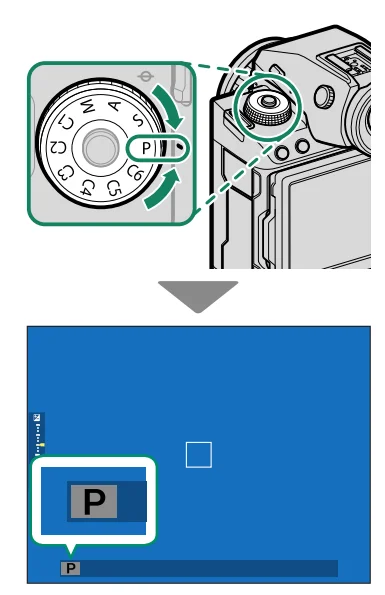
- Rotate the mode dial to P.

P will appear in the display.
- If the subject is outside the metering range of the camera, the shutter speed and aperture displays will show “– – –”.
- Rotate the mode dial only after pressing the dial lock release to release the dial.
Mode M: Manual Exposure
In manual mode, the user controls both shutter speed and aperture. Shots can be deliberately overexposed (brighter) or underexposed (darker), opening the door for a variety of individual creative expression. The amount by which the picture would be under- or over-exposed at current settings is shown by the exposure indicator; adjust shutter speed and aperture until the desired exposure is reached.
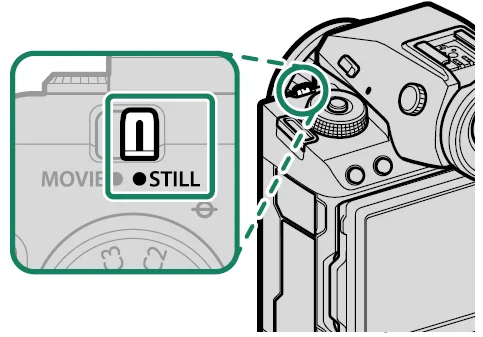
- Slide the STILL/MOVIE mode switch to STILL.
- Rotate the mode dial to M.

M will appear in the display. - Rotate the rear command dial to choose a shutter speed, and the lens aperture ring to choose the aperture.

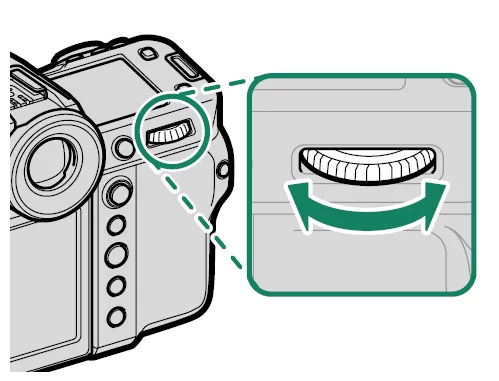
- The manual exposure display includes an exposure indicator
that shows the amount the picture would be under- or over-exposed at current settings. - If the lens is not equipped with an aperture ring, aperture can be adjusted using the front command dial on the camera.
- If the lens is equipped with an aperture ring with an “A” or “C” position, the front command dial can be used to adjust aperture
When the aperture ring is rotated to A or C. - The roles played by the front command dial can be changed usingBUTTON/DIAL SETTING > COMMAND DIAL SETTING.
- Rotate the mode dial only after pressing the dial lock release to release the dial.
For more manuals by Fujifilm, visit ManualsLibraryy
Fujifilm GFX100 II Camera-FAQs
What video resolution does the Fujifilm GFX100 II support?
The Fujifilm GFX100 II is capable of recording high-quality video up to 8K resolution at 29.97fps. When connected to a compatible external recorder via HDMI, it can output 12-bit Apple ProRes RAW, offering exceptional color depth and flexibility for professional editing. This makes it suitable for filmmakers and content creators who require cinematic-quality footage alongside high-resolution still photography.
How do I use manual focus on the Fujifilm GFX100 II?
To use manual focus, switch the focus mode selector to M (Manual Focus). Once activated, you can adjust focus using the lens focus ring. Rotating the ring changes the focus distance, allowing precise control over sharpness. The camera also provides focus aids like focus peaking and magnification, which help ensure accurate focusing, especially when shooting portraits, macro shots, or in low-light conditions.
How can I adjust ISO settings on the camera?
You can change the ISO by rotating the front command dial, while the rear dial typically controls shutter speed. The camera also offers automatic ISO modes that adjust sensitivity based on lighting conditions. For best results, keep ISO low in bright environments and increase it only when necessary to maintain proper exposure without introducing excessive noise.
Is the Fujifilm GFX100 II suitable for video recording?
Yes, the Fujifilm GFX100 II is highly capable for video work. It combines a large-format sensor with advanced video features such as 4K and 8K recording, high bitrate codecs, and RAW output. This results in cinematic depth, improved dynamic range, and excellent low-light performance, making it a strong choice for professional videographers and hybrid shooters.
What is the best ISO range for optimal image quality?
For the best image quality, it is recommended to use lower ISO values such as ISO 80–200 in well-lit conditions. These settings minimize noise and preserve fine details. In low-light situations, higher ISO levels can be used, but it’s best to increase ISO gradually to maintain image clarity and avoid graininess.
Which focus mode works best for photography?
The best focus mode depends on your subject. For still subjects like landscapes or portraits, Single-Point AF provides precise focusing. For moving subjects, continuous autofocus modes are more effective. Manual focus is ideal when you need complete control, especially in macro or studio setups where accuracy is critical.
What aspect ratio is commonly used on Fujifilm GFX cameras?
The standard aspect ratio for GFX cameras is 4:3, which originates from medium-format photography. This ratio provides a balanced frame that works well for portraits and general photography. The camera also allows switching to other aspect ratios, giving users creative flexibility for different shooting styles and compositions.
What basic camera settings should beginners focus on?
Beginners should understand the three key settings: ISO, shutter speed, and aperture. ISO controls sensitivity to light, shutter speed determines motion blur, and aperture affects depth of field. Mastering these settings helps you control exposure and achieve desired creative effects. Experimenting with different combinations is the best way to learn and improve photography skills.