
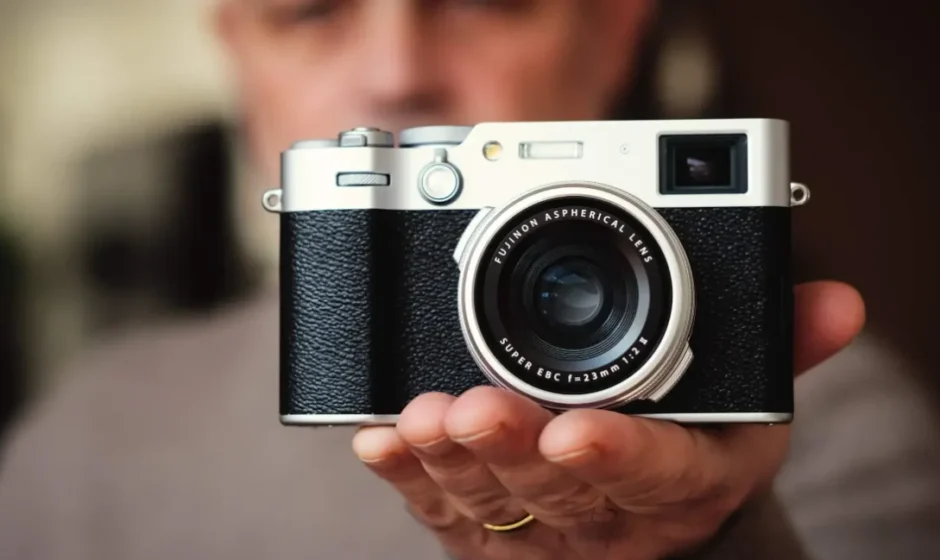

Fujifilm X100VI Camera
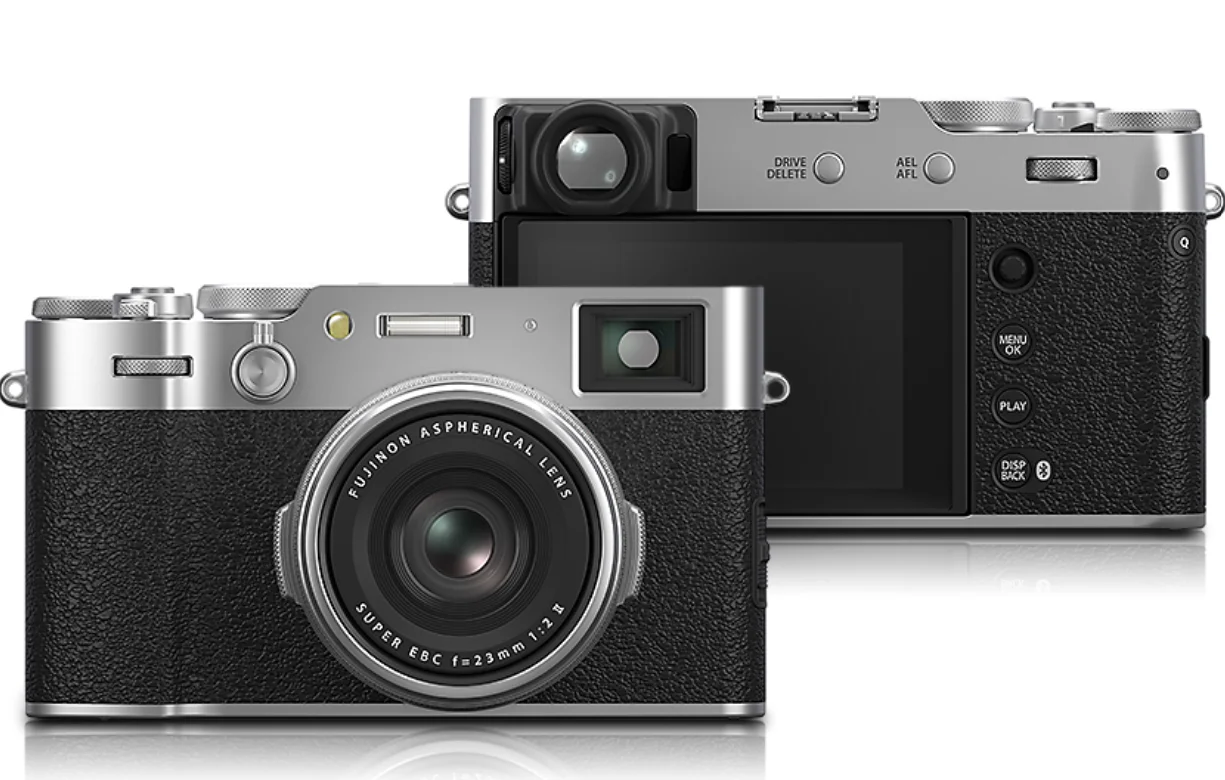
Parts of the Camera
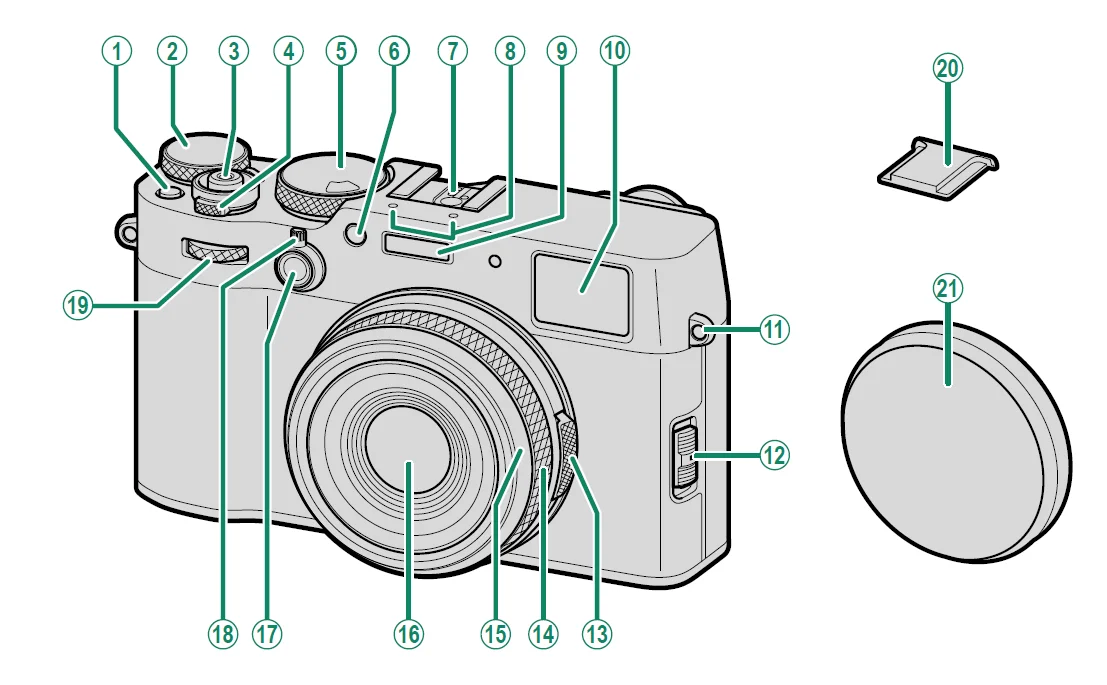
- Fn1 button
- Exposure compensation dial
- Shutter button
- ON/OFF switch
- Shutter speed dial/ Sensitivity dial
- AF-assist illuminator/Self-timer lamp
- Hot shoe
- Microphone
- Flash
- Viewfinder window
- Strap eyelet
- Focus mode selector
- Aperture ring
- Control ring
Focus ring - Front ring (detachable)
- Lens
- Fn2 button
- Viewfinder selector
- Front command dial
- Hot shoe cover
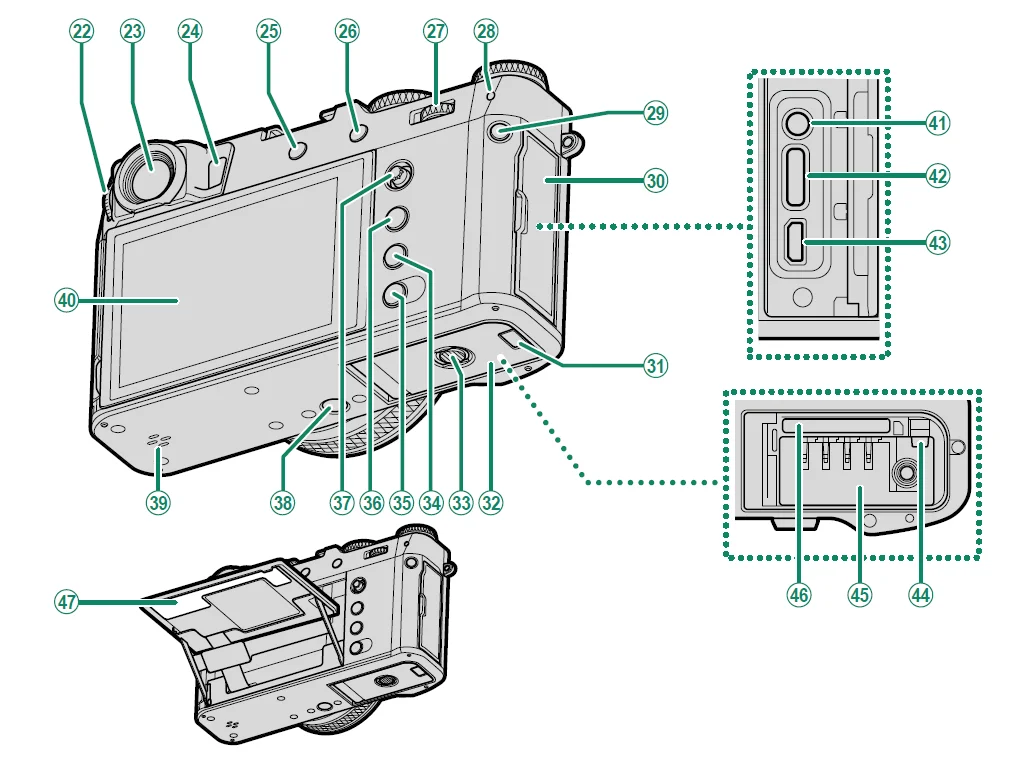
- Lens cap

- Diopter adjustment control
- Viewfinder window
- Eye sensor
- DRIVE/DELETE button
- AEL (exposure lock)/ AFL (focus lock) button
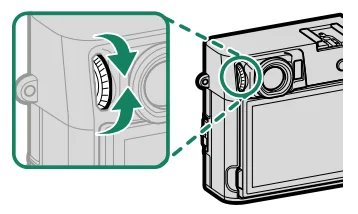
- Rear command dial
- Indicator lamp
- Q (quick menu) button
- Connector cover
- Cable channel cover for DC coupler
- Battery-chamber cover
- Battery-chamber cover latch
- PLAY (playback) button
- DISP (display)/BACK button
(Bluetooth) button - MENU/OK button
- Focus stick (focus lever)
- Tripod mount
- Speaker
- LCD monitor
Touch screen - Microphone/remote release connector (⌀2.5mm)
- USB connector (Type-C)
- HDMI Micro connector (Type D)
- Battery latch
- Battery chamber
- Memory card slot
- Serial number plate
The Viewfinder Window
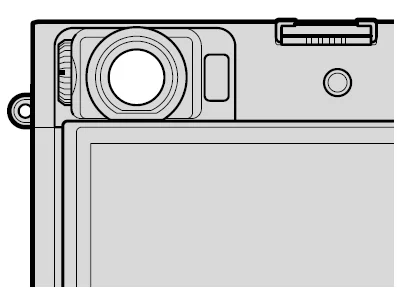
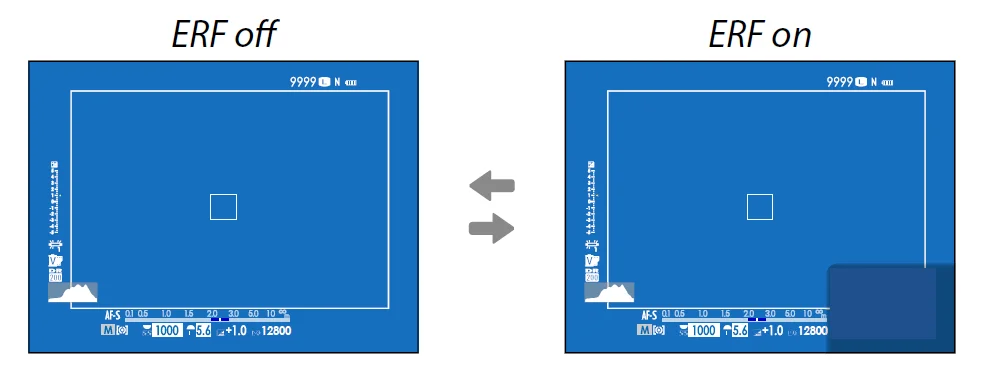
Use the viewfinder selector to switch between the electronic viewfinder (EVF) and the optical viewfinder (OVF). In addition, a small electronic rangefinder (ERF) window can be displayed in the OVF.
Switching Between the EVF and OVF
To switch between the EVF and OVF, pull the viewfinder selector as shown.
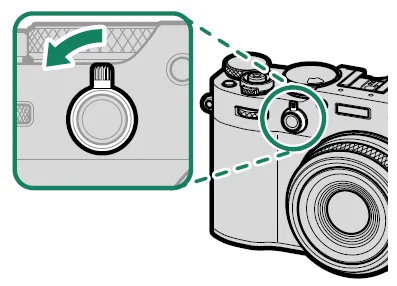
- The camera automatically switches from the OVF to the EVF during movie recording.
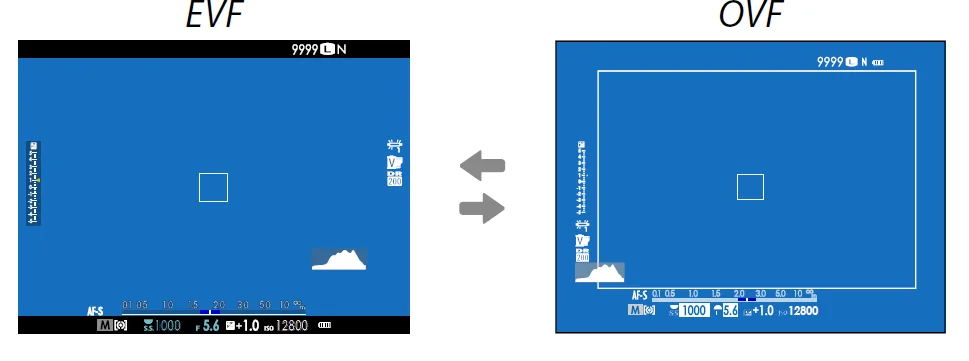
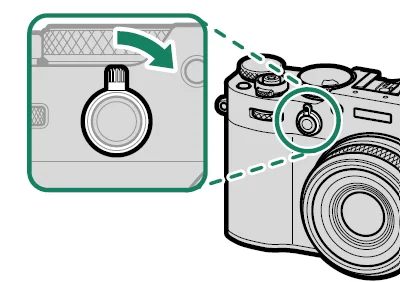
Turning the ERF On and Off
To turn the ERF on or off, pull the viewfinder selector as shown while the OVF is displayed.
The LCD Monitor
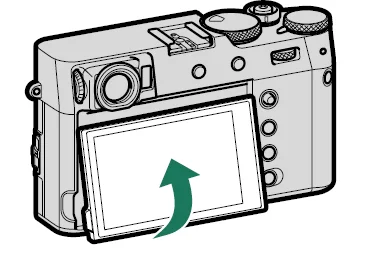
The LCD monitor can be tilted for easier viewing, but be careful not to touch the wires or trap fingers or other objects behind the monitor. Touching the wires could cause a camera malfunction.
The Eye Sensor
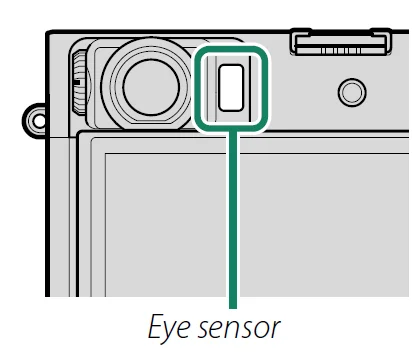
- The eye sensor may respond to objects other than your eye or to light shining directly on the sensor.
- The eye sensor is not available when the LCD monitor is tilted.
- The eye sensor can be disabled using SCREEN SET-UP > VIEW MODE SETTING.
The Shutter Speed Dial/Sensitivity Dial
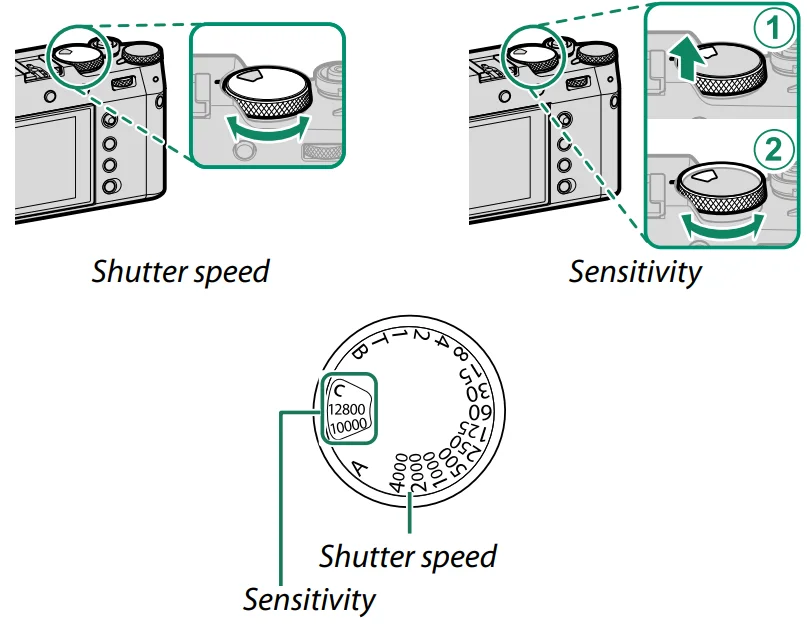
Shutter speed can be adjusted by rotating the shutter speed dial/sensitivity dial. Lift and rotate the dial to adjust sensitivity.
The Exposure Compensation Dial
Rotate the dial to choose an exposure compensation amount.
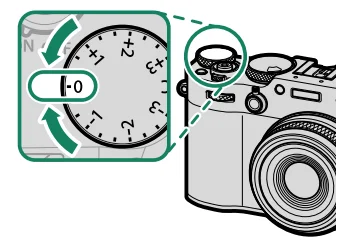
Focusing the Viewfinder
Viewfinder focus can be adjusted by rotating the diopter adjustment control.
The Control Ring
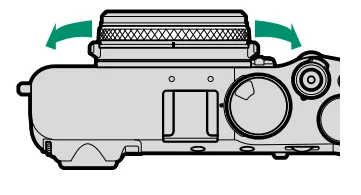
Use the control ring for quick access to camera functions during shooting. The function assigned to the control ring can be selected by pressing the control ring options button (Fn2). Choose from:
- STANDARD
- WHITE BALANCE
- FILM SIMULATION
- DIGITAL TELE-CONV.
The function assigned to the control ring can also be selected using BUTTON/DIAL SETTING > CONTROL RING SETTING.
STANDARD
When STANDARD is selected, the function assigned to the control ring changes with the shooting mode.
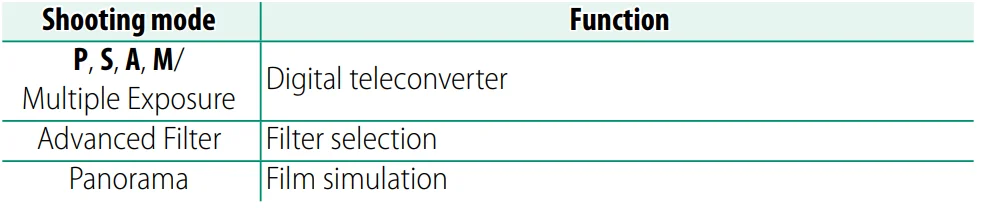
- Regardless of the option selected, when M (manual) is chosen with the focus mode selector in shooting mode P, S, A, or M, the control ring can be used only for manual focus.
The Serial Number Plate
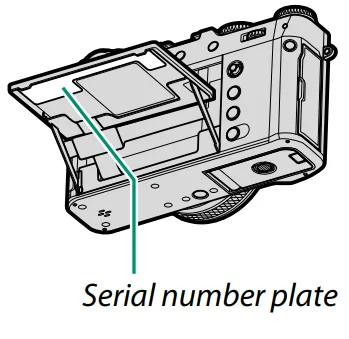
Do not remove the serial number plate, which provides the CMIIT ID, serial number, and other important information.
Camera Displays
The following are displayed in the viewfinder (OVF or EVF), and LCD monitor during shooting.
- For illustrative purposes, displays are shown with all indicators lit.
The Optical Viewfinder
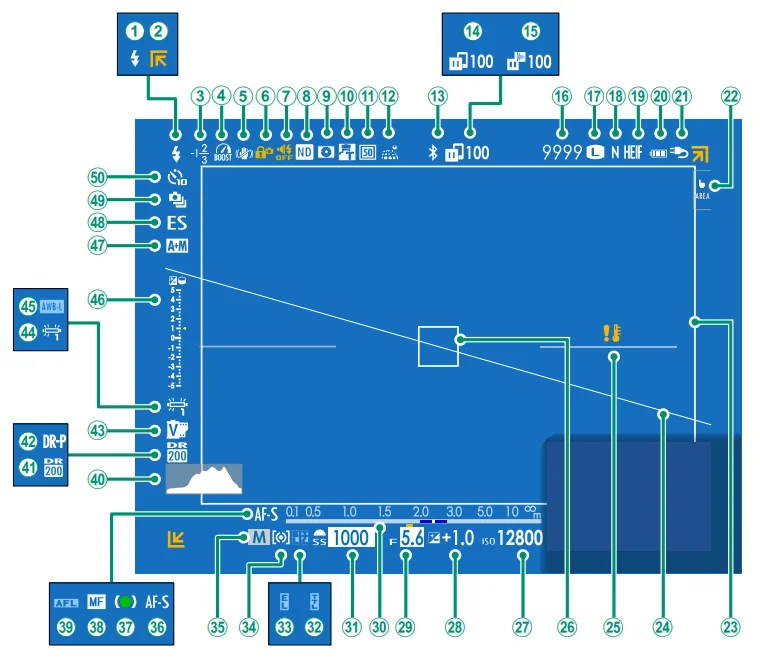
- Flash (TTL) mode
- Out-of-frame indicators
- Flash compensation
- Boost mode
- IS mode 2
- Control lock 3
- Sound and flash indicator
- ND (Neutral Density) filter indicator
- Depth-of-field preview
- Conversion lens
- Digital teleconverter
- Location data download status
- Bluetooth ON/OFF
- Image transfer status
- Frame.io upload progress
- Number of available frames 1
- Image size
- Image quality
- HEIF format
- Battery level
- Power supply
- Touch screen mode
- Bright frame
- Virtual horizon
- Temperature warning
- Focus frame
- Sensitivity
- Exposure compensation
- Aperture
- Distance indicator 2
- Shutter speed
- TTL lock
- AE lock
- Metering
- Shooting mode
- Focus mode 2
- Focus indicator 2
- Manual focus indicator 2
- AF lock
- Histogram
- Dynamic range
- D-range priority
- Film simulation
- White balance
- AWB lock
- Exposure indicator
- AF+MF indicator 2
- Shutter type
- Continuous mode
- Self-timer indicator
- 1 Shows “9999” if there is space for over 9999 frames.
- 2 Not displayed when ON is selected for
 SCREEN SET-UP > LARGE INDICATORS MODE(EVF/OVF).
 - 3 Displayed when controls have been locked by pressing and holding the MENU/OK button. The control lock can be ended by pressing and holding the MENU/OK button again.
 SCREEN SET-UP > LARGE INDICATORS MODE(EVF/OVF).
The Electronic Viewfinder
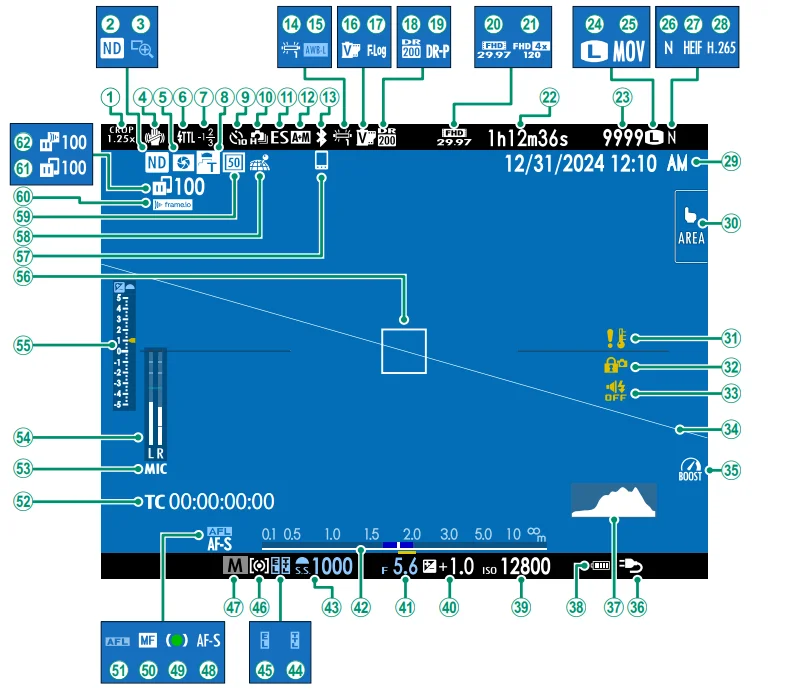
- Crop factor
- ND (Neutral Density) filter indicator
- Focus check
- IS mode 2
- Depth-of-field preview
- Flash (TTL) mode
- Flash compensation
- Conversion lens
- Self-timer indicator
- Continuous mode Shutter
- AF+MF indicator 2
- Bluetooth ON/OFF
- White balance
- AWB lock
- Film simulation
- F-Log/HLG recording
- Dynamic range
- D-range priority
- Movie mode
- High-speed recording indicator
- Recording time available/ elapsed recording time
- Number of available frames 1
- Image size
- File format
- Image quality
- HEIF format
- Movie compression
- Date and time
- Touch screen mode
- Temperature warning
- Control lock 3
- Sound and flash indicator
- Virtual horizon
- Boost mode
- Power supply
- Histogram
- Battery level
- Sensitivity
- Exposure compensation
- Aperture
- Distance indicator 2
- Shutter speed
- TTL lock
- AE lock
- Metering
- Shooting mode
- Focus mode 2
- Focus indicator 2
- Manual focus indicator 2
- AF lock
- Time code
- Microphone input channel
- Recording level 2
- Exposure indicator
- Focus frame
- Bluetooth host
- Location data download status
- Digital teleconverter
- Frame.io connection status
- Image transfer status
- Frame.io upload progress
- 1 Shows “9999” if there is space for over 9999 frames.
- 2 Not displayed when ON is selected forSCREEN SET-UP > LARGE INDICATORS MODE(EVF/OVF).
- 3 Displayed when controls have been locked by pressing and holding the MENU/OK button. The control lock can be ended by pressing and holding the MENU/OK button again.
The LCD Monitor
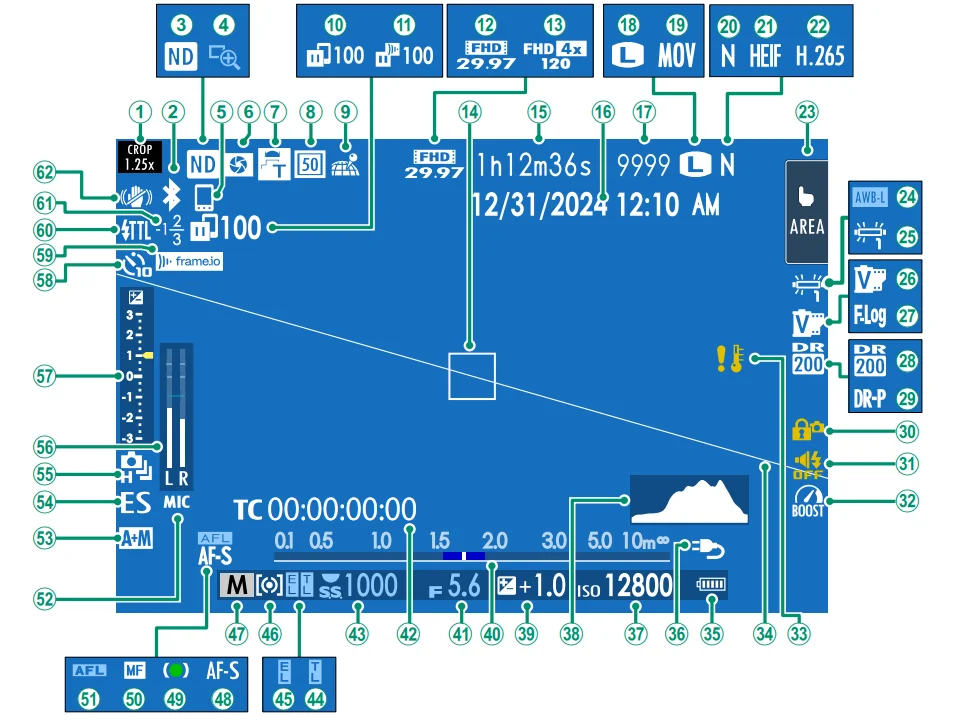
- Crop factor
- Bluetooth ON/OFF
- ND (Neutral Density) filter indicator
- Focus check
- Bluetooth host
- Depth-of-field preview
- Conversion lens
- Digital teleconverter
- Location data download status
- Image transfer status
- Frame.io upload progress
- Movie mode
- High-speed recording indicator
- Focus frame
- Recording time available/ elapsed recording time
- Date and time
- Number of available frames 1
- Image size
- File format
- Image quality
- HEIF format
- Movie compression
- Touch screen mode 3
- AWB lock
- White balance
- Film simulation
- F-Log/HLG recording
- Dynamic range
- D-range priority
- Control lock 4
- Sound and flash indicator
- Boost mode
- Temperature warning
- Virtual horizon
- Battery level
- Power supply
- Sensitivity
- Histogram
- Exposure compensation
- Distance indicator 2
- Aperture
- Time code
- Shutter speed
- TTL lock
- AE lock
- Metering
- Shooting mode
- Focus mode 2
- Focus indicator 2
- Manual focus indicator 2
- AF lock
- Microphone input channel
- AF+MF indicator 2
- Shutter type
- Continuous mode
- Recording level 2
- Exposure indicator
- Self-timer indicator
- Frame.io connection status
- Flash (TTL) mode
- Flash compensation
- IS mode 2
- 1 Shows “9999” if there is space for over 9999 frames.
- 2 Not displayed when ON is selected forSCREEN SET-UP > LARGE INDICATORS MODE(LCD).
- 3 Camera functions can also be accessed via touch controls.
- 4 Displayed when controls have been locked by pressing and holding the MENU/OK button. The control lock can be ended by pressing and holding the MENU/OK button again.
First Steps
Attaching the Strap
Attach the strap clips to the camera and then attach the strap.
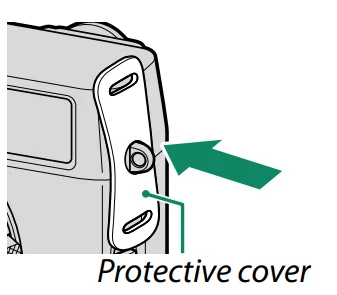
- Attach a protective cover.
Place a protective cover over the eyelet as shown, with the black side of the cover toward the camera.
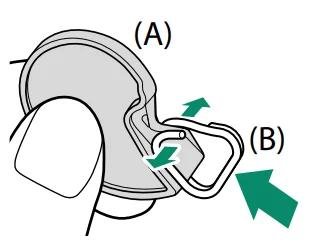
- Open a strap clip.
Use the clip attaching tool (A) to open a strap clip (B).
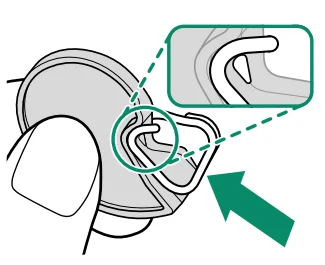
- Slide the clip onto the tool.
Slide the clip onto the tool so that it hooks over the projection.
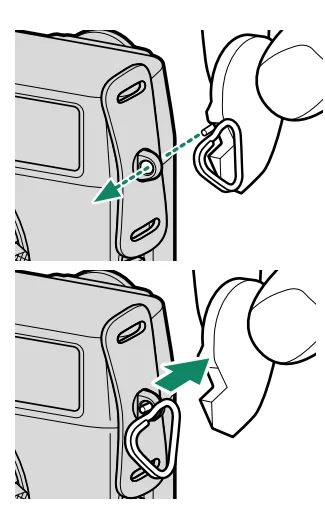
- Place the strap clip on an eyelet.
Hook the strap eyelet in the clip opening. Remove the tool, using the other hand to keep the clip in place.- Keep the tool in a safe place, as you will need it to open the strap clips when removing the strap.

- Keep the tool in a safe place, as you will need it to open the strap clips when removing the strap.
- Pass the clip through the eyelet.
Rotate the clip fully through the eyelet until it clicks closed.
- Fasten the strap.
Insert the strap through a protective cover and strap clip and fasten the buckle as shown.- To avoid dropping the camera, be sure the strap is correctly secured.
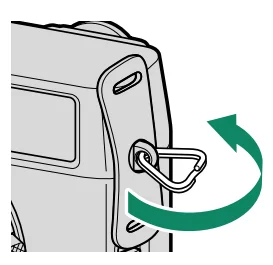
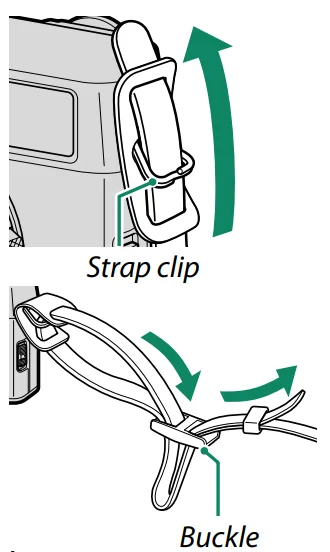
Repeat the above steps for the second eyelet.
Inserting the Battery and a Memory Card
Insert the battery and memory card as described below.
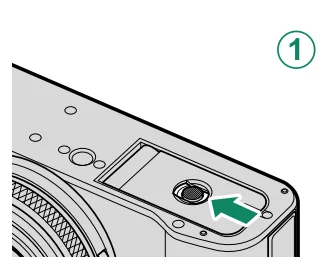
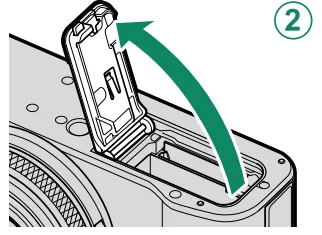
- Open the battery-chamber cover.
Slide the battery-chamber latch as shown and open the battery-chamber cover.- Do not remove the battery when the camera is on. Failure to observe this precaution could damage image files or memory cards.
- Do not use excessive force when handling the battery-chamber cover.

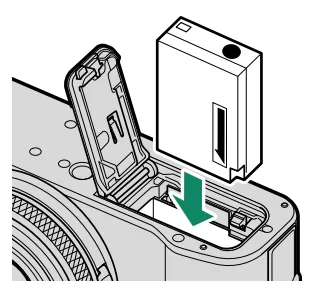
- Insert the battery.
Insert the battery as shown.- Insert the battery in the orientation shown. Do not use force or attempt to insert the battery upside down or backwards. The battery will slide in easily in the correct orientation.
- Confirm that the battery is securely latched.

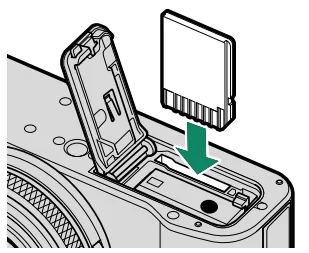
- Insert the memory card.
Holding the card in the orientation shown, slide it in until it clicks into place at the back of the slot.- Be sure card is in the correct orientation; do not insert at an angle or use force.

- Be sure card is in the correct orientation; do not insert at an angle or use force.
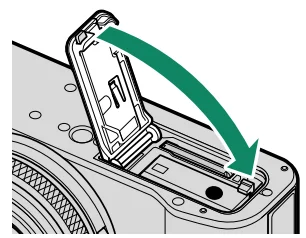
- Close the battery-chamber cover.
Close and latch the cover.- If the cover does not close, check that the battery is in the correct orientation. Do not attempt to force the cover shut.
- Do not open the battery-chamber cover when the camera is on. Failure to observe this precaution could damage image fi les or memory cards.
Compatible Memory Cards
- The camera can be used with SD, SDHC, and SDXC memory cards.
- The camera supports UHS-I memory cards.
- To record movies, use cards with a UHS speed class of 3 or better or a video speed class of V30 or better.
- A list of supported memory cards is available on the Fujifilm website. For details, visit: https://fujifilm-x.com/support/compatibility/cameras/.

- Do not turn the camera off or remove the memory card while the memory card is being formatted or data are being recorded to or deleted from the card. Failure to observe this precaution could damage the card.
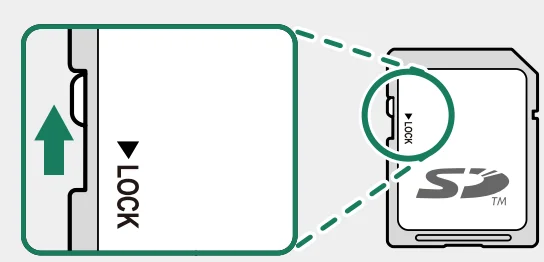
- Memory cards can be locked, making it impossible to format the card or to record or delete images. Before inserting a memory card, slide the write-protect switch to the unlocked position.
- Memory cards are small and can be swallowed; keep out of reach of children. If a child swallows a memory card, seek medical assistance immediately.
- miniSD or microSD adapters that are larger or smaller than memory cards may not eject normally; if the card does not eject, take the camera to an authorized service representative. Do not forcibly remove the card.
- Do not affi x labels or other objects to memory cards. Peeling labels can cause camera malfunction.
- Movie recording may be interrupted with some types of memory card.
- Formatting a memory card in the camera creates a folder in which pictures are stored when a picture is taken for the first time. Do not rename or delete this folder or use a computer or other device to
edit, delete, or rename image files. Always use the camera to delete pictures; before editing or renaming files, copy them to a computer and edit or rename the copies, not the originals. Renaming the files on the camera can cause problems during playback.
Charging the Battery
The battery is not charged at shipment. Charge the battery before use.
- An NP-W126S rechargeable battery is supplied with the camera.
- Turn the camera off to charge.
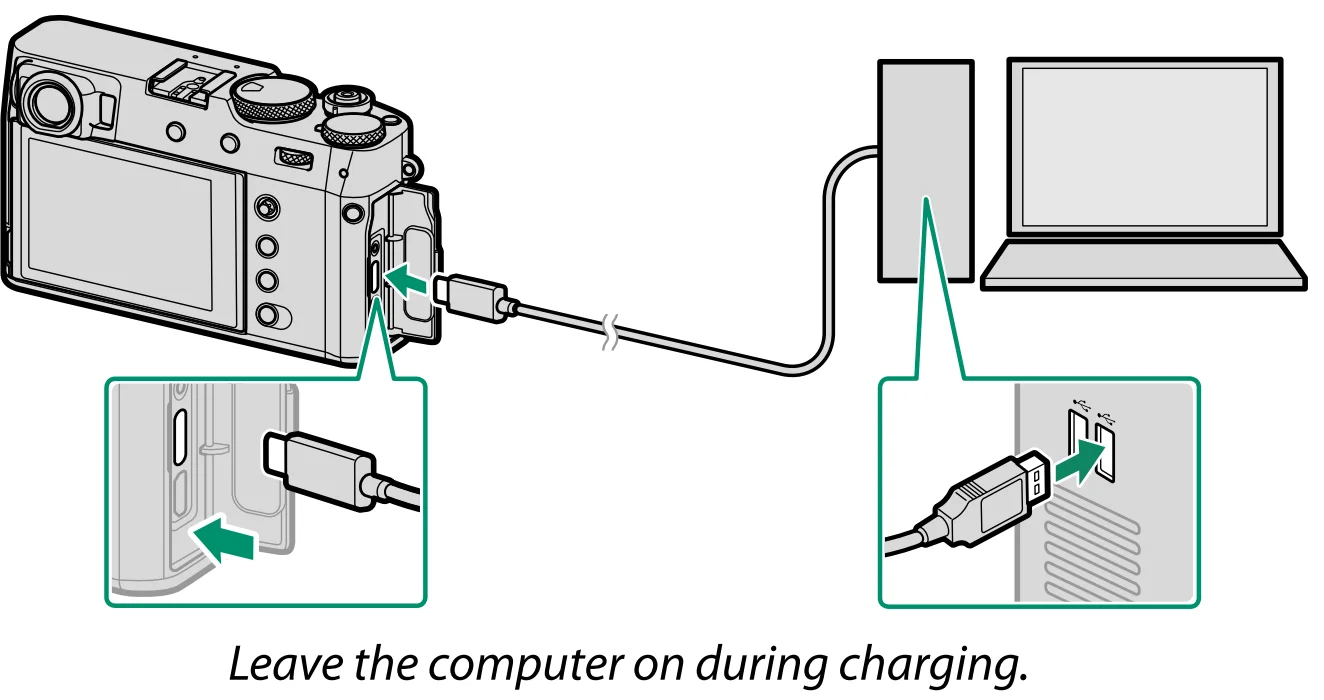
- The camera can be charged via USB. USB charging is available with computers with a manufacturer-approved operating system and USB interface.

- The battery will not charge while the camera is on.
- Connect the supplied USB cable.
- Connect the camera directly to the computer; do not use a USB hub or keyboard.
- Charging stops if the computer enters sleep mode. To resume charging, activate the computer and disconnect and reconnect the USB cable.
- Charging may not be supported depending on the model of computer, computer settings, and the computer’s current state.
- The battery takes about 5 hours to charge with a charging input of 5 V/500 mA.
- To charge the battery from a household AC power outlet, use a BC-W126S battery charger (available separately).
Information
- Do not use the supplied USB cable with other devices, as this could cause a malfunction.
- Do not affix labels or other objects to the battery. Failure to observe this precaution could make it impossible to remove the battery from the camera.
- Do not short the battery terminals. The battery could overheat.
- Read the cautions in “The Battery and Power Supply”.
- Use only genuine Fujifilm rechargeable batteries designated for use in this camera. Failure to observe this precaution could result in product malfunction.
- Do not remove the labels from the battery or attempt to split or peel the outer casing.
- The battery gradually loses its charge when not in use. Charge the battery one or two days before use.
- If the battery fails to hold a charge, it has reached the end of its charging life and must be replaced.
- Remove dirt from the battery terminals with a clean, dry cloth. Failure to observe this precaution could prevent the battery from charging.
- Note that charging times increase at low or high temperatures.
- Selecting ON for Bluetooth/SMARTPHONE SETTING > Bluetooth ON/OFF in the network/USB settings menu increases the drain on the battery.
Basic Photography and Playback
Taking Photographs (Mode P)
This section describes how to take pictures using the program AE (mode P). See pages 68–76 for information on S, A, and M modes.
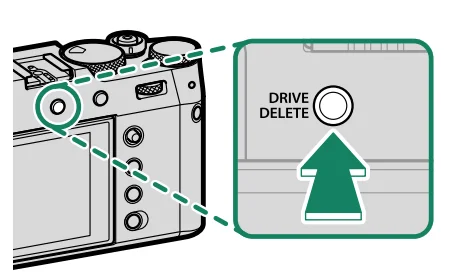
- Press the DRIVE/DELETE button and select STILL IMAGE in the drive-mode menu.

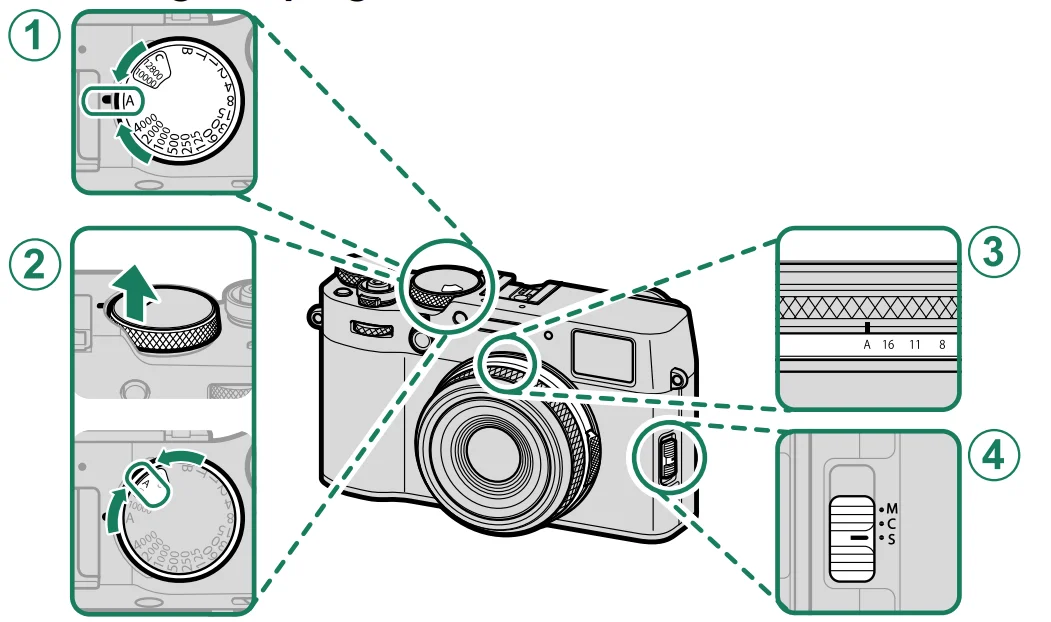
- Adjust settings for program AE.

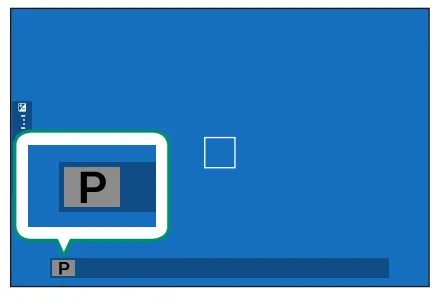
- Check the shooting mode.
Confirm that P appears in the display.
- Ready the camera.
- Hold the camera steady with both hands and brace your elbows against your sides. Shaking or unsteady hands can blur your shots.

- To prevent pictures that are out of focus or too dark (underexposed), keep your fingers and other objects away from the lens and AF-assist illuminator.
- Hold the camera steady with both hands and brace your elbows against your sides. Shaking or unsteady hands can blur your shots.
- Frame the picture.
- The bright frame in the OVF shows the area that will appear in the final photograph.

- The bright frame in the OVF shows the area that will appear in the final photograph.
- Focus.
Press the shutter button halfway to focus.- If the camera is able to focus, the focus frame and focus indicator will glow green.
- If the camera is unable to focus, the focus frame will turn red, s will blink white, and the focus indicator will blink white.
Info - If the subject is poorly lit, the AF-assist illuminator may light to assist the focus operation.
- Focus and exposure will lock when the shutter button is pressed halfway. Focus and exposure remain locked while the button is kept in this position (AF/AE lock).
- The camera will focus on subjects at any distance in the macro and standard focus ranges for the lens.
- Shoot.
Smoothly press the shutter button the rest of the way down to take the picture.
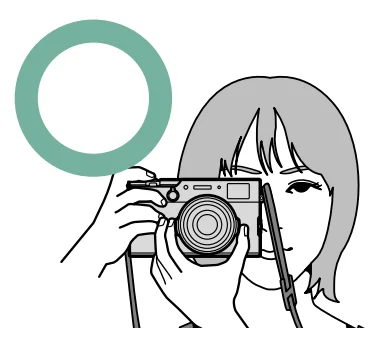
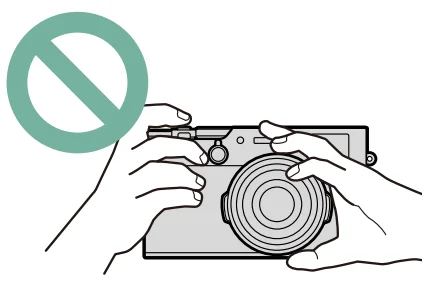
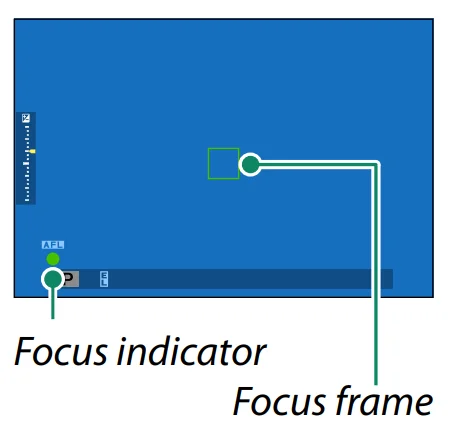
Taking Photographs
P, S, A, and M Modes
P, S, A, and M modes give you varying degrees of control over shutter speed and aperture.
Mode P: Program AE
Let the camera choose shutter speed and aperture for optimal exposure. Other values that produce the same exposure can be selected with program shift.
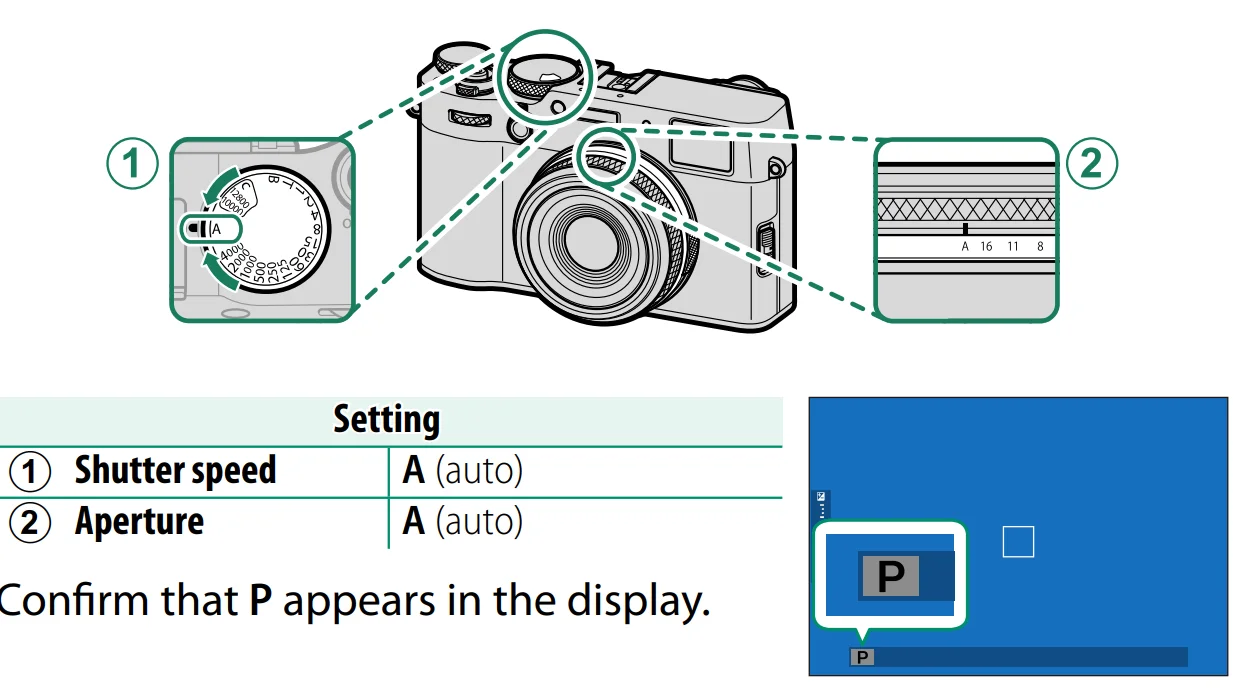
- If the subject is outside the metering range of the camera, the shutter speed and aperture displays will show “– – –”.
Mode S: Shutter-Priority AE
Choose a shutter speed and let the camera adjust aperture for optimal exposure.
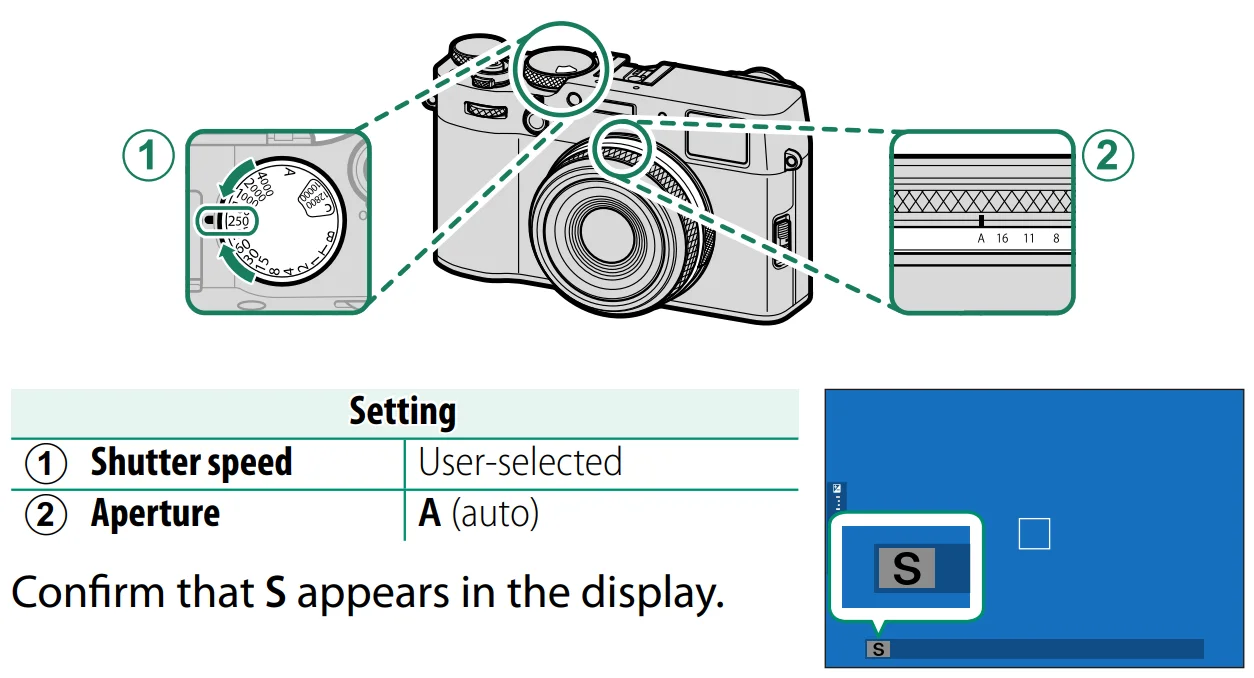
- If the correct exposure cannot be achieved at the selected shutter speed, the aperture will be displayed in red.
- If the subject is outside the metering range of the camera, the aperture display will show “– – –”.
- Shutter speed can also be adjusted in increments of 1⁄3 EV by rotating the rear command dial
- Shutter speed can be adjusted while the shutter button is pressed halfway.
- At shutter speeds slower than 1 second, a countdown timer will be displayed while the exposure is in progress.
- To reduce “noise” (mottling) in long time-exposures, select ON for I.Q IMAGE QUALITY SETTING > LONG EXPOSURE NR. Note that this may increase the time needed to record images after shooting.
- The picture will go out of focus if the camera is moved during a long exposure; use of a tripod is recommended.
Time (T)
Choose a shutter speed of T (time) for long time exposures. Use of a tripod is recommended to prevent the camera from moving during the exposure.
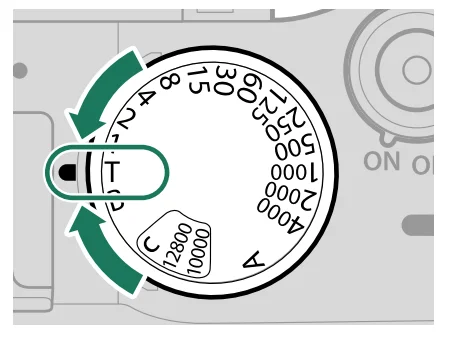
- Set shutter speed to T.

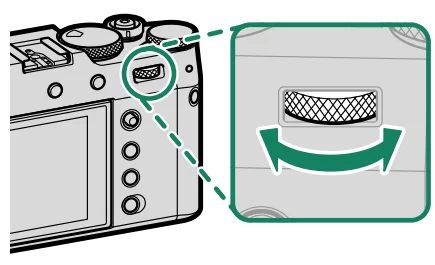
- Rotate the rear command dial to choose a shutter speed.
- Press the shutter button all the way down to take a picture at the selected shutter speed. At speeds of 1 s or slower, a countdown timer will be displayed while the exposure is in progress.
- To reduce “noise” (mottling) in long time-exposures, select ON for I.Q IMAGE QUALITY SETTING > LONG EXPOSURE NR. Note that this may increase the time needed to record images after shooting.
Bulb (B)
Choose a shutter speed of B (bulb) for long time exposures in which you open and close the shutter manually. Use of a tripod is recommended to prevent the camera from moving during the exposure.
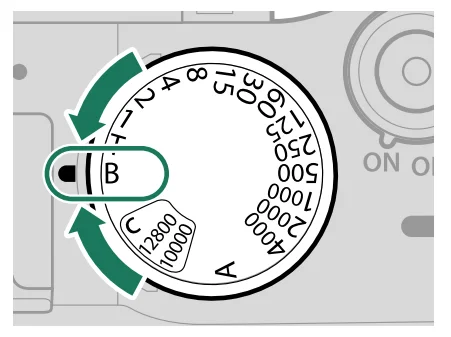
- Set shutter speed to B.
- Press the shutter button all the way down. The shutter will remain open for up to 60 minutes while the shutter button is pressed; the display shows the time elapsed since the exposure started.
The Shooting Menus
IMAGE QUALITY SETTING (Still Photography)
Adjust image quality settings for still photography. To display image quality settings, press MENU/OK in the photo shooting display and select the I.Q (IMAGE QUALITY SETTING) tab.
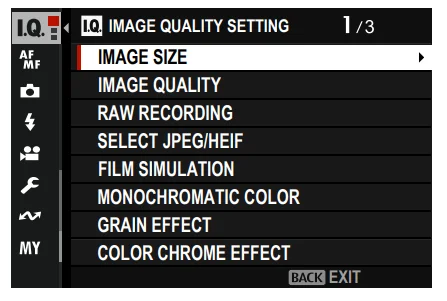
- The options available vary with the shooting mode selected.
IMAGE SIZE
Choose the size and aspect ratio at which still pictures are recorded.
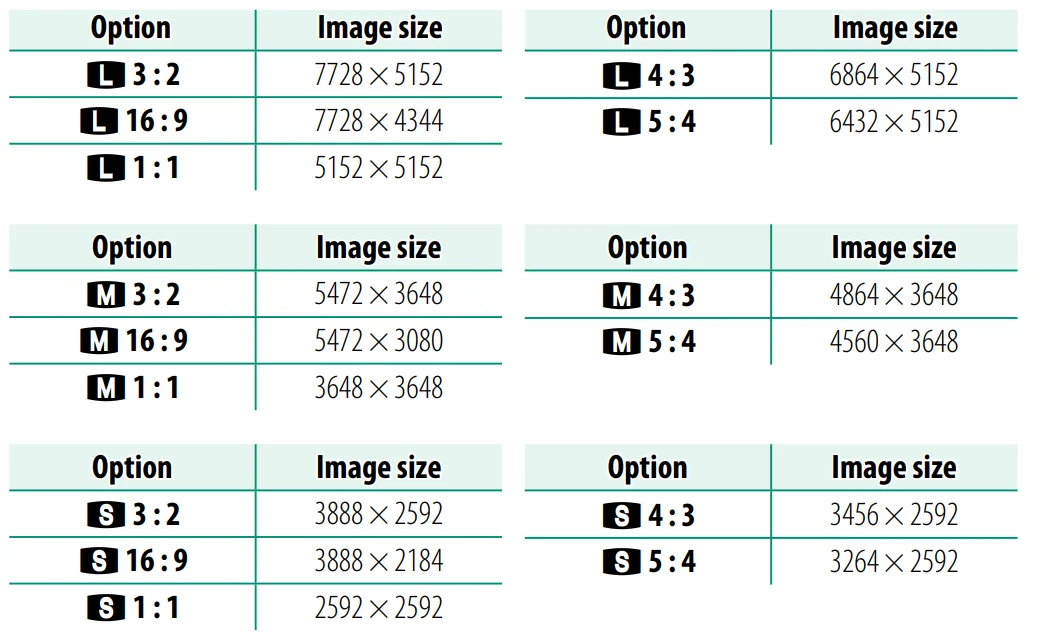
The following options are available in SPORTS FINDER MODE and when 1.29X CROP is selected in burst mode:

- IMAGE SIZE is not reset when the camera is turned off or another shooting mode is selected.
IMAGE QUALITY
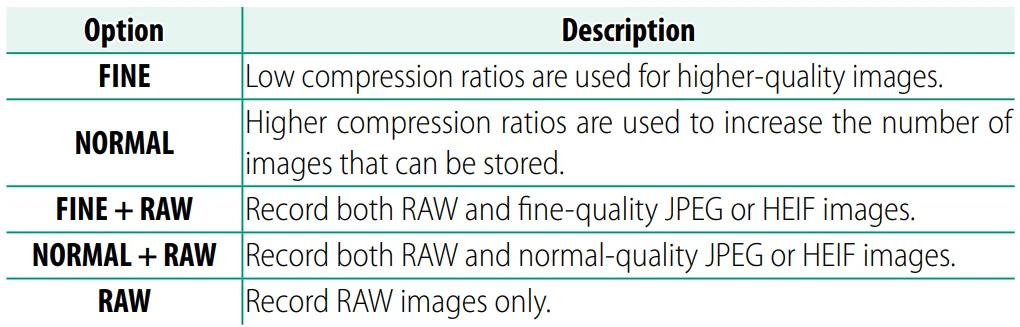
Choose a file format and compression ratio.
Custom Focus Tracking Options
Follow the steps below to adjust settings for Set 6.
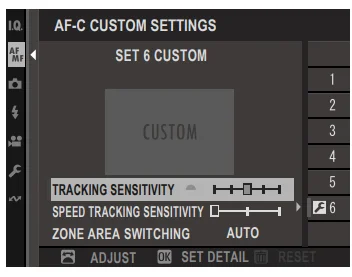
- Select AF-C CUSTOM SETTINGS > SET 6 CUSTOM.
- Highlight items using the focus stick (focus lever) and rotate the front command dial to change. To reset settings to their original values, press the DRIVE/DELETE button.
- Press DISP/BACK when settings are complete.
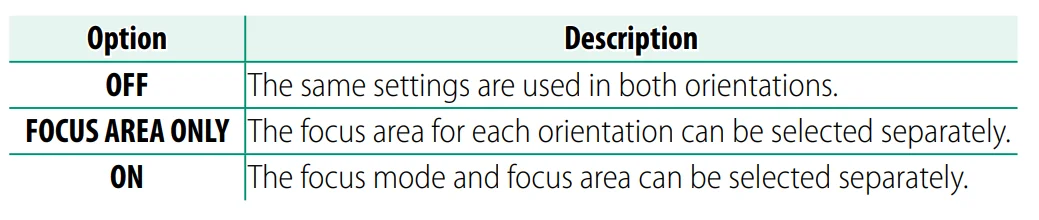
STORE AF MODE BY ORIENTATION
Choose whether the AF mode used when the camera is in portrait orientation is stored separately from that used when the camera is in landscape orientation.
Playback and the Playback Menu
The Playback Display
This section lists the indicators that may be displayed during playback.
- For illustrative purposes, displays are shown with all indicators lit.
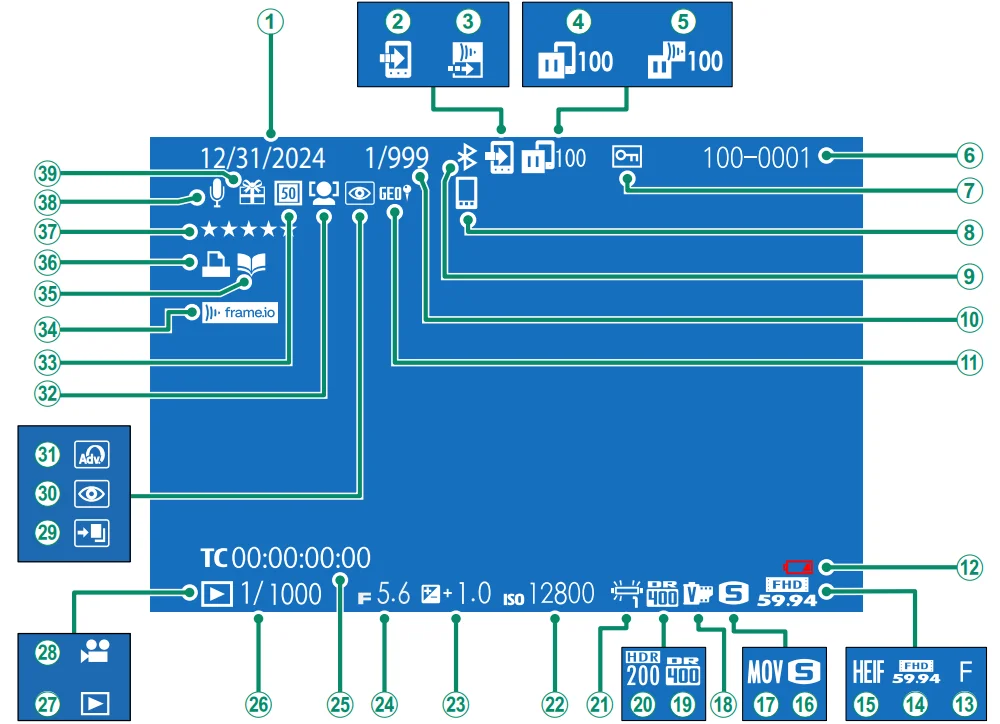
- Date and time
- Communication status
- Frame.io image transfer order
- Image transfer status
- Frame.io upload progress
- Frame number
- Protected image
- Bluetooth host
- Bluetooth ON/OFF
- Frame-number display
- Location data
- Low battery
- Image quality
- Movie mode
- HEIF
- Image size
- Film format
- Film simulation
- Dynamic range
- HDR
- White balance
- Sensitivity
- Exposure compensation
- Aperture
- Time code
- Shutter speed
- Playback mode indicator
- Movie icon
- HDR image
- Red-eye removal indicator
- Advanced filter
- Face detection indicator
- Digital teleconverter
- Frame.io connection status
- Photobook assist indicator
- DPOF print indicator
- Rating
- Voice memo
- Gift image
For more manuals by Fujifilm, visit ManualsLibraryy
Fujifilm X100VI Camera-FAQs
What makes the Fujifilm X100VI unique compared to other cameras?
The Fujifilm X100VI stands out due to its combination of premium features in a compact body. It includes a built-in ND filter, leaf shutter, and integrated flash, which are rarely found together in one camera. These features allow better control over exposure, especially in bright conditions. Its fixed lens design also ensures consistent image quality, making it a favorite among photographers who value simplicity and performance.
Is the Fujifilm X100VI worth buying in 2025?
Yes, the Fujifilm X100VI remains highly relevant in 2025 thanks to its advanced 40MP sensor, improved autofocus, and excellent image quality. It appeals to both enthusiasts and professionals who want a portable yet powerful camera. Its timeless design and strong performance in both photography and video make it a worthwhile investment for long-term use.
What is the price of the Fujifilm X100VI?
The Fujifilm X100VI was introduced with a starting price of around $1,599.95 USD. However, actual prices may vary depending on availability and demand. Due to its popularity, it is often sold out or priced higher in some markets. It’s best to check authorized retailers or official sources for the most current pricing and stock updates.
What type of photography is the X100VI best suited for?
The X100VI is especially popular for street, travel, and everyday photography. Its compact size makes it easy to carry, while the fixed 23mm lens provides a versatile field of view. It also performs well for portraits and documentary-style photography. Overall, it’s an excellent all-rounder for photographers who prefer a lightweight yet capable camera.
Does the Fujifilm X100VI have zoom capability?
The X100VI does not have a traditional optical zoom because it uses a fixed lens. However, it offers digital zoom options that crop into the image, reducing resolution as you zoom in. While this can be useful in certain situations, it’s not the same as a true zoom lens. The camera is designed for photographers who prefer moving physically to frame their shots.
Is the Fujifilm X100VI good for video recording?
Yes, the X100VI is capable of high-quality video recording, including up to 6.2K resolution. This makes it suitable for content creators who want both strong photo and video performance in one device. While it may not replace dedicated cinema cameras, it provides excellent video quality for vlogging, travel content, and creative filmmaking.
Is the Fujifilm X100VI suitable for beginners?
The X100VI can be used by beginners, but it is better suited for users who already have some photography knowledge. Its manual controls and fixed lens require a bit of learning. However, its intuitive interface and built-in film simulations make it easier to achieve great results, even for those still improving their skills.
How is the image quality of the Fujifilm X100VI?
The X100VI delivers outstanding image quality thanks to its 40.2MP sensor and advanced image processing. It captures sharp details, rich colors, and excellent dynamic range. Fujifilm’s film simulation modes also allow users to achieve unique looks straight out of the camera, reducing the need for heavy editing.
Is the Fujifilm X100VI weather-resistant?
The camera offers weather resistance, but it requires additional accessories to be fully protected. By attaching a compatible filter and adapter ring, the camera becomes resistant to dust and moisture. This makes it suitable for outdoor shooting in challenging conditions, though it’s still important to handle it with care.
How long does the battery last on the Fujifilm X100VI?
The Fujifilm X100VI provides a battery life of approximately 450 shots per charge under standard usage conditions. This is a noticeable improvement over previous models. For extended shooting sessions, especially during travel or video recording, carrying an extra battery is recommended to avoid interruptions