
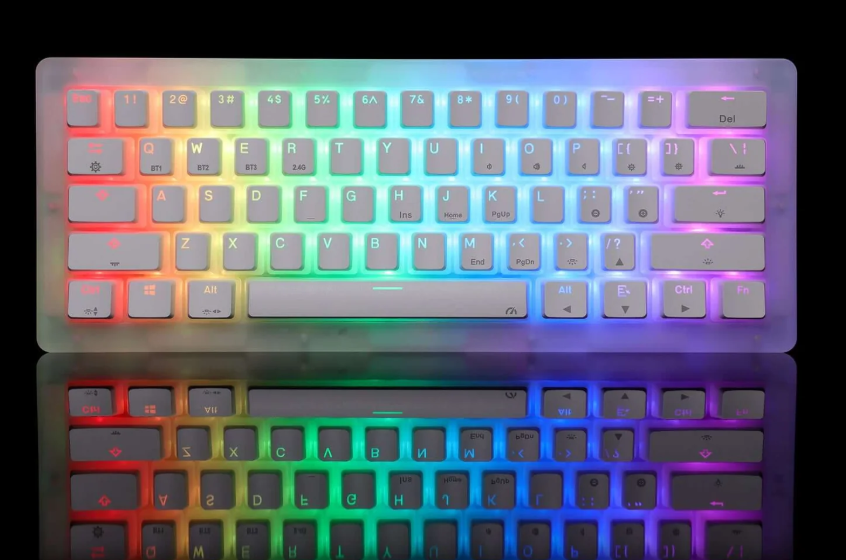

GK K61 Pro RGB Mechanical Keyboard

Introduction
The GK K61 Pro RGB Mechanical Keyboard is a compact yet powerful keyboard designed for users who value performance, customization, and desk efficiency. Featuring a 60% layout, the K61 Pro removes unnecessary keys while keeping all essential functions accessible through smart shortcut combinations. This makes it an excellent choice for gamers, programmers, and minimal-desk enthusiasts who want more space for mouse movement without compromising productivity.
One of the standout features of the GK K61 Pro is its hot-swappable PCB, allowing users to easily replace mechanical switches without soldering. This flexibility lets you experiment with different switch types to match your preferred typing or gaming feel. The keyboard also includes vibrant RGB backlighting with multiple lighting modes and effects, which can be customized to enhance both aesthetics and visibility in low-light environments.
Built with durable materials and responsive mechanical switches, the GK K61 Pro delivers fast keystrokes, consistent performance, and long-term reliability. It supports N-key rollover, ensuring accurate input even during intense gaming sessions. Whether you’re upgrading from a membrane keyboard or looking for a compact mechanical option, the GK K61 Pro RGB Mechanical Keyboard offers a perfect blend of style, functionality, and customization for everyday use.
Product Feature
- Keyboard made of Polymethyl Methacrylate by CNC techniques.
- TYPE CUSS 3-1 interface, transfer rate 40Gbps.
- TF1ash storage memory to save the last setup automatically.
- Many cool light effect modes for choice, RGB as your fav.
Package contents
- K61 glazed colorful keyboard 1pcs
- TYPE C cable 1pcs
Technical Specification
- Working Voltage: 5V
- Working Current:≤350MA
- Model Weight: 810g
- Model Size: 317*112*30mm
Function Illustration
- FN+ \ =Main backlight effect switching
- FN+li: Shift=Side backlight effect switching
- Instructions on Bluetooth Pairing_FN+Q/\V/E Long-press for 3 seconds to pair Bluetooth device.FN +0/W/E Short press to switch to last paired device. While pairing, the LED will flash quickly. After successfully pairing, the LED will stay on for around 2 seconds. If the connection fails in 30 seconds, the LED will be off, and the keyboard will be in sleep mode.
- Instructions on 2.4G Wireless Pairing.FN+R Long-press for 3 seconds to pair the wireless 2.4GHz. Insert the receiver into your computer, and you’ll see the LED flash quickly. After successfully pairing, the LED will stay on for around 2 seconds. If the connection fails in 30 seconds, the LED will be off, and the keyboard will be in sleep mode.
- Fn+Space= Turn OFF the Backlight. Number keys 1 to O light up to display the battery level, E.g:1 is on, indicating 10% battery, 1 and 2 are on, indicating 20% battery.
- Fn+ TAB=Press and hold the FN+ TAB together for 3 seconds. Restore Factory settings.
For more manuals by GamaKay, visit ManualsLibraryy
GK K61 Pro RGB Mechanical Keyboard-FAQs
How do I change RGB colors on the GK K61 Pro keyboard?
You can change the RGB lighting directly from the keyboard without software. Press Fn + Right Ctrl to cycle through the available RGB effects. To switch to a single solid color, press Fn + Spacebar, then tap the key that represents your preferred color. The GK K61 Pro offers multiple preset lighting styles for gaming or daily use.
How long does an RGB mechanical keyboard like GK K61 Pro last?
Mechanical keyboards are designed for durability. The GK K61 Pro’s switches typically last 50 million keystrokes or more, making it suitable for long-term gaming and typing. With proper care, the keyboard can easily last several years without performance issues.
Does the GK K61 Pro support software customization?
Some variants of the GK K61 Pro support companion software for advanced RGB control and key remapping, while others rely entirely on onboard shortcuts. Even without software, you can still manage lighting effects, brightness, and speed directly from the keyboard.
How do I switch between Windows and Mac modes?
You can toggle operating system modes using keyboard shortcuts. Press Fn + A to switch to Windows mode and Fn + S for Mac mode (varies slightly by firmware). This ensures correct key mapping for shortcuts like Ctrl, Alt, and Command.
Why is my GK K61 Pro not typing or responding?
If the keyboard isn’t typing, first check the connection mode (wired or Bluetooth). Try switching USB ports, charging the keyboard, or reconnecting Bluetooth. If the issue continues, perform a factory reset. Software glitches, low battery, or incorrect input mode are common causes of typing issues.
How do I use function keys (F1–F12) on a 60% keyboard?
Since the GK K61 Pro is a 60% keyboard, function keys are accessed using the Fn key. For example, press Fn + 1 for F1, Fn + 2 for F2, and so on. This compact design saves desk space while still providing full keyboard functionality.
How do I factory reset the GK K61 Pro keyboard?
To restore factory settings, press and hold Fn + Esc or Fn + Spacebar (depending on firmware) for about 5 seconds until the RGB lights flash. This reset clears custom lighting, key settings, and Bluetooth pairings, returning the keyboard to its default configuration.
Can I use the GK K61 Pro with a MacBook or macOS?
Yes, the GK K61 Pro is compatible with macOS. After pairing via Bluetooth or connecting with a USB cable, the keyboard works normally with MacBooks and iMacs. You may need to adjust modifier keys in macOS keyboard settings for the best experience, especially since it’s a 60% layout keyboard.