
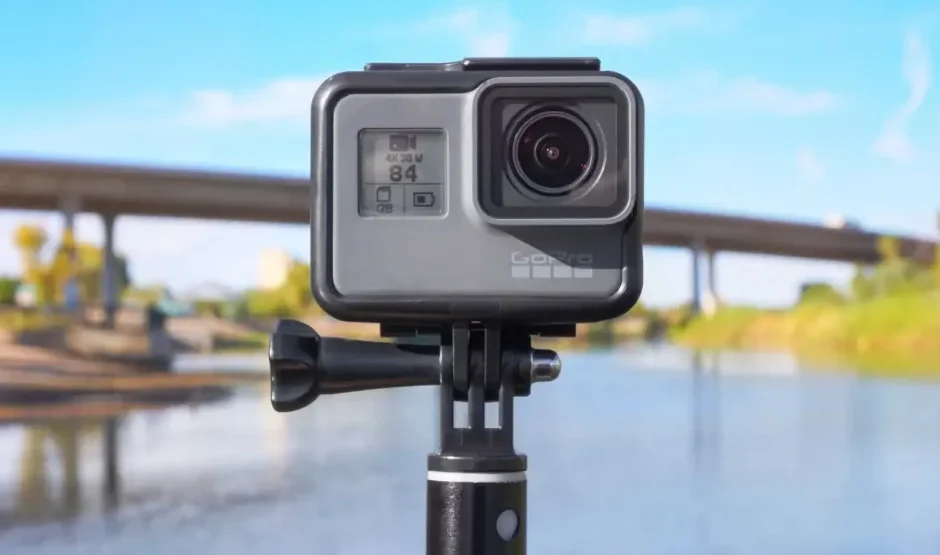

GoPro Hero11 Camera
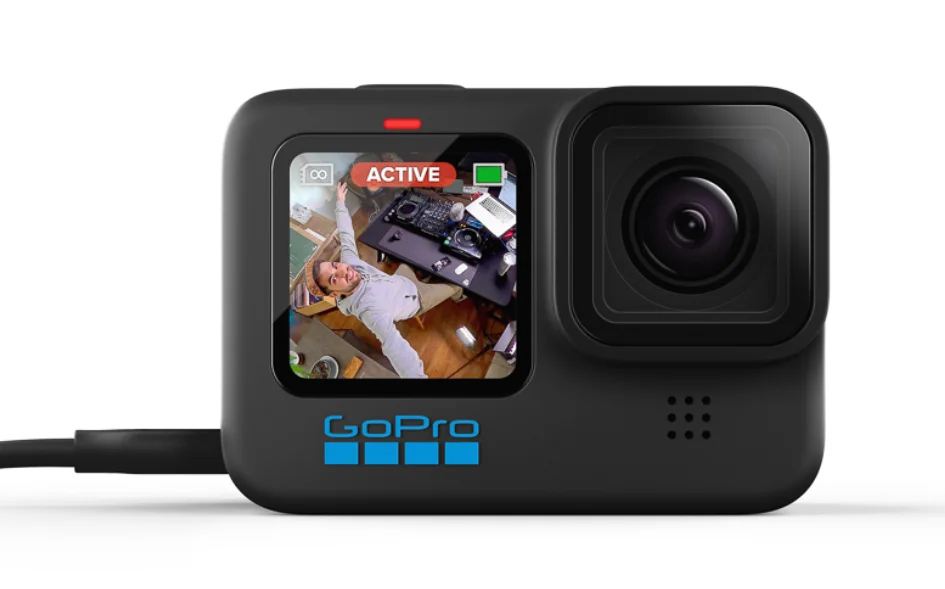
Meet HERO Black
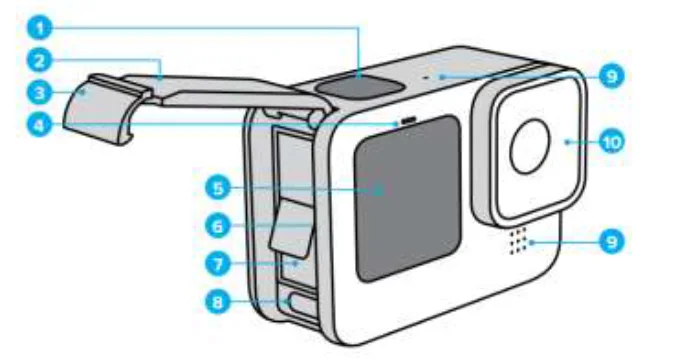
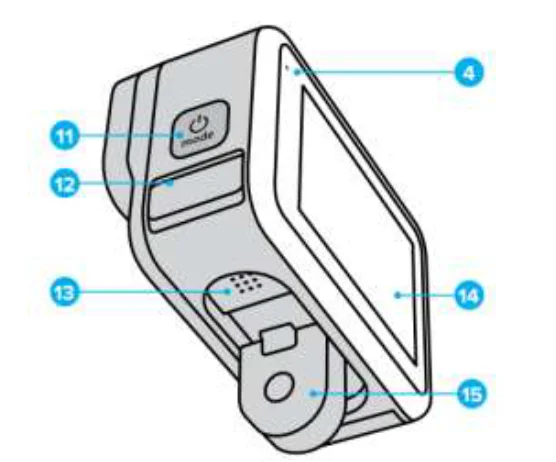
- Shutter Button

- Door
- Door Latch
- Status Light
- Front Screen
- microSD” Card Slot
- Battery
- USB-C Port
- Microphone
- Removable Lens
- Mode Button

- Drain Microphone (Designed to drain water. This is not a doot/latch. Do not try to open.)
- Speaker
- Touch Screen
- Folding Fingers

See the “Meet the Hero 11 Black” page to see what the # references are.
Taking a video without a smartphone connected
- To Start Recording Video:
Press the Shutter button (#1) [ O ]. The camera powers on and should automatically begin recording video. The camera status lights blink while the camera is recording. - To Stop Recording:
Press the Shutter button (#1) [ O ]. The camera stops recording and automatically powers off to maximize battery life. - To Turn On WITHOUT Automatic Recording
Press the Mode button (#11) .
.- To Turn Off
Press the Mode button (#11) [ ] for 2 seconds until the Touch Screen (#14) says “Powering Off. - To Change between Video, Time Lapse, and Still Photos:
Press the Mode buttonto turn the camera on. Option 1: Swipe the Rear Touch Screen left or right until the Time Lapse [clock icon ] or Video or Photo [camera icon) appears on the Touch Screen.
Press the Shutter button (#1) [ O ] to begin recording or take a photo. - Charging the GoPro
Press the Mode button (#11)for 2 seconds until the Touch Screen (#14) says “Powering Off.”. Open the Battery compartment Door (#2) .
Note that the Door Latch (#3) you need to pull is very tight. Plug in the charging cord to the USB-C Port (#8) of the camera and into any USB charging port.
- To Turn Off
 .
.Using with Smartphone
You will need to download the Quik app onto your phone. Turn on your Phone’s Bluetooth to connect. The connection does not require WiFi or Data to connect to the phone app.
- Connect a GoPro via the Quik App
- Turn on the GoPro.
- Open the App on your phone. The screen should automatically show the “Connect a GoPro” button. If not, tap the GoPro Icon.
- There may be additional steps to connect to the HERO11 Black. Follow the app instructions Except, Do Not Allow for Auto Upload, Do Not Download new footage, Do Not Connect the camera to the cloud. You may now control the camera from your phone.
- Click “Enable Preview”
- Select Time Lapse, Video, or Photo
- Tap the Icon to begin recording or to take a photo.
- Other Things You Can Do on the App
- Turn on/off the GoPro by tapping thebutton
- Change Media type (Time Lapse, Video, Photo) by tapping the different icons.
- Adjust Video or Photo Settings
- View Media to images previously recorded
- Turn on/off the GoPro by tapping the
Voice Commands
Controlling Your GoPro With Your Voice
Voice Control gives you easy, hands-free control of your GoPro. It’s great when you’re busy with handlebars, ski poles, and more, Just tell your GoPro what you want it to do.
TURNING VOICE CONTROL ON + OFF
- Swipe down on the rear screen to access the Dashboard.
- Tap Q to turn Voice Control on or off.
CAPTURING WITH VOICE CONTROL
With Voice Control on, you can simply tell your GoPro to start capturing,
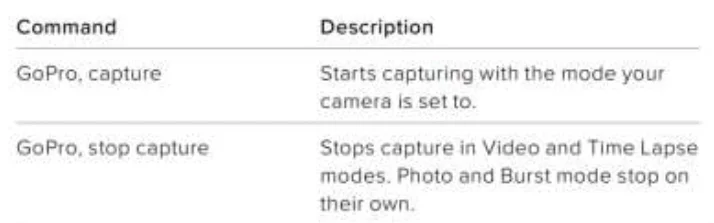
PRO TIP: Saying “GoPro, capture” and “GoPro, stop capture” is the hands-free way of pressing the Shutter button . They will start and stop capture using the mode and settings you currently have on your camera.
Controlling Your GoPro With Your Voice
LIST OF VOICE COMMANDS
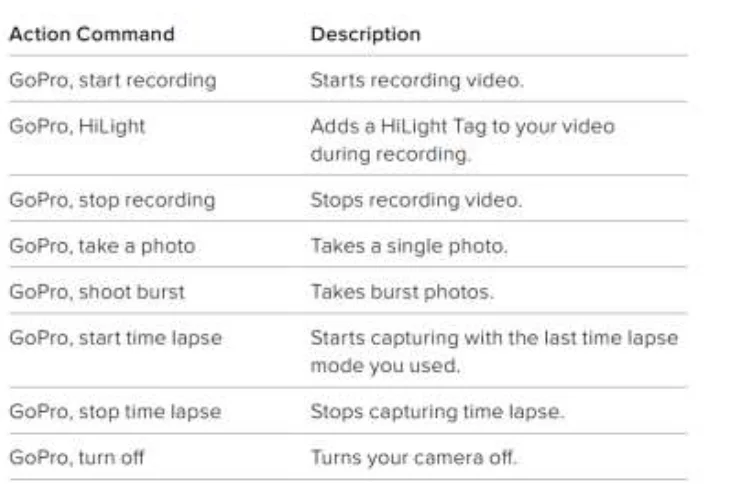
There are two types of voice commands: Action commands and Mode commands.
Using Action Commands
These commands let you switch modes on the fly. If you just recorded a video, you can say, “GoPro, take a photo” 10 snap a photo without manually switching modes.
For more manuals by GoPro, visit ManualsLibraryy
GoPro Hero11 Camera-FAQs
How do you use a GoPro Hero11 for the first time?
Turn on the camera using the Mode button, swipe on the rear touchscreen to select Video, Photo, or Time Lapse mode, and press the Shutter button to start recording or take a photo.
What are the best settings for GoPro Hero11?
For everyday use, set the resolution to 4K, frame rate to 60fps, aspect ratio 4:3, enable HyperSmooth stabilization, and keep shutter on auto with ISO between 100–1600.
What are the key new features of the GoPro Hero11?
It features a larger 1/1.9″ sensor, 8:7 aspect ratio, 27MP photos, 10-bit color, HyperSmooth 5.0, and improved horizon lock.
Why do GoPro Hero11 photos sometimes look blurry?
Blurry images usually happen in low-light conditions. Using more light, lowering ISO, or switching to Night Photo mode can improve clarity.
Can I use the GoPro Hero11 underwater without a case?
Yes, for shallow water use up to 10 meters. For deeper dives, a waterproof housing is recommended.
Is the GoPro Hero11 waterproof?
Yes, the GoPro Hero11 is waterproof up to 10 meters (33 feet) without an external housing, as long as all doors are securely closed.
How long does the GoPro Hero11 battery last?
Battery life varies by settings, but you can expect about 1 to 2 hours of recording. Higher resolutions and frame rates use more power.
Is it safe to leave a GoPro charging overnight?
Yes, modern GoPro batteries have built-in protection, so the camera stops charging automatically once the battery is full.
How do I know when the GoPro Hero11 is fully charged?
The battery icon on the screen will show 100%, and the charging light will turn off or change color when charging is complete.